> ## Documentation Index
>
> Fetch the complete documentation index at: https://kling.ai/document-api/llms.txt
> Use this file to discover all available pages before exploring further.
# Kling 4.0 Video User Manual
> Source: https://kling.ai/document-api/api/usage-guide/kling-4-0
> Locale: en
> Current Tab: Kling 4.0 Video User Manual
> This content is optimized for LLMs. In-page tabs are expanded and UI-only controls are omitted.
::: info-box
Kling 4.0 is a native multimodal video creation model. It supports native generation of up to 30 seconds, Omni Reference, and up to 10 keyframe inputs. It delivers more stable complex motion, stronger consistency across diverse references, and more coherent, precise, and controllable storytelling, enabling creators to efficiently transform creative concepts and multiple source assets into complete, controllable video outputs. It can be used for filmmaking, short-form series, games, animation, advertising, music videos, and other creative scenarios.
This document introduces Kling 4.0's model capabilities, API task usage, asset requirements, and prompt writing methods, helping you go from a creative description and reference assets to finished video generation and editing.
## 1. Model Access Requirements
Before calling the Kling 4.0 model, make sure you meet one of the following conditions:
- Purchase a Flagship resource pack ([Purchase](https://kling.ai/dev/pricing?scrollTo=video-package))
- Account cash balance > 0. You can submit an inquiry to discuss top-up options ([Business Inquiry](#business-consult))
## 2. Before You Start
### 2.1 Task Types and Limits
Kling 4.0 provides two primary entry points in the creation workspace: "Omni Reference" and "Keyframes". Omni Reference is the default entry point and is suited for combining source assets, referencing existing content, or starting from a single creative prompt. The Keyframes entry point is used to define the visual state at specific moments in time. **On the API side, three endpoints are available: Omni Reference, Image-to-Video, and Text-to-Video.**
| **Comparison** | **Omni Reference** | **Image-to-Video** | **Text-to-Video** |
| ------------------------------------------- | ------------------------------------------------------------------------------------------------- | ----------------------------------------------------------------------------------------------------------- | ------------------------------------------------------------- |
| Best for | You have images, videos, or other assets to reference, or only a creative direction to start with | Key visual moments are already defined and you need precise control over how they appear in the final video | You only have text and want to generate a video from it |
| What it controls | The appearance, style, actions, and camera movements of the generated content | The visual state at specific points on the video timeline | Content generated entirely from the text input |
| Processing method | The model classifies the intent of the user's prompt and routes it to the appropriate pipeline | No intent classification; all inputs follow a single pipeline | No intent classification; all inputs follow a single pipeline |
| Supported uploads in the creation workspace | Text, images, videos, and voice profiles | Text and images | Text only |
| Corresponding API endpoint | /omni-video/kling-4.0 | /image-to-video/kling-4.0 | /text-to-video/kling-4.0 |
The Omni Reference entry point also supports text-to-video generation and keyframe-based video generation.
| **Task** | **Usage Notes** | **Capability Boundaries** |
| -------------- | ------------------------------------------------------------------------------------------------- | ------------------------------------------------------------------------------------------------------------------- |
| Text-to-Video | Describe the subject and the event you want to happen | Prompt must be fewer than 8,000 tokens |
| Omni Reference | Combine multiple source assets and specify the role of each one | Up to 15 reference assets in total across images, videos, voice profiles, and elements |
| Video Editing | Clearly specify the video to edit, what to change, and what to keep unchanged | Up to 5 video clips including 1 primary video; each clip must be 3–30 seconds; maximum total duration of 30 seconds |
| Keyframes | Use first frame, last frame, first-and-last frames, or intermediate frames to define visual nodes | Up to 10 images; the standalone Keyframes entry point does not support additional reference assets |
### 2.2 Configuration Guide
#### Omni Reference
Generate a video from references supplied as images, videos, elements, or voice profiles. Different assets can independently specify character appearance, actions, camera movements, scenes, or audio. For Omni Reference generation tasks, configure as follows:
- Call the /omni-video/kling-4.0 endpoint.
- In contents, add an object with type set to prompt, and place your prompt in text.
- Based on each asset's intended role, add the corresponding input object:
- **Image reference**: set type to refer_image and pass the image via url.
- **Action or camera movement video reference**: set type to feature_video and pass the video via url.
- **Element reference**: set type to element and specify the element via element_id.
- **Voice profile reference**: set type to voice and specify the voice profile via voice_id.
- Assign each asset a unique id within the current task, then reference it in the prompt using @id. For example, an image with id set to image_1 is referenced in the prompt as @image_1.
- Configure the output in settings as needed: resolution supports 720p and 1080p, defaulting to 1080p. aspect_ratio supports 21:9, 16:9, 9:16, 1:1, 4:3, 3:4, and adaptive, defaulting to adaptive. When adaptive is passed, the model recognizes and follows the aspect ratio intent expressed in the prompt. duration accepts any integer between 3 and 30 seconds. When duration is not passed, the model first checks the prompt for a duration intent; if no clear intent is found, it adopts the duration of the base_video. If no base_video is provided either, it defaults to 10 seconds.
**Prompt example:**
> Reference the camera path and pacing of @video_1. Use the car in @image_1 as the subject and the street in @image_2 as the background. Reference only the camera work from the video; do not carry over its people or scene.
**Note:** Kling uses the API endpoint path and the asset type declared in contents to determine how each input is used. If you want to reference the camera work, actions, or style of an existing video to generate a new one, use feature_video. If you want to modify the content of the original video — such as adding, removing, or changing elements, or adjusting the background or style — use base_video to specify the video to be edited, and describe in the prompt what should be changed and what should be preserved. For specific examples, see Chapter 6 and [Kling 4.0 Video Prompt Guide](https://kling.ai/document-api/api/usage-guide/kling-4-0-prompt-guide).
#### Video Editing
Make targeted modifications to an existing video, such as adding, replacing, or removing elements, or changing characters, backgrounds, or the overall visual style.
For explicit video editing tasks, configure as follows:
- Call the /omni-video/kling-4.0 endpoint.
- In contents, add **one** object with type set to base_video, passing the video to be edited via url, and assign it an id, for example video_1.
- If you need to supply replacement subjects, a target style, or other reference information, continue adding assets of the appropriate type, such as refer_image or element.
- In the object with type set to prompt, clearly state in text: **which video to edit, what to change, and what to preserve**.
- Configure output parameters within the current endpoint's supported range. settings.duration accepts any integer between **3 and 30 seconds**.
**Prompt example:**
> Edit @video_1. Replace the person in the video with the person in @image_1. Keep the original video's actions, composition, and camera movements unchanged. Keep everything else unchanged.
**Note:** Each request may contain at most one base_video. Reference videos, the video to be edited, and video elements all share the same video quota: up to **5 clips and a combined total of 30 seconds**.
#### First Frame, Last Frame, and Multiple Keyframes
Use images to define the opening frame, closing frame, or intermediate visual nodes of the video, then describe the actions and transitions between those nodes in your prompt.
For tasks that use only keyframe images, configure as follows:
- Call the /image-to-video/kling-4.0 endpoint.
- In contents, set type for each image based on its role:
- **First frame**: first_frame
- **Last frame**: last_frame
- **Intermediate frame**: middle_frame
- Pass each image through its object's url field and assign a unique id for reference in the prompt. Up to 10 images in total.
- In the object with type set to prompt, use text to describe the visual content, the motion between nodes, and how the nodes connect.
- Set settings.duration to any integer between 3 and 30 seconds, and use settings.resolution to select 720p or 1080p. The dedicated Image-to-Video endpoint does not currently accept a separate aspect_ratio field — do not pass one.
**First-and-last-frame prompt example:**
> @start is the first frame. @end is the last frame. Generate a 15-second video that shows a blacksmith forging raw material into a finished piece, shot in a realistic documentary style. Ensure the final frame matches the last frame reference.
**Note:** If you also need to supply an action reference video, elements, or voice profiles alongside keyframes, use the /omni-video/kling-4.0 endpoint and configure each asset with its appropriate type. These reference types cannot be passed directly to the dedicated Image-to-Video endpoint.
### 2.3 Error Handling
Video generation uses an asynchronous task mechanism. There are two types of errors:
- **Synchronous errors (at task submission):** The creation endpoint returns an error directly. Check the code and message fields in the response, fix the issue, and resubmit. See the [error code documentation](https://kling.ai/document-api/api/get-started/error-codes) for details.
- **Asynchronous errors (after task creation)**: You have received a task ID, but the task status is failed when queried. Check the message field returned for that task to understand the failure reason.
Receiving a task ID only confirms that the task was created; a task status of succeeded indicates the video was generated successfully. While waiting, query the original task — do not resubmit the creation request.
## 3. Getting Started
This section is for users calling the Kling API for the first time. You will generate a 5-second video through four steps: **Prepare API Key → Create Task → Check Status → Get Video**.
You do not need to install an SDK, set up a Python environment, download sample packages, or prepare any images or videos.
If you are already familiar with the Kling AI API, you can skip this section and explore the more advanced examples in later chapters. If you would like to try video generation before using the API, you can use the online generation features available on the Kling AI platform.
**How to use this tutorial:** Code examples are provided for both macOS and Windows. All examples in this document use Bash syntax and cURL to make API requests. At each step, run only the commands for your operating system. Keep the same terminal window open throughout all four steps.
##### Step 1: Prepare Your Account and API Key
Before getting started, complete the following:
- **Sign in to the Developer Platform:** Visit the [Kling AI Developer Platform](https://kling.ai/dev) and sign in to your account.
- **Prepare API Credits:** Go to the [Pricing page](https://kling.ai/dev/pricing?scrollTo=video-package) and select a suitable API credit package for video generation. If you are integrating the API for the first time, check whether trial credits are available.
- **Create an API Key:** Open the [Developer Console](https://kling.ai/dev/api-key), click **Create API Key**, give it a name, and securely save the generated key.
For more information about account setup, API credits, and authentication, see the [Kling AI Quick Start Guide](https://kling.ai/document-api/guides/get-started/quick-start).
Make sure your account has access to Kling 4.0 and sufficient available credits. This tutorial creates an actual video generation task, which will be billed according to the platform's pricing rules.
Once your API Key is ready, open a terminal and follow the instructions for your operating system.
**macOS**
Press Command + Space, search for and open Terminal, then run the following command to start Bash:
```bash
bash
```
**Windows**
Download and install Git for Windows from their official website. Git Bash is included with the installation.
Once installed, open Git Bash from the Start menu. Run all subsequent commands in this Git Bash window, not in PowerShell or Command Prompt (CMD).
**Configure Your API Key**
The following commands work in Bash on macOS and in Git Bash on Windows. Run them in the window you just opened:
```bash
read -r -s -p "Enter your API key, then press Enter: " KLING_API_KEY
printf '\n'
export KLING_API_KEY
```
When prompted, paste your API key and press Enter. Your input will not be displayed; this is normal.
Your API key is available only in the current terminal session. Keep this window open and use it for all subsequent steps, including creating tasks, checking task status, and retrieving videos. If you close the window, you will need to reopen Bash or Git Bash and configure your API key again. Do not share your API key with others.
All subsequent steps use the same commands on both operating systems. There is no need to switch between different versions of the examples. This tutorial uses the Singapore region API endpoint: https://api-singapore.klingai.com
Make sure you use the same regional endpoint when creating and querying tasks.
##### Step 2: Create a Video Generation Task
In the same terminal window, copy and run the following command to create a text-to-video generation task.
For your first API call, you can use the example as provided without modifying the prompt or other parameters.
```cURL
curl -sS --request POST \
'https://api-singapore.klingai.com/text-to-video/kling-4.0' \
--header "Authorization: Bearer ${KLING_API_KEY}" \
--header 'Content-Type: application/json' \
--data-raw '{
"prompt": "At sunrise on a peaceful beach, a white seagull glides over the ocean surface. The camera slowly moves forward, accompanied by the natural sound of ocean waves.",
"settings": {
"duration": 5,
"resolution": "720p",
"aspect_ratio": "16:9"
}
}'
```
**Parameter Description**
| Parameter | Example Value | Description |
| --------------------- | ----------------------------------- | ------------------------------------------- |
| prompt | A seaside scene featuring a seagull | Describes the video you want to generate |
| settings.duration | 5 | Generates a 5-second video |
| settings.resolution | "720p" | Sets the output resolution to 720p |
| settings.aspect_ratio | "16:9" | Sets the output to a landscape aspect ratio |
If the task is created successfully, the terminal will display a JSON response similar to the following:
```json
{
"code": 0,
"message": "SUCCEED",
"request_id": "1ceedbc3-55b4-4e3d-926f-6964422f5962",
"data": {
"id": "943539593730219878",
"status": "submitted",
"message": "",
"create_time": 1792993723982,
"update_time": 1792993723982
}
}
```
This is an example response. The actual task ID, request ID, and timestamps will differ.
**Pay attention to these two fields:**
- code: A value of 0 indicates that the task creation request was successful.
- data.id: The unique task ID assigned by the system. You will use this ID to check the generation progress.
**Copy and save the value of data.id.** You will need it in the next step. Do not confuse the task ID with request_id.
A successful task creation response does not mean the video is ready. The task may still be queued or processing, so it is normal for the response not to contain a video download URL yet.
If task creation fails, check the returned error code and resolve the issue before proceeding.
##### Step 3: Check Task Status
Video generation takes some time. After creating a task, you can check its progress using the task ID.
In the same terminal window, copy and run the following command. When prompted, enter the task ID returned in Step 2 and press Enter.
```bash
printf 'Enter your Task ID and press Enter: '
read -r KLING_TASK_ID
curl -sS --request GET \
"https://api-singapore.klingai.com/tasks?task_ids=${KLING_TASK_ID}" \
--header "Authorization: Bearer ${KLING_API_KEY}"
```
When the query succeeds, the data field contains an array of task objects.
Find the object whose id matches your task ID, then check its status field.
**Task Status Reference**
| Status | Description | Next Step |
| ---------- | ---------------------------------------------------------- | -------------------------------------------------- |
| submitted | The task has been submitted and is waiting to be processed | Check again later |
| processing | The video is being generated | Check again later |
| succeeded | Video generation is complete | Proceed to Step 4 |
| failed | Video generation failed | Review the error information returned for the task |
For example, a task that is still processing may return:
```json
{
"code": 0,
"message": "SUCCEED",
"data": [
{
"id": "943539593730219878",
"status": "processing",
"message": ""
}
]
}
```
Only key fields are shown above. Actual responses may include additional fields. Refer to the API documentation for the complete response structure.
If the task is not yet complete, wait approximately **1 minute** before running the query again using the same task ID.
You only need to repeat the status query. Do not submit another generation request while waiting, as doing so will create a new task.
##### Step 4: Retrieve Your Video
When the task status changes to succeeded, your video has been generated successfully.
The query response will contain the generated result in the outputs array. Find the object where type is video and retrieve its url value.
**Example successful response (key fields only):**
```json
{
"code": 0,
"message": "SUCCEED",
"data": [
{
"id": "943539593730219878",
"status": "succeeded",
"outputs": [
{
"type": "video",
"url": "https://example.com/generated-video.mp4"
}
]
}
]
}
```
The URL above is a placeholder for illustration purposes only. It cannot be used to download an actual generated video.
**To view or download the video:**
- Copy the complete URL from the outputs field of the actual response, excluding the surrounding quotation marks.
- Paste the URL into your browser's address bar and open it.
- View the generated video and download it to your local storage.
**Note:** Video download links have an expiration period. Download promptly after generation succeeds and save to your own storage. If the link expires, query the task again to check whether the endpoint returns a valid download URL.
**Congratulations! You have made your first Kling API call!**
Through these four steps, you have successfully created a video generation task, checked the generation status, and retrieved the result.
Next, you can try:
- Modifying the prompt to generate videos in different scenes.
- Adjusting the video duration, resolution, and aspect ratio within the model's supported parameter ranges.
- Using images or other reference assets to experience more video generation capabilities.
For more examples, see Chapter 6 and [Kling 4.0 Video Prompt Guide](https://kling.ai/document-api/api/usage-guide/kling-4-0-prompt-guide). Once you have your own prompts and reference assets ready, you can also refer to Chapter 2 to determine the right task type, Chapter 8 for how to declare each asset's role, and [Kling 4.0 Video Prompt Guide](https://kling.ai/document-api/api/usage-guide/kling-4-0-prompt-guide) for prompt templates to get started.
## 4. What's New in Kling 4.0
### 4.1 Audio-Visual Performance
Kling 4.0 improves stability for large-scale motion, continuous action, and complex camera movements. It supports high-quality audio and two-channel stereo, keeping voices, dialogue, and performances naturally synchronized.
The 21:9 ultra-wide aspect ratio is now supported.
10-bit HDR output at 1080p and 4K [coming soon].
### 4.2 Omni Reference
A single task can combine up to 15 reference assets across images, videos, elements, and voice profiles. This includes up to 10 images, up to 5 videos with a total duration of no more than 30 seconds, and up to 7 elements (including up to 3 video elements). Different references can independently supply character appearance, actions, camera shots, scenes, or audio.
### 4.3 Long-Form Narrative and Keyframes
A single generation supports native video of up to 30 seconds, enabling long takes and continuous storytelling. Up to 10 keyframe inputs are supported, letting you use predefined visual nodes to control character states, scene changes, and narrative progression. The maximum prompt length has been increased to 8,000 tokens.
### 4.4 Multiple Languages and Diverse Styles
Supports Chinese, English, Japanese, Korean, Spanish, Portuguese, German, French, Hindi, and other languages, along with multiple accents and dialects. On-screen text generation supports the same multilingual set, emojis, and logos. Visual styles cover cinematic, retro DV, animation, felt, fantasy, cyberpunk, and more.
### 4.5 Kling 4.0 Flash
Kling 4.0 Flash is designed for high-frequency creative experimentation and short video creation. A single generation supports up to 20 seconds at a maximum resolution of 720p. First-and-last-frame and multi-keyframe inputs are not currently supported.
### 4.6 Video Extension(Coming Soon)
Upload a video and extend it multiple times, up to 2 minutes.
## 5. Capability Overview
### 5.1 Model and Output Specifications
| **Feature / Parameter** | **Kling 4.0** | **Kling 4.0 Flash** |
| ----------------------- | -------------------------------------------------------------------- | -------------------------------------------------------------------- |
| Primary Entry Points | Omni Reference / Keyframes / Long Video | Omni Reference / Keyframes |
| Generation Duration | 3–30s | 3–20s |
| Generation Modes | 720p / 1080p / 4K / 4K HDR (coming soon) | 720p |
| First and Last Frames | Supported | Not supported |
| Multiple Keyframes | Supported | Not supported |
| Voice Cloning | Supported | Not supported |
| Element-Bound Voice | Supported | Not supported |
| Input Video | Single video duration: 3–30s Total combined video duration: 3–30s | Single video duration: 3–20s Total combined video duration: 3–20s |
### 5.2 Omni Reference Capability Checklist
::: container guide-capability-table
| **Task Type** | **Capability** | **How to Use** |
| ------------------ | ------------------------------------------------------------------- | ----------------------------------------------------------------------------------------------------------------------------------------------- |
| Reference-to-Video | Multi-character reference | Specify which images correspond to which characters, and declare the facial features, hairstyles, clothing, and other traits to keep consistent |
| Reference-to-Video | Action reference | Extract the action choreography and pacing from a reference video; character appearance comes from a designated image |
| Reference-to-Video | Camera movement reference | Extract the camera path and pacing from a reference video; specify the subject and scene separately |
| Reference-to-Video | Composition reference | Declare which image's composition must be preserved |
| Reference-to-Video | Storyboard reference | Use images to supply character design, shot order, framing, camera paths, and related information |
| Reference-to-Video | Voice profile reference | Specify the speaker's voice profile; uploading background music or sound effects is not supported |
| Video Editing | Add, replace, or remove elements | Clearly specify the video to edit, what to change, and what to keep unchanged |
| Video Editing | Style modification | Specify a new style in text or via an image, and state what composition, actions, and event sequence to preserve |
| Keyframes | First frame, last frame, first-and-last frames, intermediate frames | Define the key visual nodes and describe the actions and transitions between them |
| Video Extension | Video extension | Coming soon |
## 6. Featured Capabilities and Usage
### 6.1 One-Sentence Generation
You can start creating with just a single creative idea. Write the subject and the event you want to happen, and the model will expand the simple prompt by filling in the storyline, scene blocking, and camera movements. When the description is already sufficiently clear, the model follows it faithfully without adding its own interpretation.
::::: container guide-case guide-case-brief
:::: container guide-case-input
Input
::: container guide-case-brief-body
An old man ranting about AI.
:::: container guide-case-output
Output
API example
```cURL
curl --request POST \
'https://api-singapore.klingai.com/text-to-video/kling-4.0' \
--header "Authorization: Bearer ${KLING_API_KEY}" \
--header 'Content-Type: application/json' \
--data-raw '{
"prompt": "An old man ranting about AI.",
"settings": {
"duration": 15,
"resolution": "1080p",
"aspect_ratio": "16:9"
}
}'
```
### 6.2 Omni Reference
Character appearance, action and camera work, spatial relationships, and voice profiles can come from different assets. The prompt needs to state what each asset supplies and how they should be combined in the final video.
| **Reference Type** | **Recommended Wording in the Manual** |
| ------------------------- | ----------------------------------------------------------------------------------------------------------------------------- |
| Action reference | Reference the fighting moves and attack timing in @Video1. Use @Image1 and @Image2 as the character design references. |
| Camera movement reference | Reference the camera path and pacing of @Video1. Replace the subject with the car in @Image1 and the background with @Image2. |
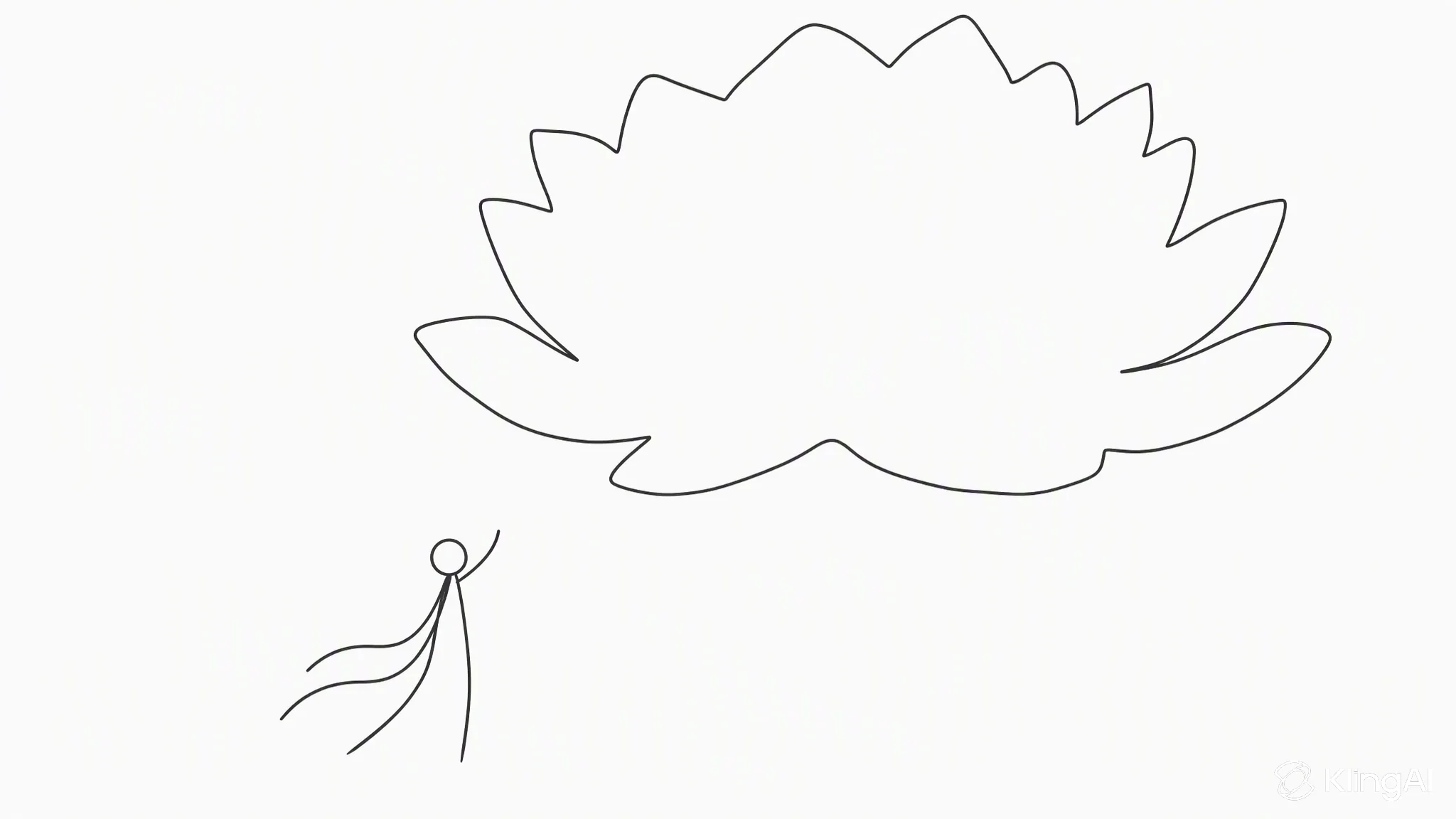
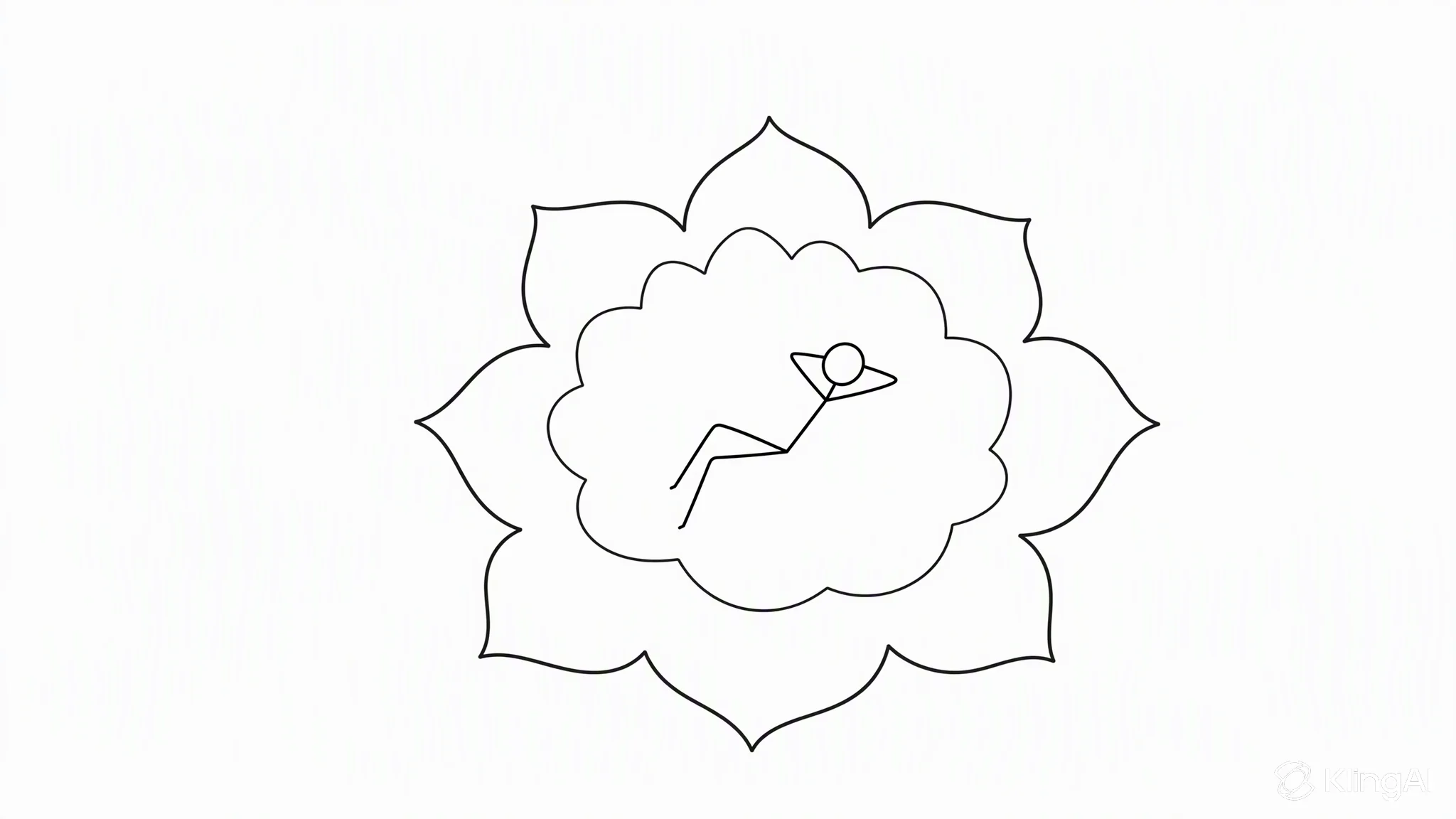
| Composition reference | Reference the composition of @Image1 and preserve it exactly. |
**Composition reference example:**
::::: container guide-case
:::: container guide-case-input
Input
Image 1
Image 2
```text
Shot 1 (5s): Use @Image1 for composition. A moonlit night with sparse stars. A colossal white lotus glowing with moonlight blooms in the sky, radiating tiny white sparkles and golden flecks of light. The lotus dominates most of the frame — like an enormous luminous moon — yet remains visibly distant from the character. A breathtakingly beautiful woman in white traditional Chinese attire with a flowing golden gauze outer robe raises her hand and looks toward the distant lotus. The wind lifts her hem; two slender white hair ribbons drift in the air. Her long, waterfall-like black hair frames her body, illuminated by moonlight with a delicate silver rim light, as if she were a celestial being. The lotus is far from her; she is much smaller but closer to the camera, creating pronounced depth and framing contrast. Her hair, ribbons, and garments sway naturally in the breeze. The lotus gently pulses as if breathing; each petal slowly rises and falls, and delicate streams of water carrying tiny starlike glimmers trickle continuously from every leaf. Golden particles drift slowly back and forth as the lotus glows in a steady rhythm of inhale and exhale. The camera pans to the right while the woman remains stationary; the resulting shift in depth and parallax lets the lotus subtly change as the camera moves.
Shot 2 (5s): Use @Image2 for the lotus design and the character's pose and composition. A moonlit night with sparse stars. An enormous ink-black lotus blooms on the surface of a flowing river. Its center is hollowed out — large enough to cradle a beautiful woman dressed in pale, muted celadon-blue traditional Chinese clothing. She reclines in a carefree posture with legs crossed, hands interlaced behind her head, as if peacefully dozing. The lotus appears to drift on the river, nearly filling the frame — a magnificent, self-luminous bloom whose light catches the surrounding scene. The lotus center glows with an almost translucent beauty, edged in white and touched with subtle gold. The woman occupies a relatively small portion of the frame. A strictly vertical top-down overhead shot; fireflies shimmer throughout the composition. The woman gently sways, gesturing casually; the wind stirs her skirt and hair with soft, naturally dynamic movement. The lotus's glow brightens and dims like breathing. Golden particles are fireflies, drifting slowly in the same direction; the water flows continuously, carrying the lotus toward frame left as the camera gradually pulls back.
Background music: An elegant, celestial guzheng and flute duet — classical Chinese beauty.
```
:::: container guide-case-output
Output
API example
```cURL
curl --request POST \
'https://api-singapore.klingai.com/omni-video/kling-4.0' \
--header "Authorization: Bearer ${KLING_API_KEY}" \
--header 'Content-Type: application/json' \
--data-raw '{
"contents": [
{
"type": "prompt",
"text": "Shot 1 (5s): Use @Image1 for composition. A moonlit night with sparse stars. A colossal white lotus glowing with moonlight blooms in the sky, radiating tiny white sparkles and golden flecks of light. The lotus dominates most of the frame — like an enormous luminous moon — yet remains visibly distant from the character. A breathtakingly beautiful woman in white traditional Chinese attire with a flowing golden gauze outer robe raises her hand and looks toward the distant lotus. The wind lifts her hem; two slender white hair ribbons drift in the air. Her long, waterfall-like black hair frames her body, illuminated by moonlight with a delicate silver rim light, as if she were a celestial being. The lotus is far from her; she is much smaller but closer to the camera, creating pronounced depth and framing contrast. Her hair, ribbons, and garments sway naturally in the breeze. The lotus gently pulses as if breathing; each petal slowly rises and falls, and delicate streams of water carrying tiny starlike glimmers trickle continuously from every leaf. Golden particles drift slowly back and forth as the lotus glows in a steady rhythm of inhale and exhale. The camera pans to the right while the woman remains stationary; the resulting shift in depth and parallax lets the lotus subtly change as the camera moves. Shot 2 (5s): Use @Image2 for the lotus design and the character'\''s pose and composition. A moonlit night with sparse stars. An enormous ink-black lotus blooms on the surface of a flowing river. Its center is hollowed out — large enough to cradle a beautiful woman dressed in pale, muted celadon-blue traditional Chinese clothing. She reclines in a carefree posture with legs crossed, hands interlaced behind her head, as if peacefully dozing. The lotus appears to drift on the river, nearly filling the frame — a magnificent, self-luminous bloom whose light catches the surrounding scene. The lotus center glows with an almost translucent beauty, edged in white and touched with subtle gold. The woman occupies a relatively small portion of the frame. A strictly vertical top-down overhead shot; fireflies shimmer throughout the composition. The woman gently sways, gesturing casually; the wind stirs her skirt and hair with soft, naturally dynamic movement. The lotus'\''s glow brightens and dims like breathing. Golden particles are fireflies, drifting slowly in the same direction; the water flows continuously, carrying the lotus toward frame left as the camera gradually pulls back. Background music: An elegant, celestial guzheng and flute duet — classical Chinese beauty."
},
{
"type": "refer_image",
"url": "https://p2-kling.klingai.com/kcdn/cdn-kcdn112452/kling-tob-release-note/ch6_2_lotus_distance_sketch.png",
"id": "Image1"
},
{
"type": "refer_image",
"url": "https://p2-kling.klingai.com/kcdn/cdn-kcdn112452/kling-tob-release-note/ch6_2_lotus_pose_sketch.png",
"id": "Image2"
}
],
"settings": {
"duration": 10,
"resolution": "1080p",
"aspect_ratio": "adaptive"
}
}'
```
### 6.3 30-Second Video Generation
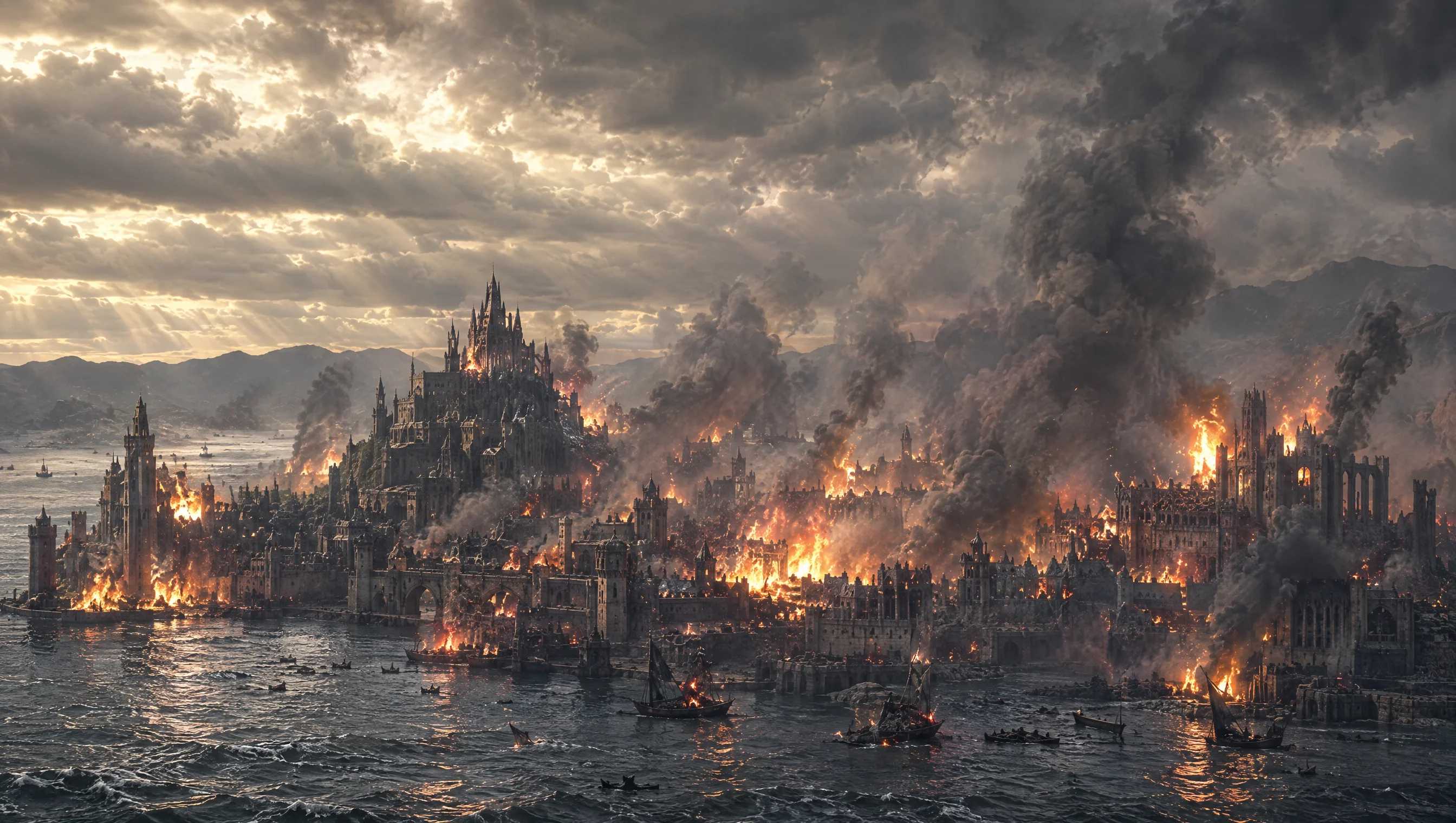
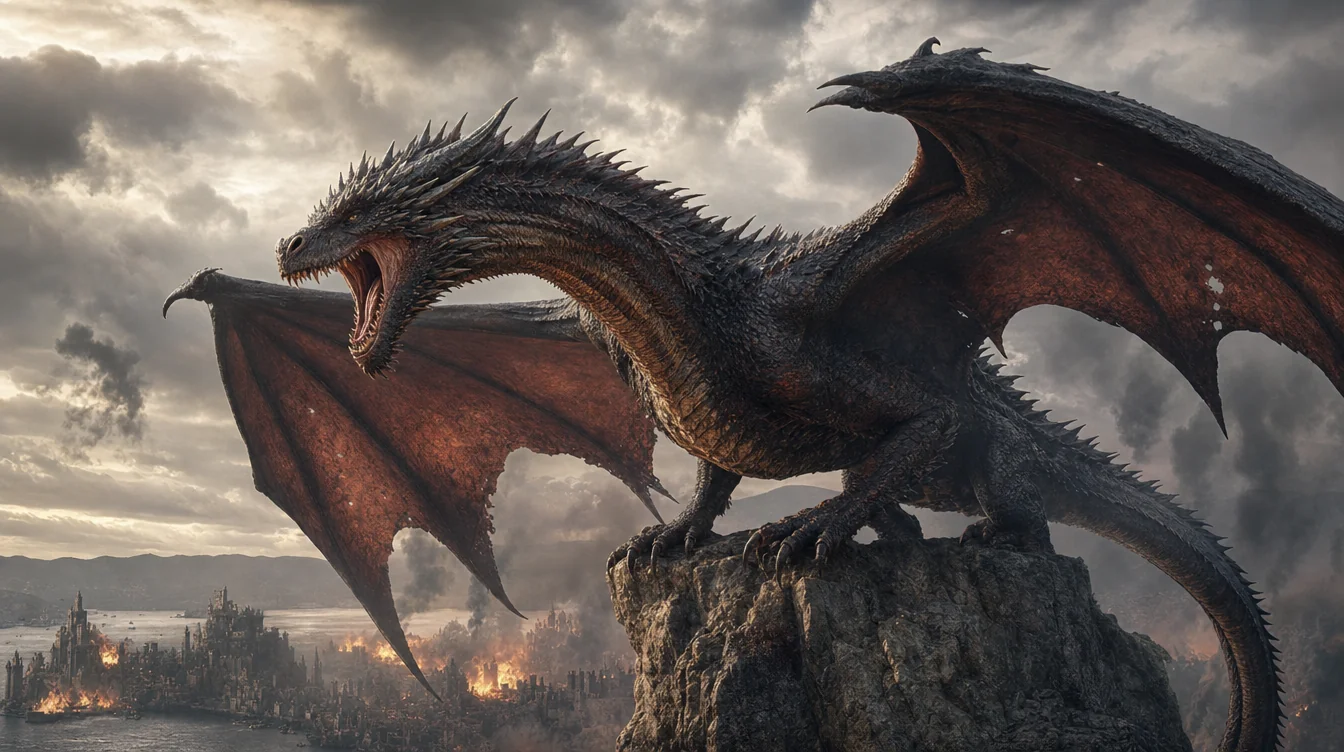
Kling 4.0 supports native single-generation video of 3–30 seconds. Smart shot-splitting is enabled by default — the model automatically organizes shots and pacing based on the content — making it suitable for short films with a complete storyline and multi-shot advertising.
::::: container guide-case
:::: container guide-case-input
Input
Image 1
Image 2
```text
1. SCENE CONTEXTEXACTLY 1 DRAGON — NO DUPLICATES.A 30-second, six-shot dark-fantasy action sequence. A colossal dragon roars, launches from a mountain pinnacle, accelerates toward a burning coastal city, dives between its towers and performs a devastating aerial fire attack. Epic scale, very fast pacing, real-time motion.2. ACTIVE REFERENCES
controls the burning coastal city, Gothic architecture, harbour, mountain horizon, existing fires, smoke columns, storm clouds and lighting.
controls the dragon’s identity, black-grey scales, red-brown wing membranes, horns, dorsal spines, four legs, two wings, long tail and opening rocky pinnacle.3. LOCATION MAPThe pinnacle overlooks the coastal city. The harbour lies screen-left, the central castle lies ahead, and the densest burning district lies centre-right. Direction of travel always runs from the mountain toward the city centre. Cameras remain behind, below or on the dragon’s left side without reversing the travel axis.4. FIRST FRAME AND SPATIAL BLOCKINGThe dragon is already crouched on the pinnacle, wings spread, hind legs compressed and head aimed toward the city. Its jaws open for one roar. Fires flicker below, connected smoke columns bend with the wind and the entire storm ceiling visibly moves.5. FORMAT MODESix shots with hard cuts:SHOT 1 — 0.0–4.0s: roar and launch.SHOT 2 — 4.0–9.0s: high-speed pursuit toward the harbour.SHOT 3 — 9.0–13.5s: low flight across the water toward the city.SHOT 4 — 13.5–19.0s: first fire attack between towers.SHOT 5 — 19.0–25.0s: banking pursuit and sweeping fire attack.SHOT 6 — 25.0–30.0s: dragon climbs above the burning city.Cuts are motivated by wing wipes, smoke wipes and close architectural passes. No fades or dissolves.6. OPTICSSHOT 1: 24mm, 74° horizontal FOV, low-angle environmental wide.SHOT 2: 18mm, 90° FOV, rear pursuit perspective.SHOT 3: 24mm, 74° FOV, low water-level chase.SHOT 4: 28mm, 65° FOV, roof-height tracking.SHOT 5: 24mm, 74° FOV, close side-rear pursuit.SHOT 6: 18mm, 90° FOV, monumental aerial wide.Moderate-deep focus. Strong natural motion blur on wing tips, water, smoke, embers and nearby buildings.7. CAMERAAll cameras have obvious physical handheld instability.SHOT 1 rapidly tilts upward as the dragon launches; wing pressure violently jolts the operator.SHOT 2 follows 12 metres behind the tail with intense wind buffeting and rapid vertical vibration.SHOT 3 races just above the water behind the dragon; waves and burning boats whip past the frame edges.SHOT 4 tracks through the street canyon at roof height.SHOT 5 follows the dragon through a hard bank, nearly losing framing as towers pass dangerously close.SHOT 6 pursues upward, then settles into a wide view of the devastated city.No smooth floating or mechanically perfect movement.8. ACTION TIMING0.0–0.8s: The dragon releases one thunderous roar, neck extended and eyes fixed on the city.0.8–2.0s: Hind legs drive into the pinnacle; claws fracture the rock.2.0–4.0s: The dragon launches and performs two powerful wing strokes. Dust and stone explode backward.4.0–6.5s: Hard cut behind the dragon already accelerating at high speed.6.5–9.0s: It folds its legs beneath its body and dives toward the harbour. Smoke streams across its wings.9.0–11.5s: The dragon skims rapidly above rough water. Wing tips nearly touch the waves.11.5–13.5s: It passes burning ships and climbs over the sea wall. A tower wipes across the lens.13.5–15.0s: Hard cut inside the city. The dragon bursts through smoke between Gothic towers.15.0–19.0s: It releases one continuous orange-white fire jet, sweeping across the left row of rooftops while maintaining full speed.19.0–21.5s: The dragon snaps into a hard right bank around the central tower; the tail swings with delayed inertia.21.5–25.0s: Its connected fire stream sweeps across the avenue and strikes the right-side tower. Burning masonry and embers fall behind it.25.0–27.0s: The dragon stops breathing fire, beats its wings powerfully and climbs above the rooftops.27.0–30.0s: It ascends into the storm light and glides over the burning city. The camera widens to reveal spreading flames, smoke columns and the harbour below.9. PHYSICSThe dragon has immense believable mass despite its speed. Wing strokes originate in the shoulders; membranes stretch under aerodynamic load. The torso, legs and tail react with delayed inertia. Wing wakes tear openings through smoke, disturb water and buffet nearby fires. Fire emerges only from the open mouth as a pressure-driven stream with a white-hot core, orange turbulent edges and visible heat distortion. Buildings ignite progressively at visible impact points. Debris follows gravity and the dragon’s wake.10. LIGHTINGCold storm daylight enters from upper-left. Existing fires provide orange underlight beneath the dragon. The fire stream becomes a moving motivated key light, casting travelling highlights over scales, towers and smoke. Sunbeams break through the clouds during the final climb. Preserve detail in the flame core and keep the dragon’s silhouette readable.11. AUDIONo dialogue.Synchronized dragon roar, claw scraping, rock fracture, leather-wing thunder, violent wind, wave impacts, burning ships, collapsing masonry, ember hiss and pressurised fire blasts.Epic original score: rapid war drums, low brass ostinato and urgent strings begin immediately. Wordless low choir enters at launch. Percussion accelerates during the chase. Full orchestra strikes with each fire attack, then expands into a dark triumphant finale during the ascent. Roar, wings and fire remain louder than the music.12. CHARACTER ACTINGThe dragon acts with focused predatory intent. Its eyes remain locked on its flight path and successive building targets. During acceleration, its head lowers and shoulders drive aggressively. Inside the city, the neck deliberately guides the fire stream while the tail controls each bank. In the final shot, its chest opens and posture changes from attacking aggression to airborne dominance.13. STYLEGrand apocalyptic dark-fantasy cinema, aggressive pursuit photography, monumental scale and battlefield energy. Charcoal and storm blue occupy 60% of the palette, smoke-brown stone 30%, and fire orange 10%. Weathered 35mm film texture with old-photograph softness, organic grain and no digital sharpening.14. QUALITYConsistent dragon identity and anatomy through every cut: one head, two wings, four legs and one tail. Stable city architecture, coherent wing cycles, attached mouth fire, volumetric smoke and physically connected destruction. Natural fast-motion blur without ghost copies, anatomy mutation or detached flames.15. POSITIVE CONSTRAINTSExactly one dragon remains visible throughout the sequence. It launches before 2 seconds, reaches the harbour by 9 seconds, enters the city at 13.5 seconds and completes two fast fire-attack passes before climbing away. Every shot preserves the mountain-to-city direction. Strong camera shake communicates extreme speed while the dragon remains readable. City fires continuously emit smoke, clouds visibly travel across the sky, and new destruction appears only where the connected fire stream strikes.
```
:::: container guide-case-output
Output
API example
```cURL
curl -sS --request POST \
'https://api-singapore.klingai.com/omni-video/kling-4.0' \
--header "Authorization: Bearer ${KLING_API_KEY}" \
--header 'Content-Type: application/json' \
--data-raw '{
"contents": [
{
"type": "prompt",
"text": "1. SCENE CONTEXTEXACTLY 1 DRAGON — NO DUPLICATES.A 30-second, six-shot dark-fantasy action sequence. A colossal dragon roars, launches from a mountain pinnacle, accelerates toward a burning coastal city, dives between its towers and performs a devastating aerial fire attack. Epic scale, very fast pacing, real-time motion.2. ACTIVE REFERENCES @city controls the burning coastal city, Gothic architecture, harbour, mountain horizon, existing fires, smoke columns, storm clouds and lighting. @dragon controls the dragon’s identity, black-grey scales, red-brown wing membranes, horns, dorsal spines, four legs, two wings, long tail and opening rocky pinnacle.3. LOCATION MAPThe pinnacle overlooks the coastal city. The harbour lies screen-left, the central castle lies ahead, and the densest burning district lies centre-right. Direction of travel always runs from the mountain toward the city centre. Cameras remain behind, below or on the dragon’s left side without reversing the travel axis.4. FIRST FRAME AND SPATIAL BLOCKINGThe dragon is already crouched on the pinnacle, wings spread, hind legs compressed and head aimed toward the city. Its jaws open for one roar. Fires flicker below, connected smoke columns bend with the wind and the entire storm ceiling visibly moves.5. FORMAT MODESix shots with hard cuts:SHOT 1 — 0.0–4.0s: roar and launch.SHOT 2 — 4.0–9.0s: high-speed pursuit toward the harbour.SHOT 3 — 9.0–13.5s: low flight across the water toward the city.SHOT 4 — 13.5–19.0s: first fire attack between towers.SHOT 5 — 19.0–25.0s: banking pursuit and sweeping fire attack.SHOT 6 — 25.0–30.0s: dragon climbs above the burning city.Cuts are motivated by wing wipes, smoke wipes and close architectural passes. No fades or dissolves.6. OPTICSSHOT 1: 24mm, 74° horizontal FOV, low-angle environmental wide.SHOT 2: 18mm, 90° FOV, rear pursuit perspective.SHOT 3: 24mm, 74° FOV, low water-level chase.SHOT 4: 28mm, 65° FOV, roof-height tracking.SHOT 5: 24mm, 74° FOV, close side-rear pursuit.SHOT 6: 18mm, 90° FOV, monumental aerial wide.Moderate-deep focus. Strong natural motion blur on wing tips, water, smoke, embers and nearby buildings.7. CAMERAAll cameras have obvious physical handheld instability.SHOT 1 rapidly tilts upward as the dragon launches; wing pressure violently jolts the operator.SHOT 2 follows 12 metres behind the tail with intense wind buffeting and rapid vertical vibration.SHOT 3 races just above the water behind the dragon; waves and burning boats whip past the frame edges.SHOT 4 tracks through the street canyon at roof height.SHOT 5 follows the dragon through a hard bank, nearly losing framing as towers pass dangerously close.SHOT 6 pursues upward, then settles into a wide view of the devastated city.No smooth floating or mechanically perfect movement.8. ACTION TIMING0.0–0.8s: The dragon releases one thunderous roar, neck extended and eyes fixed on the city.0.8–2.0s: Hind legs drive into the pinnacle; claws fracture the rock.2.0–4.0s: The dragon launches and performs two powerful wing strokes. Dust and stone explode backward.4.0–6.5s: Hard cut behind the dragon already accelerating at high speed.6.5–9.0s: It folds its legs beneath its body and dives toward the harbour. Smoke streams across its wings.9.0–11.5s: The dragon skims rapidly above rough water. Wing tips nearly touch the waves.11.5–13.5s: It passes burning ships and climbs over the sea wall. A tower wipes across the lens.13.5–15.0s: Hard cut inside the city. The dragon bursts through smoke between Gothic towers.15.0–19.0s: It releases one continuous orange-white fire jet, sweeping across the left row of rooftops while maintaining full speed.19.0–21.5s: The dragon snaps into a hard right bank around the central tower; the tail swings with delayed inertia.21.5–25.0s: Its connected fire stream sweeps across the avenue and strikes the right-side tower. Burning masonry and embers fall behind it.25.0–27.0s: The dragon stops breathing fire, beats its wings powerfully and climbs above the rooftops.27.0–30.0s: It ascends into the storm light and glides over the burning city. The camera widens to reveal spreading flames, smoke columns and the harbour below.9. PHYSICSThe dragon has immense believable mass despite its speed. Wing strokes originate in the shoulders; membranes stretch under aerodynamic load. The torso, legs and tail react with delayed inertia. Wing wakes tear openings through smoke, disturb water and buffet nearby fires. Fire emerges only from the open mouth as a pressure-driven stream with a white-hot core, orange turbulent edges and visible heat distortion. Buildings ignite progressively at visible impact points. Debris follows gravity and the dragon’s wake.10. LIGHTINGCold storm daylight enters from upper-left. Existing fires provide orange underlight beneath the dragon. The fire stream becomes a moving motivated key light, casting travelling highlights over scales, towers and smoke. Sunbeams break through the clouds during the final climb. Preserve detail in the flame core and keep the dragon’s silhouette readable.11. AUDIONo dialogue.Synchronized dragon roar, claw scraping, rock fracture, leather-wing thunder, violent wind, wave impacts, burning ships, collapsing masonry, ember hiss and pressurised fire blasts.Epic original score: rapid war drums, low brass ostinato and urgent strings begin immediately. Wordless low choir enters at launch. Percussion accelerates during the chase. Full orchestra strikes with each fire attack, then expands into a dark triumphant finale during the ascent. Roar, wings and fire remain louder than the music.12. CHARACTER ACTINGThe dragon acts with focused predatory intent. Its eyes remain locked on its flight path and successive building targets. During acceleration, its head lowers and shoulders drive aggressively. Inside the city, the neck deliberately guides the fire stream while the tail controls each bank. In the final shot, its chest opens and posture changes from attacking aggression to airborne dominance.13. STYLEGrand apocalyptic dark-fantasy cinema, aggressive pursuit photography, monumental scale and battlefield energy. Charcoal and storm blue occupy 60% of the palette, smoke-brown stone 30%, and fire orange 10%. Weathered 35mm film texture with old-photograph softness, organic grain and no digital sharpening.14. QUALITYConsistent dragon identity and anatomy through every cut: one head, two wings, four legs and one tail. Stable city architecture, coherent wing cycles, attached mouth fire, volumetric smoke and physically connected destruction. Natural fast-motion blur without ghost copies, anatomy mutation or detached flames.15. POSITIVE CONSTRAINTSExactly one dragon remains visible throughout the sequence. It launches before 2 seconds, reaches the harbour by 9 seconds, enters the city at 13.5 seconds and completes two fast fire-attack passes before climbing away. Every shot preserves the mountain-to-city direction. Strong camera shake communicates extreme speed while the dragon remains readable. City fires continuously emit smoke, clouds visibly travel across the sky, and new destruction appears only where the connected fire stream strikes."
},
{
"type": "refer_image",
"url": "https://p2-kling.klingai.com/kcdn/cdn-kcdn112452/kling-tob-release-note/ch6_3_burning_city_ref.png",
"id": "city"
},
{
"type": "refer_image",
"url": "https://p2-kling.klingai.com/kcdn/cdn-kcdn112452/kling-tob-release-note/ch6_3_dragon_character_ref.png",
"id": "dragon"
}
],
"settings": {
"duration": 30,
"resolution": "1080p",
"aspect_ratio": "adaptive"
}
}'
```
### 6.4 Video Editing
You can make targeted modifications to character expressions and actions, camera position and movement, style, or background in an existing video. When describing the modification, also state what must be preserved.
| **Editing Dimension** | **Recommended Wording in the Manual** |
| ------------------------------- | ------------------------------------------------------------------------------------------------------------------------------------------------------------------------------------------------ |
| Add a subject | Edit @Video1. In the final moment when the box is opened again, @Element1 is lying inside asleep. |
| Scene and character replacement | Edit @Video1. Replace the environment and characters throughout with those in @Image1. |
| Multi-character replacement | Edit @Video1. Replace the three characters who walk out of the convenience store in sequence with: first, @Image1; second, @Image2; third, @Image3 — and describe each new subject's appearance. |
| Remove an element | Remove the foreground person from @Video1. Keep everything else unchanged. |
| Style modification | Edit @Video1. Replace the Corgi in the video with a 3D pixel-art Corgi while preserving its actions. |
**Style modification example:**
::::: container guide-case
:::: container guide-case-input
Input
Video 1
```text
Edit @Video1: replace only the Corgi with one rigid 3D voxel Corgi, preserving its exact size, frame-by-frame position, movement and timing.
Use a box torso, cube head, upright stepped ears, four short block legs and a block tail. Sharp right-angle edges, 16×16 pixel textures, flat shading. Preserve tan colouring, black back saddle, white blaze/collar/chest/paws, black square eyes, cube nose and pink block tongue. No fur, curves or gradients.
Match every original action: porch-side stance, plunge beneath snow, head reappearance, repeated forward leaps and final seated pose. Parts swing as rigid blocks without deformation; geometry and markings stay consistent after concealment.
Preserve sinking depth and snow timing; fit snow contact, spray, accumulation and shadows to the block body.
Keep the entire environment photorealistic and all camera movement, framing, duration and original audio unchanged. Exactly one Corgi, voxel-styled throughout.
```
:::: container guide-case-output
Output
When editing a video, you can set the duration parameter. If omitted, the model follows the original video's length. If duration is set, the model will prioritize that value.
API example
```cURL
curl --request POST \
'https://api-singapore.klingai.com/omni-video/kling-4.0' \
--header "Authorization: Bearer ${KLING_API_KEY}" \
--header 'Content-Type: application/json' \
--data-raw '{
"contents": [
{
"type": "prompt",
"text": "Edit @Video1: replace only the Corgi with one rigid 3D voxel Corgi, preserving its exact size, frame-by-frame position, movement and timing. Use a box torso, cube head, upright stepped ears, four short block legs and a block tail. Sharp right-angle edges, 16×16 pixel textures, flat shading. Preserve tan colouring, black back saddle, white blaze/collar/chest/paws, black square eyes, cube nose and pink block tongue. No fur, curves or gradients. Match every original action: porch-side stance, plunge beneath snow, head reappearance, repeated forward leaps and final seated pose. Parts swing as rigid blocks without deformation; geometry and markings stay consistent after concealment. Preserve sinking depth and snow timing; fit snow contact, spray, accumulation and shadows to the block body. Keep the entire environment photorealistic and all camera movement, framing, duration and original audio unchanged. Exactly one Corgi, voxel-styled throughout."
},
{
"type": "base_video",
"url": "https://p2-kling.klingai.com/kcdn/cdn-kcdn112452/kling-tob-release-note/ch6_4_snow_corgi_source.mp4",
"id": "Video1"
}
],
"settings": {
"resolution": "1080p",
"aspect_ratio": "adaptive"
}
}'
```
### 6.5 Creative Recreation
You can borrow the narrative pacing, shot composition, or presentation style of a reference video and then replace its characters, products, and scenes. The prompt needs to state clearly which parts you are borrowing and which you are replacing. The manual focuses on social media viral content and performance advertising scenarios; the closer the reference clip and the target content are in pacing and shot structure, the better the results are typically.
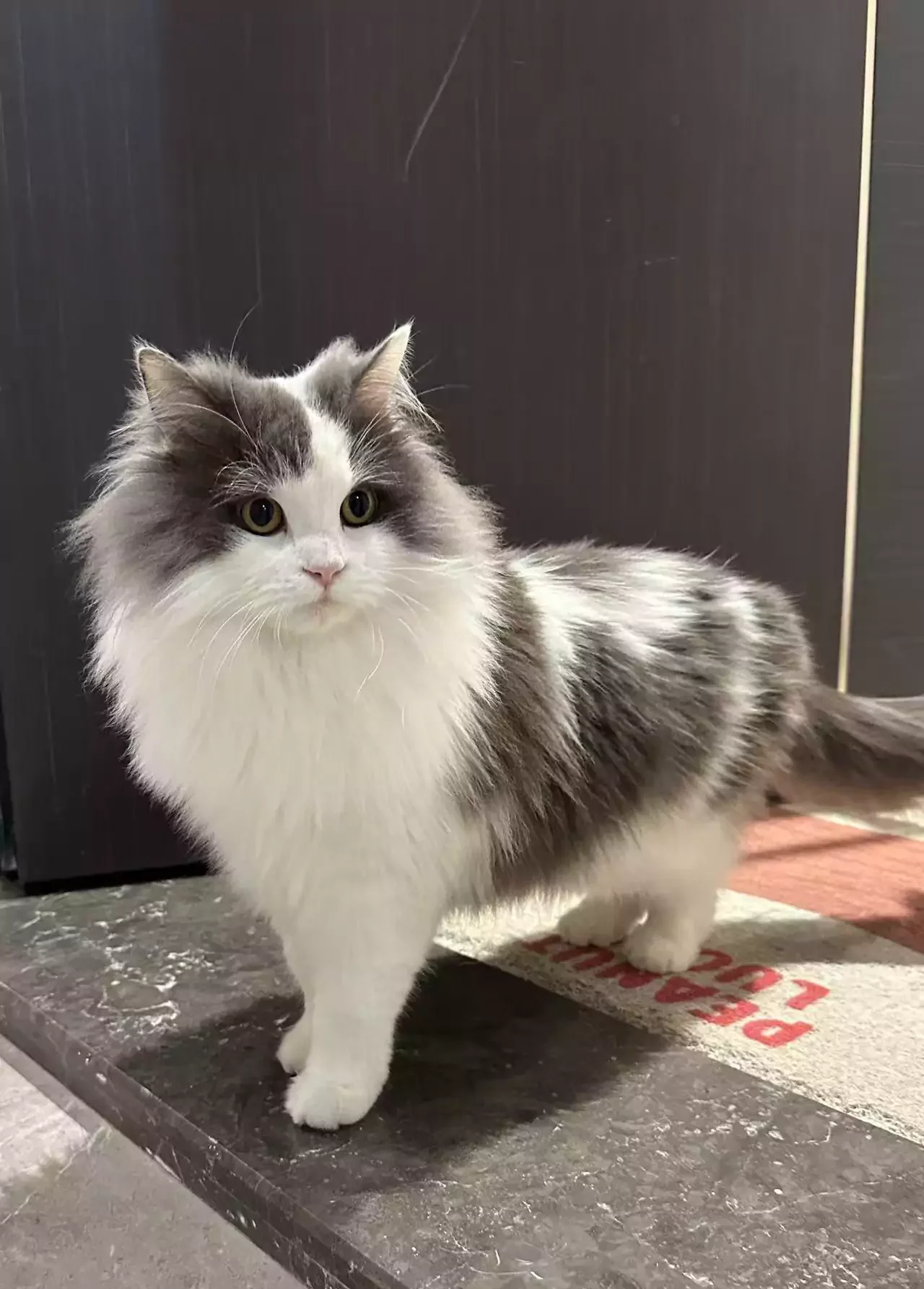
**Replace the subject in @Video1 with @Image1. Keep everything else unchanged.**
::::: container guide-case
:::: container guide-case-input
Input
Video 1
Image 1
```text
Replace the subject in @Video1 with @Image1. Keep everything else unchanged.
```
:::: container guide-case-output
Output
API example
```cURL
curl -sS --request POST \
'https://api-singapore.klingai.com/omni-video/kling-4.0' \
--header "Authorization: Bearer ${KLING_API_KEY}" \
--header 'Content-Type: application/json' \
--data-raw '{
"contents": [
{
"type": "prompt",
"text": "Replace the subject in @Video1 with @Image1. Keep everything else unchanged."
},
{
"type": "base_video",
"url": "https://p2-kling.klingai.com/kcdn/cdn-kcdn112452/kling-tob-release-note/ch6_5_viral_pet_source.mov",
"id": "Video1"
},
{
"type": "refer_image",
"url": "https://p2-kling.klingai.com/kcdn/cdn-kcdn112452/kling-tob-release-note/ch6_5_fluffy_cat_ref.png",
"id": "Image1"
}
],
"settings": {
"resolution": "1080p",
"aspect_ratio": "adaptive"
}
}'
```
### 6.6 Multilingual Content and Voice Profiles
Audio output is two-channel stereo. To generate dialogue in a specific language, write the dialogue in that language directly inside quotation marks. For a more specific delivery style, you can additionally specify age, vocal tone, speech rate, and emotion.
| **Item** | **Supported Range** |
| ---------------- | ------------------------------------------------------------------------------ |
| Languages | Chinese, English, Japanese, Korean, Spanish, Portuguese, German, French, Hindi |
| Chinese dialects | Sichuanese, Cantonese |
| Chinese accents | Beijing, Northeastern, Taiwanese Mandarin |
| English accents | American, British, Indian |
Audio input is supported only as voice profiles, used to assign a voice to a speaker. Background music and sound effects are generated by the model from the visuals and should be described in the audio portion of the prompt.
_[Suitable for talking-head ads, multilingual content, and narrative scenes that spotlight regional accents.]_
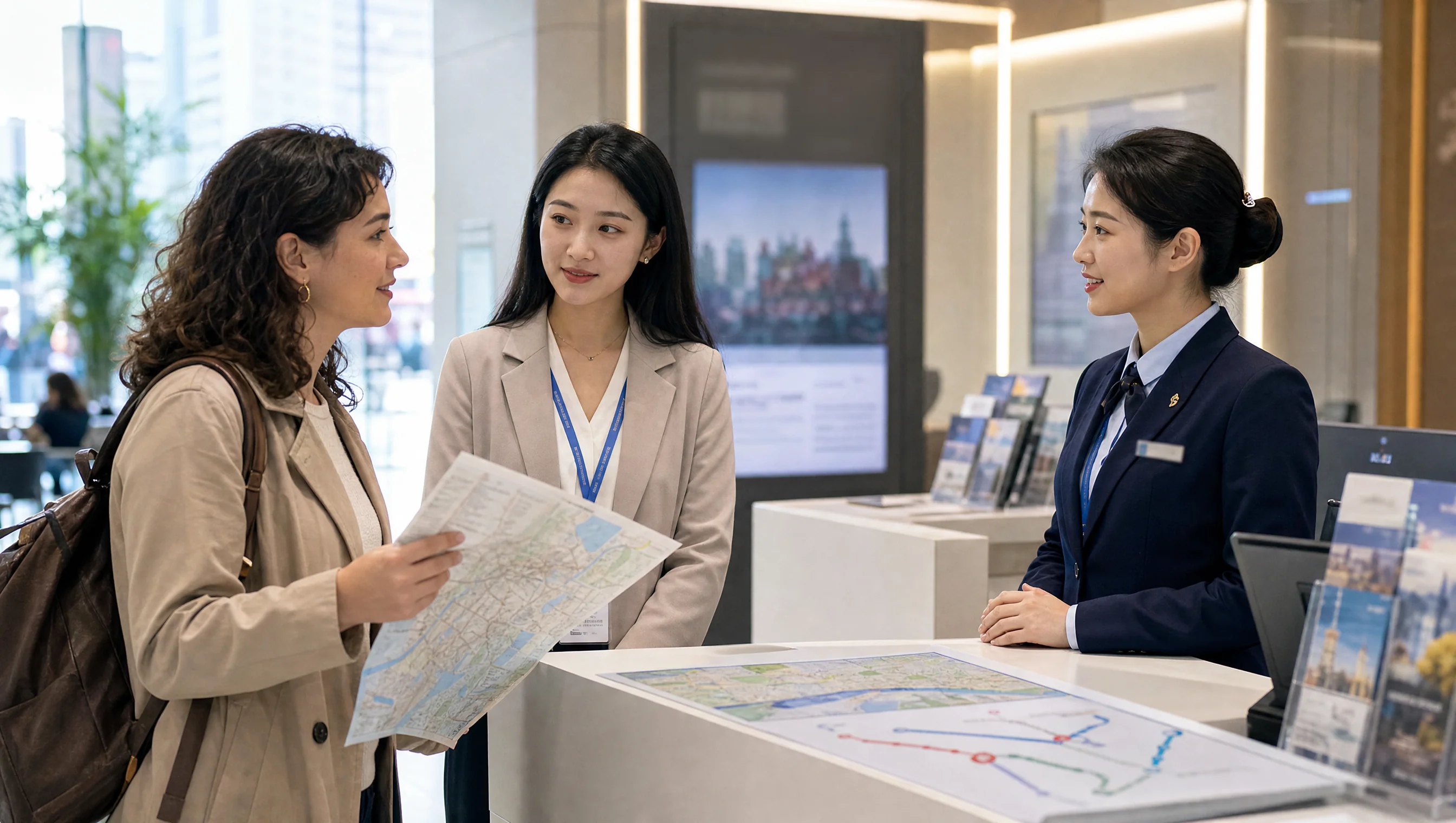
::::: container guide-case
:::: container guide-case-input
Input
Image 1
```text
About 30s, realistic tourist-information interaction with bright natural lighting. Exactly three consistent people: Spanish female tourist left, Chinese interpreter centre, Chinese staff member right. Maps on the desk; background text unreadable. No brands, subtitles or watermarks.
Preserve this dialogue order:
1. Tourist raises her map toward the interpreter:
“¿Dónde está la estación de metro más cercana?”
2. After a brief pause, interpreter turns to staff:
“她想知道最近的地铁站在哪里。”
3. Staff indicates the desk map:
“沿这条路直走,步行大约五分钟就能到。”
4. After a brief pause, interpreter turns to the tourist and points along the route:
“La estación de metro está a unos cinco minutos a pie. Siga recto por esta calle.”
5. Tourist smiles and nods:
“Muchas gracias.”
Begin and end with all three in medium shot; use speaker-listener two-shots between turns, keeping positions and eyelines consistent. No map close-ups.
Distinct voices, natural slightly slow speech, fluent Spanish and accurate lip sync. One speaker at a time; others listen silently. Subtle room ambience, no music.
```
:::: container guide-case-output
Output
API example
```cURL
curl -sS --request POST \
'https://api-singapore.klingai.com/text-to-video/kling-4.0' \
--header "Authorization: Bearer ${KLING_API_KEY}" \
--header 'Content-Type: application/json' \
--data-raw '{
"prompt": "About 30s, realistic tourist-information interaction with bright natural lighting. Exactly three consistent people: Spanish female tourist left, Chinese interpreter centre, Chinese staff member right. Maps on the desk; background text unreadable. No brands, subtitles or watermarks. Preserve this dialogue order: 1. Tourist raises her map toward the interpreter: “¿Dónde está la estación de metro más cercana?” 2. After a brief pause, interpreter turns to staff: “她想知道最近的地铁站在哪里。” 3. Staff indicates the desk map: “沿这条路直走,步行大约五分钟就能到。” 4. After a brief pause, interpreter turns to the tourist and points along the route: “La estación de metro está a unos cinco minutos a pie. Siga recto por esta calle.” 5. Tourist smiles and nods: “Muchas gracias.” Begin and end with all three in medium shot; use speaker-listener two-shots between turns, keeping positions and eyelines consistent. No map close-ups. Distinct voices, natural slightly slow speech, fluent Spanish and accurate lip sync. One speaker at a time; others listen silently. Subtle room ambience, no music.",
"settings": {
"resolution": "1080p",
"aspect_ratio": "16:9"
}
}'
```
::::: container guide-case
:::: container guide-case-input
Input
Image 1
```text
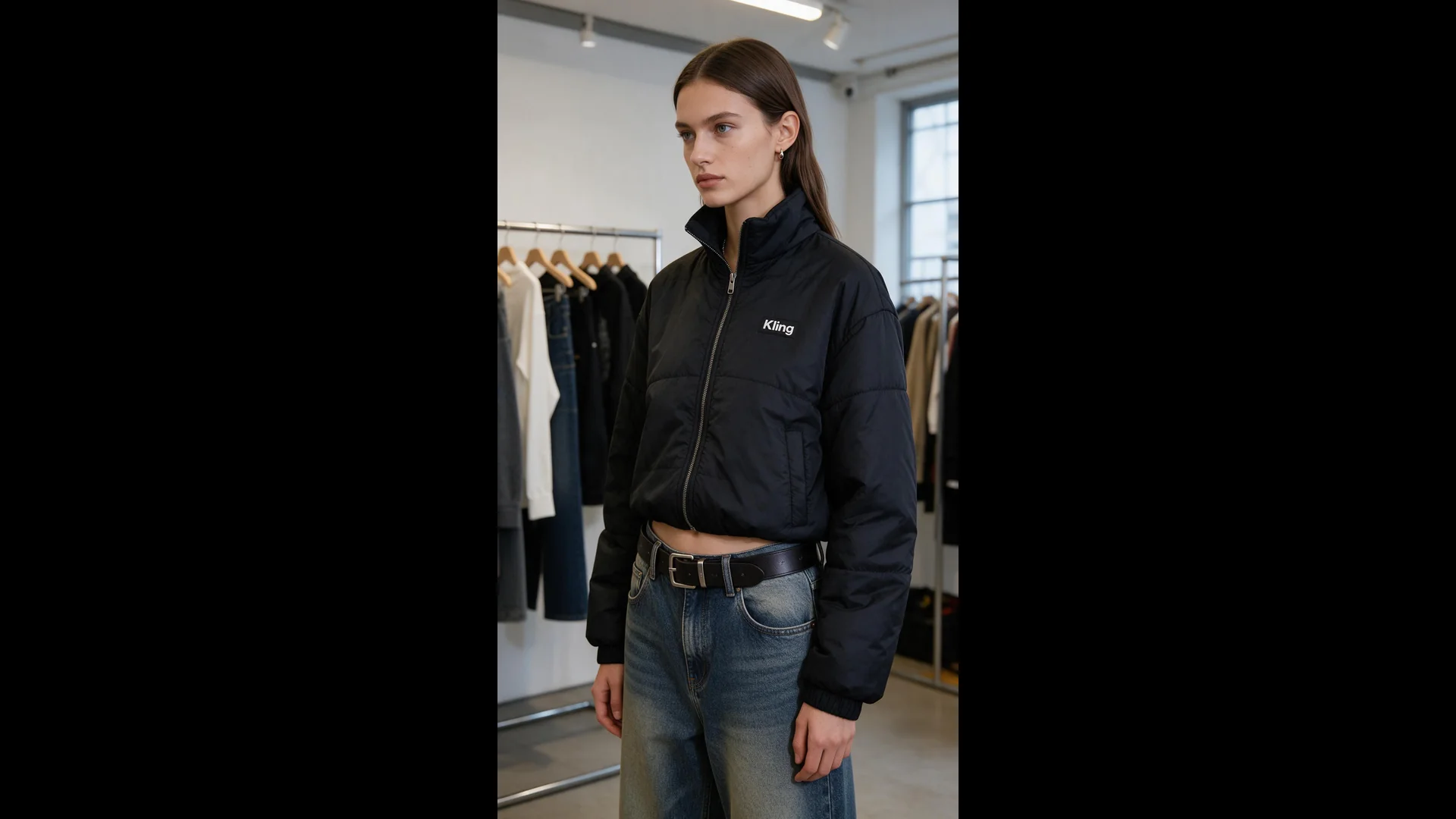
1. SCENE CONTEXTEXACT 1 HUMAN CHARACTER — NO DUPLICATES.A woman enthusiastically presents the black Kling cropped puffer jacket she is wearing inside a minimalist fashion showroom. She maintains warm, confident eye contact with the camera while demonstrating the collar, chest logo, quilted construction, cropped silhouette, and pockets. One continuous 15-second vertical fashion shot.2. ACTIVE REFERENCES@image1 controls the woman’s exact identity, straight brown hair, blue eyes, small earrings, black Kling cropped puffer jacket, high collar, silver zipper, white chest logo, quilted panels, elastic cuffs, side pockets, loose blue jeans, black belt, showroom racks, window, and vertical composition. Preserve every detail exactly.3. LOCATION MAPThe woman remains centered between two clothing racks. The left rack stays behind frame-left, the second rack remains in the rear-right, and the large window stays on frame-right. The camera remains directly in front of her and moves only slightly toward her left side.4. FIRST FRAME AND SPATIAL BLOCKINGMatch the reference composition. She stands in a relaxed three-quarter position with both arms resting naturally beside her body. The complete jacket, waistline, belt, and upper jeans remain visible. Her head turns toward the camera and her eyes lock naturally onto the lens.5. FORMAT MODEOne uninterrupted 15-second vertical 9:16 shot. No cuts, fades, dissolves, speed ramps, wardrobe transformations, location changes, or duplicated poses.6. OPTICS50mm equivalent lens with a 40° horizontal field of view. Medium fashion framing keeps her eyes, facial expression, collar, logo, zipper, sleeves, hem, pockets, and waistline readable. Moderate depth of field softly separates her from the clothing racks.7. CAMERAA human operator stands approximately two and a half meters away at chest height and performs one slow handheld clockwise arc of less than one meter. Breathing drift, small footsteps, slight roll, and delayed reframing remain visible. The camera never becomes mechanically stabilized or crops out the jacket hem.8. ACTION TIMING0.0–2.0s: She finds the lens, takes a light anticipatory breath, and forms a genuine welcoming smile.2.0–5.5s: While beginning her sentence, she touches the structured collar and follows the zipper downward with her fingertips, keeping her eyes on the lens.5.5–8.5s: Her voice becomes more animated as her hand pauses beside the white Kling logo and her free hand opens in a small expressive gesture.8.5–11.5s: She turns into a three-quarter side profile, slips both hands into the pockets, and looks back toward the lens with a confident smile.11.5–15.0s: She faces forward again, relaxes her shoulders, and finishes the presentation with bright eyes and a warm, satisfied expression.9. PHYSICSThe padded jacket compresses naturally beneath her fingertips and recovers after release. Quilted panels retain consistent volume. Sleeves bend and crease at the elbows, while the cropped hem shifts during her turn and settles under gravity. Hair and earrings respond with small delayed movement.10. LIGHTINGSoft daylight from the large window on frame-right is the single motivated key source. It creates restrained highlights across her eyes, hair, black fabric, silver zipper, and cheekbones while preserving detail in the quilted panels. Ceiling track lights remain subtle background practicals.11. AUDIOLayered showroom ambience: quiet room tone, distant ventilation, soft jacket rustle, zipper contact, jeans movement, and restrained footsteps. In a sincere, emotionally engaged English voice, she says: “I honestly love this Kling jacket—the cropped fit feels so confident, and it goes with everything.” Begin with warm appreciation, emphasize “love” and “confident,” then finish with an audible smile. Her lips, breath, expression, and garment gestures synchronize exactly with the sentence. SFX only, no music, no score, no song, no soundtrack.12. CHARACTER ACTINGShe speaks as someone genuinely excited by how the jacket makes her feel. Her eyes stay connected to the lens with living highlights and irregular natural blinks. Her eyebrows lift slightly on “love,” her cheeks rise on “confident,” and her final smile reaches both eyes. She never looks down at the garment while speaking; her hands locate each feature naturally through touch. INNER, UNSPOKEN: “This feels completely like me.”13. STYLEMinimal contemporary fashion content captured by an imperfect human companion. Clearly handheld intimacy, old-photograph softness, organic film grain, restrained contrast, natural fabric texture, gentle window halation, and no digital sharpening. Color balance: 60% black and charcoal, 25% cool white showroom tones, 15% faded blue denim and natural skin.14. QUALITYThe woman’s identity, eye color, hairstyle, earrings, jacket geometry, quilted panels, collar, zipper, cuffs, pockets, jeans, and belt remain consistent. The white Kling wordmark remains correctly spelled, stable, and attached to the same chest position. Eyes, lips, hands, fingers, sleeves, and fabric folds remain anatomically coherent.15. POSITIVE CONSTRAINTSExactly one woman wears exactly one black Kling jacket throughout the shot. She maintains direct lens connection while speaking and looks back toward the lens during the side pose. She speaks exactly one emotional English passage and performs one continuous garment presentation. The jacket remains fully zipped and its logo stays visible during front-facing moments. Add no second person, clothing change, subtitle, price, promotional overlay, mirror reflection, music, or runway movement. A flat emotionless delivery, wandering eyeline, malformed wordmark, changing jacket length, extra limb, or fabric passing through her body equals a failed shot.
```
:::: container guide-case-output
Output
API example
```cURL
curl -sS --request POST \
'https://api-singapore.klingai.com/omni-video/kling-4.0' \
--header "Authorization: Bearer ${KLING_API_KEY}" \
--header 'Content-Type: application/json' \
--data-raw '{
"contents": [
{
"type": "prompt",
"text": "1. SCENE CONTEXTEXACT 1 HUMAN CHARACTER — NO DUPLICATES.A woman enthusiastically presents the black Kling cropped puffer jacket she is wearing inside a minimalist fashion showroom. She maintains warm, confident eye contact with the camera while demonstrating the collar, chest logo, quilted construction, cropped silhouette, and pockets. One continuous 15-second vertical fashion shot.2. ACTIVE REFERENCES@image1 controls the woman’s exact identity, straight brown hair, blue eyes, small earrings, black Kling cropped puffer jacket, high collar, silver zipper, white chest logo, quilted panels, elastic cuffs, side pockets, loose blue jeans, black belt, showroom racks, window, and vertical composition. Preserve every detail exactly.3. LOCATION MAPThe woman remains centered between two clothing racks. The left rack stays behind frame-left, the second rack remains in the rear-right, and the large window stays on frame-right. The camera remains directly in front of her and moves only slightly toward her left side.4. FIRST FRAME AND SPATIAL BLOCKINGMatch the reference composition. She stands in a relaxed three-quarter position with both arms resting naturally beside her body. The complete jacket, waistline, belt, and upper jeans remain visible. Her head turns toward the camera and her eyes lock naturally onto the lens.5. FORMAT MODEOne uninterrupted 15-second vertical 9:16 shot. No cuts, fades, dissolves, speed ramps, wardrobe transformations, location changes, or duplicated poses.6. OPTICS50mm equivalent lens with a 40° horizontal field of view. Medium fashion framing keeps her eyes, facial expression, collar, logo, zipper, sleeves, hem, pockets, and waistline readable. Moderate depth of field softly separates her from the clothing racks.7. CAMERAA human operator stands approximately two and a half meters away at chest height and performs one slow handheld clockwise arc of less than one meter. Breathing drift, small footsteps, slight roll, and delayed reframing remain visible. The camera never becomes mechanically stabilized or crops out the jacket hem.8. ACTION TIMING0.0–2.0s: She finds the lens, takes a light anticipatory breath, and forms a genuine welcoming smile.2.0–5.5s: While beginning her sentence, she touches the structured collar and follows the zipper downward with her fingertips, keeping her eyes on the lens.5.5–8.5s: Her voice becomes more animated as her hand pauses beside the white Kling logo and her free hand opens in a small expressive gesture.8.5–11.5s: She turns into a three-quarter side profile, slips both hands into the pockets, and looks back toward the lens with a confident smile.11.5–15.0s: She faces forward again, relaxes her shoulders, and finishes the presentation with bright eyes and a warm, satisfied expression.9. PHYSICSThe padded jacket compresses naturally beneath her fingertips and recovers after release. Quilted panels retain consistent volume. Sleeves bend and crease at the elbows, while the cropped hem shifts during her turn and settles under gravity. Hair and earrings respond with small delayed movement.10. LIGHTINGSoft daylight from the large window on frame-right is the single motivated key source. It creates restrained highlights across her eyes, hair, black fabric, silver zipper, and cheekbones while preserving detail in the quilted panels. Ceiling track lights remain subtle background practicals.11. AUDIOLayered showroom ambience: quiet room tone, distant ventilation, soft jacket rustle, zipper contact, jeans movement, and restrained footsteps. In a sincere, emotionally engaged English voice, she says: “I honestly love this Kling jacket—the cropped fit feels so confident, and it goes with everything.” Begin with warm appreciation, emphasize “love” and “confident,” then finish with an audible smile. Her lips, breath, expression, and garment gestures synchronize exactly with the sentence. SFX only, no music, no score, no song, no soundtrack.12. CHARACTER ACTINGShe speaks as someone genuinely excited by how the jacket makes her feel. Her eyes stay connected to the lens with living highlights and irregular natural blinks. Her eyebrows lift slightly on “love,” her cheeks rise on “confident,” and her final smile reaches both eyes. She never looks down at the garment while speaking; her hands locate each feature naturally through touch. INNER, UNSPOKEN: “This feels completely like me.”13. STYLEMinimal contemporary fashion content captured by an imperfect human companion. Clearly handheld intimacy, old-photograph softness, organic film grain, restrained contrast, natural fabric texture, gentle window halation, and no digital sharpening. Color balance: 60% black and charcoal, 25% cool white showroom tones, 15% faded blue denim and natural skin.14. QUALITYThe woman’s identity, eye color, hairstyle, earrings, jacket geometry, quilted panels, collar, zipper, cuffs, pockets, jeans, and belt remain consistent. The white Kling wordmark remains correctly spelled, stable, and attached to the same chest position. Eyes, lips, hands, fingers, sleeves, and fabric folds remain anatomically coherent.15. POSITIVE CONSTRAINTSExactly one woman wears exactly one black Kling jacket throughout the shot. She maintains direct lens connection while speaking and looks back toward the lens during the side pose. She speaks exactly one emotional English passage and performs one continuous garment presentation. The jacket remains fully zipped and its logo stays visible during front-facing moments. Add no second person, clothing change, subtitle, price, promotional overlay, mirror reflection, music, or runway movement. A flat emotionless delivery, wandering eyeline, malformed wordmark, changing jacket length, extra limb, or fabric passing through her body equals a failed shot."
},
{
"type": "refer_image",
"url": "https://p2-kling.klingai.com/kcdn/cdn-kcdn112452/kling-tob-release-note/ch6_6_jacket_model_ref.png",
"id": "image1"
},
{
"type": "voice",
"voice_id": "829826751244537879",
"id": "speaker"
}
],
"settings": {
"resolution": "1080p",
"aspect_ratio": "adaptive"
}
}'
```
### 6.7 Text Generation
On-screen text supports Chinese, English, Japanese, Korean, Spanish, Portuguese, German, French, Hindi, and other languages, as well as emojis and logos. Subtitles can also be written directly into the prompt — specify font size, alignment, on-screen duration, and whether they should sync with spoken dialogue.
### 6.8 Stylized Generation
You can control a scene's material quality, lighting, and atmosphere through the prompt, using visual styles such as cinematic imagery, retro DV, animation, felt, fantasy, and cyberpunk. When specifying an animated style, be explicit about the texture you want and exclude any conflicting photorealistic qualities.
**Example prompt:**
> Edit @Video1. Replace the video's style with the felt style from @Image1. Preserve the original video's composition, camera work, and actions — only the style changes. Do not change character outfit designs, motorcycle design, scene elements, or the order of events.
### 6.9 Keyframe Control
Keyframes define visual nodes on the timeline. When keyframes are not used, the model decides the order and timing of visual changes on its own. When keyframes are used, you specify the image at each critical moment.
| **Control Target** | **Manual Example** |
| -------------------- | ------------------------------------------------------------------------------- |
| Character action | Raise hand at second 3; turn around at second 7 |
| Character entry/exit | Character B enters the room at second 6 |
| Scene change | Sky darkens at second 5; rain begins at second 10 |
| Composition change | Within a specified number of seconds, transition from a wide shot to a close-up |
| State progression | From state A to state B, with the intermediate visual nodes defined |
For first-frame, last-frame, first-and-last-frame, and intermediate-frame prompt templates, see [Kling 4.0 Video Prompt Guide-Section 9](https://kling.ai/document-api/api/usage-guide/kling-4-0-prompt-guide#9.keyframes).
### 6.10 Video Extension
Coming soon. Supports multiple extensions up to a total of 2 minutes.
## 7. Custom Video Output Specifications
Control the output video's resolution, aspect ratio, duration, and watermark generation through API parameters.
- settings.resolution: Specifies the output video resolution.
- settings.aspect_ratio: Specifies the output video aspect ratio.
- settings.duration: Specifies the output video duration.
- options.watermark_info.enabled: Specifies whether to also generate a watermarked version.
The following examples use the Kling 4.0 Omni Reference endpoint /omni-video/kling-4.0. These examples show only the relevant configuration sections; merge them with contents and other parameters into a complete request.
### 7.1 Resolution and Dynamic Range
Kling 4.0 supports three output resolutions: 720p, 1080p, and 4K. 4K output is coming soon, as is 10-bit HDR output at 1080p and 4K. Specify the output video resolution via settings.resolution. Default value: 1080p. Allowed values: 720p, 1080p.
```json
{
"settings": {
"resolution": "1080p"
}
}
```
### 7.2 Aspect Ratio
In the Omni Reference creation workspace, the aspect ratio options are 21:9, 16:9, 1:1, 9:16, 4:3, 3:4, and Auto, with Auto as the default. In the Keyframes entry point, the aspect ratio follows the first keyframe image after it is uploaded. Specify the output video aspect ratio via settings.aspect_ratio. Default value: adaptive. Allowed values: 21:9, 16:9, 9:16, 1:1, 4:3, 3:4, adaptive.
When an explicit aspect ratio value is passed, the parameter value takes priority over any aspect ratio instruction in the prompt.
```json
{
"settings": {
"aspect_ratio": "16:9"
}
}
```
#### Adaptive Rules
When no explicit aspect ratio is passed, or aspect_ratio is set to adaptive, the model determines the output aspect ratio using the following priority:
- **Aspect ratio intent in the prompt:** For example, "Generate a 9:16 vertical video."
- **Aspect ratio of the video to be edited:** If no clear aspect ratio intent is detected, the model prefers the base_video's aspect ratio.
- **Aspect ratio of keyframe images:** If no base_video is provided, the model uses the keyframe images' aspect ratio. When multiple keyframes exist, it prefers the first frame; if no first frame exists, it uses the first keyframe image.
- **Aspect ratio of other input videos:** If neither a base_video nor keyframe images is provided, the model references the aspect ratio of other input videos.
- **Default:** When none of the above applies, the model uses 16:9.
### 7.3 Video Duration
Kling 4.0 supports single-generation video of 3–30 seconds. In the creation workspace, you can adjust the duration in 1-second increments, with a default of 10 seconds. Kling 4.0 Flash supports up to 20 seconds per generation.
Specify the output video duration in seconds via settings.duration. Not required; allowed values: any integer between 3 and 30.
When duration is passed, the parameter value takes priority over any duration instruction in the prompt.
```json
{
"settings": {
"duration": 10
}
}
```
#### Rules When Not Specified
- **Prefer duration intent in the prompt:** For example, "Generate a 15-second video."
- **Adopt the duration of the video to be edited:** If no clear duration intent is detected and a base_video is provided, the model adopts that video's duration.
- **Use the default:** If no clear duration intent is detected and no base_video is provided, the model uses 10 seconds.
For example, to specify "15 seconds, 9:16" in the prompt, you can omit duration and set aspect_ratio to adaptive:
```json
{
"contents": [
{
"type": "prompt",
"text": "Generate a 15-second, 9:16 vertical video: morning at the seaside, a seagull skims across the water, camera slowly pushes forward."
}
],
"settings": {
"resolution": "1080p",
"aspect_ratio": "adaptive"
}
}
```
### 7.4 Watermark
Control whether to also generate a watermarked version via options.watermark_info.enabled.
- true: Generate a watermarked version in addition to the standard result.
- false (default): Do not generate an additional watermarked version.
```json
{
"options": {
"watermark_info": {
"enabled": true
}
}
}
```
After the task succeeds, you can get the standard result from the url field of the video output object.
## 8. Prompt Tips and Writing Suggestions
### 8.1 Writing Fundamentals
Write in descriptive language. Avoid abstract terms and over-generalized negative statements. Describe the visual characteristics actually visible in the scene instead of leaving the model to guess.
| Not Recommended | Recommended |
| -------------------------------------------------------- | ------------------------------------------------------------------------------------------------------------------------ |
| Premium feel | Side backlighting outlines the object's edges, the background is blurred, and fine matte grain is visible on the surface |
| Vintage feel | Yellowed walls, worn furniture edges, and warm incandescent lighting |
| A middle-class family's kitchen | Wood-grain cabinets, a rice cooker and seasoning jars on the countertop, sticky notes on the refrigerator door |
| Don't show the element's face while they're on the phone | Show the element in profile while talking on the phone |
Start by writing the subject, scene, action, and emotion in a single sentence. Then add the camera work, timing, audio, and constraints that genuinely affect the result.
### 8.2 Structured Prompts
**[Asset Roles]** @Image1 is \_\_\_, keep its \_\_\_ consistent. @Image2 is \_\_\_, keep its \_\_\_ consistent. Reference the \_\_\_ of @Video1.
**[Overall Settings]** Scene and texture: \_\_\_. Visual style: \_\_\_. Camera tone: \_\_\_.
**[Sequence of Events]** 0–X s: \_\_\_ (visuals + action + emotion) X–Y s: \_\_\_ (camera movement + additional details) Y s–end: \_\_\_ (closing shot)
**[Audio]** Who says what or narration: \_\_\_. Ambient sounds: \_\_\_. Music: \_\_\_. Sound effects: \_\_\_.
### 8.3 Reference Tasks and Multi-Asset Mapping
Assets are automatically numbered in upload order, such as @Image1, @Image2, and @Video1. Every asset must have its role declared. If you supply only asset IDs without specifying their roles, the model will infer each asset's intended use on its own.
> @Image1 defines the scene. Preserve its spatial layout, furnishings, and lighting. @Image2 defines the female protagonist. Preserve her face, hairstyle, and clothing. The female protagonist walks toward the window in the scene, stops, and looks back.
When multiple assets supply different types of information — characters, actions, camera work, audio — specify each one's scope of use, and explicitly state what should _not_ carry over. When working with many assets, double-check that every @ reference points to the correct asset.
### 8.4 Editing Tasks
An editing prompt has three parts: the video to be edited, the specific modification, and what must be preserved.
> Edit @Video1. Change \_\_\_ to \_\_\_. Keep everything else unchanged.
The verbs "edit" and "reference" carry different intents. When you need to modify the original video itself, explicitly write "Edit". Using only "Reference" may route the request into reference-based generation instead of editing.
### 8.5 First-and-Last Frames and Keyframes
For the first frame, write out what happens next; for the last frame, write out the process that leads up to it. Using both the first and last frames together defines the start and end points. For each intermediate keyframe, describe what happens at that node and how the camera arrives at that position.
The standalone Keyframes entry point supports only images — other reference asset types cannot be uploaded.
### 8.6 Timelines and Segment-by-Segment Events
We recommend organizing events using time segments and keyframe nodes. For example:
> X–Y s|Keyframe 1: \_\_\_ (what happens) Y–Z s|Keyframe 2: \_\_\_ (what happens) A–B s|Keyframe 3: \_\_\_ (what happens)
For each segment, write the visuals, actions, emotions, and camera movement, and how it connects to adjacent nodes. The creation workspace lets you adjust duration in 1-second increments.
### 8.7 Negative Control
Prefer positive descriptions of what you want to see. **Important:** the model may add subtitles and background music by default. If you don't want them, explicitly write "no subtitles" or "no background music" in your prompt.
For stylization tasks, combine a positive style description with targeted exclusions. For example, when specifying an animation style, explicitly exclude realistic texture. Don't expand the negative list into a long register of items unrelated to the task.
### 8.8 Advanced Writing
**Camera Language**
You can describe camera movements such as push-in, pull-out, pan, lateral camera movement, tracking shots, and orbit shots, and explain how shot scale and transitions evolve at specific visual nodes. When using a reference video to control camera work, explicitly state which parts of the camera path and pacing to reference, then specify the replacement subject and scene.
**Action and Expression**
Describe a character's state and emotion through observable actions. Write out how the events unfold. When specific action timing is needed, tie it to keyframes — for example: the character raises their hand at second 3, turns around at second 7.
**Storyboard and Shot List Reference**
Storyboard reference prompts work like this: use an image to supply the character design, and use the storyboard as the reference for shot order, framing, camera paths, screen direction, and emotional progression. In the prompt, state that you want finished-frame output — otherwise grid lines, title bars, or Chinese annotations from the storyboard sheet may appear in the generated video.
**Audio and Language**
Write who says what, and specify speech rate, emotion, tone quality, ambient sound, music, and sound effects. For dialogue in a specific language, write it in that language directly. Uploaded voice profiles are only used to assign a voice to a speaker; background music and sound effects must be described in the prompt, not uploaded.
**Subtitles and On-Screen Text**
Specify the exact text content, position, alignment, on-screen duration, and whether it should sync with spoken dialogue.
## 9. Usage Limits
### 9.1 Omni Reference Inputs
| **Input Type** | **Quantity and Specification** |
| -------------- | ------------------------------------------------------------------------------------------------------------------------------------------------------------------------------------------------------------------------------------------------------------------------------------------------------------------------------- |
| Text | Up to 8,000 tokens |
| Images | Up to 10 images; ≤ 30 MB per image; aspect ratio between 2:5 and 5:2 |
| Videos | Up to 5 videos; 3–30 seconds per video; total duration ≤ 30 seconds; ≤ 300 MB per video; aspect ratio between 2:5 and 5:2 |
| Voice Profiles | Up to 3 per task; audio used to create a voice profile must be 5–30 seconds; ≤ 50 MB per file |
| Elements | Up to 7 elements, including up to 3 video elements; source footage for a video element must be 3–8 seconds |
| Total | Up to 15 assets combined across images, videos, voice profiles, and elements. Reference videos, videos to be edited, and video elements share a single video quota: up to 5 clips with a combined total duration of no more than 30 seconds. Once 5 reference videos have been uploaded, video elements can no longer be added. |
Reference videos, videos to be edited, and video elements share a single video quota: up to 5 clips with a combined total duration of no more than 30 seconds. Once 5 reference videos have been uploaded, video elements can no longer be added.
Audio input is supported only as voice profiles — uploading background music or sound effects is not supported.
## 10. FAQ
### 10.1 Assets and Capabilities
**How is the total asset count calculated?**
Images, videos, voice profiles, and elements combined can total up to 15, with each type also subject to its own individual limit. When working with many assets, prioritize the parts that most affect the visuals and pacing.
**Can I add a video element after uploading 5 reference videos?**
No. Reference videos, videos to be edited, and video elements share a single video quota: up to 5 clips with a combined total duration of no more than 30 seconds.
**Can I upload background music or sound effects?**
No. Audio input is supported only as voice profiles. Background music and sound effects should be described in the prompt — the model will generate them from the visuals.
**Do I need to manually enable audio-visual sync and smart shot-splitting?**
Audio-visual synchronization and intelligent storyboarding are enabled by default in the creation interface, with no toggle to turn them off. Both are also enabled by default in the API.
**What is the maximum prompt length?**
8,000 tokens. To help developers measure input length and validate their requests, the API expresses this limit as a character count. English-only input supports up to 26,000 characters, and non-English-only input supports up to 11,000 characters. Mixed input must satisfy E / 26000 + N / 11000 <= 1, where E is the number of English characters and N is the number of non-English characters.
### 10.2 Prompt Optimization
**What should I do when the output doesn't match my expectation?**
First, check whether every asset has its role declared. Then check whether you used abstract terms like "premium feel" or "cinematic look." Replace them with concrete descriptions of lighting, materials, composition, and actions. When working with many assets, also verify that asset IDs are correctly referenced and that each asset's scope of use is clearly specified.
**Are longer prompts better?**
Not necessarily. Start by writing the subject, scene, action, and emotion clearly. Then add camera work, timing, audio, and constraints. When recreating a video, choose a reference clip whose pacing, composition, and camera work are close to your target.