The global shift toward digitized, video-centric education has necessitated a move away from generic instructional media toward hyper-personalized, context-aware visual narratives. The emergence of Kling AI, a next-generation AI creative studio, offers a robust framework for educators and instructional designers to transform static diagrams, historical artifacts, and abstract mathematical models into cinematic, high-fidelity videos. Today, we take the opportunity to examine the technical architecture, operational methodologies, and pedagogical strategies required to implement Kling AI’s image-to-video capabilities in professional educational settings.
Technical Architecture and Model Capability Mapping
Developing high-impact educational content requires a foundational understanding of the Kling AI ecosystem. The platform is built upon a series of evolving models designed to balance computational efficiency with narrative precision. These models, ranging from the foundational V1.0 to the sophisticated V3.0 Omni and O1 models, provide a tiered approach to video generation that allows creators to select the specific toolset appropriate for their pedagogical objectives.
The technical specifications of these models define the boundaries of what is possible in an educational context. For instance, the transition from earlier versions to the O1 and 3.0 series introduced industrial-grade consistency for characters and props, a critical requirement for maintaining a stable learning environment across multiple lesson modules. The O1 model, marketed as the world’s first unified multimodal video model, allows for the simultaneous processing of text and image inputs to generate consistent narrative arcs.
Model Variant | Optimal Resolution | Maximum Duration (Initial) | Specialized Feature Set |
|---|---|---|---|
Kling-Video-O1 | 720p / 1080p | 10 Seconds | Unified multimodal reasoning, character/prop memory |
Kling-Video-3.0 Omni | 1080p / 2K / 4K (Storyboards) | 15 Seconds | Cinematic narrative control, multi-shot generation |
Kling-Video-2.6 | 1080p | 10 Seconds | Native audio, high-difficulty motion control |
Kling-Video-V2.0 Master | 1080p | 10 Seconds | Master-level detail, realistic textures |
Kling-Video-V1.6 | 720p / 1080p | 10 Seconds | Multi-element consistency, stable frame rates |
The choice of model directly influences the credit consumption and processing time. For example, generating a 10-second video in 1080p using the O1 model without video input costs approximately 80 credits, whereas adding video input increases the requirement to 120 credits. Professional mode, available across several model versions, enhances detail and texture at a higher credit cost, making it the preferred choice for instructional content where visual clarity, such as reading text on a slide or observing a chemical reaction, is paramount.
The Operational Framework: From Interface to Output
Accessing the capabilities of Kling AI involves a standardized workflow designed to minimize the technical barriers to entry for educators. The process begins with account registration on the official Kling AI global portal, which typically provides an initial allotment of credits for experimentation. Once logged in, the creator interacts with a dashboard categorized into primary creation modes: Text to Video, Image to Video, and the Element Library.
Initial Configuration and Environmental Setup
Before initiating a generation task, the instructional designer must configure the project parameters to align with the intended delivery platform. This includes selecting an aspect ratio: 16:9 for traditional widescreen displays or YouTube, 9:16 for mobile-first learning environments such as TikTok or specialized educational apps, and 1:1 for social-embedded micro-learning.
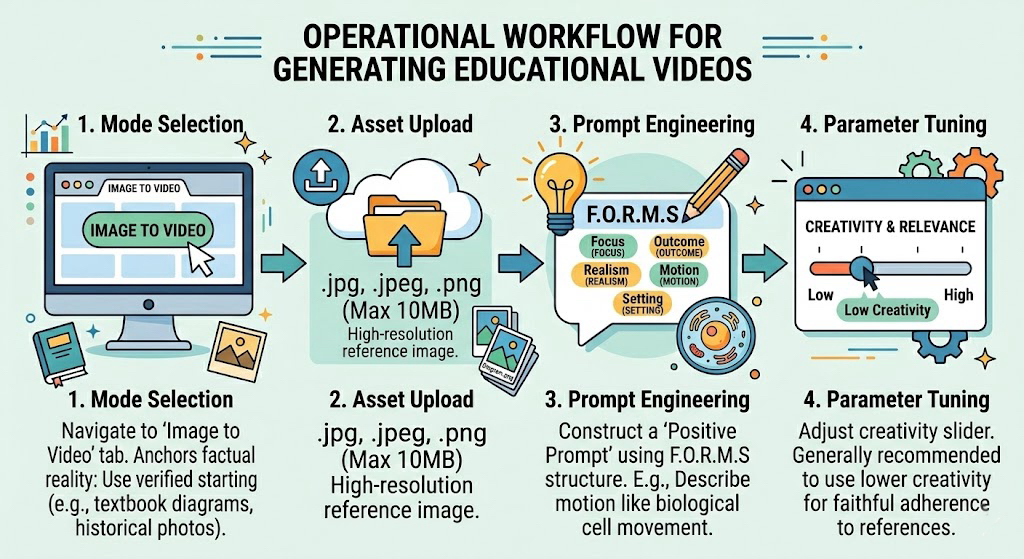
The "how-to" process for generating an educational video follows a sequential logic:
- Mode Selection: Navigate to the "Image to Video" tab. This mode is particularly advantageous for education as it allows for the use of verified, accurate starting frames—such as a specific textbook diagram or an authentic historical photo—thereby anchoring the AI's creativity in factual reality.
- Asset Upload: Upload a high-resolution reference image. The system supports.jpg,.jpeg, and.png formats up to 10MB.
- Prompt Engineering: Construct a "Positive Prompt" using the F.O.R.M.S structure (Focus, Outcome, Realism, Motion, Setting). For a science video, this might involve describing the specific biological motion required of the uploaded cell diagram.
Parameter Tuning: Adjust the "Creativity vs. Relevance" slider. For instructional content, a lower creativity setting is often recommended to ensure the output remains strictly faithful to the provided reference image and text description.
Strategic Use of the Motion Brush for Precision Animation
A core differentiator of Kling AI is the "Motion Brush" feature, which enables granular control over local motion within a static image. In an educational context, this allows an instructor to animate only the relevant parts of a diagram, such as the flow of electrons in a circuit, while keeping the surrounding labels and components stationary.
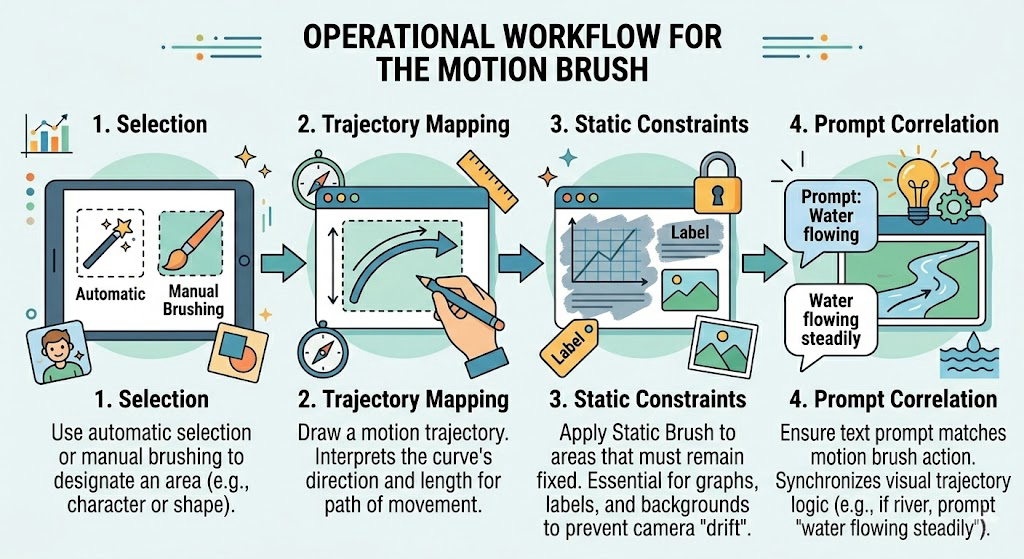
The operational steps for the Motion Brush involve:
- Selection: Use either the "automatic selection" or "manual brushing" tool to designate an area (e.g., a specific character or a geometric shape).
- Trajectory Mapping: Draw a motion trajectory on the screen. The model interprets the direction and length of this curve to determine the element's path of movement.
- Static Constraints: Apply the "Static Brush" to areas that must remain fixed. This is essential for maintaining the structural integrity of graphs, labels, and backgrounds, preventing the camera from "drifting" during the animation.
Prompt Correlation: Ensure the text prompt matches the motion brush action. If the brush is applied to a river, the prompt should explicitly mention "water flowing steadily" to synchronize the visual trajectory with the model's internal logic.
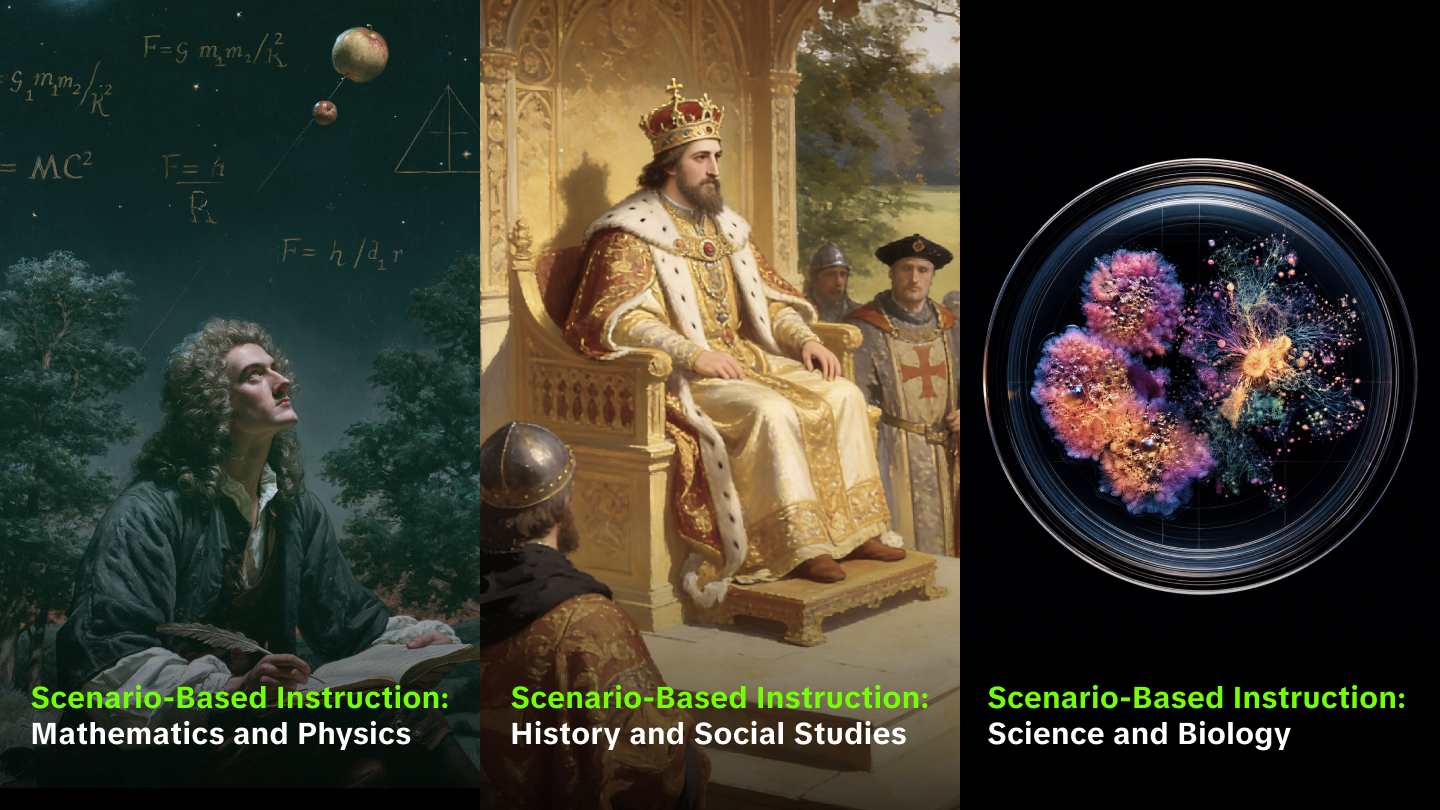
Scenario-Based Instruction: Science and Biology
In science education, the primary challenge is visualizing processes that are too small, too fast, or too complex to be observed directly. Kling AI’s image-to-video pipeline facilitates the creation of "cinematic explanations" that can bridge these gaps.
Case Study: Visualizing Cellular Mitosis
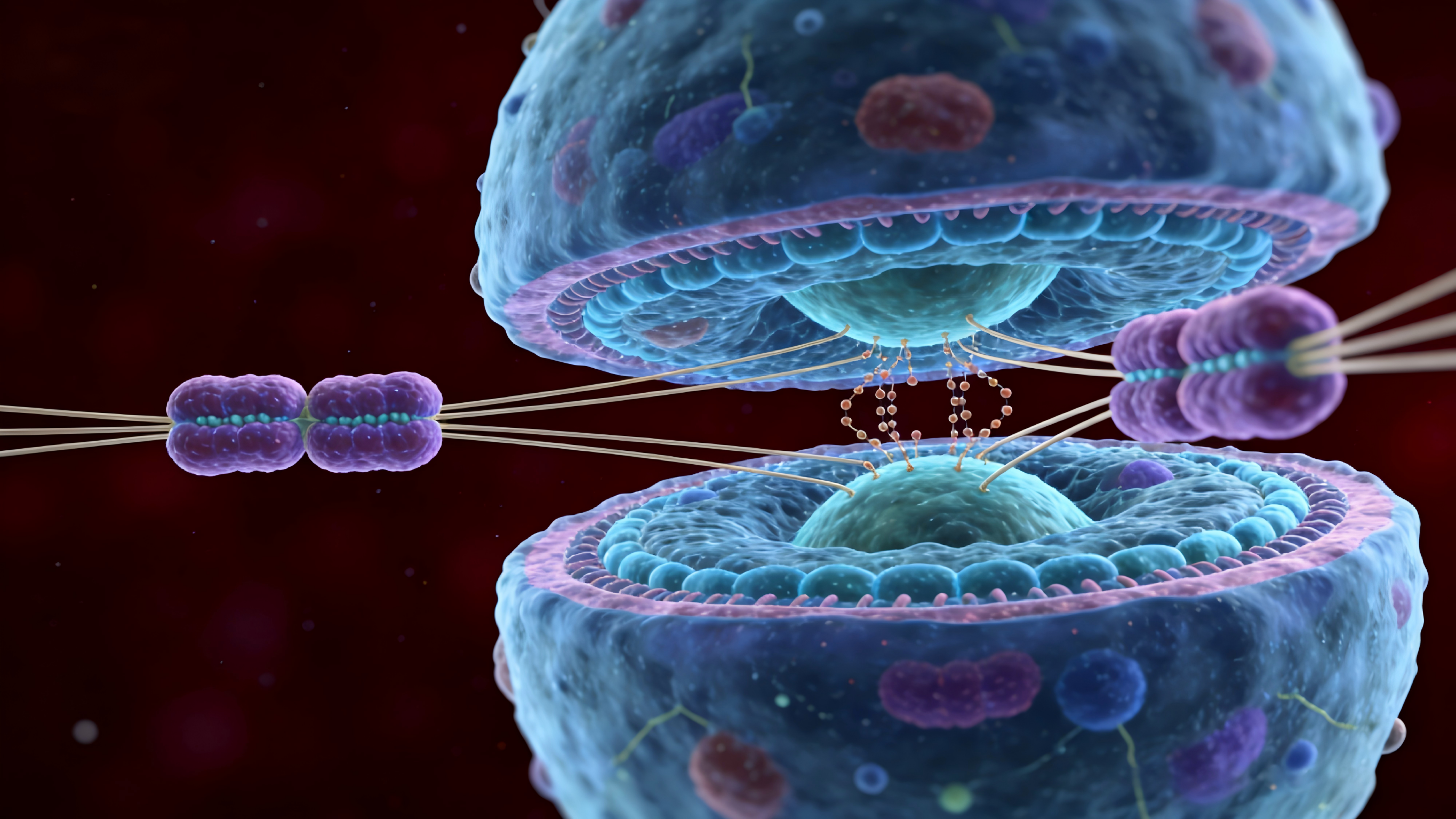
A biology instructor aims to demonstrate the transition from Metaphase to Anaphase. The process is broken down into clear, executable steps:
1. Preparation: The instructor selects a verified diagram of a cell in Metaphase, where chromosomes are aligned at the equatorial plate. This image is uploaded to the Image to Video interface.
2. Motion Brushing: The instructor uses the Motion Brush to select the sister chromatids. Two diverging trajectories are drawn, pointing toward opposite poles of the cell.
3. Static Anchoring: The cell membrane and the background are brushed with the Static Brush to ensure they remain immobile as the internal structures move.
4. Prompting for Accuracy: The prompt is entered: "Scientific 3D animation of mitosis; the spindle fibers shorten, pulling the sister chromatids toward opposite poles of the eukaryotic cell; professional medical visualization style; 1080p, 30fps".
5. Refinement: The instructor selects "Professional Mode" to enhance the textures of the microscopic structures and sets the duration to 10 seconds to allow for a smooth transition.
The resulting video serves as a "dynamic storyboard" that helps students visualize the mechanical forces at play during cell division, a concept that is often difficult to grasp from static textbook pages alone.
Scenario-Based Instruction: History and Social Studies
History education often relies on making the "distant past" feel "present and relevant". Kling AI enables the reanimation of historical moments, allowing students to see causality instead of just memorizing dates.
Case Study: The Signing of the Magna Carta
An instructor seeks to create a "micro-story" within a lesson about constitutional history.
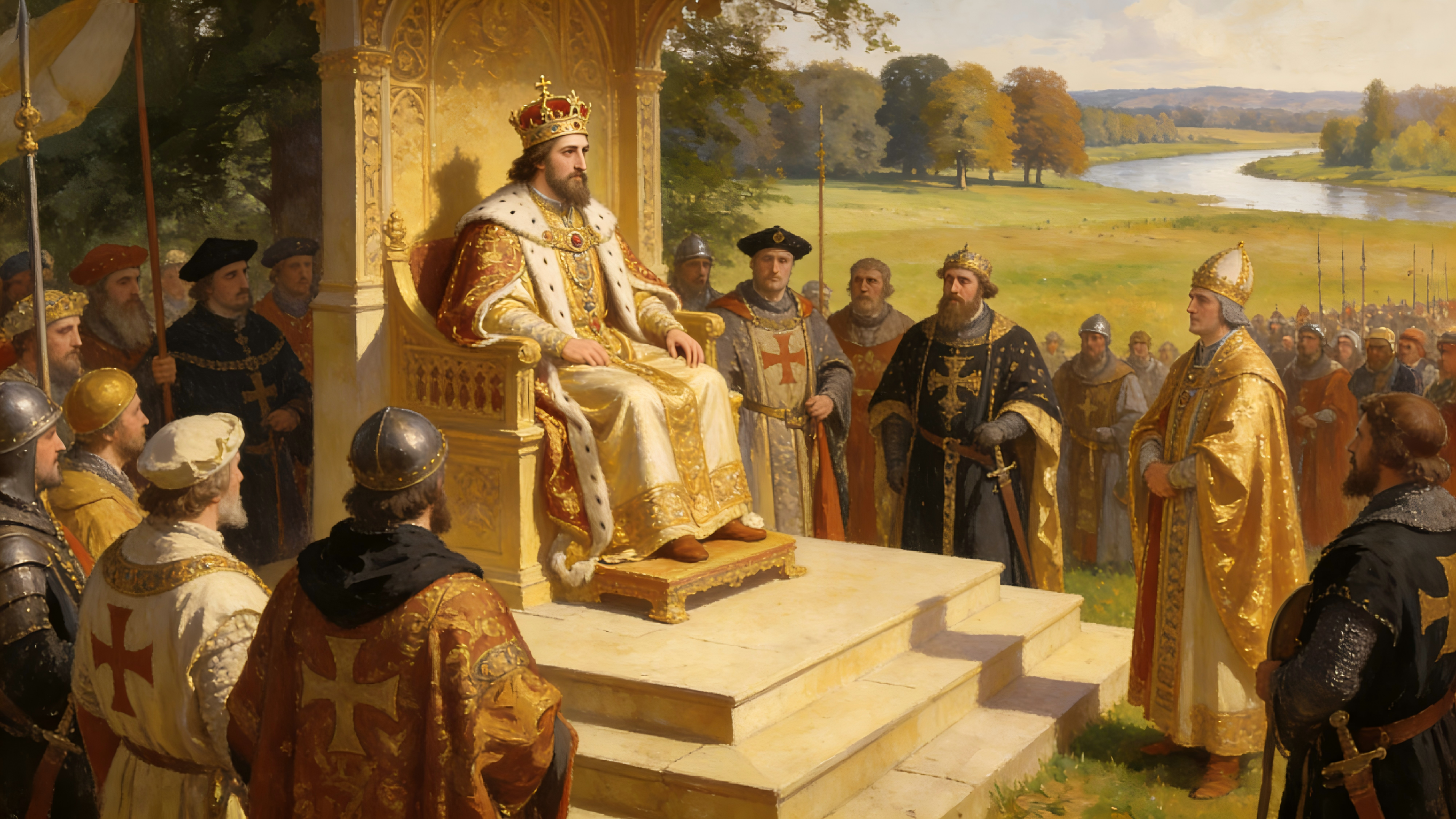
- Reference Loading: A high-resolution scan of a classical painting depicting King John at Runnymede is uploaded.
- Subject Binding: Using the Element Library, the instructor binds the figures of the King and a prominent Baron as "Character Elements." This ensures their visual identity remains identical across different shots in a potential series of videos.
- Directorial Control: A camera prompt is added: "Slow dolly push-in on King John’s face as he holds the quill; high-contrast lighting with deep shadows to emphasize historical tension".
- Native Audio Integration: In the 3.0 Omni version, the instructor binds a voiceover to the King’s character element. The prompt includes the line: "I sign this for the peace of the realm," using the <<<voice_1>>> tag to trigger the lip-sync engine.
Output Analysis: The resulting 15-second clip provides a visceral sense of the pressure and stakes involved in the event, moving beyond a mere "dramatization for drama's sake" to a pedagogically strategic asset.
Scenario-Based Instruction: Mathematics and Physics
For mathematics and physics, Kling AI is used to make "abstract concepts concrete". This involves transforming word problems into visual models and ensuring that physical laws are represented with "stable physics".
Case Study: Visualizing Newtonian Mechanics
A physics teacher wants to show the effect of mass on acceleration on an inclined plane.
- Initial Frame: An image showing two blocks of different masses at the top of a ramp is uploaded.
- Motion Trajectory: The instructor draws trajectories down the ramp for both blocks. In the prompt, the instructor specifies that the lighter block accelerates faster according to F=ma.
- Dynamic Overlay: While Kling AI generates the realistic movement, the instructor uses the Video Extension tool to add a second segment showing the blocks colliding at the bottom, demonstrating the conservation of momentum.
Calculated Prompting: The prompt focuses on "physical commonsense": "Two wooden blocks of varying mass slide down an inclined plane; realistic gravity and friction; smooth motion; professional educational demonstration style".
Subject Area | AI Visualization Application | Pedagogical Benefit |
|---|---|---|
Geometry | 3D rotation of complex polyhedra | Enhances spatial reasoning and understanding of vertices/edges |
Statistics | Real-time generation of probability scenarios | Connects abstract data to real-world outcomes (e.g., coin tosses) |
Electromagnetism | Visualization of invisible magnetic field lines | Makes abstract forces visible through animated particle flow |
Advanced Directorial Techniques for Instructional Clarity
The effectiveness of an educational video is not solely dependent on the AI's generation capability but on the "narrative intent" of the creator. Educators must leverage cinematic language to control the learner's attention and emotional relationship with the subject matter.
Camera Language as a Tool for Focus
Kling AI supports sophisticated camera commands that can be used to emphasize key learning points. A "dolly zoom" can create a sense of importance, while a "slow pan" can be used for a "motivated reveal" of information that was previously off-screen.
- Tracking Shots: By moving the camera parallel to a subject, such as a character walking through a historical city, the creator builds immersion, making the student feel like they are "experiencing the journey firsthand".
- Tilt Movements: A "tilt up" from a low angle can make a historical figure or a massive scientific structure appear "powerful and heroic," whereas a "tilt down" can create a sense of scale or finality.
- Zoom Control: Zooming in on a specific detail, like the lens of a microscope or a specific line of code, forces the learner to focus on the "central information" of the shot.
Lighting and Mood Control
Lighting in Kling AI is handled through natural-language prompts and CCT (Correlated Color Temperature) cues. For educational videos, lighting should be used to establish a “visual hierarchy.”
- Basic Foundation: Start with concise descriptors like "warm golden colors" for historical topics or "cool blue palette" for modern technology or science.
- Three-Point Lighting: Instruct the AI to use a "three-point setup" with a specific key-to-fill ratio (e.g., 2:1) to create professional-looking interviews with “Digital Tutors.”
- Contrast for Emphasis: Use "high contrast" to create drama or "soft gradients" to make a scene feel calmer and more approachable. Adding "soft highlight rolloff" prevents visual hotspots that might distract the learner.
Managing Continuity with the Element Library
One of the most significant challenges in generative video is "character drift," where a subject's appearance changes from one shot to another. The Element Library resolves this by allowing creators to build "ultra-consistent elements".
Building a Consistent Digital Tutor
For a long-form course on English Literature, an instructor can create a consistent narrator:
- Reference Creation: Upload 2-4 front-facing and profile images of the narrator character. The system "remembers" these features just like a "human director".
- Voice Extraction: The instructor can upload a video of themselves or a professional voice actor. Kling 3.0 Omni "automatically extracts the character's appearance and native voice" to create a reusable asset.
- Shot Combination: Throughout the course, the instructor can place this tutor in various "environments"—a library, a theater, a study—knowing that the face and voice will remain "industry-level consistent".
Multi-Subject Fusion
The O1 and 3.0 models also support "multi-subject fusion," where several bound elements can interact in a single scene. This is particularly useful for Role-Play scenarios in soft skills training or historical re-enactments involving multiple figures. For example, in a "Business Ethics" module, a learner can watch a scenario between three consistent characters: a manager, an employee, and a client and then make decisions based on the visual story.
Workflow Integration and Technical Optimization
The transition from a "trend-based" concept to a functional "how-to" guide requires a structured post-production and integration workflow. Kling AI is not just a standalone tool but an "engine" that fits into a broader content ecosystem.
The AI Video Post-Production Lifecycle
Unlike traditional linear editing, AI video workflows are iterative and "branch out in many ways".
- Preprocessing: All generated clips should be reviewed for "frame stability" and "object integrity." Kling's 1080p outputs are typically exported to a mezzanine codec (like ProRes) to preserve color grading latitude for final assembly.
- Audio-Visual Synchronization: Native audio generated in Kling 2.6/3.0 should be checked for "lip-sync tolerance." If the synchronization is off, the Lip-Sync tool can be used to re-align a specific audio file with the video.
- Formatting and Standards: Clips must be standardized to the same frame rate (e.g., 30fps) and resolution to avoid "technical headaches" in the editing room.
Developer Accessibility and API Integration
For large-scale educational platforms, Kling AI provides an API that allows for the integration of video generation directly into custom software or LMS (Learning Management Systems).
- API Capabilities: The API supports Text-to-Video, Image-to-Video, and Video Extension. Developers can specify model names (e.g., kling-v2-6), provide Base64-encoded images, and set "callback URLs" to receive task results asynchronously.
- Coordinate Trajectory Control: Through the API, the Motion Brush trajectories are defined as a sequence of coordinate points (x, y). A higher number of coordinate points results in more accurate trajectory following.
FAQs
Q1: How can I maintain the accuracy of mathematical symbols or text in an AI-generated video?
AI models sometimes struggle with "text retention" and can hallucinate characters. To minimize this, use Professional Mode and provide a high-resolution starting frame where the text is clearly legible. The Kling 3.0 model has "improved text retention" specifically for Image-to-Video scenarios.
Q2: My science video shows a block floating when it should fall. How do I fix the physics?
This is a "physics logic" failure. Use the Motion Brush to draw a strict downward trajectory for the block. Ensure the prompt explicitly mentions "realistic gravity" and use the Static Brush to anchor the ground plane so it doesn't shift.
Q3: How do I create a long lesson if Kling only generates 10-15 seconds at a time?
Use the Video Extension tool. After generating a clip you like, select "Extend." Each task adds 4-5 seconds of consistent action. You can repeat this until you reach a total duration of 3 minutes.
Q4: Is there a way to ensure the same "teacher" appears in all my different subject videos?
Yes. Use the Element Library to create a "Character Element." Upload 2-4 reference images of your "teacher" persona. For every new video, select this element and "bind" it. This ensures "industrial-grade consistency" for the actor across every shot.
Q5: What should I do if the movement in my historical re-enactment looks too fast or "jittery"?
Check the frame rate. Ensure your output is set to 30fps or 48fps for smoother motion. Avoid "smash cuts" or overly fast-paced editing prompts, as these can confuse the AI's temporal consistency. If a movement is too fast, try re-prompting with "slow-motion" or "deliberate, steady movement".
The Strategic Future of Generative Learning
The integration of Kling AI into educational workflows represents a shift from static instruction to "dynamic, playable shot sequences". By adopting a "How-to" framework that prioritizes "Element Binding," "Motion Brushing," and "Native Audio," educators can produce professional-grade assets that were previously "impossible or very prohibitive". As models continue to evolve toward "unified multimodal input and output," the ability to create consistent, high-fidelity personalized content will become a foundational skill for instructional designers in the AI era. The "Solo Filmmaking" revolution in education allows every teacher to become a director, ensuring that every student has access to visuals that are not only "pretty" but "pedagogically strategic".