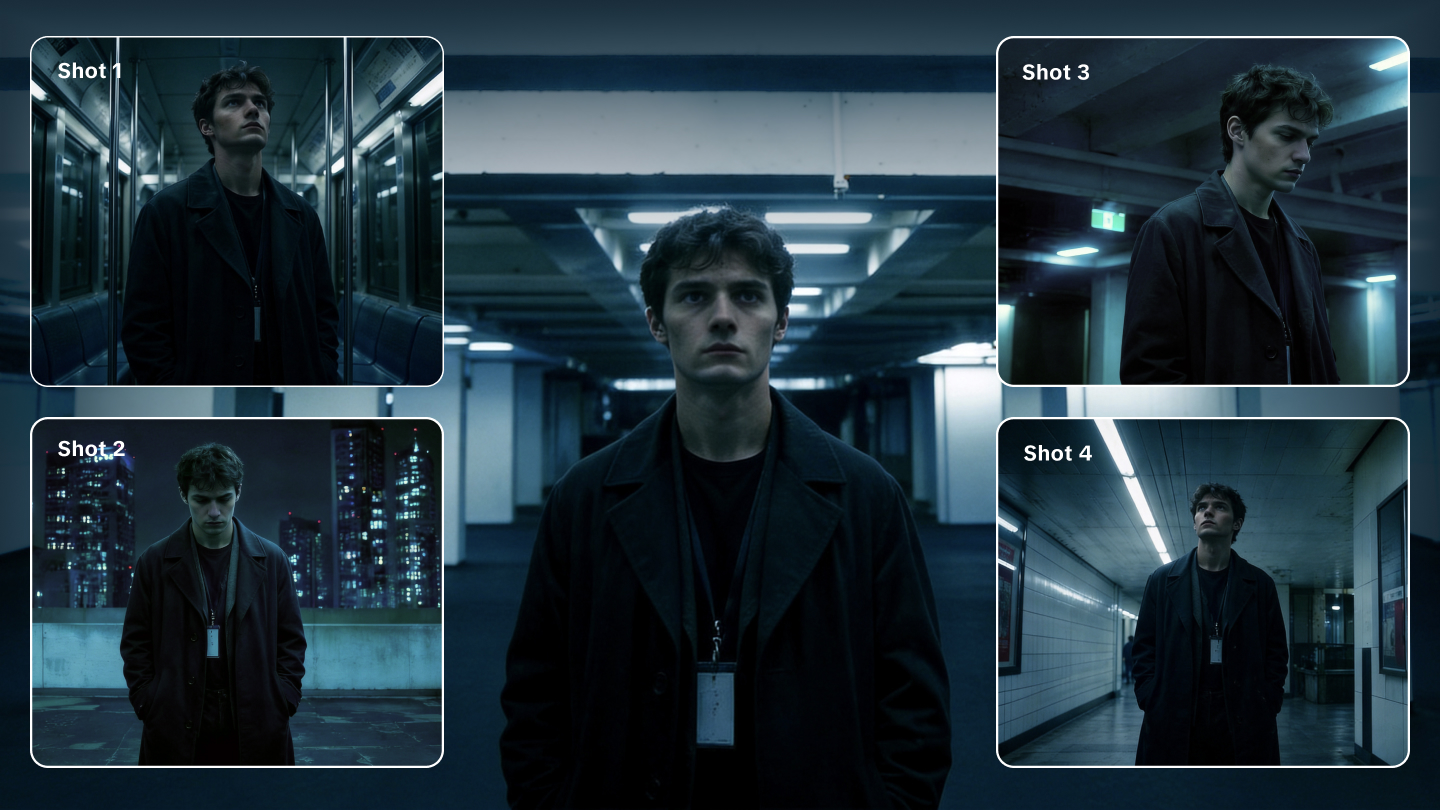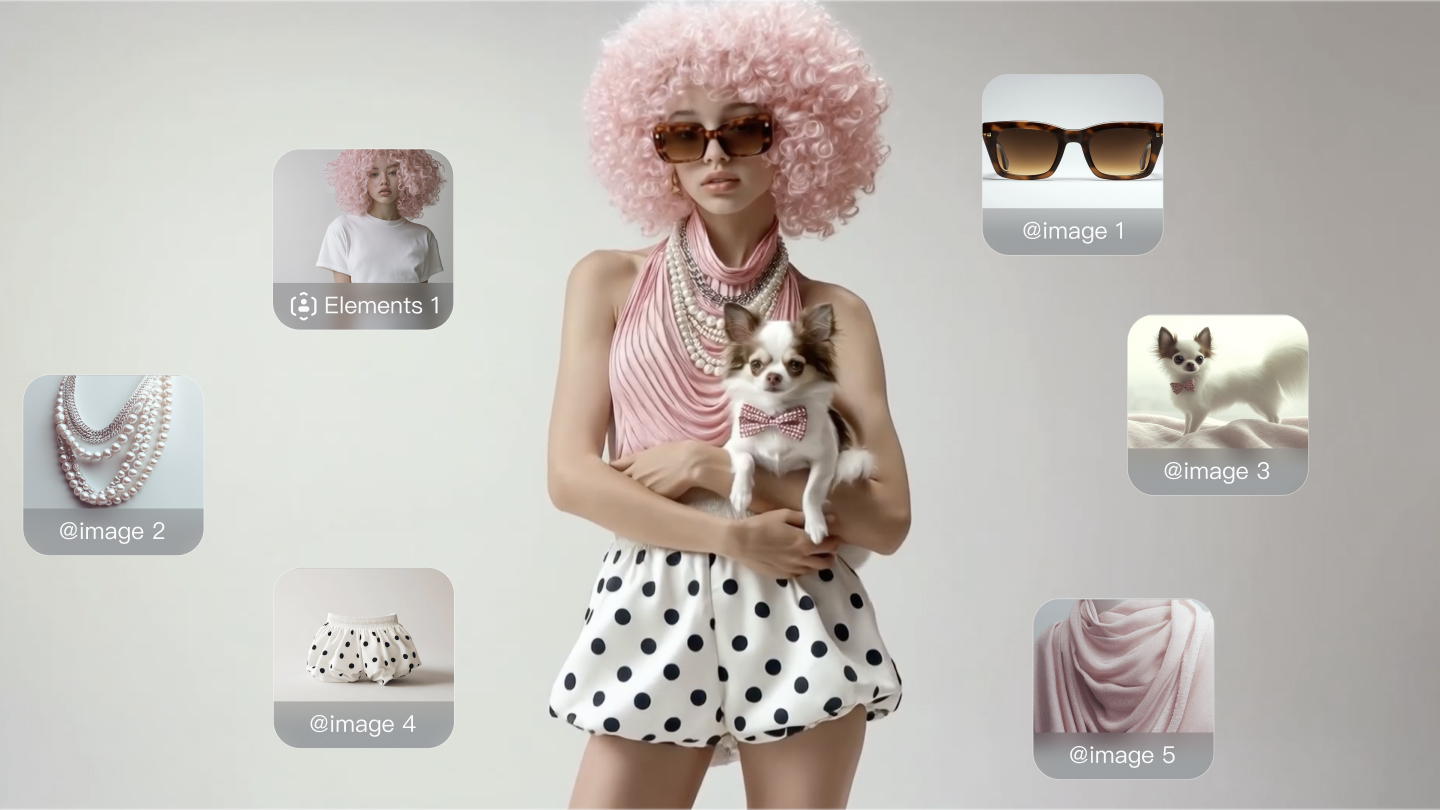
The video making industry has changed. AI-based content is now common. However, very few producers are successful in seamlessly editing their AI footage along with their usual footage. That’s where Kling AI—a next-generation creative studio used by 22M+ creators with models up to 1080p/30 fps—plus intelligent planning and efficient workflows—comes in. Done correctly, it is not possible for the viewer to tell AI and traditional content apart.
What is AI Video Integration with Kling AI?
Understanding AI video integration starts with the basics. This process combines computer-generated clips with traditional footage to create cohesive video projects.
AI Video Integration Basic Definition
AI video editing is mixing artificial and real footage. It is just like cooking: you put things together and end up making one thing. Whole sections are created by the AI, and others are filmed by cameras. With Kling AI (models 1.0–2.5), you can generate text-to-video, image-to-video, or extend shots and then blend them in post. Your role is to make them flow together perfectly.
Key Differences from Traditional Post-Production
Traditional editing was only carried out using footage from cameras. We now embed AI-calculated scenes, backgrounds, and special effects. Traditional workflows were linear. AI video post-workflows branch out in many ways. With Kling’s multi-elements editor (motion brush, lip sync, elements reference), you can “produce” at the editing desk—iterating before, during, and after the shoot. You can now produce at the editing desk, not just before.
Core Elements of AI Video Post-Production Workflows
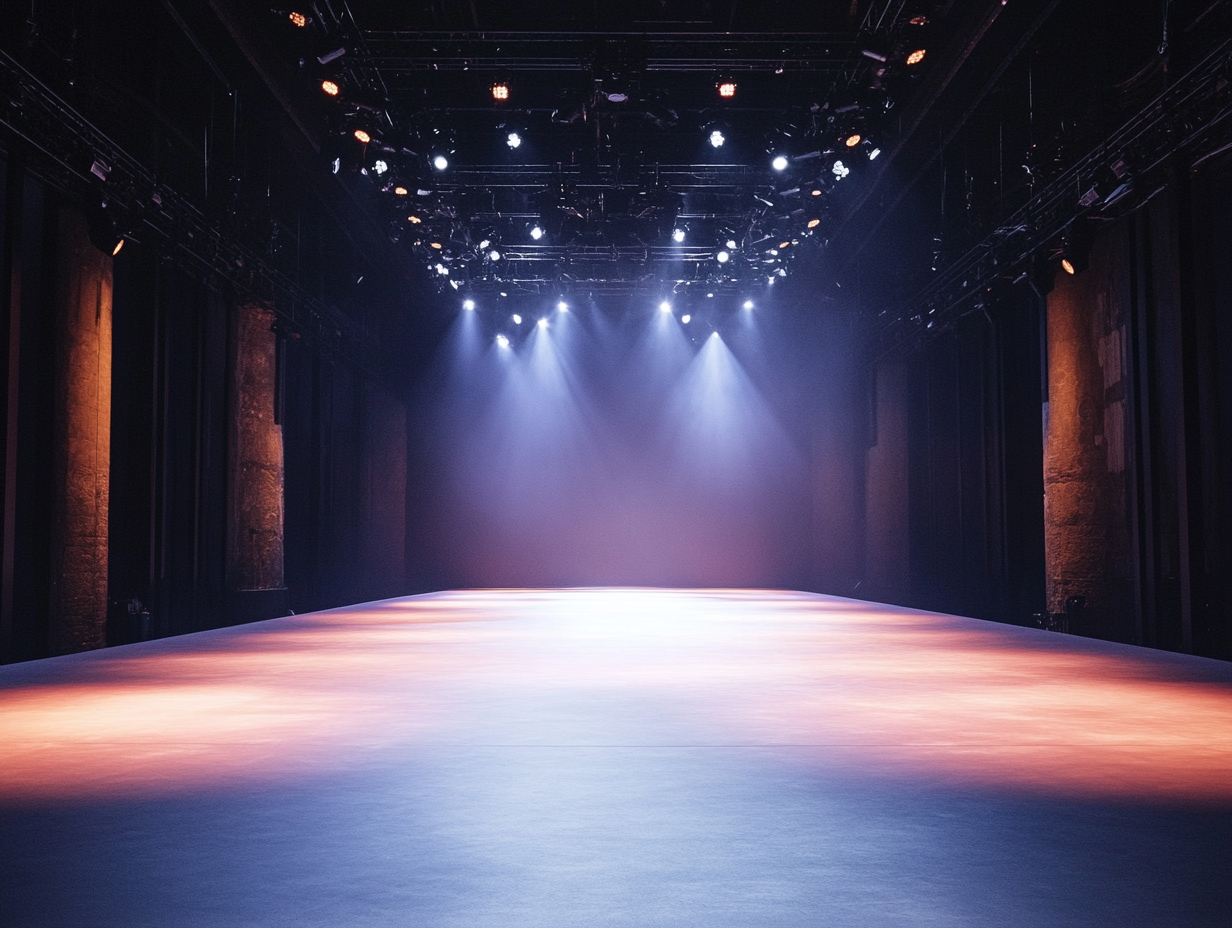
The new workflows have three components. It first of all determines what is generated by AI and what is filmed by cameras. It then simultaneously generates and captures. Finally, it integrates it all. Kling 2.5’s stable physics and scene consistency simplify this split, reducing cost and unlocking new creativity previously not available.
The shift toward AI video ingest is the biggest change in post-production since the digitization of film editing.
| Elements | Result | |
 |  |   |
 | ||
Why Should You Use Kling AI Video Integration in Projects?
Intelligent creators evolve with new tools. Video integration using AI has advantages that are simply unparalleled by conventional methods.
Production Efficiency Benefits
AI is quicker than human crews. Want a sunset frame, but it is raining? AI produces it within minutes. Want dozens of variations of angles? AI produces dozens of options within a second. Classic shoots require scheduling, gear, and perfect timing. Kling requires processing power and your imagination—then delivers cinematic motion at 1080p/30 fps.
Cost Reduction Methods
Casting actors, location rentals, and equipment purchases run into thousands. Integrating video with AI reduces these costs considerably. Instead of casting extras, produce background characters. Make exotic locations without location budgets. Kling’s usage-based pricing via partners (from entry-level plans) and enterprise APIs enables predictable budgeting across iterations. Replace multiple line items from the productions with a single AI subscription.
New Creative Expression Possibilities
AI enables you to achieve impossible shots. Soar through micro worlds. Present historical events at contemporary quality. Integrate reality and fantasy effortlessly. Kling’s prompt adherence, dynamic cameras, and image-to-video pipelines broaden style choices without reshoots. These creative possibilities were impossible or very prohibitive prior to being made available by AI video post-work.
These benefits render AI video incorporation a necessity within competitive creators' workflows who seek maximum impact with minimal resources.
How Do You Prepare Your AI + Kling Post-Production Workflow?
Proper preparation prevents problems. Observe these steps to ensure a solid foundation for your AI video integration projects.
Step 1: Project Requirements Analysis and Goal Setting
Start by outlining what you need. List all of the scenes within your project. Determine those that need AI creation rather than ordinary filming. Consider your timeline, cost constraints, and quality requirements. Tag shots suited for Kling’s text-to-video vs. image-to-video vs. video extension; define success metrics (resolution, duration, motion complexity). Specify clear, specific goals with each piece created with AI.
Step 2: Hardware Configuration and System Optimization
AI video editing requires serious computing. Upgrade the graphics card if you must. Add at least 32GB of RAM. Add fast SSD storage for fast access to files. Streamline your system and shut down programs you don't need. Kling jobs can queue asynchronously; ensure scratch disks and network bandwidth are sized for 1080p/30 fps clips. A smooth installation avoids crashes at crucial deadlines.
Step 3: Software Installation and Environment Setup
Download your chosen AI platforms and editing software. Install plugins and updates that are needed. Set up folder structures for different types of content. Set up cloud storage for team collaboration. Connect your Kling workspace/API, create project presets (aspect ratios 16:9/9:16/1:1), and test callbacks for renders. Test all connectivity and files prior to the startup of production.
Step 4: Quality Standard Development and Process Description
Set clear quality standards for AI-created work. Write it down step by step so it can remain consistent. Develop templates and presets for simple tasks. Train other team members on new procedures. Include Kling-specific checks (frame stability, object integrity, lip-sync tolerance). Good documentation can save hours of confusion later.
Step 5: Team Training and Role Definition
Assign clear tasks for AI-generated and integrated content. Make sure everyone understand the new process. Test on test projects before starting on key work. Set up processes of giving and receiving feedback and revisions. Designate a Kling operator (prompting, references, extensions) and an integration editor (compositing, color, audio). Proper planning creates smooth-working AI video post-production workflows that consistently deliver professional results.
How Do You Choose the Right AI Video Integration Tools (Start with Kling)?
Selecting the wrong tools wastes time and money. This comparison helps you make informed decisions for your specific needs.
Quick Comparison:
Tool/Platform | Main Functions | Best For | Price Range / Scene Anchor | Key Decision Metrics |
Kling AI | Text-/Image-to-Video, extension, lip sync, O1 unified multimodal pipeline | Commercial ads, studio production, high-end creative content | Entry-level Pay-as-you-go ($6.99+) / Professional API / Enterprise | End-to-end generation & integration; Stable 1080p/30fps; Repeatable iteration cost |
Adobe Premiere Pro | Professional editing, AI enhancement, asset management | Films, TV, and complex web content | $20.99/month subscription | Industry-standard timeline; Dynamic link; Advanced masking |
DaVinci Resolve | Elite color grading, specialized AI tool integration | Film post-production and commercial matching | Free to $295 one-time | Unmatched color manipulation; AI-powered optical flow |
Final Cut Pro | Apple-optimized editing, AI-assisted rendering | Corporate video and independent production | $299 one-time payment | Metal engine efficiency; Rapid rendering on macOS |
RunwayML | Experimental AI video generation and VFX | Rapid prototyping and avant-garde art creation | $12.00 to $76.00/month | Cloud-based effects; Rotoscoping tools; Gen-3 capabilities |
Selection Recommendations:
● For Beginners and Cost-Conscious Creators: Start with the Kling AI Standard subscription (Entry-level Pay-as-you-go) plus the free version of DaVinci Resolve. This pipeline offers professional-grade 1080p/30fps generation and advanced color tools with a minimal, predictable budget.
● For Professional Studios and Commercial Work: Prioritize Kling AI’s Professional API integration alongside Adobe Premiere Pro. The end-to-end O1 workflow allows for repeatable iteration at the editing desk, significantly reducing the "per-shot" cost of complex VFX.
● For Apple-Centric Workflows: Use Final Cut Pro with Kling's video extension features to quickly iterate on scenes while maintaining high render efficiency on Apple Silicon hardware.
Choose tools that provide a stable output standard (like Kling's industrial-grade consistency) and a clear cost-per-iteration to ensure your creative complexity doesn't overwhelm your production budget.
| Elements | Result | |
 |  |  |
 | ||
How Do You Achieve Seamless AI Video Integration Operations with Kling?
Action beats are more important than tools. Use these steps to merge AI-generated footage seamlessly with conventional footage.
Step 1: AI Content Preprocessing and Quality Assessment
Preview all of your AI-created clips before import. Check resolution, frame rates, and color accuracy. Remove any obvious artifacts or discrepancies. Organize media by scene and by quality level. For Kling outputs, validate motion continuity and character/object consistency using reference frames. All of this prepping avoids wasted editing time later.
Step 2: Format Conversion and Standardization Processing
Convert all clips to similar formats. Sync up the frame rates of AI and cam footage. Standardize resolutions and ratios. Make backup copies before editing. Export Kling renders to your mezzanine codec to preserve grading latitude. Consistent formats avoid editing room technical headaches.
Step 3: Timeline Layout and Content Organization
Set up the timing framework of your program before cutting in clips. Keep related media sorted within organized bins. Color-code different forms of media. Undertake rough cuts in terms of pace and rhythm. Label Kling shots by model version and pass count to track revisions. Organized editing minimizes editing time significantly.
Step 4: Visual Effects Matching and Color Correction
Sync video color and lighting with your footage from your camera. Make exposure adjustments, saturation, and contrast. Add film grain or noise to match the organic footage texture. Utilize reference monitors when color judgment is being made. Kling footage responds well to gentle grain and lens-profile vignettes to bridge CG/real seams. Visual matching is essential when matching seamlessly.
Step 5: Syncing of Sound Design and Audio
Sync audio tracks with video footage accurately. Include ambient noises in AI-composed footage. Sync room tone and background noises. Overlay sound effects to make them sound real. Generate or curate Foley that sells scale and distance for Kling-generated environments. Sound sells the illusion as much as video does.
Step 6: Transition Effects and Smoothness Optimization
Make seamless transitions between work from AI and traditional work. Conceal disparities with motion blur and depth of field. Test transitions on diverse devices and display screens. Match shutter angle and add camera-shake templates so Kling and live-action share the same “handheld DNA.” Polish rough edges so the blend is unnoticeable.
These step-by-step processes guarantee that your video AI incorporation is of professional quality that awes your audience and clients.
What Quality Issues Should You Watch for in AI Video Integration (and How Kling Helps)?
Quality control separates amateur from professional work. Understanding common problems helps you avoid costly mistakes.
Common Technical Problems and Solutions
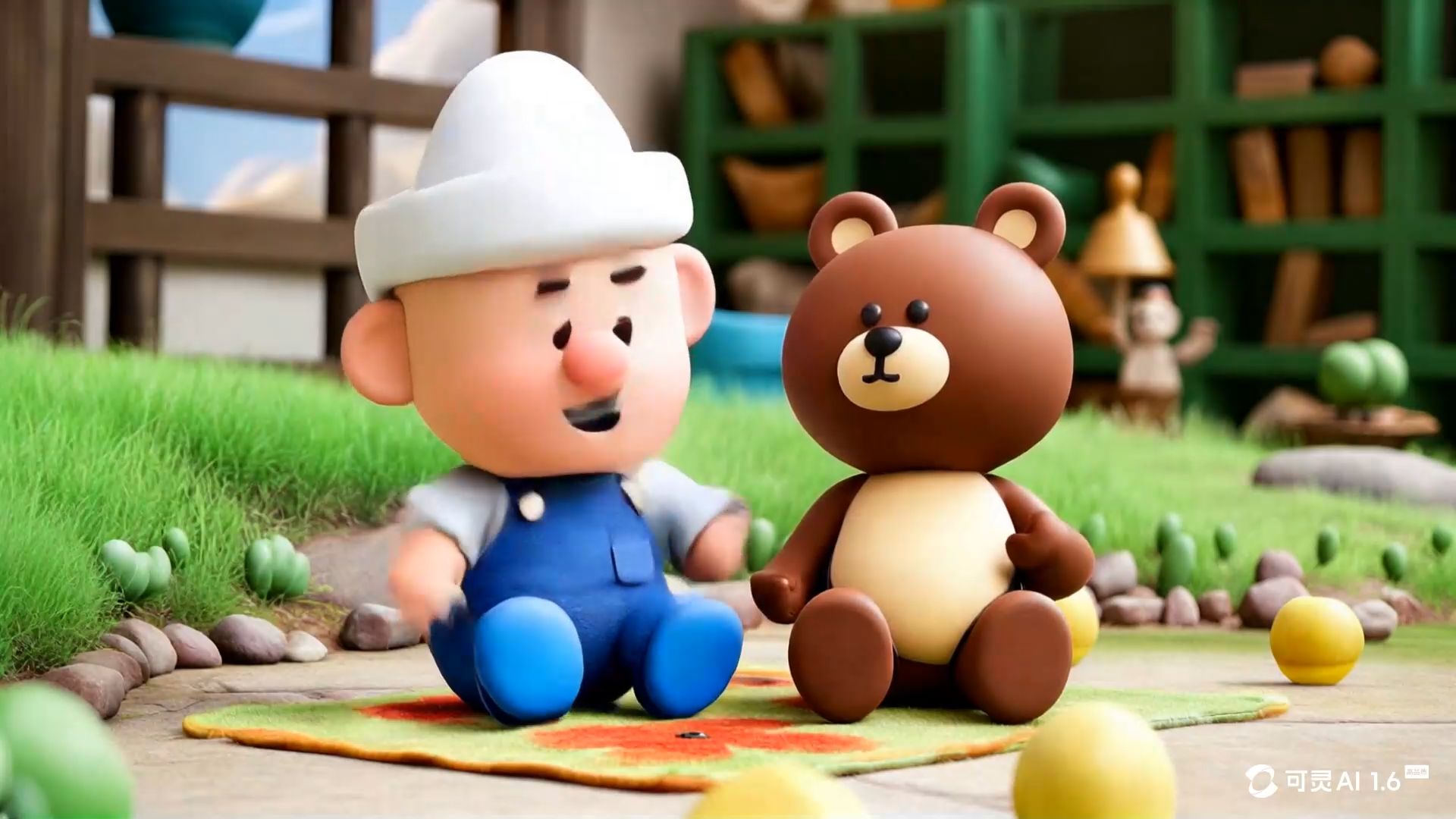
AI footage may flicker or become distorted or move unnaturally. Battle these by shooting multiple versions and selecting the best takes. Even out the rough footage with motion blur and stabilization. In Kling, use multi-pass prompting and short video extensions to correct micro-jitters before final export. Layer effects can hide tiny imperfections while maintaining overall quality.
Quality Check Processes and Standards
Establish review checkpoints at regular intervals of production. Review work on other devices to identify issues. Design standardized checklists of technical details. Include Kling-specific checks (character/prop drift, text fidelity if signage is generated). Solicit comment from fresh eyes that have never seen the work-in-progress. Fresh sets of eyes identify things you'd otherwise go by.
Rendering Optimization and Output Settings
Select rendering options that find a balance between quality and file size. Test varying compression ratios for your distribution media. Give extra time to high-quality renders. Save uncompressed masters for final changes. Archive Kling masters and prompts/references for reproducibility across versions. Intelligent rendering selections ensure your work appears correctly wherever it is presented.
Routine quality control maintains professionalism and instills client faith in your ability to incorporate video.
| Elements | Result | |
 |  |  |
FAQs
Q1. What Technical Requirements and Equipment Do I Need for Professional AI Video Integration?
You'll need a powerful computer of at least 16GB of RAM (we suggest 32GB), recent graphics with 8GB+ VRAM, and fast SSD storage to play back smoothly. Professional-grade monitors boost color work accuracy. Internet speed is paramount when it comes to cloud-based AI services—you'll need 100Mbps+ speeds for rapid uploads and downloads. For Kling 2.5’s 1080p/30 fps clips, plan for fast NVMe scratch and stable networking; asynchronous jobs reduce workstation idle time. All our AI video integration workflows play comfortably on mid-range gaming PCs, apart from complex projects where you'd rather use workstation-grade PCs.
Q2. How Long Does It Take to Master AI Video Post-Production Workflows?
Basic skills generally take 2-4 weeks of practice a day, but it takes 3-6 months of regular work to perfect high-end techniques. It depends on your skills if you are already familiar with video editing. You will find it comes quite effortlessly if you are used to using conventional editing software. Starting inside Kling with small text-to-video and image-to-video tests accelerates learning; then layer in lip-sync, motion brush, and video extension. Beginners new to everything are better off starting with a single platform and using it with simple projects before handling complex combinations.
Q3. Are There Copyright or Legal Issues When Using AI-Generated Content Commercially?
Copyright protection for purely AI-generated output is limited in many jurisdictions, which affects ownership; commercial use also depends on the tool’s license and on rights in inputs (people, brands, music). Always read the terms of service of your AI software—the software may limit commercial use or insist on acknowledgment. When working with clients, properly account for sources of your work and possibly include indemnification clauses within contracts. Where possible, seek advice from qualified lawyers with knowledge of AI and copyright laws.
Build Your First AI-Powered Edit
Video integration with AI changes the way we produce. It saves time and money and brings new creativity that wasn't possible before. It succeeds by knowing the tools, anticipating your workflow, and upholding quality.
Ready to transform your video production workflow? Begin with a small project using the tools and methods described above. Test your pipeline with Kling AI, follow the step-by-step integration procedure, and see how much polish you can achieve. Video production's future is now—and it's time to get on board.