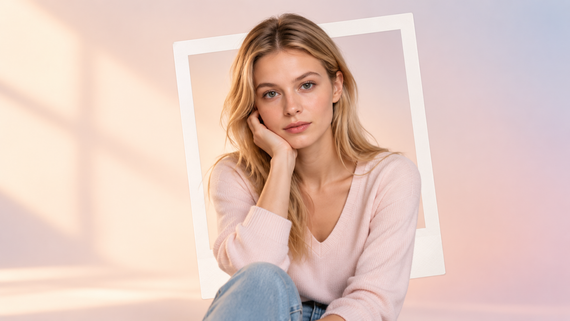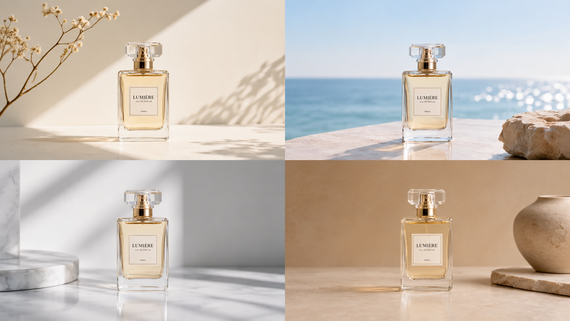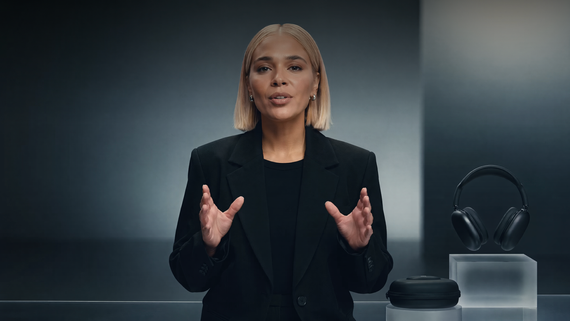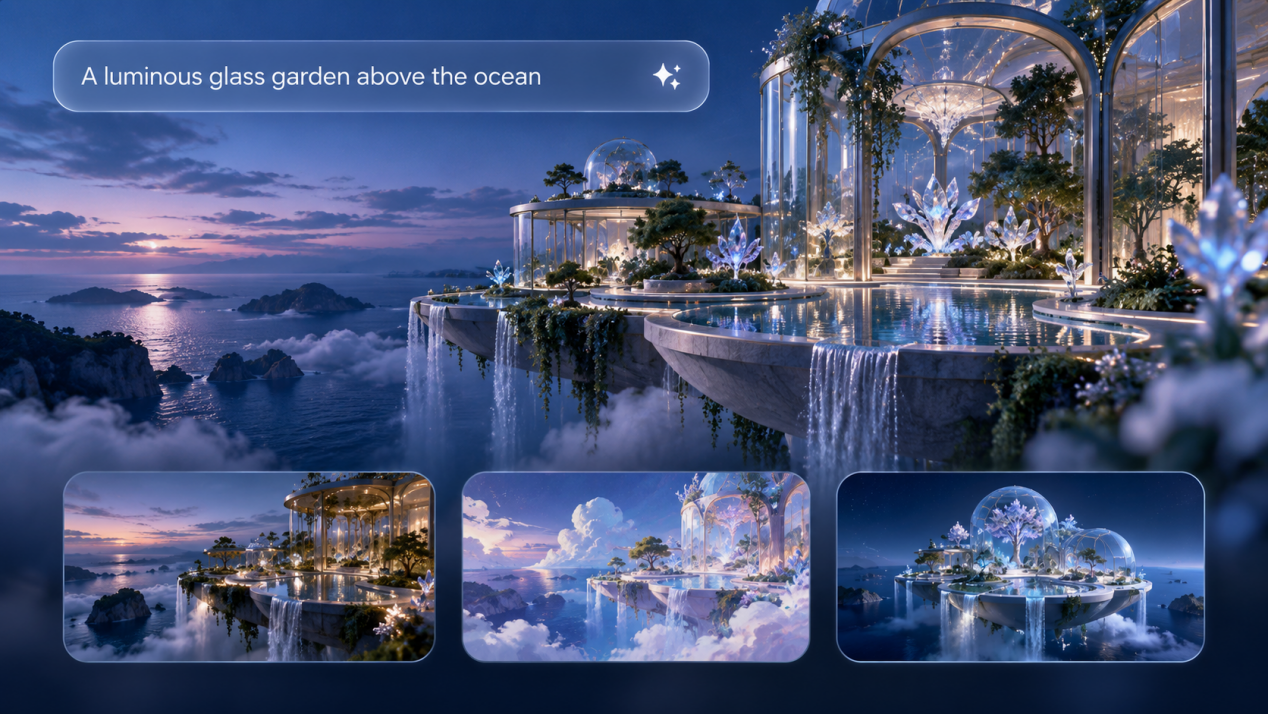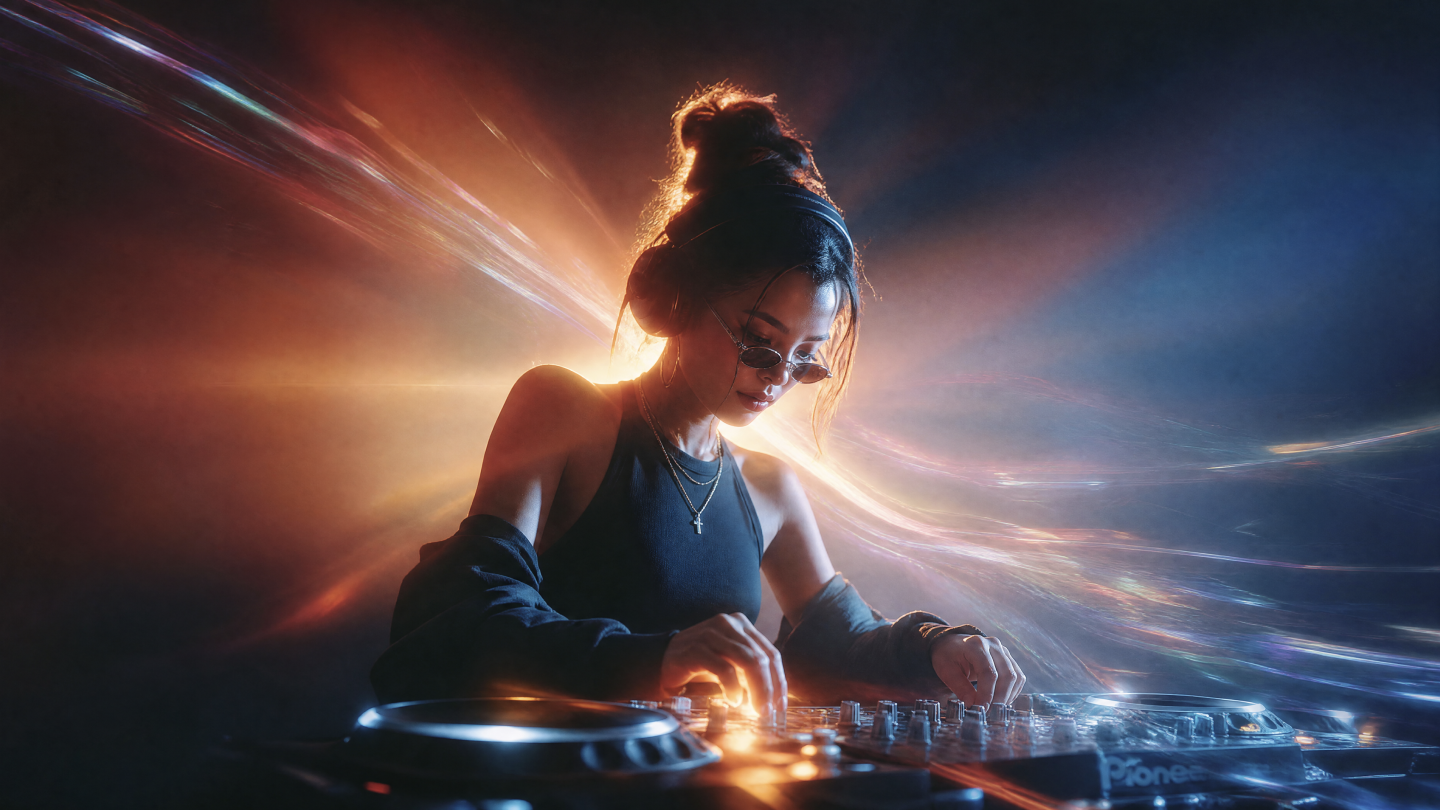
Creating professional-looking music videos used to cost thousands of dollars and require expensive equipment. Not anymore. With AI music video generators and free AI tools, musicians can now produce stunning visuals for their songs without spending a penny. When it comes to zero-budget music videos, Kling AI is an especially strong option for high-quality, physics-realistic clips, and it pairs well with free editors like DaVinci Resolve to finish the cut. This guide will show you exactly how to create a music video with AI, master the complete workflow of free AI music video production, and use AI animation techniques to bring your music to life.
zoom in | zoom out |
  |  |
What Is Kling AI and Why Use It for Music Videos?
AI music video creation has completely changed the game for independent artists— and Kling AI offers cinematic motion, realistic physics, and up to 1080p/30fps output, making it a standout among free-to-try platforms.
How AI Video Generation Works
AI music video generators work by analyzing your song's audio patterns, tempo, and emotional tone. The technology then creates synchronized visuals that match your music's rhythm and mood. Think of it as having a virtual director who "listens" to your song and creates matching scenes. With Kling AI, you can generate short scenes, extend them, or use image-to-video to animate cover art, then stitch segments in a free NLE.
Free vs. Paid: What to Expect
Free tools give you a solid starting point but come with limitations like watermarks, shorter video lengths, and fewer style options. Paid versions offer higher quality, longer durations, and more creative control. For beginners, free tools provide enough features to create impressive results. Runway’s free tier includes a small one-time credit grant; Pika removes watermarks on paid plans; Stability’s SVD can be run locally or via API with short clip limits—plan your workflow accordingly.
Strengths & Limits of AI Animation
The biggest advantage is speed and cost—you can create a music video in minutes rather than days. However, you'll have less control over specific details compared to traditional filming. The key is understanding what these tools do well and working within those strengths. Kling excels at motion realism and prompt adherence for short, high-impact scenes; combine multiple 5–10s shots for a full track if you’re on a tight budget.
Best-Fit Music Genres
AI tools work best with songs that have clear beats and emotional themes. Electronic music, pop, and rock tend to produce the most striking results, while very complex or experimental music might be more challenging for AI to interpret effectively. Abstract or mood-driven prompts map especially well to Kling and SVD short-form clips.
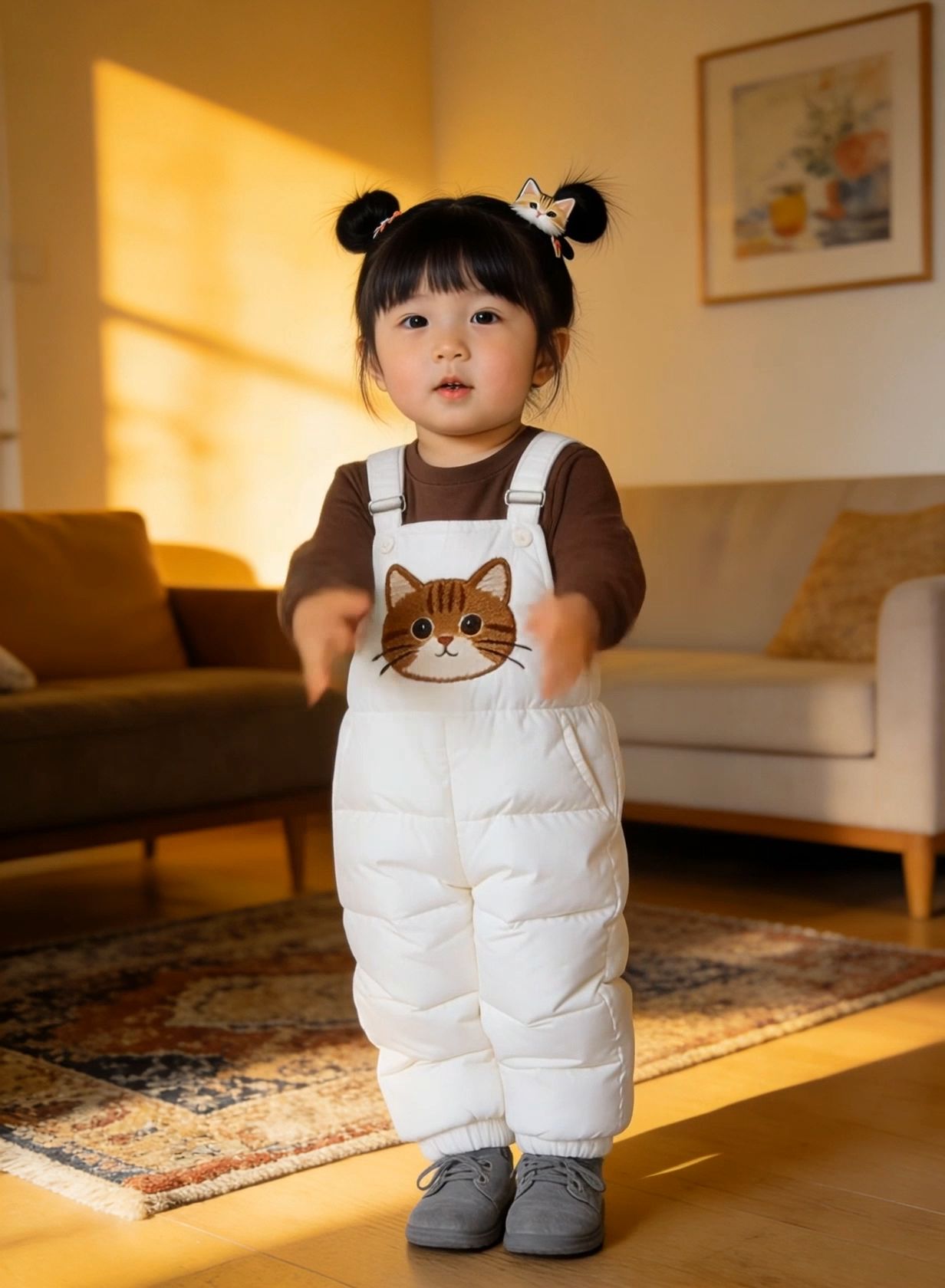
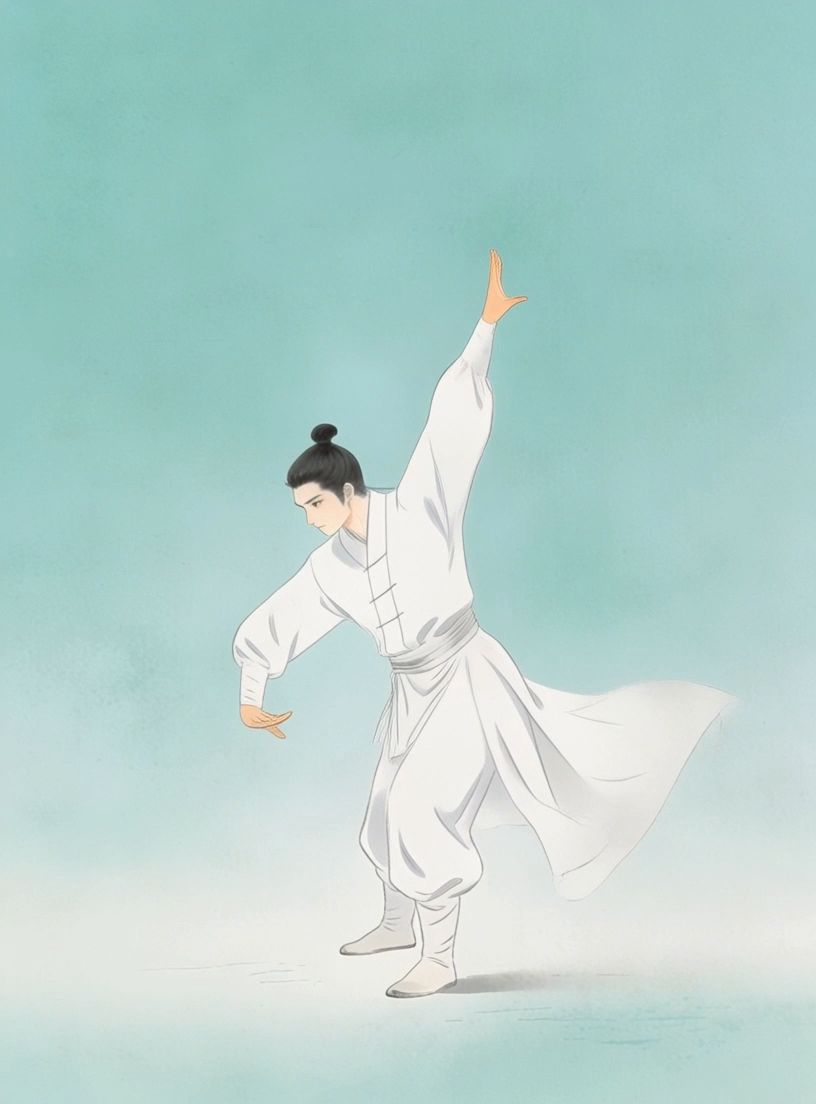
Camera Up | Camera Down |
 |  |
Which Free AI Music Video Tools Are Best (and How Does Kling Compare)?
Not all AI music video generators are created equal. Here's what you need to know about the top free options available right now.
Core Evaluation Metric | Kling AI (O1/2.6 Series) | Runway Gen-3 Alpha | Pika 1.5 | Stable Video Diffusion (SVD) |
Physical Consistency & Simulation Depth | Excellence: 3D spatiotemporal modeling; handles complex fluid/rigid body interactions with minimal distortion | High: Smooth motion, but occasionally struggles with complex physical laws like gravity feedback or eating | Fair: Artistic focus; weaker feedback of real-world mass and dynamic consistency | Moderate: Highly dependent on local tuning; native physical logic consistency is limited |
Native Audio-Visual Synchrony | Native Support: Industry-first model for single-inference AV co-generation (Voice, SFX, BGM) | Post-Synthesis: Requires separate third-party tools or internal modules for manual dubbing; no semantic alignment during generation | Not Supported: Primarily silent video; audio depends entirely on external post-processing | Not Supported: Purely visual architecture with no native audio support |
Motion Fluidity (FPS) | 30 FPS: Provides delicate dynamic performance, ideal for high-speed motion and dance rendering | 24 FPS: Classic cinematic standard; possible visual jitter in fast horizontal pans | 24 FPS: Standard broadcast/cinematic frame rate | 24 FPS: Base generation standard |
Narrative Duration (Max Length) | 180s (3-Minute Extension): Official maximum duration | Short-Seq Focused: Usually 5-10s; resolution and coherence maintenance during long extensions remain challenging | Short-Seq Focused: Optimized for 3-5s high-impact visual effects; unsuitable for long-form narrative MVs | Extremely Short: Primarily used for short looping shots |
Camera Path Precision | Advanced Control: Reference-guided motion transfer and intelligent camera movement via text prompts and motion control settings for precise scene and character motion, enabling greater creative intent in video generation | Intermediate Control: Features Motion Brush, but lacks the granular parameter flexibility of Kling's camera paths | Basic Control: Simple directional sliders; difficult to execute complex curved lens movements | Technical High: Theoretically high via ComfyUI, but inaccessible to non-technical creators |
Why Kling AI comes out on top:
● Physical Simulation vs. Visual Effects: Tools like Runway and Pika often focus on "visual shock" or filter-like aesthetics. Kling AI’s core competitiveness lies in its respect for real-world physics. In an MV, this means that when a singer spins in the rain, the splash direction, the skirt's centrifugal force, and changes in light, all of which are essential to professional output, are logical.
● Productivity of 30 FPS: In post-production, 30 FPS source material provides more room for Slow Motion. While slowing down 24 FPS leads to stuttering, Kling’s 30 FPS ensures high flexibility on the editing table.
● Economics of Native Sync: For zero-budget projects, Kling 2.6 directly eliminates the cost of hiring sound engineers or using lip-sync software. This "one-stop" delivery compresses days of alignment work into the minutes of generation.
How Should You Prepare Your Song for Kling AI Video Creation?
It's all about proper preparation to achieve amateur versus professional-quality results. This is your step-by-step preparation procedure.
Step 1: Audio Format & Quality
Before anything else, be sure to export your song in MP3 or WAV format so that it can be played anywhere. Choose 320kbps MP3 or 24-bit WAV to sound your very best. Keep your file sizes under 100MB to make uploads a snap. It's free software like Audacity that can be used to normalize your audio levels and avert any volume issues that will ruin the final video quality. Clean, normalized audio also helps Kling and other models keep motion beats aligned with your track.
Step 2: Ideal Song Length
The optimal duration for creating an AI music video is about 4 minutes. It works ideally for AI rendering and engages viewers. If your song is longer than 5 minutes, create sections or target the ultimate chorus section. Include the use of 1–2 second fade-ins and fade-outs at the start and end to achieve a sleek and professional finish. Generate multiple Kling shots (5–10s) and assemble them to cover the full track.
Step 3: Lyrics & Beat Map
Put your whole lyrics in text format—this helps AI understand better your song's themes and message. Mark important points of a beat and emotional shifts throughout a track. Determine your song's climax spots, silent moments, and turning points since these will affect your visual design choices. Extract 3–5 key themes or keywords encapsulating your song's personality and apply them to your AI prompts. These keywords transfer directly into Kling prompts or reference frames.
Step 4: Visual Style Plan
Select your palette of colors depending on your song's emotional feel. Upbeat songs and fast-paced sections can be paired with hot colors and fast cutting, while ballads and slower sections can be paired with cold colors and smooth dissolves. Make a list of actual visual elements you'd like to use—people, places, things, or abstract elements. Gather 3–5 reference music videos that achieve your desired look to help direct your creative decisions. In Kling, start with broad mood terms (e.g., “neon cyber-city at night, slow dolly”) and refine.
How Can You Design a Creative Concept That Works with Kling?
Creative planning separates good AI music videos from great ones. Your concept needs to match both your music's energy and the AI tools' capabilities.
Visual Themes
Choose themes that resonate with your song's primary message and emotional arc. Abstract concepts such as "urban dreams" or "digital nostalgia" tend to fare a lot better on AI work than highly particular tales. Emphasize moods and sentiments rather than pure-cut narratives. Promising themes include changes within nature, geometrical patterns, or human silhouettes against sleek landscapes. Themes like “journey,” “transformation,” or “city-to-dawn” translate reliably in Kling short scenes.
Animation Styles
Think about whether you want real-life footage, cartoon animations, or some abstract visuals. Each style has its own perks—realistic ones are great for emotional songs, while abstract animations fit electronic music like a glove. Photorealistic styles need more detailed prompts, but really hit home emotionally. Illustrated styles give you more freedom and usually create unique, memorable results. Kling is strongest for cinematic/realistic motion; pair with SVD or Pika for stylized interludes.
Color & Emotion
Gregg Muth suggests matching your colors to your song's emotional arc. Brightly colored hues produce energy and excitement while subdued colors indicate introspection and serenity. Think about how colors will change within your song—maybe beginning in cooler blues within verses and increasing to hotter oranges within choruses. Color temperature changes can be a good way to indicate emotional changes. Use consistent palettes so Kling shots feel cohesive when edited together.
Storyline Tips
Keep storylines simple and symbolic rather than complex narratives. AI tools excel at creating mood and atmosphere but struggle with detailed plot development. Focus on visual metaphors that represent your song's themes. A journey through different landscapes can represent personal growth, while transforming objects can symbolize change or renewal. Build a “scene bank” of 6–12 Kling clips that follow verse→pre-chorus→chorus energy.
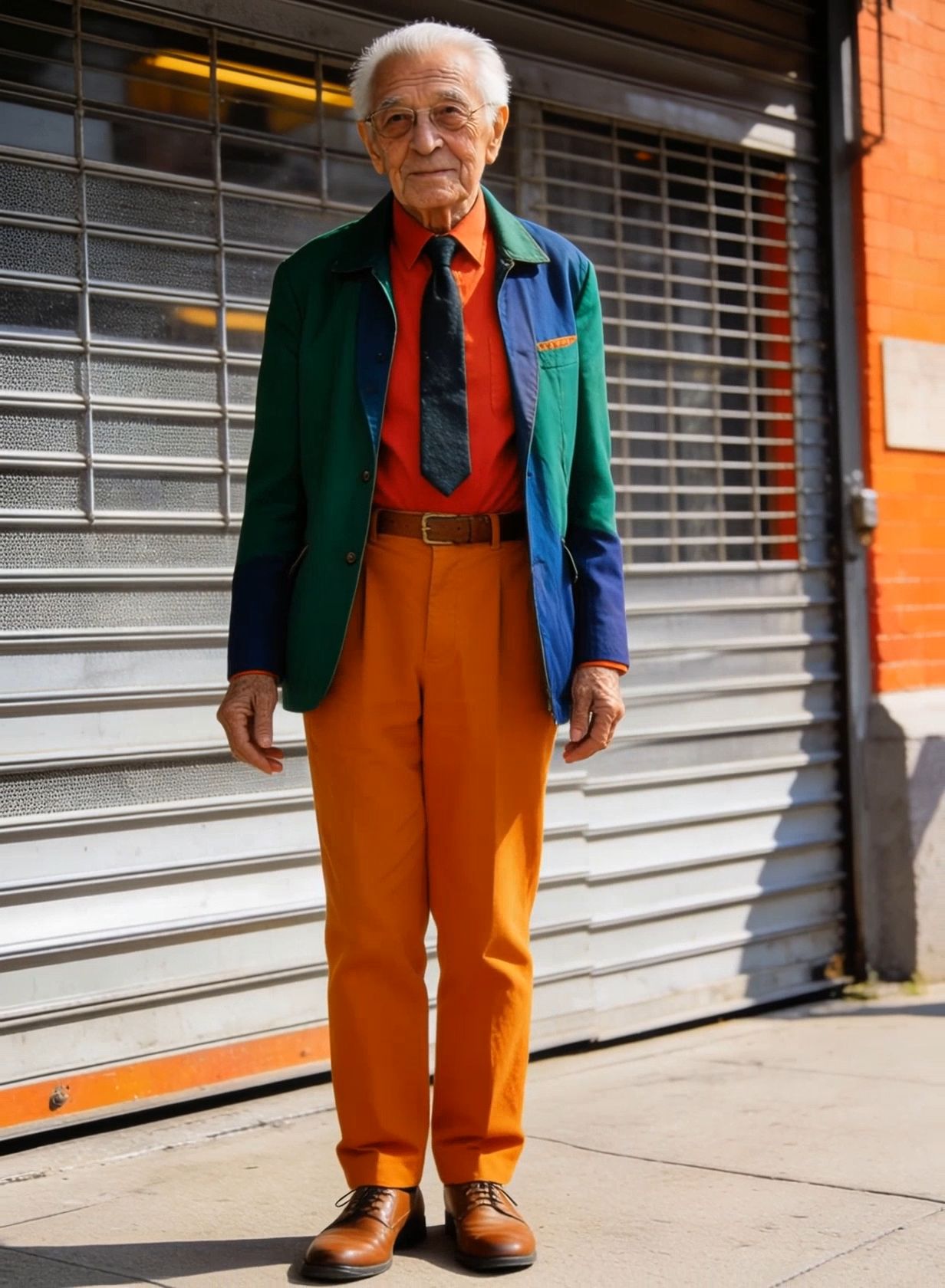
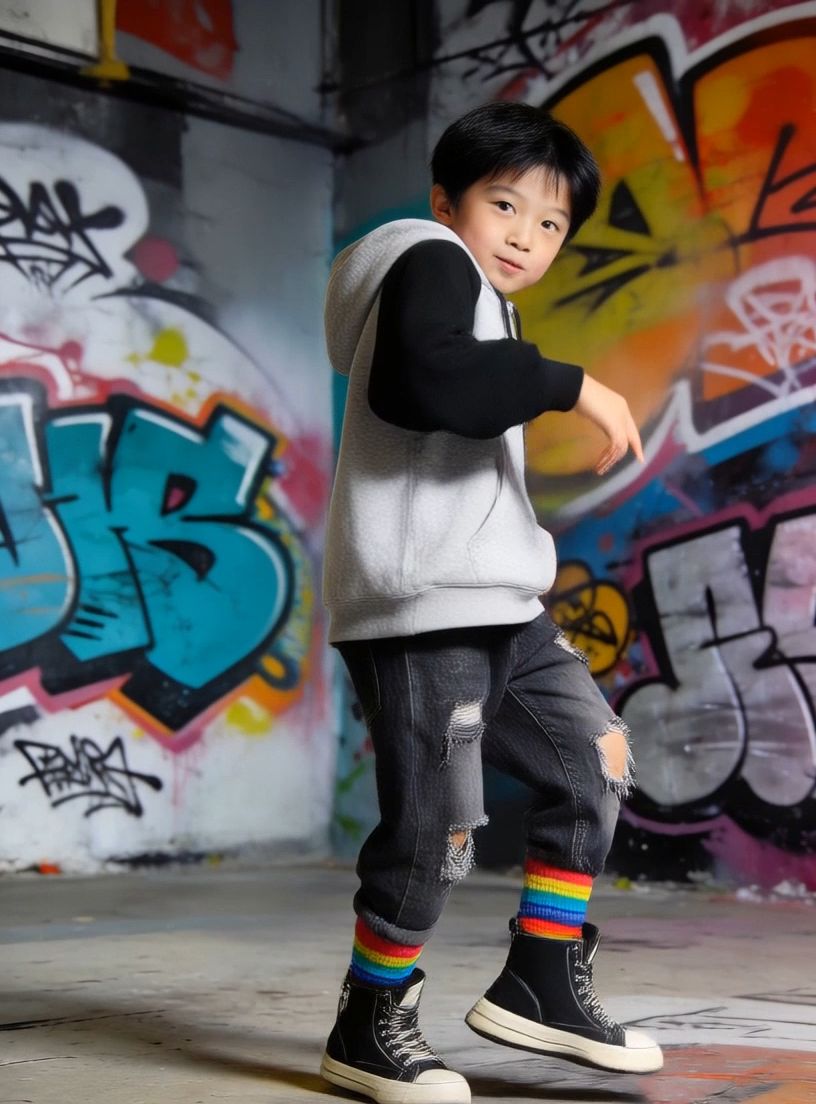
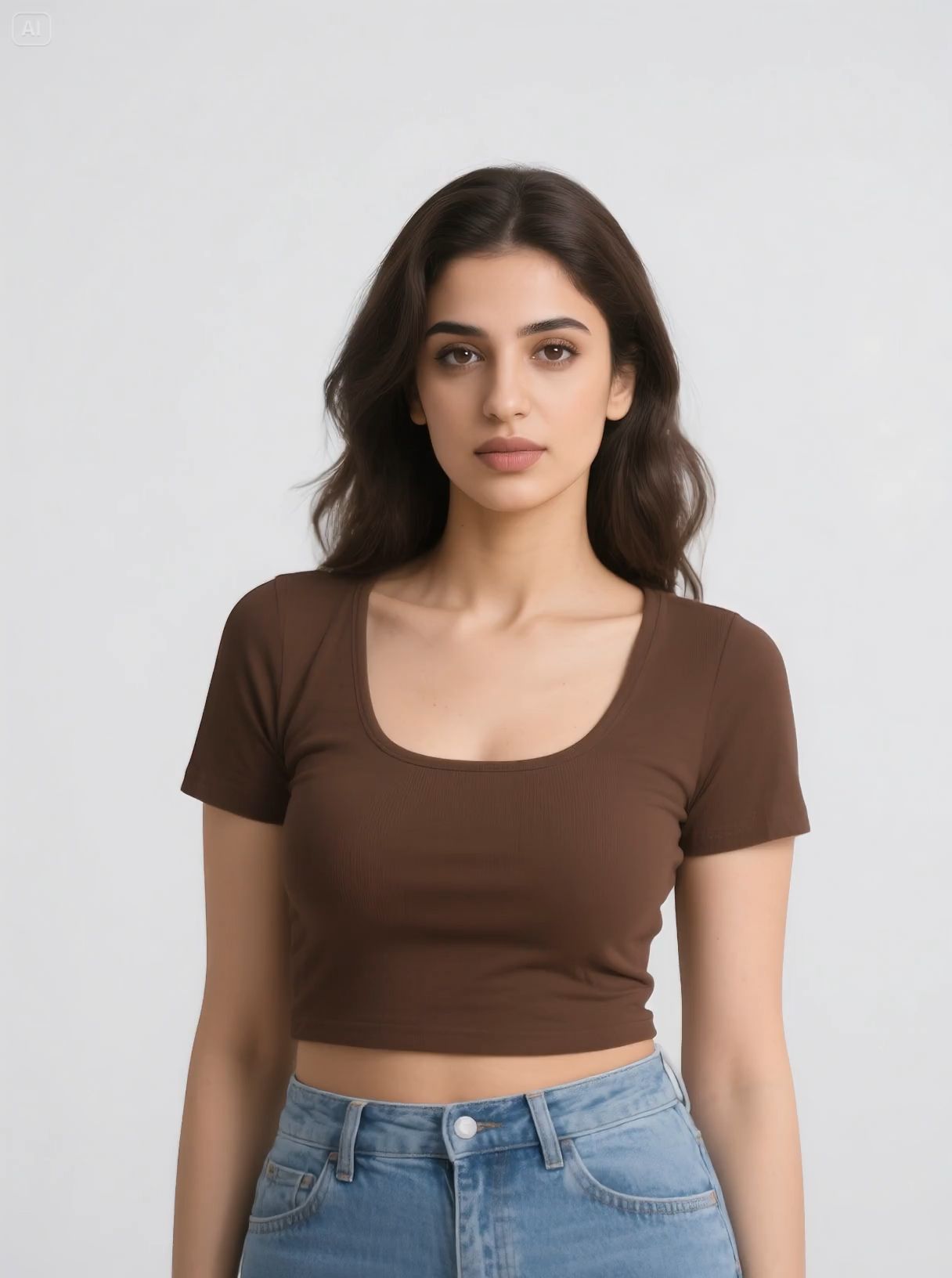
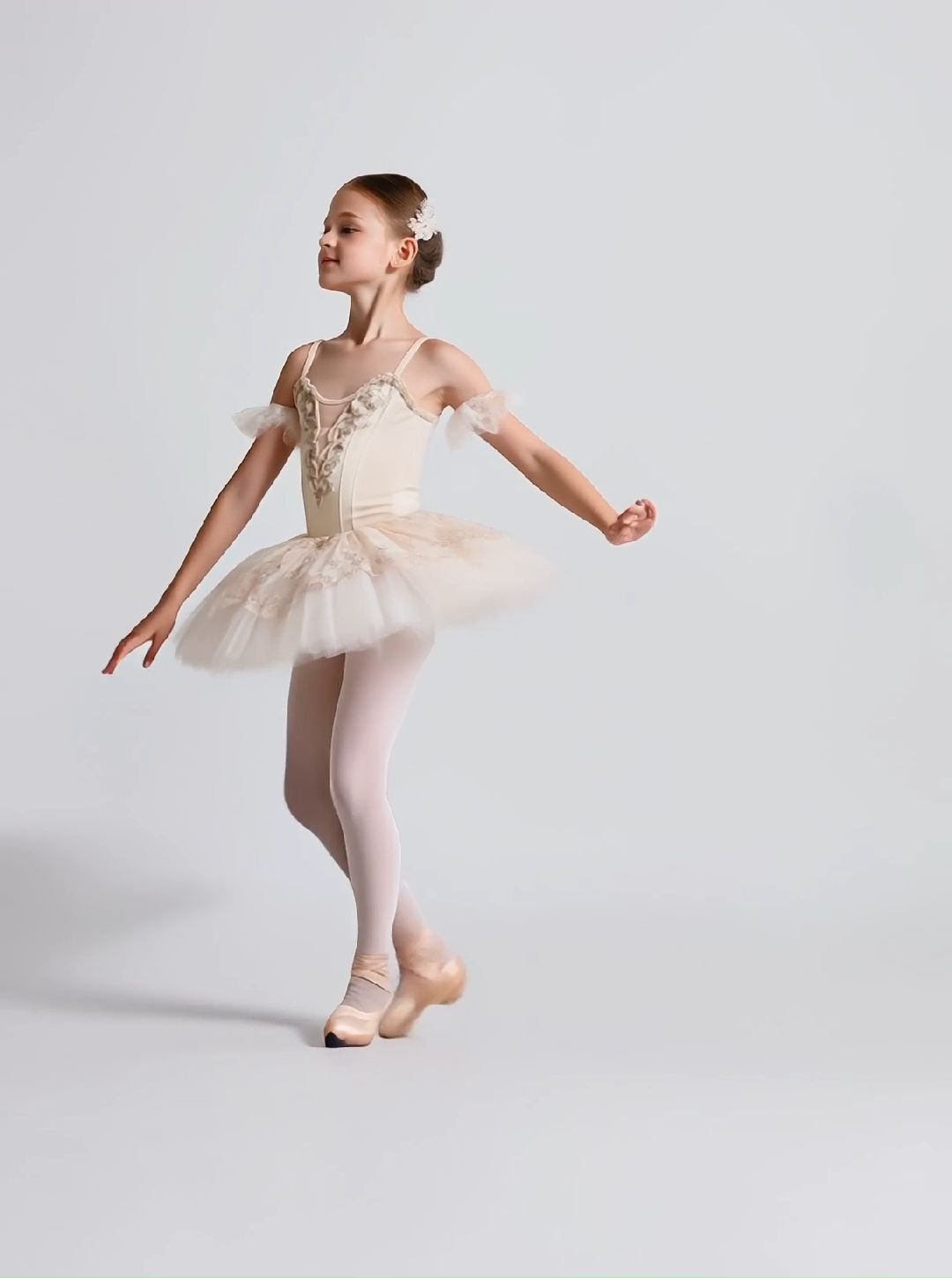
Half-Body | Full-Body |
 |  |
How Do You Make a Music Video Step-by-Step with Kling AI?
Step 1: Sign Up & Set Defaults
Register on your preferred AI video platform and sign up via email or via social login features. Activate your free usage credits upon successful email verification. Familiarize yourself with the free version restrictions on the interface and accessible features. Establish your ground-level preferences, such as output resolution, style preference, and default parameters that suit your creative objectives. If you start with Kling, aim for 1080p 16:9 or 9:16 to match your publishing plan.
Step 2: Upload Track & Prompt
Upload your prepared music file to the system and provide basic information like title and song duration. Prompting is key—describe your desired visual style in precise words like "abstract, dreamy, colorful" or "cinematic, urban, dark." Include emotional descriptors like "uplifting, melancholy, energetic." Describe concrete elements, like "city lights, night sky, silhouettes." In Kling, use short sentences, then refine with references or start/end frames for better control.
Step 3: Tweak & Preview
Effects: Choose a preset or style most suited to your genre. Adjust animation strength, saturation, and motion. Create brief preview clips to check your settings prior to making the completed movie. Runway lets you pick 5s/10s and extend in steps; SVD API demos render ~2s (25 frames) in ~41 seconds—plan your timing budget.
Step 4: Generate & Download
Once you have finalized your settings, begin the entire video generation process. Processing time varies by tool and clip length. Verify sync, motion quality, and artifacts. Export MP4 (1080p recommended). If you used Pika’s free tier, expect watermarks unless you’re on a paid plan.
How Can You Polish and Publish Your Kling AI Music Video?
Prepare your videos for prime time with some touches and some smarts behind your distribution.
Basic Editing
Utilize free editing software such as DaVinci Resolve or OpenShot to incorporate timing changes and merge several AI clips. Include smooth transitions and consider color grading for consistency. Basic cuts can eliminate unwanted parts, and changes in speed can better synchronize visual elements with changes in a beat. Arrange Kling hero shots at chorus hits, intercut with stylized Pika/SVD moments.
Lyrics & Subtitles
Add your song lyrics as subtitles to help engage viewers (many watch on mute). Use clear fonts and contrast. Simple graphic elements (progress bars/beat visualizers) can add interest without overpowering AI visuals.
Platform Formats
Every platform requires unique formats: Instagram prefers square (1:1) or vertical (9:16), YouTube is optimal in 16:9, TikTok is vertical. Make multiple aspect ratios if distributing widely. Opt for shorter cuts for social media and longer edits for YouTube. Generate alternate aspect ratios in Kling to reduce cropping.
Promotion Plan
Release to your biggest audience first. Use genre-specific hashtags and popular music tags. Reply to comments quickly. Cross-post teaser cuts and behind-the-scenes clips showing your AI process—it boosts engagement and shareability.
FAQs about AI Music Video Tools
Q1: Can Free Tools Really Produce Professional Results—and Where Does Kling Fit?
For sure! Free AI music video generators can deliver high-quality visuals for social, YouTube, and indie promotion. Kling stands out for cinematic motion and 1080p/30fps output; combine short shots for full songs and finish in a free editor.
Q2: How Long Will It Take to Make One Video with These Tools?
Many platforms generate one clip per prompt in short lengths. Runway Gen-3 supports 5- or 10-second generations with stepwise extensions; Stability’s SVD demo generates ~2 seconds (25 frames) in ~41 seconds via API. Total project time depends on your iterations and edits.
Q3: Do I Need Technical Skills to Use Kling or Similar AI Video Tools?
Not at all. Most tools are designed for non-technical creators. If you can upload files and write prompts, you can make engaging videos. Kling offers straightforward text-/image-to-video; pair with a drag-and-drop editor for assembly.
Start Creating Your AI Music Video
AI music videos can be made available to any artist at any budget or level of technical know-how. With these free software and tested techniques, you have everything required to create professional-grade videos out of your music. Use the Kling AI generator for your core shots, complement with Runway/Pika/SVD where helpful, then finish in a free NLE to publish in multiple formats.