Creative Studio
API
Resources
Features
About Us
Download

123 video editor - Global Warming Effects & Manufacturing Satisfying

Unleash your creativity with 123 video editor by transforming still photos into dynamic videos and crafting impactful AI-driven content like explanatory scenes and global warming awareness clips. Start exploring 123 video editor ideas and generate your own content with AI.
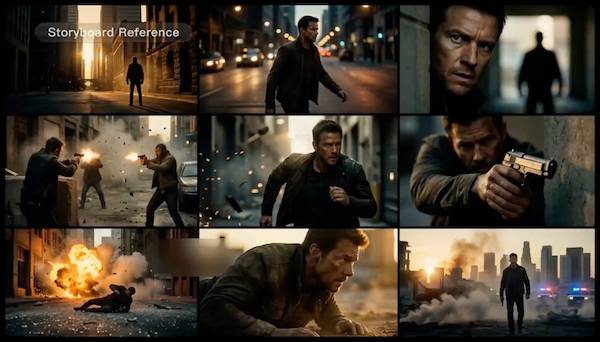
123 video editor - Global Warming Effects & Manufacturing Satisfying

Recommended

Kling AI work 314676400618305 - 123 video editor AI image
cgTbQUbc avatar
cgTbQUbc
Kling AI work 317141680320781 - 123 video editor AI image
Kielonfreak avatar
Kielonfreak
123 - 123 video editor AI video
00:08
zLYawBZm avatar
zLYawBZm
Kling AI work 317141622502686 - 123 video editor AI image
Kielonfreak avatar
Kielonfreak
video editor - 123 video editor AI video
Drey_pontious avatar
Drey_pontious
Kling AI work 313940305660763 - 123 video editor AI video
ynFZAVfN avatar
ynFZAVfN
Kling AI work 314524356666210 - 123 video editor AI video
jXXicPGQ avatar
jXXicPGQ
123 - 123 video editor AI video
00:08
uRyrCchW avatar
uRyrCchW
Kling AI work 306581005615791 - 123 video editor AI image
sebjPliB avatar
sebjPliB
Kling AI work 312249747506596 - 123 video editor AI image
vPRFeDyN avatar
vPRFeDyN
Kling AI work 315737602663135 - 123 video editor AI image
eeQXvOdd avatar
eeQXvOdd
Kling AI work 317141646504550 - 123 video editor AI image
Kielonfreak avatar
Kielonfreak
Kling AI work 306580875500787 - 123 video editor AI image
sebjPliB avatar
sebjPliB
123 - 123 video editor AI video
00:08
kbULjlwx avatar
kbULjlwx
123 - 123 video editor AI video
00:05
NHMteNbp avatar
NHMteNbp
123 - 123 video editor AI video
00:06
ZXpwIHsI avatar
ZXpwIHsI
123 - 123 video editor AI video
Chinese trend
pdrTagaO avatar
pdrTagaO
Kling AI work 317141585526791 - 123 video editor AI image
Kielonfreak avatar
Kielonfreak
Kling AI work 309431440300484 - 123 video editor AI video
kaeCFpbD avatar
kaeCFpbD

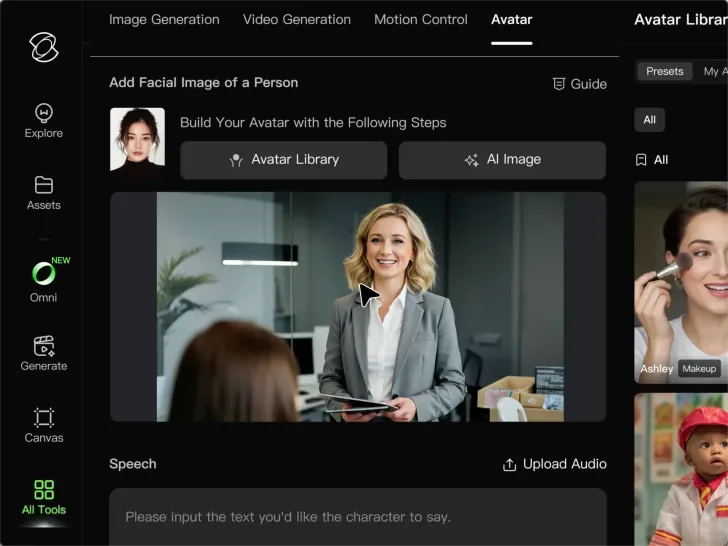
How to Create an AI Avatar Video

Create an Avatar

Create an Avatar

Pick a ready-made character from the Avatar Library, return to a saved avatar, upload an image from your device or Assets, or generate someone new with AI Image. The selected image becomes the visual starting point for the video.

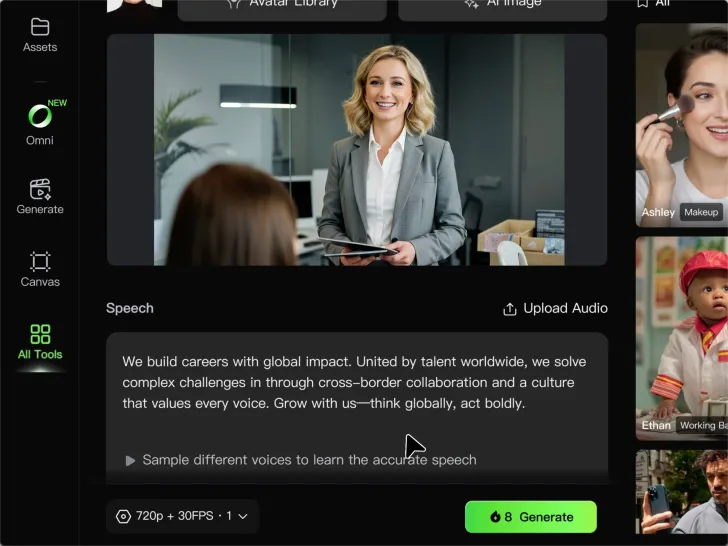
Add the Voice

Add the Voice

Upload a finished recording, or enter the lines you want the character to deliver. With text to speech, select a voice and adjust its speed and emotional tone. Use punctuation to place pauses where they naturally belong, especially in longer passages.

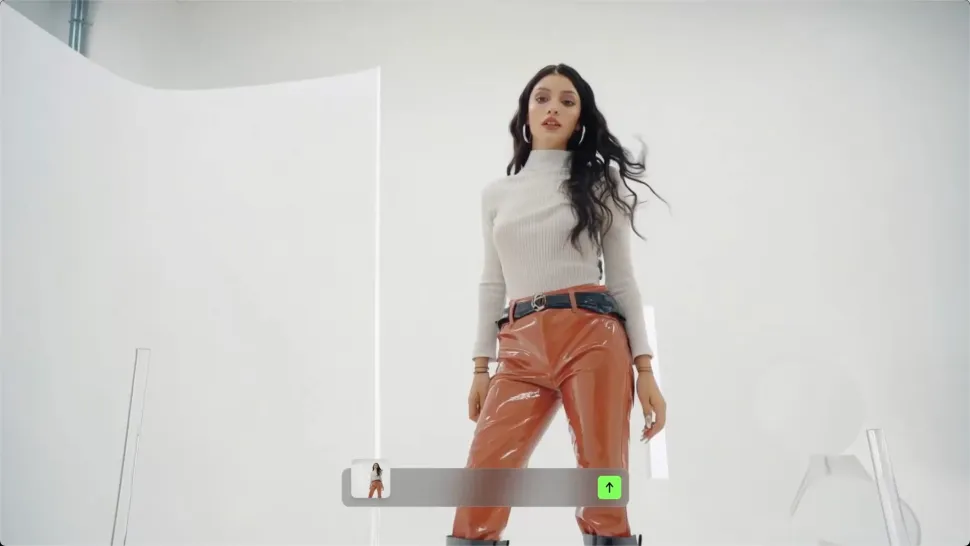
Shape the Performance

Shape the Performance

Describe how the character should feel, react, and move while speaking. You can write the direction yourself or begin with one of the performance options Kling AI suggests for the selected character. Generate the video and review the delivery.

Go from Written Scene to Directed Sequence

See Your Scene as More Than One Shot

See Your Scene as More Than One Shot

A conversation does not have to stay on one camera angle. An action beat does not have to play out in a single wide shot. Turn on Multi-Shot and Kling can plan scene transitions, framing, and camera-angle changes around what you wrote. A simple story beat can move from an establishing shot to a character close-up, then cut again when the action calls for it.
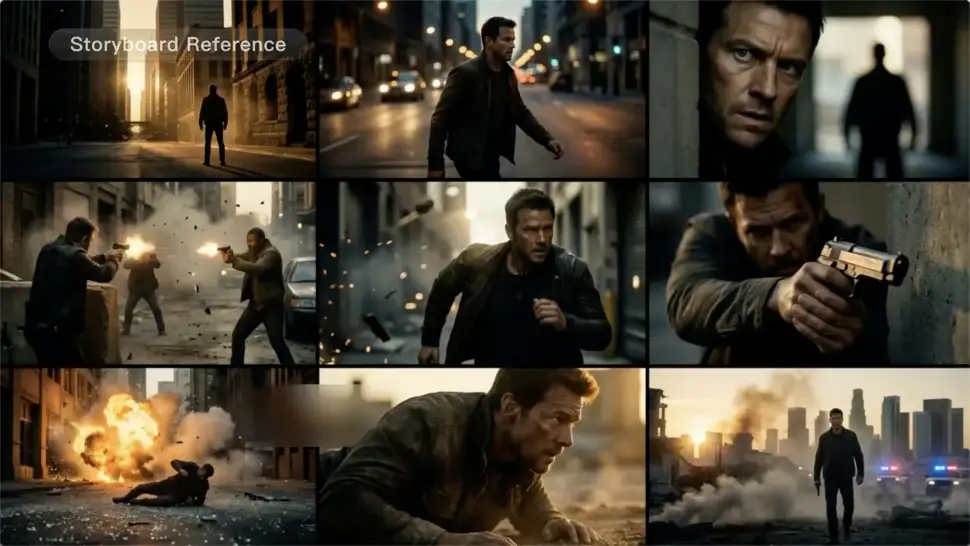
Take Over the Storyboard When the Shot Matters

Take Over the Storyboard When the Shot Matters

When you already know how the scene should be covered, use Custom Multi-Shot instead of leaving every decision to the model. Decide what happens in each shot, how long it lasts, whether the camera is wide or close, which angle you want, and how the camera moves. It gives you a practical way to turn screenplay direction or a rough shot list into something Kling can generate.

Bring the Same Character into the Next Shot

Bring the Same Character into the Next Shot

A cut should not feel like a new actor walked into the scene. Use a Character Element when someone needs to return across different angles, actions, or settings, and make it clear in the prompt which character belongs in each shot. For workflows that need a richer mix of character, image, video, and scene references, VIDEO 3.0 Omni gives you more ways to anchor the people and visual details your story depends on.
Apps

Image to Video
Image to Video

Image to Video

Text to Video
Text to Video

Text to Video

Omni
Omni

Omni

Digital Human
Digital Human

Digital Human

Restyle
Restyle

Restyle

Text to Image
Text to Image

Text to Image

60M+
60M+
Users
600M+
600M+
AI Videos Generated
4.7 ★
4.7 ★
App Store
Industry-Leading
Industry-Leading
Cinematic 4K

Reviews

Ozan Sihay

Ozan Sihay

★★★★★

Kling AI allows me to rapidly prototype ideas, refine storytelling elements, and produce visually compelling content efficiently. It has not only accelerated my creative processes, but also deepened my understanding of how AI can enrich visual storytelling.
Vincent Smadja

Vincent Smadja

★★★★★

Kling AI seamlessly integrates into my creative workflow, playing a key role in transforming my images. After generating and upscaling an image, Kling becomes a crucial element, bringing my creations to life with movement and depth.
Halim Alrasihi

Halim Alrasihi

★★★★★

I use AI daily and Kling AI is a crucial part of my workflow, whether for client work or personal projects. What I love most about using Kling AI is that it provides all the tools I need in one place, from keyframes to character references, elements and special effects.

FAQ

Q1Can I upload multiple images to improve accuracy?
Q2How do I keep the face from changing or distorting?
Q3What makes a good reference video for Motion Control?

Turn Your Ideas into Stunning Images

Create realistic images, character concepts, and creative artwork with Kling AI.

Free tier available | Reference images supported | High-quality output | Fast generation