Creative Studio
API
Resources
Features
About Us
Download

Draw To Video - Musicians & Character Dances

Unleash creativity with Draw To Video by transforming quick draws and text into captivating videos, and bringing still photos to life with motion control. Start exploring Draw To Video ideas and generate your own content with AI.
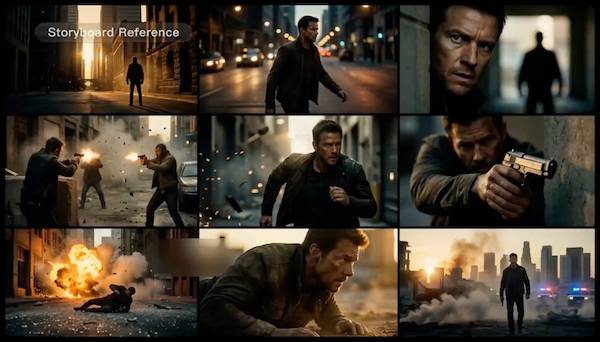
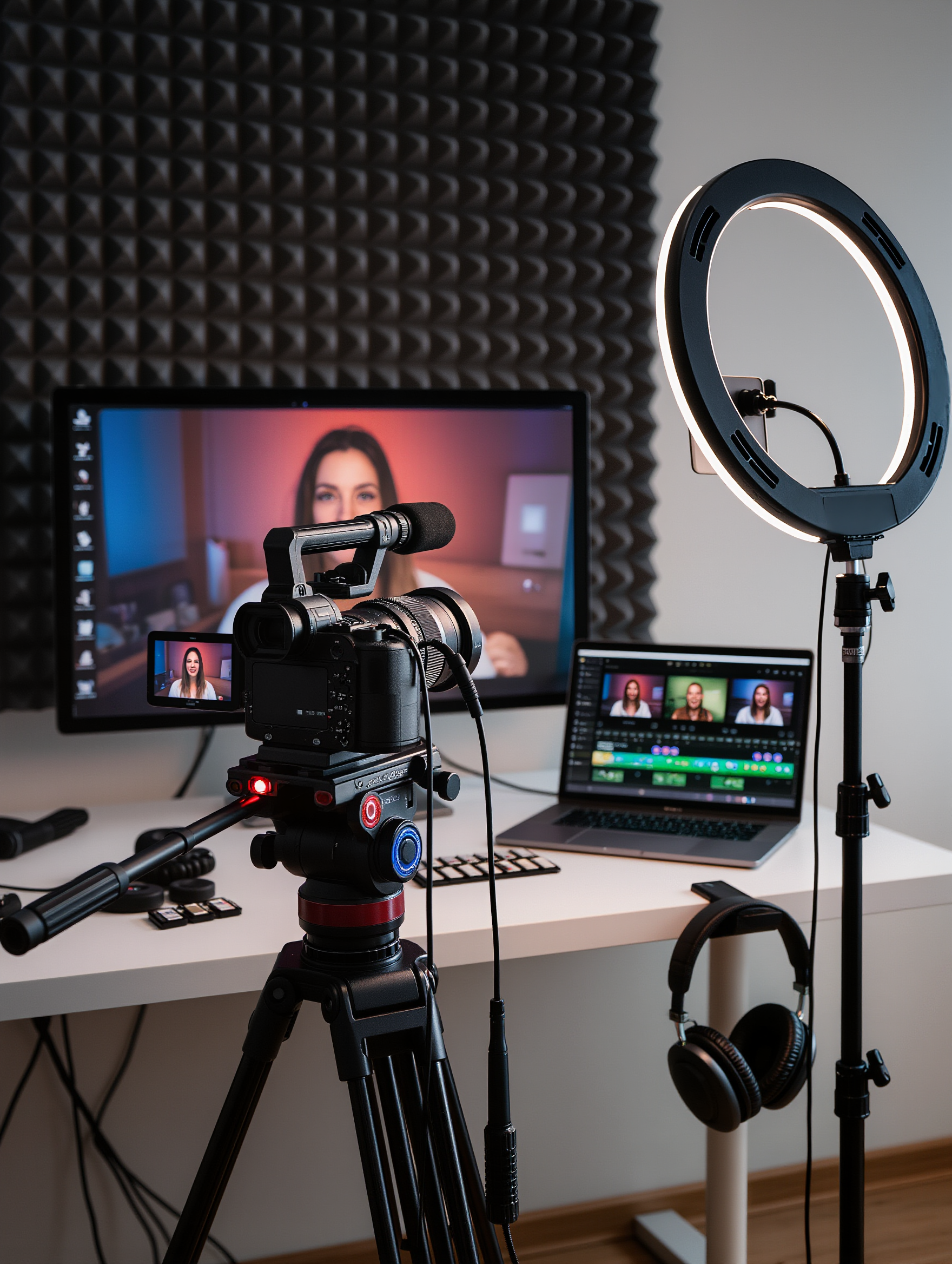
Draw To Video - Musicians & Character Dances

Recommended

Kling AI work 308326197612525 - Draw To Video AI video
CSYuxlga avatar
CSYuxlga
general a video about the genesi - Draw To Video AI image
bBdlAAMC avatar
bBdlAAMC
Kling AI work 314897158664420 - Draw To Video AI video
PcUNSCgB avatar
PcUNSCgB
make it a video  - Draw To Video AI image
tvXbWebU avatar
tvXbWebU
Kling AI work 314617714615093 - Draw To Video AI video
tCLpSVuI avatar
tCLpSVuI
Kling AI work 300209237522990 - Draw To Video AI video
CLXuxbIu avatar
CLXuxbIu
Kling AI work 309012811521070 - Draw To Video AI video
vnXOIZPu avatar
vnXOIZPu
kickflip fingerboard - Draw To Video AI video
diptwo avatar
diptwo
Aisha - Draw To Video AI video
Alla_nov avatar
Alla_nov
Elite Creator
Kling AI work 314789062617238 - Draw To Video AI video
BR10 avatar
BR10
do this as an video - Draw To Video AI image
CRfdyBMQ avatar
CRfdyBMQ
hacer video - Draw To Video AI image
wdgONJrh avatar
wdgONJrh
Use the uploaded video as the ex - Draw To Video AI image
NUFsXjGe avatar
NUFsXjGe
Kling AI work 308474176614475 - Draw To Video AI image
milo avatar
milo
Kling AI work 317650952502000 - Draw To Video AI video
XKCrdAWu avatar
XKCrdAWu
Kling AI work 294673181306274 - Draw To Video AI video
XcuQybBB avatar
XcuQybBB
best ai video - Draw To Video AI video
LdtknkaY avatar
LdtknkaY
Kling AI work 308474176660498 - Draw To Video AI image
milo avatar
milo

How to Change Clothes with Kling AI

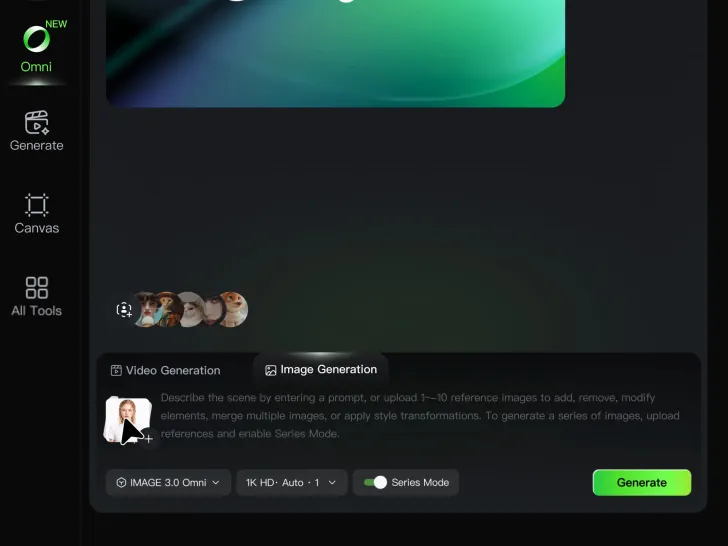
Step 1: Upload the Model Photo and Outfit References

Step 1: Upload the Model Photo and Outfit References

Upload the model's photo you want to edit, then add references for the clothing, shoes, hats, bags, or accessories you want to use. You can combine multiple references when different parts of the final look come from different images.

Step 2: Describe the Outfit Change

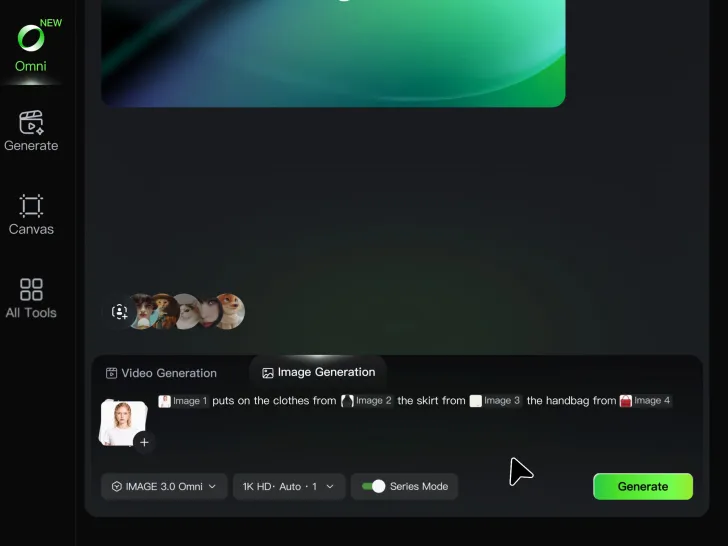
Step 2: Describe the Outfit Change

Tell Kling AI how each reference should be used. For example, use Image 1 as the base person, then apply the shirt from Image 2, jacket from Image 3, skirt from Image 4, and shoes from Image 5.

Step 3: Generate Your Outfit Change

Step 3: Generate Your Outfit Change

Choose your preferred aspect ratio and 2K or 4K resolution, then generate your new look. Preview the final composite and download your favorite result.

Expand Images Beyond the Frame with More Control

Extend the Scene Naturally Beyond the Frame

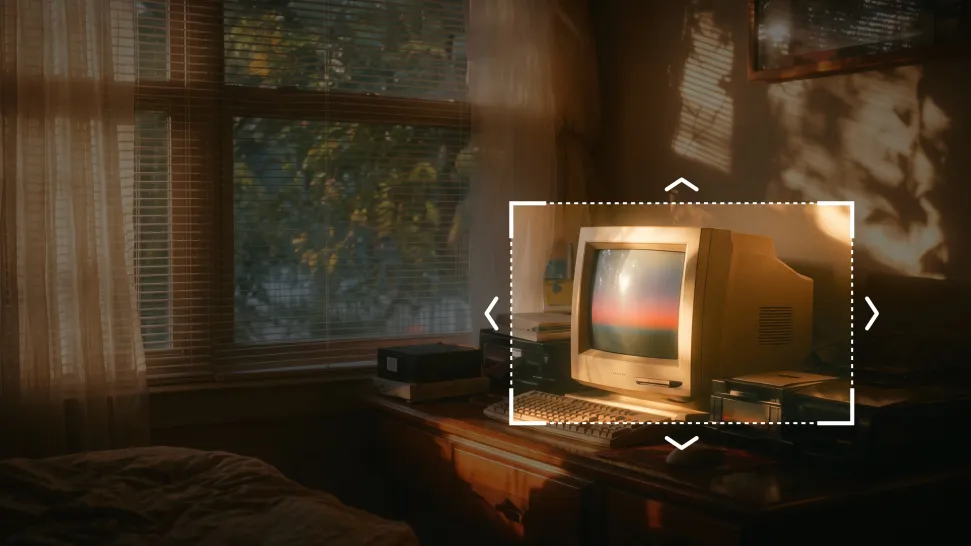
Extend the Scene Naturally Beyond the Frame

Add new visual space around your existing image while keeping the expansion connected to the original scene. Kling IMAGE 3.0 can follow visual details such as scenery, color, lighting, and texture, helping newly generated content feel consistent with the source image.
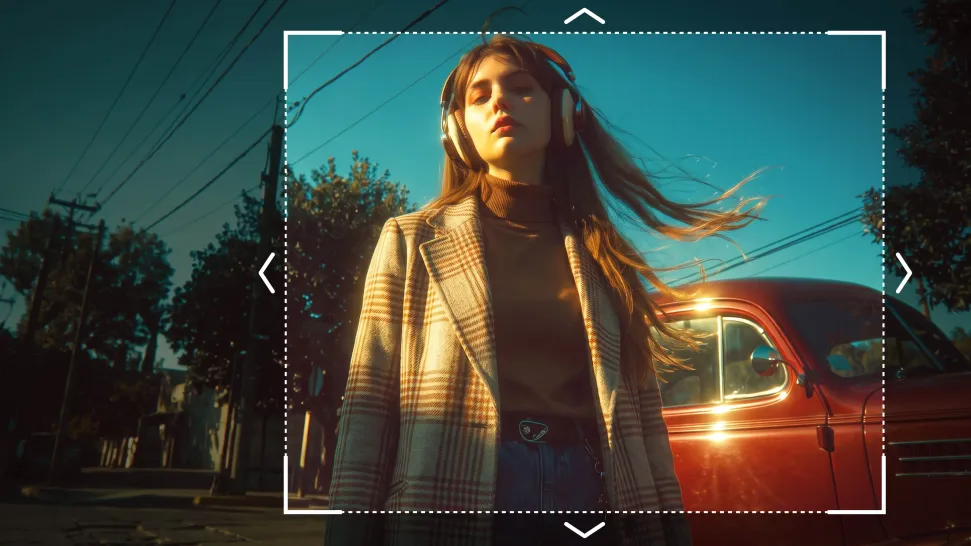
Keep Key Subjects Consistent as the Scene Expands

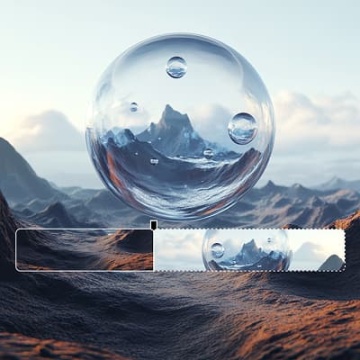
Keep Key Subjects Consistent as the Scene Expands

Expanding the frame should not change the subject that anchors the image. Kling IMAGE 3.0 automatically preserves your key subjects during extension. Simply specify the person, product, or central element in your prompt to keep them consistent with the original image.
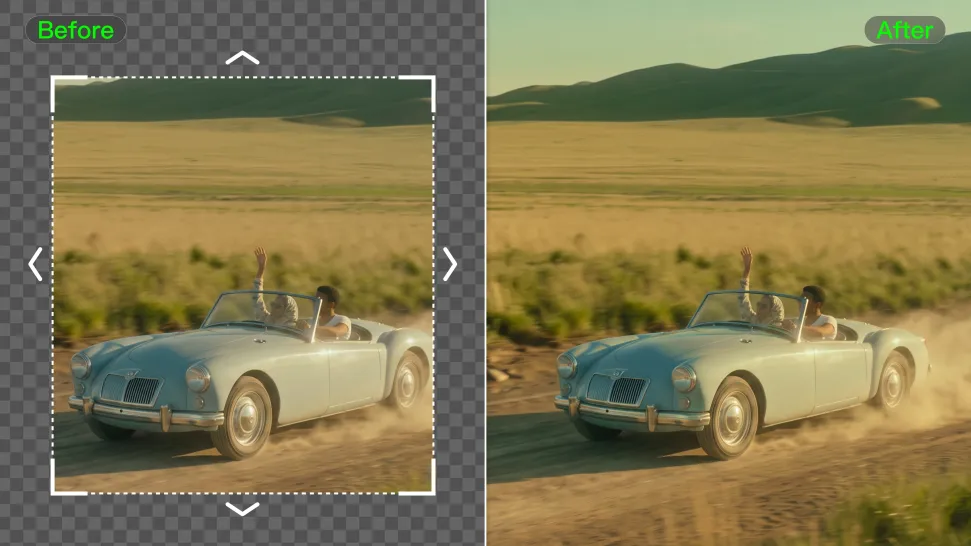
Choose What Appears in the Expanded Area

Choose What Appears in the Expanded Area

The new space does not have to be left entirely to the model. Describe what you want outside the original frame, from a wider room or distant landscape to more sky, architecture, plants, or decorative details, and let Kling IMAGE 3.0 continue the scene around your idea.
Apps

Image to Video
Image to Video

Image to Video

Text to Video
Text to Video

Text to Video

Omni
Omni

Omni

Digital Human
Digital Human

Digital Human

Restyle
Restyle

Restyle

Text to Image
Text to Image

Text to Image

60M+
60M+
Users
600M+
600M+
AI Videos Generated
4.7 ★
4.7 ★
App Store
Industry-Leading
Industry-Leading
Cinematic 4K

Reviews

Huang Lu (Elson)

Huang Lu (Elson)

★★★★★

I’ve been using Kling AI since its initial release, and it’s remained one of the leading AI media generators ever since. With Kling AI, I’ve created hundreds of videos, collectively amassing millions of views.
Samuele Poggi (@visualsk2)

Samuele Poggi (@visualsk2)

★★★★★

I use Kling AI daily to push the limits of AI filmmaking. It allows me to create highly cinematic content, blending AI and VFX to develop innovative projects. It has significantly impacted my creative process, enabling me to achieve complex animations that would otherwise require high production budgets.
Halim Alrasihi

Halim Alrasihi

★★★★★

I use AI daily and Kling AI is a crucial part of my workflow, whether for client work or personal projects. What I love most about using Kling AI is that it provides all the tools I need in one place, from keyframes to character references, elements and special effects.

FAQ

Q1What kind of images work best for Motion Control?
Q2How do I keep the face from changing or distorting?
Q3What is the difference between Kling 2.6 and 3.0 Motion Control?

Turn Your Ideas into Stunning Images

Create realistic images, character concepts, and creative artwork with Kling AI.

Free tier available | Reference images supported | High-quality output | Fast generation