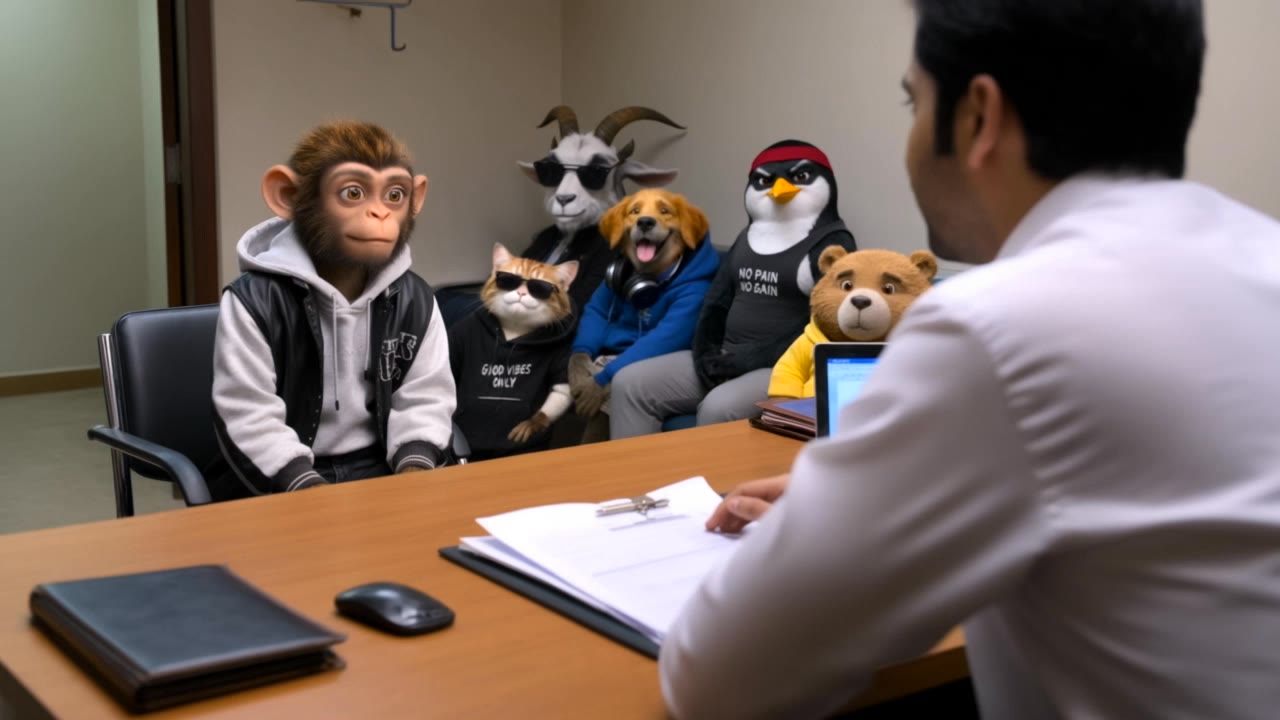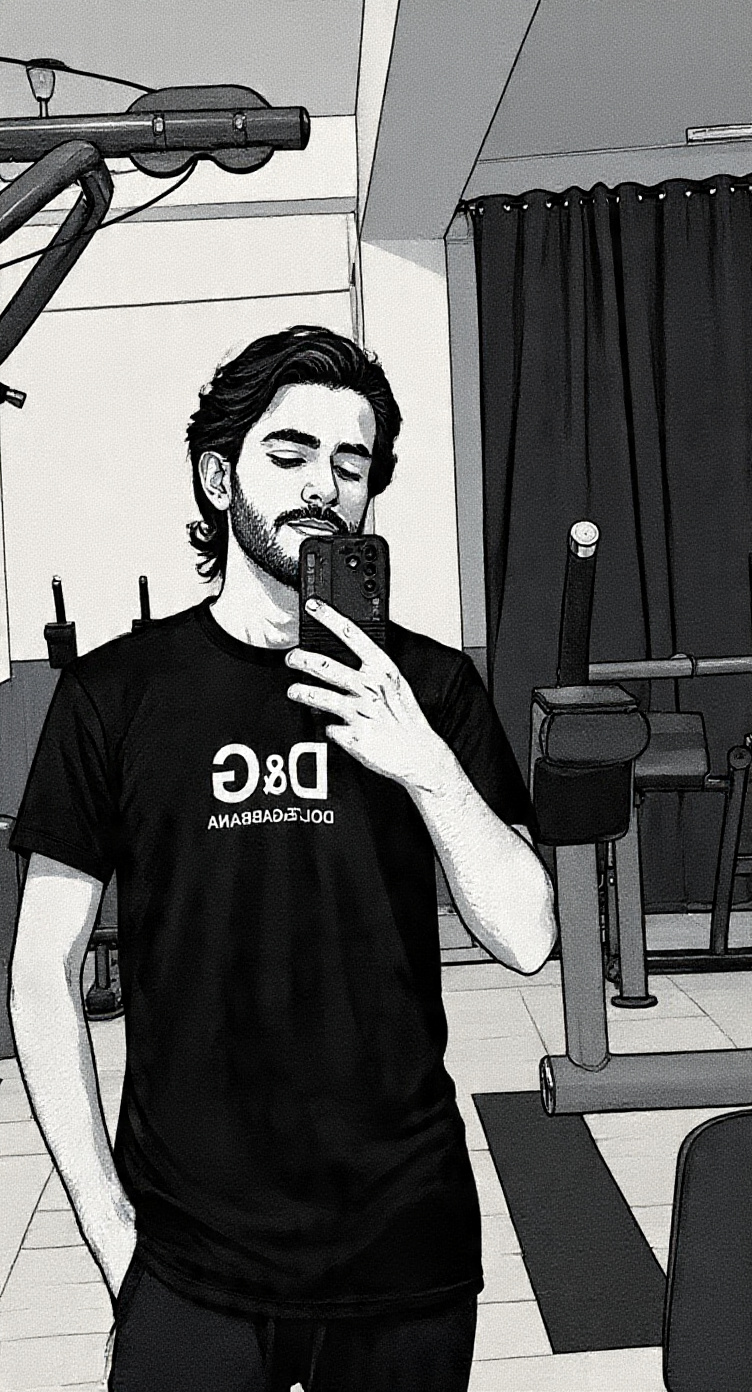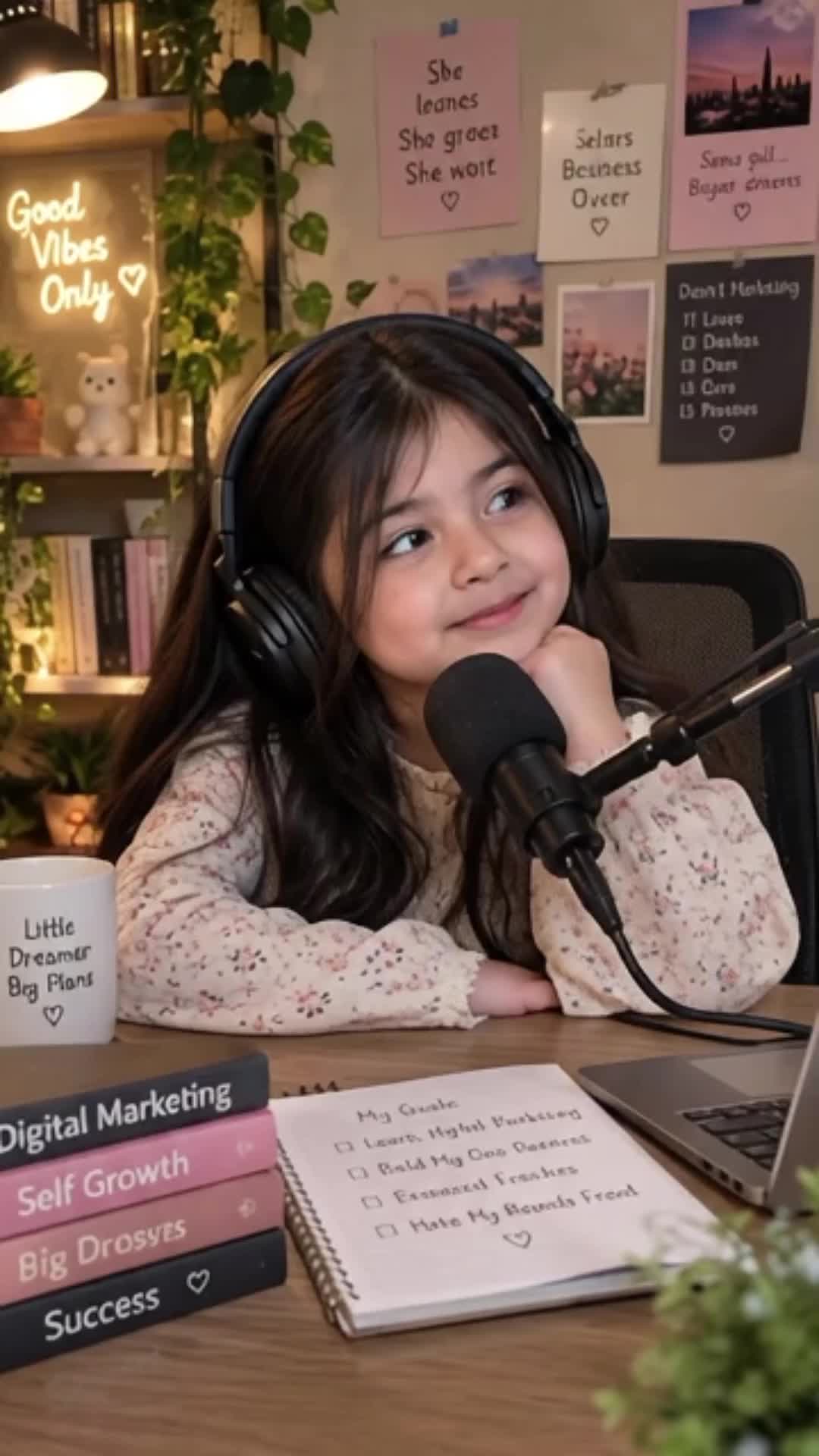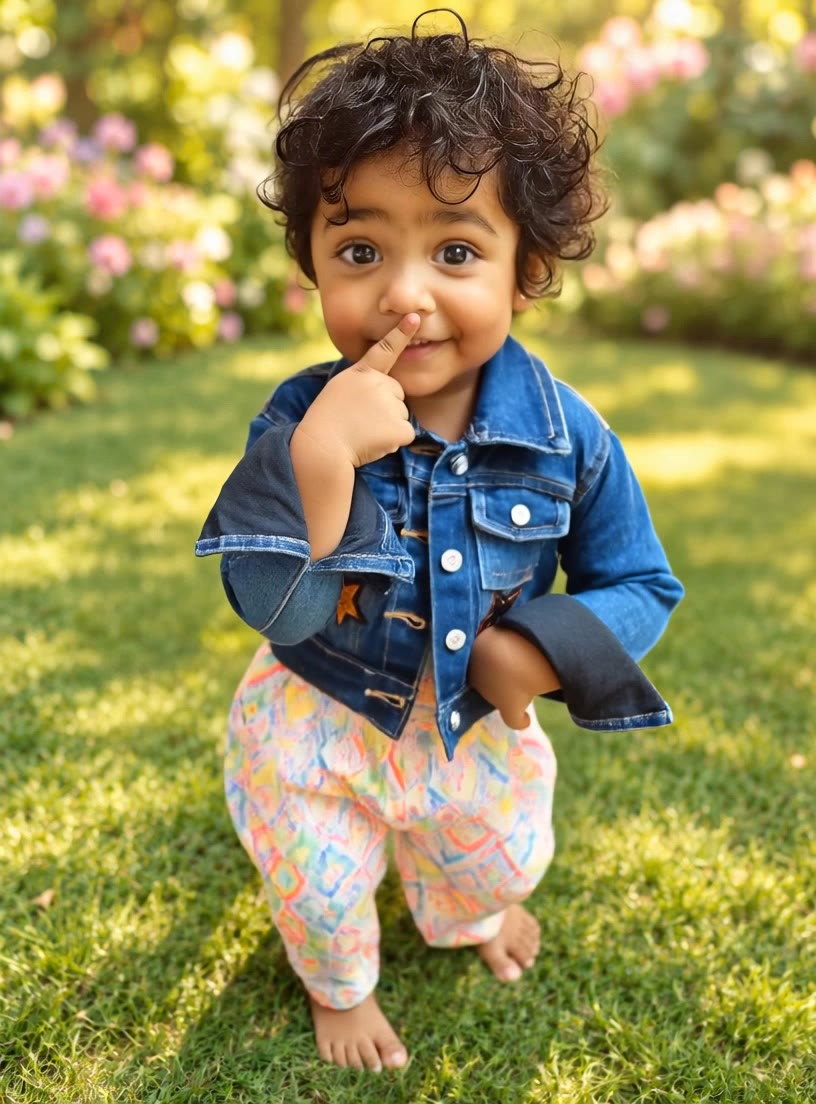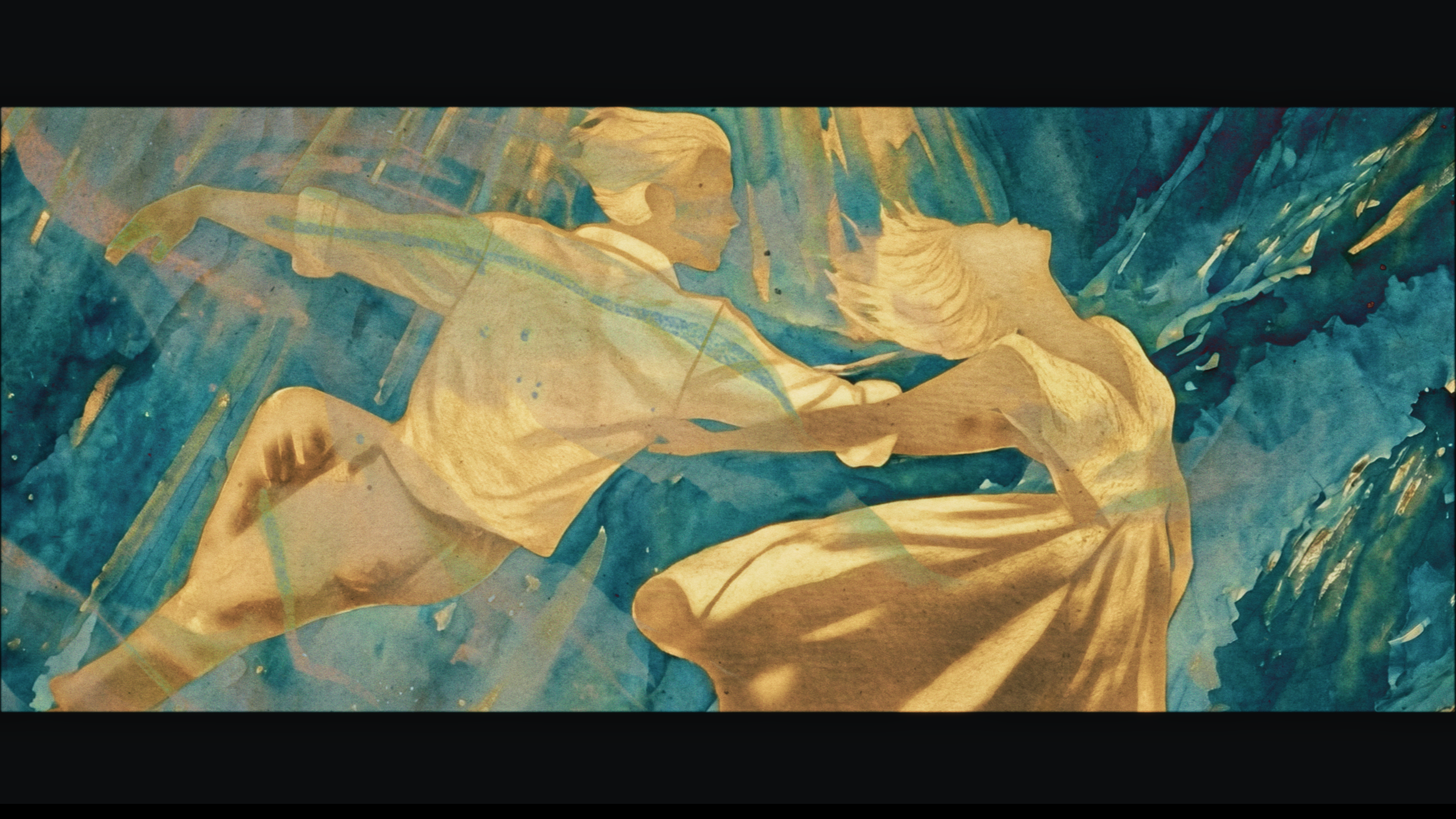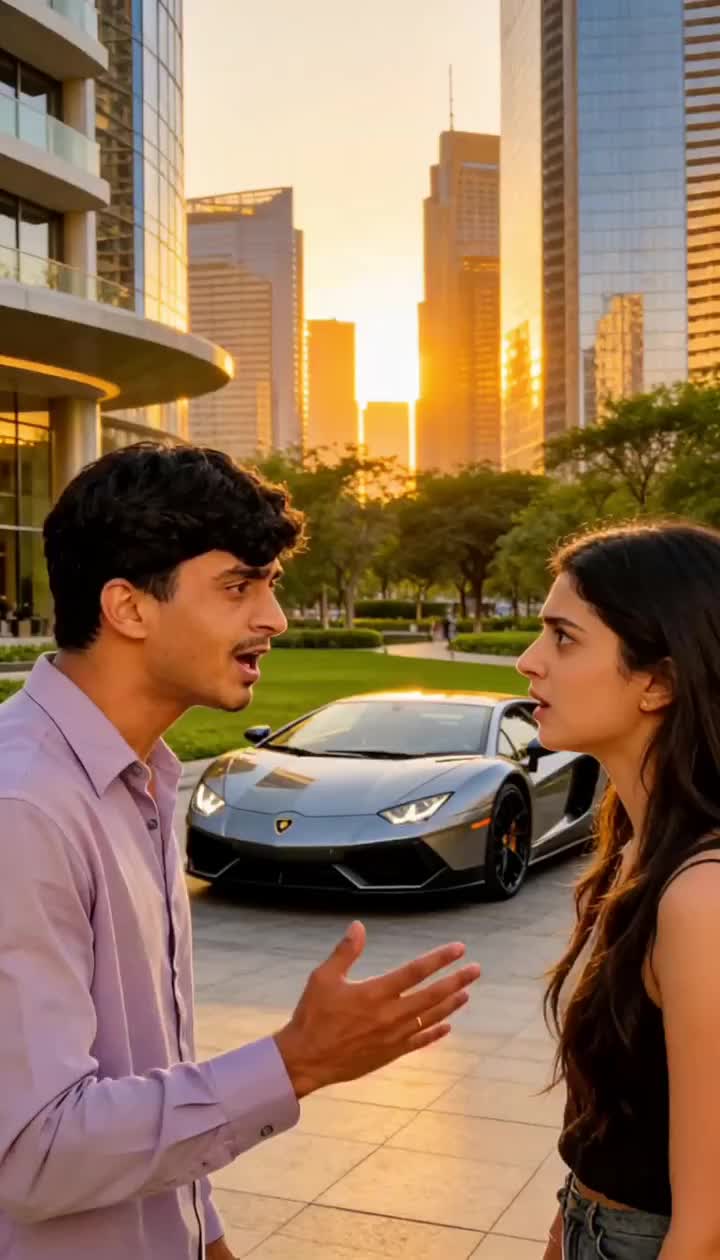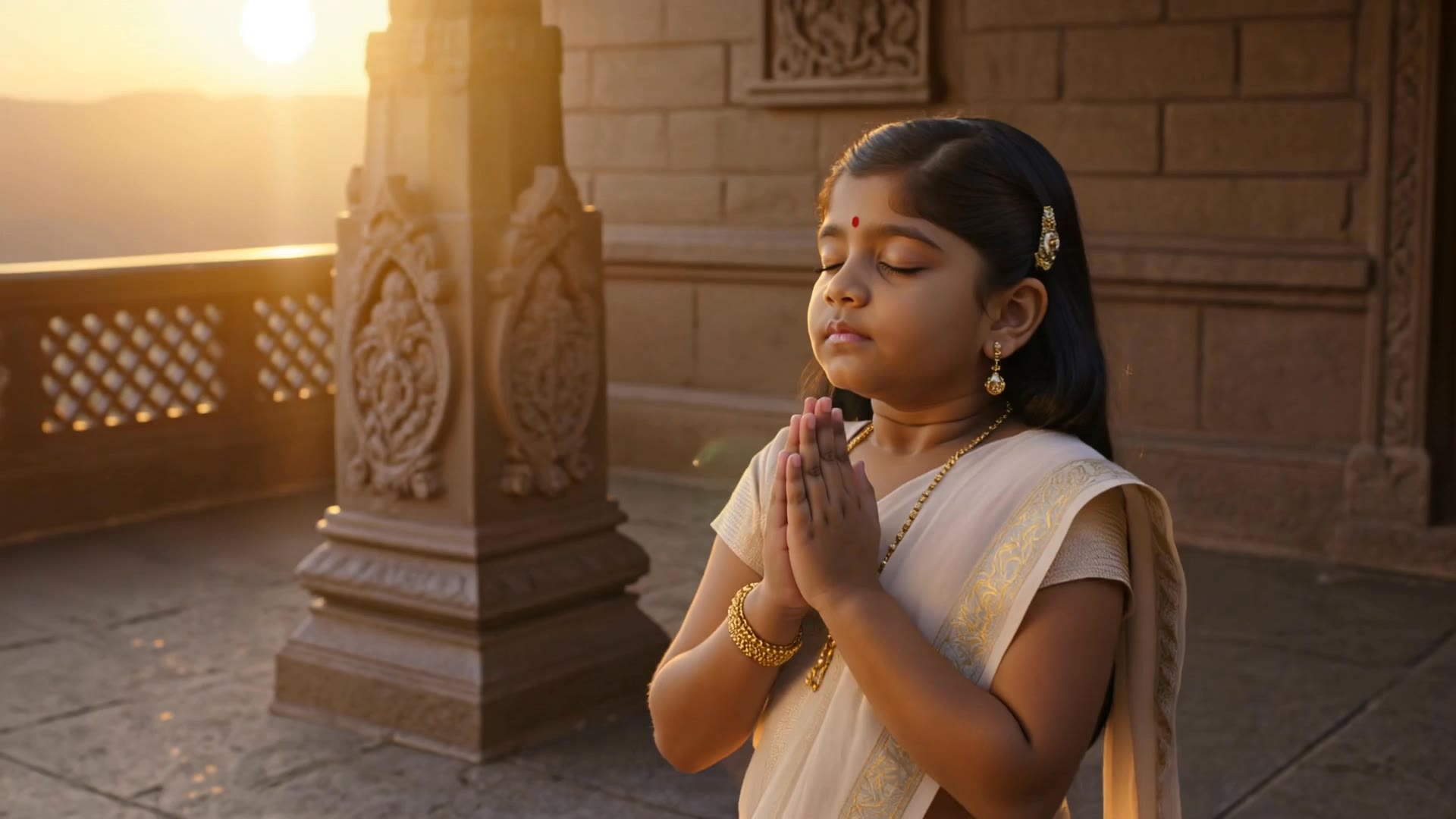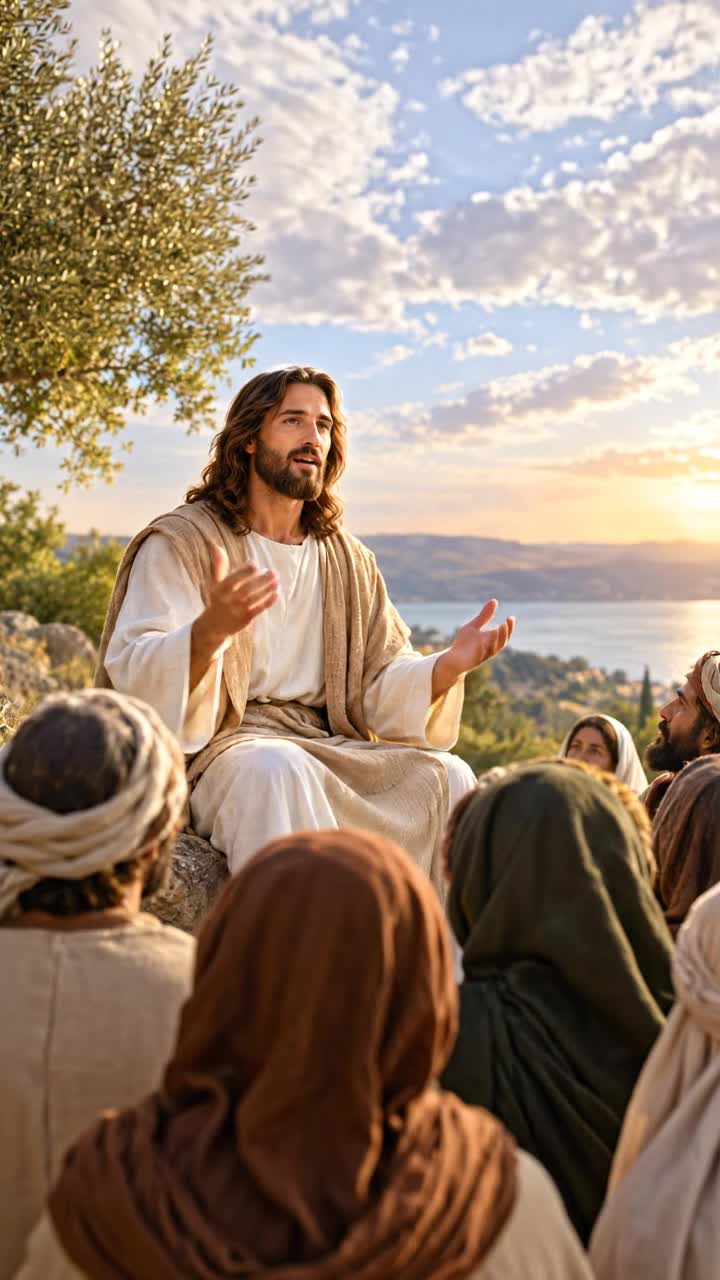
ai to make music videos - Afrobeat dance & music festival mosh pit

Unleash your creativity with AI-driven music videos featuring dynamic dance rhythms and vibrant, themed visuals like Eurobeat synths and Afrobeat energy. Start exploring ai to make music videos ideas and generate your own content with AI.
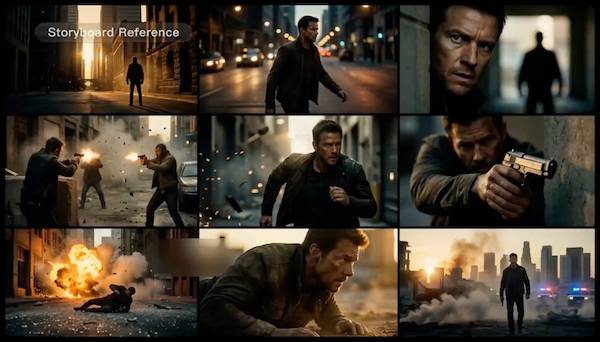
ai to make music videos - Afrobeat dance & music festival mosh pit

Recommended

how to create ai videos  - ai to make music videos AI video
00:36
AKMeKbzw avatar
AKMeKbzw
ai videos  - ai to make music videos AI video
zrCVgfmB avatar
zrCVgfmB
best AI videos - ai to make music videos AI video
khan avatar
khan
Kling AI work 316867809520858 - ai to make music videos AI video
JeiubeQL avatar
JeiubeQL
Ai videos - ai to make music videos AI video
00:15
ekxsGFwg avatar
ekxsGFwg
Creative AI videos - ai to make music videos AI video
Creative AI Videos avatar
Creative AI Videos
Music Videos Produced with Kling - ai to make music videos AI video
01:14
Subject Zero avatar
Subject Zero
Ai funny videos  - ai to make music videos AI video
00:10
WspOPwbV avatar
WspOPwbV
Ai videos  - ai to make music videos AI video
00:12
PLrncfLd avatar
PLrncfLd
ai videos creator - ai to make music videos AI video
00:19
UZeeeGWu avatar
UZeeeGWu
AI generated videos spiritual  - ai to make music videos AI video
JJWuUIsz avatar
JJWuUIsz
AI generation videos - ai to make music videos AI video
00:08
VmfelPaj avatar
VmfelPaj
videos ai - ai to make music videos AI video
00:10
video ai avatar
video ai
Kling AI work 317079600611480 - ai to make music videos AI video
IedLnWLb avatar
IedLnWLb
funny AI videos  - ai to make music videos AI video
USDozXvX avatar
USDozXvX
ai videos - ai to make music videos AI video
00:10
dywRayIH avatar
dywRayIH
Intersección - ai to make music videos AI video
IrhnAjEW avatar
IrhnAjEW
Music video  - ai to make music videos AI video
ltMNVhFp avatar
ltMNVhFp

A Complete AI Video Editing Workflow

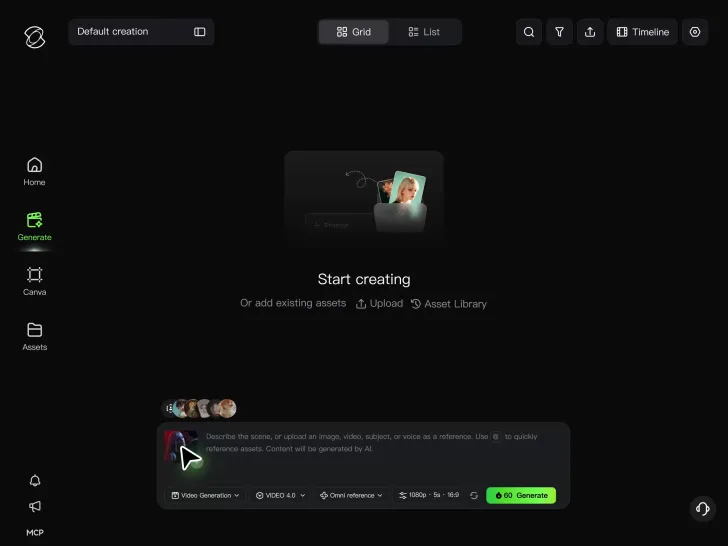
Upload Your Footage

Upload Your Footage

Start with a video you've filmed or generated. Add reference images, characters, or other supported assets if you want to guide how the edited scene should look.

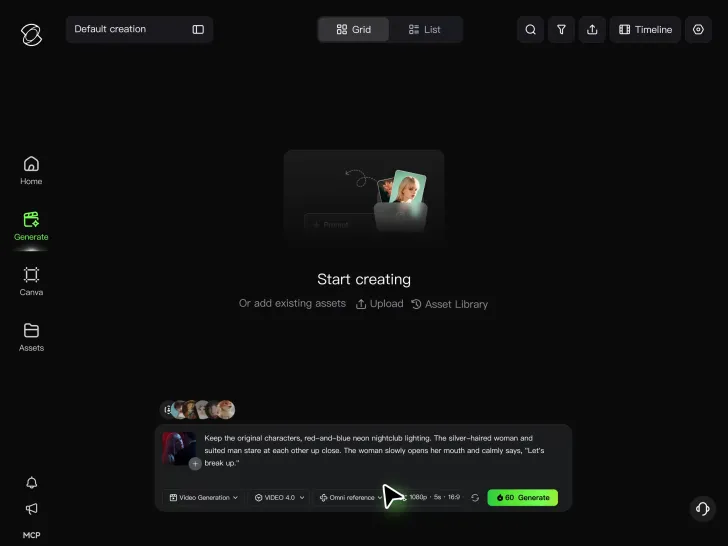
Describe What You Want to Change

Describe What You Want to Change

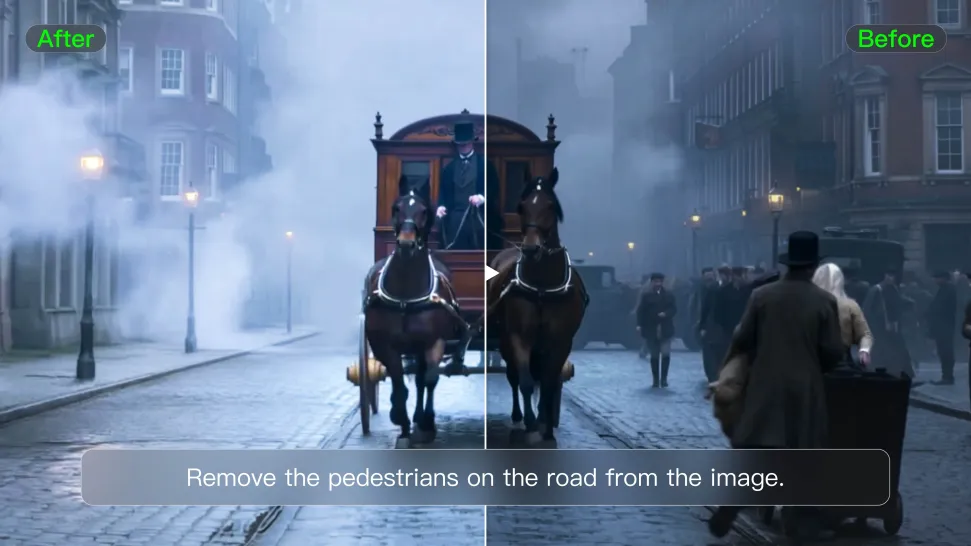
Tell Kling what to replace, remove, or adjust. You can change the subject, background, action, camera angle, or visual style. Include details you want to keep from the original footage.

Preview and Download Your Video

Preview and Download Your Video

Generate your edited video and review the changes. Refine your prompt or references if needed, then download the version you're happy with.

Edit Any Part with Kling AI

Add, Remove, or Replace Image Content

Add, Remove, or Replace Image Content

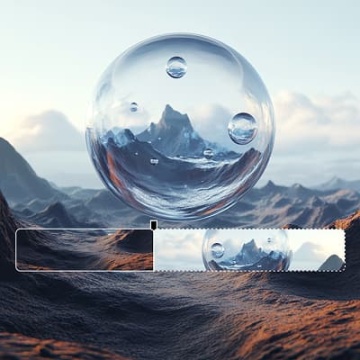
Tell Kling what you want to change in text prompts. Replace a person, remove an object, or fine-tune details such as color, material, pose, and expression. Even detailed edits take fewer and easier steps because you can change the photo with AI instead of with traditional photo editing tools. IMAGE 3.0 follows your instruction while keeping the photo’s original style, lighting, and texture in place, so the edited area still belongs in the same shot.
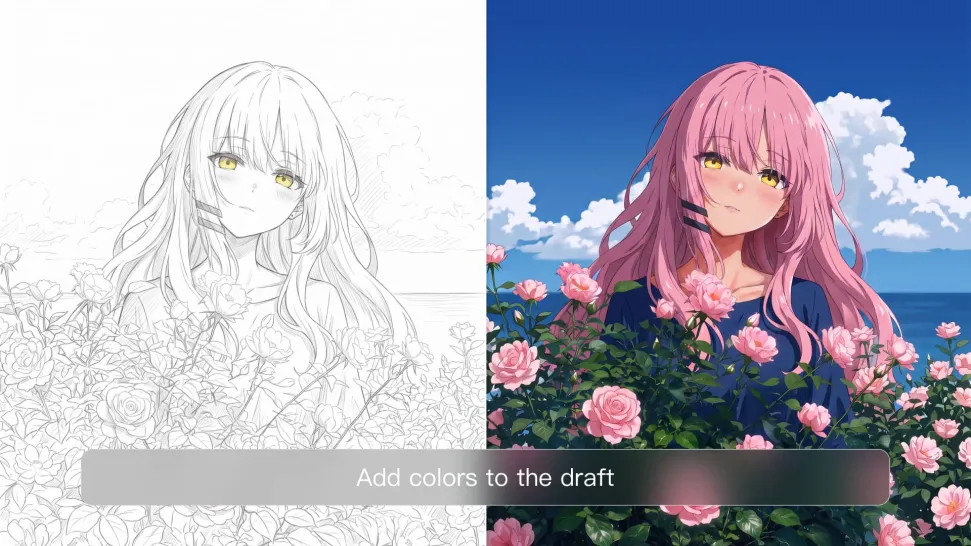
Change the Color, Lighting, or Style

Change the Color, Lighting, or Style

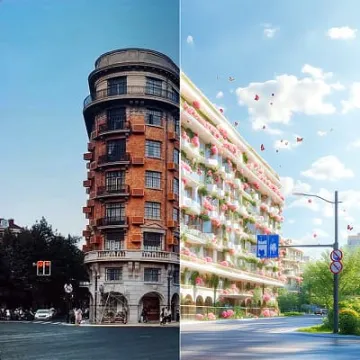
Give an existing photo a different mood effortlessly. Lift a dim scene, soften harsh light, warm or cool the colors, or bring color to a black-and-white photo or line drawing. A short prompt replaces the usual round of manual adjustments. Looking for a bigger shift? Add a style reference or spell out the visual direction. IMAGE 3.0 carries the palette, texture, and atmosphere across the whole image, so the new look feels cohesive rather than pasted on. Use it for studio-style professional headshots, distinctive portrait treatments, cinematic scene design, or a visual style that feels entirely your own.
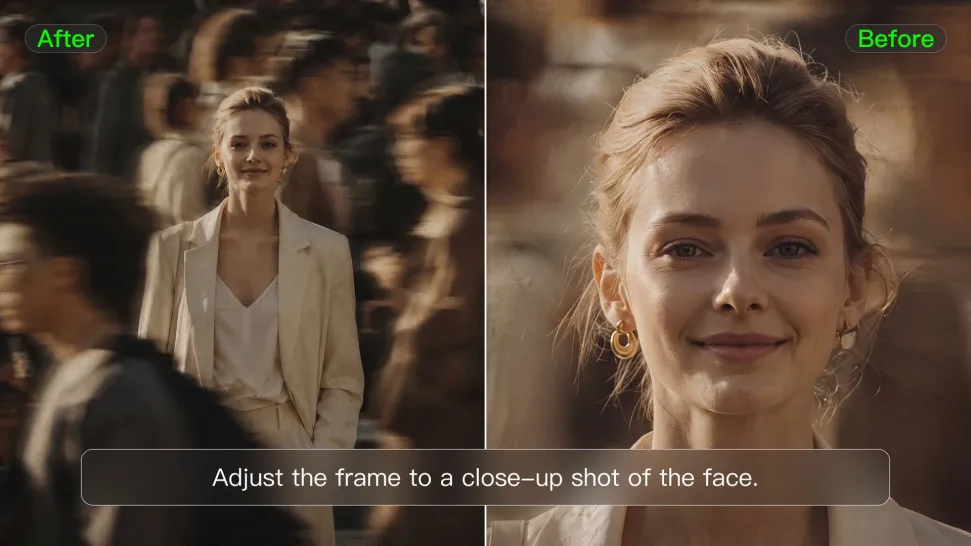
Rework the Shot or Camera Angle

Rework the Shot or Camera Angle

Tell Kling how you want the shot to look in a text prompt. Turn a front-facing photo into a side view, move the camera higher or lower, or change a wide shot into a close-up. You can explore a new composition around the same subject without setting up another shoot. IMAGE 3.0 rebuilds the scene from the angle you request, adjusting the perspective, camera height, shot size, focal length, and depth of field along with it. The result is a newly generated view based on the source photo, rather than hidden details recovered from outside the original frame.
Apps

Image to Video
Image to Video

Image to Video

Text to Video
Text to Video

Text to Video

Omni
Omni

Omni

Digital Human
Digital Human

Digital Human

Restyle
Restyle

Restyle

Text to Image
Text to Image

Text to Image

60M+
60M+
Users
600M+
600M+
AI Videos Generated
4.7 ★
4.7 ★
App Store
Industry-Leading
Industry-Leading
Cinematic 4K

Reviews

Huang Lu (Elson)

Huang Lu (Elson)

★★★★★

I’ve been using Kling AI since its initial release, and it’s remained one of the leading AI media generators ever since. With Kling AI, I’ve created hundreds of videos, collectively amassing millions of views.

Déborah

Déborah

★★★★★

I use Kling AI every day. It's amazing to see the almost daily progress it makes. I used AI for fun at first, and I now find that Kling AI's animations allow me to gain professional visibility, with three times more views on my animated posts than on my static posts.
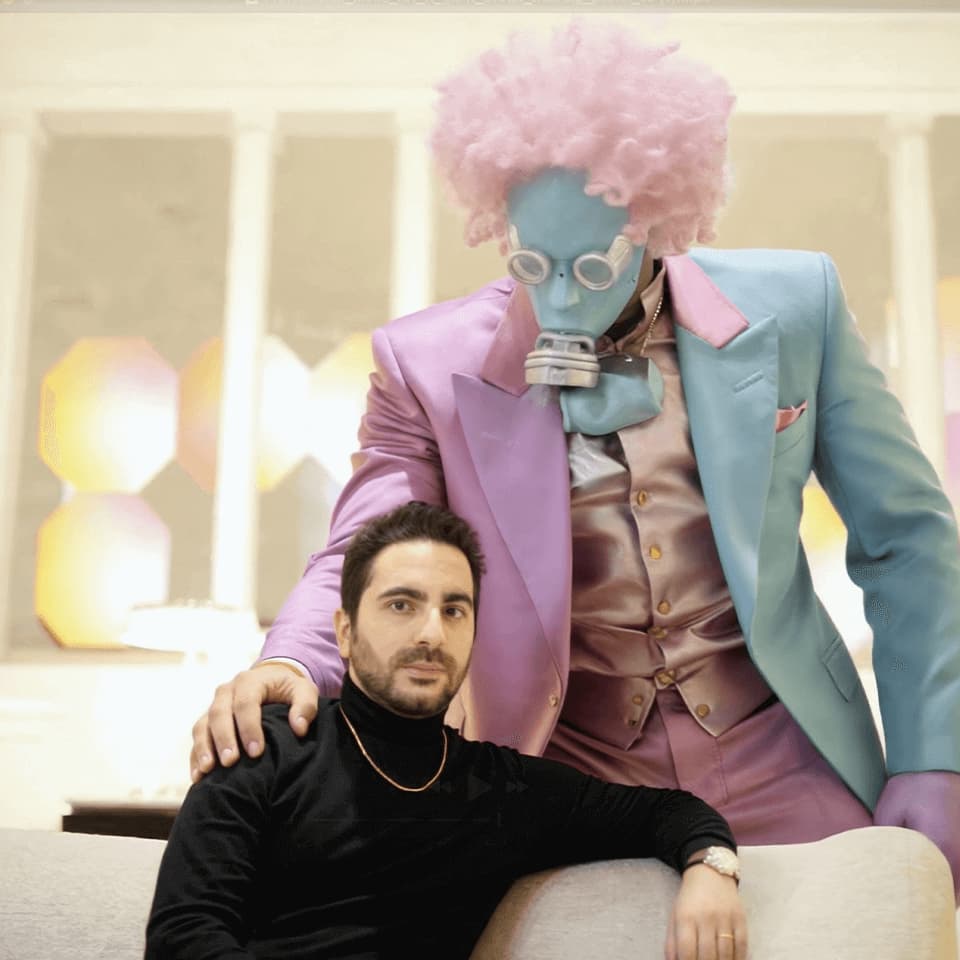
Vincent Smadja

Vincent Smadja

★★★★★

Kling AI seamlessly integrates into my creative workflow, playing a key role in transforming my images. After generating and upscaling an image, Kling becomes a crucial element, bringing my creations to life with movement and depth.

FAQ

Q1How long can videos be in Video 3.0?
Q2What’s the difference between Video 2.6 and 3.0?
Q3Can I use this for global AI video marketing?

Experience Video 3.0 on Kling

Create cinematic, multi-shot videos with native audio and precise control—all in one generation.

Native audio | Multi-shot control | Up to 15s continuous output