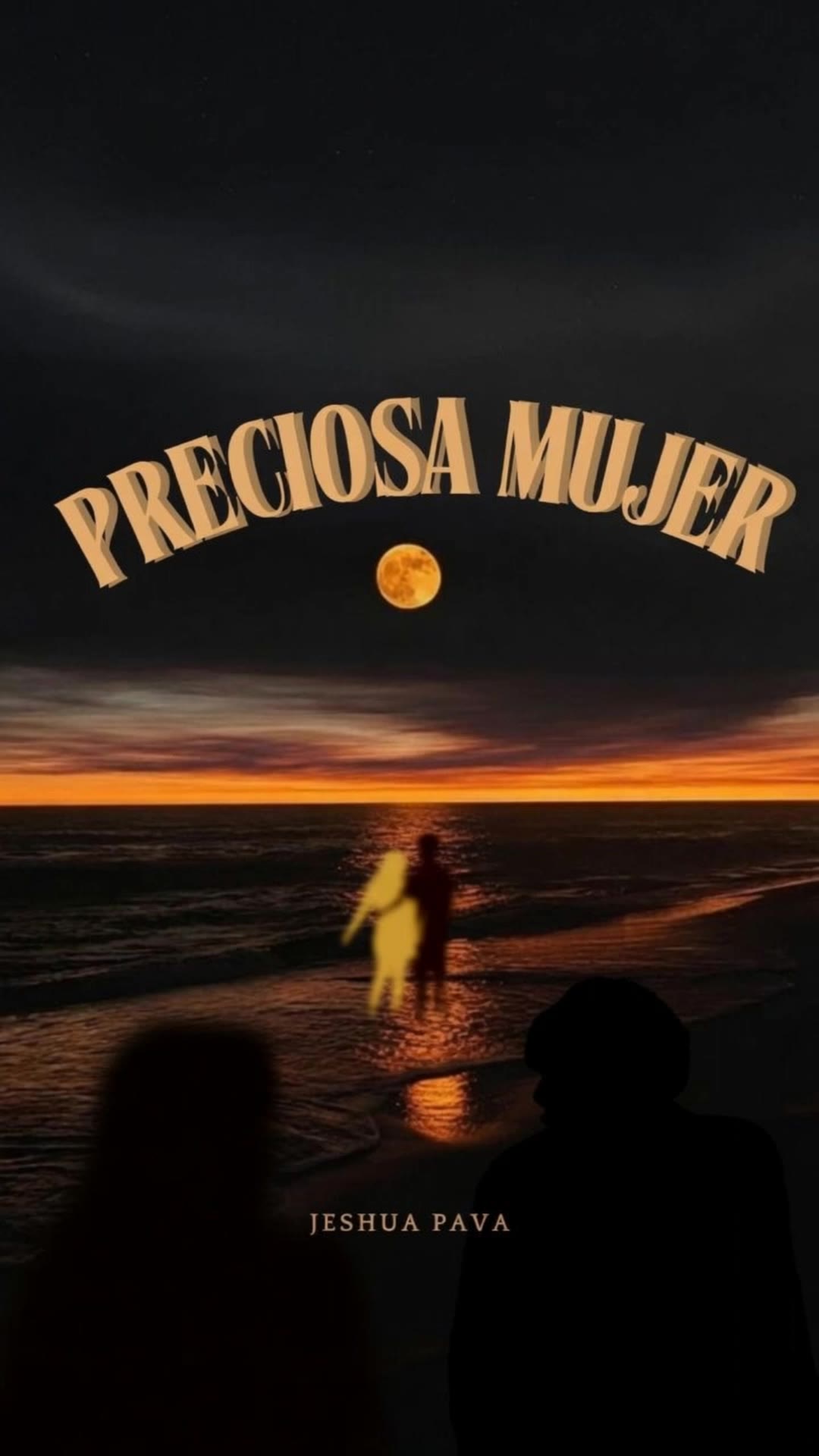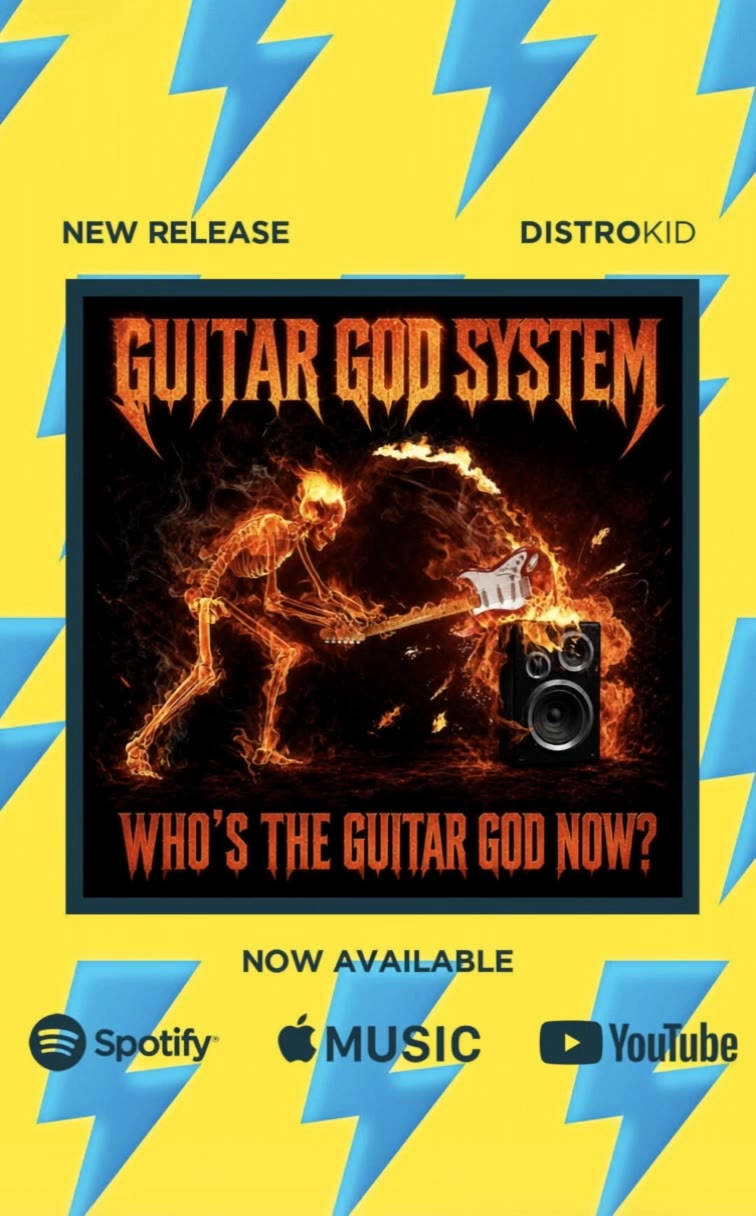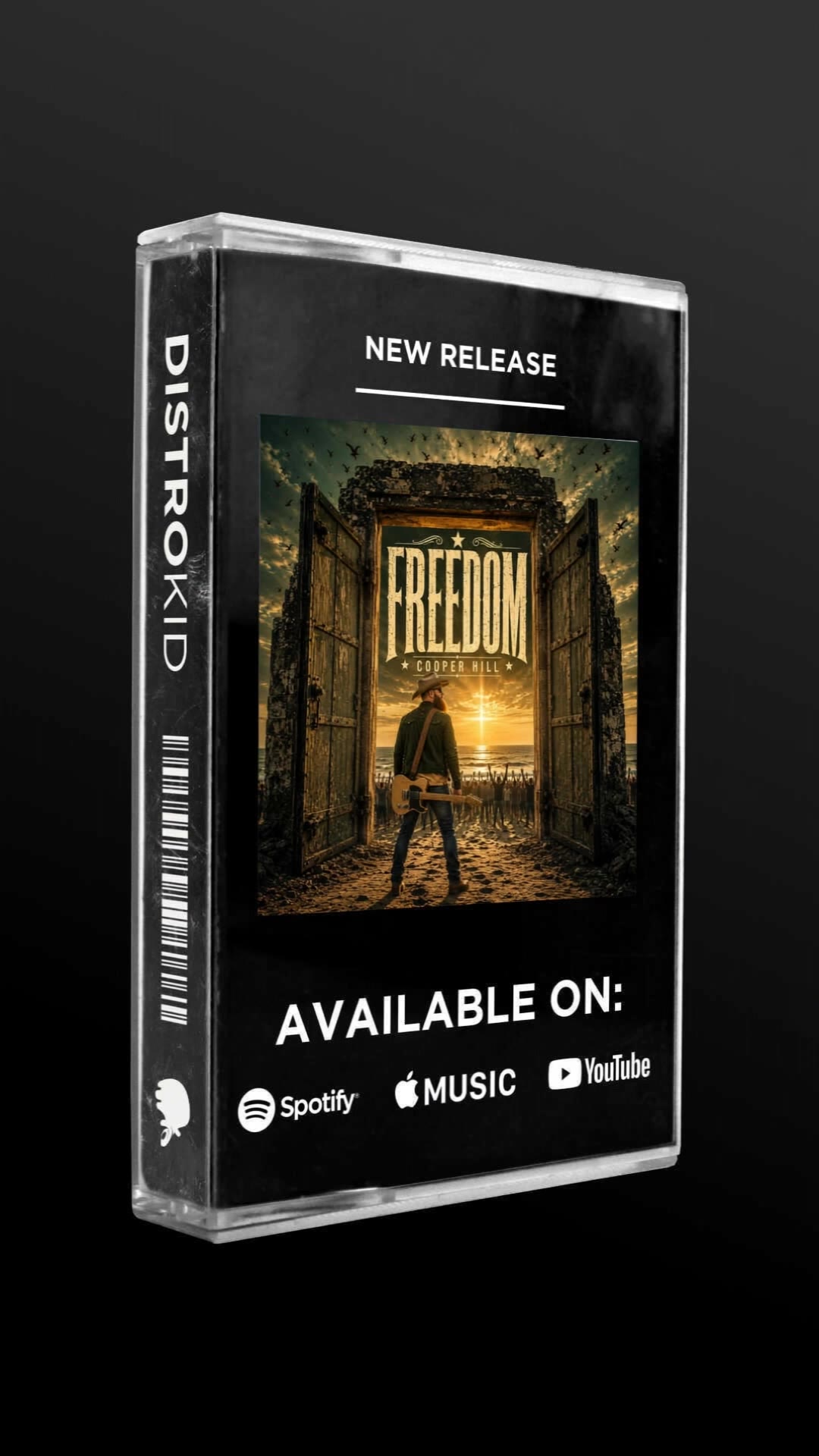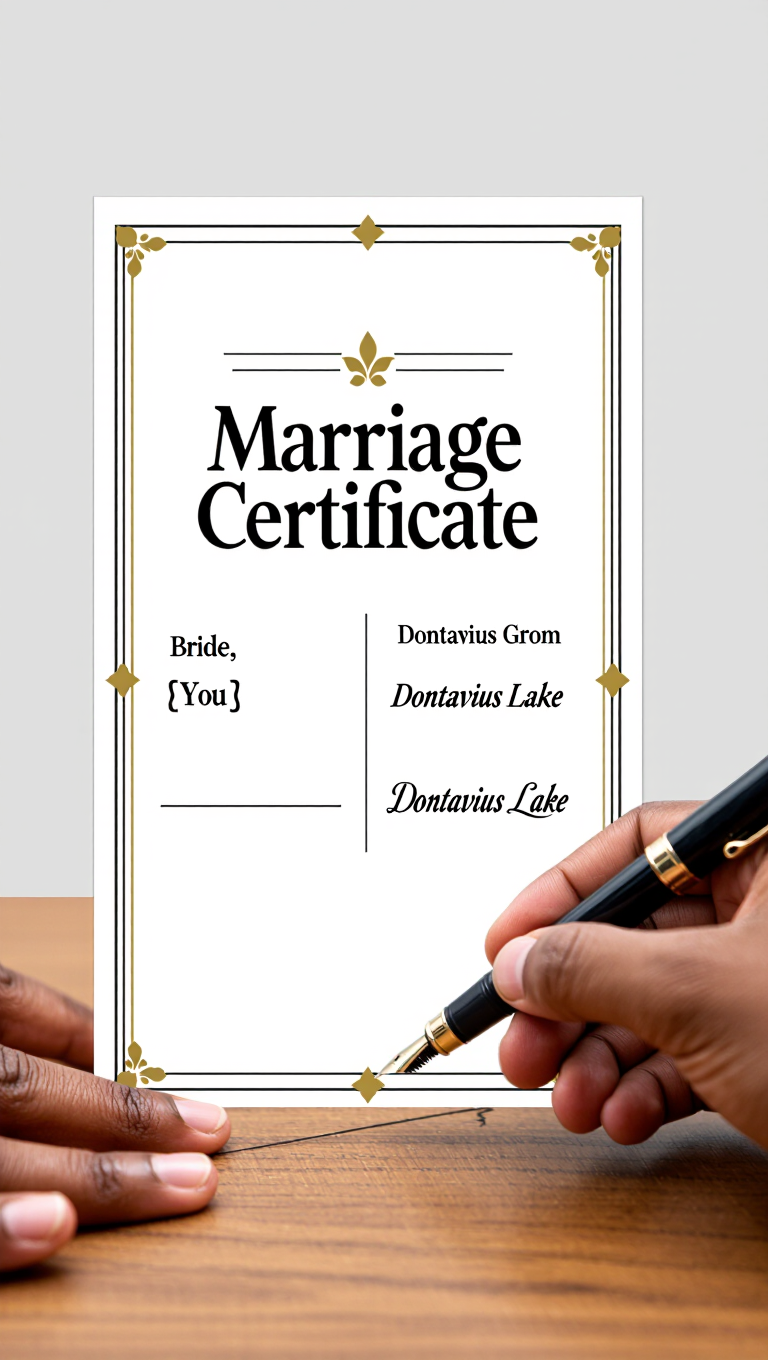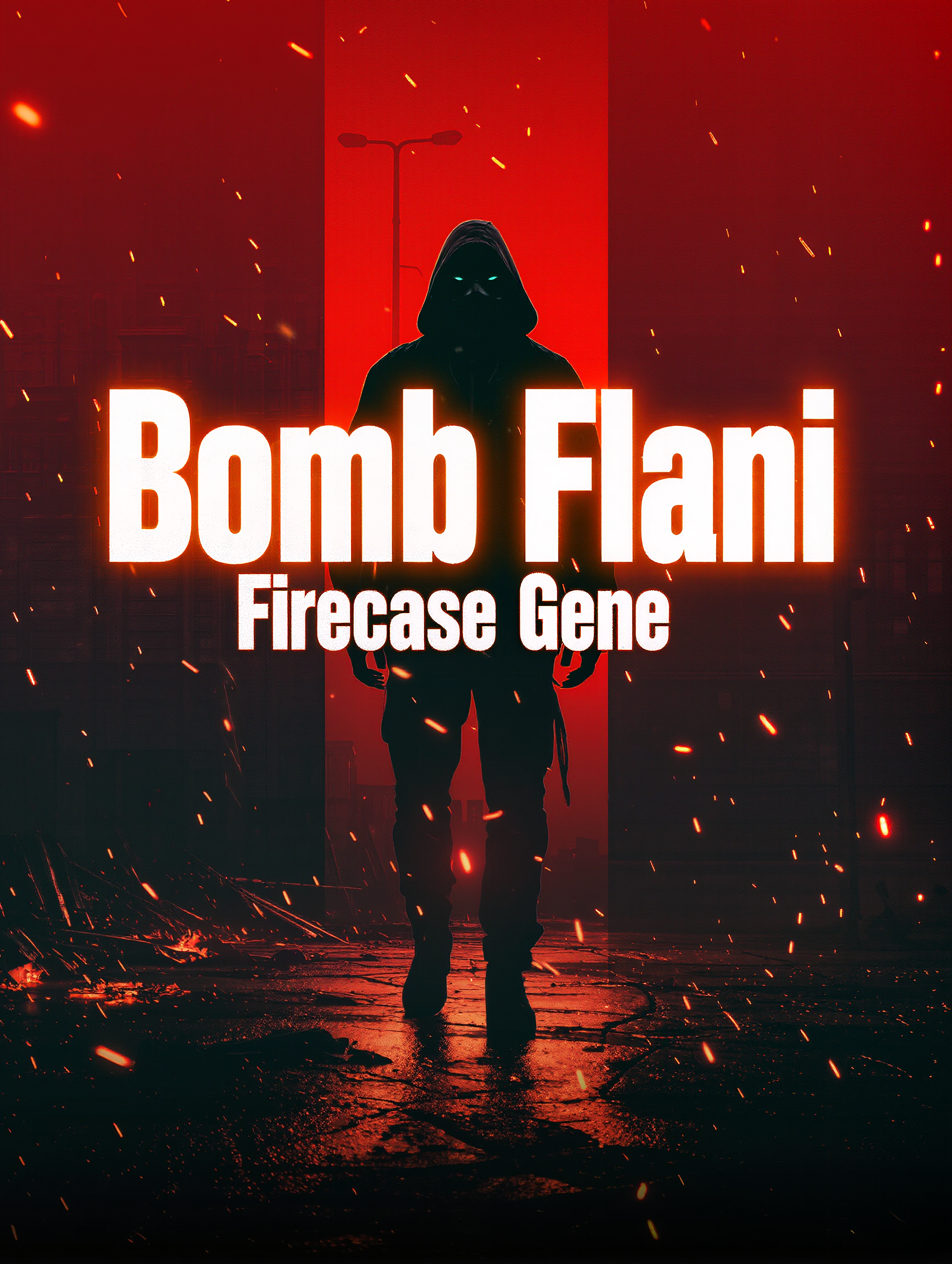
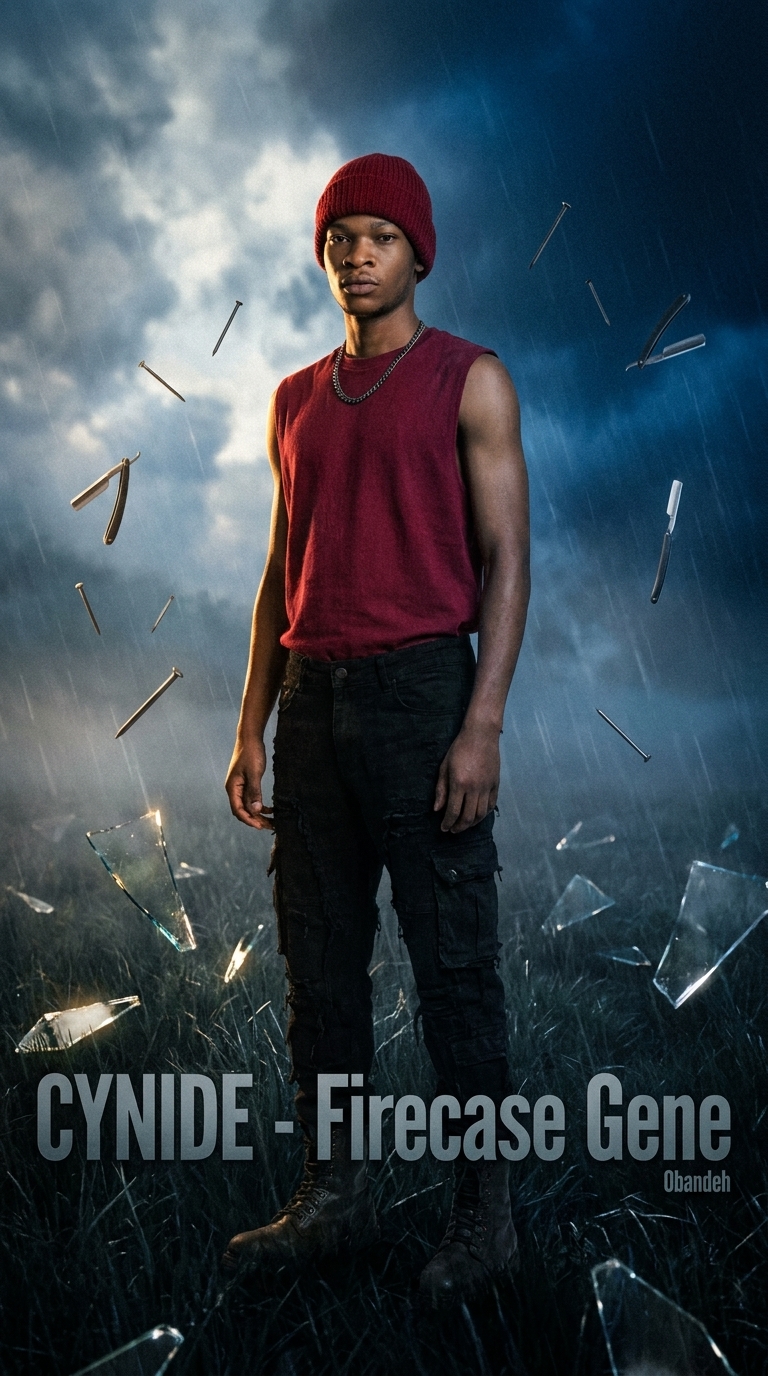
how to create album artwork - thick brushstrokes & Brazilian Fast Furious

Uncover techniques using thick brushstrokes and Brazilian Fast and Furious themes for unique album artwork. Start exploring how to create album artwork ideas and generate your own content with AI.
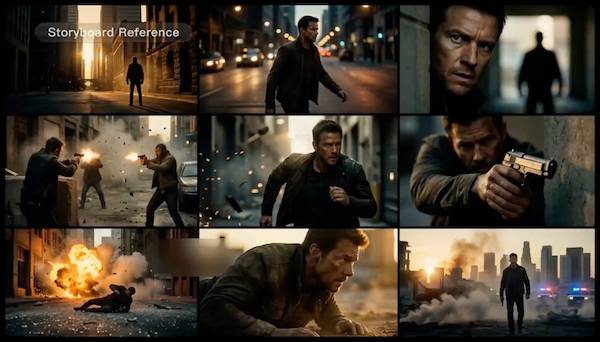
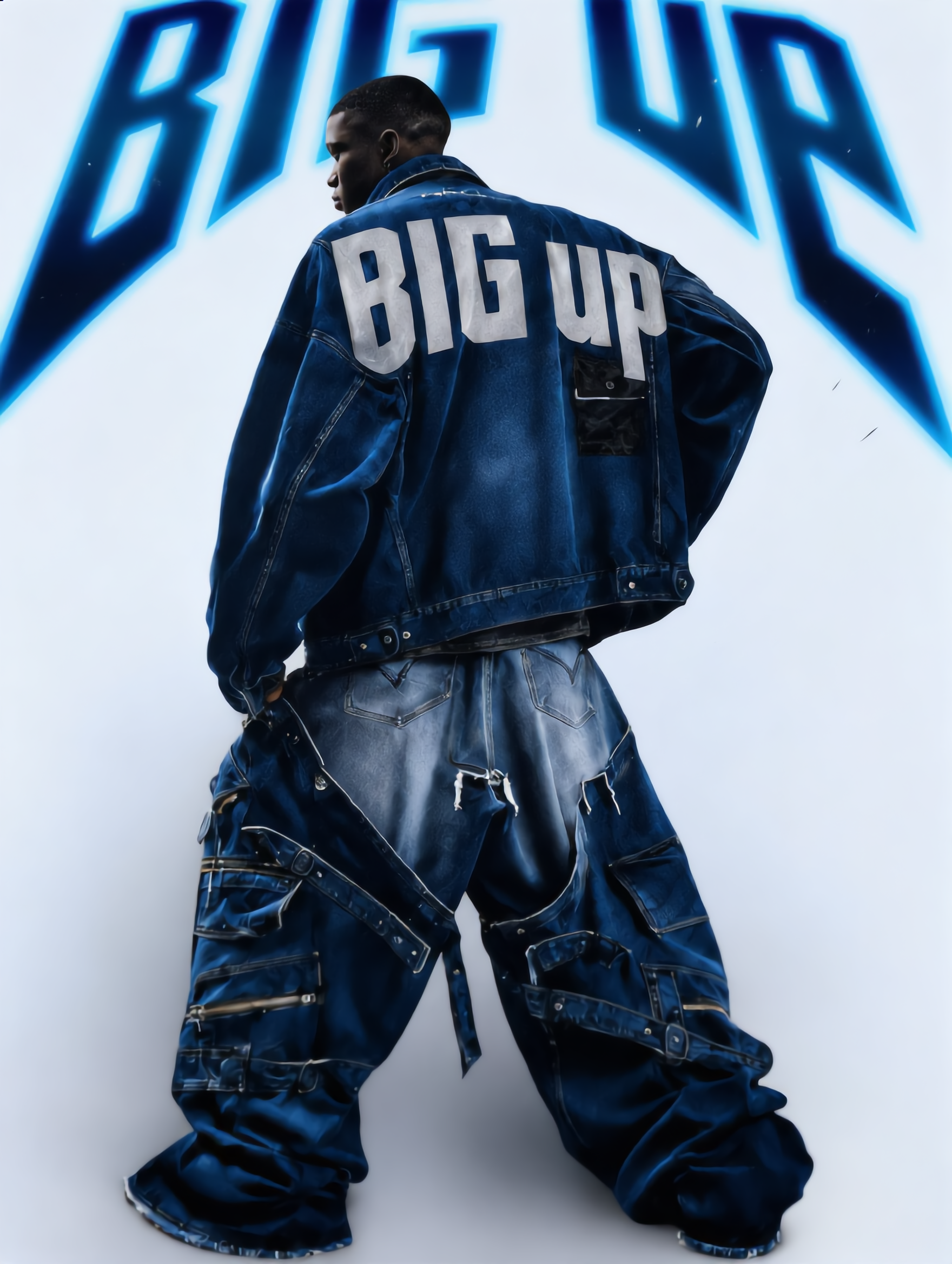
how to create album artwork - thick brushstrokes & Brazilian Fast Furious

Recommended

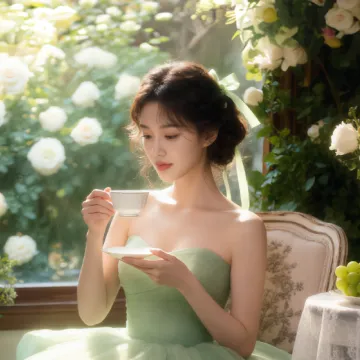
Kling AI work 311493579613443 - how to create album artwork AI image
IsqqIZFv avatar
IsqqIZFv
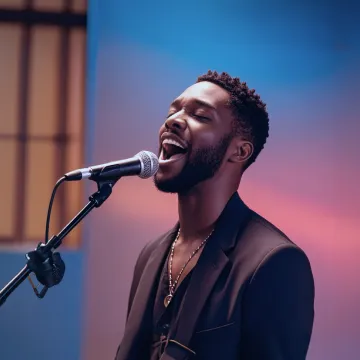
Kling AI work 315589396503423 - how to create album artwork AI image
yUlRYEdc avatar
yUlRYEdc
Kling AI work 311801795660142 - how to create album artwork AI video
HfjfGXrE avatar
HfjfGXrE
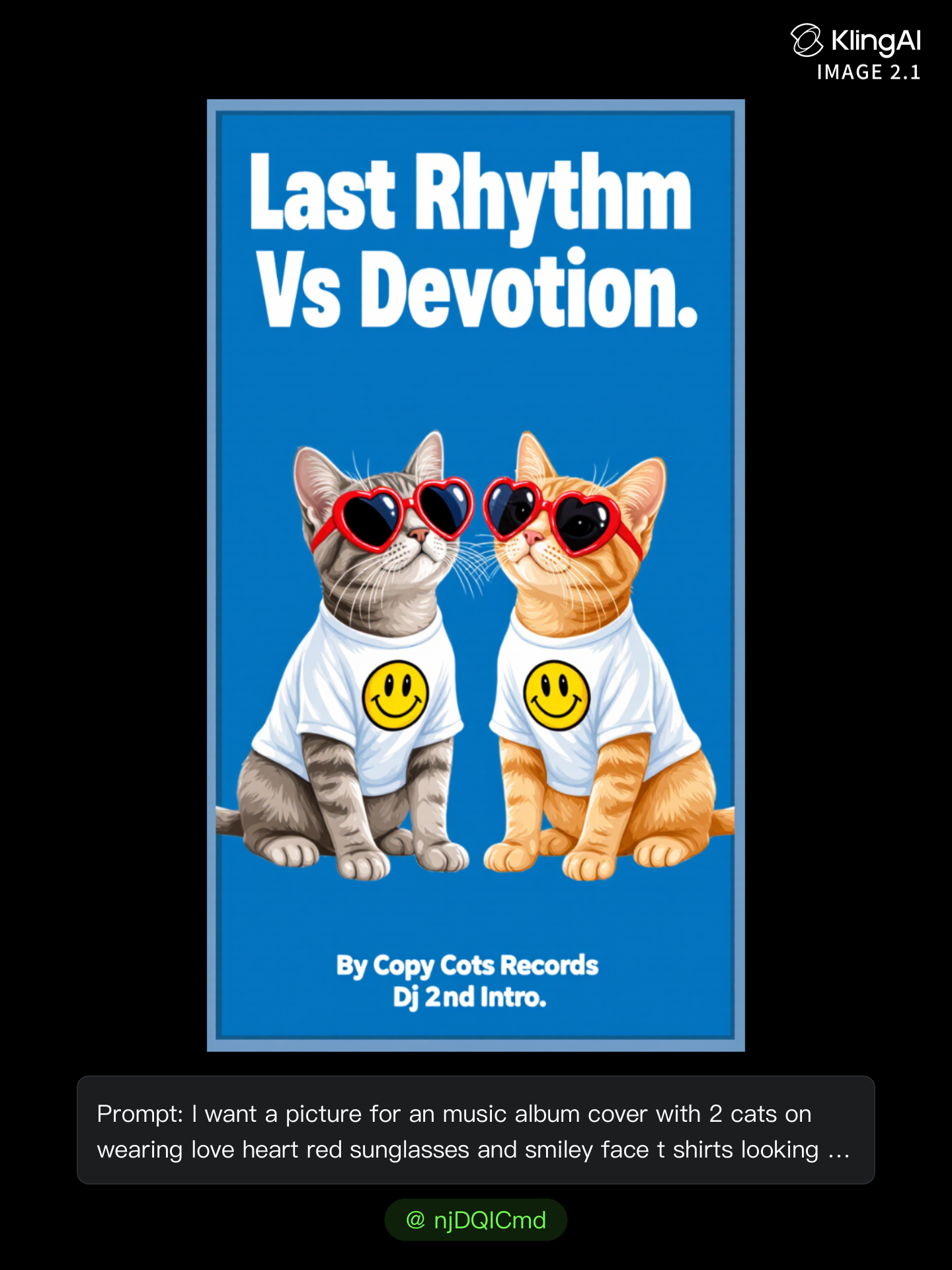
Kling AI work 312857731661884 - how to create album artwork AI image
njDQICmd avatar
njDQICmd
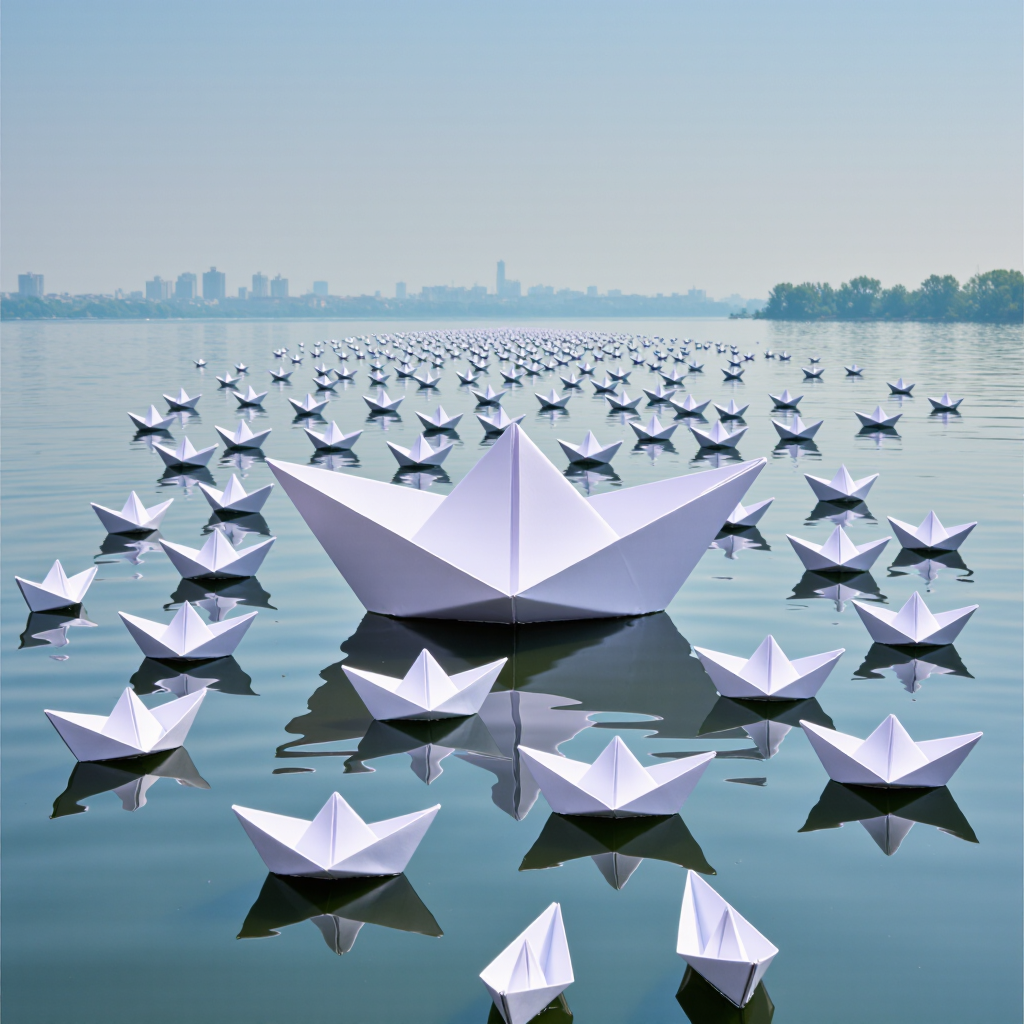
Paper Boats - how to create album artwork AI image
dhyDJjfu avatar
dhyDJjfu
Kling AI work 311998231521917 - how to create album artwork AI image
MonkeyWithAGunMedia avatar
MonkeyWithAGunMedia
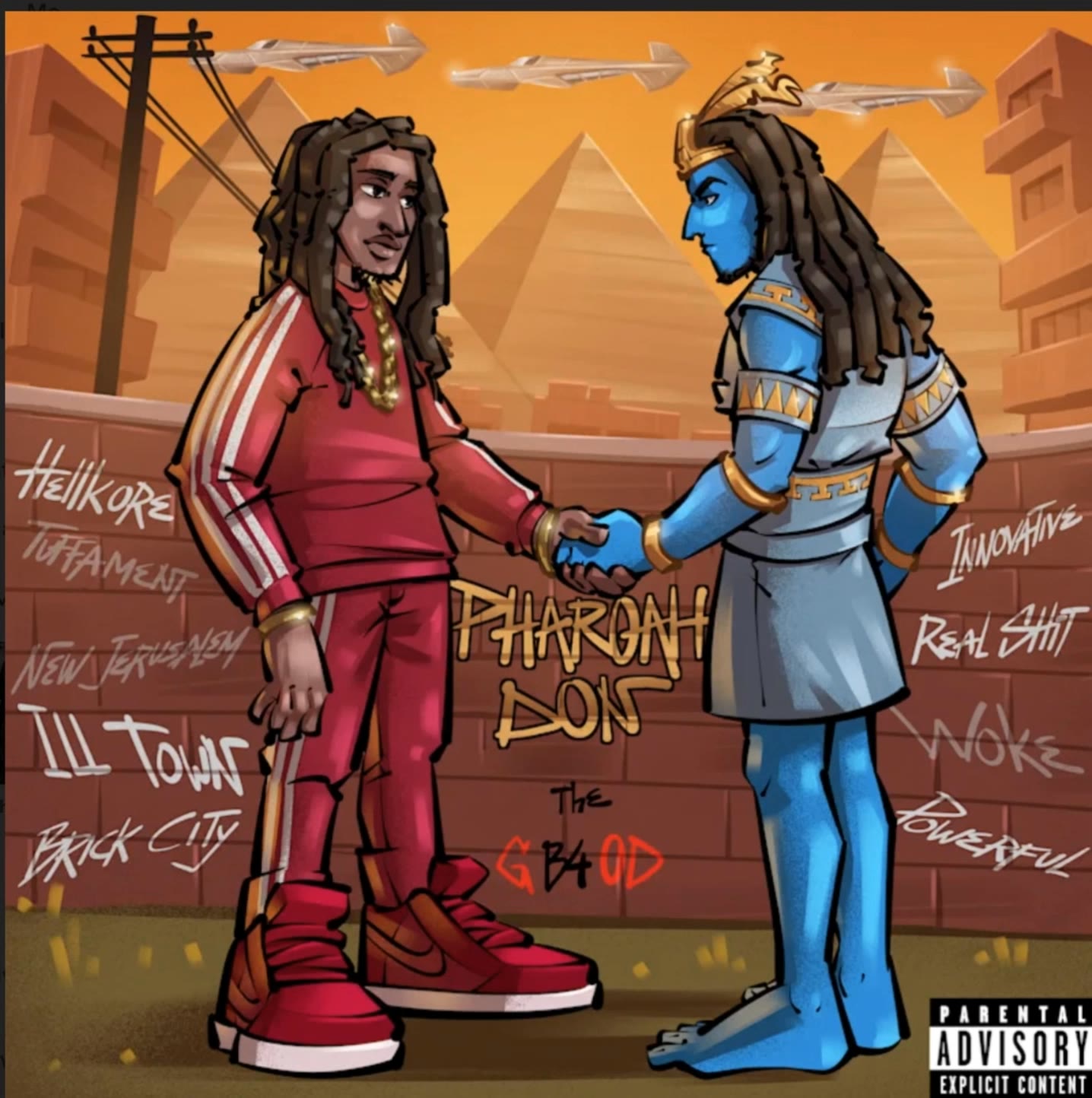
Pharoah Don "The D b4 EVIL"  - how to create album artwork AI video
Mr Lerad Staw avatar
Mr Lerad Staw
Kling AI work 312858451501390 - how to create album artwork AI image
njDQICmd avatar
njDQICmd
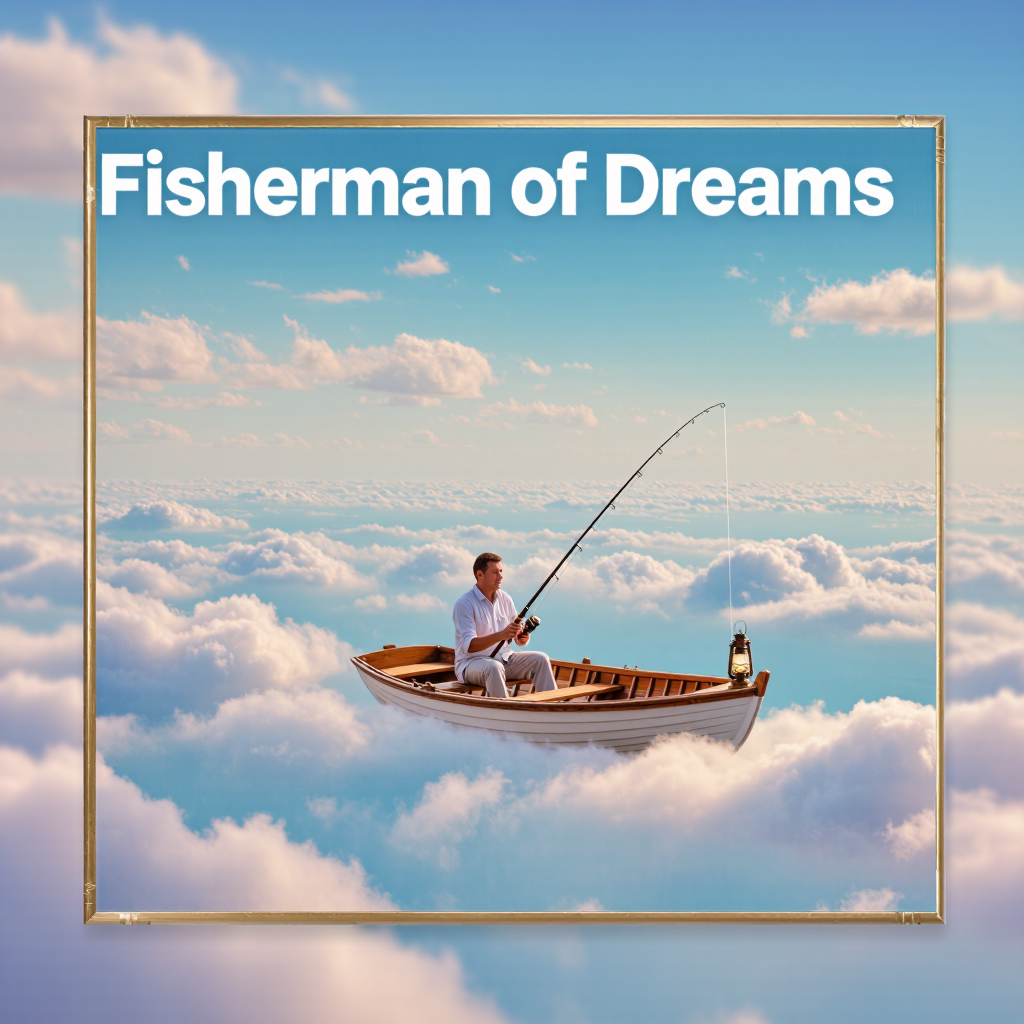
ALBUM COVER  - how to create album artwork AI image
idBSxCQS avatar
idBSxCQS
An old photo album - how to create album artwork AI video
Lou avatar
Lou
Kling AI work 319390743664612 - how to create album artwork AI video
QuIjUHaS avatar
QuIjUHaS
Kling AI work 311233687612851 - how to create album artwork AI video
SewnCjHx avatar
SewnCjHx
Kling AI work 317570183665806 - how to create album artwork AI video
QNSVTpqA avatar
QNSVTpqA
Kling AI work 317920581505943 - how to create album artwork AI video
osXKEFRq avatar
osXKEFRq
Kling AI work 320901519650803 - how to create album artwork AI video
pzmNZaNn avatar
pzmNZaNn
Kling AI work 315120944660633 - how to create album artwork AI video
QNSVTpqA avatar
QNSVTpqA
Kling AI work 310913749613243 - how to create album artwork AI image
VoHnZvTF avatar
VoHnZvTF
Kling AI work 321616883508316 - how to create album artwork AI image
MiXaiLAI avatar
MiXaiLAI

A Complete AI Video Editing Workflow

Upload Your Footage

Upload Your Footage

Start with a video you've filmed or generated. Add reference images, characters, or other supported assets if you want to guide how the edited scene should look.

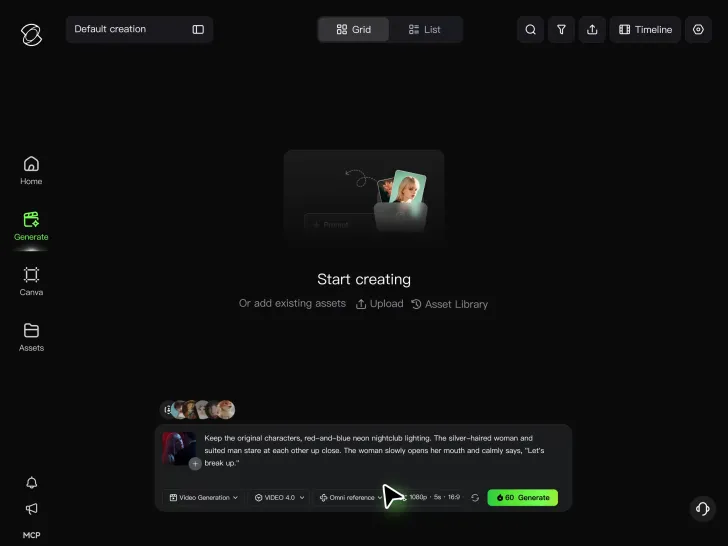
Describe What You Want to Change

Describe What You Want to Change

Tell Kling what to replace, remove, or adjust. You can change the subject, background, action, camera angle, or visual style. Include details you want to keep from the original footage.

Preview and Download Your Video

Preview and Download Your Video

Generate your edited video and review the changes. Refine your prompt or references if needed, then download the version you're happy with.

Edit Any Part with Kling AI

Add, Remove, or Replace Image Content

Add, Remove, or Replace Image Content

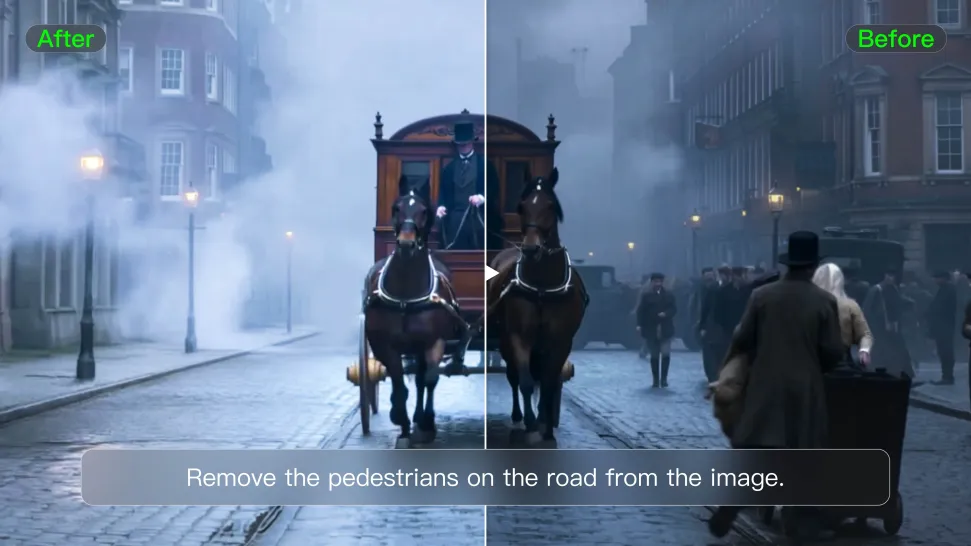
Tell Kling what you want to change in text prompts. Replace a person, remove an object, or fine-tune details such as color, material, pose, and expression. Even detailed edits take fewer and easier steps because you can change the photo with AI instead of with traditional photo editing tools. IMAGE 3.0 follows your instruction while keeping the photo’s original style, lighting, and texture in place, so the edited area still belongs in the same shot.
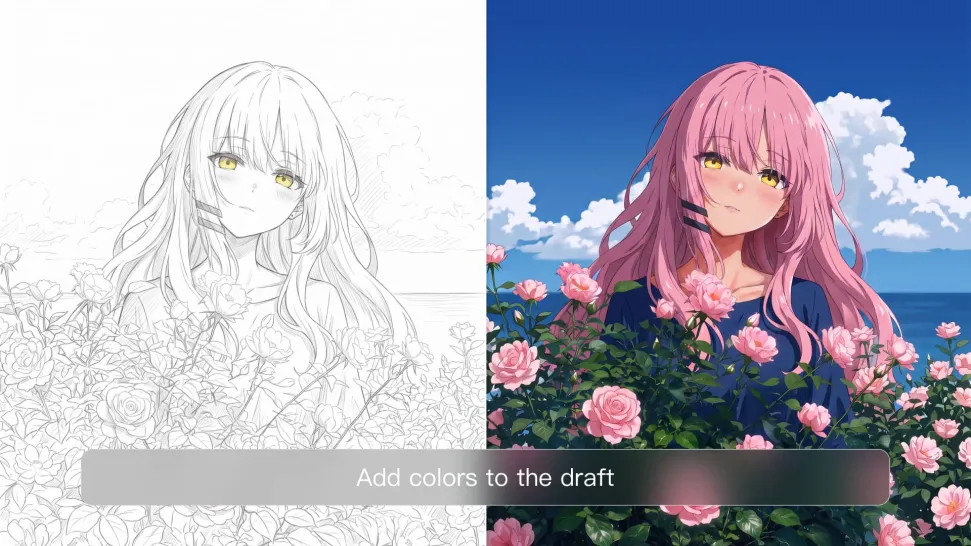
Change the Color, Lighting, or Style

Change the Color, Lighting, or Style

Give an existing photo a different mood effortlessly. Lift a dim scene, soften harsh light, warm or cool the colors, or bring color to a black-and-white photo or line drawing. A short prompt replaces the usual round of manual adjustments. Looking for a bigger shift? Add a style reference or spell out the visual direction. IMAGE 3.0 carries the palette, texture, and atmosphere across the whole image, so the new look feels cohesive rather than pasted on. Use it for studio-style professional headshots, distinctive portrait treatments, cinematic scene design, or a visual style that feels entirely your own.
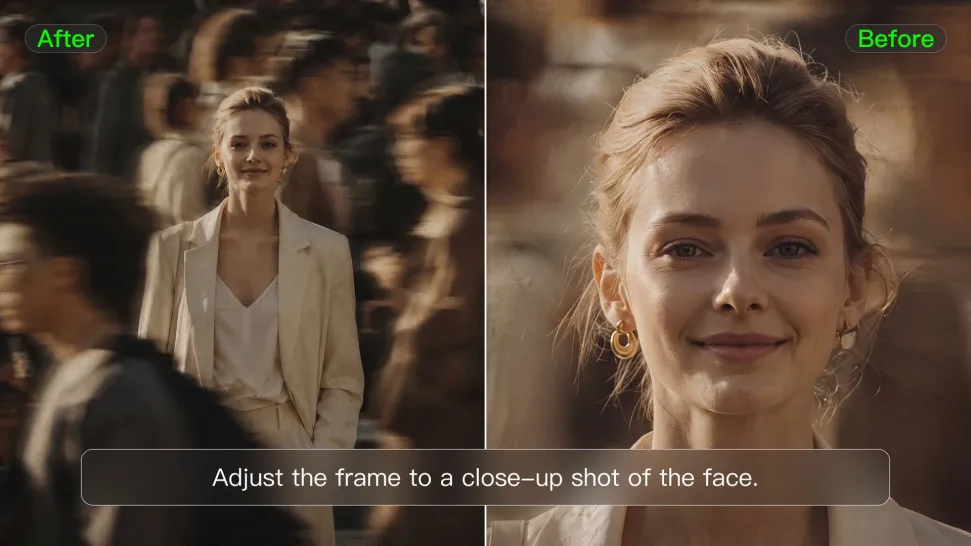
Rework the Shot or Camera Angle

Rework the Shot or Camera Angle

Tell Kling how you want the shot to look in a text prompt. Turn a front-facing photo into a side view, move the camera higher or lower, or change a wide shot into a close-up. You can explore a new composition around the same subject without setting up another shoot. IMAGE 3.0 rebuilds the scene from the angle you request, adjusting the perspective, camera height, shot size, focal length, and depth of field along with it. The result is a newly generated view based on the source photo, rather than hidden details recovered from outside the original frame.
Apps

Video Generation
Video Generation

Video Generation

Image Generation
Image Generation

Image Generation

Motion Control
Motion Control

Motion Control

Avatar
Avatar

Avatar

AI Portraits
AI Portraits

AI Portraits

Lip Sync
Lip Sync

Lip Sync

60M+
60M+
Users
600M+
600M+
AI Videos Generated
4.7 ★
4.7 ★
App Store
Industry-Leading
Industry-Leading
Cinematic 4K

Reviews

Huang Lu (Elson)

Huang Lu (Elson)

★★★★★

I’ve been using Kling AI since its initial release, and it’s remained one of the leading AI media generators ever since. With Kling AI, I’ve created hundreds of videos, collectively amassing millions of views.
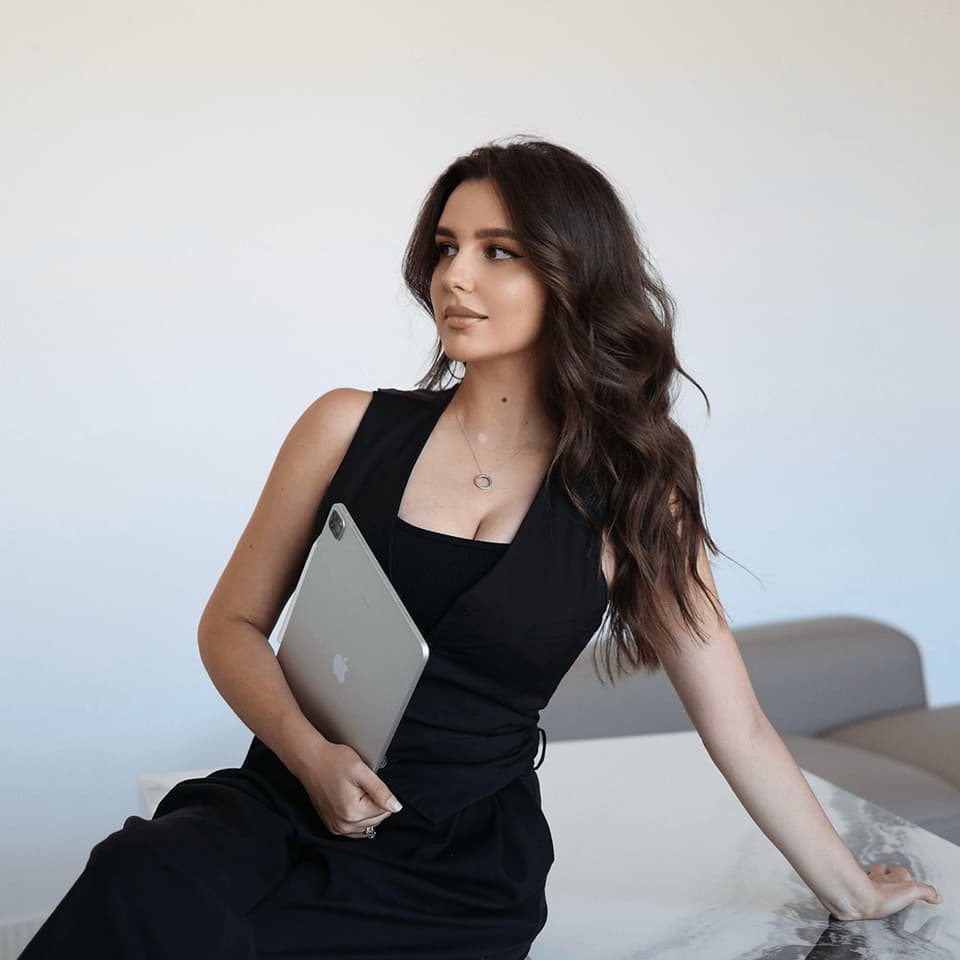
Maria Rubtsova

Maria Rubtsova

★★★★★

I’m Maria Rubtsova, an AIGC digital artist passionate about creating stunning visuals in the worlds of fashion, aesthetics, and fantasy. I use KlingAi to bring imagination to life through video. My work is all about exploring beauty, emotion, and the limitless possibilities of digital art.
Vincent Smadja

Vincent Smadja

★★★★★

Kling AI seamlessly integrates into my creative workflow, playing a key role in transforming my images. After generating and upscaling an image, Kling becomes a crucial element, bringing my creations to life with movement and depth.

FAQ

Q1Can I use AI-generated videos for commercial purposes?
Q2Can I generate AI videos from text prompts?
Q3What is the best AI video generator?

Start Creating AI Videos with Kling

Start with text or images and see what's possible with Kling AI. Create the footage, guide the movement, and keep working until the scene feels right. No complicated setup.

Text to Video | Image to Video | Omni Reference | Free tier includes watermark