AI Photo Editor: Make Photo Editing Easier
Remove distractions, change backgrounds, rework portraits and product shots, or give an existing image a new look with Kling AI. Just describe the change you have in mind.
Remove distractions, change backgrounds, rework portraits and product shots, or give an existing image a new look with Kling AI. Just describe the change you have in mind.
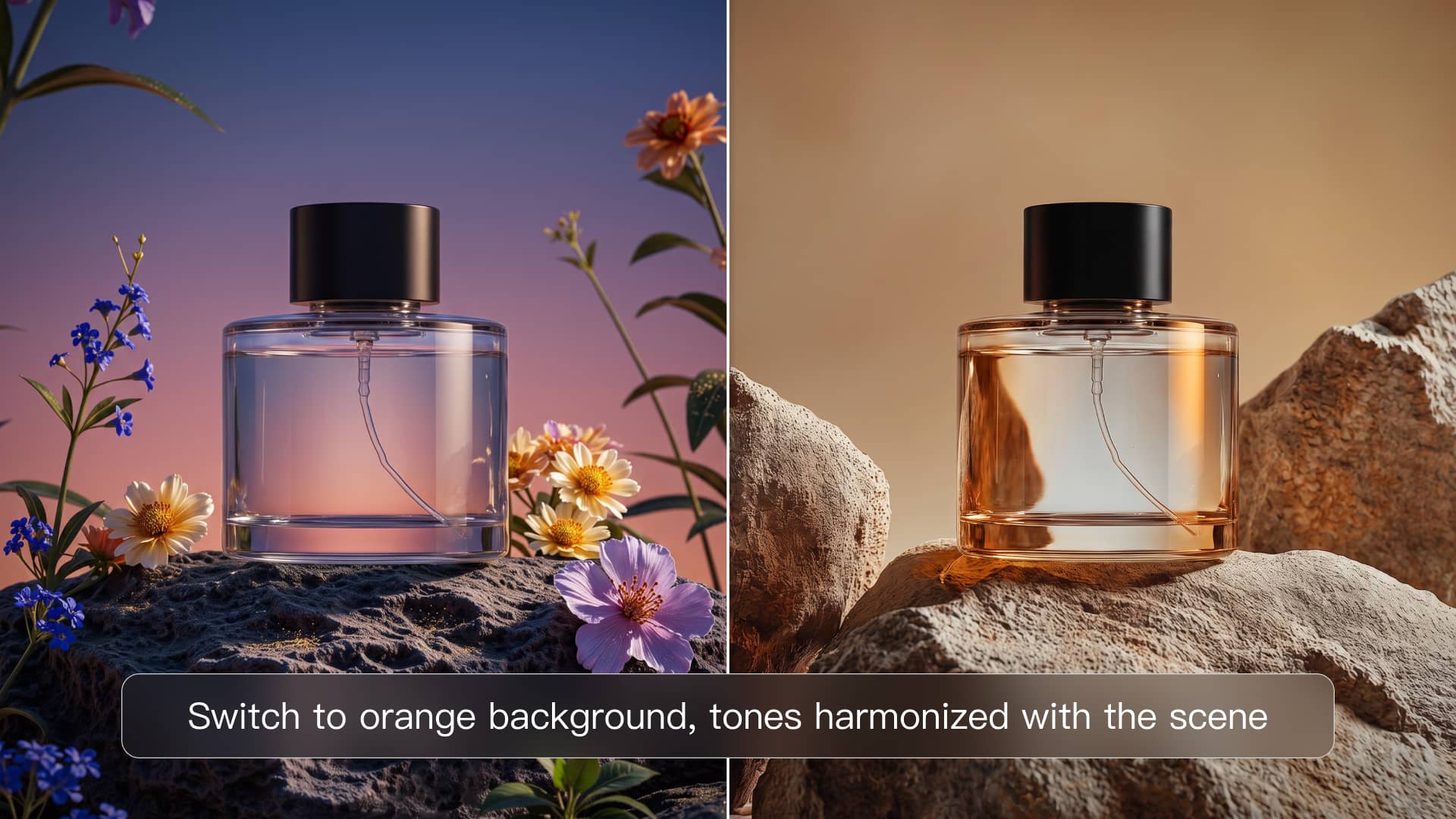
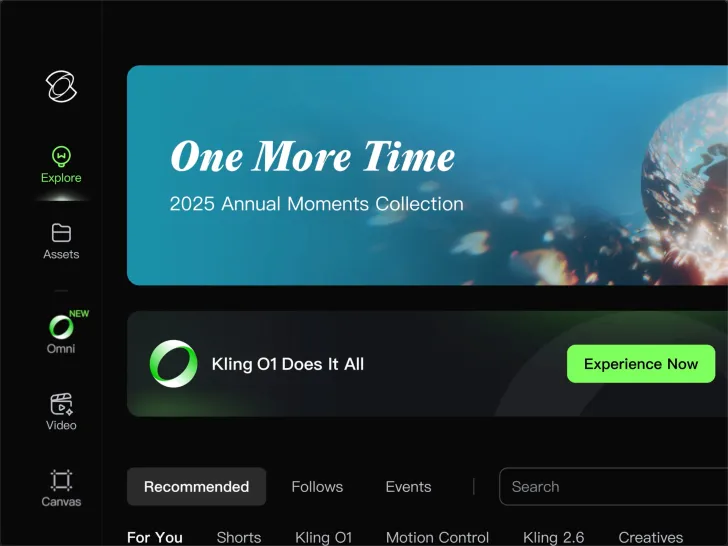
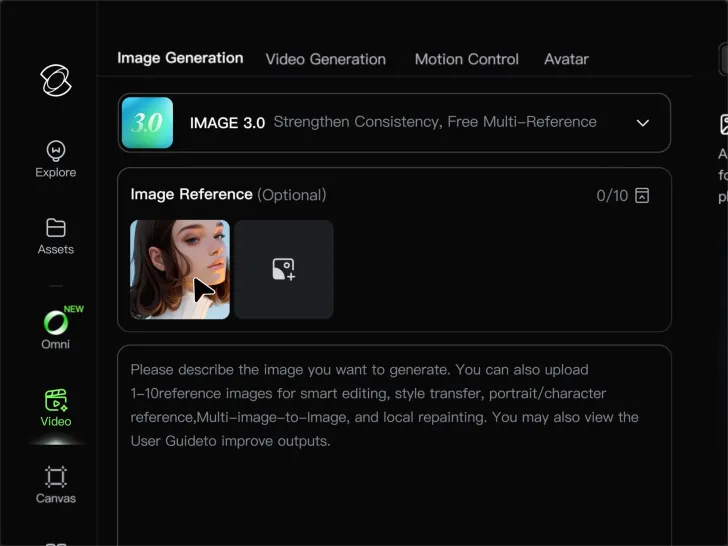
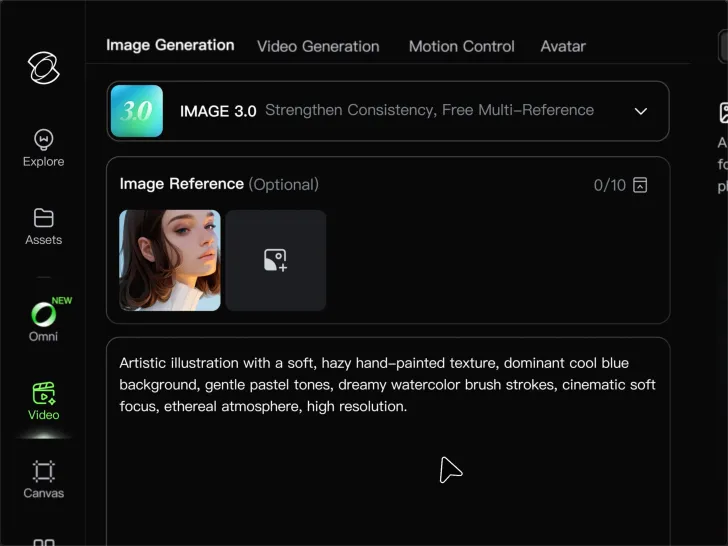
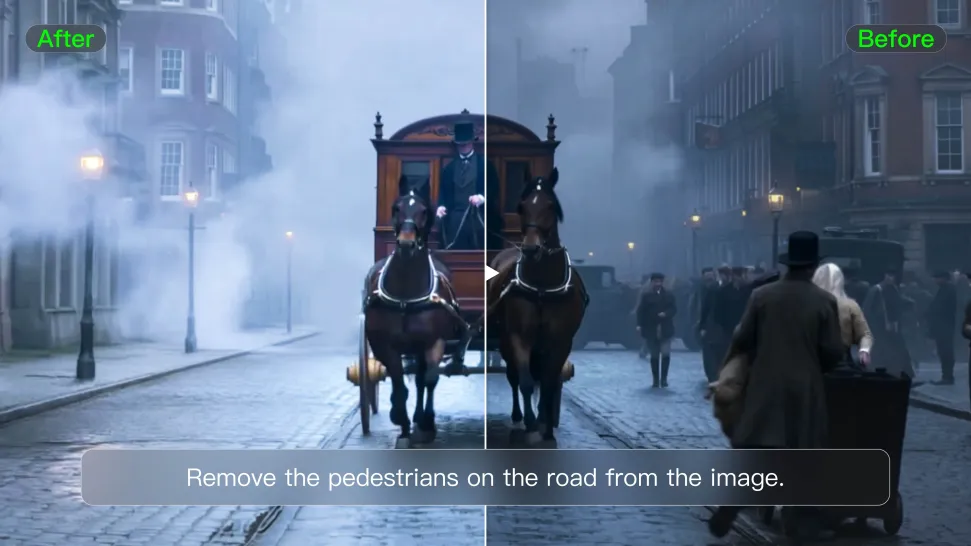
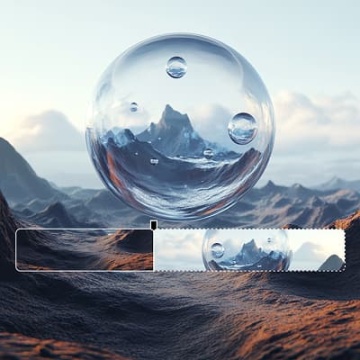
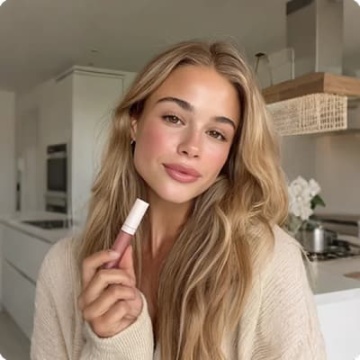
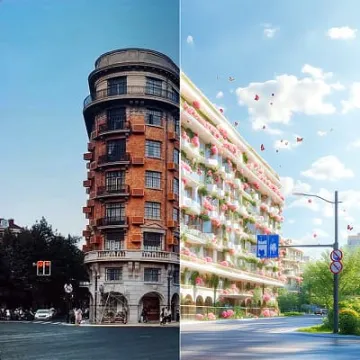
Tell Kling what you want to change in text prompts. Replace a person, remove an object, or fine-tune details such as color, material, pose, and expression. Even detailed edits take fewer and easier steps because you can change the photo with AI instead of with traditional photo editing tools. IMAGE 3.0 follows your instruction while keeping the photo’s original style, lighting, and texture in place, so the edited area still belongs in the same shot.
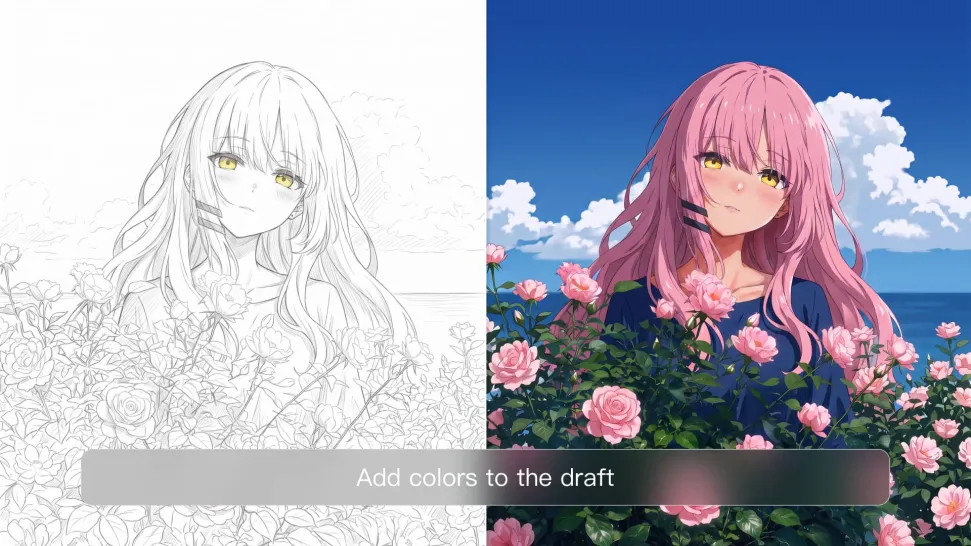
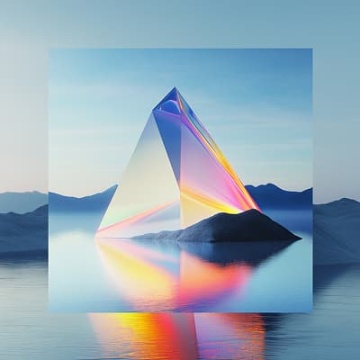
Give an existing photo a different mood effortlessly. Lift a dim scene, soften harsh light, warm or cool the colors, or bring color to a black-and-white photo or line drawing. A short prompt replaces the usual round of manual adjustments. Looking for a bigger shift? Add a style reference or spell out the visual direction. IMAGE 3.0 carries the palette, texture, and atmosphere across the whole image, so the new look feels cohesive rather than pasted on. Use it for studio-style professional headshots, distinctive portrait treatments, cinematic scene design, or a visual style that feels entirely your own.
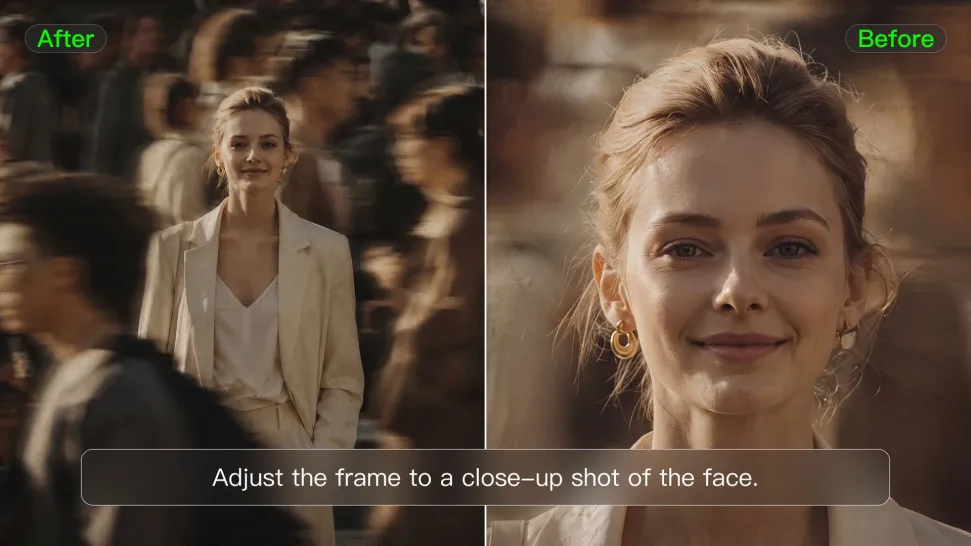
Tell Kling how you want the shot to look in a text prompt. Turn a front-facing photo into a side view, move the camera higher or lower, or change a wide shot into a close-up. You can explore a new composition around the same subject without setting up another shoot. IMAGE 3.0 rebuilds the scene from the angle you request, adjusting the perspective, camera height, shot size, focal length, and depth of field along with it. The result is a newly generated view based on the source photo, rather than hidden details recovered from outside the original frame.











Kling AI has transformed my workflow by collapsing timelines and democratizing production. It’s shifted my mindset from resource-dependent filmmaking to a boundless creative sandbox, where experimentation yields unexpected beauty.

I use Kling AI every day. It's amazing to see the almost daily progress it makes. I used AI for fun at first, and I now find that Kling AI's animations allow me to gain professional visibility, with three times more views on my animated posts than on my static posts.
I use AI daily and Kling AI is a crucial part of my workflow, whether for client work or personal projects. What I love most about using Kling AI is that it provides all the tools I need in one place, from keyframes to character references, elements and special effects.
Start with the image you have and rework it for the look, message, or moment you have in mind.
Object removal | Background changes | Portrait retouching | Photo restyling