Remove Unwanted Objects from Photos with AI
Remove unwanted people, objects, text, and clutter from your images with Kling AI Use simple prompts to clean up distractions while preserving the main subject, lighting, and surrounding details.
Remove unwanted people, objects, text, and clutter from your images with Kling AI Use simple prompts to clean up distractions while preserving the main subject, lighting, and surrounding details.
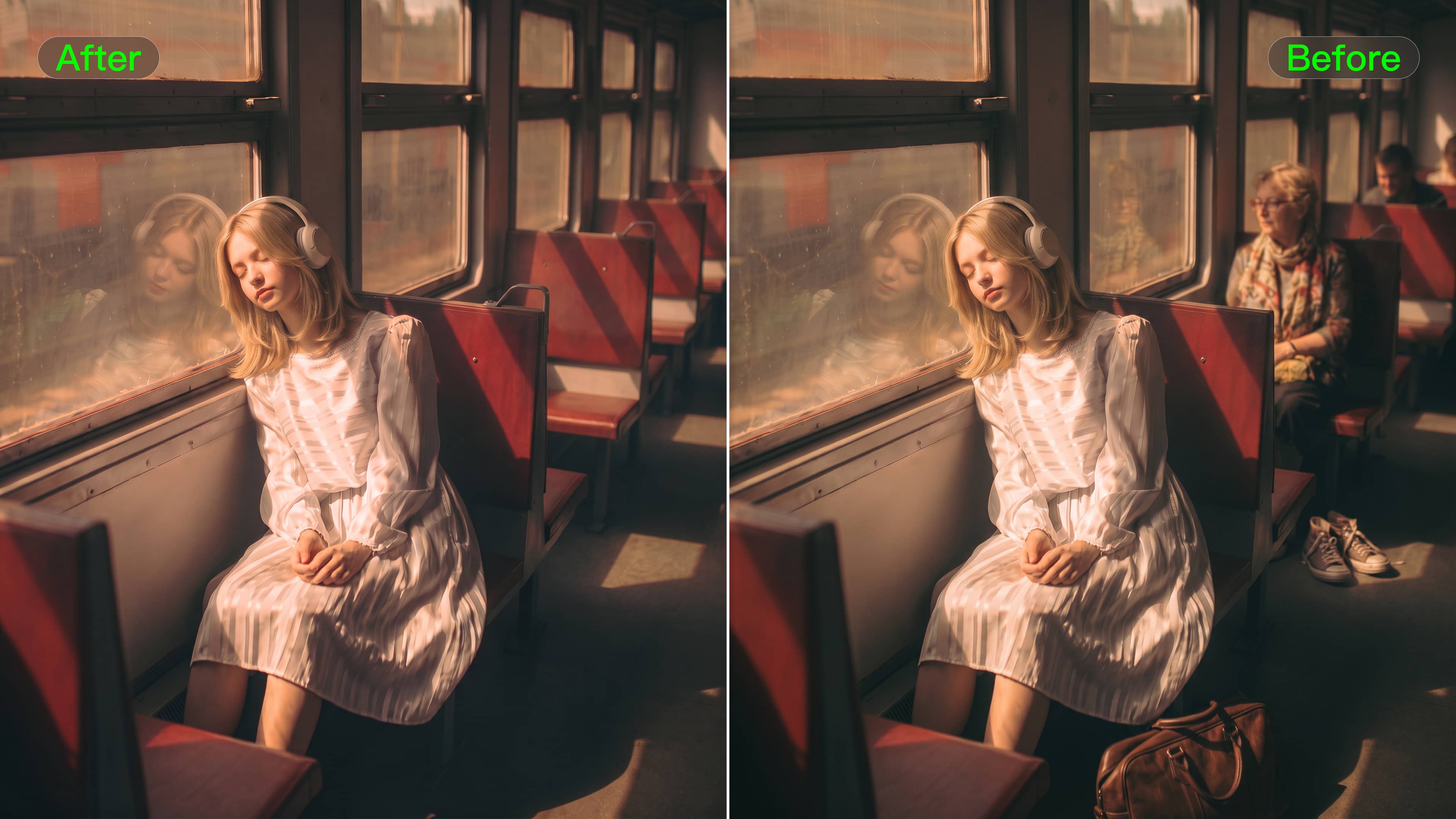
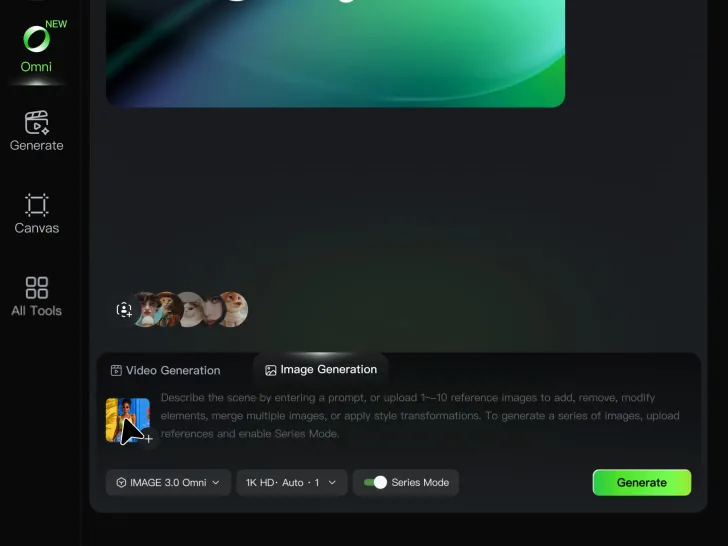
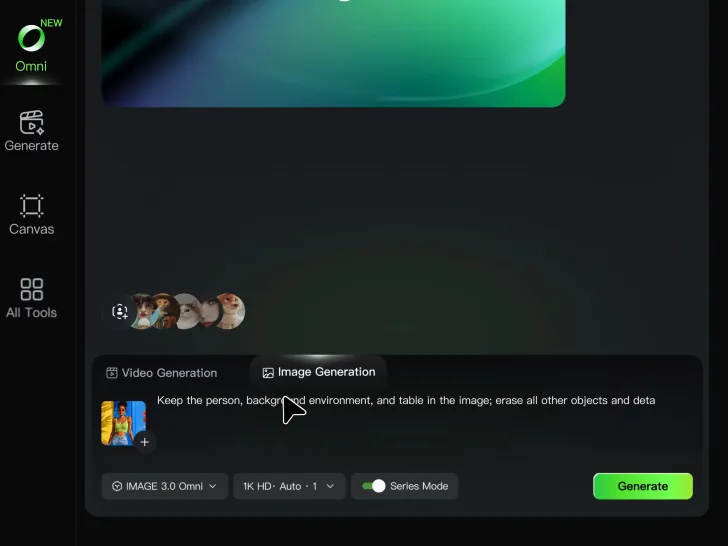
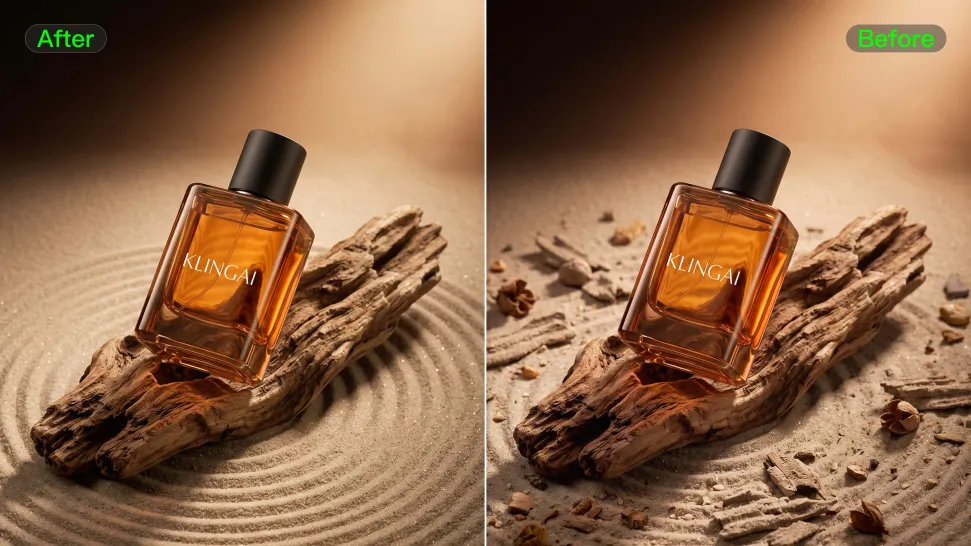
Skip complex masks and manual retouching. Tell Kling IMAGE 3.0 what you want gone in a text prompt, and it interprets your instruction as a targeted image edit. It gives you a faster way to clean up photos without a complicated editing workflow.
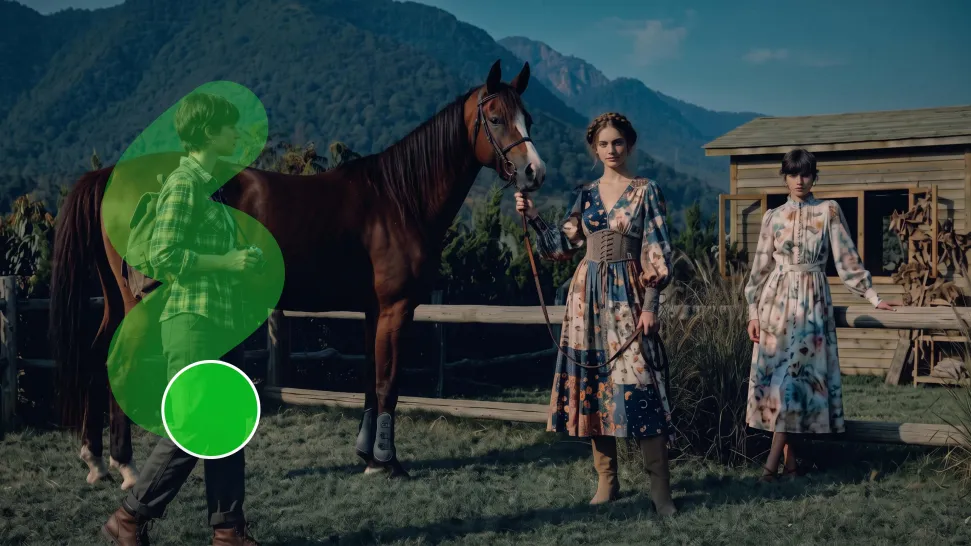
When several similar people or objects appear in the same image, describe the target by its position, appearance, or nearby context. Clearer instructions give you more control over which element is removed while helping reduce unintended changes to unrelated parts of the scene.
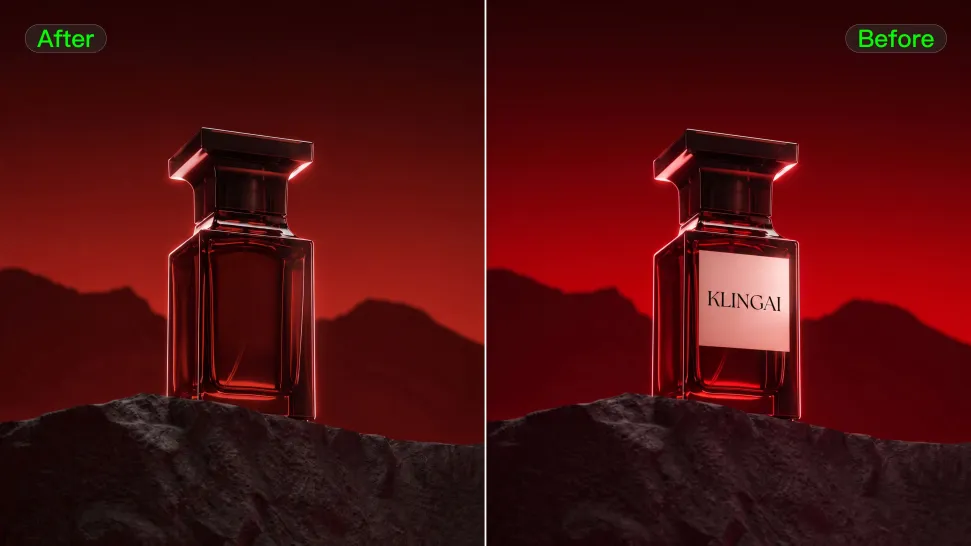
Removing an object also means recreating the area it once covered. Kling IMAGE 3.0 is designed to preserve surrounding style, lighting, and texture during targeted edits, helping the cleared area feel more connected to the rest of the image instead of standing out as an obvious edit.
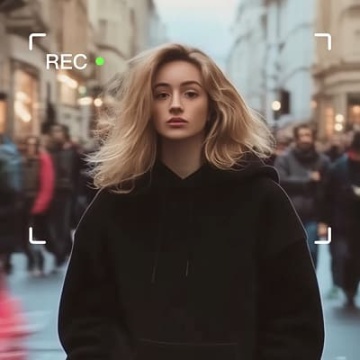














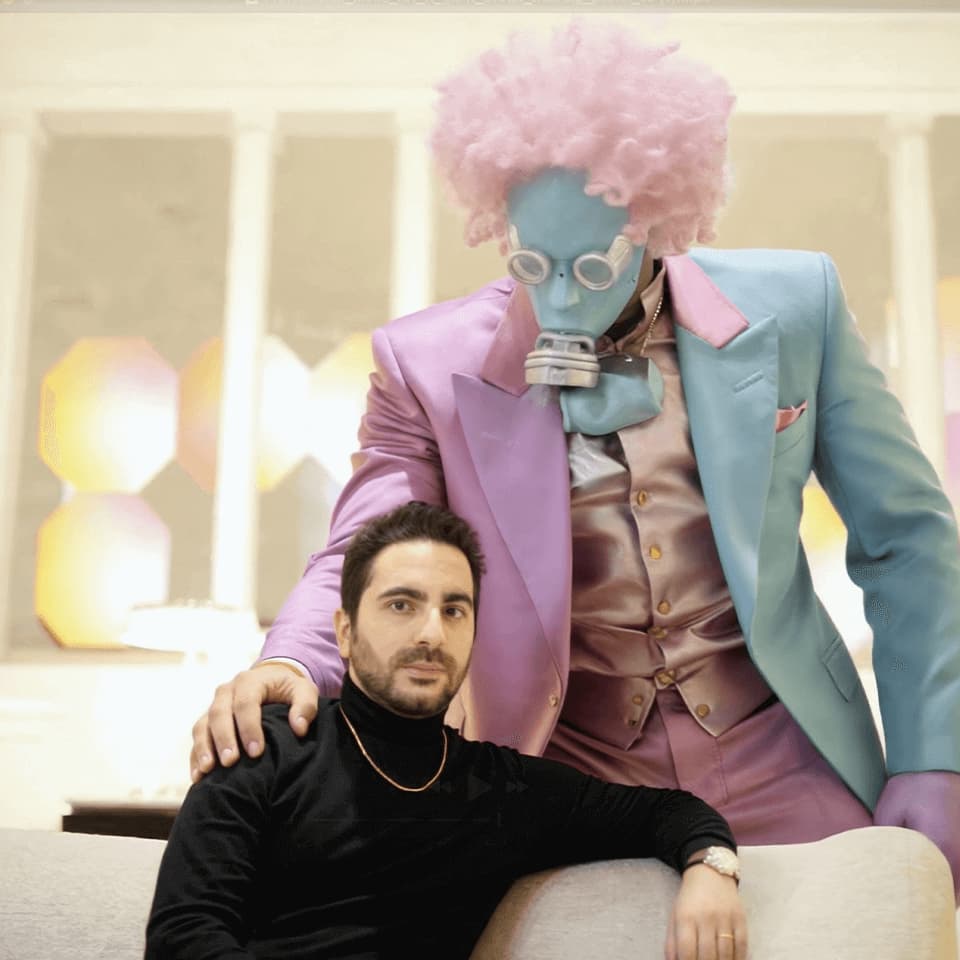
Kling AI seamlessly integrates into my creative workflow, playing a key role in transforming my images. After generating and upscaling an image, Kling becomes a crucial element, bringing my creations to life with movement and depth.
Kling AI has transformed my workflow by collapsing timelines and democratizing production. It’s shifted my mindset from resource-dependent filmmaking to a boundless creative sandbox, where experimentation yields unexpected beauty.

Kling AI has been instrumental in transforming my creative workflow, unlocking new dimensions of artistic expression that were once unimaginable. I use Kling AI extensively to develop high-concept visuals, animate surreal dreamscapes, and create AI-assisted films that blur the line between reality and fantasy. Kling AI’s deep learning capabilities have not only enhanced my creative efficiency but also inspired me to explore storytelling in ways I never thought possible.
Clean up portraits, product shots, travel photos, social content, and other images by removing the elements that pull attention away from what matters.