AI Tutorial Video Maker

Create how-to videos that explain a process from beginning to end. Start with your instructions, product photos, or demonstration footage. Show the important details, add spoken explanations, and build a complete tutorial with Kling 4.0.

AI Tutorial Video Maker

How to Make a Video Tutorial with AI

Step 1: Add Your Tutorial Materials

Step 1: Add Your Tutorial Materials

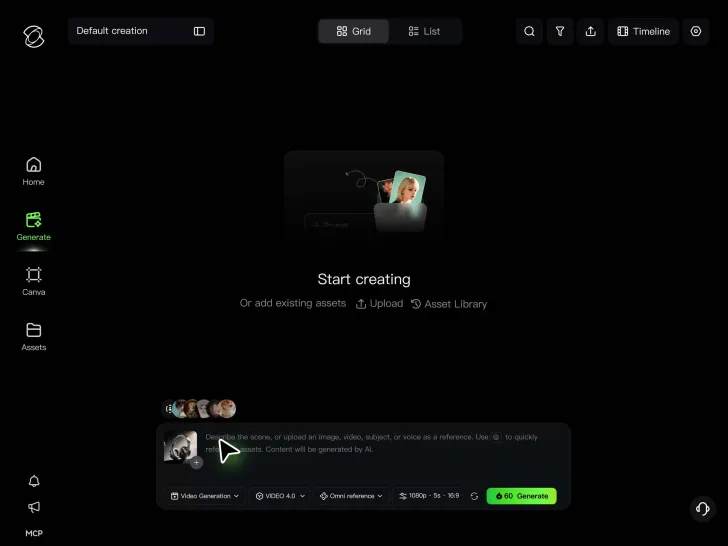
Upload product photos, presenter images, or demonstration clips to Kling 4.0. These references help establish the subjects and details your tutorial needs to show. You can also start without references.

Step 2: Describe Your Tutorial Steps

Step 2: Describe Your Tutorial Steps

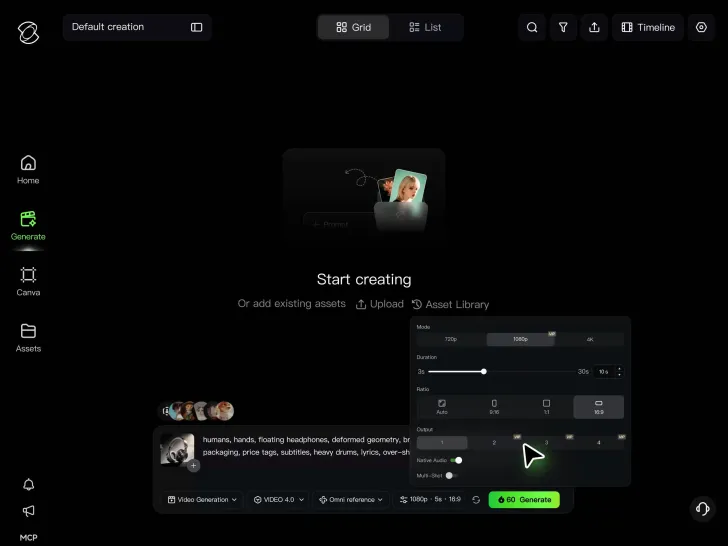
Enter instructions for the actions, camera views, and explanations you want. Add keyframes to guide important stages, and include dialogue or sound where needed.

Step 3: Generate and Complete Your Tutorial

Step 3: Generate and Complete Your Tutorial

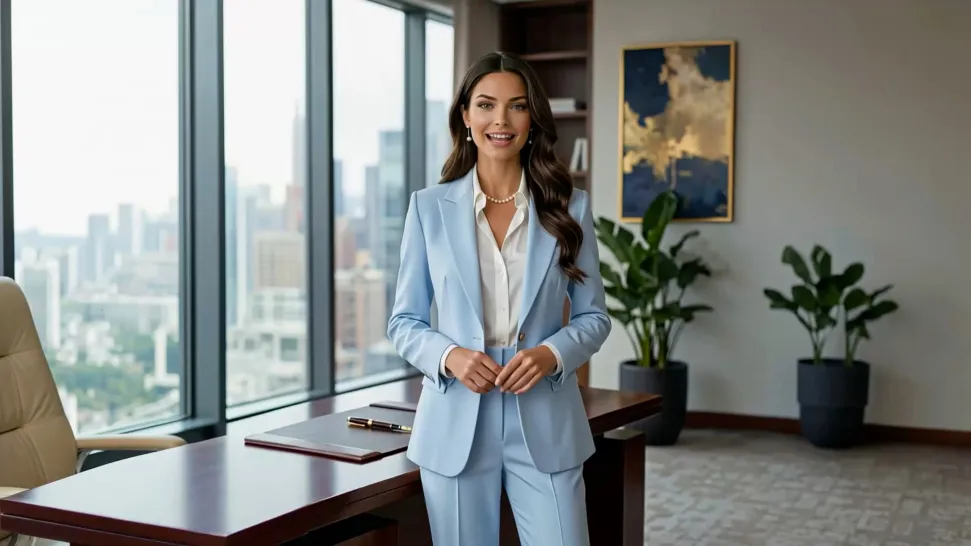
Generate your clips, then preview and arrange them on a continuous timeline. Add more demonstrations, revise individual scenes, and download your finished tutorial video.

Create Tutorial Videos People Can Follow Along With

Walk Viewers Through Each Step

Walk Viewers Through Each Step

A good demonstration shows more than the finished result. Viewers need to see the starting setup, the actions involved, and what should happen before moving to the next step. Break your tutorial into clear stages and use Kling 4.0 to guide important moments. With up to 10 keyframe images in a single generation, you can define key positions, actions, and visual changes while the model creates the movement between them. Give each part of the demonstration a clear purpose instead of trying to explain everything in one shot.
Build Your Demonstration Around the Right References

Build Your Demonstration Around the Right References

The details matter when you're teaching someone how to use something. A product should be recognizable, the presenter should look familiar, and the object being demonstrated shouldn't change unexpectedly between shots. Kling 4.0's Omni Reference accepts up to 15 combined reference assets, subject to individual input limits. Bring in product photos, presenter images, or demonstration footage to guide appearance and movement. You can change the camera view or setting while using those references to help keep the important subjects recognizable throughout the tutorial.

Give Important Details a Closer Look

Give Important Details a Closer Look

Small details can make the difference between understanding a step and missing it entirely. A closer view of a tool, a change in hand position, or a clear look at the finished result can help explain something that a wide shot doesn't show. Direct the camera toward the part of the demonstration that matters. Kling 4.0 can generate close-ups, changes in framing, and on-screen text from your instructions and assets. Add a short reminder or label when it helps explain the action.

Apps

Video Generation
Video Generation

Video Generation

Image Generation
Image Generation

Image Generation

Motion Control
Motion Control

Motion Control

Avatar
Avatar

Avatar

AI Portraits
AI Portraits

AI Portraits

Lip Sync
Lip Sync

Lip Sync

60M+
60M+
Users
600M+
600M+
AI Videos Generated
4.7 ★
4.7 ★
App Store
Industry-Leading
Industry-Leading
Cinematic 4K

Reviews

Maria Rubtsova

Maria Rubtsova

★★★★★

I’m Maria Rubtsova, an AIGC digital artist passionate about creating stunning visuals in the worlds of fashion, aesthetics, and fantasy. I use KlingAi to bring imagination to life through video. My work is all about exploring beauty, emotion, and the limitless possibilities of digital art.

Halim Alrasihi

Halim Alrasihi

★★★★★

I use AI daily and Kling AI is a crucial part of my workflow, whether for client work or personal projects. What I love most about using Kling AI is that it provides all the tools I need in one place, from keyframes to character references, elements and special effects.

James Phillips

James Phillips

★★★★★

Kling AI has transformed my workflow by collapsing timelines and democratizing production. It’s shifted my mindset from resource-dependent filmmaking to a boundless creative sandbox, where experimentation yields unexpected beauty.

FAQ

Q1What is a tutorial video?
Q2How do I make a tutorial video with AI?
Q3Can I make a tutorial video without filming myself?
Q4Can I include screen recordings in a tutorial video?
Q5Can I control the order of steps in my tutorial?
Q6Can I add voiceovers or spoken explanations?
Q7Can I create tutorial videos in multiple languages?
Q8Can I edit one step without recreating the entire tutorial?

Create Tutorial Videos People Can Follow Along With

Give your audience a clearer view of the process. Create demonstrations, add explanations, and bring each step together into a complete lesson with Kling 4.0.

Omni Reference | Multiple Keyframes | Continuous Timeline Creation | Multilingual Dialogue