










Creative Studio
API
Resources
Features
About Us
Download

Video Background Remover

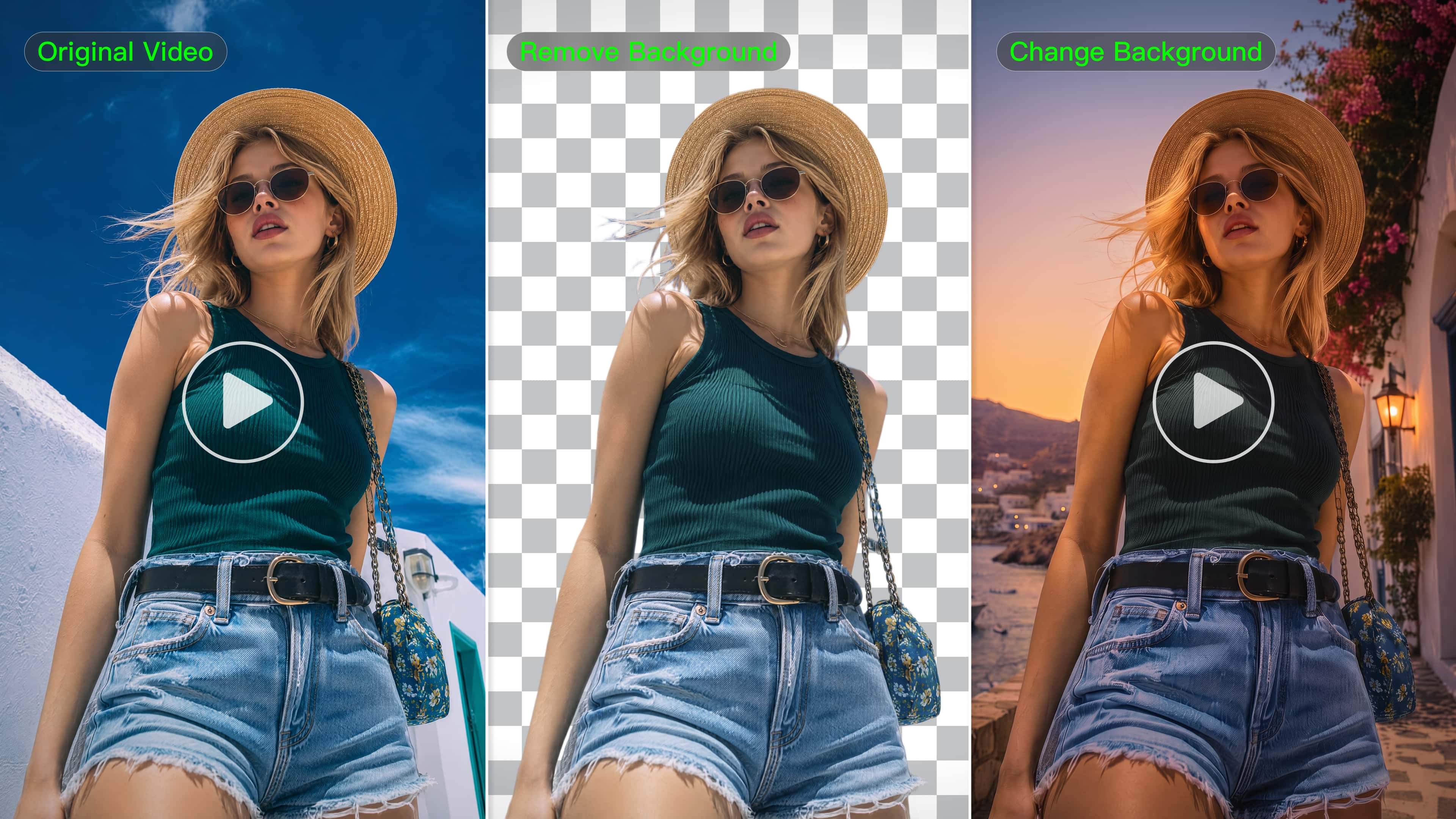
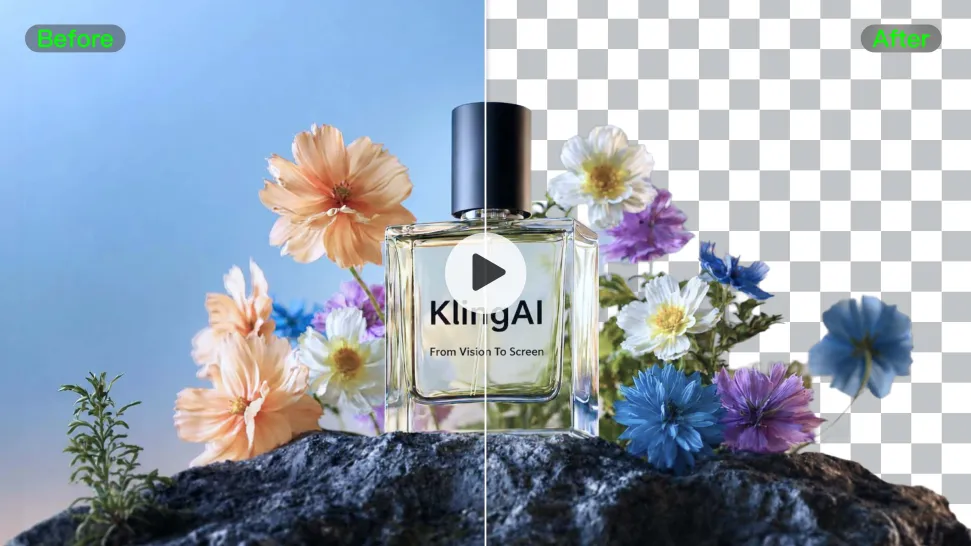
Remove an unwanted background from existing footage, keep the subject in the shot, or move it into a completely new setting - no green screen needed.

Video Background Remover

How to Remove Background from Video

Upload Your Video

Upload Your Video

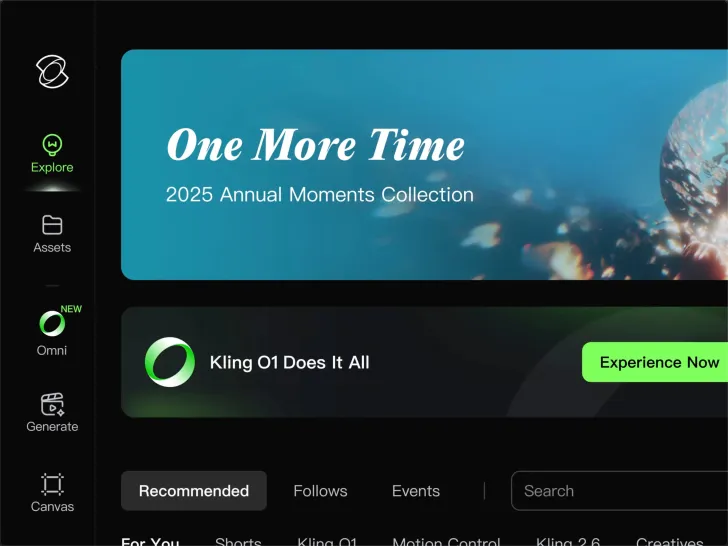
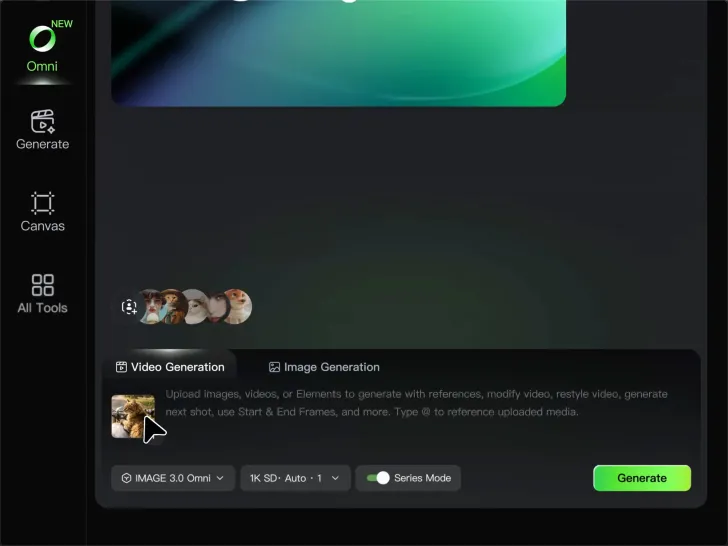
Start with the footage you already have in VIDEO 3.0 Omni. Your clip does not need to be recorded against a green screen before you change the background.

Delete or Replace Video Background

Delete or Replace Video Background

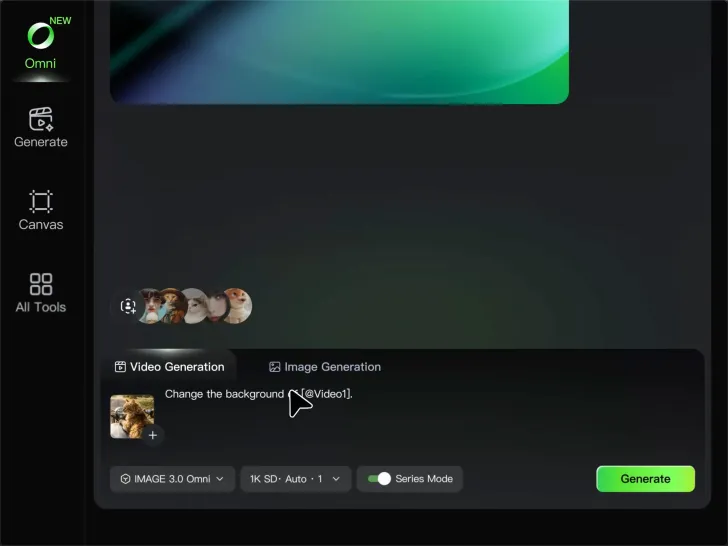
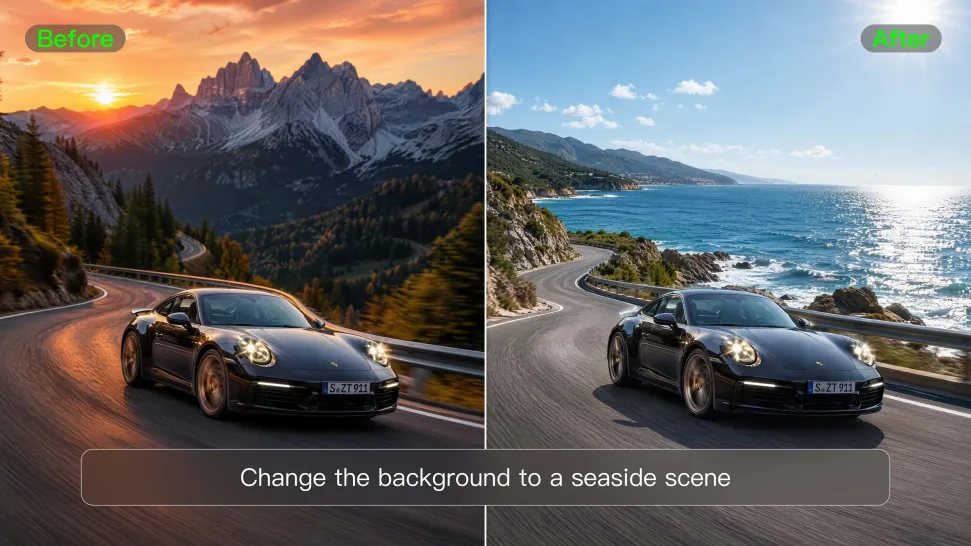
Tell Kling which subject should stay and which background you want removed. If a new setting is your real goal, skip the separate removal step: describe the background you want or add a reference image for Kling to follow.

Generate and Review

Generate and Review

Generate the edit and check the subject and background throughout the clip. If something needs adjusting, refine the instruction and try another version, then save the result or continue editing in Kling AI.

More Than a Cleaner Background

Keep the Focus on Your Subject

Keep the Focus on Your Subject

Busy room? Distracting backdrop? Clear away what pulls attention from the person, product, character, or action you actually want people to see. Give product videos, presenter clips, ads, and social content a cleaner look without manually tracing the subject through every frame. No green screen. No tedious masking. Just tell Kling what needs to stay.

Give the Scene a Better Place to Happen

Give the Scene a Better Place to Happen

Love the footage but not where it was filmed? Change the setting instead of starting over. Describe what you want, or bring in a reference image when you already have the look in mind. Move the same shot into a clean studio, a branded space, a storefront, an outdoor scene, or somewhere completely different.

Keep Creating Without Switching Gears

Keep Creating Without Switching Gears

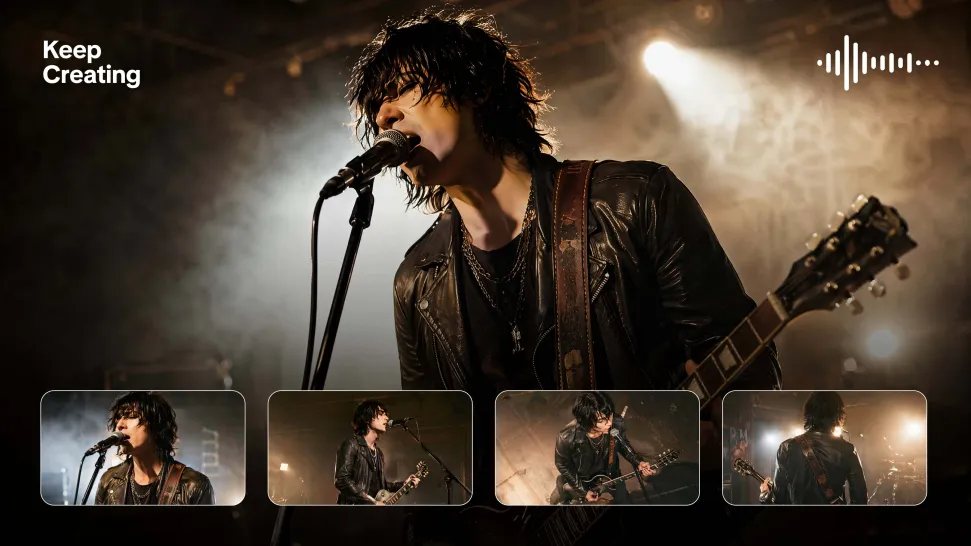
Once the background feels right, there is plenty more you can do in Kling AI. Generate new shots, build multi-shot sequences, work with native audio, explore Motion Control, sound, and effects, or keep shaping the video with Kling’s creative tools. From background fix to fuller video idea, you can keep the project moving with the same creative studio.

Apps

Image to Video
Image to Video

Image to Video

Text to Video
Text to Video

Text to Video

Omni
Omni

Omni

Digital Human
Digital Human

Digital Human

Restyle
Restyle

Restyle

Text to Image
Text to Image

Text to Image

60M+
60M+
Users
600M+
600M+
AI Videos Generated
4.7 ★
4.7 ★
App Store
Industry-Leading
Industry-Leading
Cinematic 4K

Reviews

Halim Alrasihi

Halim Alrasihi

★★★★★

I use AI daily and Kling AI is a crucial part of my workflow, whether for client work or personal projects. What I love most about using Kling AI is that it provides all the tools I need in one place, from keyframes to character references, elements and special effects.

Huang Lu (Elson)

Huang Lu (Elson)

★★★★★

I’ve been using Kling AI since its initial release, and it’s remained one of the leading AI media generators ever since. With Kling AI, I’ve created hundreds of videos, collectively amassing millions of views.

KakuDrop

KakuDrop

★★★★★

I have successfully collaborated with world-renowned artists and well-known companies that are recognized globally

FAQ

Q1What is a video background remover?
Q2How do I remove the background from a video?
Q3Can I remove a video background without a green screen?
Q4Can I replace a video background instead of just removing it?
Q5Can I use an image to change a video background?
Q6Do I need to mask the subject frame by frame?
Q7Can Kling AI make a video background transparent?
Q8Is Kling AI Video Background Remover free?

Keep the Shot. Change the Background.

Remove the background you do not want or move existing footage into a new scene - without rebuilding the shot frame by frame.