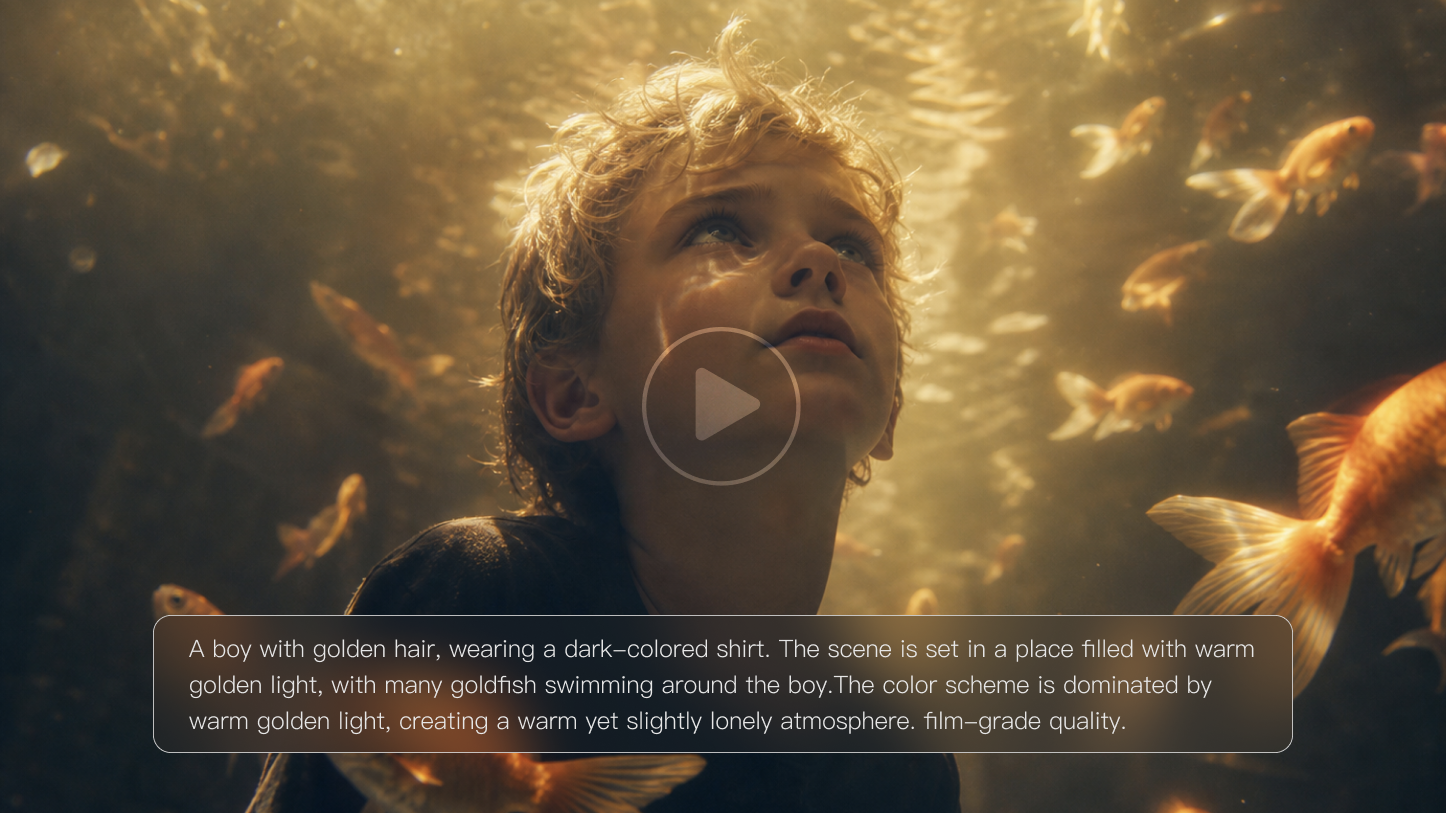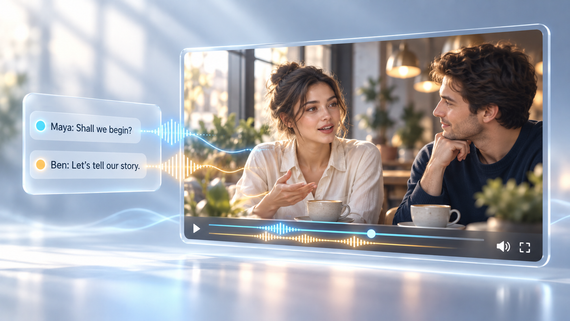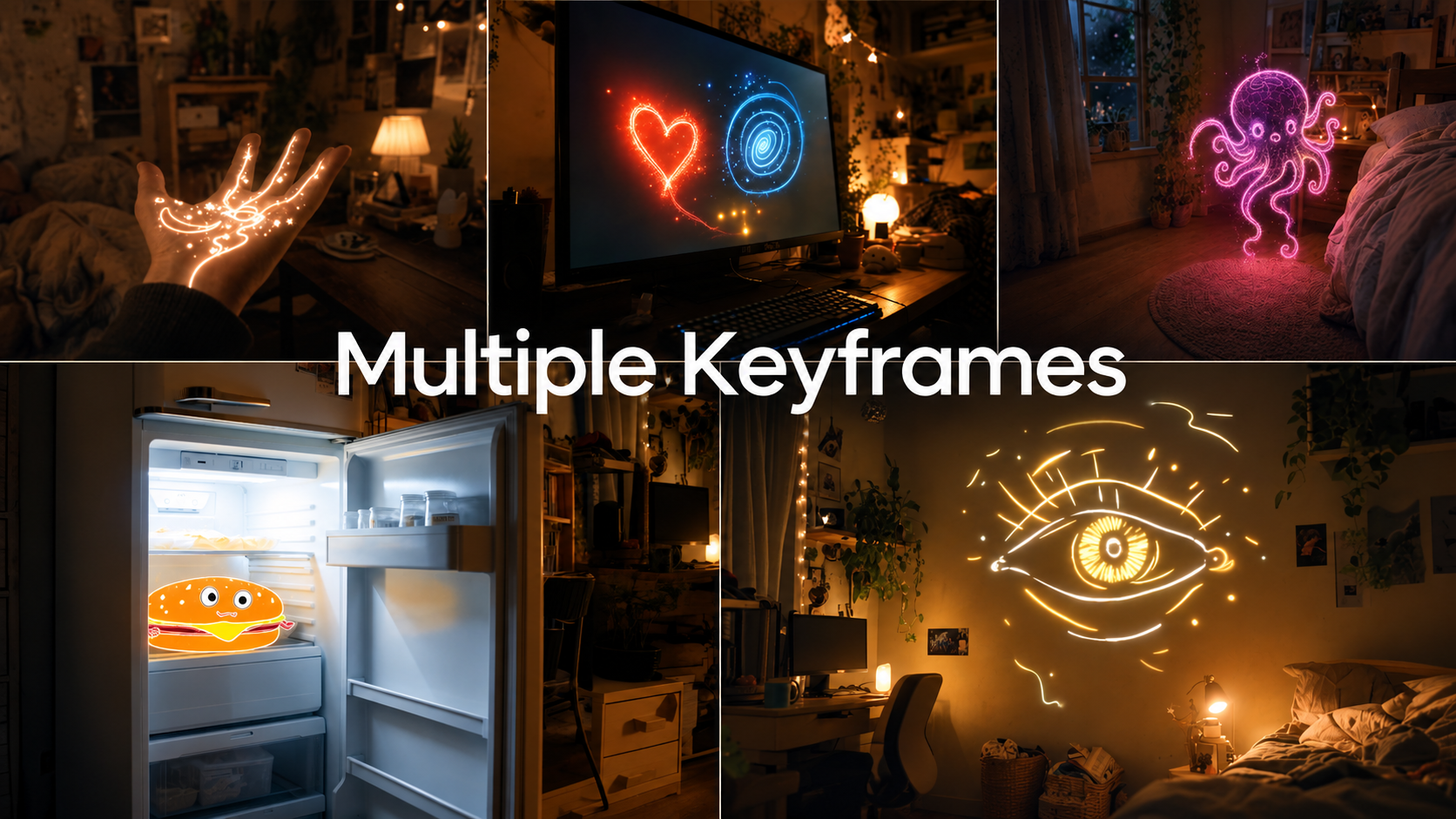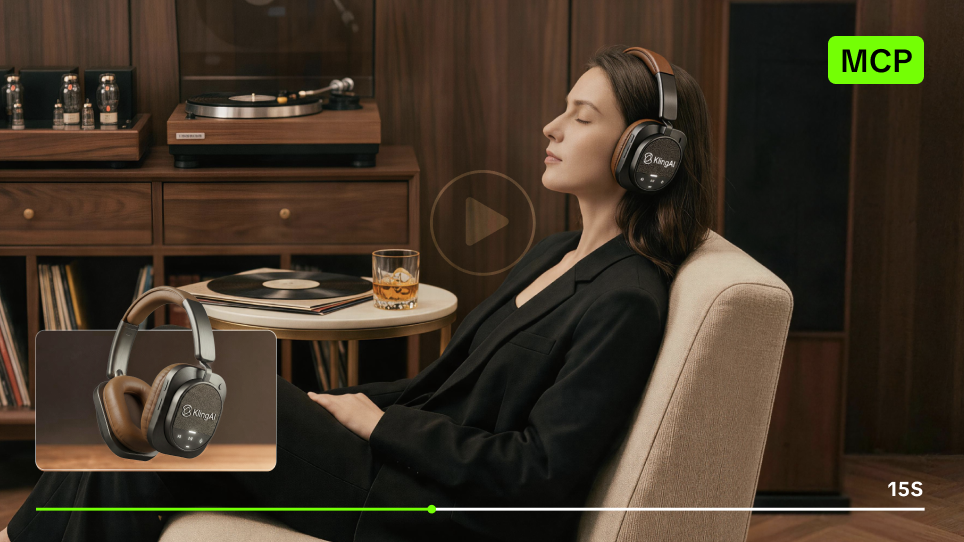
Creating one fashion video is easy. Scaling the same creative direction across multiple products is harder. With Kling MCP connected to an MCP agent, you can reuse approved references and shot rules to create fashion content in batches with less repetitive setup.
Build a Repeatable Fashion Workflow With an MCP Agent
A scalable workflow separates what stays consistent across the campaign from what changes for each product.
- Define the campaign once. Set the styling, lighting, framing, shot coverage, and product priorities.
- Create and approve model concepts. Use product photos as references before adding motion.
- Reuse shot patterns. Apply approved full-body, half-body, or detail directions instead of rewriting every prompt.
- Test, then scale. Generate a few videos first, correct shared problems, then continue with the collection.
The MCP agent organizes the workflow and calls the connected tools. Kling MCP provides access to supported Kling AI actions, while Kling AI handles image and video generation.
Batch Create Fashion Images or Videos: Claude + Kling MCP Workflow |
|---|
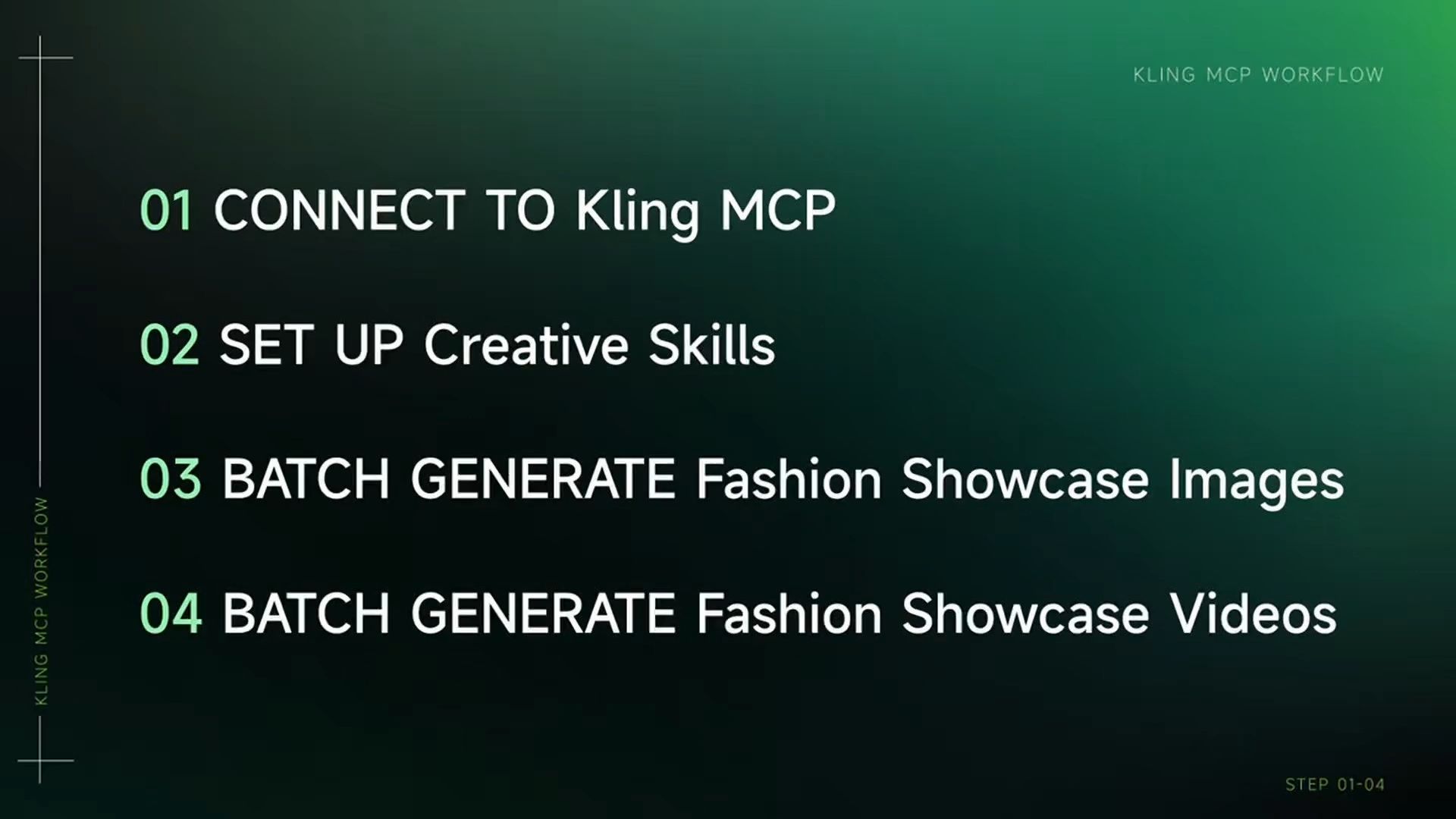  |
Connect Claude to Kling MCP
Start inside Claude. For an individual Claude account with custom connectors:
- Open Customize → Connectors.
- Select Add custom connector.
- Add Kling’s remote MCP server: https://kling.ai/mcp
- Follow the authentication flow and authorize your Kling account.
- Enable the connector in the conversation where you want to work.
For Team or Enterprise accounts, connector availability may depend on your organization’s settings. See the Kling MCP & CLI Guide for current Kling setup instructions. Before generating anything, check what Kling actions are available:
Confirm that Kling MCP is connected. Show me the Kling image and video actions currently available. Do not generate anything yet.
Available models, inputs, and parameters can change, so build the workflow around the tools exposed through your current connection.
Set the Campaign Brief and Reference Roles
Now give the MCP agent the campaign direction. Keep the brief focused on what shoppers need to see: the overall silhouette, fit, and any product details that deserve a closer view. For example:
Create a clean fashion campaign with soft studio light and restrained model movement. Use full-body, half-body, and garment-detail coverage. Keep the supplied product photos as the primary visual reference for the clothing.
Then make the role of each reference clear. Because Claude's standard file uploads support images rather than video files, use representative frames from any style reference video and add notes if movement or pacing matters. Use:
- Campaign reference frames for set, lighting, framing, model presentation, and overall visual direction.
- Product photos for garment color, silhouette, fabric appearance, and visible construction details.
Tell the agent:
Use the campaign reference frames for visual direction only. Use the product photos as the primary garment reference, and do not copy clothing from the campaign references into the product concepts.
This gives the agent a reusable campaign direction without confusing presentation references with the product being sold.
Turn Product Photos Into Model Concepts
Once the campaign direction is clear, add the garment photos and ask the agent to create model concepts with Kling AI. For example:
Using the approved campaign direction, create several fashion showcase concepts with the supplied product photos as garment references. Keep the styling, set, lighting, and framing consistent. Include full-body, half-body, and detail-oriented options. Preserve the garment’s visible color, silhouette, length, neckline, material cues, and construction details as closely as possible.
Reference images can guide the generation, but they do not guarantee that every seam, print, logo, or material detail will remain identical. For e-commerce content, review the product before approving the creative.
Approve the Product Before Adding Motion
Compare every generated concept with the original product photos before turning it into video. Check:
- Does the color and silhouette still match?
- Are the neckline, sleeves, seams, and other important details in the right place?
- Does the material look believable?
- Do hands, hair, and accessories interact naturally with the garment?
- Is the framing suitable for the planned video?
If a key product feature has changed, revise the still first. Name approved images clearly, such as blue-dress-01-full or blue-dress-01-detail. Clear labels make it easier for the MCP agent to keep each reference paired with the right video instruction later.
Build Reusable Shot Briefs
Instead of writing every video prompt from scratch, create a few reusable shot patterns.
- Full-body: Show the overall silhouette, then add a subtle turn or measured step to reveal how the garment moves.
- Half-body: Keep the torso, neckline, and sleeves visible with restrained model movement.
- Detail: Hold a closer view of one specific feature, such as texture, stitching, buttons, or drape.
For example:
Use the approved full-body image as the visual reference. Begin with a steady full-body view, then add a subtle turn to show the garment’s silhouette and drape. Keep the movement restrained and the camera controlled. Finish on a clean, product-focused pose.
Reuse the structure across products and change only what each item needs.
Test a Few Videos Before Scaling
Do not generate the entire collection immediately. Start with a small test set using approved images and shot briefs:
Prepare three test videos using the approved images and shot briefs. Keep each image and prompt pair separate. Show me the planned Kling generation inputs before submitting them.
Then submit the approved image-to-video tasks through the Kling action available in your MCP connection. Review the results for:
- Garment changes
- Character drift
- Excessive model movement
- Hidden product details
- Distracting camera motion
- Inconsistent framing or lighting
If the same issue appears several times, change the shared rule instead of rewriting each prompt. For example:
Reduce model movement across all full-body shots.
Or:
Keep the camera static for garment-detail videos.
One correction can then carry into the remaining generation tasks.
Scale the Approved Collection With Kling MCP
Once the test set works, prepare the remaining production list. For each video, specify the approved reference image, shot type, motion direction, and any supported output settings you need. Then ask the MCP agent:
Use Kling MCP to generate the approved fashion video set. Keep each reference image paired with its assigned shot brief and apply the shared campaign direction across the collection. Track the submitted tasks and retrieve the results as they complete.
A batch here can consist of multiple coordinated generation tasks rather than one request that produces every video at the same time. The MCP agent keeps the production plan organized while Kling AI handles the individual generations.
Fix Problems at the Right Stage
When something goes wrong, correct the stage that caused it rather than rebuilding the whole workflow.
- Garment changed: Return to the still or product reference and reinforce the details that need to stay recognizable.
- Campaign looks generic: Replace broad mood words with specific lighting, styling, framing, posture, and camera choices.
- Product detail is hidden: Give it a dedicated close shot and keep hair, hands, or accessories out of the way.
- Several videos have the same problem: Update the shared campaign or shot rule.
- Only one video fails: Revise that image or prompt without changing the rest of the batch.
This is where an MCP agent becomes especially useful: shared problems can be corrected once and the new direction reused across later generations.
Scale Fashion Content Without Rebuilding the Workflow
The value of an MCP agent becomes clearer when one product turns into a full collection. Instead of moving references between tools, rewriting the same campaign brief, rebuilding shot prompts, and tracking each generation separately, you can keep those decisions inside one reusable workflow. Define the campaign direction, approve the product concepts, reuse the shot patterns, test a few videos, then scale what works. The MCP agent coordinates the process. Kling MCP connects it to supported Kling AI tools. Kling AI generates the media, while you stay in control of product accuracy and creative approval.
Frequently Asked Questions
What Is an MCP Agent?
An MCP agent is a common way to describe an AI agent that can use tools or services exposed through Model Context Protocol. MCP itself is not the agent. It provides the connection between the AI application and external tools. In this workflow, Claude acts as the AI agent, Kling MCP exposes supported Kling AI actions, and Kling AI performs the media generation.
Can an MCP Agent Create Fashion Videos With Kling AI?
Yes, when Kling MCP is connected and the required image and video actions are available. The MCP agent can organize the brief, work with references it supports, prepare generation instructions, call the available Kling tools, and help coordinate multiple generation tasks. Kling AI performs the actual image and video generation.
Can Claude Analyze a Fashion Reference Video?
Claude's standard file upload currently supports documents and images rather than video files. For a Claude-based workflow, use representative frames from the reference video together with notes describing movement, pacing, camera direction, and editing rhythm. Other MCP agents may support different input types, so check the capabilities of the agent you are using.
What Product Photos Work Best?
Use clear, well-lit images that show the parts of the garment you need to preserve. Include views that make the silhouette, color, neckline, sleeves, fabric, prints, fastenings, and other important construction details easy to see. Multiple reference views can give the generation workflow more visual information to work from.
Should I Generate All the Fashion Videos at Once?
It is usually better to test a small set first. Review product accuracy, model consistency, movement, framing, and camera behavior. If a problem affects several results, correct the shared rule before scaling the workflow to more products.
Can an MCP Agent Help Create Several Product Video Variations?
Yes. Kling positions MCP and CLI for efficient batch generation. An MCP agent can organize multiple approved generation tasks, reuse shared campaign instructions, and vary elements such as the product, model, shot type, or motion direction. For cleaner comparisons, avoid changing too many variables in the same test.
Do I Need Coding Skills to Use an MCP Agent With Kling?
Not necessarily. Claude supports remote MCP connections through its connector settings, so the connection can be configured through the interface. Other MCP agents or clients may use configuration files or command-line setup. Once Kling MCP is connected and authorized, supported Kling AI actions can be requested in natural language.