VIDEO 3.0 Omni: All-in-One Multimodal Input, Voice-Driven Characters, Direct Audio-Visual Output, and Storyboarding
Building on the Kling VIDEO O1 and Kling VIDEO 2.6, the Kling 3.0 Model Series leverage a deeply integrated unified model training framework, achieving more native multimodal input and output. It combines Native Audio with Element Consistency Control, and breaks through duration limits.
While supporting longer video generation (15s), the Kling 3.0 Model Series enables native audio-visual output and provides highly flexible storyboard control and more precise semantic response accuracy, bringing life to AI-generated visual content. Based on the next-generation unified multimodal large model, the Kling VIDEO 2.6 model has been upgraded to VIDEO 3.0, and the Kling VIDEO O1 model has been upgraded to VIDEO 3.0 Omni, bringing a comprehensive evolution in control and narrative power.
🚀 To find out more, refer to 👉 Kling VIDEO 3.0 Model User Guide
Kling VIDEO 3.0 Omni Capabilities Upgrade:
Capabilities | Kling VIDEO O1 | Kling VIDEO 3.0 Omni | |
Text-to-Video | No Native Audio, No Multi-shot | ✅ Supports Native Audio and Multi-shot | |
Image-to-Video | |||
Start & End Frames-to-Video | |||
Multi-image Reference | |||
Element Reference | |||
Video Element Reference | Not supported | ✅ Supports uploading/recording video elements | |
Added Element Voice Control | Not supported | ✅ Supports adding voice to elements | |
Video Duration | Up to 10s | ✅ Up to 15s | |
Kling VIDEO 3.0 Omni New Capabilities Guide
Kling VIDEO 3.0 Omni enhances its understanding of input images and videos at the underlying level, enabling you to create elements using multi-angle images or a video featuring characters. By referencing images or elements, Kling 3.0 Omni can, like a human director, remember your main characters, items, and scenes. Regardless of how the camera moves, the element's features remain consistent, ensuring every frame is accurate and coherent.
More importantly, Kling VIDEO 3.0 Omni possesses powerful harmonious integration capabilities. You can freely combine multiple elements or mix elements with reference images. In complex group scenes or interactive scenarios, the model can independently lock and maintain the features of each character or item. No matter how dramatically the scene changes, VIDEO 3.0 Omni ensures that each "main character" maintains industrial-grade consistency in every shot.
1. All-in-One Reference 3.0: Enhanced Consistency, More Responsive and Dynamic
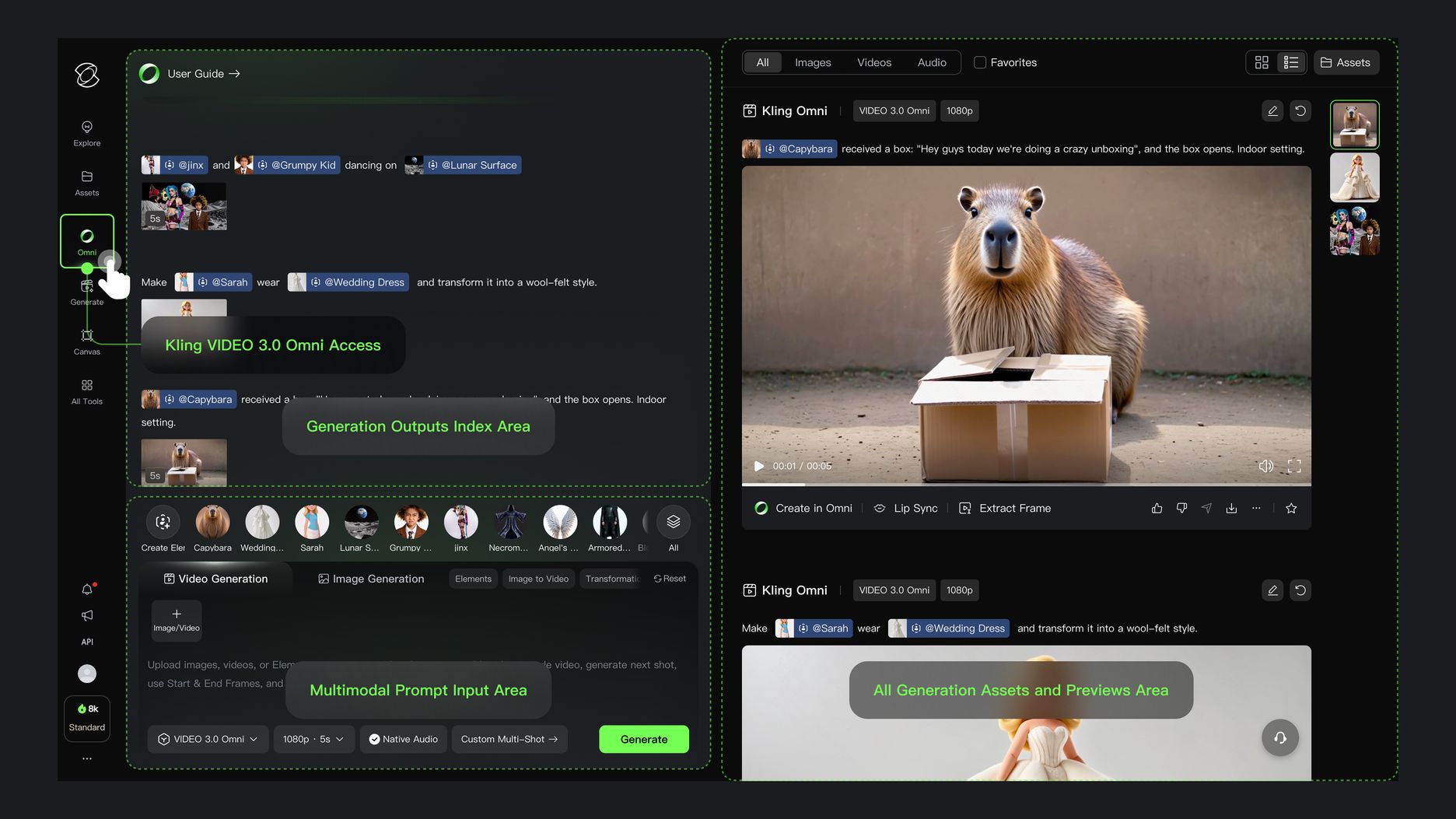
Building on the capabilities of VIDEO O1 and leveraging the deep semantic understanding of the unified model, the images, videos, elements, and text you upload are all treated as prompts by VIDEO 3.0 Omni. The VIDEO 3.0 Omni Model breaks through modality limitations, comprehensively understanding any combination of photo, video, or element you upload, and accurately generating various video details.
At the same time, compared to O1, VIDEO 3.0 Omni's reference-based generation has seen a significant improvement in element consistency. The model's responsiveness to text prompts has also drastically increased, resulting in fewer visual distortions. The overall output is more responsive, dynamic, and consistently high-quality, with each generation producing a mature, highly usable work.
Showcases
Element/Reference Image | Text Description | Outputs |
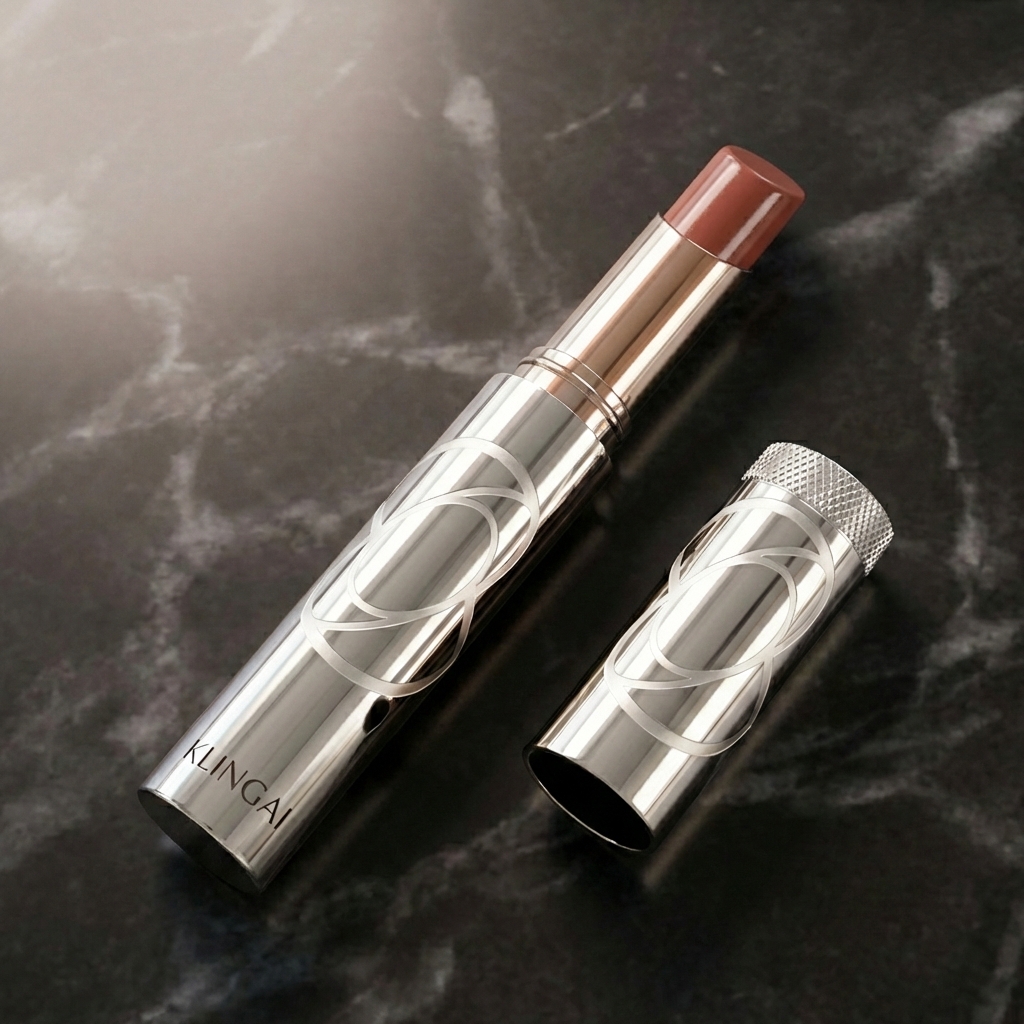
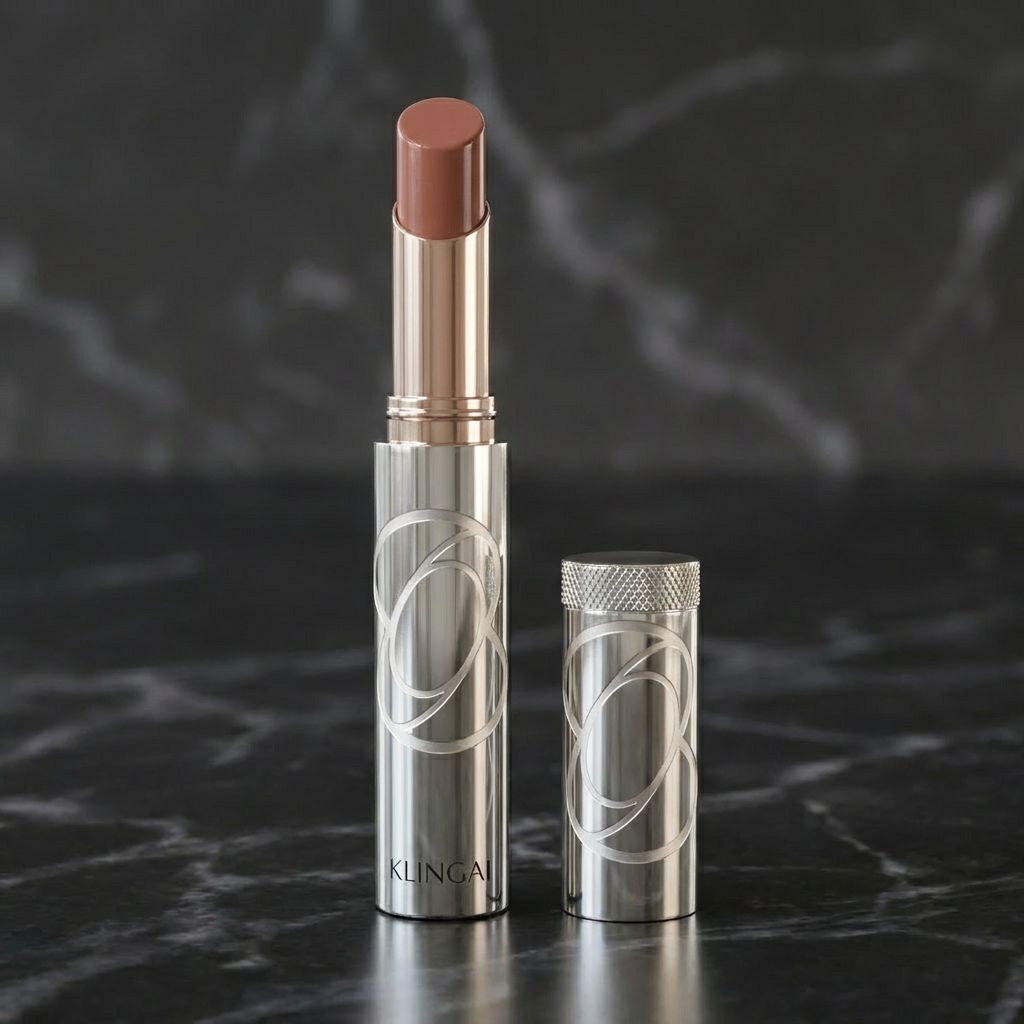
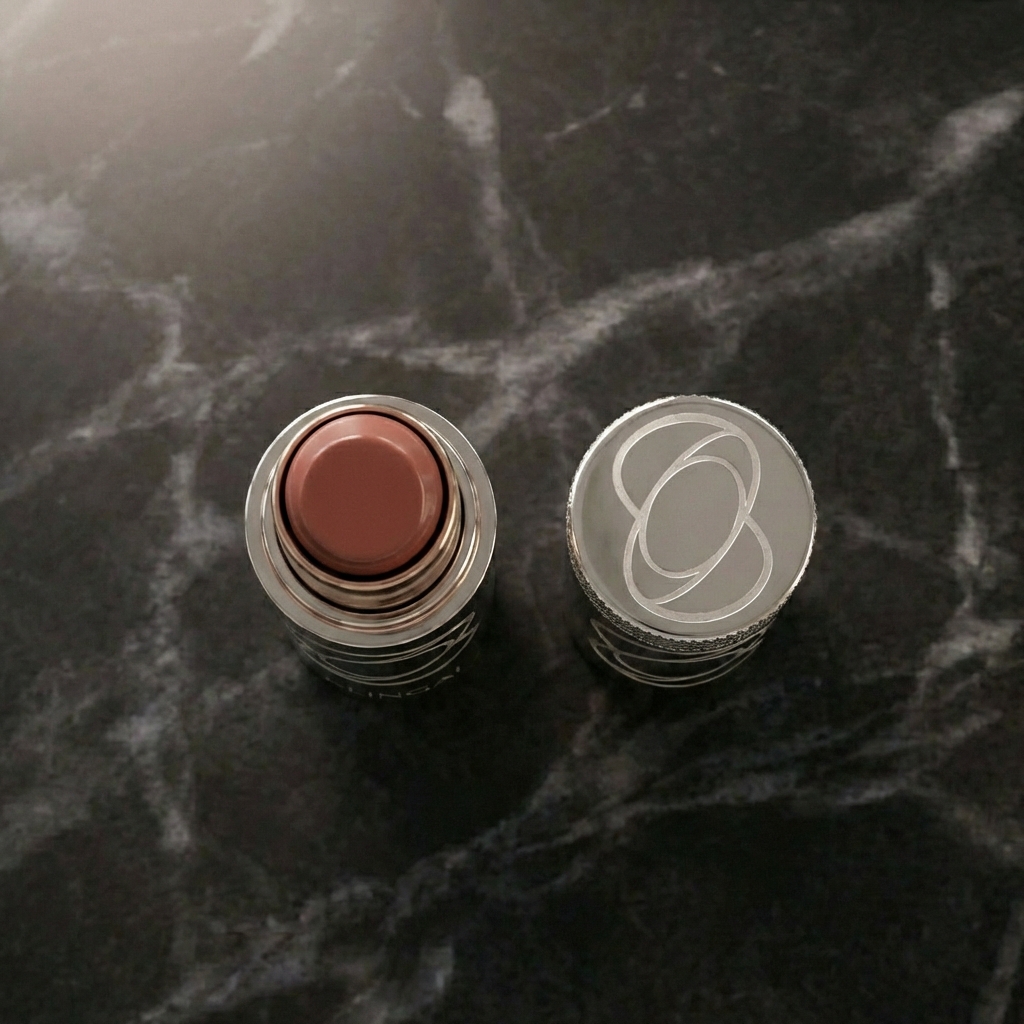
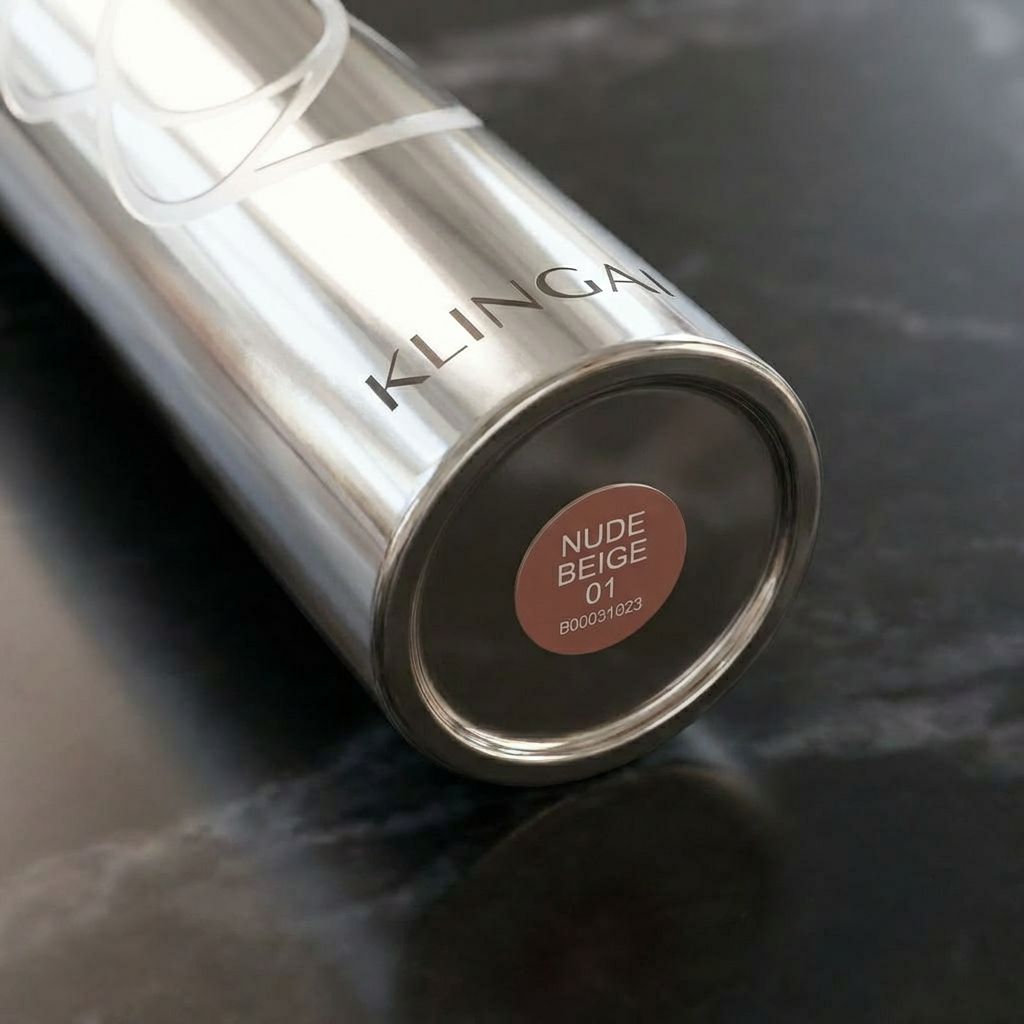
@Kling Lipstick
@Image
| Pure black background. In the darkness, a river of color—matching the @Kling Lipstick shade—streaks across, leaving a rich, flawless trail. The trail then "comes alive," flowing like liquid and elegantly spreading and blending on the surface to form patterned designs @Image. The color river then gathers into the lipstick bullet of @Kling Lipstick resting on water. Soft water surrounds it with budding flowers that slowly bloom, gentle ripples forming across the surface. |   |
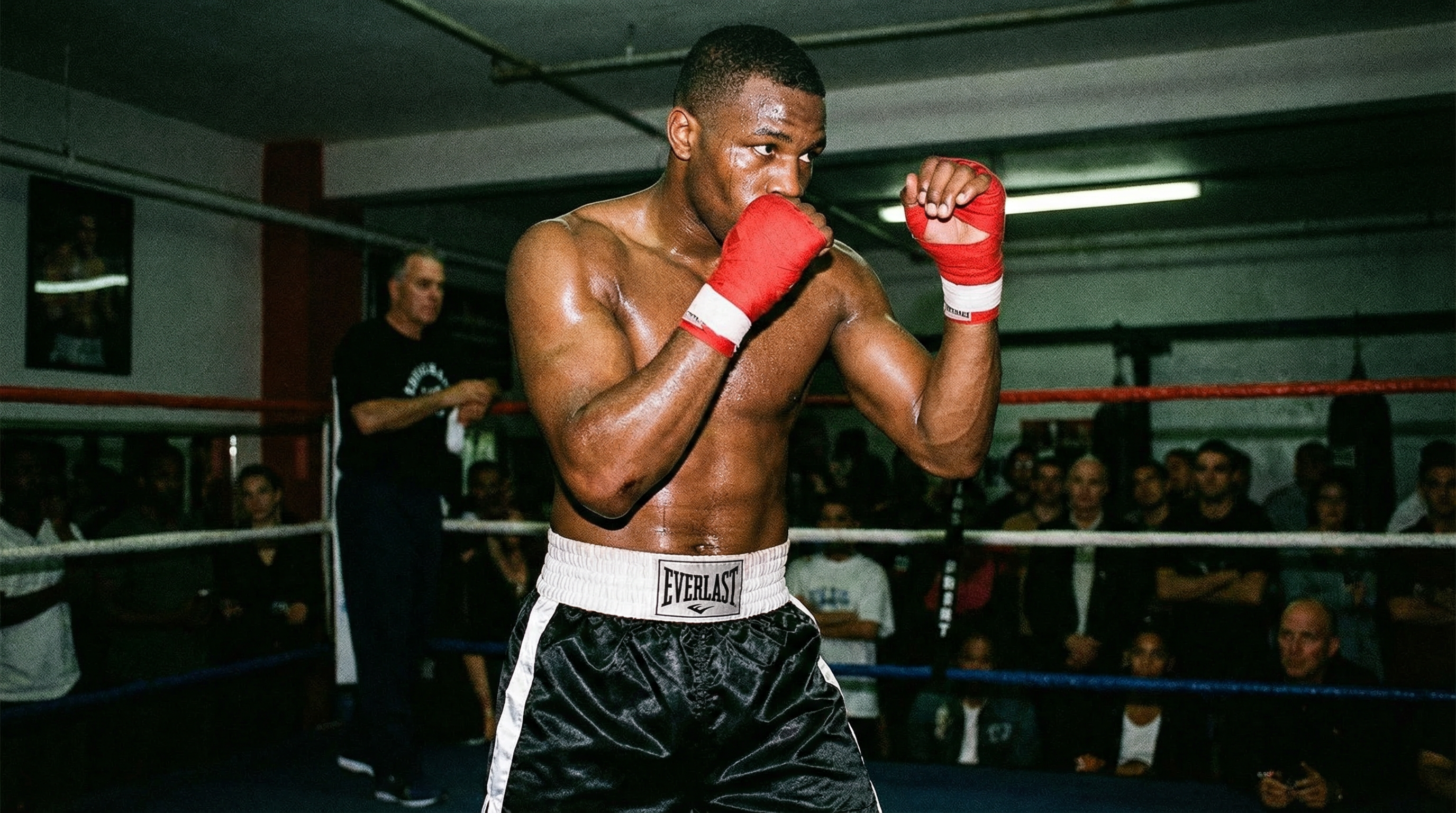
@Boxer A
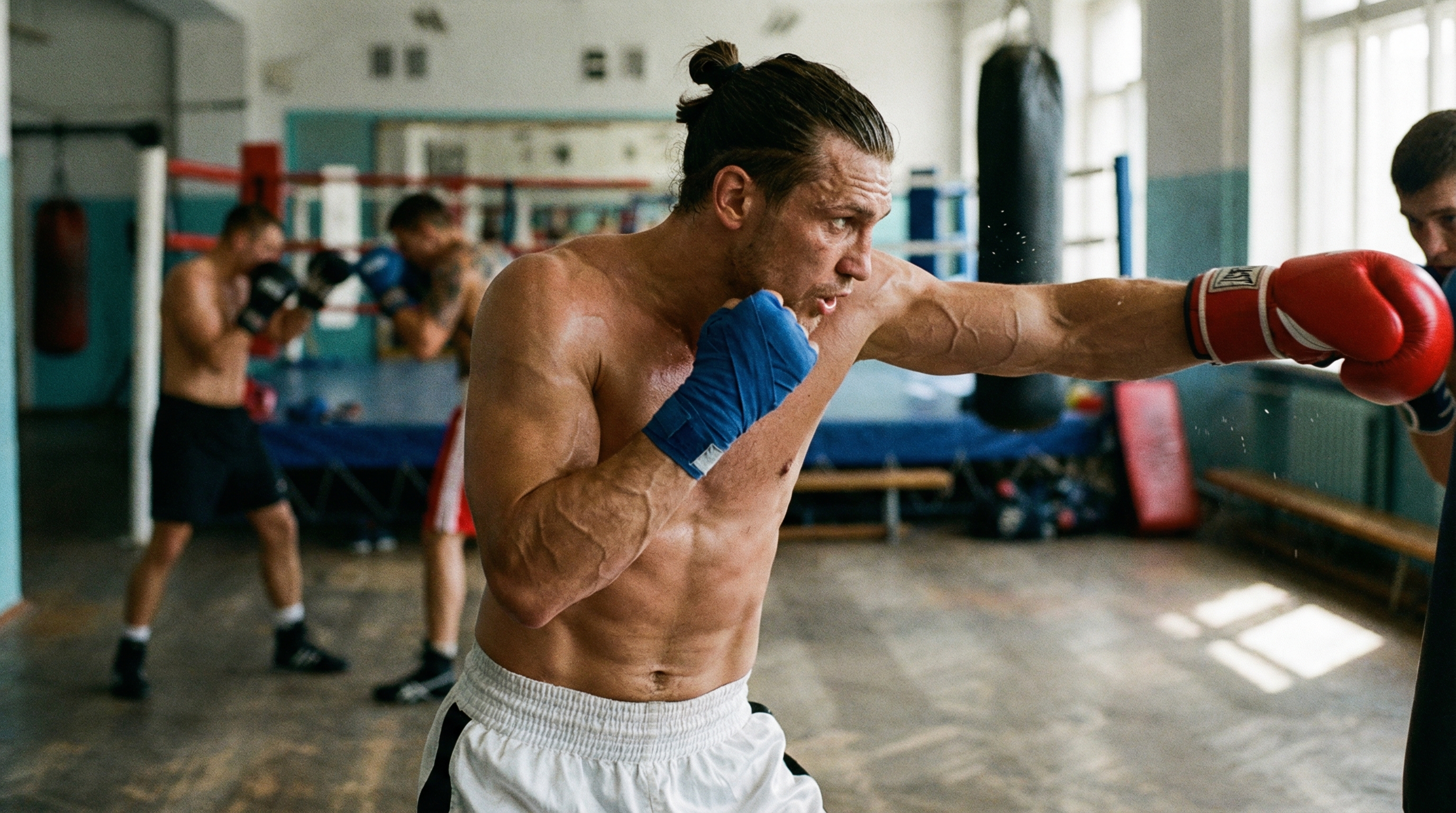
@Boxer B
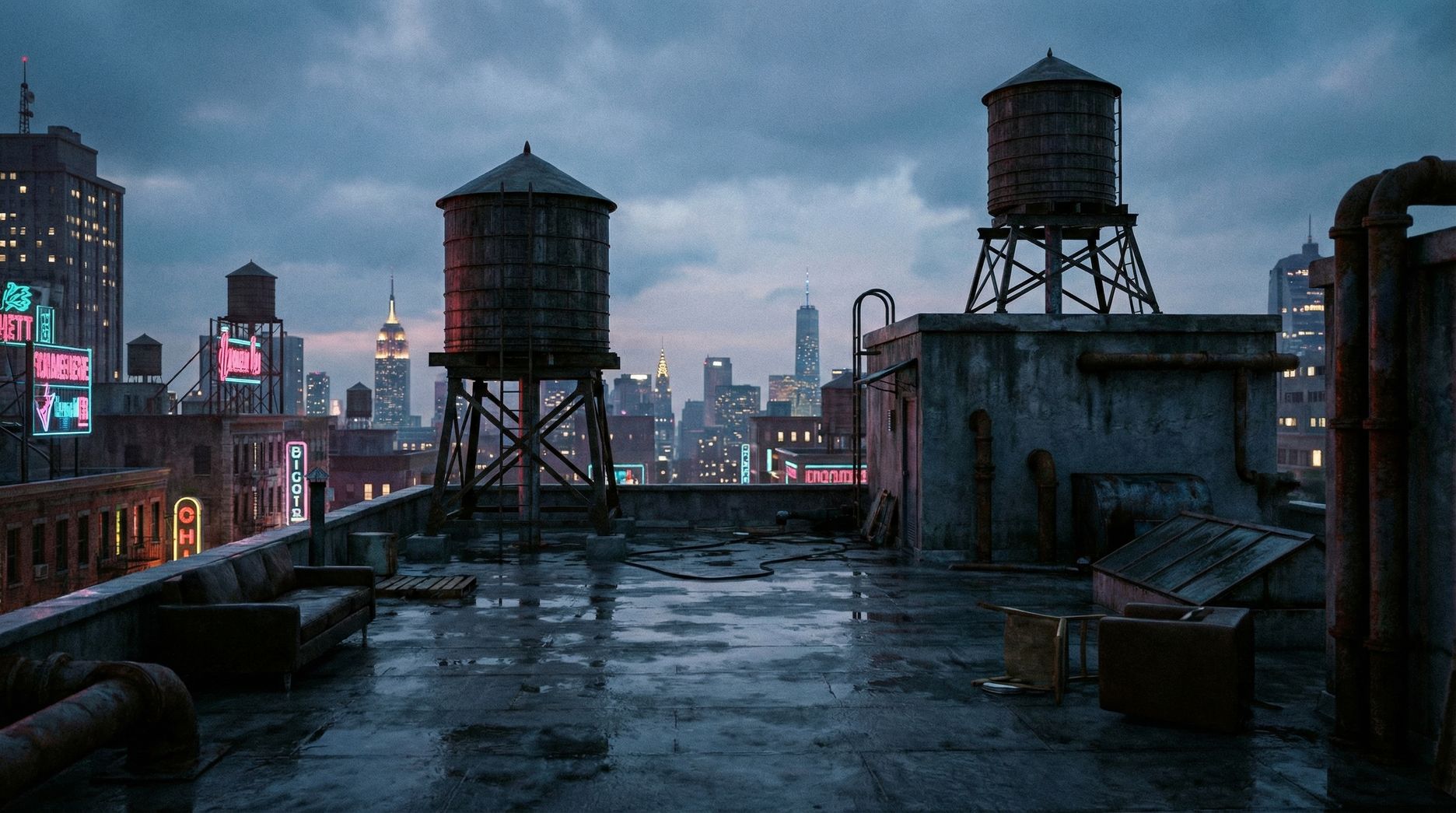
Scene-Rooftop | Shot 1 (2s): Wide shot, @Boxer A and @Boxer B face off in the center of the rooftop, feet apart in a boxing stance. Shot 2 (2s): Both move in, testing each other up close: @Boxer A throws a quick punch, @Boxer B sidesteps and blocks. Shot 3 (3s): @Boxer A continues the attack, landing a punch on @Boxer B's head, and @Boxer B retaliates. Shot 4 (4s): Wide shot, the two boxers continue their intense fight. Shot 5 (2s): A bird's-eye view of the scene shows the two separated and having stopped fighting. | 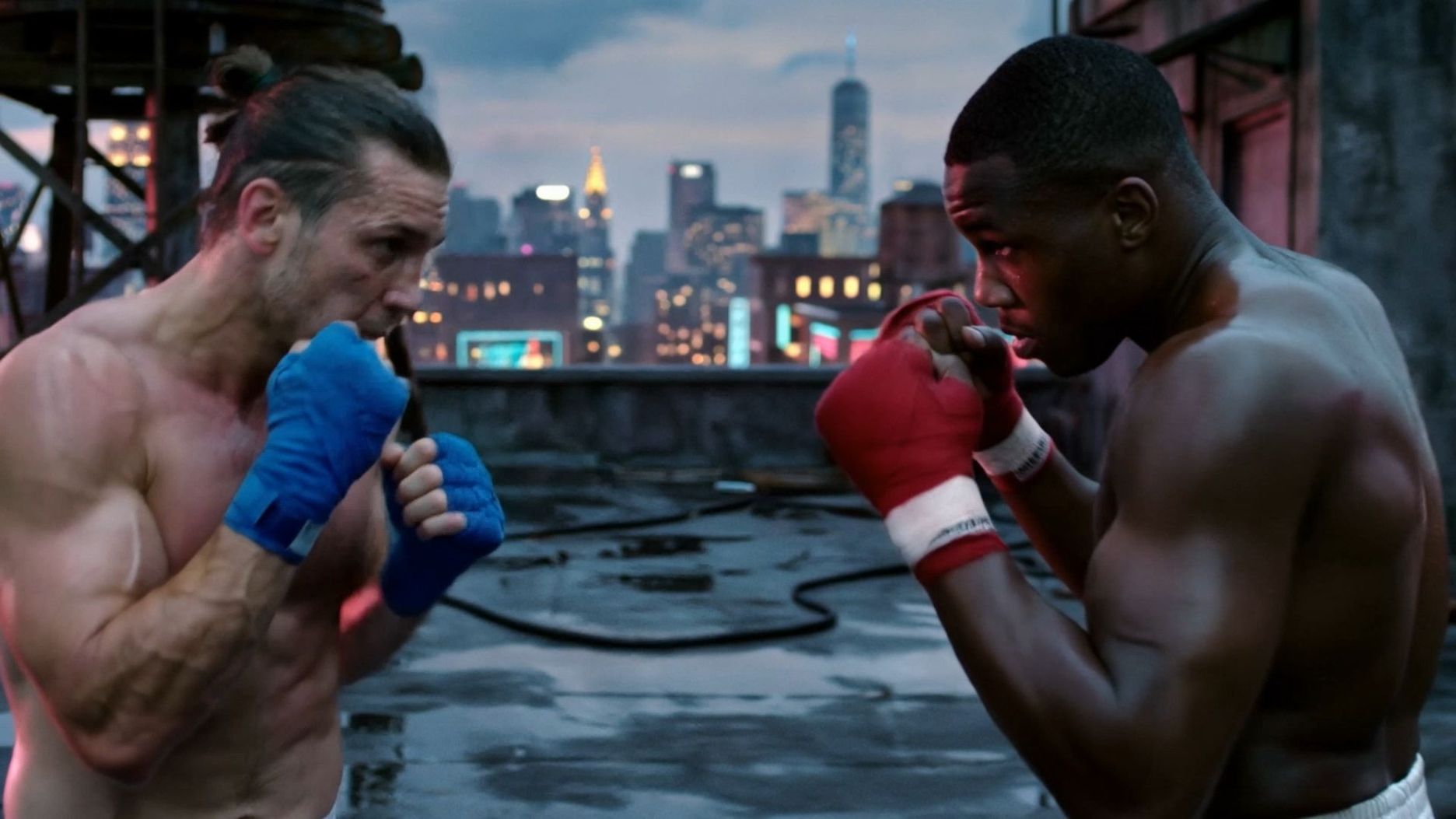 |
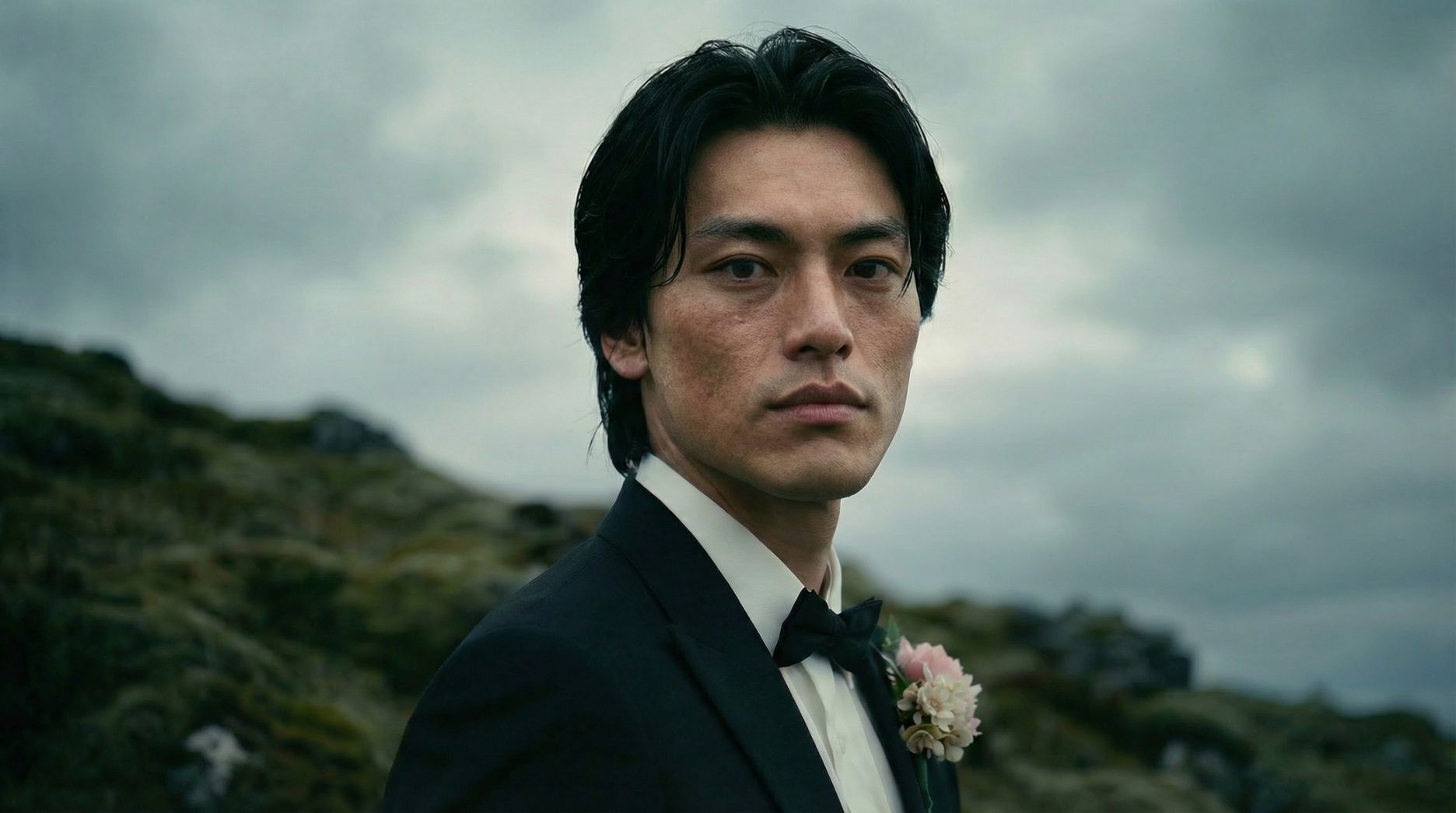
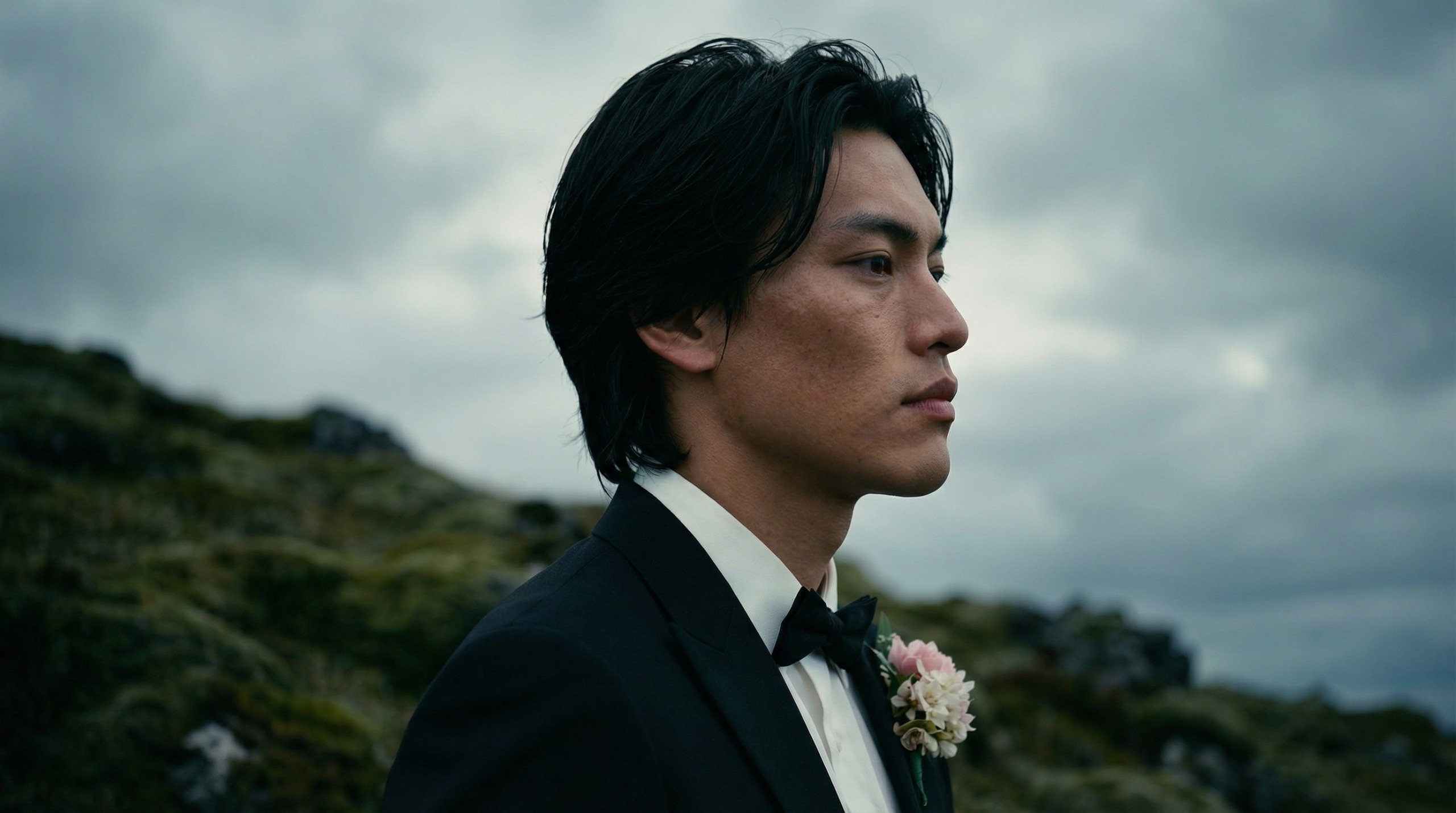
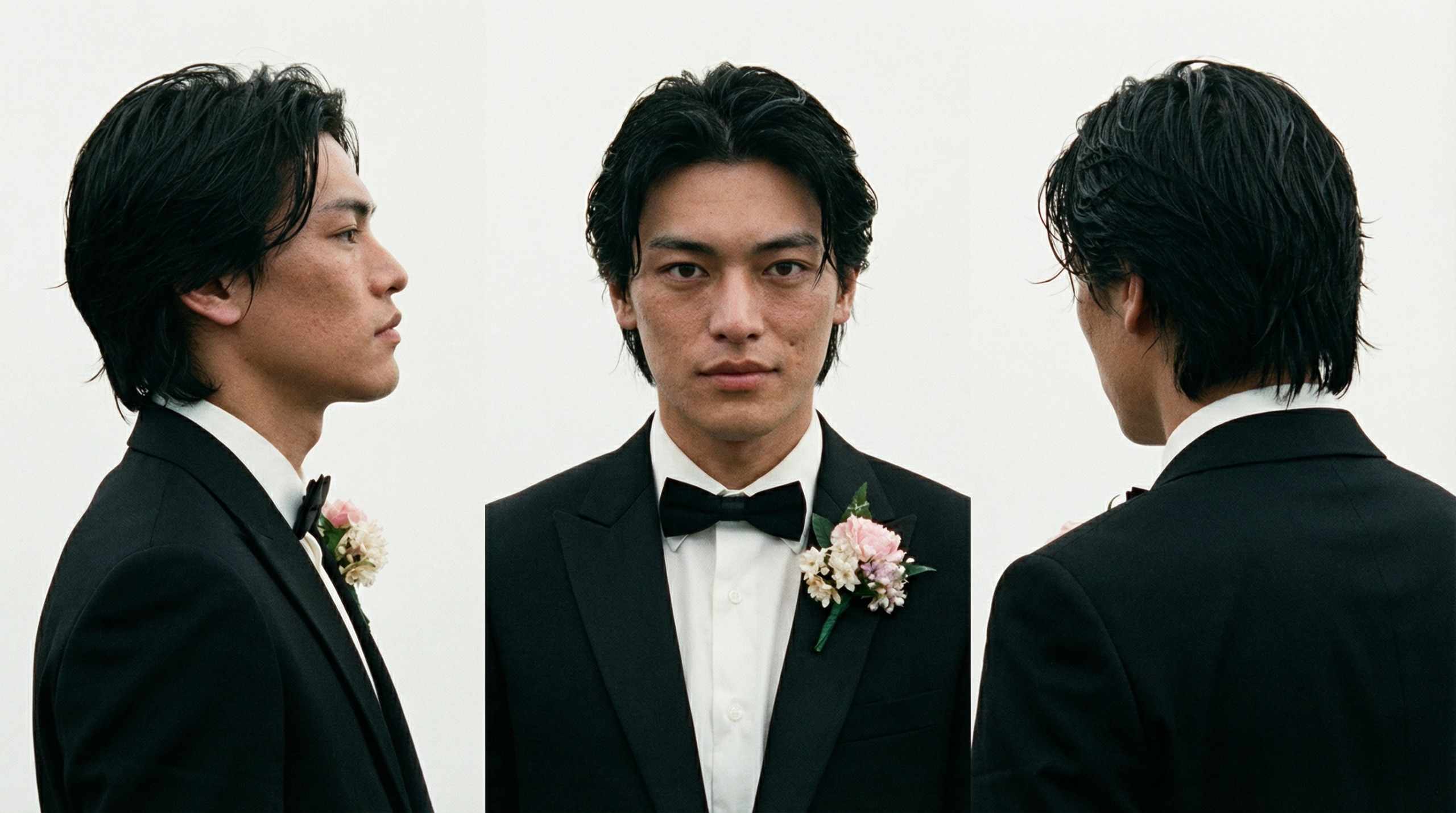
@Male Protagonist
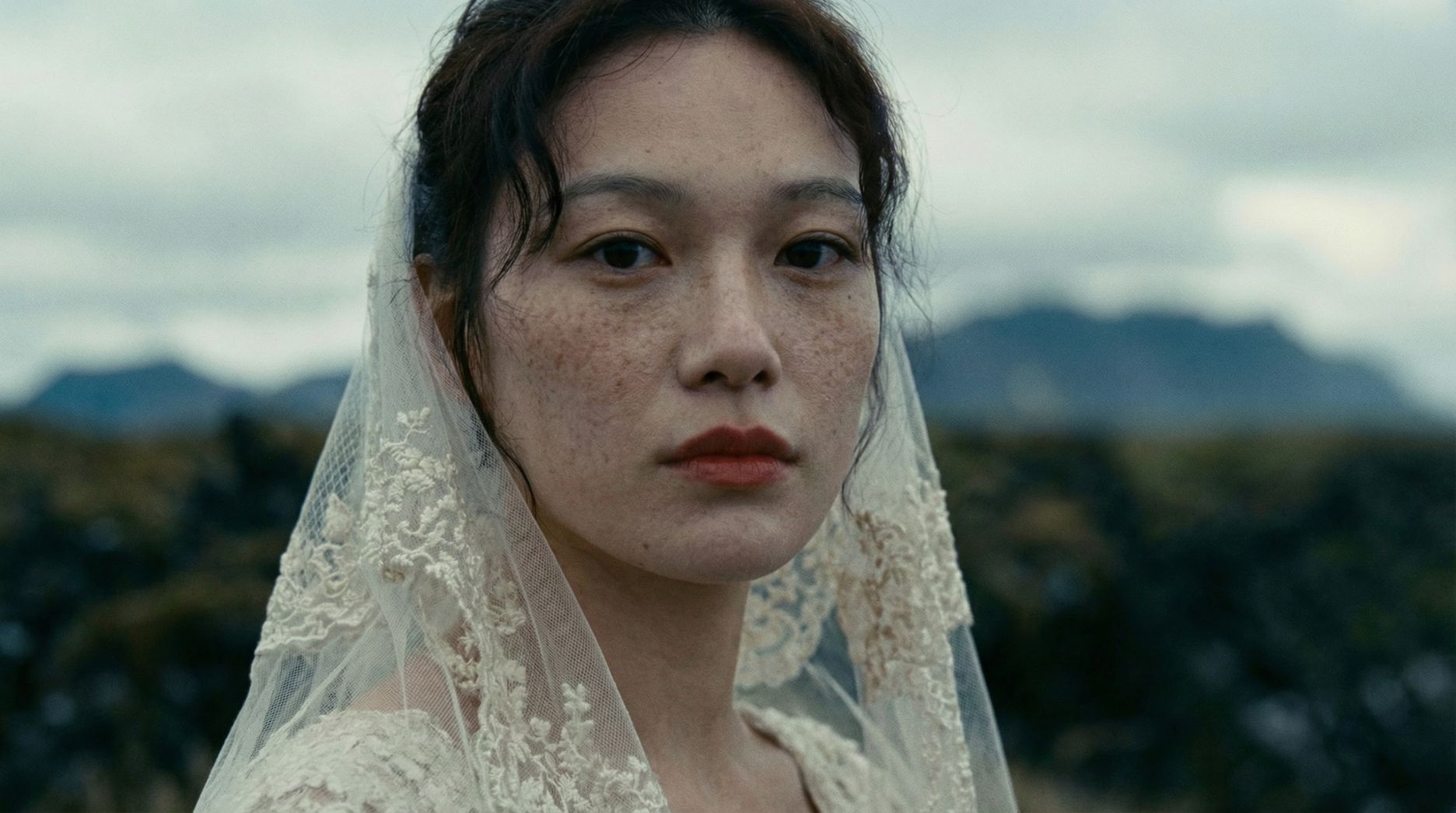
@Female Protagonist
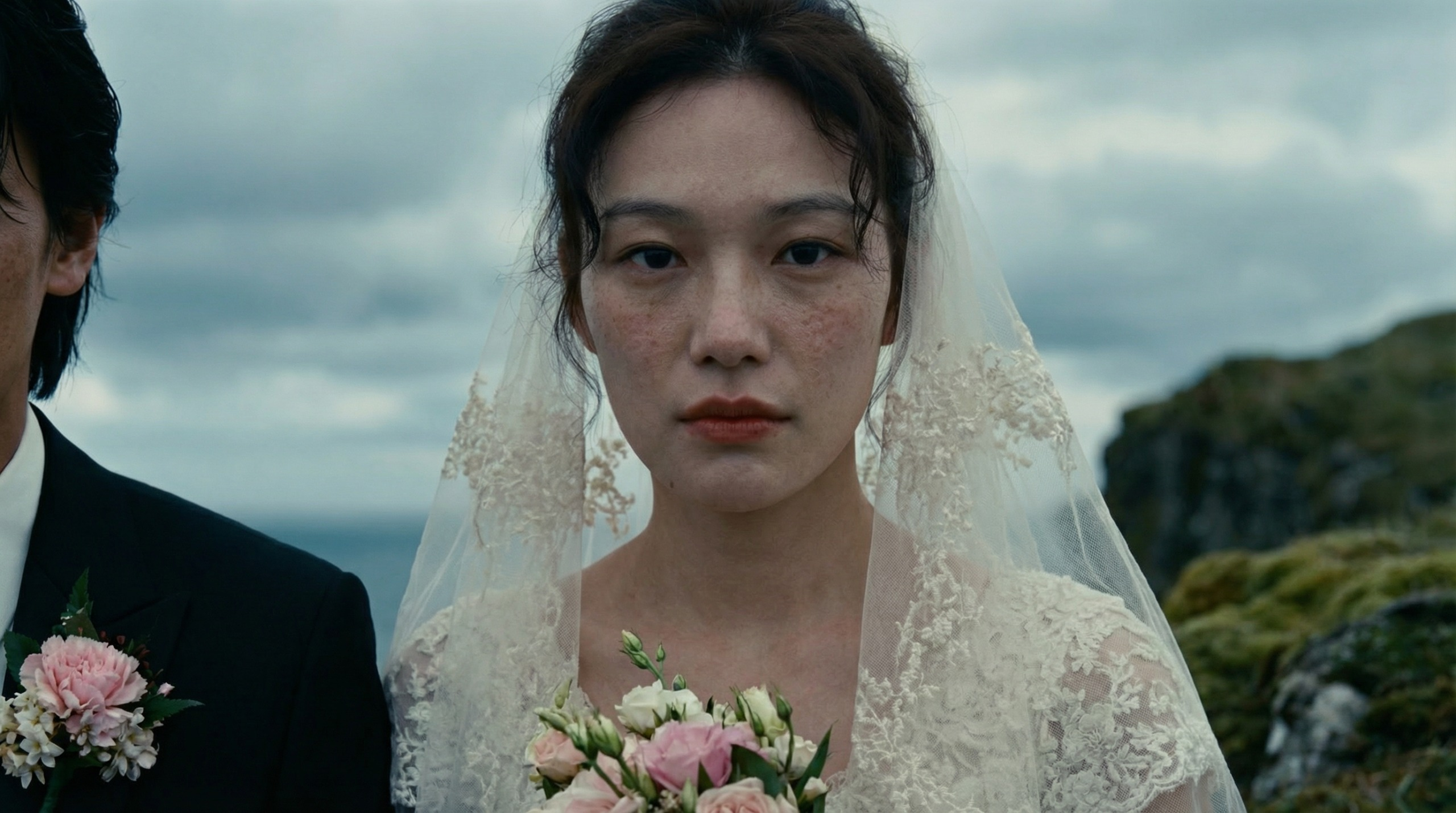
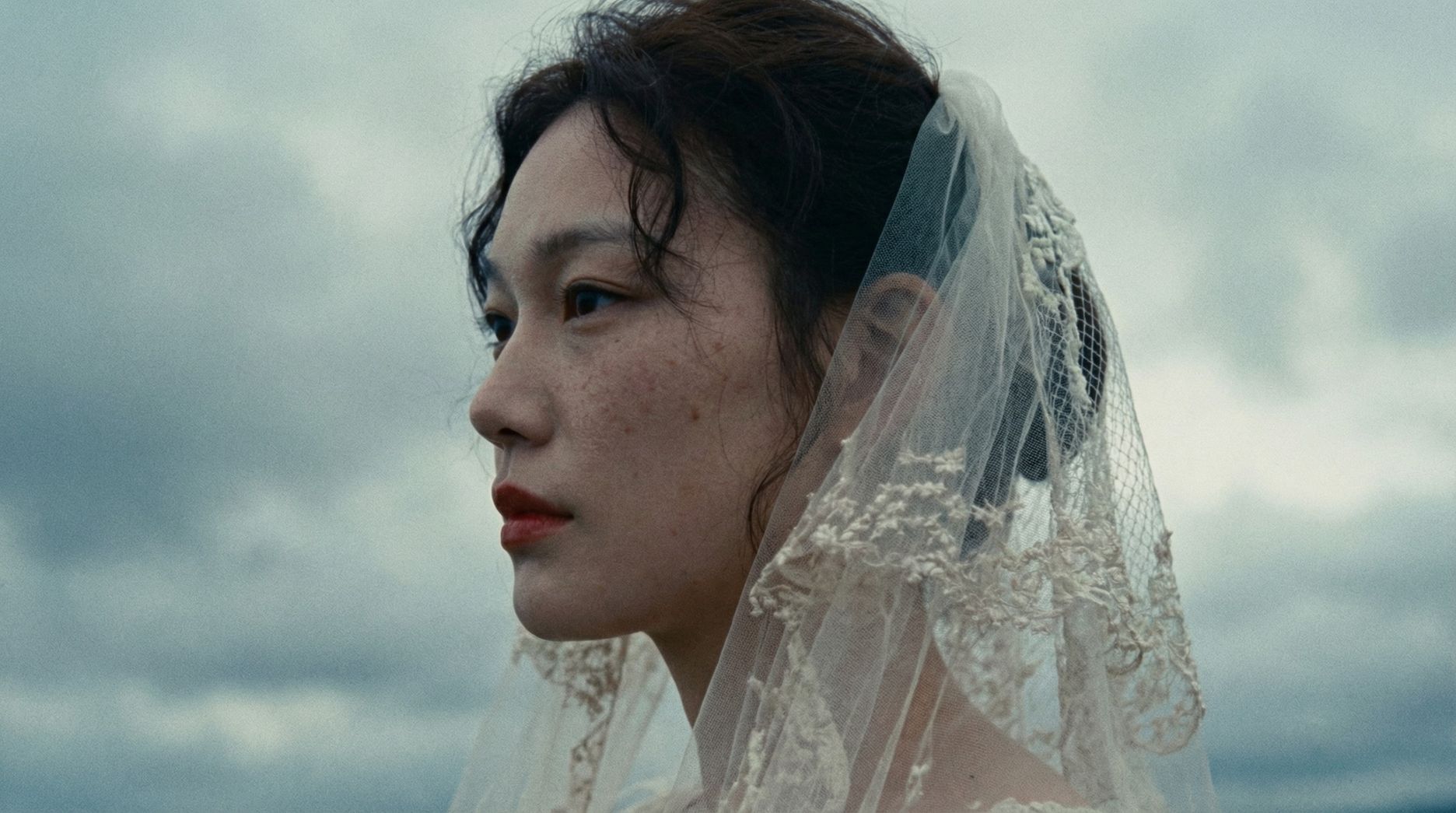
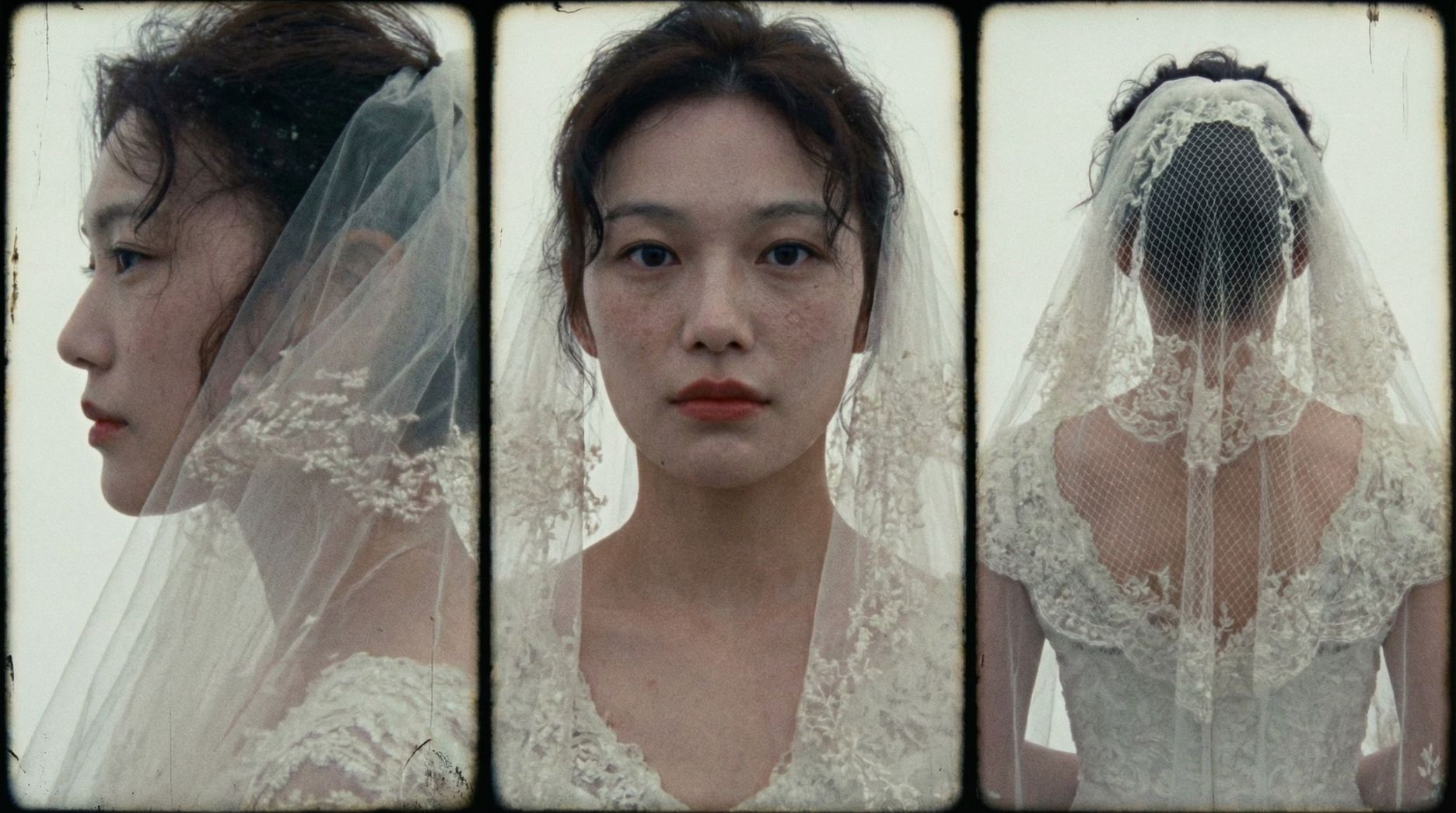
| Long take. On a windy day in an Icelandic mountain range, @Male Protagonist says with a barely contained smile, "Do you think our wedding is too simple—like there's no one here to bless us?" The camera circles the subjects to reveal @Female Protagonist standing opposite, smiling and replying, "The wind—the wind is their blessing to us." Cinematic, handheld feel. |
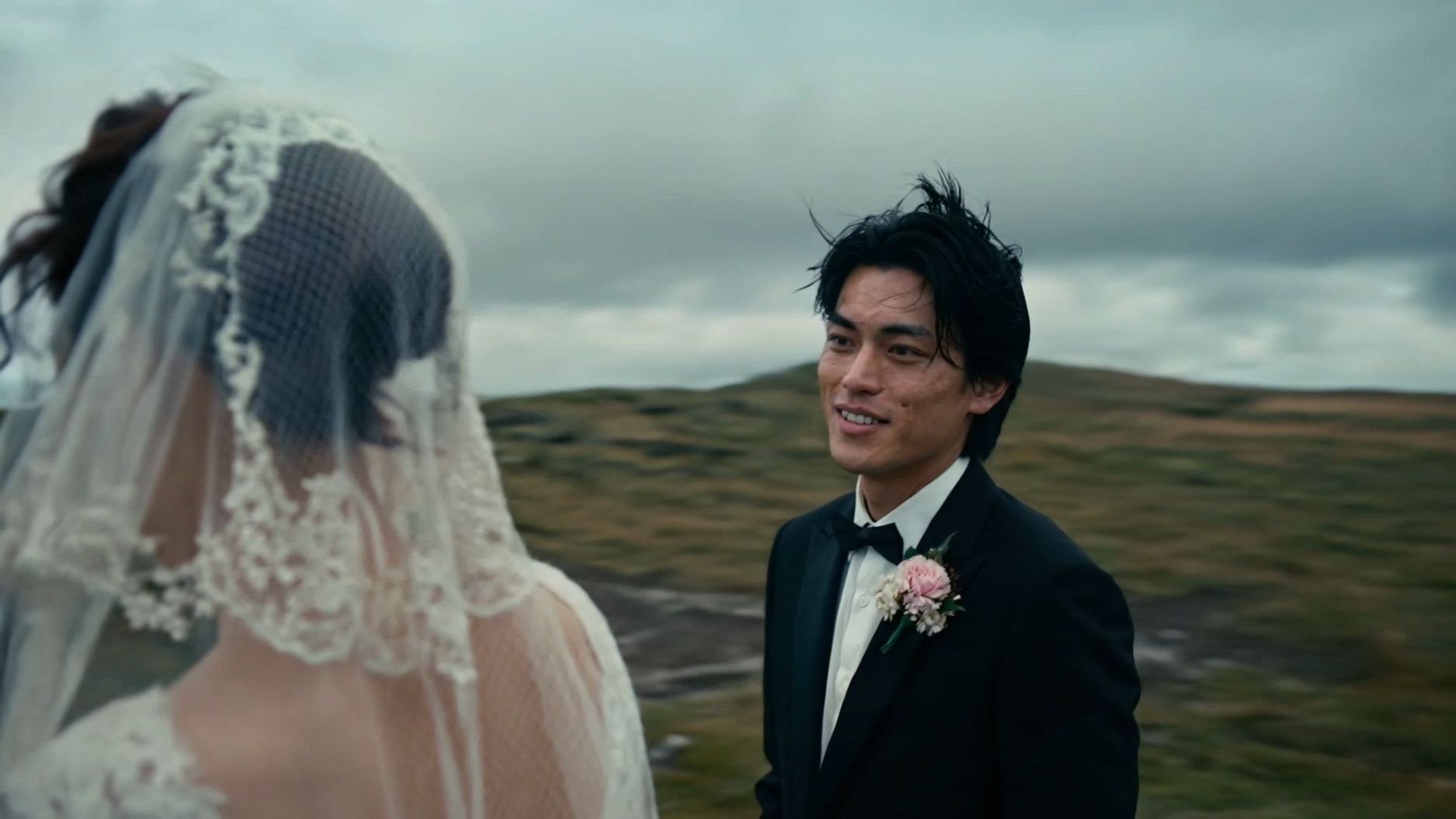 From Kling AI Creative Partner @FOS |

2. Elements 3.0: Video-Character Reference with Visual & Audio Capture
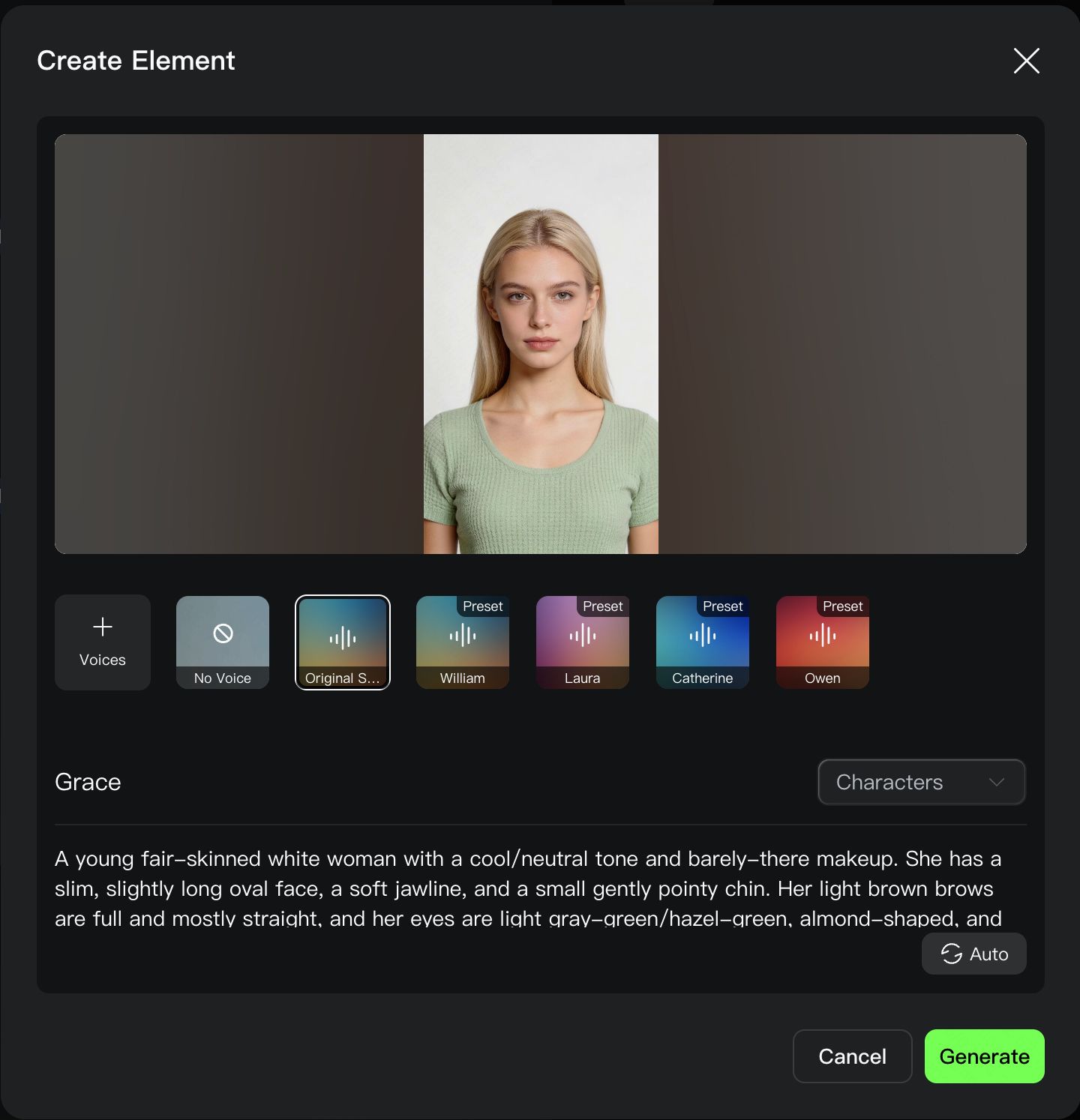
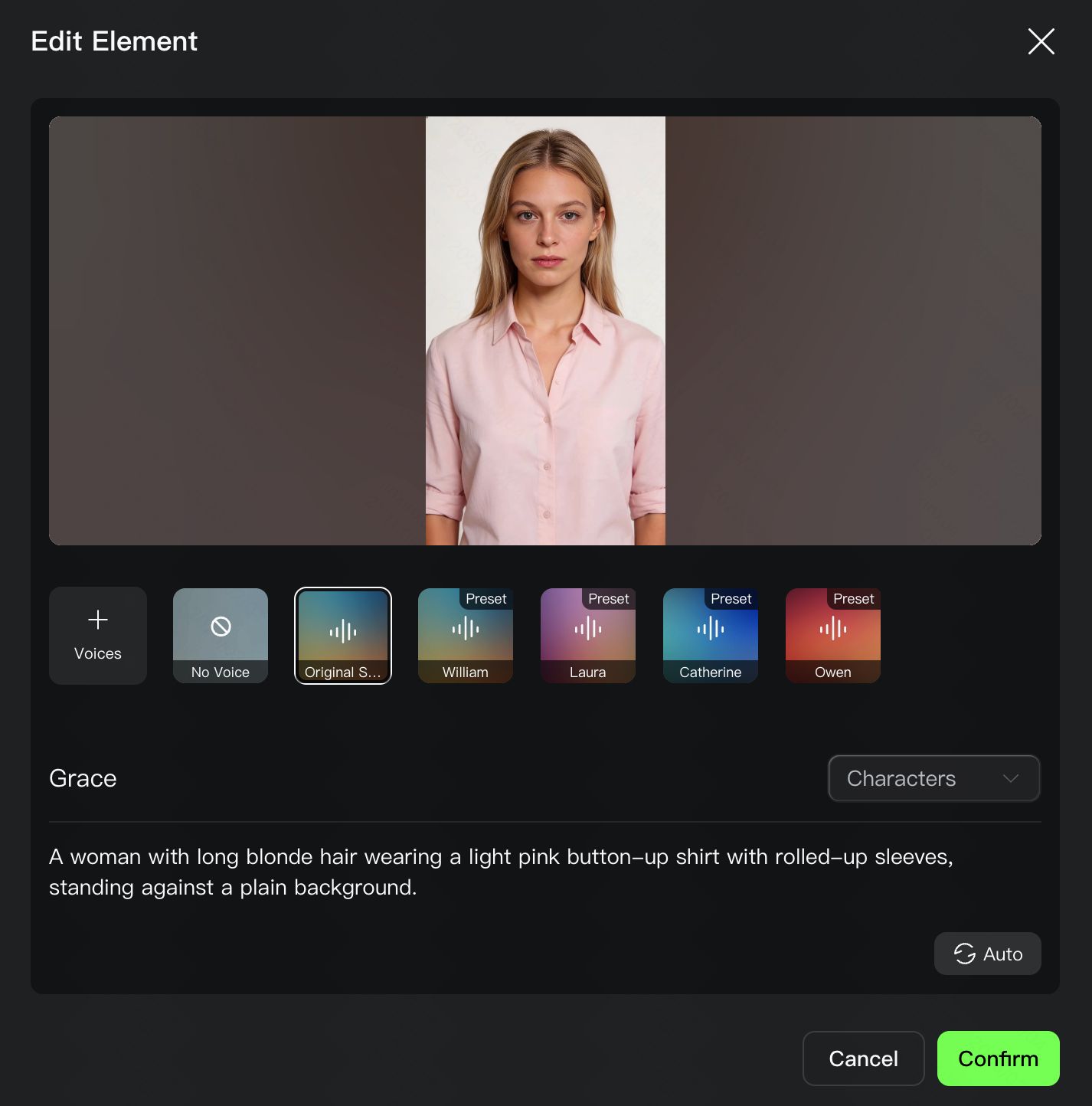
3.0 Omni adds "Voice" to the element, allowing you to bind a unique voice to a character, ensuring they not only "look the same" but also "sound the same" across different videos, scenes, and shots. Whether it's speech, dialogue, or narration, 3.0 Omni ensures the voice perfectly matches the character's personality, creating truly reusable "Character Assets with Voice".
Element building now supports video character reference for consistency across visual and audio characteristics
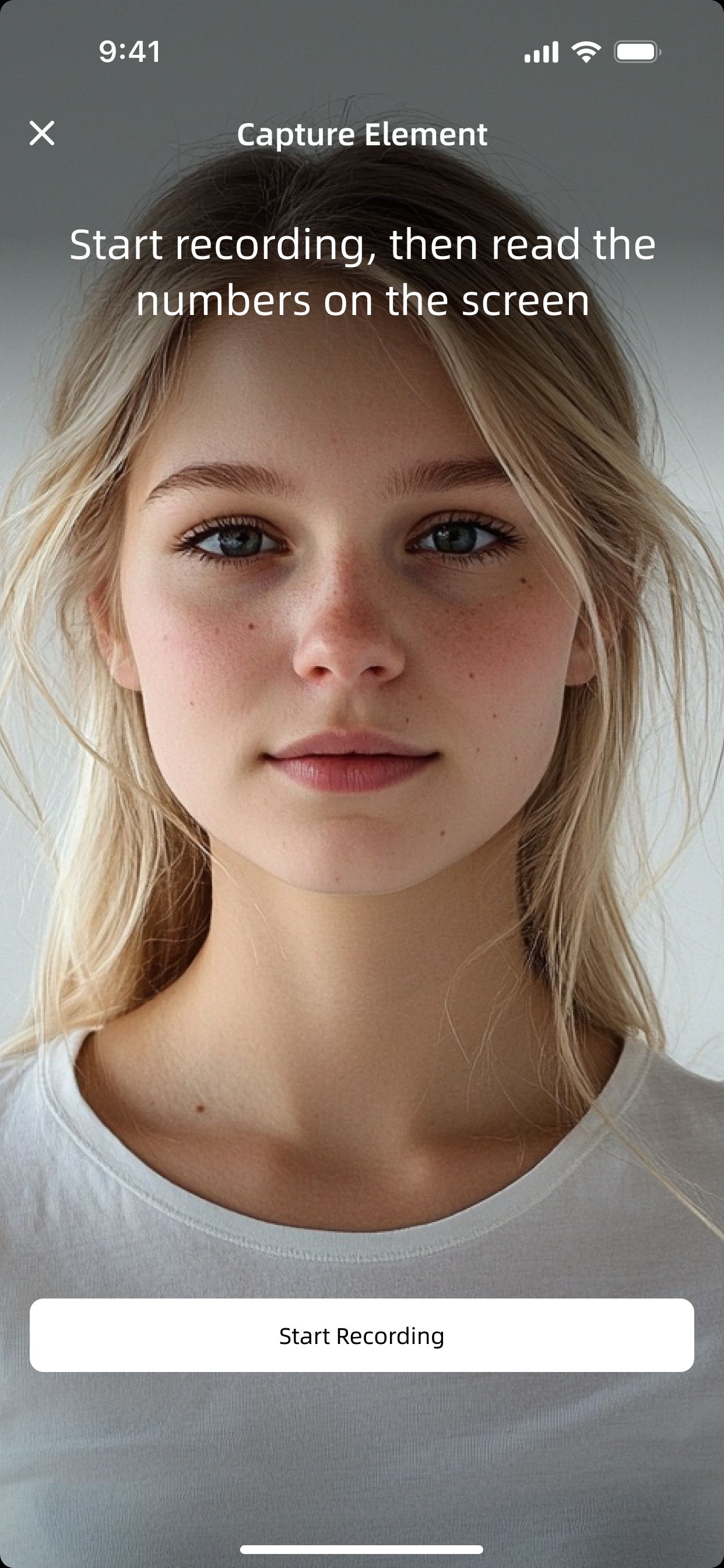
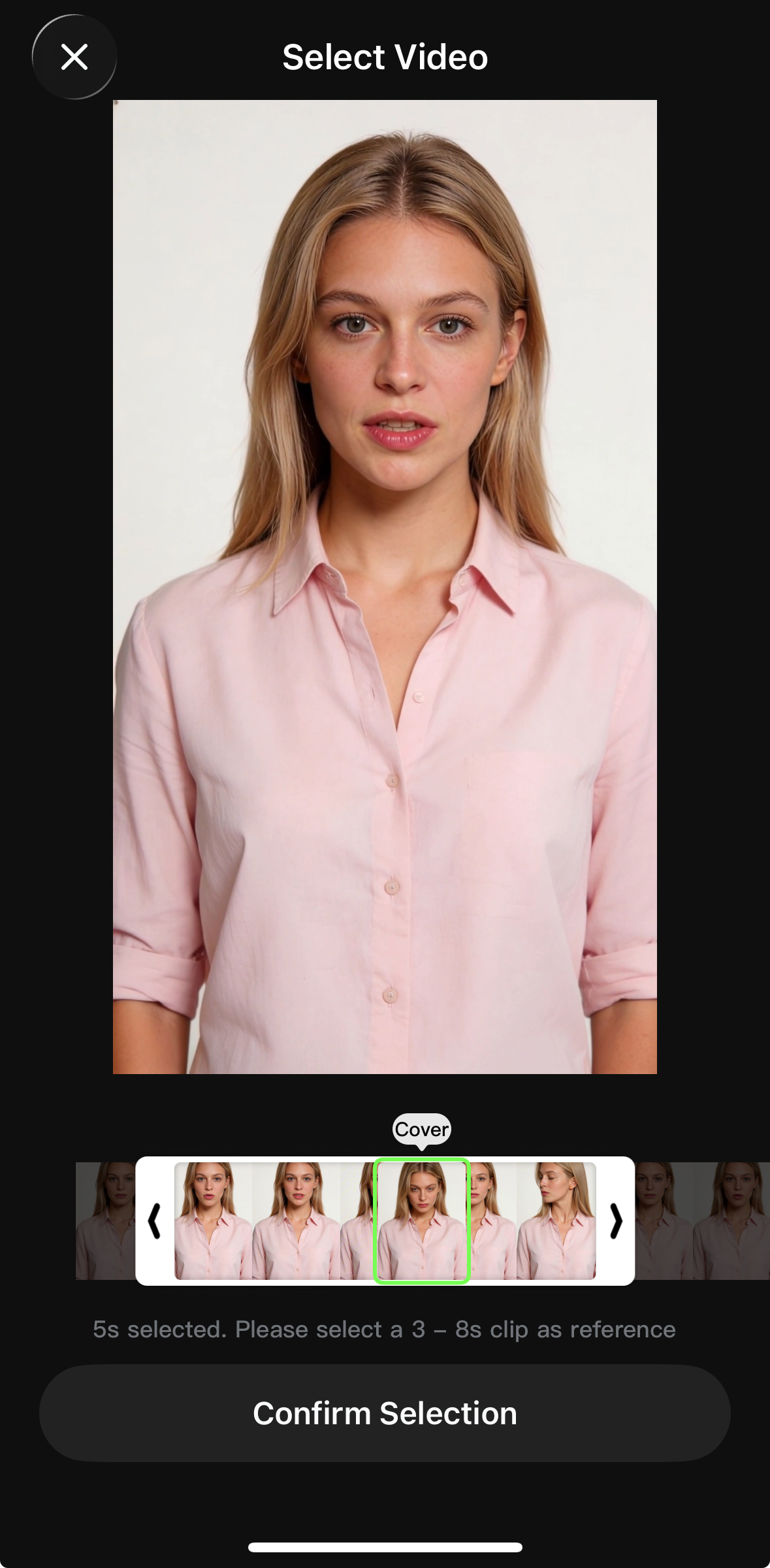
Simply upload or record a 3-8 second video featuring the character, and the model will extract core character traits and the original voice, perfectly preserving the appearance and the entire likeliness. On the app, experience the thrill of becoming the character of your story simply by recording yourself. Whether you're traveling across galaxies or performing in a short drama, the model is able to achieve maximum consistency with video reference for the character. If you don't like the original voice, you can upload a clear voice recording to modify it.
Element/Reference Image | Prompt | Outputs |
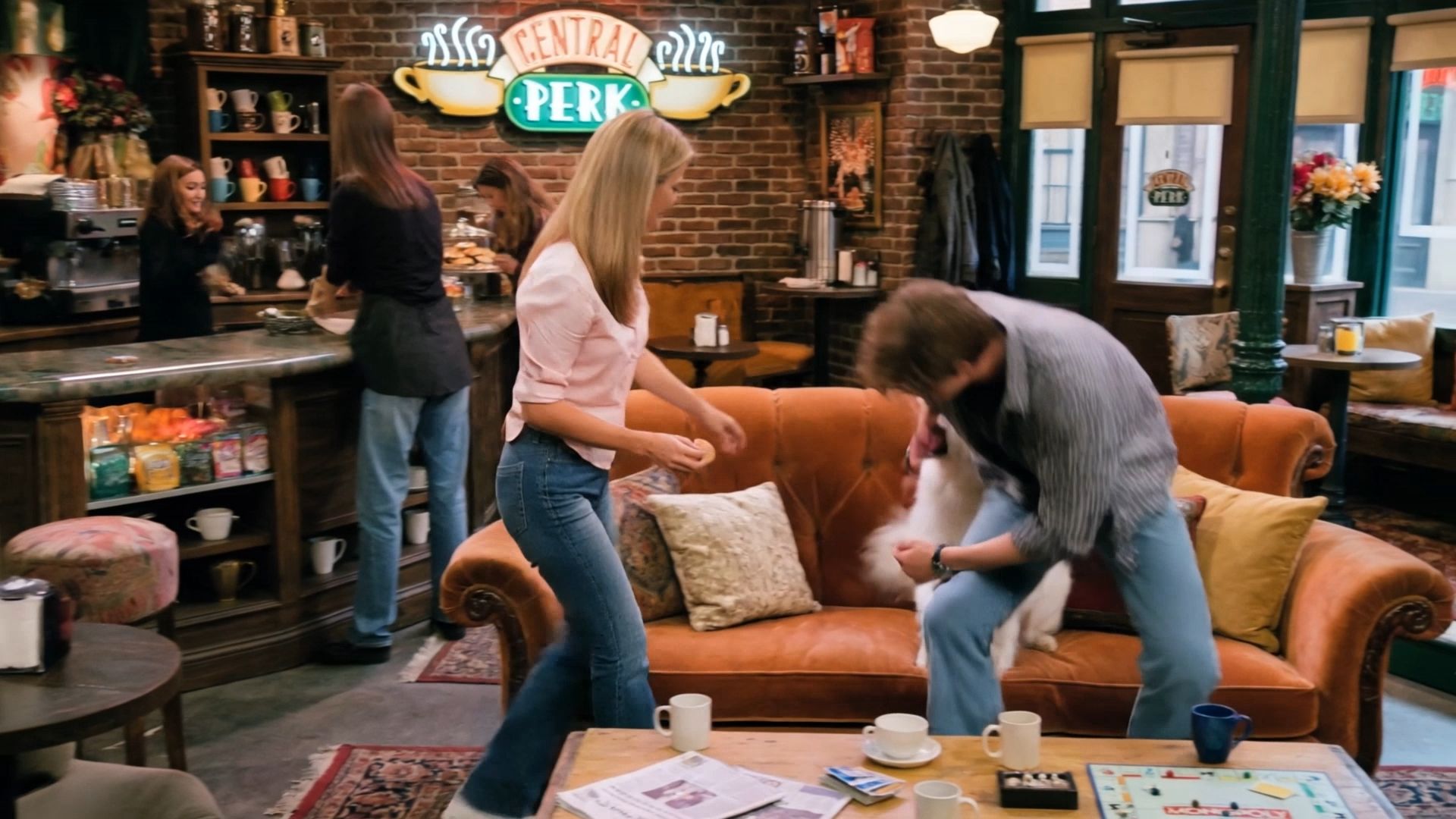
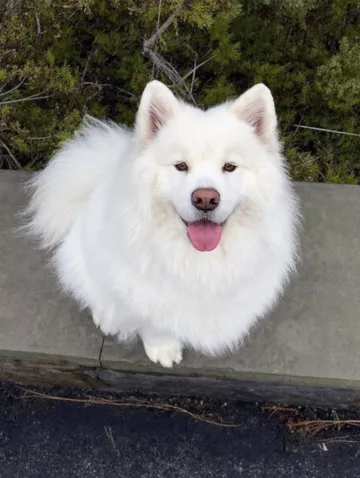
@Grace 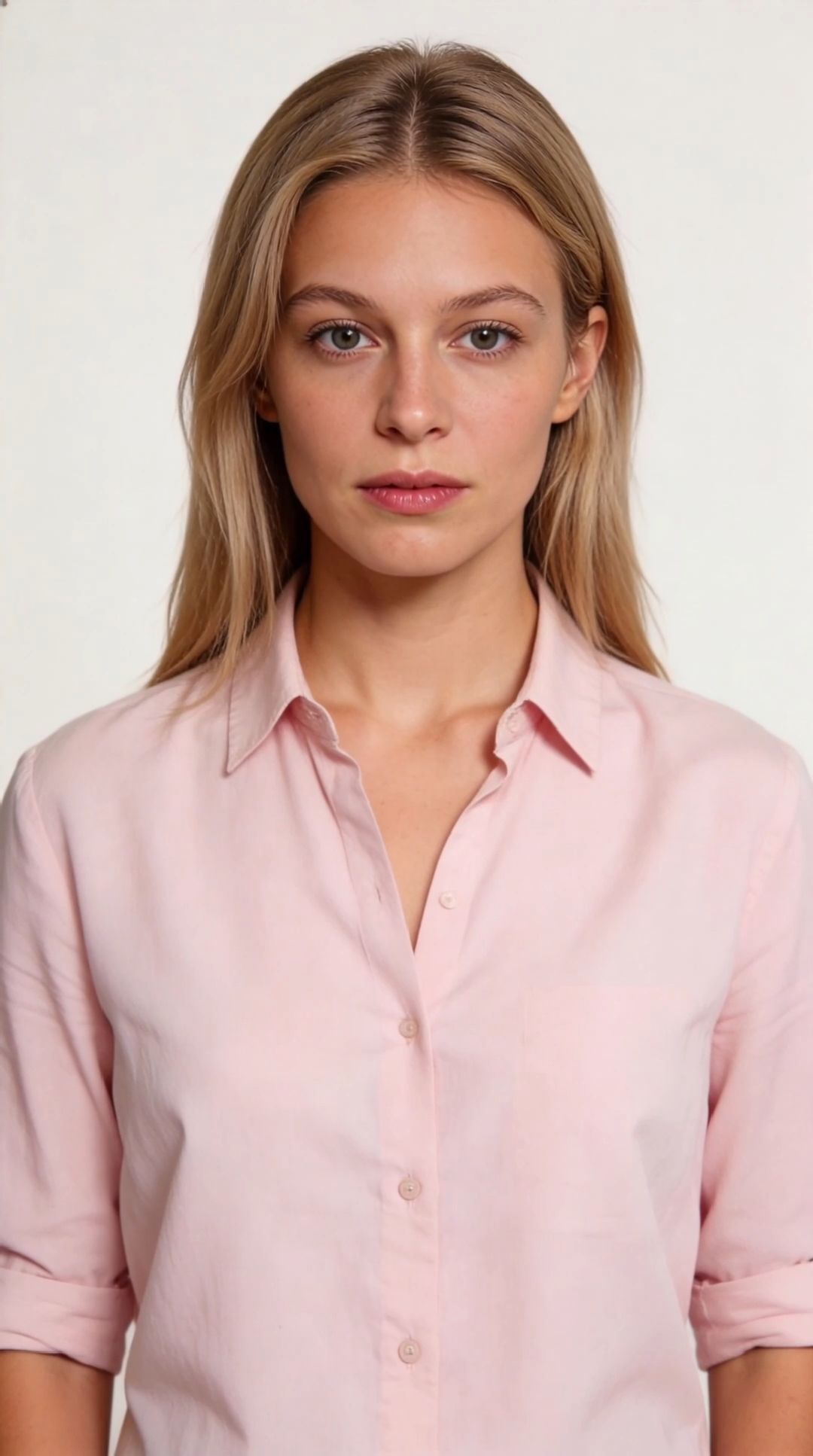 @Alan 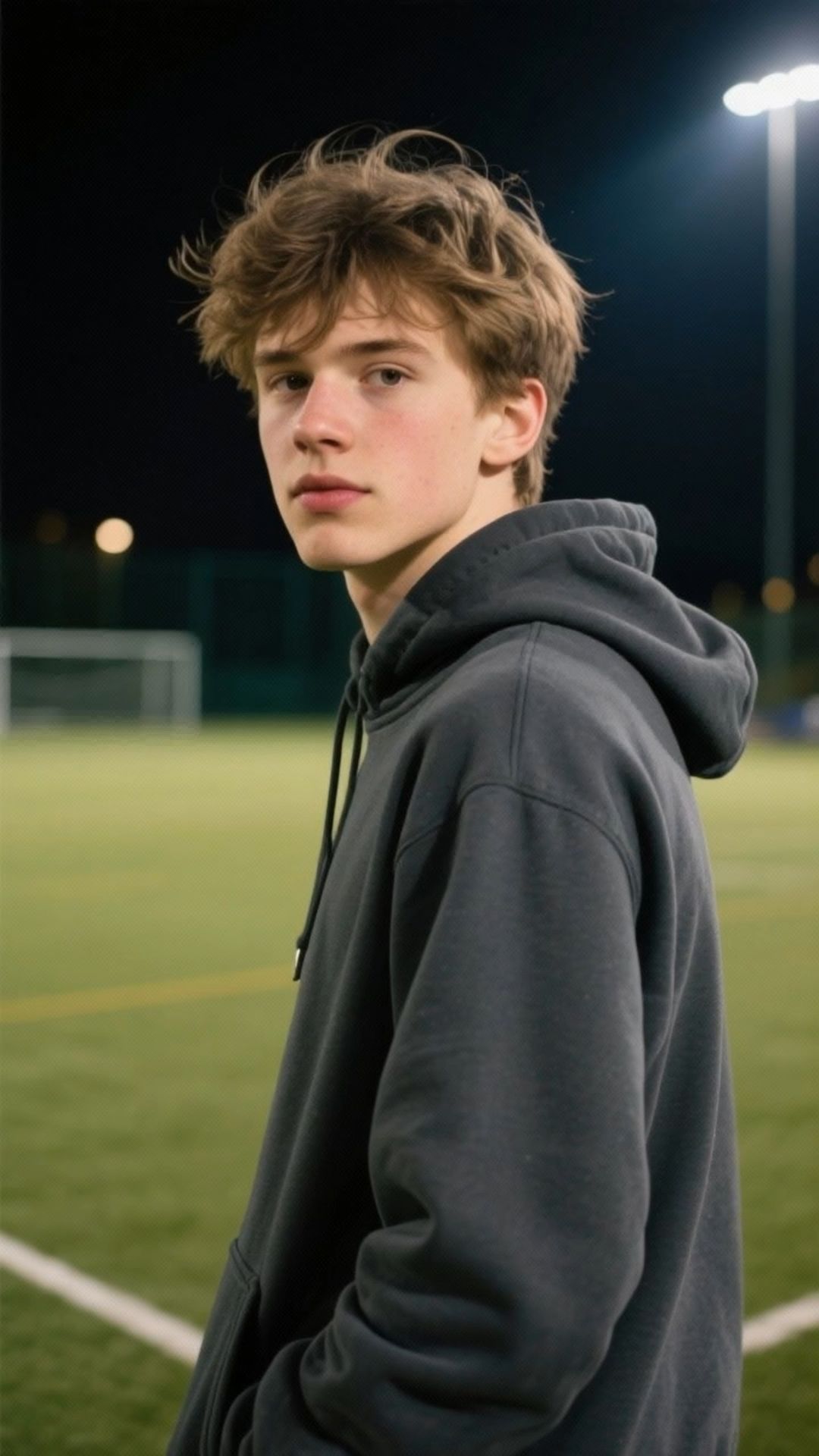 @Samoyed
@Image
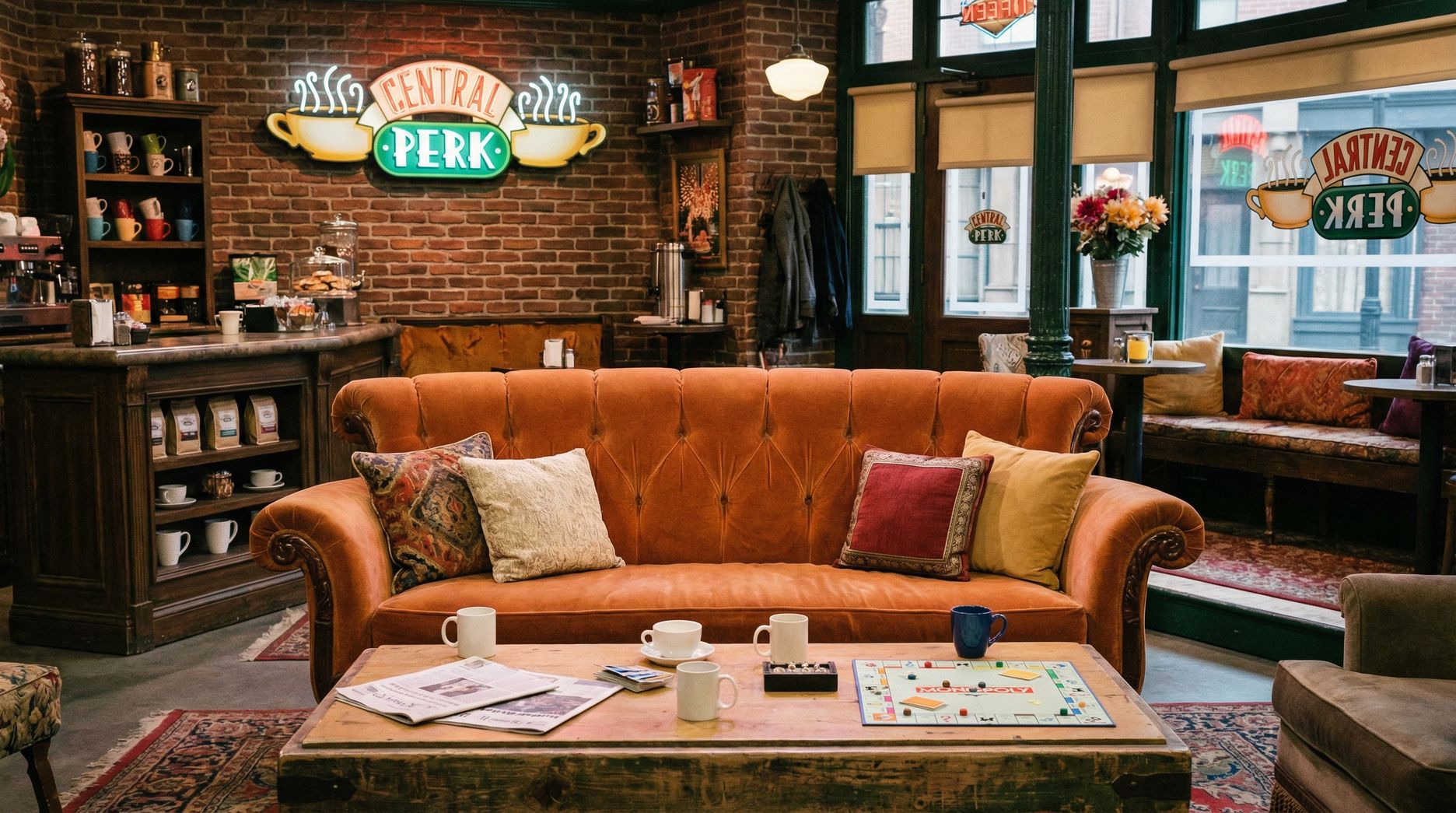
| Shot 1 (3s): Mid-shot, background @Image. @Grace sits on the sofa eating cookies as @Alan walks in holding @Samoyed. @Samoyed lunges for the cookie in @Grace's hand. @Grace says, “Hey! Watch your dog!” Shot 2 (2s): @Alan sits beside her, pulling the leash and lifting @Samoyed. Close-up, @Alan says, “He just likes cookies more than me.” Shot 3 (3s): Close-up, @Grace smiles and says, “Well, he has good taste at least.” |
 |
@Shirt Boy 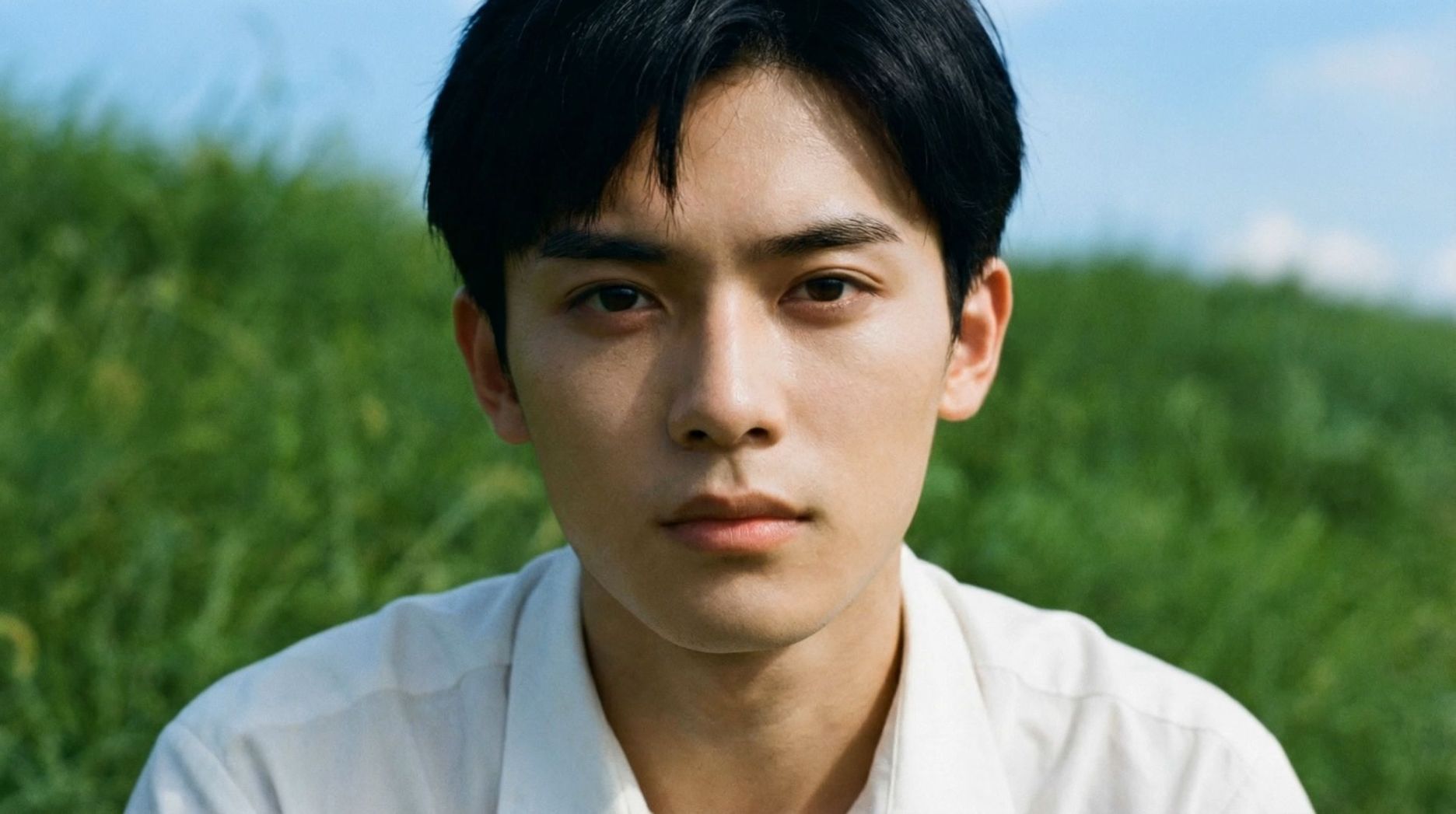 @Image1
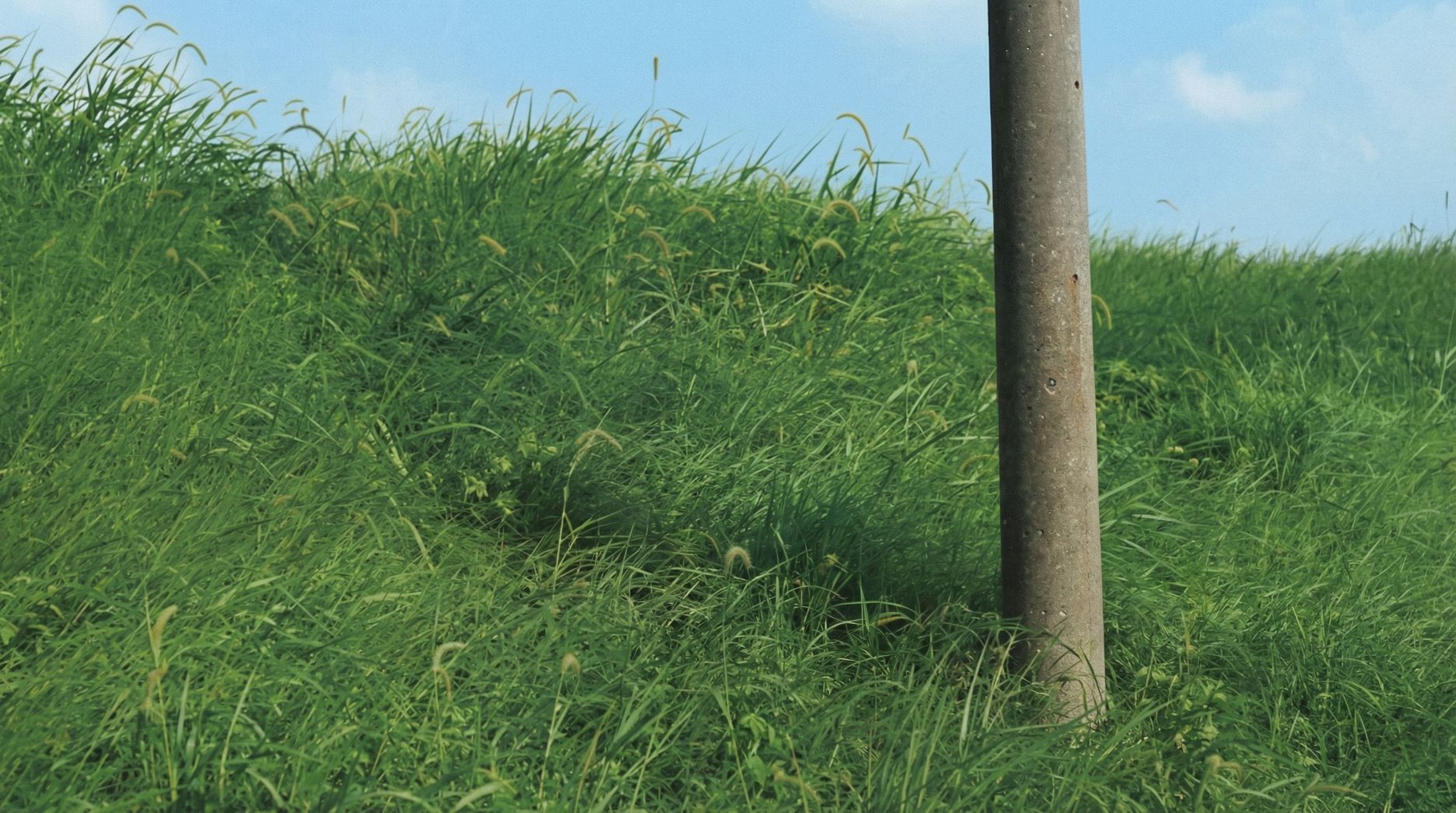
| Mid-shot, front view: @Shirt Boy walks down the slope and sits by the pole in @image. Close-up, face: @Shirt Boy leans against the pole and says, “Today's wind feels softer than yesterday… even the grass feels gentle.” Cinematic look @image1. Side close-up, face: @Shirt Boy closes his eyes as sunlight softly falls on his face. Top-down shot: @Shirt Boy lies back, grass covering his shirt, arms behind his head, gazing at the blue sky, saying, “I hope this kind of summer never ends.” | 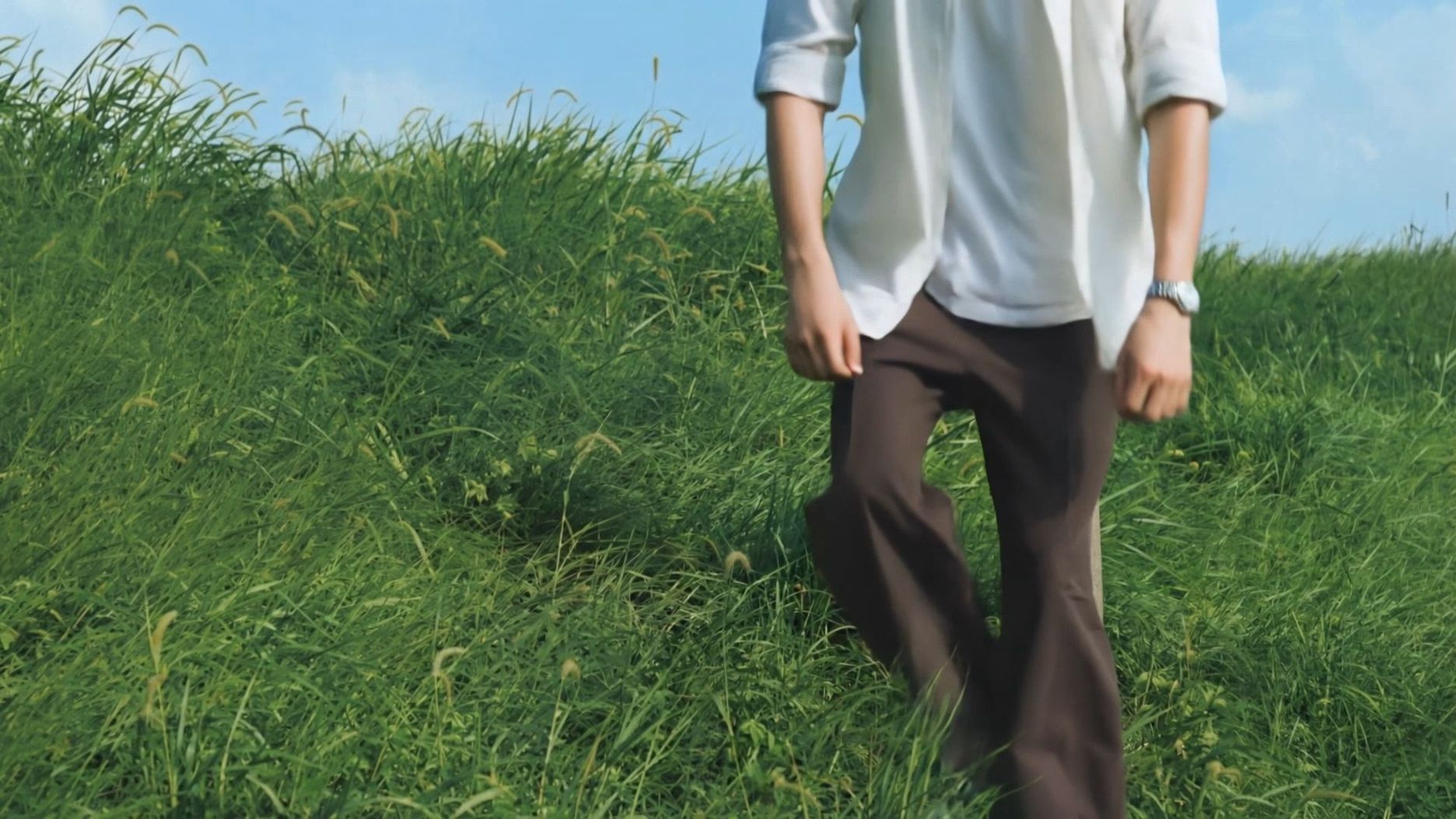 |


Character-Based Multi-Image Elements Support Adding Voice
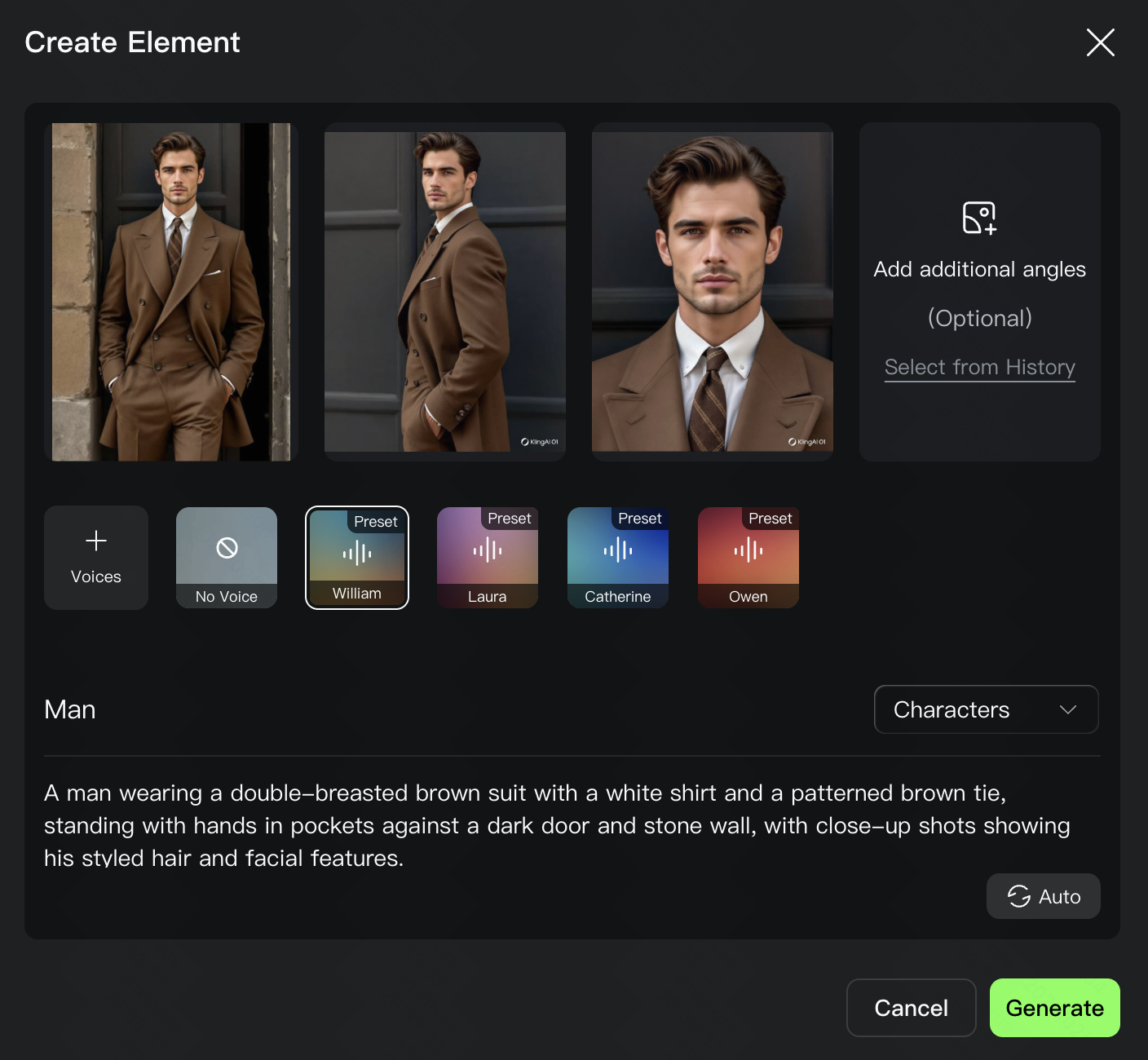
VIDEO O1 supports creating multi-angle multi-image elements. In the new VIDEO 3.0 Omni, while creating multi-image elements, you can also upload a voice recording of ≥3s to extract the voice tone, giving the silent subject its own voice. This enables more precise lip-syncing and expression-driven performance, creating a more compelling audio-visual experience.
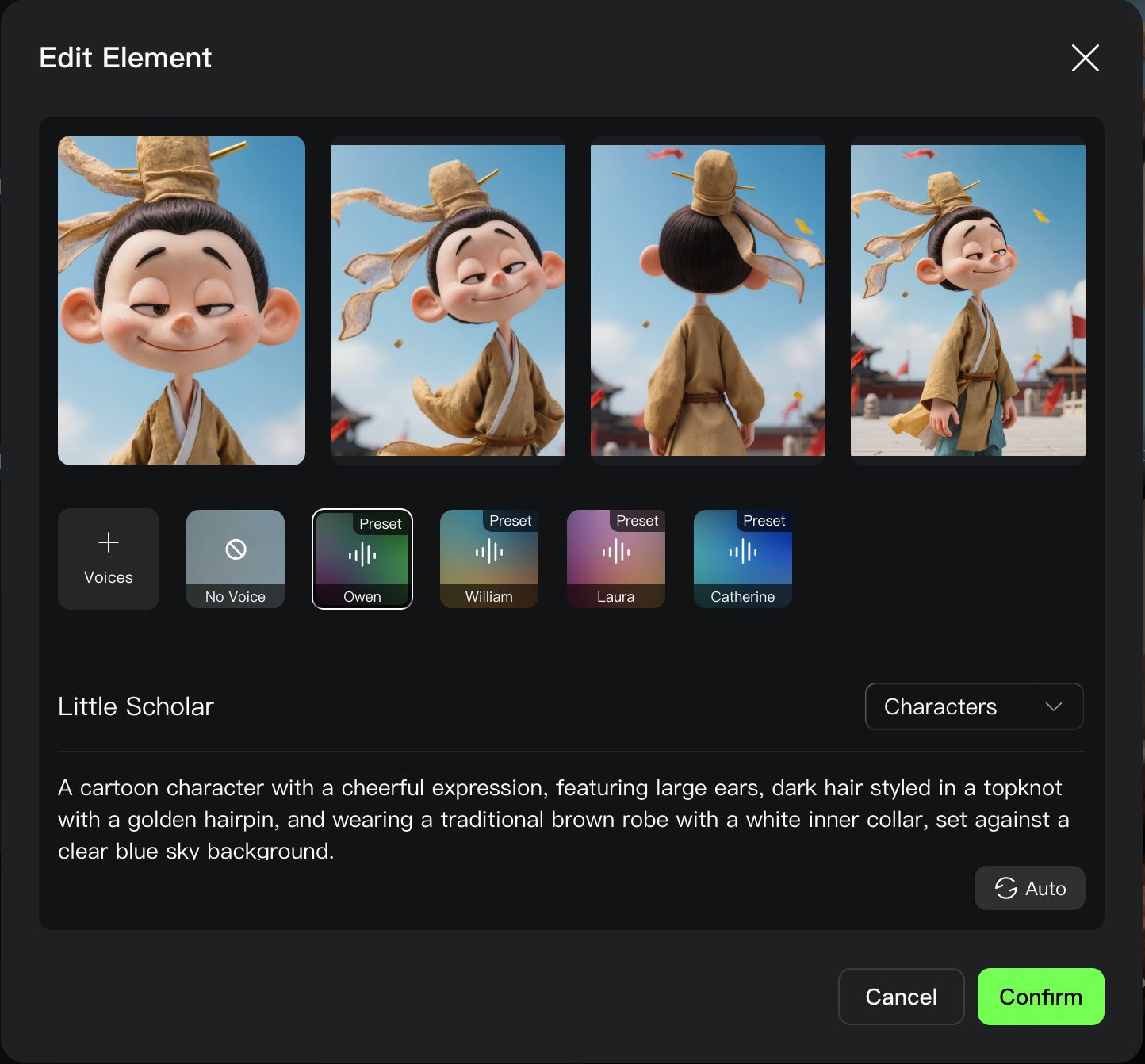
Element/Reference Image | Prompt | Outputs |
@Little Scholar
@Reference Image
| Shot 1 (3s): Close-up on the comedy open-mic stage @Reference Image, with a large retro neon "KLING" sign in the background. Warm golden backlight outlines the scene. The camera follows the performer as they walk to the microphone, lightly adjusting its height. Shot 2 (4s): Mid-close shot of @Little Scholar, who says, “我居然输给了 Kid,他上过几天班呀,教大家如何快乐上班” Shot 3 (4s): @Little Scholar with a restrained, slight smile, naturally pausing, saying, “你听听,花 5 分钟,论证了这么个伪命题” Shot 4 (2s): Switch to the audience laughing loudly. |
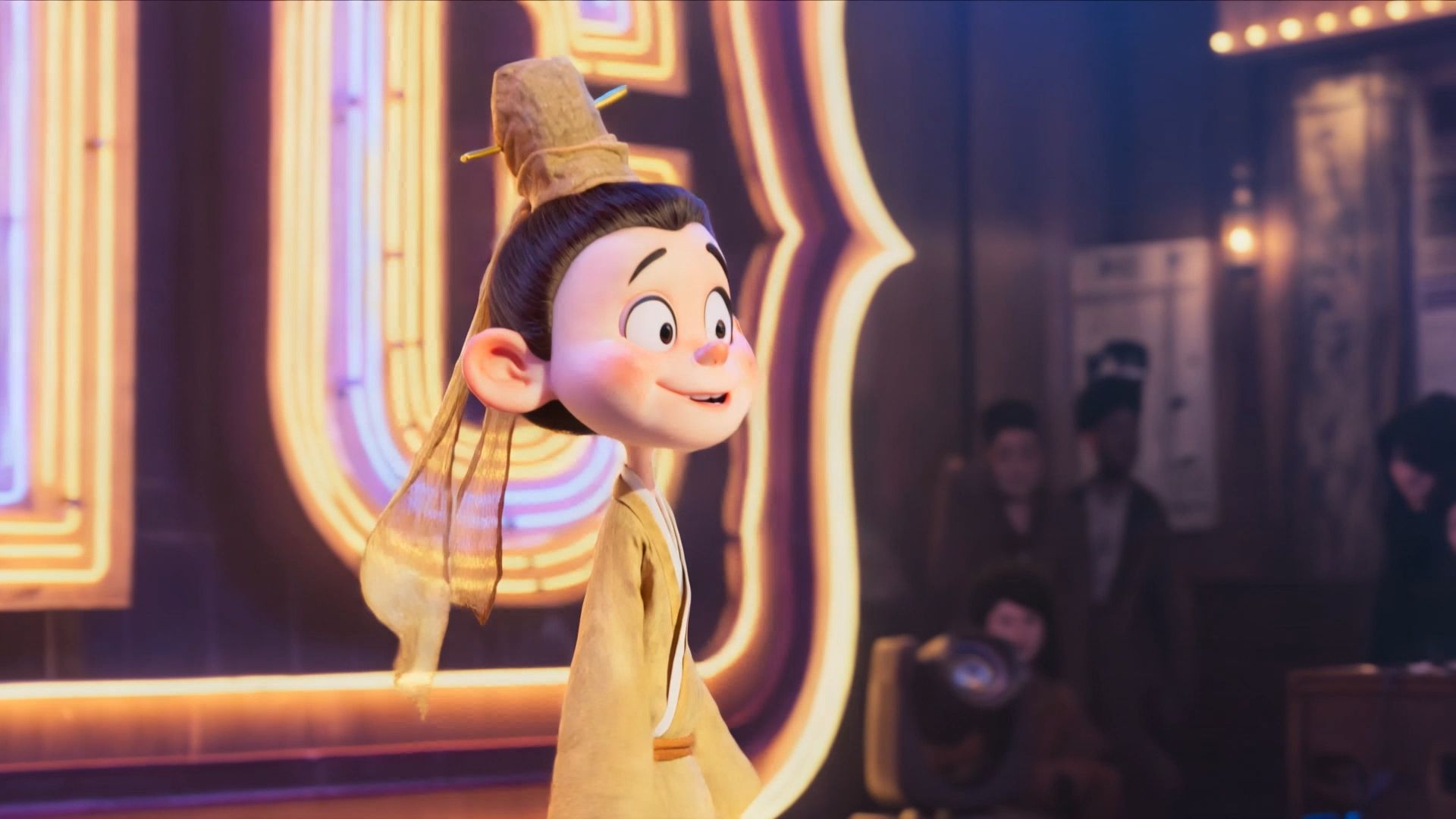 |
@Explorer
Audio
| @Explorer is live, welcoming everyone to her world. She says, "Do you know what the most interesting thing in the world is? It's going on an adventure with me! The next stop is the Atlantic Ocean!" Cut to a panoramic view of the Atlantic, where @Explorer is steering through a storm. | 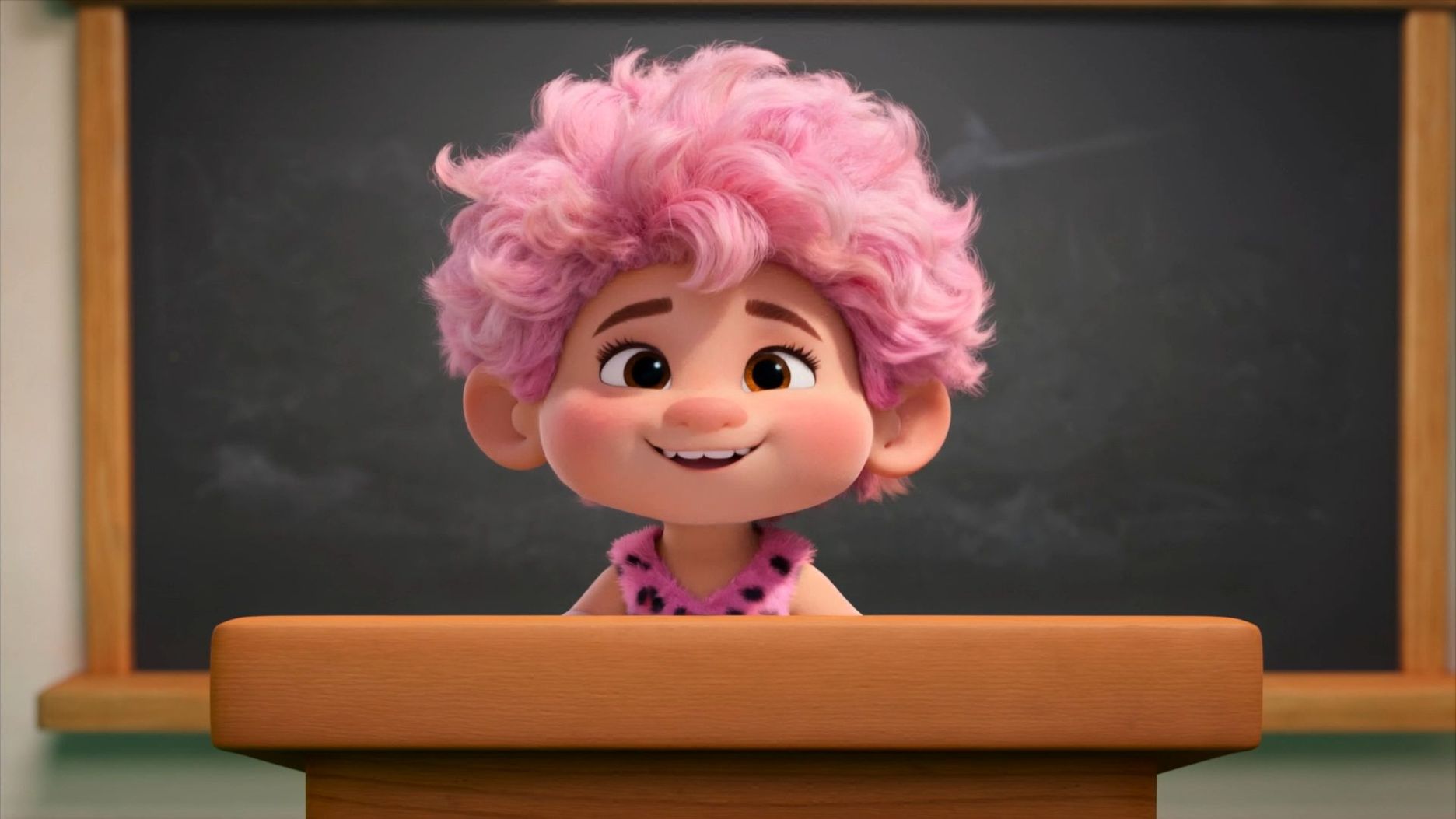 |
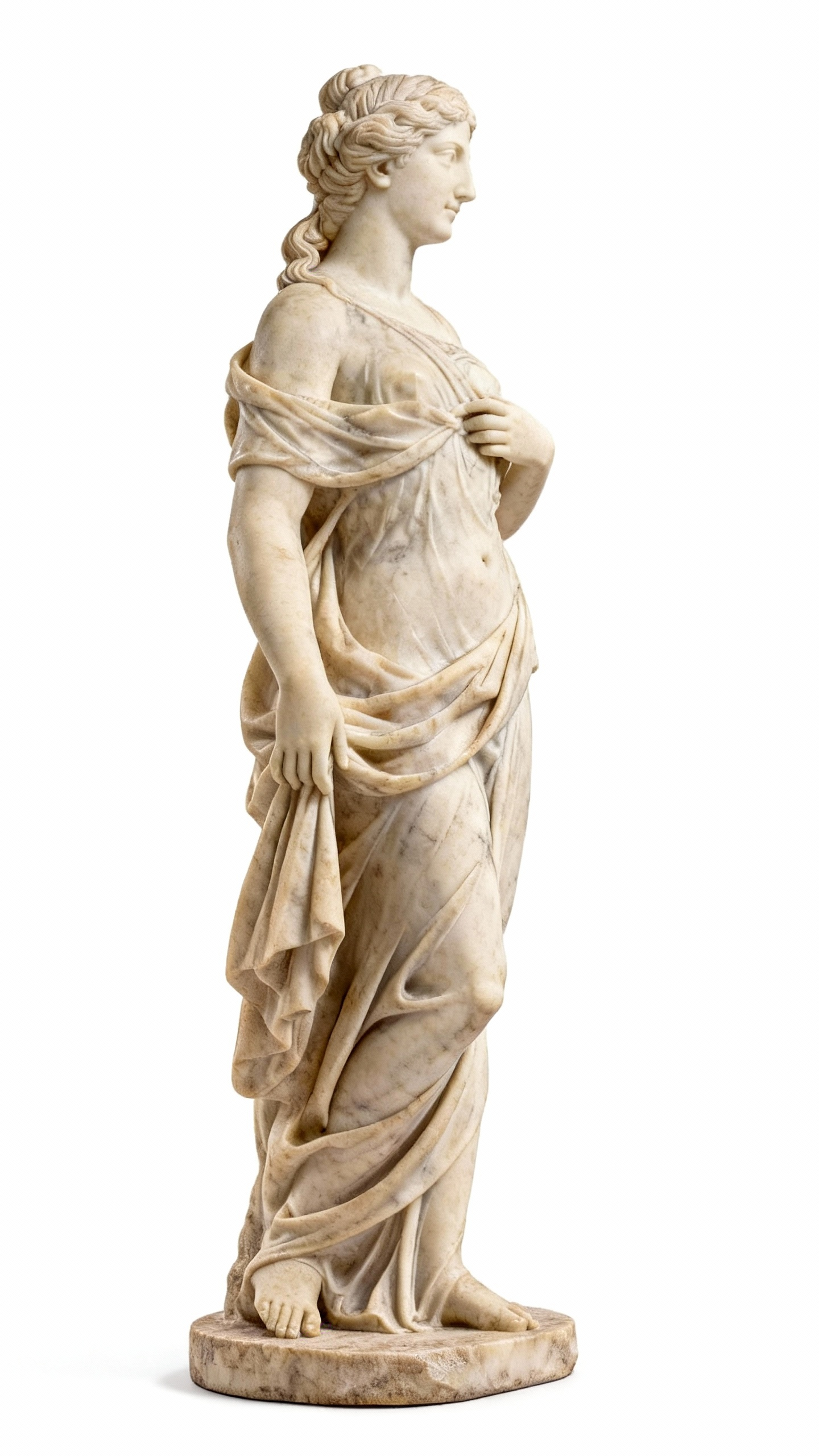
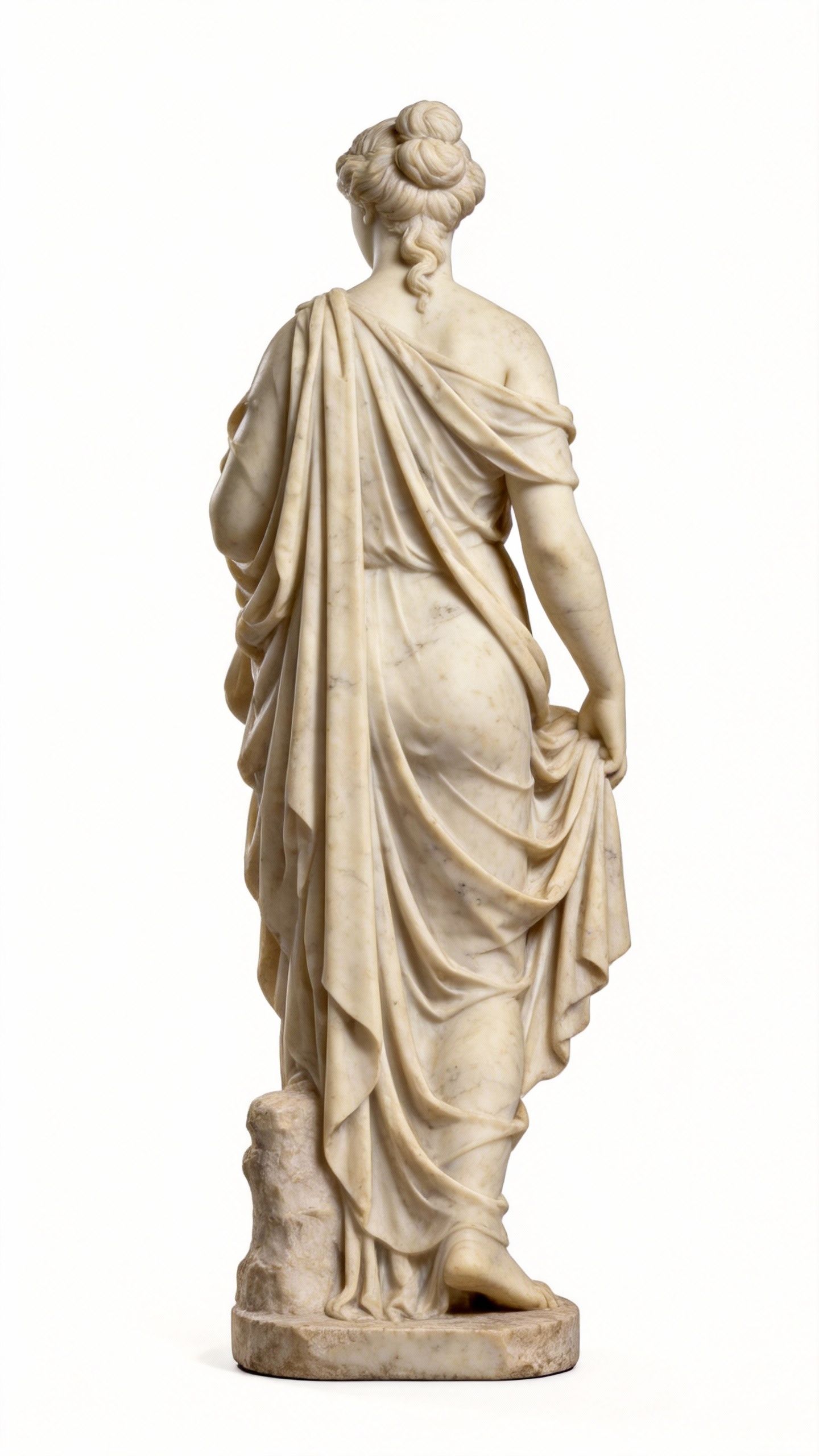
@Sculpture
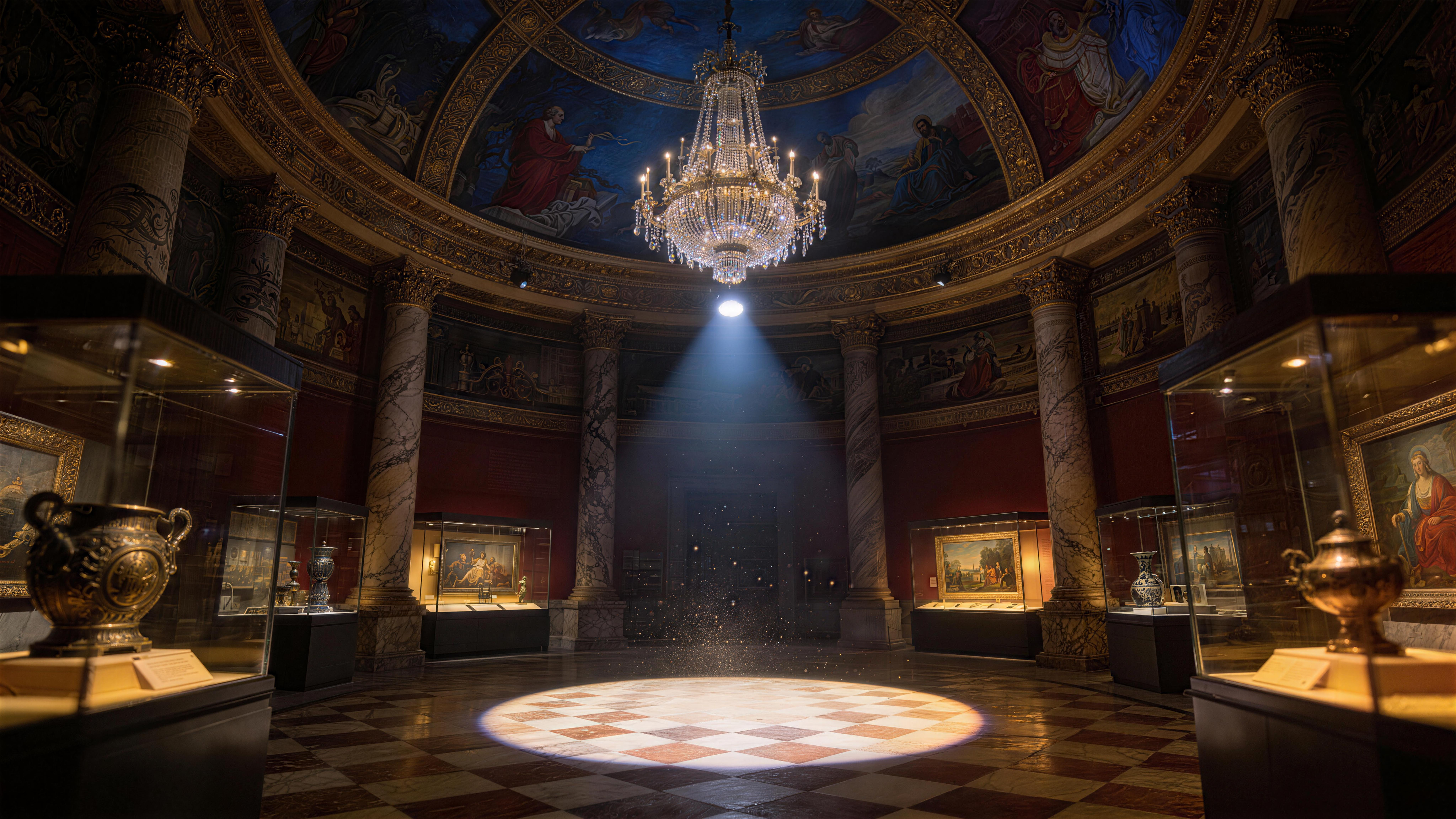
@Image
| Top-down wide shot: @Sculpture stands at the center of @image. Mid-shot, side view: The camera circles around @Sculpture once. Close-up: @Sculpture's hand moves slightly. Close-up, face: @Sculpture says, “I'm back.” | 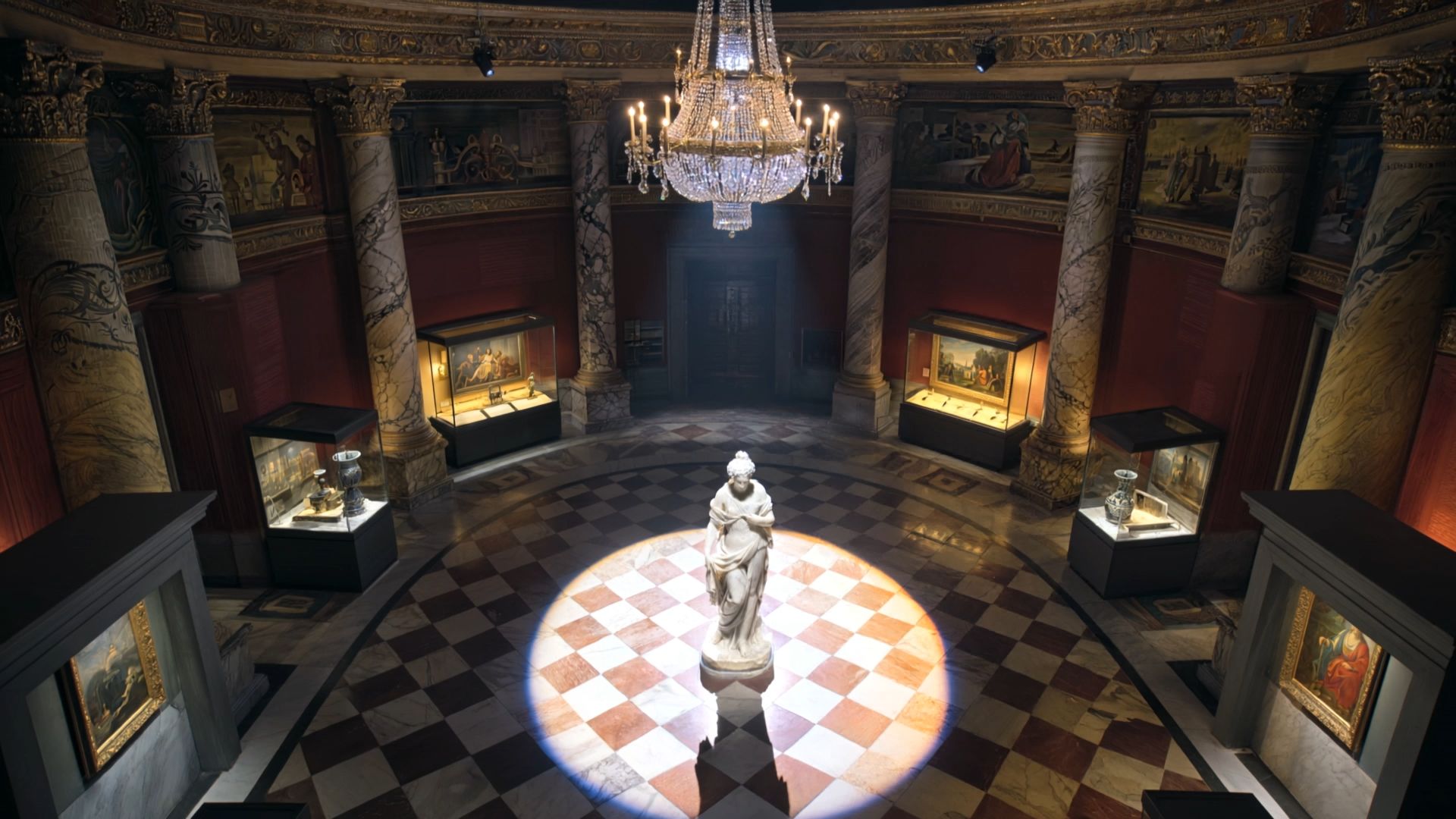 |
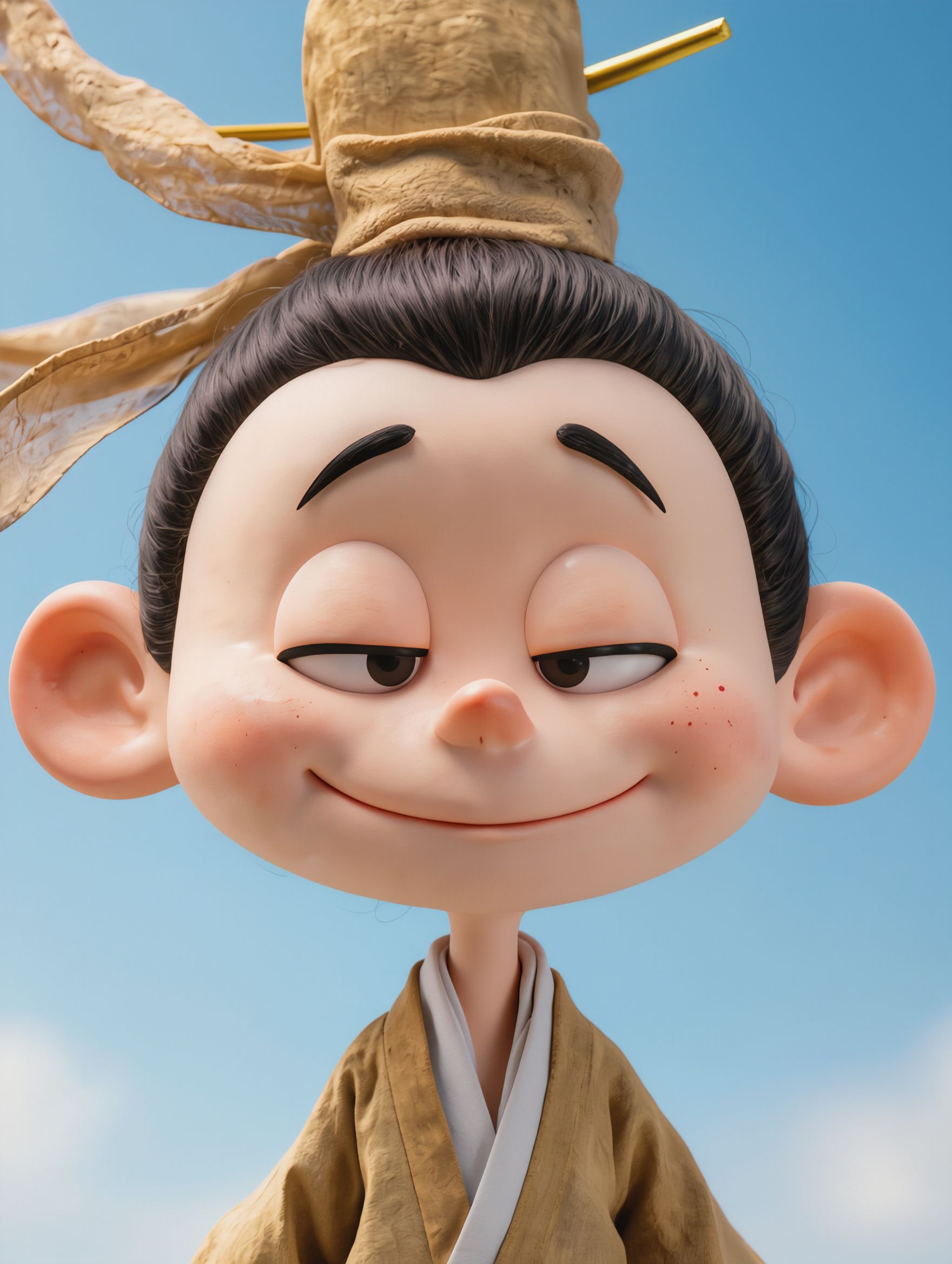
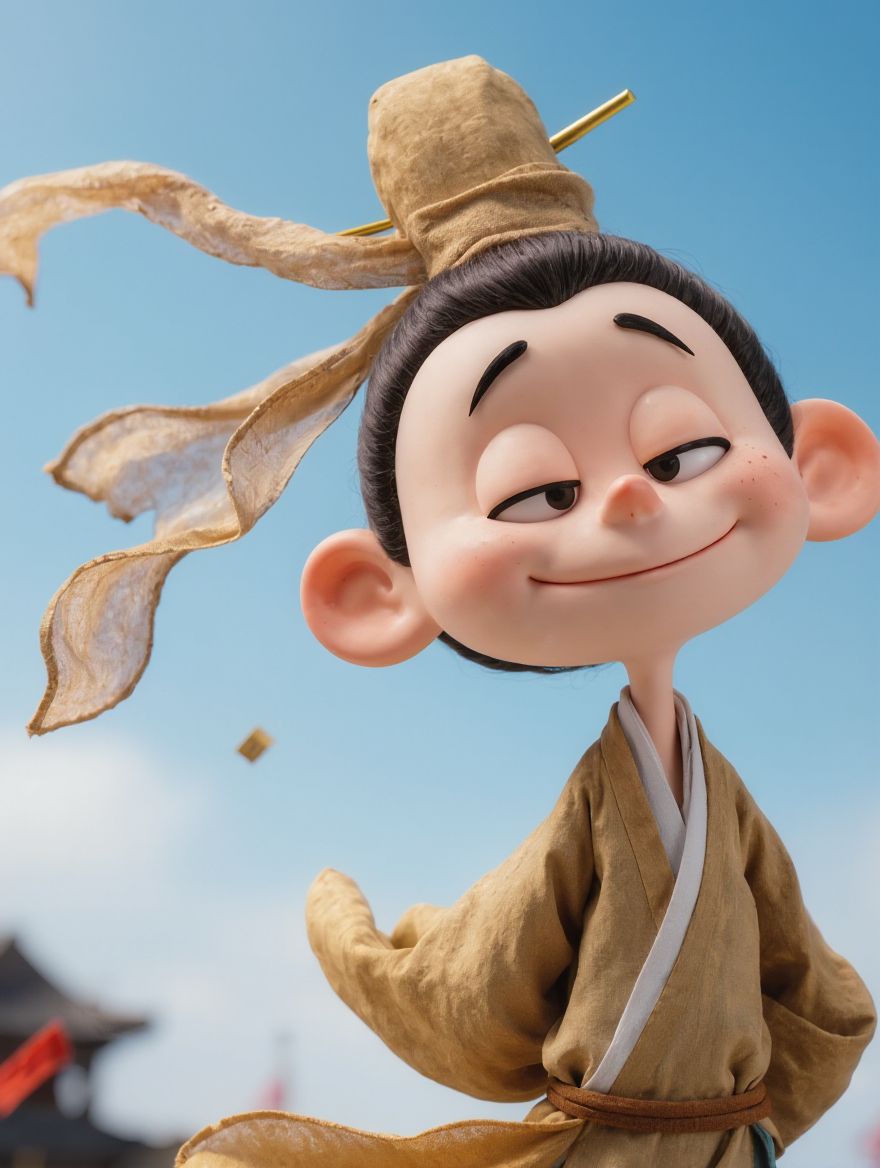
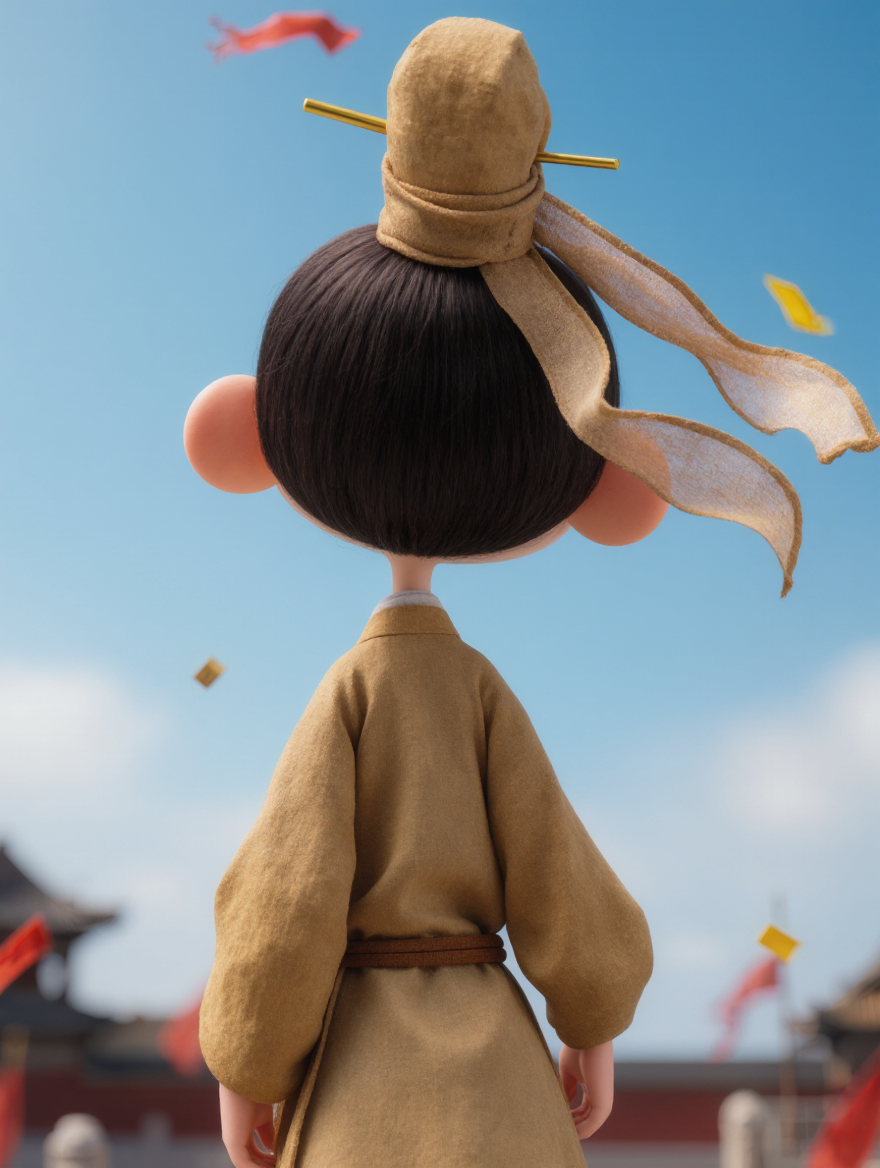
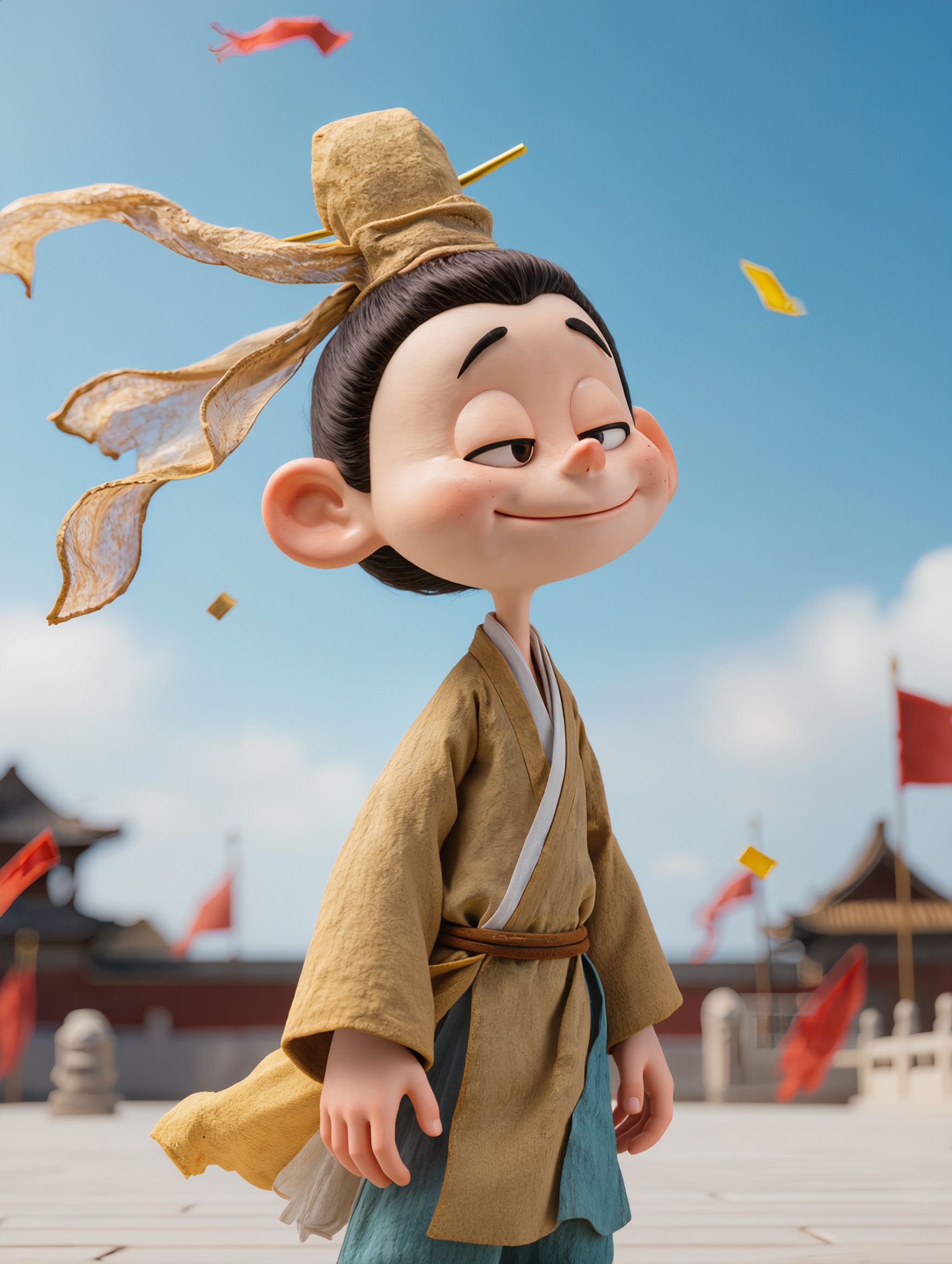

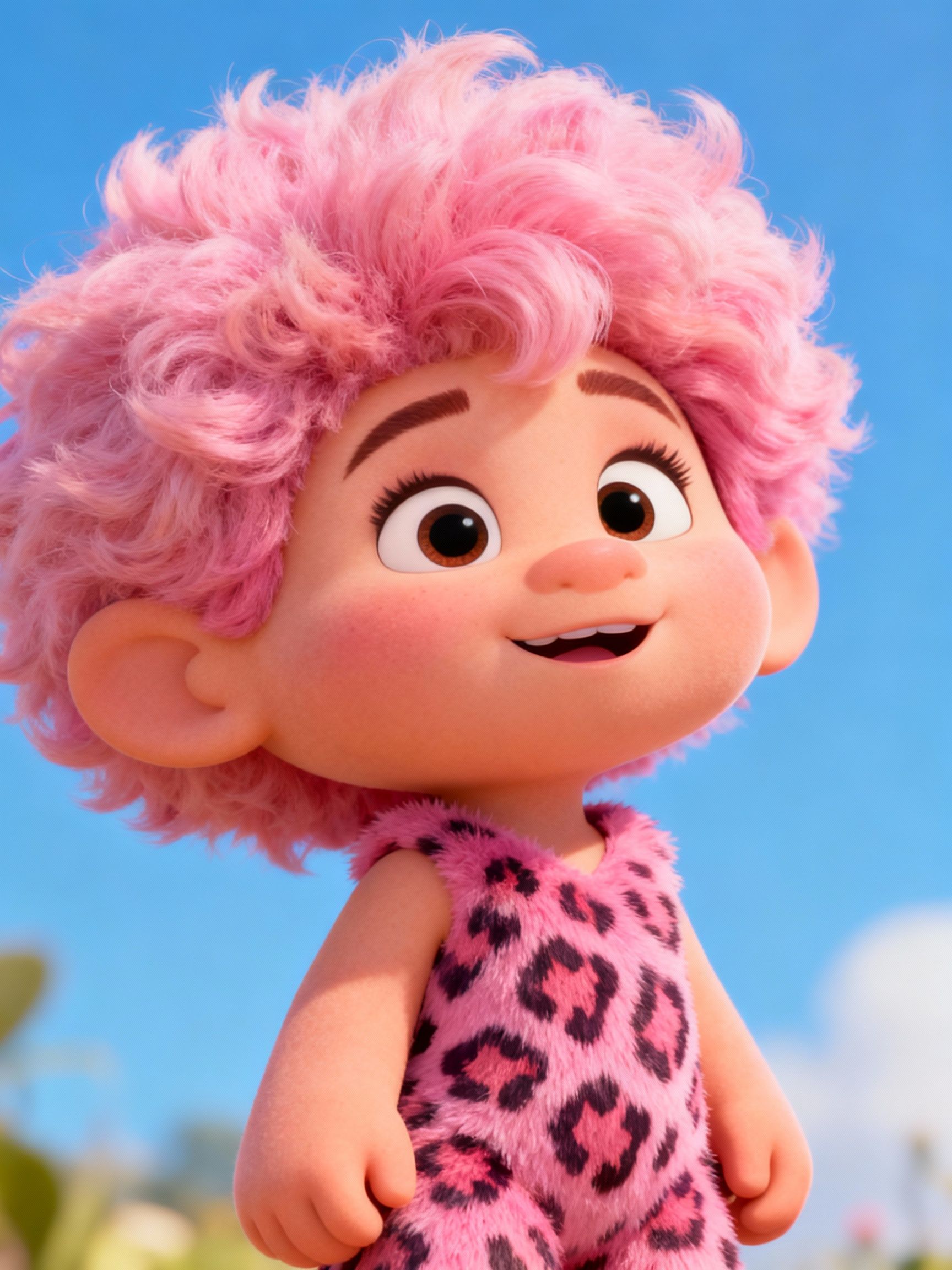
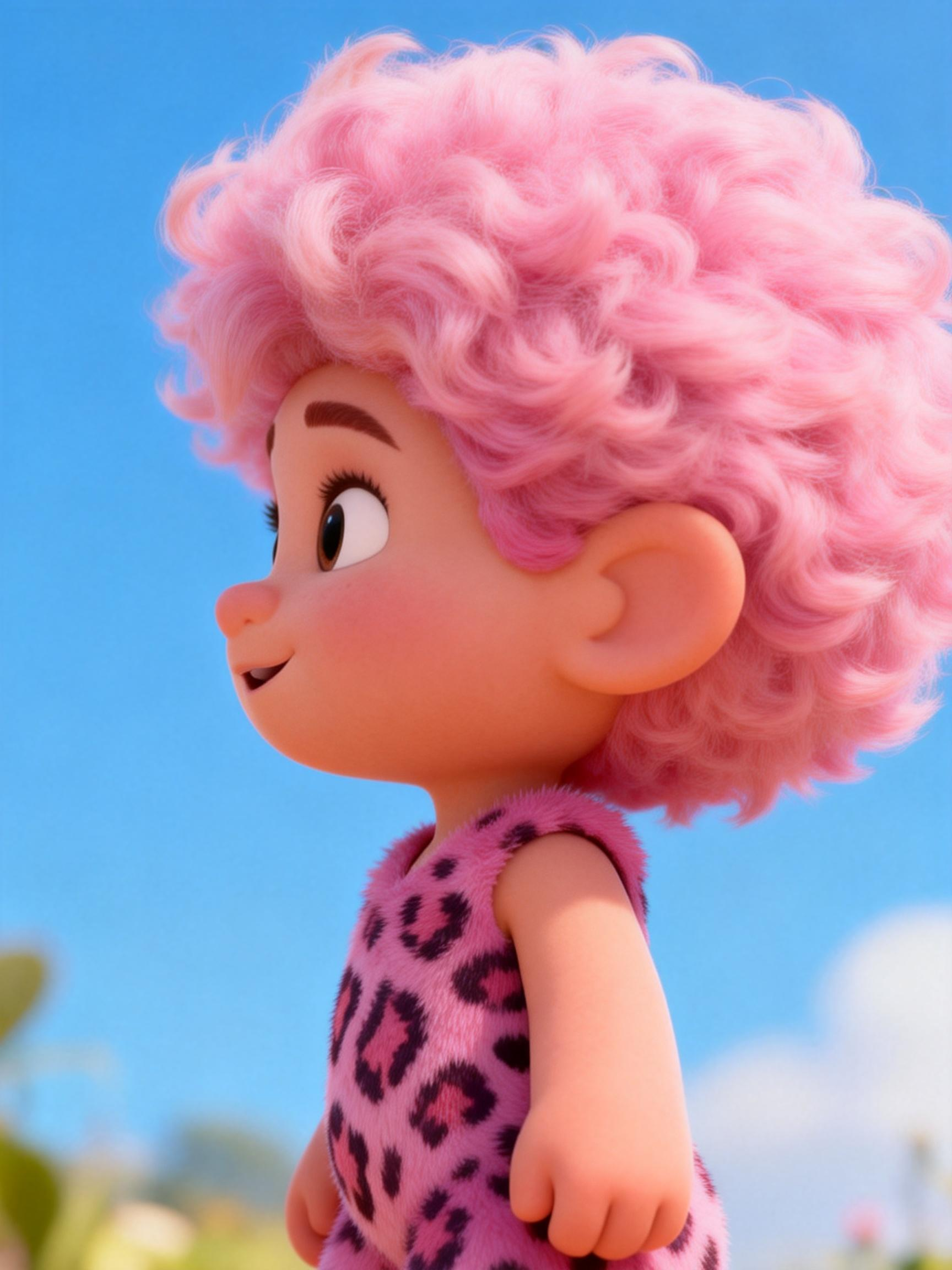
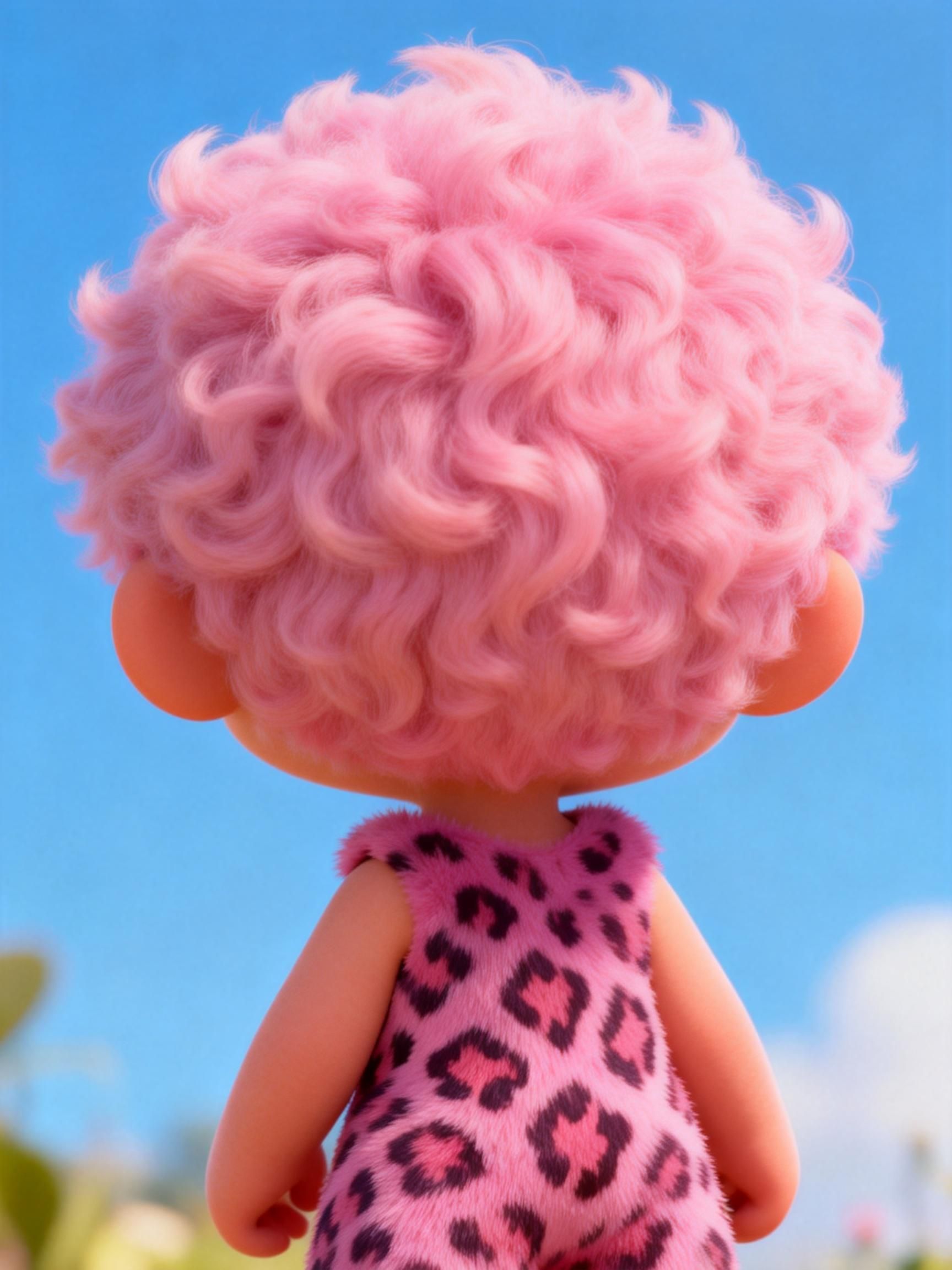
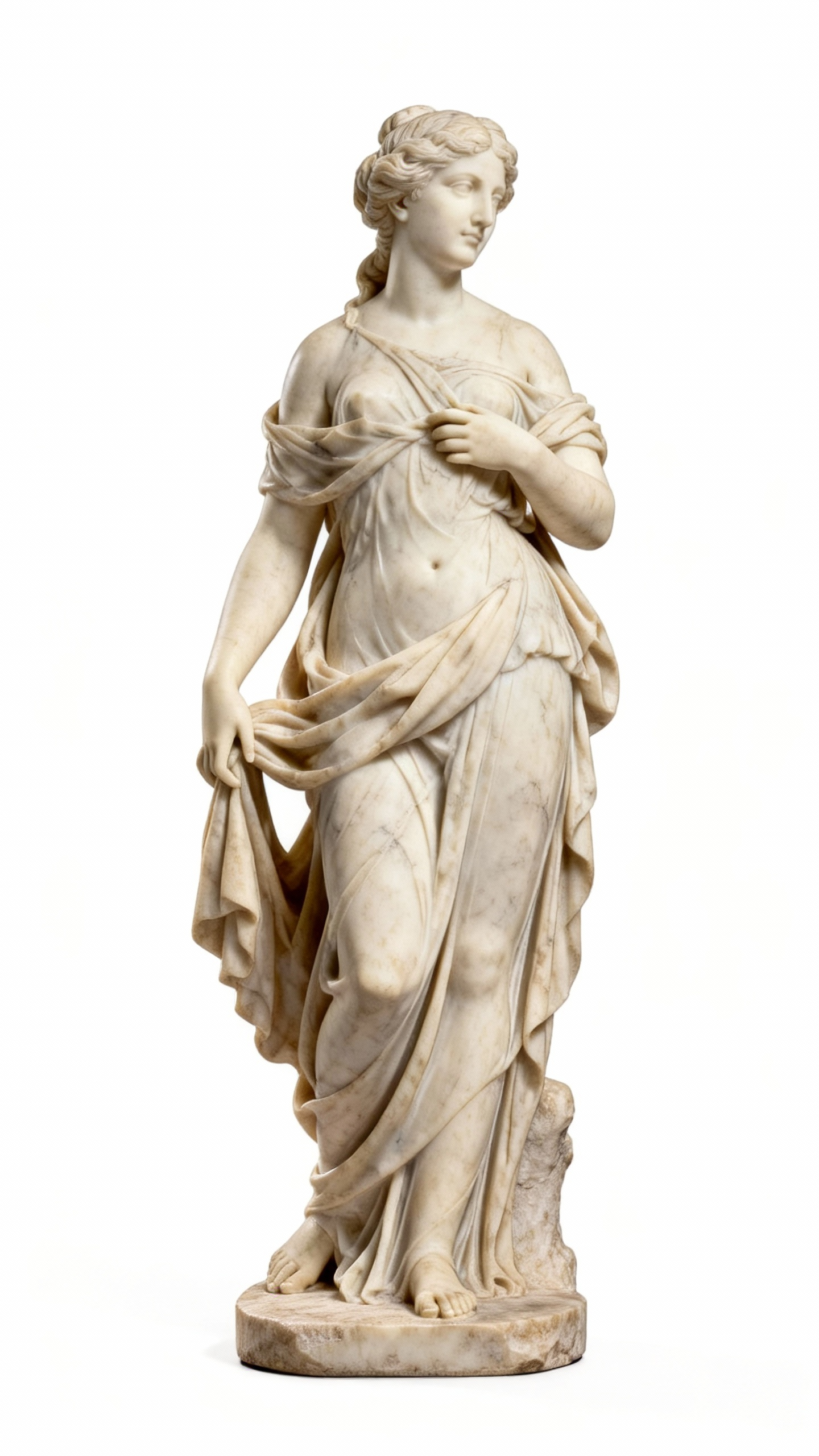
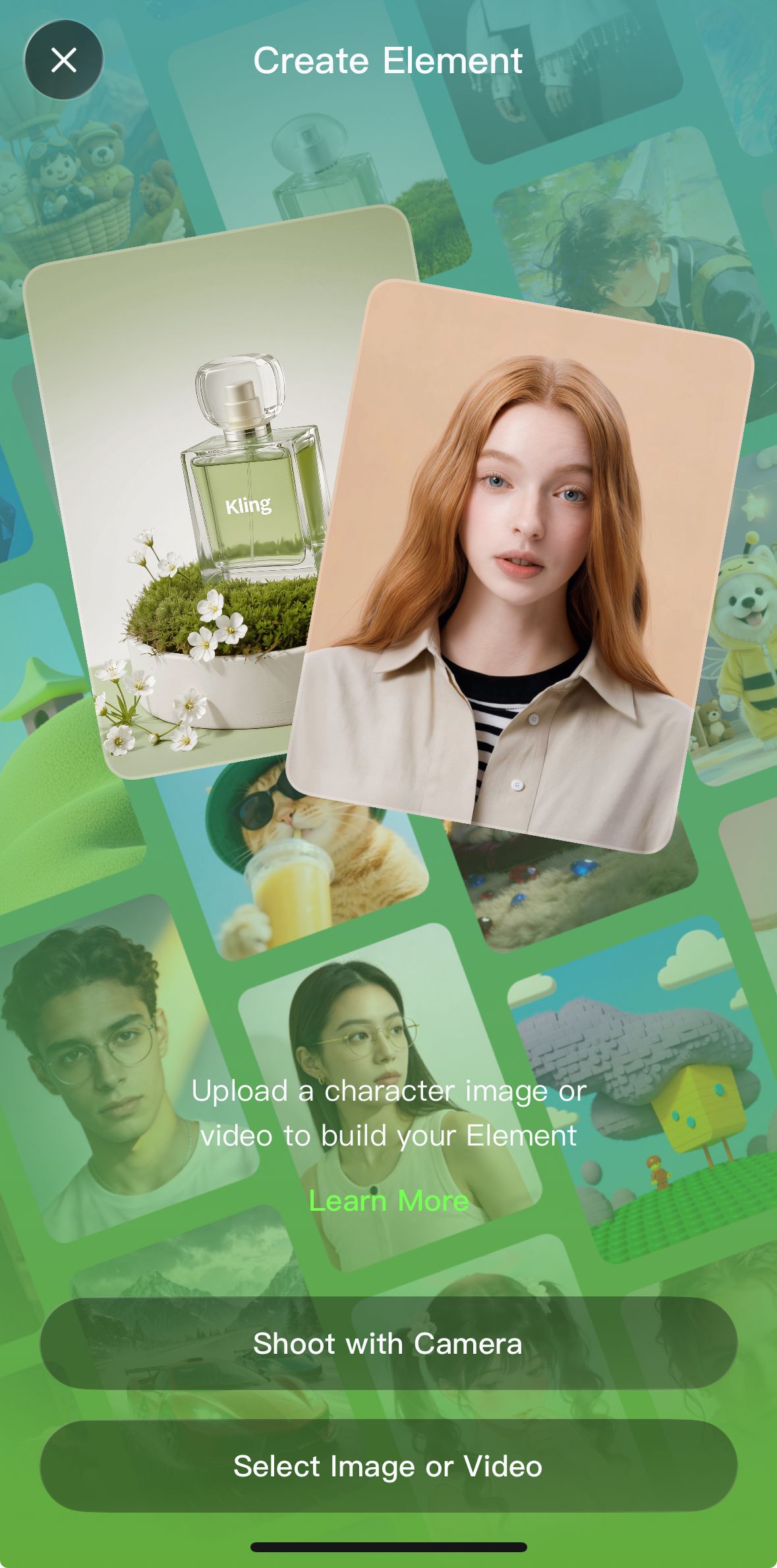
Elements Creation
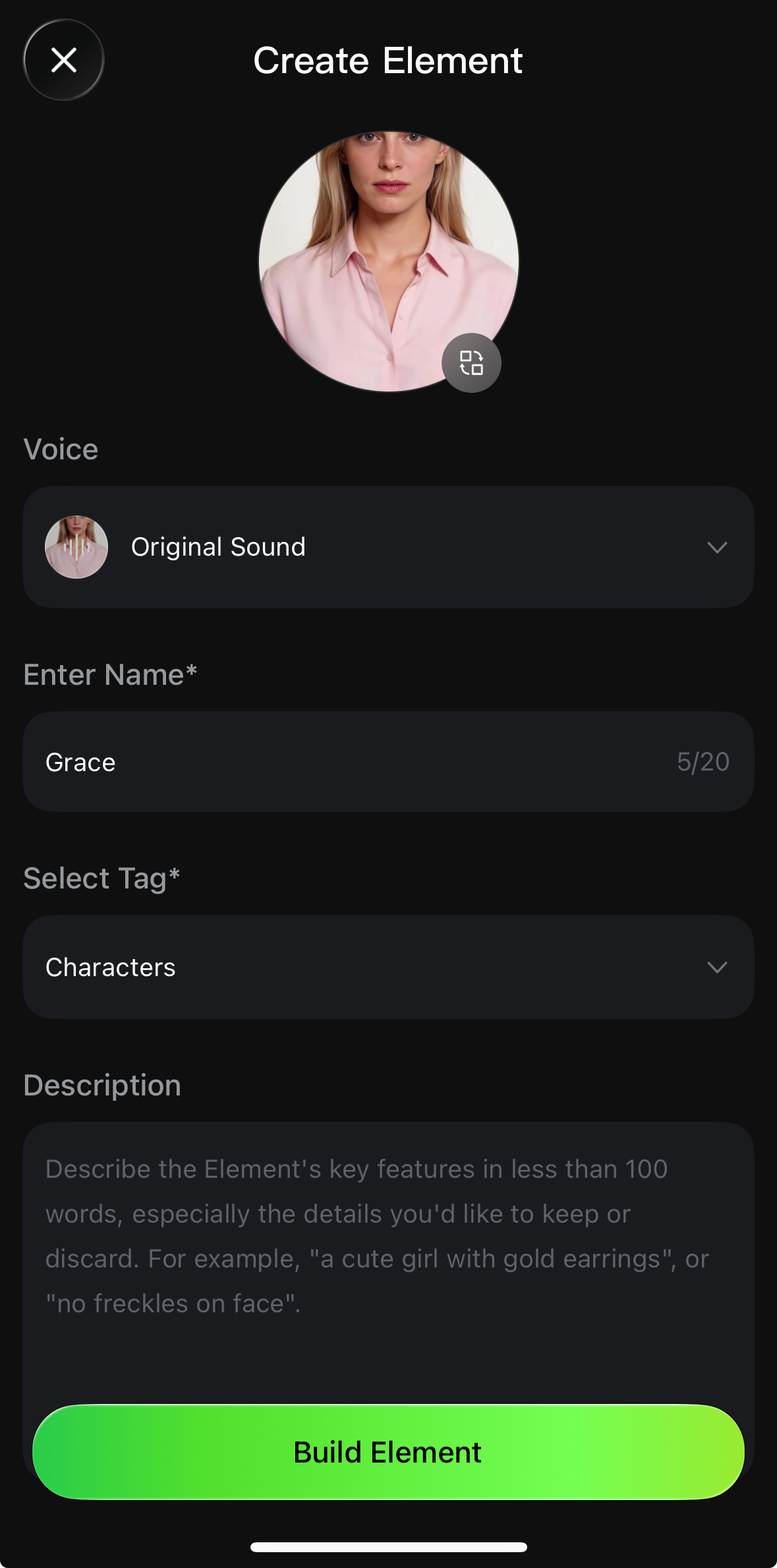
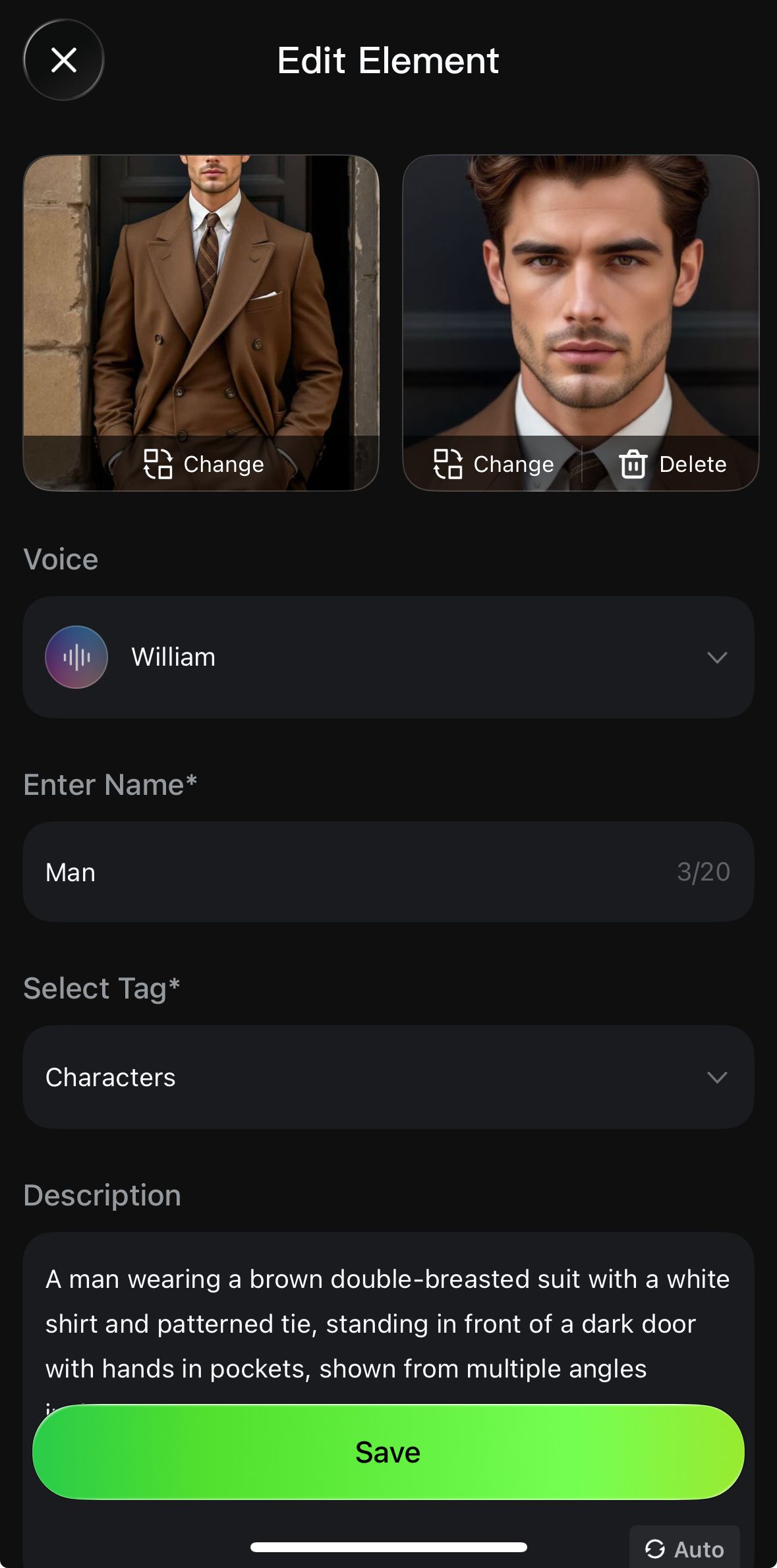
Record Video to Create a Character Element (App Only) | ||
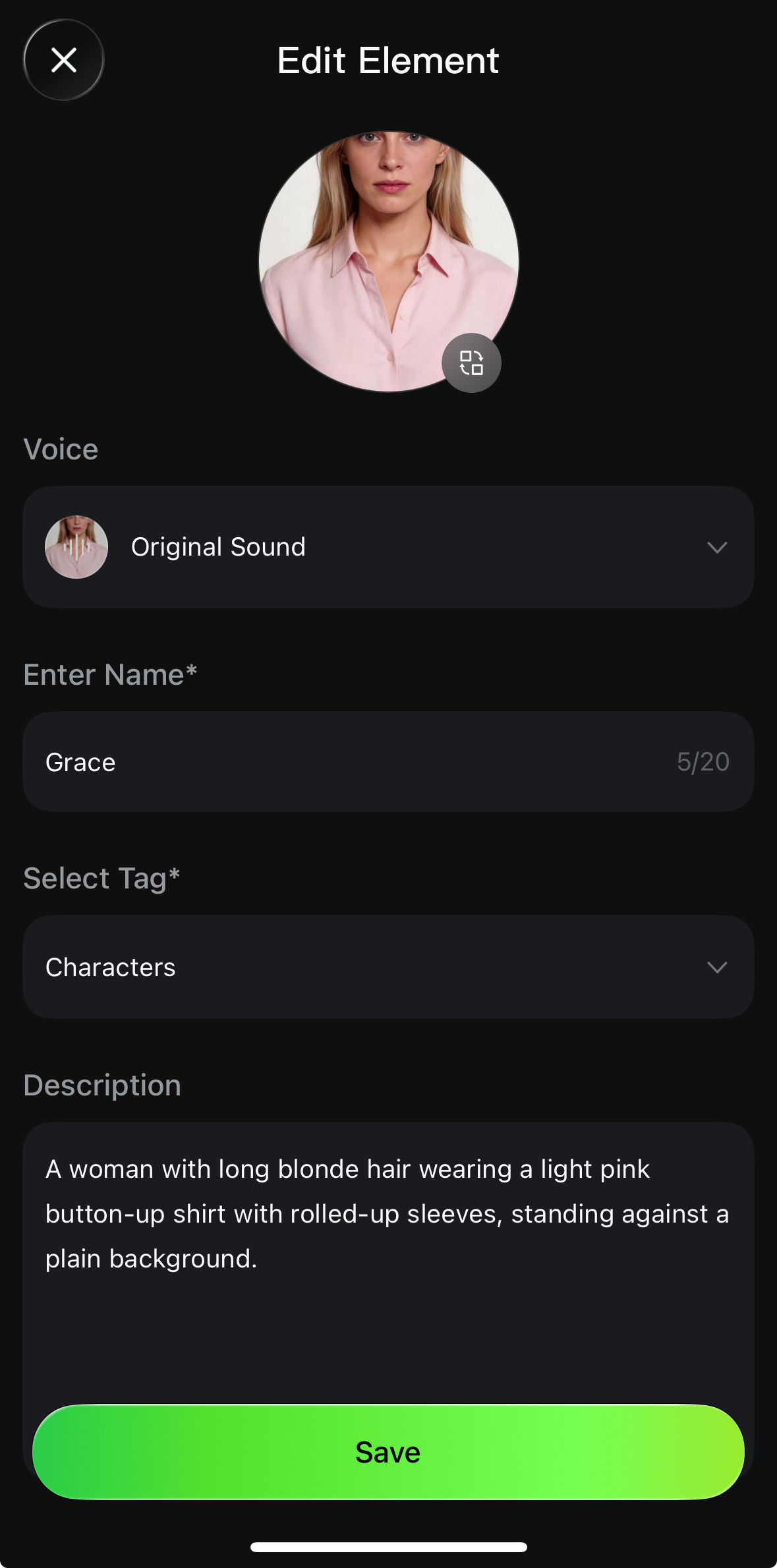
Tap to record a character video and enter the recording process to start creating a video subject. | Follow on-screen guidance to complete voice recording and multi-angle capture. | Fill in the subject's voice tone, name, and description to complete creation. |
|
|
|
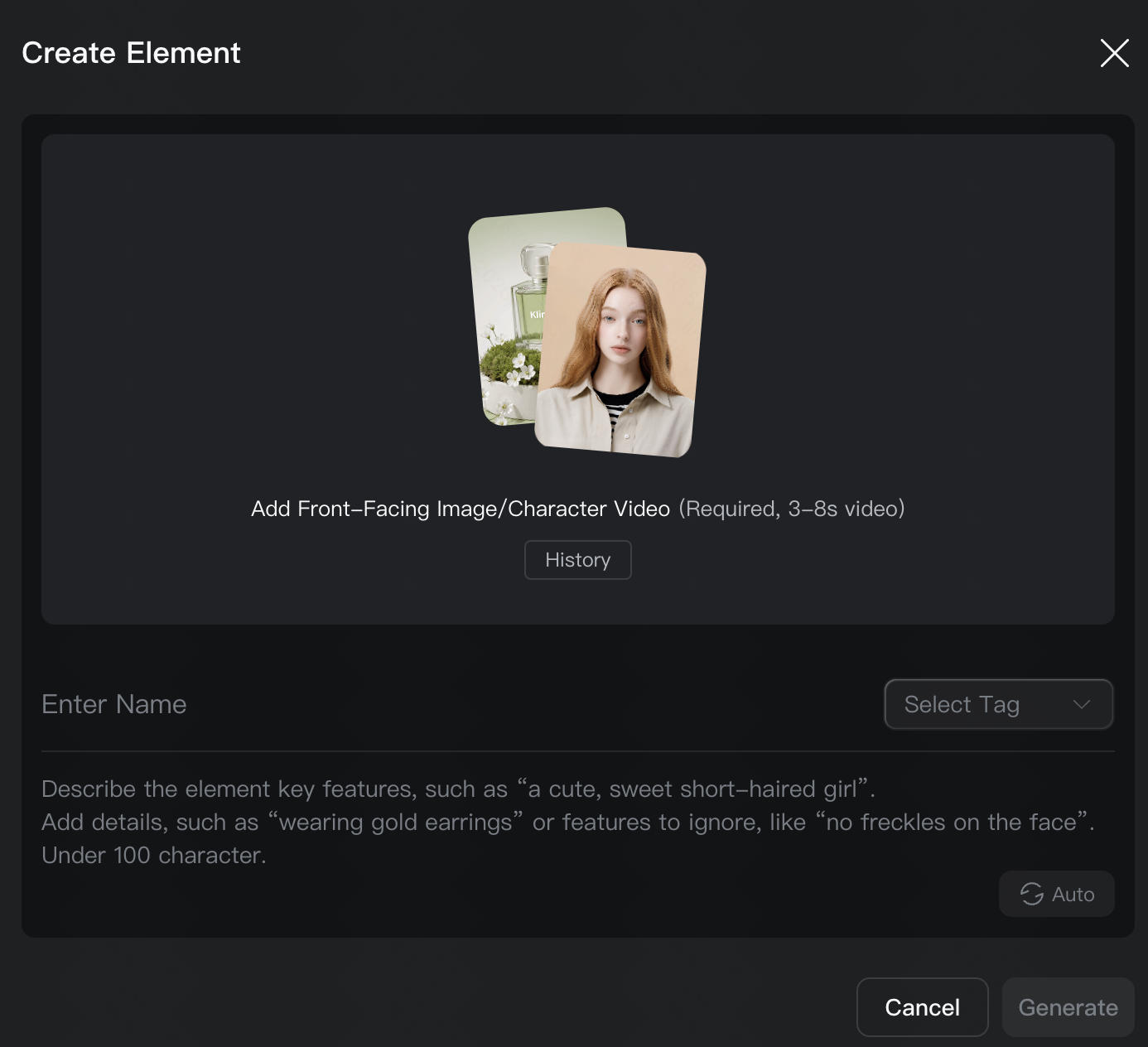
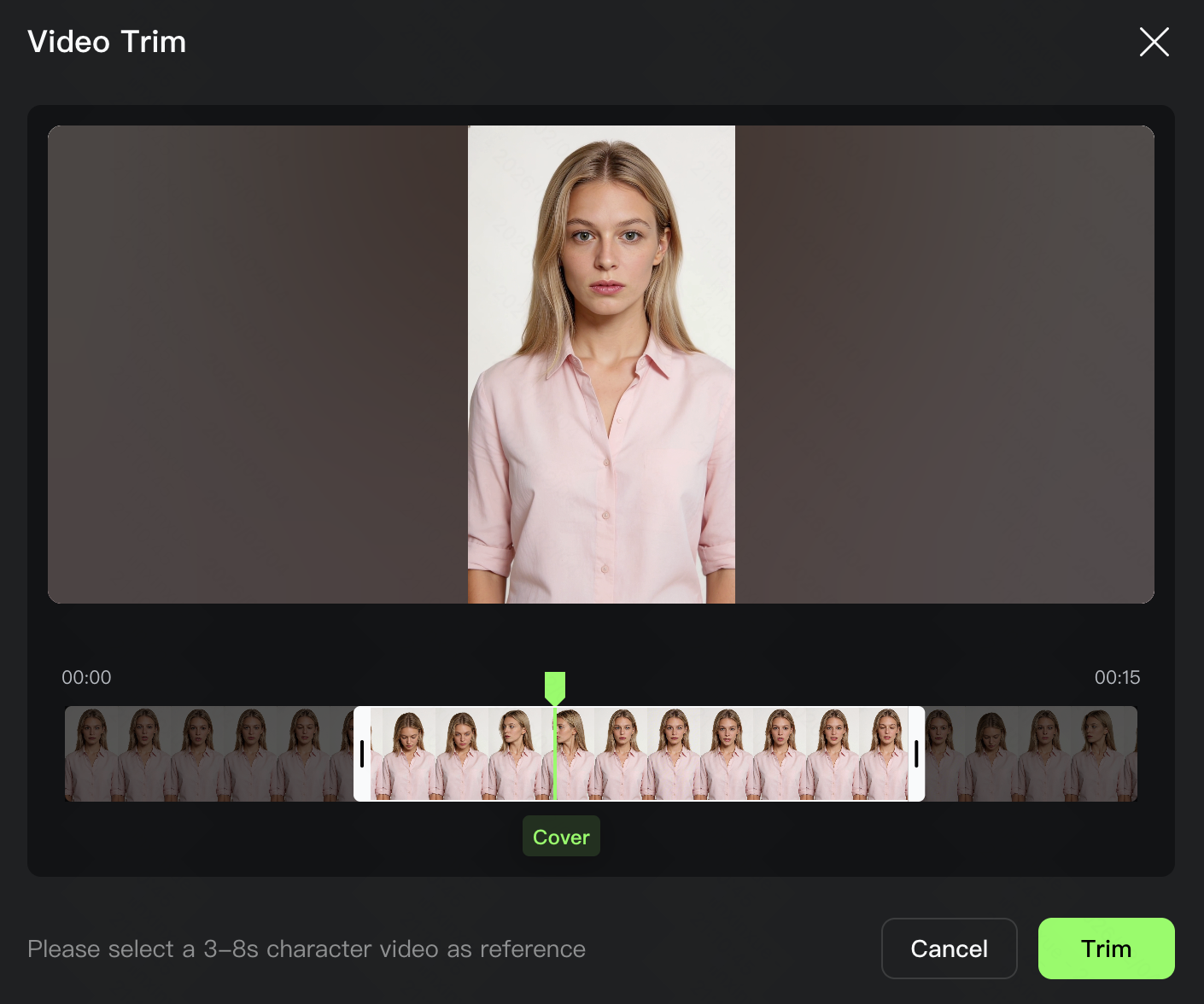
Upload Video to Create a Character Element | ||
Upload a video to start creating the subject. | Trim the video to an appropriate length; clips with multi-angle character views are recommended. | Fill in the subject's voice tone, name, and description to complete creation. |
|
|
|
Bind a Voice to Character-Based Multi-Image Subjects | ||
| ||
| ||
 .
. 
3. Storyboard Narration 3.0: Free Duration, Custom Shots, 15s Generation with Precise Control
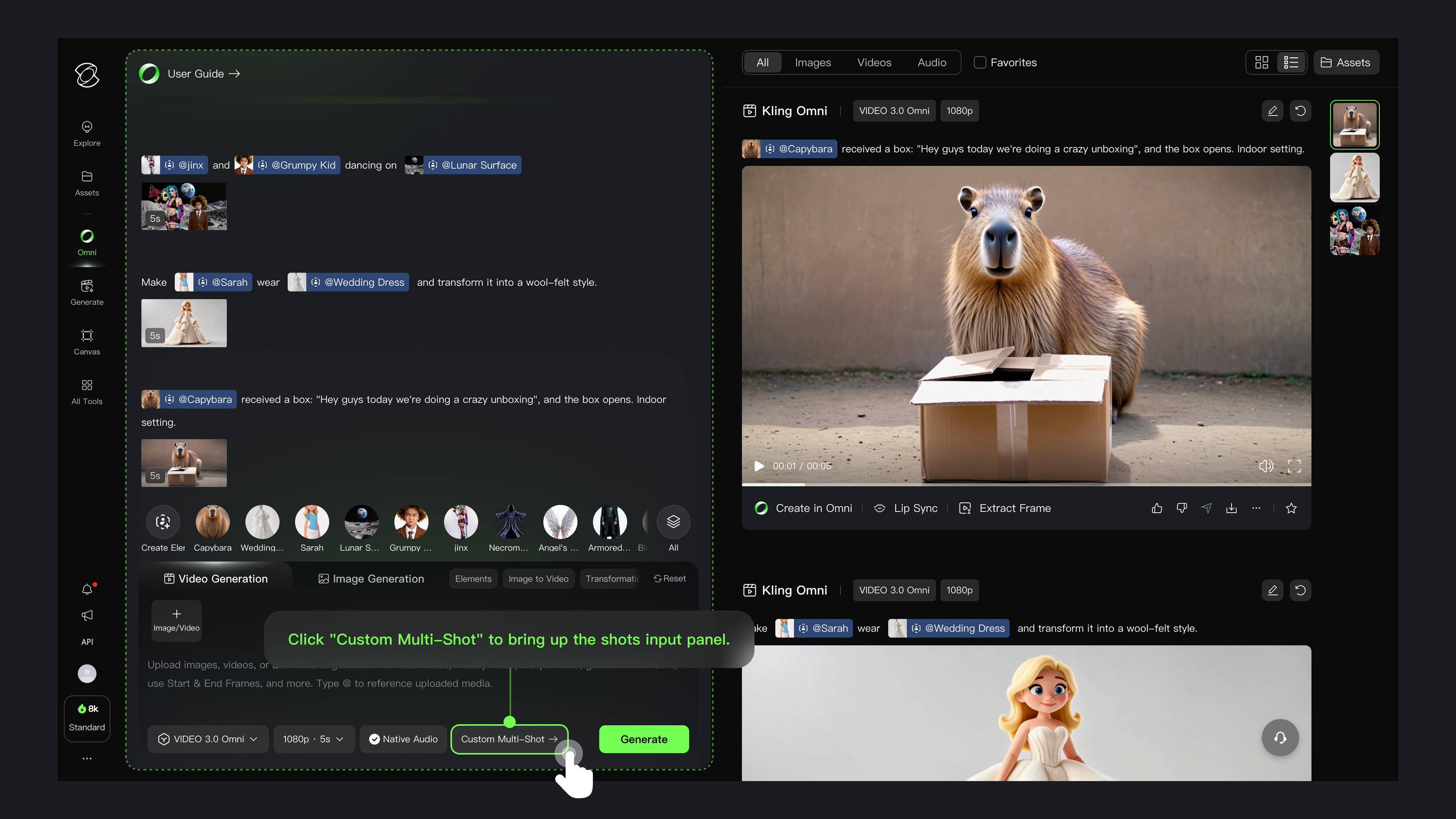
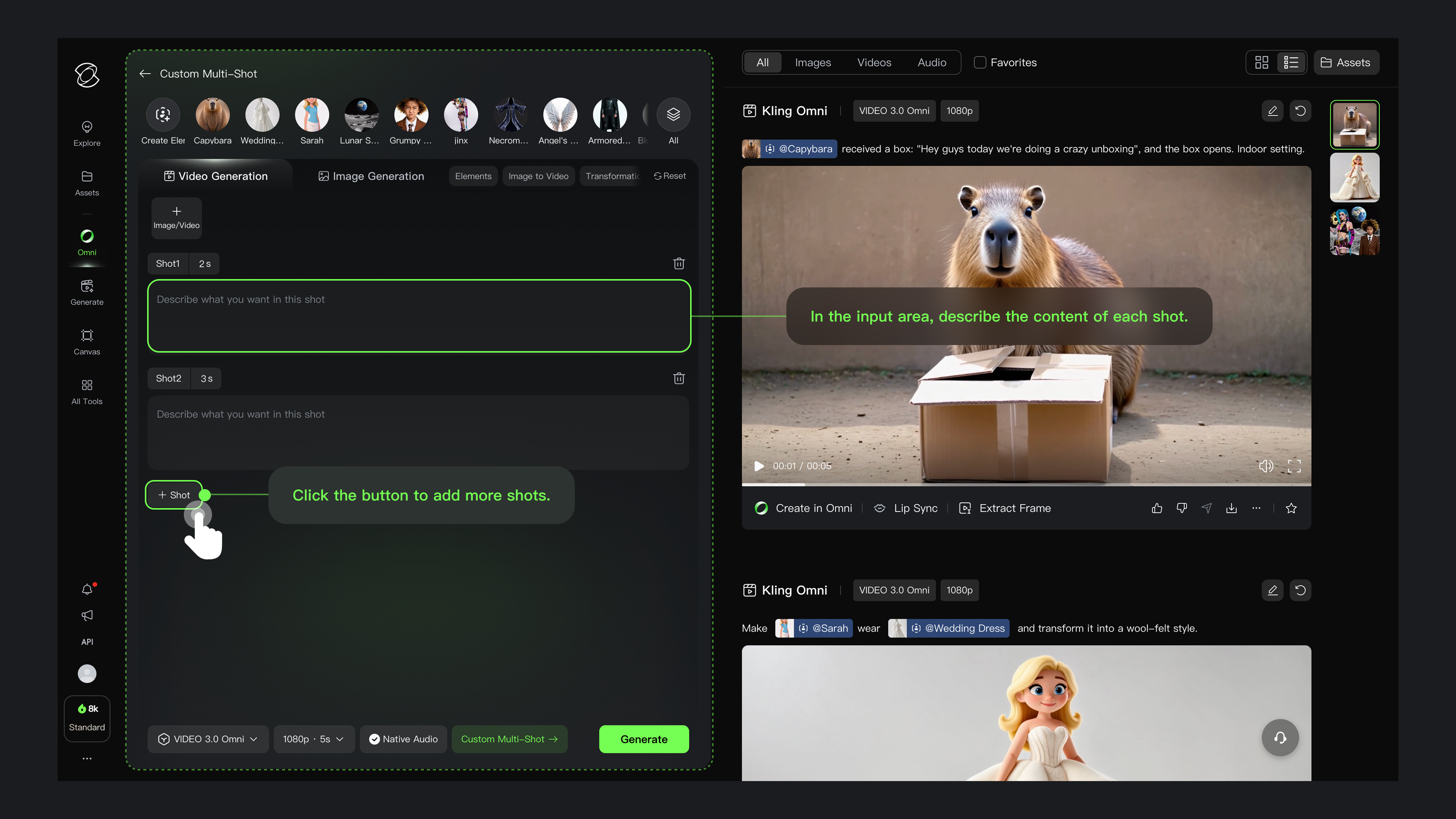
In VIDEO O1, you can freely generate between 3-10 seconds. In VIDEO 3.0 and 3.0 Omni, we've maintained the free duration control and introduced native Custom Multi-Shot capabilities, increasing the single-generation duration to 15 seconds.
Now, you can have precise control at the shot level, specifying the duration, framing, angle, narrative content, camera movement, and more, ensuring smooth transitions between shots.
With a single generation, you can create a well-paced, structurally complete multi-shot narrative, making every second of the video perfectly align with your vision.
Showcases
Element/Reference Image | Prompt | Outputs |
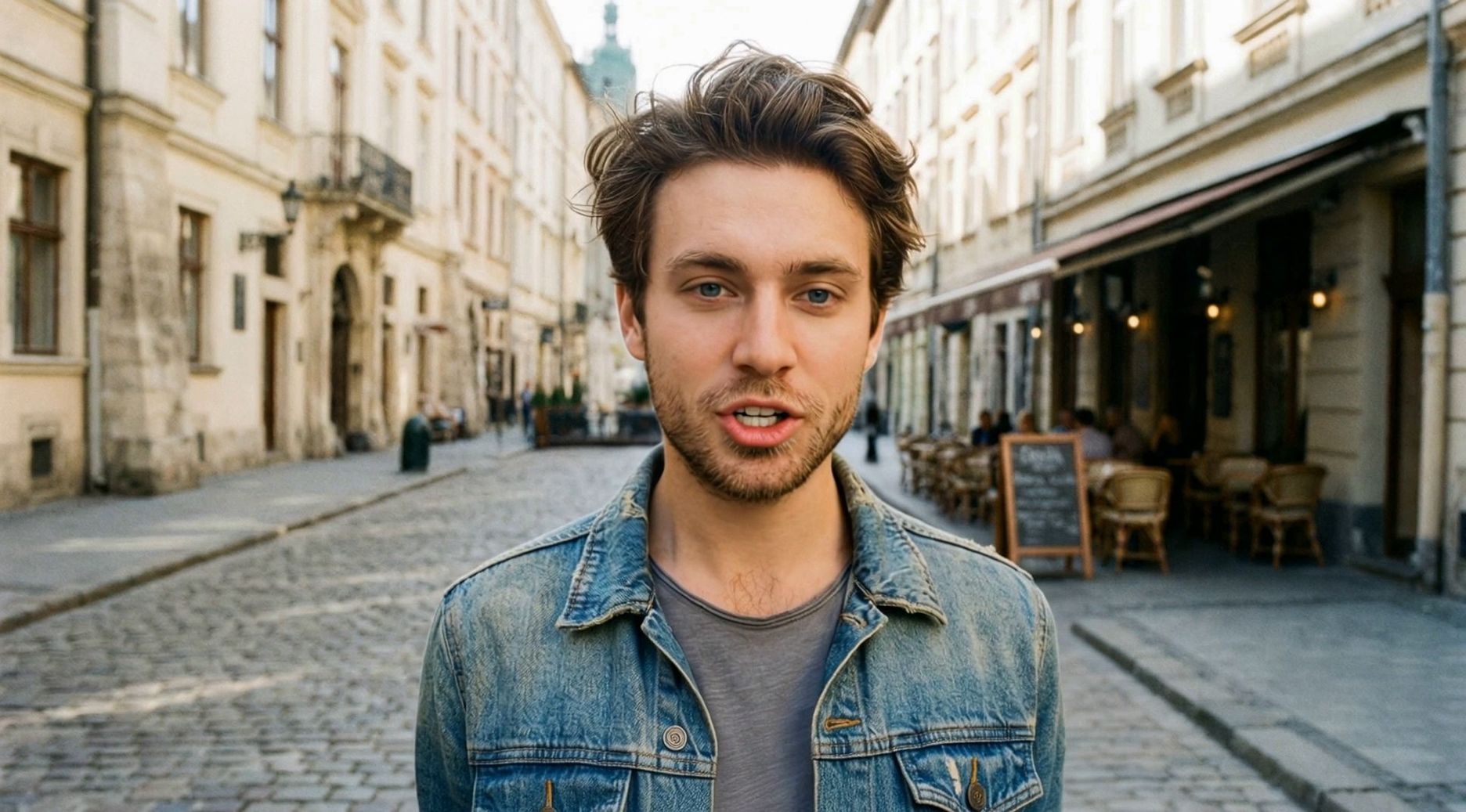 @Mike 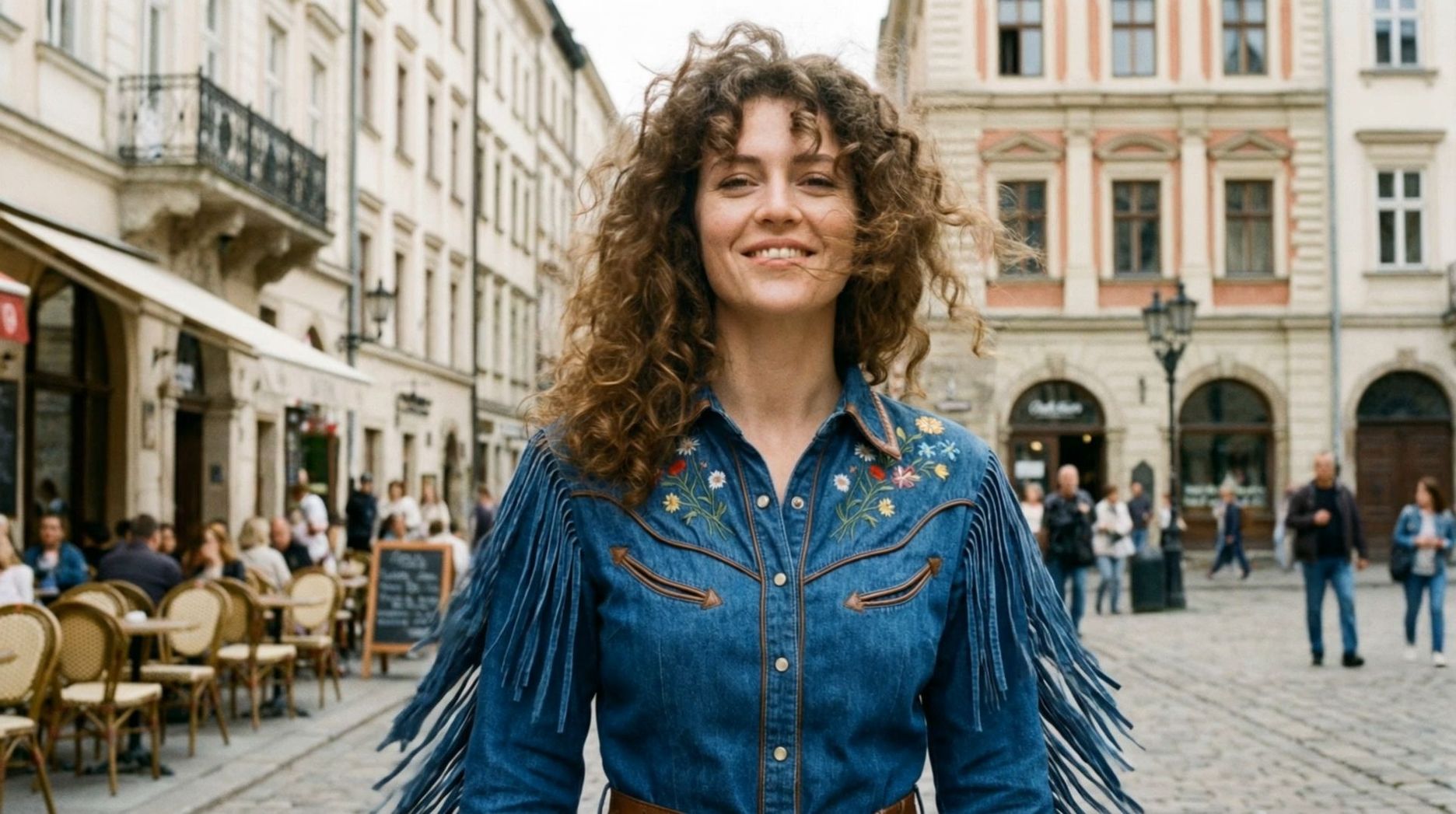 @Cindy
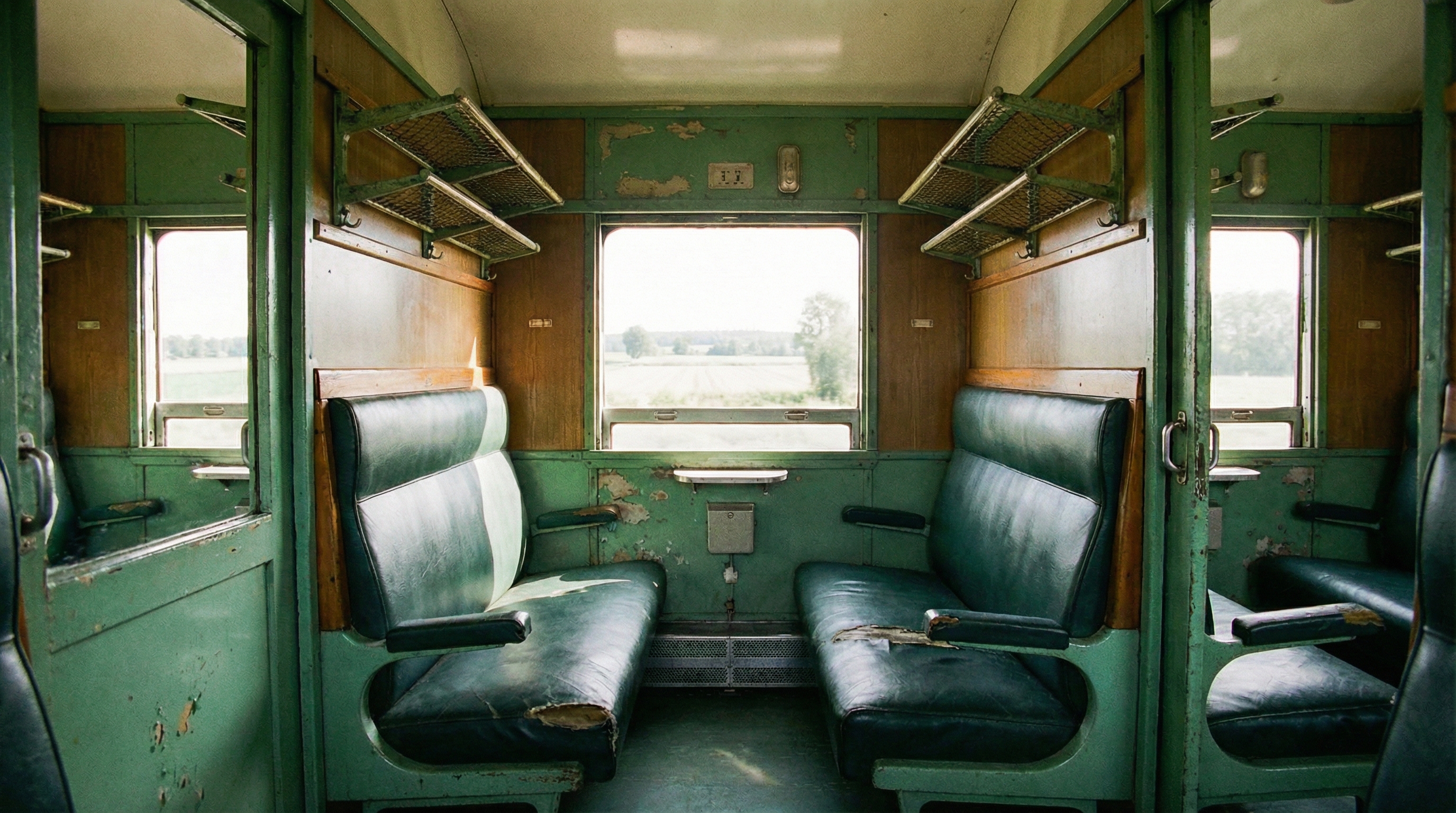
@Image | Shot 1 (1s): Mike and Cindy sit face to face on the seats of an old green train, the train moving forward. Shot 2 (2s): Cut to a close-up of Cindy's profile. She rests her chin on her hand, looking out the window, asking, "Where are we about to go?" Shot 3 (3s): Cut to a close-up of Mike's face. He looks at Cindy and says, "We are about to go to a place where it is summer all year round." Shot 4 (2s): Cut to Cindy turning around, looking at Mike, smiling and nodding, saying, "I love summer." Shot 5 (2s): Cut to a wide shot of the two facing each other, smiling at one another. | 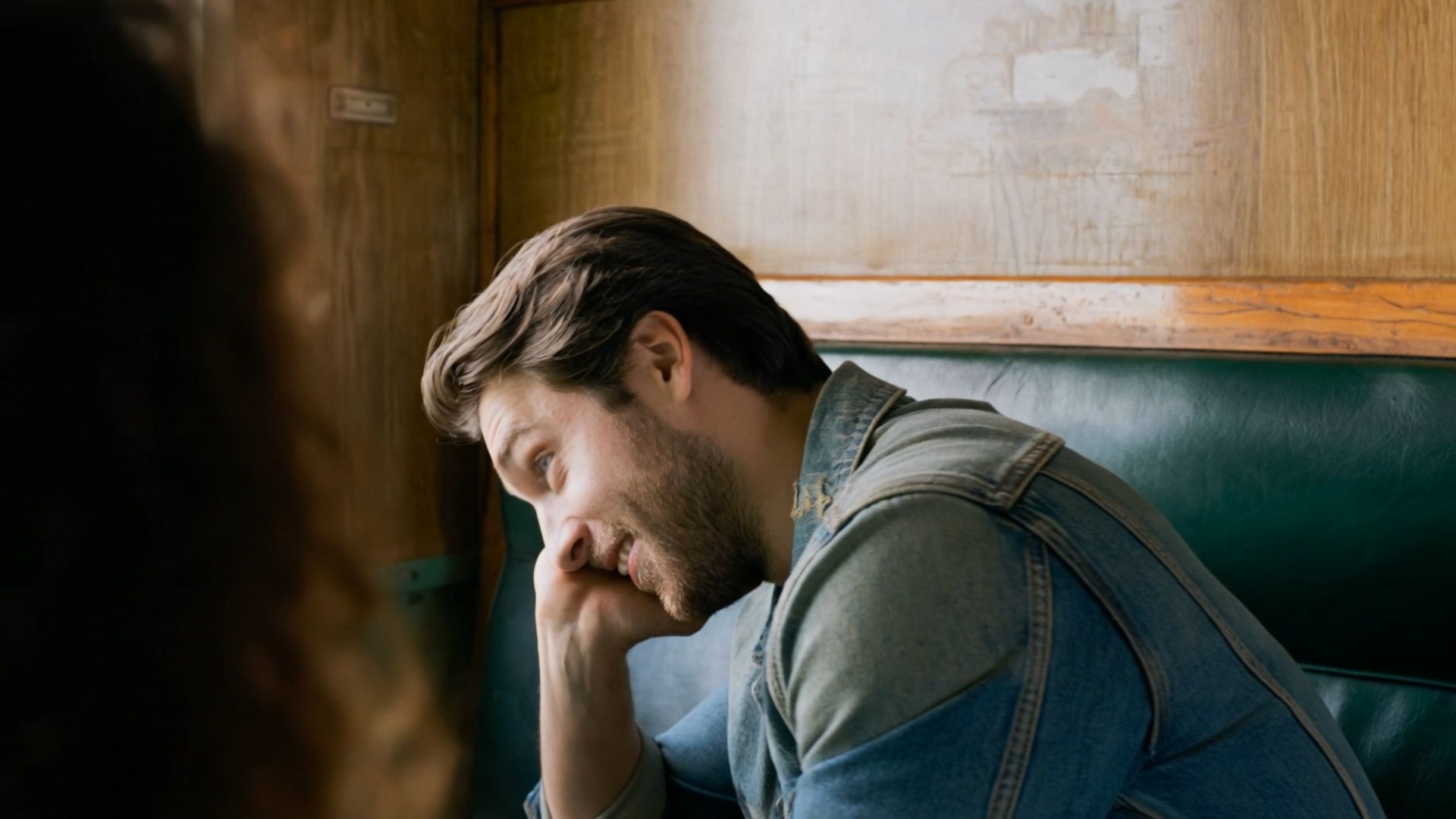 |
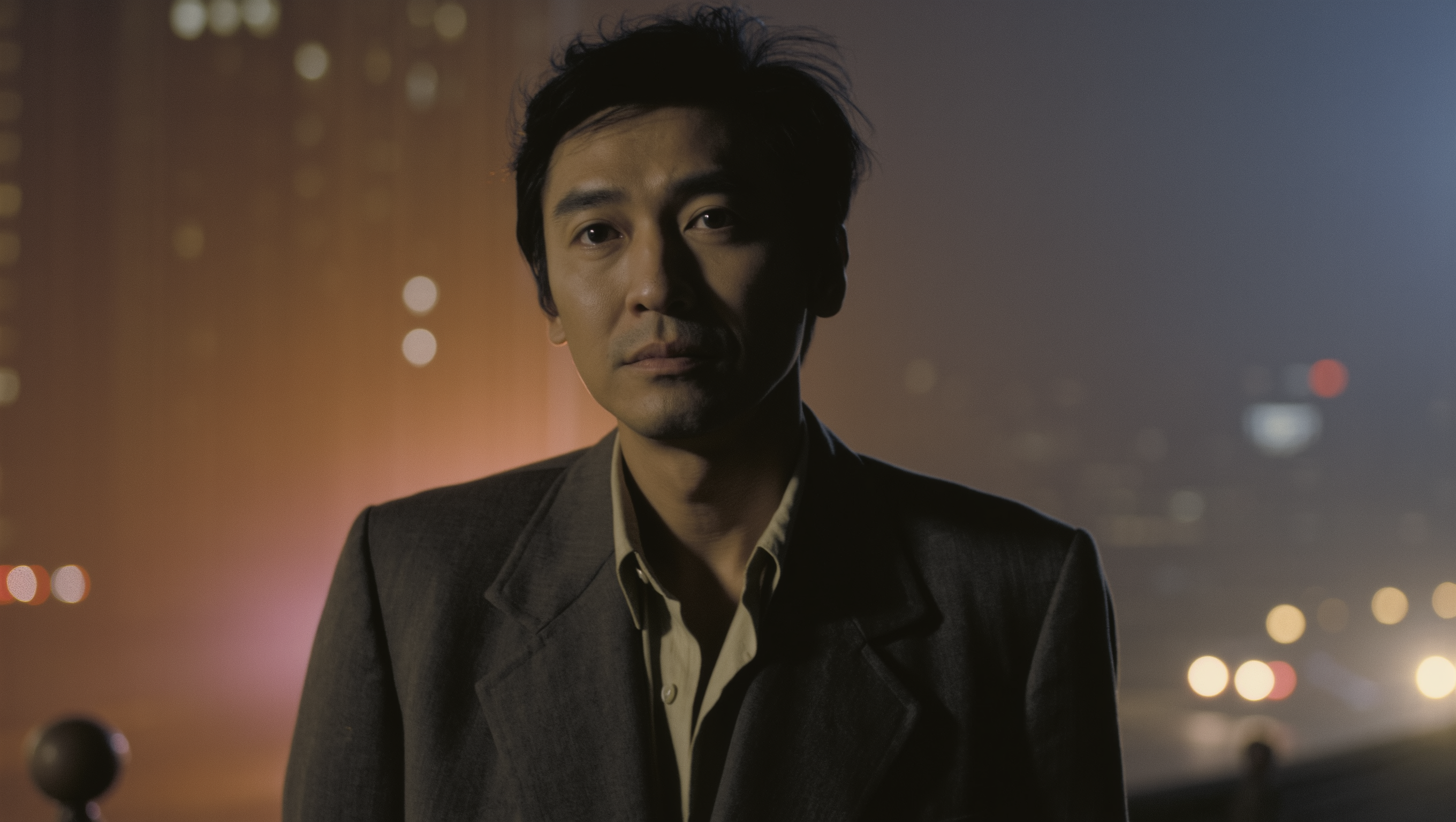
@Element1
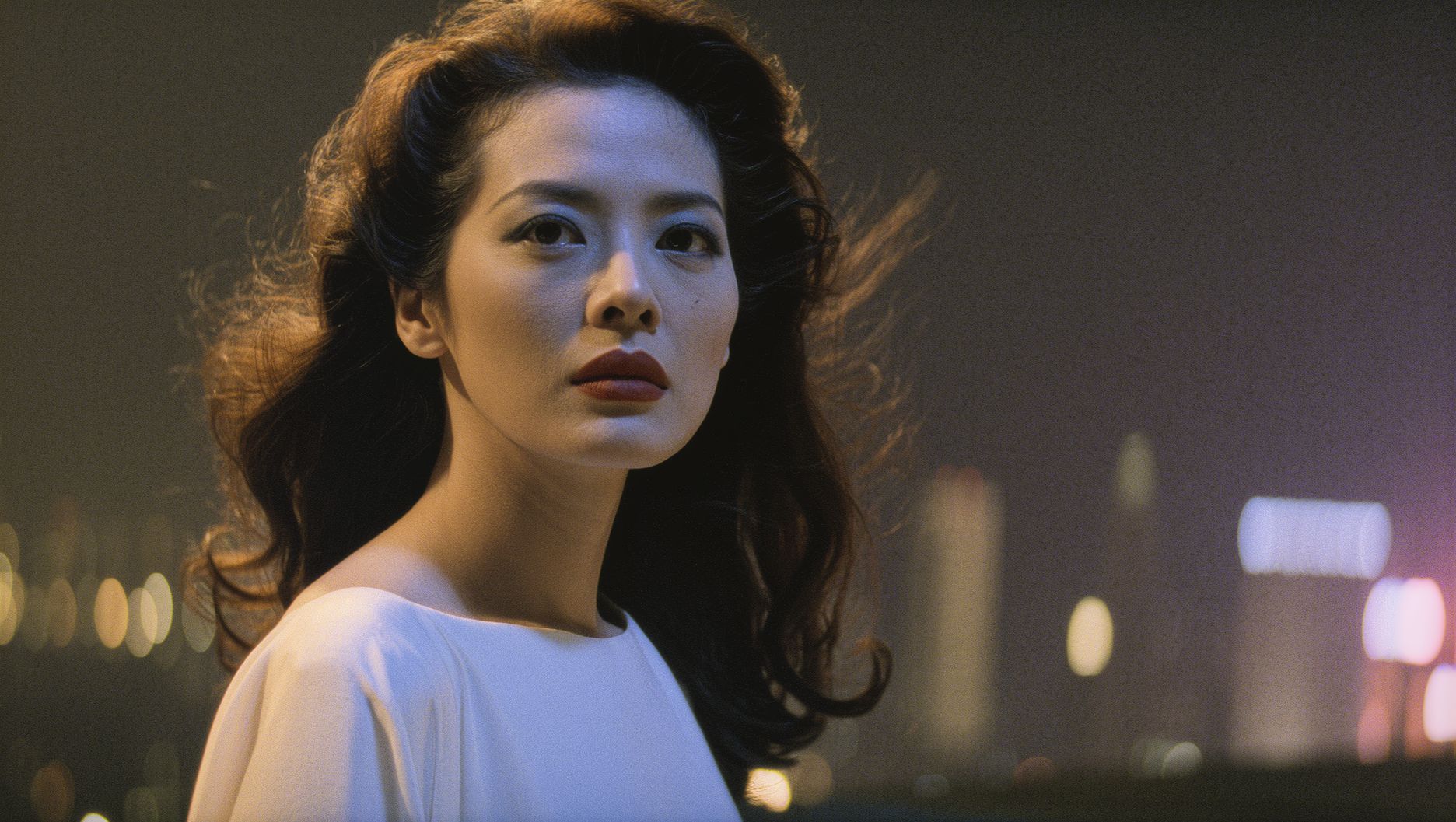
@Element2
| Shot 1 (3s): Wide shot. A neon-lit street corner late at night, wet pavement reflecting lights. @Element1 leans against a red phone booth, smoking, with strong motion blur. Shot 2 (2s): Cut to close-up. @Element1's profile is half-hidden in shadow. He looks down and asks, “You still haven't decided which road to take?” Shot 3 (4s): Cut to close-up of @Element2—lips and swaying earrings. She flips a coin and says, “I heard there's a place where people never ask for directions.” Shot 4 (3s): Cut to mid-shot. @Element1 lets out a self-mocking smile, exhales smoke that obscures his face, and says, “A place like that must be lonely.” Shot 5 (3s): Cut to long shot. @Element1 and @Element2 face each other, blurred headlights flowing between them. City noise drops to silence as they slowly fade into the glow. | 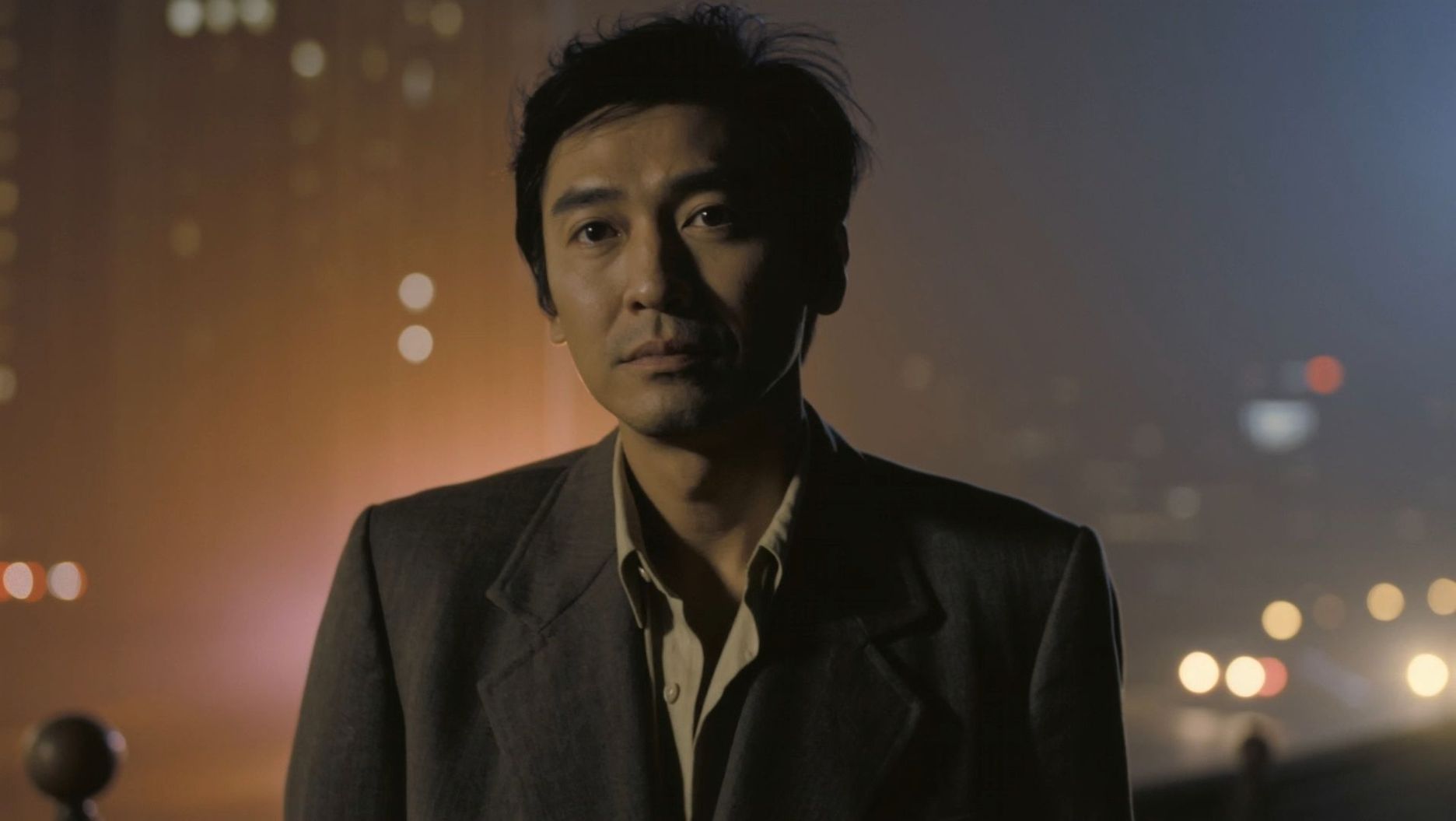 |
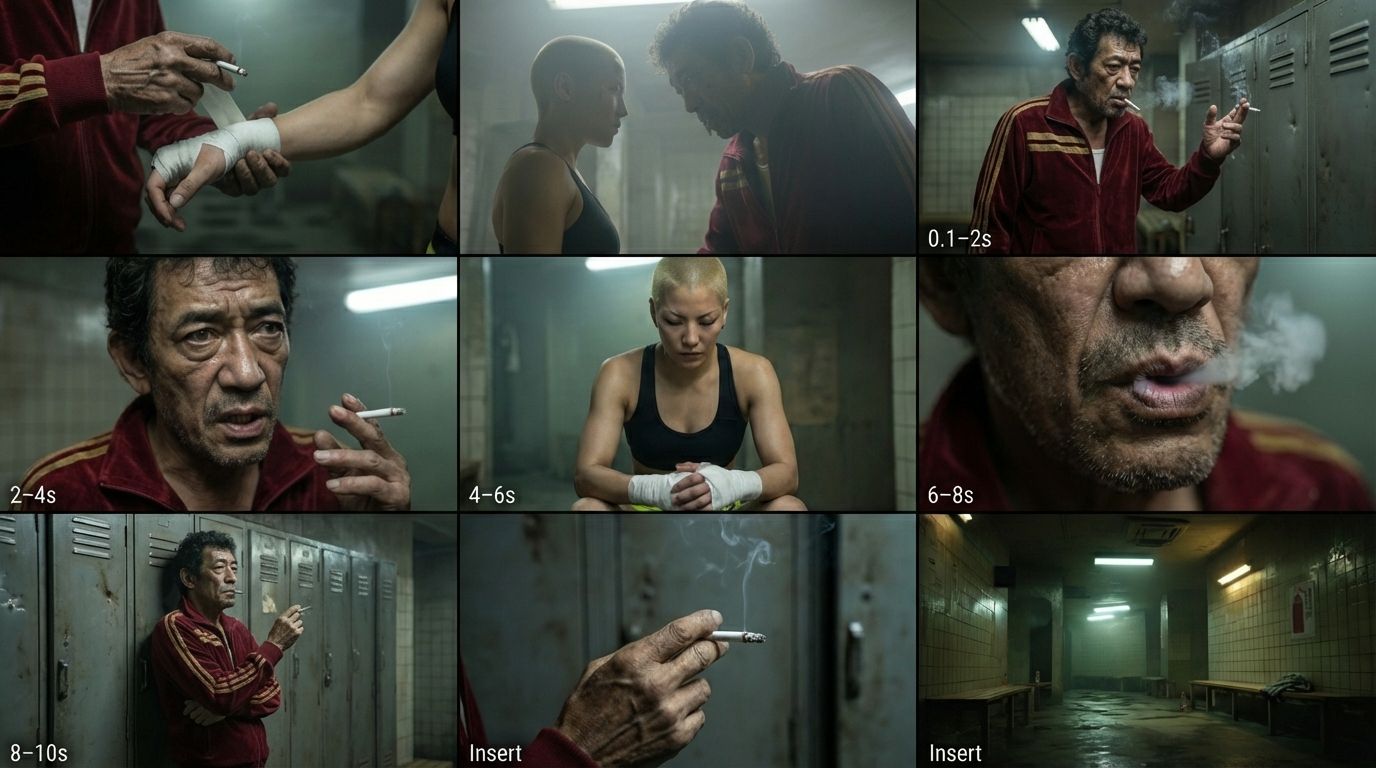
@Image
@Goro
@Kaiko
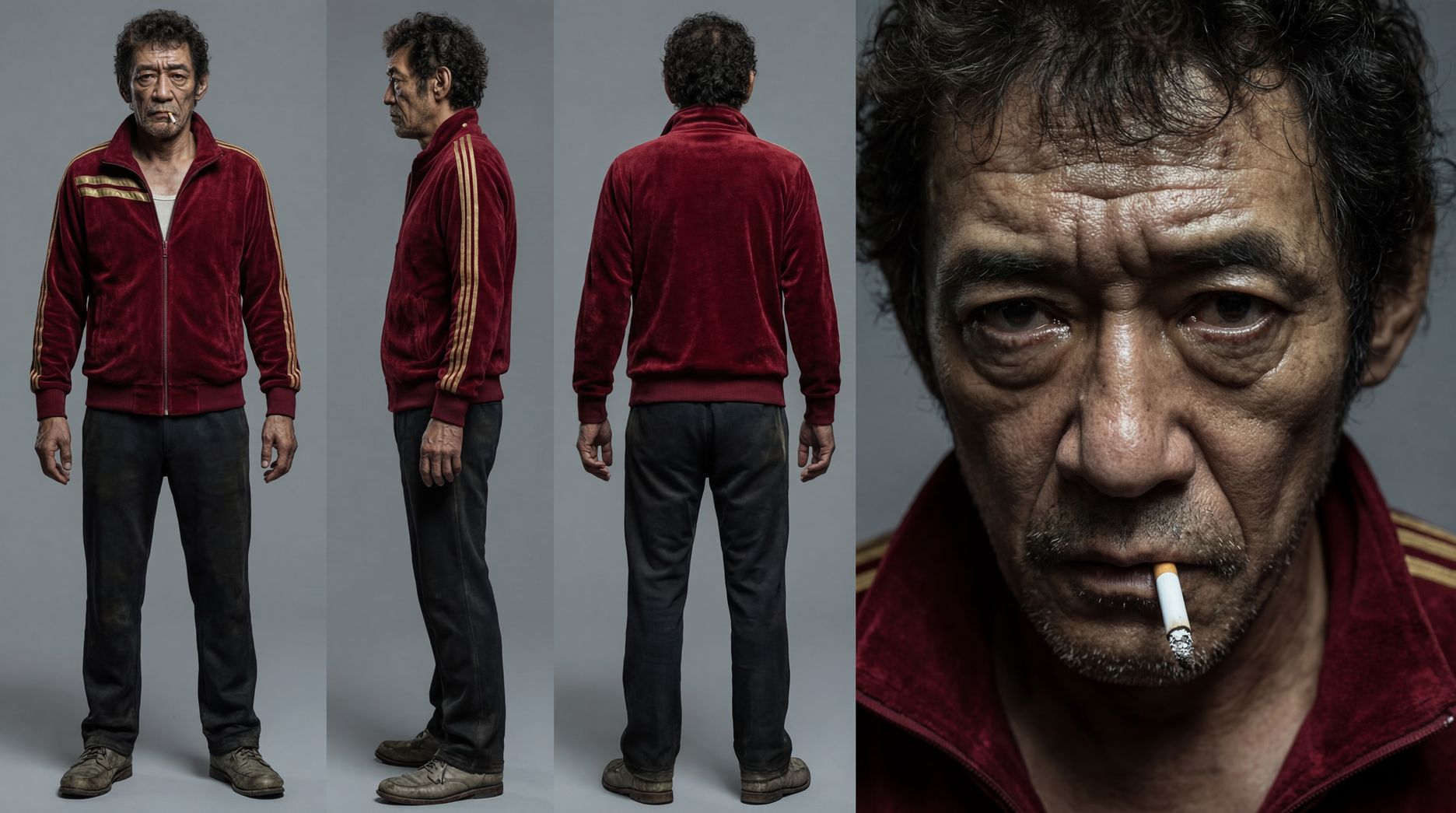
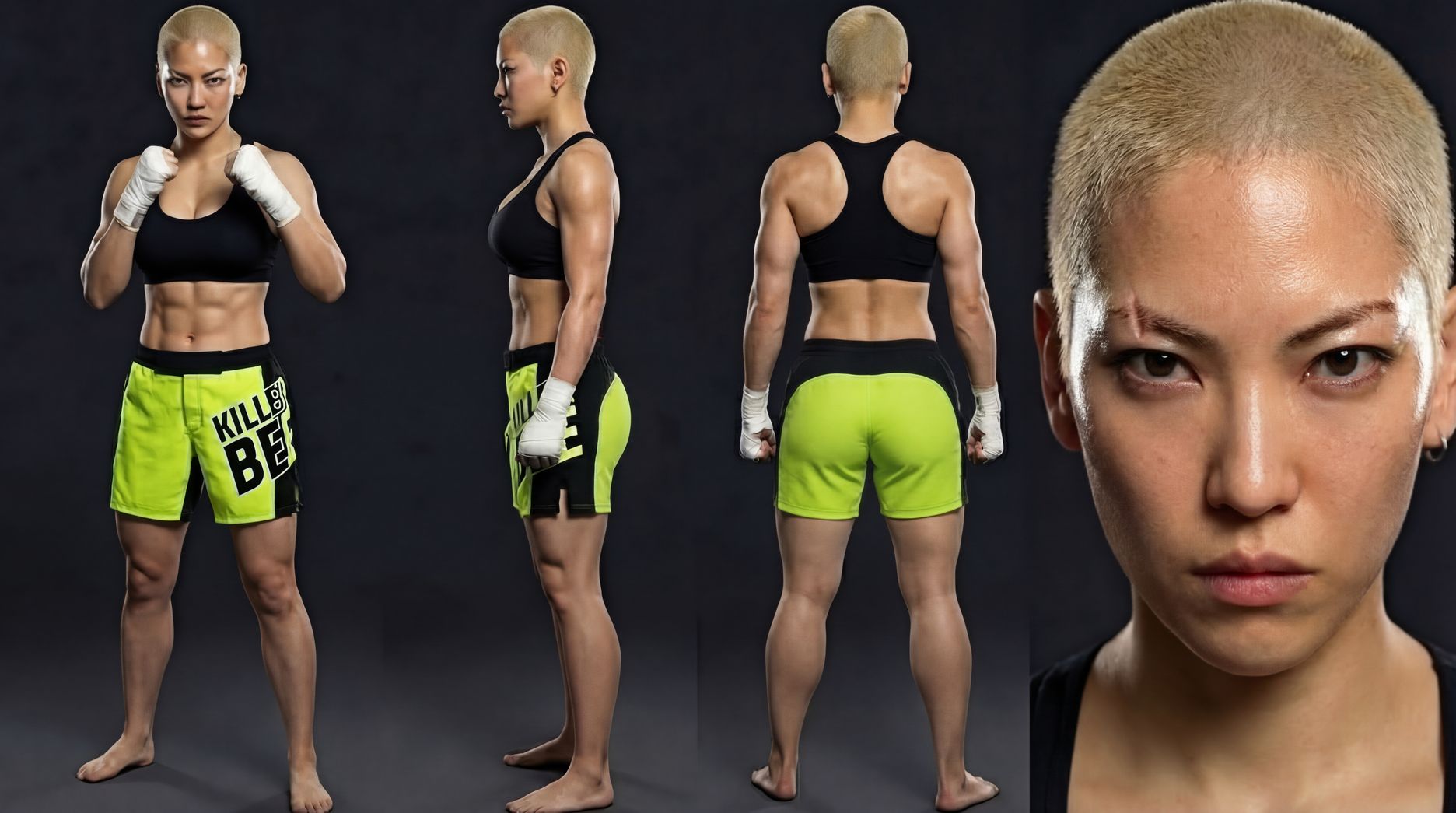
| [00:00 - 00:02] Medium shot: @Goro, gestures emphatically with a lit cigarette walking towards a locker, smoke curling around his hand as he punctuates each beat of his point. Audio: The faint, organic crackle of the cigarette tip under his words. [00:02 - 00:04] Close-up: @Goro weathered face fills the frame—eyes wide, intensity sharpened, jaw working as he speaks like he's carving the truth into the air. Audio: Cigarette crackle continues; room tone low and tight. [00:04 - 00:06] Cutaway: @Kaiko, a young woman with a blonde buzzcut and a scar on her eyebrow, looks down at her athletic-taped hands—stoic, absorbing, refusing to react. Audio: Crackle softens slightly; her breath is barely audible. [00:06 - 00:08] Close-up: Goro's mouth forms the word “pop”—a small puff of white smoke escapes on the consonant. Audio: A tiny smoke-breath exhale overlays the cigarette's crackle. [00:08 - 00:10] Medium shot: @Goro leans his back against a row of dented industrial metal lockers, crossing his arms while still holding the cigarette—settling into authority, like the room belongs to him.— Goro:“You opened it—pop—and heat hit your face. Now? Wax paper. Burger sweats, gets soggy. Bun dissolves into meat. Mush of good intentions. No boundary. No definition.” @Image | 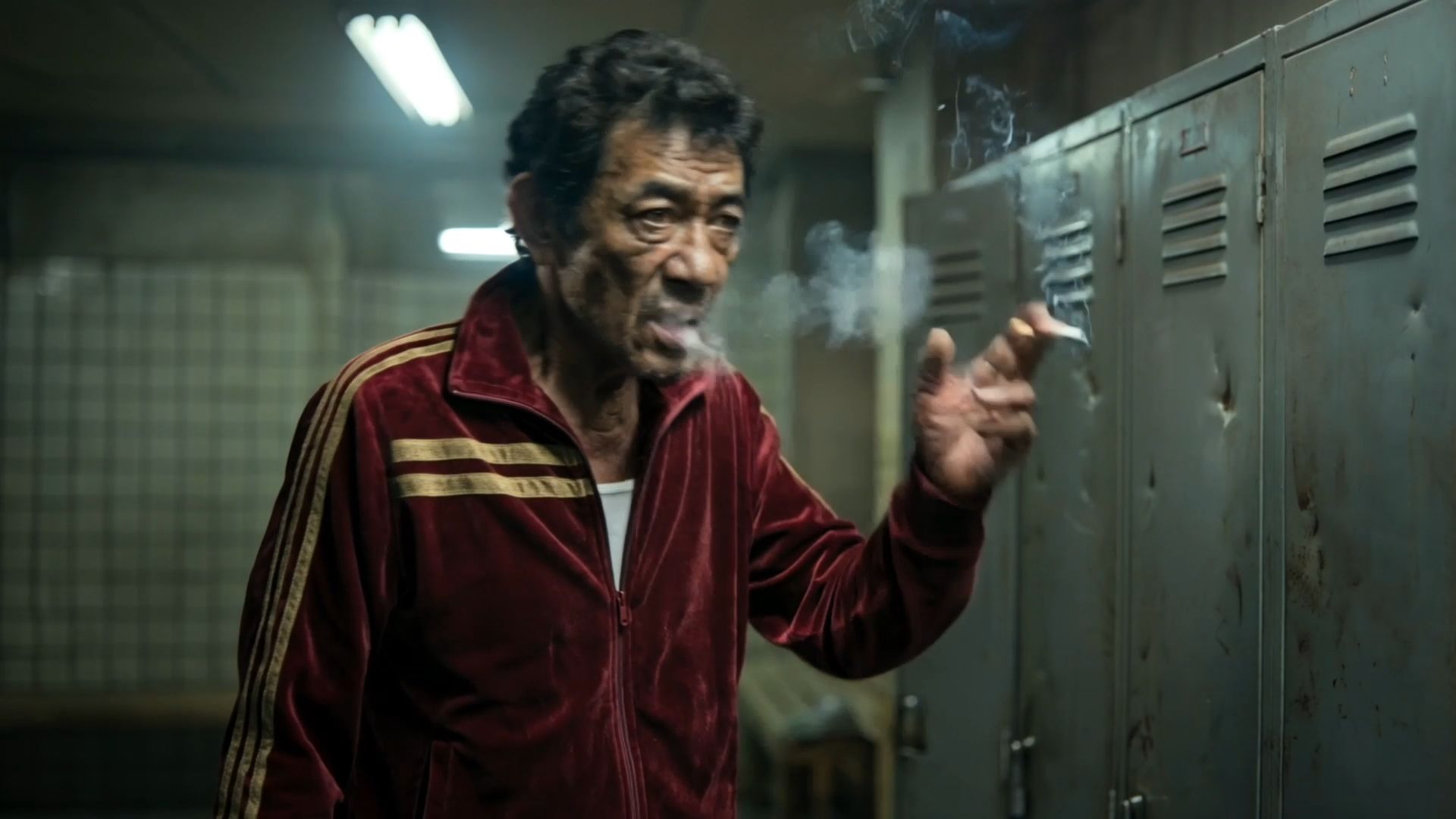
From Kling AI Creative Partner @Nigel Watson
|
VIDEO 3.0 Omni Model Pricing
VIDEO 3.0 Omni currently supports 1080p and 720p modes. The Credits required for using VIDEO 3.0 Omni depend on your input and the video length. Whether or not a video is provided will affect the generation cost.
| No Video Input | With Video Input | ||
| 1080p | 720p | 1080p | 720p |
Native Audio On | 12 Credits/s | 9 Credits/s | Not Supported Yet | Not Supported Yet |
Native Audio Off | 8 Credits/s | 6 Credits/s | 16 Credits/s | 12 Credits/s |
FAQ
Supported Input Materials
- Images: You can upload up to 7 images with a width and height of at least 300 px, file size ≤ 10MB, and formats .jpg / .jpeg / .png.
- Videos: You can upload one video with a duration between 3s and 10s, file size ≤ 200MB, and resolution ≤ 2k.
- Elements:
- 1. You can upload/use AI-generated images from multiple perspectives (up to 4) and combine them into one subject, providing richer reference information for the model. When the subject is a character type, you can also upload a 5-30s single-person speech audio (recommended: clean background noise, moderate speech speed, neutral voice with consistent emotion and style) to bind a voice tone to the character.
- 2. You can upload a 3-8s video clip of a single character to create a more vivid and informative video character element. The voice in the video can be bound as the character's voice tone.
Note: When a video is provided, a total of up to 4 images/elements can be uploaded. If no video is provided, up to 7 images/elements can be uploaded.
Video Editing, Prompt Transformation, and Other Features
The video editing, prompt transformation, and other features in 3.0 Omni function the same as in O1. For details, refer to the KLING VIDEO O1 User Guide