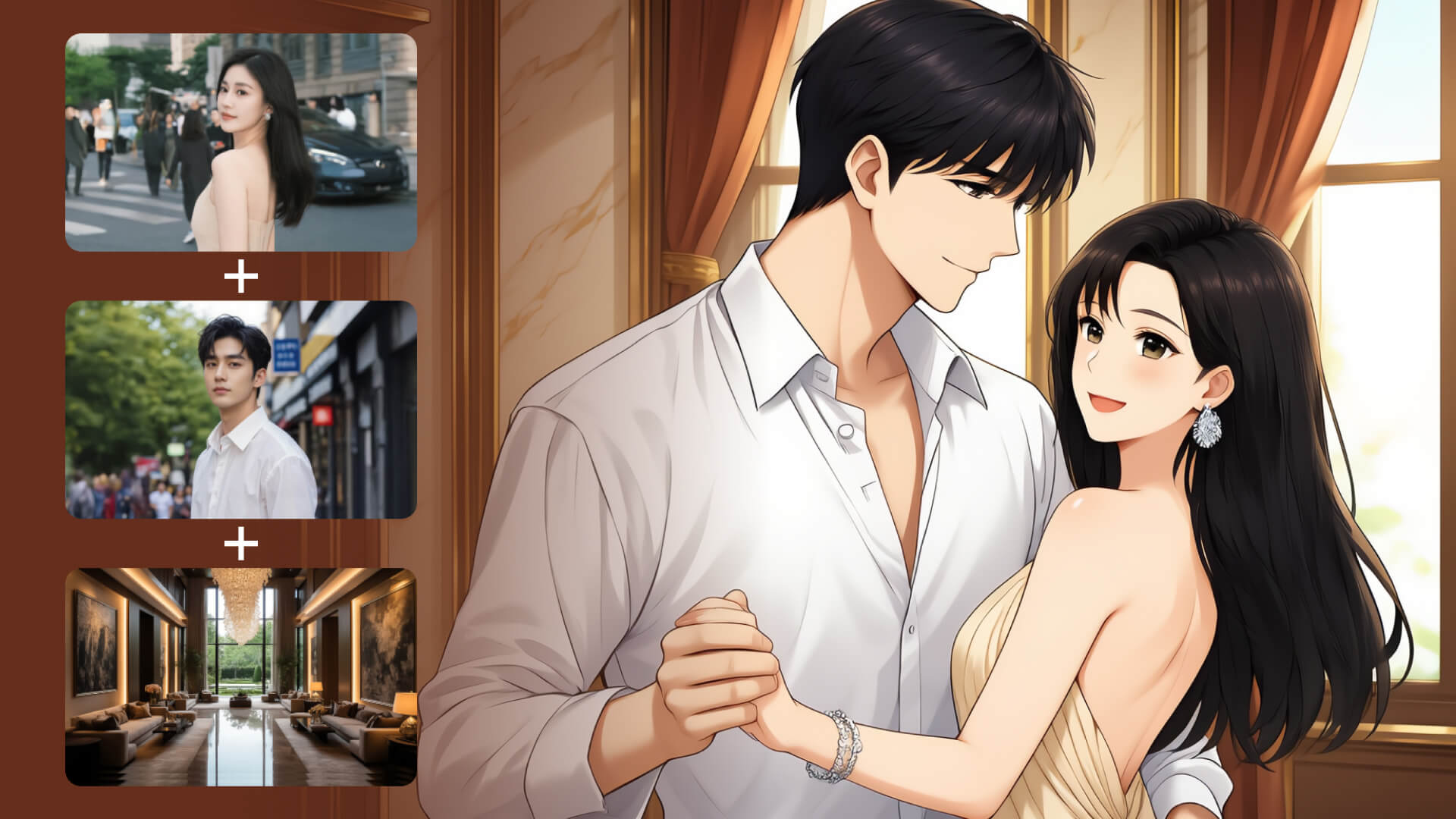
Welcome to Experience KLING VIDEO 2.6: Let's "See the Sound, Hear the Visual"
Previously, KLING's video models could only generate "silent visuals". Creators had to manually find voiceovers, add sound effects, and adjust the pace—an overly complex process that made it hard to achieve true immersion.
Now, the all-new VIDEO 2.6 Model is available: it generates visuals, natural voiceovers, matching sound effects, and ambient atmosphere in a single pass, bridging the worlds of "sound" and "visuals". Whether inputting text or uploading an image, you can instantly create a dynamic video that's complete, with sound, rhythm, and immersion—no more tedious editing.Compared to previous "silent" models, VIDEO 2.6 offers a comprehensive upgrade:
- No more "silent films": Visuals, voice, and sound effects are generated together, with seamless integration of camera rhythm and emotional tone, transforming content from "viewable" to "immersive".
- Full control over sound: Choose who speaks, what they say, and the emotion behind it. Generate ambient and special effects sounds freely, adjusting the pace and atmosphere to fit various creative needs.
- Effortless creation for beginners: No complex operations required—just input text or images, and the system will automatically handle sound and visual details. Ideal for content creators and small studios to quickly produce professional videos.
1. KLING's First "Native Audio" Model is Now Live!
With the VIDEO 2.6 Model, we are introducing the "Native Audio" feature for the first time: a single generation that simultaneously produces video visuals and complete audio, including voiceovers, sound effects, and ambient sounds. This feature achieves seamless coordination in rhythm, emotion, and narrative expression, delivering a true "see what you hear" audio-visual experience.
This upgrade focuses on:
Audio-Visual Coordination: Voice rhythm, ambient sounds, and visual actions are closely aligned, eliminating the disconnect between "visuals and separate audio."
Audio Quality: Supports various sound types such as voice, sound effects, and ambient sounds, with cleaner sound quality and richer layers, closely mimicking real mixing effects.
Semantic Understanding: Strong semantic comprehension of text descriptions, spoken language, and complex storylines in different contexts, ensuring more accurate interpretation of creator intentions and delivering content that better meets needs.
For the creation process, KLING 2.6 provides two efficient creation paths centered around the core need of "fast audio-video content generation from text/images".
Text-to-Audio-Visual: From a sentence to a complete audio-visual video. | Image-to-Audio-Visual: Bring static images to life with sound and motion. | ||||
Input text to generate a video with voiceovers, sound effects, and ambient sounds. | Upload images/text to instantly create audio-visual content, perfect for expanding existing images into full audio-visual experiences. | ||||
Supported Audio Types | |||||
Voice Narration
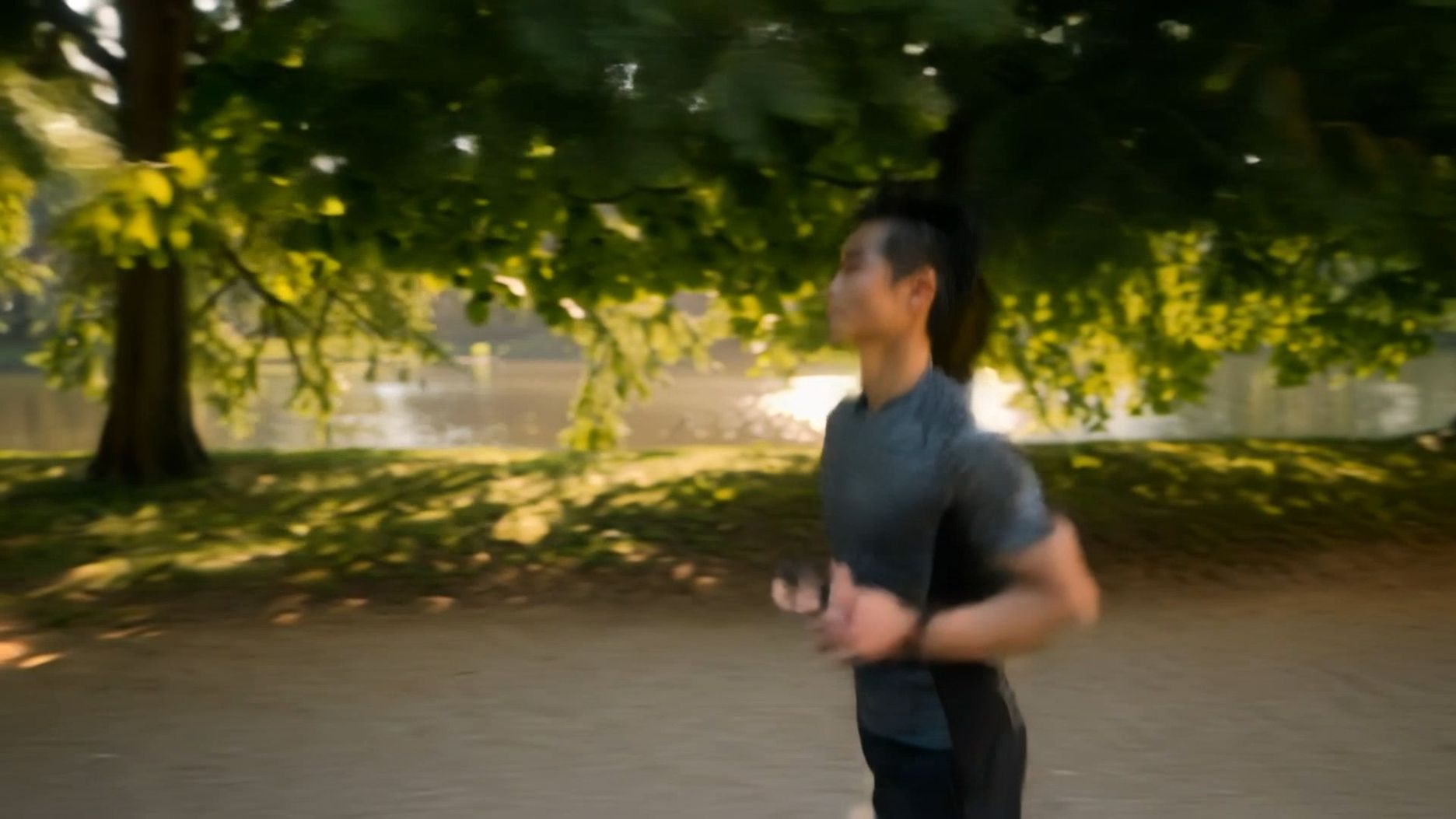
| Dialogue | Singing/Rap | Ambient Sound Effects | Object/Action sound effects | Mixed Sound Effects |
Character voice narration | Multi-person voice dialogue | Characters singing or rapping with lyrics | Background sounds like wind, ocean waves, street noise, traffic | Sounds like glass breaking, footsteps, knife slicing, machine rumble | A combination of voice, background sounds, and sound effects for an immersive audio-visual experience. |
  | 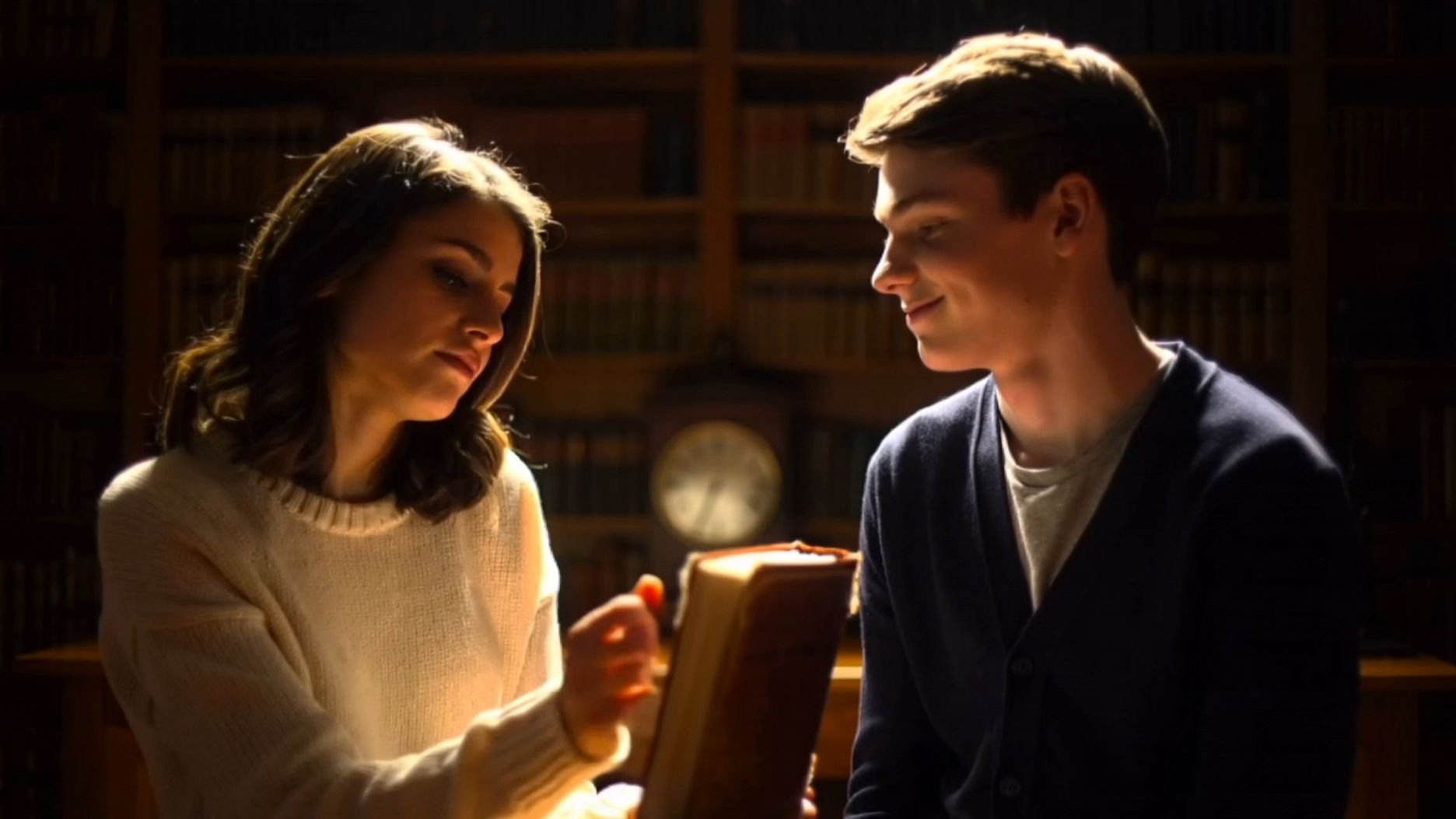 | 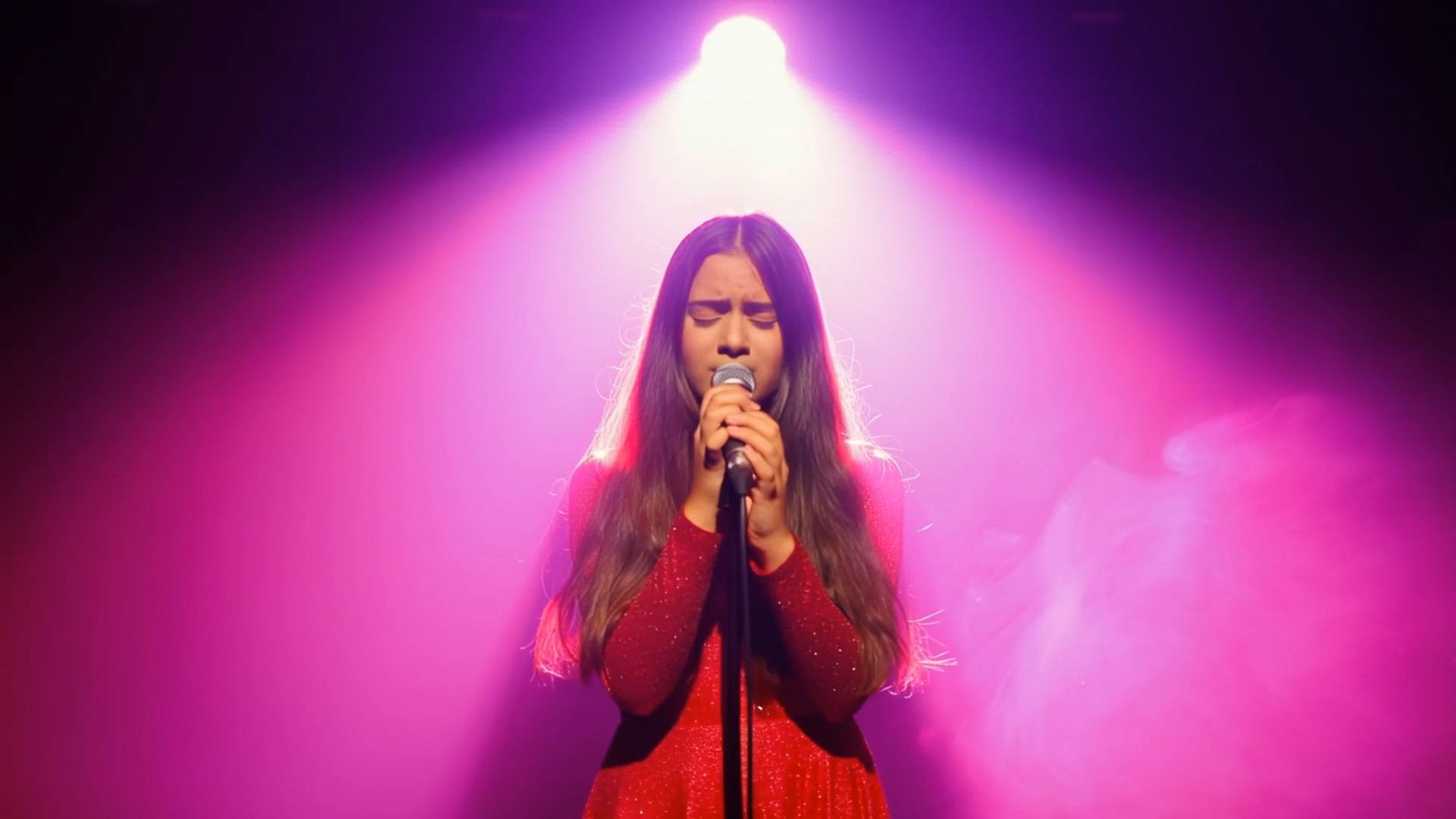 | 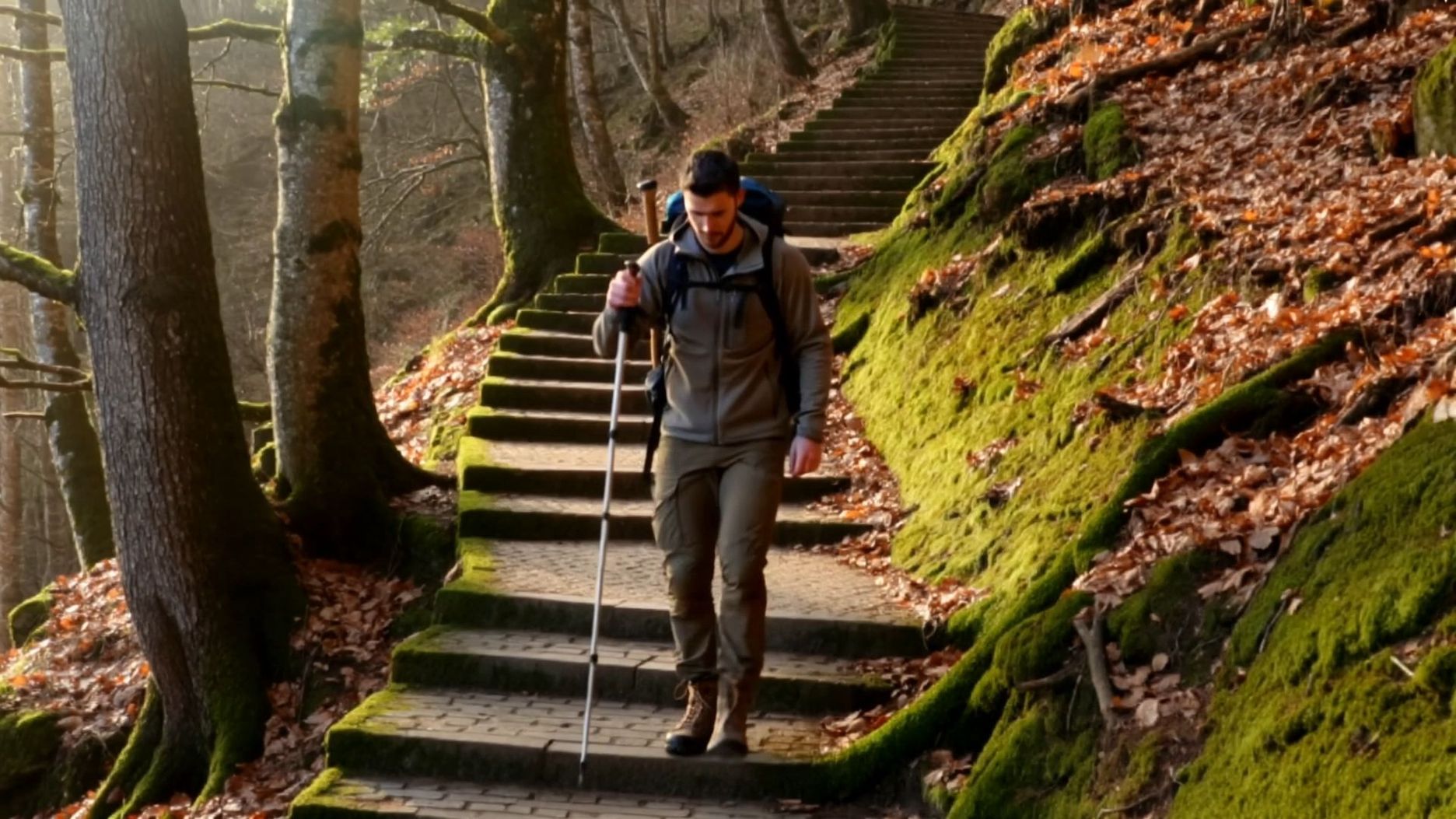 | 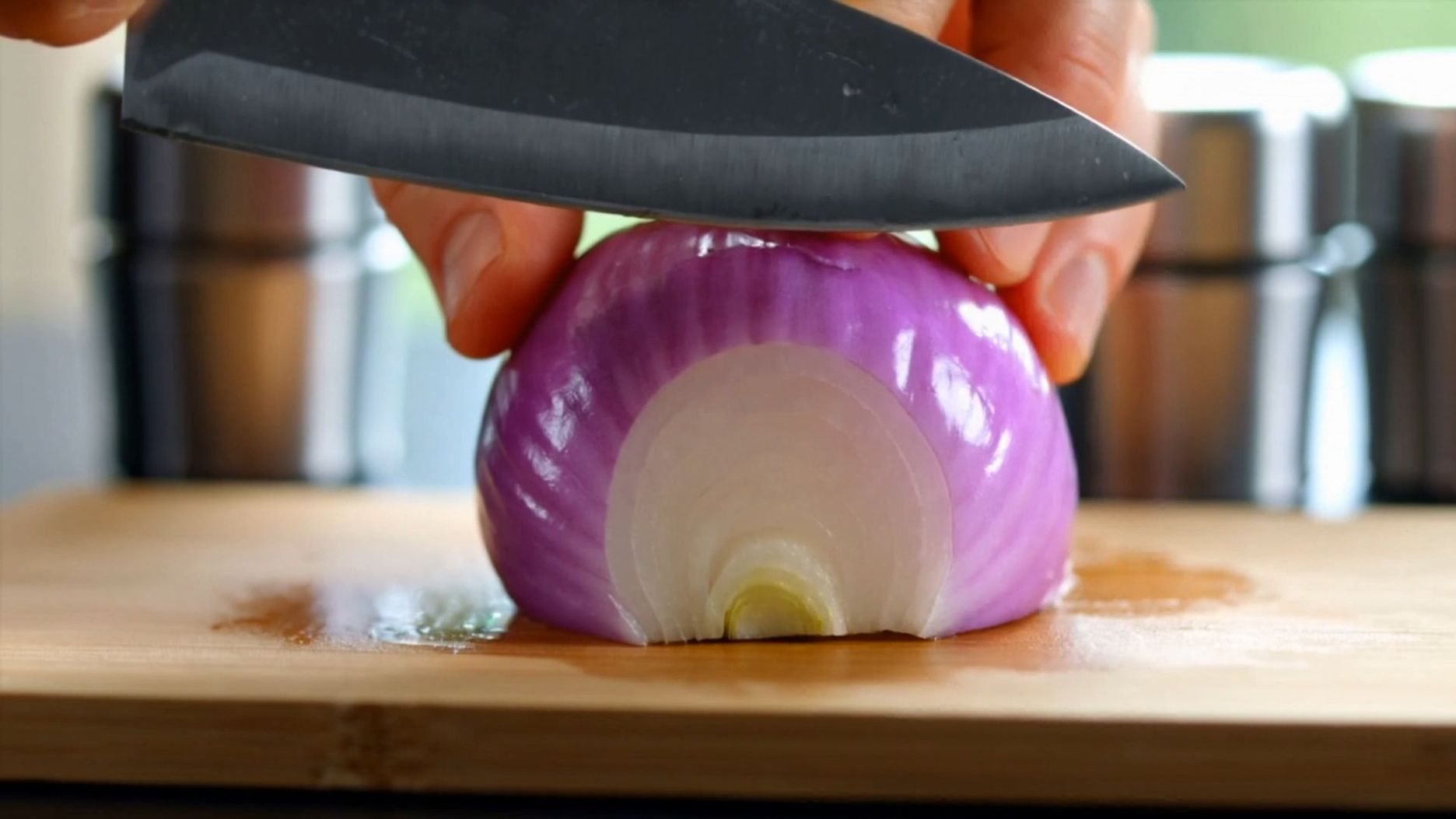 |  |
2. Platform Features User Guide
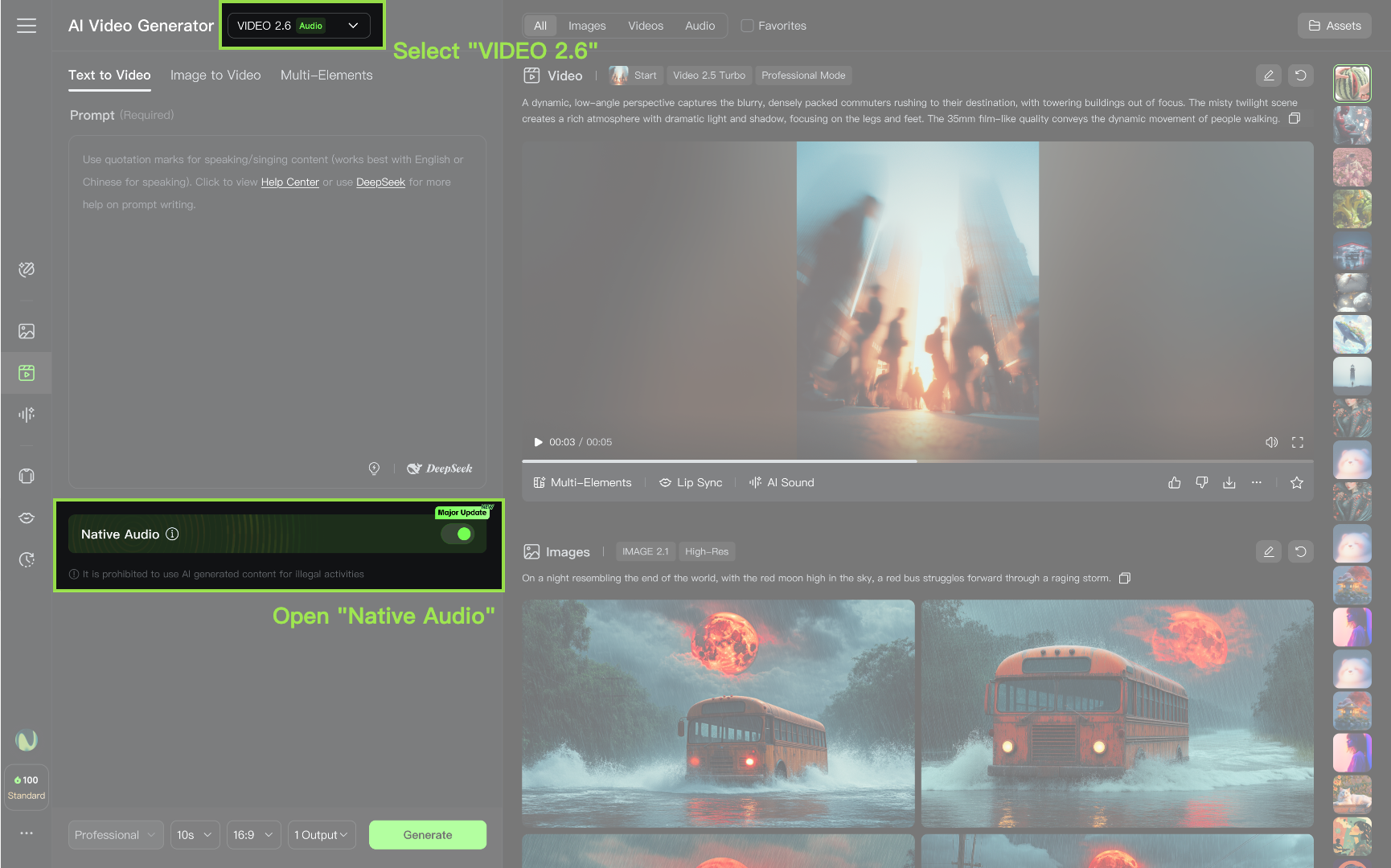
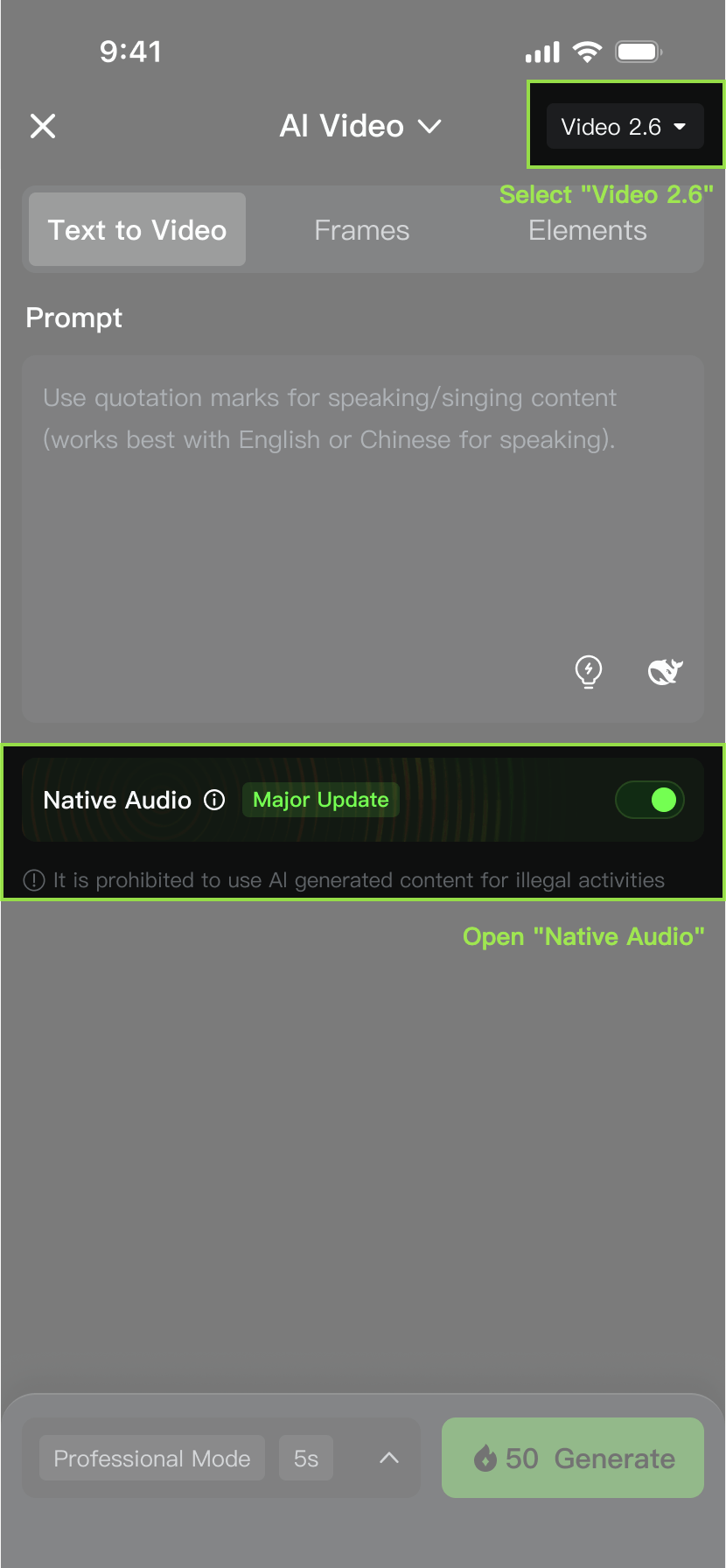
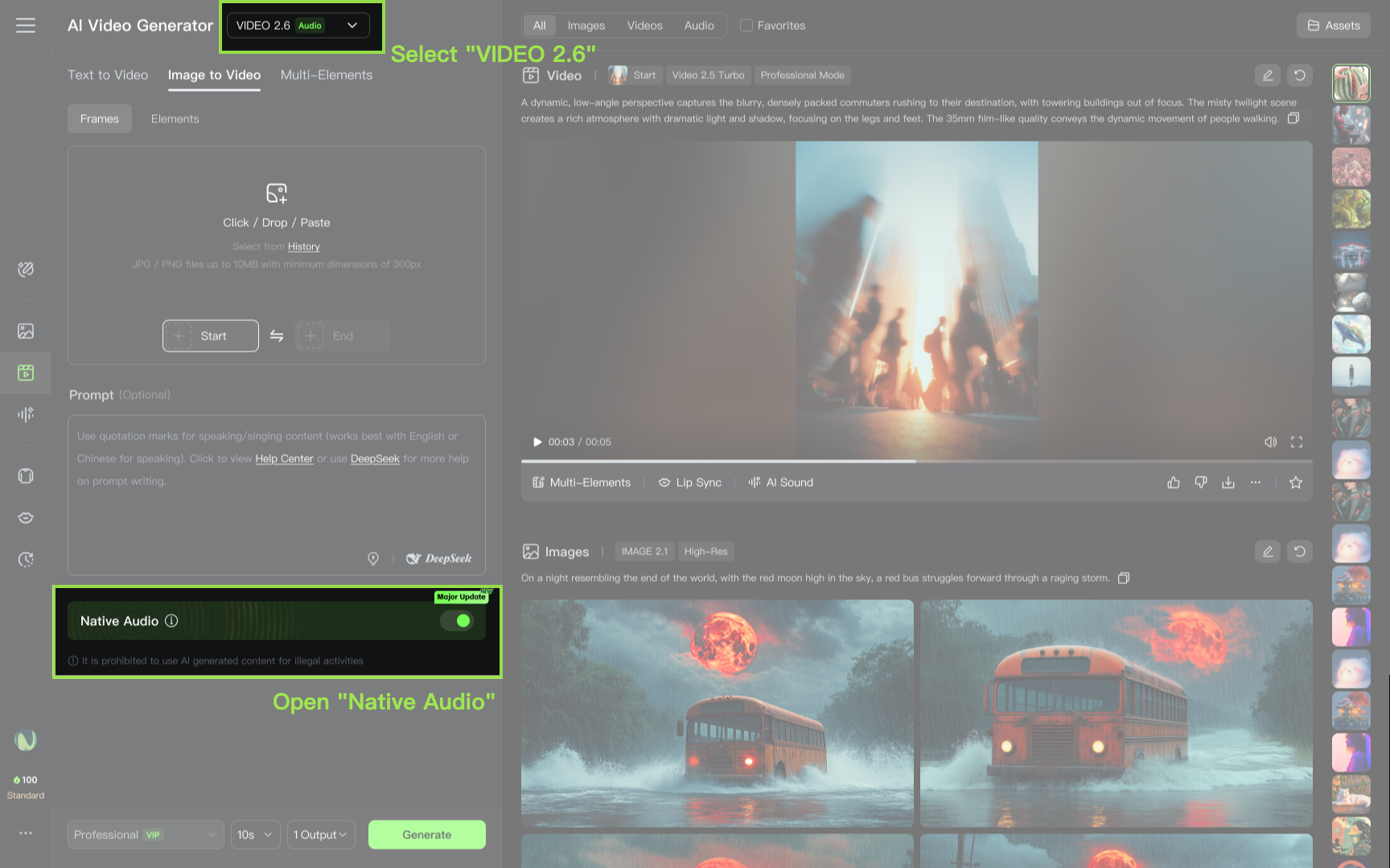
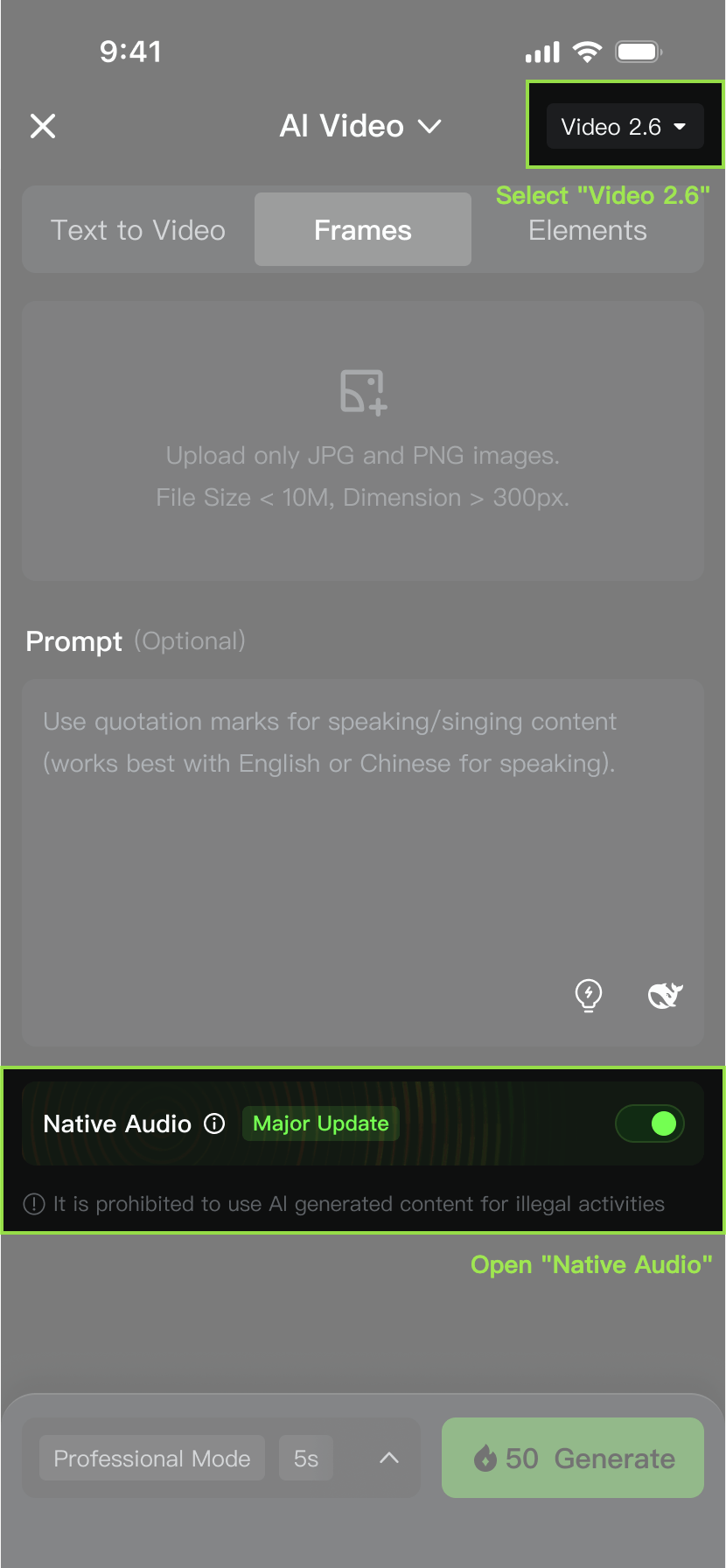
- This model supports both web and app platforms, allowing easy video generation on both devices. The final video output is determined by the prompt, input image (image-to-audio-visual), and parameter settings:
- Prompt: Describes the content, scene, and actions you want to present.
- Input Image (Image-to-Audio-Visual): Specifies the subject's appearance, composition, style, and other visual features, making the generated video closer to the original image.
- Native Audio Toggle: When enabled, the video will generate with synchronized audio; when disabled, it generates video content without audio.
- Parameter Settings: Controls the video generation method and basic attributes.
Text-to-Audio-Visual - Interface | Image-to-Audio-Visual - Interface | ||
|
|
|
|
Parameter Settings | |||
|
| ||
Notes | |||
| |||
3. What Can the VIDEO 2.6 Model Do?
VIDEO 2.6 supports various sound types, including speech, dialogue, narration, singing, rap, ambient sound effects, and mixed sound effects. Below, we outline the model's capabilities to help you quickly understand its creative potential.
3.1 Solo Monologue
Capability: The character speaks directly to the camera with natural emotion and synchronised lip movements.
Applicable Scenarios: Product showcases, lifestyle vlogs, news broadcasts, public speaking.
| Product Showcase: Display products and highlight key selling points. Clear speech, natural tone, and a match to the product's atmosphere are key. | |
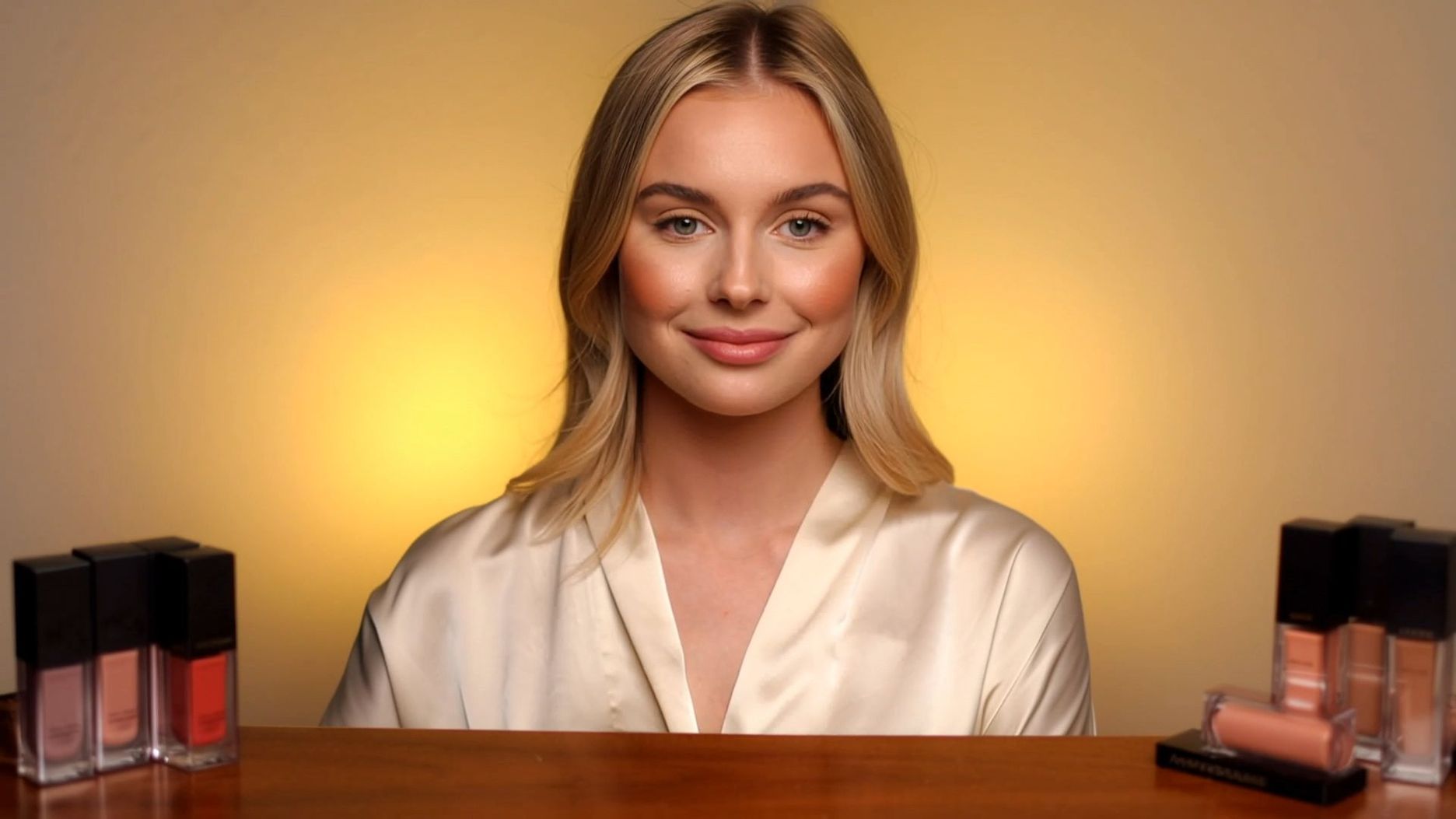 In a beauty live-streaming room, warm yellow lighting illuminates the table, with lipstick samples displayed on either side.[Caucasian beauty influencer] raises a matte dusty rose lipstick. [Caucasian beauty influencer, sweet and fresh voice] says: "Perfect for yellow undertones! Brightens the complexion without drying, and the finish looks beautifully soft all day." Background: Soft beauty BGM playing. | 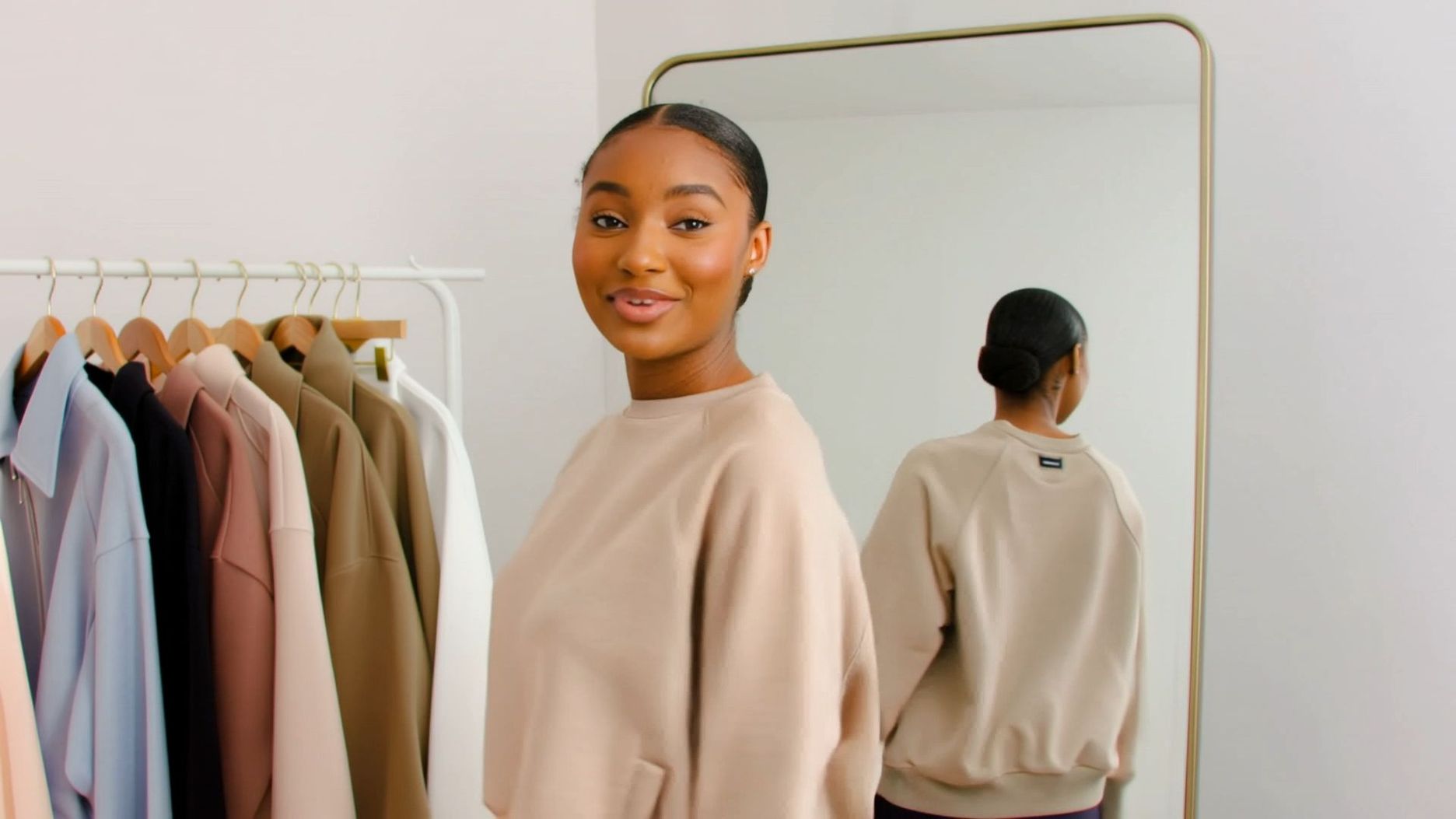 Visual: In a fashion live-streaming room, clothes hang on a rack, and a full-length mirror reflects the host's figure. Dialog: [African-American female host] turns to show off the sweatshirt fit. [African-American female host, cheerful voice] says: "360-degree flawless cut, slimming and flattering." Immediately, [African-American female host] moves closer to the camera. [African-American female host, lively voice] says: "Double-sided brushed fleece, 30 dollars off with purchase now." |
| Lifestyle Vlog: Showcasing easy, natural moments from daily life. | |
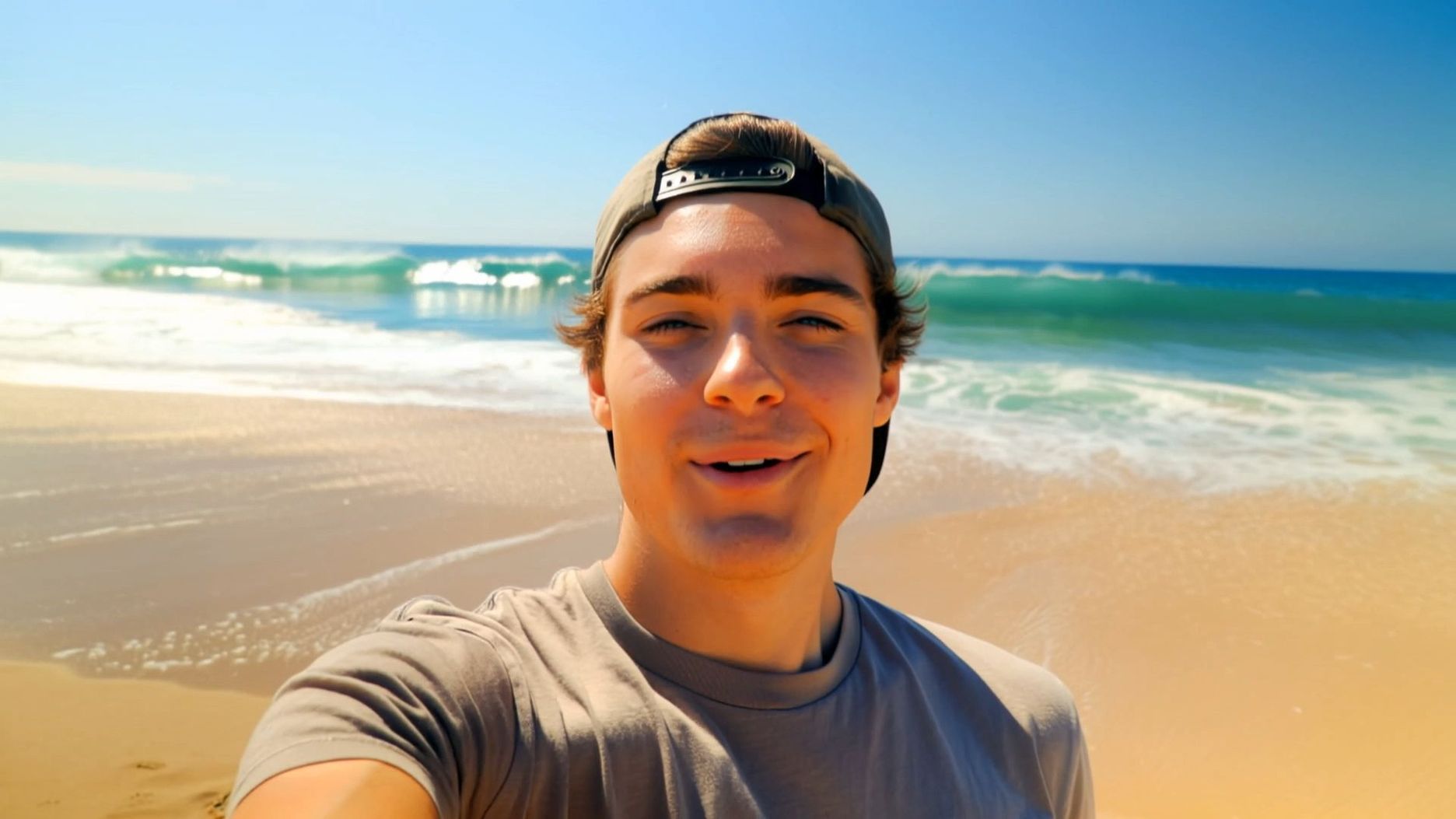 On the beach, the waves crash against the shore. [Young Caucasian male] wearing a backward baseball cap, holding a camera and taking a selfie, with a smile at the corner of his mouth. [Young Caucasian male, sunny voice] says: "The weather is amazing today! All my worries feel totally gone. I've been needing a day like this—sun, breeze, just the sound of the waves." The camera is in vlog close-up style. | 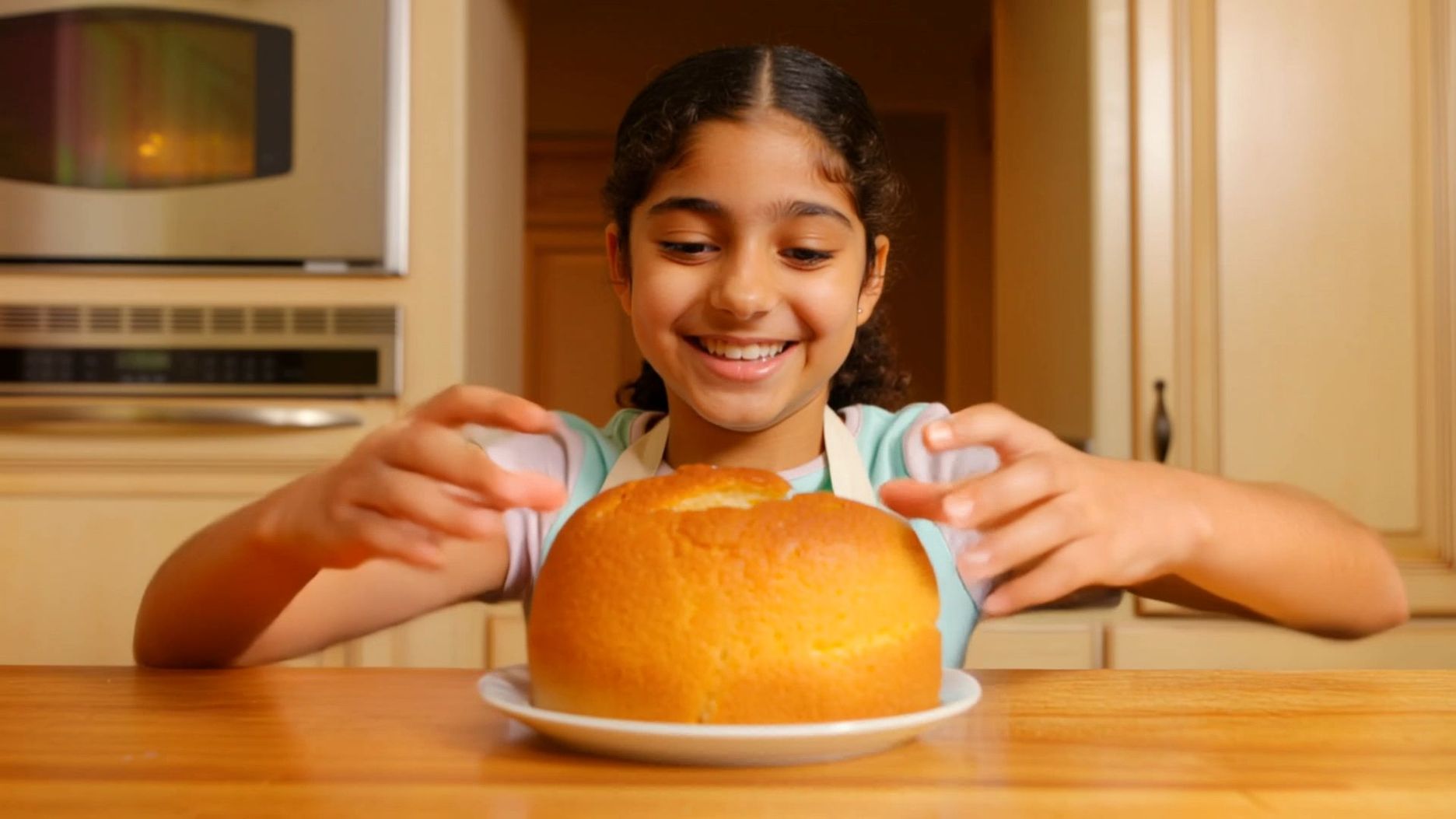 In a kitchen, the oven door is half open, revealing a golden chiffon cake resting on the table. [Latina girl] gently breaks the cake with her hands (cake crumbs fall off), her eyes shining with excitement. [Latina girl, proud and sweet voice] says: "My first success. Look at that crumb!" Background: Upbeat BGM plays. |
| News Reporting: Emphasizes professionalism, formality, and stable tone. | |
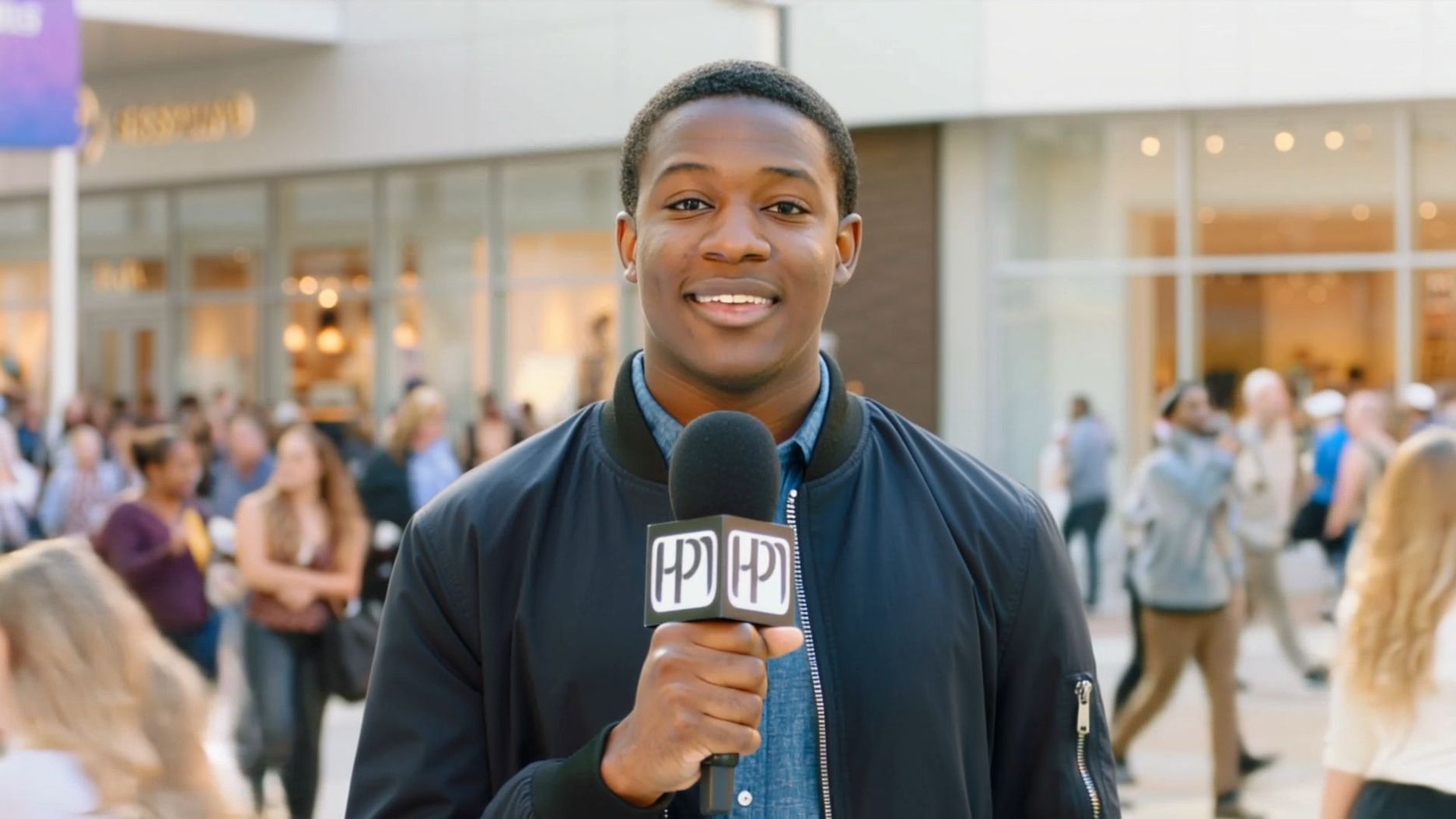 Visual: In front of an outdoor shopping mall, a crowd gathers, cheering. Dialog: [African-American male reporter] stands next to the crowd, holding a microphone, his body slightly turned. [African-American male reporter, steady voice] says: "Now we can see the atmosphere here is absolutely electric. Let's go check it out together! There's so much happening all at once." Background: Cheerful crowd noises and event BGM, with occasional close-ups of the event. | 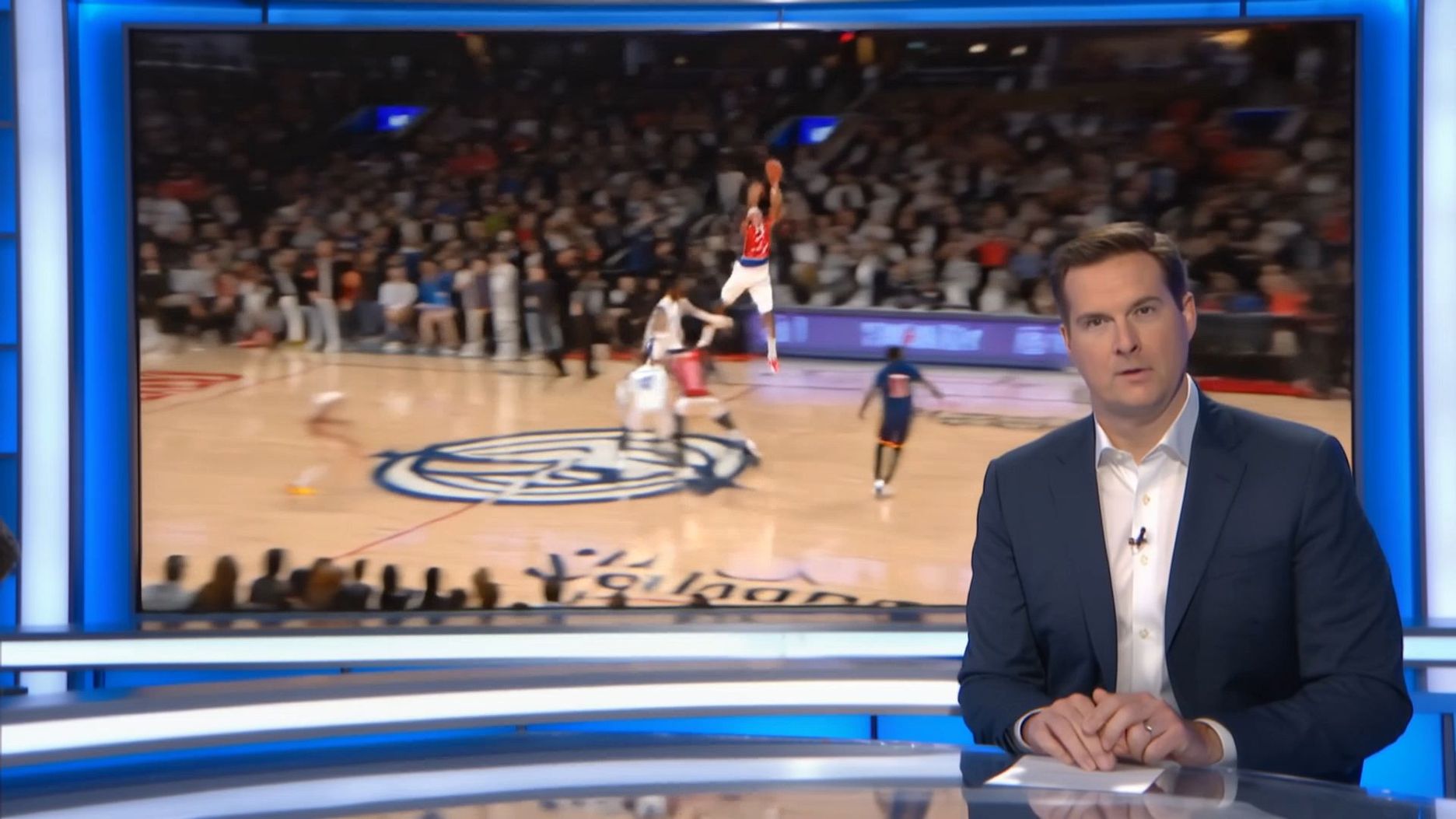 In a sports news studio, the screen behind the sports anchor is showing a basketball game replay.[Sports anchor] sits behind the news desk, tapping his fingers lightly on the table. [Sports anchor, clear and strong voice] says: "Look at this clutch play! He stepped up when it mattered most, hitting the shot that decided the championship! This game-winning shot sealed the victory outright." Background: Cheers from the live game, with the camera focusing on the sports anchor's face. |
| Public Speaking: Shows strong, persuasive delivery. | |
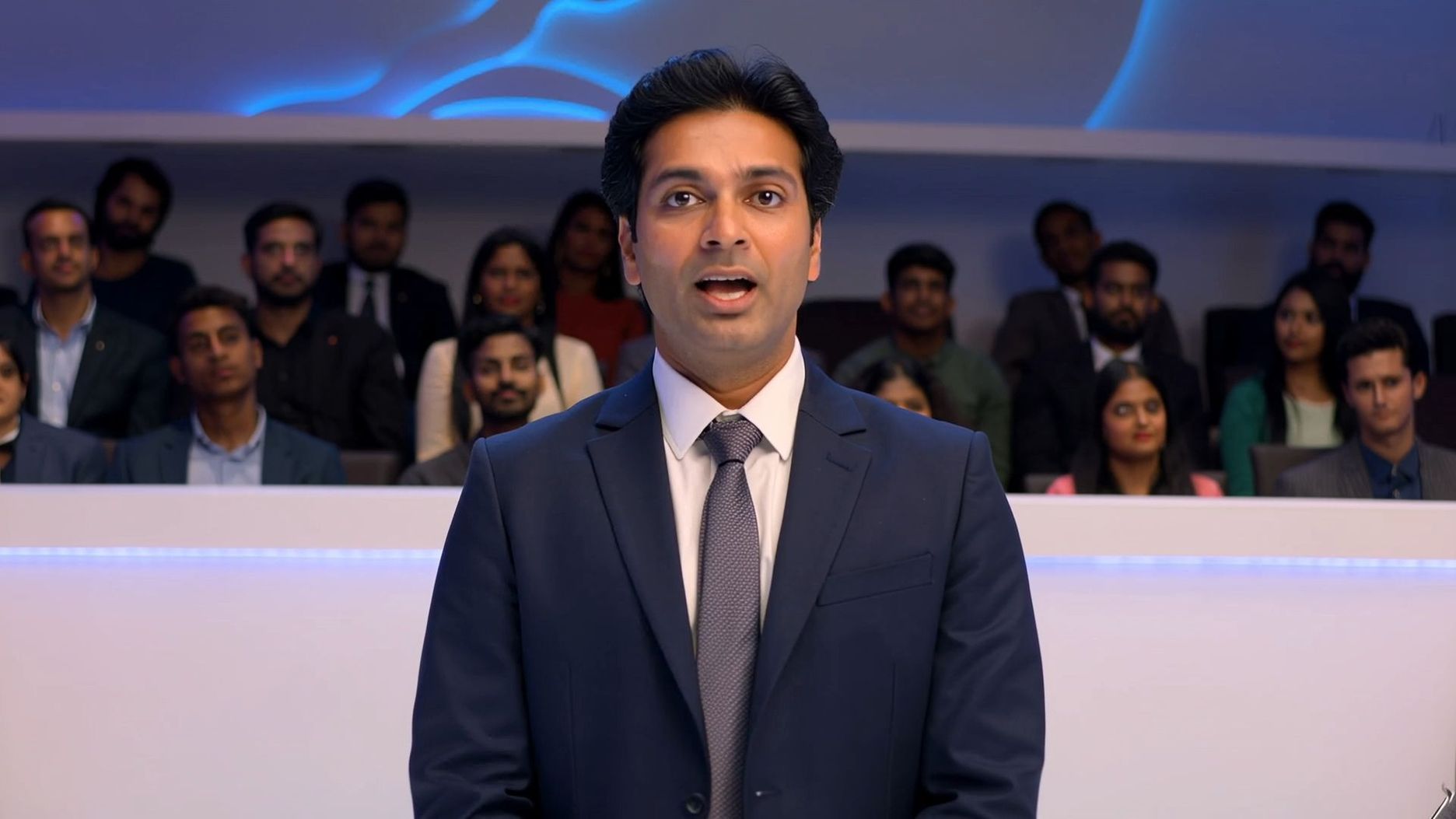 The main venue of an international tech summit, with delegates from various countries filling the seats. [Indian entrepreneur] stands at the center of the stage. [Indian entrepreneur] gazes steadily at the audience, his hands naturally hanging by his sides. [Indian entrepreneur, loud voice] says: "A decade ago, the world saw India through call centers." After a brief pause, he extends his hands upward. [Indian entrepreneur, passionate voice] says: "Now, Indian innovation is reshaping the world with tech!" The camera slowly zooms in on the Indian entrepreneur's face, and as he finishes his speech, he joins his hands together in a prayer gesture. The audience bursts into applause. | 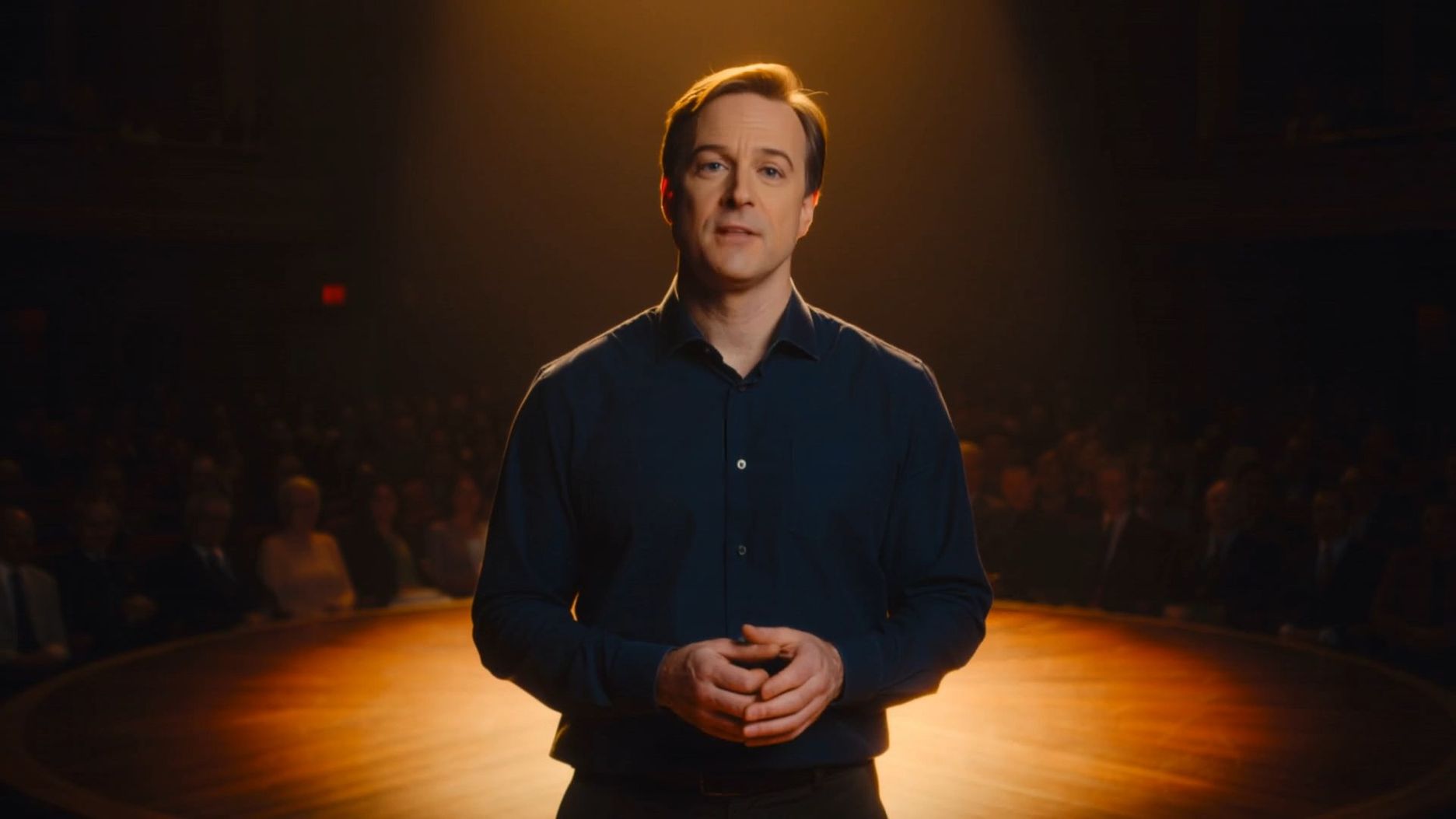 Visual: A TED-style circular stage, with the speaker sitting, and the audience hidden in the shadows. Dialog: [Speaker] leans slightly forward, resting his hands lightly on the podium. [Speaker, sincere and gentle voice] says: "Your biggest limitation isn't your ability; it's the story you tell yourself about your ability." Background: Light chuckles from the audience followed by applause, with the camera holding a slow, subtle zoom in on the speaker in mid-close-up. |
3.2 Narration
Capability: Off-screen voice narrating, explaining, or commenting on visuals.
Applicable Scenarios: Product explanations, event commentary, documentaries, storytelling.
| Product Explanation: Static visuals + professional narration, ideal for e-commerce videos. | |
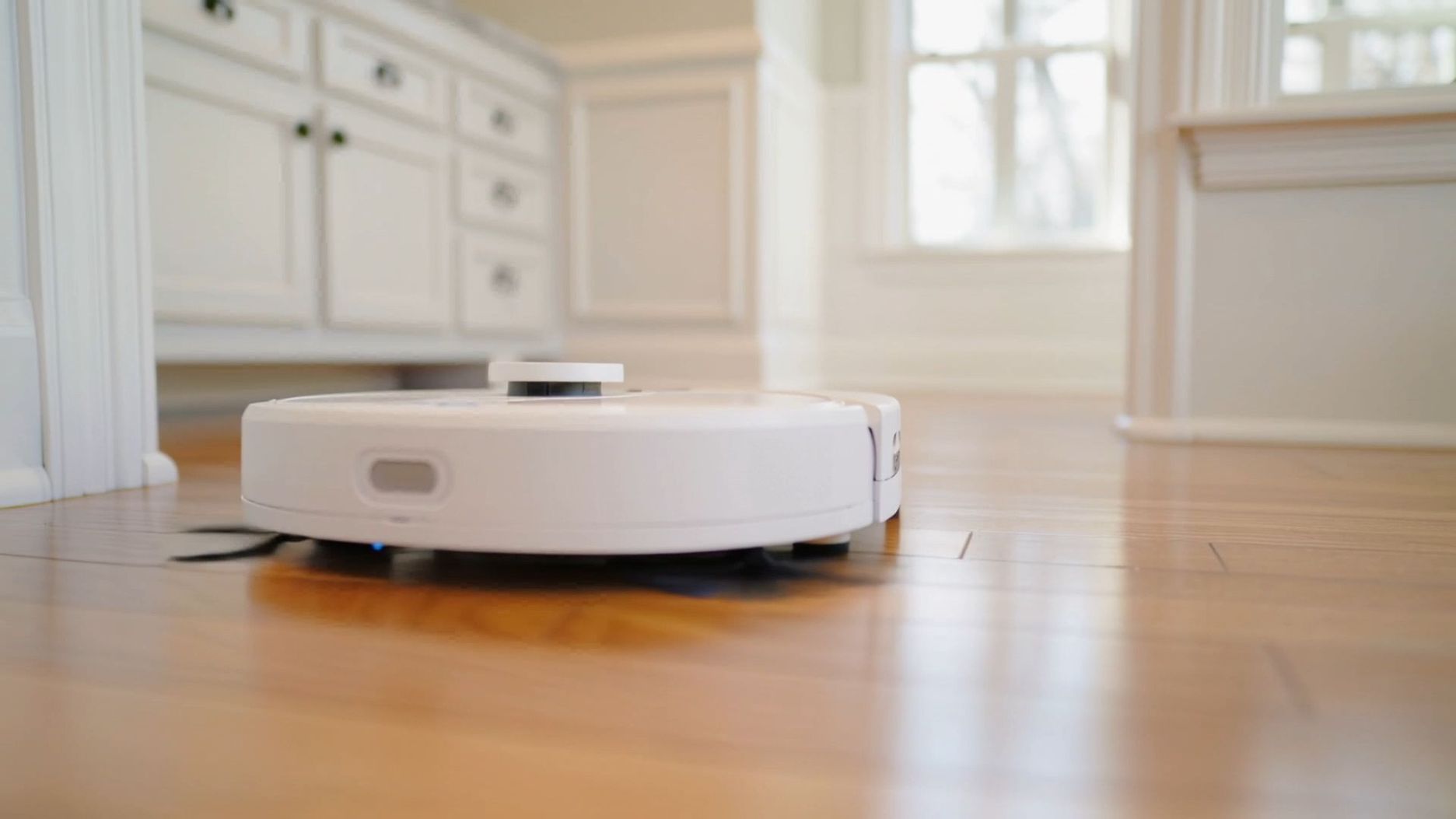 Visual: In a tidy living room, a white robotic vacuum sits in the center, with no clutter around it. Dialog: [Narrator, soft female voice] accompanied by the gentle sound of vacuuming: "Are you still troubled by dust in hard-to-reach corners? This robotic vacuum features edge-to-edge cleaning, leaving no gaps behind—making your life easier and effortless!" The camera closely follows the vacuum's path as it cleans. | 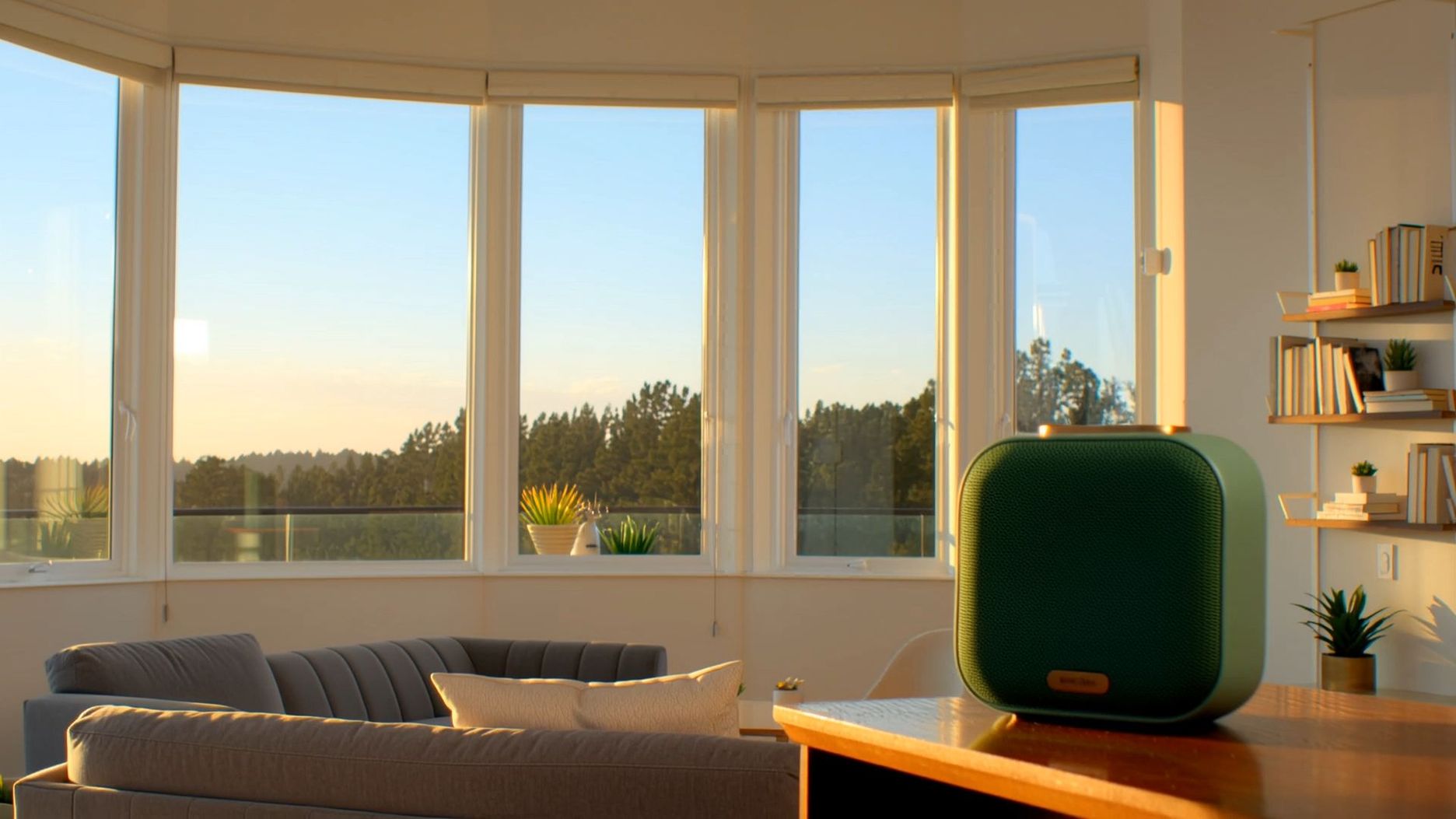 Visual: On a bright weekend morning, the living room is filled with light, and a vintage green Bluetooth speaker rests on the coffee table. Dialog: [Young Caucasian man] walks over to the speaker with a coffee cup in hand, gently tapping the switch. [Young Caucasian man, casual voice] says: "Good morning. With 360-degree surround sound, you can enjoy rich, full music from anywhere in the room." After speaking, the young man walks away, and the camera focuses on the speaker. |
| Event Commentary: Requires dynamic pacing and event atmosphere. | |
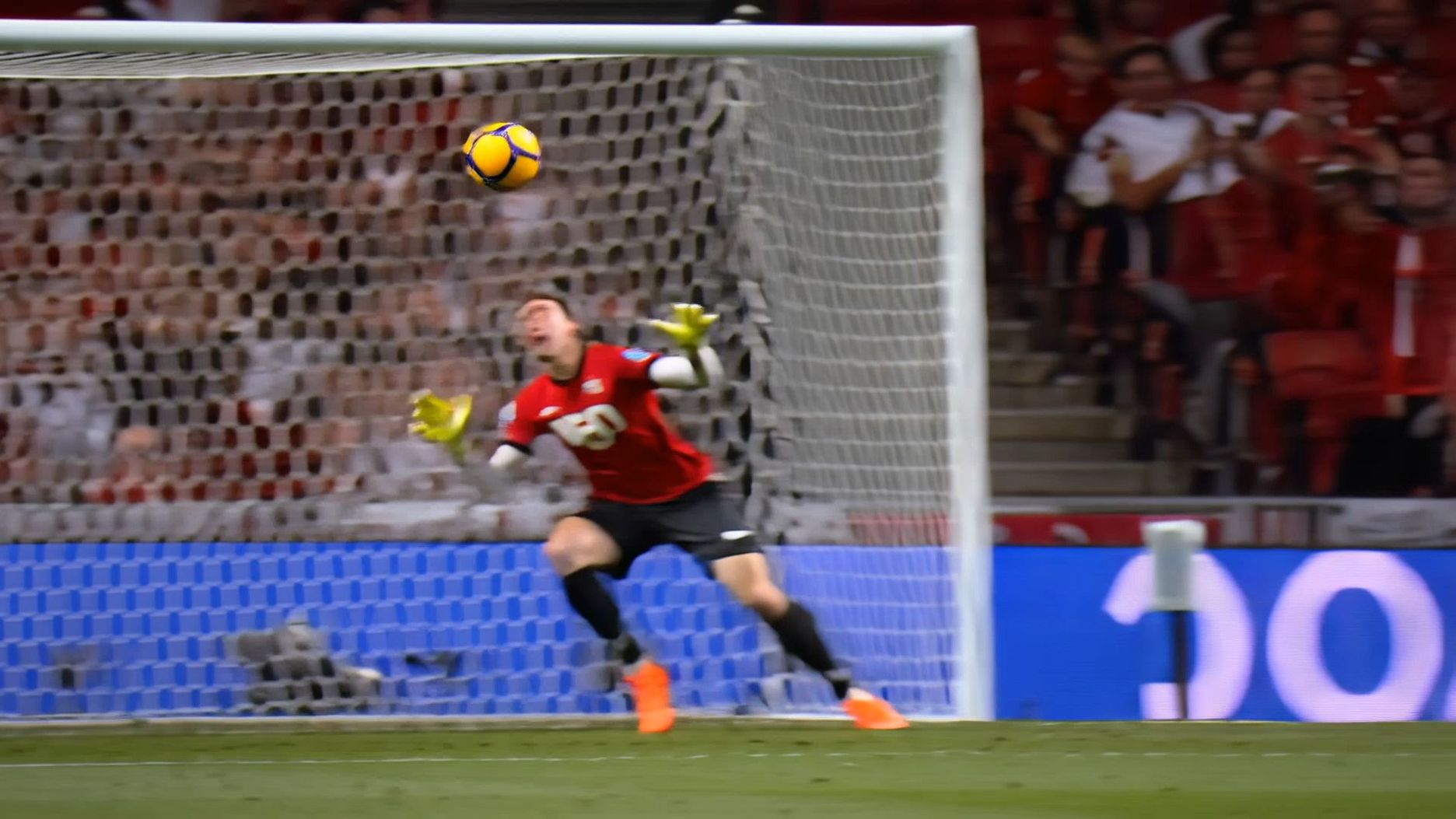 Visual: At the World Cup final, the lights are dazzling, and the stands are roaring with excitement. Dialog: (No characters, just narration) [Narrator, excited male voice] as the ball hits the net: "The game is over!" Background: Fans erupt in cheers, and the camera captures the moment the ball enters the net from the goalkeeper's perspective. | 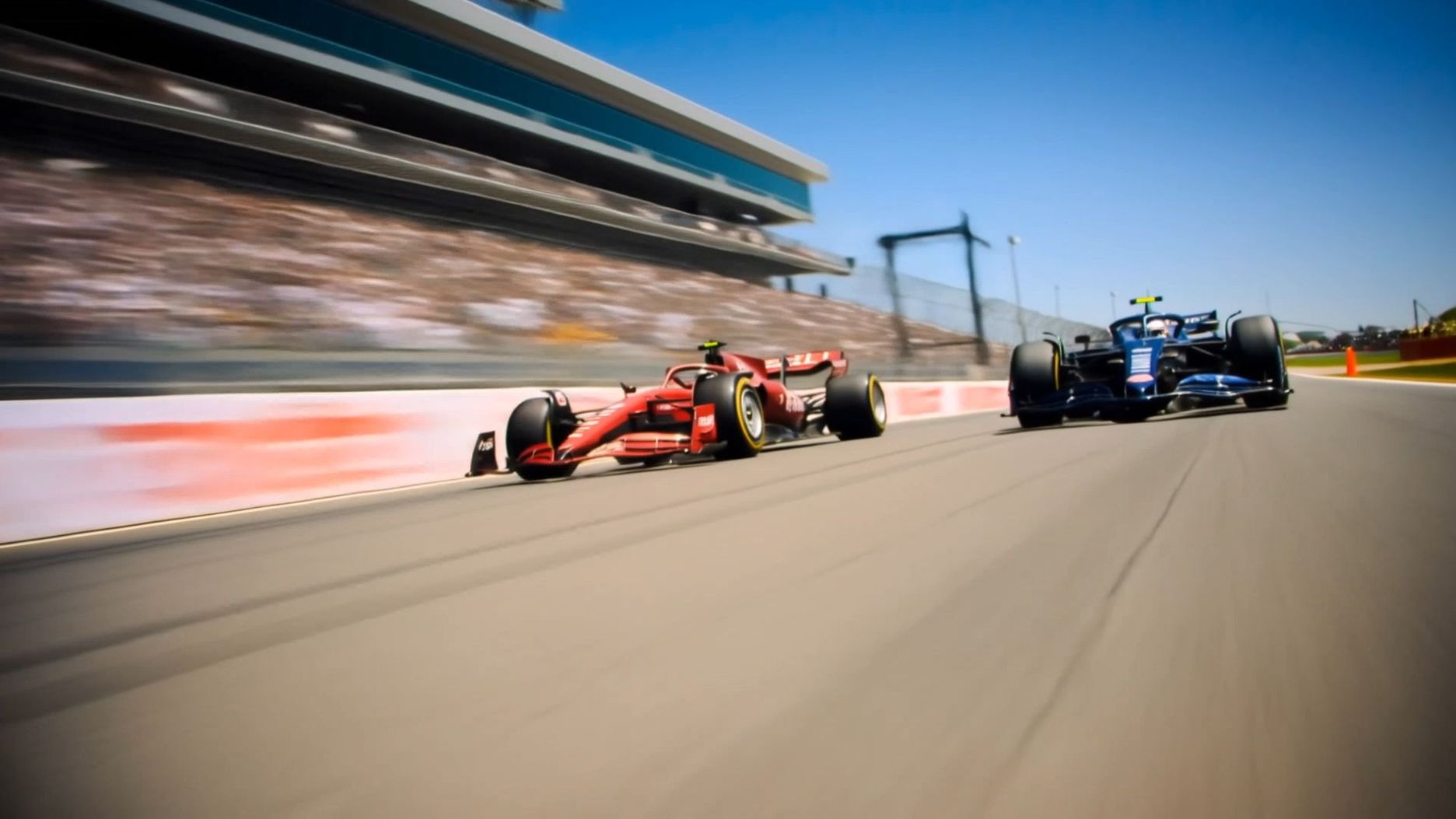 In front of the main grandstand at an F1 racetrack, the cars zoom by. [Narrator, excited male voice] says: "Final lap! He's on the inside! Oh, what a move! They are side by side to the line! Unbelievable!" Background: The roar of engines and the screech of tires, with the camera following the two cars nearly side by side. |
3.3 Multi-Character Dialogue
Capability: Interaction between multiple characters with natural tone switching.
Applicable Scenarios: Interviews, scripted performances, casual dialogue, comedy skits.
| Interview Show: Two people sit down for an interview with natural tone switching. | |
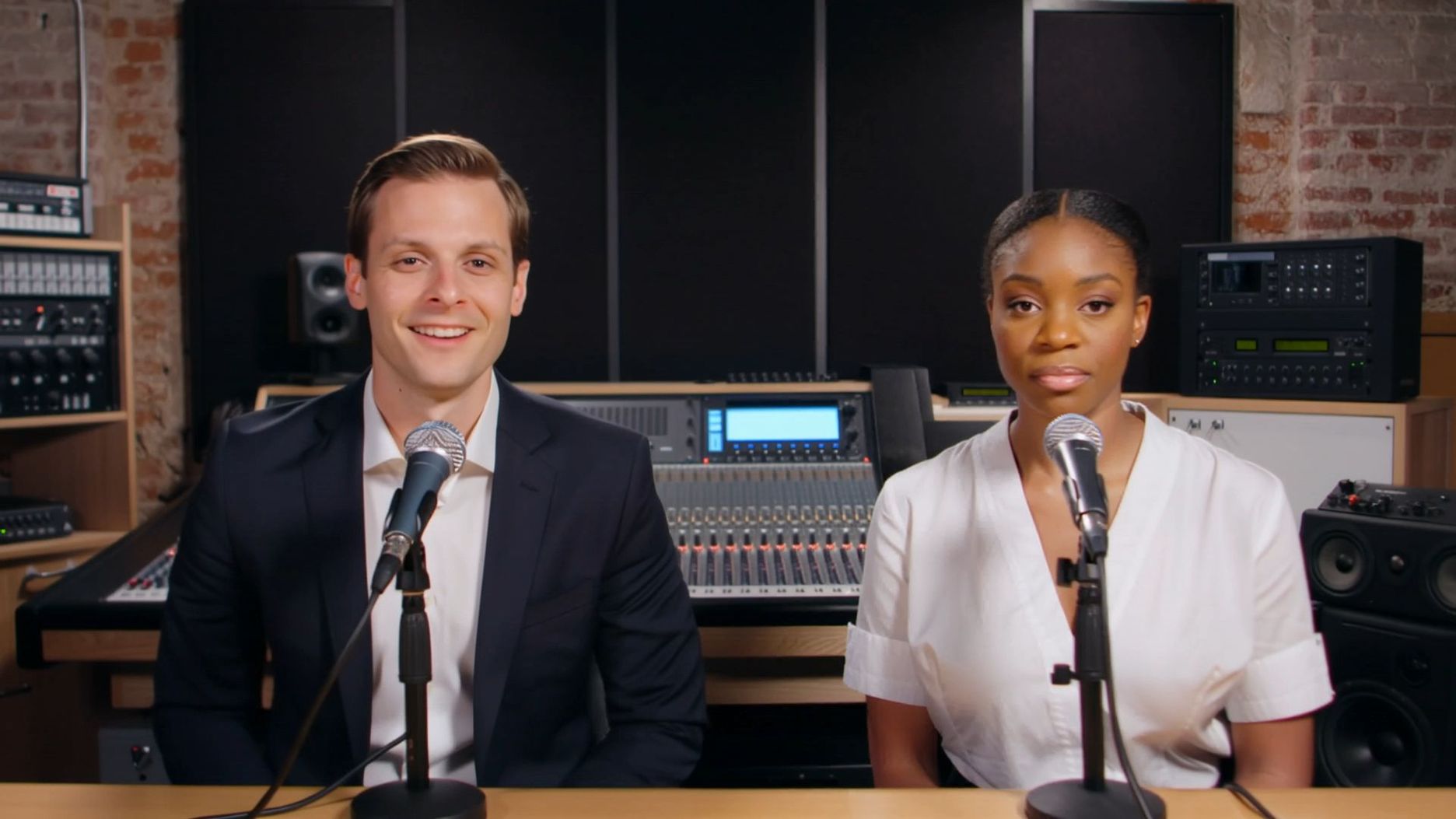 Visual: A modern industrial-style recording studio with brick walls covered in soundproof panels, equipment neatly arranged. Dialog: [Caucasian male host] sits in front of the microphone, slightly leaning forward. [Caucasian male host, steady voice] says: "Today we're excited to have Dr. Sarah Miller from Stanford AI Lab. Sarah, your research on neural networks is groundbreaking." During this, [African-American female guest] remains silent. Immediately, [African-American female guest] raises her chin slightly, holding the microphone. [African-American female guest, gentle voice] says: "Thank you for having me." During this, [Caucasian male host] remains silent. | 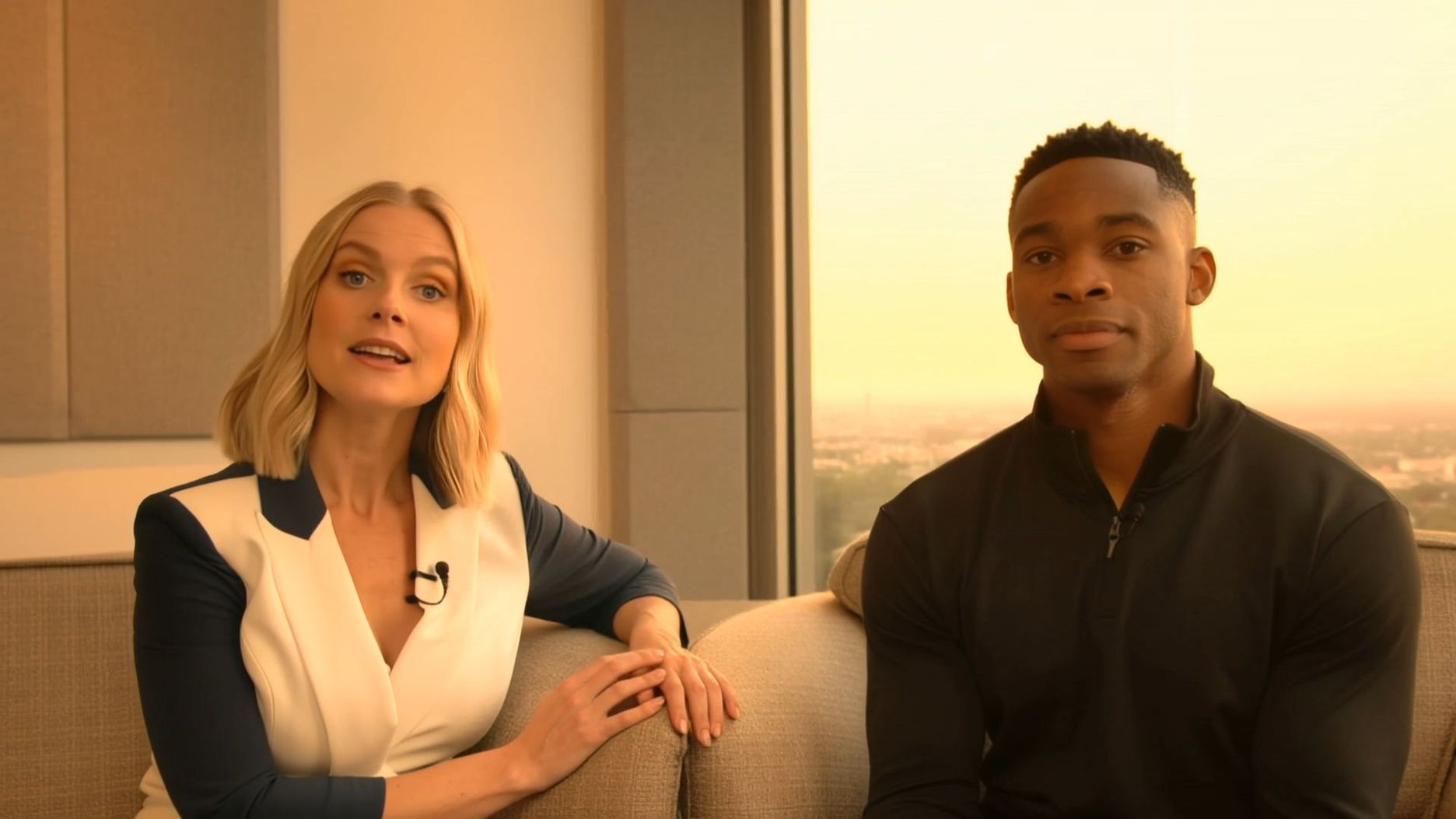 A modern podcast studio in Los Angeles, with a warm yellow filter wrapping around a beige fabric sofa. [Caucasian female host] looks at the camera, her fingers gently resting on the armrest of the sofa. [Caucasian female host, sweet voice] says: "The Santorini sunset in Greece is absolutely breathtaking! Highly recommend adding it to your bucket list." During this, [African-American male host] remains silent. Immediately, [African-American male host] nods slightly. [African-American male host, gentle voice] says: "Exactly, that's the perfect spot to unwind and escape the daily grind." During this, [Caucasian female host] remains silent. The camera focuses on the interaction between the Caucasian female host and the African-American male host. |
| Scripted Performance (Short Play): For short stories and emotional dialogue. | |
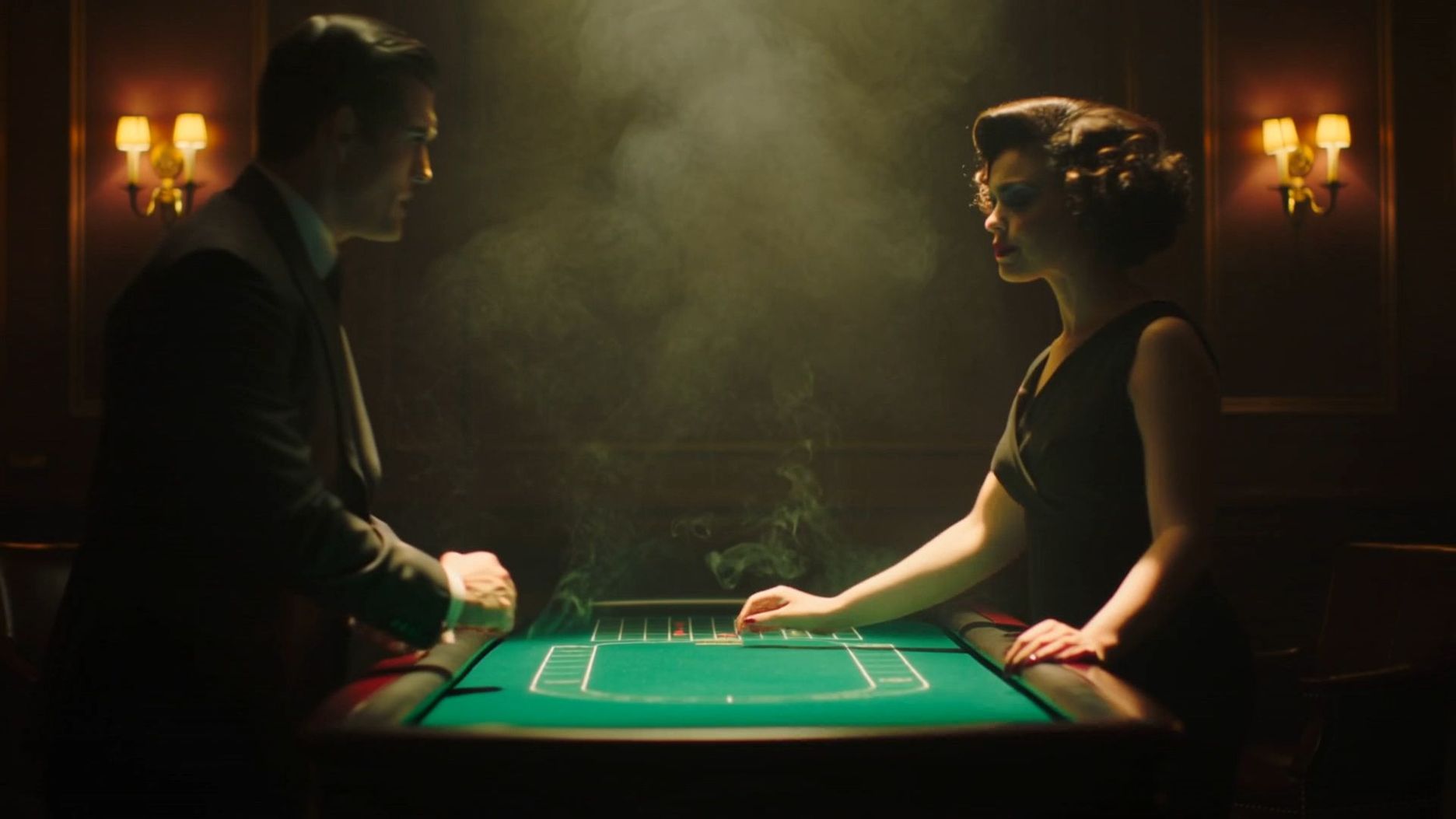 Visual: A dimly lit casino VIP room with a green-felt poker table at the center, surrounded by swirling smoke. Wall lamps cast warm, silhouetted glows.Dialog: [Man in suit, elbows on the table leaning forward, deep male voice]: "Three rounds to decide. Win, and all the chips are yours. Lose, and tell me the real reason you're getting close to him."[Woman with curly hair, fingers gently tracing the edge of the table, red lips curling into a faint smile, cool and glamorous female voice]: "I don't care about the chips." | 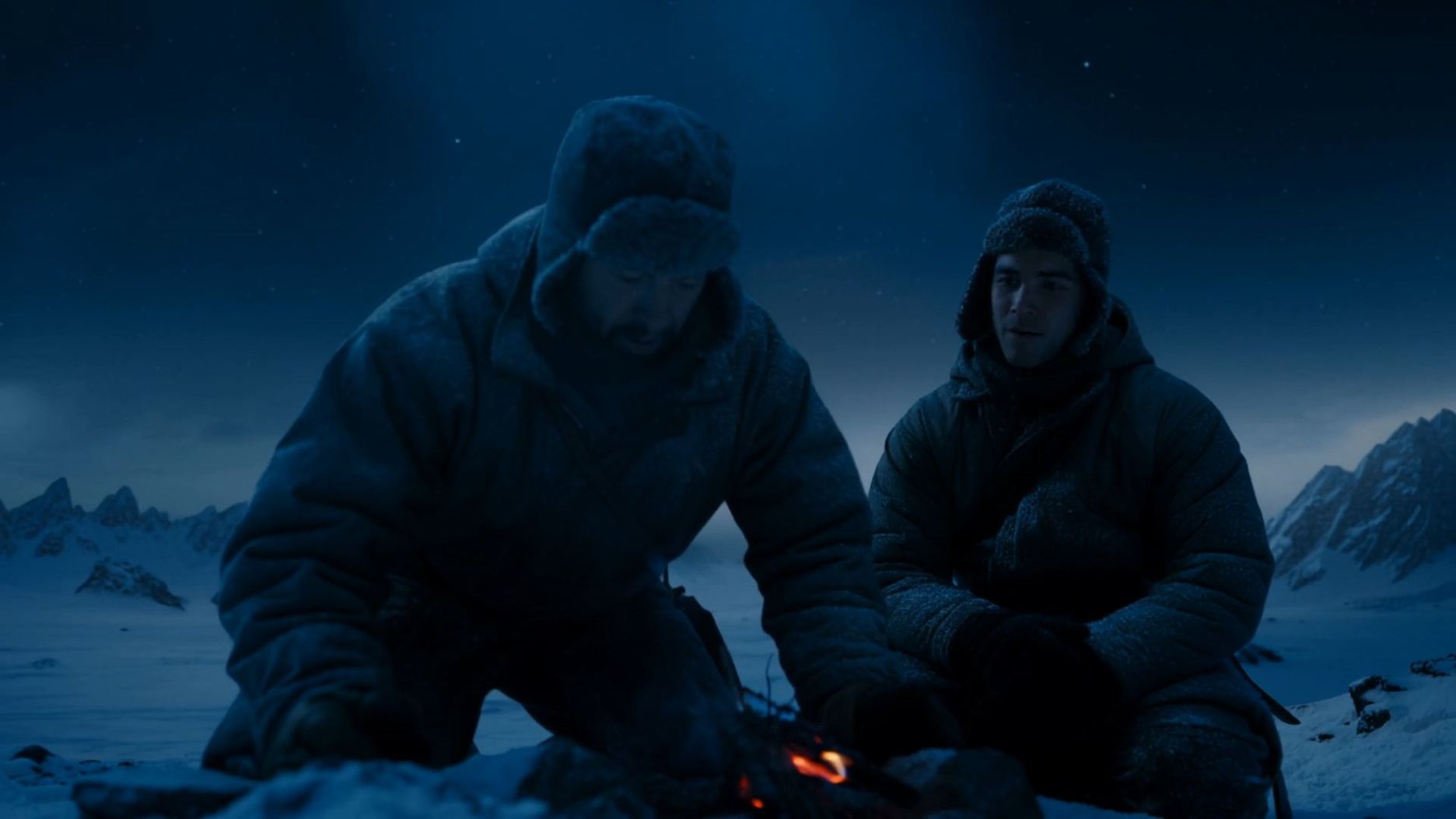 A frigid wilderness. Explorers are starting a fire, with firewood crackling. [Explorer A, exhausted yet resolute]: "The fire is lit."[Explorer B, voice brimming with hope, as the speaker switches]: "We're saved!"Sound Effects: Crackling of the burning flame, distant wolf howls, howling cold wind sweeping past. |
| Daily Conversation: Casual, Natural, and Conversational | |
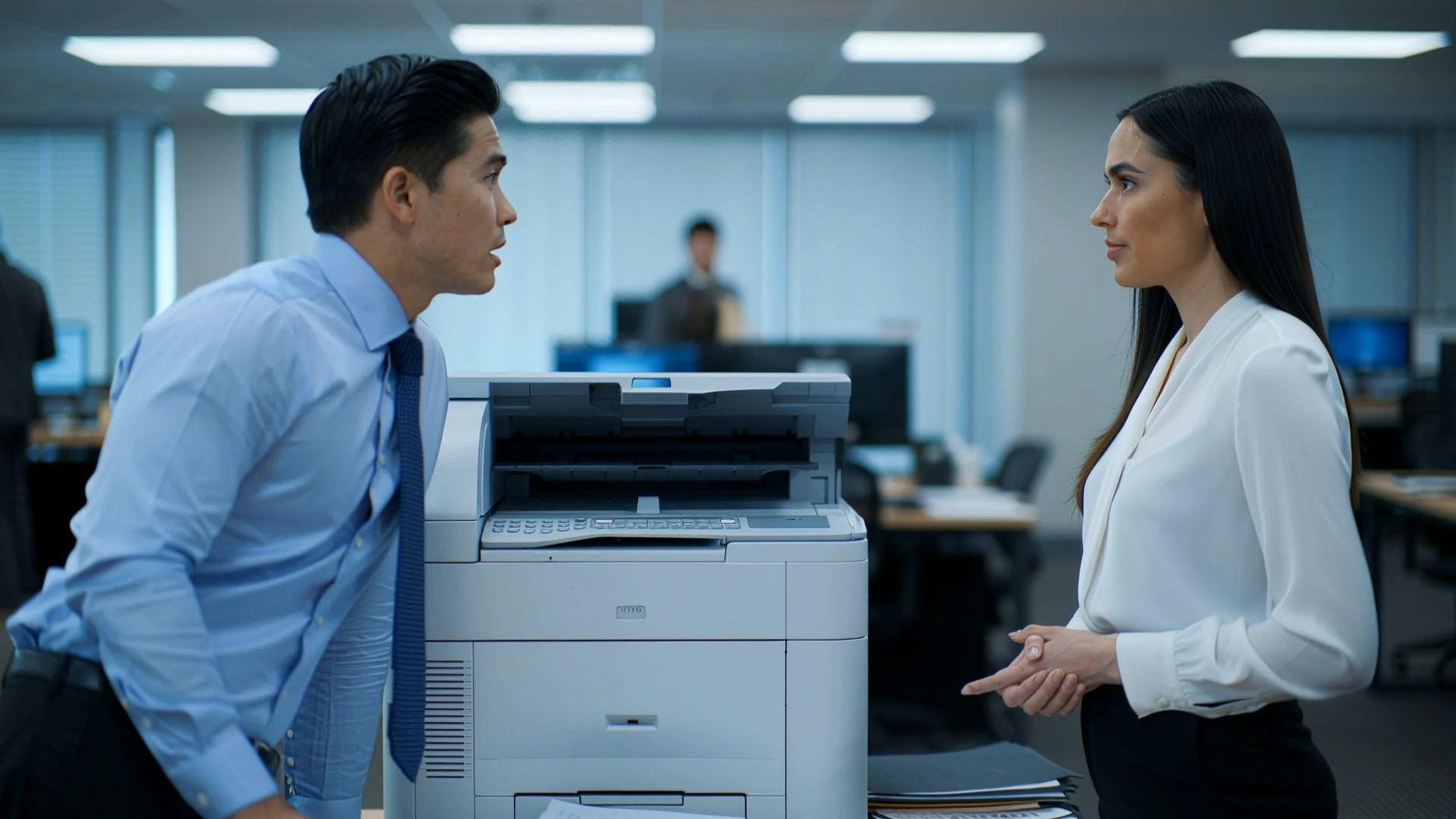 Visual: In an office area of a New York office building, cool-toned lighting illuminates the workspace, and a printer is running. Dialog: [Foreign male employee] and [Foreign female employee] stand next to the printer, facing each other. [Foreign male employee, calm voice]: "How's the project report coming along? Manager needs it this afternoon." During this, [Foreign female employee] remains silent. Immediately, [Foreign female employee, efficient voice] responds: "Almost done. I'll send it in 10 minutes." During this, [Foreign male employee] remains silent. The camera focuses on their interaction, with the sound of the printer and the office background ambiance. | 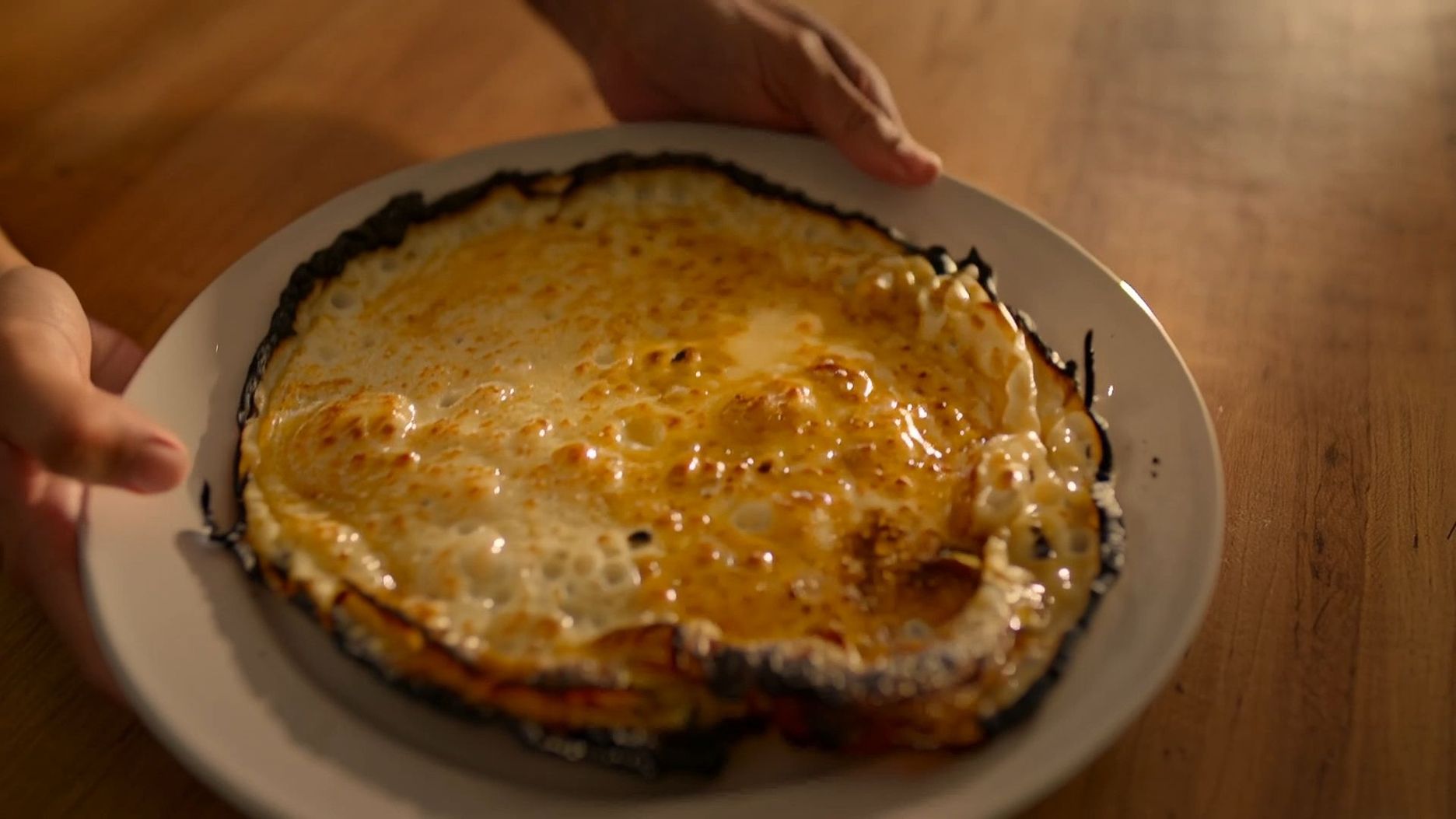 A kitchen in the morning, sunlight streaming through the window onto the countertop, with a frying pan sizzling. [Boyfriend] places a blackened fried egg on the table, raising an eyebrow proudly. [Boyfriend, cheerful voice]: "Try my breakfast made with love!" During this, [Girlfriend] remains silent. Immediately, [Girlfriend] leans in, takes a light sniff, and raises an eyebrow. [Girlfriend, teasing voice]: "The love is definitely felt, it's just a bit burnt." During this, [Boyfriend] remains silent. Then, the two make eye contact, and together, both smile and say: "It's just a bit burnt." The camera cuts from a close-up of the fried egg to [Boyfriend and Girlfriend] sharing a smile. |
| Comedy Skit: Fast-paced, with Strong Contrast | |
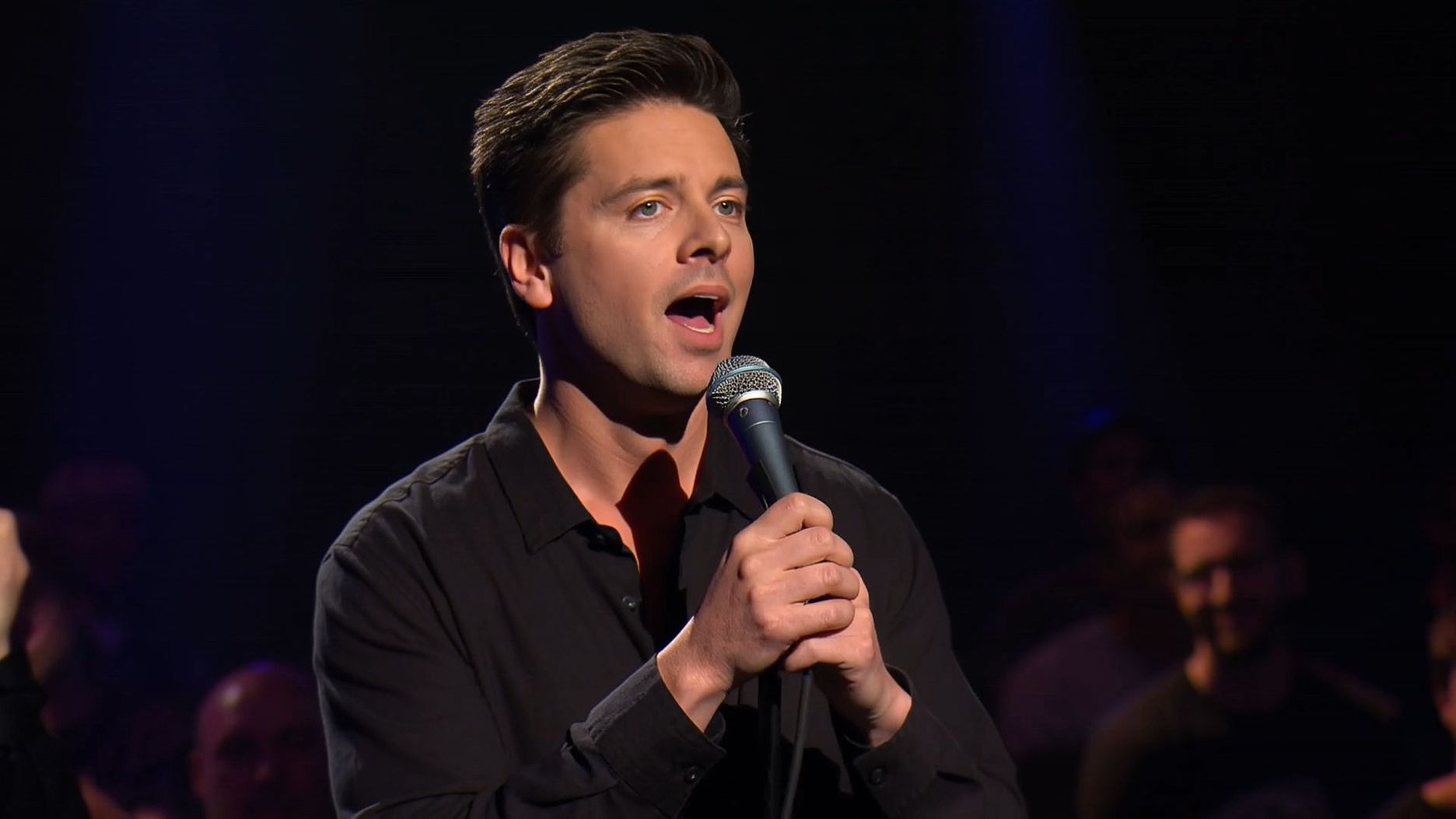 Visual: On a comedy stage, the spotlight is focused on the center, while the audience remains in the shadows. Dialog: [Stand-up comedian] holds a microphone on stage, slightly swaying his body. [Stand-up comedian, humorous male voice]: "My gym trainer said the first step is the hardest... Lies! The first step is easy. It's the 5,000th step that's trying to murder you!" After finishing, the comedian shrugs and raises his hands. Background: Laughter and applause from the audience, with the camera focused on the comedian's face. | 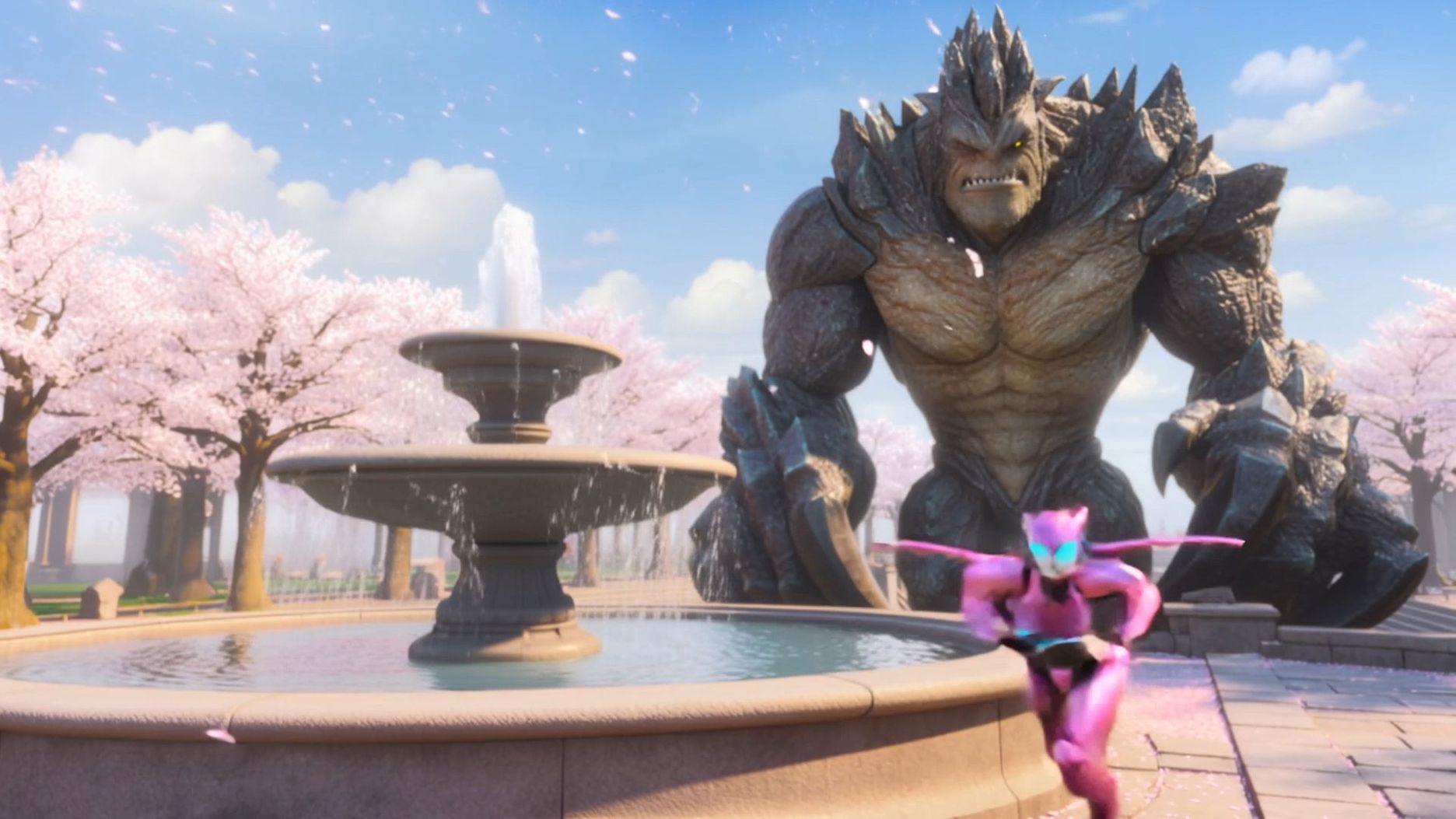 Visual: In a cherry blossom plaza, pink petals fall, and there are faint ruins near the fountain. Dialog: [Pink Mecha Girl] extends her energy wings (with a loud alarm sound), hurriedly looks down at her control screen. [Pink Mecha Girl, panicked voice]: "Oh no, only five percent battery left!" Immediately, the Pink Mecha Girl lands near the fountain, fumbles to plug in the mobile power bank, and glances at the giant monster. [Pink Mecha Girl, embarrassed voice]: "Um, could you please wait while I recharge?" The giant monster tilts its head and makes a confused low growl, retracting its claws and sitting down in the ruins. The camera focuses on the Pink Mecha Girl's frantic movements. |
3.4 Music Performance
| Sing | |
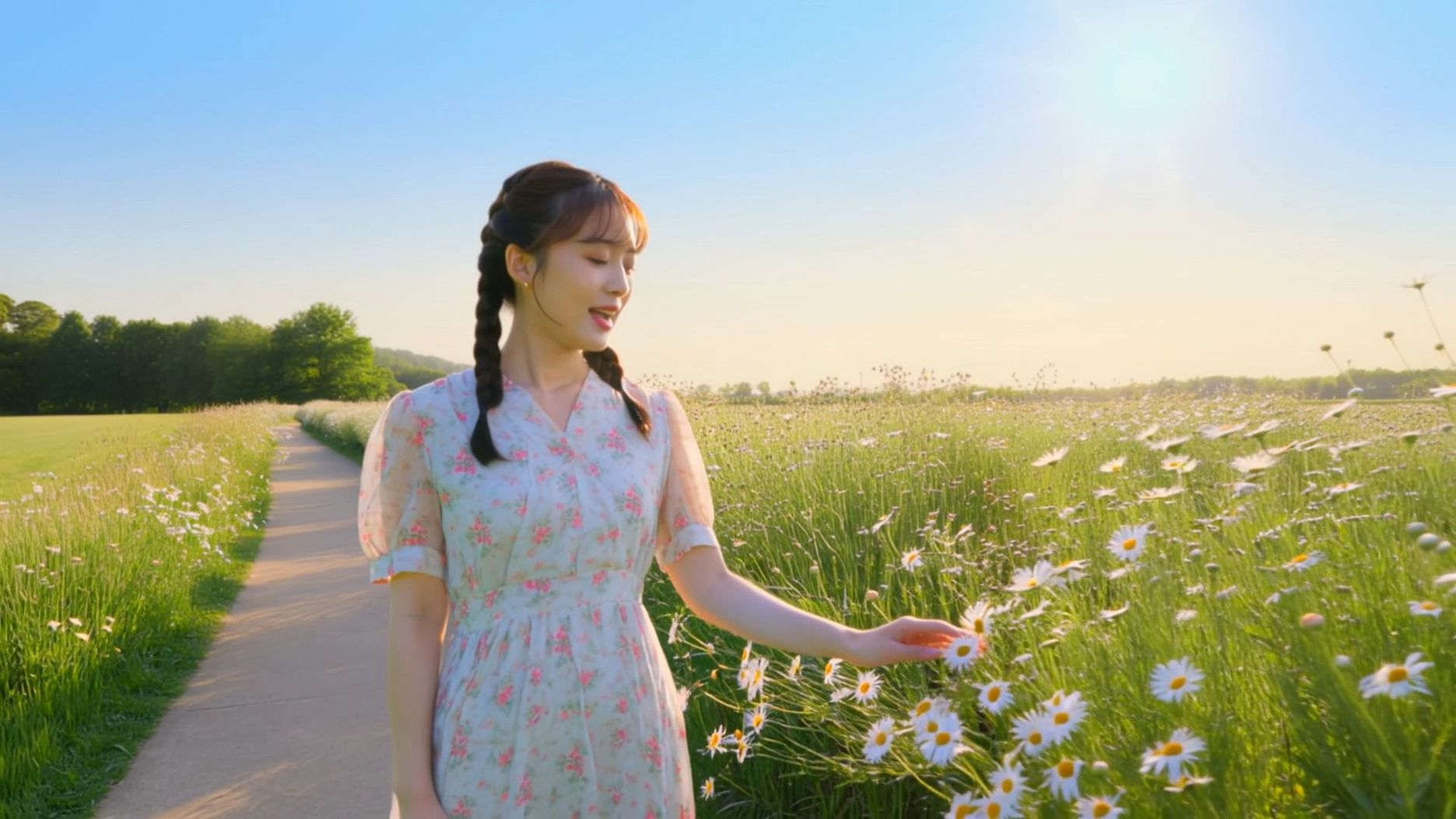 Visual: A sunlit garden path, with daisies in full bloom and butterflies fluttering gently. Dialog: [Asian woman] walks slowly with loose braids, her floral dress brushing against the daisies. [Asian woman, gentle voice] sings: "In this tranquil morning, I've found my way. With dreams in my heart, there's light in my days." The Asian woman reaches out to brush past the flowers, startling a white butterfly into flight. | 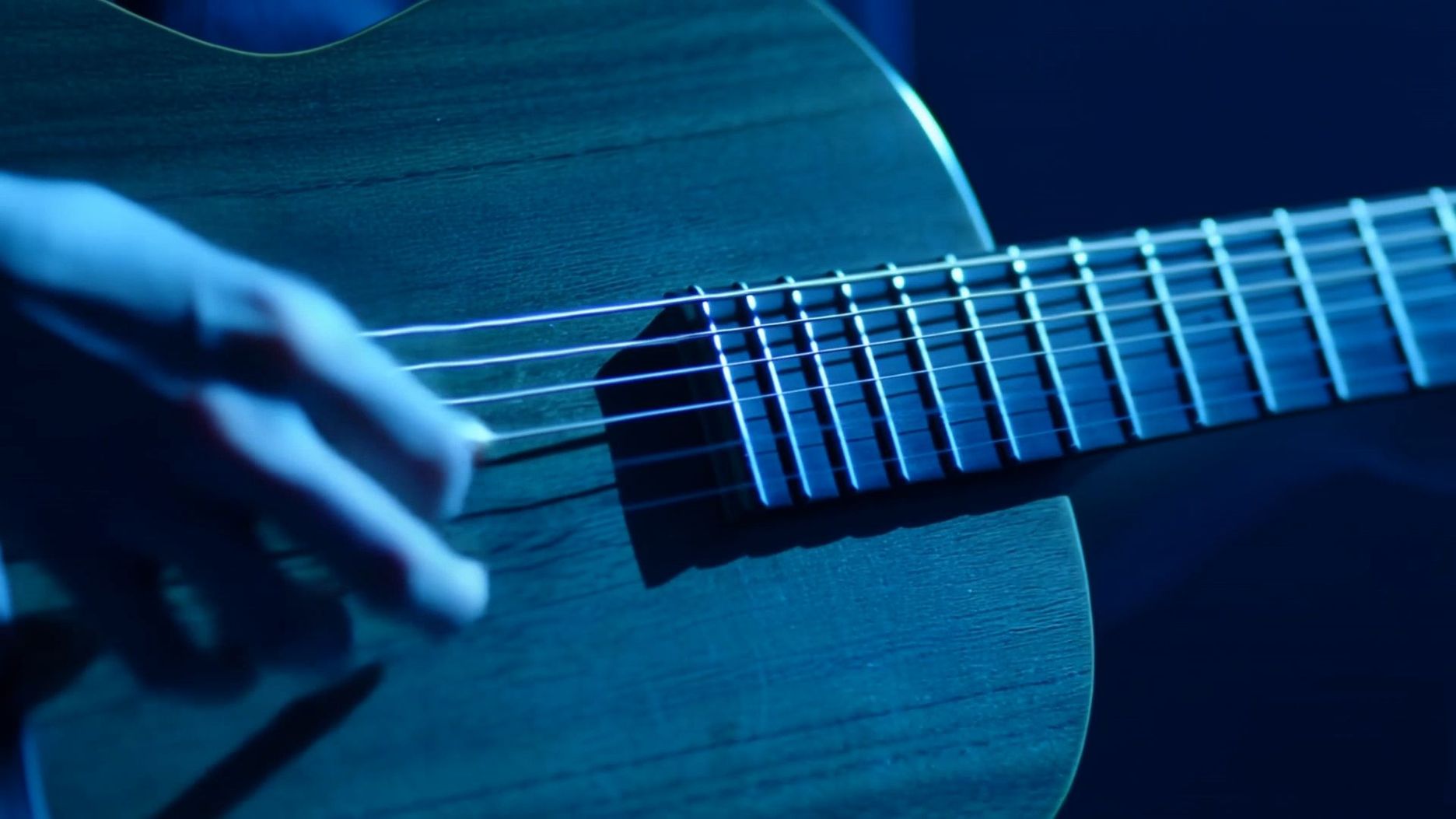 Visual: In a livehouse, bathed in blue light, a high barstool is placed in the center, with the audience hidden in the shadows. Dialog: [Short-haired female singer] sits on the high barstool, holding a wooden guitar, her fingers gently strumming the strings. [Short-haired female singer, heartfelt voice] sings: "And I will try to fix you, all night long..." When she reaches the chorus, [Short-haired female singer] looks out toward the audience. Background: The sound of clinking glasses. The camera switches between focusing on the short-haired female singer's fingers on the strings and her facial expression. |
| Rap | |
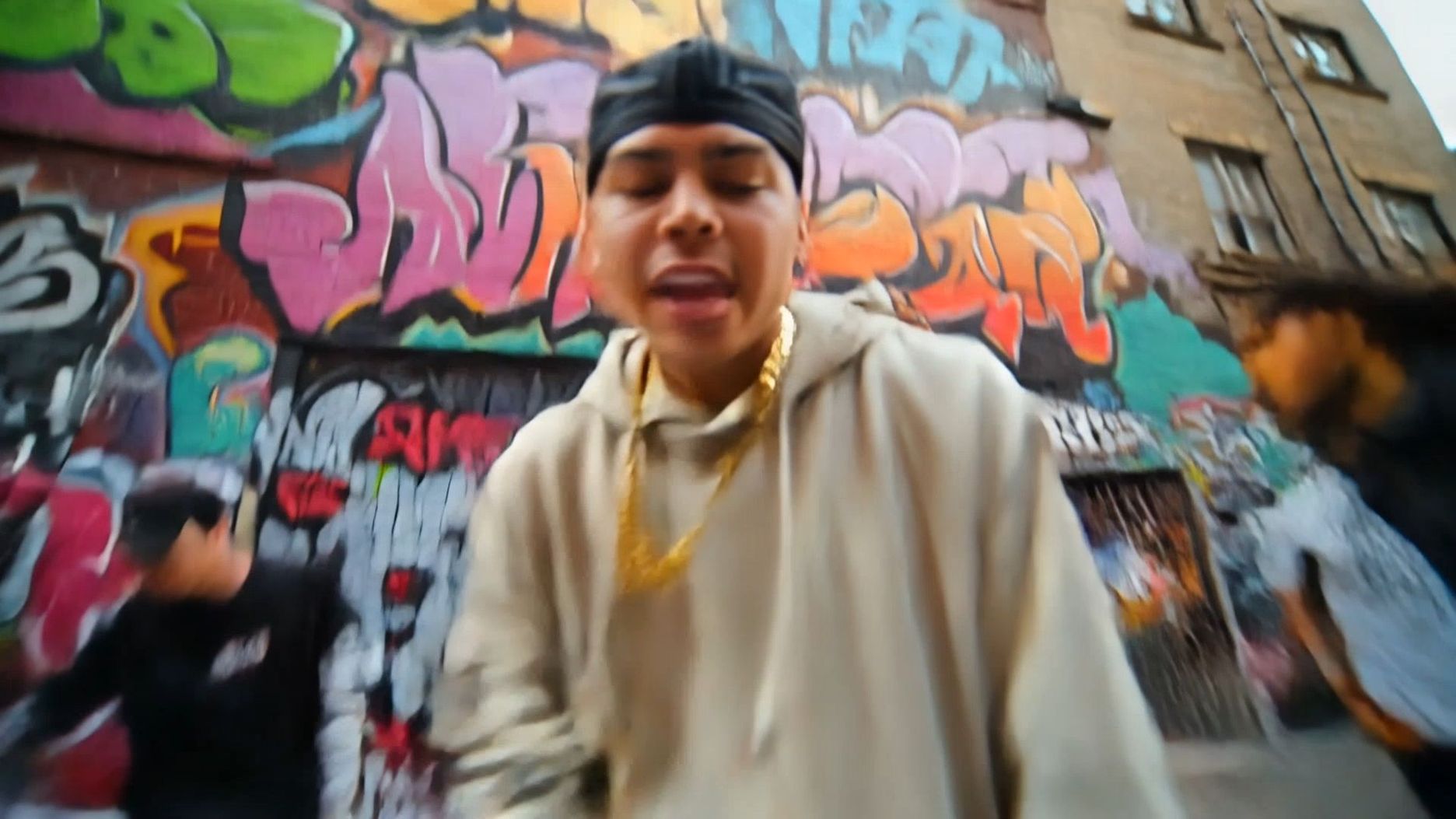 Visual: Brooklyn, New York – in front of a graffiti-covered wall, the street vibe is intense, with breakdancers freestyling nearby.Subject: An African-American rapper wearing a gold chain and an oversized hoodie, grooving to the beat while facing the camera.Audio: [African-American rapper, energetic male voice] Rapping over a drum beat: "Yeah, from the bottom to the top, I’m shining bright like a star. Brooklyn streets raised me tough, fought through the dark. Gold chain swingin’, flow hits hard, grindin’ daily, never bored. Now I’m livin’ in the light, this is my life, raw and hardcore!"Background: Layered with deep bass and turntable scratches. Camera cuts rapidly between close-ups of his facial expressions, hand gestures, and the breakdancers. | 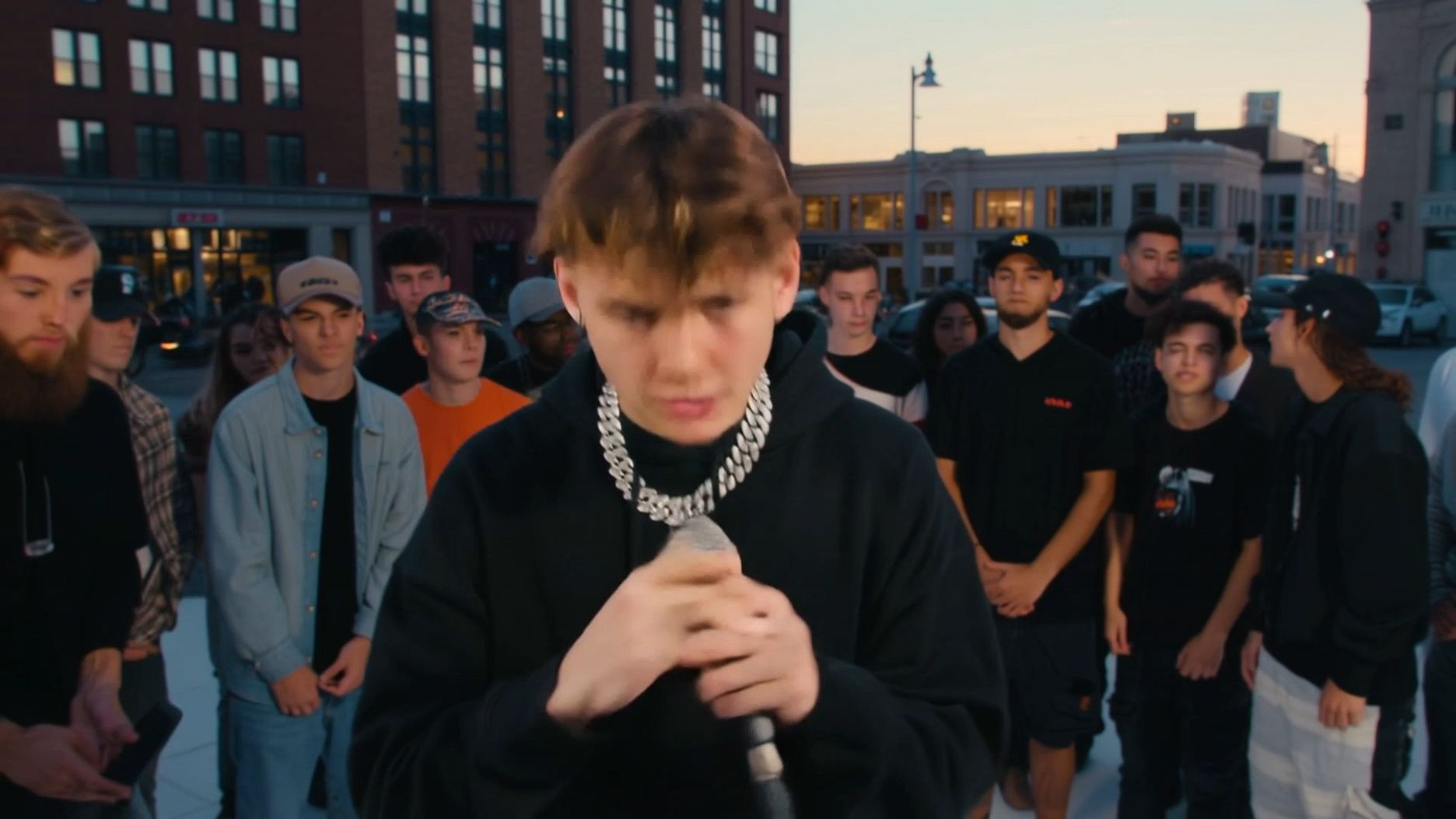 On a street stage, the audience stands around. [Young rapper] wears a silver chain and a black hoodie, swaying his body to the beat. [Young rapper, dynamic male voice] raps: "Yo, pavement to stage, flow lit, crowd goin’ wild! Mic in my grip, dreams unchained, let the rhythm ride! Raw vibe, sharp rhymes, keep the energy high—this is how we fly, no need to deny! Grind hard, spit fire, make the moment mine, street-born rhythm, let times shine!" The camera focuses on the young Caucasian rapper's movements. |
| Group Chorus | |
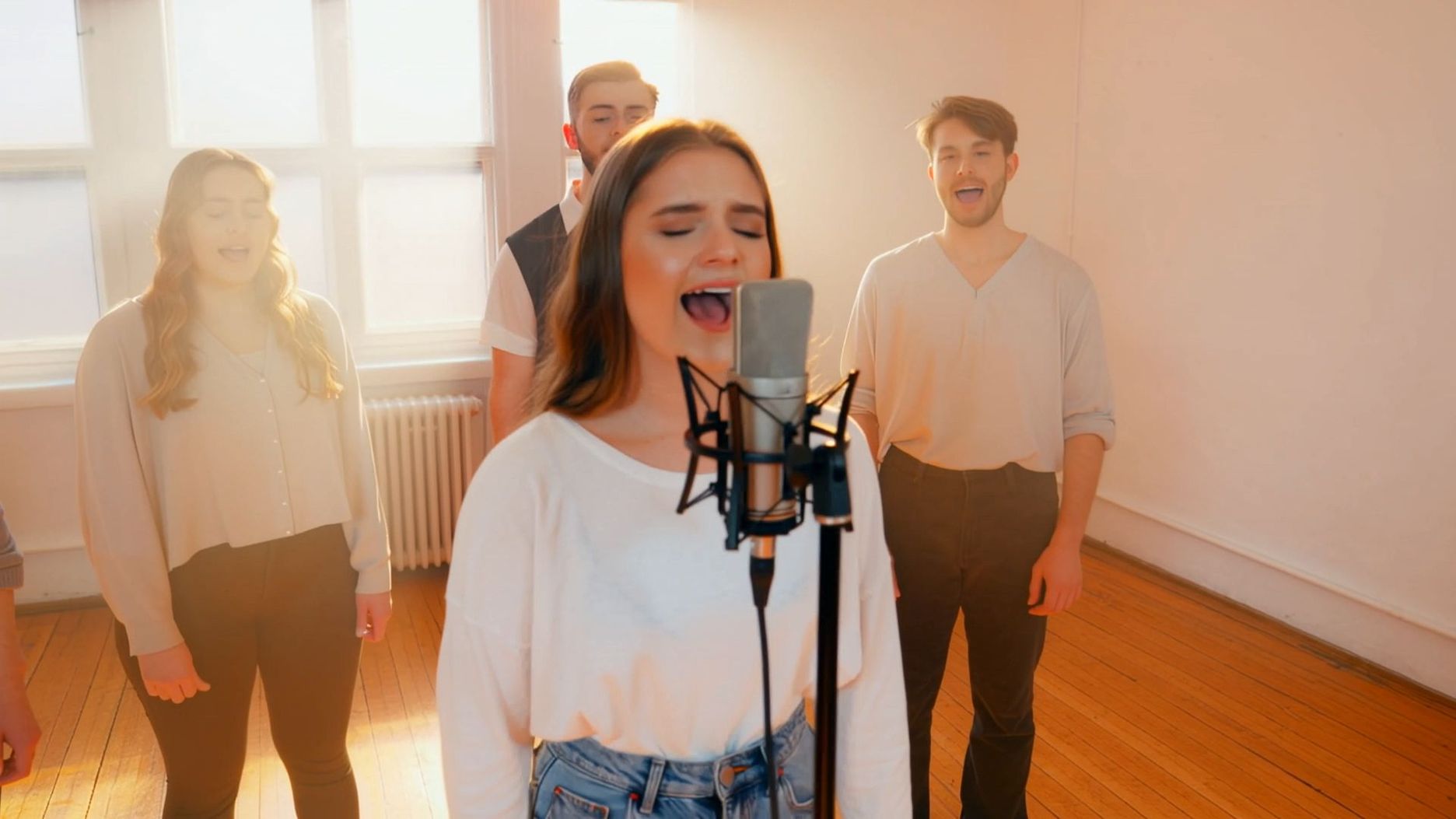 In a bright rehearsal room, sunlight streams through the window, and a standing microphone is placed in the center of the room. [Campus band female lead singer] stands in front of the microphone with her eyes closed, while the other members stand around her. [Campus band female lead singer, full voice] leads: "I will try to fix you, with all my heart and soul..." The background is an a cappella harmony, and the camera slowly circles around the band members. | 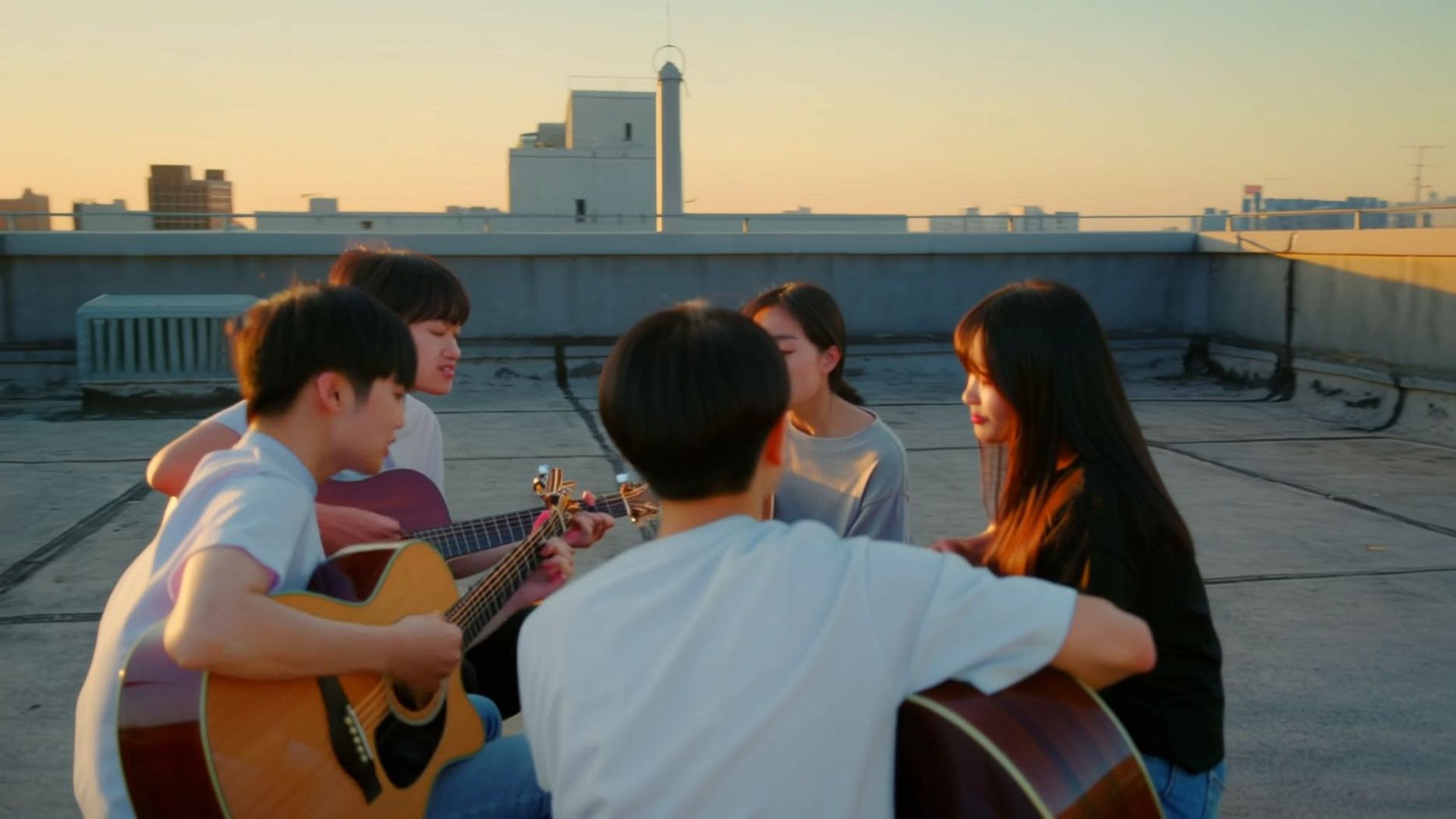 Visual: On a university rooftop at sunset, the golden glow of the setting sun wraps around the ground. Dialog: [Asian male and female students] sit in a circle, playing acoustic guitars, their expressions deeply immersed. [Asian male and female students, youthful chorus] sing: "Starlight all over the sky, please light the way ahead; let our youthful voices sail away with the wind." The camera slowly circles each person's face, and the guitar strings gleam with golden light in the sunset. |
| Instrumental Performance | |
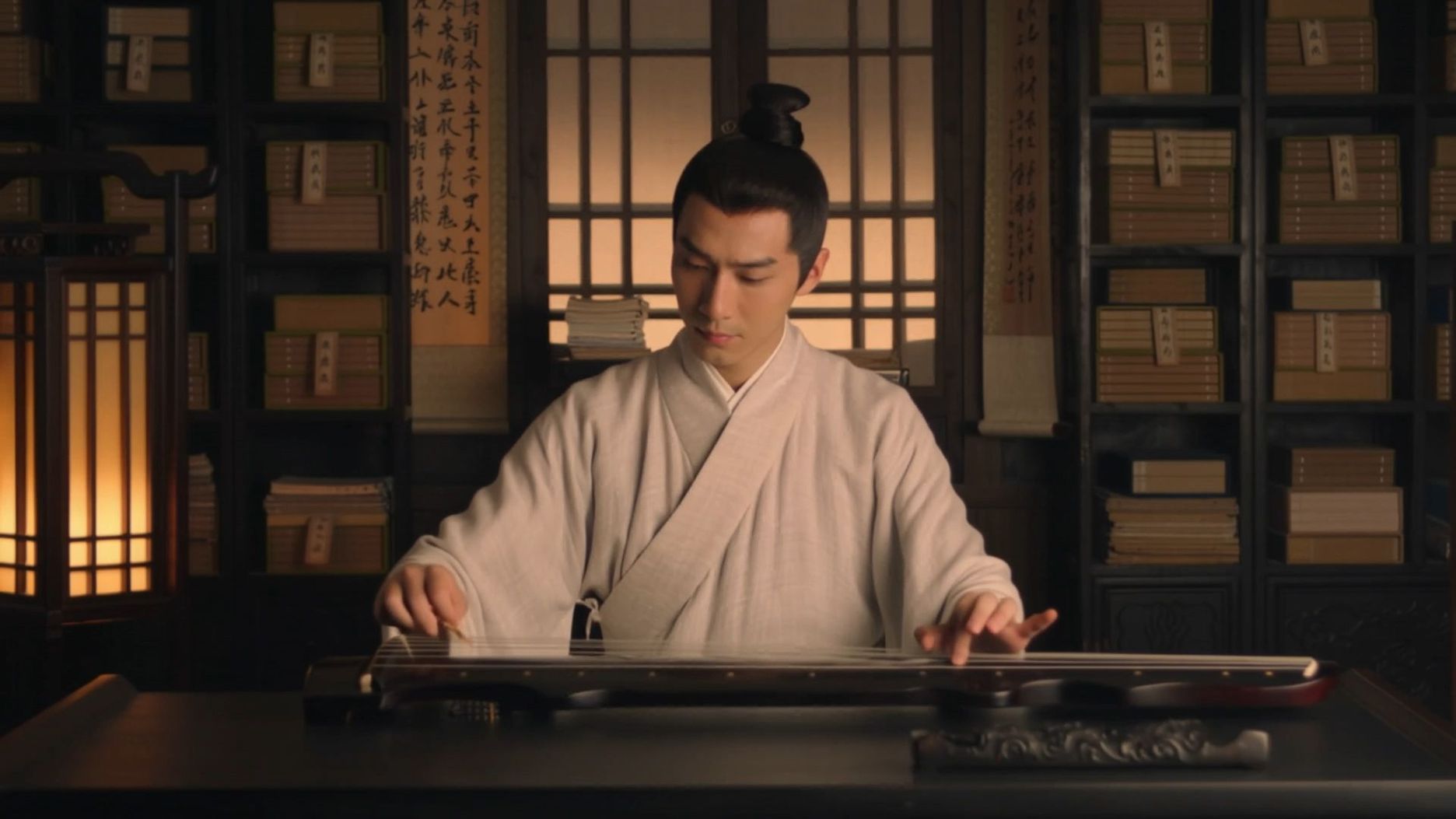 In a traditional study room, a scroll hangs on the wall, and a guqin rests on the desk, bathed in soft light. [Scholar] sits calmly at the desk, gently plucking the strings of the guqin with his fingertips, his expression serene. Background: The sound of the scroll turning and the melody of the guqin. The camera focuses on the scholar's fingers as he plucks the strings. | 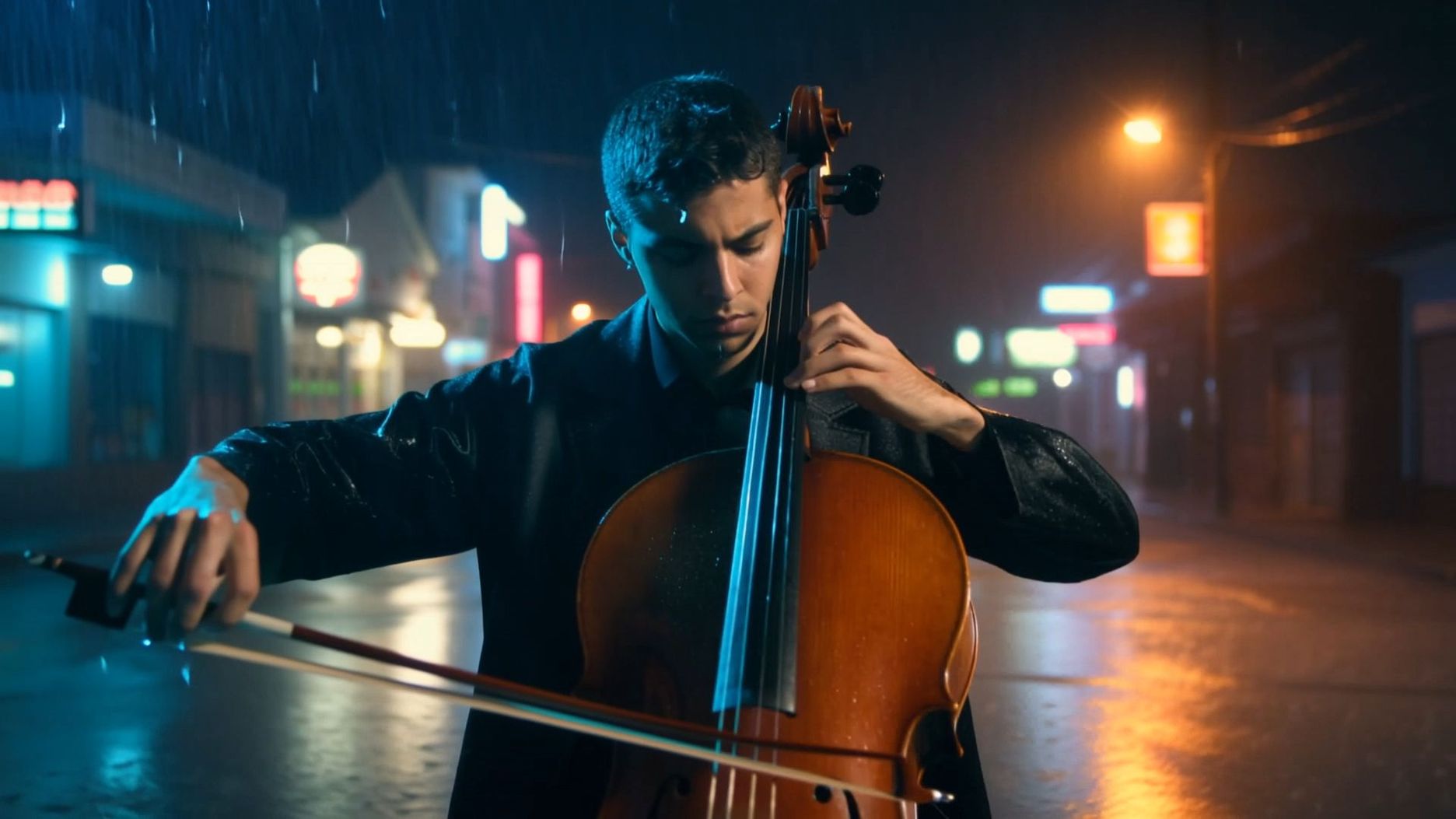 Visual: On a neon-lit rainy street at night, raindrops fall to the ground. Dialog: [Cellist] stands under a streetlight, raindrops on the tips of his hair, playing the cello. Background: A slow, emotional solo cello piece. The camera focuses on the water droplets vibrating on the cello strings and [Cellist]'s closed eyes. |
3.5 Creative Scene
| Visual Effects | |
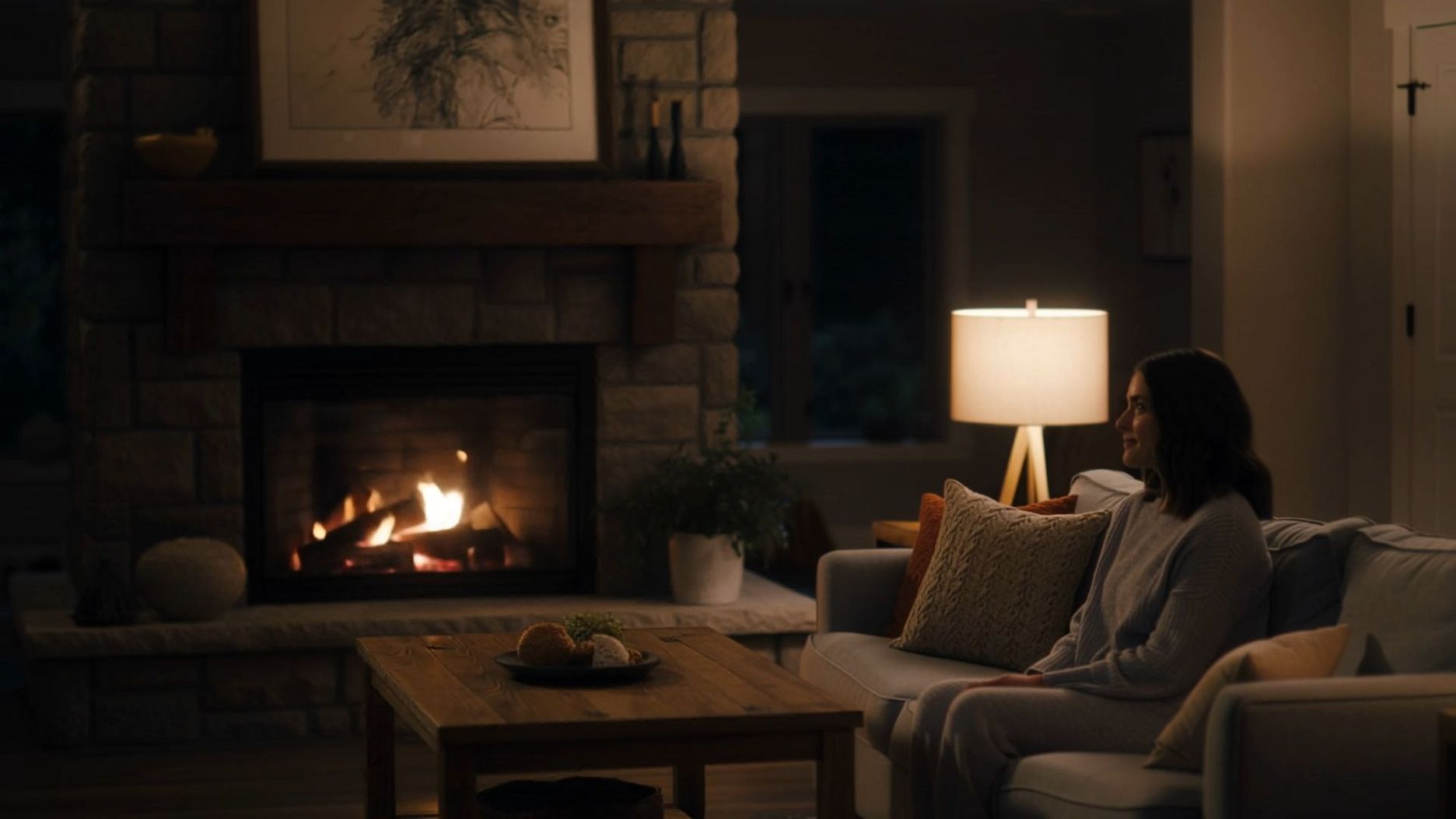 Visual: In a cozy living room, the firewood is burning in the fireplace, and the sofa is placed next to a coffee table. Dialog: [Male protagonist] enters the living room and speaks. [Male protagonist, gentle voice]: "Babe, taking a break from work?" During this, [Female protagonist] remains silent and smiles, nodding. Immediately, the male protagonist walks over to the sofa, gently sets down his cup, and reaches out to ruffle the female protagonist's hair. The camera focuses on their interaction. | 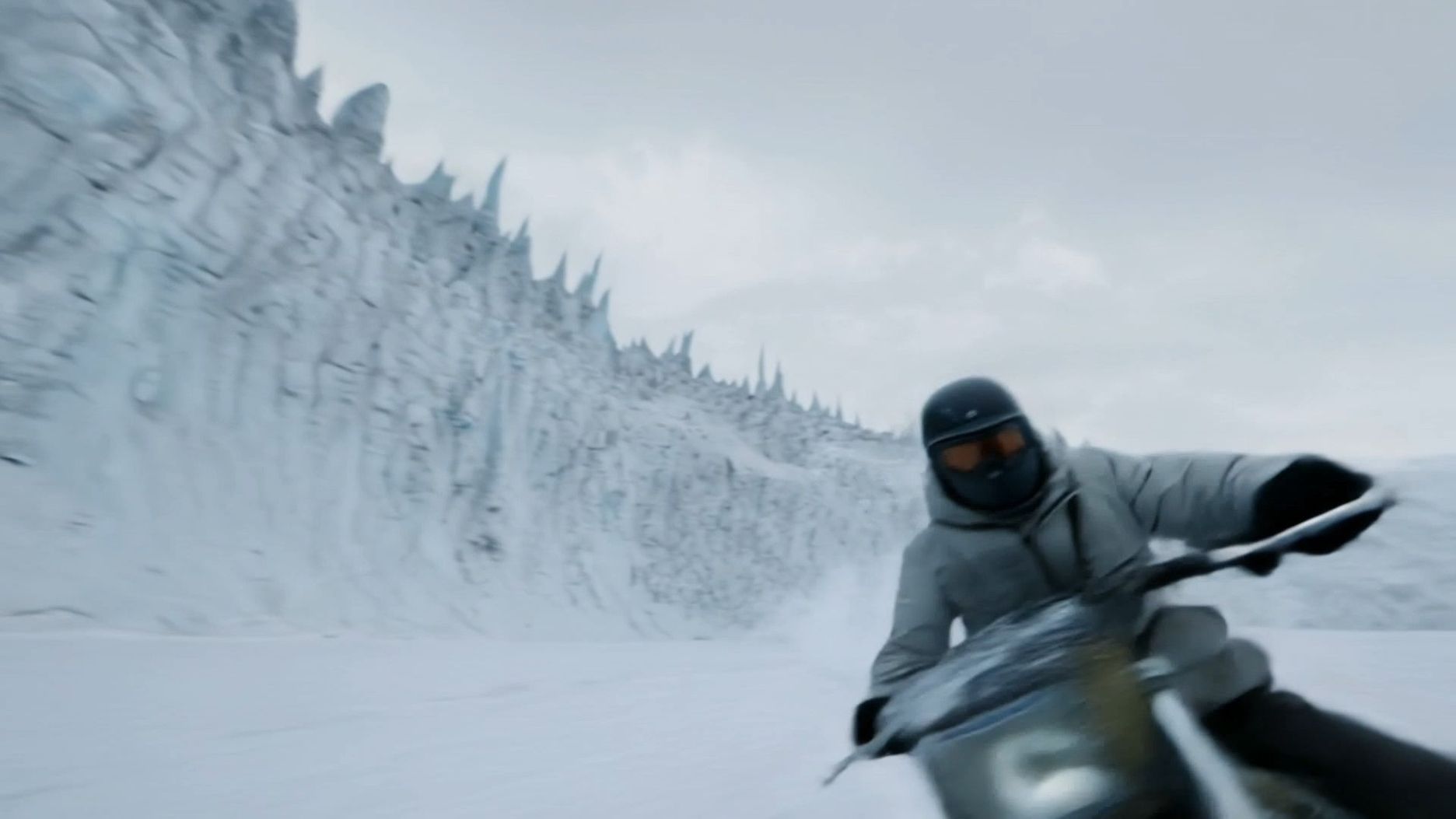 A scene in Antarctica with towering ice formations, the overall tone being a cold, white, frigid color palette. The glacier cracks with a loud noise, followed by the sound of ice shattering, as the engines of the research team's snowmobiles roar. The camera follows the retreating research team and the collapsing ice towers. |
| Life Scene Atmosphere | |
 In an afternoon room, sunlight filters through the blinds, creating striped light spots on the floor. A [ginger cat] lies on the windowsill. The [ginger cat] breathes slowly, with background sounds of distant birds and rustling leaves. The camera focuses on the light spots shifting with the cat's breath. | 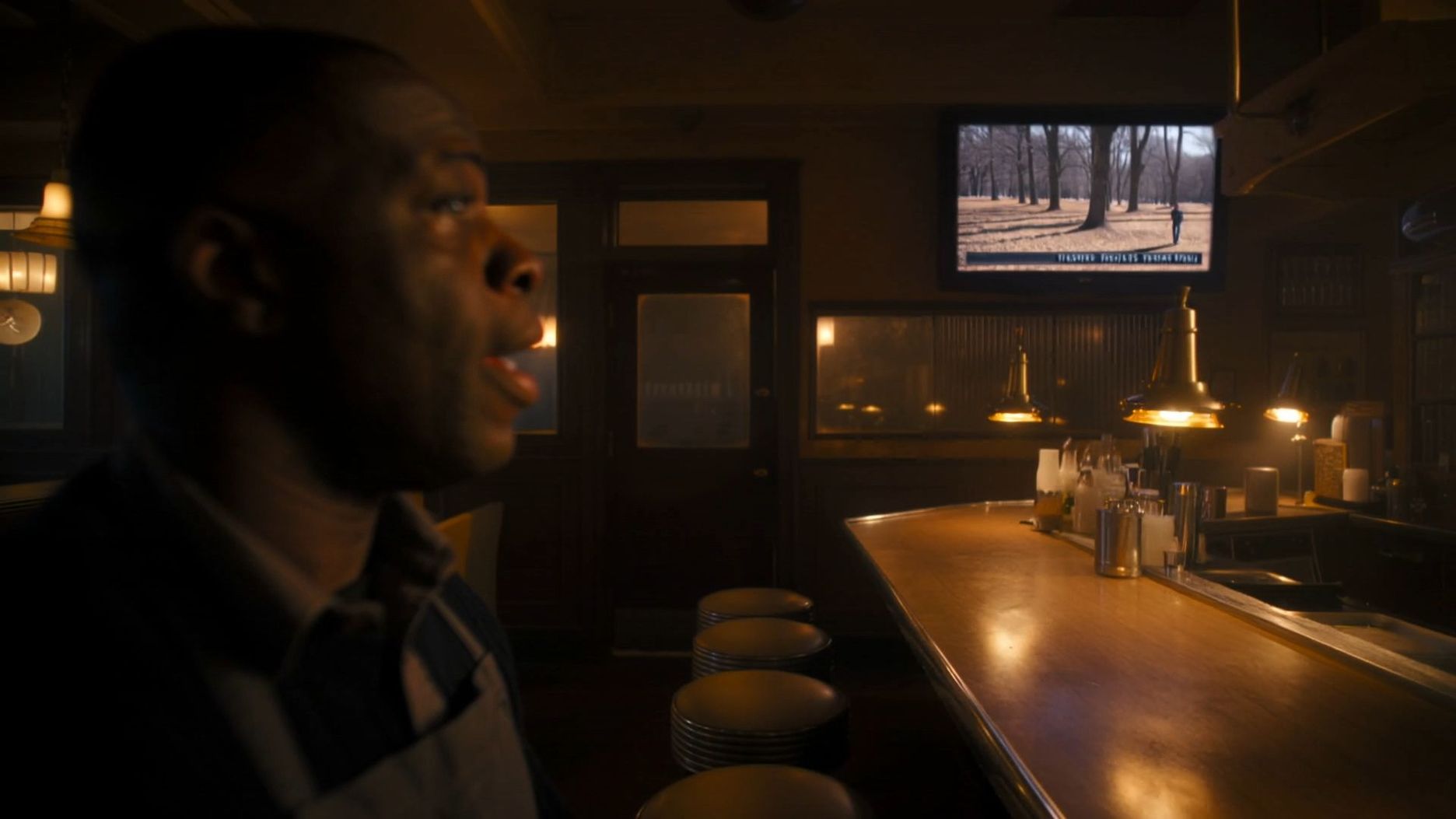 Visual: In a late-night diner scene, only the counter lights are on, and the TV shows a scene titled "Man Wandering in the Park at Midnight." Dialog: [African-American owner] looks at the TV. [African-American owner, deep voice]: "I wonder who needs help this time?" The African-American owner stares at the TV for a moment before his expression softens. [African-American owner, gentle voice]: "I see. It's a father carrying his daughter in his heart." The camera switches between focusing on the African-American owner's face and the TV screen. |
| ASMR | |
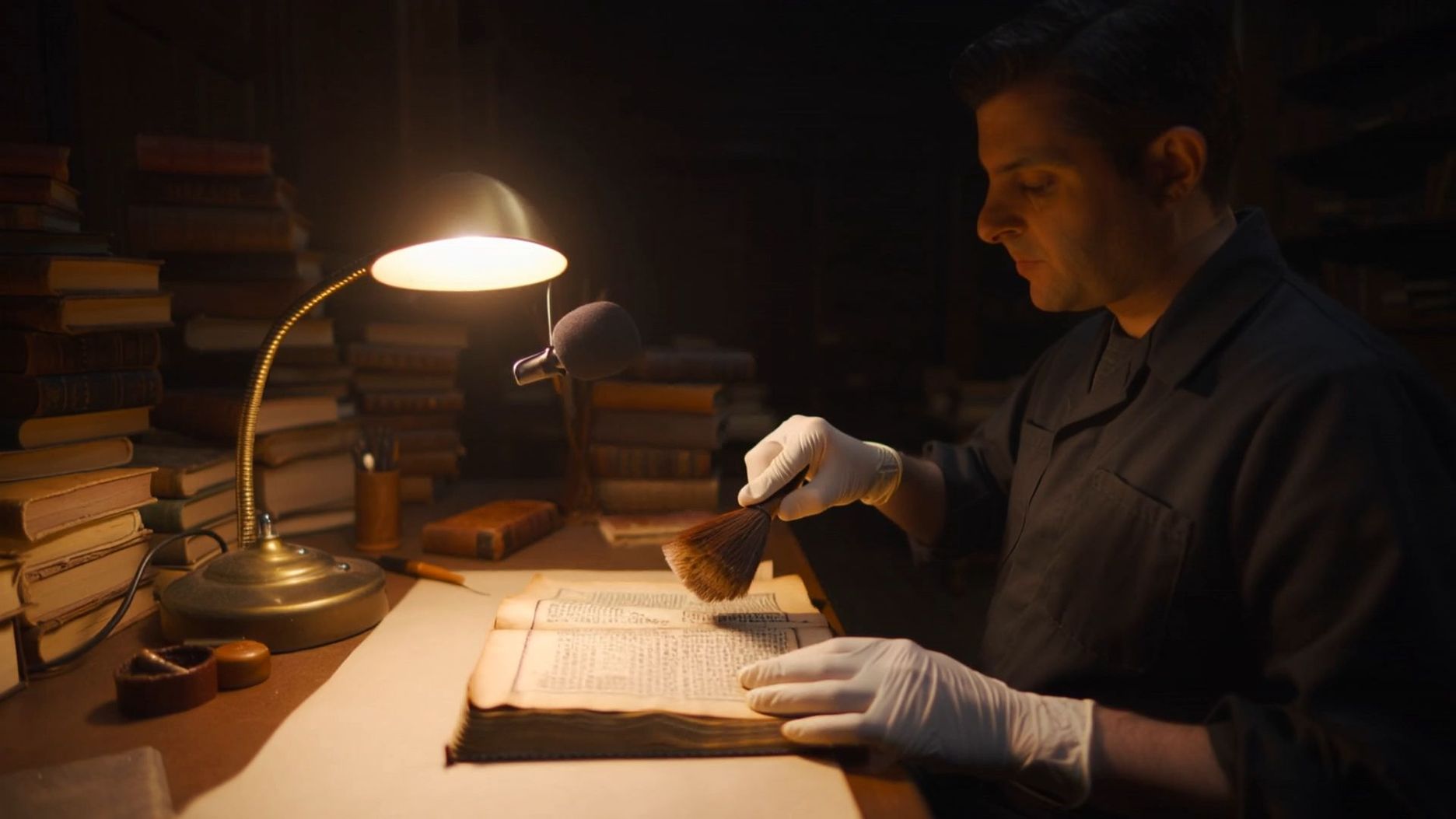 Visual: In the library's restoration room at night, a warm desk lamp illuminates ancient books, and the restorer wears white gloves. Dialog: [Book restorer] gently sweeps a soft brush across the cover of the ancient book (with a subtle brushing sound), bringing the brush closer to the microphone. [Book restorer, whispering voice]: "These pages have been asleep for two hundred years. Today, we wake them gently." Background: The soft rustling of book pages, with the camera focusing on the cleaning motion. |  A clean live-streaming desk, with props such as a crystal glass and wooden blocks neatly arranged. The makeup brush lightly sweeps across the crystal glass and wooden blocks, producing a "shh-shh" sound. The camera focuses on the props and the details of the action.
|
| Creative Ads / Material | |
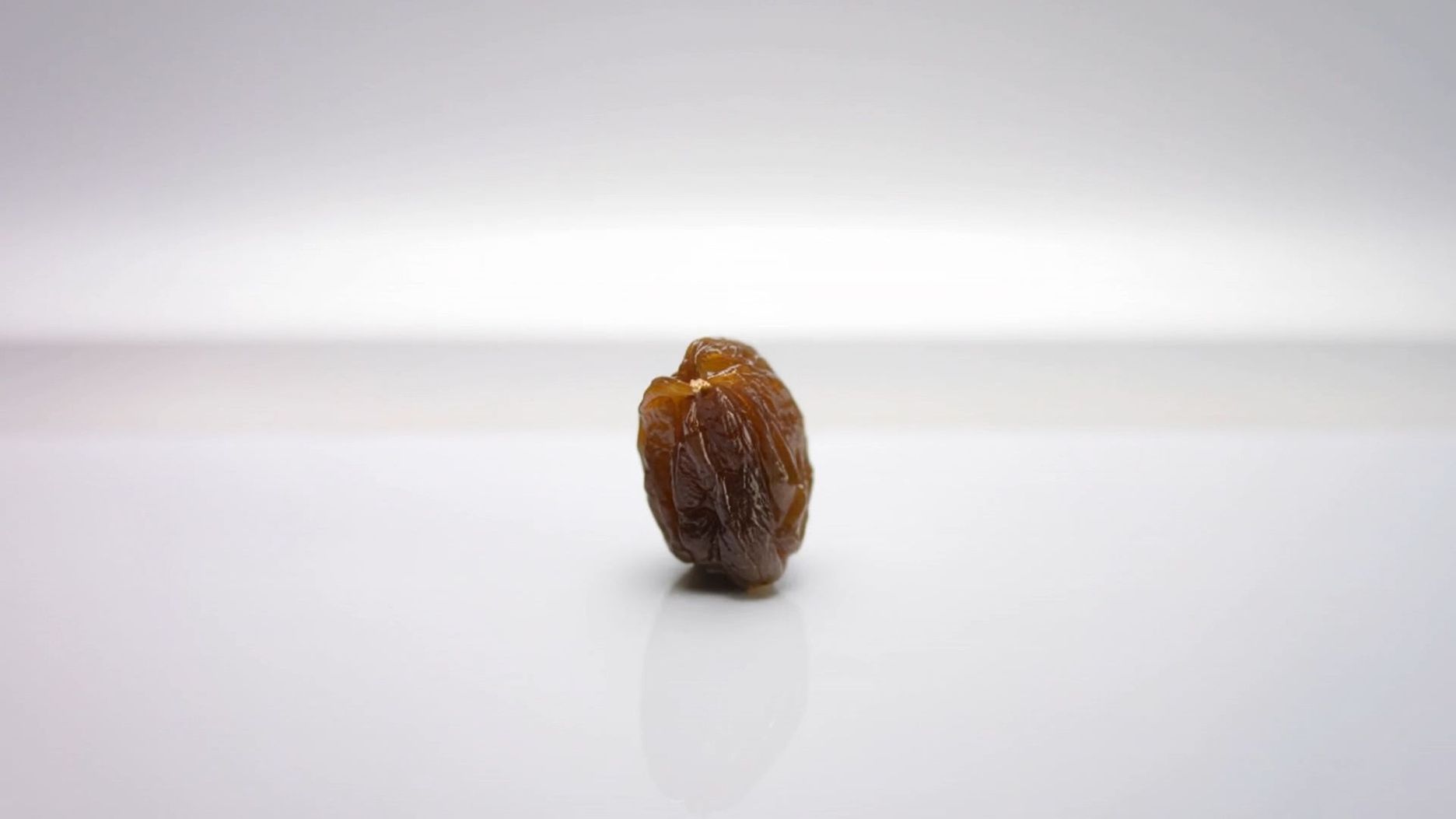 Visual: In a product display scene, with a simple, bright background, a [raisin] is placed in the center. Dialog: [Raisin] twists and is hydrated, transforming into a plump green grape. [Off-screen voice, crisp female voice]: "Don't want to end up shriveled like I was? Hydrating face cream quenches your skin's thirst and turns back time." Background: The sound of water splashing, and the camera pulls back to show the face cream. | 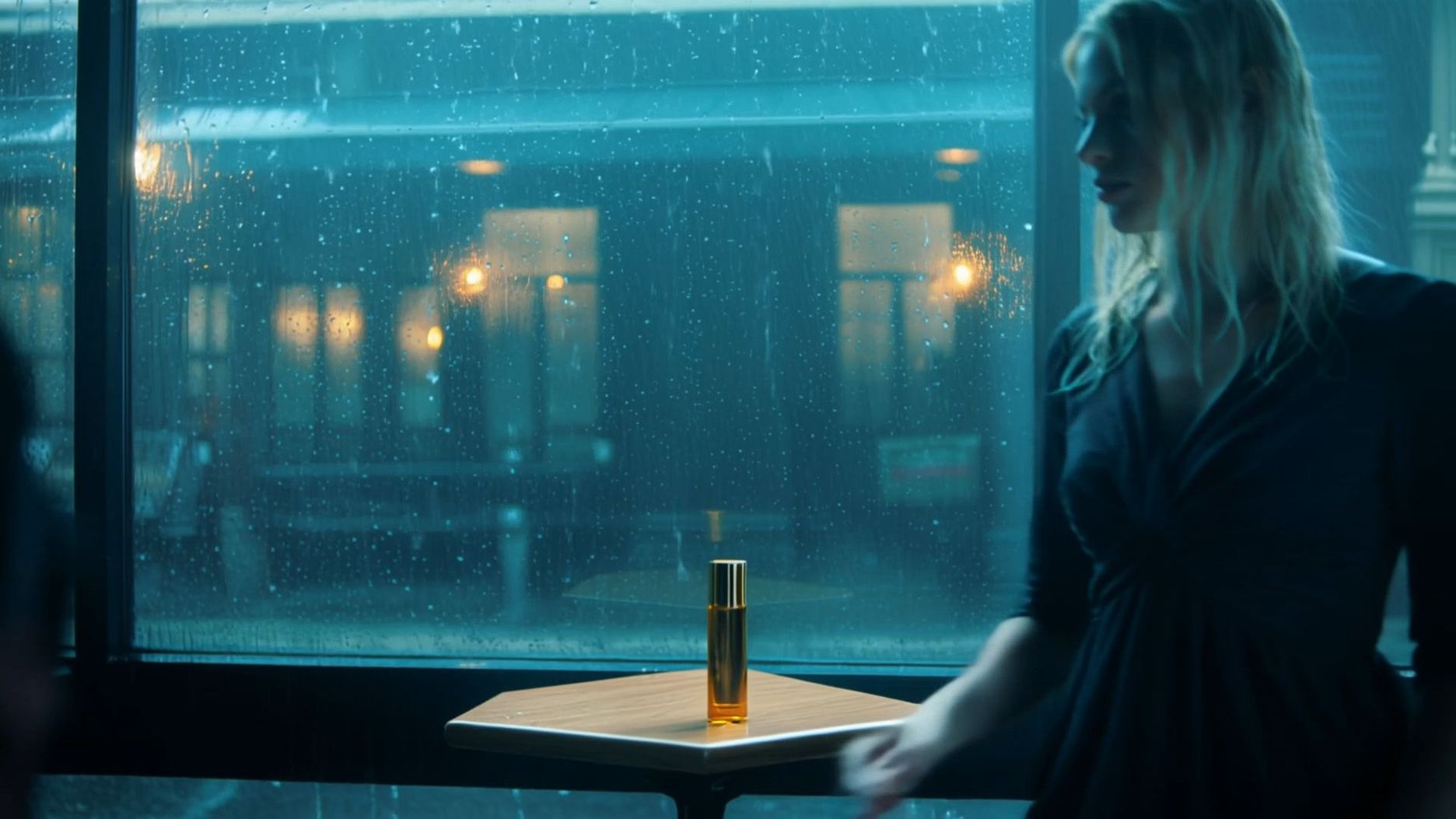 In a cinematic rainy-day café, rain splashes against the window, with a cool, blue-green tone overall. [Blonde French woman] walks in and sits down, her hair slightly damp, gazing directly at the camera. [Blonde French woman, low voice]: "You don't remember the moment, you just remember the feeling." The camera then focuses on a bottle of golden perfume that appears in the center, zooming in on the blonde French woman's face. |
4. How to Write Effective Prompts
When using the "VIDEO 2.6 Model", simply write down [the scene you want to see] + [the action that happens] + [the sound you want to hear], and you'll generate high-quality audio-visual output videos. You can refer to the following formula:
Prompt Format = Scene (Scene Description) + Element (Subject Description) + Movement (Movement Description) + Audio (Dialogue / Singing / Sound Effects / Pure Music) + Other (Style / Emotion / Camera)
- Dialogue: "Sentence" + Emotion + Speech Speed + Tone + Character Label
- Single Character: Specify voice attributes (e.g., [Man speaking], "Sentence" + Deep + Fast).
- Multiple Characters: Use clear labels to distinguish (e.g., [Character A, angrily] says, "Sentence" [Character B, calmly] replies, "Sentence").
- Singing: "Lyrics" + Singing Style + Accompaniment Description + Emotion
- Style: Pop, Opera, Country, etc.
- Emotion/Techniques: High-pitched, Vibrato, Gentle singing.
- Rap: "Sentence (Rhyming)" + Rhythm Style + Emotion
- Rhythm Style: Intense Boom Bap, Trap Style Beat, Fast Flow.
- Content: "Sentence" should reflect Rhyme and Meter.
- Sound Effects: Sound Source (Action/Object) + State + Professional Sound Effects
- Structure: [Object: Wooden Door] suddenly [Action: Slams] + [Sound Effect: Bang].
- Material/State: Glass Breaking, Metal Impact, Screeching Brakes.
- Ambient Sound: Scene + Sound Elements + Spatial Reverb
- Elements: Rain, Insects, Crowd Murmurs, Traffic.
- Spatial Feel: Echo in an Open Hall (Reverb), Small Room Acoustics.
- Pure Music: Instrument Type + Music Genre + Emotion
- Structure: Piano Performance + Jazz + Melancholy.
- Genres: Classical, Rock, Electronic.
Tip: It is recommended to use quotation marks " " to clarify sound content when writing prompts.
4.1 Key Tutorial — Multicharacter Dialogue Prompt Examples and Guidelines
Guidelines | Core Principles | Prompt Guidelines and Examples | Incorrect Example (Prone to Model Failure) |
P1. Structured Naming | Character labels must be unique and consistent. | [Character A: Black-suited Agent] and [Character B: Female Assistant]. ❌ Avoid using pronouns or synonyms. | [Agent] says... Then, he says... |
P2. Visual Anchoring | Bind the dialogue to the character's unique actions. | First describe the action, then follow with the dialogue: The black-suited agent slams his hand on the table. [Black-suited Agent, angrily shouting]: "Where is the truth?" | [Black-suited Agent]: "Where is the truth?" (The model won't know who slammed the table) |
P3. Audio Details | Assign unique tone and emotion labels to each character. | [Black-suited Agent, raspy, deep voice]: "Don't move." [Female Assistant, clear, fearful voice]: "I'm scared." | [Man] says... [Woman] says... (The voice characteristics are too vague and can confuse the model) |
P4. Temporal Control | Use clear linking words to control the sequence and rhythm of dialogue. | .... [Black-suited Agent]: "Why?" Immediately, [Female Assistant]: "Because it's time." ⚠️ (Optional strong constraint: Insert "this is when the speaker switches" between the two.) | [Black-suited Agent]: "Why?" [Female Assistant]: "Because it's time." (The model may generate a continuous speech from one character) |
4.2 Common Audio Trigger Words
Audio Type | Category | Trigger Words | Examples |
Speech | Core Speech | Speaking / Talking | A woman is sitting at a desk, calmly speaking into a microphone. |
Asking / Querying | A curious boy in the garden asking his father a question. | ||
Telling / Narrating | An old man sitting by the fireplace, slowly telling a story. | ||
Explaining | A tour guide pointing at a map, clearly explaining the route. | ||
Volume/Clarity | Whispering | Two friends leaning in close in a crowded room, whispering a secret. | |
Softly Speaking | A student in the quiet library is softly speaking on the phone. | ||
Clearly Speaking / Crisp Voice | A radio announcer with a clear voice is speaking the news. | ||
Emotion/Tone | Excitedly Speaking | The award winner is holding a trophy, excitedly speaking their acceptance speech. | |
Complaining | A customer at the counter complaining about poor service. | ||
Sighing | A tired worker sitting by a window, letting out a heavy sighing sound. | ||
Gently Speaking | A mother is rocking a baby, gently speaking a lullaby. | ||
Vocal Quality | Hoarse Voice | A patient waking up, requesting help with a hoarse voice. | |
Deep Voice | A middle-aged man telling a scary story in a deep voice. | ||
Pace/Rhythm | Fast Talking / Rapid Speech | A fast-talking salesperson rapidly describing the product features. | |
Slow Talking | An old professor slow talking while carefully elaborating on a complex theory. | ||
Performance | Reciting / Reading Aloud | A poet on a stage, reciting a dramatic poem. | |
Monologue | An actor standing alone on stage, performing a sad monologue. | ||
Narration / Voiceover | A film scene cuts to a background sound of a deep narration. | ||
Dialogue | Interaction | Answering / Responding | The interviewee is answering the question immediately. |
Arguing / Quarrelling | A couple in the kitchen, arguing loudly. | ||
Shouting / Yelling | A father standing at the door is shouting / yelling at his children playing outside. | ||
Discussing | A group of students gathered around a table, discussing a difficult problem. | ||
Vocal Action | Crying / Sobbing | A little girl sitting on the ground crying / sobbing after falling down. | |
Screaming | A woman seeing a mouse, letting out a sharp screaming sound. | ||
Laughing / Chuckling | Three people sharing a joke and laughing / chuckling loudly. | ||
Singing | Core Form | A Capella | A singer on an empty stage performs the first line a capella. |
Humming | A chef happily humming a tune while cooking in the kitchen. | ||
Loud Singing | A rock musician singing loudly from the mountaintop. | ||
Technique/Style | Bel Canto / Opera | A soprano in a gown performing a bel canto / opera piece. | |
Pop Vocals | A young artist in a studio, recording a new track with pop vocals. | ||
Vibrato | A singer adding a beautiful vibrato to the high note. | ||
Falsetto | A male vocalist using falsetto to hit a very high note. | ||
Harmony / Layered Vocals | A quartet performing a section with perfect harmony. | ||
Rap | Terminology | Rapping / Hip-Hop | A street performer rapping / hip-hop under neon lights. |
Flow / Rhyme | A rapper performing a verse with a smooth flow and tight rhyme. | ||
Fast Rap / Rapid Delivery | A section of the song is a high-speed, machine-gun like fast rap / rapid delivery. | ||
Strong Rhythm / Heavy Beat | A Hip-Hop track with a strong rhythm / heavy beat. | ||
Sound Effects - SFX | Daily Actions | Tapping / Knocking | A carpenter is tapping / knocking a nail with a hammer. |
Footsteps | Slow and heavy footsteps walking in an empty hallway. | ||
Chewing / Munching | A person chewing / munching on crunchy chips. | ||
Material Impact | Glass Shattering | A rock hitting a window, followed by the sound of glass shattering. | |
Metal Clanging | Two large iron blocks metal clanging in a factory. | ||
Friction / Rubbing | Friction sound of two pieces of rough fabric rubbing together. | ||
Natural Elements | Thunder | A flash of lightning, followed by a low thunder rumble. | |
Fire Crackling | A campfire fire crackling and burning brightly. | ||
Bubbling / Gurgling | Hot soup on the stove, bubbling / gurgling as it heats up. | ||
Mechanical Noise | Alarm / Siren | A police car driving by at night, its alarm / siren wailing. | |
Braking | A car performing an emergency stop, with a screeching braking sound. | ||
Gears Whirring | The internal workings of an old clock, with subtle gears whirring sound. | ||
Musical Instruments | Piano Music | A pianist playing classical piano music in a concert hall. | |
Guitar Plucking | A street artist gently plucking a guitar string. | ||
Ambient Soundscapes | Urban | Traffic Noise / Car Flow | Continuous traffic noise / car flow at a busy intersection. |
Crowd Murmur | The background sound of crowd murmur in a museum. | ||
Subway Noise | Subway noise as a train arrives and departs from the station. | ||
Construction Noise | Distant, persistent construction noise in the city during the day. | ||
Nature | Ocean Waves | The soothing sound of ocean waves hitting the beach in the morning. | |
Bird Chirping | Various bird chirping sounds in a morning forest. | ||
Wind Sound (Nature) | Wind sound blowing across an open field. | ||
Rainforest | A hot and humid rainforest, filled with unique bird calls and dripping water. | ||
Indoor Space | Library Silence | The deep library silence punctuated by the occasional book drop. | |
Café Background Music | A casual café background music with quiet chatter. | ||
Air Conditioner Hum | The steady, low air conditioner hum in a quiet office. | ||
Fireplace Burning | The warm, comforting sound of a fireplace burning in a winter cabin. |
5. Kling VIDEO 2.6: Voice Control for Image to Audio & Video
5.1 Feature Overview
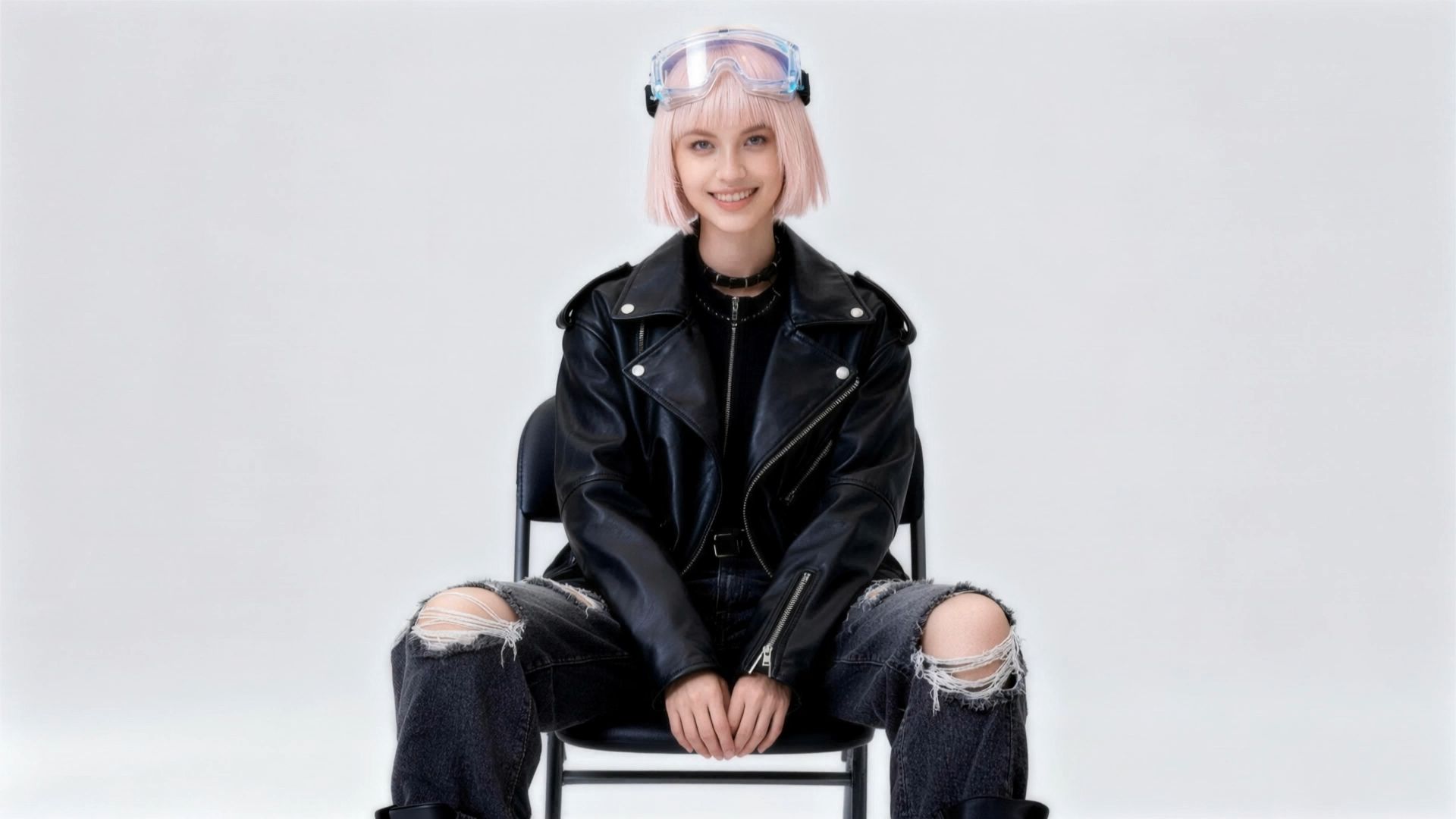
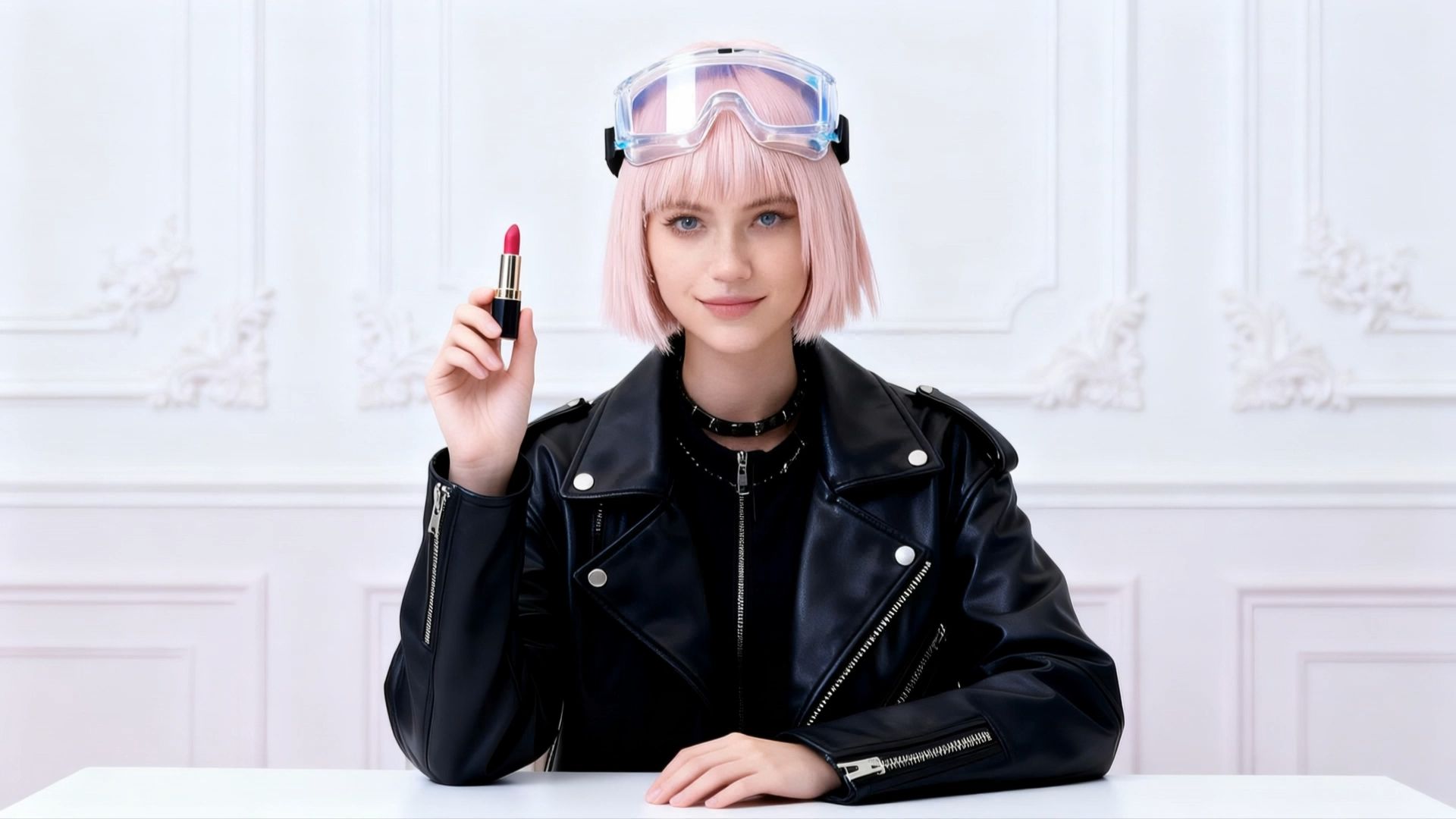
Have you ever struggled with inconsistent voices or a lack of personalisation when creating content across multiple videos or characters? With Kling VIDEO 2.6, we're introducing the all-new Voice Control feature. Simply select a target voice, and the model will accurately replicate its vocal characteristics to perform your specified content. The workflow is effortless — just provide visual input + voice prompt + target voice, and generate high-quality audio-visual content in seconds.
With Voice Control, you can now achieve:
- Stable, High-Fidelity Voice Output: The voice remains consistent throughout the entire video, accurately preserving the target timbre. Ideal for long-term voice consistency across IP characters, brand personas, and recurring roles.
- Flexible Style Adaptation: A single voice can be seamlessly applied to multiple scenarios—such as narration, conversation, or speeches—automatically adapting tone, rhythm, and delivery style to match the context.
- Natural Cross-Language Performance: No additional configuration required. Voices trained in one language can naturally perform dialogue in another (e.g., Chinese ↔ English), with smooth pronunciation and expressive consistency. Currently supports bidirectional Chinese–English adaptation.
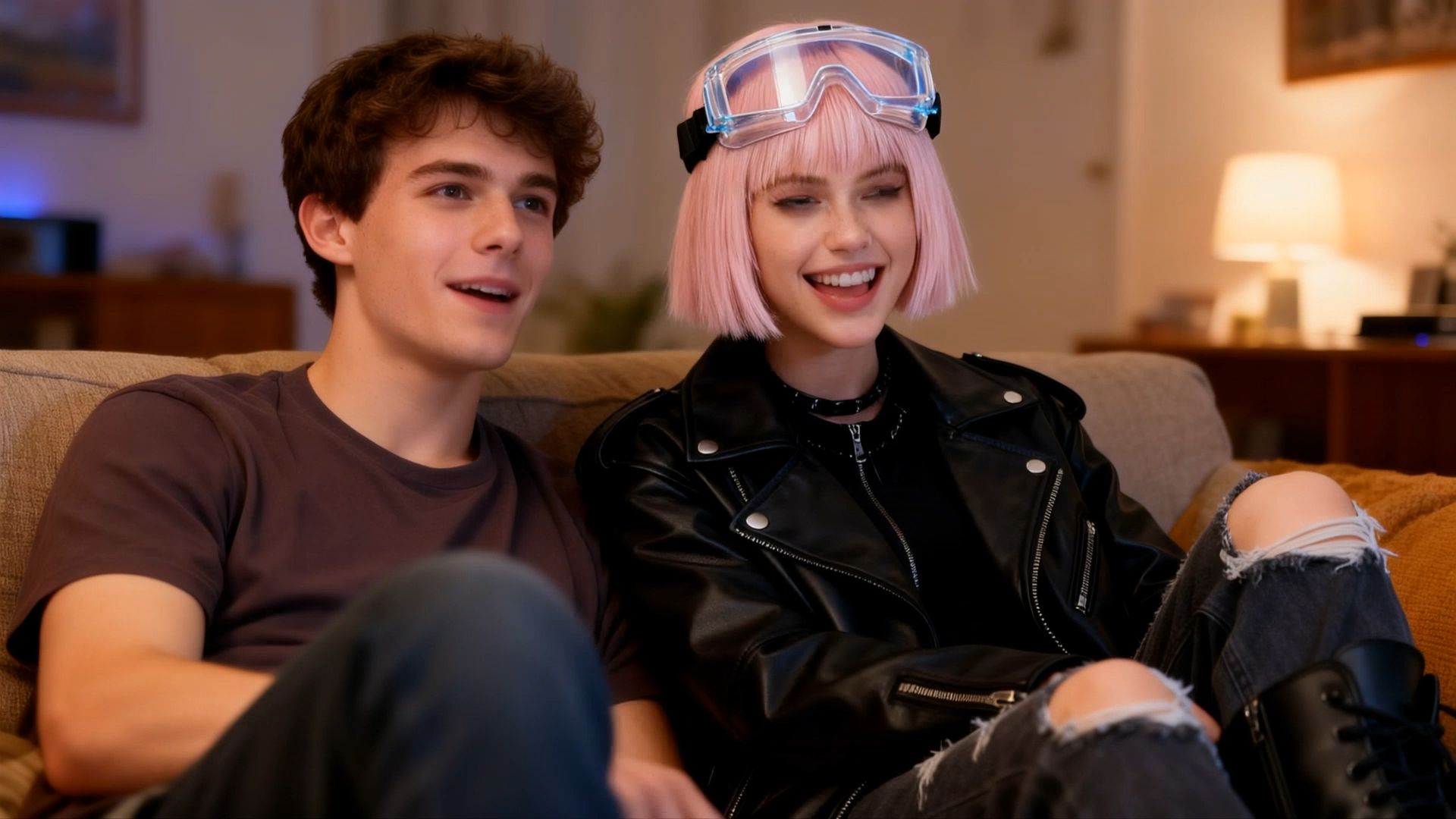
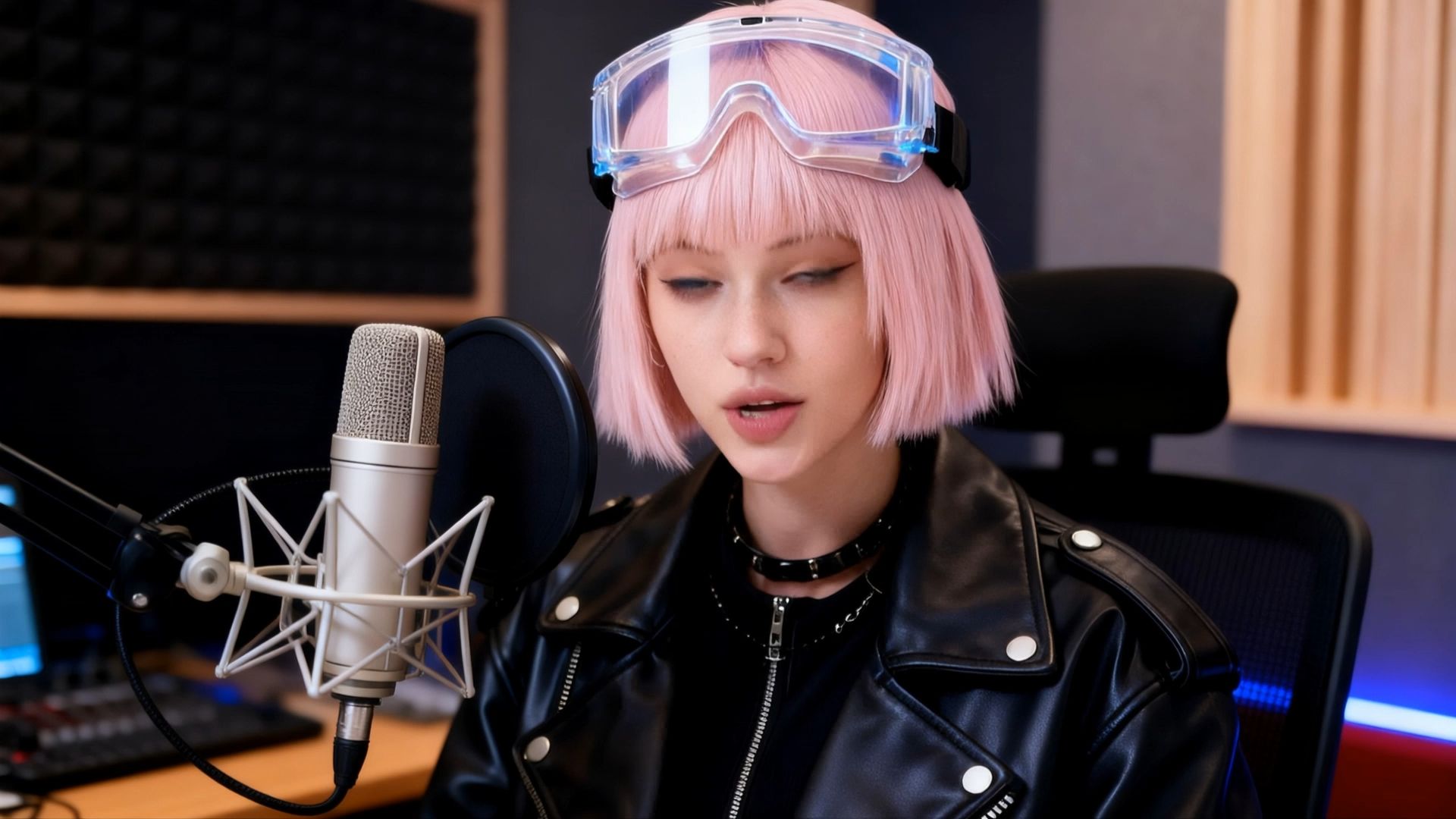
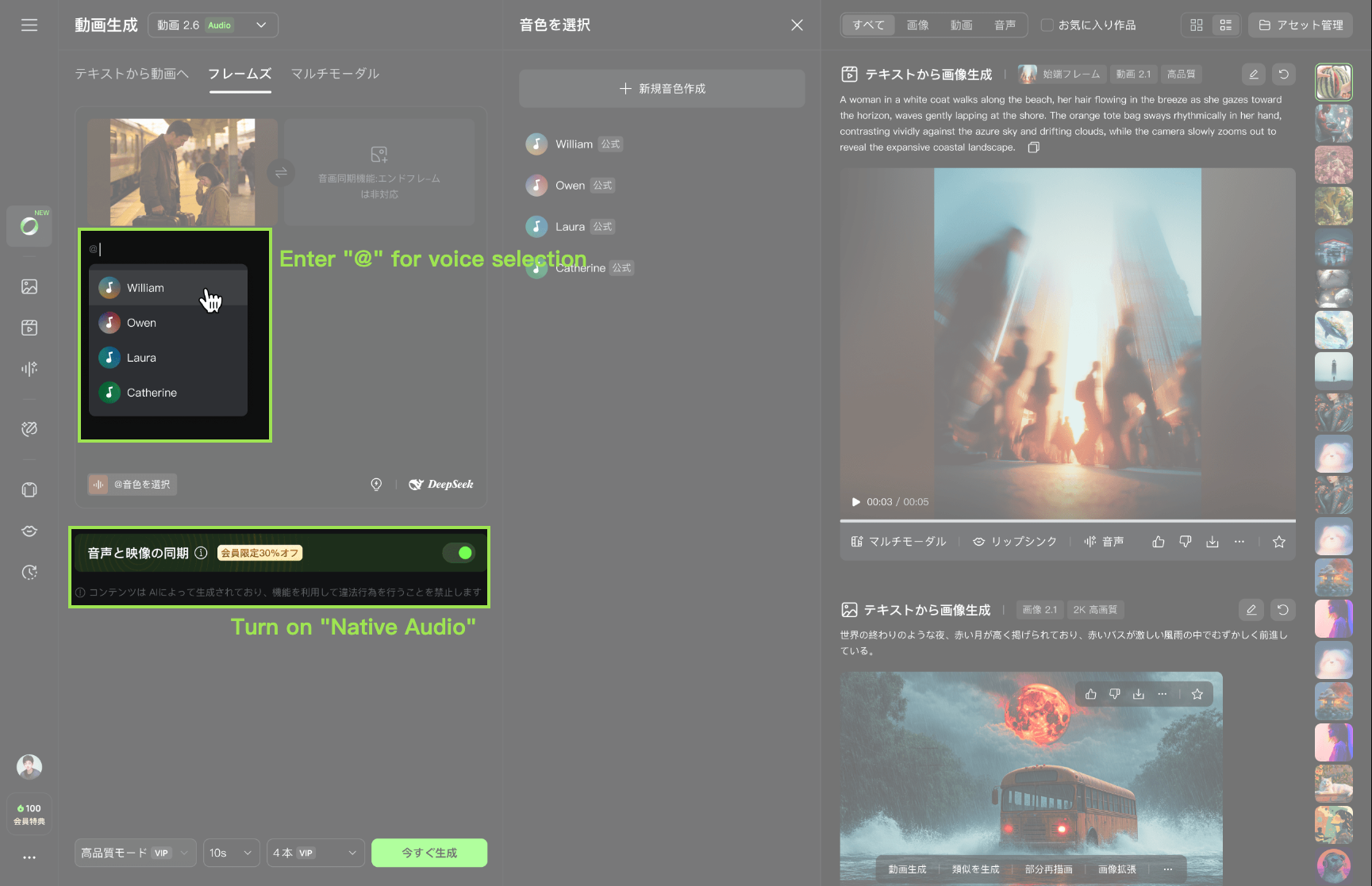
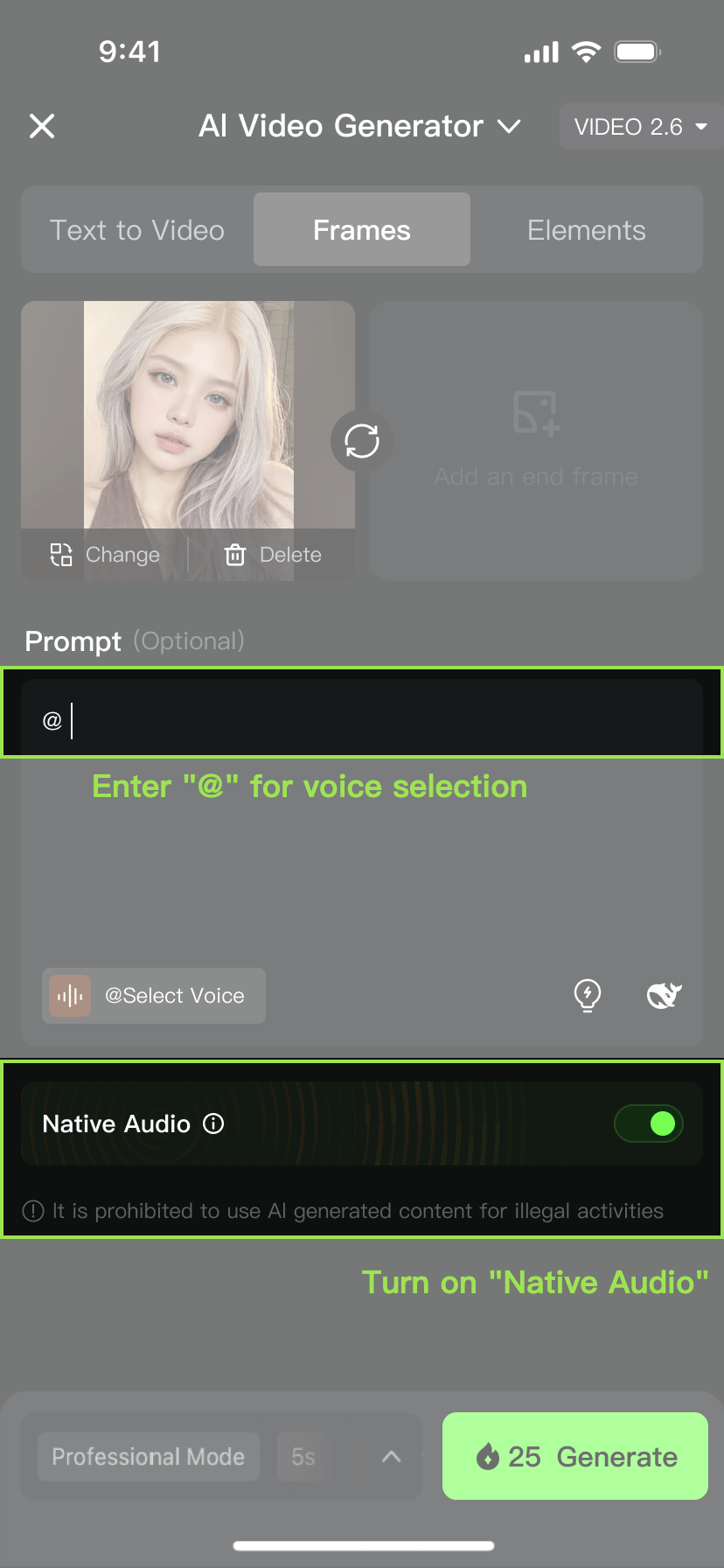
- Prompt-Based Voice Binding: With simple prompts like [Character@VoiceName], the model automatically binds voices to specific characters—making multi-character dialogue with distinct voices effortless.
Showcase:
Signature Voice for Avatars | Product Demos & Explanations | Multi-Character Voice Control | Storytelling & Performance |
 |  |  |  |
5.2 Platform User Guide
Before using this feature, please ensure that all input content and any audio you publish while using Voice Control are either your original work or properly authorised.
The Voice Control feature in VIDEO 2.6 is now available on both Web and App platforms. It is currently supported in Image-to-Audio & Visual (Image → Audio/Video); Text-to-Audio & Visual is not available yet. Below is a guide on how to create a custom voice and use Voice Control effectively.
How to Create a Custom Voice:
Web Platform - UI | App Platform - UI | ||
|
|
|
|
Steps | |||
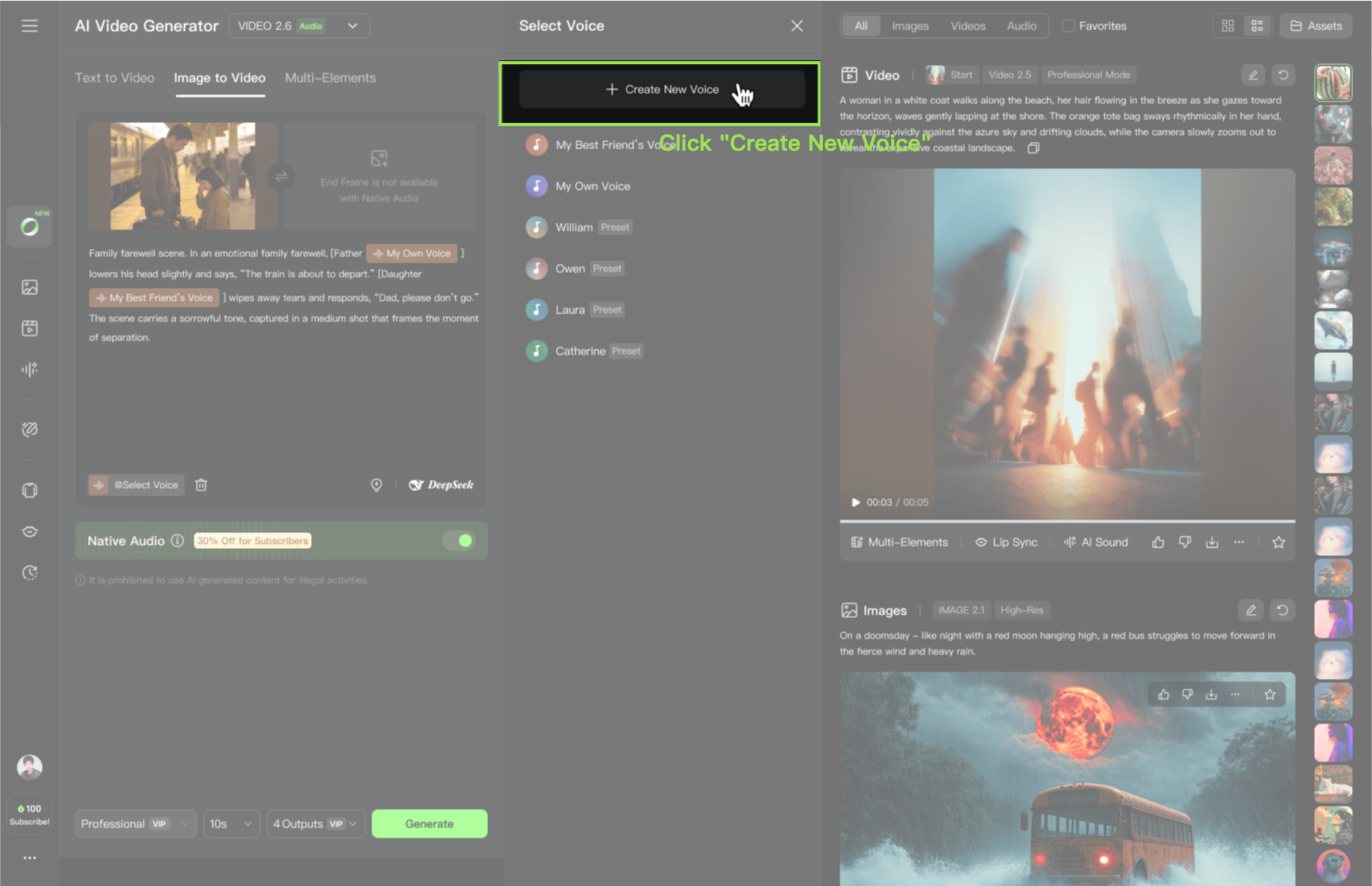
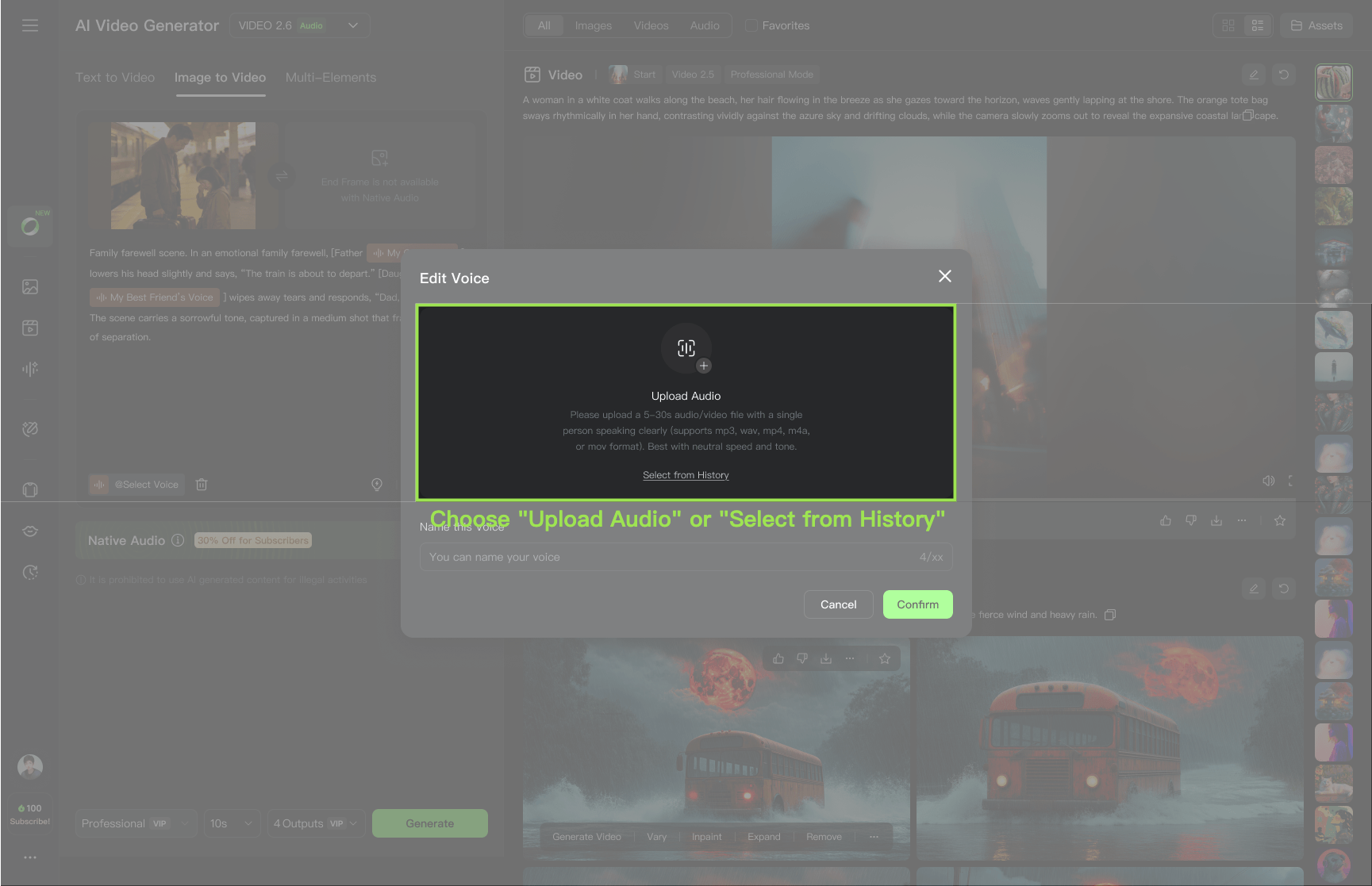
1. Click [+ Create New Voice], and choose one of the following methods:
2. After upload, the system will automatically extract the voice. You can then name or delete the extracted voice. Up to 200 voices can be created in total. | |||
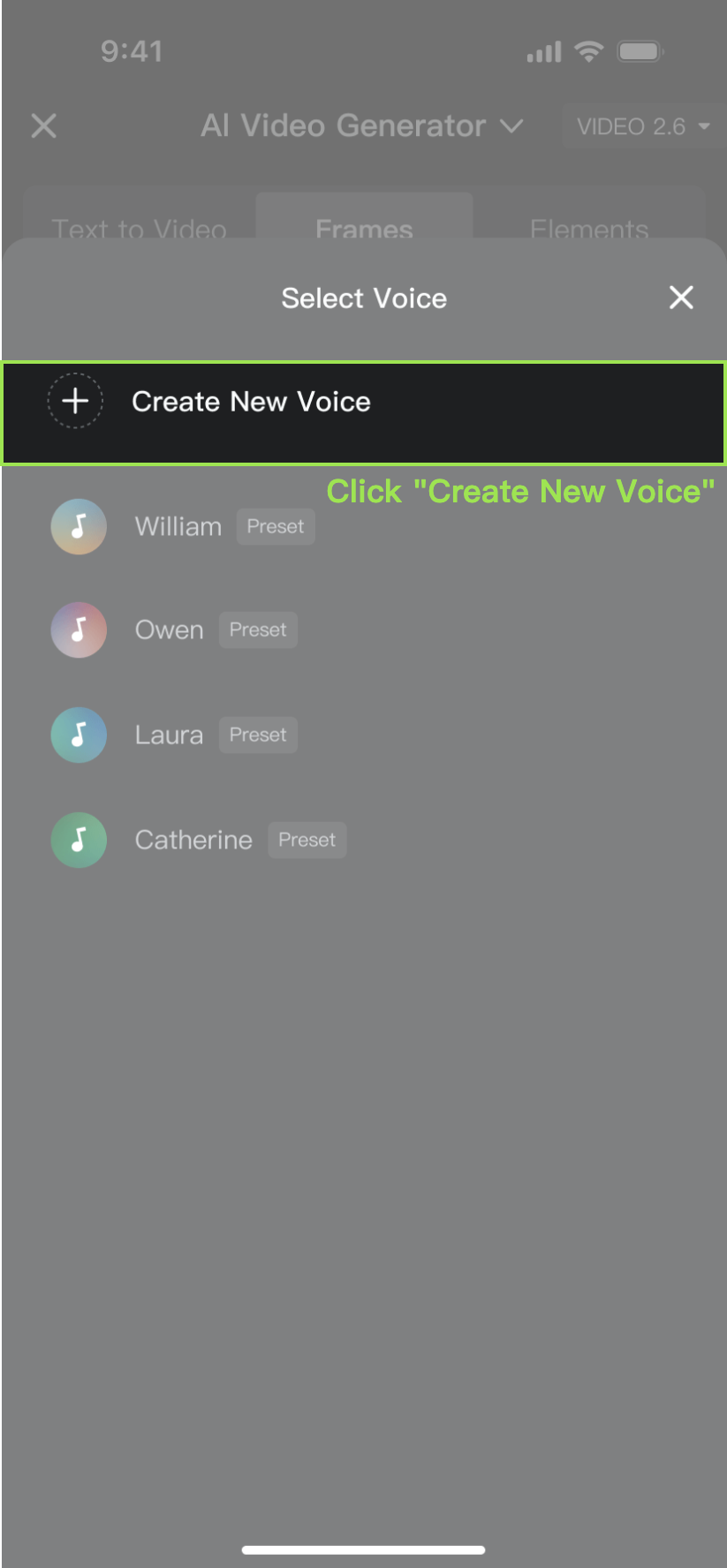
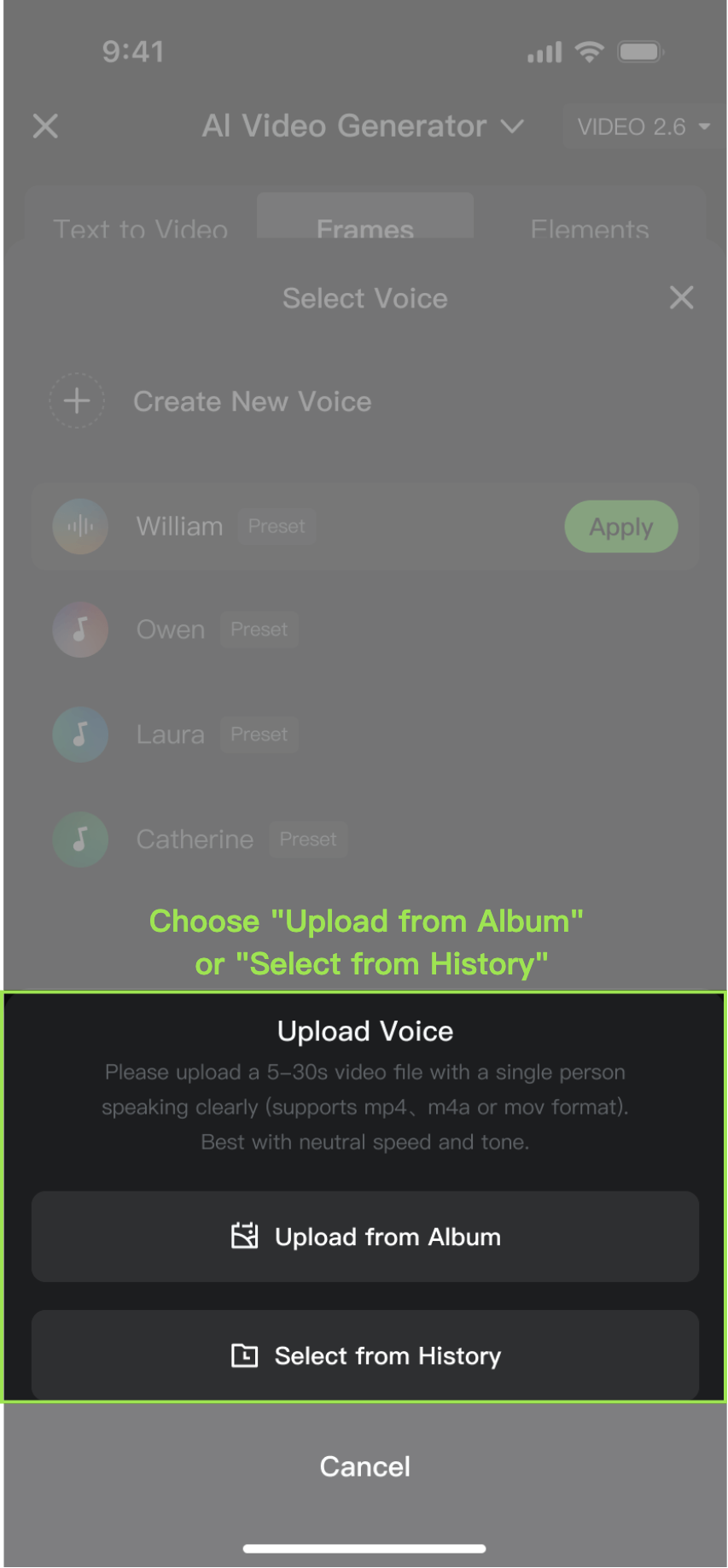
How to use voices:
Method One: Quick start with symbol "@" | Method Two: Manual selection from the Voice List | ||
|
|
|
|
Steps | |||
|
| ||
Voice | |||
| |||
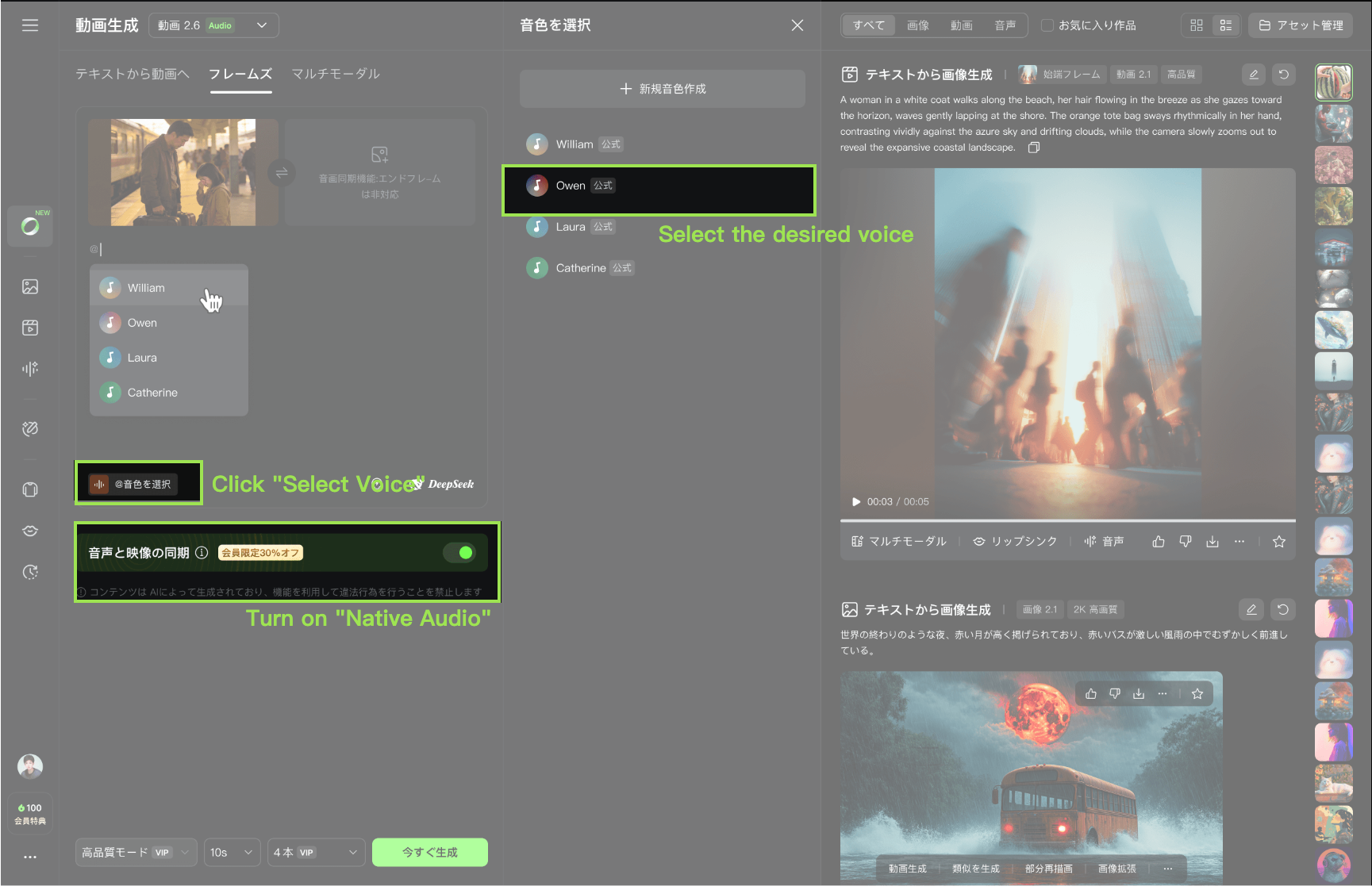
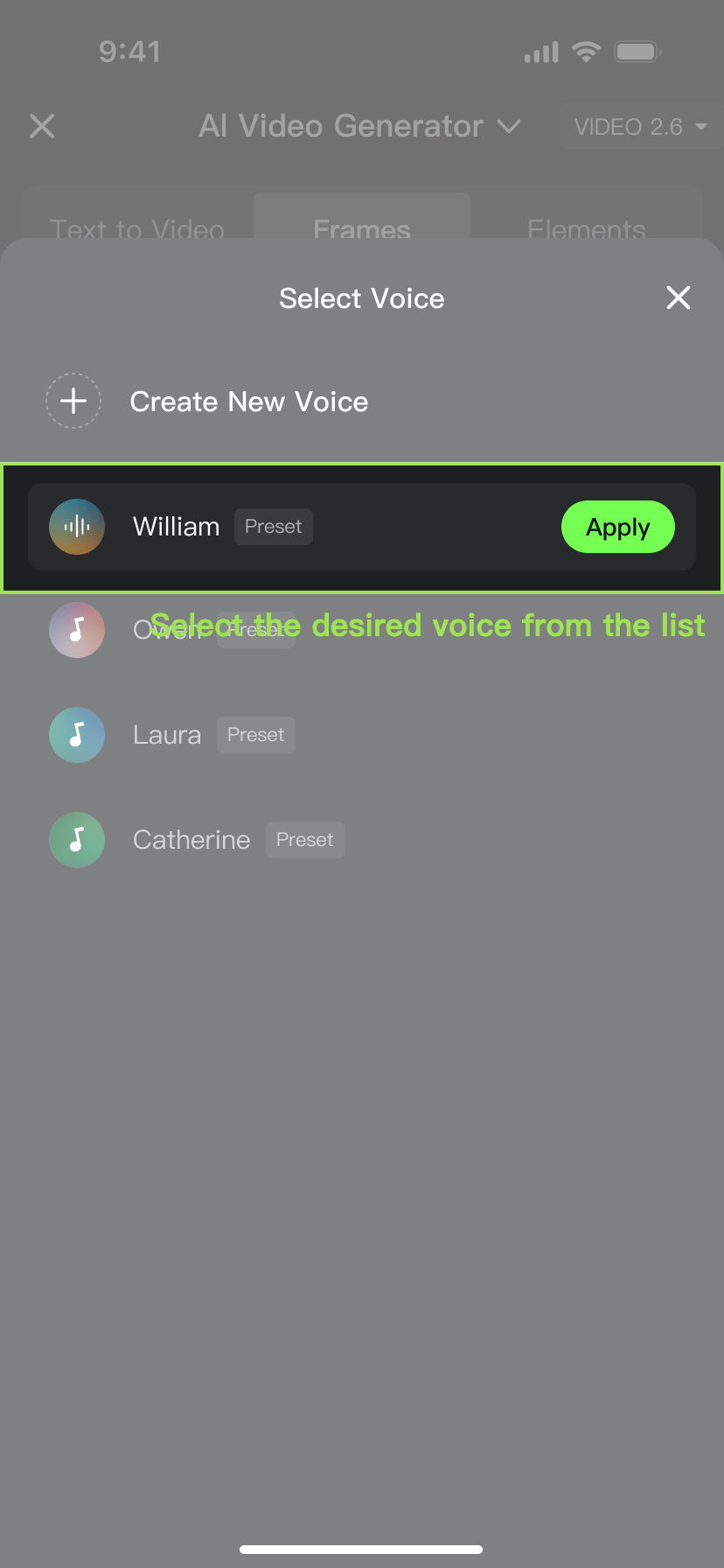
5.3 Voice Control Prompt Guide
Prompt = Scene (scene description) + [Element (element description) @ Voice Name] + Motion (motion description) + Audio (dialogue / singing / sound effects / music) + Others (style / emotion / camera)
Recommended Prompt Format
Type | Prompt Format | Prompt Example | Operation Diagram |
Single person speaking/singing | [Role Name] @ Voice: “Dialogue.” | Police interrogation scene. In a tense police interrogation, [Detective Li @Mr. Wang’s voice] stands and demands, “Where’s the evidence? [Suspect Zhang @Xiaohong’s voice] lowers his head, trembling slightly, and replies, “I don’t know anything.” The overall tone is serious and intense, with close-up shots focusing on their exchange. | 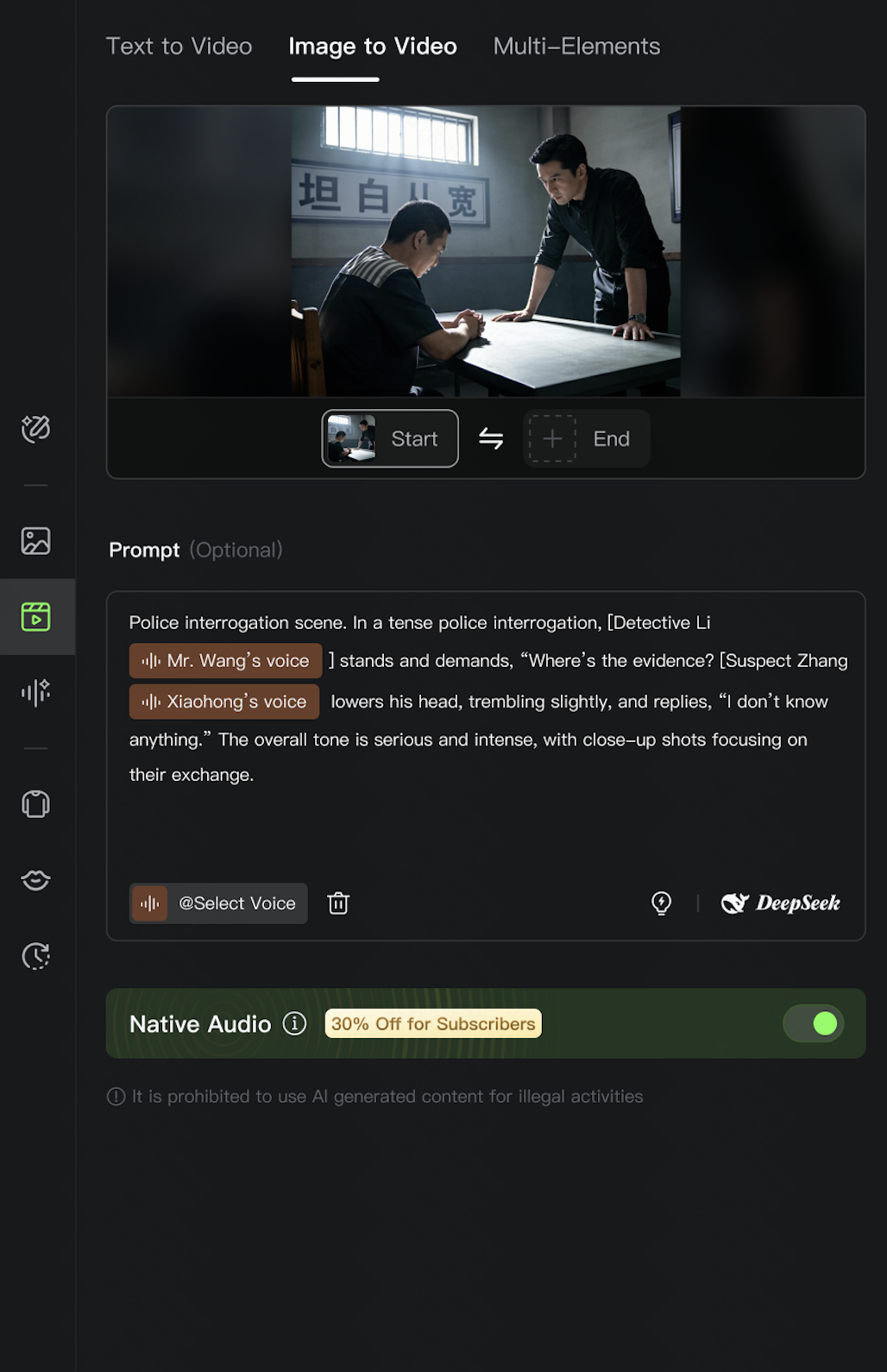 |
Multi-character conversation/singing Recommended for two-person dialogues; performance may degrade in scenes with three or more speakers. | [Role A] @ Voice A: “Line A.” [Role B] @ Voice B: “Line B.” | Family farewell scene. In an emotional family farewell, [Father @My Own Voice] lowers his head slightly and says, “The train is about to depart.” [Daughter @My Best Friend’s Voice] wipes away tears and responds, “Dad, please don’t go.” The scene carries a sorrowful tone, captured in a medium shot that frames the moment of separation. |
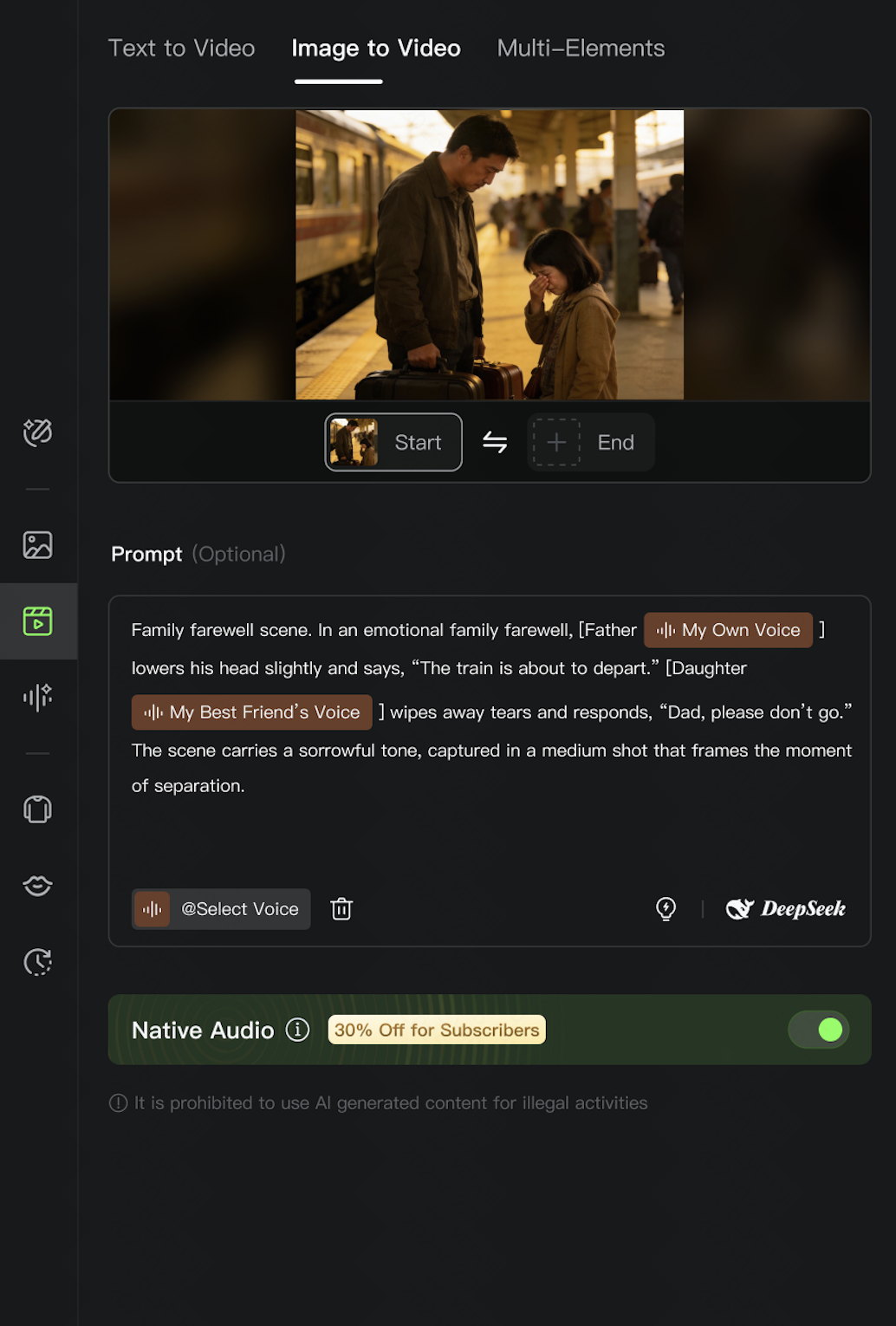 |
Not Recommended Prompt Formats:
Please avoid the following formats — the model may fail to correctly recognise voice bindings, resulting in incorrect or inconsistent voice application.
Error Type | Prompt Format | Example |
Missing character entity (using voice as the element) |
|
|
Multiple characters bound to the same voice |
|
|
Incorrect voice tag placement |
|
|
Voice tag embedded inside dialogue text |
|
|
Voice bound to visual actions or non-human audio |
|
|
Invalid binding (silent character or attribute conflict) |
|
|
6. VIDEO 2.6 Pricing
Pricing for the VIDEO 2.6 model is as follows:
- Native Audio ON: 10 Credits/s (Professional Mode)
Using Voice Control Feature: 2 additional Credits/s (Free and unlimited for subscribers)
- Native Audio OFF: 5 Credits/s (Professional Mode) ; 3 Credits/s (Standard Mode)
7. FAQ
Q: What languages does the current model support for voice output?
- The current model only supports voice output in Chinese and English. If you input other languages, we will automatically translate them into English and generate the corresponding audio, which won't affect the overall experience. We are also rapidly expanding support for additional languages, so stay tuned!
Q: Can I generate audio only, without video?
- Yes! You can go to the platform's [Sound Effect Generation] module, where you can choose either Text-to-Sound Effects or Video-to-Sound Effects:
- Input text to generate standalone audio.
- Upload a video to extract sound effects.
- This allows you to create pure audio content without needing to generate a video.
Q: How can I improve generation results?
- To achieve better generation results, we recommend optimising in the following ways:
- Optimise your prompt: Keep the description clear and specific, detailing the scene, sound effect type, style, etc. Avoid overwhelming the prompt with too many complex instructions; it's best to describe each element separately.
- Enhance image-text alignment: If you're using reference images, ensure the image content matches the text description. For example, if describing "outdoor camping," avoid using indoor photos as reference images to reduce conflicting information.
- Set parameters accurately: Adjust the video duration, resolution, and other settings according to your specific needs. Avoid using default settings if they don't meet your expectations.
- Simplify the creation scene: Focus on one core theme in each creation to avoid stacking too many elements (e.g., multiple ambient sounds + complex speech), which helps the model generate more stable and ideal content.