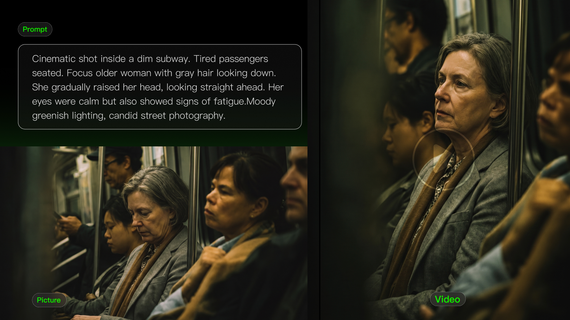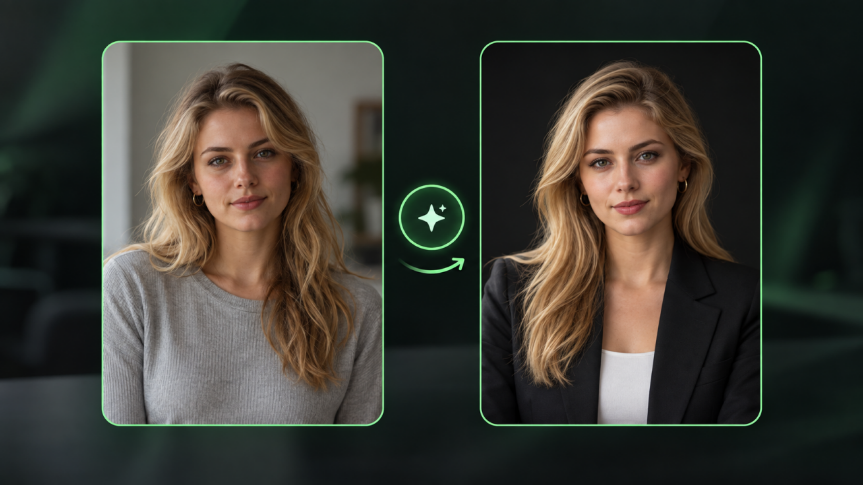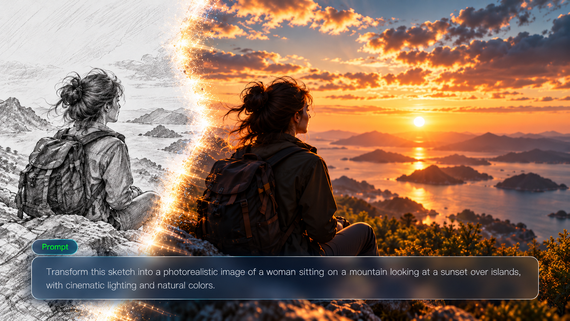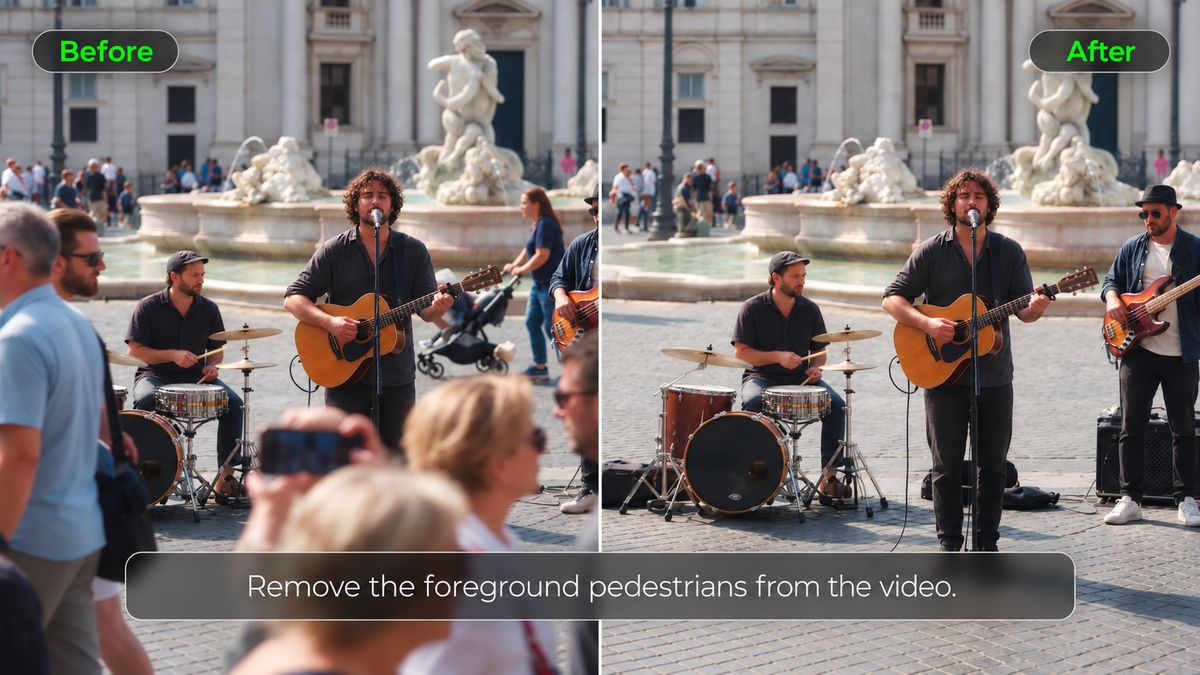
A stranger walks behind your subject, a tripod slips into the frame, or a parked car blocks part of the shot. You may only notice the distraction when reviewing footage, when reshooting is no longer practical. If you're wondering how to easily remove an object from a video, Kling 4.0 lets you remove unwanted elements with a text instruction. This guide covers the available editing methods, a three-step removal process, and ways to check your finished clip.
Ways to Remove Unwanted Objects From a Video
You can remove an object from a video in several ways, from manual masking and content-aware filling to prompt-based AI editing. Each approach handles unwanted elements differently, and the best choice depends on how the object moves, the surrounding background, and how much control you need over the result.
Method | How It Works | Best For |
Manual masking and patching | Tracks the object and replaces the area it covers | Complex shots needing precise control |
Content-aware filling | Fills selected areas using surrounding visual details | Small objects against simple backgrounds |
Prompt-based AI editing | Uses text instructions to identify and remove objects | Quick cleanup of unwanted people or objects |
For everyday footage, AI video object removal can be a practical starting point. An AI video editor lets you describe what needs to disappear and review the result, although crowded scenes and fast movement may require additional adjustments.
How to Remove Unwanted Objects From a Video With AI
With Kling 4.0, you can remove unwanted objects from video footage through natural-language instructions instead of masking each frame. Its precise video editing capabilities let you target specific elements in a scene and describe what should stay. If an important character, product, or setting needs stronger visual guidance, you can also provide supported references through Omni Reference.
You don't need to manually create a mask for every frame. Start with the original footage, identify what should disappear, and check whether the generated clip keeps the surrounding scene coherent.


Step 1: Upload the Video You Want to Edit
Open Kling AI's video creation workspace and select Kling 4.0. Upload the footage containing the unwanted object as your primary video.
Kling 4.0's full model supports up to five input video clips, including one primary video, in a supported editing task. Each clip must be 3–30 seconds long, and the combined duration of all input videos must not exceed 30 seconds.
You can also add a reference image or supported subject reference when an important person, product, or visual detail needs to remain recognizable. For example, a clear product image can help guide the appearance of packaging and logos, while a character reference can provide additional visual information about someone who should remain in the scene.
References are optional for straightforward removal requests. Add them when they make the editing goal clearer, rather than introducing unnecessary inputs.
Step 2: Describe What You Want to Remove
Write a clear instruction telling Kling 4.0 exactly which object or person should disappear.
Identify the unwanted element, explain where it appears, and describe any important surrounding details that should remain consistent.
For better AI video object removal, include these details when relevant:
- Identify the target: Name the unwanted object or person, such as a pedestrian, tripod, cable, or parked car.
- Specify its location: Describe where the target appears or how it moves, especially when similar objects are present.
- Describe the background: If removing an object reveals a hidden area, explain what surface or setting should appear behind it.
- Clarify what should stay: Identify the people, products, actions, lighting, or camera movement you want to preserve.
For example, instead of writing "Remove the person," try "Remove the person in the gray jacket walking behind the presenter. Keep the presenter, original camera movement, and surrounding street consistent."
Step 3: Generate and Refine Your Video
Generate your edited clip and watch it from beginning to end. Check whether the unwanted objects have disappeared and whether the surrounding subjects, lighting, and background look natural. If anything changes unexpectedly, refine your instruction and generate another version.
Kling 4.0 can also follow instructions that request multiple object removals in one scene. When removing several elements, identify each target clearly and specify the parts of the scene you want to retain.
| Prompts | Reference Video | Generated Result |
| Edit @Video 1 to remove the foreground person. Keep everything else unchanged, including the background, other subjects, camera movement, lighting, composition, and video duration. Seamlessly reconstruct the areas previously obscured by the person, ensuring natural, consistent details with no visible artifacts. |  |  |
Object Removal Prompts for Common Video Scenes
The right removal prompt depends on what appears in your footage and how it moves. A stationary prop may cover only a small part of the background, but a moving person can cross several objects throughout the clip. The following examples cover common video cleanup situations and the details worth checking after each edit.
Removing Stationary Objects and Background Clutter
Tripods, cables, trash cans, and stray props often stay in one part of the frame. If several similar objects appear, describe the unwanted one in relation to a fixed feature, such as a doorway, table edge, or window.
The surrounding surface also matters. A cable running across patterned flooring may require more detailed background reconstruction than a microphone against a plain wall. Including the surface in your prompt can help clarify the intended scene.
| Prompt: Remove the black tripod leg along the lower-right edge of @Video. Reconstruct the wooden floor behind it and keep the original camera framing. |
Removing People and Moving Objects
People and passing vehicles can cover different parts of the scene as they move. A pedestrian walking behind your main subject may leave much of the background visible in nearby frames, but someone crossing directly in front of the subject can hide important details.
This makes overlapping movement particularly challenging. The model may need to generate parts of a face, outfit, or background that the original footage never clearly captured.
| Prompt: Remove the man in the gray hoodie walking behind the couple in @Video. Keep the couple and their movements unchanged. |
Cleaning Up Product Shots and Close-Up Videos
Small distractions stand out in close-up product footage, especially when they sit near packaging, logos, or reflective surfaces. A loose cable or extra prop can draw attention away from the product you want to feature.
For these shots, describe the unwanted item and any product features that matter to the final composition. This gives the instruction a clearer focus when the unwanted object appears close to the featured product.
| Prompt: Remove the white charging cable next to the blue speaker in @Video. Keep the speaker's shape, logo, and reflection on the table consistent. |
If the unwanted object is gone but the product footage still needs lighting or color adjustments, a video enhancer can help refine the overall look.
How to Fix Common Object Removal Problems
Even with a clear prompt, AI video object removal may leave visible traces or change parts of the scene you intended to keep. Complex backgrounds, fast movement, and overlapping subjects can all affect the result.
The Wrong Object Disappears
When several similar objects appear in a scene, a vague instruction may cause the AI to remove the wrong one. For example, a request to delete "the chair in the background" leaves the target unclear if the room contains several chairs.
- Too vague: Remove the chair in the background from @Video.
- More precise: Remove the wooden chair beside the window from @Video. Keep the blue armchair next to the desk.
If the first edit removes the wrong item, revise your instruction to distinguish the intended target from nearby objects, then generate another version.
Part of the Object Remains Visible
Sometimes an object disappears, but its shadow, reflection, or a small fragment remains. This can happen when the object moves quickly or overlaps other parts of the scene.
Check these details before trying another edit:
- Entry and exit points: Look at the moments when the object first enters and leaves the frame.
- Shadows and reflections: Check nearby surfaces for visual traces that still follow the removed object.
- Remaining fragments: Identify any visible parts of the object and describe them more precisely in your revised instruction.
If the problem only appears during a brief moment, try working with a shorter section of the original footage.
The Background Flickers or Looks Distorted
A sidewalk pattern may shift between frames after you remove a parked car, or the edge of a doorway may appear to bend as the camera moves. These inconsistencies can stand out even after the unwanted object disappears completely.
Play the edited section at normal speed, then pause where the distortion begins. If the problem follows a camera movement, try a shorter or steadier section of the original footage. A clear reference image may also help guide the surrounding scene.
If the model still struggles to reconstruct the missing area, an AI video generator can help you create a replacement shot from a new prompt or visual reference.
The Main Subject Changes After Editing
An edit may remove the unwanted object but introduce changes to a nearby person or product. Compare the edited footage with the original, paying attention to faces, clothing, packaging, and other recognizable details. If something changes unexpectedly, specify the features you need to preserve in your next instruction.
Kling 4.0's Omni Reference can provide additional guidance for important characters, products, and visual details. For example, when removing a distracting prop from a product video, a clear product reference can help communicate the appearance you want to retain, including its color, shape, materials, and branding.
| Prompt: Remove the small makeup brush next to @Kling Lipstick in @Video. Keep @Kling Lipstick unchanged, including its color, shape, texture, and reflections. Naturally reconstruct the area behind the removed brush while preserving the original lighting, framing, and camera movement. |
The End
Knowing how to easily remove an object from a video can help you salvage footage with distracting props, passing strangers, or unwanted background details. The best results depend on the scene, the object's movement, and the details you need to preserve. With Kling 4.0's precise video editing, you can use natural-language instructions and references to target unwanted elements without manually masking every frame.
Start with a clear removal request, describe the parts of the scene that should remain, and review the edited video for background reconstruction, subject consistency, and unexpected changes.
FAQ
Is There a Way to Remove an Object from a Video on iPhone?
Yes. You can use an iPhone-compatible AI video editing tool that supports object removal. Upload your clip, specify the unwanted element, review the result, and save the edited video to your phone. Apple's Photos app includes a Clean Up feature for removing distractions from still photos, but it doesn't offer the same object-removal function for videos. Check whether your chosen editing tool supports video uploads and AI editing on iPhone.
How Long Can a Video Be for AI Object Removal?
Video length limits vary by AI editing tool. Kling 4.0 supports up to five input video clips in an editing task, including one primary video. Each clip must be 3–30 seconds long, and the combined duration of all input videos must not exceed 30 seconds.
Is Removing an Object the Same as Removing a Video Background?
No. Object removal targets a particular person, prop, or other element within a scene. When you remove background from video, the editing process focuses on the wider setting behind the main subject. The best approach depends on which parts of the original footage you want to preserve.
Does AI Object Removal Also Remove the Original Sound?
Not necessarily. Removing a visible person or object doesn't guarantee that associated sounds will disappear. If the original recording includes footsteps, speech, or vehicle noise from the removed subject, review the audio separately and make any necessary adjustments with an appropriate audio editing tool.
How Do I Edit Something Out of a Video Without Masking Every Frame?
If you're wondering how to edit something out of a video without masking every frame, try a prompt-based AI video editor such as Kling 4.0. Upload your footage, identify the unwanted object or person, and explain which visual details should stay unchanged. Review the result carefully, especially when moving objects overlap with important subjects or complex backgrounds.
Can AI Remove a Person From a Video Without Changing the Main Subject?
Yes. With Kling 4.0, you can identify an unwanted person through a text prompt and specify which people or background details should remain unchanged. Describe the target's clothing, position, or movement to distinguish them from other subjects. Review the result carefully, especially when the removed person overlaps with important visual details.