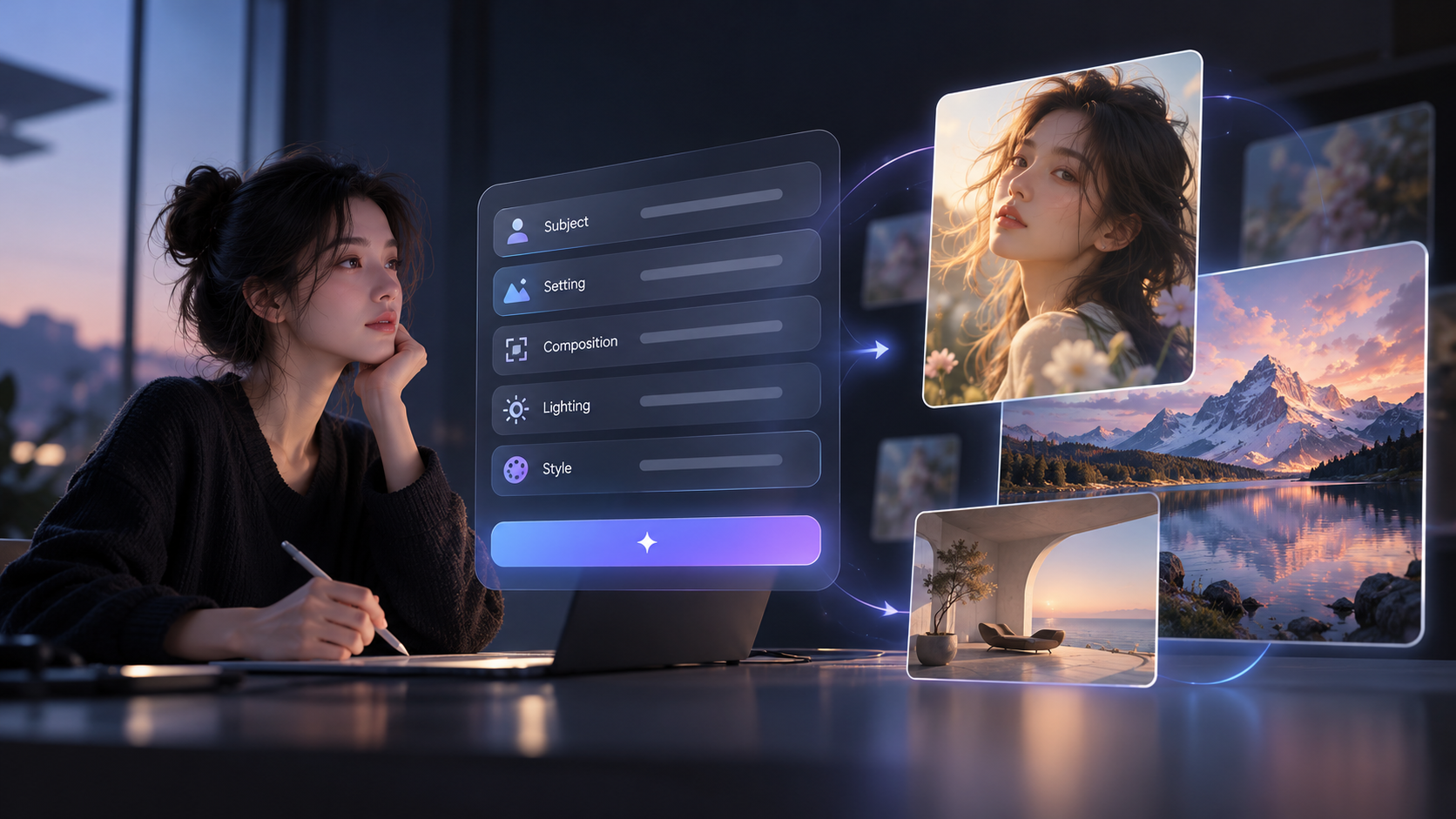
Writing good image prompts is less about stacking fancy or impressive adjectives and more about describing what you really want to see. If you’re learning how to write AI prompts for images, start with factors that determine the visual effects, such as the subject and action, setting, composition, lighting, and style. This guide lays out a repeatable formula you can reuse for your work.
What Makes a Good Image Prompt: A Quick Answer
The best way to write image prompts is to clearly describe key visual elements, including subject and action, setting, composition, lighting, and style. A strong image prompt contains concrete and actionable instructions instead of vague words so that an AI art generator can easily grasp your real goal. Then, keep each instruction specific, and refine one element at a time instead of rewriting the whole prompt.
Prompt Element | What to Specify | Example |
Subject & action | Who or what appears and what they are doing | A woman reading a book |
Setting | Where the scene takes place | A small café |
Composition | Framing, angle, or camera view | Medium shot at eye level |
Lighting | Direction and quality of light | Soft morning light from the left |
Style | Medium or visual treatment | Warm vintage film look |
How to Write AI Prompts for Images Step by Step
You don’t need to write the whole prompt in one go. Get the scene down first, and then work through the important visual choices. The following steps turn a loose concept into a clear, reusable image prompt.
Step 1: Start With the Subject, Action, and Setting
When learning how to write text to image prompts, start with the main subject in the frame, what the subject is doing, and where the action takes place. The table below compares two AI prompts.
Vague Prompt | More Specific Prompt |
A beautiful woman outside at night | A young woman holding a transparent umbrella under a dark night sky filled with glowing colored lights |
A general word such as “beautiful” tells the generator very little about the picture. The umbrella, night sky, and colored lights are concrete and observable things that the model can actually grasp. You can add details that matter to your vision. If a character's clothing is important, name it. If the background is central to the idea or image, describe it. Leave unimportant features open-ended.
Step 2: Add Composition, Lighting, and Style
With a clear subject, action, and setting, tell the AI generator how you want the scene framed, where the light comes from, and what visual effects you expect. Composition can include a close-up, medium shot, wide shot, top-down view, low angle, or another framing choice. Lighting can specify both the source and atmosphere, and style tells the model whether the final image should look like photography, watercolor, illustration, film, or another visual treatment.
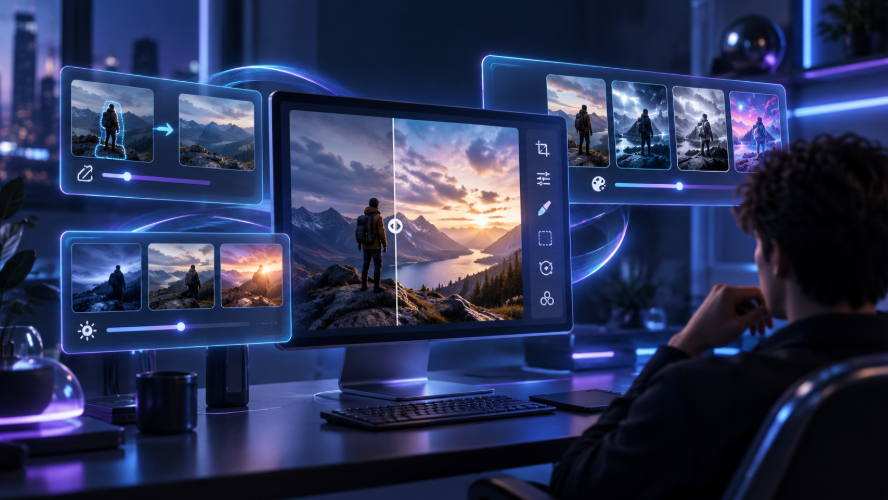
With Kling IMAGE 3.0, you can use text instructions to adjust a scene's lighting. For example, keep the subject and composition consistent while generating separate variations with side lighting or backlighting. You can also use an image enhancer to improve the overall look or bring out finer visual details.
Reference Image | Generated Image of Side Lighting | Generated Image of Back Lighting |
.png?x-oss-process=image/resize,w_1872) | .png?x-oss-process=image/resize,w_1872) | .png?x-oss-process=image/resize,w_1872) |
| Prompt: Keep the subject, camera angle, and composition consistent with the reference image, and change the lighting and shadow to [side lighting / backlighting] | ||
Step 3: Use Reference Images When Words Are Not Enough
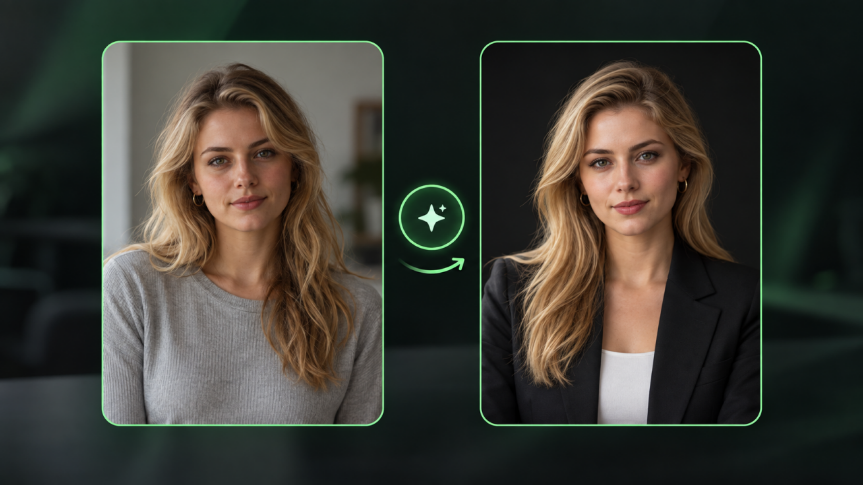
Some visual information is easier to show than describe. If you already have a portrait, character, composition, or visual style you want to preserve, upload it as a reference and use your prompt to explain which parts to retain and which ones to change.
With Kling IMAGE 3.0, you can combine reference images with natural-language instructions to guide subject appearance, composition, and visual style while specifying what should remain consistent or change.
Step 4: Put It All Together with a Simple Image Prompt Template
Now that you have defined the key visual elements, combine them into one clear image prompt. Whether you're creating an image from text or working with reference images, you can use this simple formula to organize your instructions:
[Subject + Action] + [Setting] + [Composition] + [Lighting] + [Style] + [Important Details] + [Reference Instructions (if applicable)]
For example:
| Prompt: A young woman holding a transparent umbrella on a rainy city street at night. Colorful neon lights reflect on the wet pavement. Medium shot at eye level, soft side lighting, cinematic photography, and natural skin texture. |
If you're using a reference image, you can add a specific instruction:
| Optional Reference Instruction: Keep the woman's facial features and hairstyle consistent with the uploaded reference portrait while following the setting, lighting, and style described above. |
You don't need to include every element in every prompt. Focus on the details that matter most to your image. The key to writing effective AI prompts is to make your visual expectations clear without adding unnecessary instructions.
Image Prompt Examples for Different Types of Images
Different image types call for different levels of detail. The basic prompt structure stays similar, but the information you emphasize should match the image you want to create. Portraits rely more on the subject and framing, product images need clear object and presentation details, and illustrations depend more heavily on visual treatment.
Portrait Photography Prompt
For portrait photography, start with the person and the type of portrait you want to create. Different portrait prompts can produce very different results. You can use these four approaches with an AI image generator.
1.Natural Window-Light Portrait
| Prompt: Create a close-up portrait of a young woman who is sitting beside a large window in a quiet apartment. She wears a white linen shirt and looks slightly away from the camera. Soft morning light enters from the left, creating gentle shadows across her face. The final picture should have natural skin texture, a neutral background, and realistic editorial photography. |
2.Night Portrait in Cinematic Style
| Prompt: A cinematic portrait of a young man standing on a rainy Tokyo street at night, outside a convenience store. Blue and red neon signs reflect on the wet pavement. Medium close-up, eye-level camera angle, shallow depth of field, subtle film grain, and moody urban photography. |
3.Professional Studio Headshot
| Prompt: Create a professional headshot of a woman in her early thirties wearing a tailored navy blazer. She faces the camera with a relaxed and confident expression. Generate a photo with a clean white studio background, soft frontal lighting, head-and-shoulders framing, natural skin texture, and polished corporate photography. |
4.Golden-Hour Outdoor Portrait
| Prompt: Depict a full-body portrait of a woman in a flowing cream dress. She is walking through a field of tall grass at sunset. Warm golden light falls across her hair and shoulders. The camera is positioned slightly below eye level, with distant hills softly blurred in the background. Romantic lifestyle photography with natural colors. |
Product Photography Prompt
A product photography prompt works well when the main product is visually dominant, and the surrounding details support the product’s presentation. The four examples cover common commercial styles. If you're starting with an existing product photo, you can use an image background remover to isolate the product before using it as a reference for a new scene.
1.Minimalist E-Commerce Product Photo
| Prompt: A single white ceramic skincare bottle standing upright on a seamless light beige background. Centered composition, front-facing view, soft studio lighting from both sides, and subtle shadow beneath the bottle. Clean e-commerce product photography with sharp edges and realistic ceramic texture. |
2.Luxury Perfume Campaign
| Prompt: A transparent amber perfume bottle on a polished dark marble pedestal. Warm directional light enters from the upper right, creating reflections through the glass. Deep brown background, close-up composition, elegant shadows, sophisticated luxury advertising photography. |
3.Lifestyle Coffee Product Photo
| Prompt: A reusable stainless-steel coffee tumbler sitting on a wooden café table beside an open notebook and a small pastry. Morning sunlight comes through a nearby window. Three-quarter camera angle, warm natural colors, realistic metal reflections, and relaxed lifestyle product photography. |
4.Bold Beauty Product Advertisement
| Prompt: A coral-red lipstick standing vertically on a glossy pink platform, surrounded by sculptural curved shapes in complementary pink tones. Low-angle close-up, strong side lighting, crisp reflections, clean background, bold contemporary beauty advertising photography. Keep the lipstick as the clear focal point. |
Illustration Prompt
Illustration prompts need a clear visual direction because style has a stronger role in determining the final result. In a text-to-image workflow, terms such as watercolor, hand-drawn illustration, vintage travel poster, or digital illustration provide more concrete direction than general descriptions such as “artistic.” Supporting details such as line quality, texture, palette, and level of detail can be added when they are important to the intended look.
1.Whimsical Watercolor Illustration
| Prompt: A small fox sleeping beneath a flowering cherry tree beside a quiet stream. Delicate watercolor washes, soft pastel colors, textured watercolor paper, loose brush edges, gentle spring atmosphere. Children's storybook illustration with a simple, balanced composition. |
2.Cute Hand-Drawn Cartoon
| Prompt: A cheerful girl riding a mint-green bicycle through a neighborhood filled with colorful flower shops. She wears a yellow beret and carries a basket of tulips. Rounded character shapes, expressive face, clean hand-drawn outlines, bright playful colors, charming cartoon illustration. |
3.Vintage Travel Poster
| Prompt: An illustrated travel poster featuring a coastal town on the Italian Riviera. Colorful buildings climb a hillside above a turquoise harbor, with a small sailboat in the foreground. Bold geometric shapes, limited retro color palette, subtle printed-paper texture, mid-century travel poster style. No lettering. |
4.Fantasy Digital Illustration
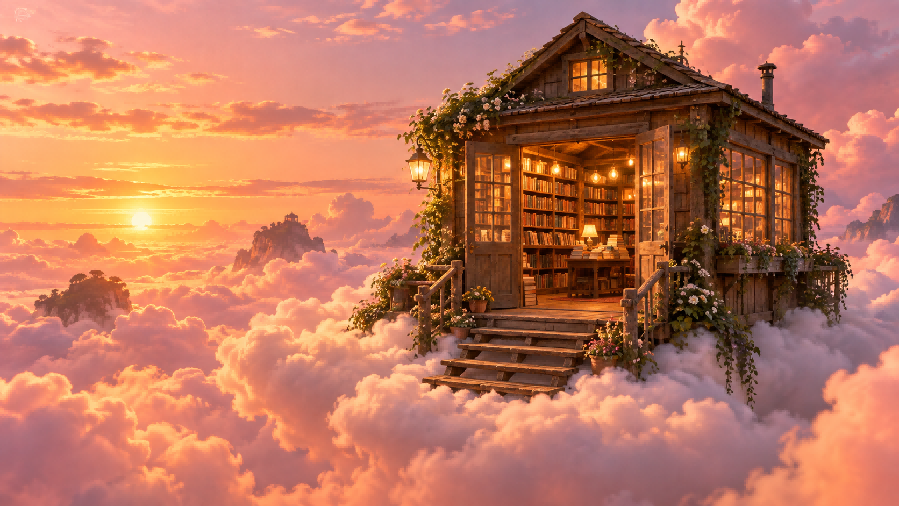
| Prompt: A young explorer standing on a stone bridge above a glowing forest at twilight. Giant luminous mushrooms grow between ancient trees, and tiny floating lights fill the air. Wide composition, rich teal and violet palette, painterly digital illustration, detailed environment, atmospheric fantasy lighting. |
Reference-Based Character Prompt
When a character needs to remain recognizable across a new scene, the reference image can carry visual information that would be difficult to reproduce with words alone. Your prompt can then concentrate on what should stay consistent and what should change.
Kling IMAGE 3.0 can draw on features from reference images for recreation. For example, you can preserve a girl’s facial features with the uploaded portrait and tell the model to place her in a completely different scene.
Reference Image | Generated Image |
.png?x-oss-process=image/resize,w_1872) | .png?x-oss-process=image/resize,w_1872) |
| Prompt: Keep the facial features of the girl in the Reference Image consistent. She wears a thick vintage-patterned coat and a plaid scarf, and holds a clear umbrella decorated with snowflake patterns on it. The background is a black night sky filled with colorful, glowing star-like light dots, creating a dreamy and romantic atmosphere. I want the generated picture with heavy film texture and grain, rich and dreamy colors, hazy lighting, vintage aesthetic, facial lighting, and CCD look. | |
Advanced Image Prompt Techniques for More Precise Control
Once the basic structure is clear, the key is to remove ambiguity in your prompt. Position, spatial relationships, and multiple instructions all need to describe one coherent visual result.
Make Position and Direction Clear
Position changes become easier to interpret when the prompt describes the intended final state directly. Words such as “move,” “switch,” “turn,” or “adjust” can leave important questions unanswered if they do not explain where the subject or object should end up.
Reference Image | Generated Image |
.png?x-oss-process=image/resize,w_1872) | .png?x-oss-process=image/resize,w_1872) |
| Prompt: Rotate the boy in the image so that his head is facing downward. | |
Describe Spatial Relationships Precisely
When several subjects or objects appear in the same image, describe how they relate to one another rather than listing them separately.
Spatial terms such as to the left of, behind, in front of, above, below, beside, centered between, or slightly forward can help establish the intended arrangement. Distance can also matter, so specify when subjects should stand close together or when one object should appear farther in the background.
The same principle applies to layered compositions. If one character should remain in the foreground and another should appear behind them, state that relationship directly. If a product should sit in the center with supporting objects around it, make that hierarchy explicit.
This becomes increasingly important as the number of elements grows. Naming everything tells the model what belongs in the image; spatial relationships explain where those elements belong in relation to one another.
Keep Multiple Instructions Consistent
More detailed AI prompts help when their instructions point toward the same result. Before generating, check whether the subject, action, composition, lighting, and style can logically exist together in one image.
Pay particular attention to instructions that control the same visual property. Two different shot sizes, conflicting camera positions, incompatible lighting directions, or unrelated styles can make the intended result less clear.
For reference-led generation, consistency also means giving each source a clear purpose. One reference might establish the character, another the environment, and another a specific object or visual feature. The written instruction should make those roles clear rather than leaving the model to determine how the references should be combined.
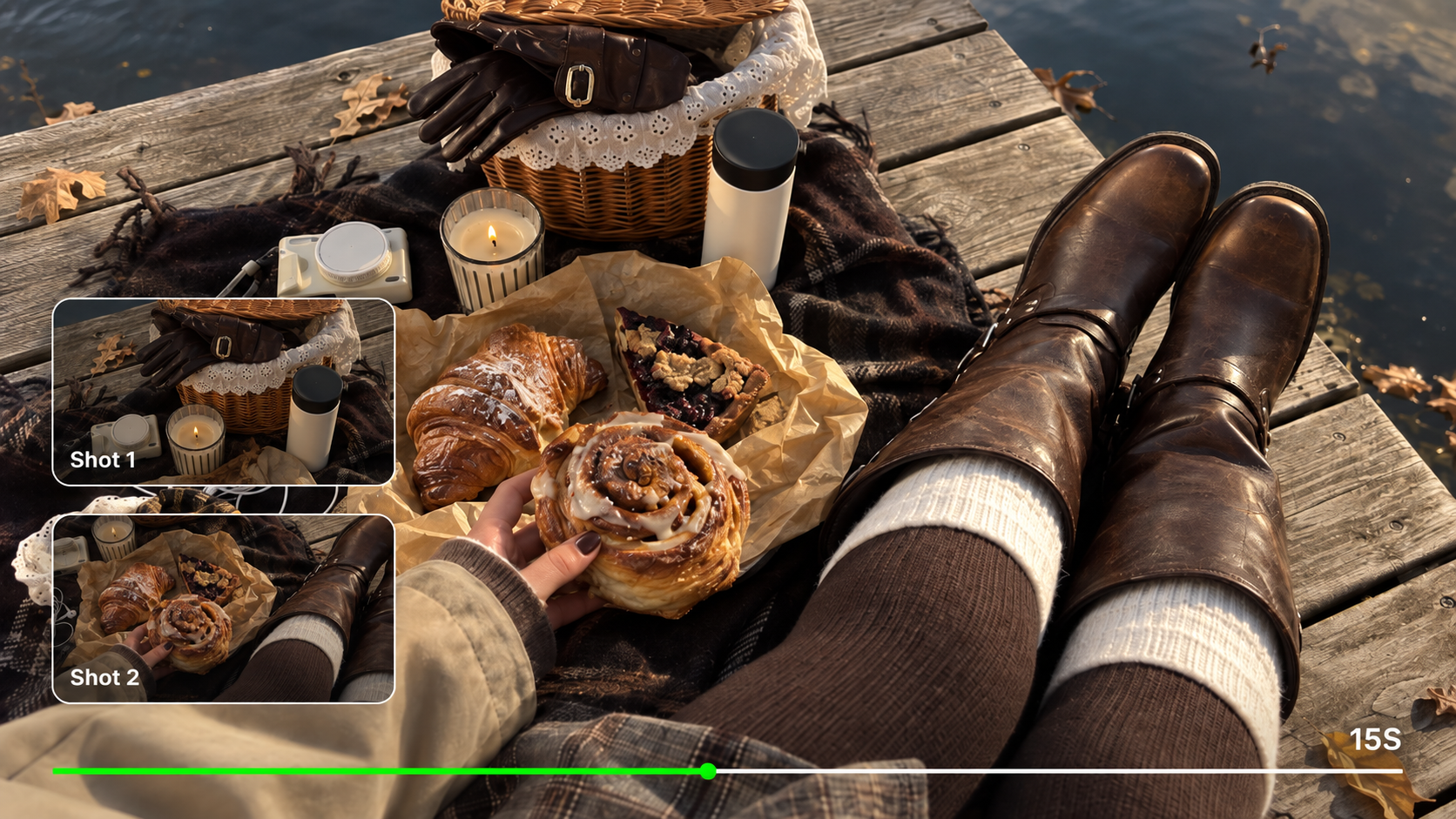
Kling IMAGE 3.0 can extract and combine features from up to 10 reference images, making it easier to guide subject identity, composition, backgrounds, and visual styles. Assign each reference a clear role and explain which details should remain consistent or change. The more visual information you provide, the more important it becomes to explain which elements should stay consistent and which ones can change.
Therefore, an advanced image prompt does not have to be long. Add detail when it resolves a visual decision, and remove instructions that repeat, conflict with, or add little to the intended result. If those instructions are clear, you can create AI image results and refine specific details from there.
Common Image Prompt Mistakes to Avoid
Even detailed image prompts can become harder to follow when instructions are vague, repetitive, or contradictory. If a prompt keeps producing the wrong image, check it for common problems before making it longer.
Common Mistake | Better Approach |
Using generic praise such as “masterpiece” | Describe visible features |
Adding many similar adjectives | Keep details that change the image |
Mixing unrelated visual styles | Choose one clear visual direction |
Leaving composition undefined | Specify framing or camera angle when it matters |
Giving unclear directional commands | Describe the final position directly |
Rewriting everything after one bad detail | Change the problem element first |
Longer AI prompts are not automatically better prompts. Specificity matters more than word count.
The End
The best way to write image prompts is to make the important visual decisions clear: subject and action, setting, composition, lighting, and style. With Kling IMAGE 3.0, you can start simple, generate, review what was missed, and refine only that part. If words are not enough, add a reference image to communicate the visual information directly.
FAQs
How Long Should an Image Prompt Be?
There is no ideal word count. A simple concept may need only one sentence. A scene with strict composition, character, or styling requirements may need more detail. Focus on whether each phrase contributes useful visual information, and cut things that don’t change the picture.
Do Negative Prompts Actually Help?
Sometimes they can be useful when they address a specific problem, but a clear positive instruction is often easier and more effective for the model to understand than a vague prohibition.
How Do I Keep a Character Consistent Across Images?
Keep the character’s defining features and details stable. A reference image can provide strong visual guidance when wording alone is not enough. With Kling IMAGE 3.0, you can also extract features from multiple reference images for consistency-focused workflows.
Can You Use a Reference Image With an Image Prompt?
Yes. A reference image can supply the subject, composition, style, or other visual information, and the written prompt can tell the model what to preserve or change. Kling IMAGE 3.0 supports both text-led creation and reference-based image generation and editing.
Should Image Prompts Use Full Sentences or Keywords?
Both full sentences and keywords can be used for AI image generation, but clear, descriptive sentences are often easier to use when a scene includes several details. Keywords can be helpful for simple subjects or visual styles, such as "watercolor illustration, pastel colors, soft lighting." For more complex images, sentences help explain how elements relate to one another. For example, "A woman standing beside a window with sunlight falling across her face" tells you the subject, position, and lighting more clearly than a loose list of terms. Choose the format that expresses your visual idea without unnecessary words.