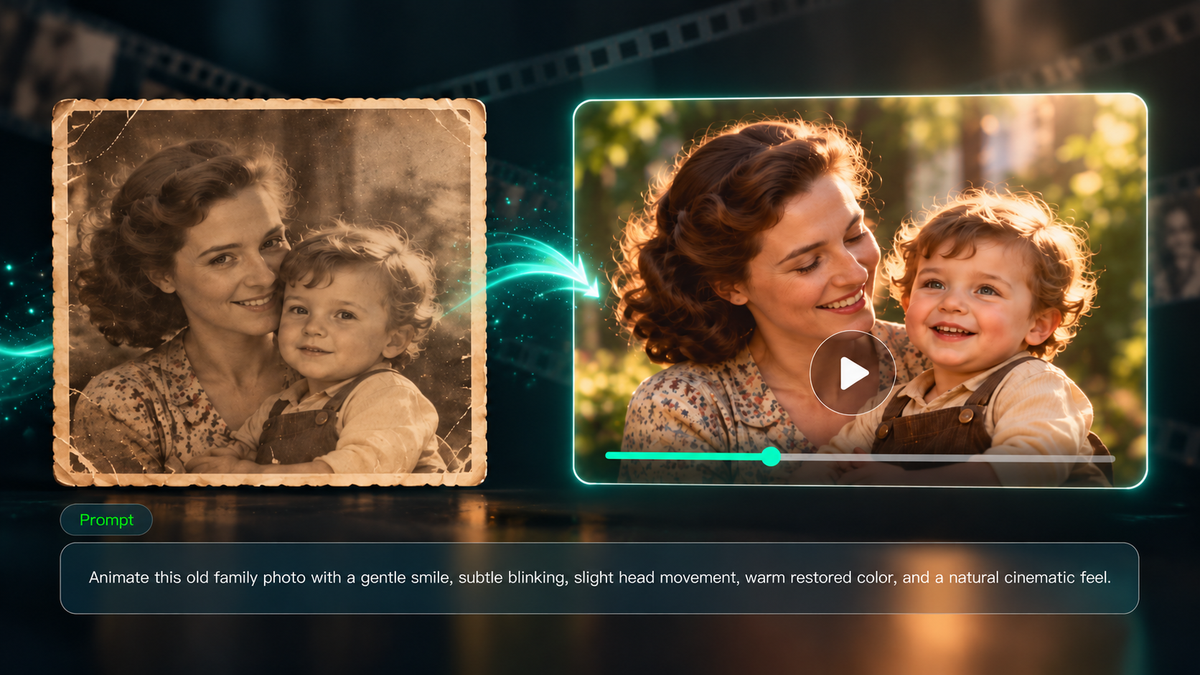
What would a familiar smile look like in motion? AI image-to-video tools make it possible to animate old photos without turning them into something unrecognizable. A blink, a gentle head turn, a small wave, or a short sequence from one family outing can bring old photos to life while still respecting the original mood of the pictures. The best results usually come from simple direction, careful reference choices, and a model that can handle movement and consistency at the same time.
What You Need Before Animating Old Photos
Getting started does not have to be complicated. Whether you want to animate a single portrait or a connected memory from several pictures, it helps to prepare your source material before you generate.
- A clear digital copy. Scan your print or photograph it in even lighting. Make sure faces are visible, and avoid glare, strong blur, or heavy perspective distortion.
- Photos from the same moment or occasion. If you want a fuller memory video, gather several photos from one trip, celebration, or family event. Matching clothing, location, or time period will make the story easier to connect.
- A few reference ideas. Decide whether you want a short portrait animation, a multi-photo travel memory, or a family-event recap. This will help you choose motion, timing, and transitions.
- Clean framing. Crop away album borders and distracting edges when needed, but leave enough space around faces and important objects.
- A backup of the original files. Keep untouched scans or photos before making edits, so you can always return to the source images.
Why Use Kling 4.0 to Animate Old Photos?
When you animate old photos online, the challenge is not only making a picture move. You also need the people to stay recognizable, the transitions to feel coherent, and the actions to look natural instead of shaky or artificial. Kling 4.0 is especially useful for this kind of task because its AI video generator combines richer reference control, stronger motion performance, and longer video generation in one workflow.
Use Omni Reference for Subject Consistency and Better Visual Control
Kling 4.0's Omni Reference supports up to 15 reference assets, including images, videos, voice references, and element references, with up to 10 images. For old-photo animation, you can use multiple portraits to maintain recognizable faces and clothing across scenes, while other images help guide the setting and vintage visual style. You can also upload a short reference video to guide transitions or camera movement. By assigning each reference a clear role, Kling 4.0 helps maintain subject consistency and generate visuals that more closely match your intended look and storytelling direction.
Create Smoother, More Natural Movement in Old Photos
Kling 4.0 delivers more stable motion, especially when you want to go beyond a simple blink in an old photograph. A small wave, a few walking steps, a turn toward the camera, or a brief interaction between family members can look steadier and more natural. This stronger large-motion stability is especially helpful when you want an old travel memory or family event to feel more alive rather than remaining a nearly static portrait.
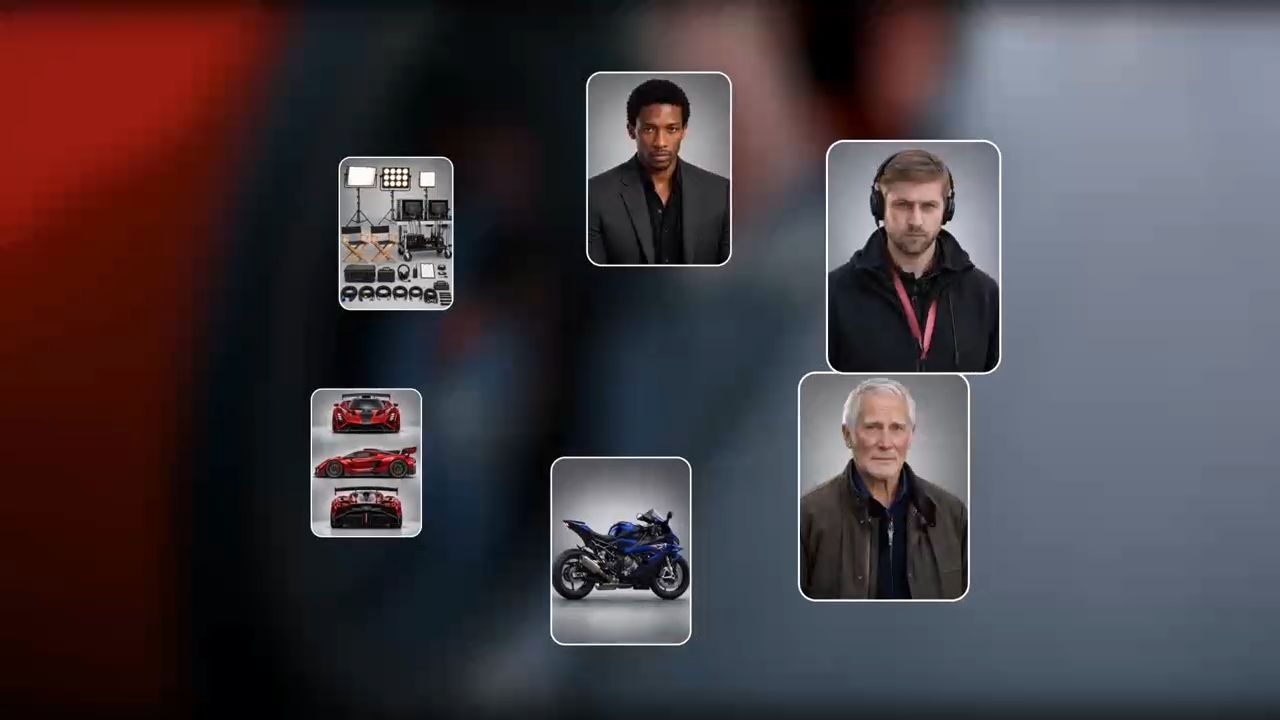

Create Longer, More Connected Memory Stories
Kling 4.0 supports 3–30-second video generation, giving you room to create anything from a brief animated portrait to a fuller family memory. When you want specific photos to appear at planned moments, the separate Keyframes mode lets you arrange up to 10 keyframe images to guide scene changes and story progression. For longer projects, add your generated clips to Kling's Timeline to arrange, refine, and connect the memories into a complete video.
How to Animate Old Photos with Kling 4.0
Step 1: Upload Your Old Photos and Reference Materials
Open Kling AI's Video Generation workspace and select Kling 4.0. Upload the old photos you want to animate, such as portraits or pictures from the same family trip. In Omni Reference, add any helpful references, including a short video if you want to guide a particular transition. Choose clear images that show the people and moments you want to preserve.
Step 2: Write a Prompt That Explains the Story and the Roles of Your References
Keep the instructions simple. Explain what happens in each part of the memory, how the people should move, and what each reference is supposed to guide. Mention who should stay most recognizable, which photos define the setting, and whether the reference video should inspire transitions or camera rhythm.
Example prompt: Create a nostalgic 24-second family travel video from the uploaded old photos. Use @Image1 as the departure moment at the train station, @Image2 as the seaside stop, and @Image3 as the family arrival photo. Keep the parents and child recognizable across the whole video. Use the reference transition video to guide gentle scene changes and a soft cinematic rhythm. In the first scene, one parent gives a small wave. In the second, the family takes a few relaxed steps by the sea. In the third, the child glances toward the adults and they exchange warm smiles. Preserve the faded color, vintage clothing, and film texture. |
Step 3: Generate the Video and Refine the Result
Choose the length that fits your idea. A short portrait might need only a few seconds, while a family trip recap can use 20 to 30 seconds. Generate the video, then review the people, clothing, backgrounds, transitions, and motion. Pay close attention to whether familiar faces remain consistent and whether larger actions such as walking or waving still look natural. If something feels off, simplify the motion, replace a weaker reference, clarify the role of a reference asset, or shorten the transition. For a longer album-style project, generate several clips and place them on Kling's timeline. For more targeted changes to existing clips, you can also explore Kling's AI video editor before arranging them on the timeline.
Old Photo | Video |
.png?x-oss-process=image/resize,w_1872) | 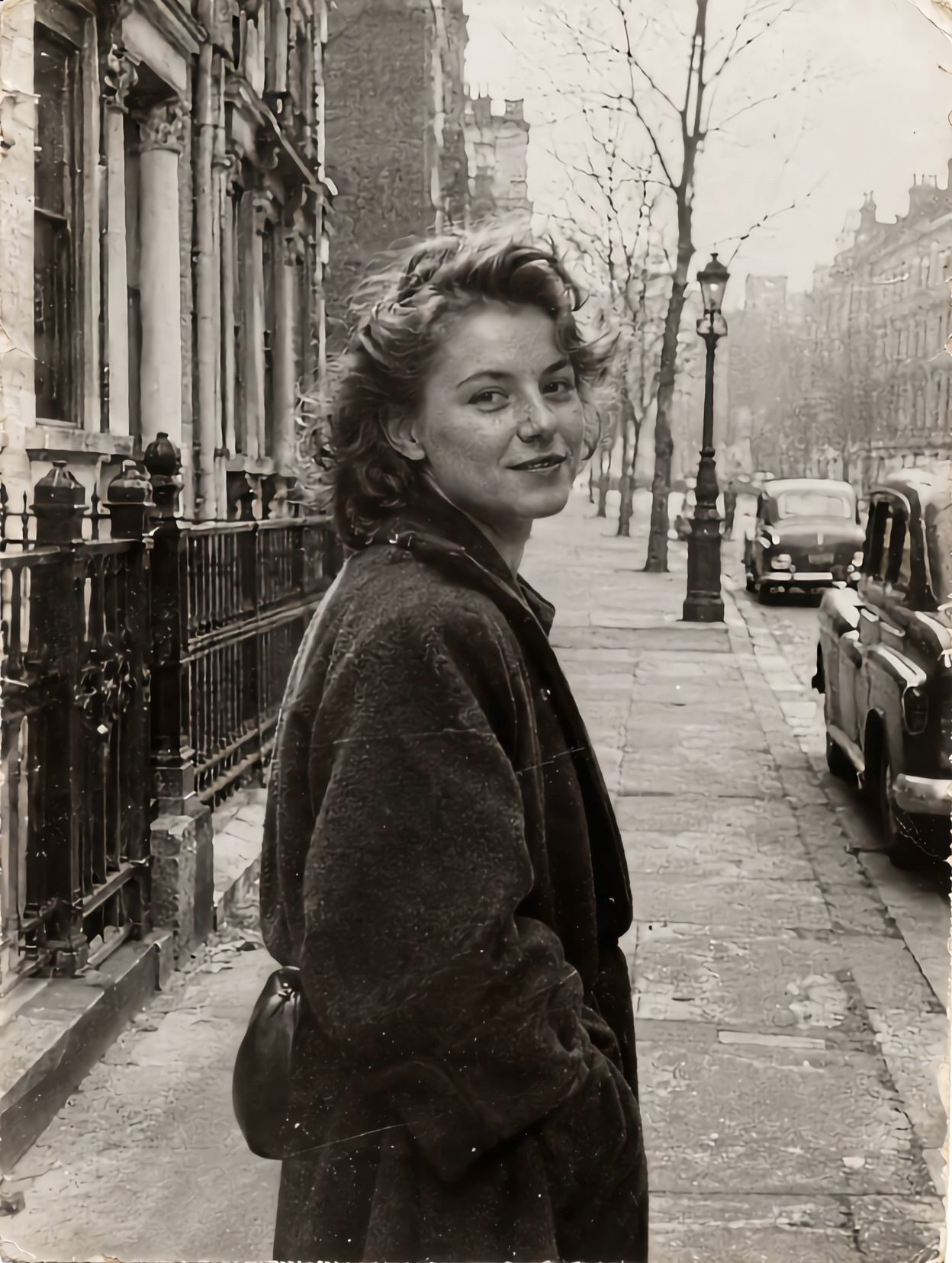
|
Prompt: Animate this vintage black-and-white photograph into a realistic 5-second cinematic video. **0–2 seconds:** The young woman in the dark wool coat stands on the old European street, looking back over her shoulder toward the camera. She blinks naturally, her eyes soften, and a gentle, warm smile slowly appears on her face. A light breeze moves a few strands of her wavy hair. **2–4 seconds:** She takes one or two small, natural steps forward along the sidewalk while still glancing back at the camera. Her shoulders and coat move subtly with her steps, and the small leather handbag at her side sways gently. Her movement is smooth, relaxed, and physically realistic.
**4–5 seconds:** She gradually turns her gaze toward the street ahead, maintaining a faint smile as she continues walking slowly. **Camera and atmosphere:** Keep the camera at eye level with a very subtle, smooth forward tracking movement. Preserve the original street composition, historic stone buildings, iron railings, bare trees, vintage lampposts, and parked classic cars. The background remains stable, with no changes to the architecture or vehicles. Maintain the woman's original facial features, hairstyle, clothing, and identity throughout the video. Preserve the authentic monochrome photography, soft contrast, vintage film grain, faded texture, subtle scratches, and aged photograph appearance. No colorization, no exaggerated facial expressions, no sudden camera movements, no facial distortion, no new objects, and no modern elements. No dialogue. The result should feel like a genuine five-second moment captured on vintage film. | |
Best Prompts to Animate Different Types of Old Photos
Different photos call for different kinds of movement. These prompt examples can help whether you want to animate photos with AI as a single portrait or as a connected memory sequence.
Single-Person Vintage Portraits
| Prompt: Animate this old portrait with a single natural blink, a slight lift at the corners of the mouth, and subtle breathing movement. Keep the head close to its original angle, preserve the black-and-white texture, and do not change the clothing or background. |
Why it works: One restrained facial action is easier to control and helps keep the original person recognizable.
Old Family Group Photos
| Prompt: Animate the family group photo with one child briefly turning toward the parent beside them while the parent responds with a small smile. Keep the other family members mostly still, preserve the original pose arrangement, and avoid strong camera movement. |
Why it works: Limiting movement to one or two people reduces the risk of warped faces, hands, or clothing.
Travel or Event Memories from Several Old Photos
Prompt: Bring old photos to life as a 24-second travel-memory video using the uploaded family photos as the main visual references. Keep the same family members recognizable across all scenes. Use the train-station photo for the opening, the seaside photo for the middle, and the destination group photo for the ending. Use gentle transitions inspired by the reference video. Show a natural wave, a few walking steps, and a warm family exchange while preserving vintage color, clothing, and film grain. |
Why it works: This format is useful when animating old photos from one occasion and turning them into a connected memory instead of treating every image as an isolated clip.
How to Fix Common Old Photo Animation Problems
Even the best AI to animate old photos can produce results that need a second pass. Here are a few common problems and how to handle them.
Fix Unnatural Facial Expressions
If a smile becomes too large or a face changes too much, reduce the action. Ask for a blink, a slight glance, or a small smile rather than a full performance.
Stop Background Details from Warping
If signs, windows, or buildings bend during motion, keep the camera steadier and simplify the action in that shot. A reference video should guide only the transition feeling, not force dramatic motion in every frame.
Improve Consistency Across Scenes
If the same person changes too much between scenes, use clearer supporting reference photos and explain their roles more directly. For example, one image can define the face, another can define the outfit, and another can define the location mood.
Avoid Overcrowding the Story
Just because Kling 4.0 supports many reference materials does not mean every generation needs all of them. Choose only the photos and videos that actually help tell the memory clearly.
What to Know Before Sharing AI-Animated Old Photos
Before you animate your old photos and share the results, think about context and privacy.
- Talk to your family first. If the people in the photos are still living, ask before posting. If they have passed away, consider how close relatives may feel about the animation.
- Tell viewers it is AI-generated. A short caption such as “Animated from old photos using AI” helps avoid confusion with real historical footage.
- Check copyright where needed. Some archival or borrowed images may not be free to republish.
- Keep the meaning respectful. Gentle movement is usually fine, but fictional speech, actions, or claims can misrepresent the real people or event.
The End
If you want to know how to animate old photos using AI in a more flexible way, Kling 4.0 is a strong option. Omni Reference gives you room to upload up to 15 reference materials, including up to 10 images, while transition reference videos can help shape scene changes. Its stronger Dynamic Motions also makes larger actions look more stable, and person consistency can improve when your references are clearly assigned. Whether you want to animate old photos online as a quiet portrait or a connected travel memory, the best result comes from simple direction, thoughtful references, and careful review.
FAQs
What Is the Best App to Animate Old Photos?
The best app to animate old photos depends on how much control you want. If you want more than a one-tap effect, Kling 4.0 is a strong choice because it supports richer reference input, longer video generation, and more detailed motion guidance. For users looking for the best AI to animate old photos with multiple family or travel pictures, its reference system is especially useful.
How Can I Turn Still Photos Into Animation?
Upload one or more old photos, describe the motion you want, and generate a short video. To animate photos with AI more effectively, keep the actions simple and use references that clearly show the people or places you want to preserve. If you want a fuller memory, use several photos from one occasion rather than only one portrait. If you want to create a "talking portrait," you can enable Native Audio during video generation to generate spoken dialogue with synchronized lip movements.
How Does Omni Reference Help When Animating Old Photos?
Omni Reference helps by letting you upload up to 15 reference materials in one generation, including images, videos, voice references, and element references. Up to 10 of those can be images. This gives you more control over identity, styling, scene tone, and transition feeling when animating old photos.
Can I Use a Reference Video for Transitions?
Yes. If you have a short clip that shows the kind of transition, pacing, or camera movement you want, you can include it as one of your reference materials. This is helpful when you want several old photos to connect with a more intentional visual rhythm.
Is There a Free App to Animate Old Photos?
Kling AI is available as a mobile app for both iOS and Android, allowing you to animate old photos on your phone. New users receive free trial credits upon registration, while existing users receive a certain amount of free credits when they log in each month. Credit costs vary depending on the model and generation settings, so whether the free credits are sufficient depends on your selections. Before generating, check the available models and credit requirements in your Kling AI workspace.
What Should I Do With Hundreds of Old Family Photos?
Sort them by event, year, or trip first. Then pick three to five meaningful photos from one occasion and turn them into one short video. This is usually more effective than trying to animate every picture separately.