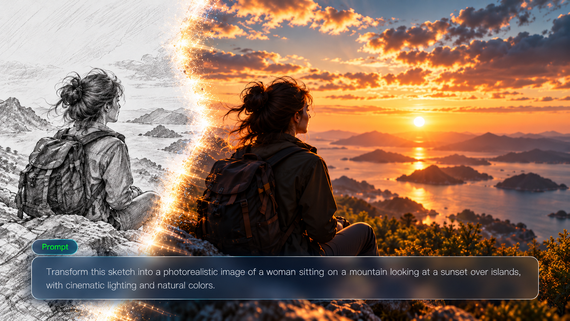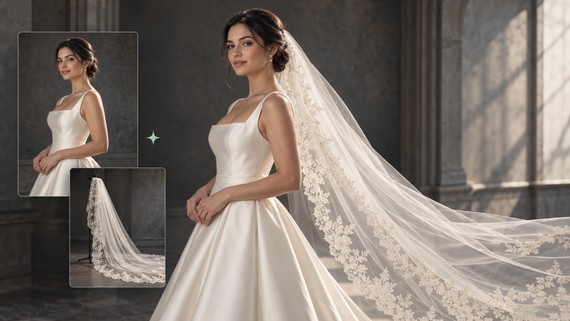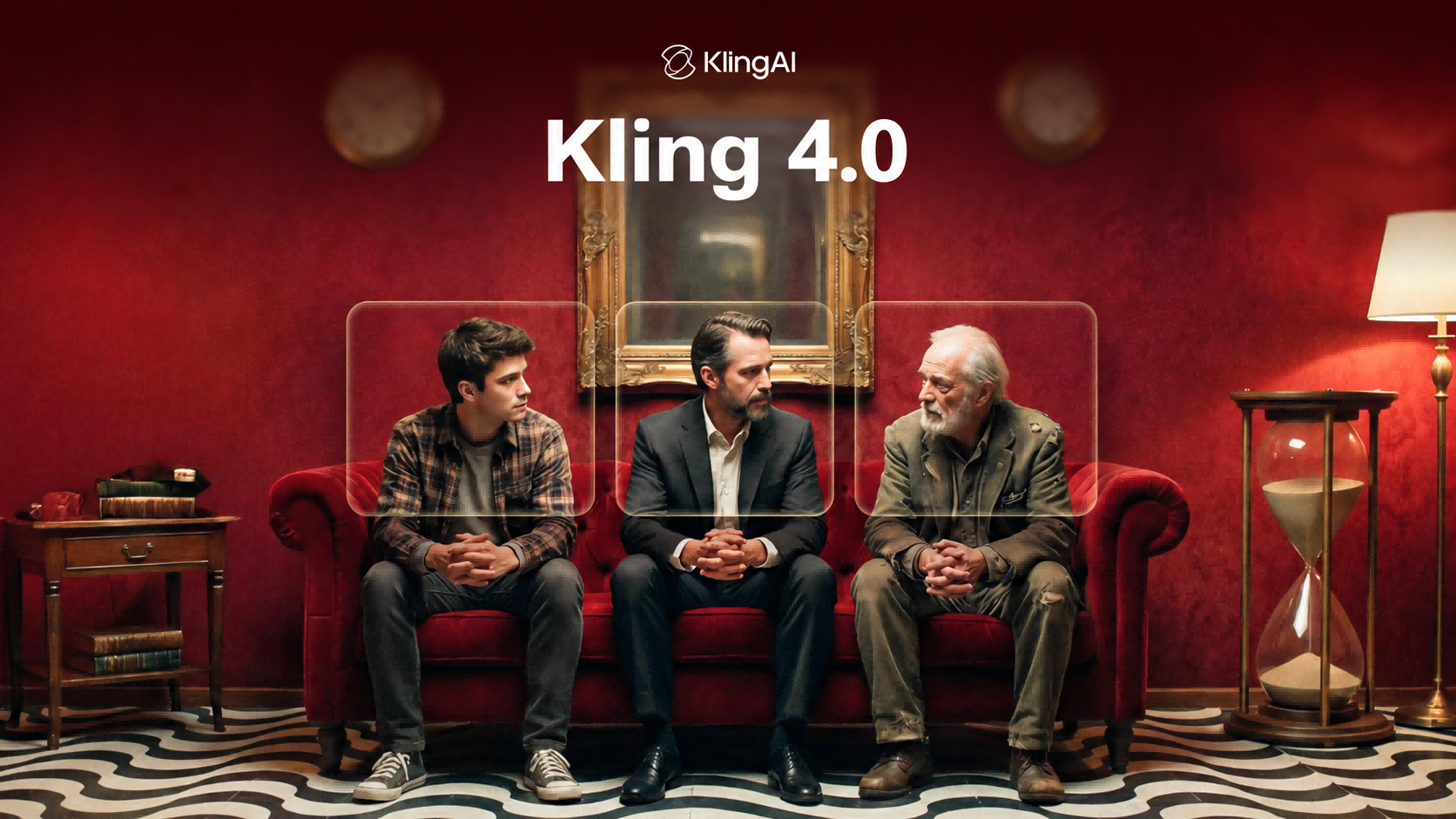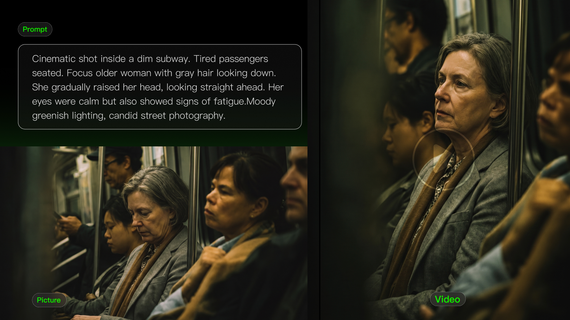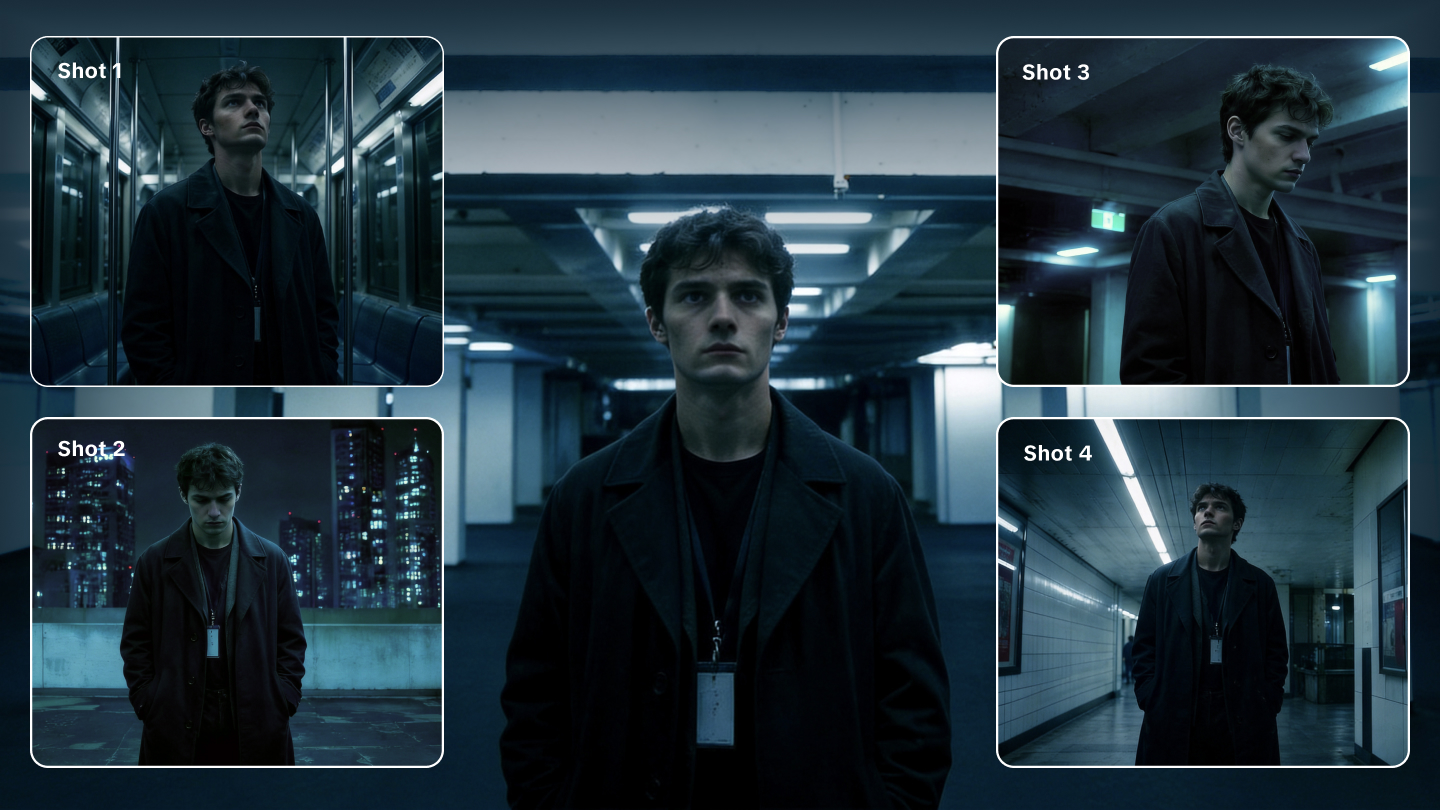
Looking for the best free AI video generator for your next project? Kling AI offers free credits to new users upon registration, while existing users receive additional credits through monthly logins. Create videos from prompts or images, then explore how Kling 4.0 combines text-to-video, image-to-video, Multi-Shot storytelling, Element Consistency Control, and Native Audio into one workflow.
8 Best Free AI Video Generators at a Glance
Each free AI video generator serves different creative needs, from cinematic videos and realistic motion to social media clips and local generation. The table below compares eight popular tools based on their ideal uses, free access, and main strengths.
Tool | Best For | Key Strength | Free Access |
Kling AI | Cinematic videos, product videos, and character stories | Kling 4.0 Omni Reference, multiple keyframes, dynamic motions, native audio, and targeted video editing | Free credits for new users upon registration; additional free credits for existing users through monthly logins. |
Runway | AI video creation and editing | Text-to-video, image-to-video, camera controls, and AI editing | Limited free credits for testing; some models and export features require a paid plan. |
Hailuo AI | Character videos and realistic motion | Image-to-video, character references, facial expressions, and natural movement | Limited trial credits may be available; model and export access vary. |
PixVerse | Social videos and creative effects | AI effects, templates, vertical video, and short-form variations | 30 daily free credits for non-members; unused credits expire daily. |
Luma Dream Machine | Image animation and cinematic shots | Image-to-video, keyframes, camera movement, and transitions | Limited free Draft Mode; watermarked output for personal use. |
Pika | Creative effects and video experiments | Video transformations, stylized effects, and prompt edits | Free account with 0 monthly credits; generation requires purchased credits. |
Google Veo | Realistic scenes and storytelling | Text-to-video, scene generation, and cinematic visuals | 50 daily free credits through Google Flow; availability varies by region. |
Adobe Firefly Video | Marketing and design workflows | Text-to-video, Adobe integration, and creative tools | Limited daily free generations with select video models. |
Which Free AI Video Generator Is Best for Your Use Case?
AI video generators support different creative workflows, from building cinematic sequences and animating characters to creating social content, editing footage, and developing marketing visuals. The best AI video generator should balance visual quality, creative control, and ease of use.
For Cinematic Storytelling and Multi-Scene Videos: Kling AI
Kling 4.0 is built for creators who want to turn ideas into cinematic videos with dynamic movement, recognizable characters, and greater control over how a story unfolds.
Creating a compelling video often takes more than a single prompt. Characters need to stay recognizable, actions need to connect naturally, and important story moments should appear in the right order.
Kling 4.0 brings together text-to-video, image-to-video, Omni Reference, and Multiple Keyframes to help creators plan these details within a single generation.
With Omni Reference, creators can combine up to 15 reference assets, including supported images, videos, subjects, and voice references. Reference images help define characters, products, and visual styles, while video references can guide actions, camera movements, and pacing.
Multiple Keyframes allows you to define up to 10 important visual moments within a new video, helping you guide scene changes, character actions, product reveals, and other story beats.
Kling 4.0 also supports 3–30 seconds of native generation. Its improved dynamic motions helps maintain coherence through larger movements and complex camera work.
Together, these features help you develop product ads, character stories, and cinematic sequences with more control over how each moment looks, moves, and sounds.
If an existing video needs a different character, background, or visual treatment, Kling 4.0's precise video editing also lets you guide targeted changes with prompts and references. This gives you another way to refine a useful shot instead of generating every variation from scratch.
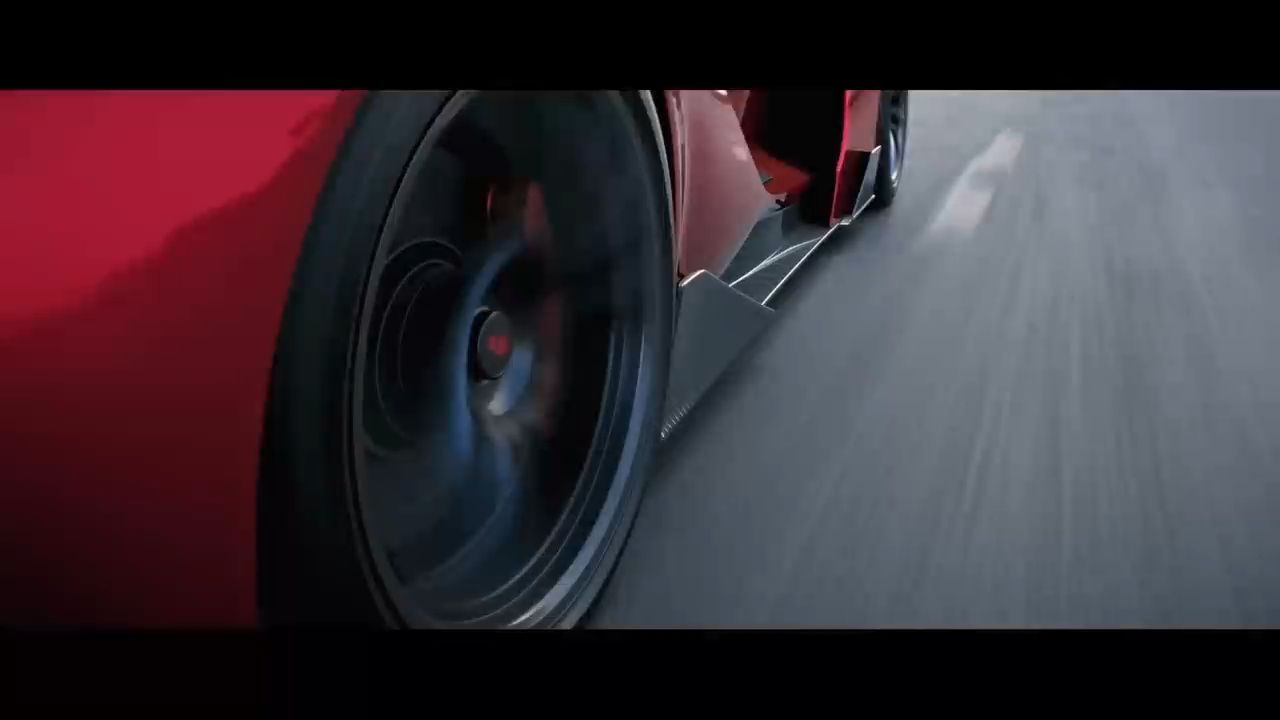

For AI Video Editing and Creative Refinement: Runway
Generating a first video version is often only the beginning of the editing process. Runway combines AI generation with editing tools that help creators continue developing their footage after creation.
Its models support text-to-video and image-to-video workflows, while tools for modifying backgrounds, adjusting visual elements, and refining scenes make it easier to improve existing footage without rebuilding everything from scratch.
Runway Gen-4 focuses on image-based video generation workflows, while newer models such as Gen-4.5 expand text-to-video and image-to-video capabilities for creators working on more advanced projects.
For Character Animation and Realistic Motion: Hailuo AI
Character-focused videos often depend on natural expressions, body movement, and recognizable appearances.
Hailuo 2.3 improves character animation through image-to-video generation, helping creators animate faces, actions, and interactions while preserving key visual details. Its reference-based workflows are useful for scenes where the character’s performance is the main focus.
This makes Hailuo suitable for character clips, expressive performances, and short narrative videos.
For Social Media Videos and Creative Effects: PixVerse
Creating videos for TikTok, Reels, and Shorts often requires quick variations, eye-catching effects, and formats designed for vertical viewing.
PixVerse V6 provides AI effects, templates, and vertical video generation tools that help creators produce short-form content efficiently. It works well for trend-based videos, creative transformations, and social content that relies on fast visual experimentation.
For Creative Transformations and Quick Experiments: Pika
Pika is useful when creators want to test different visual directions or transform an existing idea into a new style.
Its AI video effects and editing features support video transformations, stylized changes, and prompt-based adjustments. This makes it suitable for creators experimenting with creative concepts, visual effects, and short clips.
For Image Animation and Camera Movement: Luma Dream Machine
Turning a still image into a moving scene requires control over motion, timing, and camera direction.
Luma Dream Machine Ray3.2 focuses on image-to-video workflows, with features such as keyframe controls and camera movement options. These tools help creators animate artwork, concept images, and visual designs while exploring different ways to introduce motion.
For Realistic Scene Generation: Google Veo
When a project starts with a detailed environment or visual concept, Google Veo focuses on generating realistic scenes from prompts.
Veo 3 adds native audio generation, allowing creators to explore videos with detailed environments, natural motion, and synchronized sound elements. It is suitable for concept visualization, realistic scenes, and narrative content development.
For Marketing Content and Design Workflows: Adobe Firefly Video
AI video creation is often part of a larger design process. Adobe Firefly Video connects video generation with existing Adobe creative workflows.
Its text-to-video capabilities and integration with Adobe tools make it suitable for marketing assets, branded visuals, and projects that need consistency with existing design materials.
What Makes the Best Free AI Video Generator?
Choosing a free AI video generator depends on how well it fits your creative needs. Consider these factors when comparing different tools:
- Video Quality: Look for natural motion, consistent subjects, and clear details that make generated videos feel more polished.
- Generation Options: Text-to-video helps turn ideas into scenes, while image-to-video can animate existing visuals such as photos, artwork, or products.
- Creative Controls: Features like shot planning, reference images, motion controls, and audio generation give you more ways to guide the final result.
- Free Access and Export Limits: Compare available credits, video length, resolution, and watermark restrictions before choosing a tool.
- Workflow Flexibility: Tools that support generation, refinement, and editing make it easier to develop ideas into finished videos.
How to Create an AI Video with Kling AI?
Ready to bring your ideas to life? Kling 4.0 combines text prompts, visual references, Multiple Keyframes, and native audio to help you create videos with greater control over movement, consistency, and storytelling.
You can begin with a text prompt or image and develop the result through three steps. Check whether your available credits and model permissions cover the selected 4.0 workflow before generating.
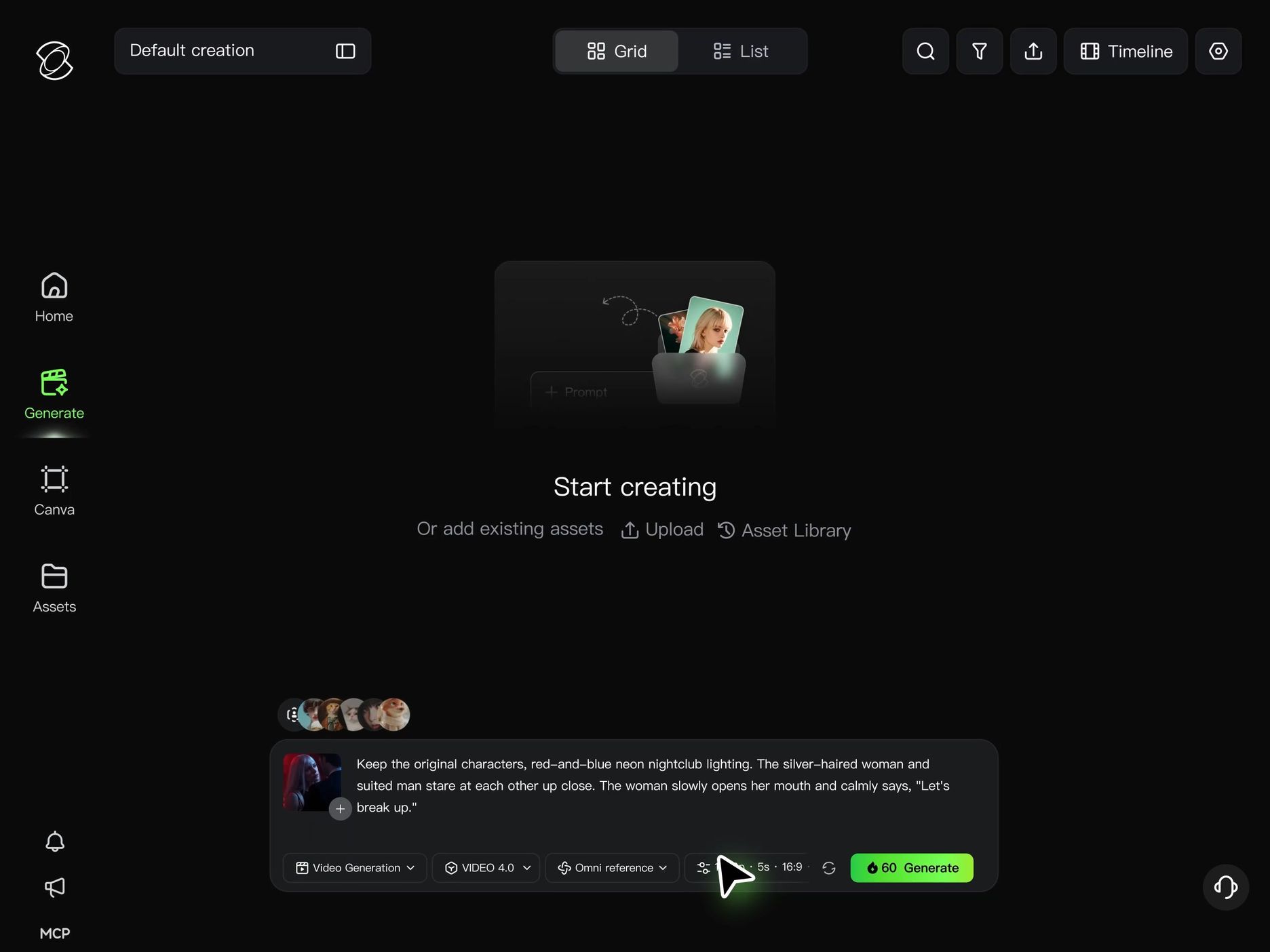
Step 1. Upload Your Reference Images or Videos
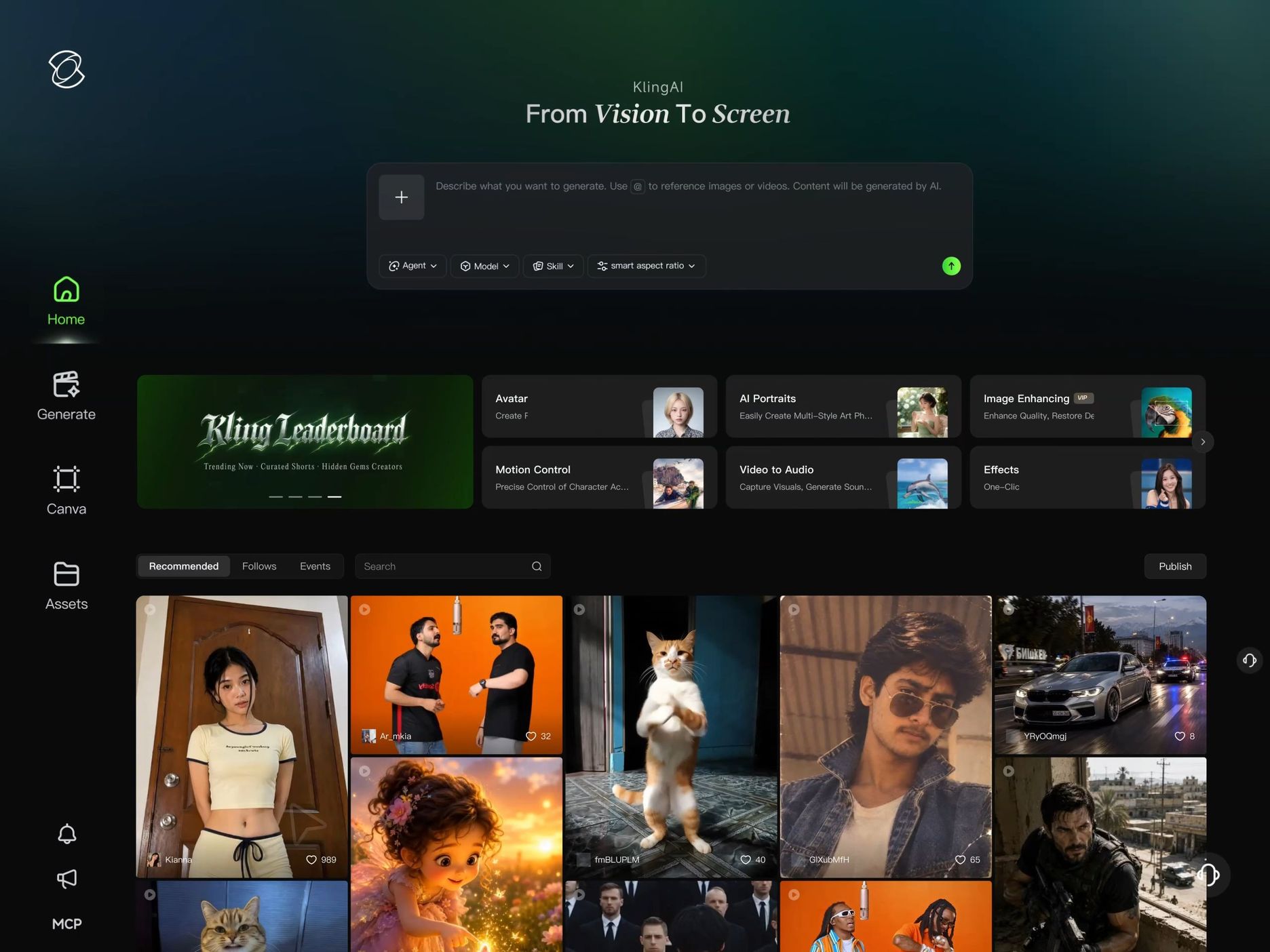
Open Kling AI's video creation workspace and choose Kling 4.0 if it is available in your account.
Start with a text prompt or upload an image as the visual foundation of your video. You can also add supported reference assets through Omni Reference when you need to guide a character, product, camera movement, or particular visual style.
Omni Reference supports up to 15 combined assets within its applicable input limits, including up to 10 reference images and 5 reference videos with a combined duration of up to 30 seconds.
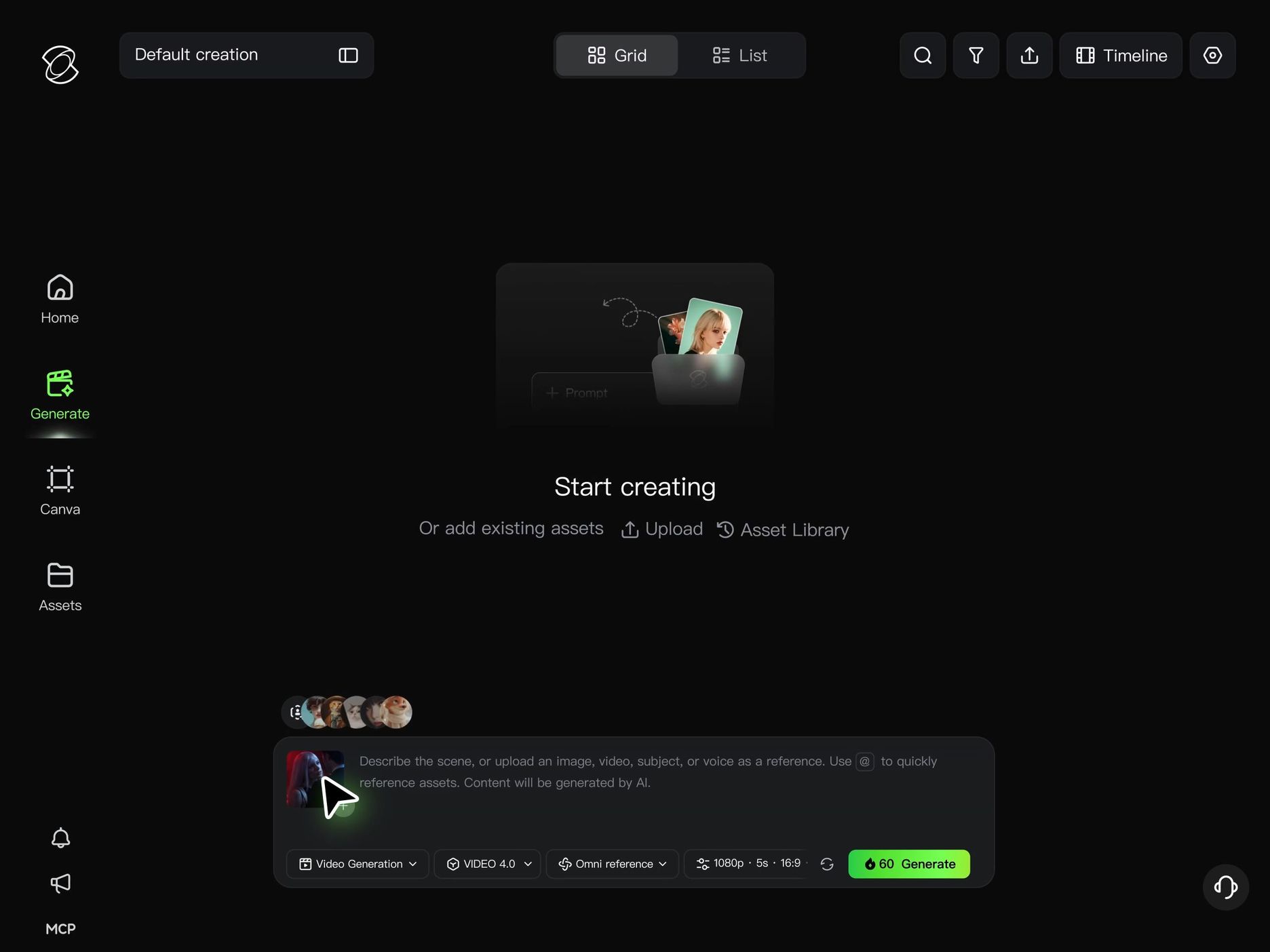
Step 2. Describe Your Scene and Configure the Generation
Write a prompt describing the subject, action, environment, camera movement, lighting, and visual style.
For a simple scene, focus on one clear action. For a more developed story, describe how the scene should progress and which details need to stay consistent.
If the order of important moments matters, use Multiple Keyframes to guide the sequence. Kling 4.0 supports up to 10 keyframe images in a single generation, allowing you to define visual milestones such as a character entering a scene, a camera composition changing, or a product being revealed.
Step 3. Generate and Refine Your Video
Choose a duration that gives the action enough room to unfold. Kling 4.0 supports native generation from 3 to 30 seconds. Generate your video and watch the full result. Review character consistency, movement, camera work, visual details, dialogue, and sound.
If the result needs improvement, refine your prompt, adjust the references, or revise your keyframe plan. When an existing clip needs a targeted change, Kling 4.0's improved video editing can also help you modify a subject, background, or visual treatment using prompts and references.
What to Consider When Using Free AI Video Generators
Free AI video generators make it easier to explore video creation, but free access may limit output quality, usage frequency, and available features. Before choosing a tool, consider the following factors:
- Credits and Generation Limits: Free credits determine how often you can create videos. Some platforms provide a one-time allowance, while others refresh credits over time. Consider whether the available generations are enough to test ideas or produce content regularly.
- Video Length and Export Quality: Free plans may limit clip duration, resolution, or export options. If you plan to share videos on social media, use them for marketing, or include them in larger projects, confirm that the available output quality fits your needs.
- Watermarks and Branding: If you are looking for the best free AI video generator without a watermark, check whether free exports include platform logos or branding and whether watermark-free downloads require a paid plan.
- Commercial Usage Rights: Free access does not always include the same usage permissions as paid plans. Review the platform’s terms before using generated videos for advertisements, client projects, or monetized content.
- Available Models and Creative Features: Free plans may provide access to different models, editing tools, and creative controls. Compare available features if you need specific capabilities for your video workflow.
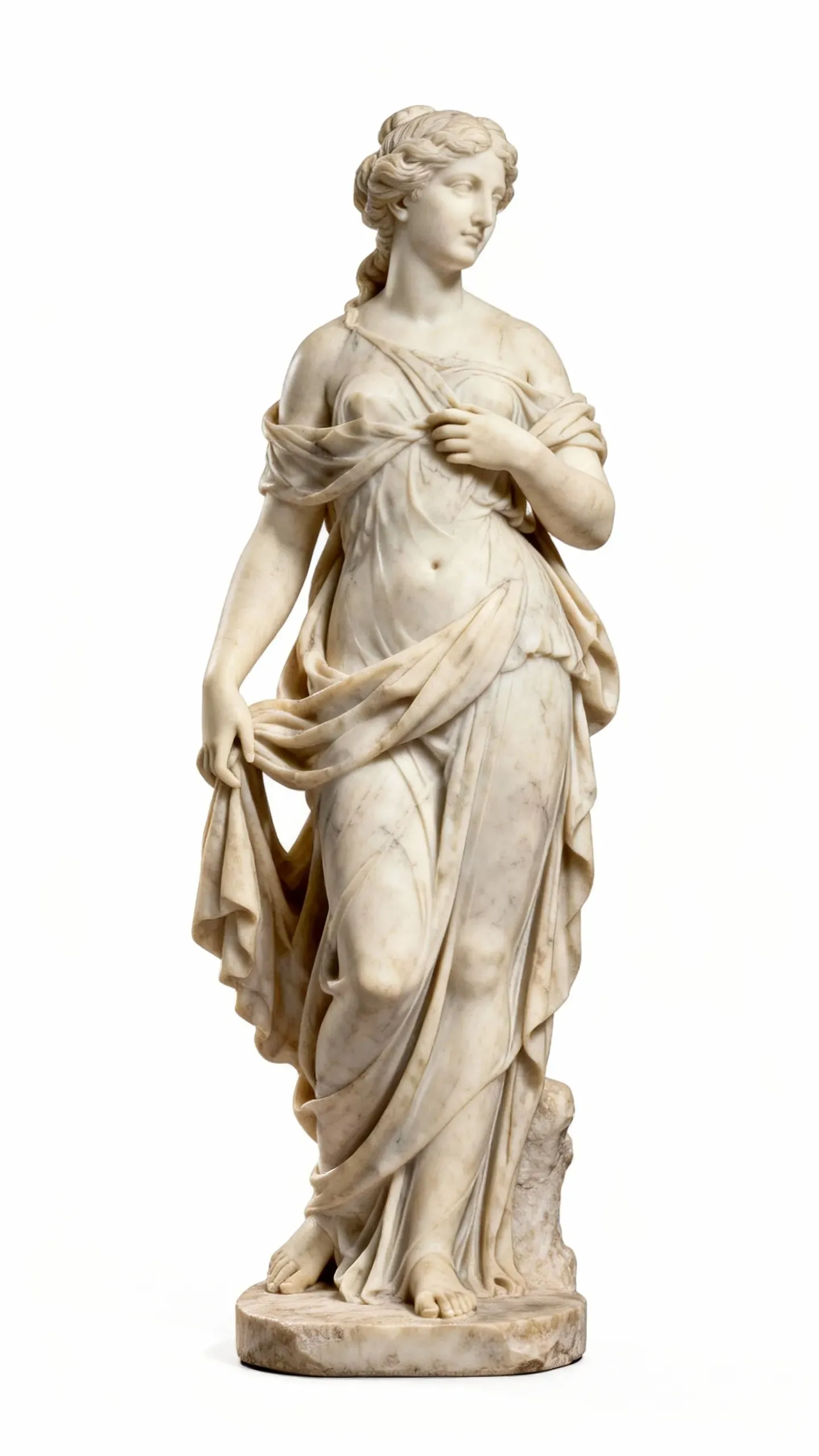
Reference Image | Prompts | Output Video | ||
 | .webp?x-oss-process=image/resize,w_1872) | .webp?x-oss-process=image/resize,w_1872) |
Top-down wide shot: @Sculpture stands at the center of @image. Mid-shot, side view: The camera circles around @Sculpture once. Close-up: @Sculpture's hand moves slightly. Close-up, face: @Sculpture says, “I'm back.” | 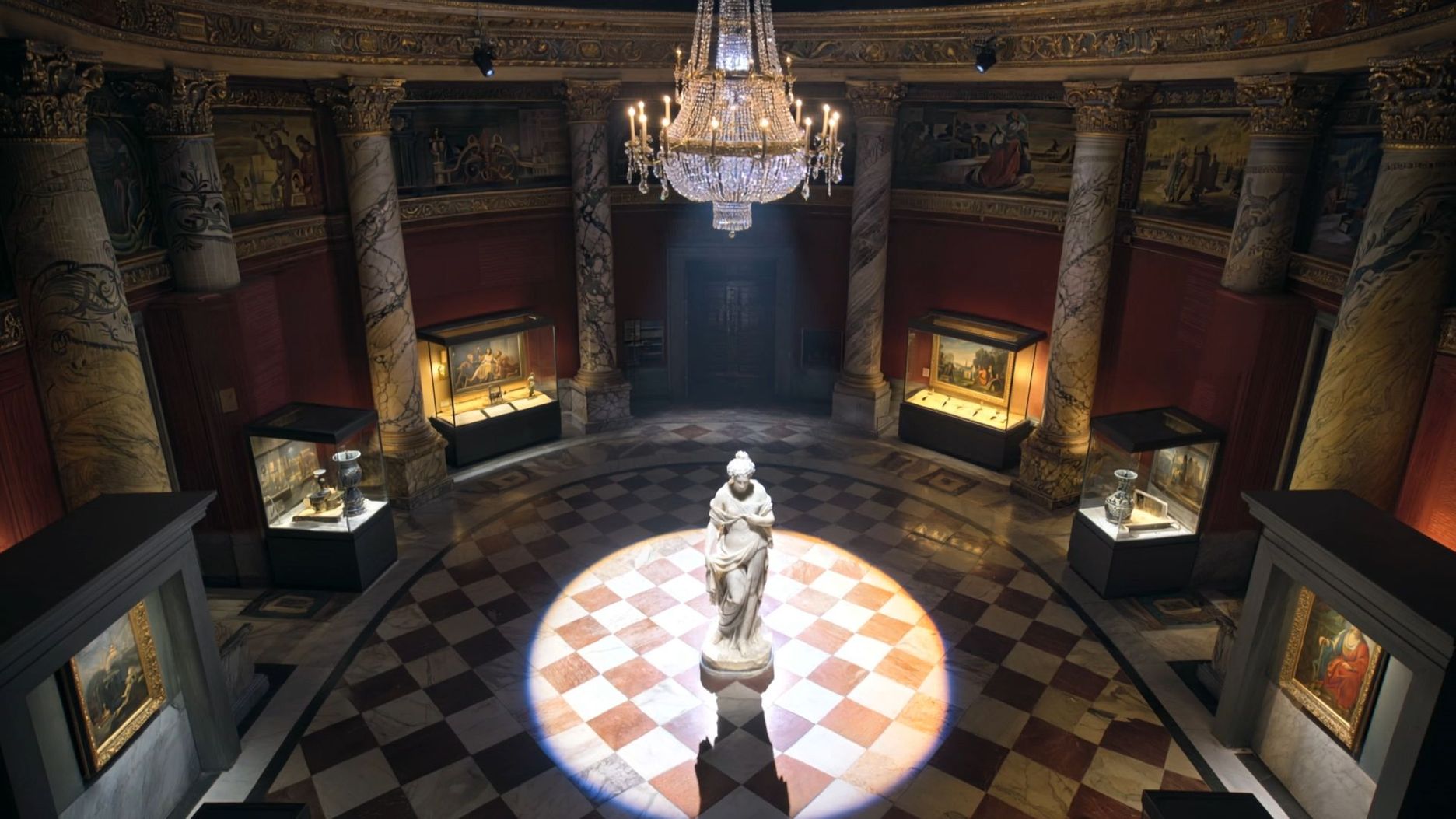 |
.webp?x-oss-process=image/resize,w_1872) | ||||
Conclusion
The best free AI video generator depends on the kind of content you want to create, the control you need, and what the free plan actually includes.
Kling 4.0 stands out for its combination of text-to-video and image-to-video creation, Omni Reference, Multiple Keyframes, improved Dynamic Motions, and native audiovisual generation. These capabilities give creators more ways to guide subjects, develop connected scenes, and refine a video idea. Start with Kling 4.0 to test your creative ideas.
FAQs
What is currently the best free AI video generator?
The best free AI video generator depends on what you want to create and which tools you can access without paying.
Kling AI is worth considering for text-to-video, image-to-video, and reference-guided video creation. Kling 4.0 supports Omni Reference, Multiple Keyframes, improved Dynamic Motions, and native audio, making it useful for cinematic scenes, products, and character stories.
However, not every Kling 4.0 capability is necessarily included in free access. Check your account's available models and credits before generating.
Can I use AI to make videos for free?
Yes. Many AI video generators offer free access through trial credits or limited generations. Kling AI provides free credits to new users upon registration, while existing users receive additional free credits by logging in each month. You can use these credits to explore available AI image and video generation features without immediately purchasing a paid plan.
Free access may still come with limits on available models, video length, resolution, or export options. Check your account's available credits and features before generating.
Which AI generator is totally free?
Most hosted AI video generators are not completely unlimited for free use. They usually provide trial credits or limited access instead of unlimited video generation.
Open-source tools can offer free local generation, but they require suitable hardware and technical setup. For most users, a tool with free trial credits is a more practical way to test AI video creation before choosing a paid plan.
What is the best free text-to-video AI?
Kling AI is a strong choice for creators exploring free text-to-video AI with available credits, especially those who want structured scenes and cinematic results. Kling 4.0 supports text-to-video generation with native durations from 3 to 30 seconds. Omni Reference and Multiple Keyframes can provide additional control in supported workflows, while improved motion and audio generation help bring scenes to life.
Can ChatGPT make videos for free?
ChatGPT's standard free features support AI image creation, but not dedicated video generation. OpenAI discontinued its Sora web and app experiences in April 2026. If you want to generate videos from text prompts or reference images, a dedicated AI video generator like Kling AI is a practical alternative. Kling 4.0 supports text-to-video, image-to-video, Omni Reference, Multiple Keyframes, and native audio for creators who want more control over scenes, subjects, and storytelling.