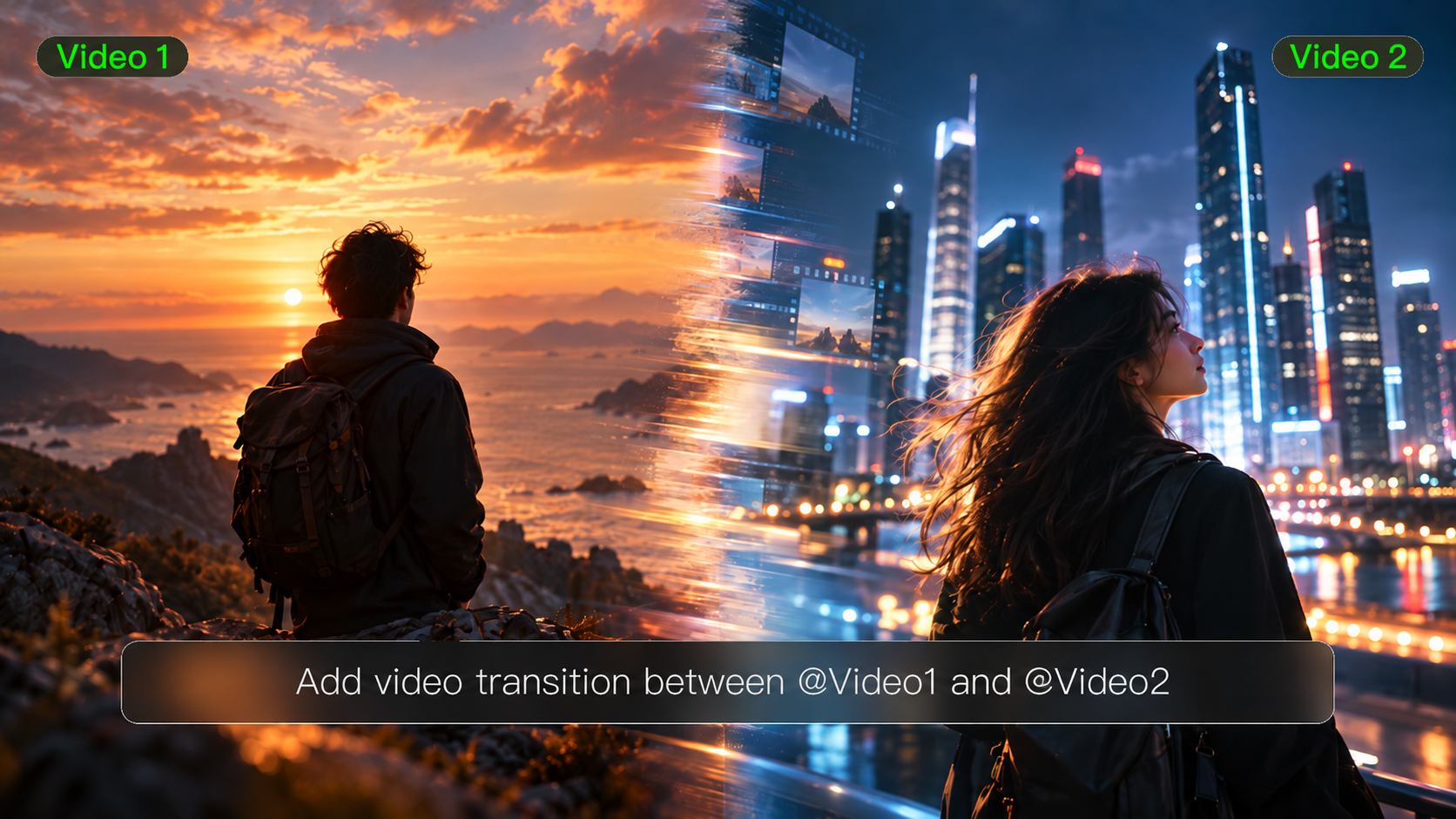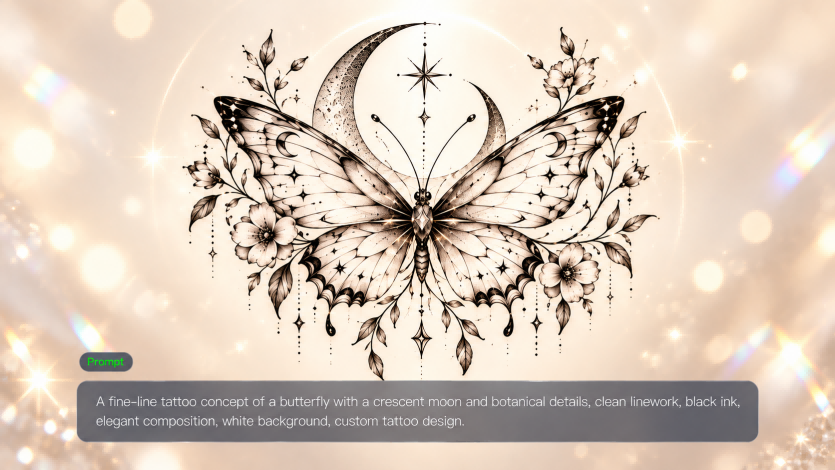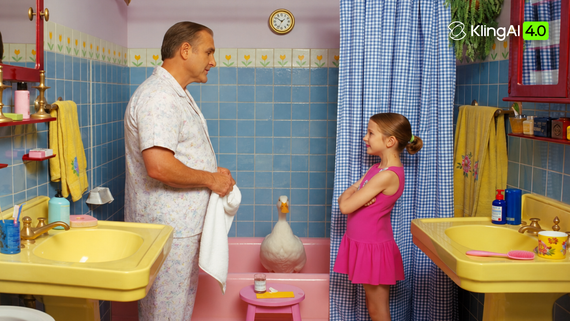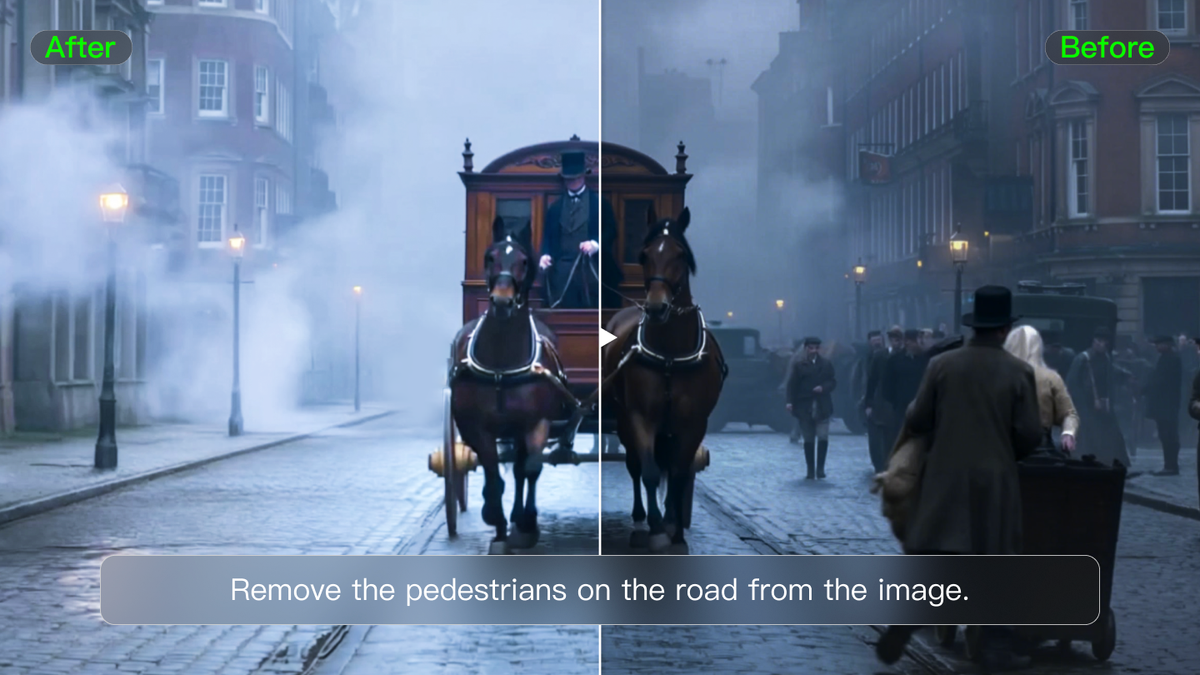
An AI image editing model revises an existing picture using your instructions and references. The right choice depends on the changes you need and the tools available to carry them out. This guide compares six products, explains the difference between models and editing tools, and shows how to edit with Kling IMAGE 3.0 Omni .
What Is an AI Image Editing Model?
An AI image editing model interprets your request and generates a revised version of an existing image. The original picture supplies the scene, while a prompt explains what should change. A reference can show a color, object, or visual style that would be difficult to describe. A useful result follows that direction and retains the subject details that matter to your project.
So what’s the difference between a model and a tool? The model produces the image; AI image editing tools provide the interface for uploads, instructions, and output settings. Some products use their own model, while others offer several models in a single editor. You can use Kling AI as an AI photo editor and select IMAGE 3.0 Omni for the revision. Compare both the model’s capabilities and how the product lets you work.
Compare AI Image Editing Models and Tools
If you are wondering which AI model is best for image editing, start with the change you need to make. The table compares six products by their models, access, and editing workflows. Multi-model platforms offer different choices, so check the model and feature available for your task.
Model | Product | Platform | Free Access / Cost | Primary Editing Workflow |
IMAGE 3.0 Omni | Kling AI | Web; mobile apps | Free credits for eligible tasks; paid plans | Text and references for detail, frame, style, and background edits |
GPT-Image-2; Nano Banana family | Leonardo AI | Web; mobile apps | 150 daily free tokens; paid plans | Prompt and reference edits with selectable models |
Firefly image model; | Adobe Firefly | Web; mobile apps | Limited free use; paid credit plans | Generative edits within Adobe workflows |
Multiple supported models | Krea | Browser | Daily free compute; paid plans | Prompt edits and reference-guided refinement |
Varies by AI feature | Canva | Web; desktop/mobile apps | Free basic tools; some AI features paid | Photo edits with layouts and graphics |
Varies by AI tool | Picsart | Web; mobile apps | Free basic tools; AI credits and paid plans | Object edits, photo adjustments, and design finishing |
Kling AI with IMAGE 3.0 Omni
Kling IMAGE 3.0 Omni combines image generation and editing in one natural-language workflow. You can add, remove, or modify objects, adjust colors, materials, and expressions, or change a scene's style, lighting, and camera angle without rebuilding the image from scratch. By integrating features from up to 10 reference images, it helps preserve recognizable character and product details while combining subjects, backgrounds, and creative styles.
You can work online without installing a local model and generate images at up to 4K. Start with a source image, describe what should change or stay, and use references where visual guidance matters. Free credits are available for eligible tasks; check the selected model and credit cost in the workspace before generating.
Leonardo AI
Leonardo AI offers prompt and reference-based image editing through selectable models, including GPT-Image-2 and the Nano Banana family. It suits creators who want to try different models within one platform. Its free plan includes 150 daily tokens, with public free creations. Model access and editing costs vary, while private generation and higher allowances require a paid plan.
Adobe Firefly
Adobe Firefly connects generative image editing with a wider Adobe creative workflow. It supports tasks such as adding or removing content and developing a new background, with Adobe models and selected partner models available for different tasks. It suits projects that continue into other Adobe design tools. Free access is limited; credits, feature access, and model conditions depend on the plan.
Krea
Krea offers an online image editor for prompt-based revisions, including changes to objects, backgrounds, and visual style. Its wider platform provides several models and enhancement workflows, making it useful for exploring variations in one place. The free plan includes a daily compute allowance. The chosen model, task, and settings determine usage, and some features require a paid plan.
Canva
Canva combines photo editing with layout tools, so an edited image can become a social post, presentation, or other design. Its AI features include object edits, background changes, and image expansion where available. It suits projects that also need text and graphics around the picture. Basic editing is free, while some AI features and premium assets require a paid plan.
Picsart
Picsart brings AI image editing and conventional photo tools together on web and mobile. You can revise objects or backgrounds, adjust a photo, and add design elements before sharing. Its platform offers several AI tools and models rather than one fixed editing model. Basic tools are available for free, while AI task allowances, premium models, and advanced features depend on credits or a paid plan.
Why Choose Kling IMAGE 3.0 Omni for Image Editing?
A picture can be nearly right and still need a little work. Kling IMAGE 3.0 Omni combines text instructions with visual references for changes to an existing image. You can use it as an AI image editor for the tasks below, then review how the revision fits with the source.
Change a Detail That Needs Attention
A distracting flowerpot or the wrong cup color can hold back an otherwise useful image. IMAGE 3.0 Omni supports adding, removing, or modifying visible elements, including their size, color, and material, while helping preserve the surrounding lighting and texture. To remove an object from a photo, identify it by its position or appearance and explain which nearby details should stay. When you want to change the color of an image, name the object and the new shade, such as a red cup with its ceramic texture retained.
Clear instructions are especially useful when a scene is busy. A targeted edit is still a generated revision, so inspect nearby objects and fine details rather than assuming every pixel outside the requested area will remain unchanged.
Reference Image | Output | Prompt |
.png?x-oss-process=image/resize,w_1872) | .png?x-oss-process=image/resize,w_1872) | Change the blue cup to a red one. |
Background Changes: Keep the Subject Recognizable
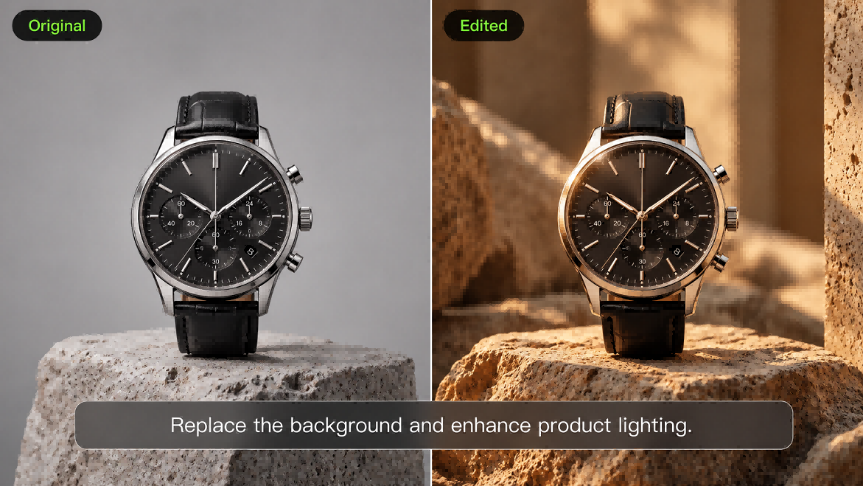
A product photographed in a studio may need a warmer kitchen setting for a campaign. You can use IMAGE 3.0 Omni as an AI background generator, supplying the product image and describing the new environment. Name the product shape, color, and material details that should stay recognizable. A setting reference can help communicate the light or composition you want. Check the result against the source, since small subject details can still vary.
You can work in the browser without installing a local editing setup, using the source image and a clear request to develop your next version.
.webp?x-oss-process=image/resize,w_1872)
Explore a Different Visual Style
An existing scene can become the starting point for an illustration or a different material effect. IMAGE 3.0 Omni can use a style reference to guide brushwork, color combinations, texture, and the broader visual look. In an image-to-image workflow, explain which image supplies the content and which supplies the style. If the original layout matters, include that in the request. Compare the result for both the intended look and the subject details you need to retain.
Image |
.png?x-oss-process=image/resize,w_1872) |
| Prompt: Create 3 different styles, including realistic style, illustration style, and thermal imaging wind style, for a white horse. |
Image Expansion: Give the Scene More Room
A tightly framed product photo may need space for a headline, or a portrait may need a wider setting for a banner. You can use Kling AI as an AI image extender to generate content beyond the original borders. Describe the direction and what should appear in the added space, such as more wall or a continuation of the landscape. Specify the subject details you want to preserve, then check the join, lighting, and perspective.
.webp?x-oss-process=image/resize,w_1872)
Rework Camera Angles and Lighting
Need a product shot from above or a portrait with a more dramatic close-up? Kling IMAGE 3.0 Omni can reinterpret an existing image using prompts for camera angles, shooting height, framing, and lighting. Turn a front-facing view into a side view, explore a low-angle composition, or introduce softer lighting to change the atmosphere. Instead of simply cropping the original, the model generates a new perspective based on your visual direction, giving you more flexibility without arranging another photoshoot.
Reference Image | Establishing Shot | Output |
.png?x-oss-process=image/resize,w_1872) | .png?x-oss-process=image/resize,w_1872) | .png?x-oss-process=image/resize,w_1872) |
| Prompt: Change the shot size to [ ] | ||
How to Edit an Image with Kling IMAGE 3.0 Omni
Begin with a source image you like and one revision that would make it more useful. Select IMAGE 3.0 Omni in the image workspace before uploading. An AI prompt photo editor workflow brings the image, references, and instructions together, so you can explain the change without first building a complex set of manual edits.
Step 1: Upload the Source and Any References
Upload a clear version of the image you want to edit. Add references when you need a specific setting, object, or visual style, and choose images that clearly show those details. Keep the source image easy to identify when adding several references. For a background change, the original product or portrait should remain the main guide for the subject’s appearance.
Step 2: Describe the Change and What Should Stay
Identify the object or area to revise, then describe the result you want. Explain which references should guide the subject, setting, or style, and include the details you want to preserve in the same request. If similar objects appear together, use position or appearance to distinguish the target. If you have already marked the target area in an image using another tool, mention that mark in your prompt to identify the intended edit.
Step 3: Generate, Check, and Download
Choose the available image ratio and output quality, check the credit requirement, and generate. IMAGE 3.0 Omni supports output up to 4K. Compare the result with the source, looking at the revised area and the details you wanted to keep. If something has drifted, clarify the instruction or improve the reference before trying again. Download the version that works for your project.
The End
A useful AI image editing model helps you revise a picture while keeping its key details recognizable. Start with an image you like and one change you would love to make. Perhaps the background needs more warmth, or the composition needs room to breathe. If you need a new starting picture, you can also use Kling AI as an AI image generator. Choose IMAGE 3.0 Omni to develop your image through edits, add references where they help, and build on the version that fits your idea.
FAQs
What Is the Best AI Model for Image Editing?
The best model depends on the edits you need and how well it follows your instructions while retaining important details. Kling IMAGE 3.0 Omni supports local revisions, image expansion, style transfer, and background changes, with up to 10 references. Compare models using the same source and request, then review whether the result fits your project.
Is There an AI That Will Edit Images?
Yes. AI image editing models can revise an existing picture using text instructions and, where supported, visual references. Kling IMAGE 3.0 Omni can help change objects, expand the frame, restyle a scene, or develop a new background. Describe the intended change and the details you want to preserve, then check the generated result against the source.
Which AI Photo Editor is Totally Free?
You can use Kling AI as an online photo editor with free credits for eligible tasks, though access is limited. New users receive trial credits, while existing users can claim monthly login credits where offered. Check the selected model, the task’s credit cost, and expiry before generating; some features or settings require a paid plan.
Can AI Change a Background While Keeping the Subject Recognizable?
Yes. Kling IMAGE 3.0 Omni can use a source image and references to guide a background change while helping retain important subject details. Specify the facial features, clothing, product shape, or materials that matter to your image. The result is generated, so compare it with the source rather than assuming every detail will remain the same.
Can Kling IMAGE 3.0 Omni Change the Style of an Image?
Yes. Kling IMAGE 3.0 Omni supports reference-guided style changes, letting you use one image for the content and another for the intended visual look. Describe the color, texture, or artistic direction you want to follow and the subject details that should stay recognizable. Review the result for both style and content before using it in your project.