The right CapCut alternative depends on the work you need to do. Some tools focus on familiar timeline editing, while others support AI-assisted video creation. This guide compares six options by platform, cost, and workflow, including Kling AI, to help you choose an approach that fits your next project.
Which Features Matter in a CapCut Alternative?
When comparing alternatives, start with the conveniences you want to keep from CapCut. Consider these four parts of your workflow:
Easy editing controls. Trim clips, arrange a sequence, and make basic changes without a long learning process.
Templates and visual effects. Prepare familiar social formats and give everyday footage a finished look.
Flexible platform access. Create on the computer or mobile device you already use.
AI-assisted creation. Generate new material or revise a scene when ordinary cuts and effects are not enough.
Compare CapCut Alternatives for Different Creative Needs
The six options below cover different combinations of those needs. Compare their platform access, costs, and main workflows, then look at how each fits the video you want to make.
Tool | Platform | Free Access / Cost | Primary Workflow |
Kling AI | Web on Windows and Mac; iOS and Android | New-user trial credits; paid access and credit use vary | Generate and revise scenes with prompts and references; assemble clips |
DaVinci Resolve | Windows, Mac, Linux; iPad version | Free version; paid Studio edition | Detailed timeline editing, color, audio, and visual effects |
Clipchamp | Windows; web | Free tier; premium features via Microsoft 365 | Timeline editing, recording, titles, and stock media |
Filmora | Windows, Mac; mobile apps | Watermarked free trial; paid plans | Timeline editing with templates, effects, and AI assistance |
VEED | Web | Free tier; paid export and team features | Browser editing, captions, and collaborative workflows |
VN Video Editor | iOS, Android; desktop downloads | Free editing; check paid options in app | Multitrack editing, speed changes, and short-form videos |
Kling AI for Creating and Revising Original Scenes
Kling AI serves as both an AI video generator and an AI video editor, helping you create new footage or revise the content of existing videos.
With Kling 4.0, Omni Reference lets you combine up to 15 different reference assets to guide character appearances, actions, camera movements, and visual styles while maintaining subject consistency. Improved stability during high-speed action and complex camera movements helps dynamic scenes remain smooth and coherent.
Kling 4.0 also strengthens storytelling with 3–30-second video generation, support for up to 10 reference images that can be assigned as keyframes through prompts, and enhanced understanding of detailed instructions. These capabilities give you greater control over narrative flow, helping you plan the opening, turning points, and ending with a director's vision.
Kling AI is accessible through browsers on Windows and Mac, as well as iOS and Android apps. Model availability and credit requirements may vary by account and settings.
Like CapCut, Kling AI also supports AI image generation. With Kling IMAGE 3.0 Omni, you can turn text prompts or reference images into high-quality visuals, maintain character consistency, and generate images in up to 4K resolution. You can also bring these images into your video projects.
DaVinci Resolve for Detailed Desktop Post Production
DaVinci Resolve combines timeline editing, color grading, Fusion visual effects, and Fairlight audio tools on Windows, Mac, and Linux, with an iPad version also available. It is a CapCut alternative for PC users who want detailed finishing controls. The free version covers substantial editing work, while Studio adds features. Learning the broader interface takes time, especially when moving beyond the Cut and Edit pages.
Clipchamp for Windows and Browser Editing
Clipchamp brings trimming, text, audio, and recording into a straightforward timeline on Windows and in supported browsers. Its free tier allows 1080p exports with eligible free assets, making it a practical free CapCut alternative for everyday recorded videos. Premium stock, 4K export, and other premium features require the relevant Microsoft 365 subscription. Check the assets used in a project before exporting.
Filmora for Templates and Guided Timeline Editing
Filmora offers a multitrack timeline with templates, effects, captions, and AI-assisted editing. Among alternatives to CapCut, it suits creators who want accessible controls with room to adjust footage, audio, and motion in more detail. Windows and Mac desktop versions sit alongside mobile apps. The free trial exports with a watermark, while paid plans remove it; some AI features also use credits.
VEED for Browser Projects and Team Feedback
VEED combines browser-based editing with captions, AI tools, and team workflows. You can trim footage, add text, and prepare social or marketing videos without installing a desktop editor. Shared projects and review features are useful when other people need to contribute. Export limits, branding tools, and collaboration access depend on the plan, so compare those requirements before choosing a subscription.
VN Video Editor for Familiar Short Form Editing
VN Video Editor offers multitrack editing, speed curves, keyframe controls, and filters for creators looking for apps like CapCut. Its mobile workflow suits short social videos, while its website also lists desktop downloads. You can work with layered clips, music, and text using familiar timeline controls. Check the current app’s free and paid options against the features your project will use.
Why Choose Kling 4.0 as Your CapCut Alternative?
Both CapCut and Kling AI offer AI-assisted creation. The reason to consider Kling 4.0 is the control it gives you over a generated or revised scene: how people move, how a camera follows them, and how references carry through the result. Its motion, reference, and storytelling upgrades help you develop footage around a creative direction, then keep working on the sequence in one workspace.
Direct the Scene with Omni Reference
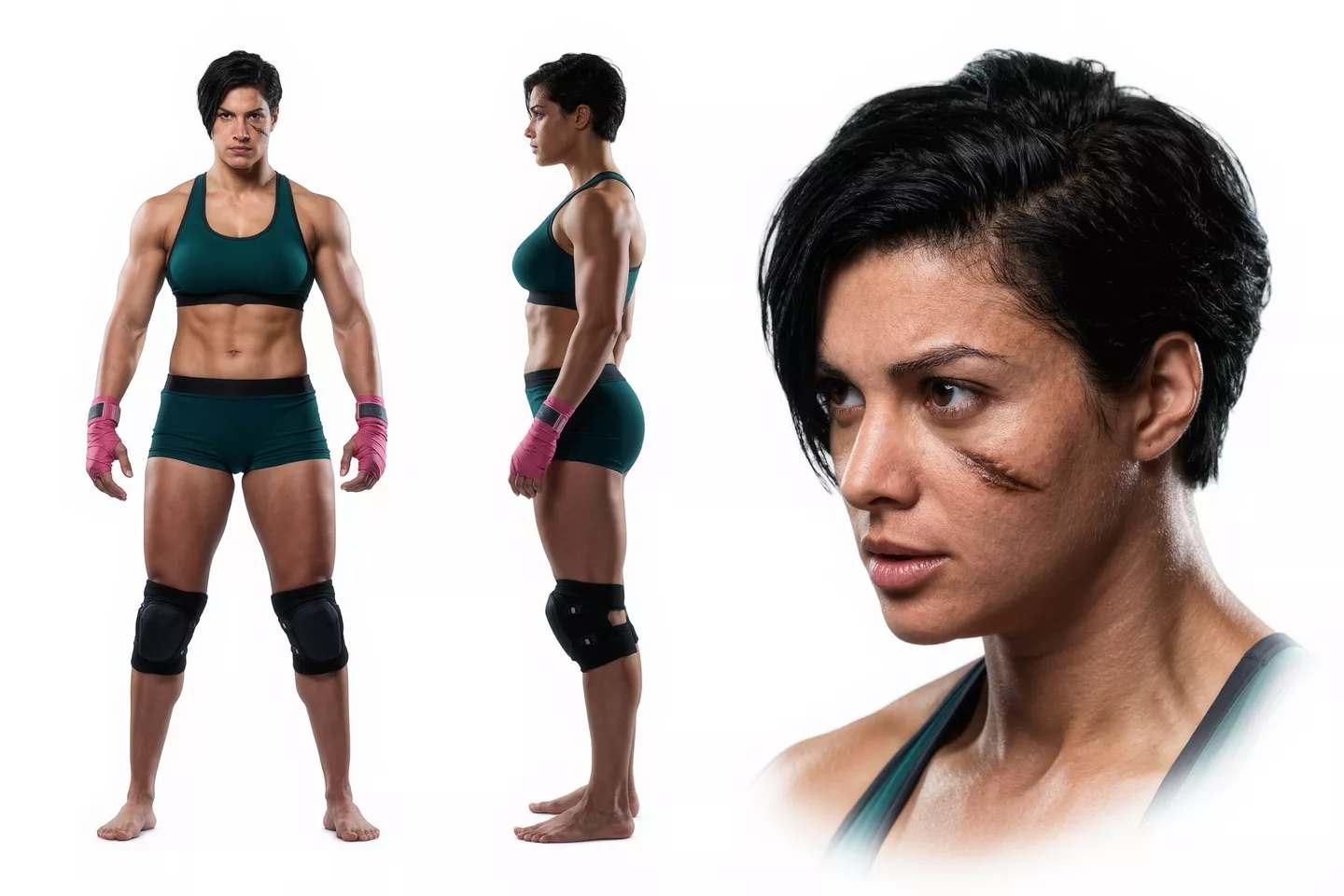
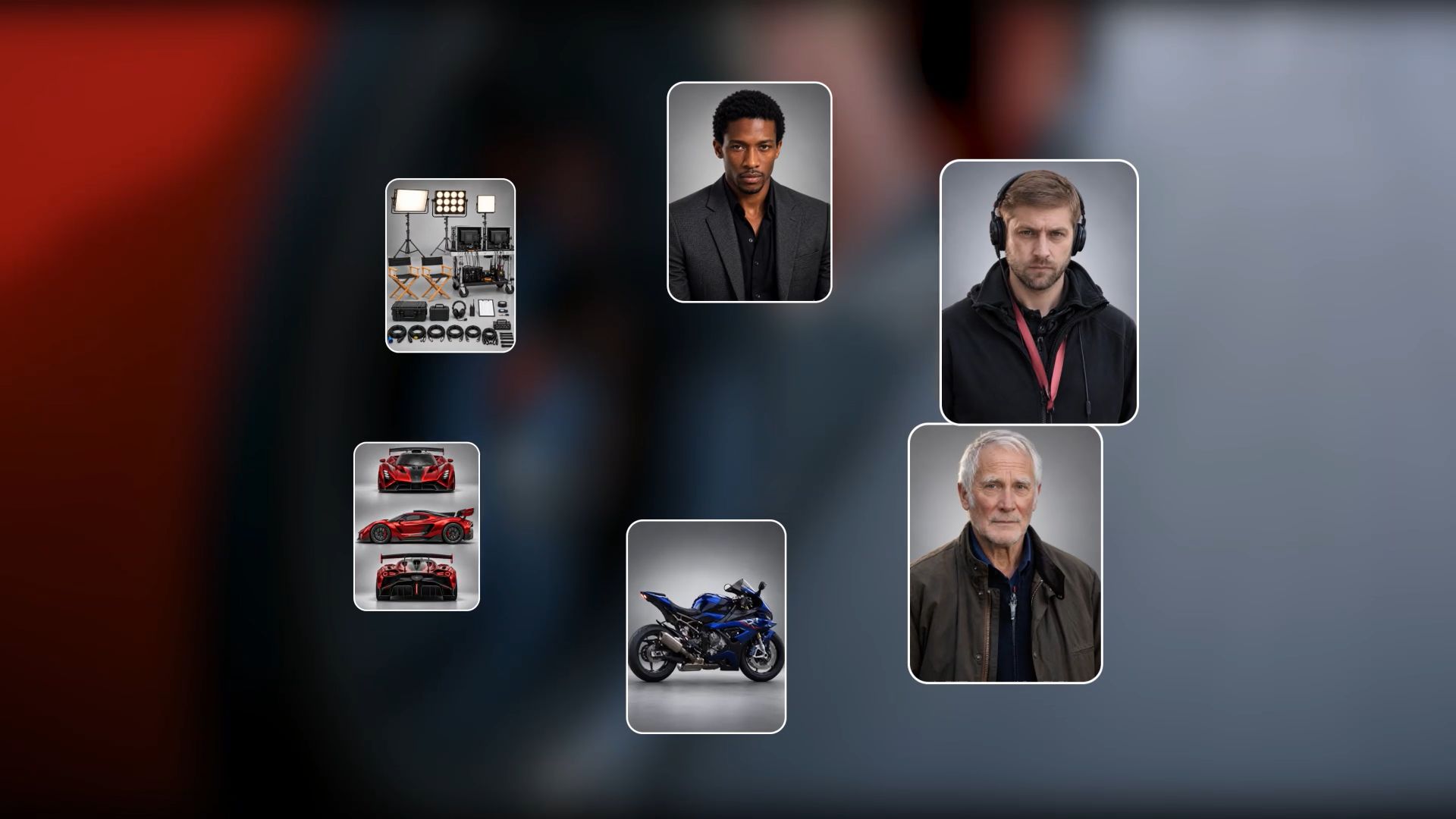
With Omni Reference, Kling 4.0 can combine up to 15 reference assets in one generation task, including up to 10 images, 5 videos (up to 30 seconds in total, including video elements), and 7 elements (including elements defined by multiple images or videos). Use images to preserve a character's face, clothing, or product details, while videos guide action paths, camera movement, and pacing. Combining references with clear roles gives creators greater control and helps recurring subjects remain consistent across scenes.
Give each reference a clear job so the model knows what to carry into the scene. A still image can also be enough to begin with image to video, adding the action and camera direction in your prompt. For Creative Recreation, use a reference video’s pacing or composition as a guide while specifying your own subjects and setting. Check consistency across the result, especially recurring faces, product details, and backgrounds.
Reference Image + Motion Reference Video | Generated Result |
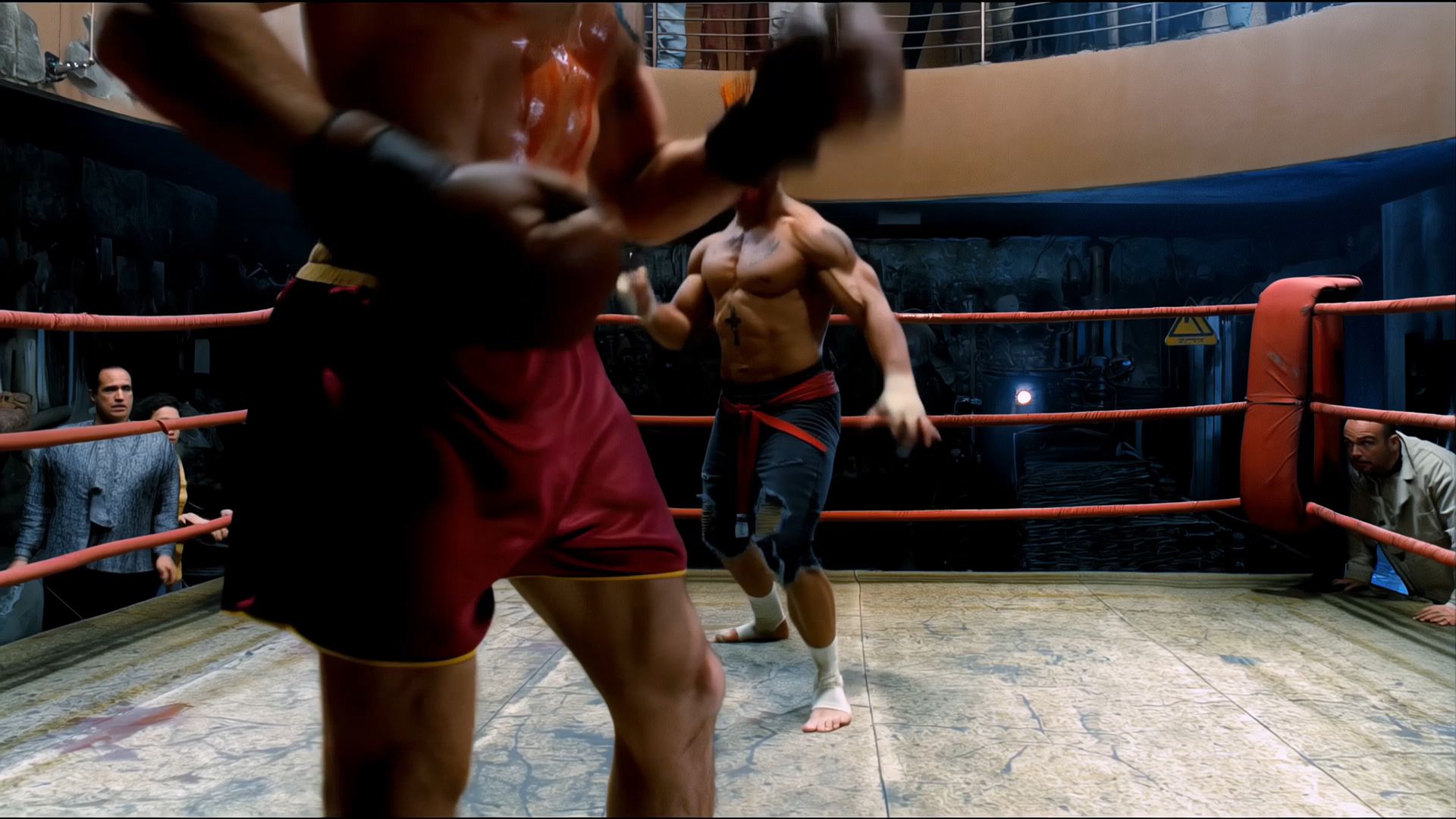  |  |
| Prompt: Help me create a video featuring two female characters from the two reference pictures, engaging in a combat competition in a tropical rainforest scene. The movements of the two females should imitate those of the two characters in the reference videos. | |

Keep Action and Camera Movement More Consistent
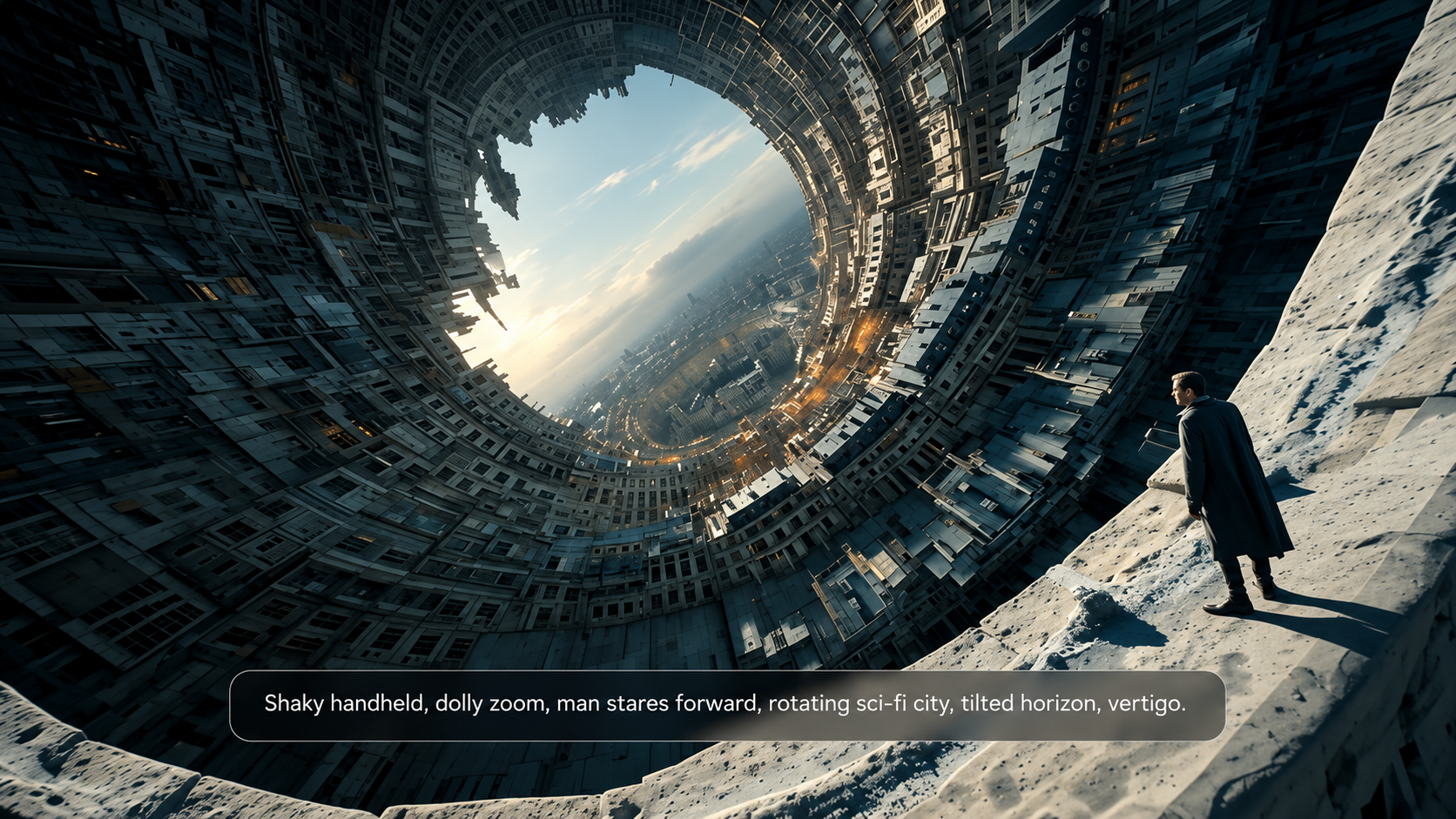
A tracking shot can lose its impact if the subject changes shape or the movement breaks halfway through. Kling 4.0 improves stability during fast actions, continuous movement, and complex camera work, including tracking and orbiting. Stronger continuity in body structure and spatial relationships gives creators more room to plan active scenes without having every shot stand still.
When directing a scene, describe where the subject moves and how the camera should follow. A video reference can help communicate the path, pace, and framing you want. Review the complete action afterward, paying attention to contact between subjects and the way movement continues across changes in shot size.
Revise the Details in Existing Footage
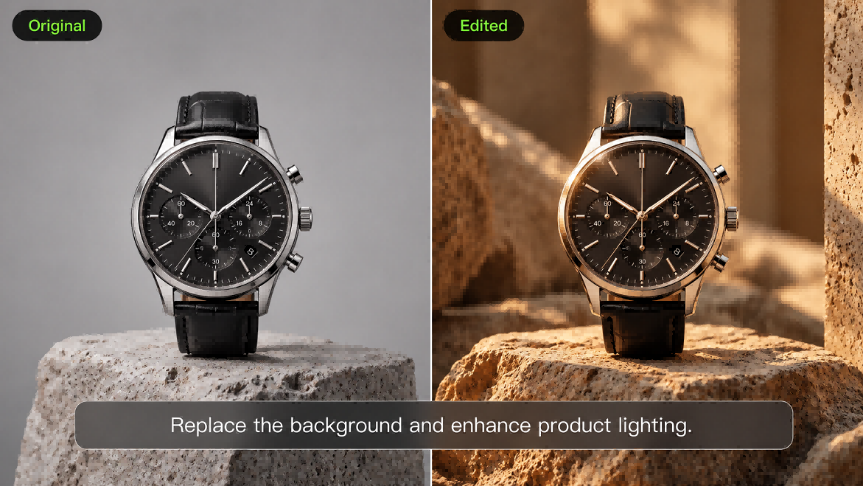
Precise Video Editing supports targeted changes to subjects, expressions, movement, backgrounds, and camera direction. Complex alterations inside a moving shot can involve masks, tracking, and compositing in a conventional workflow. With Kling 4.0, prompts and references describe the change while identifying the details to preserve, giving you another way to develop a useful shot.
If the footage works but the setting does not, you can remove the background from a video and describe a replacement around the subject. Keep the instruction focused, then check the whole clip for unintended changes. Review lighting and the subject’s outline as carefully as the new background, so the revision still fits the surrounding edit.
Direct Your Story and Build It on the Timeline
Think like a director: establish the scene, plan the actions and reactions, and decide when the camera should move or the framing should change. Kling 4.0 supports prompts of up to 8,000 tokens and generates videos lasting 3–30 seconds, giving creators more room to plan narrative beats and connected multi-shot sequences. For greater precision, you can upload up to 10 reference images through Omni Reference and specify their roles as keyframes in your prompt, defining character states, scene transitions, and the progression toward the ending.
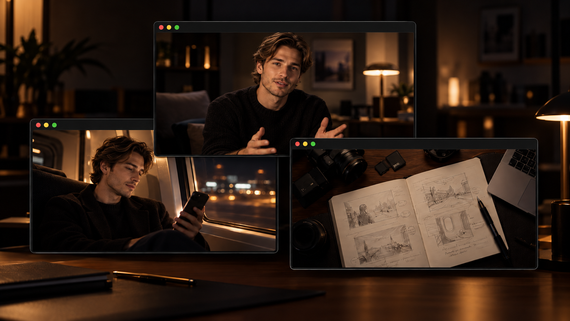
Beyond generating new videos, Kling AI's Continuous Timeline Creation feature lets you build longer, more complete stories from individual clips. Add your generated videos to the timeline, trim unnecessary sections, insert new footage, or edit and replace existing clips. You can then preview the complete sequence and download your finished video, bringing separate scenes together into a more cohesive story.

How to Create and Edit Videos with Kling 4.0
Step 1: Enter Video Generation and Choose Kling 4.0
Open Kling AI, enter Video Generation, and select Kling 4.0. In Omni Reference, upload useful images, videos, and subjects. If you are editing existing footage, include the primary clip you want to revise. You can also leave the reference inputs empty and use text to video AI to start from a written scene description; continue to Step 2 to write your prompt.
Step 2: Match Your Prompt to Your References
Describe the subject, action, setting, camera movement, and visual style that belong in the result. Give each asset a clear role, such as @Image1 for character appearance or @Video1 for action pacing. When editing uploaded footage, begin with "Edit @Video1," describe exactly what should change, and specify what must remain unchanged. If you are generating a new scene without references, describe the subject, action, setting, and camera direction directly.
Step 3: Generate, Review, and Continue Editing
Choose the output settings available for your task, check the credit requirement, and generate. Watch the whole result for subject movement, visual consistency, and camera direction, including framing and shot transitions. Refine the relevant prompt detail if something needs another pass. Add the selected result to the workspace timeline to trim, arrange, or combine it with other footage, then preview the sequence before downloading.
The End
The right CapCut alternative gives you the controls to make the video you have in mind, from editing recorded footage to creating a scene of your own. With Kling AI, a reference image, a short clip, or a written idea can become the start of something worth sharing. Follow the movement that interests you, see how the scene unfolds, and leave yourself room to try another version. Choose one moment you want to bring to life, then open Kling and begin shaping it.
FAQs
What Is the Best Alternative to CapCut?
The best CapCut alternative depends on the part of your workflow you want to change. Kling AI is worth considering for original scene creation and reference-guided revisions, while the other tools in this comparison cover desktop finishing, browser projects, and familiar timeline editing.
Is There a Free CapCut Alternative?
Yes. Some alternatives offer free editing tiers, while Kling AI provides new users with trial credits to try generating videos. Check the available model and credit requirements before starting. Free access varies by tool and may limit exports, assets, or AI usage, so compare the conditions against the video you want to finish.
Which CapCut Alternative Can I Use on PC?
Kling AI works in a PC browser, so you can generate and revise videos on Windows without installing a separate desktop editor. Its online creation workspace supports reference-guided generation, targeted scene changes, and clip assembly. Open Video Generation, choose Kling 4.0, and begin with a prompt or supported reference material. You can also use the web workspace on a Mac.
Can Kling AI Replace My CapCut Workflow?
Kling AI can cover workflows involving original video generation, targeted scene changes, and assembling clips in its creation workspace. Whether it covers your entire CapCut workflow depends on the specific controls you use. Compare your requirements for captions, templates, and detailed editing with the options available in the workspace before moving a complete project.
Can I Use My Own Footage and References in Kling 4.0?
Yes. Omni Reference accepts supported source assets to guide details such as appearance, setting, action, and camera movement. You can also upload footage for targeted revisions. Explain what each reference contributes and which details should remain consistent, then review the generated video to see whether those instructions carry through the whole scene.