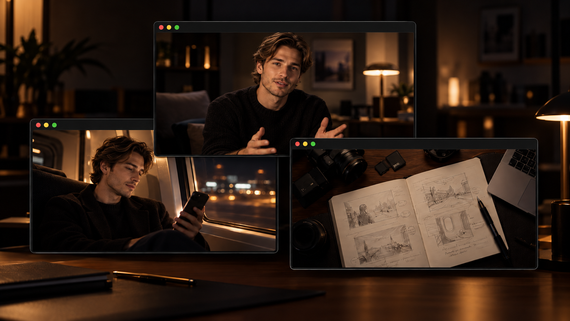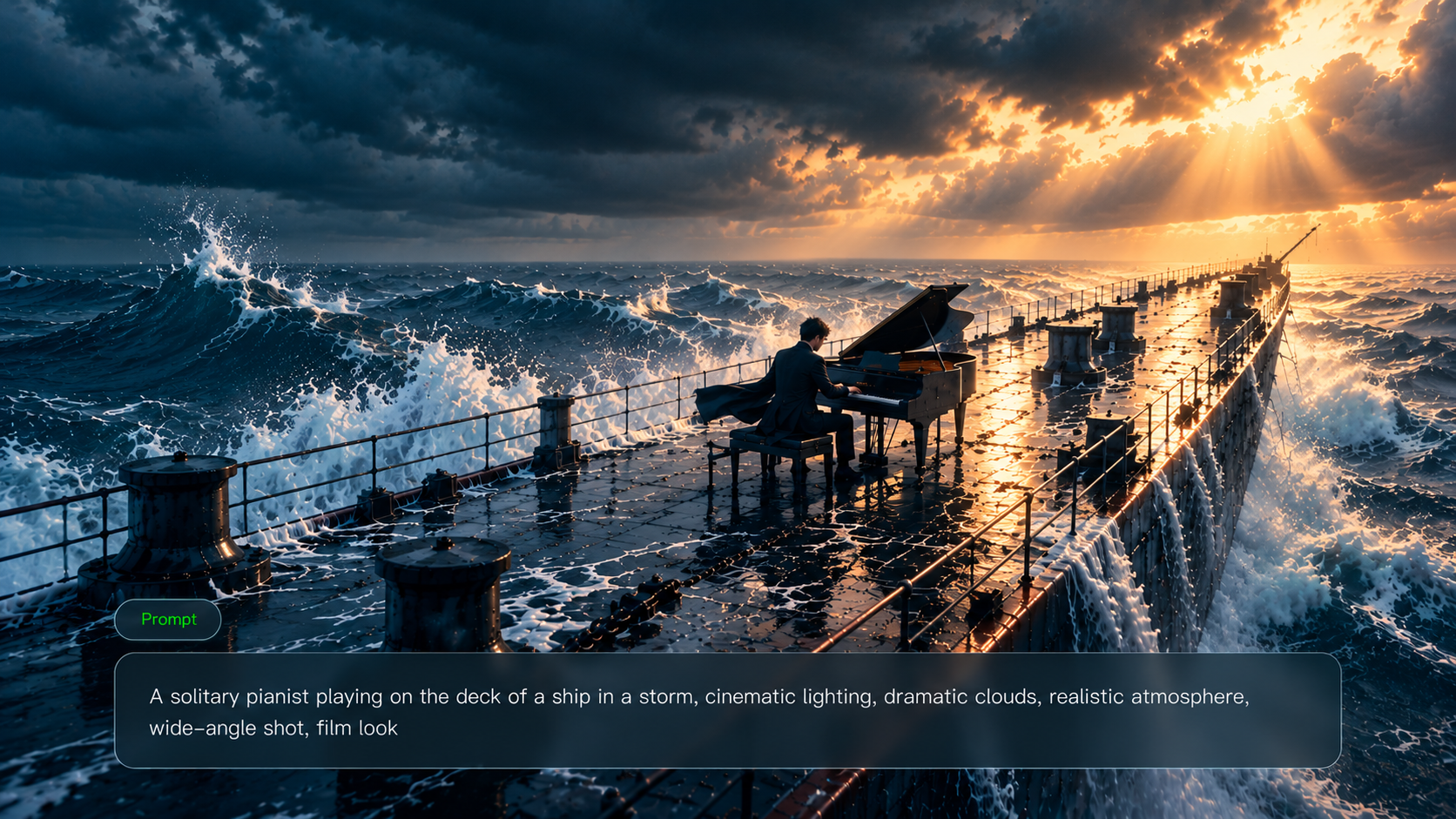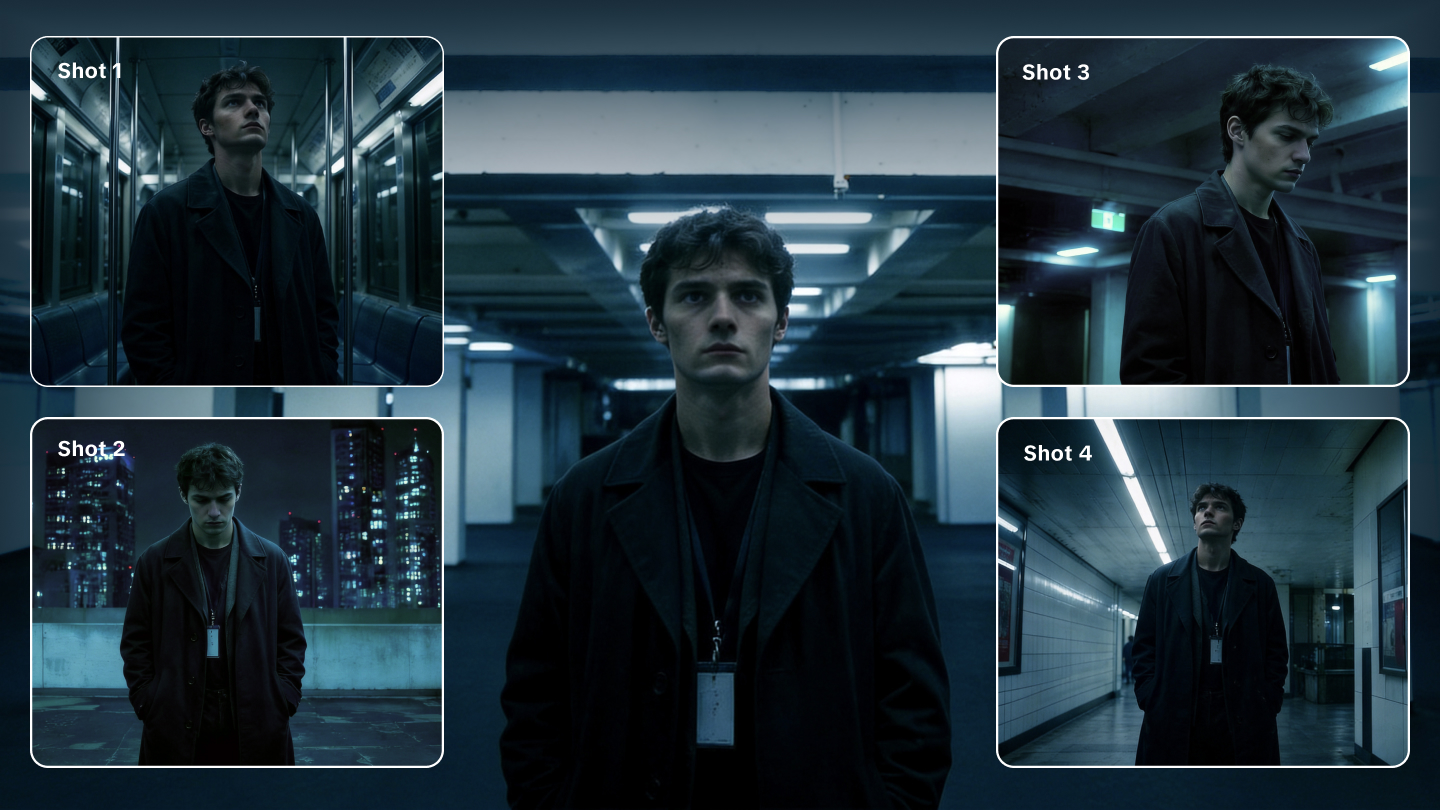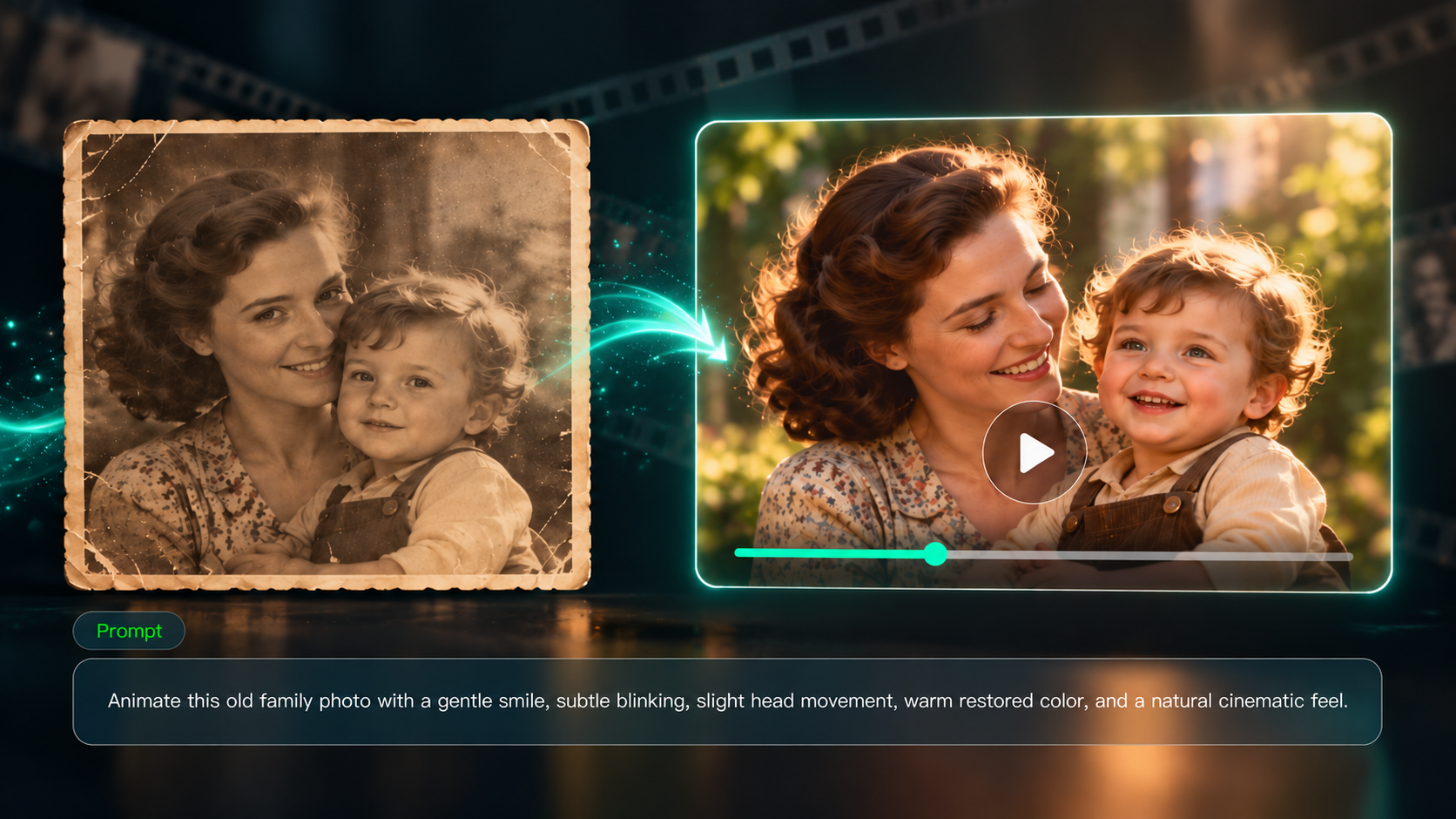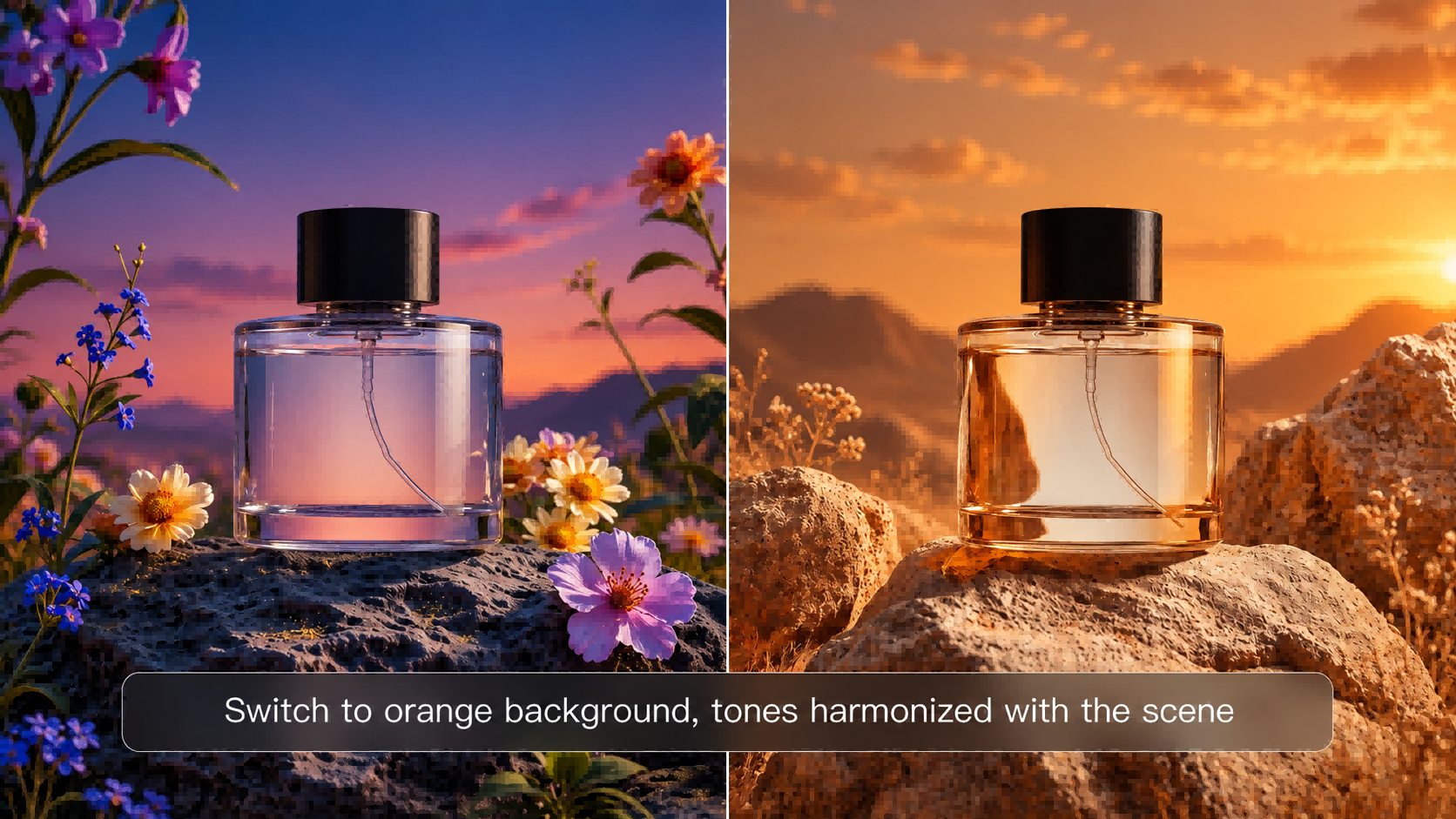
Not every photo needs a dramatic makeover. Sometimes better lighting or a cleaner crop is enough; other times, you may want to replace a background, change an outfit, or explore a different visual style. If you're wondering how to edit photos, this guide covers traditional photo editing basics, explains what AI adds, and shows how Kling AI can support more creative edits.
How to Edit Photos With Traditional Tools
Traditional photo editors handle everyday fixes, from a crooked horizon to a photo that looks too dark. If you are learning how to edit pictures, this photo editing tutorial covers three basic steps.
First, crop unwanted areas, straighten the horizon, and choose an aspect ratio that suits where you'll share the photo. Next, adjust exposure, shadows, highlights, white balance, contrast, and saturation. Apply sharpening carefully to keep skin and textures natural. Finally, compare the edited image with the original and export it as JPEG for everyday use, PNG when transparency is needed, or WebP for supported websites. Keep an editable copy for future adjustments.
How AI Is Changing Photo Editing
Traditional photo editing tools are useful for everyday corrections, but some changes require more than adjusting sliders. You might want to replace an unwanted object, try a different outfit, change the background, or explore a new visual style without starting from scratch.
AI photo editing makes these tasks more accessible. Instead of manually working through layers, selections, and complex adjustments, you can describe what you want to change in natural language. The original photo provides the starting point, while optional reference images can guide specific details. This makes it easier to explore creative edits, even without advanced photo editing experience.
Why Choose Kling IMAGE 3.0 Omni for Photo Editing?
An AI image generator can create new visuals from a text prompt, while AI photo editing starts with a picture you already have. Kling IMAGE 3.0 Omni gives you more ways to rework that picture: describe specific changes, combine visual references for details that are hard to put into words, and specify which features should remain consistent. Its image-to-image workflow supports changes to objects, outfits, and visual styles, as well as creative variations for portraits and products. Native 2K and 4K output also makes it suitable for higher-resolution visual projects.
Make Complex Photo Edits Easier With Prompts
Changing several elements in a single picture can be more complicated than adjusting only exposure or color. With Kling IMAGE 3.0 Omni, you can use a prompt to guide changes to an object's shape, styling, and sense of motion. If you specifically need to isolate a subject, removing the background from an image is another useful editing workflow. For more complex changes, check the generated shapes, edges, and surrounding details before using the result.
Original Photo | AI-Edited Photo | Prompt |
 |  | Change the black/silver Pixar-style off-roader to a low-profile blue gradient racing car with a streamlined body, front lip, and rear wing; update the action from "drifting in place" to "high-speed cruising with wind-streak effects" and maintain the 3D CG quality and cyber-style decals.
|
Guide Edits With Multiple Reference Images
A reference picture can display features that are difficult to describe in words. With Kling IMAGE 3.0 Omni, you can work from a person's photo together with images of the clothing and accessories to propose a new outfit. You can combine up to 10 reference images and explain which image provides the subject, clothing, or background. Check the person's features and clothing details before using the image.
Reference clothes | Reference Model | Output Image |
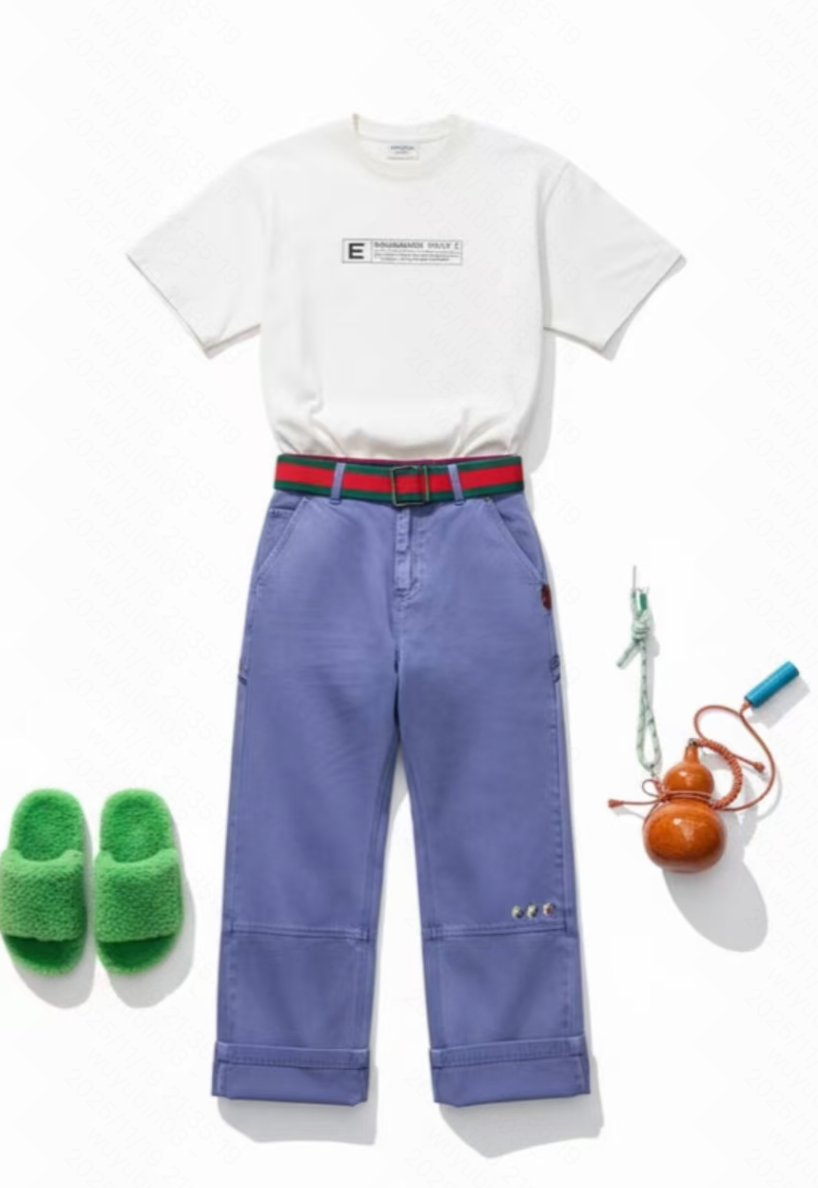 | 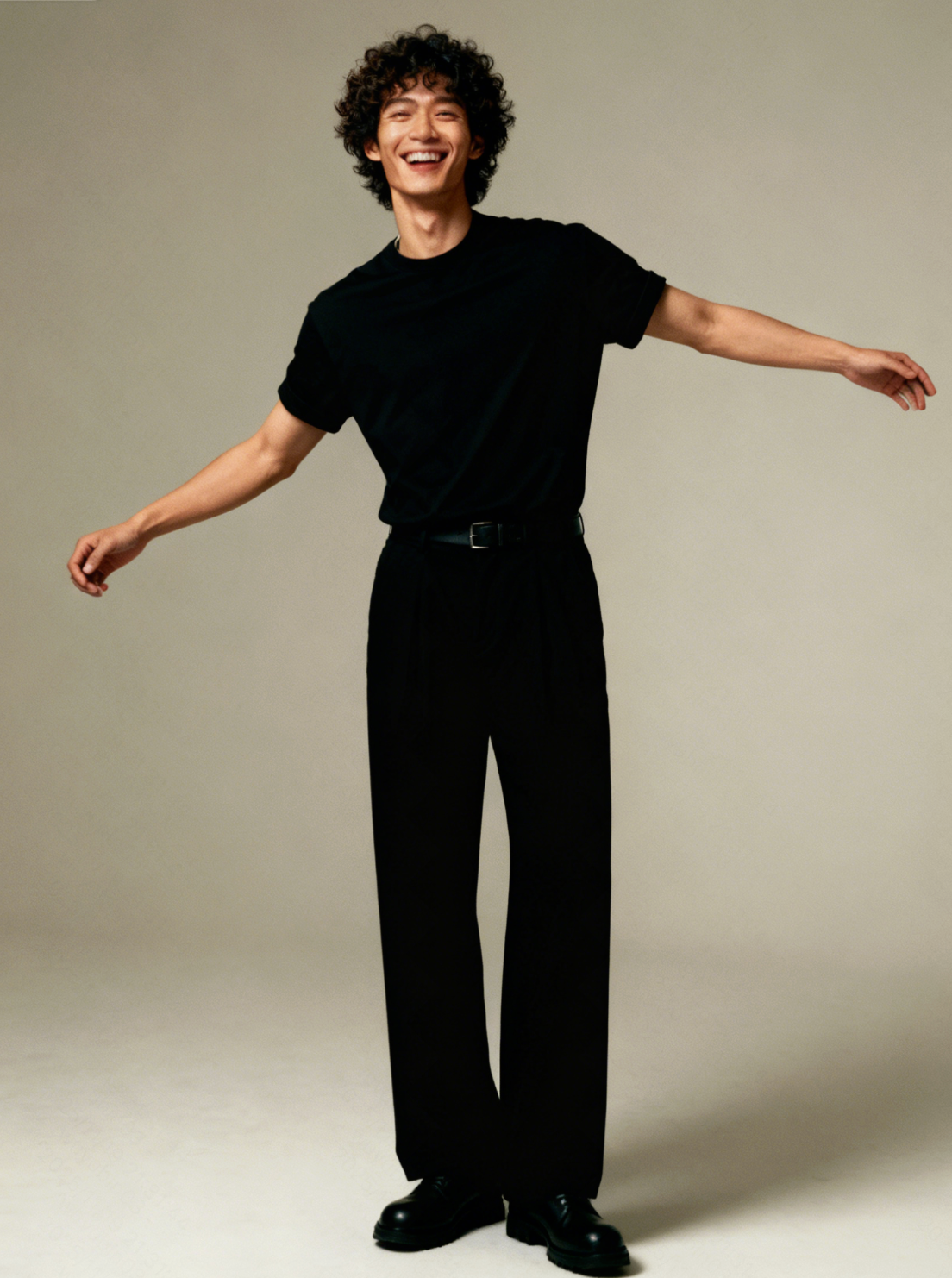 | 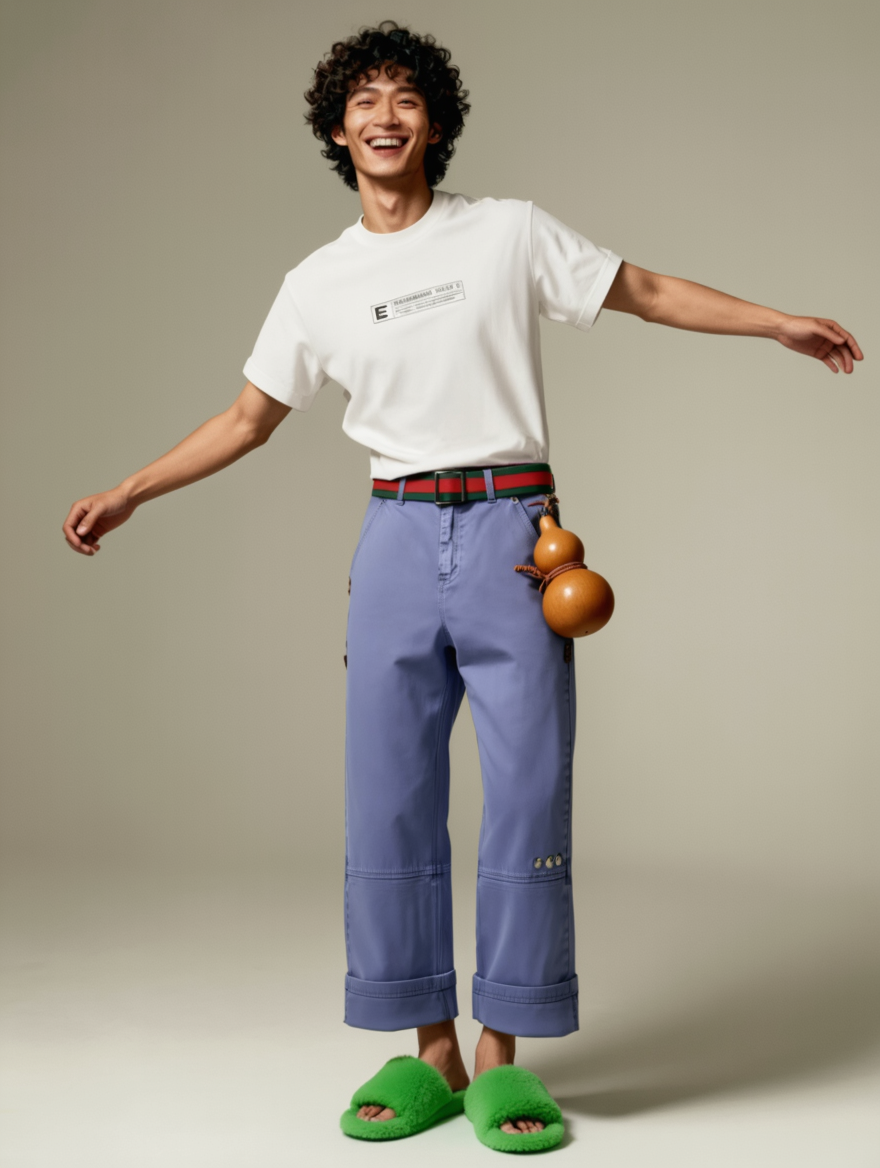 |
| Dress the model from Image 2 in the T-shirt, pants, shoes, and accessories from Image 1. Keep the model's face, pose, and background from Image 2. Preserve the clothing details, including zippers, patterns, colors, and styles, from Image 1. | ||
Explore Different Creative Versions of a Photo
With an image-to-image AI, you can use an existing image as the starting point for creative variations. For example, a product can appear in different seasonal settings, or a portrait can adopt a new artistic style. These versions help creators compare ideas for personal or commercial projects. For a product image, double-check the logo, lettering, and design details before publishing.
Image |
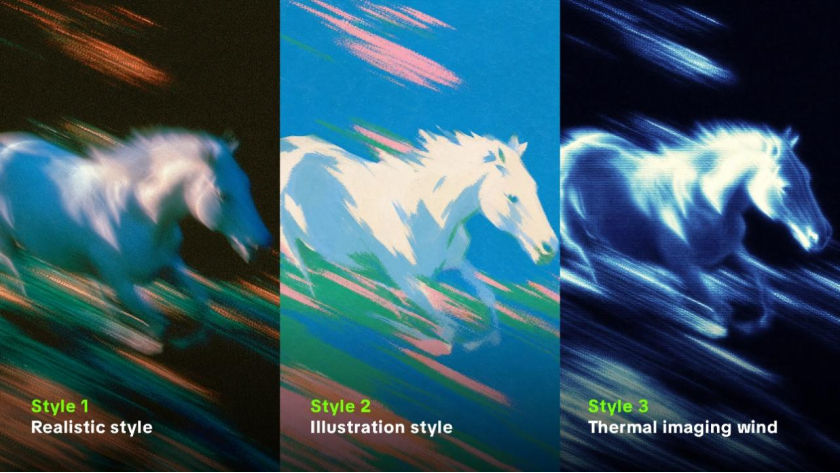 |
| Prompt: Create 3 different styles, including realistic style, illustration style, and thermal imaging wind style, for a white horse. |
How to Edit Photos with AI
To learn how to use AI to edit photos with Kling IMAGE 3.0 Omni, start with the photo you want to improve and decide which details should change. Kling IMAGE 3.0 Omni lets you guide the edit with a text prompt, with additional reference images available when you need a particular outfit, object, or visual style.
Step 1. Upload Your Photo
Open Kling AI, go to Image Generation, and select Kling IMAGE 3.0 Omni. Upload the photo you'd like to edit. You can make changes using a text prompt alone, without adding extra reference images. If you have a particular outfit, accessory, background, or look in mind, you can upload additional reference images to guide the result.
Step 2. Describe the Changes You Want
Tell the model what you want to change and which parts of the photo should stay as they are. If you've uploaded additional reference images, explain the role of each one in your prompt. For example, use image 1 for the original portrait and image 2 for the jacket, while keeping the person's face and pose unchanged. Without extra references, you can simply describe the edit in text. For example:
| Prompt: Recolor the teal wall a warm golden yellow. Keep the person, clothing, and surrounding objects the same. |
Step 3. Generate, Review, and Refine
Choose native 2K HD or 4K Ultra HD before generating your image. Compare the result with the original, especially around the edited area, facial features, and fine details. If something looks odd, refine your prompt and generate again. You can also use an image enhancer to improve soft or low-detail images, but review the newly generated textures carefully before downloading.
Original Photo | AI-Edited Photo | Prompt |
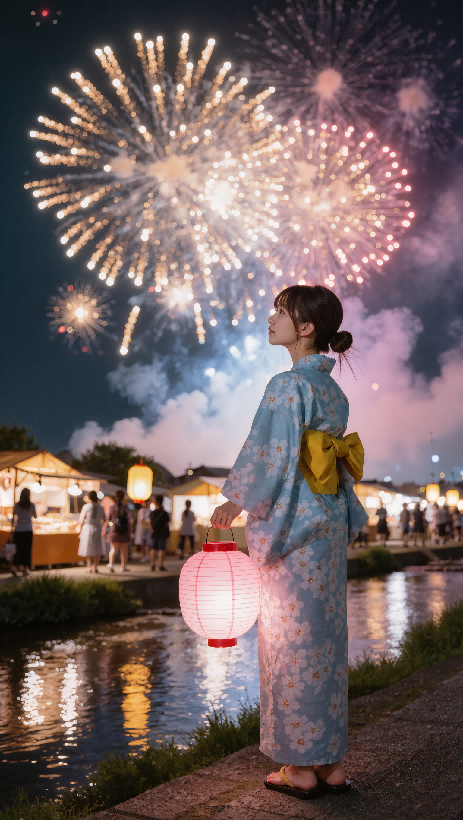 | 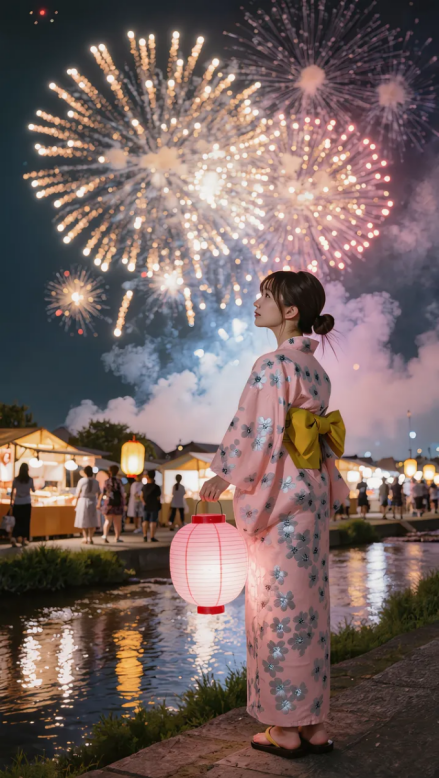 | Change the light blue sakura yukata to a pale pink daisy-patterned yukata with silver threading. Keep the model, pose, lantern, and night setting as they are. |
Photo Editing Tips and Common Mistakes to Avoid
A portrait, a product shot, and a social post don't call for exactly the same edits. Think about where the photo will be seen and what needs to stand out.
Editing Tips for Different Types of Photos
The purpose of the photo should guide how far you take an edit. Knowing how to edit photographs professionally also means knowing when to stop: keep portraits looking natural, product details accurate, and creative edits visually consistent.
Photo Type | Editing Priority | What to Check |
Social media | Clear composition, balanced brightness, platform-friendly crop | Whether the subject stands out on a small screen |
Portrait | Natural skin tones, flattering light, subtle retouching | Facial features, skin texture, and hair edges |
Product | Accurate colors, clean presentation, visible details | Logos, labels, materials, and product shape |
Creative images | Cohesive mood, lighting, and visual style | Composition and consistency of key elements |
Common Photo Editing Mistakes to Avoid
Even small adjustments can make a photo look unnatural when taken too far. If you're working with an AI photo editor, check things you didn't mean to change, such as faces, hands, reflections, text, or product details. These are common mistakes worth catching before you export.
Mistake | Better Approach |
Over-saturating colors | Reduce saturation until skin and product colors look natural |
Excessive sharpening | Apply sharpening selectively and inspect fine edges |
Brightening the entire image | Adjust exposure, highlights, and shadows separately |
Making too many changes at once | Work from broad corrections to smaller details |
Changing important features unintentionally | Compare the edited image with the original |
Repeatedly saving JPEG files | Keep an editable original and export a final copy |
The End
Good photo editing begins with a clear goal. Traditional tools help refine composition, lighting, and color. Kling IMAGE 3.0 Omni offers image-to-image workflows for more substantial visual changes guided by prompts and reference images. Review the final image against its intended use before publishing or sharing.
FAQs
What is the easiest way to edit photos?
The easiest way to edit photos is to find an editor with simple controls or automatic enhancement options. For more specific changes, Kling IMAGE 3.0 Omni lets you edit images using text prompts. You can describe what you’d like to change and use an existing image as a reference. Preview the result before saving it to make sure it looks like you want it.
Is photo editing hard to learn?
Not really. Anyone without a design background can learn the basics of photo editing in a short period of time. Photo editing and retouching require more in-depth experience and practice since all the changes are subtle and custom-tailored to the needs of the client. It is best to experiment with different types of images and learn the necessary tools for each project.
How Can You Edit Photos Online With AI?
You can edit photos online with Kling IMAGE 3.0 Omni. Upload an existing photo, describe the changes you want, and specify which details should remain unchanged. You can change backgrounds, replace objects, or explore different visual styles using text prompts. Additional reference images are optional. Select your output resolution, generate the edited image, and review the result before downloading.
How can you edit multiple photos at once?
It is possible to edit several pictures in batch processing mode. In most cases, using presets, synchronized editing options or batch processing tools allows you to apply similar changes to multiple photos to achieve an identical effect. This is useful for editing a large number of photos, for example, event photographs, product catalog images, or other specific categories. It is important to look at all the edited photos and make sure that the changes are correct since different lighting often requires different corrections.
How to make good picture edits?
The first thing to do is to determine what changes are needed in the photo and who will see the final image. It is important to understand what edits are critical and what can be ignored. For instance, a photo of a person may not require many changes, while an image that needs to be displayed on a website will have to be more expressive to be understandable at a small size.