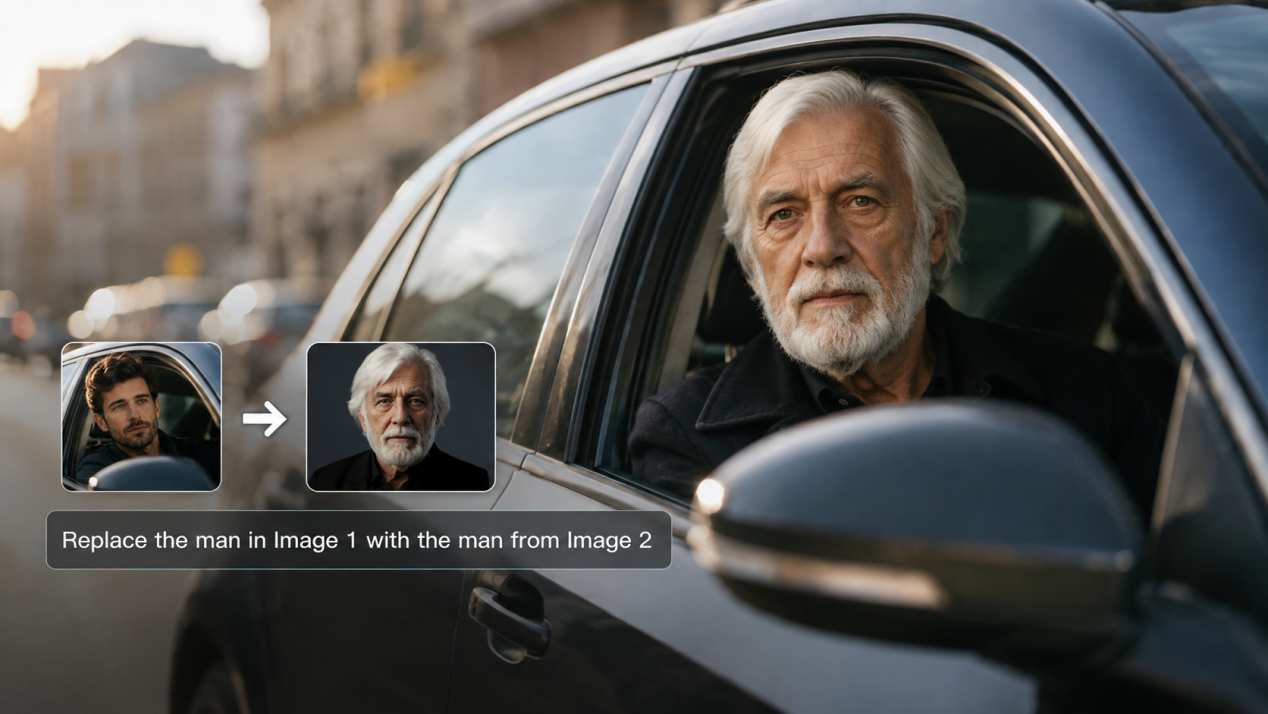
Maybe you want to place your own face into portrait images with different outfits, hairstyles, or makeup, or see how the same person would look in a new style without changing the rest of the photo. Face swapping makes that much easier. In this guide, you’ll learn how to swap faces in pictures with Kling IMAGE 3.0 and avoid common problems that can throw off the result.
.png?x-oss-process=image/resize,w_1872)
How to Face Swap Pictures With AI
Before you start, choose a reliable AI face swap tool. A good tool should do more than simply place one face onto another photo. With Kling IMAGE 3.0, you can work from a target image and one or more face references, while giving clear instructions about what should change and what should stay the same. Here’s how to face swap pictures with Kling AI in three steps.
Step 1: Choose and Upload Your Target Photo and Face Reference
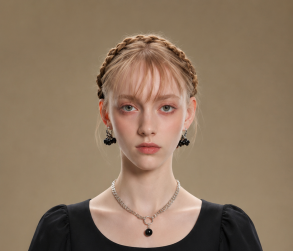
Start with the photo you want to edit, then add a clear face reference. Choose one where the face is easy to see, with minimal obstruction, and try to keep the angle and expression close to the target photo.
With image-to-image AI, you can work from the original photo and use reference images to guide the face change. If one reference does not provide enough information, Kling IMAGE 3.0 supports up to 10 reference images, letting you add the same person from different angles and expressions. A front-facing photo can help define the overall facial structure, while side views can add details such as the profile, nose bridge, and jawline. References with different expressions can also help capture changes around the eyes, mouth, and overall look. Taken together, these views give the model a fuller picture of the person’s facial features and appearance, helping the face swap stay closer to the reference.
Step 2: Describe the Face Swap You Want
If you’re changing only the face, tell Kling IMAGE 3.0 which person to replace and note that the hairstyle, clothing, pose, lighting, and background should stay as they are. If a reference image contains more than one person, point out which face to use so the model picks the right one without changing the rest of the image.
Target Photo | Face Reference | Output |

|  | .png?x-oss-process=image/resize,w_1872) |
Step 3: Generate Your Face Swap
Once the target photo, references, and instructions are ready, generate the image. Kling AI uses these inputs to create the face swap while helping preserve the original pose, lighting, and surrounding scene. You can export with Kling IMAGE 3.0 at up to 2K, or use Kling IMAGE 3.0 Omni for up to 4K when the final image needs more detail.
If you want to make a few more changes after the face swap, you can keep editing the image with Kling IMAGE 3.0, from adjusting the expression or hairstyle to changing the lighting and other details.
Edit | Prompt | Result |
.png?x-oss-process=image/resize,w_1872) | Keep the person, face, hairstyle, clothing, pose, and background unchanged. Add dramatic stage lighting with stronger directional light and deeper shadows across the scene. | .png?x-oss-process=image/resize,w_1872) |
Common Face Swap Problems and How to Fix Them
Sometimes the first result is close, but one detail still gives the edit away. Check these common issues before starting over.
Problem | Possible Cause | What to Do |
Blurry or Misaligned Face | The reference is blurry, too small, or does not show enough of the face. | Use a sharper photo where the face is easy to see and fills more of the frame. |
Skin Tone or Lighting Looks Off | The target and reference photos differ too much in brightness, shadow direction, or color temperature. | Choose a reference shot under lighting closer to the target, or adjust the lighting before generating another version. |
Facial Features Look Distorted | The head angle or expression is too different between the two photos. | Switch to a reference with a closer pose or expression. If one view still omits key facial details, add another angle of the same person. |
Hairline or Face Edges Look Unnatural | Hair, glasses, hands, or other objects cover part of the face and make the boundary harder to read. | Use a cleaner reference, or touch up the affected area with Kling IMAGE 3.0 after the swap. |
Creative Ways to Use Face Swap Pictures
Once you have a face swap you like, there are plenty of directions you can take it.
- Step into another time. Put yourself or a friend into a 1920s portrait, a medieval court, or a retro family photo.
- Rework a familiar painting. Swap a face into a classic portrait, poster, or illustrated scene for a more personal take.
- Give old family photos a twist. Mix faces across generations or remake an old portrait with a family member in the frame.
- Make a custom card or invitation. Place friends or relatives into birthday, holiday, wedding, or party scenes.
- Try a different character. See how the same person looks as a detective, astronaut, fantasy hero, or another role.
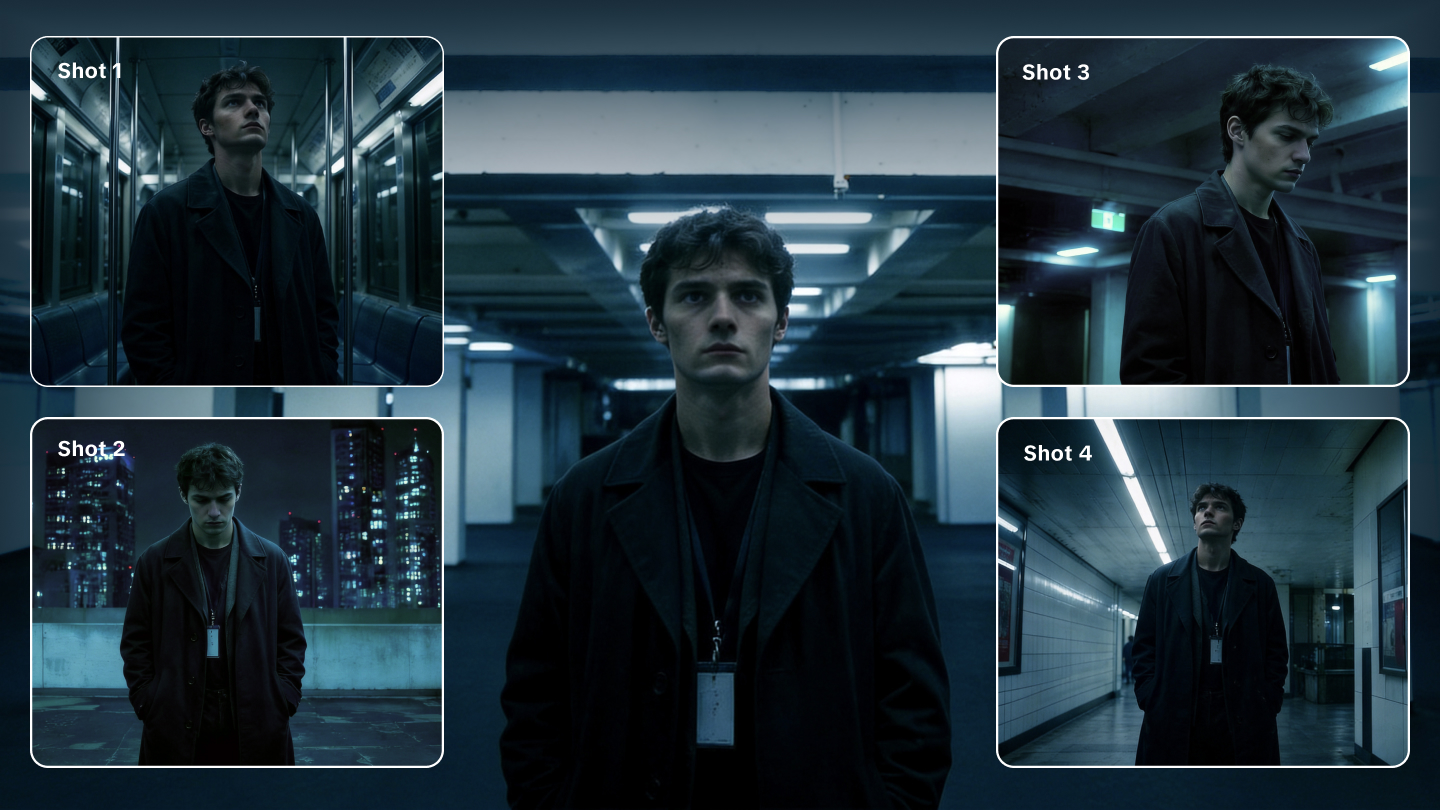
- Turn one image into a sequence. With IMAGE 3.0 Omni, the same person can continue into new settings and connected shots for a storyboard or character series.
FAQs
How do I swap a face in a picture?
Here’s how to face swap a picture: upload the photo you want to edit along with a clear face reference, then tell the tool which face to replace. Generate the image, check how the face fits the original photo, and adjust the reference or prompt if something looks off. A similar angle and expression can make the match easier.
Can I use multiple reference images for a face swap?
Yes. If one photo does not show enough of the face, you can add other views of the same person. Different angles can provide details that are missing from a single reference, which is especially useful when the target face is turned or partly in profile. Kling IMAGE 3.0 supports multiple reference images for this kind of edit.
Why does my face swap look unnatural?
A face swap can look wrong when the reference and target are too different in angle, expression, or lighting. Hair, shadows, or a small face in the frame can also throw things off. Try a clearer reference, a closer angle, or another view of the same person. If other parts of the image change too, make the prompt clearer about what should stay untouched.
Is face swapping safe to use?
Face swapping can be used responsibly, but only when you have permission to use the person’s likeness and avoid deceptive, harmful, or misleading content. In the U.S., right of publicity laws can also affect how a person’s likeness is used, especially in commercial work. Face swaps can be used for memes, profile photos, personal projects, and other permitted creative work. For commercial use, confirm that you have the necessary likeness rights and comply with applicable terms.
The End
Whether you’re fixing one awkward face in a group photo or putting someone into a completely different scene, learning how to face swap comes down to a few basics: a clear reference, a workable angle, and a prompt that says what should stay unchanged. Kling IMAGE 3.0 gives you room to fine-tune the details, while IMAGE 3.0 Omni can take the same person into new scenes, storyboards, and connected shots.