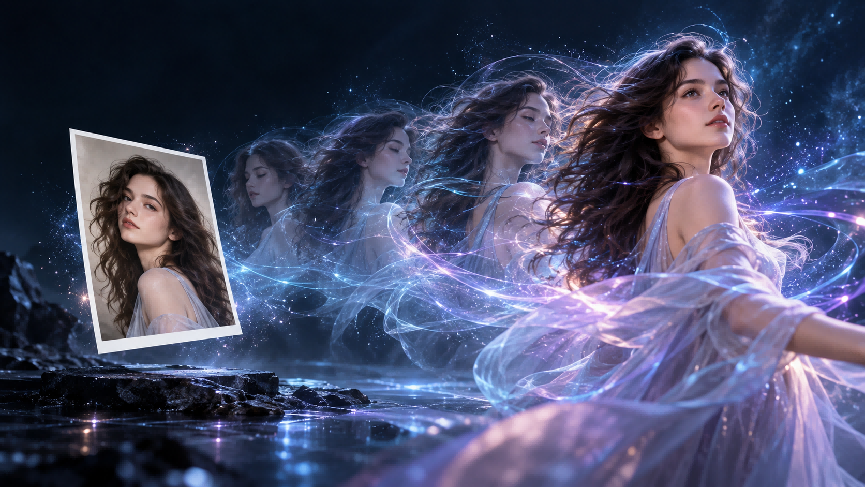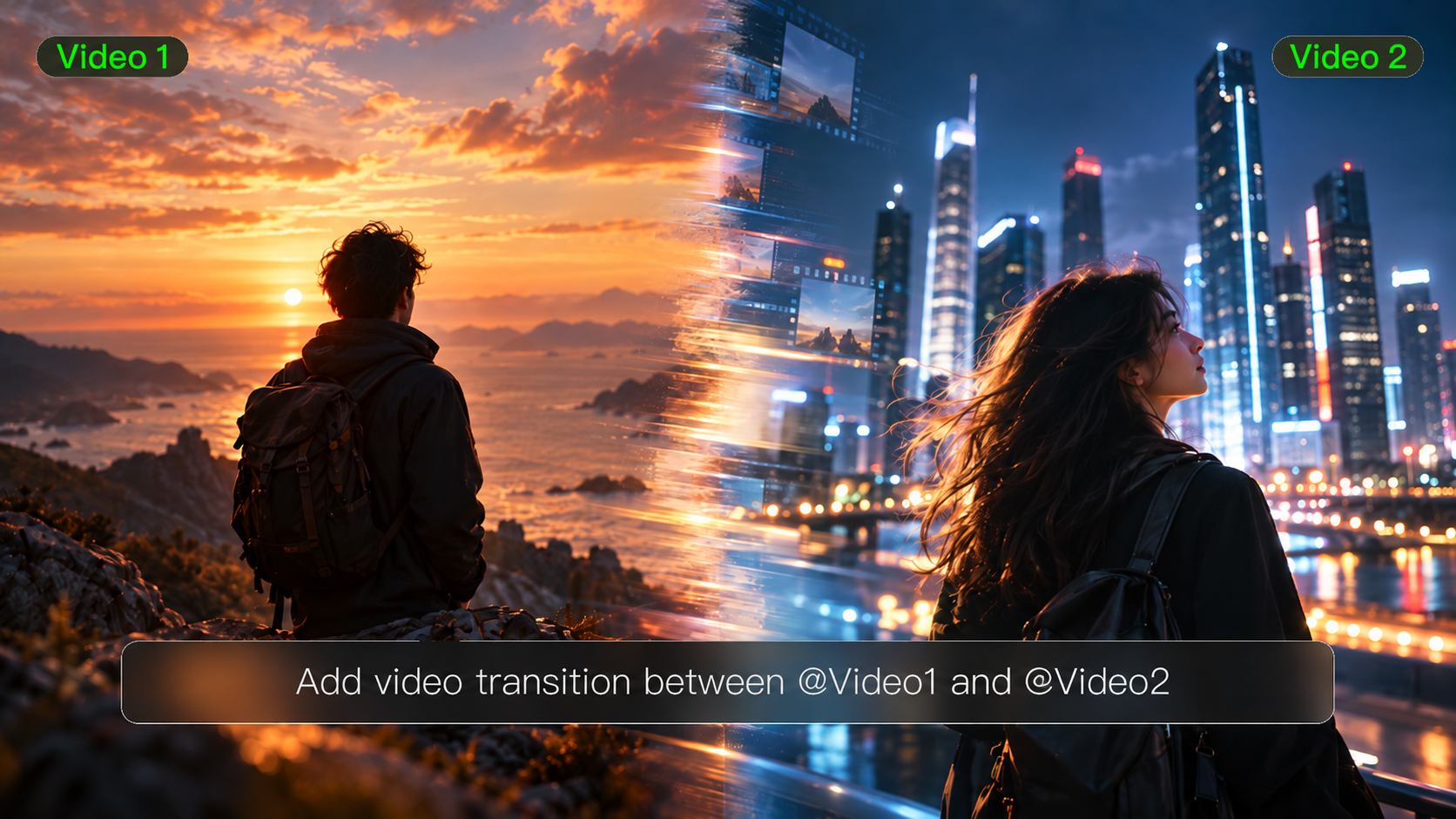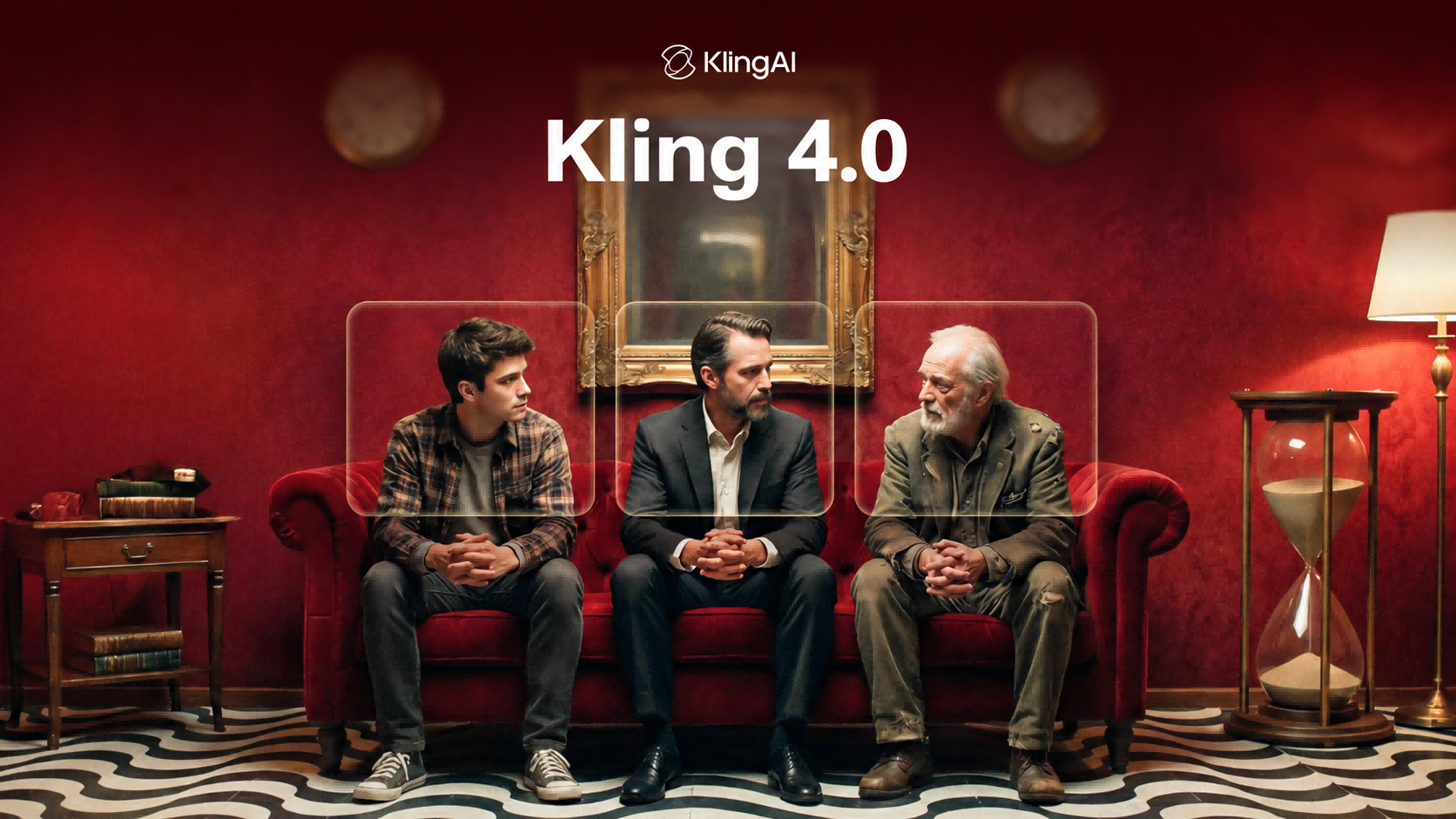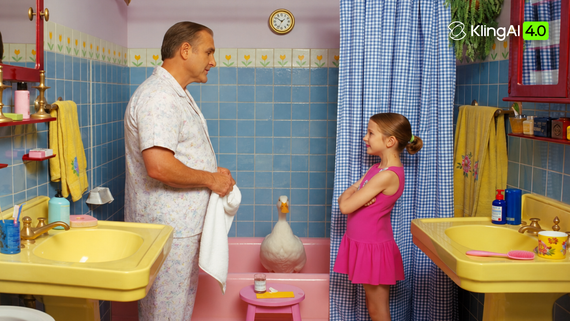
The best free video editor is one that fits your editing goals and the changes you need to make. For beginners, Kling AI offers an approachable way to edit with prompts and references, with trial credits for eligible tasks. This guide compares six of the best free video editors and explains what you can try without paying.
6 Best Free Video Editors for Different Editing Needs
The best video editor for a quick social post may differ from the one for a scene revision. Compare what each tool lets you do for free, as well as the device and workflow it supports.
Begin with the task you already have. Cutting an interview calls for timeline and audio controls; changing a person or setting calls for tools that work inside the shot. Then check your device, what the free version includes, and whether the output meets your publishing needs. For an AI editor, look at the credits and model access before you build a project around a particular feature.
6 Free Video Editors at a Quick Glance
Tool | Platform | Free Access | Primary Workflow |
Kling AI | Web; Android/iOS apps | Free sign-up credits; monthly login credits |
|
CapCut | Desktop, web, mobile | Basic free tools; paid upgrades | Social clips, captions, and timeline editing |
Canva | Browser; mobile apps | Free editing and assets; premium extras | Simple videos with titles and social layouts |
Adobe Firefly | Desktop browser; app features vary | Limited free access; model and plan limits | Timeline assembly and AI-assisted creation |
DaVinci Resolve | Windows, Mac, Linux | Free edition; paid Studio upgrade | Detailed editing, color, effects, and audio |
Shotcut | Windows, Mac, Linux | Fully free and open source | Local timeline editing and filters |
Kling AI
Kling AI runs in a browser on Windows and Mac, with Android and iOS apps for mobile access. Kling AI offers a practical way to edit what happens inside a video, not just trim and arrange clips.
With Kling 4.0, you can use natural-language instructions and visual references to replace characters or products, change backgrounds, adjust camera framing, and refine the look of existing footage. Precise video editing helps you target the parts of a scene that need work while using your prompt to identify what should stay consistent.
Kling 4.0's Omni Reference also lets you guide character appearance, product details, movement, and visual style with images, videos, and subject references. For beginners, this can reduce the need for complex manual masking and compositing when experimenting with scene changes.

CapCut
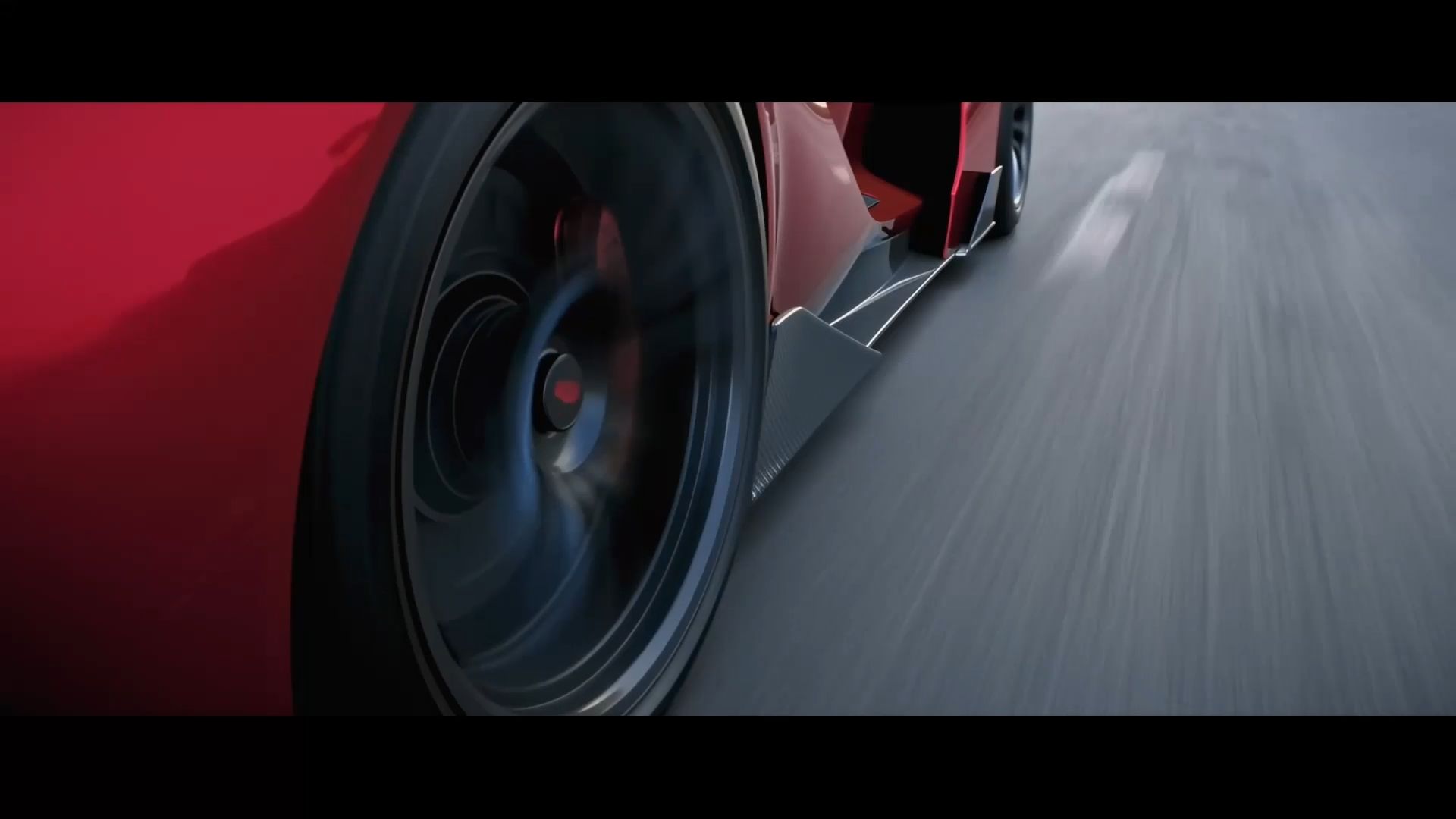
CapCut suits short social edits where captions, templates, and familiar timeline controls help you get a version ready quickly. It works on desktop, web, and mobile, making it convenient for Shorts, Reels, and TikTok projects. Its free tier covers basic editing, while some effects, AI tools, assets, and export options require a paid plan.
Canva
Canva suits simple videos that need titles, graphics, and social layouts. Its browser editor lets you arrange clips and add text or audio. For creators comparing the best free online video editor options, the choice of assets matters: using your own media and free elements allows watermark-free exports, while premium elements have separate payment conditions.
Adobe Firefly
Adobe Firefly brings uploaded footage and generated clips into a browser editing workflow. You can arrange video and audio on a timeline, then develop additional material within the same workspace. It is an option for projects that combine basic assembly with AI creation, though generation allowances and access to specific models depend on the current plan.
DaVinci Resolve
DaVinci Resolve suits projects that need detailed editing, color correction, and audio work in one desktop application. It runs on Windows, Mac, and Linux, with a substantial free edition and a paid Studio upgrade. For creators comparing the best video editor for YouTube, its finishing controls are useful, although the interface takes time to learn and some advanced features require Studio.
Shotcut
Shotcut is a fully free, open-source editor for Windows, Mac, and Linux. It provides timeline editing, filters, and broad format support without a paid edition that locks away extra features. It suits creators who want to work locally and avoid subscription costs. Larger projects still depend on your hardware, and some speech tools require additional setup.
Why Choose Kling AI as Your AI Video Editor?
Kling 4.0 makes it easier to refine existing footage without advanced masking or compositing skills. Use prompts and Omni Reference to guide changes to characters, products, backgrounds, camera movement, and visual style while identifying the details you want to preserve.
When a project needs footage you haven't filmed, Kling 4.0 can also generate new video from text or images. With up to 30 seconds of native generation and 10 Multiple Keyframes, you can plan important visual moments before bringing the result into your edit.
Together, these capabilities help creators make more use of existing footage, try alternative scenes, and fill gaps without starting every idea from scratch.
Adjust Camera Movement and Framing
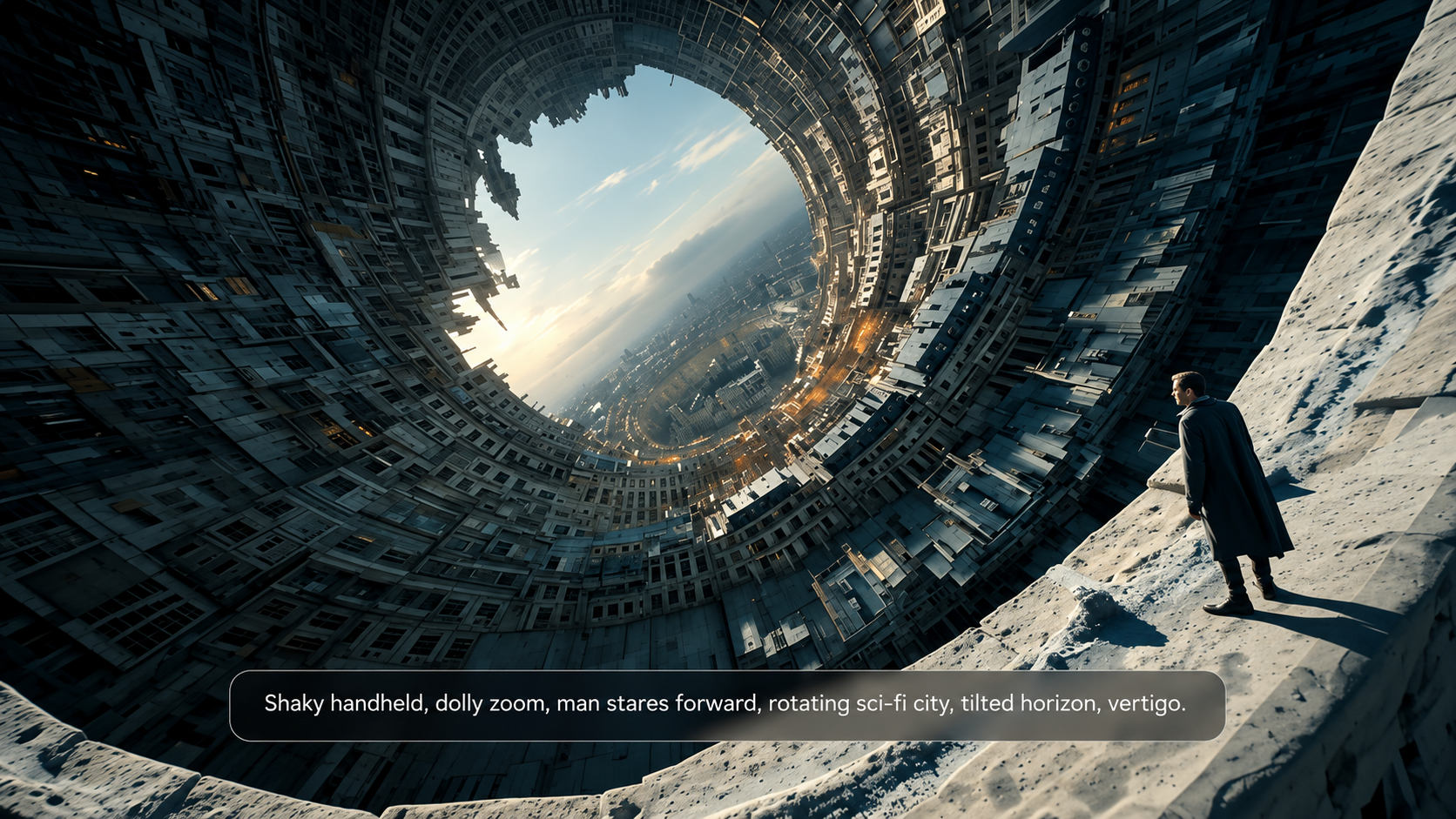
A product detail may deserve a closer look, or a scene may work better from another angle. With Kling 4.0's precise video editing, you can describe the framing or camera movement you want and use references to guide the result.
Ask for a closer composition, a wider view, or a different angle around the subject. Video references can also help communicate camera movement and pacing, from a slow push-in to a more dynamic tracking or orbit shot.
Kling 4.0's improved dynamic motions support greater stability during complex movement, giving you more room to explore cinematic shots.
Keep the direction specific: a slow move toward a product should feel different from a view that circles around it. Watch the revised clip all the way through to check whether the framing, movement, and surrounding scene remain coherent.
Keep Subjects Consistent Across Video Edits
Want to change a character's appearance without reshooting the scene? Kling 4.0 lets you use text instructions and character references to guide targeted changes in existing footage.
Start with the original video, then add a clear reference image or supported subject reference. Identify the person you want to replace and describe which parts of the original performance should remain, such as clothing, body movement, lighting, or camera direction.
For recurring characters, Omni Reference helps maintain recognizable facial features and other defining details across different scenes and revisions. You can combine images, videos, and subject references to give the model more context about the character you want to create.
This is useful for character variations, promotional videos, and creative social content. Review the entire edited clip to make sure the new character remains recognizable and the surrounding action still works.
Change Subjects and Backgrounds with References
If a product shot needs a new setting, you do not always have to film it again. With Kling 4.0, you can describe the background you want and add an image to guide its appearance. If you do not have a suitable reference, an AI background generator can help you create an image of the setting you have in mind. The same approach can help you replace a character or product: identify what should change, provide a clear reference, and say which details of the original scene you want to keep.
For a video background remover task, specify the new setting and the parts of the scene you want to preserve. State whether the original movement, clothing, or other people should stay. Review the complete clip afterward; a requested change can still affect nearby details.
Transform Your Footage with a New Visual Style
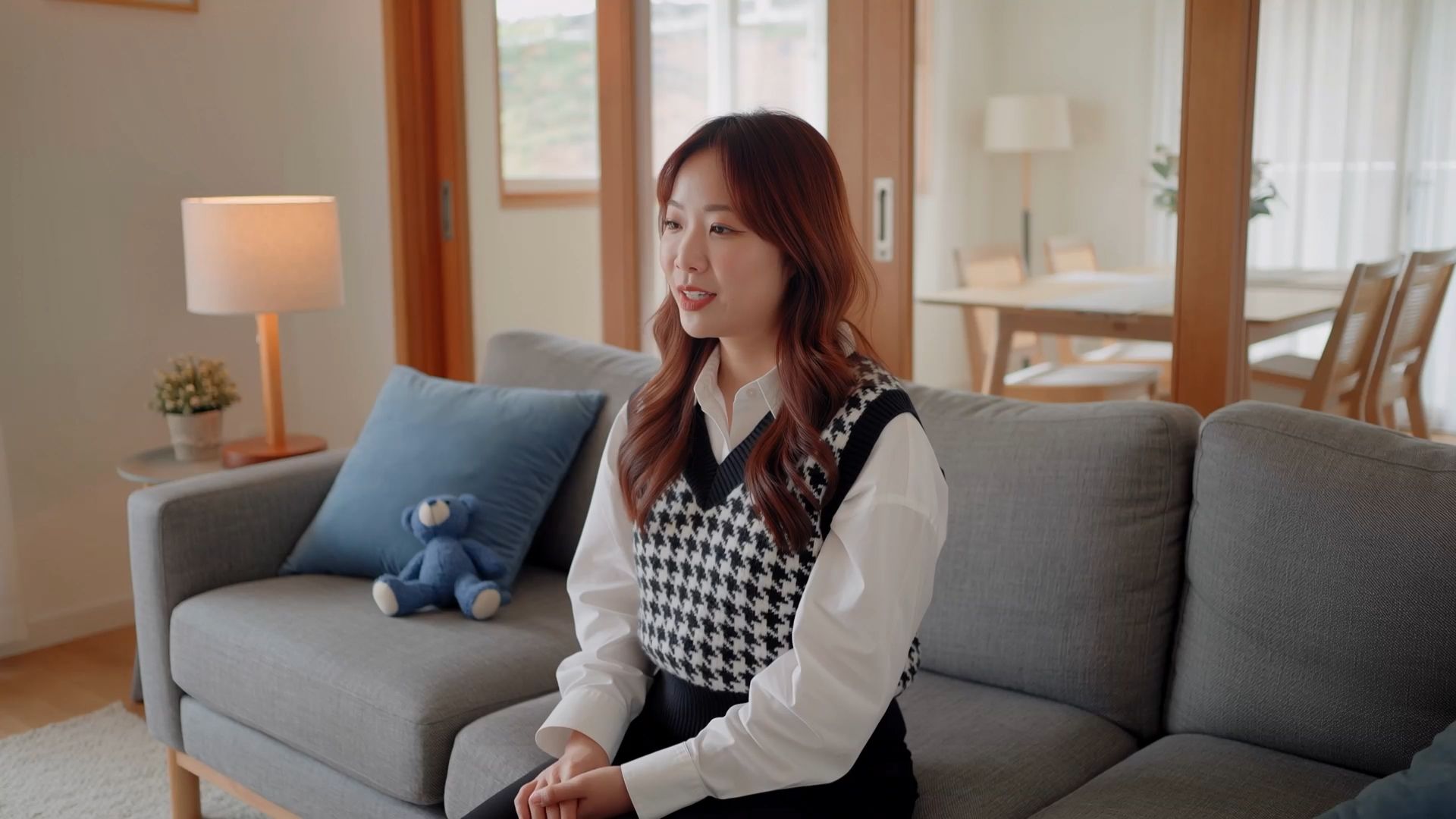
Your video may have the right action and content, but not the visual style you want. Kling 4.0 lets you use prompts and visual references to explore new looks for existing footage, from cinematic realism to anime, watercolor, or cyberpunk-inspired styles.
Describe the colors, lighting, materials, textures, and atmosphere you want. Add reference images when a particular style needs a clearer visual direction, and identify which characters, actions, and scene details should stay recognizable.
Whether you're refreshing promotional footage, developing creative social videos, or trying a different aesthetic, this approach gives you more ways to experiment without reshooting the entire scene or building every effect manually.
Extend Your Videos Up to 2 Minutes
Need more time to tell your story? With Kling 4.0, you can extend a video multiple times, building longer sequences of up to 2 minutes.
Continue character actions, develop a conversation, or add new story moments without starting from scratch. Use prompts to guide what happens next while keeping the subject, setting, and motion consistent with the original footage.
Whether you're creating a product demonstration, a cinematic scene, or a short story, multiple extensions give your ideas more room to unfold. Review each continuation and refine your prompts to keep the sequence coherent as it grows.
How to Edit a Video with Kling 4.0
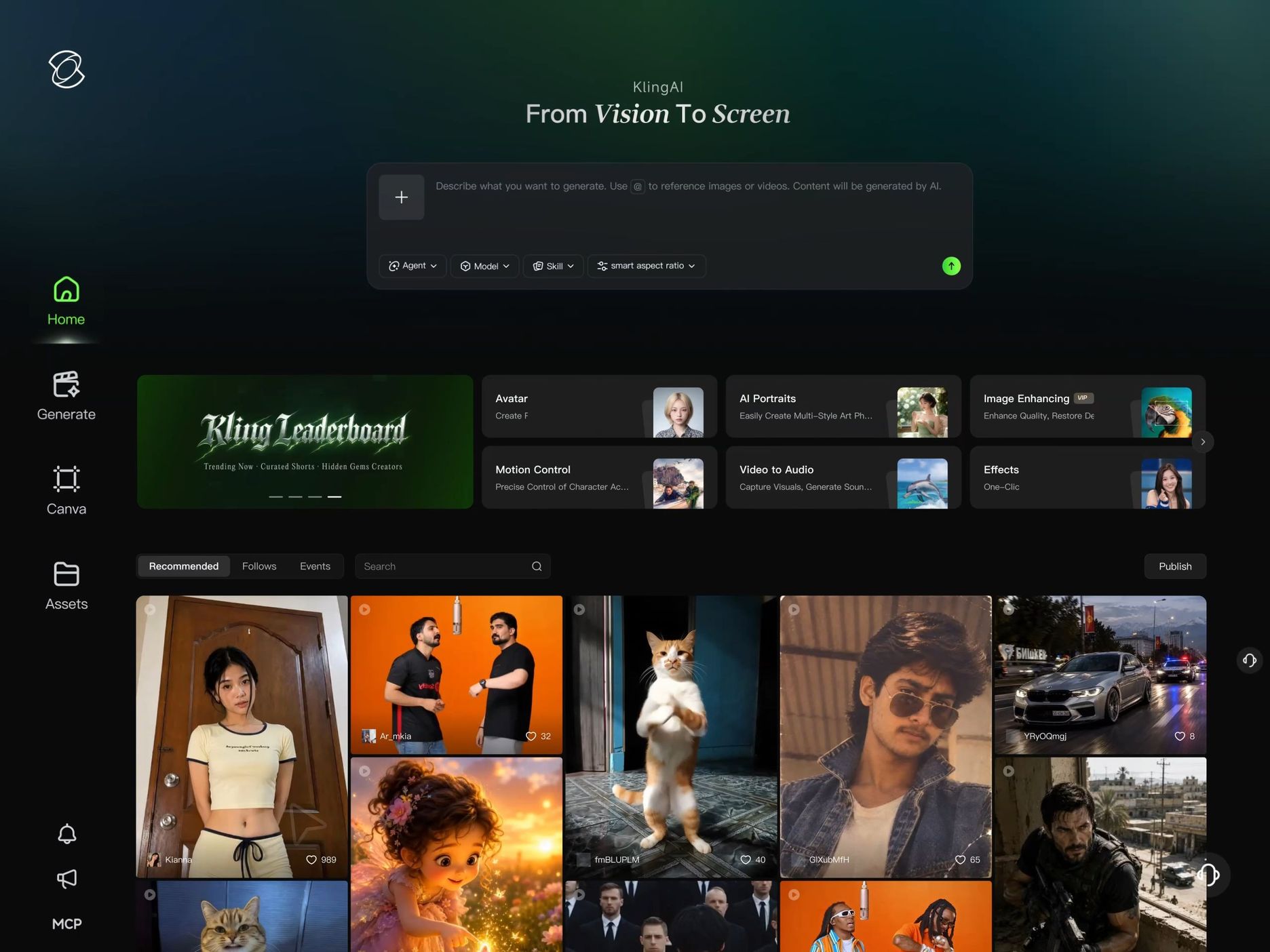
You can start with one short clip and a clear revision. Kling 4.0's AI editing workflow centers on three tasks: upload the footage and references, describe what should change and stay, and review the generated result.
For editing existing footage, Kling 4.0 supports up to five input video clips, including one primary video. Each input video must be 3–30 seconds long, and their combined duration cannot exceed 30 seconds.
Step 1: Upload Your Clip and Reference Materials
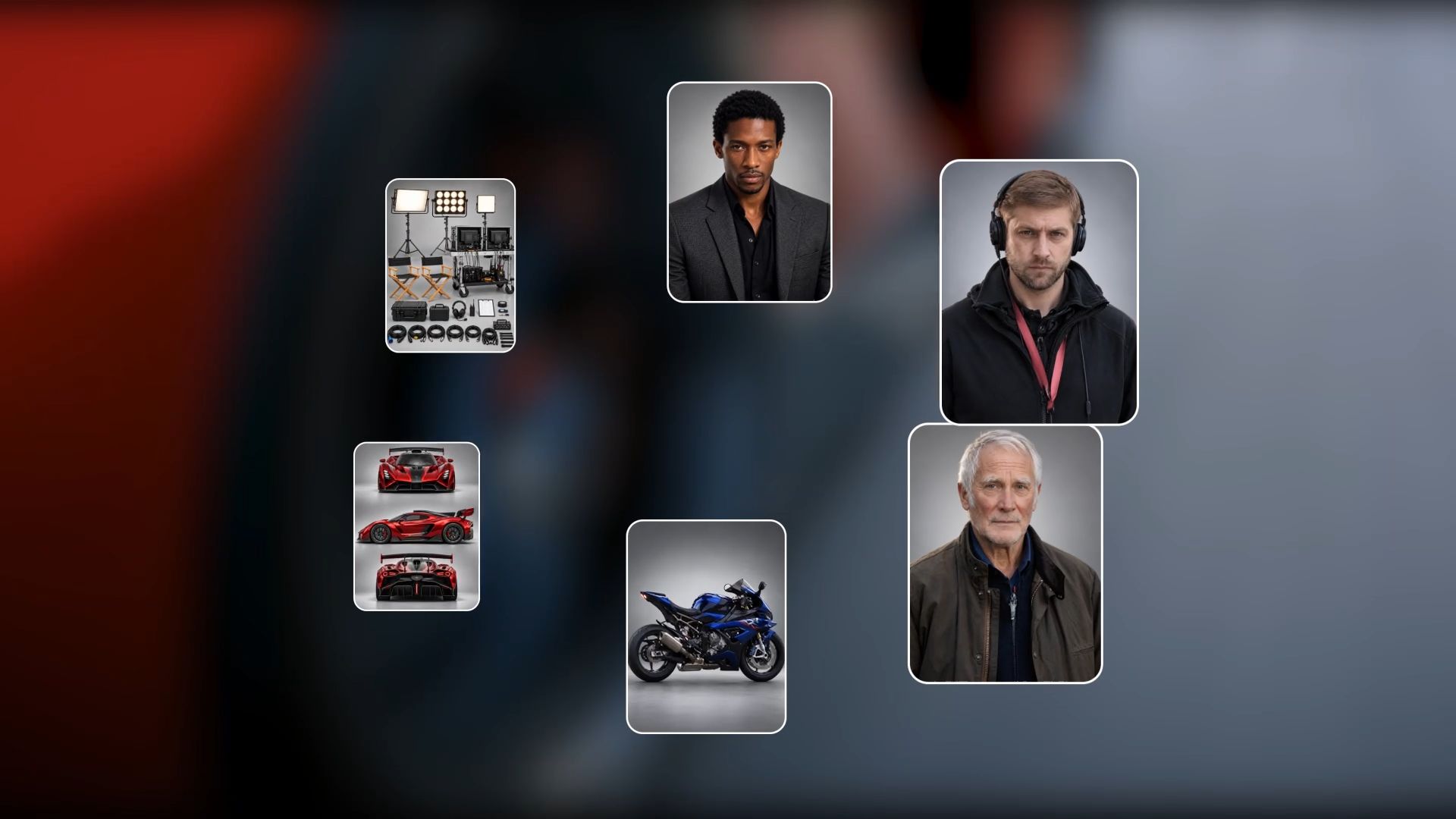
Kling 4.0's Omni Reference supports up to 15 combined reference assets in supported reference-guided workflows, subject to individual input limits. Choose references that clearly show the details you want to preserve or change.
For example, a product photo can guide packaging and color, while a character image can guide appearance. If you're replacing someone in the original footage, use a clear reference of the new character.
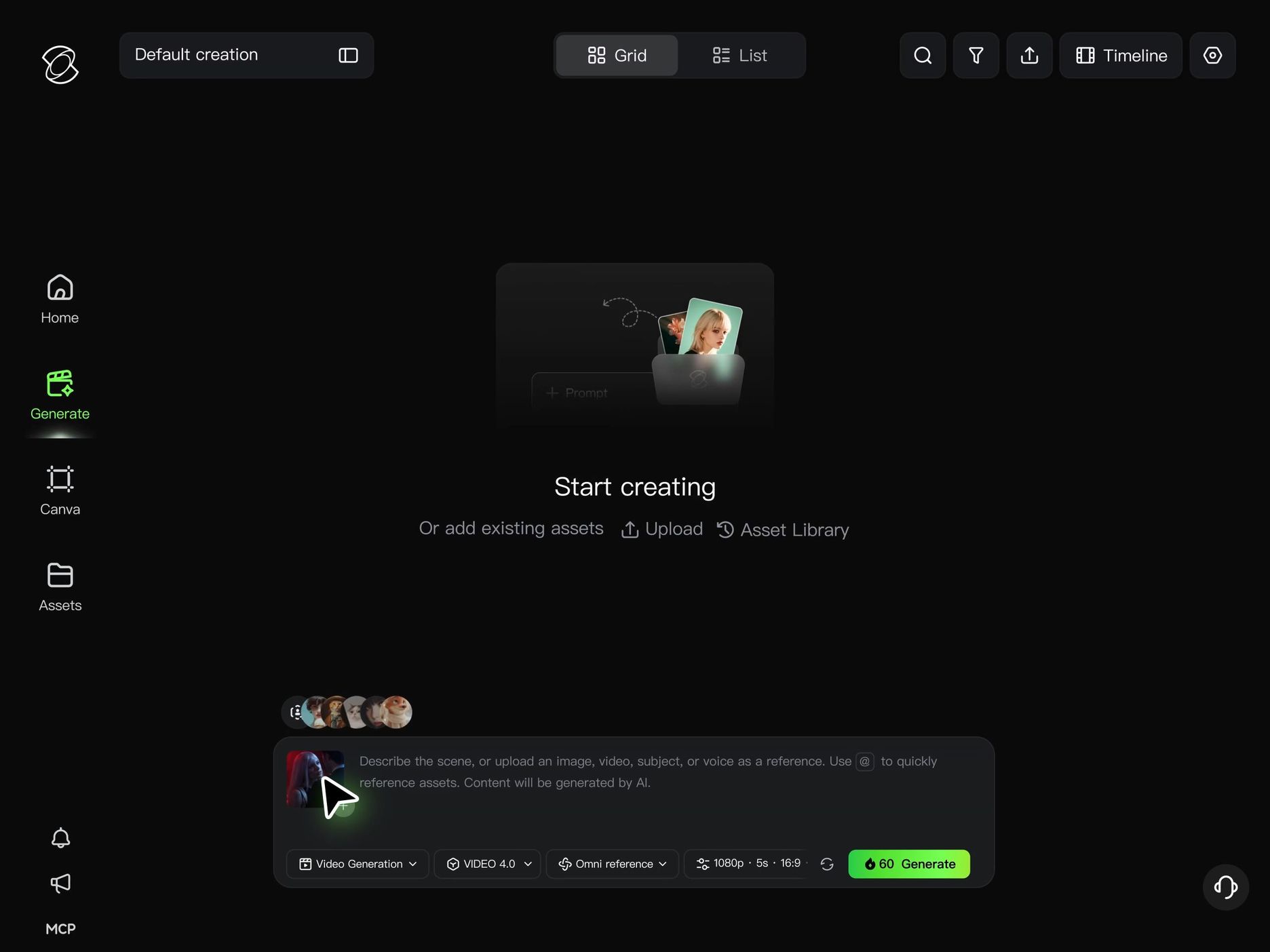
Step 2: Describe What to Change and What to Keep
Write a focused prompt describing the exact change you want to make. Identify the subject, background, camera view, or visual style you want to adjust, then explain which reference should guide the result.
Just as important, describe what should stay.
For example, you could ask Kling 4.0 to place a presenter in a new setting while keeping the person's clothing, movements, and original camera direction as consistent as possible.
When several people appear in a shot, make clear which character each reference should replace. Keep your instructions specific so the requested edit has a clear scope.
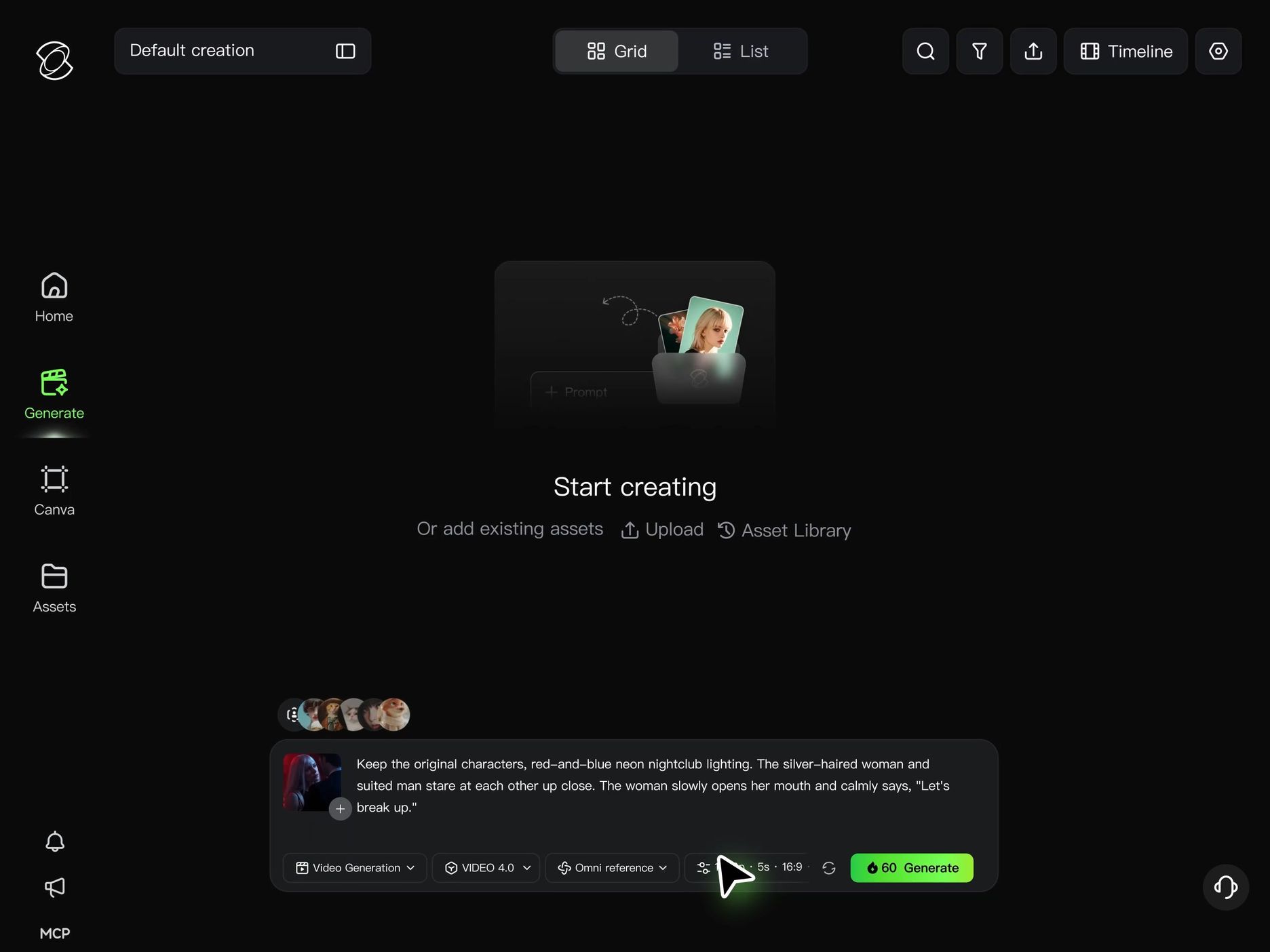
Step 3: Generate and Review the Result
Check the required credits and available model settings, then generate your edited video.
Compare the result with the original footage. Look at the changed subject or background, but also review nearby characters, movement, framing, lighting, and visual continuity.
If something is off, refine your instructions or references and generate another version. Review the full clip before downloading the version you prefer.
If your project needs an additional shot rather than a revision of existing footage, Kling 4.0 also supports text-to-video and image-to-video generation. Its 3–30-second native generation and Multiple Keyframes, with up to 10 keyframe images, can help guide a new sequence.
For longer stories, continue the video through multiple extensions, building a sequence of up to 2 minutes while reviewing consistency between each continuation. (Coming soon)
The End
The best free video editors help you do the work your footage needs. Some are ideal for cutting clips, adding captions, and finishing a timeline. Others give you new ways to change what happens inside a shot.
If a scene is nearly right, Kling 4.0 lets you explore a different character, product, background, or camera treatment through prompts and references. You can also generate missing shots or extend a video when your story needs more time to unfold.
Start with one clip you care about and one change that would make it more useful. Prepare a clear reference, describe the revision, and review the result before moving forward.
FAQs
Are Free Video Editors Really Free?
Yes. Many free video editors let you get started without a subscription. Some provide fully free desktop software, while others offer free plans or credits for AI-powered features. Kling AI gives new users free credits upon registration, and registered users can receive additional free credits by logging in each month. These credits make it easy to explore eligible AI video creation and editing tools without paying upfront.
Which Video Editor App Is Best for Free?
For basic cuts and social clips on a phone, CapCut offers a free starting point, with some tools and assets reserved for paid plans. If you want to describe changes to a scene rather than assemble clips, Kling AI also offers mobile access. The better choice depends on the task and the functions available to your account.
Is There a Good Free Online Video Editor?
Yes. Kling AI is an online option for creators who want AI-powered editing without installing complex desktop software. You can use prompts and visual references to change subjects, adjust backgrounds, reframe shots, and transform visual styles directly in your browser. This makes Kling AI worth considering when comparing the best online video editor options for creative projects.
What Is the Best AI Video Editor for Beginners?
For beginners who want to change a character, background, product, or camera view, Kling 4.0 offers a prompt-and-reference workflow.
You can describe the intended revision and provide supporting images or other references instead of manually constructing every change with masks and compositing layers.
Clear source footage and a focused request still matter, and the generated result should be reviewed before use.
Can I Use Kling AI Video Editing Tools for Free?
Yes! Kling AI offers free credits to help you get started. New users receive complimentary credits upon registration, while existing users can collect additional credits through monthly logins. You can use these credits to explore eligible AI video creation and editing tools, experiment with prompts and visual references, and discover new ways to improve your footage. Simply log in to check your available credits and start creating.