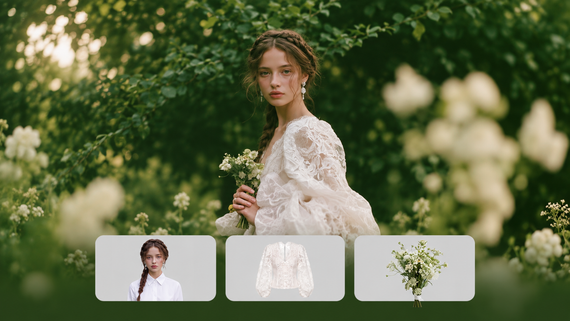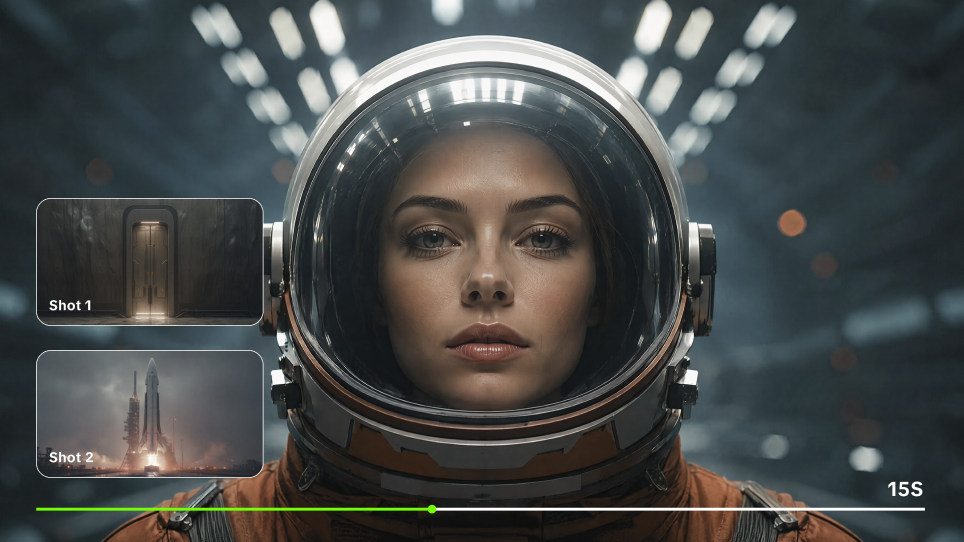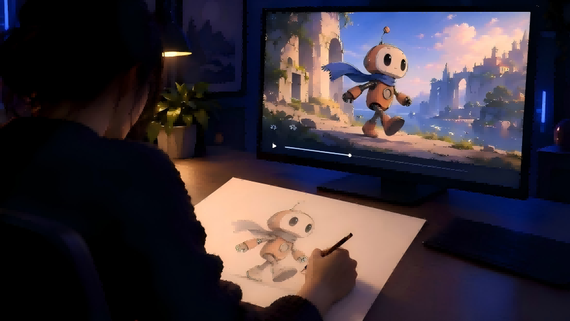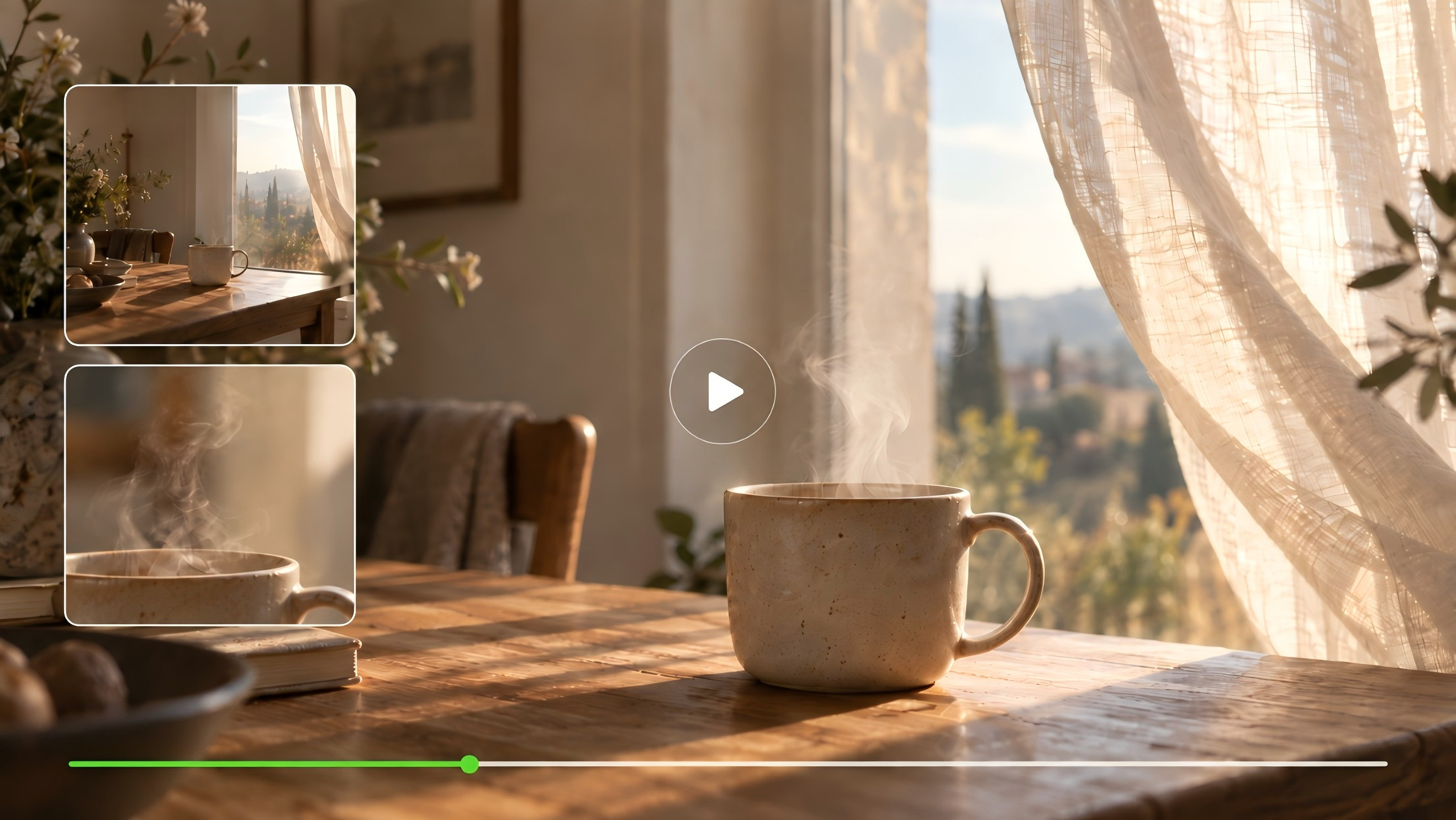
A photograph catches a moment. Video lets you see what happens next. Perhaps a character turns toward the window, or steam rises from a cup in the morning light. The best AI video generator gives you ways to shape that movement. Here, we compare six tools and explore how to begin with Kling AI.
What Makes the Best AI Video Generator for You?
Picture your next video. Perhaps you want to reveal the texture of a handmade cup, follow a character through a quiet street, or tell a story across several shots. When choosing an AI video generator, consider how much control you need over movement, framing, and the details you want to preserve.
When comparing AI-powered video generation tools, look closely at four things:
- Your starting point. You may have a written idea, a finished illustration, or a photo you want to animate. The tool should support the material you already have.
- What remains recognizable. Watch faces, clothing, and objects as they move. A beautiful opening frame should still feel like the same scene a few seconds later.
- How you direct the scene. Consider whether you can guide camera movement, plan shot changes and leave enough time for an expression or action.
- What it takes to finish. Check sound, export settings, and credit costs. Allow for a few revisions when planning your project.
Try a familiar subject first. You will notice more in a video of your own product or character than in an impressive scene with nothing to compare it with.
Best AI Video Generators Comparison 2026: 6 Tools Reviewed
The tools below approach video creation in different ways. Some focus on generating scenes; others include editing tools or accessing several models. This comparison looks at their documented workflows rather than ranking image quality.
Tool | Starting Inputs | Key Capabilities | Useful For |
Kling | Text or image; adds more advanced reference options, including Elements and short reference videos.
| Multi-Shot and Custom Multi-Shot, subject consistency with image references, multilingual Native Audio, and up to 15-second generation. | Multi-shot storytelling, recurring characters, product videos, and reference-driven audiovisual creation |
Runway | Text or an image | Prompt-based motion and camera direction, with separate tools for further editing | Developing individual shots and refining them through editing |
Adobe Firefly | Text, images, and model-dependent reference inputs | Firefly Video plus multiple partner models, first/last-frame controls on supported models, reference images, and integrated creative workflows | Creating video assets within an Adobe design workflow |
Higgsfield | Prompts and visual inputs, depending on the selected model | Camera, lens, focal-length and aperture controls, directed camera motion, reference-based consistency, and multi-shot tools | Exploring cinematic framing and camera styles |
Luma AI | Text, images, or footage, depending on the workflow | Keyframe-guided transitions and video modification | Connecting visual starting points or reshaping existing footage |
Hailuo AI | Text or an image, depending on the model | Text-to-video and image-to-video, with model-specific generation options | Creating short clips from written ideas or still images |
Kling Video 3.0: From a First Idea to a Moving Scene
Kling AI gives you two familiar starting points: words and pictures. Describe a scene or bring an image you already care about, then shape the action, shot changes, and sound in VIDEO 3.0.
For a short product film, you could begin with a wide view, move closer to a surface detail, and finish on the full object. Multi-Shot helps organize the sequence, subject consistency helps preserve its appearance,and Native Audio brings the scene to life with ambient sounds, background music, and voiceovers. Together, these controls give you room to develop a complete scene from your first idea.
Output Video |
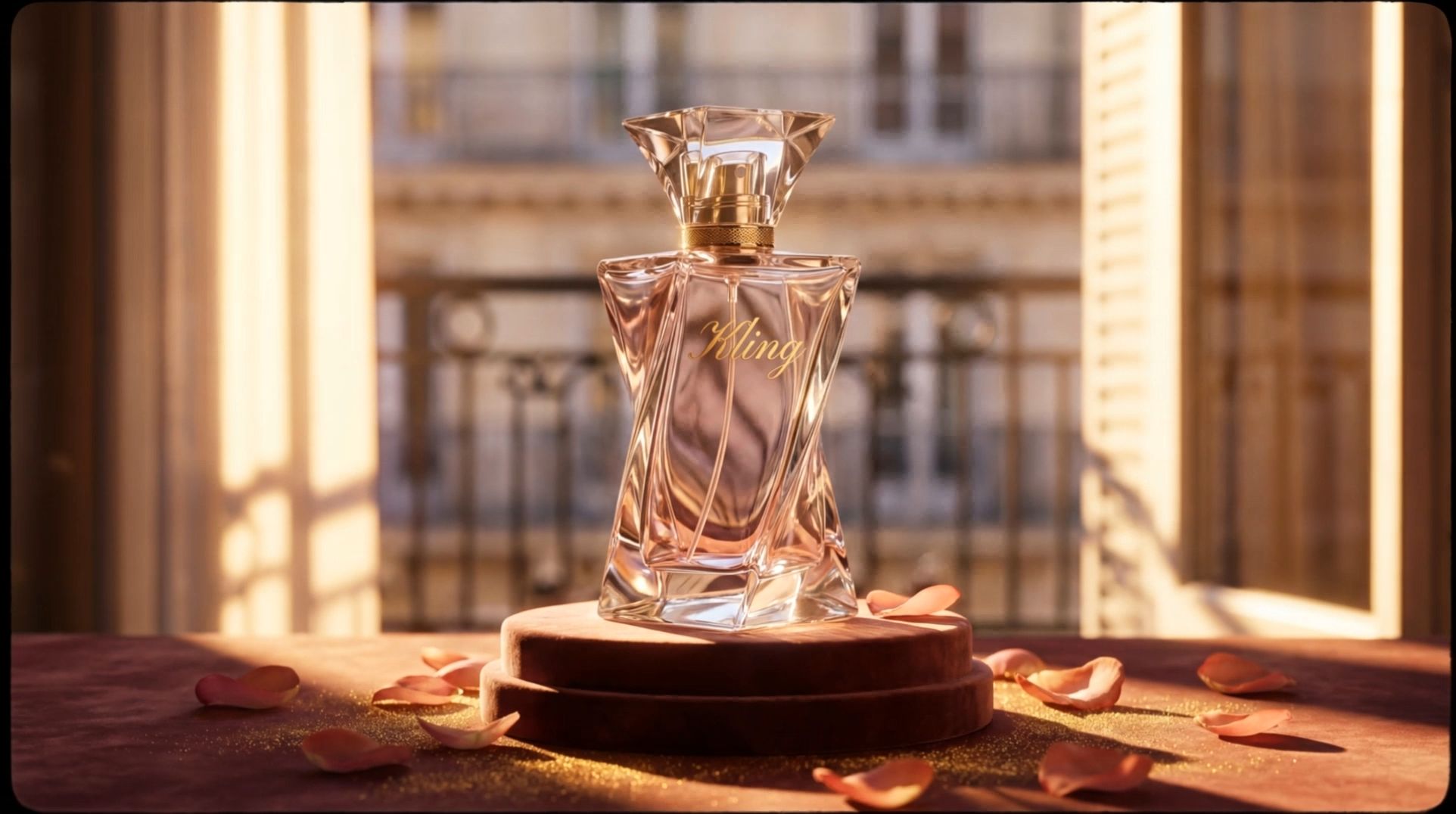  |
| Prompt: By the window of a Parisian apartment, with soft French piano BGM in the background, the gilded afternoon sunlight filters through the shutters onto the perfume bottle, casting dappled light and shadow. The camera pans slowly in from the scattered rose petals, shifting focus to the faceted cut of the Kling perfume bottle. Voiceover (lazy French female voice, British accent, slow pace): Bathe in the golden hour. The camera orbits the perfume bottle in slow motion, capturing the play of light and shadow on the golden lettering and bottle body. Voiceover: Kling, a whisper of Parisian elegance. The camera pulls back and freezes on the complete scene—the Kling perfume bottle standing on a velvet pedestal, with Parisian buildings faintly visible outside the window. Voiceover: Wrap yourself in luxury with every breath. |
Runway: Develop a Shot, Then Keep Working
Runway's Gen-4.5 supports text-to-video and image-to-video. Prompts can describe the action, composition, and camera movement, while the wider platform offers tools to continue working on the result.
For a project that involves several rounds of generation and editing, consider how those stages fit together. Check which controls belong to the chosen model and which require a separate tool.
Adobe Firefly: Video Within a Design Project
Adobe Firefly lets you generate clips from text or images using the Firefly Video Model and available partner models. It can form part of a project that also includes design and editing in Adobe applications.
The selected model determines the generation capabilities. If you compare results within Firefly, keep track of the model used for each clip and the prompt you used.
Higgsfield: Explore the Camera's Point of View
Higgsfield's Cinema Studio includes controls for camera movement and lens choices. Its platform also offers access to multiple video models.
That gives the comparison a different focus: how you choose a look and direct a shot through the interface. Camera settings vary across tools and models, so check the options available in the workflow you intend to use.
Luma AI: Work Between Frames
Luma's Dream Machine includes keyframe workflows and video modification tools. You can guide a transition with visual starting and ending points, or work with footage through supported modification features.
For a transition, watch the movement between the two frames. For an edit, look at how the changes fit the original performance and composition.
Hailuo AI: Start with Text or a Still Image
Hailuo offers text-to-video and image-to-video through supported models. Hailuo 2.3 supports both inputs, while its Fast variant focuses on image-to-video.
Choose the model around your starting material and the available settings. A short test can help you see how it handles the particular movement, subject, or visual style you have in mind.
Bring Your Idea into Focus with Kling AI Video Generator
A scene begins with a few choices: what we see, what moves, and where the camera takes us. Kling Video 3.0 gives you ways to make those choices through text, images, and shot instructions.
Begin with Words
With text to video, you can describe a scene before you have a picture of it.
Start with something visible. Name the subject, place it somewhere, and give it an action. Then add the light or camera movement that helps create the mood.
“A ceramic cup on a wooden table” establishes the scene. “Steam rises as morning light falls across the rim” gives it movement and atmosphere. A slow camera approach tells us where to look.
You do not need to describe everything. Choose the details you would miss if they were absent.
Give a Still Image Somewhere to Go
An existing picture already holds many of your decisions: the face, the colors, the composition. Image to video lets you build on that starting point.
Use the prompt to describe what happens next. A character might glance toward the camera. A curtain might move in a light breeze. A product might stay still while the camera reveals another side.
Keep the original nearby as you review the clip. Look for the details that made you choose that image in the first place.
Original Image |
.png?x-oss-process=image/resize,w_1872) |
Video |
 |
| Prompt: The golden retriever puppy looks directly at the camera and moves its mouth open and closing naturally as if talking to the viewer, ears perking up, head tilting slightly, bright expressive eyes, friendly and animated, the background stays completely still. |
Tell the Story Across Shots
Sometimes a wider view sets the scene, but a close-up carries the feeling. With Multi-Shot, Kling VIDEO 3.0 helps you intelligently plan changes in framing from your instructions, while Custom Multi-Shot allows you to more directly define the camera work for different stages.
The VIDEO 3.0 user guide explains how to use both modes. Start with a short sequence and give each action enough room to finish.
Keep a Familiar Face in the Frame
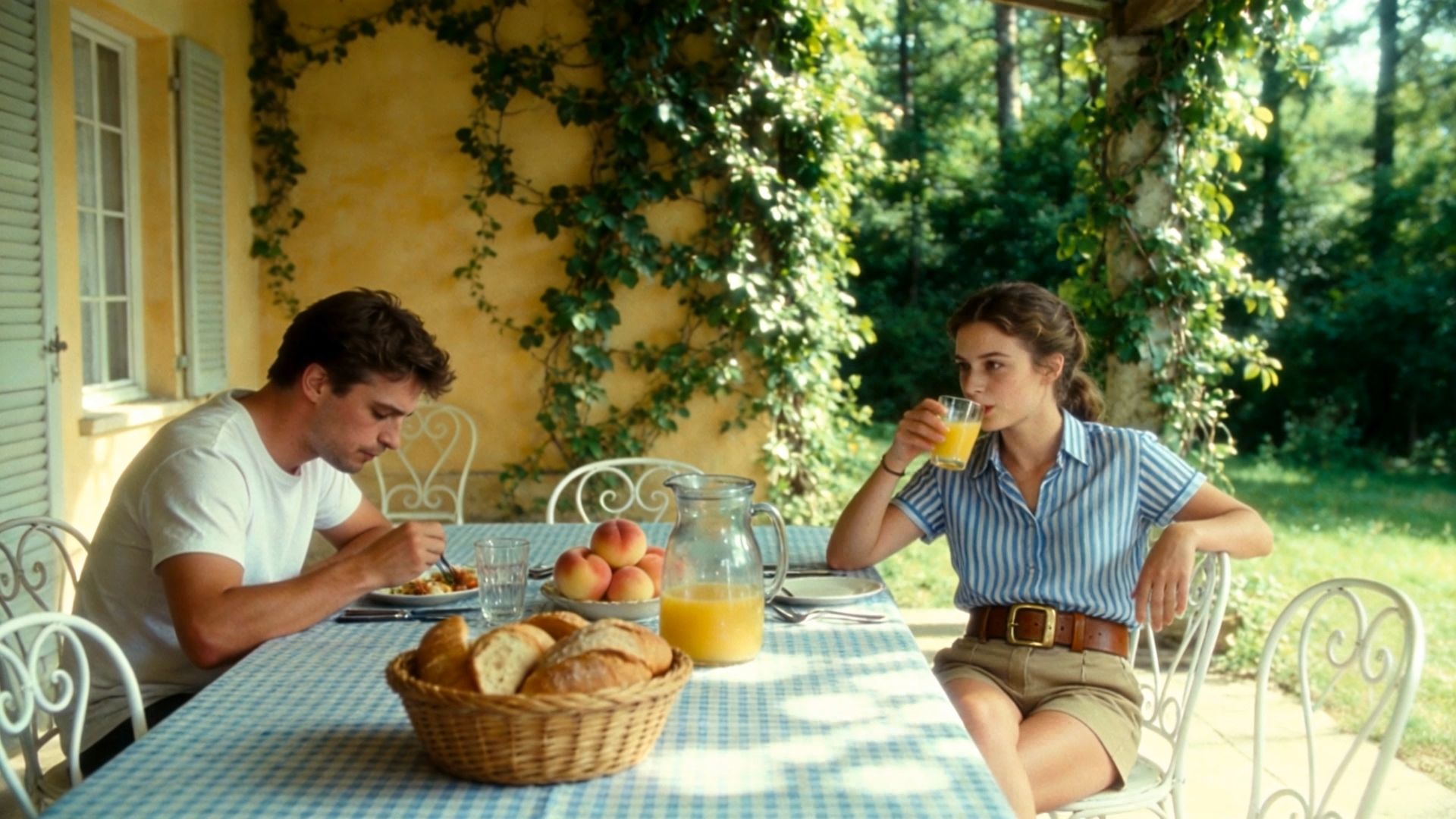
When a character turns or the camera moves closer, you still want to recognize them. Kling VIDEO 3.0 lets you use image references to keep characters or subjects looking consistent, even when the scene and camera angle shift. It’s a huge timesaver when you want steady visual continuity without having to recreate your subject from scratch. For more advanced setups, Kling VIDEO 3.0 Omni introduces Element binding. This lets you build and reuse character elements to keep the same subject across different scenes, plus extra reference tools for heavier projects.
How to Make Your First Video with Kling VIDEO 3.0
Step 1: Upload or Describe Your Vision
Open the Kling AI video workspace and select VIDEO 3.0. Start with a text prompt or upload an image to define your subject, scene, style, and action. Keep your first idea focused and describe the key movement or visual direction you want the model to follow. If your project specifically requires Element binding for recurring characters, products, or other subjects, switch to VIDEO 3.0 Omni, which supports the Element Reference workflow.
Step 2: Adjust Your Video Settings
Choose the available duration, aspect ratio, resolution, and other generation settings for your project. You can also use Native Audio to generate sound alongside the visuals and choose Multi-Shot when your idea needs several connected shots.
Step 3: Generate, Preview, and Refine
Click Generate to turn your prompt or image into an AI video. Preview the result and review the motion, subject appearance, camera direction, audio, and transitions between shots. If needed, refine your prompt or settings and generate again until the video better matches your creative direction.
Here is a prompt to try:
Prompt: A plain cream ceramic cup rests on a warm oak table beside a window. Soft morning light falls across its surface. A thin ribbon of steam rises from the cup as the camera slowly moves closer. Preserve the cup's shape and the arrangement of the table. Quiet room ambiance with distant birds outside. No dialogue. This scene has a clear subject, gentle movement, and one camera direction. You can change the setting or light while keeping the action easy to follow. |
The End
The best AI video generator should give you a comfortable way to work on your idea, whether you begin with a sentence or a picture. With Kling VIDEO 3.0, you can shape the action, explore different shots, and refine the details that make the scene feel like yours. Choose a moment you would like to bring to life, then generate your first clip.
FAQs
What Is the Best AI Video Generator for Beginners?
The best choice is one that lets you begin with the material you already have and understand what to change next. Kling VIDEO 3.0 supports text and image inputs. Start with a short, simple scene, then adjust one part of the prompt at a time as you review the result.
Can I Turn a Photo into a Video with Kling AI?
Yes. You can upload a photo and describe how you want the scene to move. A clear image gives the model a useful starting point. Keep the action manageable, then compare the video with your original to see whether the face, object, and composition remain recognizable.
Can Kling VIDEO 3.0 Create Multiple Shots?
Yes. Kling VIDEO 3.0 supports Multi-Shot, and Custom Multi-Shot lets you describe individual shots and their duration. Begin with a short sequence, such as a wide view followed by a close-up. Give each shot a clear purpose and review how naturally the action continues between them.
Can AI Keep the Same Character Consistent?
Yes. AI can help maintain a character's appearance, although you should review each result. Kling VIDEO 3.0 supports improved subject consistency using visual guidance.You can use multiple images of the character or scene from different angles to help Kling identify core information and maintain the consistency of core elements throughout the video.
How Do I Compare AI Video Generators Before Paying?
Use the same small creative brief across the tools you are considering, where supported. Compare an AI video generator by the results you can use, the revisions it needs, and the credits spent. Check model access and export options before deciding whether a plan fits your project.