VIDEO 3.0: Native Audio Upgrade, Enhanced Element Consistency, and Support for Multi-Shot Narratives
Building on Kling VIDEO O1 and Kling VIDEO 2.6, the Kling 3.0 Model Series utilize a deeply integrated unified model training framework, achieving more native multimodal input and output. It merges Native Audio with Element Consistency Control capabilities while breaking through duration limits.
While supporting longer video generation (up to 15 seconds), the Kling 3.0 Model Series enable native audio-visual output, with highly flexible storyboard control and more precise semantic response accuracy, injecting vitality into AI-generated visual content. The overall realism of the visuals is significantly improved, and character performances are more expressive and dynamic. Based on the next-generation unified multimodal large model, the Kling VIDEO 2.6 model has been upgraded to VIDEO 3.0, and the Kling VIDEO O1 model has been upgraded to VIDEO 3.0 Omni, bringing a comprehensive evolution in control and narrative power.
Kling VIDEO 3.0 Capabilities Upgrade:
|
Capabilities | Kling VIDEO 2.6 | Kling VIDEO 3.0 |
Text-to-Video | ✅ | ✅ |
Image-to-Video | ✅ | ✅ |
Start & End Frames-to-Video | ✅ | ✅ |
Native Audio | ✅ | ✅ |
Multi-Shot | ❌ | ✅ |
Start Frame + Element Reference | ❌ | ✅ |
Multi-Character Coreference (3+) | ❌ | ✅ |
Multilingual Support (Chinese, English, Japanese, Korean, Spanish) | ❌ | ✅ |
Dialects and Accents | ❌ | ✅ |
15s Output Duration | ❌ | ✅ |
Flexible Duration | ❌ | ✅ |
Kling VIDEO 3.0 Model Highlights
1. Multi-Shot: AI Director Onboard, One-Click Cinematic Output
Let AI help build your scene with more shots and coverage. The all-new Multi-Shot feature is designed to understand scene coverage and shots in your prompt, automatically adjusting camera angles and compositions. From classic shot-reverse-shot dialogues to advanced techniques like cross-cutting dialogue and voice-over, the model understands cinematic languages with precision. No more tedious cutting and editing — just one generation for a cinematic video, making complex audiovisual expressions accessible to all creators.
|
2. World's First: Image-to-Video + Enhanced Subject Consistency, Core Elements Locked In
Leveraging deep multimodal understanding from the underlying model, in addition to normal Image-to-Video generation, this upgrade supports multi-image references, or even video references as Elements, further anchoring specific elements within the scene. With subject building and referencing, the model locks in the traits of characters, items, and the scene. Regardless of camera movements and scene development, the key subjects remain stable and consistent throughout.
|
3. Upgraded Native Audio Output with Character Referencing & More Languages
Native Audio is now upgraded for precise referencing of characters and their speaking. In multi-character scenes, you can pinpoint the exact character speaking, eliminating ambiguity and confusion.
Meanwhile, the upgrade now supports multiple languages (Chinese, English, Japanese, Korean, and Spanish), as well as the rendition of authentic dialects and accents. It also supports multilingual code-switching, enabling dialogues in different languages within the same scene. Whether it’s a bilingual conversation for work, or a daily-life scene with multiple dialects, the lip movements and facial expressions are natural and coherent.
4. Native-Level Text Output with Precise Lettering Capabilities
Whether preserving details like signs and captions from the original image, or generating entirely new text content, the model presents clear lettering in well-structured layouts. This not only enhances the realism in video output, but also meets the need for high-fidelity use cases such as e-commerce advertising.
5. 15-Second Generation: More Creativity per Output
The new model generates up to 15 seconds of continuous video, with a flexible duration ranging from 3 to 15 seconds. This is not just about longer output, but unlocking more narrative possibilities — with 15 seconds, the model can comfortably accommodate more complex action sequences and scene development. Whether it's the delicate unfolding of a long shot or the seamless progression of multiple plotlines, everything can be fully presented within a single generation. Say goodbye to fragmented assembly and embrace a story with real progression and flow.
Kling VIDEO 3.0 New Capabilities Guide
1. Multi-Shot Narratives
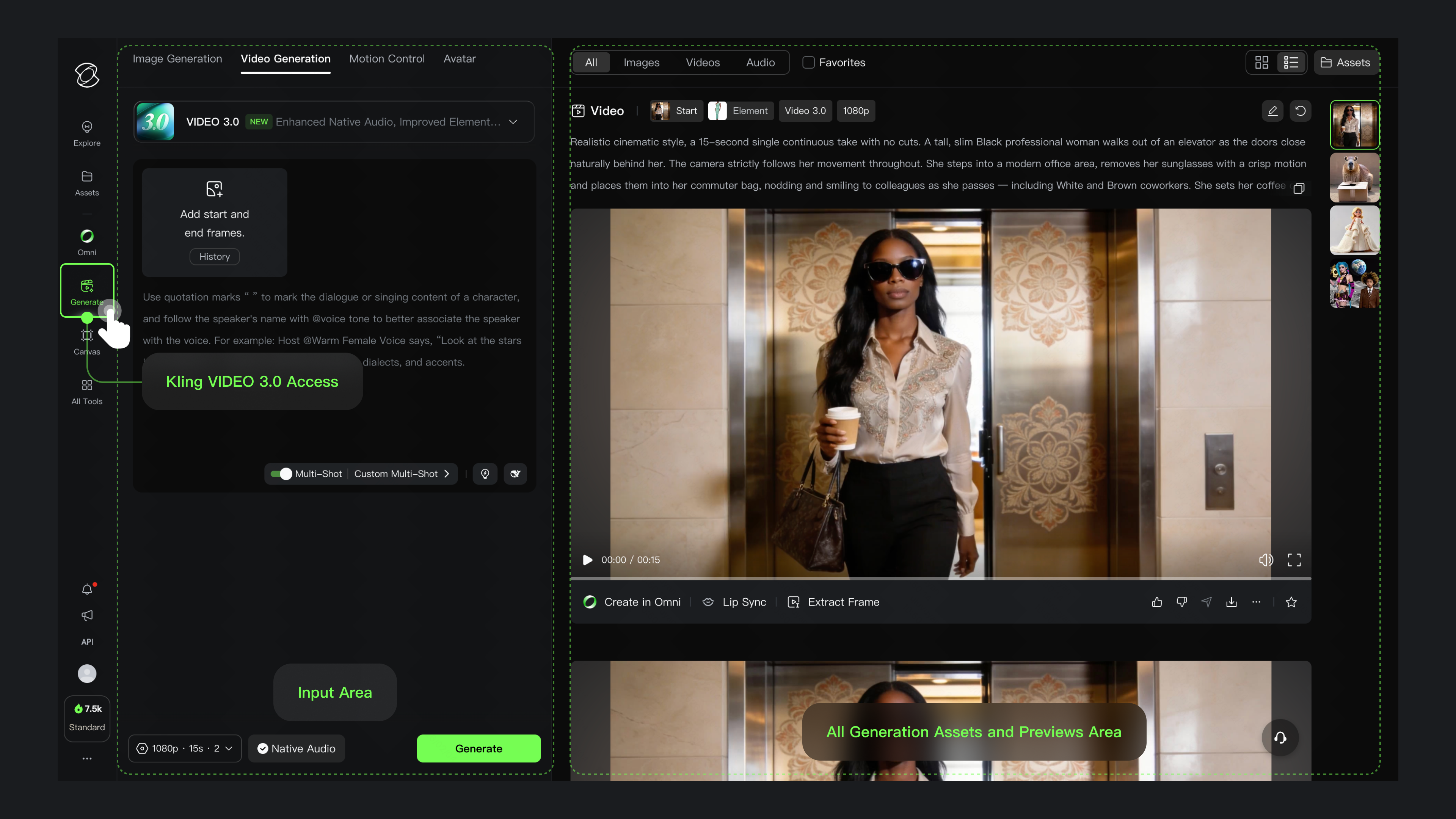
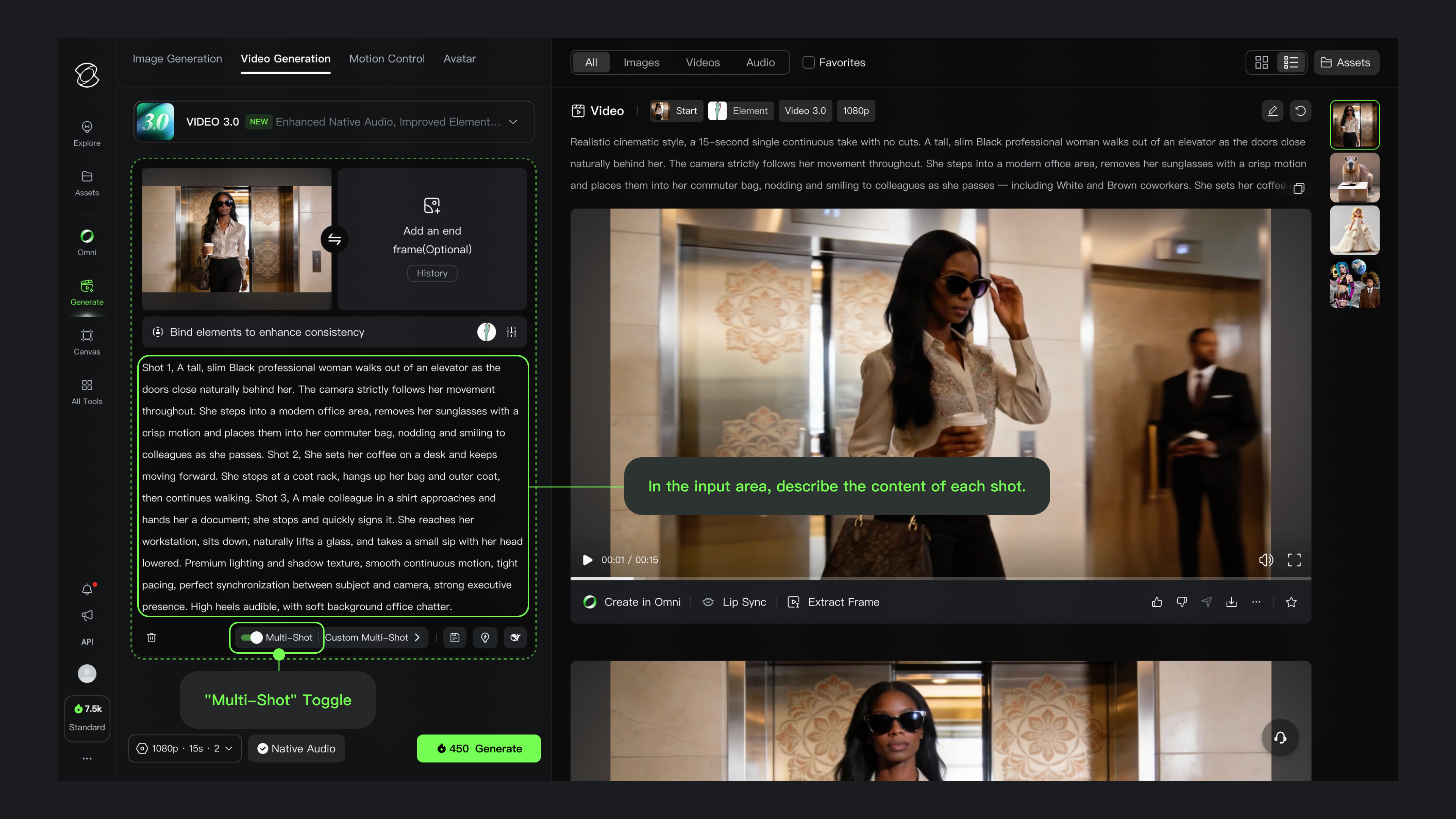
VIDEO 3.0 introduces highly flexible storyboard control, allowing for dynamic scene and camera angle adjustments, enhancing the narrative effect of the video. In VIDEO 3.0, multi-shot video generation can be triggered through two modes: "Multi-Shot" and "Custom Multi-Shot". When "Multi-Shot" is enabled, the model automatically plans the shot transitions, and this switch is a prerequisite for enabling "Custom Multi-Shot". When "Multi-Shot" is disabled, the model will default to generating a single-shot video.
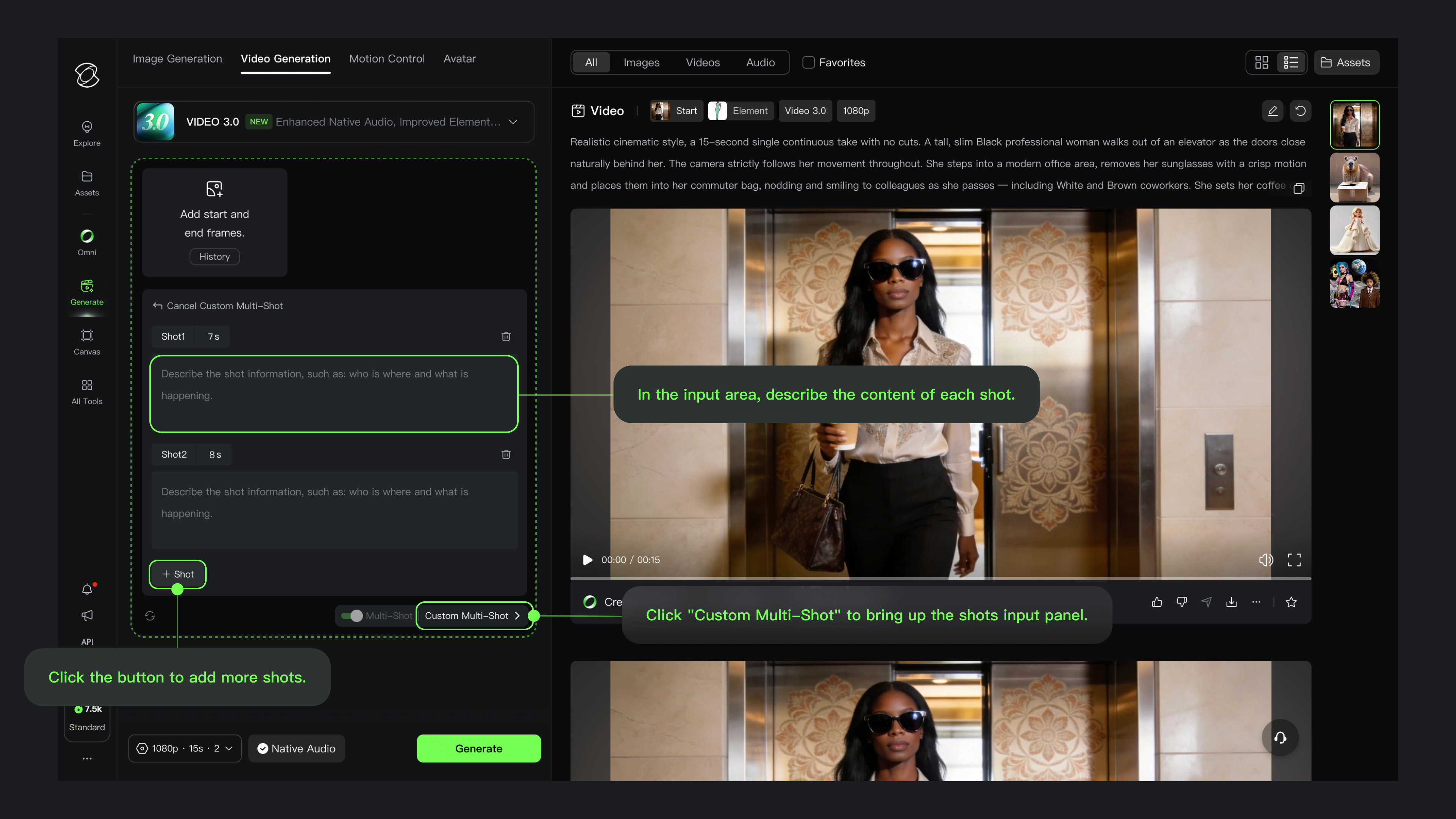
[Multi-Shot] Mode On | Click "Custom Multi-Shot" to describe shot details. |
Once "Multi-Shot" is enabled, the model will automatically plan shot transitions and generate multi-scene video content without requiring manual description. | If you wish to set specific details for each shot, click "Custom Multi-Shot" to flexibly configure the number of shots and their durations. |
|
|
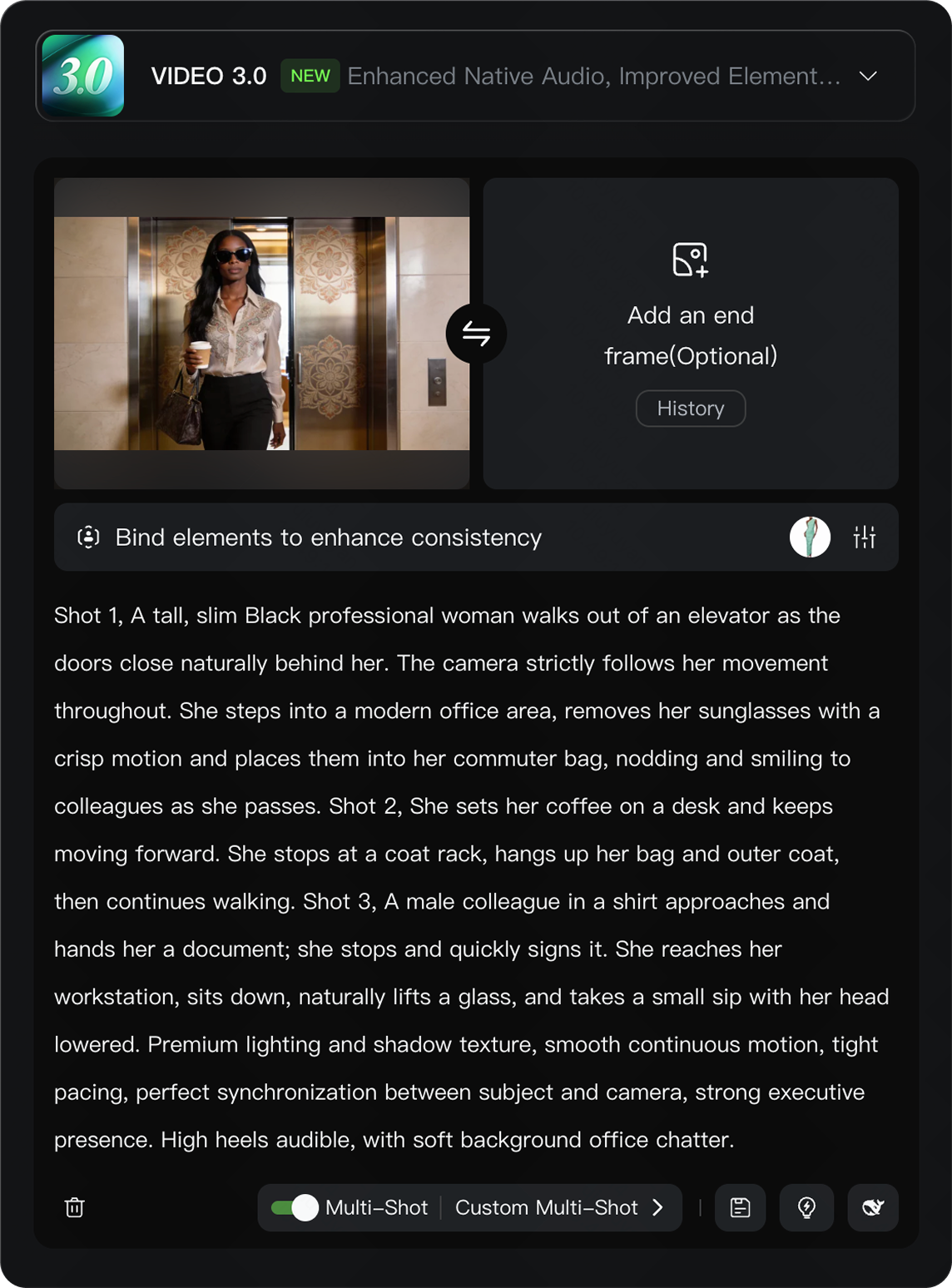
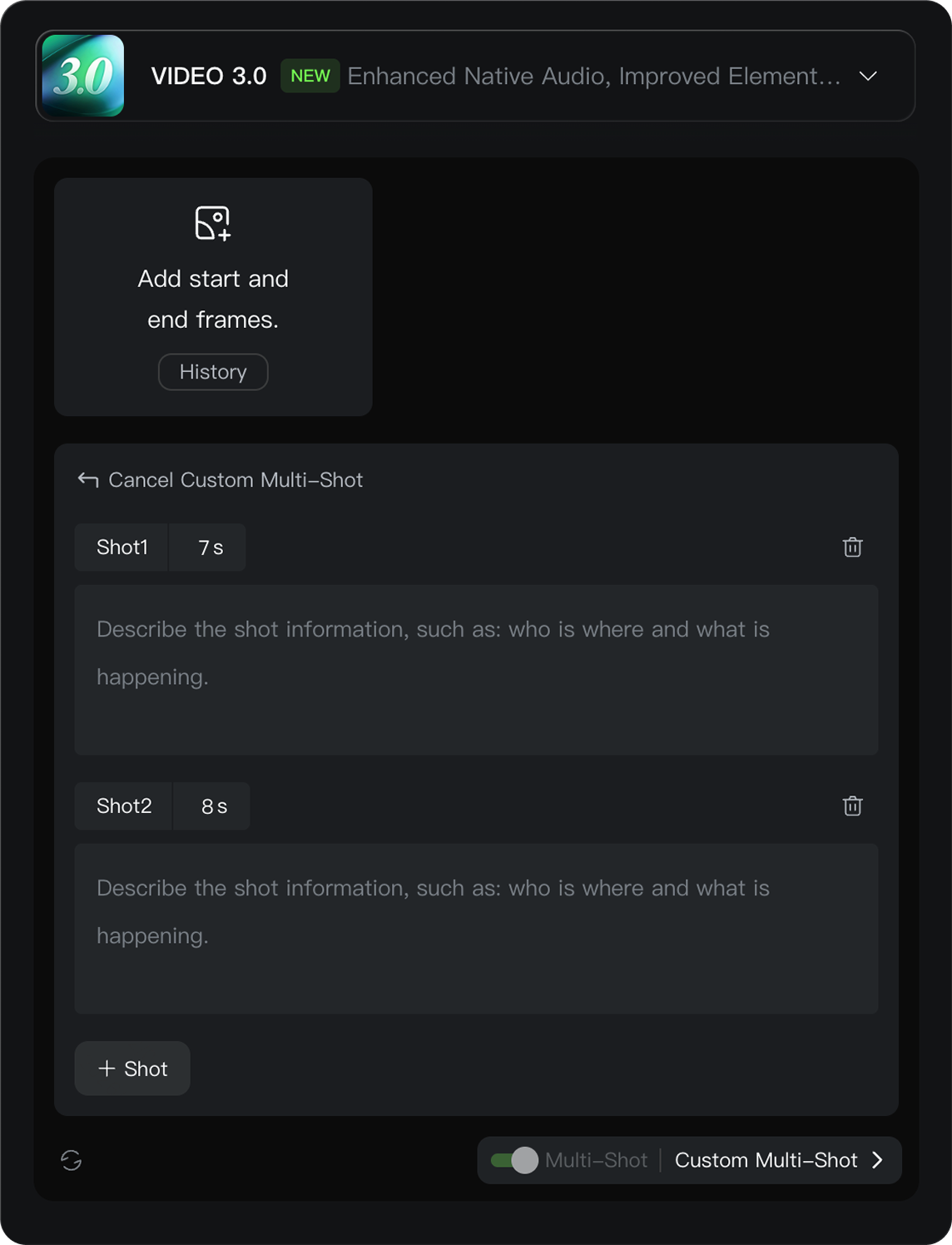
Multi-Shot
With the "Multi-Shot" switch enabled in the VIDEO 3.0 input area, VIDEO 3.0 will automatically plan scene transitions, shot framing, and camera angle changes based on the prompts. When the "Multi-Shot" switch is on, the model will generally follow the prompts. However, if the described scene is better suited to a single shot, the model will flexibly adjust based on the situation.
Prompt | Image | Output |
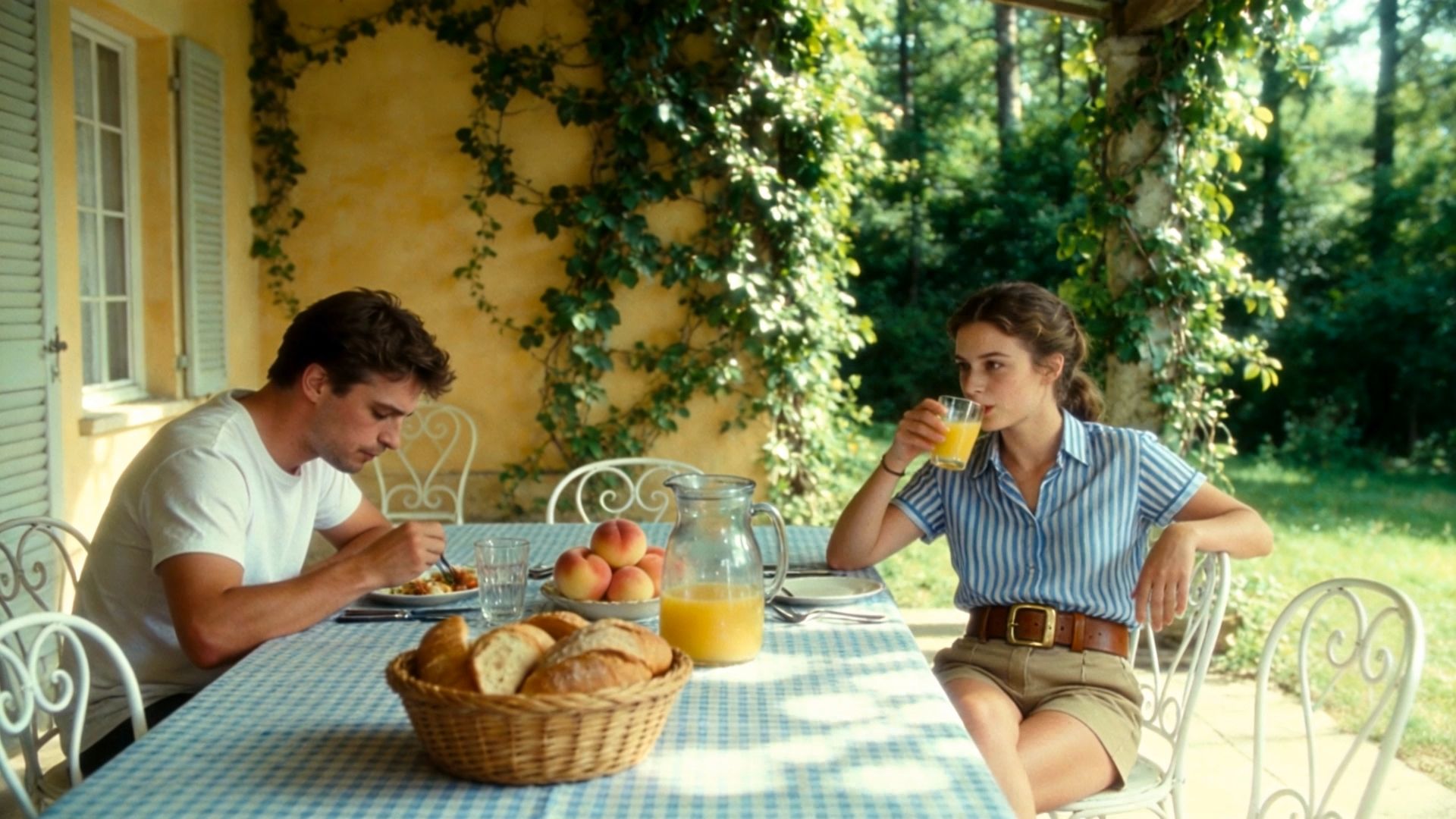
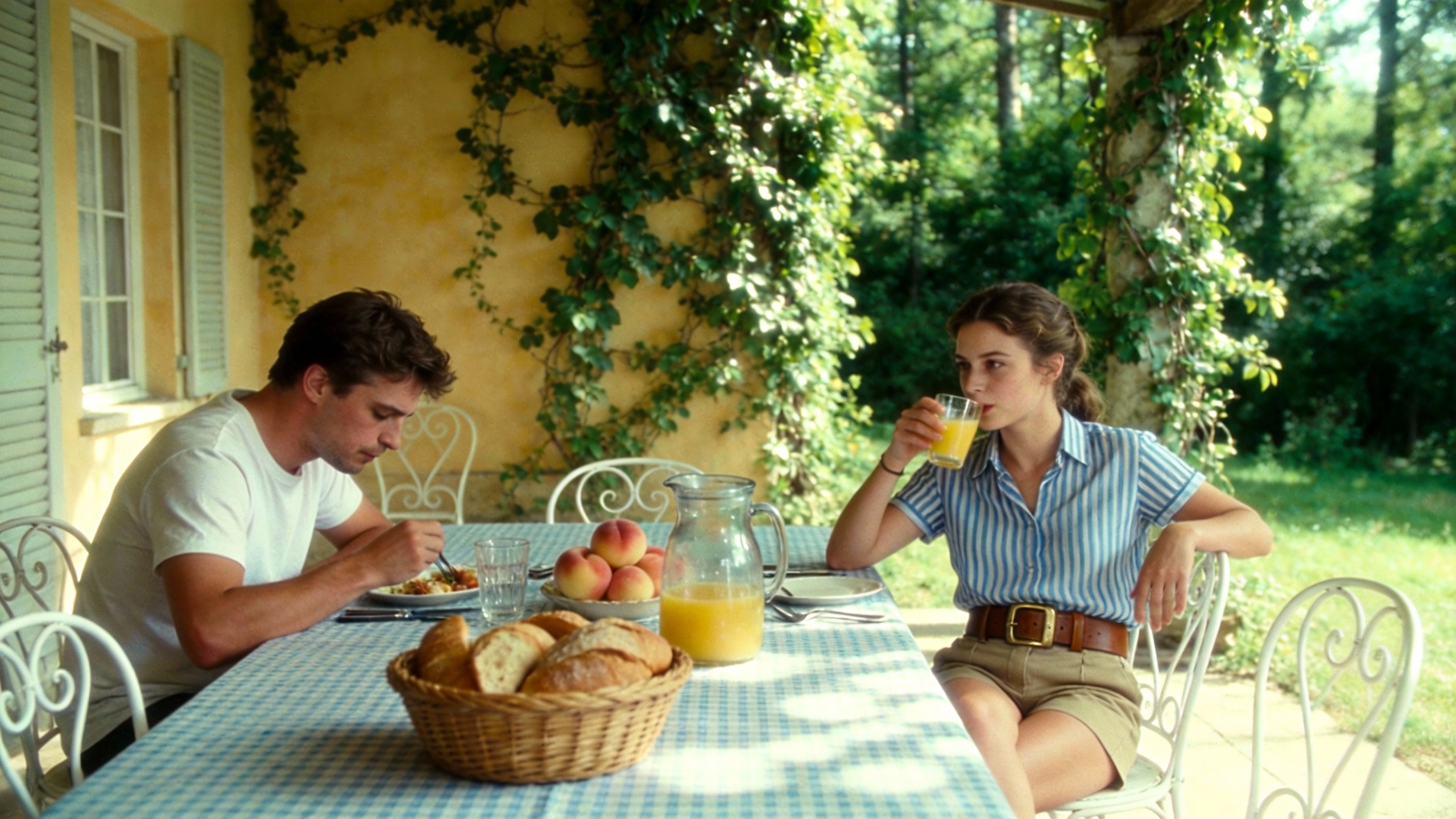
| Outdoor terrace of a European villa, by a dining table with a blue and white checkered tablecloth, a young white woman in a blue and white striped short-sleeve shirt and khaki shorts, with a brown belt, sits barefoot, opposite a young white man in a white T-shirt. The camera zooms in, the woman swirls the juice in a glass, her eyes looking at the distant woods, and says "These trees will turn yellow in a month, won't they?". Close-up of the man, he lowers his head and says, "but they'll be green again next summer.". Then the woman turns her head, smiles at the man opposite, and says, "Are you always this optimistic? Or just about summer?". Then the man lifts his head, looks at the woman and says, “Only about summers with you.” |
|   |
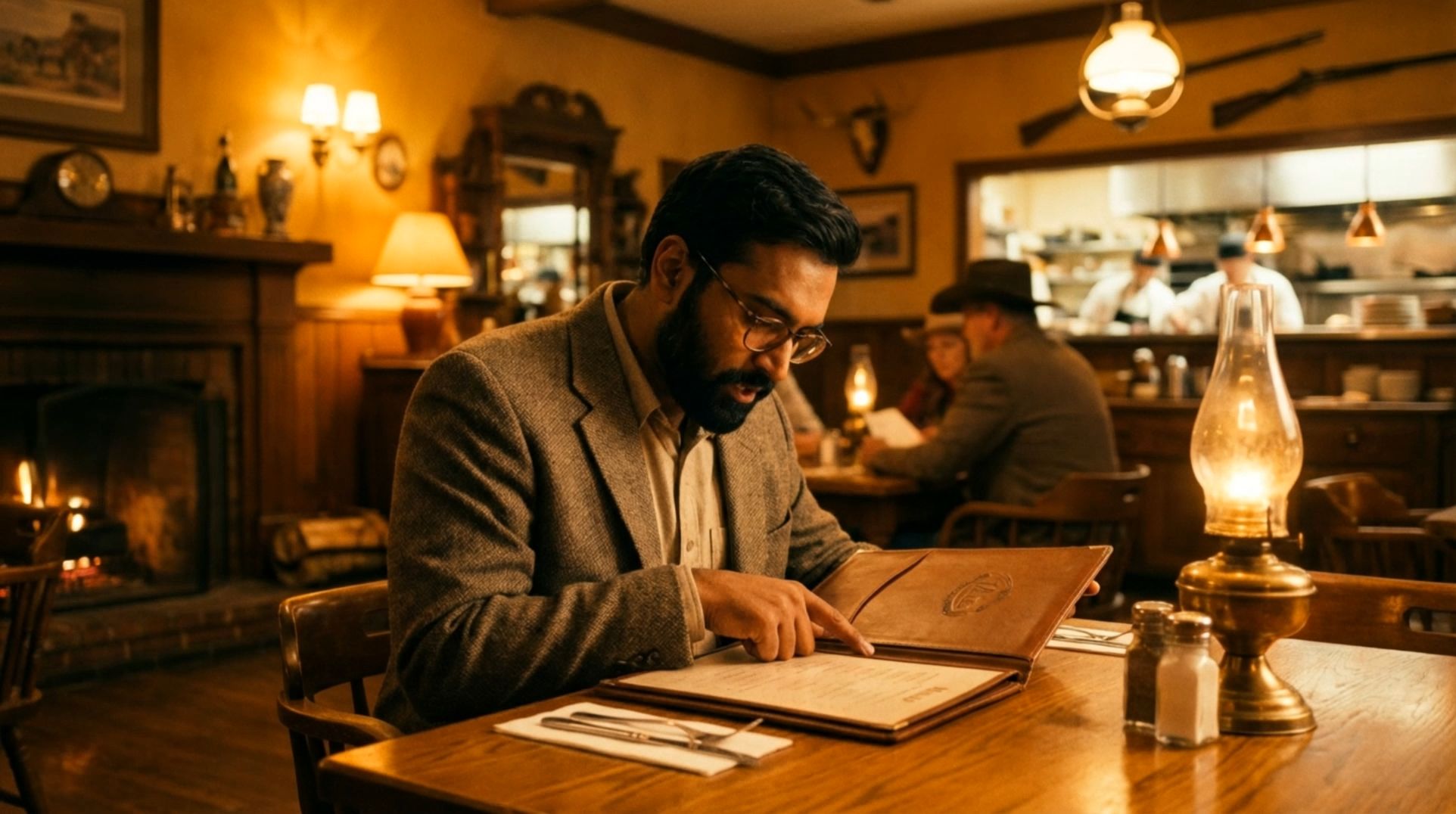
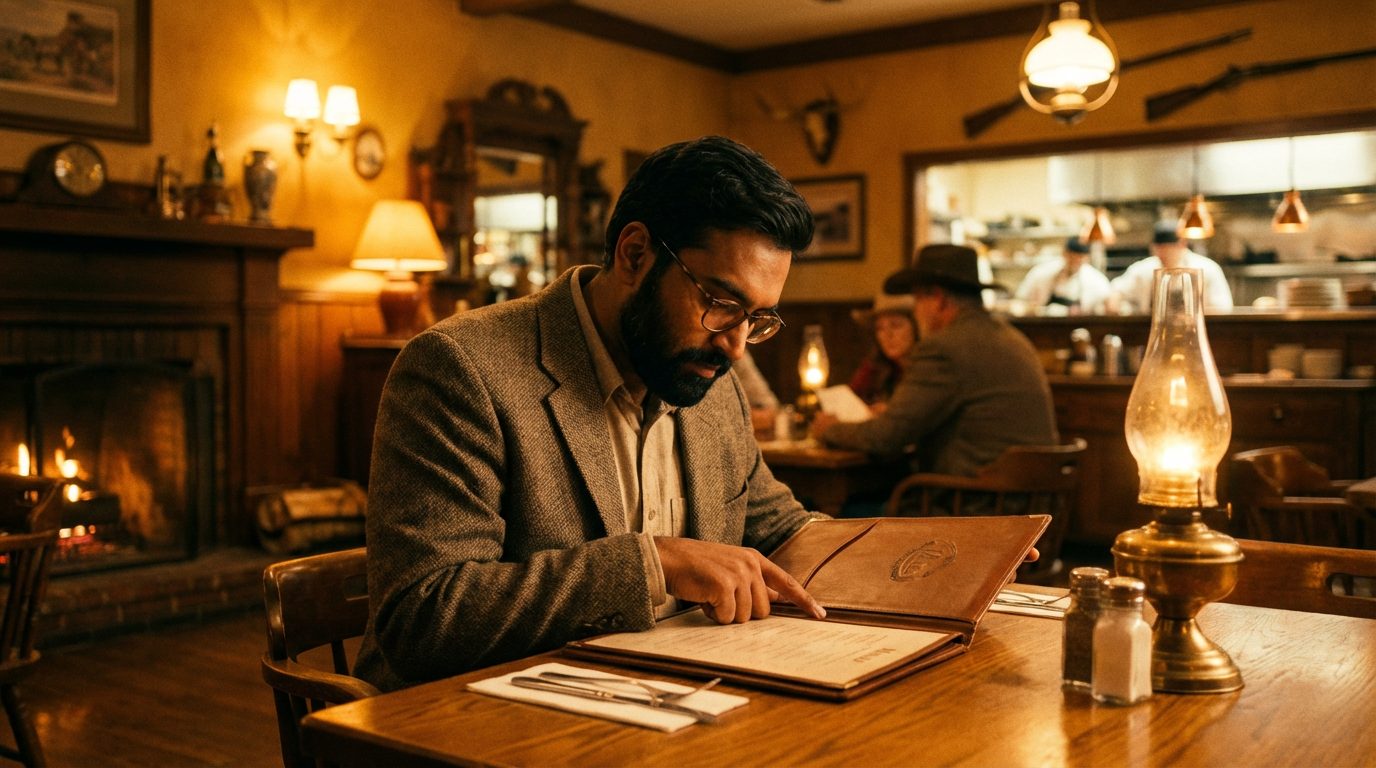
| A middle-aged man is ordering food in a Western restaurant. He speaks in English with an Indian accent and says: "excuse me, I would like to order a seafood pasta, and a filet mignon. medium-rare", then he looks up and continues: “And, do you have any drink recommendations?” |
|  |
Custom Multi-Shot
With the "Multi-Shot" switch enabled, clicking "Custom Multi-Shot" allows you to precisely control the content and duration of each shot. The model will strictly follow the prompts to generate a multi-shot video that meets your expectations.
Prompt | Image | Output |
shot 1, profile shot of black man driving a truck, cinematic handheld. Shot 2, frontal macro shot of black man driving a truck, cinematic handheld. Shot 3, macro shot of hands on the steering wheel, cinematic handheld. Shot 4, macro shot of a weathered picture of a young black child laying on the passenger side seat, cinematic handheld. | / | 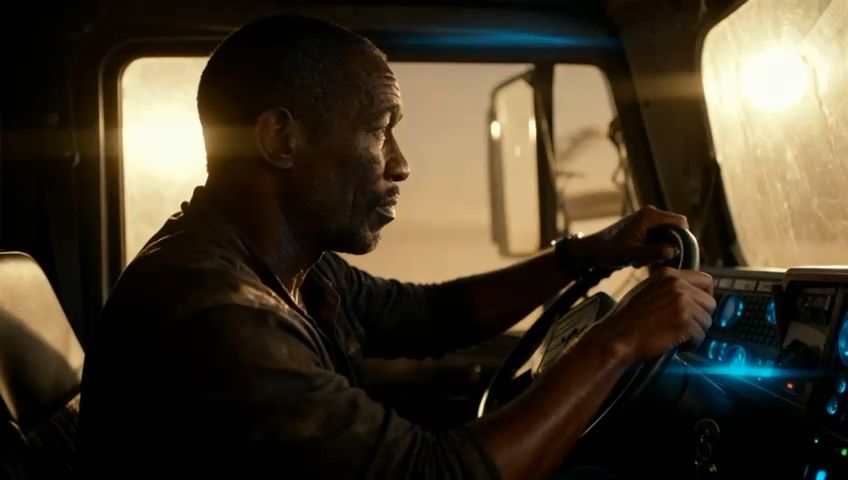
From Kling AI Creative Partner@Dave Clark |
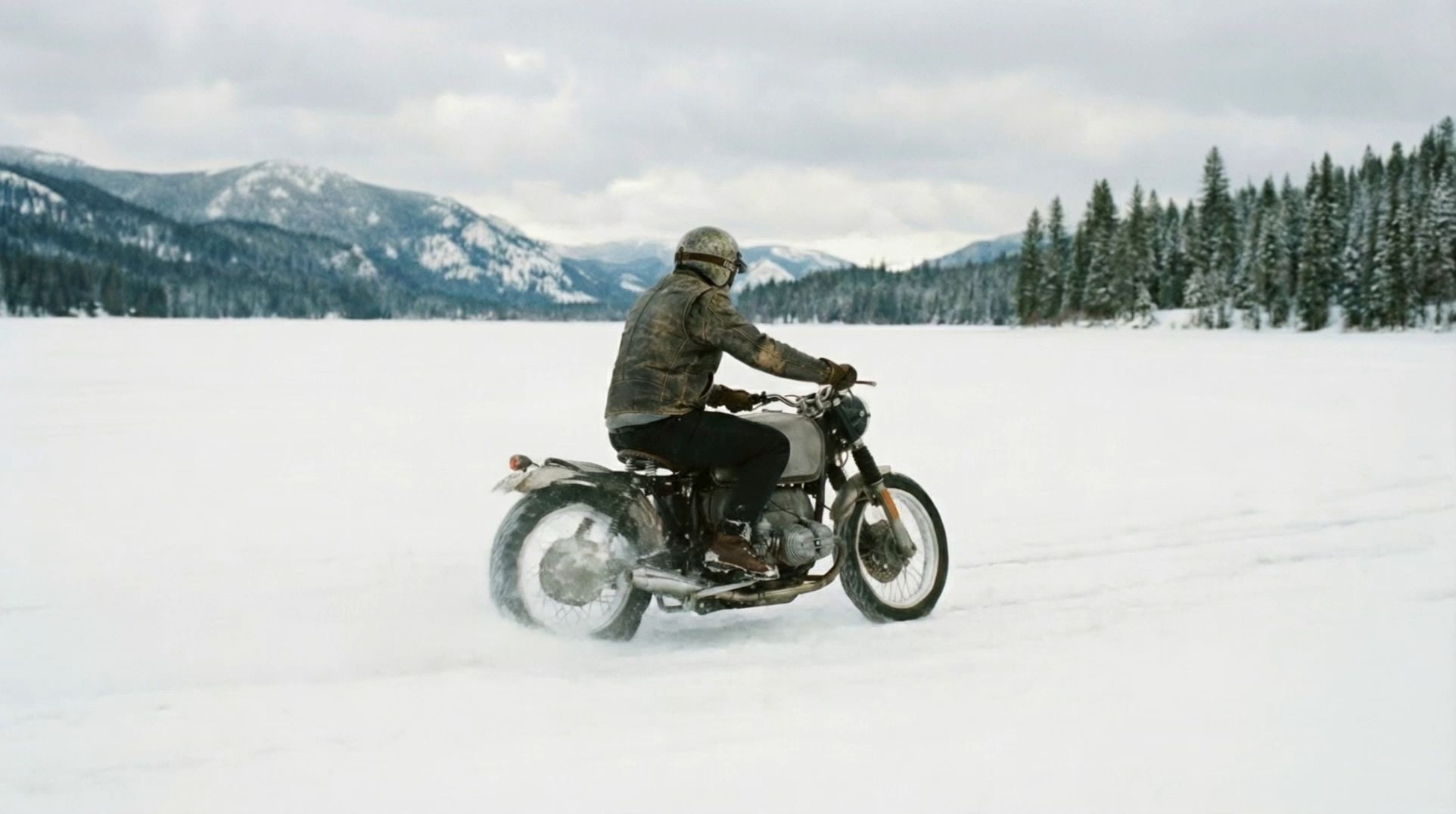
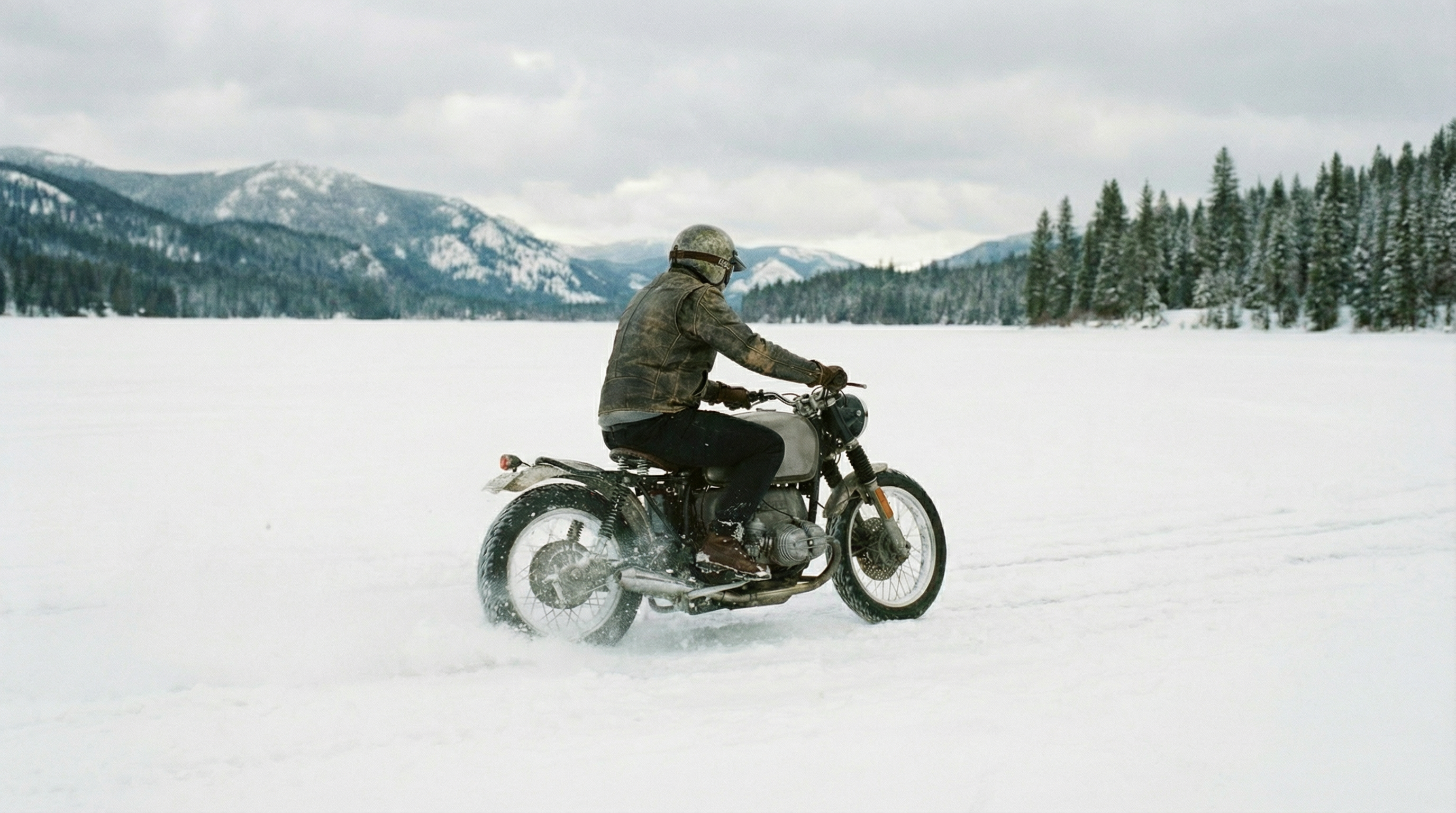
| Shot 1, Low-angle rear wide shot, tracking behind the rider as they move forward. Shot 2, Low-angle side close-up, a detailed shot of the motorcycle wheel. Shot 3, First-person POV from the rider, with the handlebars and instrument panel visible ahead. Shot 4, Frontal medium shot, tracking backward in front of the motorcycle, the rider’s helmet facing the camera. Shot 5, Side-on eye-level tracking shot with slight lateral movement. Shot 6, High-angle wide shot with a gentle downward tilt. The camera rises as the snowmobile rides deeper into the snowfield, leaving winding tracks carved into the pristine white snow, with snow-covered forests scattered on both sides. |
|  |
2. Image-to-Video & Element Reference
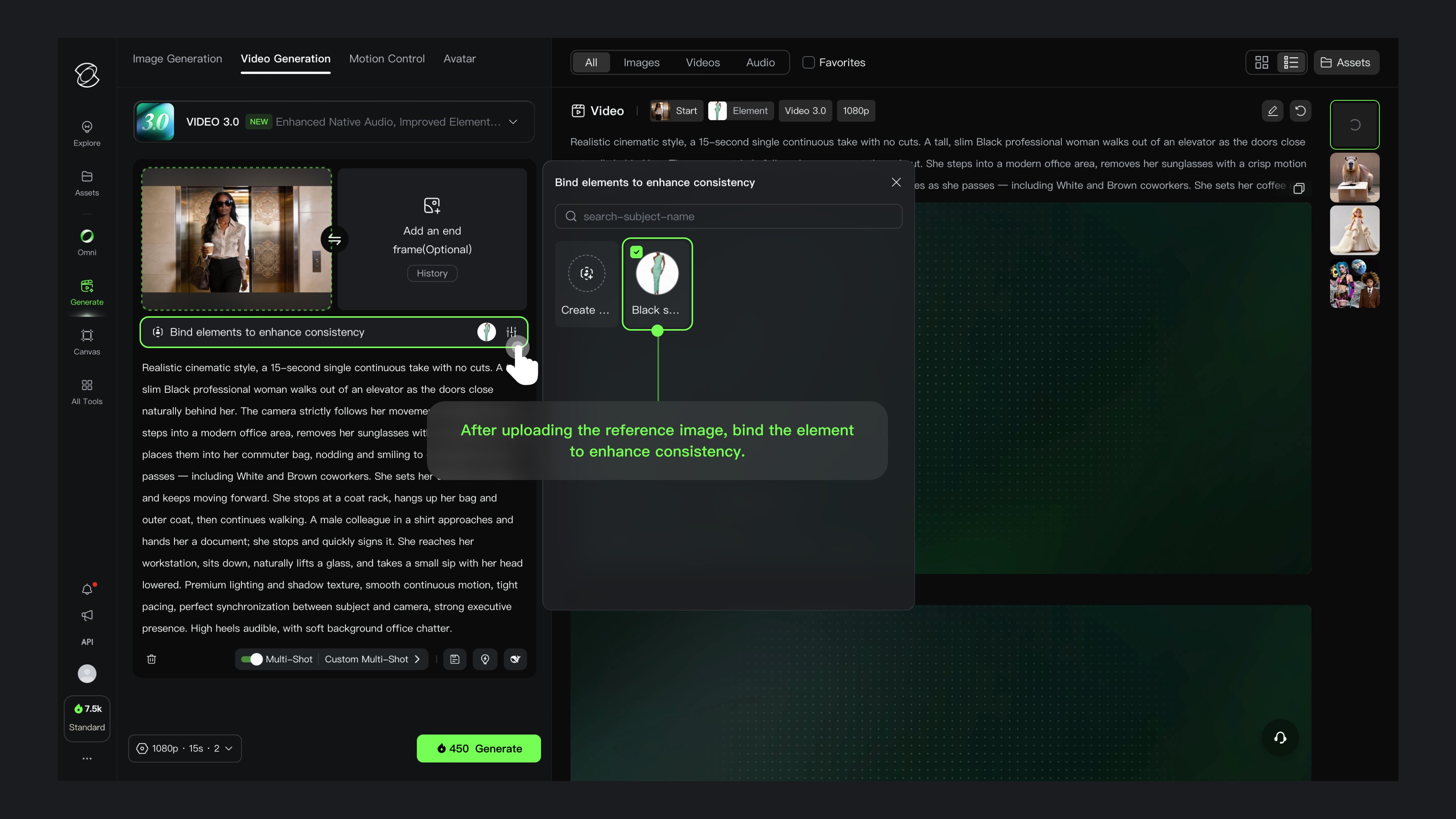
Building on the Text-to-Video feature, VIDEO 3.0 introduces element binding, allowing you to lock specific elements of the frame to ensure the main character remains consistent. Even with camera movements like zooming, panning, or tilting, the subject stays clear and stable without shifting or disappearing.
After uploading an image, bind the created element through the "Bind Subject to Enhance Consistency" access. With the element reference feature, you can generate a video with element locking and stable visuals.
Binding a subject ensures both visual and audio consistency: the subject's features are visually matched, and the voice tone can be bound during subject creation. If you choose a subject with a pre-bound voice tone, it's not recommended to set the tone again in the prompt.
Prompt | Start Frame | Element Reference | Output |
| Authentic workplace texture, one continuous long take without any cuts. The camera follows the professional woman steadily in a medium shot throughout, moving in sync with her: the camera tracks her as she walks and freezes instantly when she pauses, with natural and smooth movements and fluid camera work. The woman walks forward out of the elevator, and the elevator doors close slowly and naturally behind her; she steps into the office area, takes off her sunglasses by hand, tucks them into her commuter bag casually, and nods politely to colleagues passing by; she pauses briefly, the camera freezes in sync, she hangs her commuter bag on the coat rack in the office area, then takes off her outer coat and hangs it on the same rack; after hanging up her clothes, she walks forward again, the camera tracks her in sync; a young man in a formal shirt walks towards her, hands her a document and a signature pen, she pauses, the camera freezes in sync, takes them and signs the document; after signing, she walks forward again, the camera tracks her in sync; finally, she walks to her desk, sits down by the chair, reaches out to pick up a cup of tea on the desk, and sips it with her head down, her movements relaxed and natural. |
|
| 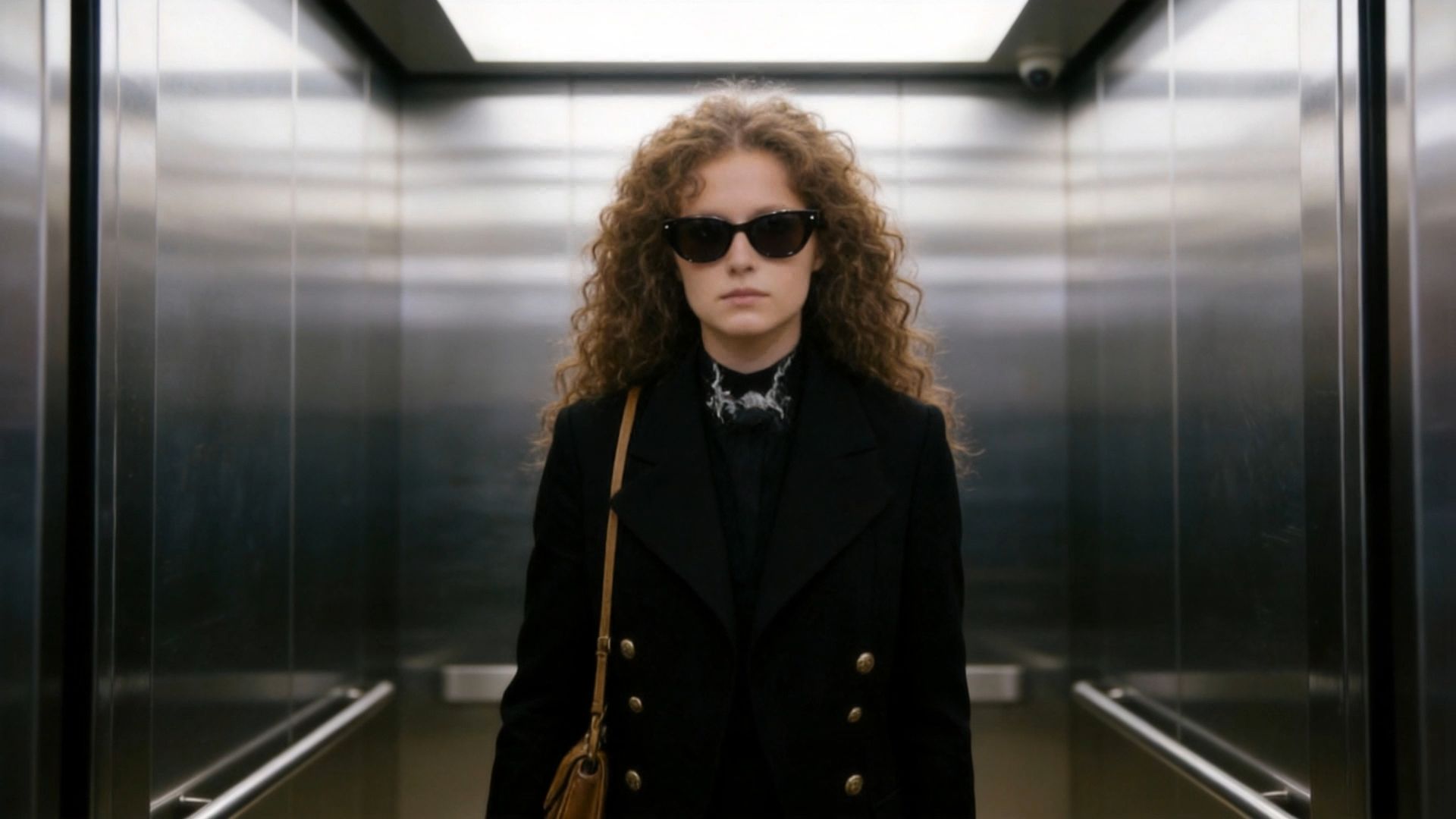 |
| The camera gradually moves around to the front of the girl, who then lifts her head and smiles warmly at the camera, as if seeing an old friend after many years. |
|
| Start Frame + Enhanced Element Consistency Output 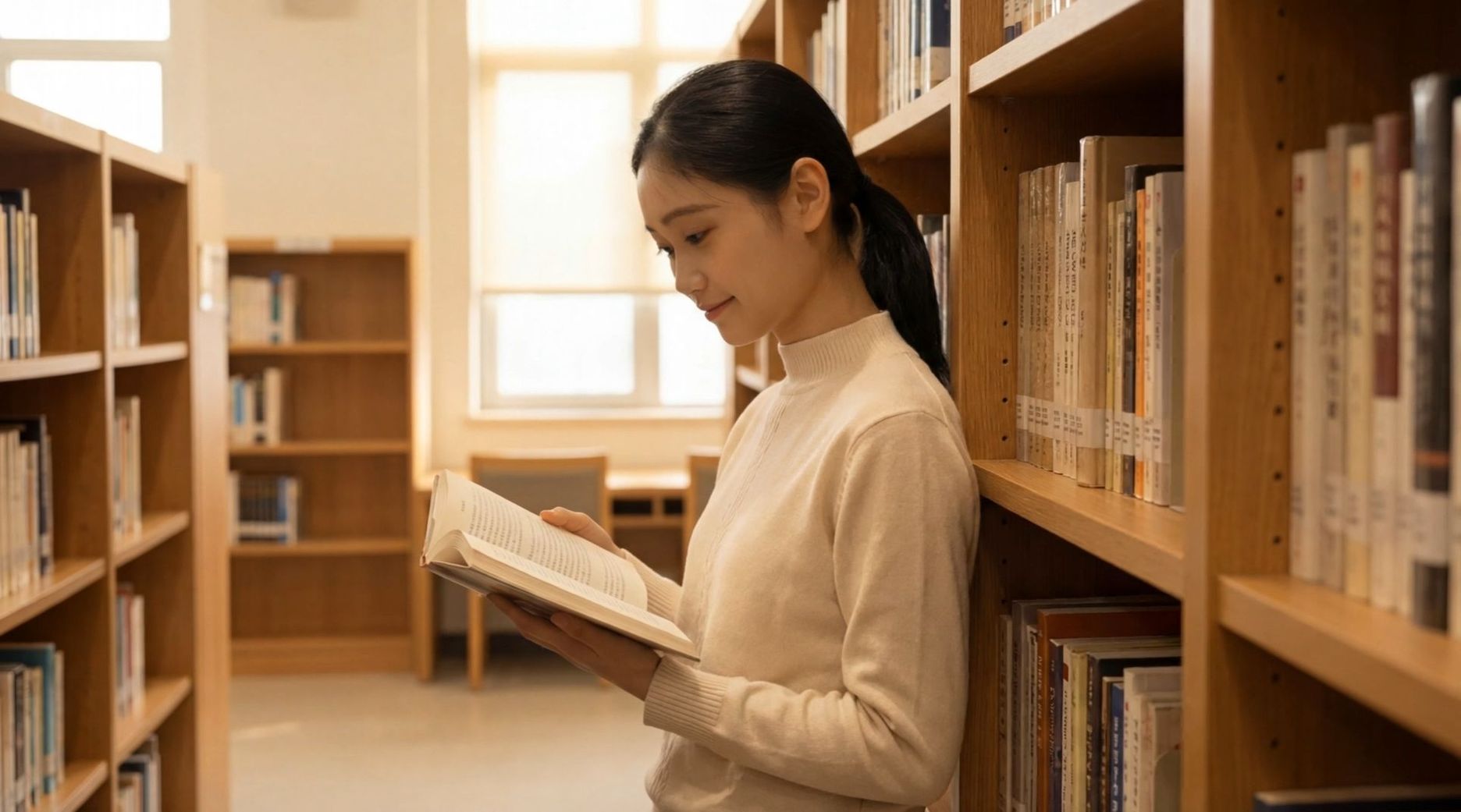 Only Start Frame Output 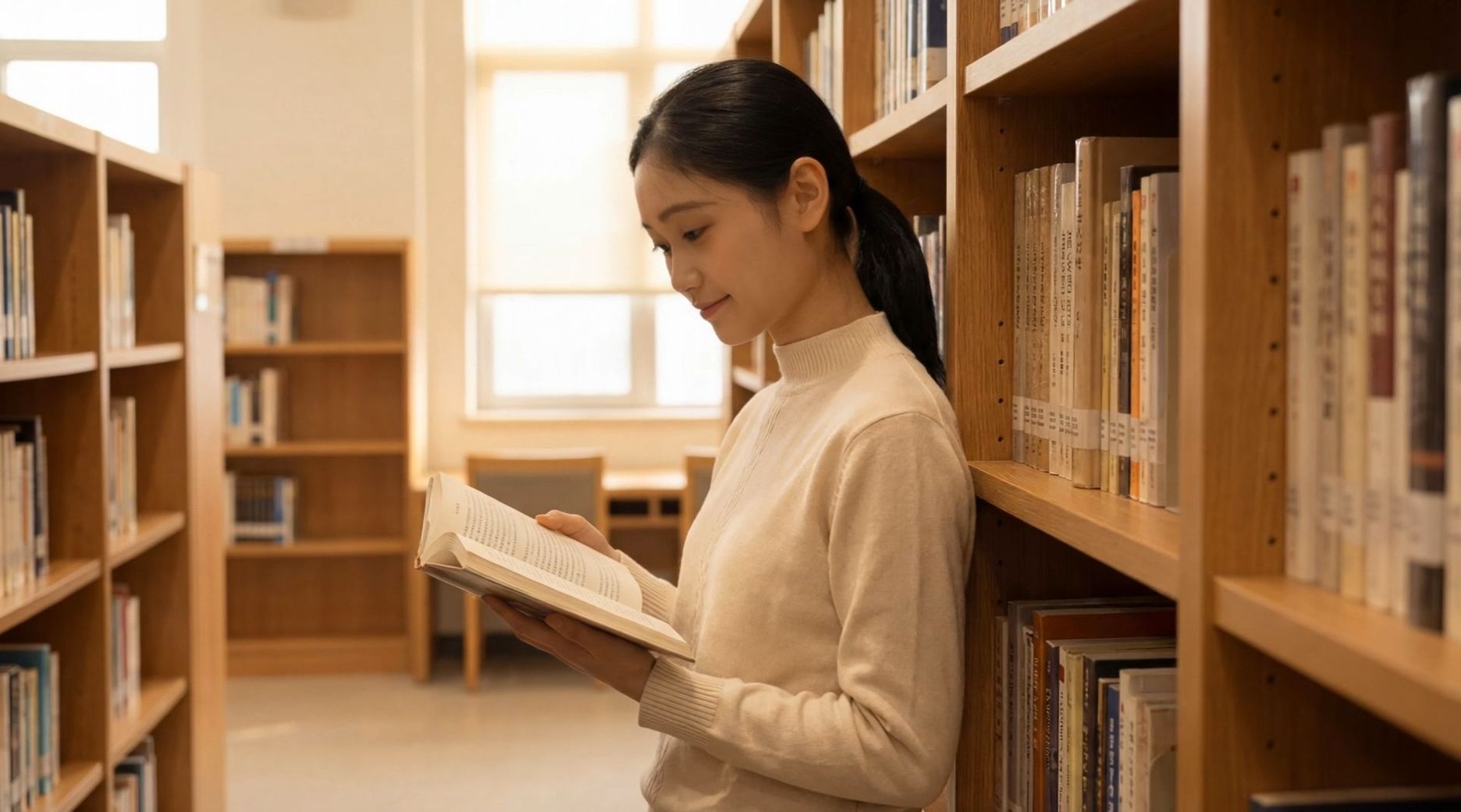 |
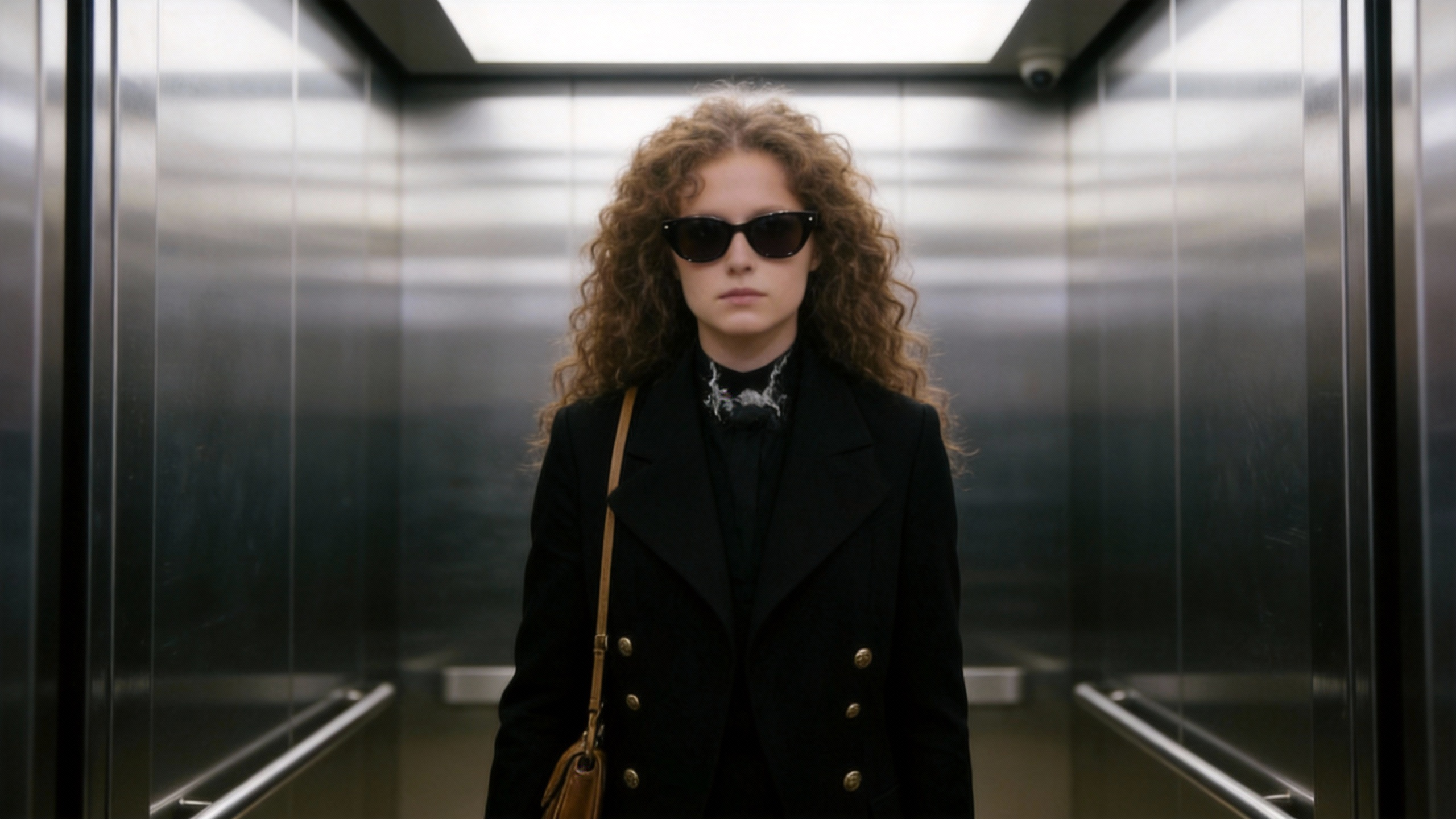
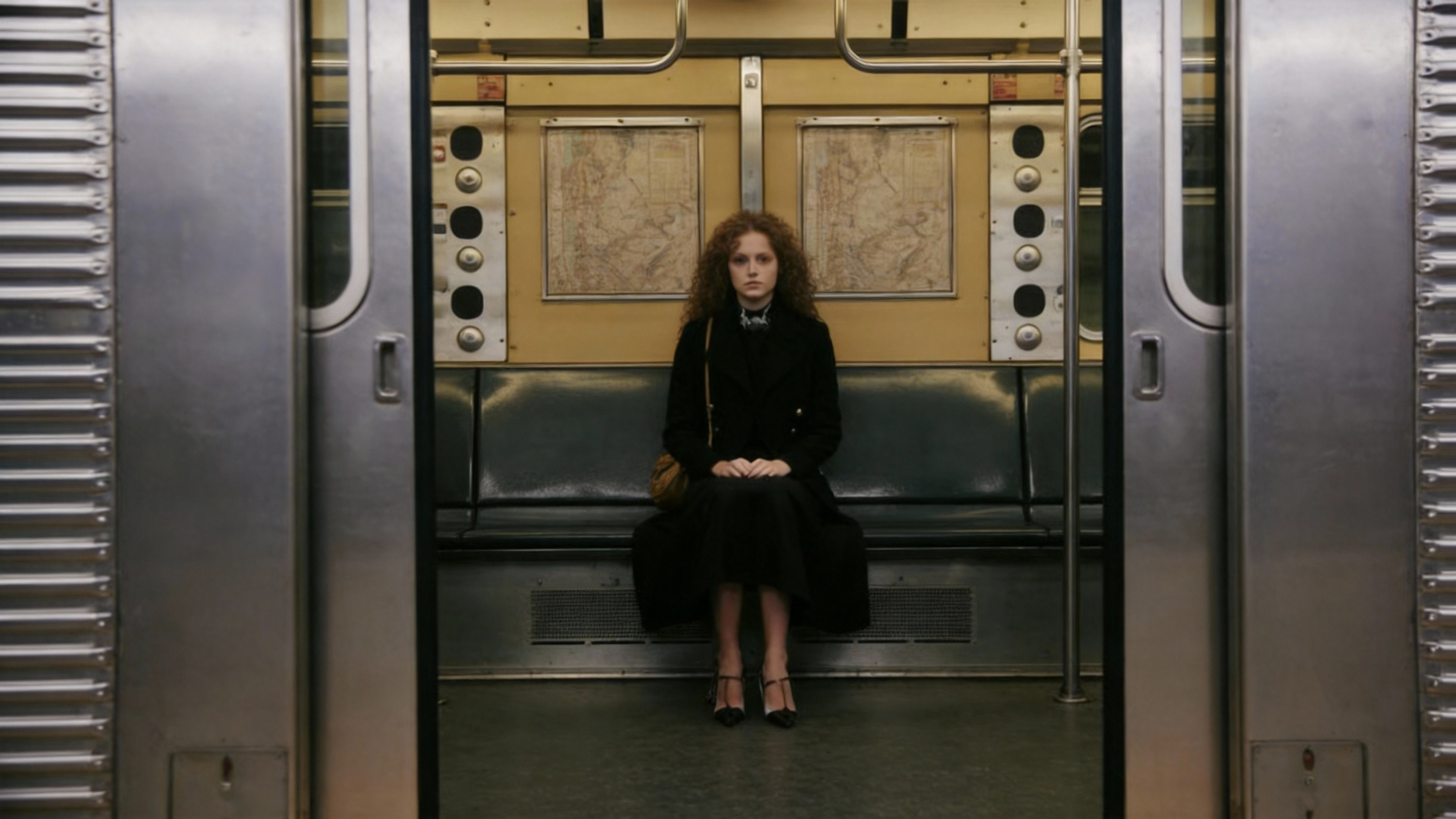
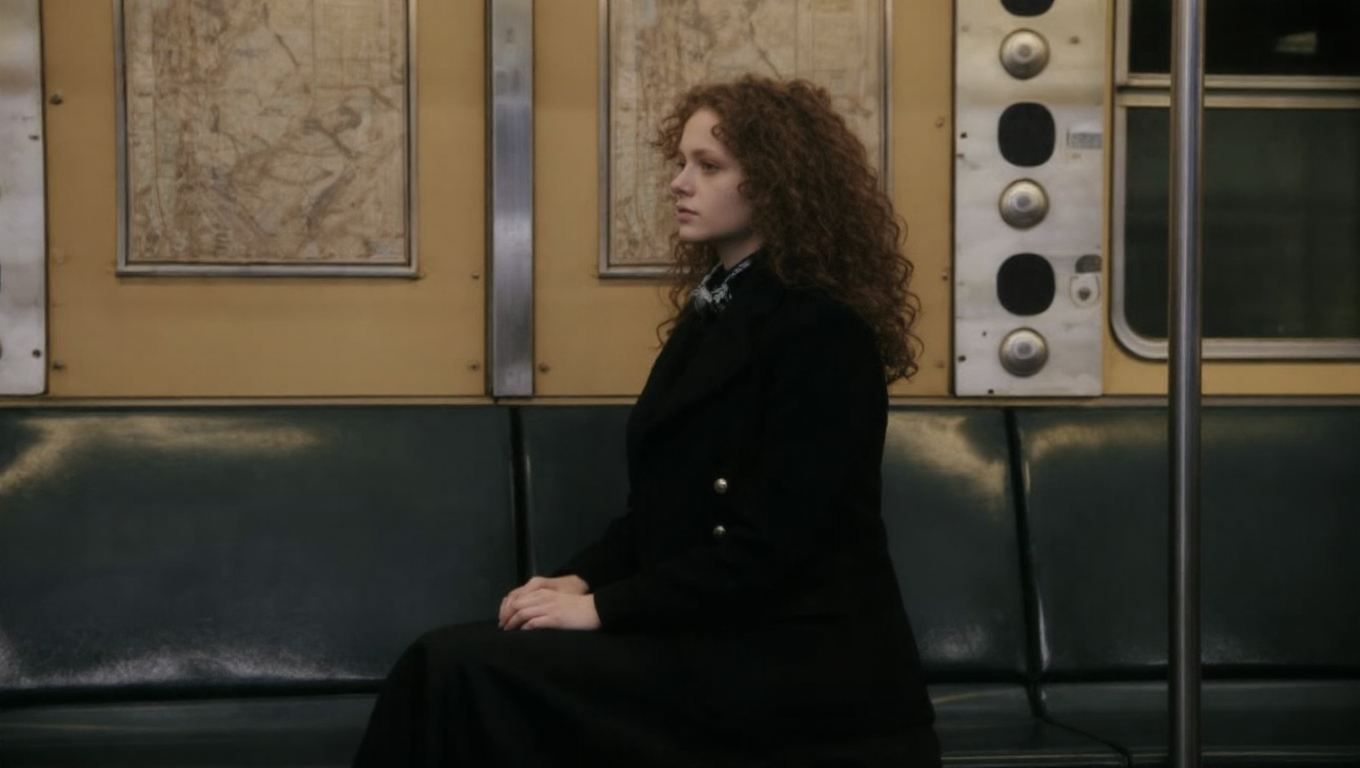
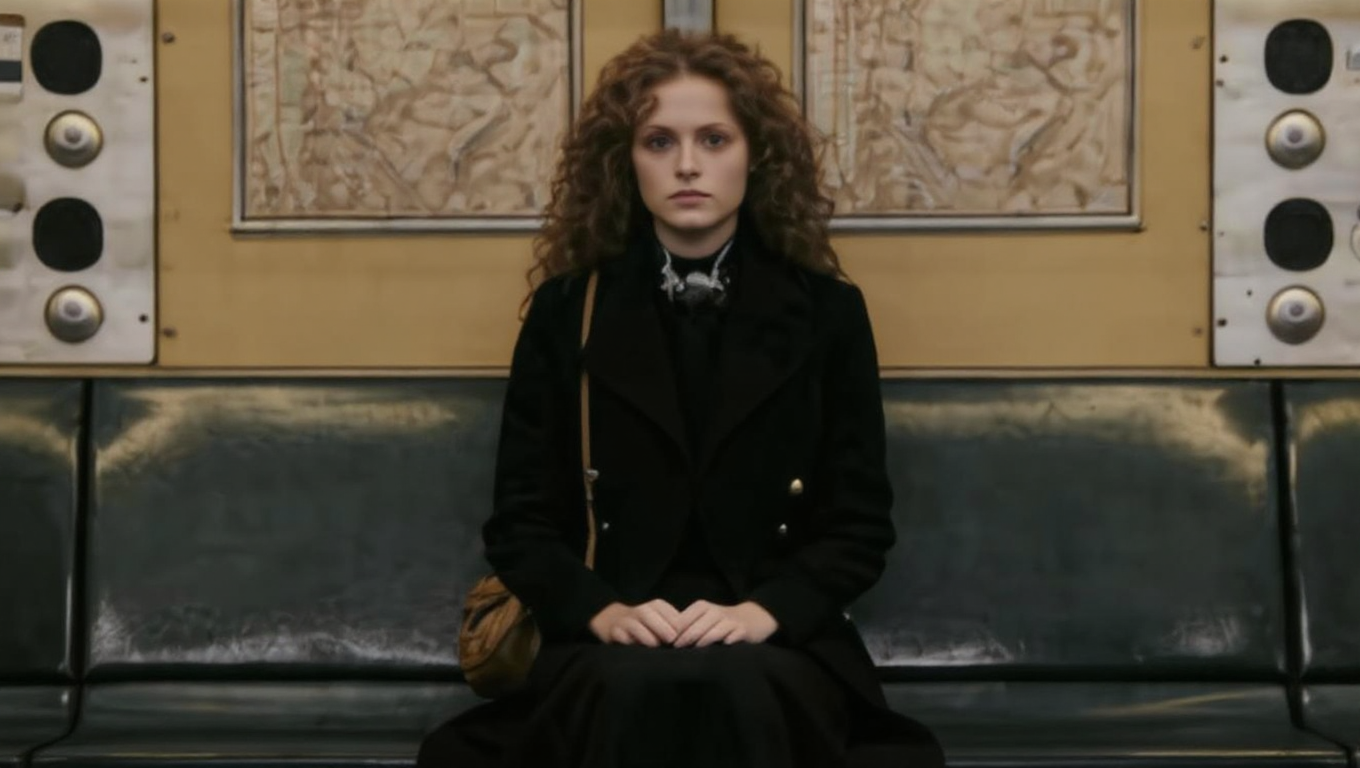
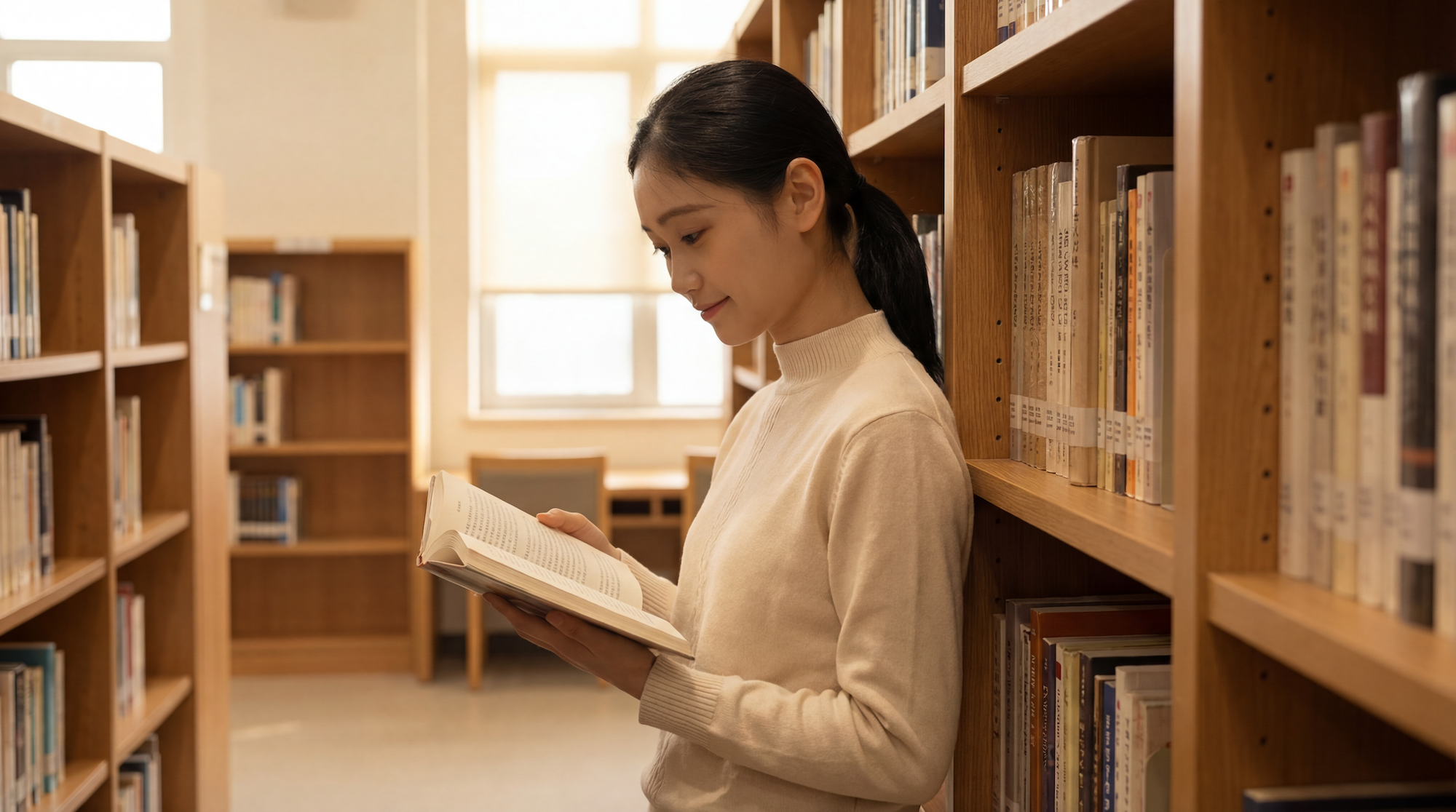
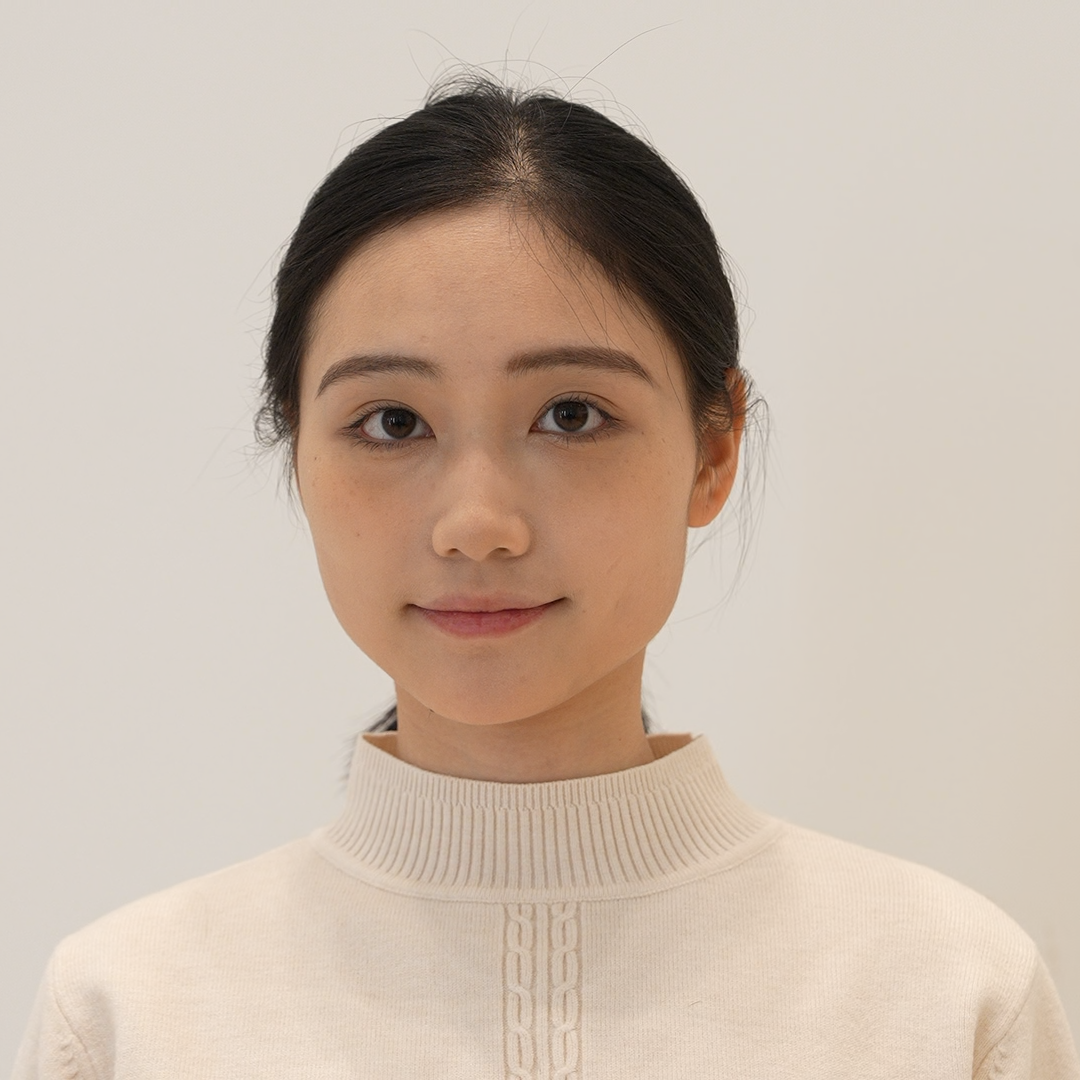
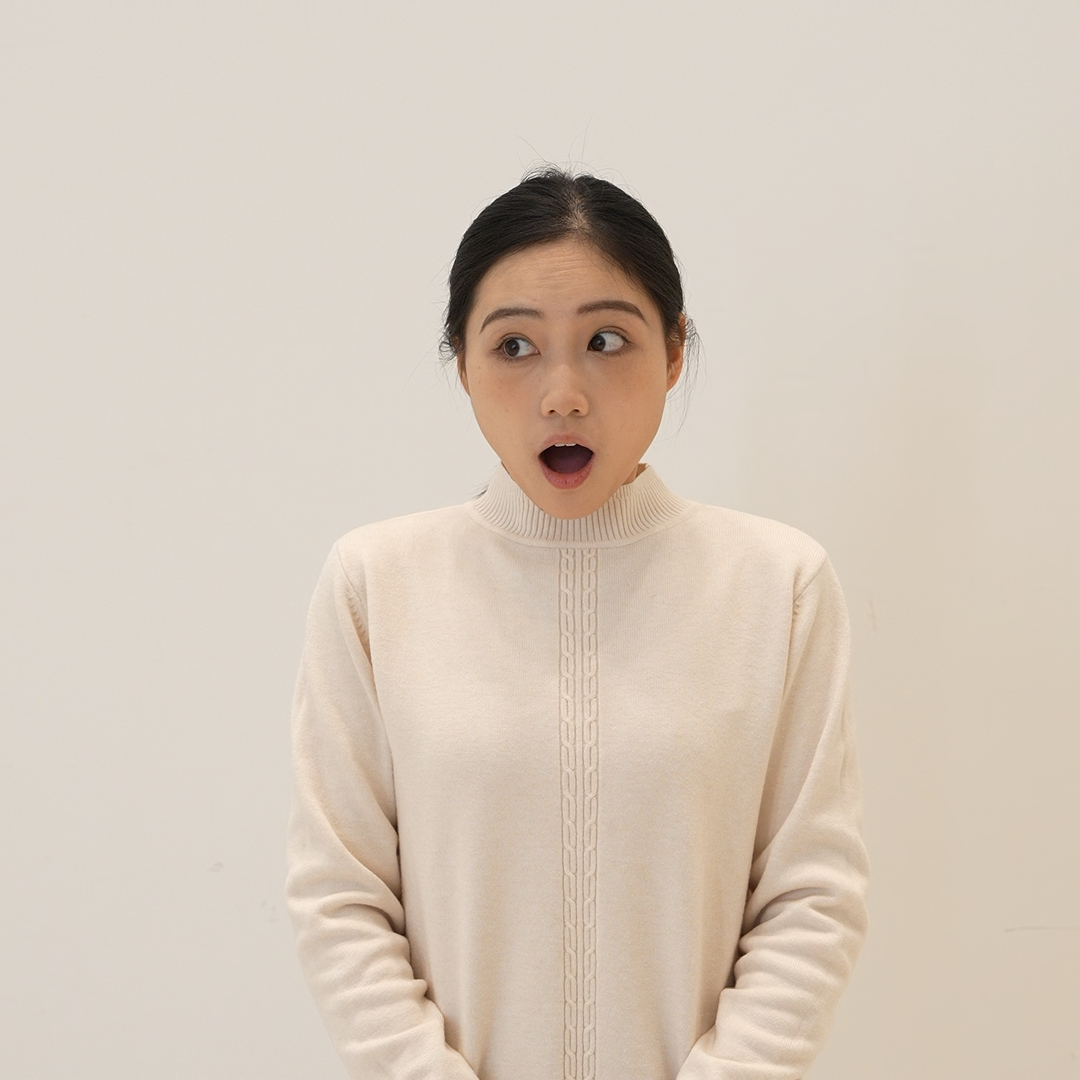
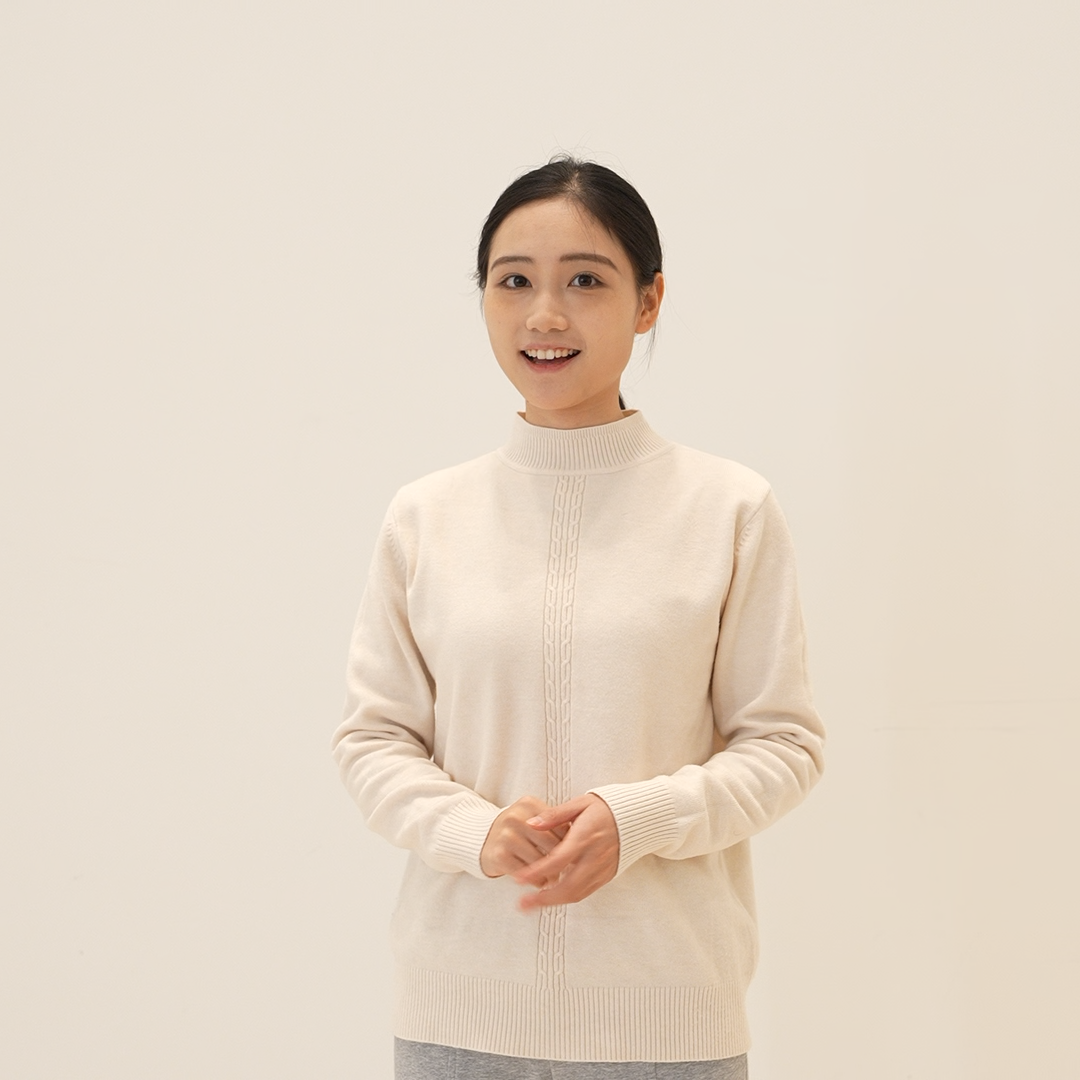
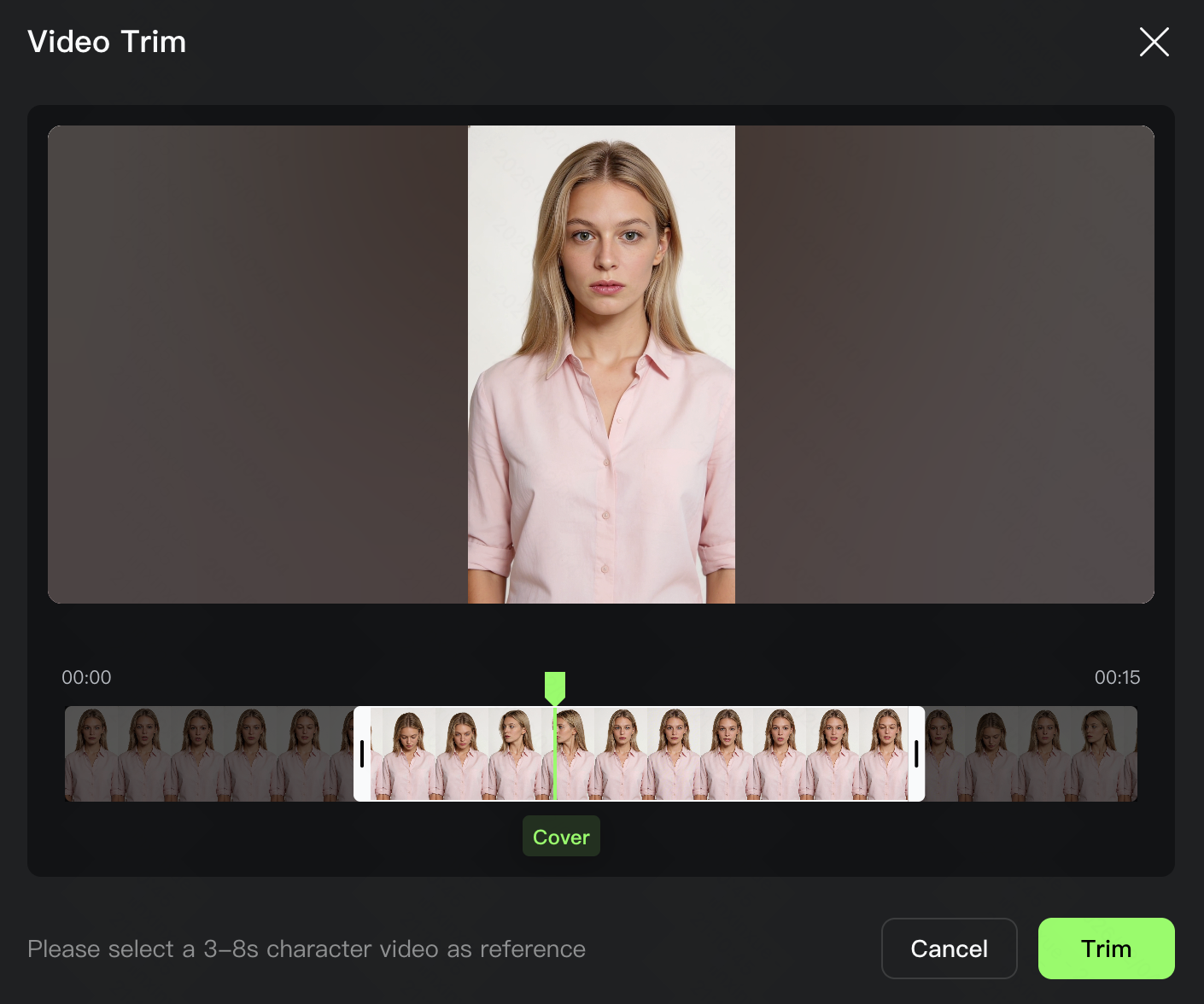
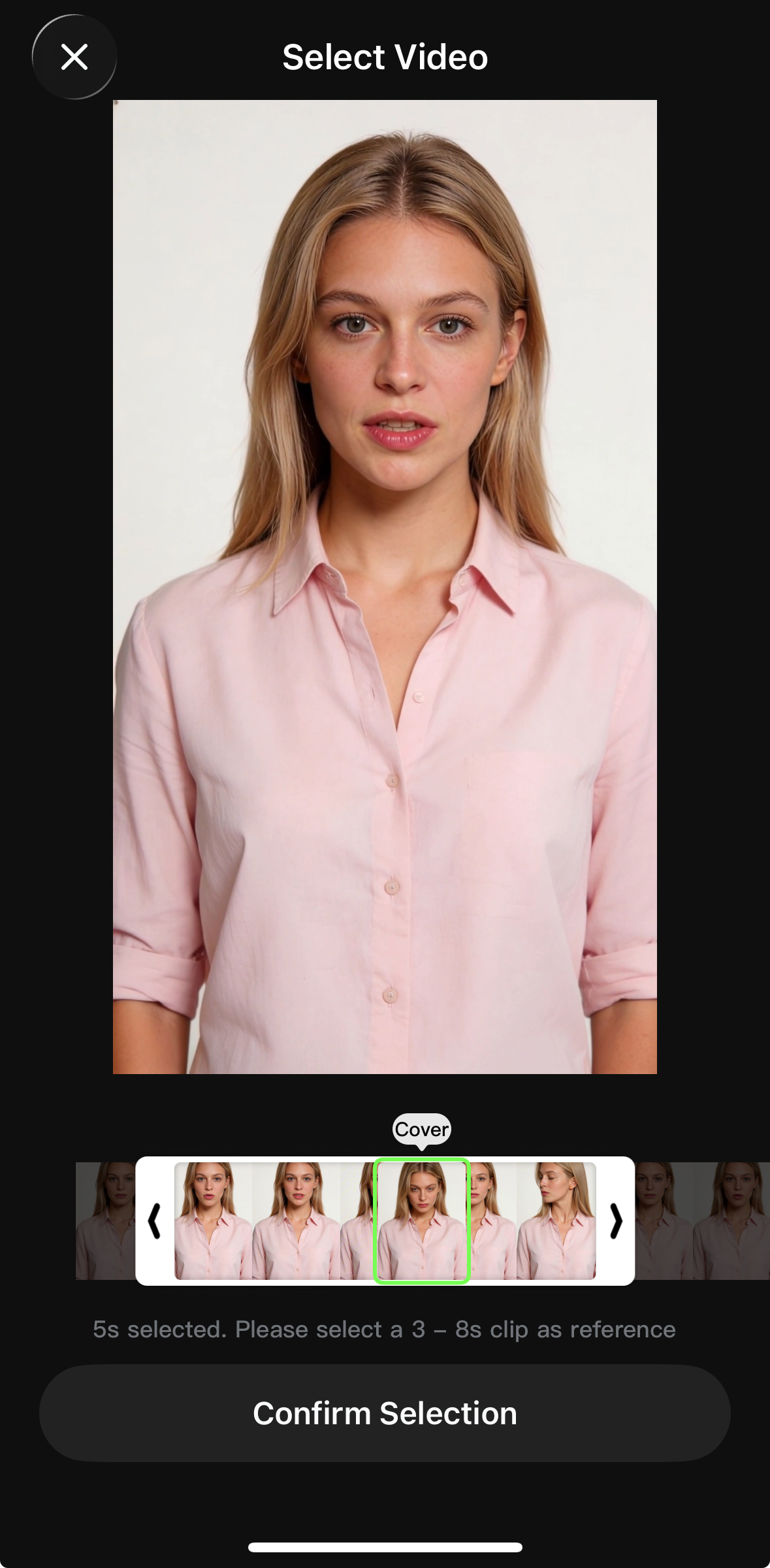
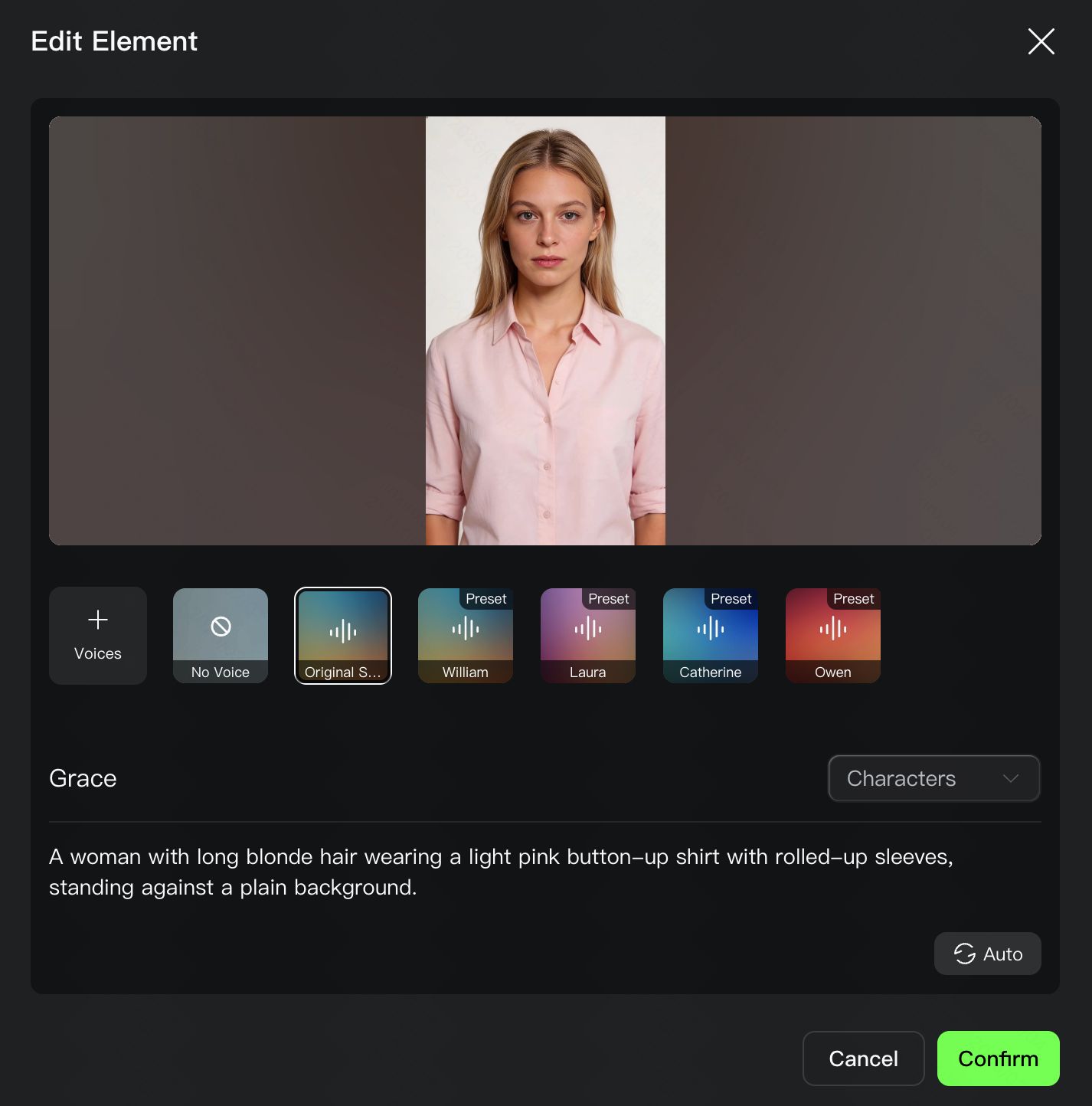
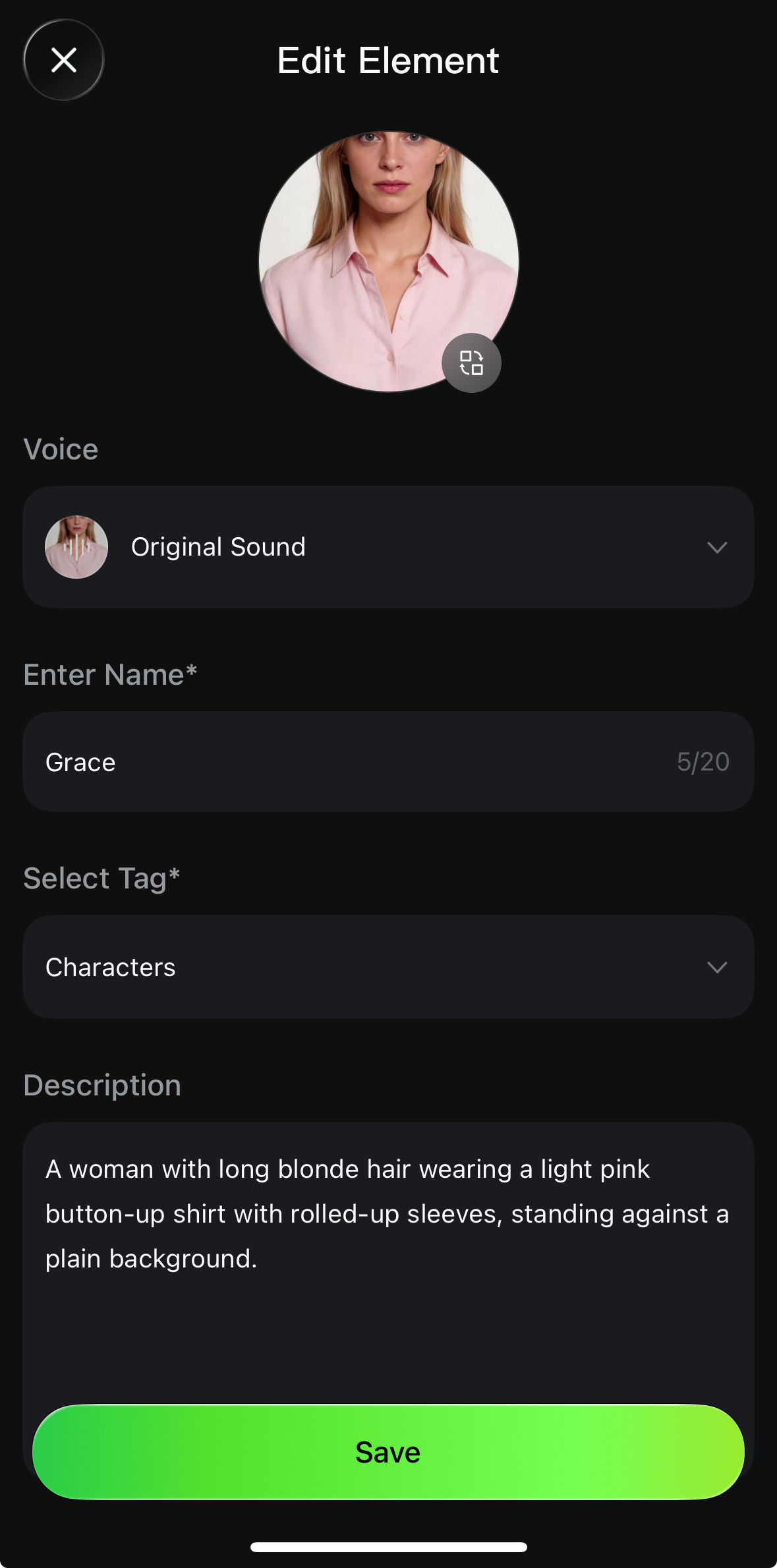
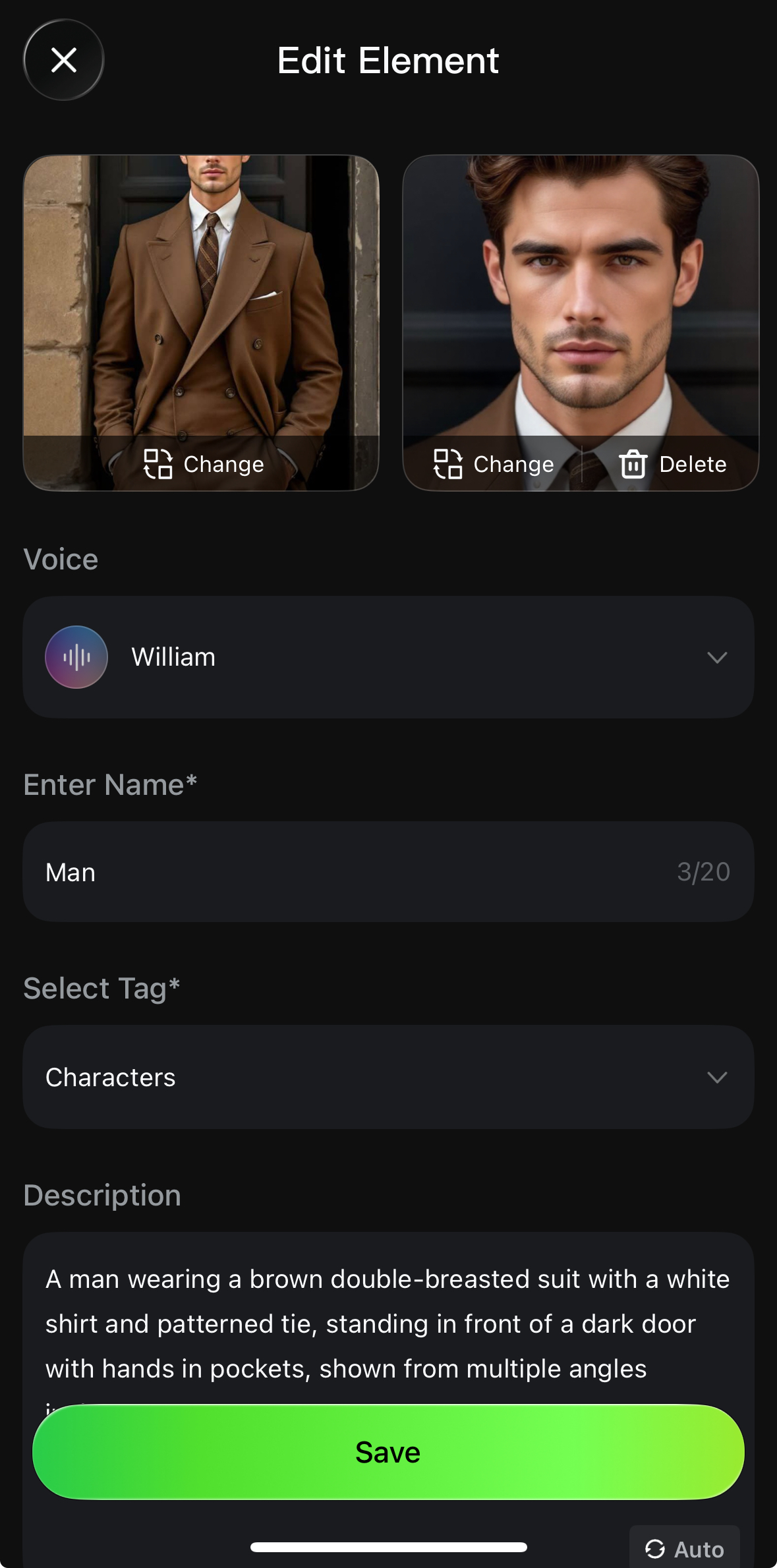
- Elements can be created in two ways: 1) Upload/record a character video, and the system will automatically extract the character's appearance and native voice tone, with options to keep the original or replace with a custom tone; 2) Upload 2-4 reference images of the element, where character-based elements can upload audio or specify a voice tone to define a unique voice (To find out more👉Kling 3.0 Element Library User Guide).
Record Video to Create Character Element (APP only) | ||
Click to record a character video and enter the recording stage to create the video element. | Follow on-screen instructions to record the audio and capture multi-angle shots. | Complete the element's voice tone, name, description, and other details to finish creating the video character subject. |
|
|
|
Upload Video to Create Character Element | ||
Upload a video to begin creating the element. | Trim the video to the appropriate length, preferably including multi-angle character shots. | Complete the element's voice tone, name, description, and other details to finish creating the video character element. |
|
|
|
| ||
| ||
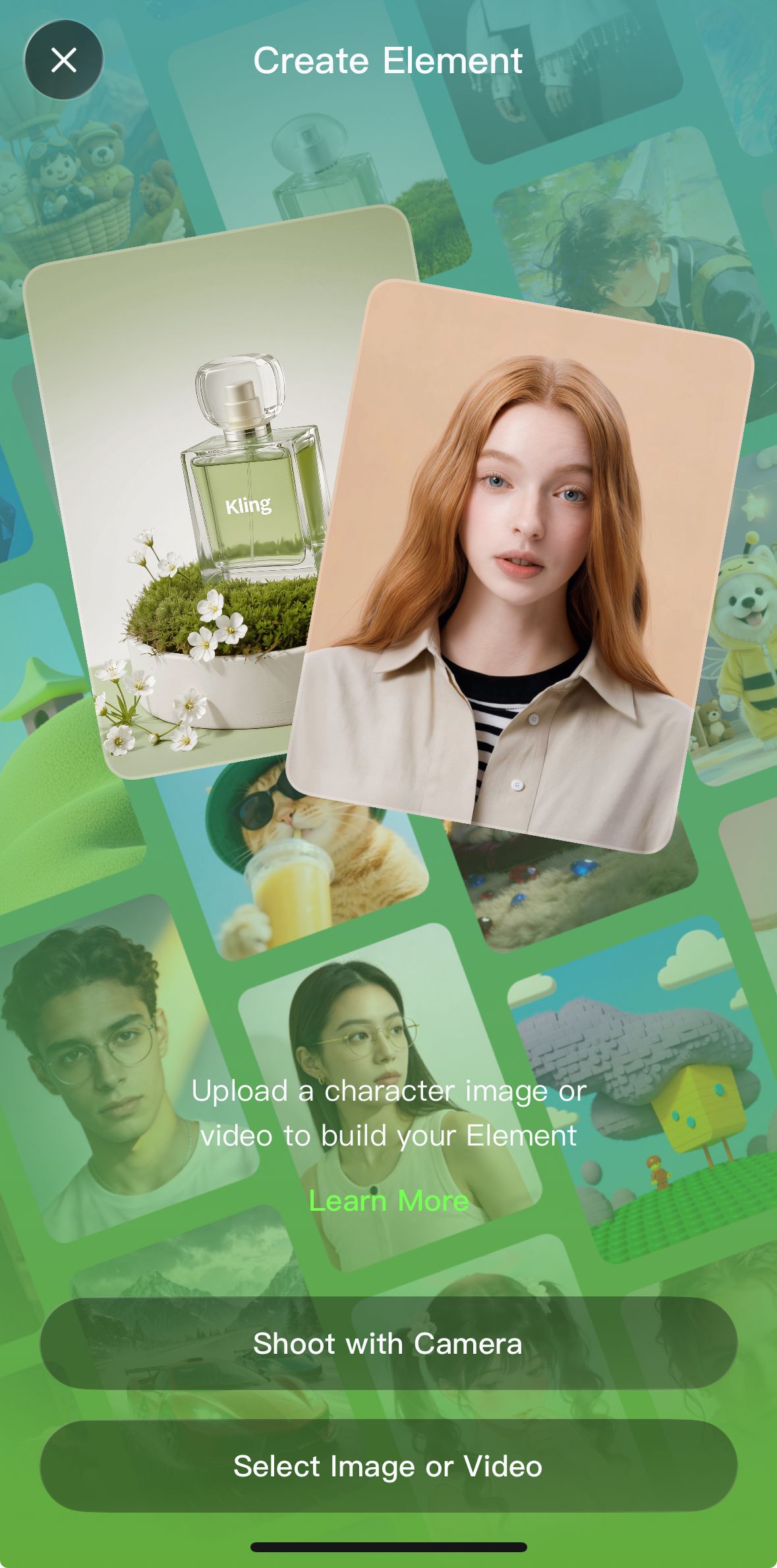
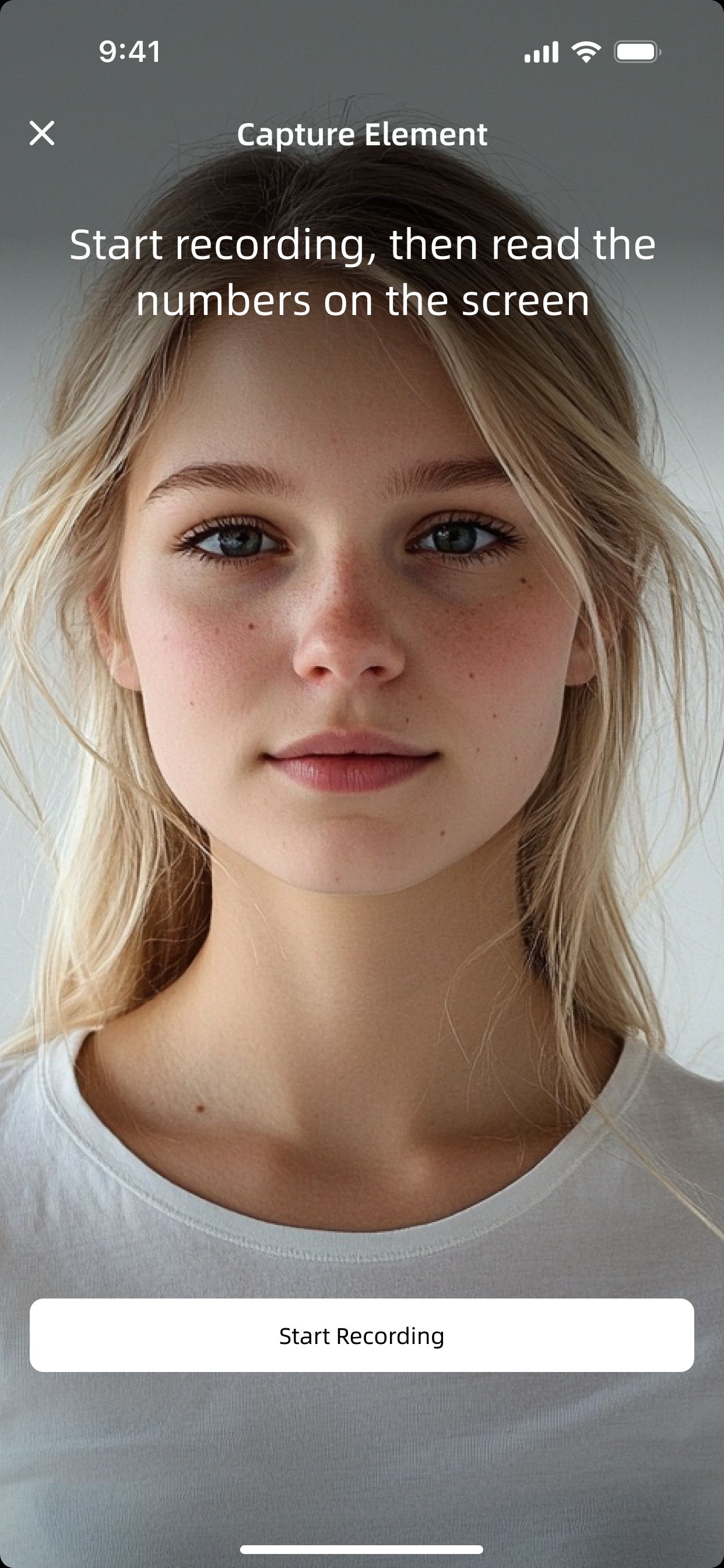
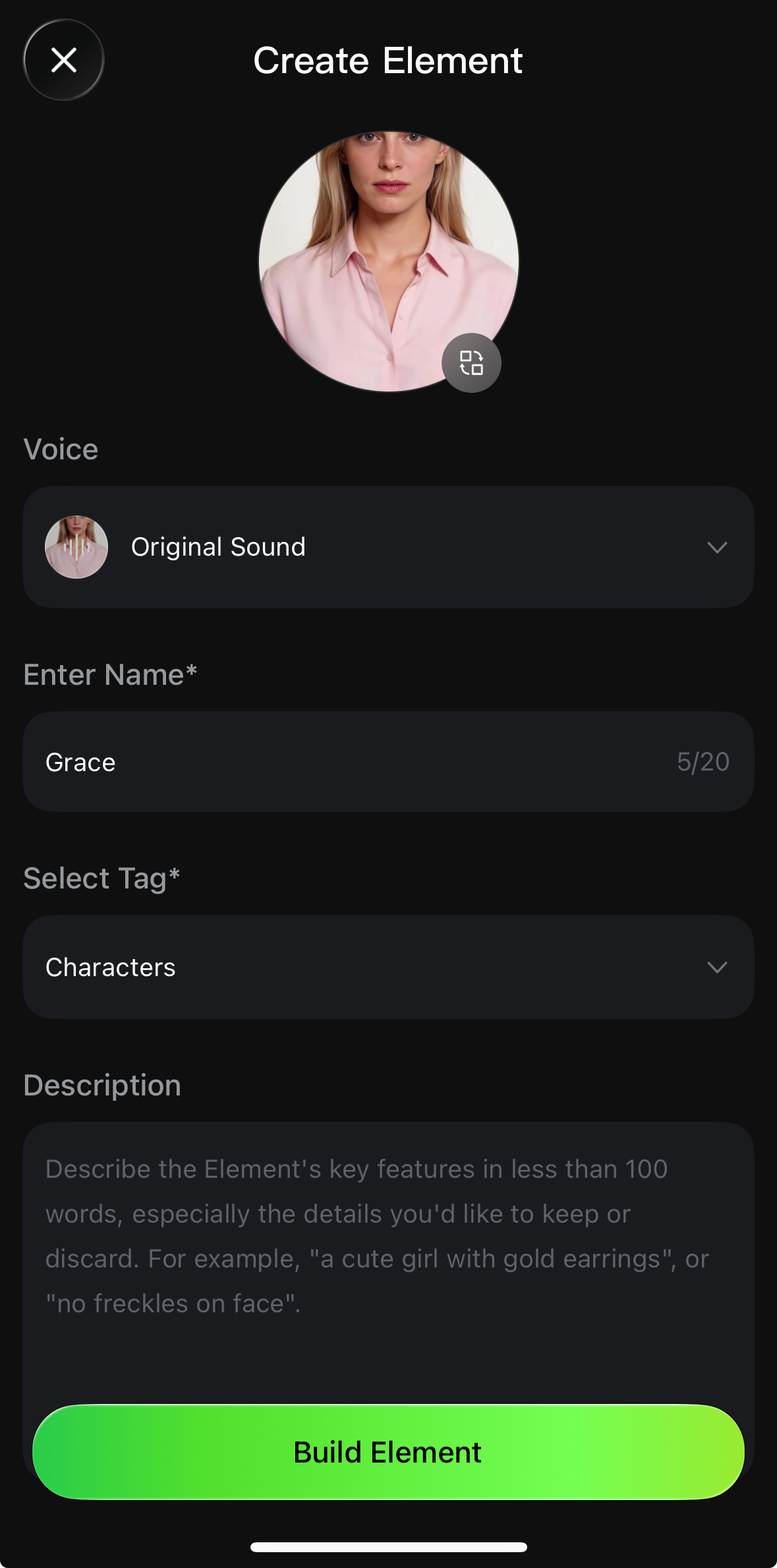
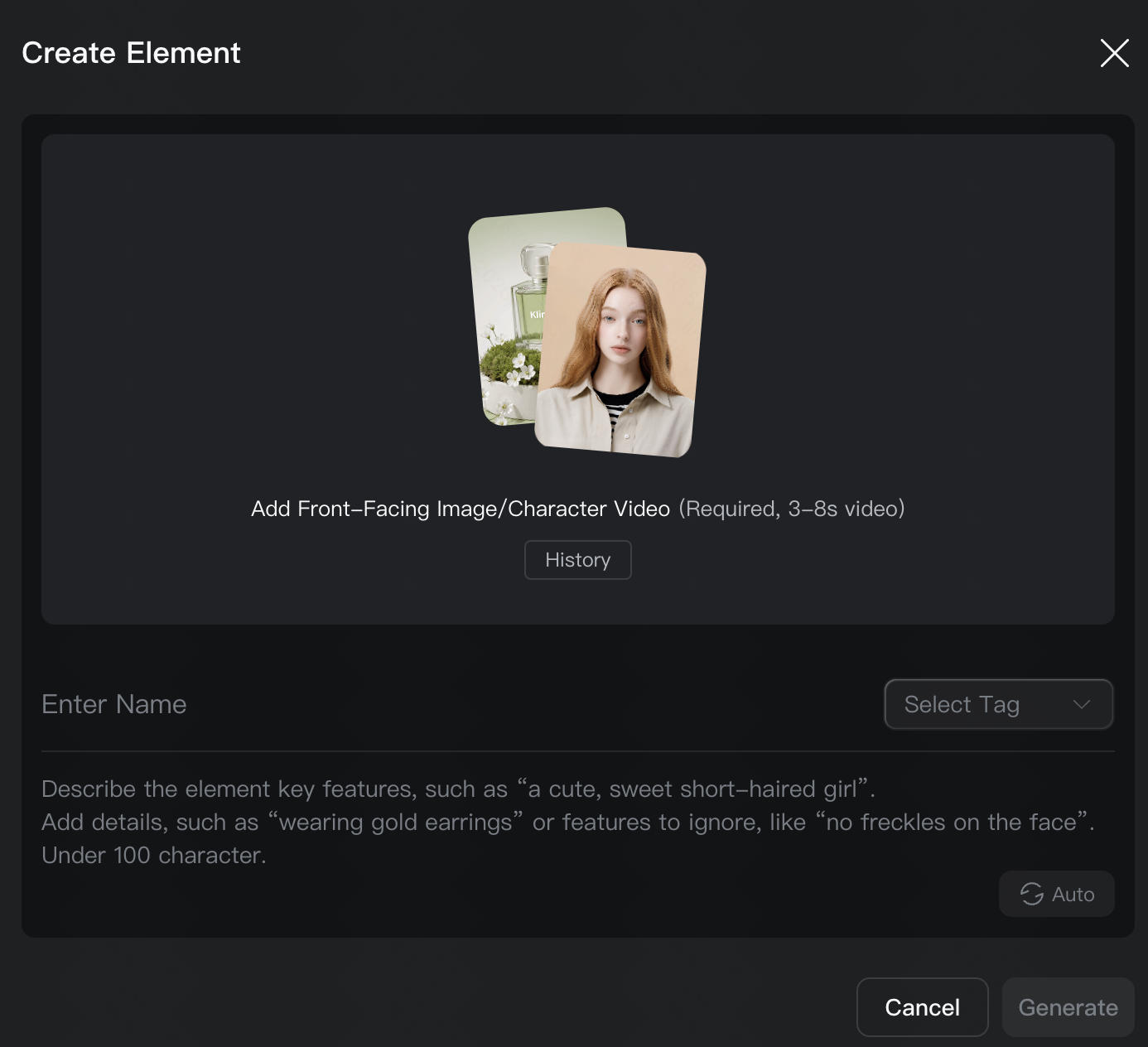
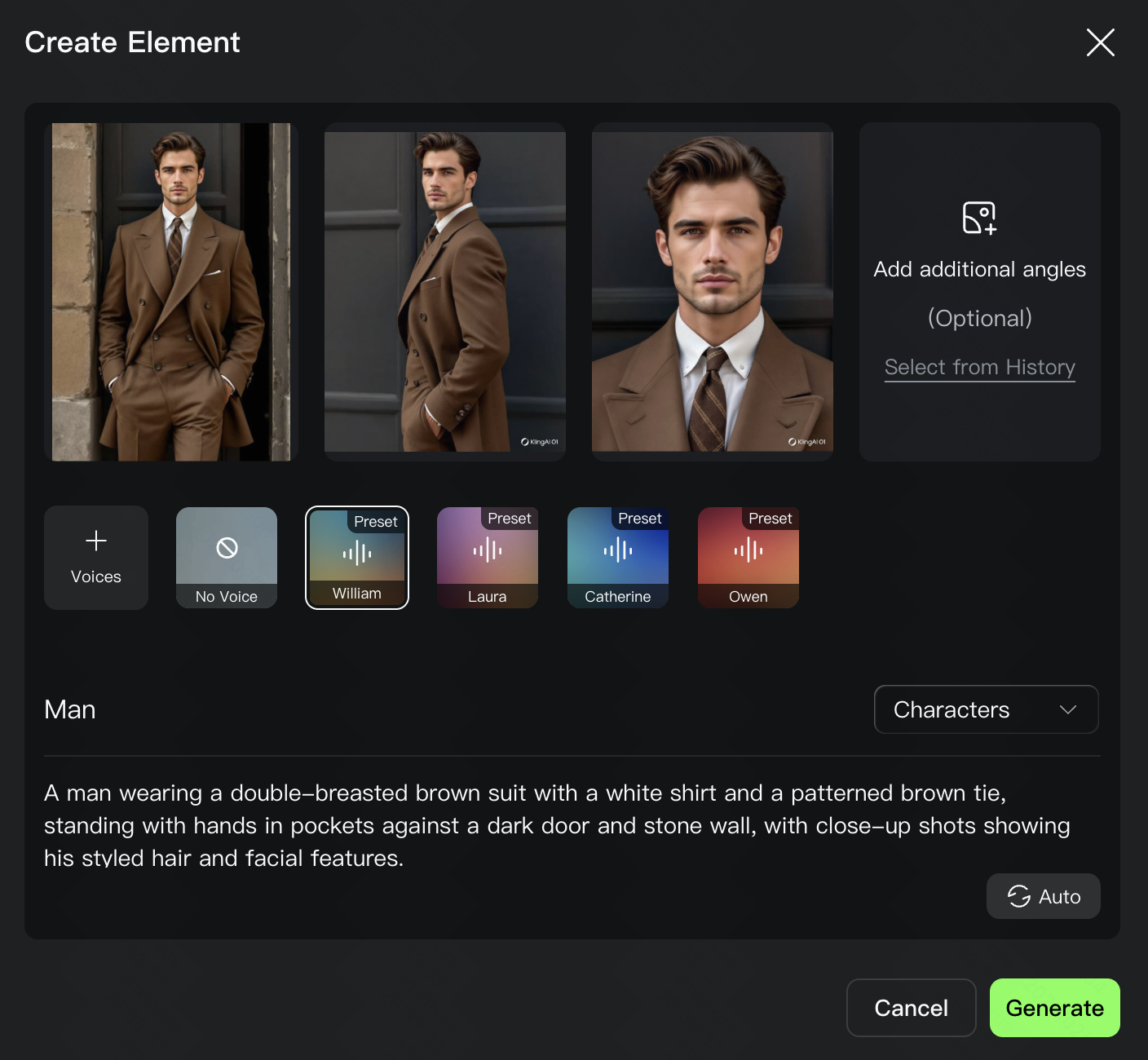 .
. 
3. Native Audio Output
Native Audio is now upgraded for precise referencing of characters and their speaking, significantly improving referencing accuracy in multi-character scenes. Meanwhile, the upgrade now supports multiple languages and the rendition of authentic dialects and accents. This breaks through linguistic boundaries for a more natural and diverse audio-visual experience.
Multi-Character Coreference
By clearly specifying dialogue for each character in your prompt, VIDEO 3.0 will automatically match each character with their corresponding lines. This resolves speech confusion in complex scenes, enabling targeted dialogue for multiple characters in the same frame. When inputting instructions, you can pair character directly with their respective dialogue. Compared to Video 2.6, Video 3.0 excels at managing referencing three or more characters and delivering superior narrative outcomes.
Prompt | Image | Outputs |
| Home setting with a faint hum of the living room air conditioner in the background for a realistic daily vibe. Mom (softly, in a surprised tone): Wow, I didn’t expect this plot at all. Dad (in a low voice, agreeing, in a calm tone): Yeah, it’s totally unexpected. Never thought that would happen. Boy (in an excited tone): It’s the best twist ever! Girl (nodding along, in an enthusiastic tone): I can’t believe they did that! |
| 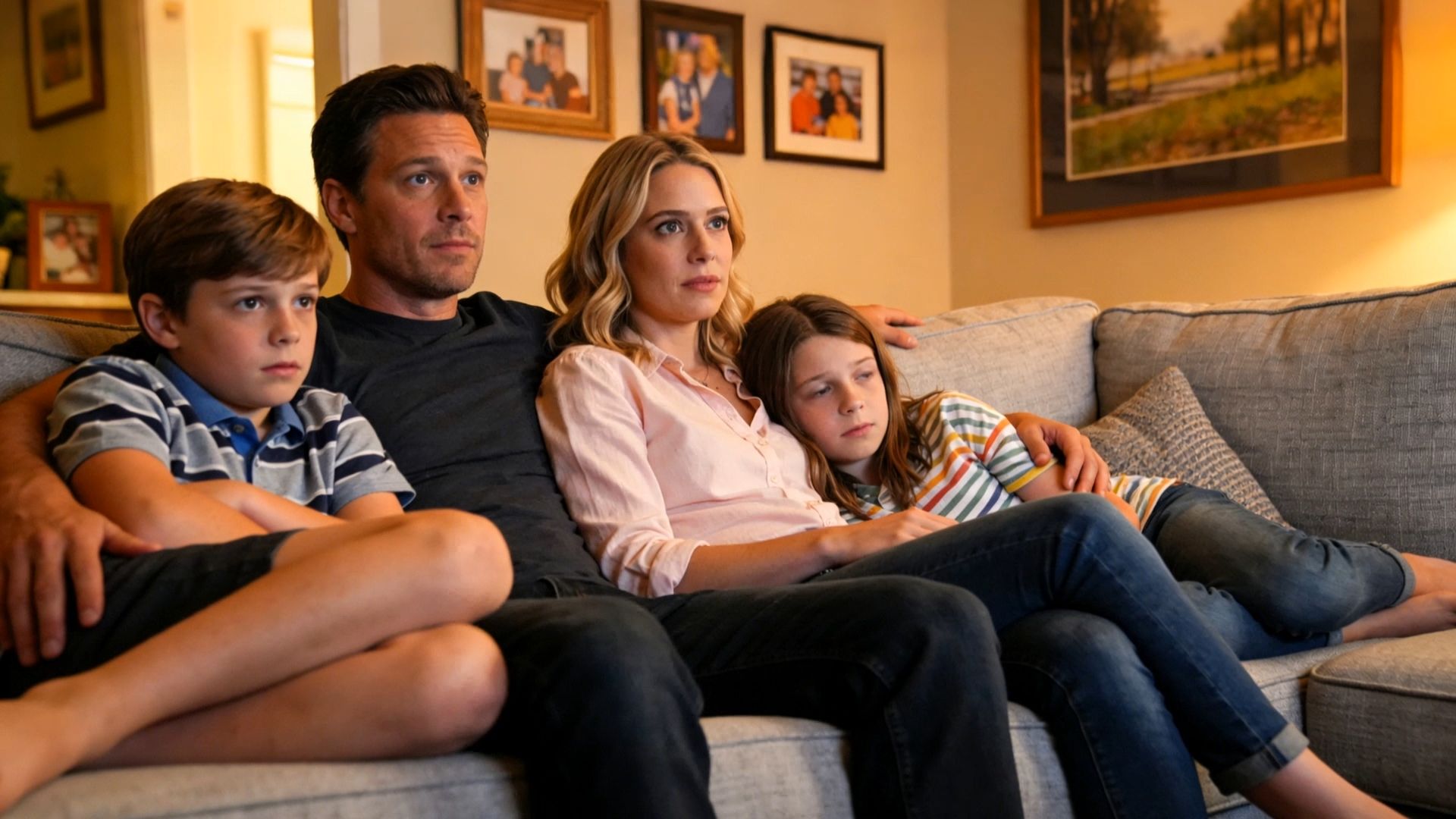 |
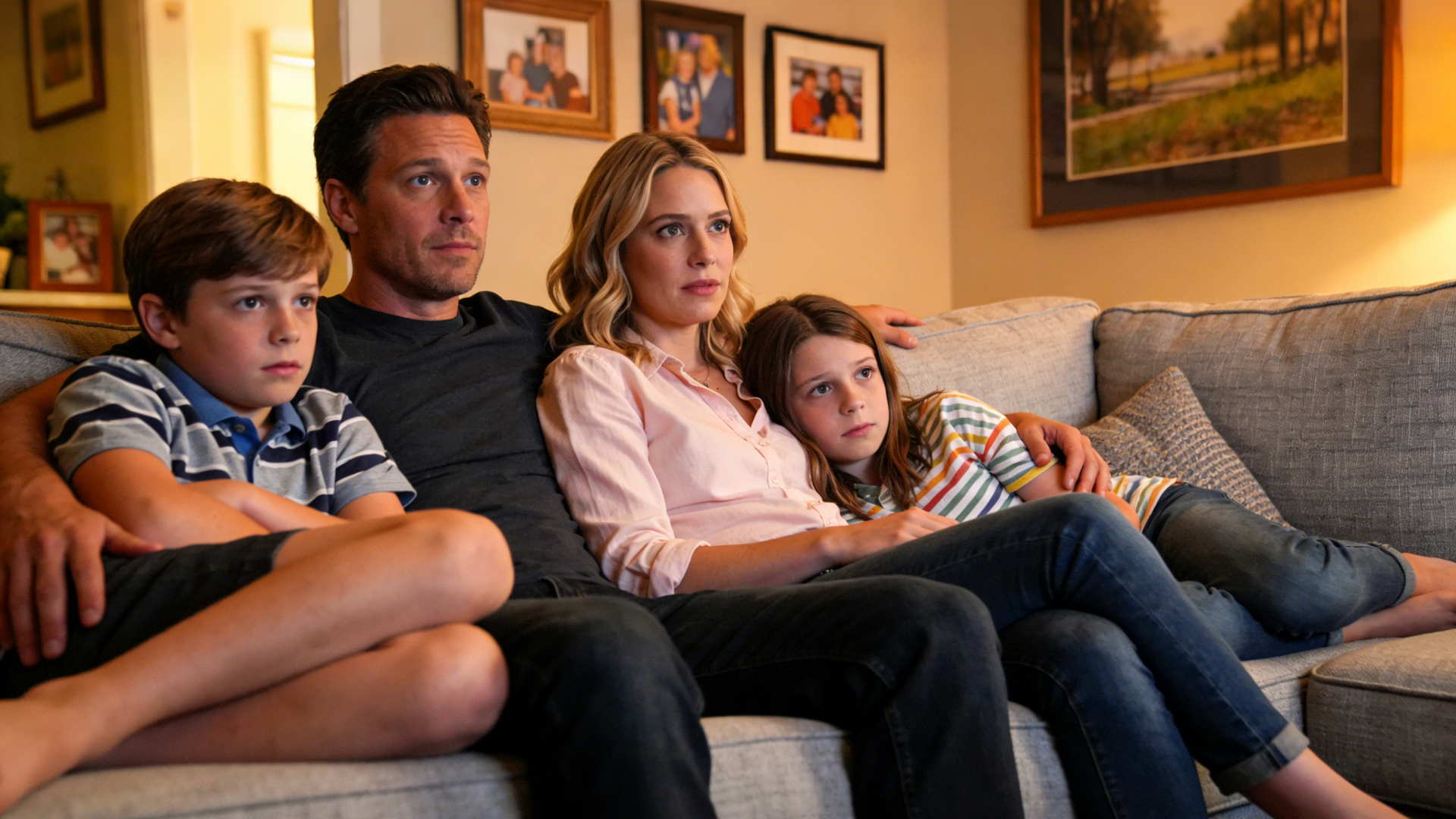
Multilingual Content Generation
Video 3.0 supports dialogue output in five languages: Chinese, English, Japanese, Korean, and Spanish. It supports mixed-language performances and allows characters to switch between different languages within a single video. After entering the corresponding text, the model matches the pronunciation and enables smooth transitions between languages. If dialogue is entered in a language other than those listed above, the model will translate it into English.
Prompt | Image | Outputs |
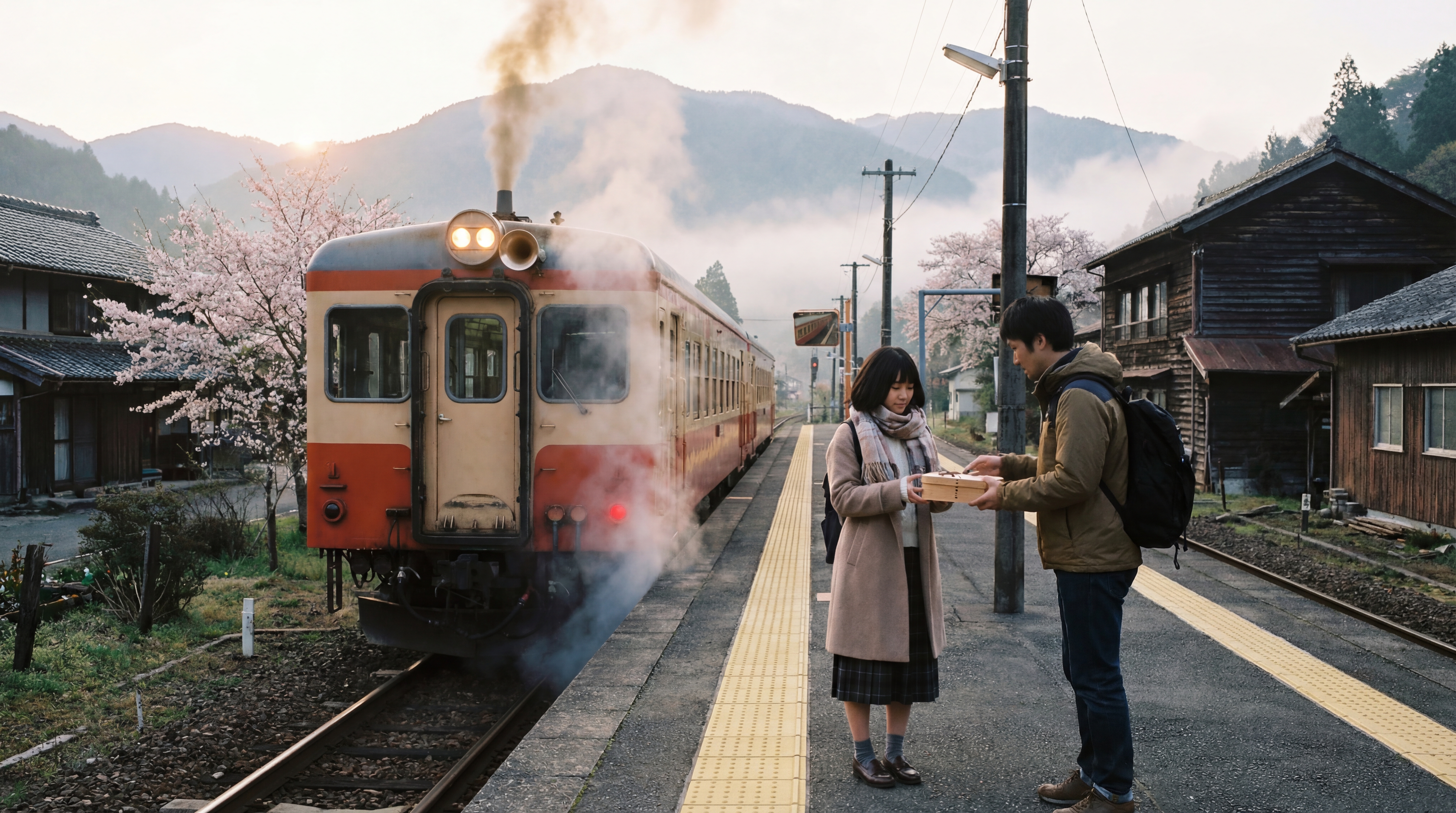
On a small station shrouded in morning mist, the boy smiled and handed over the bento: 「急いで作ったけど、大丈夫? お母さんのレシピだよ。」 The girl took it with a smile: 「うん、きっと美味しい! 到着したら LINE するね。」 |
| 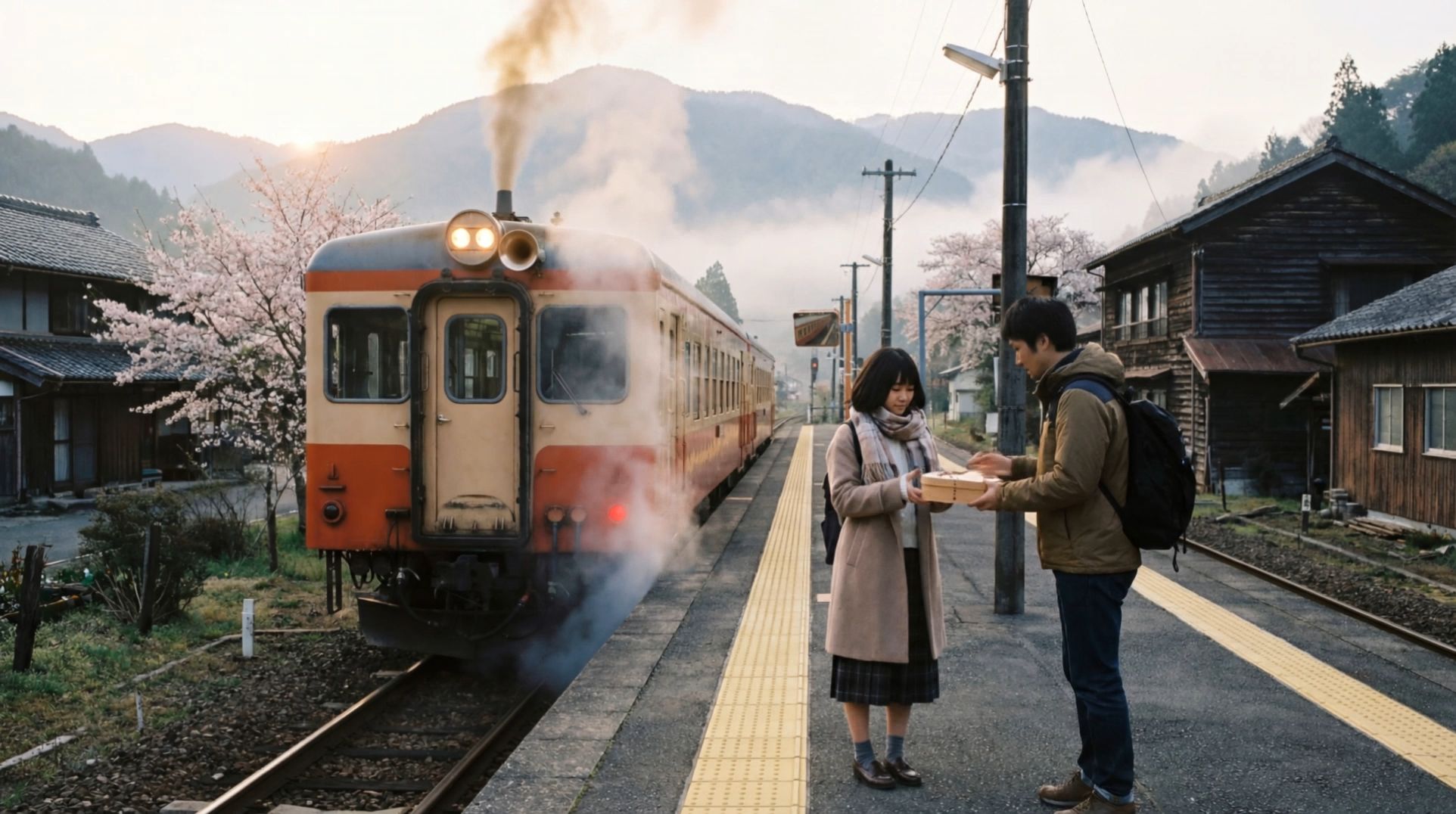 |
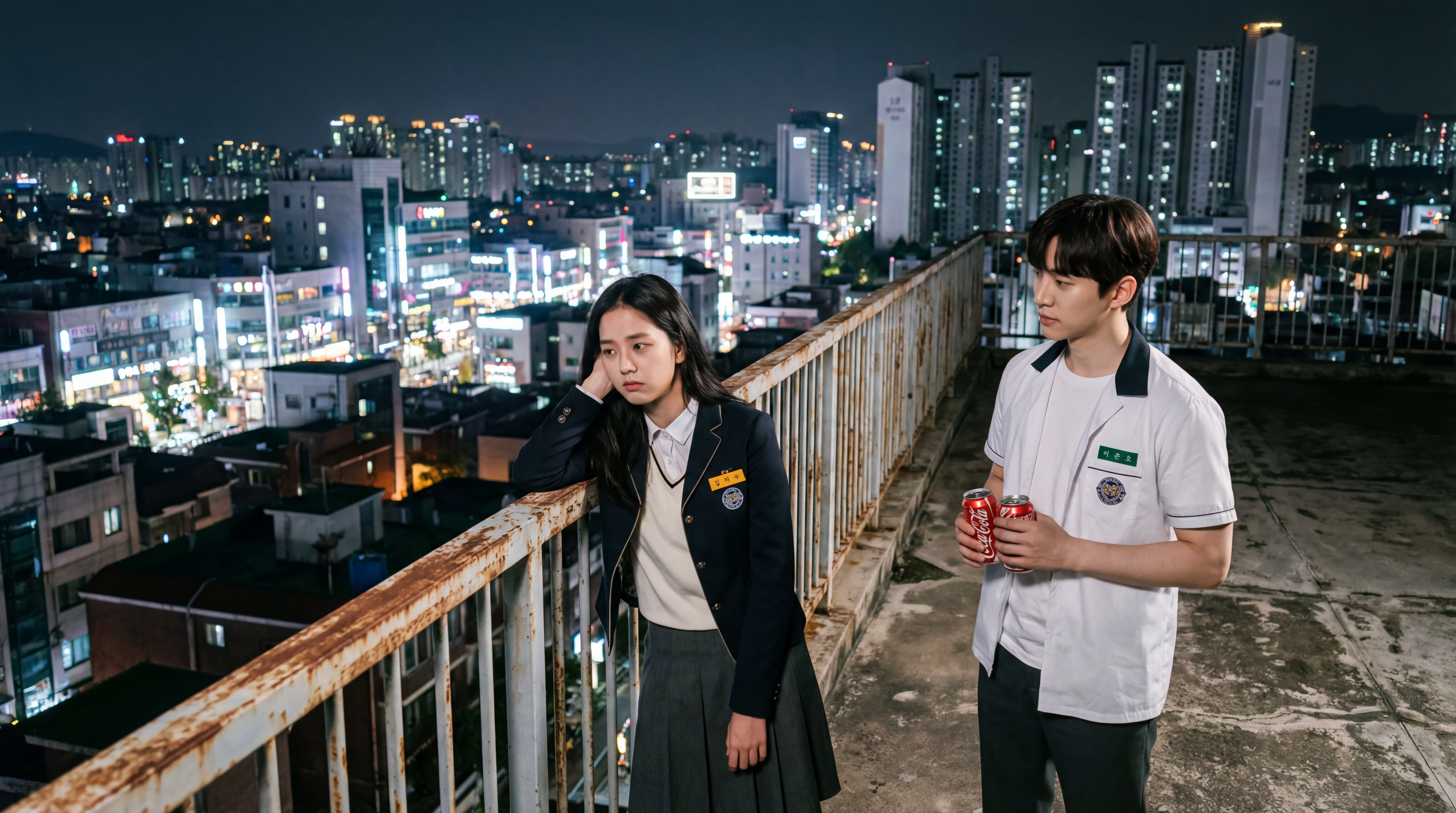
| On the rooftop of a Korean high school, distant city lights glimmer in the background with a soft wind rustling, and stars twinkle in the night sky. The girl leans against the railing, lost in thought. The boy walks over with two cans of cola, hands one to her, and she takes it and pops the tab open. Boy (casual tone, Korean): "숙제 다 했어? 왜 여기 있어?" Girl (sighing, Korean): "시험이 너무 무서워". Boy (gentle tone, Korean): “걱정 마, 넌 잘할 거야.” |
| 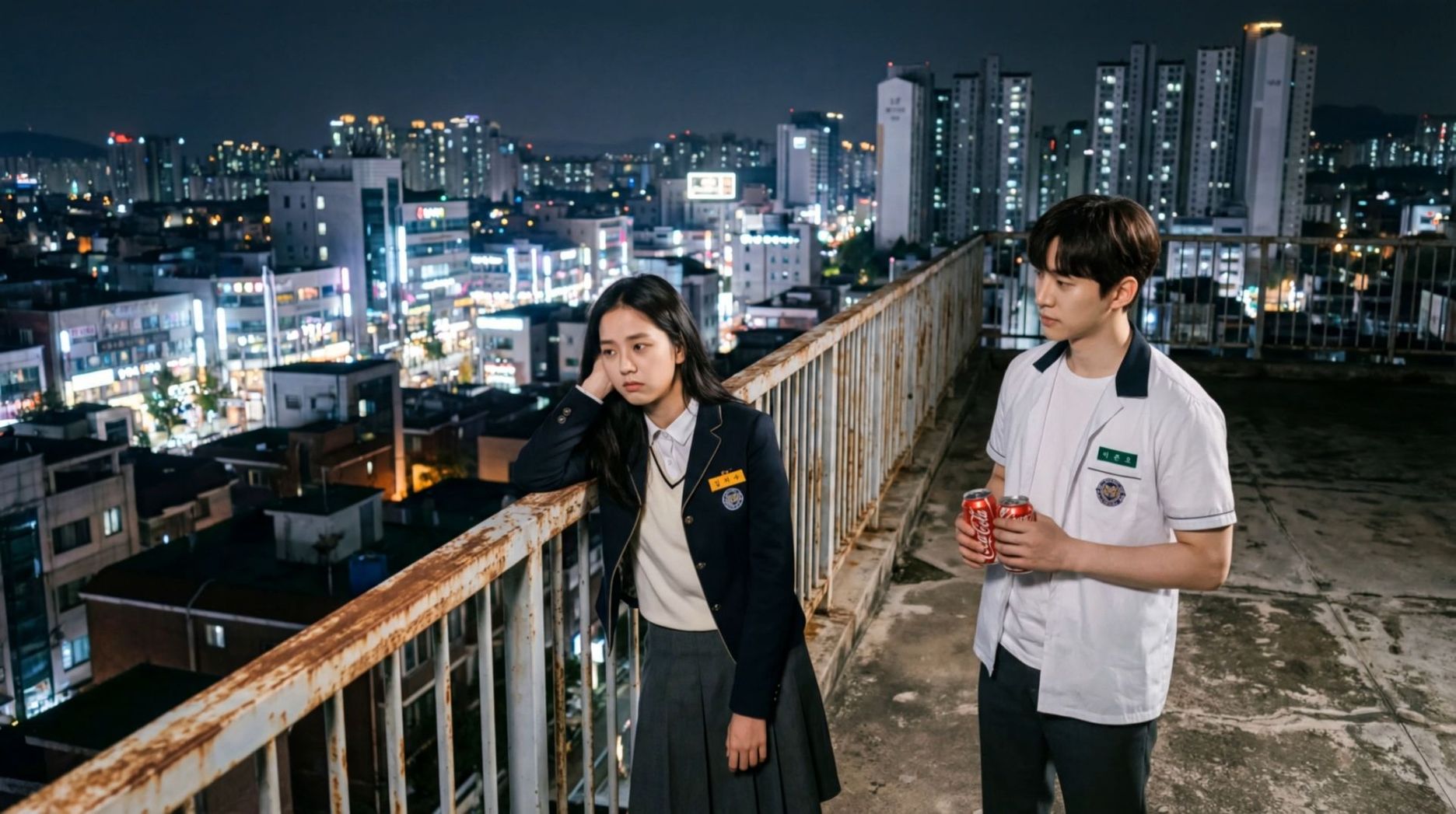 |
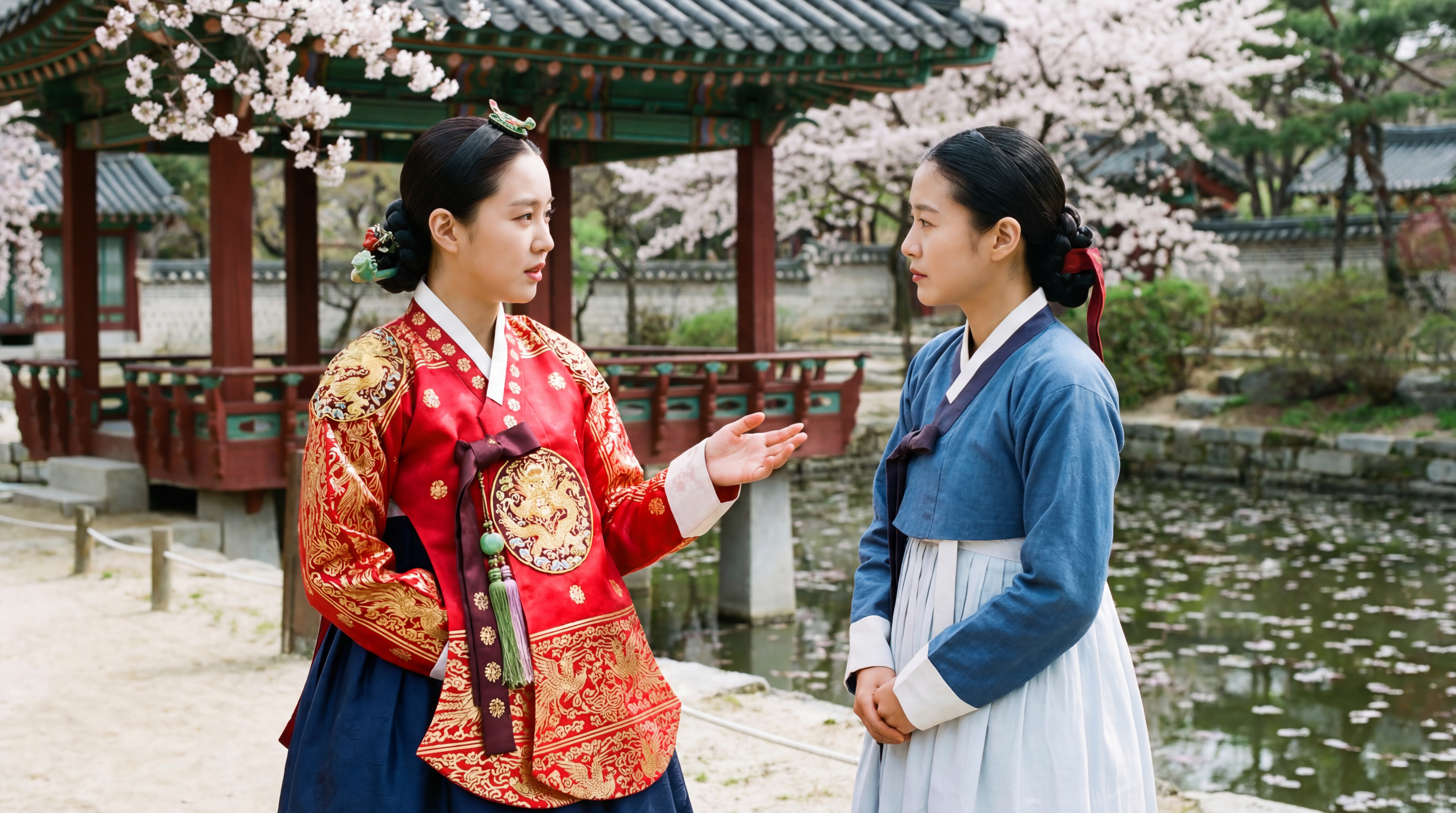
| The camera lingers on their interaction— the noble lady’s gaze soft and mild, her maid listening with her head bowed. The lady lifts a hand to smooth her sleeve gently, and speaks in a warm, gentle tone: “오늘 후원에서 피어난 꽃을 보니, 시원한 바람이 분다. 너도 함께 걸어볼까?” The maid inclines her body slightly forward, and replies with deference: “네, 아씨님. 따라갈게요. |
| 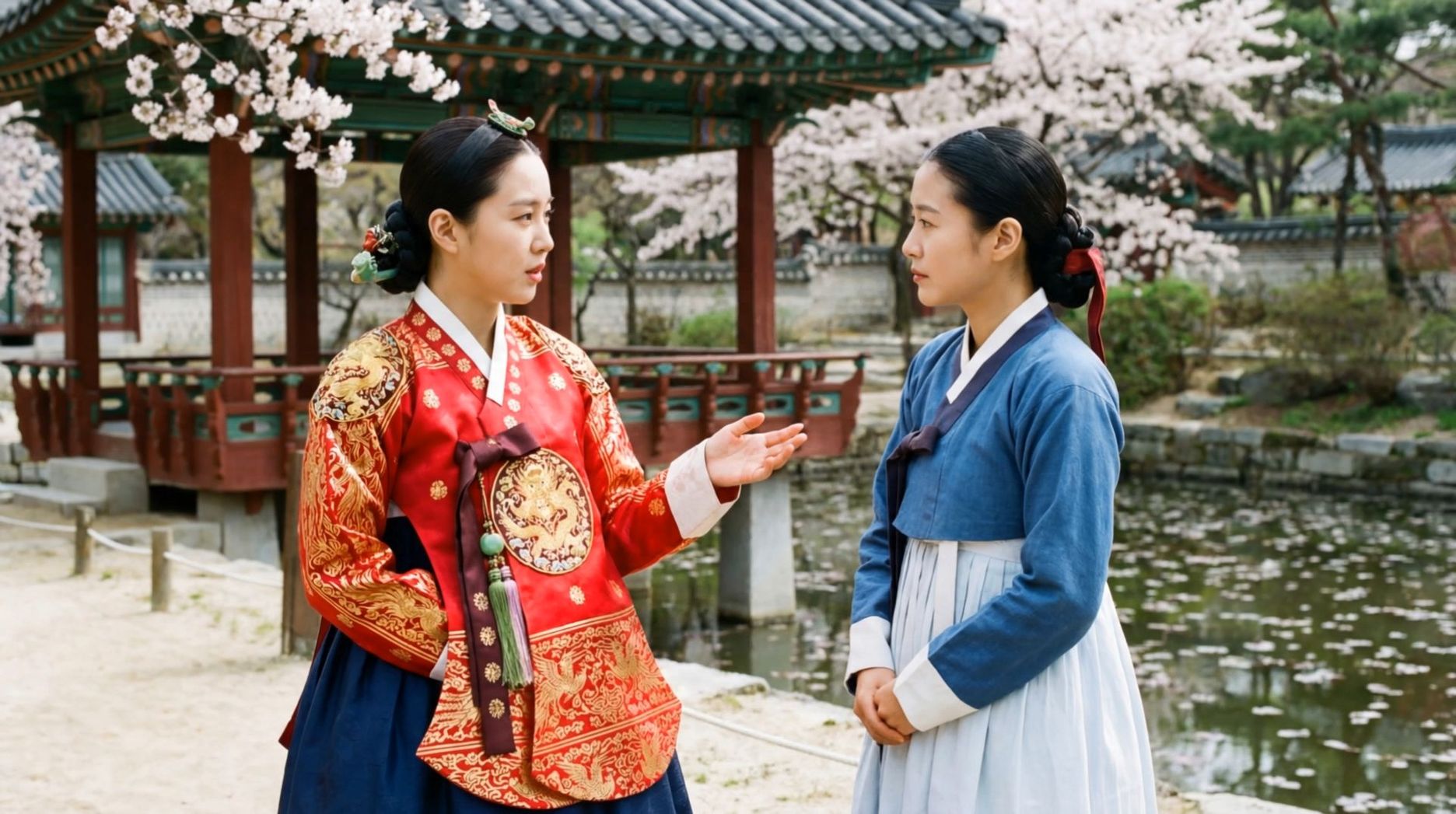 |
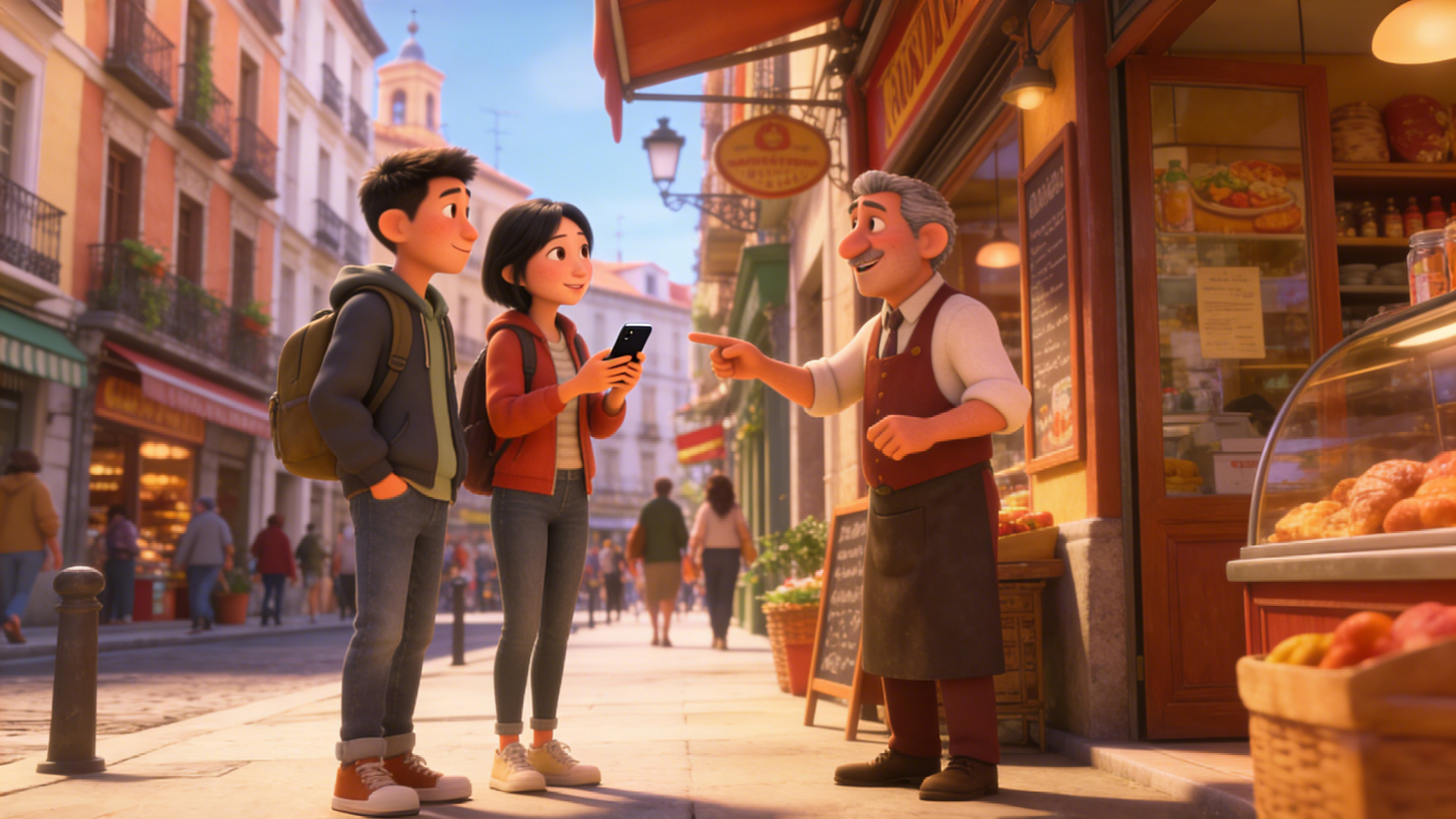
| Sunlight fills the old streets of Madrid. In front of a street-side bakery, a Chinese female tourist and a male tourist wearing a gray hoodie walk toward the shop clerk, both wearing polite smiles. Female tourist (speaking slightly slowly, with an awkward accent, in Spanish):Disculpe, ¿dónde está la plaza mayor? A white-haired Spanish shop clerk (turning slightly and pointing forward, with a light and cheerful tone, in Spanish):Por allí, a dos calles. Muy cerca. The female tourist nods to express her thanks. The male tourist also nods in agreement and says (in Spanish): Muchas gracias. The shop clerk smiles and nods in response. The two tourists then turn and walk in the indicated direction. |
| 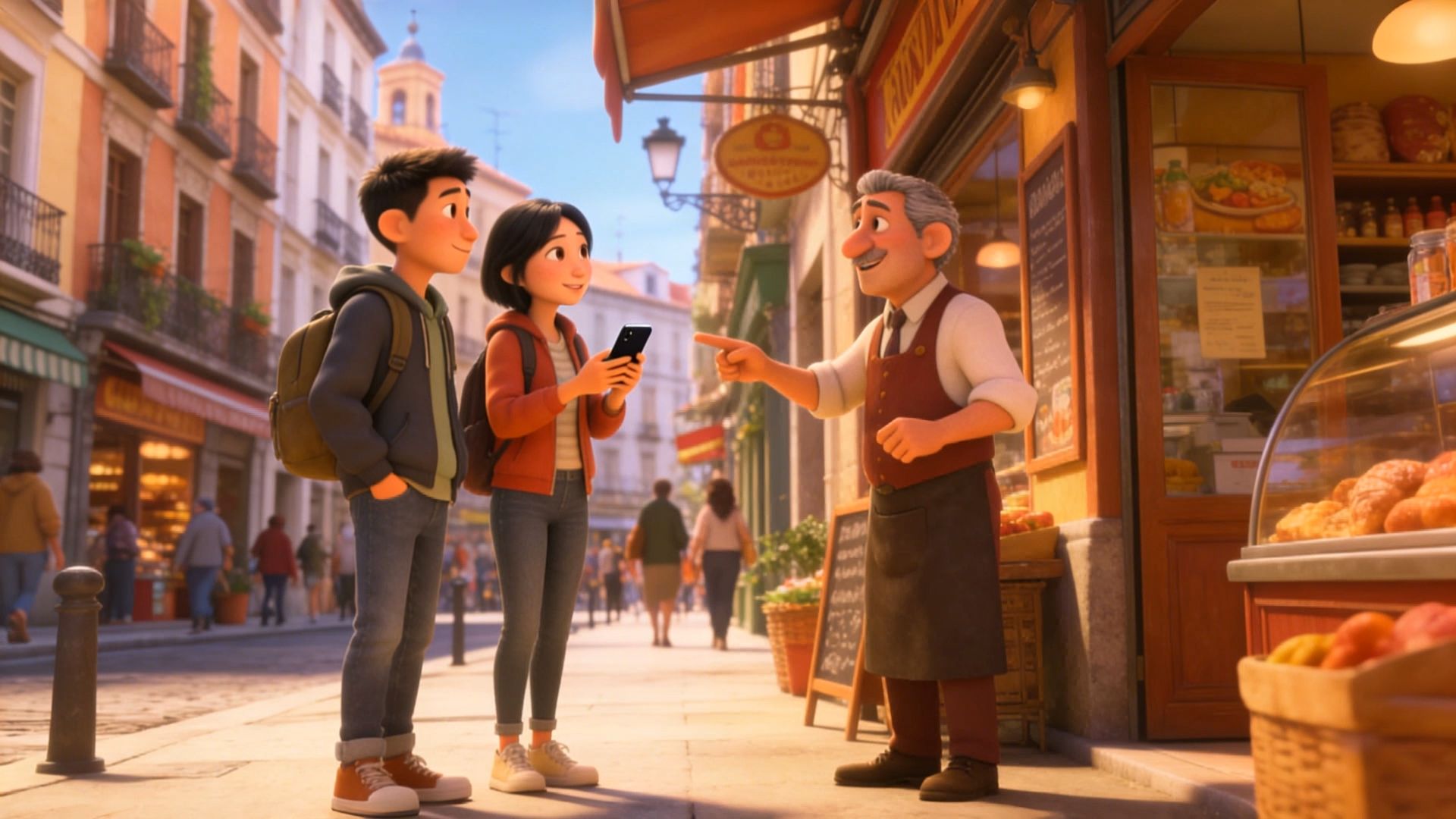 |
Dialects and Accents Generation
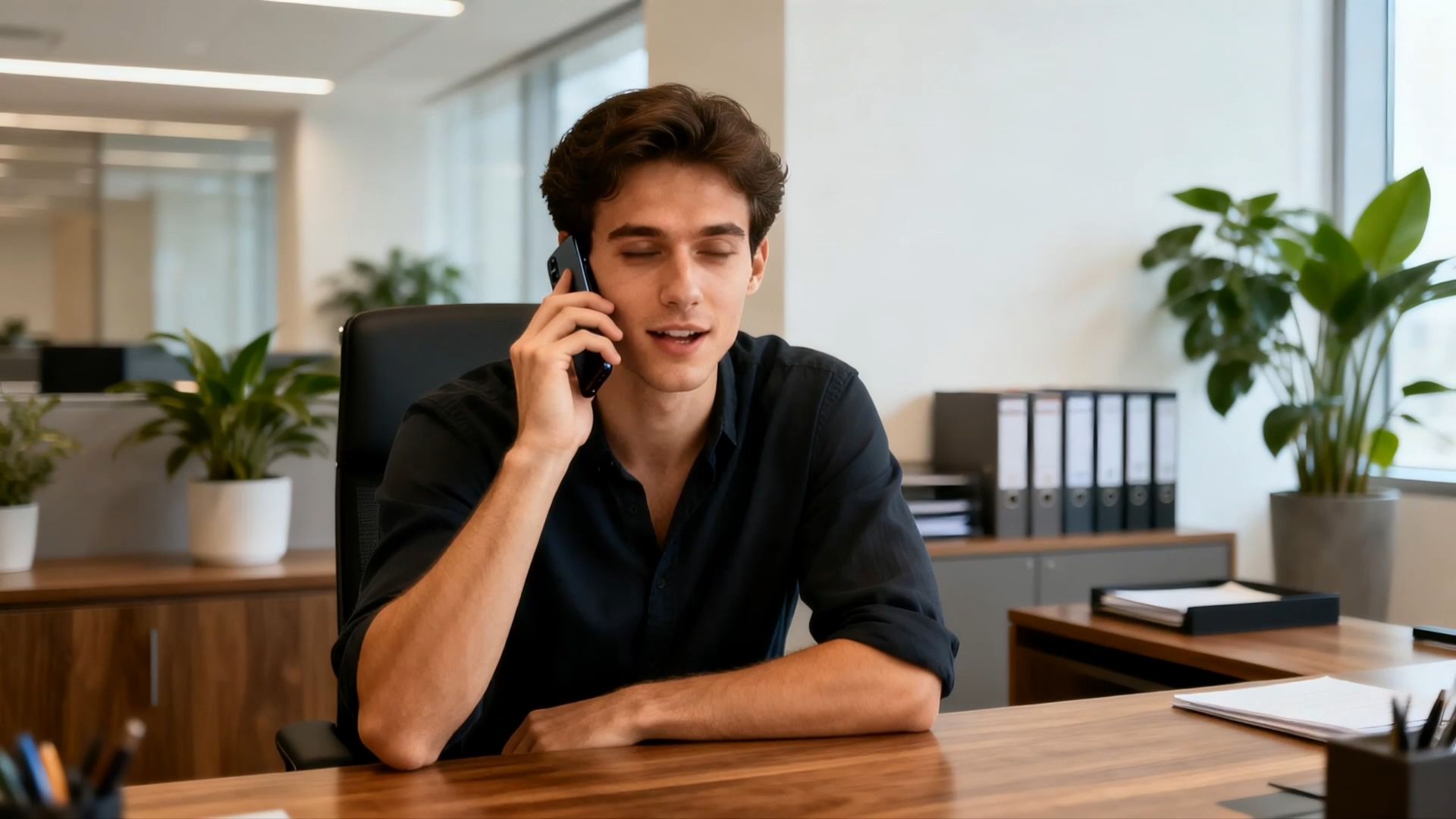
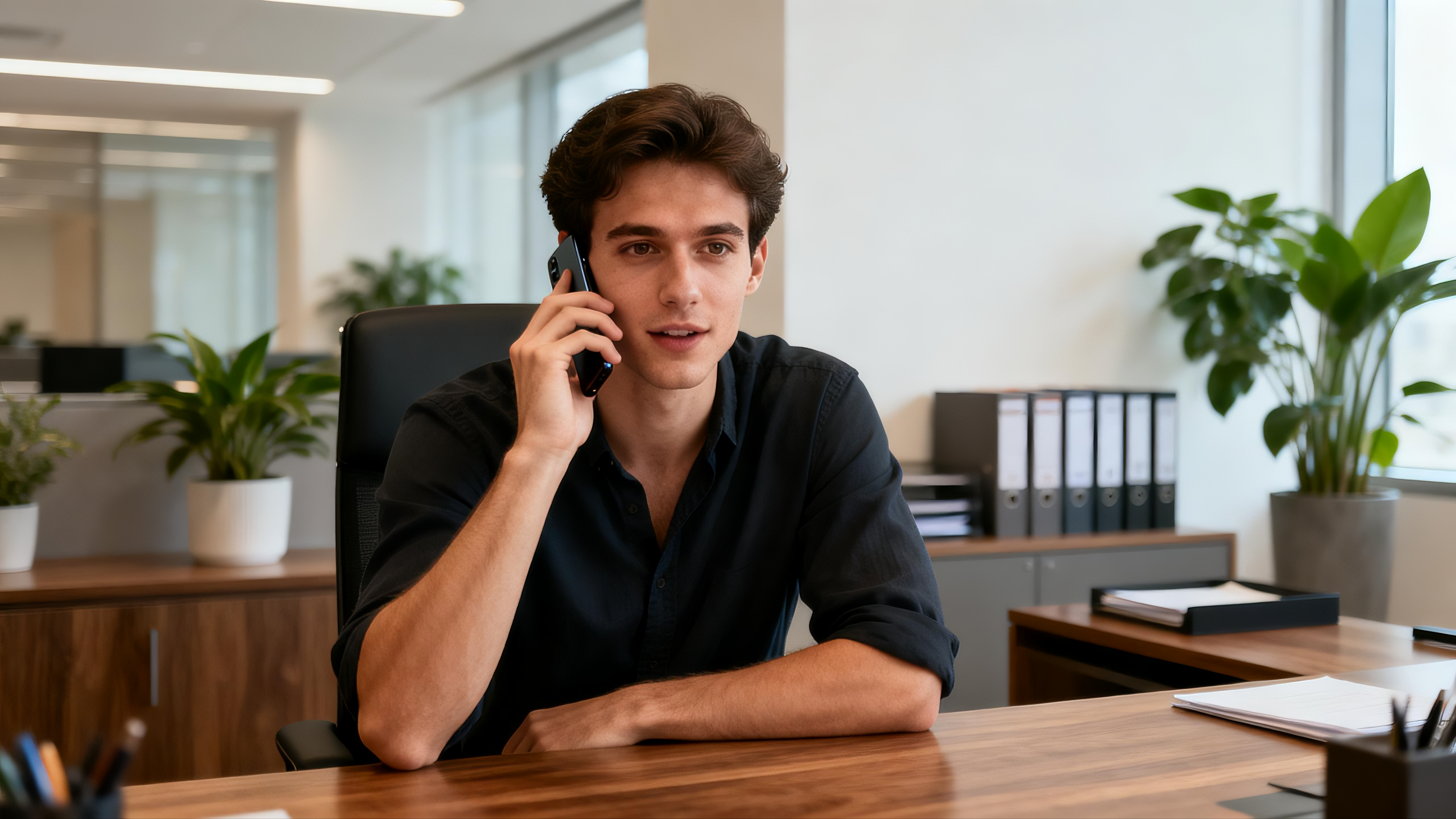
By specifying the dialect or accent of the character in the Prompt, Video 3.0 can replicate the character's tone and intonation for an authentic performance. Video 3.0 provides robust support for Chinese dialects (Northeastern, Beijing, Taiwanese, Cantonese, and Sichuanese, etc.) and English accents (American, British, Indian, etc.). Simply tag the desired dialect or accent for the speech content.
Prompt | Image | Outputs |
In a high-rise office building, the man leaned back, wearing a tired, disdainful expression, and said in Cantonese: 「其实……我真系唔系好 buy 你呢个 logic 啰。成个 proposal 根本 align 唔到我哋个 core value。你个 flow 咁乱,点样去 convince 个 client 呀?不如你返去 re-think 下个 angle,听朝早我要见到个 final version。」 |
|  |
4. Native-Level Text Capabilities
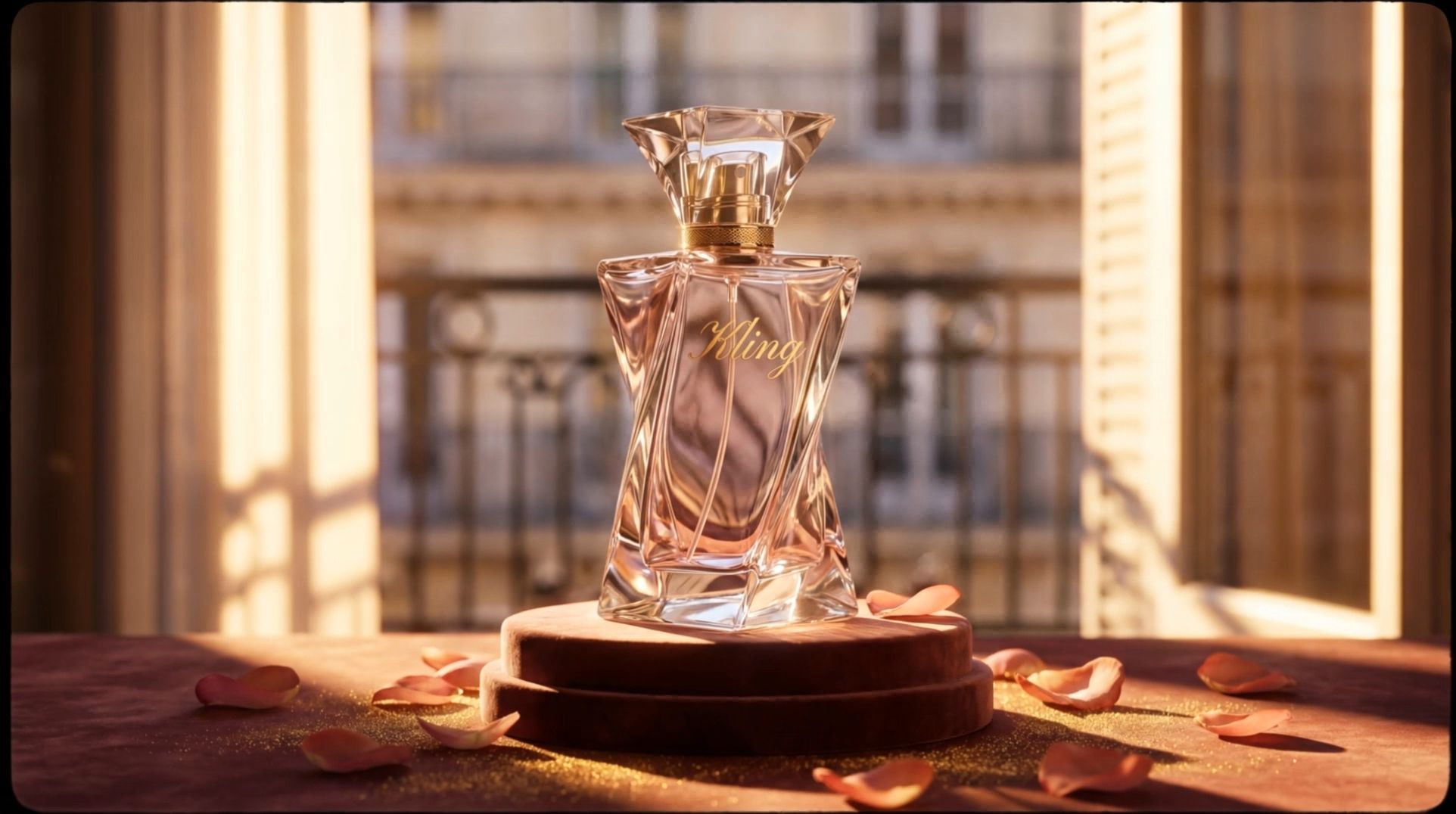
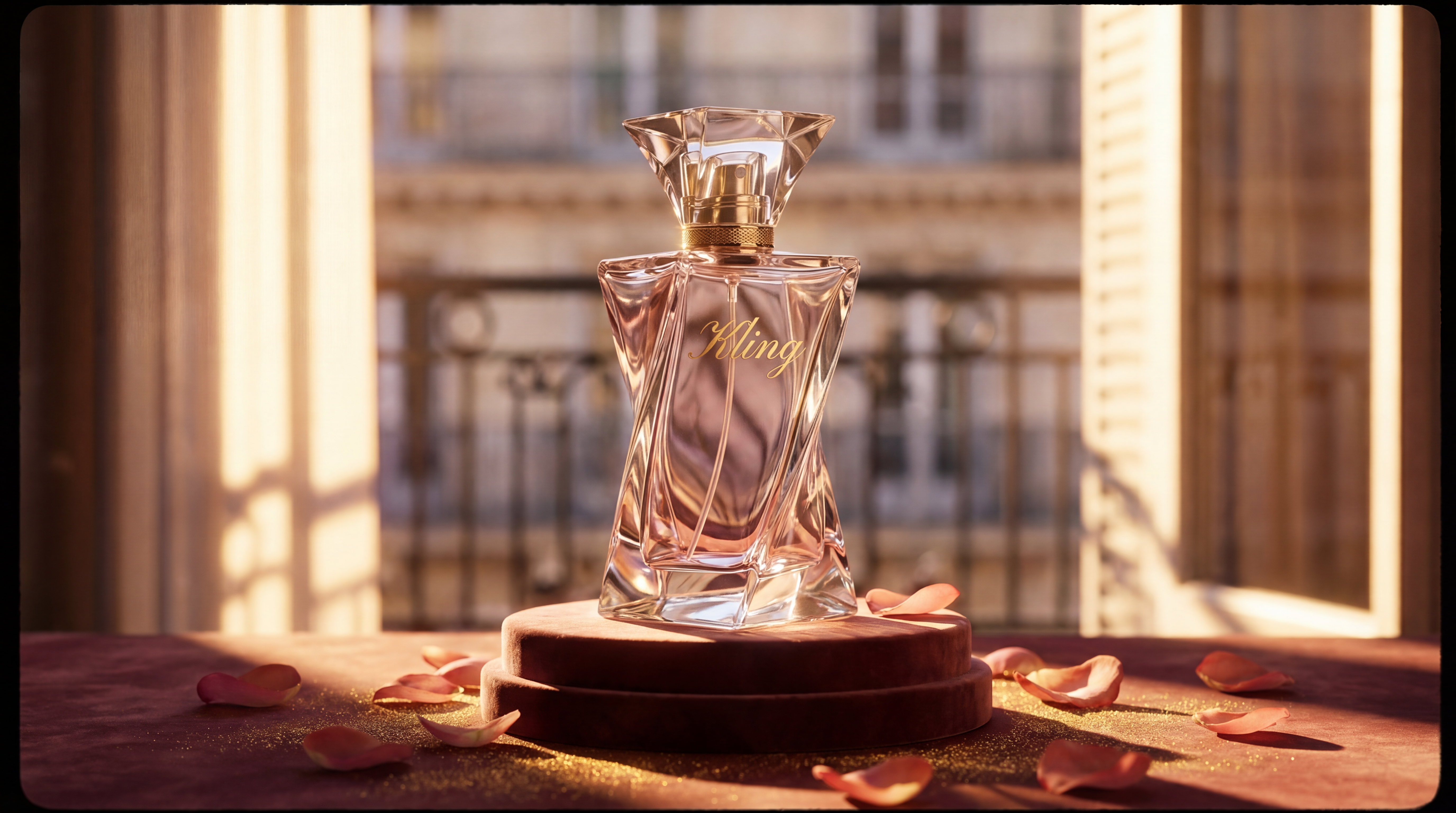
Video 3.0 introduces native-level text output, which accurately preserves textual details from original images. This is designed for diverse creative scenarios such as e-commerce advertising and creative shorts. The new model can automatically identify text content in uploaded images (such as signs, captions, or logos) and maintain text consistency, avoiding issues such as text displacement or blurring.
Prompt | Image | Output |
| By the window of a Parisian apartment, with soft French piano BGM in the background, the gilded afternoon sunlight filters through the shutters onto the perfume bottle, casting dappled light and shadow. The camera pans slowly in from the scattered rose petals, shifting focus to the faceted cut of the Kling perfume bottle. Voiceover (lazy French female voice, British accent, slow pace): Bathe in the golden hour. The camera orbits the perfume bottle in slow motion, capturing the play of light and shadow on the golden lettering and bottle body. Voiceover: Kling, a whisper of Parisian elegance. The camera pulls back and freezes on the complete scene—the Kling perfume bottle standing on a velvet pedestal, with Parisian buildings faintly visible outside the window. Voiceover: Wrap yourself in luxury with every breath. |
|  |
| The camera remains fixed on the word "KLING" emblazoned on the baseball bat as the player swings and hits the ball. |
|  |

5. 15-Second Long-Shot Generation
Video 3.0 generates up to 15 seconds of continuous video, with a flexible duration ranging from 3 to 15 seconds. The model can comfortably accommodate more complex action sequences and scene development, allowing the full story arc to unfold smoothly. Say goodbye to fragmented assembly and embrace a story with real progression and flow.
Prompt | Image | Outputs |
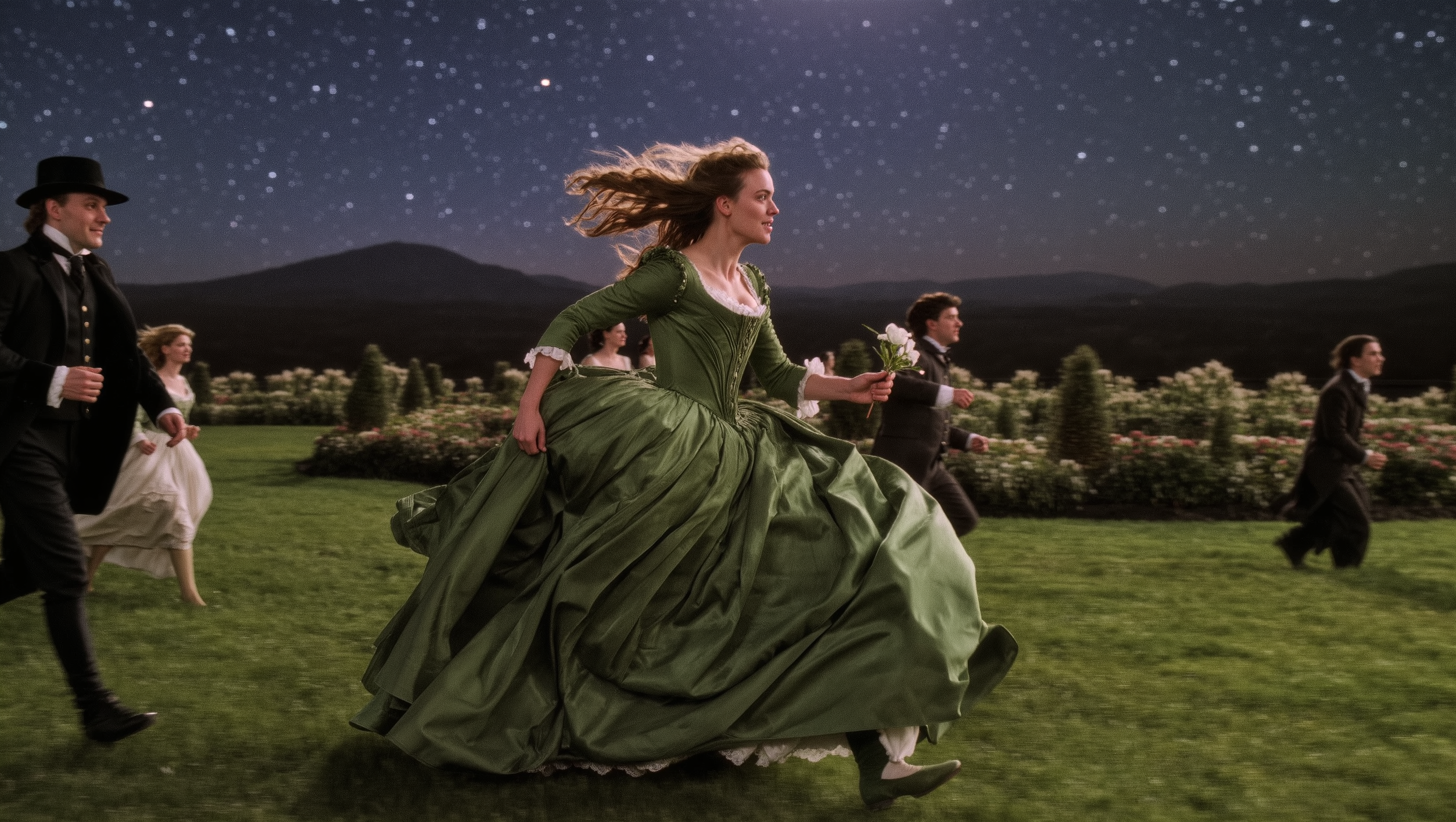
| Opening with an ultra-wide-angle medium-long shot tracking horizontally, the stabilizer moves low to the ground, with a highly contrasting romantic cinematic tone of cold blue night and silvery white starry sky, exuding a strong poetic realism and classical epic temperament. The protagonist is a young woman in a dark green long dress, running with all her might on the garden lawn illuminated by moonlight; her skirt billows in the wind forming surging dynamic curves, she clutches a small white flower in her right hand and lifts the hem of her dress with her left, breathing rapidly yet with a firm gaze. At the 4th second, the camera accelerates forward with her, and multiple men and women in old-era ball gowns break into the frame one after another from the left and right sides in the background, running alongside her—some try to approach, some turn back to shout, yet none truly touch her, implying pursuit and escape. At the 8th second, the camera gradually zooms in to a medium shot, pans to track forward in front of the protagonist and lifts slightly; she glances back briefly at a young male character behind her, their gazes meet for a split second, emotions erupt mid-run, and the woman and man join hands to run together. At the 12th second, the music and movement reach a climax; the camera moves forward close to her side face and fluttering hair, she releases the white flower and tosses it into the air, the flower drifting down in slow motion as the crowd behind brushes past it. In the final 3 seconds, the camera keeps moving forward, the woman and man break through the crowd and dash toward the starry sky at the end of the garden, their figures gradually taking over the center of the frame. The overall atmosphere is fiery, romantic and resolute, a burst of narrative about fate, choice and freedom. |
| 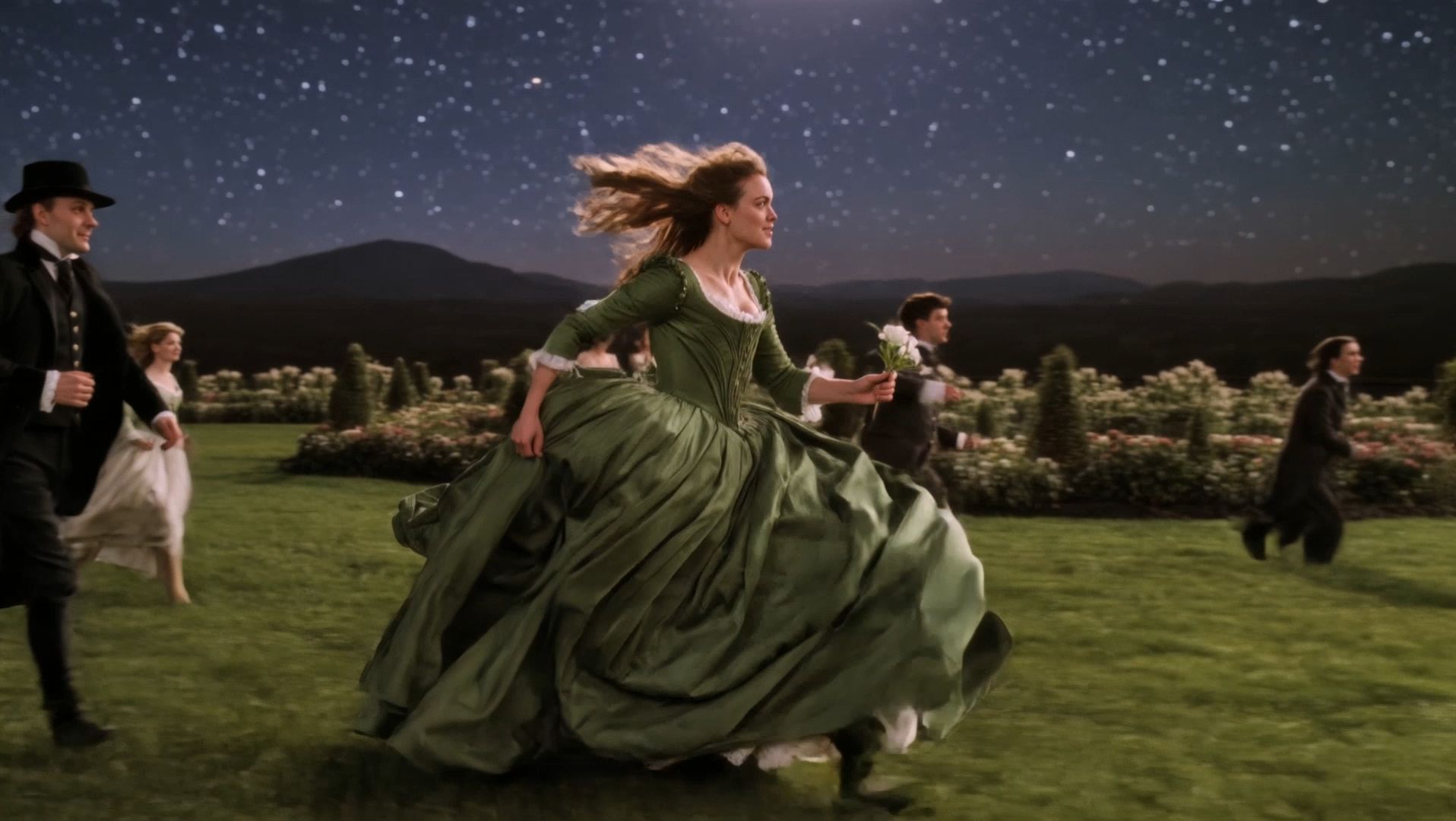 |
| This is a 15-second cinematic long take, a single unbroken shot with no edited transitions. The scene is set inside a tower of plaster statues dappled with light and shadow, surrounded by towering white plaster sculptures, evoking an air of mystery and oppression. The shot opens with the protagonist skidding to a halt at the center of the scene after a frantic run, chest heaving, expression dazed and helpless, fear glinting in their eyes. The camera orbits the protagonist in a smooth 360-degree pan. As the camera rotates, the protagonist glances anxiously around and shouts: "Alex! Alex where are you! Are you here?" A cute dinosaur cry then echoes in the background, and the camera pushes in over the protagonist’s shoulder to their back— a small to medium-sized, adorable baby dinosaur steps out from behind a plaster pillar, letting out a sweet chirp. Startled by the sound, the protagonist whips around; catching sight of the dinosaur, they burst into tears instantly and rush forward without hesitation to clasp it tightly in their arms. The dinosaur nestles obediently against them. Sobbing, the protagonist strokes the dinosaur gently and trembles: "I found you! Thank God, I’m so scared!" The overall lighting and shadow boast a cinematic texture, with the emotion shifting from despair to an overwhelmingly touching reunion. | 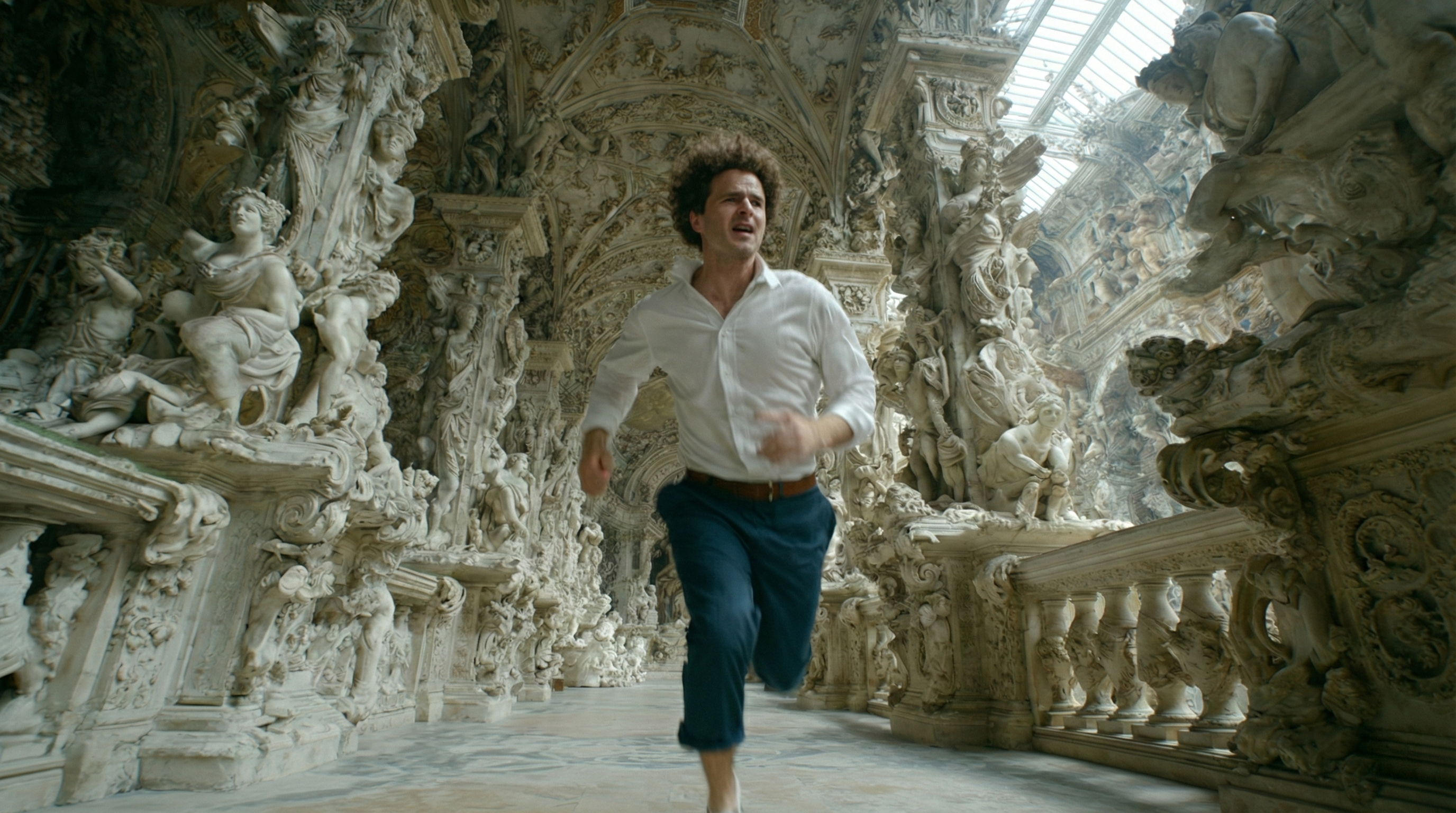 | 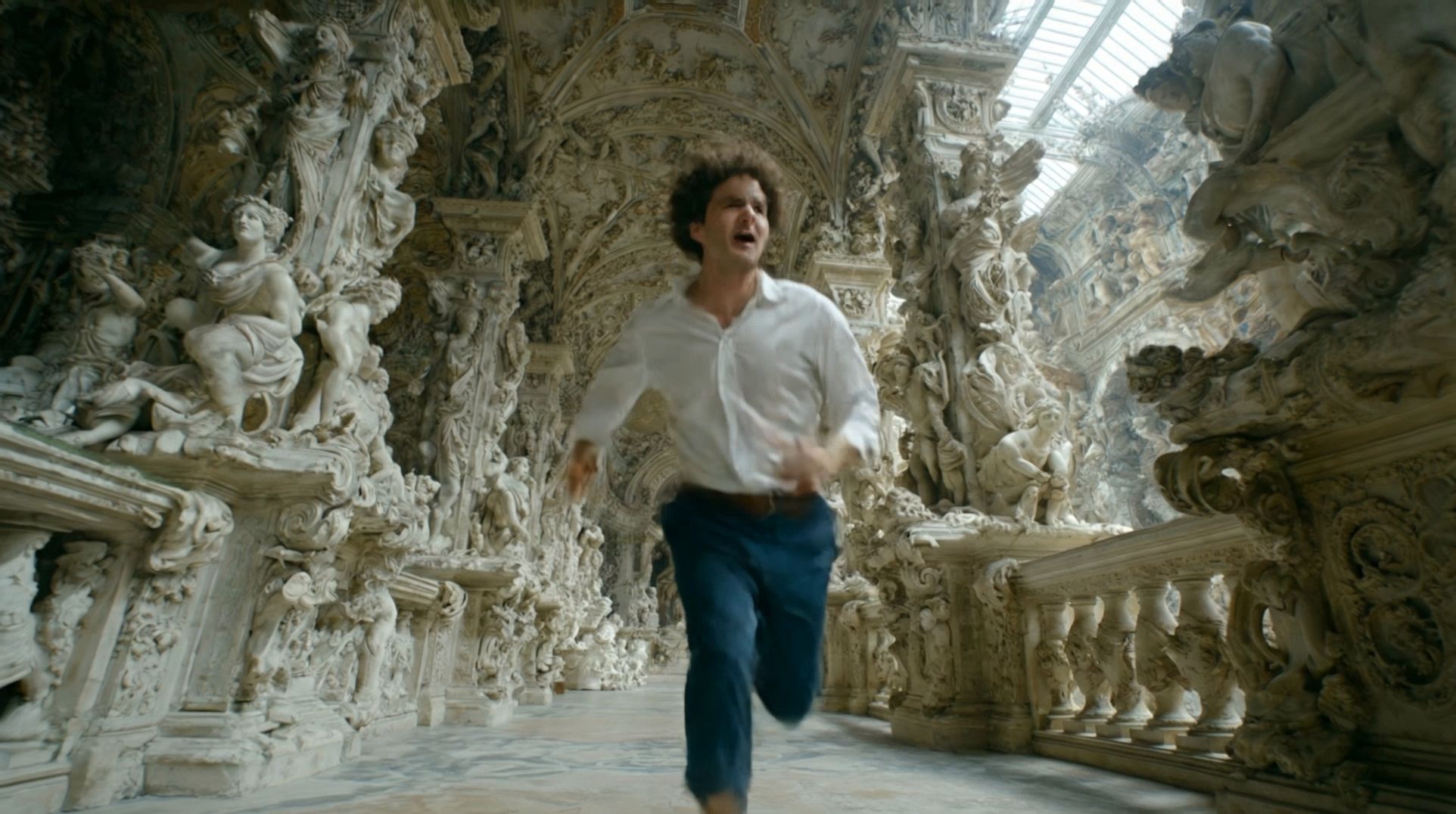 |
Kling VIDEO 3.0 Model Pricing
VIDEO 3.0 offers two modes: "Native Audio" and "No Native Audio," each supporting 1080p and 720p resolutions. The "Native Audio" mode also allows enabling the voice tone control feature. The video service fees are charged per second, with different rates for each mode.
1080p | 720p | |
3.0 Video-Native Audio | 12 Credits/s | 9 Credits/s |
3.0 Video-No Native Audio | 8 Credits/s | 6 Credits/s |
3.0 Video-Voice Control | 2 Credits/s | 2 Credits/s |
- Example 1: Generating a 5-second 3.0 Native Audio 1080p video costs 60 Credits.
- Example 2: Generating a 5-second 3.0 No Native Audio 720p video costs 30 Credits.
- Example 3: Generating a 5-second 3.0 Native Audio + Voice Tone Control 1080p video costs 70 Credits.