Why look for Canva alternatives? Creators may want more control over original images, character consistency, or how action unfolds on screen. Canva offers capable design and AI tools, yet some projects benefit from a more specialized workflow. Kling AI is one option to explore.
What Is Canva and What Does It Offer?
Canva is an online design and visual communication platform for making social posts, presentations, marketing graphics, and videos. Its strengths include editable templates, drag-and-drop design, brand tools, and team collaboration. Canva also offers AI-powered image and video creation, editing, and prompt-based design, making it useful for both finished layouts and new visual ideas.
Why Do People Look for Canva Alternatives?
Looking for alternatives to Canva does not mean Canva is inadequate. A marketer may want a product video guided by accurate references; a storyteller may need tighter control of action, camera moves, and narrative beats; an illustrator may need the same character across several images. Others compare apps like Canva and websites similar to Canva for pricing, editing, and export options. The goal is to match the tool to the task—and sometimes to use more than one tool together.
What Should You Look for in a Canva Alternative?
When comparing websites like Canva and other Canva competitors, start with the output you need:
- AI video generation: Create scenes from text prompts or supported reference materials with an AI video generator.
- Motion control: Guide action, camera framing, and shot pacing.
- Reference guidance: Combine images, videos, or subject references to guide style.
- Still images: Create original artwork, refine details, and generate related images.
- Workflow: Check how to refine results, arrange clips, and export files.
- Credits and cost: Compare free access, model options, and generation costs.
Among sites like Canva, Kling AI is worth exploring for original visuals: Kling 4.0 supports reference-guided video and storytelling, while IMAGE 3.0 Omni develops detailed images and connected visual series.
Why Choose Kling AI as a Canva Alternative?
Kling AI offers focused image and video workflows for creators who want more control over generated visuals, reference consistency, motion, and scene progression. Canva remains useful for assembling finished designs with templates, brand tools, and collaboration features; Kling AI is worth exploring when a project calls for more directed image or video creation.
IMAGE 3.0 Omni for Detailed Still Images and Visual Series
If you use Canva mainly for visual content, IMAGE 3.0 Omni gives you a more generation-focused way to create original assets from prompts and references. You can build product visuals, campaign artwork, character concepts, or connected image sets without starting each piece from scratch.
Reference-Guided Image Creation
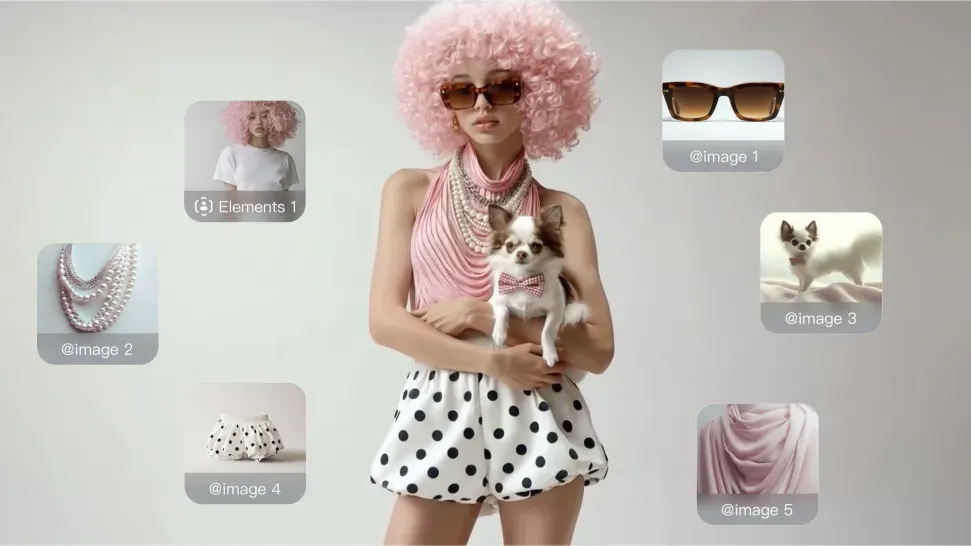
IMAGE 3.0 Omni supports up to 10 image references in a single task. You can use different references to guide the subject, product appearance, color palette, composition, or overall style. For example, you might use one image to define a product, another to set the environment, and additional references to guide lighting or visual direction. The AI image generator can then help you combine those cues into new visuals while keeping the key elements recognizable.
If you are exploring more stylized concepts or illustration-led ideas, the AI art generator gives you another way to test different visual directions from prompts and references.
Create Connected Visuals with Image Series
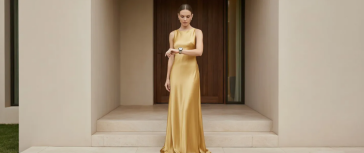
When you need more than one image, Image Series Mode helps you develop related visuals instead of separate, disconnected outputs. You can create storyboard frames, recurring character images, campaign concepts, or social assets that follow the same overall visual direction. For example, you could turn one product concept into a hero image, a close-up detail shot, a lifestyle scene, and a storyboard frame. You can change the composition, action, or camera angle from one image to the next while keeping the series visually connected.
This can be useful if you normally use Canva to build several assets around the same campaign but want more control over how the original visuals are generated.
Reference | |||
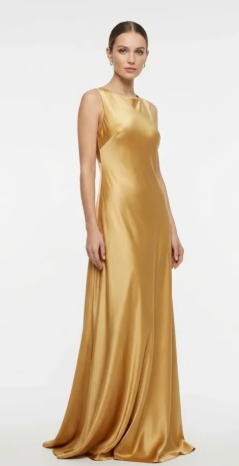 |  |  | |
| Prompt: Auto TVC: Consistent car/cast. S1: Driving. S2: Man driving POV. S3: Woman at villa checking watch. S4: Couple face-off by car. S5: Couple cruising. S6: Cliffside ocean view. TVC storyboard. | |||
| Image Series | Shot 1 | Shot 2 | Shot 3 |
 |  |  | |
Shot 4 | Shot 5 | Shot 6 | |
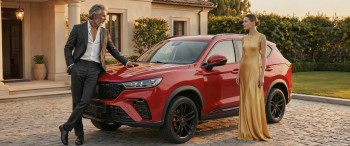 | 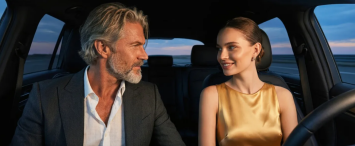 | 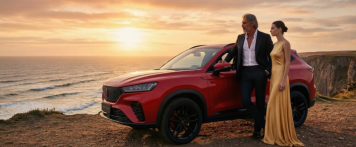 | |
Build New Variations from Existing Images
You can also start from an image you already have. With image-to-image workflows, you can use prompts and references to explore a new setting, composition, lighting treatment, or visual style while carrying important elements from the original image into the new result.
This is useful when you already have an established campaign look but need more visual variations for different placements or formats.
Work with Native 2K and 4K Output
IMAGE 3.0 Omni supports native 2K and 4K output when you need more detail for product visuals, promotional artwork, posters, or storyboards.
If your project later moves from still images into motion, you can continue with Kling's AI video generator and build on the same creative direction with Kling 4.0.
Kling 4.0 for AI Video Generation and Editing
Kling 4.0 works as both an AI video generator and an AI video editor. You can create videos from text prompts, use Omni Reference to guide video generation with multimodal reference materials, or make targeted changes to existing footage.
Omni Reference for Creative Control and Consistency
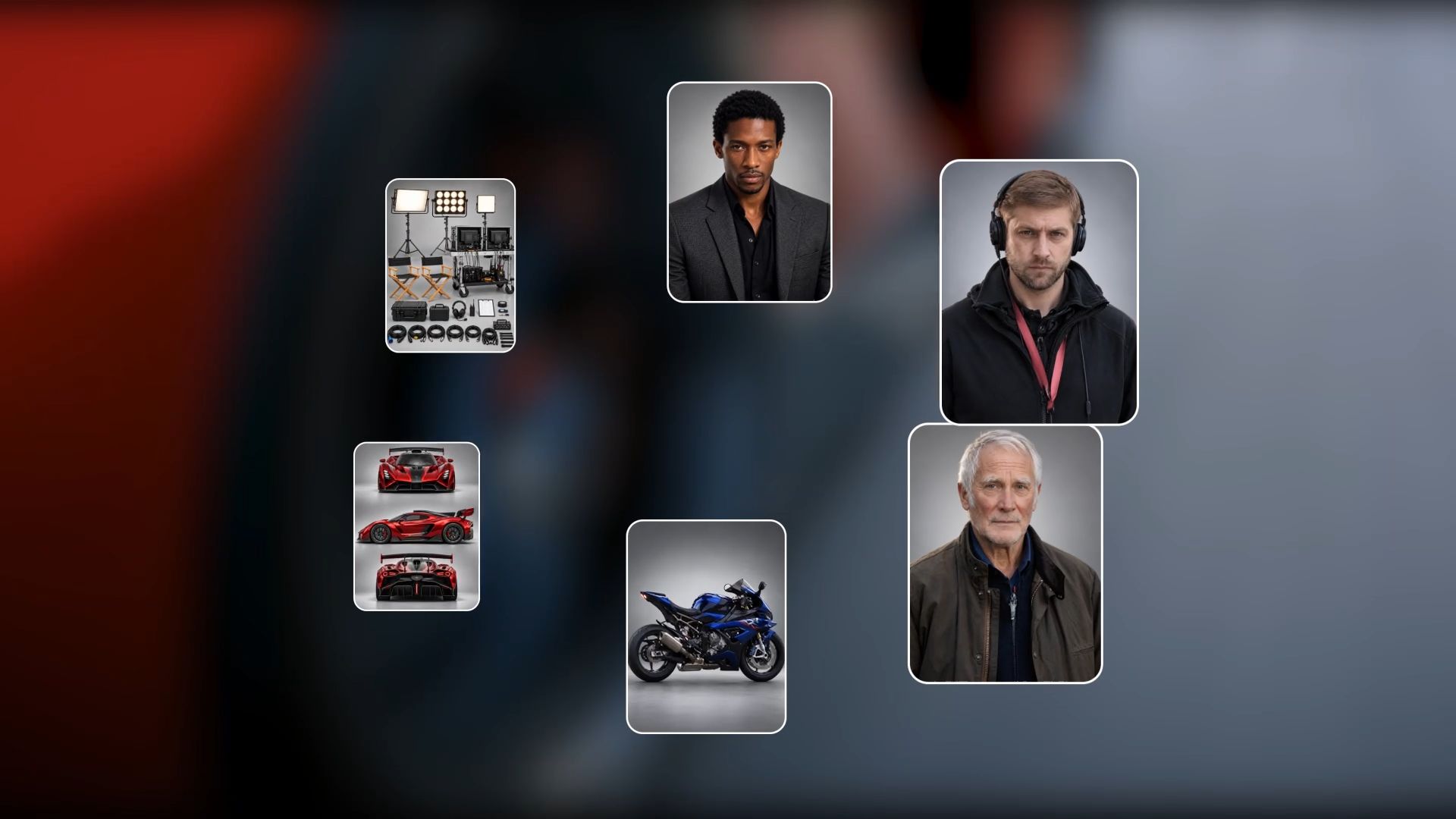
Kling 4.0's upgraded Omni Reference supports up to 15 combined reference assets in a single generation, including images, videos, subject references, and voice references. You can assign a clear role to each asset: use a product image to define the main subject, another image to establish the setting, and a reference video to guide actions or camera movements. This helps maintain recognizable characters and products as scenes and camera angles change, while giving creators greater control over the final result. Omni Reference also enables Creative Recreation. You can use an existing video to guide action choreography, camera movements, and pacing while replacing the original characters or products with your own. This makes it easier to explore trending social media formats and marketing concepts without designing every shot from scratch.

Stable Dynamic Motion and Director-Style Storytelling
Kling 4.0 delivers greater stability in large-scale motion and complex camera movements. Whether a scene involves high-speed action, sustained movement, tracking shots, or orbiting camera moves, it helps maintain smoother motion and stronger visual continuity. Kling 4.0 supports video generation from 3 to 30 seconds in a single run and allows up to 10 keyframe images to define important visual moments and guide scene progression. Combined with enhanced prompt understanding and director-style creative guidance, these capabilities help creators refine their ideas, plan shots more effectively, and produce cinematic AI videos with clearer storytelling and more coherent visual progression.

Precise Video Editing Without Starting from Scratch
Beyond generating new videos, Kling 4.0 supports Precise Video Editing. You can add, remove, or replace subjects and scene elements in existing footage, change backgrounds and visual styles, and adjust actions, camera angles, or camera movements. These targeted edits let creators build on existing footage instead of regenerating entire scenes from scratch, helping reduce repetitive work and production effort.
What Can You Create with Kling AI?
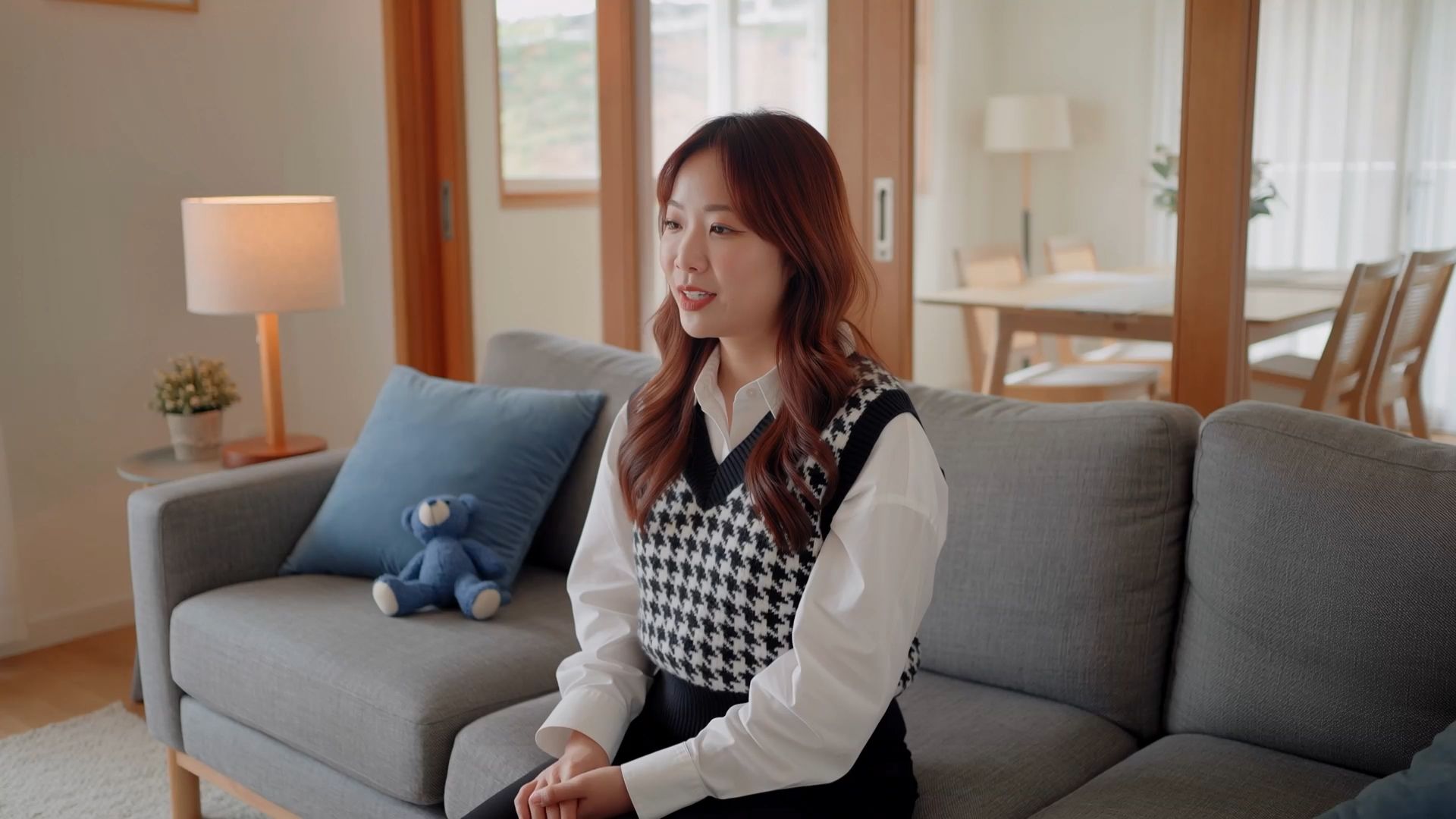
Kling AI supports different creative workflows depending on the content you need to produce. Its tools allow creators to produce new media from prompts and reference material, from short-form videos to product showcases and visual concepts connected to each other.
1. Social Media Creators
Make short videos for Instagram Reels, TikTok, and other social platforms when a static post just won’t do. With controls for subject movement and camera direction, Kling 4.0 supports prompt- and reference-guided video generation to create engaging visual sequences.
2. Product Marketers
Develop product showcase videos that highlight a product in a particular setting or through a sequence of camera movements. Reference images can help establish the product's appearance, while prompts describe the scene, lighting, and intended motion. Review the generated result carefully when exact product details matter.
3. Storytellers and Video Creators
Create cinematic scenes, character-led moments and short narrative sequences. Kling 4.0 supports dynamic motion and camera control, while Continuous Timeline Creation lets you arrange, replace, and trim generated clips within the supported workflow.
4. Designers and Visual Concept Creators
Explore campaign artwork, character concepts, and storyboard images with IMAGE 3.0 Omni. Its connected image-series workflow is useful when a project needs multiple related visuals with a consistent creative direction. You can also use text prompts and supported image references to explore different compositions, lighting, and visual styles.
How to Create a Video with Kling 4.0
IMAGE 3.0 Omni supports original still-image creation and connected visual concepts, while Kling 4.0 lets you create dynamic video scenes with text prompts and reference materials. Because video creation involves coordinating subjects, actions, camera movements, and scene progression, the following walkthrough focuses on Kling 4.0's video workflow. You'll learn how to guide a scene with Omni Reference, then generate, review, and refine the result.
Step 1: Select Kling 4.0 and Add References
Open Video Generation and select Kling 4.0. In Omni Reference, you can add supported images, videos, and subject references, then assign each one a specific role. You can also start with a text prompt if you do not have reference materials. A single task accepts up to 15 combined reference assets, subject to limits for each type.
Step 2: Write a Prompt That Matches Your References
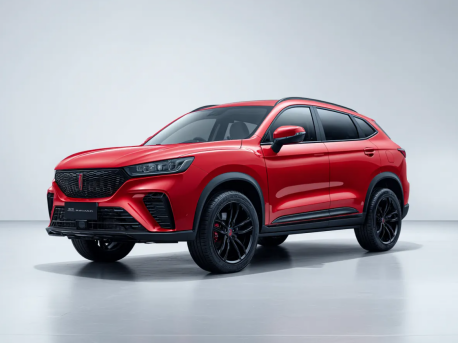
Describe the subject, setting, actions, lighting, and camera movement. If you uploaded references, explain their roles (for example, @Image1 for product appearance and @Video1 for shot pacing) and describe how the scene should progress.
Prompt: Use the sports car in the first reference image as the main subject and the downtown street at dusk in the second image as the setting. Follow the camera movement and pacing of the reference video as the car accelerates along the street and rounds a corner. Start with a side-tracking shot, then shift to a front three-quarter view as the car turns. Keep the car's design consistent and match the lighting to the dusk setting throughout the scene. |
Step 3: Generate, Review, and Refine
Generate the video and review motion, framing, lighting, background, and key product details. Refine the prompt or references if needed. To assemble clips, right-click a generated result and select Add to Timeline, then open Timeline at the top right. Trim, insert, or replace clips before previewing and downloading the final sequence.
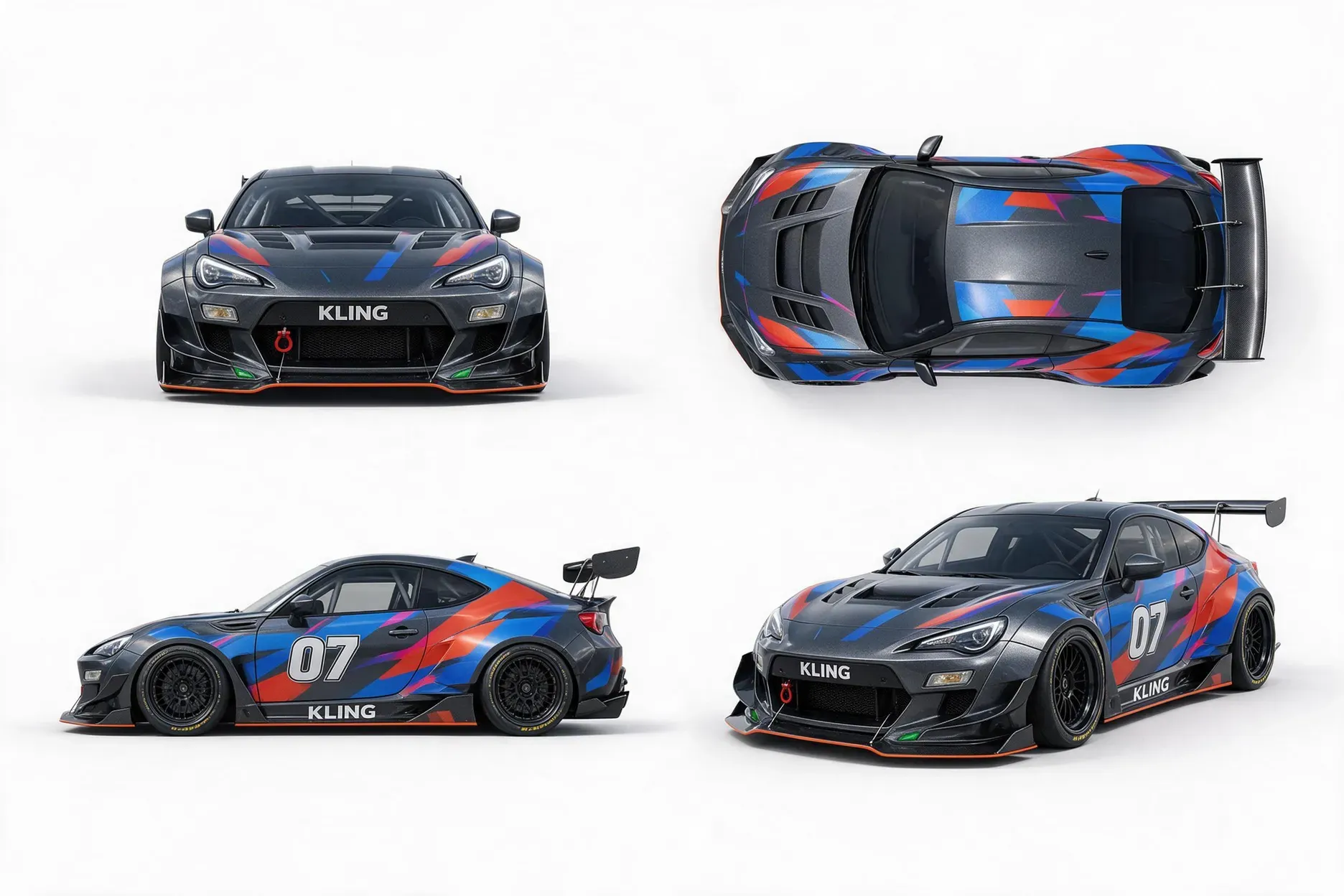
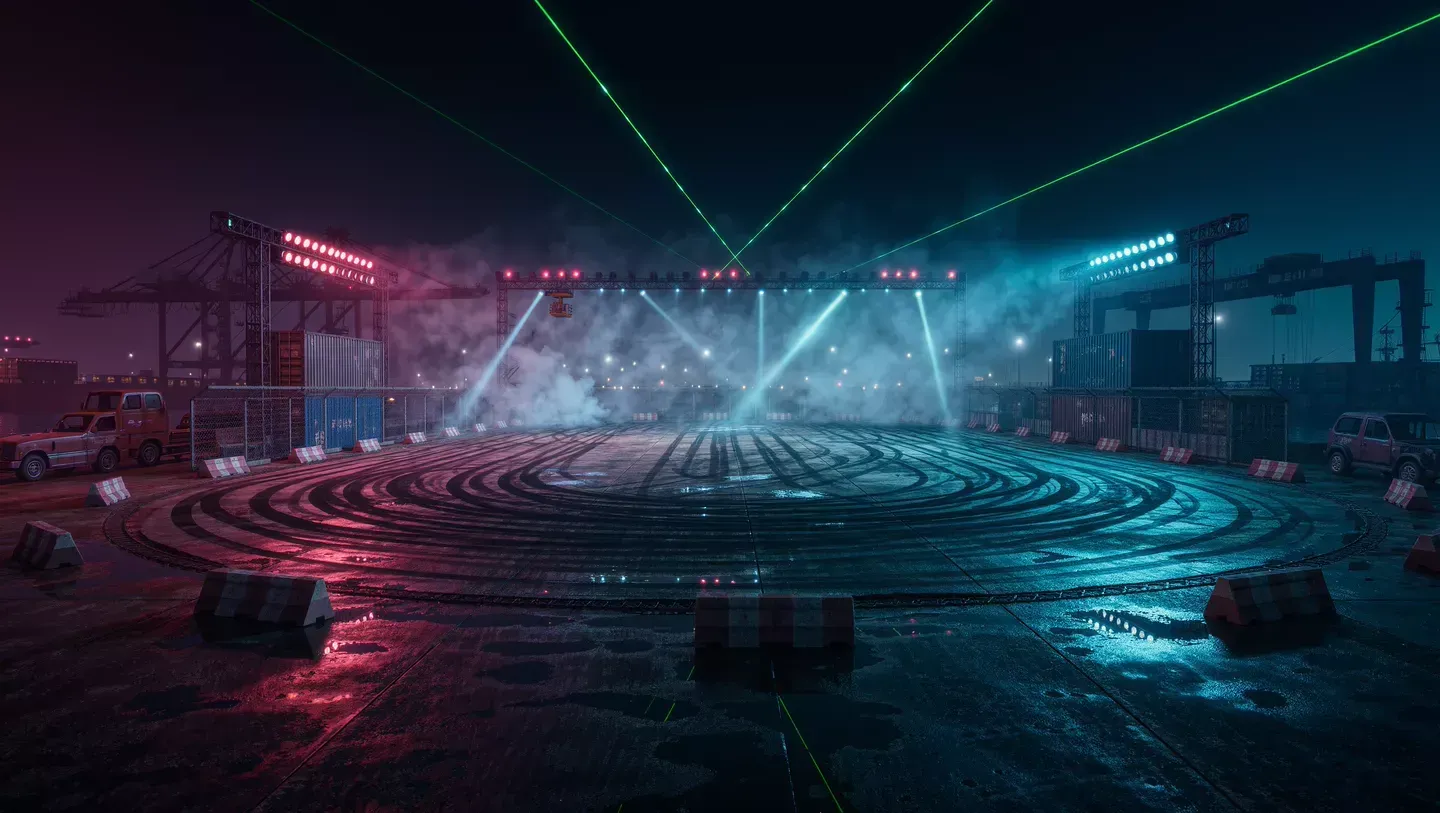
Reference Image 1 | Reference Image 2 | Reference Video 1 |
|
| 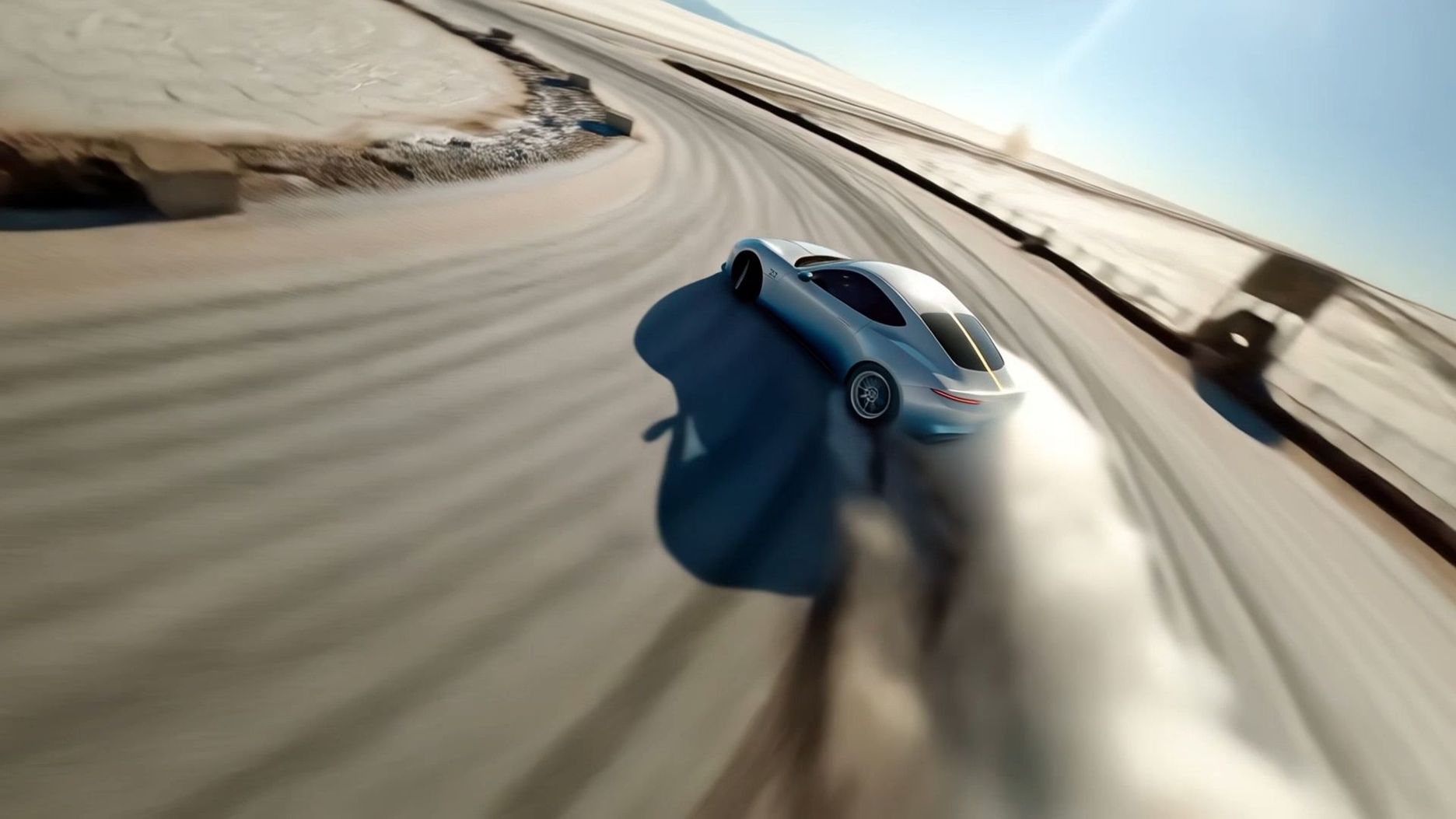 |
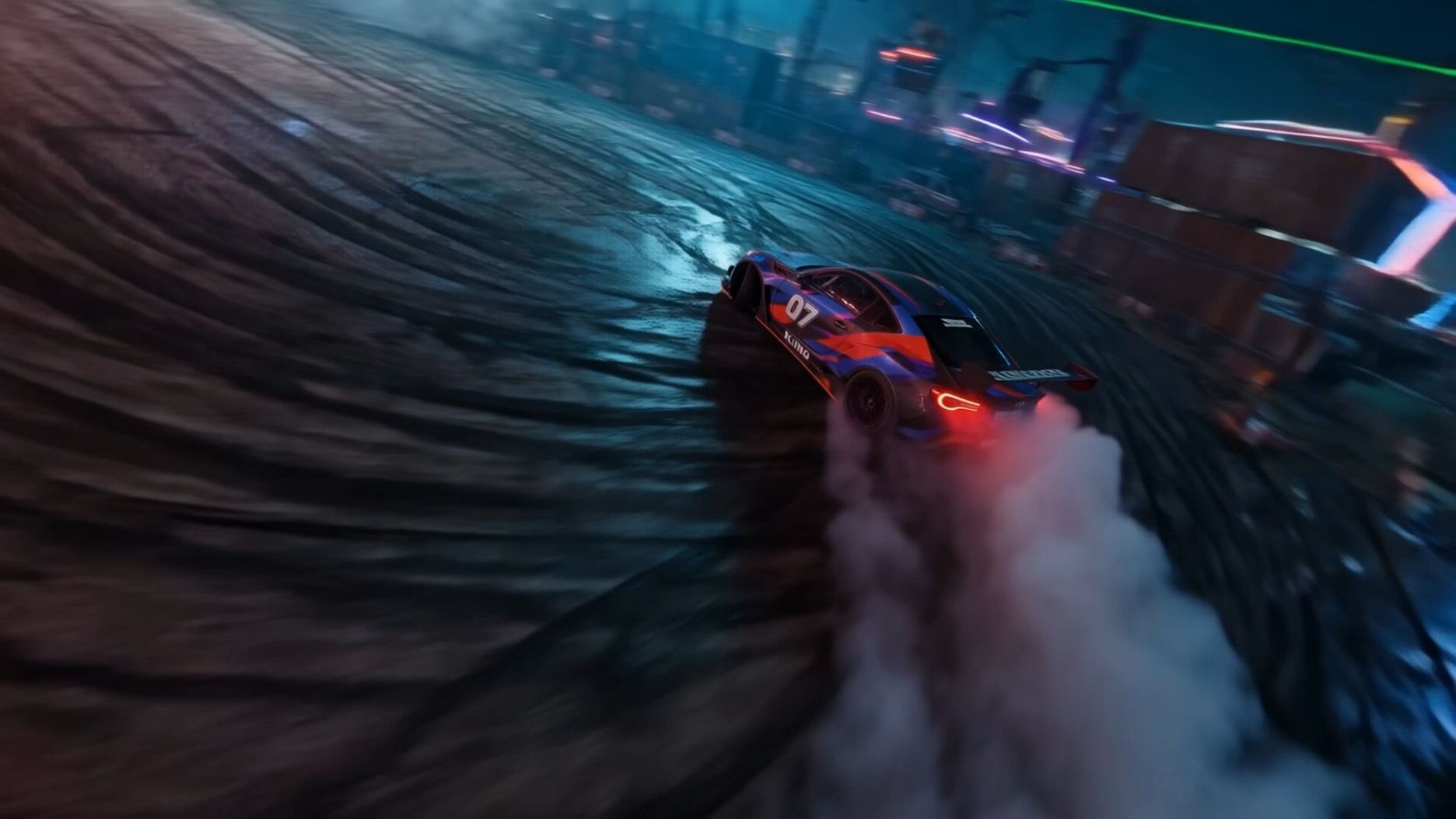
| Prompt: Use @Video 1 as the reference for camera movements and shot pacing. Use the car from @Image 1 as the main subject and the environment from @Image 2 as the background. Keep the car's design consistent. | ||
Video | ||
 | ||
The End
Canva alternatives serve different creative needs. Canva brings together templates, design editing, collaboration, and AI tools, while Kling AI is especially relevant for reference-guided image and video creation. Kling 4.0 combines richer references, stable complex motion, director-style camera control, and timeline assembly. IMAGE 3.0 Omni supports detailed 2K/4K images and related visual series.
If your main creative task is generating video or original images, Kling AI is worth considering as an AI-first alternative to Canva.
FAQs
What Replaces Canva?
Kling AI can serve as a Canva alternative when your main goal is creating original images or videos rather than arranging content in templates. Kling 4.0 supports prompt- and reference-guided video generation, dynamic motion, and camera control. IMAGE 3.0 Omni supports connected still-image creation. However, Kling is not designed to replace Canva's full presentation and layout workflow.
What Is a Good Canva Alternative for AI Video Creation?
Kling AI is worth considering if you want to create original video content rather than rely primarily on templates. Kling 4.0 supports prompt- and reference-guided video generation, dynamic motion, and camera controls. For still-image projects, IMAGE 3.0 Omni supports connected image series. The right choice depends on whether your main goal is generating visual content or designing finished layouts.
Is There a Free Alternative to Canva for AI Images and Videos?
Kling AI offers free credits for trying AI image and video creation. New users receive credits when they register, and existing users can receive monthly login credits. Credits required vary by model and generation settings, so check the current workspace before starting. Kling is an option for creating original visual assets, not a full replacement for Canva's design and presentation tools.
Can AI Tools Replace Canva?
AI tools can handle specific creative tasks, particularly original image and video generation, but they do not necessarily replace template-based layouts, presentations, or collaborative design workflows. Kling 4.0 is suited to video creation with reference-guided generation and camera controls, while IMAGE 3.0 Omni supports connected still-image creation.
Can Kling AI Create Videos for Social Media?
Yes. Kling 4.0 can generate prompt- and reference-guided videos, with dynamic motion and camera controls that help shape short-form videos, product showcases and promotional material. You can start with a text prompt or use supported reference materials to guide the scene, then review and refine the generated result.