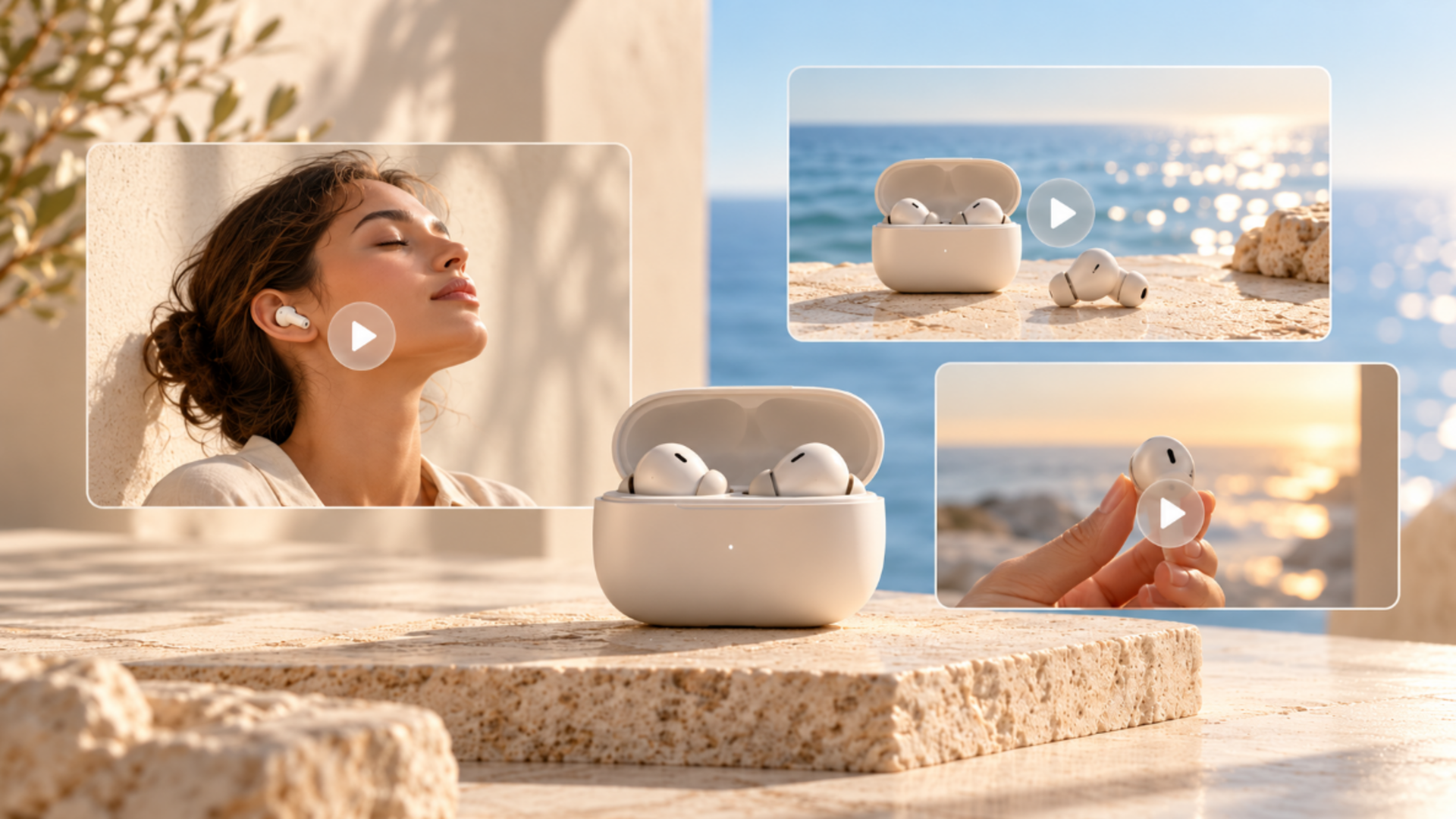
A product can look perfect on a shelf and still photograph poorly. The finish turns dull, a label catches the light, or the item looks smaller than it really is. Good ecommerce photography should give shoppers a clear picture of what will arrive. This guide covers the images worth taking, a practical setup for repeatable shoots, and how Kling AI can help develop extra lifestyle and campaign visuals.
What Makes Good Ecommerce Photography?
Clear photos answer questions shoppers cannot ask in person. Check these essentials before you build a product listing or plan a shoot:
• Accurate color and shape: Compare each photo against the real item under neutral light.
• Sharp, useful details: Give labels, seams, hardware, and controls enough focus for shoppers to inspect them.
• Controlled lighting: Diffuse harsh reflections and avoid shadows that conceal important parts of the product.
• Consistent framing: Keep camera height, crop, and white balance steady across your catalog.
• Readable composition: Keep the item prominent, leave room for the required crop, and check the image rules for each selling channel.
Compare photos side by side. When a white backdrop looks yellow in the next shot, your catalog can feel uneven.
Which Ecommerce Product Photos Should You Include?
Start with images that show what the customer will receive. Then add context that helps them imagine the product's size, fit, and everyday use.
Photo Type | What the Image Should Explain |
Hero image | The full product and its overall appearance |
Alternate angles | Shape, depth, and views from other sides |
Detail close-up | Material, closure, controls, or label |
Scale or on-model | Size, proportions, or fit |
Lifestyle image | How the item looks in everyday use |
A buyer comparing jackets may need an on-model shot to judge shoulder fit, while someone shopping for a speaker will want to see its ports and controls. Choose additional images to answer specific questions about the item. Ecommerce model photography is especially useful for apparel and accessories.
How AI Makes Ecommerce Product Photography More Efficient
Accurate product photos are essential for online stores, but seasonal promotions, social ads, and product launches often require more visual variations. AI tools can help reduce repeated photoshoots by creating new backgrounds, on-model looks, and coordinated campaign images from existing product photos.
At Kling AI, we provide an AI-powered platform for visual content creation and editing. With Kling IMAGE 3.0 Omni, our image generation and editing model, you can use product photos as references to create new scenes, combine visual elements, edit images, and generate consistent image series for ecommerce campaigns. Explore its key capabilities below.
Explore On-Model Looks for Lifestyle Campaigns
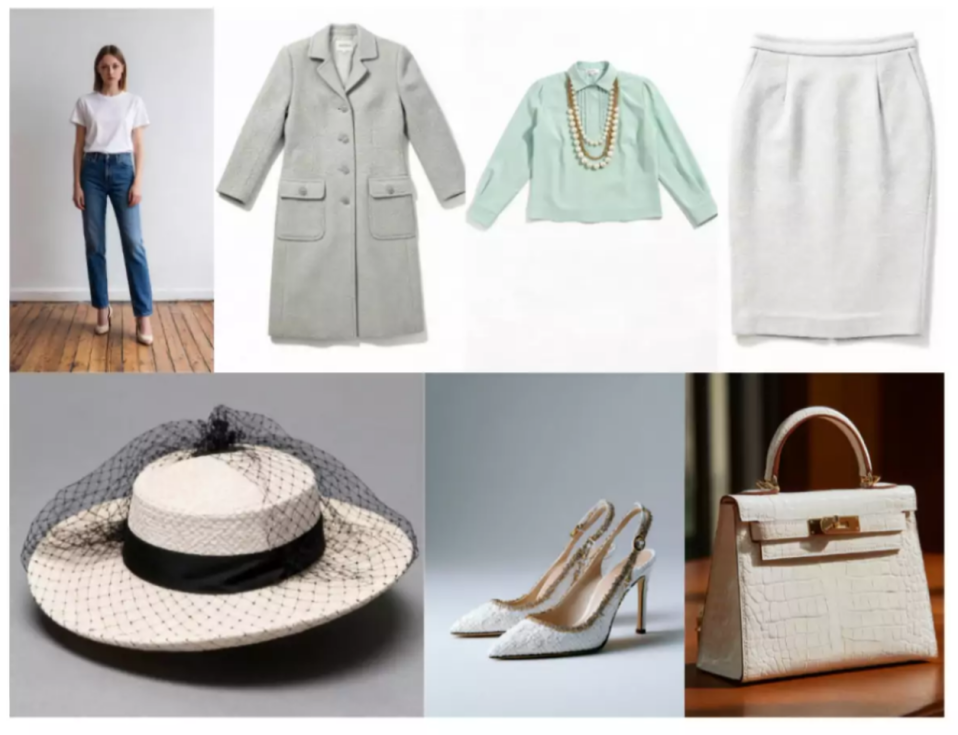
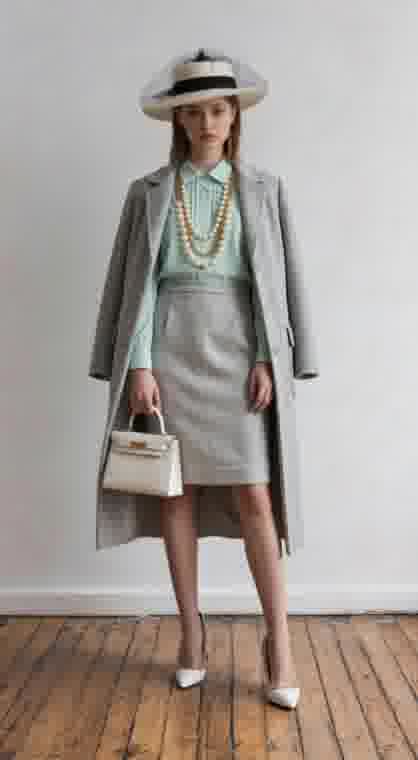
A clothing launch may need a styled image that brings several pieces together on one model. With Kling IMAGE 3.0 Omni, you can use a model photo alongside separate references for clothing, shoes, and accessories to develop a coordinated look. A retailer, for example, could explore how a coat, skirt, hat, and handbag work together in one outfit before planning campaign visuals. An AI background generator can also help explore seasonal settings for promotional images. Check garment details, colors, and any fit claims against the actual products before publishing.
Reference Images | Output |
|
|
| Prompt: Use Image 1 as the base. Dress the person in Image 1 with the shirt from Image 3, the outerwear from Image 2, the skirt from Image 4, the shoes from Image 6, the hat from Image 5, and the handbag from Image 7. | |
Create Consistent Images Across Marketing Channels
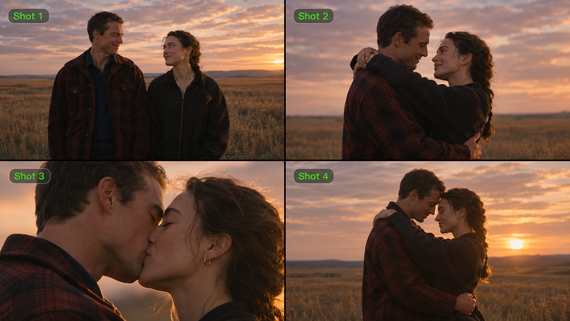
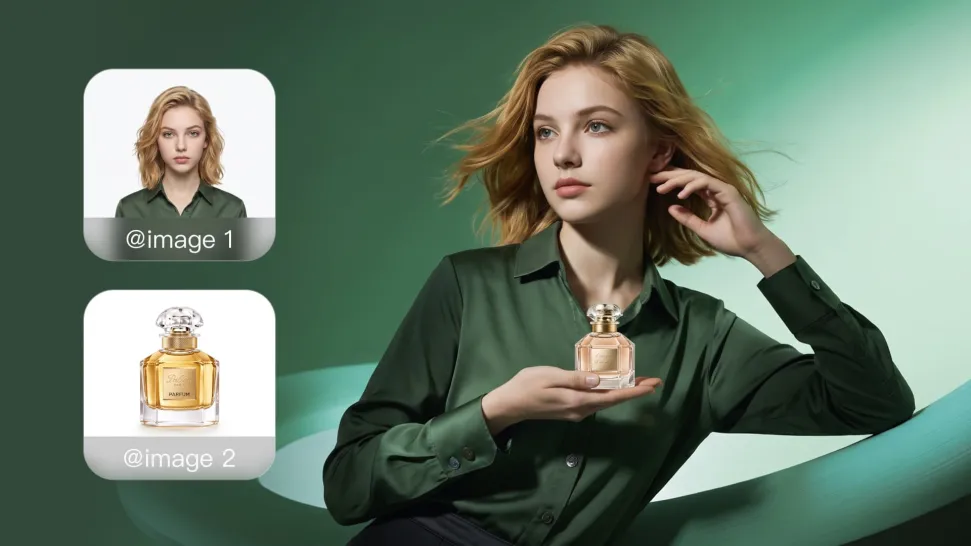
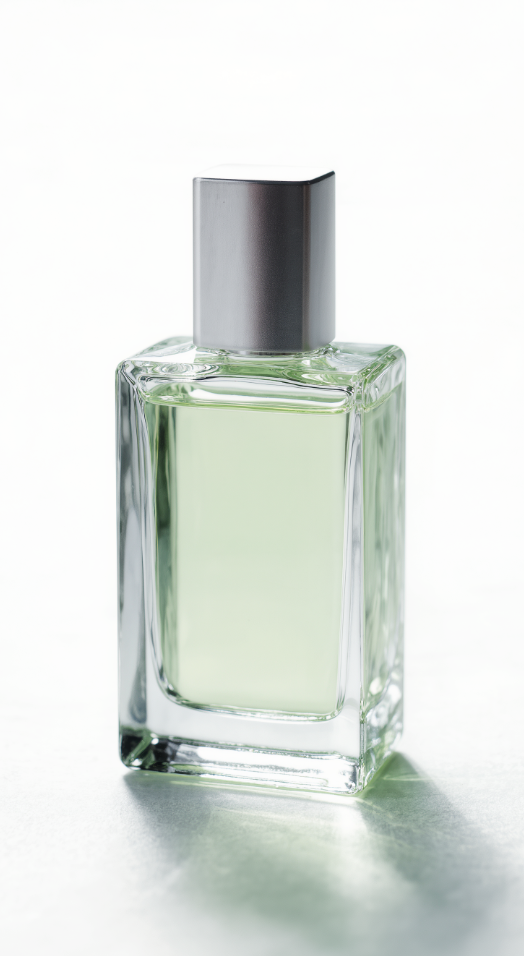
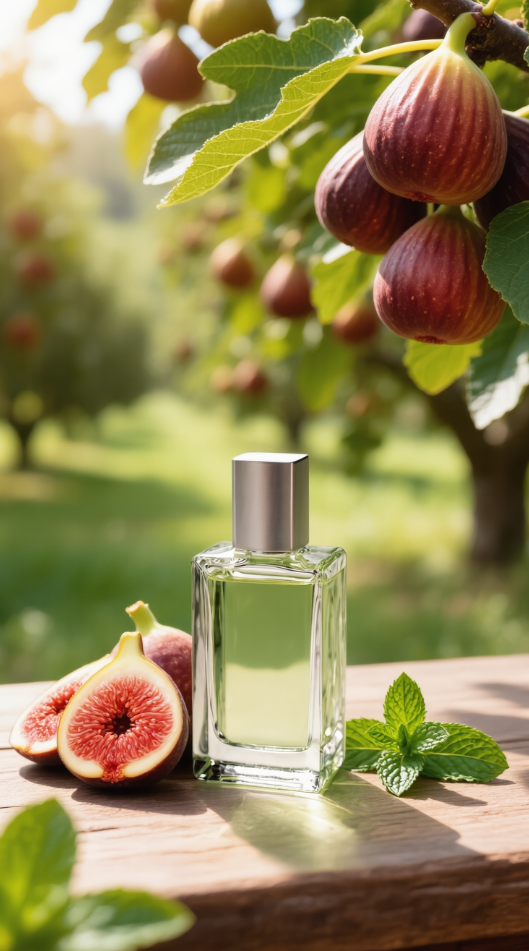
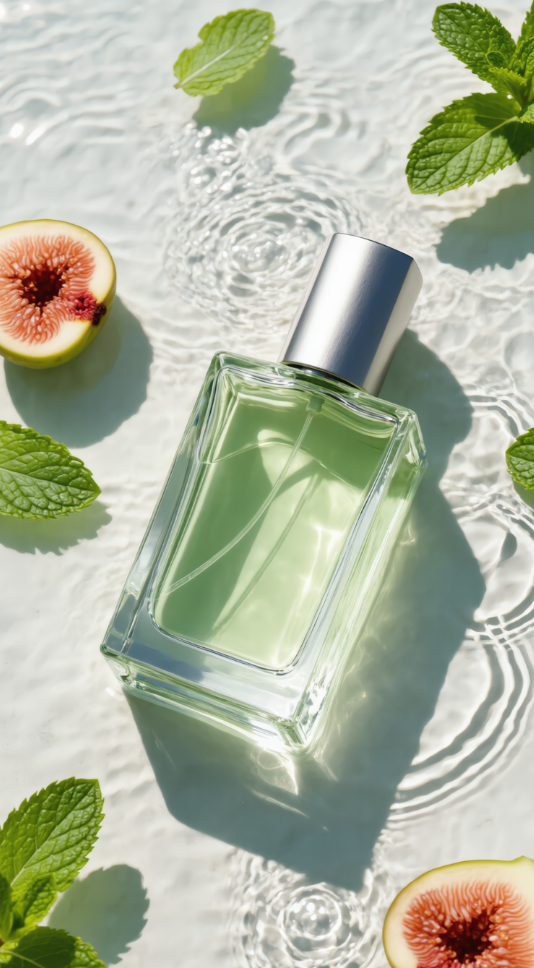
A product launch might need a homepage banner, a promotional graphic, and several social posts featuring the same item. Kling AI's Image Series Mode can generate multiple related compositions from product references, helping maintain a recognizable design and visual style across the collection. A fragrance campaign, for example, could feature the same bottle in a close-up, an ingredient-inspired scene, and a styled display. Your team can develop a coordinated set of campaign images and adapt the compositions to different marketing channels.
Edit Product Photos for Different Campaign Needs
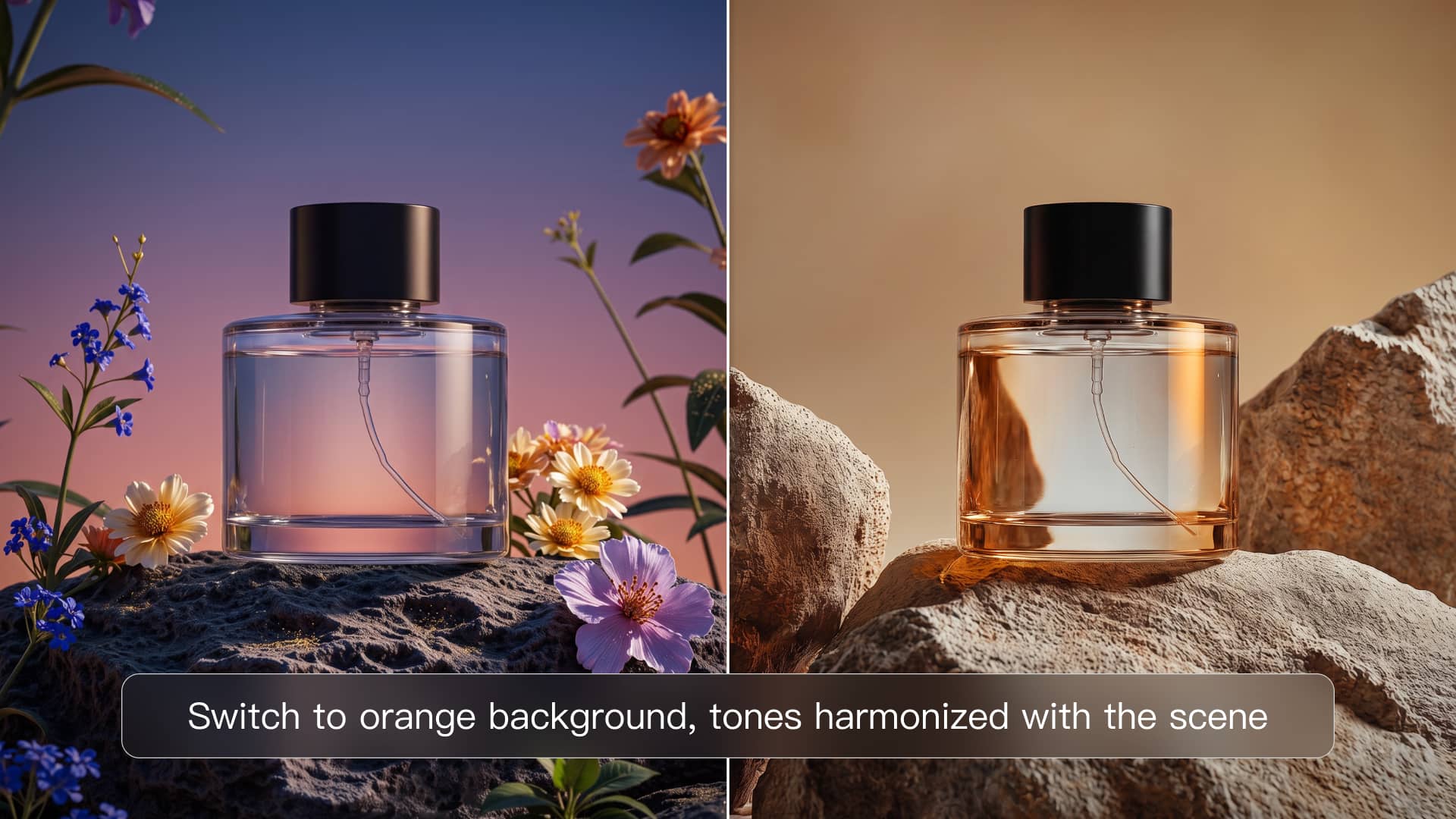
A product photo may work for a store listing but need a different setting for a seasonal promotion. With Kling IMAGE 3.0 Omni, you can use natural-language instructions to replace backgrounds, remove distracting objects, adjust compositions, or refine individual elements while guiding the model to preserve key product features. Native 2K and 4K output also helps deliver detailed visuals for product displays, promotional banners, and advertising campaigns.
How to Create Ecommerce Product Images With Kling AI
Creating ecommerce product images with Kling AI starts with a clear product reference photo. You can develop new lifestyle scenes and campaign visuals with Kling IMAGE 3.0 Omni. For example, a bottle shot could become a vanity scene for a fragrance launch or a seasonal ad concept, using the original photo to guide the product's appearance.
Step 1: Upload Your Product Reference Photos
Open Image Generation in Kling AI and select Kling IMAGE 3.0 Omni. Upload a clear photograph of your product in the image-to-image AI workflow. If needed, add more reference images for the background, styling, or props. Choose photos that clearly show the product's most recognizable features.
Step 2: Describe the Scene and Product Details
Start with the product, setting, and overall mood, then add details about lighting, composition, and camera angle. Specify the product features you want to preserve, such as the bottle's silhouette, cap shape, or packaging colors. If you use additional references for the setting or visual style, make their roles clear. For a campaign series, describe a shared color palette or theme to help the images feel connected.
Step 3: Generate Product Images and Review the Results
Choose 2K or 4K output as needed and generate your images. If you want several related compositions, turn on Image Series Mode and select Auto or a fixed image count. Review each result for product consistency, realistic lighting, and visual variety. Pay close attention to logos, packaging text, colors, and material details.
Compare the finished images with the original product photos, especially when the visuals represent items customers can purchase. Download the approved images, then resize or convert them as needed for your storefront or campaign.
| Reference Image | Shot 1 | Shot 2 | Shot 3 | Shot 4 |
|
|
|
|
|
| Prompt: Fig & Mint perfume. Summer fresh, organic, zero-additives. Consistent bottle shape. Ad series. | ||||


Ecommerce Photoshoot Essentials
The image-to-image workflow above benefits from a clear, accurate product photo. For a new collection, a consistent photoshoot also gives you clear listing images and product references you can reuse for lifestyle scenes, on-model concepts, and seasonal promotions. A repeatable setup makes product photography for ecommerce easier to manage across SKUs and color variants.
Plan Product Shots and Prepare the Setup
Write down the angles and details customers need for each SKU. A coat needs fabric and fit photos; a speaker needs clear views of its connections. This simple category checklist can help you plan your ecommerce photoshoot:
Product Category | Priority Views |
Apparel | Front, back, fabric close-ups, true-to-size on-model view |
Electronics | Front, rear, ports, controls, included accessories |
Beauty | Package, label, cap, texture where relevant |
Jewelry | Front, side, fastening, macro detail, worn scale |
Furniture | Front, side, 45-degree view, room scale |
Accessories | Main view, interior, closure, detail, in-use view |
Remove dust and fingerprints, straighten labels, and smooth clothing before the first shot. A paper sweep or a clean tabletop can work for smaller items. Keep the background simple and separate each product variant so you do not mix colors or sizes during editing.
Set Up Lighting and Capture Key Details
Set a smartphone or camera on a tripod and start with soft window light or a diffused light source. Place a white card opposite the light to open up heavy shadows. For glass or jewelry, move the light or product until reflections describe its shape and the label remains readable. Recheck white balance when the lighting changes.
Take the main view first, then the side, back, 45-degree, and close-up images your shot list calls for. Keep the camera level when proportions matter.
Review and Prepare Your Product Photos
Before you dismantle the setup, zoom in on the photos. If stitching or product lettering looks soft, reshoot it now. A later edit cannot reconstruct a detail the camera never recorded.
If a stray object or distracting background detail appears in a supporting photo, an AI photo editor can help clean up that area. Correct exposure and white balance, remove temporary dust, and crop every image to the dimensions your storefront accepts. Use descriptive file names tied to the correct product variant. An image enhancer can improve the appearance of some supporting images, but it cannot confirm the accuracy of labels or materials. Check the files on a phone and at full zoom before uploading.
Common Ecommerce Photography Mistakes
Even a well-planned shoot can leave small issues in the finished images. Before publishing, check for mismatched color variants, distracting reflections, awkward crops, and changes to product details in AI-generated visuals.
Common Problem | Practical Fix |
A wrong color variant | Match files to the correct SKU and compare against the item |
White backdrops that turn gray | Use consistent white balance and light across the batch |
Glare over labels | Move the light or rotate the product before shooting again |
No visual scale | Add a size reference or a clearly labeled dimension photo |
Overly tight crops | Check mobile and desktop crops before exporting |
AI-altered logos or hardware | Compare generated visuals against original product photos |
The End
Good ecommerce photography helps shoppers recognize the real product and inspect the details that matter. Start with accurate listing photos, repeatable lighting, and useful angles for each category. When you need fresh campaign concepts, Kling IMAGE 3.0 Omni can develop coordinated images from approved product references. Check the finished visuals against the physical item and the rules of your selling channel before publishing.
FAQs
What Is Ecommerce Photography?
Ecommerce photography covers the images a business uses to show products in online stores and marketplaces. It includes main product photographs, alternate angles, close-ups, size references, and sometimes lifestyle or on-model images. Accurate photos help shoppers see what they will receive.
Can You Take Ecommerce Product Photos With a Smartphone?
Yes. A modern smartphone can handle many small and medium-size products when you use soft light, a stable position, and a clean backdrop. Wipe the lens, check focus and exposure, and compare the photo color with the physical item. A tripod helps keep framing consistent across many SKUs.
What Image Size Works Best for Ecommerce Listings?
The best image size depends on your selling channel. Use enough resolution for customers to inspect product details, and check the platform's file-format and image requirements. On Amazon US, images with at least 1,000 pixels on their longest side can enable zoom. Preview the final crop on mobile and desktop before uploading.
Can You Use AI-Generated Images in Product Listings?
Yes, if your selling channel allows them and the images accurately represent the product. With Kling IMAGE 3.0 Omni, you can explore early lifestyle concepts with text to image, or use product photos as references to develop new campaign visuals. Image Series Mode also helps create coordinated variations for different promotions. Check your marketplace's image requirements and review product details before publishing.
How Many Product Photos Should an Ecommerce Listing Have?
There is no universal number. Start with one clear main image, then add views that answer different buying questions. Clothing often benefits from model and fabric views, while electronics need controls and port details. Give every image a purpose and follow the maximum number and size requirements of your storefront.