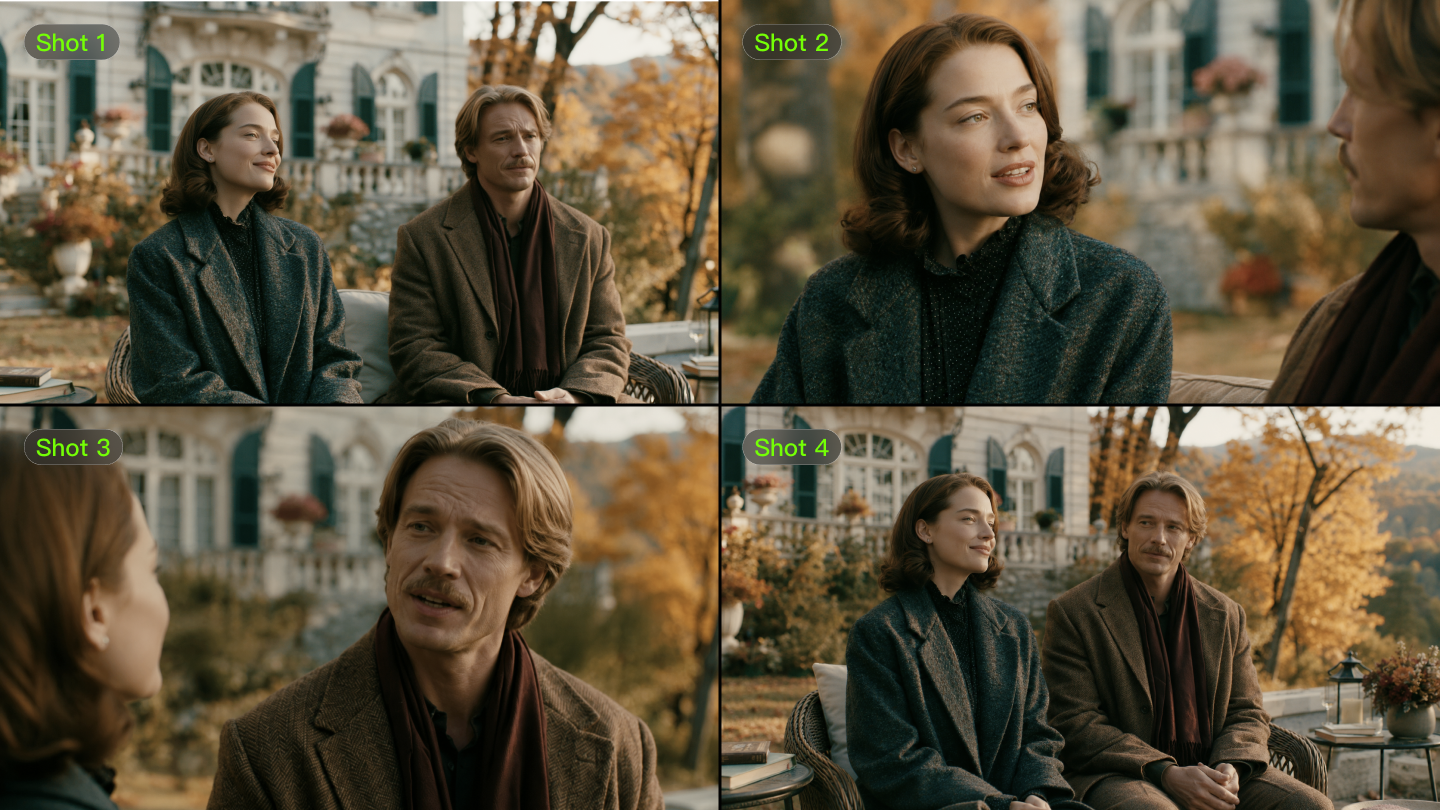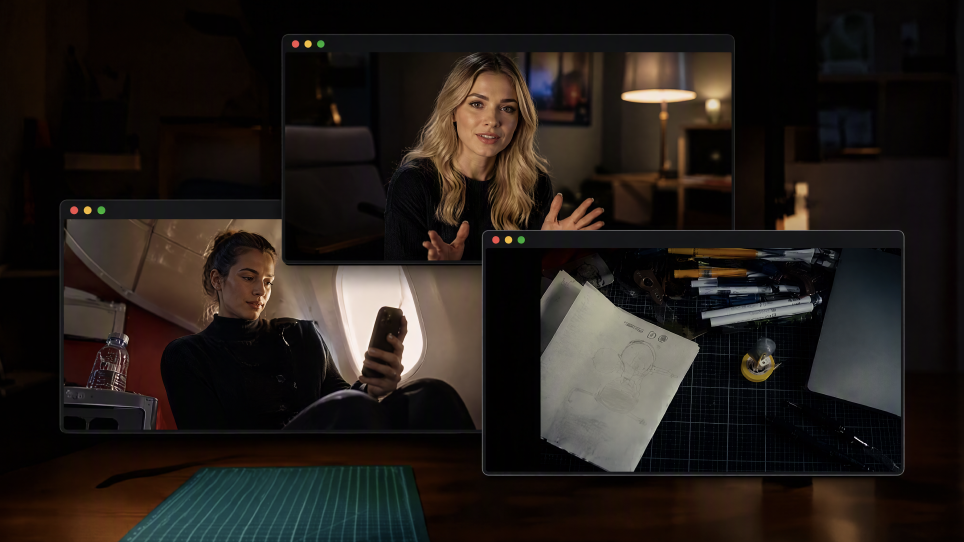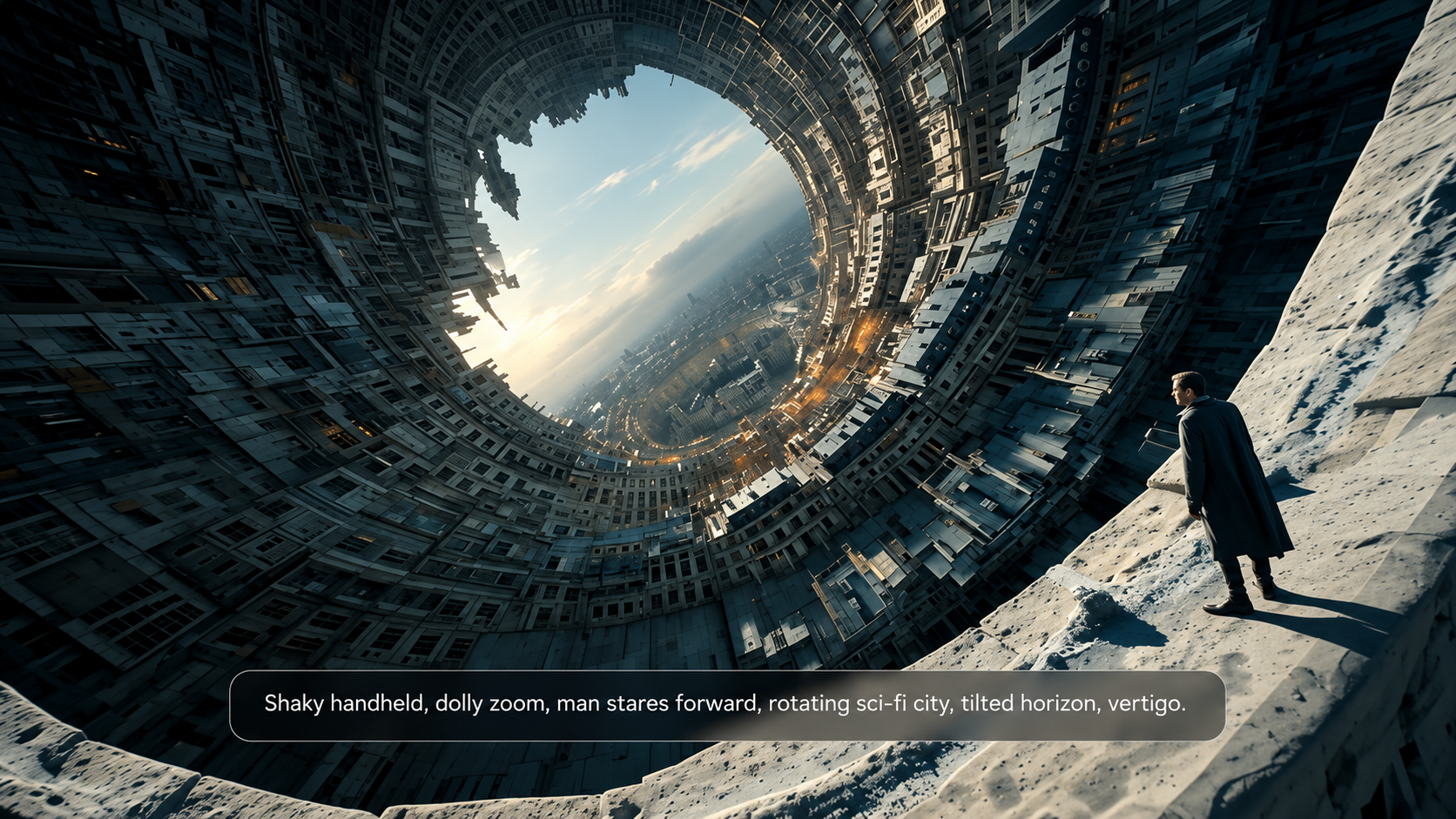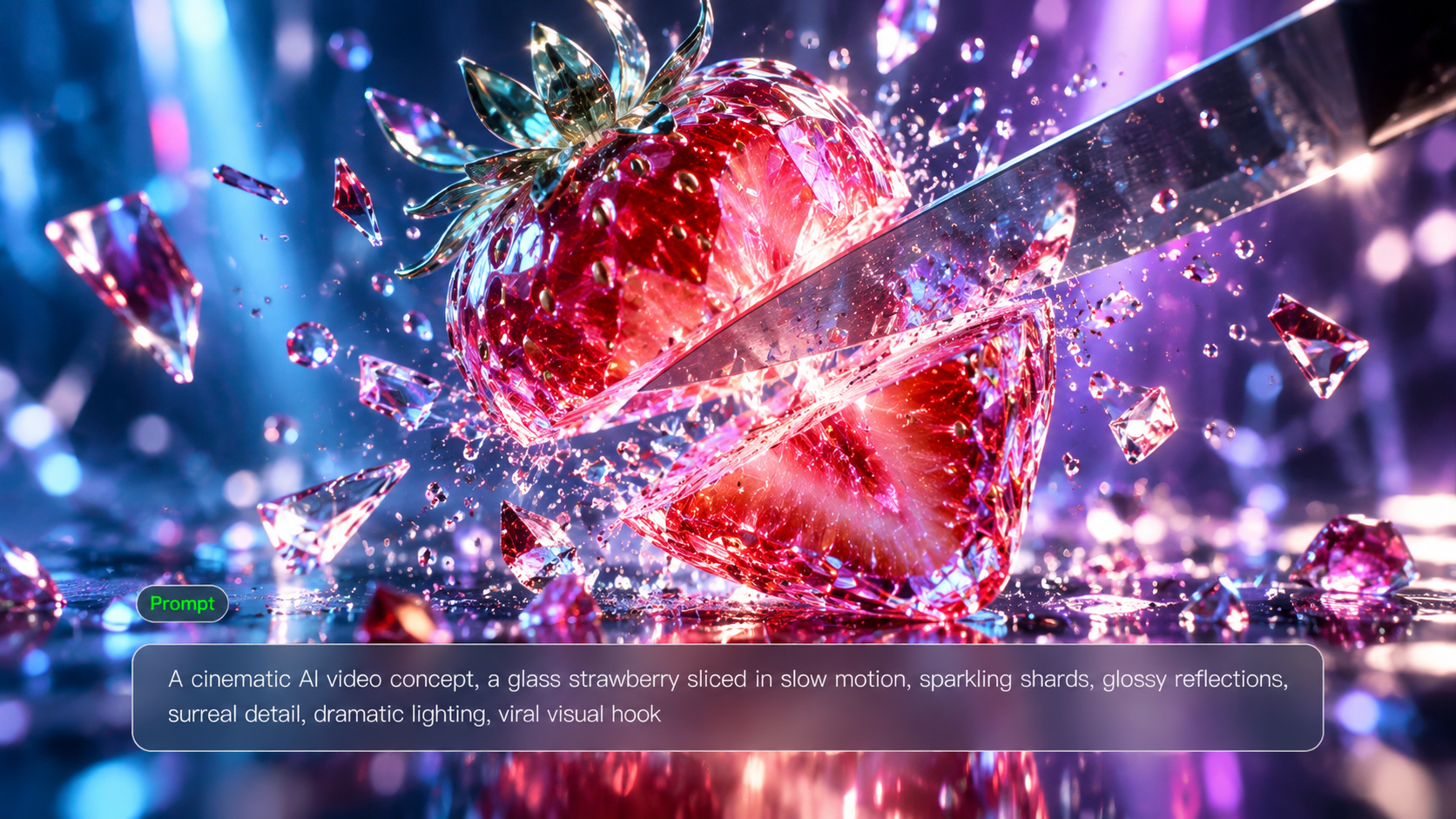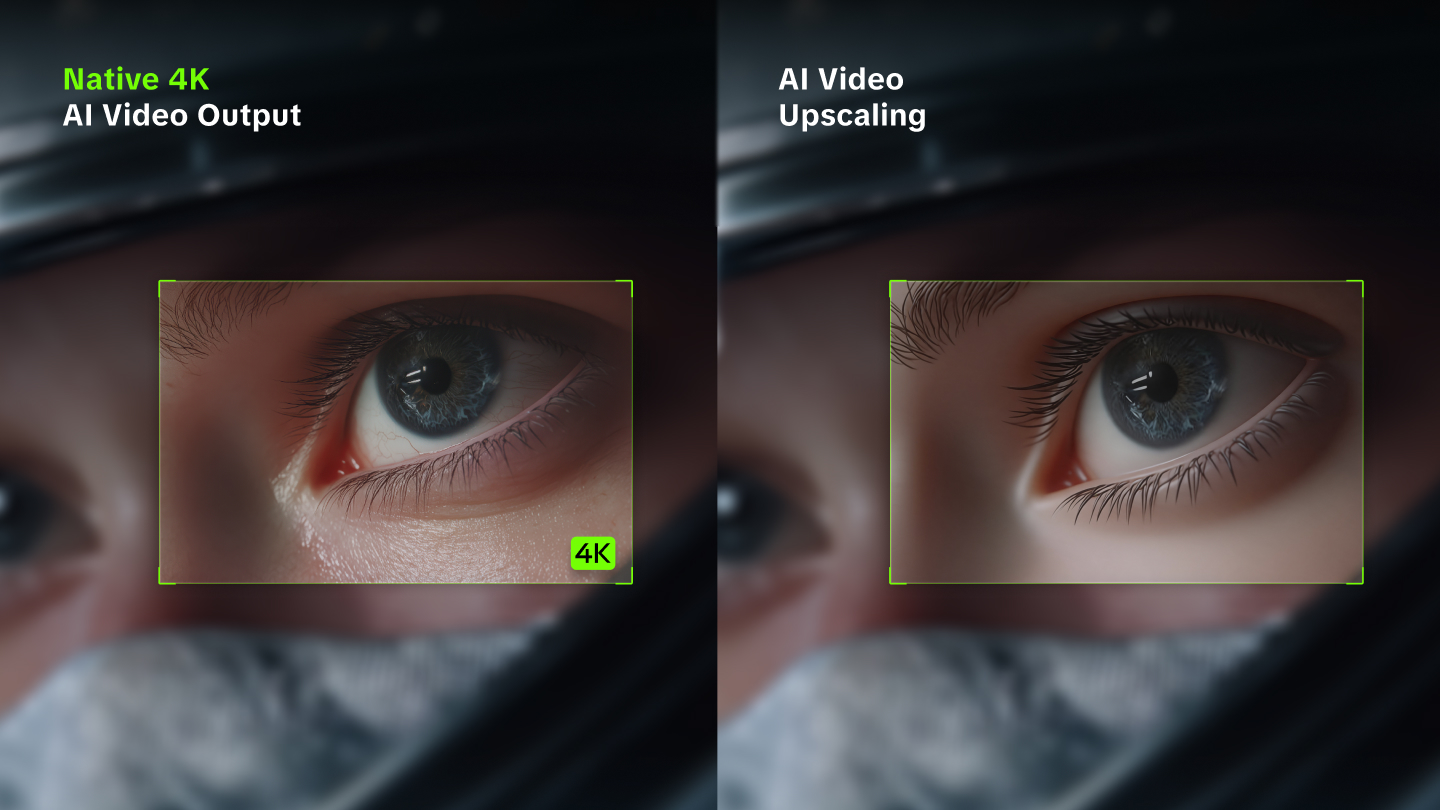
A dim interview, a blurry travel clip, and an old recording can look rough for different reasons. Learning how to enhance video quality starts with identifying the problem. This guide covers practical fixes and explains how Kling AI can help improve your footage through visual adjustments and higher-resolution output.
Common Video Quality Problems and Their Fixes
Different video quality issues require different fixes. Identify the problem in your footage and use the guide below to choose an appropriate adjustment to create high-quality AI videos.
Problem | What It Looks Like | Recommended Fix |
Poor lighting | Dark subjects or overly bright areas | Raise exposure around the subject without flattening contrast or amplifying shadow noise. Protect visible highlight detail. |
Washed-out colors | Flat colors or unnatural skin | Correct white balance and then adjust saturation sparingly. Check skin tones on a short test clip. |
Video noise | Speckles or grain, especially in shadows | Use an editor with dedicated denoising controls. Apply the effect gently to avoid losing fine textures and facial detail. |
Compression artifacts | Blocky edges, muddy textures, or uneven color | Start with the original camera file whenever possible and avoid repeated compressed exports. Higher-resolution output alone may not remove existing artifacts. |
Blurry footage | Soft faces, objects, or edges | Use selective sharpening for mild softness. For low-resolution footage, choose a higher output resolution when generating or exporting. Severe focus errors or motion blur may remain. |
Weak composition | Awkward framing or distracting backgrounds | Use an AI video editor to adjust visual elements or simplify the background through prompts. Review subject placement and continuity after generation. |
Incomplete motion | An action feels unfinished or a connecting moment is missing | Use AI generation to add an intermediate action or connecting moment, guided by the existing video, reference images, or a text description. Check that the added movement fits the surrounding footage. |
An AI video quality enhancer can improve more than pixel dimensions. With Kling VIDEO 3.0 Omni, you can upload an existing clip and use prompt-guided editing to refine lighting, color, backgrounds, and composition while preserving the original action. Reference images and Elements help keep important faces, characters, or products recognizable across the updated scene. When higher resolution is your goal, select 1080p or 4K in the output settings rather than asking a prompt to set the resolution. Combining flexible visual changes, subject consistency, and higher-resolution generation helps you produce a more polished video without rebuilding every shot by hand.
How to Enhance Video Quality Online with AI Tools
Use Kling VIDEO 3.0 Omni as a video quality enhancer online to refine the look of existing footage, generate connecting moments, and create a higher-resolution result. Start with your source video, describe the changes you want, and choose your output settings.
Step 1. Upload Your Video
Open the Kling AI workspace, click Video Generation, and select VIDEO 3.0 Omni. Upload a 3–10 second video you want to enhance. If your recording is longer, trim it to the section you need. Use the highest-quality source available. Add reference images or Elements when you want to guide a subject’s appearance, a visual change, or an intermediate moment.
Step 2. Describe the Changes You Want
Describe adjustments to scene content, lighting, colors, or backgrounds, and specify what should remain consistent. To fill a gap in an action, explain the movement or connecting moment you want the AI to generate, using a reference image if helpful. For a straightforward resolution upgrade, keep visual changes minimal and focus on the output settings in the next step.
Prompt: Brighten the lighting around the product and change the background to a clean, warm beige. Preserve the product shape, packaging colors, label design, original framing, and hand movement.
Step 3. Choose Your Output Resolution and Generate
Select 1080p or 4K in the output settings, then generate your video. If you want to upscale video to 4K, choose 4K here rather than relying on the prompt to set the resolution. Compare the result with the original, checking faces, product details, text, and motion. If you requested additional action, check how naturally it connects with the surrounding footage. Review the audio, then download the result.
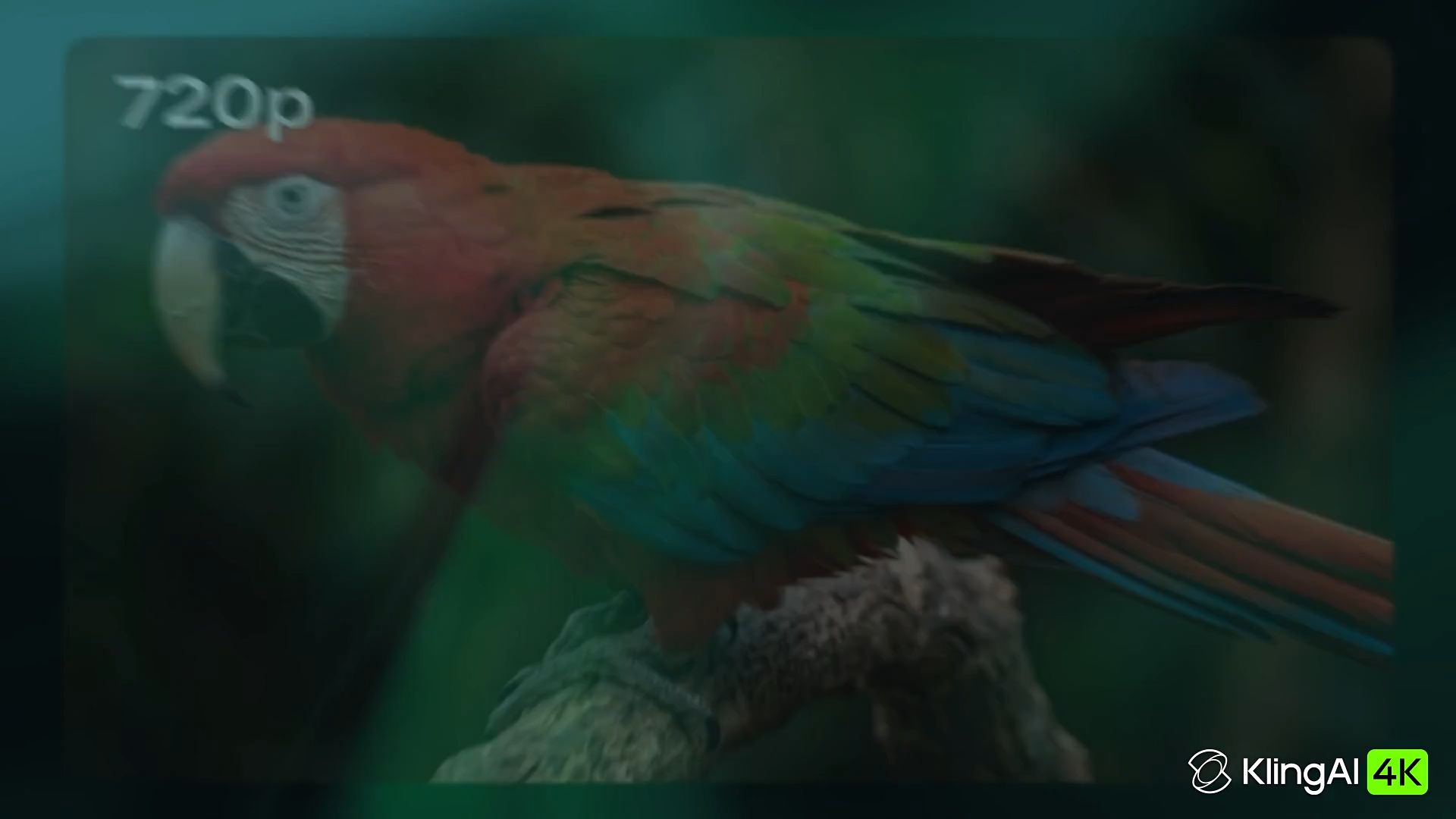  |
| Prompt: Preserve the parrot’s original appearance, feather colors, framing, and movement. Maintain natural textures and lighting without introducing new objects or altering the scene. |
Video Quality Tips for Different Types of Footage
Whichever method you use, the best way to enhance the quality of a video depends on where it will be viewed. A short social clip, a YouTube tutorial, and an old family recording have different requirements.
1. Social Media Videos
For Reels and short-form clips, choose framing that reads on a phone. Place faces and products away from interface overlays, check legibility at small size, and preview the export after the platform compresses it. A clean crop often helps more than a heavy sharpening pass. Match the aspect ratio and delivery settings to the platform rather than forcing every file into 4K.
2. YouTube Videos
In tutorials and long videos, cuts between different cameras can expose changes in exposure and white balance. Match adjacent shots using the same reference frame and check transitions in motion, especially if a speaker moves between locations.
Export at a bitrate and resolution suited to your project. Because YouTube will process the upload again, work from a high-quality master instead of repeatedly saving compressed copies.
3. Old or Archived Footage
Check the source before making a new file. Digitized video and old broadcast recordings may use interlaced fields, non-square pixels, or unusual frame rates. If moving edges show horizontal 'combing,' use the correct field order and deinterlace before resizing. Do not treat the lines as ordinary blur. Preserve the original aspect ratio and an untouched master file. Keep dates, captions, film texture, and other historical details where they carry meaning, and document any restoration that changes them.
Additional Tips for AI-Generated Footage
Whether you’re creating a social clip, a YouTube video, or a sequence that incorporates archival material, AI-generated footage needs a few additional checks. Review faces, hands, clothing, product details, and backgrounds throughout the clip, rather than judging quality from a single frame. Look for unexpected changes between shots, inconsistent lighting, or movements that feel unfinished. These issues affect visual continuity and may remain even in a high-resolution video.
With Kling VIDEO 3.0 Omni, use prompts and reference images or Elements to guide subject appearance, lighting, colors, and backgrounds. If an action feels incomplete, describe the intermediate movement or connecting moment you want to generate. Select 1080p or 4K separately when you need higher-resolution output. The example below shows how character and scene references guide a connected sequence, illustrating reference-led consistency and storytelling.
Reference Image @Shirt Boy | Reference Video @Shirt Boy | Generated Result |
.png?x-oss-process=image/resize,w_1872) |  |  |
| Prompt: Use @Shirt Boy as the character reference and @Image1 as the grassy outdoor setting. Open on a medium shot by the pole, move closer as he leans against it, then cut to a side close-up in sunlight and a top-down view of him on the grass. Match his appearance, position, and the direction of light across shots so the change of camera angle feels continuous. | ||
Create High-Quality Videos from the Start with Kling VIDEO 3.0 Omni
Enhancing an existing video is one way to improve its quality, but creating a polished result can begin even earlier. When generating new footage, choices about resolution, subject appearance, and shot composition all shape how the final video looks. Kling VIDEO 3.0 Omni brings these decisions into the creative process through native 4K output, reference-guided subject consistency, and Custom Multi-Shot planning, helping you create more detailed and visually cohesive scenes from the start.
Generate Detailed Scenes in Native 4K
Choose native 4K output to give your video more room for fine visual detail, from facial features and clothing textures to product surfaces and background elements. This is especially useful for product close-ups, cinematic landscapes, and videos intended for larger screens, where small details become more noticeable.
Pair your resolution choice with a clear description of the scene’s lighting, materials, and atmosphere. For example, describe soft side lighting on a product, subtle reflections on its surface, and a clean background that keeps attention on the subject. The output setting determines resolution, while your creative instructions shape how the scene looks.
Keep Characters and Products Visually Consistent
A high-resolution video can still feel unfinished if a character’s appearance or a product’s shape changes between shots. With reference images and Elements, Kling VIDEO 3.0 Omni helps you guide the visual details that make a subject recognizable, including facial features, clothing, product design, and other defining characteristics.
Use clear references that show the details you want to retain, and explain how each reference should influence the result. For a product sequence, reference images can guide its shape and packaging while your prompt describes the surrounding scene. For a recurring character, Elements help maintain a recognizable appearance across different angles and settings. Review the result to check that these details remain consistent throughout.
Give Each Shot a Clear Visual Direction
Video quality also depends on how well the shots work together. With Custom Multi-Shot, you can describe each shot’s duration, framing, camera movement, and action within a sequence of up to 15 seconds. This helps you plan how the viewer moves from an establishing shot to a closer view or an important detail.
For example, open with a wide shot that introduces a product in its setting, move into a medium shot showing it in use, and finish with a close-up of its main feature. Keep the lighting direction and visual style consistent across your instructions so the sequence feels connected. Combining deliberate shot planning with high-resolution output helps you create a more polished video from the start.
The End
Improving video quality starts with understanding what your footage needs and choosing the right approach. With Kling VIDEO 3.0 Omni, you can give existing clips a more polished look through an efficient AI workflow, making it easier to create higher-quality videos for your next project.
FAQs
Can You Upscale a 720p Video to 1080p?
Yes. Upload a supported 720p clip to Kling VIDEO 3.0 Omni and select 1080p in the output settings before generating. You can also choose 4K for a higher-resolution result. Use prompts for any changes to lighting, colors, backgrounds, or scene content, then compare the output with the original to check clarity, subject appearance, and motion.
Why Is My 1080p Video Blurry?
A video can be 1080p and still look blurry because resolution isn't the only factor that affects sharpness. Missed focus, camera shake, low bitrate, and compression can all reduce visible detail. If the video looked sharp before uploading, check whether the platform compressed it or whether you're watching a lower-quality playback version.
Can I Enhance Video Quality on My Phone?
Yes. You can improve video quality on a smartphone using mobile editing apps or compatible browser-based tools. Start with the original recording rather than a compressed copy from a messaging app. A phone is convenient for quick adjustments, but reviewing the result on a larger screen can help you spot small details that are harder to see on mobile.
Does AI Video Enhancement Affect the Original Audio?
Audio handling depends on the tool and workflow, so check the generated result before publishing. Kling’s video enhancement workflow does not provide dedicated background-noise removal or audio denoising. Keep a copy of the original soundtrack when dialogue, music, or ambient sound matters, and use a dedicated audio tool if the recording needs noise reduction.
How Long Does AI Video Enhancement Take?
Processing time varies with the video length, selected output resolution, and current service demand. Check the progress shown in the Kling AI workspace for your generation. Start with a short clip to evaluate the result, and allow time to review visual details, motion, and audio before downloading or publishing the finished video.