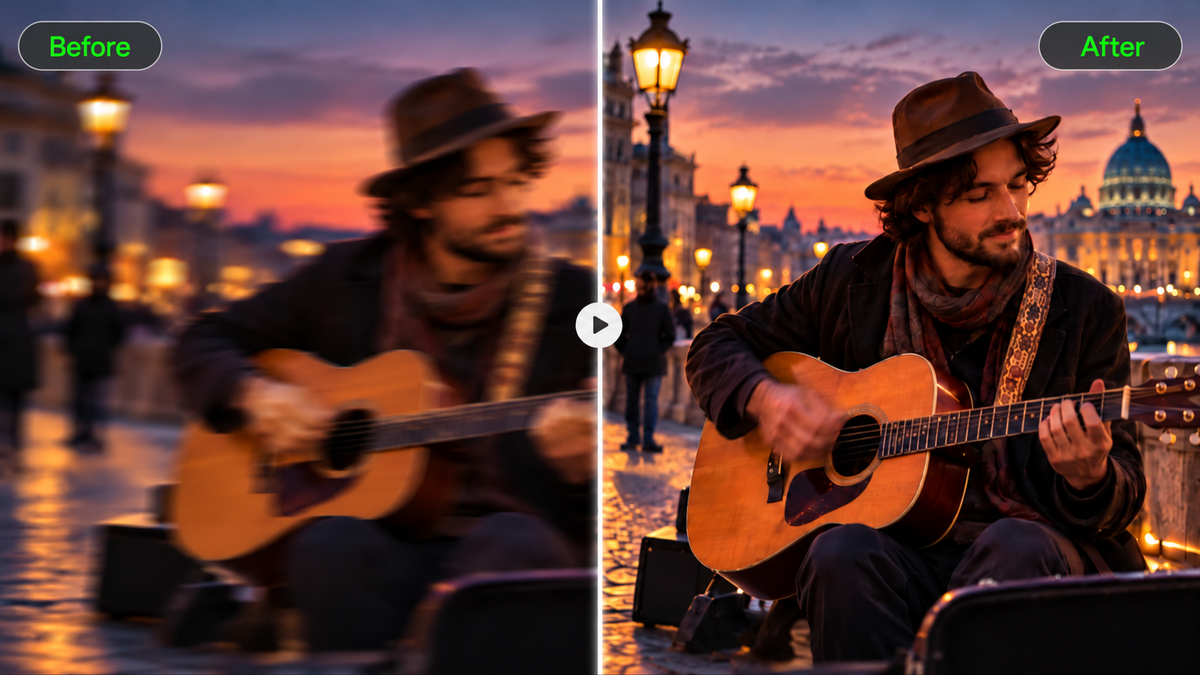
That great clip can look disappointing once you play it back: faces appear soft, quick movements smear, or an upload loses detail. If you're wondering how to unblur a video, start by checking what caused the problem. Some footage improves with careful sharpening or noise reduction, and other clips may need a fresh version. We'll also look at how Kling 4.0 can refine existing footage or build new high-resolution video from reference materials or text.
Why Is Your Video Blurry?
Before you try to fix blurry video footage, watch where the problem shows up. A subject that looks soft in every frame needs a different approach from a scene that smears only when the camera moves.
- Motion Blur: A quick camera pan, shaky hands, or a fast-moving subject can leave streaks around edges.
- Missed Focus: Sometimes the background looks sharp, but the person you're filming never quite comes into focus.
- Low Resolution or Digital Zoom: Zoom too far into a small recording, and faces or textures start to lose definition.
- Compression: Clips shared or uploaded repeatedly may develop blocky patches and smudged details.
- Low Light: Dark scenes can look grainy, and slower shutter speeds may blur moving subjects.
How to Make Blurry Videos Clear: Traditional and AI Methods
The best way to fix blurry video depends on what caused the problem and how much detail you want to improve. Traditional adjustments, such as sharpening and exposure correction, work well for mild softness. An AI video enhancer or AI video upscaler can help improve visual clarity and resolution.
For severely blurred footage, AI offers another approach: combine the original video with sharper reference images to recreate missing visual details. For example, even if a person's face was never properly in focus, clear portraits of the same person can guide a more recognizable facial appearance in the new video.
Problem | What to Try | How AI and References Can Help |
Mild Softness | Gentle sharpening and exposure adjustments | AI enhancement can improve perceived sharpness and refine visible textures. |
Low Resolution or Compression | Use the highest-quality original file or try AI upscaling | AI can create a higher-resolution result, while sharper reference images can guide further scene recreation. |
Out-of-Focus Faces | Provide clear facial reference photos | AI can use recognizable facial features, hairstyle, and skin texture from reference images to create a clearer-looking face while following the original video's movements. |
Motion Blur | Try dedicated motion deblurring or AI recreation | Combine the original video's actions and camera timing with clear character references to recreate fast-moving scenes. |
Blurry Product or Scene Details | Use sharp product photos or scene references | AI can rebuild visual details such as product shapes, materials, colors, and backgrounds while maintaining the intended composition. |
Recreate Blurry Footage with Kling 4.0 and Clear References
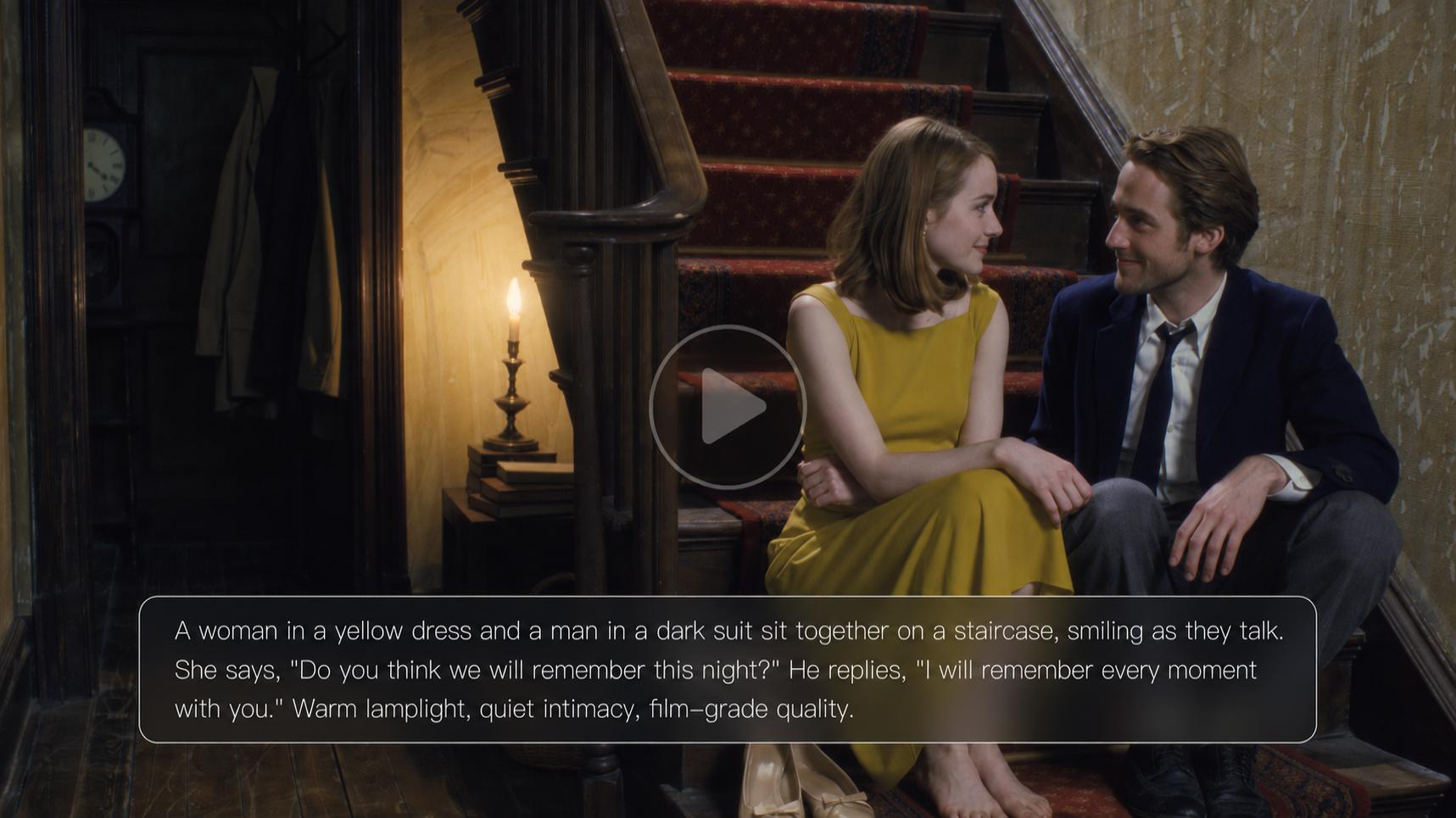
With Kling 4.0, a blurry video doesn't have to supply every visual detail. Omni Reference combines up to 15 reference assets: use clear portraits for facial features and natural skin texture, product photos for packaging and materials, and the original clip for actions, framing, and camera movement. Precise video editing helps make targeted changes while keeping surrounding elements consistent. Kling 4.0 also delivers steadier motion in sports and fight scenes, more believable physical interactions, and deliberate camera direction. Together, these capabilities help create clearer-looking videos with more consistent subjects, richer details, and smoother action.


How to Unblur a Video With AI
With Kling 4.0, you can combine your original footage with clearer visual references to improve how subjects and details appear in a newly edited or recreated video. The key is to give each reference a specific role: use images to guide visual details and the original clip to guide movements, composition, and camera timing. Follow these steps to get started.
Step 1: Upload Your Video and References
Open Video Generation in Kling AI, select Kling 4.0, and choose Omni Reference. Upload the clearest available version of your blurry video, ideally the original recording. You can also add sharp images, other video clips, or Elements to guide important details such as facial features, product appearance, backgrounds, and camera movement. Kling 4.0 supports up to 15 combined reference assets, including images, videos, and Elements. For video editing, you can use up to five input clips, including one primary video, with a combined duration of up to 30 seconds.
If the original clip is too blurry to use and you want to recreate the scene from scratch, you can also start with a text description.
Step 2: Describe the Details You Want to Improve
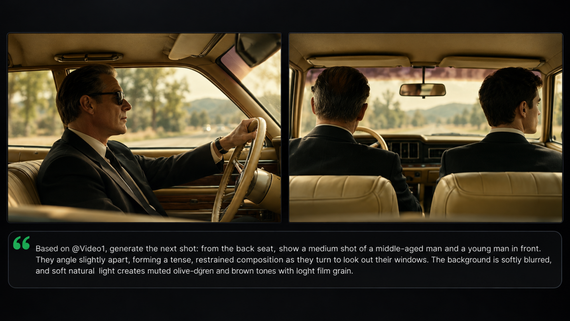
Begin your prompt with edit @Video1 when modifying existing footage. Identify the blurry areas and describe how they should look, such as more defined subject edges, clearer clothing textures, or less visible grain. Use specific visual descriptions and explain what should remain consistent, including framing, lighting, background details, and natural movement.
Match your prompt to the uploaded references. For example, @Image1 can guide a person's appearance, and @Video2 can provide camera movement or pacing references. Clearly assign each asset a role to help Kling 4.0 interpret your instructions.
Prompt: Edit @Video1. The speaker's face appears out of focus. Use @Image1 and @Image2 as clear references for the same person's facial features, eye shape, hairstyle, and natural skin texture. Recreate the speaker's face with clearer, more consistent details throughout the video. Follow @Video1 for head movements, facial expressions, gestures, camera position, and timing. Preserve the original clothing, lighting, background, and framing. Keep everything else unchanged. |
Step 3: Generate and Review Your Video
Choose an output resolution available in your workspace and click Generate. Kling 4.0 will also offer 4K (coming soon). If the footage still looks blurry or certain details have changed unexpectedly, adjust your prompt or references and generate another version. Download the video once you're satisfied.
How to Keep Enhanced Videos Clear and Natural
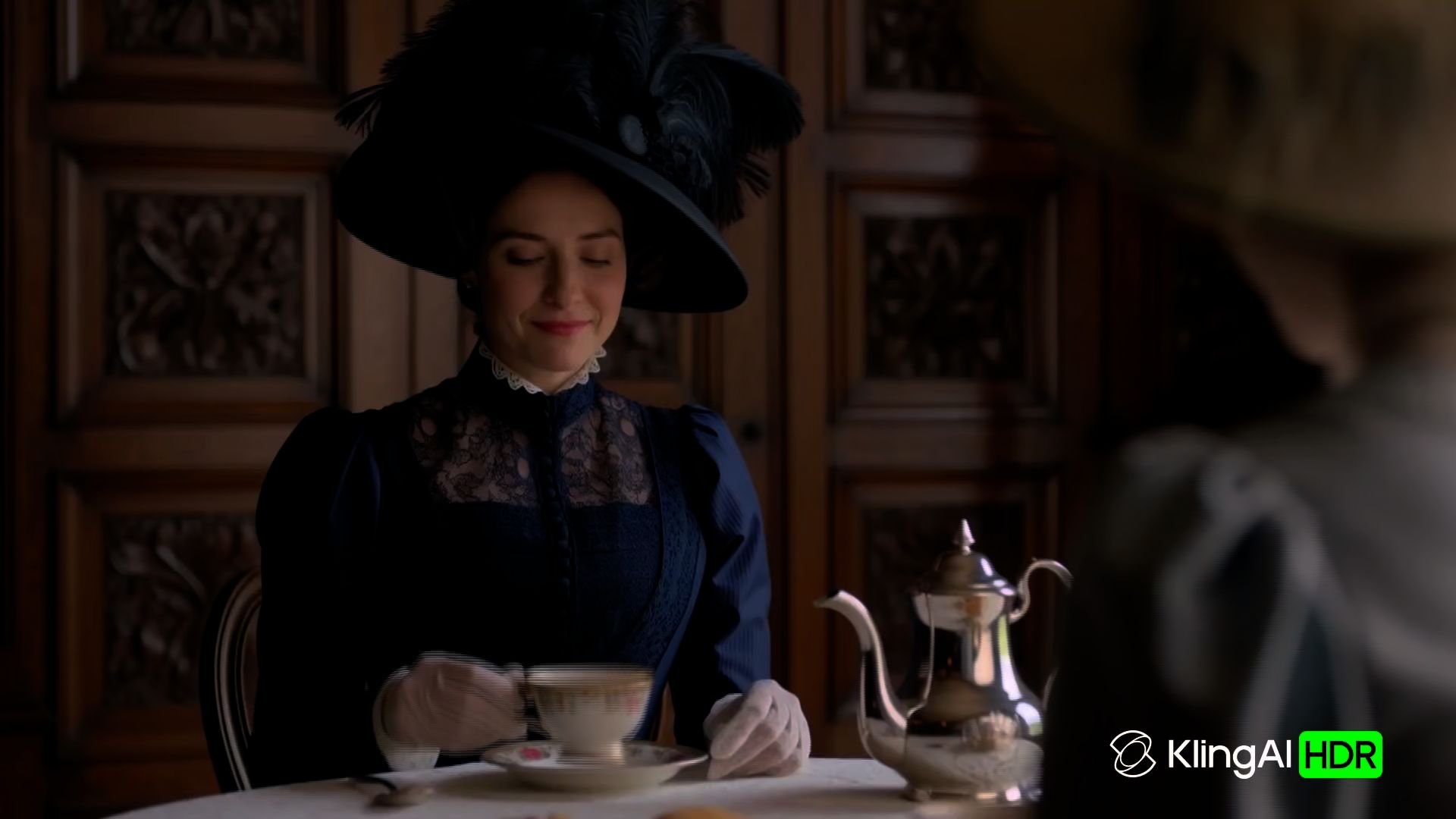
That frame you paused on may look sharp, but the full clip can tell a different story. A face might look slightly off, patterns can shimmer as the camera moves, and a social media upload may appear softer than the file you saved.
Check Faces and Fine Details
Start with the details people are most likely to recognize. A blurry video enhancer might make someone's face appear sharper, yet change the shape of their eyes or leave their skin looking unnaturally smooth. For product footage, watch out for distorted lettering, logos, and fabric patterns. Compare these details with the original recording.
If the generated version changes important details, try a sharper reference image or make a targeted adjustment with an AI video editor. Check whether the next result preserves the subject's recognizable features, especially around the eyes, hairline, and clothing.
Watch for Flicker and Unnatural Edges
A single frame might look crisp even when the video has problems during playback. Watch scenes with moving hair, patterned clothing, or quick camera pans. Flickering textures, shimmering edges, and details that shift between frames can make the result look artificial.
If the problem appears during a particular movement, identify when it happens. For instance, if clothing textures shimmer during a camera pan, mention the affected time range in your editing instructions and describe how the fabric should move. Review the new version at normal playback speed to check whether the flicker remains.
Keep Videos Clear After Uploading
Your video may look sharp on your phone but noticeably softer after you post it to Instagram Reels or YouTube Shorts. These platforms compress uploaded footage, so even a higher-resolution export may lose some visible detail.
Start with your best-quality master file and choose an export format that suits the platform. For vertical videos, check the aspect ratio and avoid repeated downloads and re-exports. Even AI upscalers cannot prevent platform compression. Check the published video after processing finishes before making further changes to the original.
When Should You Enhance or Recreate a Blurry Video?
A blurry wedding toast and an out-of-focus product close-up pose different problems. One captures a moment you can't repeat. The other is a shot you can plan again.
If the footage captures something that happened only once, work with what you have. You might improve the lighting or adjust the framing in a video editor. A slightly soft recording of someone's wedding vows may still be more valuable than a sharper version that changes their expressions or other details.
For planned shots, starting over may be more practical. Imagine a product demo where the camera focuses on the background, leaving the packaging unreadable. You could film another take or use an AI video generator to create a new shot from clear reference images. Check the result carefully, especially any logos or text.
A travel vlog might call for both approaches. Keep the original conversation, even if it isn't perfectly sharp, and replace a blurry landscape cutaway if needed. Match the lighting and camera movement to the surrounding clips so the new shot fits naturally into the sequence.
The End
Learning how to unblur a video starts with recognizing why the image looks soft. Mild blur may respond to sharpening, denoising, or upscaling, and heavily damaged clips may call for a new take. With Kling 4.0, you can guide edits and recreations through visual references, then review the result for natural motion and recognizable details. Keep the original file for comparison whenever accuracy matters.
FAQs
Can You Fix an Out-of-Focus Video?
Yes. Mild defocus may improve with sharpening or AI enhancement. When a face is heavily out of focus, Kling 4.0 can use clearer photos of the same person to guide a newly edited or recreated video, drawing on those references for recognizable facial features and natural skin texture. The original clip can guide motion and camera timing. Check the result for consistency and accuracy, especially with personal footage.
Can AI Remove Motion Blur From a Video?
AI tools designed for motion deblurring can reduce some visible streaking, especially when the original footage still contains recognizable details. Heavy motion blur may remain. If camera shake also affects the framing, video stabilization may help with the unwanted movement.
Does Upscaling a Video Remove Blur?
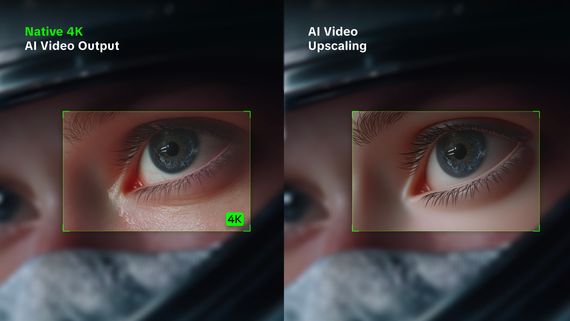
Not necessarily. Standard upscaling increases the number of pixels but does not correct the blur already present. AI upscaling may generate sharper-looking edges and textures, although the new details may not match what the camera originally captured.
Can AI Make a Low-Quality Video Look 4K?
Yes, AI can generate a higher-resolution version of low-quality footage, but the added detail may not accurately reflect the original. Kling 4.0 supports 1080p and 4K (coming soon) output, with visual references helping guide the appearance of a regenerated shot. However, higher resolution cannot guarantee the recovery of missing details, especially in heavily blurred footage.
How Do You Make a Blurry Video Clearer on Your Phone?
Open the original clip in your phone's video editor and try a small increase in sharpness. If the footage looks grainy, noise reduction may help. Stabilization can smooth out shaky playback, though it won't undo motion blur already in the recording. Some mobile apps offer AI enhancement, too. Watch the edited clip before saving, especially if faces look unnatural. A badly out-of-focus shot may still need a reshoot.