You may know what a tattoo should mean before you know how it should look. The best AI tattoo generator helps you explore options, from a delicate outline of your dog to a bold blackwork portrait. With Kling IMAGE 3.0 Omni, you can refine your idea before meeting your tattoo artist.
What an AI Tattoo Generator Does and Where It Stops
An AI image generator can turn a written tattoo idea into a visual concept. Some tools also accept reference images, allowing you to build on a photo or sketch and explore different tattoo styles.
Use the result to show a tattoo artist what you have in mind. They can assess the linework, spacing, and composition at your intended size and placement, then prepare or adapt the design for a stencil.
How to Choose the Best AI Tattoo Generator: 6 Criteria
A tattoo concept needs to be judged at the size and placement you have in mind. When comparing tools, check both the generated image and the options for developing it further. These six criteria provide a useful starting point.
Criterion | Why It Matters for Tattoos |
Style range | Different tattoo styles call for different approaches to outlines, shading, and color |
Line clarity and contrast | Clear outlines and spacing make it easier for an artist to assess the concept at its intended size |
Reference-based generation | Lets you develop an idea from a sketch, photo, or existing design |
Editing control | Lets you request specific changes while asking the model to preserve the main motif and composition |
Consistency | Helps retain recognizable features and a coherent style across matching pieces or related designs |
Access and cost | Clear generation costs, trial limits, and download conditions help you judge the value before paying |
These criteria matter when your tattoo combines several personal details. For example, Kling IMAGE 3.0 Omni supports up to 10 reference images, so you can bring together a pet photo, a birth flower, and a preferred linework style. Feature retention and natural-language editing help you adjust shading or composition while keeping recognizable details. Native 4K output also gives you a detailed visual reference to review with your tattoo artist as you decide which elements to keep or simplify.
AI Tattoo Generators Compared
Some tools focus on generating tattoo artwork, while others add editing tools or placement previews. Choosing the best AI tattoo generator starts with knowing which part of the process you need help with. This comparison highlights each tool's published features and practical uses.
Tool | Key Features | Useful For |
Kling IMAGE 3.0 Omni | Text-to-image generation, up to 10 reference images, multi-image blending, feature retention, style changes, and natural-language targeted edits | Combining personal reference photos and symbols into custom tattoo concepts, preserving recognizable details, and refining linework or composition |
Adobe Firefly | Text prompts, reference-image uploads, style variations, and prompt-based refinement | Exploring tattoo illustrations from a written idea, photo, or sketch |
TattoosAI | Tattoo-focused generation with built-in style and color selections | Trying a motif in preset tattoo styles, such as minimalist, dotwork, or Japanese |
Tatship | AI design generation, customization with uploaded images, photo-based previews, and 3D virtual try-on | Visualizing how a design might look on your body |
Canva | Prompt-based generation, style presets, reference photos, text tools, and image overlays | Combining artwork with lettering or arranging a rough placement mockup |
When choosing an AI tattoo maker, try the same small task in each tool: generate a motif, add a reference image if supported, and request one change, such as removing a leaf. Compare how well the results follow your instructions and retain the details you want to keep.
Why Kling IMAGE 3.0 Omni Works Well for AI Tattoo Design
Kling IMAGE 3.0 Omni Omni can develop a tattoo concept from a written idea, a reference image, or both. You can try different visual styles and revise individual elements as the design takes shape.
Text-to-Image: From Idea to Tattoo Concept
With our text to image workflow, you can start from an idea without uploading a reference photo. Describe a crescent moon, a favorite flower, or an imagined creature, then specify the tattoo style and shading. The AI image generator lets you choose the aspect ratio and number of outputs to compare different arrangements of the same subject.
Reference-Based Image Generation: Build on What You Already Have
Want to turn a cherished photo of a loved one into a tattoo? Preserving recognizable facial features and expressions can make the design more personal. Our image-to-image AI workflow uses references to guide those details, with Kling IMAGE 3.0 Omni supporting up to 10 reference images. Reuse the same reference when exploring different tattoo styles, and check that the features you care about remain recognizable.
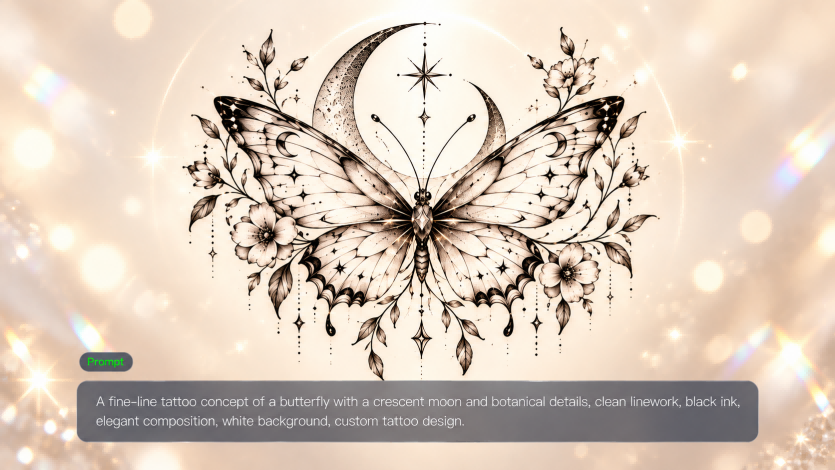
You can also combine images of meaningful symbols, such as a butterfly, crescent moon, or favorite flower, into one personalized tattoo design. Tell Kling which elements to take from each image and how they should fit together, creating a unique concept that honors a special person, memory, or milestone.
Image | Prompt |
.png?x-oss-process=image/resize,w_1872) | Keep the butterfly wing shape and graceful silhouette from image 1, use the crescent moon and star details from image 2, and incorporate the botanical flowers and leaves from image 3. Combine these elements into one cohesive, elegant fine-line tattoo design in black ink. Position the butterfly as the central subject, with the crescent moon and stars above it and delicate flowers and leaves flowing naturally around the wings. Use clean, precise linework, subtle dot shading, balanced spacing, and a vertical composition suitable for a forearm tattoo. |
Style Transfer: One Design, Many Tattoo Styles
Still choosing between a delicate sketch and a bold blackwork design? Use a reference to explore how the same motif looks with different outlines, shading, or colors. Kling IMAGE 3.0 Omni supports style changes through natural-language instructions and style references, giving you alternatives to compare before discussing a direction with your tattoo artist.
Our AI image editor also lets you request smaller changes, such as removing a stray leaf or changing a colored concept to black and gray. Specify what should change and what should stay, then compare the result with the previous version.
.png?x-oss-process=image/resize,w_1872)
How to Create AI-Generated Tattoos with Kling IMAGE 3.0 Omni
Step 1. Upload Reference Images
Open Kling AI's image generation workspace and select IMAGE 3.0 Omni. Upload a sketch, photo, or style reference if you have one. Upload a sketch, photo, or style example if you have one. You might use one reference for the subject’s shape and another for the linework style. Choose images that show the details you want to work with. If you have no reference, skip the upload and create your tattoo concept entirely from a written prompt.
Step 2. Write Your Tattoo Prompt
For text to image, describe the subject, tattoo style, linework, shading, and composition. Include the intended placement to help explain the layout. If you uploaded references, explain what each should contribute, such as “Keep the bird’s silhouette from image 1 and use the linework style from image 2.”
| Prompt: Fine-line tattoo of a hummingbird beside a lavender sprig, black ink, light dot shading, open space between elements, vertical composition for the inner forearm, plain white background. |
Step 3. Generate, Review, and Refine
Generate a few versions and compare their overall shape, spacing, and level of detail. Look closely for merged outlines, crowded shading, or awkward connections between elements. To explore another style or make a targeted edit, use your preferred result as a reference and give a specific instruction: “Keep the hummingbird’s silhouette and vertical layout, but switch to bold blackwork and remove the dot shading.” Check the updated image for unintended changes, then download your preferred concept to discuss size, placement, and linework with your tattoo artist.
Tattoo Prompt Examples by Style
Try these prompts with the AI art generator and swap in your own subject. Adjust the linework, shading, or colors to explore a different version of the same idea.
Style | Example Prompt |
Fine line | Fine-line tattoo of a crescent moon wrapped in a single rose stem, thin even linework, no shading, white background |
Blackwork | Bold blackwork tattoo of a mountain range inside a circle, solid black fills, high contrast, clean edges, white background |
Traditional | Traditional-style tattoo of a swallow carrying a banner, bold black outlines, limited palette of red, yellow, and green, flat color |
Watercolor | Watercolor-style tattoo of a fox, loose color splashes behind crisp black outlines, soft blue and orange tones, white background |
Geometric | Geometric tattoo of a stag head built from triangles and dot work, symmetrical composition, black ink only |
Botanical | Botanical sketch tattoo of a fern and wildflowers, stippled shading, vertical forearm composition, black and grey |
Tips for Turning an AI Tattoo Design Into Real Ink
- Simplify fine detail. Tiny textures and very thin parallel lines can blur together as a tattoo ages. Ask for cleaner linework or fewer elements before you finalize.
- Design for placement. Ask for a tall, narrow composition for a forearm idea or a wider arrangement for a collarbone piece. Your artist can adapt the proportions to the actual placement.
- Check any lettering. Proofread names, dates, and quotes, then confirm their spelling, font, and spacing with your artist before the stencil is prepared.
- Use original subjects. Skip copyrighted characters and brand logos, and keep the concept your own.
- Bring options, not orders. Show the artist two or three concepts and be open to their adjustments for your skin and style.
This example reworks a portrait as black-and-white line art, keeping recognizable details such as the cap, pose, and drink. A similar approach can help you explore a drawing based on a personal photo before discussing the design with your tattoo artist.
 | .webp?x-oss-process=image/resize,w_1872) |
| Prompt: Generate line art based on this image. | |
For more tattoo design ideas, explore our AI tattoo generator.
The End
Choose the best AI tattoo generator for your design goals. Start in Kling IMAGE 3.0 Omni with a prompt or reference image, compare a few versions, and refine your preferred concept. Bring it to your tattoo consultation with a note of the details you want to keep.
FAQs
Are AI Tattoo Generators Legit?
Yes. AI tattoo generators are useful tools for exploring tattoo concepts, styles, and compositions. With Kling IMAGE 3.0 Omni, you can develop a design using text prompts and reference images, then refine details through natural-language instructions. However, AI-generated tattoos are visual concepts rather than automatically tattoo-ready stencils. Check important details, including lettering and personal symbols, and ask a professional tattoo artist to review the final design for size, placement, and execution.
Is an AI Tattoo Generator Free?
You can sign up for Kling AI for free. New users receive free credits after registration, and returning users can claim a free credit allowance by logging in each month. Image generation with IMAGE 3.0 Omni consumes credits, so check the generation cost and your available balance before starting.
How Can I Preview a Tattoo on My Body with AI?
With image to image AI, you can use a clear photo of your body as the starting point for a rough tattoo preview. In Kling IMAGE 3.0 Omni, describe the design and placement, or add a separate image of your tattoo concept. Specify the approximate size and angle, then use the result to discuss placement with your artist. This is a visual mockup, not a precise AR try-on or a tattoo-ready stencil. Your tattoo artist should confirm the final size and placement.
What Is the Best App to Create My Own Tattoo?
The best app depends on the controls you need. Kling AI’s IMAGE 3.0 Omni is useful for developing custom concepts from text, photos, or sketches and revising details through follow-up instructions. Compare tools on reference support, editing controls, credit costs, and download options to find one that suits your process.
Which AI Tool Is Best for Generating Tattoo Ideas?
For idea exploration, look for a tool that can develop unusual combinations from your descriptions. Kling IMAGE 3.0 Omni can help you explore concepts such as a pet silhouette filled with a mountain landscape. Describe the personal elements, mood, and tattoo style, then compare several interpretations before choosing a direction.
What Is the 1/3 Rule for Tattoos?
Some American traditional tattoo artists use the 1/3 rule as a loose guide: roughly one-third black, one-third color, and one-third uninked skin. It encourages a balance of dark areas, color, and open space. The proportions can vary with the style and composition, so discuss the balance with your tattoo artist.