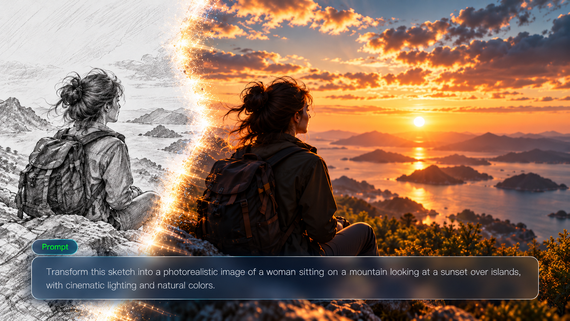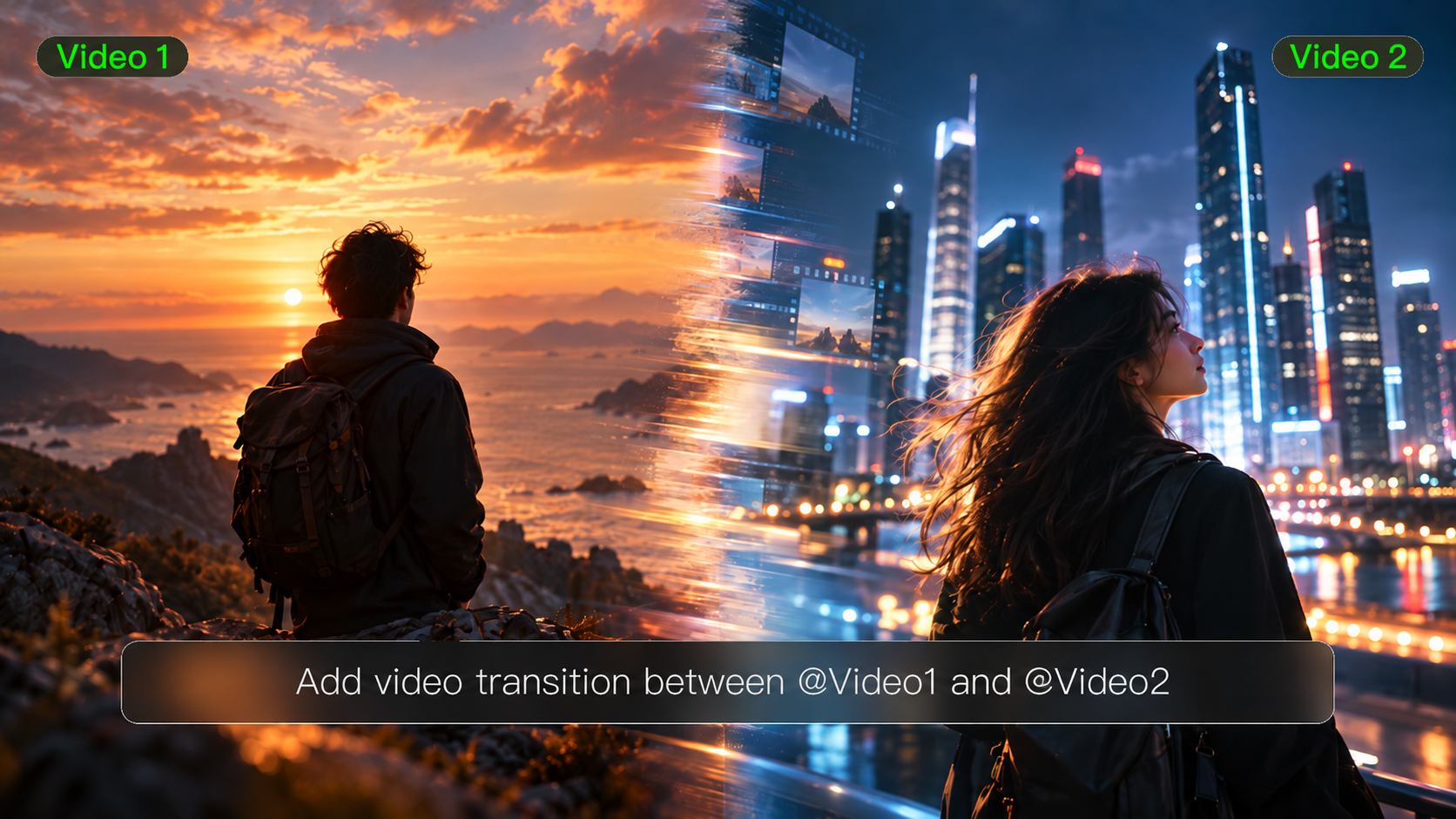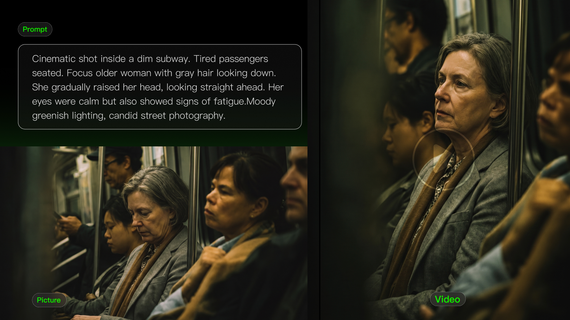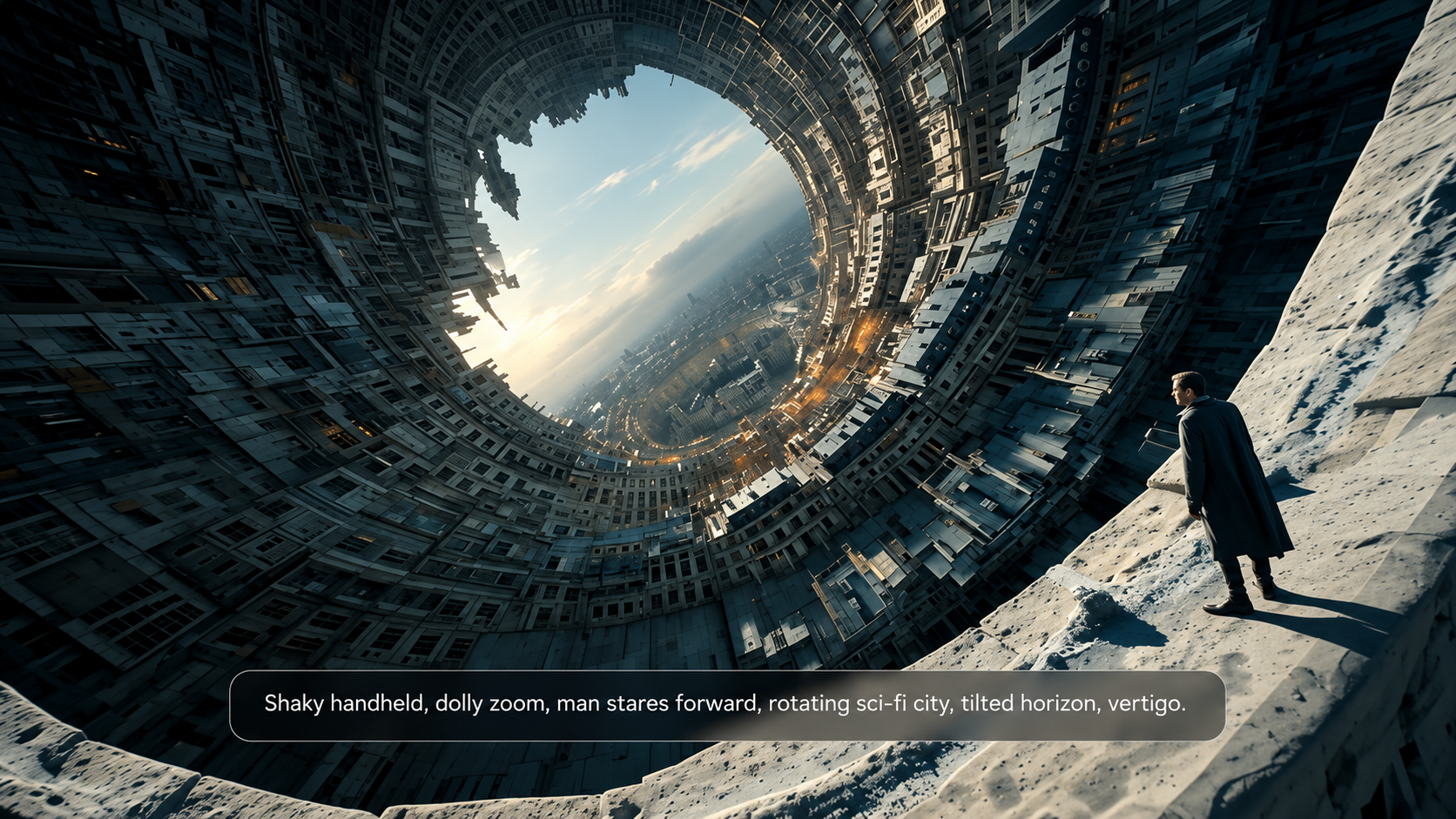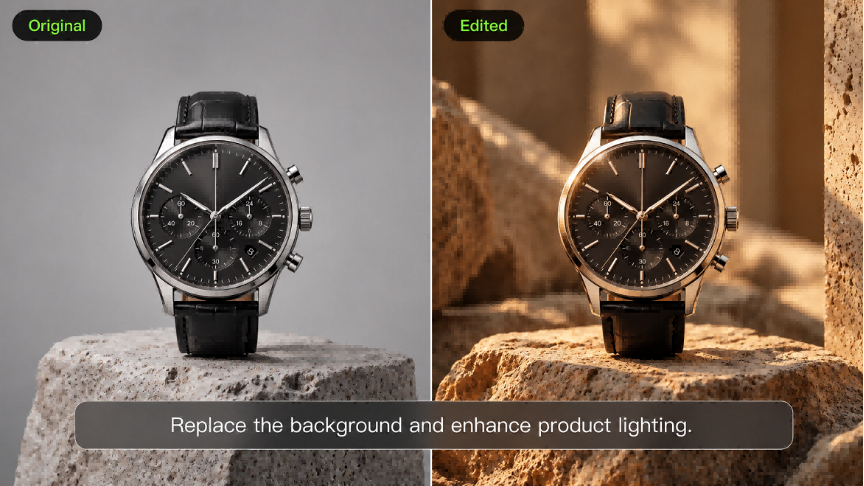
An image may need only one change before it's ready to use: a cleaner background, a different object, or extra room around the subject. AI editing tools offer several ways to make those changes through text instructions, reference images, and selected areas. This guide explores seven of the best AI image editing tools, highlighting their features and practical uses. You'll also learn how Kling IMAGE 3.0 Omni handles reference images, precise edits, and image expansion for different creative projects.
7 AI Image Editors Worth Trying
The way an AI picture editor handles changes can vary, from text prompts and visual selections to reference-based editing. These seven tools offer different combinations of editing controls and image features.
Tool | Platform | Editing Controls | Image Inputs & References | Core Editing Features |
Kling AI | Web, mobile app | Natural-language prompts, uploaded visual references | Up to 10 reference images | Multi-object edits, feature retention, style transfer, camera-angle changes |
Adobe Firefly | Web, mobile app | Text prompts, brush selections | Reference images for selected edits | Generative Fill, object removal, background editing |
Leonardo.Ai | Web, mobile app | Text prompts, canvas selections | Uploaded images, Image Guidance | Inpainting, object editing, image variations |
OpenArt | Web | Text prompts, selection tools | Uploaded images, visual references | Inpainting, object replacement, background editing |
Dreamina | Web | Text prompts, brush selections | Multiple image references | Inpainting, object removal, background editing |
Canva | Web, desktop, mobile app | Text prompts, visual selections, drag-and-drop | Uploaded source images | Magic Edit, background removal, image adjustments |
Picsart | Web, mobile app | Text prompts, selections, manual tools | Uploaded source images | AI Replace, object removal, background editing |
Kling AI
Kling IMAGE 3.0 Omni brings image generation and editing together, helping creators rework existing visuals through natural-language prompts. It can draw on up to 10 reference images to help preserve recognizable subjects, products, and styles. You can replace objects, adjust colors or materials, change backgrounds, and make several edits in one generation. The model uses lighting and texture cues from the original image to help new details blend naturally, with native 2K and 4K Ultra HD output for high-resolution creative projects.
Adobe Firefly
Adobe Firefly offers generative image editing through text prompts and visual selections. Its tools include Generative Fill, object removal, background changes, and image expansion. Firefly also connects with Adobe's broader creative ecosystem.
Leonardo.Ai
Leonardo.Ai brings image generation and editing tools into one platform. It supports prompt-based modifications, image guidance, canvas editing, and upscaling, with options for adjusting existing images and developing new visual variations.
OpenArt
OpenArt provides access to multiple AI models and image editing tools. Its features include inpainting, object replacement, background adjustments, and image expansion, along with options for exploring different visual styles.
Dreamina
Dreamina combines AI image generation with editing tools for modifying existing visuals. It supports text-based instructions, reference images, localized adjustments, and canvas expansion, along with controls for changing backgrounds and individual elements.
Canva
Canva integrates AI-powered image editing into its online design platform. Magic Edit supports changes to selected areas, and additional tools cover background removal, image adjustments, and layout editing within the same workspace.
Picsart
Picsart combines AI image editing with traditional photo adjustment tools. Its features include AI Replace, object removal, background editing, image enhancement, and a collection of creative effects for further customization.
Why Choose Kling IMAGE 3.0 Omni for AI Image Editing?
Choosing among AI photo editing tools involves more than deciding which one can remove an object or replace a background. You also need to preserve important details, keep the edited image visually coherent, and explore new creative directions when needed. Kling IMAGE 3.0 Omni combines natural-language editing with multiple image references, giving you more ways to refine an existing photo or reimagine its composition.
Keep Key Details Consistent with Up to 10 References
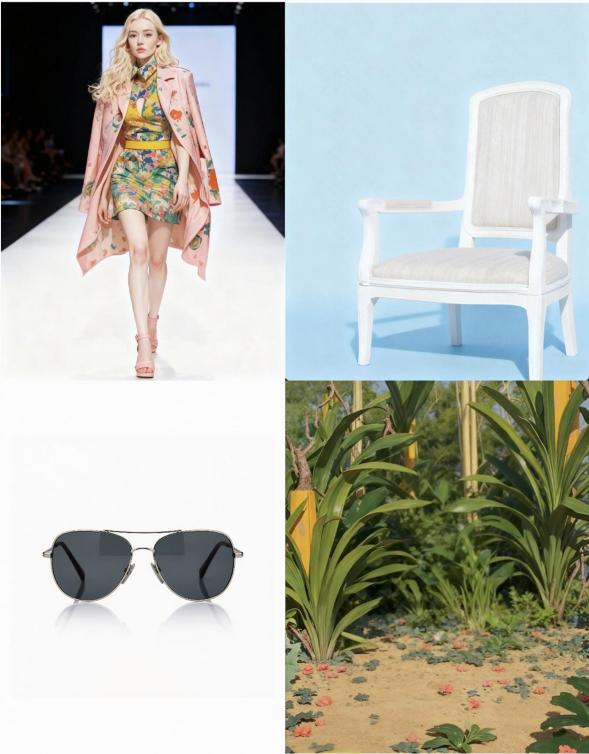
Imagine adapting a product photo for a new campaign. You want a different setting and creative style, but the product's shape, signature colors, and recognizable design should remain consistent. This becomes especially important when several visual references need to work together.
Kling IMAGE 3.0 Omni can incorporate features from up to 10 reference images, using them to guide subjects, products, backgrounds, and artistic styles. You might use one image for the main subject, another for the setting, and a third for the overall visual mood. Assigning each reference a clear role helps the model combine different elements while retaining the recognizable details that matter to your project.
Reference Image | Output |
 | .png?x-oss-process=image/resize,w_1872) |
| Prompt: The female model is wearing brand sunglasses, sitting on a white chair, with the background being image 4. | |
Make Multiple Precise Changes with One Prompt
Sometimes a single photo needs several changes before it's ready to use. You might want to replace the background, resize an object, change its material, and remove unwanted details. Handling these changes together can help you explore the complete composition rather than treating every adjustment as a separate task.
With Kling IMAGE 3.0 Omni, you can combine multiple natural-language instructions in one generation while specifying which details should remain unchanged. The model interprets your edits in the context of the original image, drawing on its lighting, textures, and style to help the changes fit naturally. This makes it easier to experiment with more complex edits and refine the result afterward when needed.
Reference Image | Output |
.png?x-oss-process=image/resize,w_1872) | .png?x-oss-process=image/resize,w_1872) |
| Prompt: Change the background to the inside of a spaceship, with the table turning into a control desk. The kitten is wearing a spacesuit, and remove the flowerpot and books, leaving only the cup and small biscuit bowl. | |
Restyle Photos While Keeping a Cohesive Look
A new project may call for a different visual direction, whether that's a cinematic atmosphere, a stylized illustration, or a softer color palette. The challenge is changing the overall appearance without making individual elements feel disconnected from the rest of the image.
Kling IMAGE 3.0 Omni supports style-guided image editing through text prompts and visual references. It can interpret colors, textures, brushwork, and other stylistic characteristics to guide the transformation. You can explore 3D cartoon, cyberpunk, steampunk, and other creative looks while maintaining a cohesive atmosphere across the image. This is useful for developing distinctive brand visuals, illustrations, and social media content.
Image 1 | Image 2 | Output |
.png?x-oss-process=image/resize,w_1872) | .png?x-oss-process=image/resize,w_1872) | .png?x-oss-process=image/resize,w_1872) |
| Prompt: Change the style of Image 1 to that of Image 2 | ||
Explore New Camera Angles and Wider Compositions
An existing photo may feature the right subject but not the ideal framing. You might need a close-up of a product, a higher camera angle for a different perspective, or more background space to create a promotional banner.
Kling IMAGE 3.0 Omni can generate alternative viewpoints and shot sizes based on a reference image, allowing you to explore different compositions without taking another photograph. These new views are AI-generated interpretations rather than details recovered from outside the original image. For compositions that need more space, Kling's image expansion workflow can extend the surrounding scene while following the original lighting, colors, and textures. This gives you more ways to adapt existing visuals to different creative needs.
Reference Image | Establishing Shot | Output |
.png?x-oss-process=image/resize,w_1872) | .png?x-oss-process=image/resize,w_1872) | .png?x-oss-process=image/resize,w_1872) |
| Prompt: Change the shot size to [ ] | ||
How to Edit an Image With Kling IMAGE 3.0 Omni
Ready to make changes to an existing photo? Kling IMAGE 3.0 Omni lets you work from your original image, describe the edits you want, and refine the result through natural language instructions. Follow these three steps to get started.
Step 1: Upload Your Image
Open Kling AI, go to Image Generation, and select Kling IMAGE 3.0 Omni. Upload the photo or artwork you want to edit. You can also add reference images showing the subjects, products, clothing, backgrounds, or visual styles you want to preserve or introduce. IMAGE 3.0 Omni can incorporate visual features from up to 10 reference images, so choose clear references and give each one a specific role.
Step 2: Describe the Changes You Want
Write a clear prompt identifying what you want to change, how the edited area should look, and which details should remain unchanged. Use visible characteristics or position cues to specify the target, such as "the blue cup on the left" or "the street sign behind the cyclist." You can also combine several compatible changes in one prompt, helping Kling understand how the edited elements should work together.
For example, to remove an unwanted object from a photo, try:
| Prompt: Remove the street sign behind the cyclist and fill the empty area with the surrounding brick wall. Keep the cyclist, lighting, and camera angle unchanged. |
To extend an image with AI, specify the new aspect ratio and describe how the background should continue. For example:
| Prompt: Outpaint the image to 16:9, extending the surrounding landscape naturally. Keep the main subject unchanged. |
Step 3: Generate and Refine Your Edited Image
Choose your output settings, including aspect ratio, image count, and resolution. Kling IMAGE 3.0 Omni supports native 2K and 4K Ultra HD output, bringing out finer textures and more natural color transitions in high-resolution images. Click Generate, then review the edited areas and any important details you wanted to preserve.
A misplaced object or uneven background texture may call for a more specific instruction. Adjust the relevant part of your prompt, generate another version, and check the result. Once you're happy with the edit, download your image.
AI Photo Editing vs. AI Image Generation: Which Do You Need?
Say you have a product photo ready for your online store, but the background no longer fits your campaign. You could remove the background from the image and replace it with a setting that suits the new look. Image generation becomes useful when you want to explore an entirely new visual concept.
The right approach depends on what you already have and how much you want to change.
What You Want to Do | Recommended Approach | Example |
Fix or update an existing photo | AI image editing | Remove distractions, change a product backdrop, or adjust lighting |
Create a completely new visual | AI image generation | Design an original campaign scene from a text description |
Explore new versions of an existing idea | Reference-based generation and editing | Use a product photo to develop new compositions or visual styles |
The two approaches can also work together. You might use an AI image generator to explore different campaign concepts, then fine-tune individual details in your chosen image. If your original photo already has the subject and composition you need, a few targeted edits may be enough to get it ready for use.
The End
Choosing the best AI image editor depends on the changes you want to make and how much creative control you need. Kling IMAGE 3.0 Omni combines multi-image references, detailed prompts, and style control to help you preserve recognizable subjects while modifying different parts of a photo. You can also explore new camera angles and wider compositions when one image needs to serve multiple creative purposes. Try editing your own photos with Kling AI and refine your instructions until the results match your goals.
FAQs
What Is the Best AI Photo Editor for Beginners?
The best AI photo editor for beginners depends on what you want to change. Kling IMAGE 3.0 Omni is a useful starting point for editing photos with text instructions and reference images. You can remove unwanted objects, adjust backgrounds, or modify specific details, then review the result and refine your edits.
Can AI Image Editors Restore Old or Damaged Photos?
Yes. Some AI image editors can help restore faded colors, reduce scratches, and improve details in old photographs. Results depend on the original image and the tool's restoration capabilities. AI may also reconstruct missing details inaccurately, so check important facial features and other recognizable elements before saving the result.
Can AI Image Editors Preserve Text and Logos?
Yes, although results depend on the complexity of the design and the edits involved. Kling IMAGE 3.0 Omni supports feature retention and reference-based editing, which can help maintain recognizable logos and other visual details when modifying an image. Always check spelling, proportions, and fine details before using the result in brand materials.
Does AI Image Editing Reduce Photo Quality?
Not necessarily. Image quality depends on the original photo, the complexity of your edits, and the output settings. Kling IMAGE 3.0 Omni supports feature retention and precise detail modification, helping maintain recognizable subjects, textures, and visual styles. It also supports native 2K and 4K Ultra HD output, providing finer details and smoother color transitions. For the best results, review the edited areas and refine your instructions as needed.
Can I Use AI-Edited Images for Commercial Projects?
Commercial use depends on the platform's terms and your rights to the original materials. Some AI image editing services allow commercial use under certain conditions. Before publishing edited images in advertisements, product listings, or other business materials, review the applicable terms and make sure you have permission to use any third-party photos, logos, or other protected content.