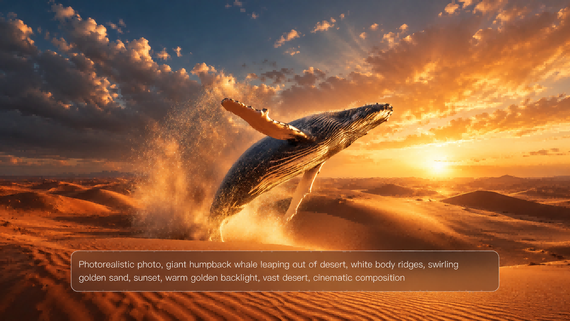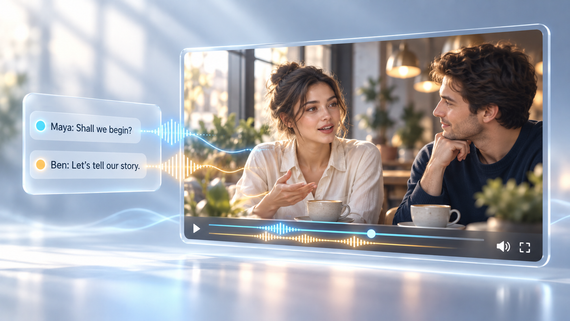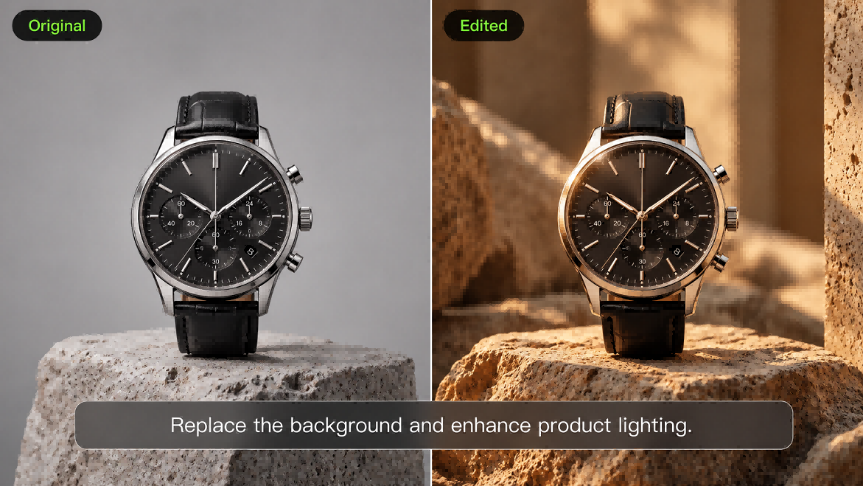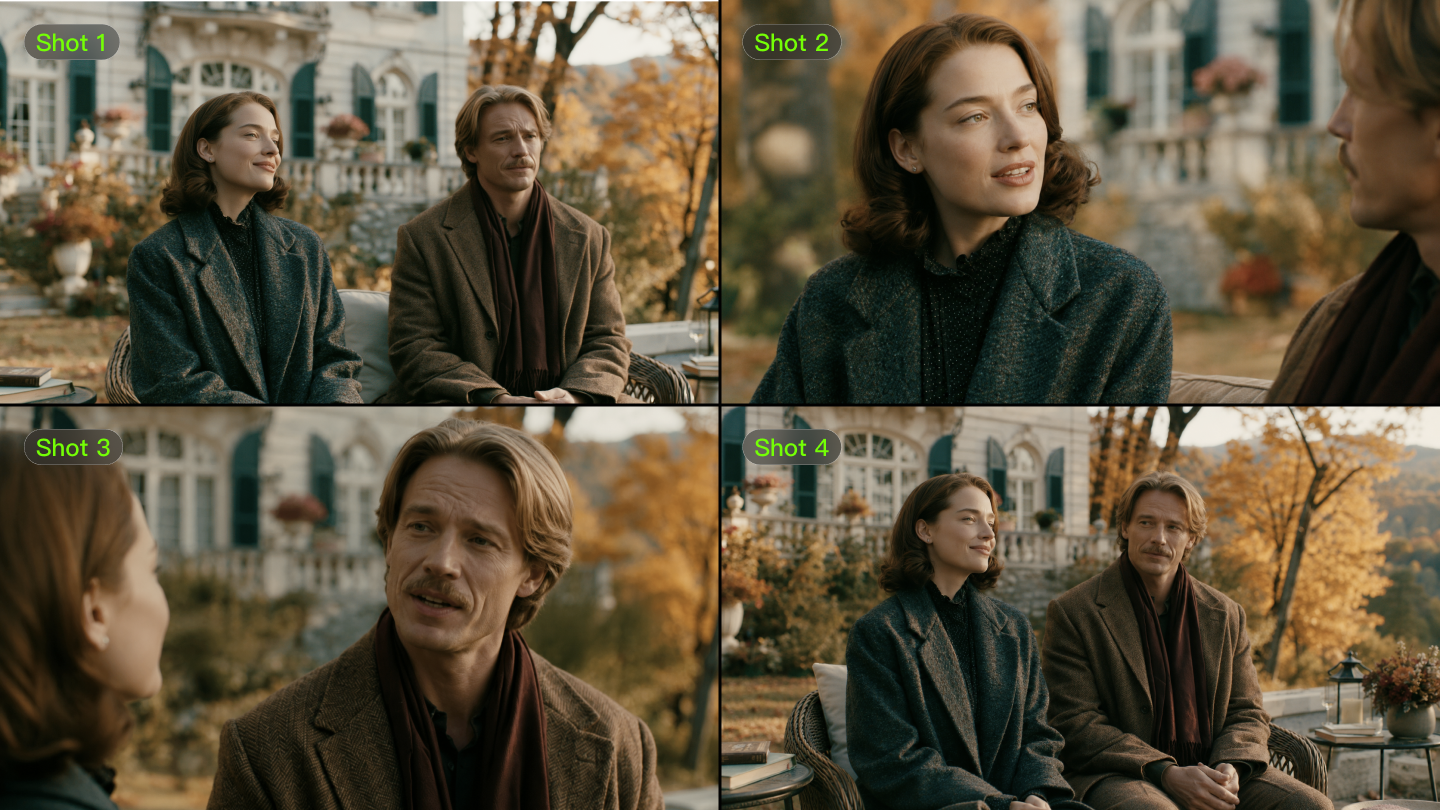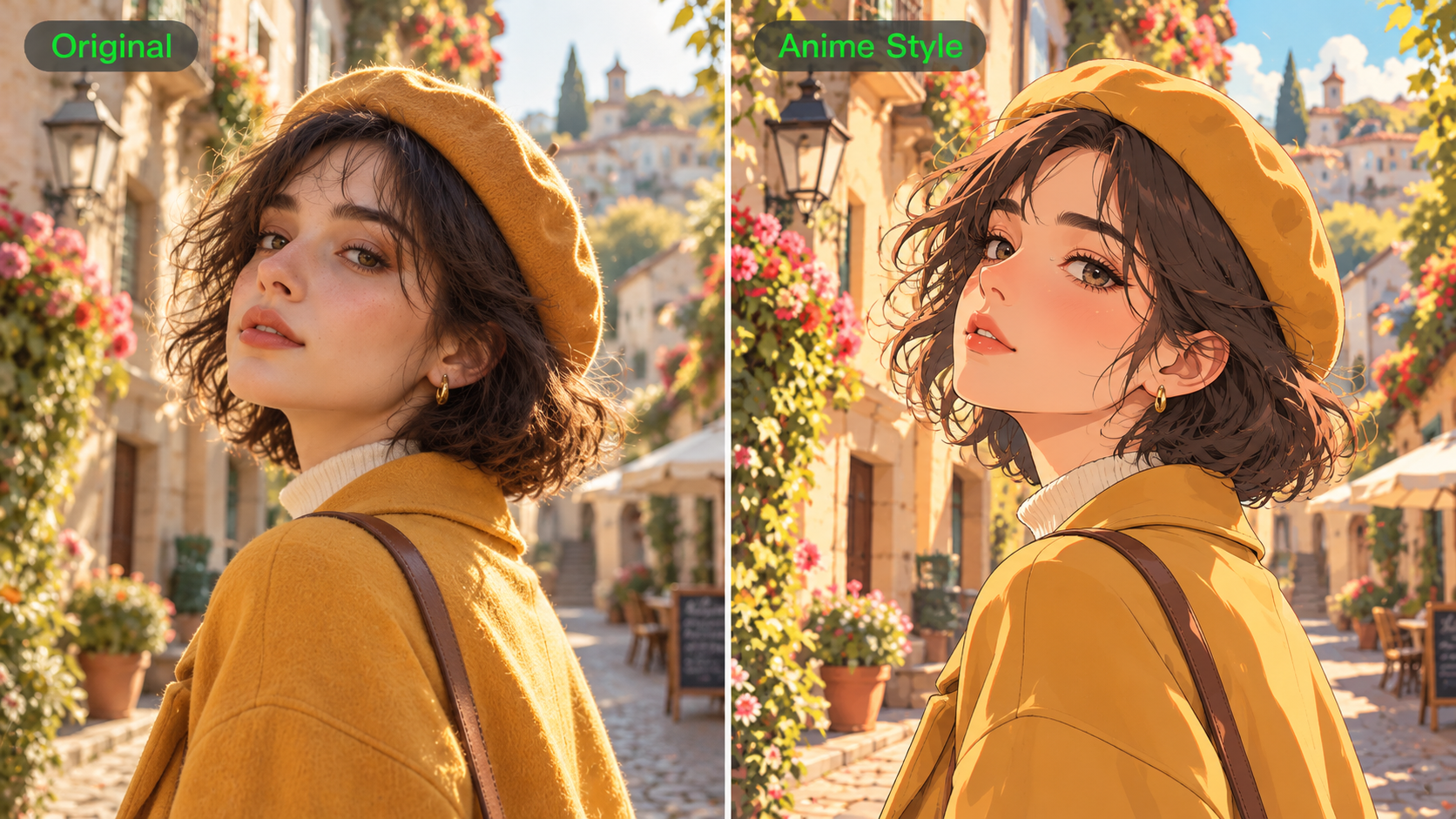
You have a picture in mind, maybe a watercolor portrait or a city floating above the clouds. Then the first AI-generated image comes back with the wrong lighting, odd details, or a style you never asked for. Sometimes the prompt needs a clearer viewpoint. Other times, a reference image helps. This guide covers what AI art is, how to make it with Kling AI, and how to improve individual images or a related set of illustrations.
What Is AI Art?
AI art is artwork that a generative AI model creates or modifies based on your instructions. You can describe an imagined scene in words, provide a photograph or sketch to guide visual details, or use another image as a style reference. An AI art generator interprets these inputs to produce an image. This guide focuses on creating and refining digital artwork with text prompts and visual references.
What Can You Create With an AI Art Generator?
Maybe you want to picture a city above the clouds, redesign a favorite portrait, or illustrate a short story. Kling IMAGE 3.0 lets you turn those ideas into AI artwork from text prompts or images, combining up to 10 references to guide the subject, background, clothing, and visual style. You can also refine details with natural-language instructions without starting completely from scratch. For connected illustrations, Kling IMAGE 3.0 Omni offers Image Series mode to help keep characters and artistic direction consistent across multiple images, with native 2K/4K output for detailed results.
Fantasy Landscapes and Concept Art
An imagined setting can become the starting point for an entire fictional world. With Kling's text-to-image generation, you can describe the environment, lighting, perspective, and atmosphere to explore different visual directions.
Some creative possibilities include:
- Fantasy environments: Floating islands, enchanted forests, and ancient cities.
- Sci-fi landscapes: Futuristic skylines, alien planets, and surreal architecture.
- Environment concept art: Locations and background designs for games, stories, or other creative projects.
Portraits and Character Art
Try the same portrait as a watercolor painting, then as vintage manga. The mood changes, even though the subject stays the same. With image-to-image AI, Kling IMAGE 3.0 series can use an existing photo as a starting point for a new artistic treatment.
Its avatar stylization covers colored-pencil illustrations, pixel art, Chibi 3D, and picture-book styles, among others. Look at the outlines and shading in each version. A delicate pencil sketch might work for a personal portrait, and a bold manga treatment can give the same face a completely different personality.
| Reference Image | Colored Pencil Illustration | Watercolor Illustration | Vintage Manga | Chibi 3D | Pixel Art |
.png?x-oss-process=image/resize,w_1872) | .png?x-oss-process=image/resize,w_1872) | .png?x-oss-process=image/resize,w_1872) | .png?x-oss-process=image/resize,w_1872) | .png?x-oss-process=image/resize,w_1872) | .png?x-oss-process=image/resize,w_1872) |
| Prompt: Convert image to [] style | |||||
Storybook and Comic Illustrations
Storybook and comic art bring characters, settings, and actions together to tell a visual story. A children's book might feature gentle colors and whimsical animals, whereas a fantasy comic could call for dramatic angles, bold outlines, and more expressive movement.
You can develop individual story moments around a clear action or emotion, such as a curious fox discovering a hidden doorway or a young explorer entering an unfamiliar city. Reference images can help establish a character's appearance or a particular illustration style, giving each scene a more recognizable visual identity.
How to Create AI Art with Kling
Whether you're creating a single illustration or a matching series, Kling AI lets you begin with text, reference images, or both. Follow these three steps to develop your ideas into AI artwork.
Step 1: Choose Your Model and Starting Materials
Open Kling AI and go to Image Generation. Choose Kling IMAGE 3.0 to create or restyle artwork, or IMAGE 3.0 Omni if you plan to generate a connected series of illustrations.
Start with a text description or upload a photo, sketch, or existing artwork as a reference. A portrait can help preserve recognizable facial features, while another image can guide the background or artistic direction. IMAGE 3.0 supports up to 10 reference images, allowing you to combine characters, clothing, settings, and other visual elements. You can also start entirely from text without uploading an image.
Step 2: Write Your Prompt and Choose an Art Style
Describe your subject, setting, composition, and the visual details you want to keep or change. For example, if you've uploaded a portrait, you could write: "Turn Image 1 into a whimsical storybook illustration while keeping the character's facial features and pose."
With Kling IMAGE 3.0, you can also click Styles to explore the Style Library and select a preset, such as Whimsical Illustration, Chibi 3D, or Line Art. Style options are available for both text-to-image and image-to-image creation, so you can apply an artistic look whether you're starting with a prompt or an existing picture.
For a more personalized style, you can also upload an artistic reference image. IMAGE 3.0 can interpret its brushstrokes, color palette, and visual composition to guide your new artwork.
.png?x-oss-process=image/resize,w_1872)
Step 3: Generate and Refine Your Artwork
Choose your aspect ratio and output settings. If you're using IMAGE 3.0 Omni to create multiple related illustrations, enable Image Series mode before generating, then select a fixed number of images or choose Auto. This allows you to develop connected storybook scenes or character illustrations from text or image references while maintaining a consistent artistic direction.
Click Generate and review the results. Check the composition, character expressions, colors, and finer details. With IMAGE 3.0, you can use natural-language instructions to refine specific elements, such as changing a color, adjusting an expression, or resizing an object. For an Image Series, IMAGE 3.0 Omni also supports batch adjustments to help refine multiple related images together.
Image Reference | |||||
.png?x-oss-process=image/resize,w_1872) | |||||
| Prompt: "Ordinary days shine through mindfulness." 5-panel storyboard. | |||||
| Image 1 | Image 2 | Image 3 | Image 4 | Image 5 | |
| Image Series | .png?x-oss-process=image/resize,w_1872) | .png?x-oss-process=image/resize,w_1872) | .png?x-oss-process=image/resize,w_1872) | .png?x-oss-process=image/resize,w_1872) | .png?x-oss-process=image/resize,w_1872) |
AI Art Prompt Examples to Try
Want the observatory to look tiny against a vast coastline? Say so in your prompt. The same goes for loose watercolor edges, flat shadows, or a character's outfit across several scenes. Give the AI image generator a few concrete visual details to work with, then adjust them to suit your artwork.
Build Depth in Fantasy Scenes
Fantasy Landscape
| Prompt: A stone observatory perched on a cliff above a stormy sea at dawn. Wide view from the shore, a small traveler on the winding path for scale, crashing waves in the foreground, distant mountains fading into mist. Hand-painted fantasy concept art, muted blue-gray palette, warm golden light from the observatory, atmospheric depth. |
Futuristic City
| Prompt: A bustling night market beneath elevated trains in a futuristic city. Street-level perspective, food stalls and pedestrians in the foreground, neon signs stretching toward a distant skyline. Cinematic sci-fi concept art, rain-soaked streets reflecting violet and amber lights, intricate architecture, layered composition, atmospheric lighting. |
Define a Clear Illustration Style
Watercolor Character Portrait
| Prompt: A waist-up portrait of a young botanist with curly dark hair, wearing a sage-green coat and holding a worn field journal. Three-quarter view, gentle expression, delicate botanical sketches in the background. Watercolor painting on textured paper, loose brushstrokes, soft earthy colors, subtle pencil outlines, natural window light. |
Minimalist Line Art
| Prompt: An orange tabby cat sleeping beside a potted fern on a windowsill. Slightly elevated viewpoint, the cat centered with generous empty space around it. Minimalist pen-and-ink illustration, bold uneven outlines, simple shadow shapes, warm cream background, limited color palette, no realistic fur textures or unnecessary decorations. |
Keep Characters Consistent Across Scenes
Consistent Storybook Illustrations
Prompt: Using the uploaded character reference, create three storybook illustrations featuring the same young explorer with round glasses, a yellow raincoat, and a red satchel. Scene 1: She discovers an ancient map in an attic. Scene 2: She follows a woodland trail. Scene 3: She arrives at a glowing village. Maintain her facial features, outfit, soft gouache textures, and warm autumn palette across all scenes. |
Common AI Art Problems and Quick Fixes
Some AI art problems call for a clearer prompt, and others need a small change to an image you already like. An AI photo editor can help adjust specific elements, such as an unwanted object or an incorrect color. The fixes below address other common issues you may encounter.
Problem | What to Change | Why It Helps |
Artwork Looks Generic | Add specific details about the subject, setting, mood, and lighting | Gives the artwork a clearer visual identity |
Wrong Style | Define a primary art style and clarify any secondary influences | Prevents conflicting style cues |
Composition Feels Weak | Define the framing, camera angle, subject placement, or viewpoint | Gives the scene a stronger visual structure |
Character Changes | Use consistent character references and describe features that must remain | Helps maintain the character’s identity across generations |
Too Many Details Conflict | Remove instructions that compete or describe incompatible elements | Keeps the prompt focused on your main direction |
Final Image Lacks Detail | Refine important textures and features before increasing resolution | Improves visible detail before the final output |
Once you're happy with the composition and visual details, an image enhancer can help improve clarity or produce a higher-resolution version for larger displays and prints. Check the enhanced result at your intended display or print size to make sure the details look right.
The End
A portrait might look better with the loose edges of watercolor. A fantasy landscape may need heavier shadows or a wider view. Small choices like these can change the feel of AI art. With Kling AI, you can experiment with different looks for a single illustration or develop a collection of related artwork that shares a recognizable style.
FAQs
What Is the Difference Between AI Art and Digital Art?
Digital art covers artwork created using digital tools, including drawing software, painting apps, and AI systems. AI art specifically uses generative models to create or transform images from text prompts or visual references. The two can overlap when artists combine AI-generated elements with their own drawings or edits.
Can AI Art Be Used Commercially?
Commercial use depends on the platform's terms and the rights associated with the artwork. Kling AI's paid plans support commercial use of generated content under the applicable terms. Before selling prints, creating merchandise, or using artwork in advertising, check your current membership, the Terms of Service, and the rights to any reference materials.
Do I Need Drawing Skills to Create AI Art?
No. You can create AI art using text descriptions or visual references, even as a beginner. Kling IMAGE 3.0 lets you explore different illustration styles and compositions using prompts, photos, or sketches. A basic understanding of color, composition, and visual details can help you evaluate and improve the results.
Can AI-Generated Art Be Copyrighted?
It depends on the applicable copyright laws and the level of human creative involvement. Original human edits, artwork, or creative arrangements of AI-generated elements may qualify for protection. A text prompt alone generally does not establish copyright protection for the resulting AI-generated image, and specific rules vary across countries.
Can I Print AI-Generated Art?
Yes. You can print AI-generated artwork as posters, wall art, or book illustrations. Kling IMAGE 3.0 Omni supports native 2K and 4K image output, giving you higher-resolution options for printing projects. Check the image's pixel dimensions against your intended print size and inspect fine details before printing.