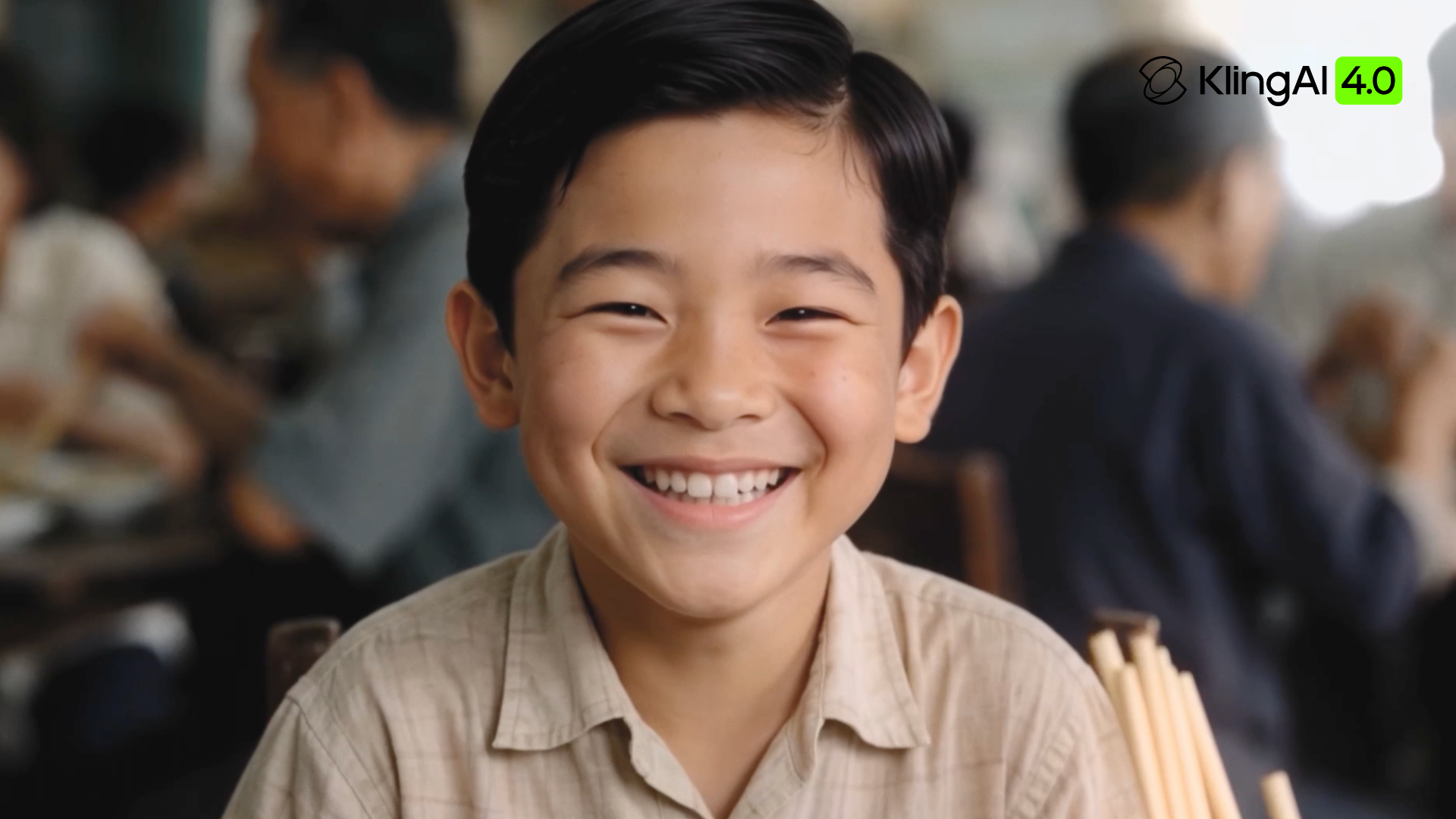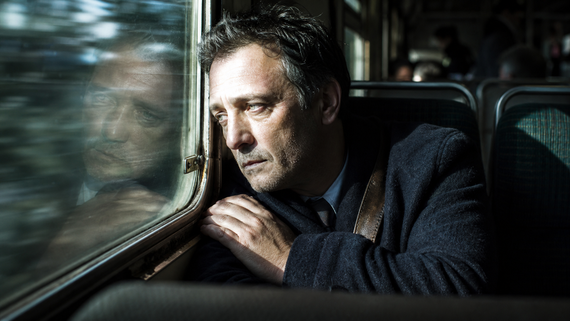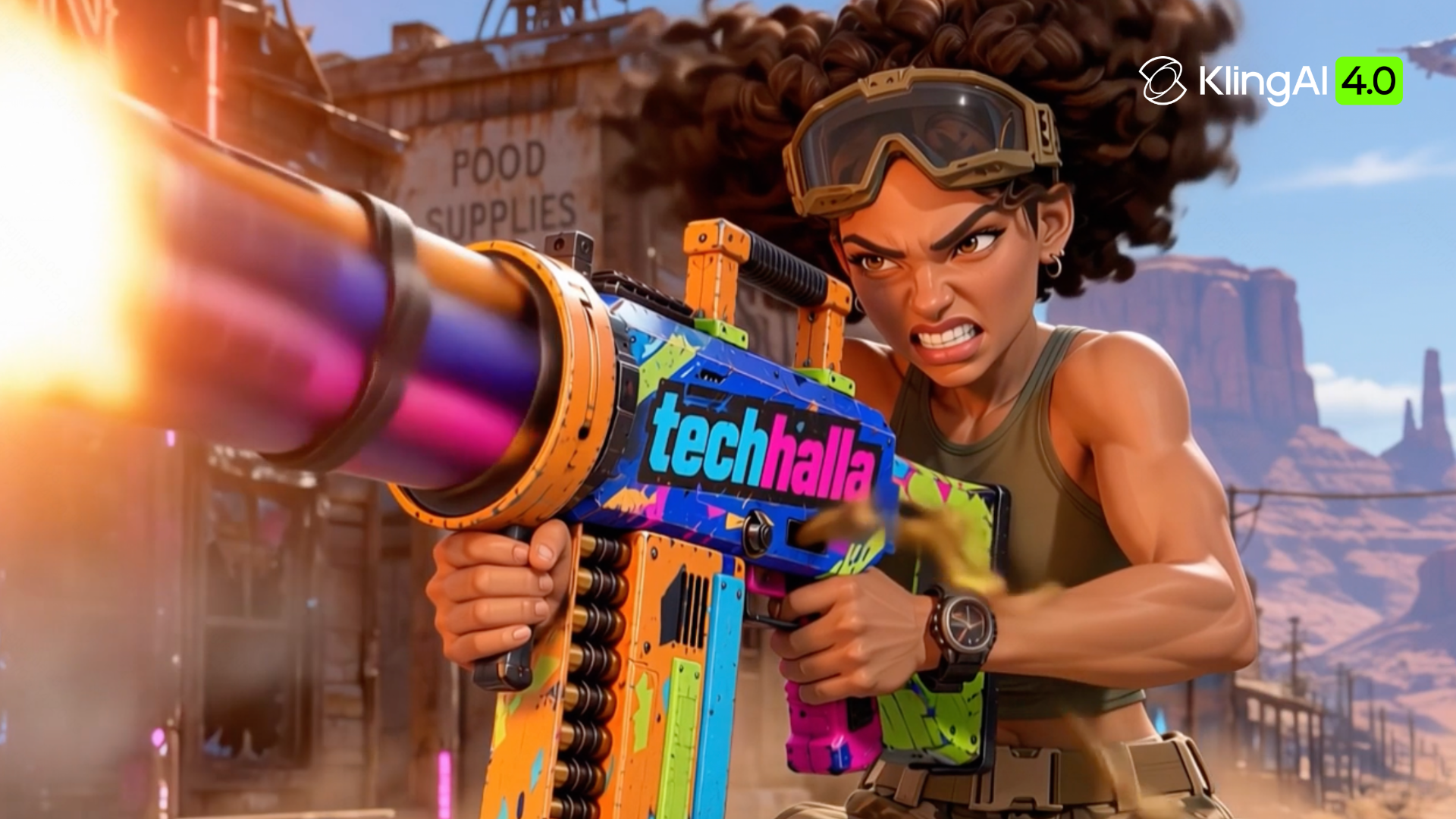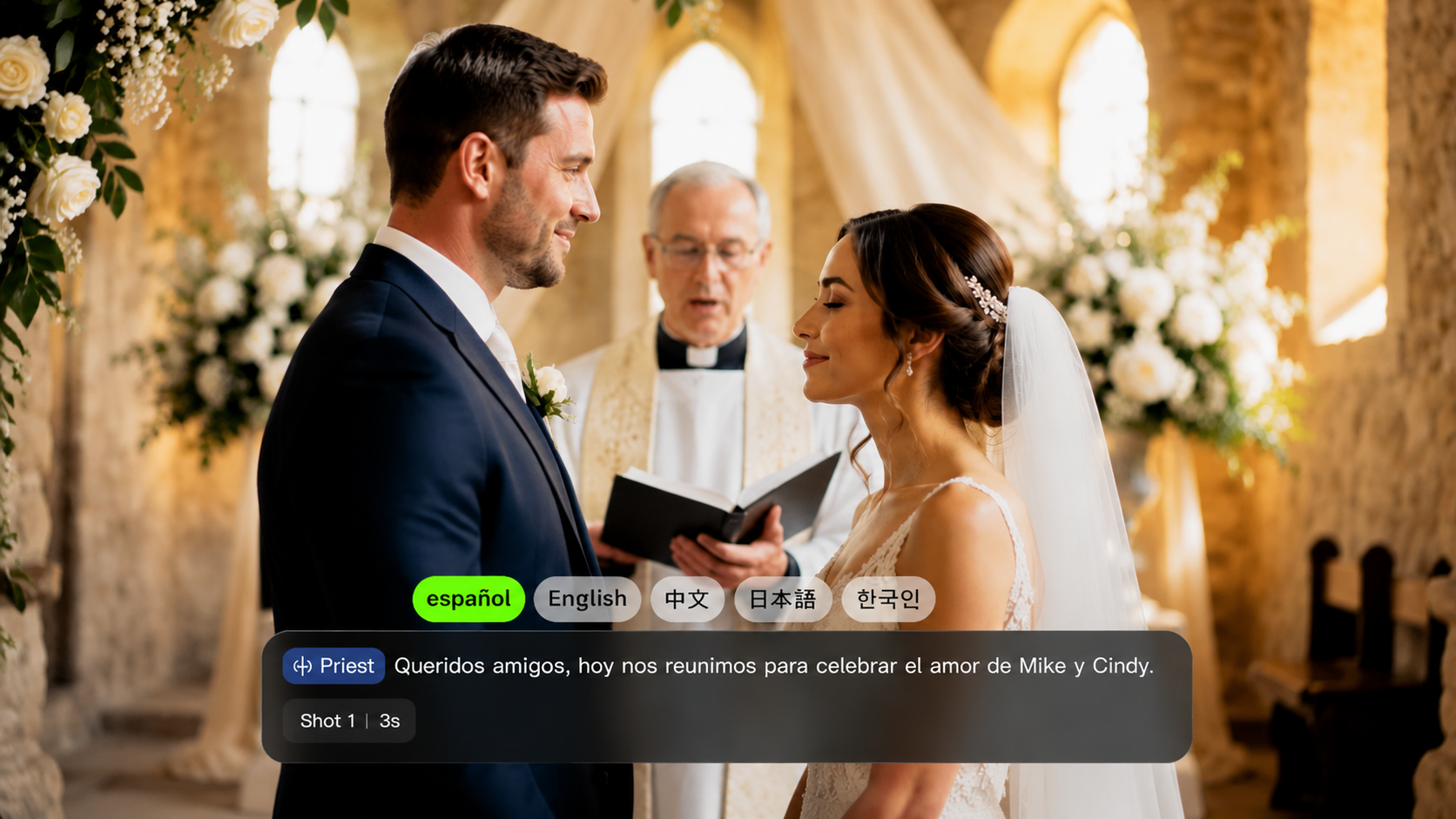
A training course needs clear narration. A podcast may need quick voice corrections. A fictional character needs a line that fits what happens on screen. Choosing the best AI voice generator starts with the finished project, not the biggest voice library. For example, Kling AI is also worth considering when dialogue needs to be part of a visual scene.
What Matters When Choosing an AI Voice Generator?
Start with the output you need. An AI voice generator may be used for standalone speech or character dialogue within a video, depending on the tool. Once you know which format fits your project, compare a few practical details:
- Speech quality: Listen for clear pronunciation, natural pauses, and emphasis that suits the script.
- Language and voice options: Check the required language, accent, and voice style rather than headline voice counts
- Revision tools: Find out whether you can fix one line without rebuilding the whole project.
- Rights and permissions: Confirm the applicable licensing terms and obtain consent before cloning a person's voice.
- Project fit: Decide whether you need an audio download, transcript-based editing, or dialogue generated with video.
A short test using your actual script is more informative than choosing on feature counts alone.
Best AI Voice Generators: 6 Options Compared
These tools approach voice creation in different ways. The table highlights their main use cases and workflows, followed by a closer look at each option.
Tool | Best For | Voice and Dialogue Capabilities | Typical Workflow |
Kling AI (Kling 4.0) | AI videos with integrated dialogue and visuals, including explainer videos, educational content, character-led marketing, animated stories, and multilingual social videos.
| Native audio-visual generation, dialogue in nine languages, prompt-directed multi-character conversations, improved lip-sync alignment, and reusable character Elements with appearance and voice binding. | Use prompts to direct dialogue, expressions, actions, and camera movement. With Omni Reference, combine supported images, videos, Elements, and voice references to guide visual style, pacing, and key story beats.
|
ElevenLabs | Narration, expressive voice tracks, and voice design | Text-to-speech, voice design and cloning, expressive speech, and multi-speaker dialogue. | Select or design a voice, enter a script, adjust delivery, and generate audio. |
Murf AI | Business, training, and presentation voiceovers | AI narration with controls for speed, pitch, emphasis, and tone, plus voiceover production for multimedia content. | Prepare a script, select a voice, refine delivery, and pair narration with visuals. |
Speechify Studio | Creator voiceovers and video dubbing | AI voiceovers and dubbing, with options to match speaker voice, intonation, and speed. | Add a script or video, select a voice and language, generate narration or dubbing, and review the result. |
Descript | Podcasts, interviews, and spoken-content revisions | AI voices and voice cloning, transcript-based editing, and regenerated speech. Supported video regeneration can also adjust mouth movements. | Edit the transcript, type corrections, regenerate selected lines, and review the audio or video. |
LOVO (Genny) | Marketing voiceovers and multimedia projects | Text-to-speech voiceovers and a video workspace that supports projects with one or more speakers. | Enter a script, choose voices, generate voiceovers, and assemble visuals and audio in Genny. |
1.Kling AI: Best for Character Dialogue in AI Video
For character-led scenes, Kling 4.0 generates audio and visuals together, allowing creators to direct dialogue, expressions, gestures, and camera framing within the same video. It supports dialogue in nine languages—Chinese, English, Japanese, Korean, Spanish, Portuguese, German, French, and Hindi—and offers improved lip-sync alignment to help connect spoken lines with character performance.
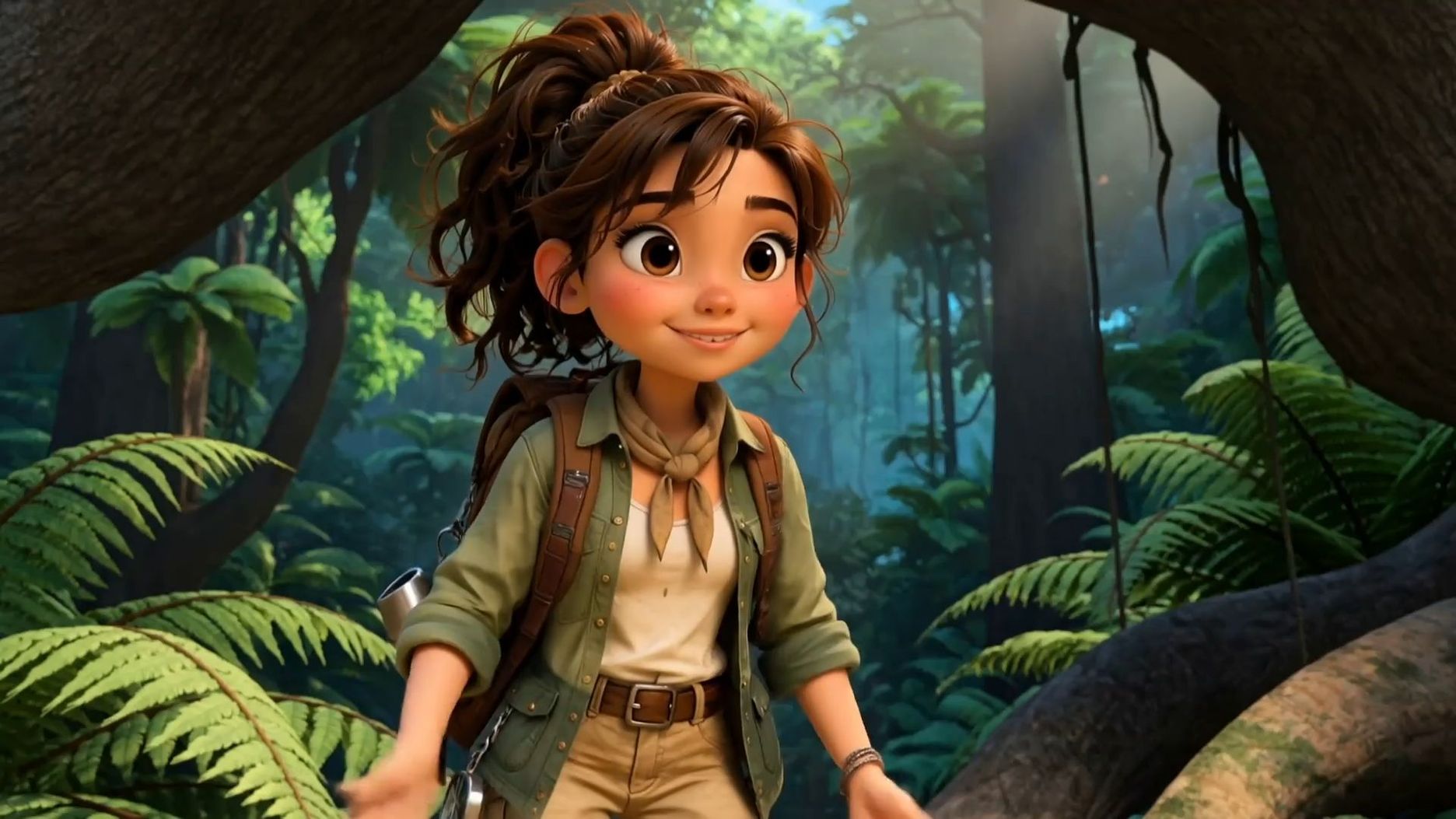
With Omni Reference, you can combine supported images, videos, Elements, and voice references to guide character appearance and sound. For recurring characters, you can create or select a character Element with defined visual traits and a bound voice, helping maintain a recognizable appearance and vocal identity across scenes.
Beyond dialogue-driven scenes, our Kling 4.0 model supports videos up to 30 seconds in a single generation, with more stable large-scale motion and complex camera movements. By incorporating keyframe images into the reference materials to guide important visual moments, creators can shape more coherent narratives and produce high-quality AI videos with greater control and stability.

2.ElevenLabs: Best for Narration and Character Voice Tracks
ElevenLabs focuses on producing spoken audio for projects such as narration, fiction, and character dialogue. Creators can work with selected voices or authorized voice-cloning features where supported. It suits projects in which the speech track is the main output; check the intended language and licensing conditions before committing to a production workflow.
3.Murf AI: Best for Business and Training Voiceovers
Murf AI provides a script-centered voiceover workflow suited to presentations, training materials, and explainers. Teams can prepare narration, adjust delivery, and review the recording alongside a structured message. Confirm pronunciation options and export rights for the specific voice and plan you intend to use.
4.Speechify Studio: Best for Simple Creator Voiceovers
Speechify Studio offers a browser-based environment for producing voiceovers and narrated content. It can fit straightforward creator videos or educational material where script entry and quick revision matter. Check which voices, languages, and editing controls are included in the chosen product and plan.
5.Descript: Best for Voice Generation Alongside Editing
Descript combines audio and video projects with transcript-based editing. It is useful when a podcast, interview, or voiceover will undergo repeated script changes and corrections. Generated speech and replacement features have their own access and authorization requirements, so review transitions carefully after revising a recording.
6.LOVO: Best for Marketing Voiceovers and Multimedia Projects
LOVO's Genny workspace combines generated narration with tools for assembling multimedia projects. That can help with marketing explainers or presentation-style videos that need a voice track alongside visuals. Confirm the output formats, project allowances, and voice-use terms that apply to your plan.
Why Choose Kling 4.0 for AI Videos With Character Dialogue?
An audio-first tool can generate a spoken track, but character-led videos also need the dialogue to match the speaker, emotion, action, and timing on screen. Kling 4.0 brings these elements into a native audio-visual generation workflow, allowing you to direct speech and visual performance together. Combined with reference-guided creation and more precise narrative control, this approach is useful for multilingual conversations, animated stories, recurring characters, and character-led marketing videos.
Generate Multilingual Dialogue With Matching Character Performance
In Kling 4.0, you can describe who speaks, what each character says, how they react, and how the camera frames the conversation. Specify each speaker's language, tone, pauses, gestures, and emotional response to help the scene feel connected. The model supports nine languages and improved lip-sync alignment, helping spoken dialogue fit the character's on-screen performance.
For multi-character scenes, keep each speaker's lines distinct and describe their reactions in sequence. For example, a tourist might ask a question in Spanish, an interpreter might translate it into Chinese, and a staff member might respond in Chinese. You can guide the conversation and the characters' actions in the same prompt, then review the resulting speech, mouth movements, and timing.
Reference Image | Generated Video |
 |  |
Prompt: SCENE CONTEXT EXACT 3 UNIQUE HUMAN CHARACTERS ACROSS THE VIDEO: Three people are in a bright, clean, fictional city tourist information center. Maintain consistent color tones throughout. The tourist stands on the left, the interpreter stands in the middle, and the tourism staff member stands on the right. A city map and route diagram are placed on the information desk. Background text and map labels must be blurred and unreadable. No real brands, organization names, logos, or watermarks may appear. ACTION TIMING: 0–3 seconds: Medium shot of all three people. The Spanish female tourist looks at the interpreter in the middle, raises the map in her hand, and speaks in natural, clear, slightly slow Spanish: “¿Dónde está la estación de metro más cercana?” After she finishes speaking, pause for approximately 0.5 seconds. The interpreter turns to the tourism staff member and translates into Chinese: “她想知道最近的地铁站在哪里。” 3–7 seconds: Cut to the interpreter and the tourism staff member. The tourism staff member looks at the map (do not use a close-up of the map) and answers in natural, clear Chinese: “沿这条路直走,步行大约五分钟就能到。” After the staff member finishes speaking, pause for approximately 0.5 seconds. The interpreter confirms understanding and turns toward the tourist. 7–11 seconds: The interpreter translates the staff member's answer into natural, clear, slightly slow Spanish: “La estación de metro está a unos cinco minutos a pie. Siga recto por esta calle.” While speaking, the interpreter points to the route on the map, and the tourist studies it attentively. 11–15 seconds: Return to a medium shot of all three people. After understanding the directions, the Spanish tourist smiles, nods, and says in Spanish: “Muchas gracias.” All three maintain a natural service interaction as the scene ends. AUDIO: - The Spanish tourist speaks only Spanish. - The Chinese tourism staff member speaks only Chinese. - The Chinese interpreter speaks Chinese first, then Spanish. - Each person has a distinct voice. - When one person is speaking, the others remain silent. No interruptions or overlapping dialogue. - All dialogue must have clear vocals, with lip movements synchronized to the corresponding language. - Spanish pronunciation must be natural and standard, without English-accented pronunciation. - Speech should be slightly slow, with natural pauses between sentences. - Retain subtle ambient sounds from a tourist information center. Do not add background music. Ambient sounds must not overpower the dialogue. CAMERA: Begin with a medium shot of all three people to establish their relationships. When the tourist speaks, cut to a two-shot of the tourist and interpreter. When the interpreter relays the question, cut to the interpreter and staff member. During the staff member's response, include a close-up of the map route. When the interpreter translates into Spanish, return to a two-shot of the interpreter and tourist. End with a medium shot of all three people. Maintain consistent character positions, eyelines, and clothing throughout. Do not abruptly replace characters or change their spatial relationships. STYLE: Realistic, natural, professional travel-service documentary style. Bright, clean lighting, natural facial expressions, and restrained movements. The scene should resemble an authentic interaction at an airport or city tourist information center. | |
Keep Character Appearance and Voice Connected With Omni Reference
Omni Reference supports up to 15 combined reference assets in one generation, including up to 10 images, up to 5 videos with a combined duration of no more than 30 seconds, and up to 7 Elements, including up to 3 video Elements. Voice references are also supported within the combined asset limit.
For recurring characters, you can create or select a character Element with defined visual traits and bind a voice when setting up the Element. Reusing that Element in a supported generation workflow helps guide both the character's appearance and vocal identity. You can also assign other references specific roles, such as defining the setting, guiding movement, or providing camera direction. Clear reference roles help the model follow your intent more consistently, although the final result should still be reviewed.
Direct Longer Actions, Camera Moves, and Story Beats
Our Kling 4.0 model supports single-generation videos up to 30 seconds, giving character dialogue, reactions, and actions more room to unfold. More stable large-scale motion and complex camera movements help create smoother, more coherent scenes.
For longer stories, our Timeline workflow lets you combine generated clips, trim or replace shots, and preview the sequence. You can also make targeted edits to existing footage, refining your video without rebuilding every scene from scratch.
How to Create an AI Video With Character Dialogue
If you want to generate character dialogue within a video rather than download a standalone audio file, Kling AI offers a video-first workflow. With Kling 4.0, you can prepare character references, direct dialogue and visual performance through prompts, and review the complete scene before exporting.
Step 1. Open Video Generation and Prepare Character References
Open Kling AI's Video Generation workspace and select Kling 4.0. If you plan to reuse a character, create or select a character Element, define its appearance, and bind the intended voice where supported. Add the Element and any relevant setting, motion, or voice references through Omni Reference, keeping within the combined limit of 15 reference assets. You can also start with a prompt alone if references are not needed.
Step 2. Write a Prompt for Each Speaker and Action
Specify who speaks, the exact dialogue, the intended language, and the character's tone and emotion. Describe pauses, gestures, reactions, and camera movements, too. Give each reference a clear role so the model knows which details to follow.
| Prompt: @Element1 defines the character's appearance and bound voice. @Image1 defines the bookstore setting. The character looks at an empty display shelf, pauses, and says in natural English, "The last copy is already gone," with a disappointed expression. The camera slowly pushes in. Keep the character's defining visual features consistent. |
Step 3. Generate, Review, and Refine
Generate a draft and review the speech and visuals together. Check each character's lines, pronunciation, language, mouth movements, timing, facial expressions, and consistency of appearance and voice. Also review large movements and camera transitions. If a line feels rushed or a reaction is unclear, simplify the prompt or adjust the reference roles before generating another take. Export after reviewing the complete clip and the available output options.
How to Check AI Voice Quality Before Publishing
For professional projects, check the rights attached to voices, source recordings, and identifiable likenesses. Permission to use a recording does not automatically include permission to clone its speaker. If generated dialogue could be mistaken for a real person's words, review applicable consent and disclosure requirements. When you need to adjust dialogue or character performance in an existing clip, our AI video editor can help you make targeted changes. Always review the result before publishing.
What to Check | What to Listen or Look For | Practical Fix |
Pronunciation | Names and unfamiliar words | Reword the phrase or use pronunciation controls if available |
Pacing | Rushed speech or awkward gaps | Shorten the sentence or adjust the pauses |
Expression | Emphasis that changes the meaning | Clarify the character's intended emotion |
Consistency | Voice character across a longer passage | Compare the beginning and end of the output |
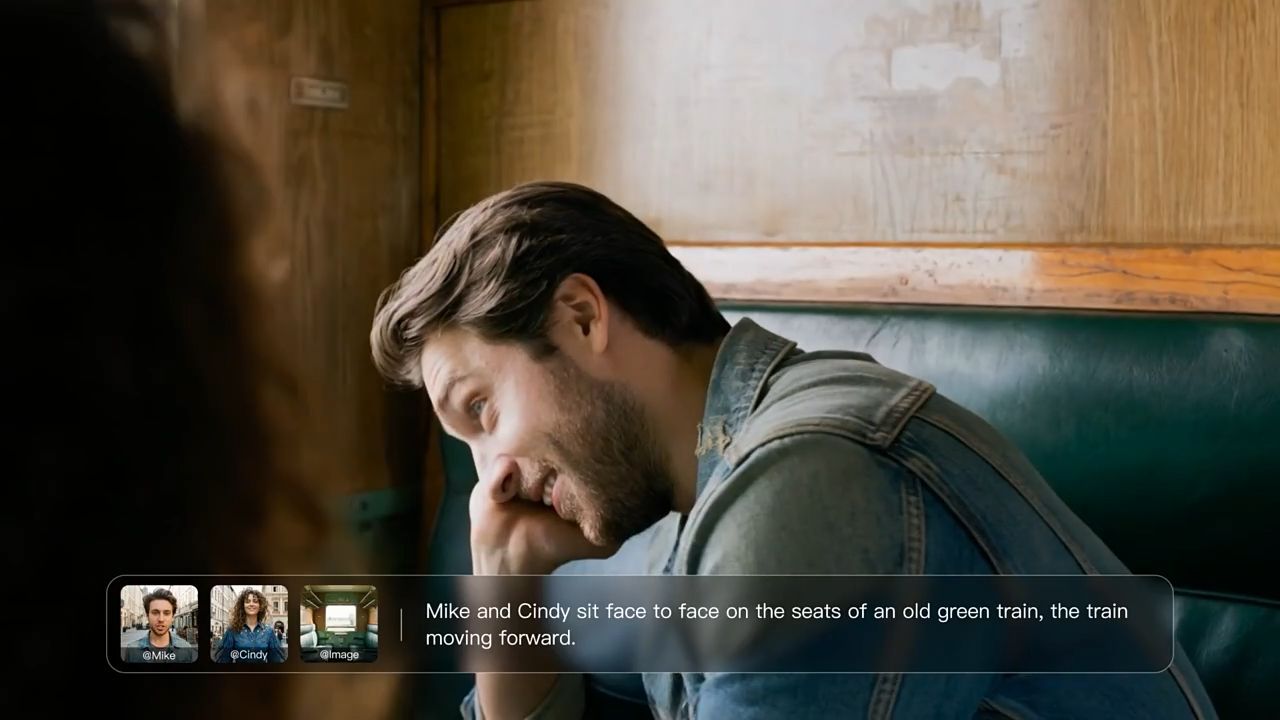
Video dialogue | Whether the words fit gestures and expressions | Review the complete scene and refine its direction |
The End
The best AI voice generator depends on whether you're making a spoken track, revising existing audio, or creating a character who talks on screen. The six tools above support different parts of that work. If your project needs dialogue, character action, and visuals developed together, Kling 4.0 provides a reference-guided way to build the scene and test alternate performances.
FAQs
Is Voice Cloning Illegal?
Voice cloning isn’t illegal by default. That said, it can get you into legal trouble if you use a person’s voice without their consent. Rules differ across countries and regions, and they often touch on privacy, personality rights, impersonation, or deceptive commercial use. There’s a clear line between cloning a voice for a project you’ve been given permission to work on, and fabricating audio that makes a real person say things they never actually said. Always look up local regulations and get proper consent before using any recognizable human voice.
Can AI Voices Laugh, Whisper, or Show Emotion?
Many AI voice models can pull off expressive things like laughter, soft whispers, excited tones or even sadness. How much control you have depends on which tool you’re using; some let you add descriptive prompts, performance markers or tweak voice parameters. Keep in mind, every model reacts to instructions differently. It’s smart to test a short snippet first, so you can make sure the emotion lands naturally instead of pulling focus away from what you’re trying to communicate.
Can an AI Voice Maker Create Different Voices for Multiple Characters?
Some AI voice makers support multiple speakers, but capabilities vary by tool. At Kling AI, you can describe each character's dialogue, language, tone, and reactions in your prompt. For recurring characters, you can create or select an Element and bind a voice to help establish a recognizable vocal identity. Review the generated dialogue, timing, and character actions to ensure each speaker remains distinct.
What Is the Difference Between an AI Voice Generator and an AI Voice Changer?
An AI voice generator creates new audio, while an AI voice changer modifies an existing voice recording. At Kling AI, you can describe background sound effects in your prompt. For character voices, you can create or select an Element and bind a voice to help establish the character's vocal identity. With Kling 4.0, you can also generate dialogue alongside visuals, combining character speech, actions, and expressions in the same video. If you want to modify an existing voice recording, an AI voice changer may be more suitable.
Can AI Voice Generators Create Natural-Sounding Dialogue in Videos?
Yes. Some AI voice generators focus on standalone audio, while AI video generation tools can create dialogue alongside character performances and visuals. At Kling AI, our Kling 4.0 model supports native audio-visual generation in nine languages, with improved lip-sync alignment to help connect speech with on-screen actions. For more natural results, describe each character's tone, emotions, pauses, and reactions in your prompt, then review the generated dialogue and timing.