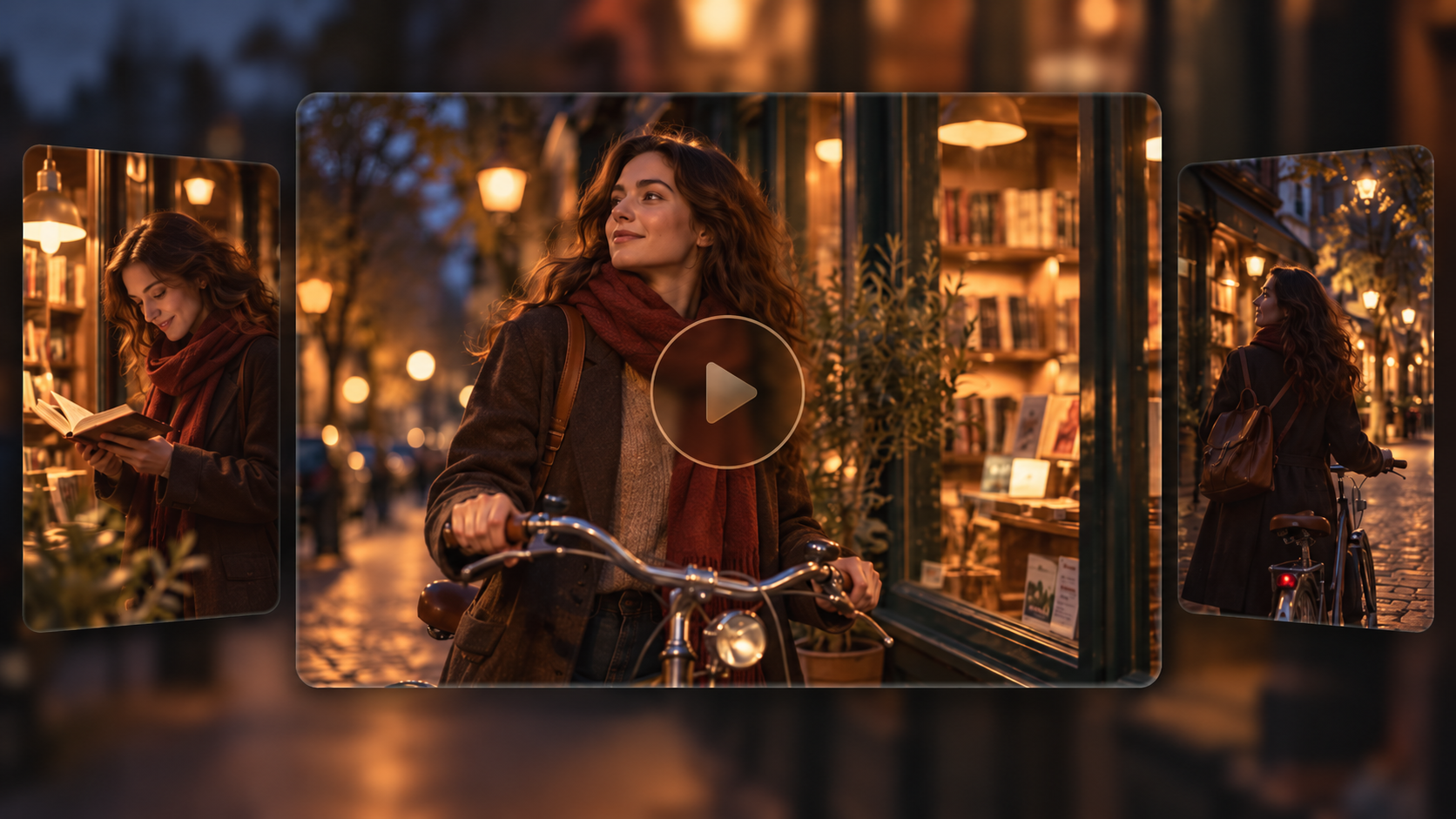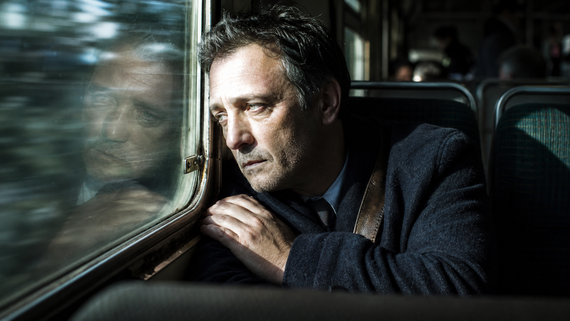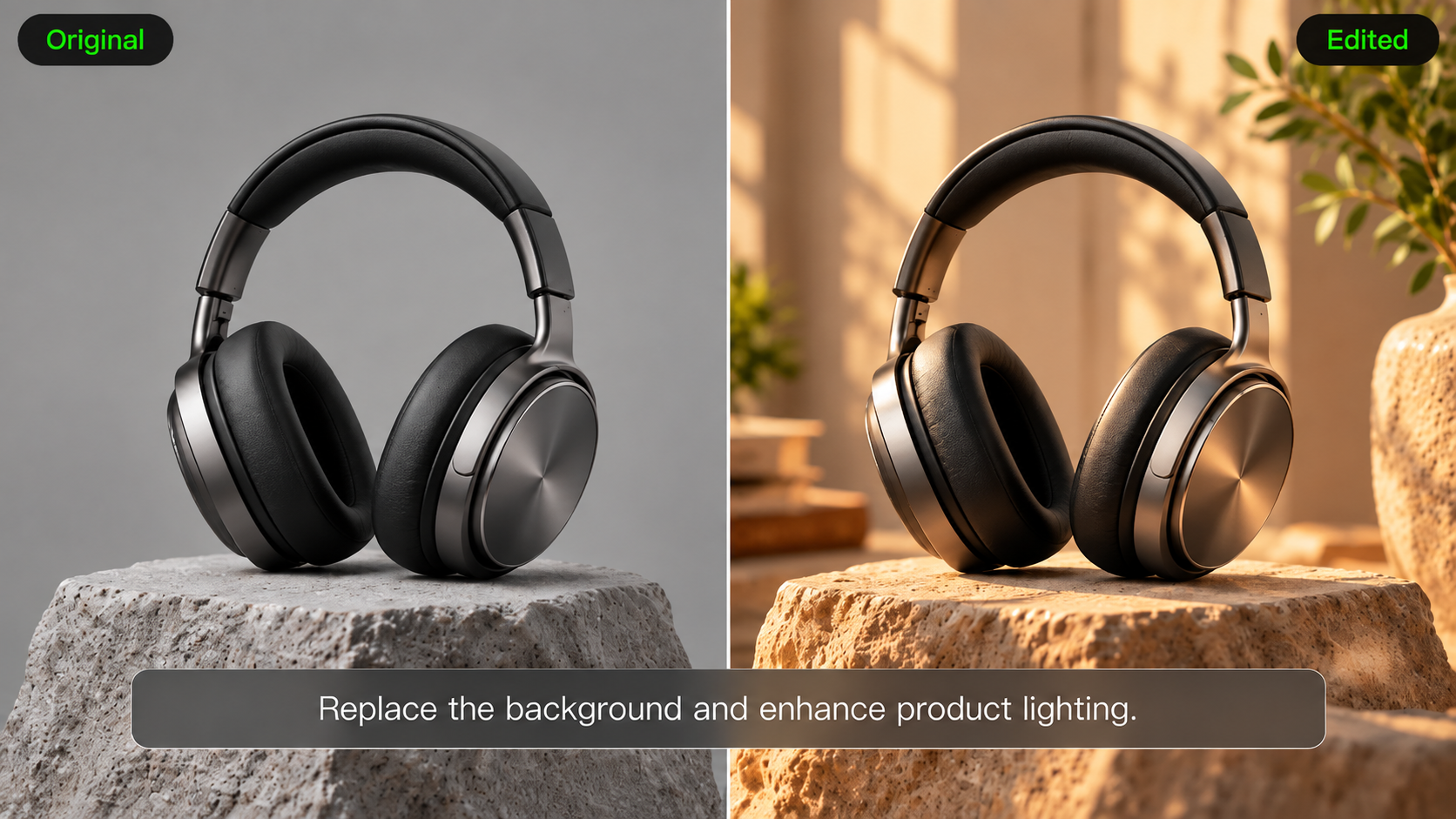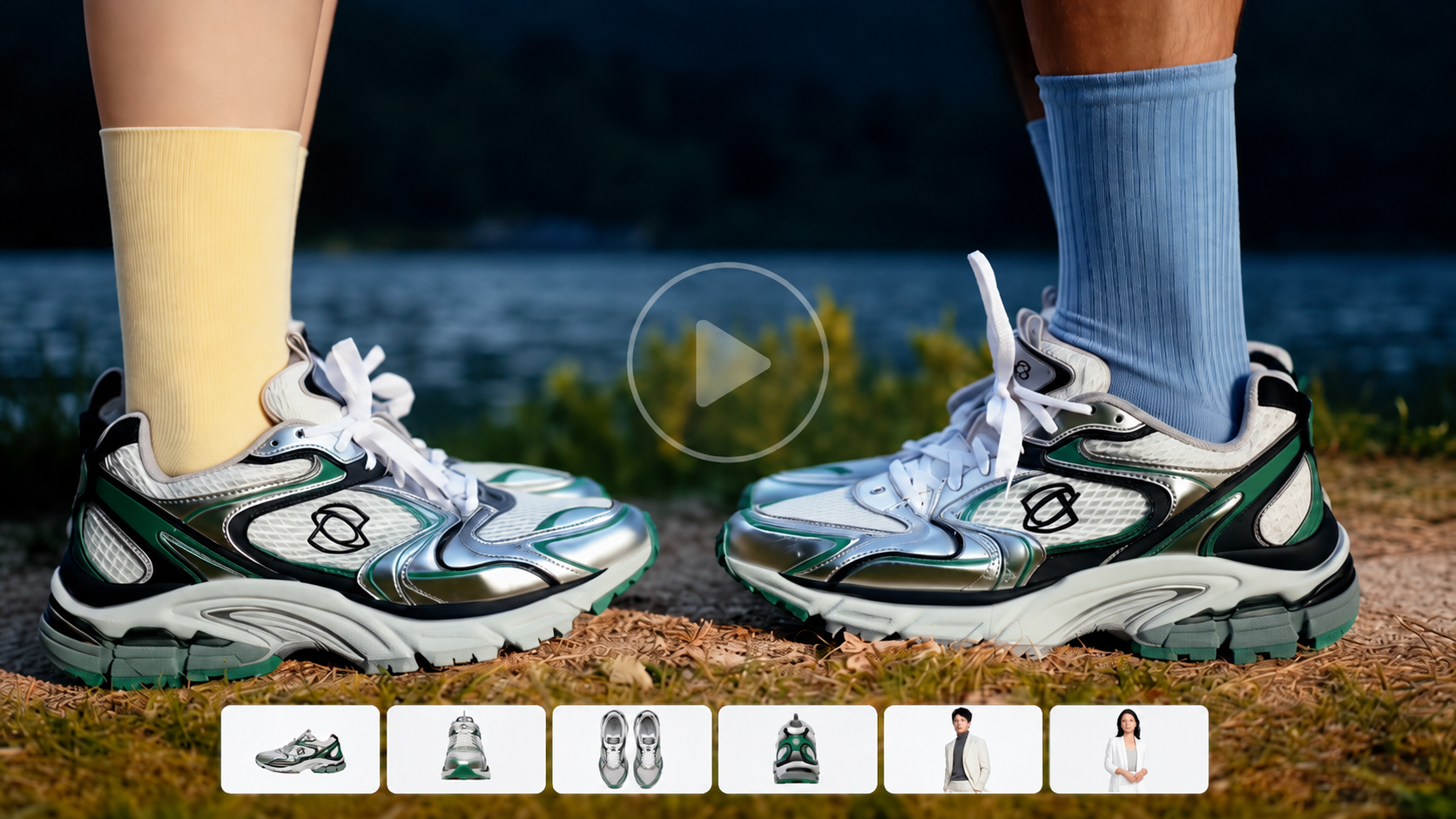
Your client approves a UGC concept, then asks for a new product angle, a different on-screen creator, and several social versions. Those changes can turn one promising ad into a lengthy production cycle. AI tools can help you develop scenes, revise footage, and prepare variations, but their controls vary considerably. Here are six of the best AI UGC video editors for marketing agencies, including a closer look at Kling AI video editor Kling 4.0 for reference-driven campaigns.
6 AI UGC Video Editors for Agency Campaigns
A product shot you have yet to film and a recorded ad that needs captions call for different controls. The table compares what each platform starts with, what you can change, and where it fits into an agency campaign.
Platform / Model | Starting Assets | Key Capabilities | Best-Fit Use Cases |
Kling AI (Kling 4.0) | Text, images, videos, character and voice references | AI video generation and precise editing; character consistency; creative recreation; 9-language dialogue; timeline-based continuation | UGC ads, commercial videos, AI avatars, product demos, multilingual campaigns, and creative ad variations |
Higgsfield | Product images, product URLs, prompts | AI video generation; camera controls; character consistency | Product advertising, UGC concepts, unboxing videos, and social ads |
HeyGen | Scripts, avatars, presenter assets | AI avatars; script-to-video; multilingual video creation | Talking-head UGC ads, digital presenters, explainers, and localized campaigns |
Runway | Text prompts, images, videos | AI video generation; prompt-based editing; scene modifications | Creative commercials, cinematic shots, product visuals, and video revisions |
CapCut | Scripts, images, recorded videos | AI video generation; avatars; timeline editing; captions | Short-form ads, UGC videos, social media content, and post-production |
Adobe Firefly | Text, images, videos, media assets | Generative video; timeline editing; creative asset integration | Commercial content, promotional assets, campaign videos, and video editing |
Kling AI (Kling 4.0)
Kling AI offers AI video generation and editing, as well as AI image generation and editing. Kling 4.0 is Kling AI's newly launched multimodal video model for video creation and editing.
For agencies working with existing user-generated content (UGC), Precise Video Editing enables targeted changes to subjects and backgrounds, including adding, modifying, or removing elements. It also supports adjustments to visual style, weather, colors, shot sizes, and camera angles. By combining text prompts, images, and Elements in flexible ways, creators can guide edits more precisely and adapt existing footage to changing client briefs.
With multimodal references through Omni Reference, Kling 4.0 also enables Creative Recreation. Teams can use trending videos as references, preserving their narrative pacing, composition, and visual expression while replacing products, characters, or scenes. This makes it easier to adapt proven creative concepts into original campaign content without starting from scratch or repeatedly fine-tuning every detail.
Higgsfield
Have a product photo or store URL and several creative directions to test? Higgsfield's Marketing Studio offers product-led UGC, unboxing, and other ad formats. Its camera-focused tools also let you explore different visual treatments for the same product, from casual creator scenes to more directed campaign shots.
HeyGen
A recurring spokesperson can give a campaign a recognizable face. HeyGen lets you build presenter-led videos from scripts and avatar assets, then develop regional or campaign-specific versions. It suits accounts producing a steady stream of explainers and creator-style talking-head ads.
Runway
Runway combines video generation with prompt-based editing. Edit Studio lets you make changes to footage, including product replacements, backgrounds, and scene details. You can develop a new visual idea, test an alternate shot, or revise material that already has a place in your campaign.
CapCut
Once you have the footage, CapCut gives you a timeline for cutting, rearranging, captioning, and polishing short videos. You can import creator recordings or generated clips, adjust their pace, and prepare versions for social placements across desktop, mobile, or web workflows.
Adobe Firefly
Adobe Firefly brings video generation and editing into a workspace with project assets and timeline controls. Generate material from prompts or images, add it to a sequence, and refine the cut alongside existing footage. Teams already working across Adobe products can carry familiar creative assets into that process.
How to Edit UGC Marketing Videos With AI
When a client requests a different presenter, a new setting, or a revised product shot, you may not need to rebuild the entire UGC concept. AI video editing tools can help you target specific changes in existing footage while guiding which details should remain consistent. For example, Kling AI's Kling 4.0 supports prompt-guided edits to existing videos using source footage and reference assets. The following workflow shows how to approach these revisions.
Step 1: Upload the Source Video and References
Open Kling AI's video creation workspace and select Kling 4.0. Upload the existing UGC clip as the primary video, then add approved reference images or other supported assets to guide the replacement character, product, or setting. Video editing supports up to five video clips, including one primary video, with a combined duration of up to 30 seconds. Check the available input limits before uploading.
Step 2: Describe the Edit and What to Preserve
Start the editing instruction with "Edit @Video1" and clearly identify the requested change. Assign a specific role to each reference asset. For example: "Edit @Video1. Replace the background with @Image1. Keep the presenter's actions, product packaging, and camera movement unchanged." Explicitly naming what should remain unchanged helps limit unintended changes elsewhere in the scene.
Step 3: Generate and Review the Result
Review the full clip for character consistency, product details, natural movement, framing, and continuity. If unwanted changes appear, refine the instruction and specify which elements must be preserved.
Reference Image 1 | Reference Video 1 | Output Video |
| 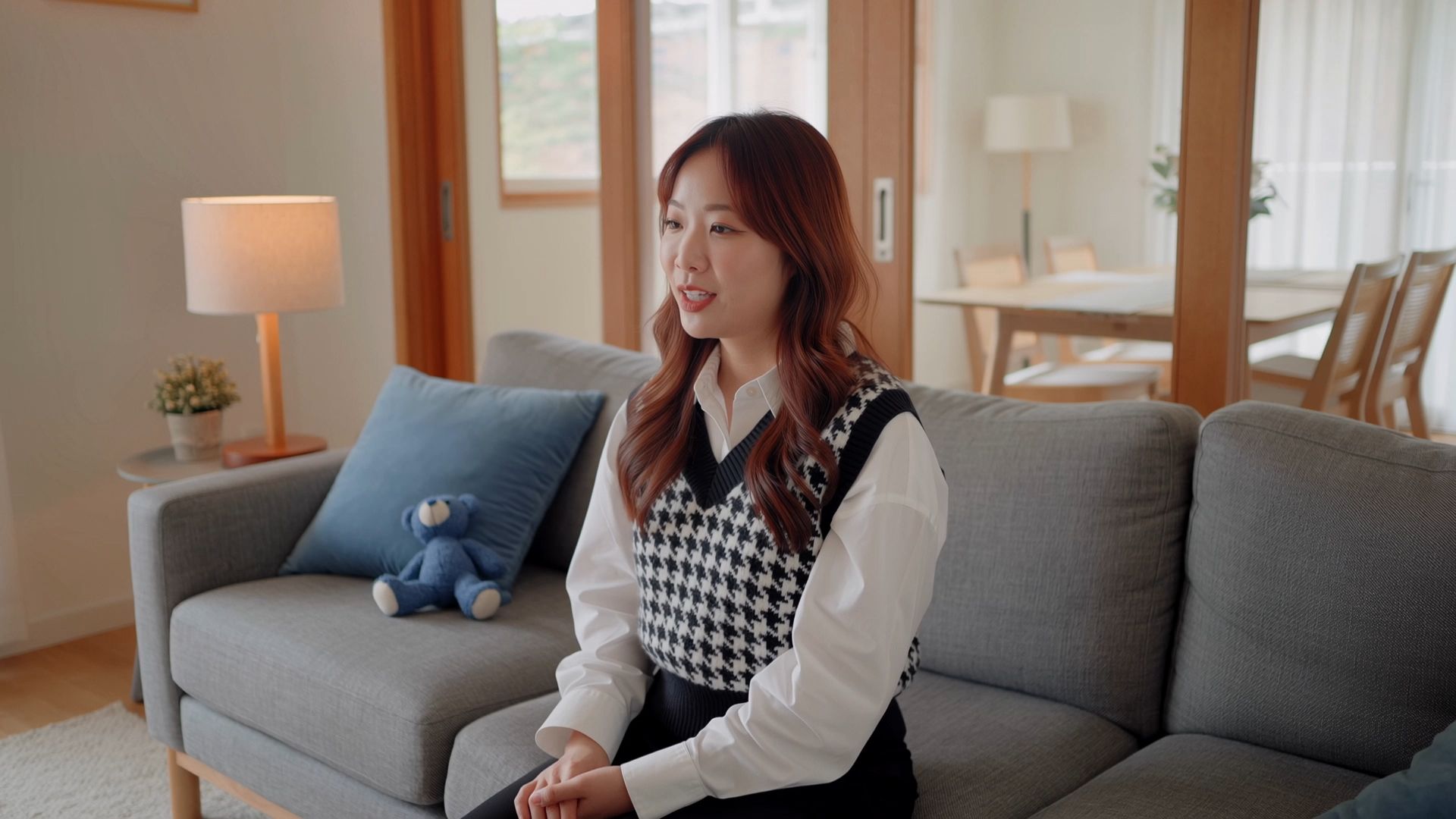  |  |
| Prompt: Edit @Video1. Replace the environment and characters throughout the video with the content from @Image1. | ||

What Kling 4.0 Adds to UGC Video Generation
Editing existing footage is only one part of commercial video production for an agency. When a campaign needs fresh UGC-style scenes or a new version of a proven creative concept, Kling 4.0 offers reference-driven generation, more stable motion, and greater control over story beats.
Guide Product, Character, and Camera Details With Omni Reference
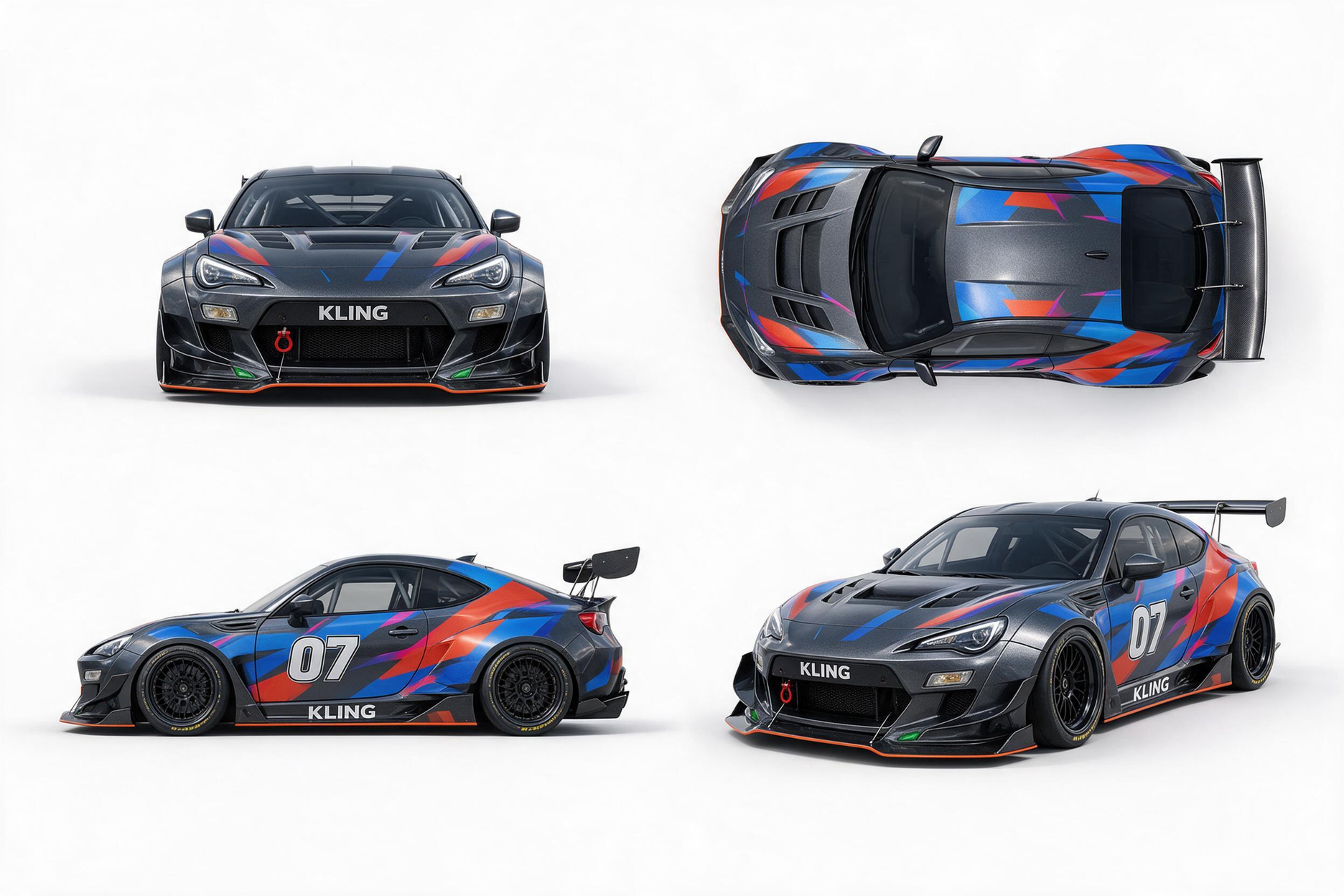
A UGC concept may need a recognizable product, a consistent presenter, and a specific camera move. Omni Reference lets you combine supported images, videos, elements, and voice references in one task, with up to 15 reference assets in total and separate limits for each asset type. For example, use a product image to guide packaging, a presenter image to guide appearance, and a reference clip to guide camera movement. Clearly define each asset's role to give the model a more precise visual brief.
Reference Image | Camera Movement Reference | Output Video |
|  |  |
| Prompt: Use @Video 1 as the reference for camera movements and shot pacing. Replace the Element with the car from @Image 1 and the background with @Image 2. | ||

Adapt Proven UGC Formats With Creative Recreation
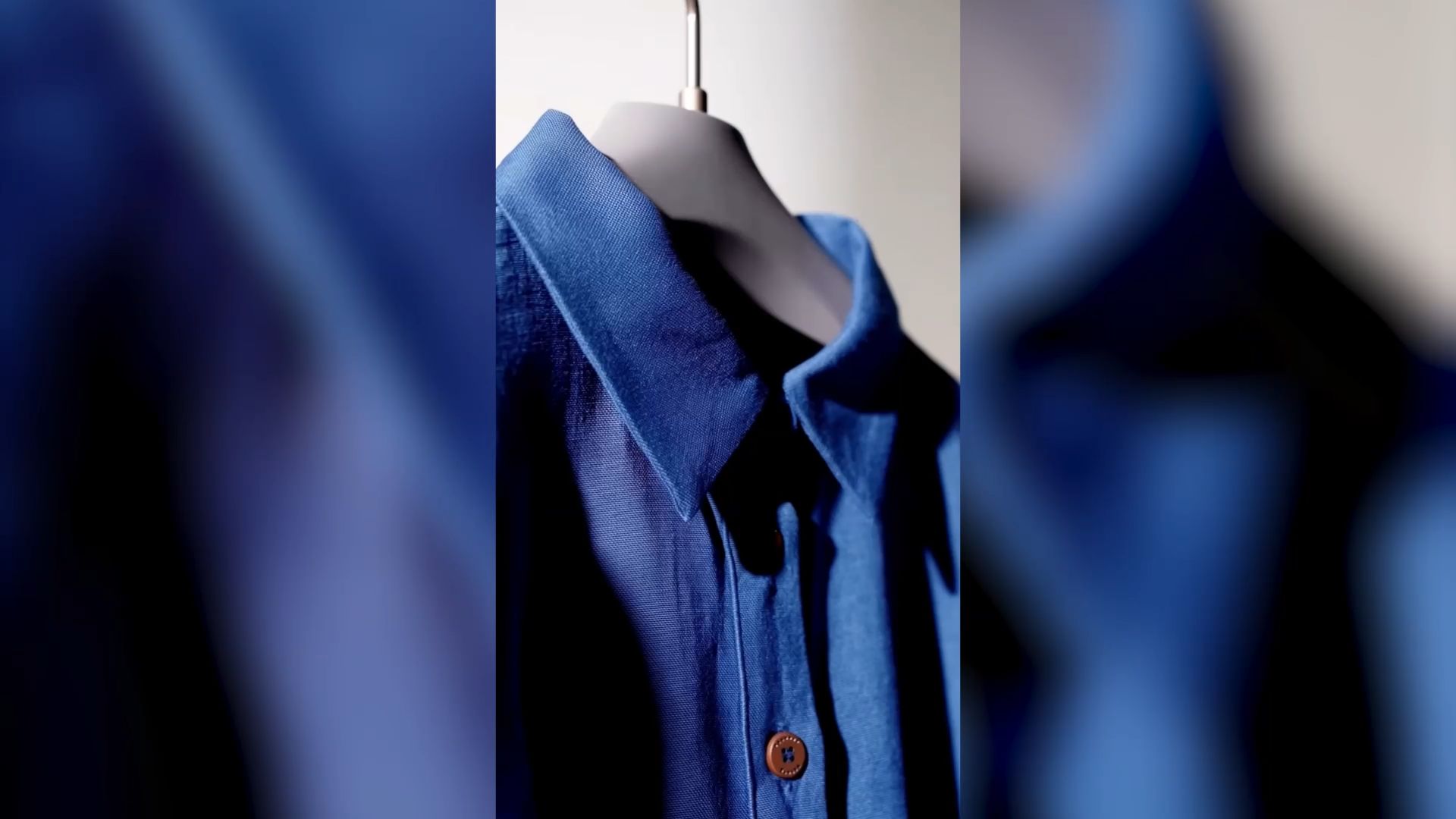
Instead of starting from scratch, Creative Recreation can draw on an existing video's narrative pacing, shot composition, and visual expression while replacing its products, characters, and scenes. For a seasonal launch, an agency could adapt the structure of an earlier teaser into a fresh promo video featuring a different product or setting. This gives the team a reference-driven starting point for a fresh creative treatment. Use only reference material you have permission to adapt.
Keep Complex Motion and Camera Moves More Stable
Kling 4.0 is designed to handle high-speed movement, tracking shots, orbit shots, and other complex camera paths with greater stability. In a UGC-style product video, this can help with scenes such as a creator lifting a bottle while the camera moves closer, or a walking presenter followed by a close-up of a product detail. Review the generated footage for natural movement, object interactions, and product consistency before client delivery.
Shape a Story With Up to 10 Keyframes
Kling 4.0 can generate videos up to 30 seconds in a single generation. In the separate Keyframes workflow, you can use up to 10 keyframe inputs to define important visual moments, character states, scene changes, and story beats. For a product campaign, these moments might include an opening hook, a product demonstration, and a closing shot. Describe the intended action and camera movement at each stage to guide how the story unfolds.

What to Check Before Client Delivery
Before sending an AI UGC ad for approval, check the details most likely to affect the campaign or require another edit:
- Check product accuracy. Compare packaging, logos, proportions, and any visible product outcome with the client's approved materials. Watch the full shot for inconsistent details.
- Verify advertising claims. Keep demonstrations and endorsements within what the client can substantiate. A synthetic presenter must not impersonate a real customer review. The FTC guidance covers consumer testimonials and deceptive review practices.
- Review placements and accessibility. Check the opening seconds, framing, readable captions, and safe areas for each planned platform. Watch the exported version on a phone before launch.
- Keep versions traceable. Some AI creative tools for agencies can produce several takes from one brief. Label each export by its hook, presenter, or product angle, and keep client feedback with the approved cut so the next edit starts from the right version.
The End
The best AI UGC video editors for marketing agencies depend on the assets you start with and the kind of creative control your campaigns require. Presenter tools, generative models, and timeline editors all play different roles. Kling 4.0 adds flexible visual references, stable motion, longer short-form scenes, and precise revisions to that mix. Bring an approved client brief into the workflow, review the full output, and build from the variation that meets the campaign goal.
FAQs
Can AI UGC Ads Work Without a Talking-Head Presenter?
Yes. You can build creator-style product demos, hands-on scenes, and visual problem-solution ads around the product itself. Kling 4.0 can use product photography and scene references to guide those shots, so the creative does not have to rely on a speaking digital avatar.
What Materials Should You Ask a Client to Share First?
Request approved product images, brand assets, key messages, and any footage the client wants to adapt. Clear examples of the desired setting or camera angle also help. Confirm who owns the source material and what uses the agreement permits before you upload it.
Can You Prepare AI UGC Ads for Multiple Social Platforms?
Yes. Plan each version around the platform's framing, caption placement, and opening hook. Kling 4.0 supports 9:16 for vertical ads and YouTube Shorts, 1:1 for square formats, and 16:9 for horizontal YouTube videos and other widescreen placements. It also offers 21:9 for wider campaign visuals. Check each platform's ad specifications and preview the final crop before publishing.
Can an Agency Recreate a Real Creator's Appearance?
Only with the appropriate permission. Get written agreement on how you may use the person's likeness, which channels will carry the ad, and how long the authorization lasts. A photo or past recording does not automatically grant permission to generate a new performance.
How Should You Estimate AI UGC Production Costs?
Calculate the cost of an approved ad, not just a single generation. Include the attempts you expect, editing time, licensing, review rounds, and versions for different formats. When comparing an AI UGC generator with a full editing workflow, check what each subscription or credit allowance actually covers.
How Can You Compare AI UGC Ad Variations After Launch?
Choose a metric that matches the campaign objective, such as hook retention, click-through rate, or cost per acquisition. Change one major creative element at a time, then compare versions under similar targeting and placement conditions. Strong image quality helps production, but campaign results require their own tests.