A shot list is a numbered plan of the shots you need to capture for a video. It records framing, action, camera movement, and practical notes so you can prepare the shoot and give your editor useful coverage. This guide walks you through the planning process, provides a reusable template, and shows how Kling AI can help you explore your visual choices before filming.
What Is a Shot List?
A shot list turns a script into camera setups, giving your crew a clear plan for capturing each scene. Previewing key shots before filming helps you judge whether the framing, movement, and timing work together.
What Should Your Shot List Include?
The shot list format below separates what the audience sees from what you need to prepare.
Field | What to Record |
Shot ID and scene | A unique identifier and its scene number |
Shot size | Wide, medium, close-up, or another framing choice |
Camera angle | Eye-level, high angle, low angle, or overhead |
Movement | Static, pan, tracking, or push-in |
Subject and action | Who or what appears, and what happens |
Location | The room, area, or position needed |
Audio (optional) | Dialogue, ambient sound, or recording notes, when relevant. These details can be included in the production notes rather than a separate column. |
Production notes | Lens, lighting, props, priority, and completion status |
A camera shot list can add lens choice and camera height when those details matter.
A Shot List Template for Planning and Previewing
Copy the template below and use one row per camera setup. Replace the bracketed notes with your scene details, adding timing, props, or continuity notes where needed.
ID | Size / Angle | Movement | Action | Location / Notes |
[Scene-shot] | [Framing and view] | [Camera path] | [Visible action] | [Place, props, priority] |
A Shot List Example: Planning a Reunion Scene
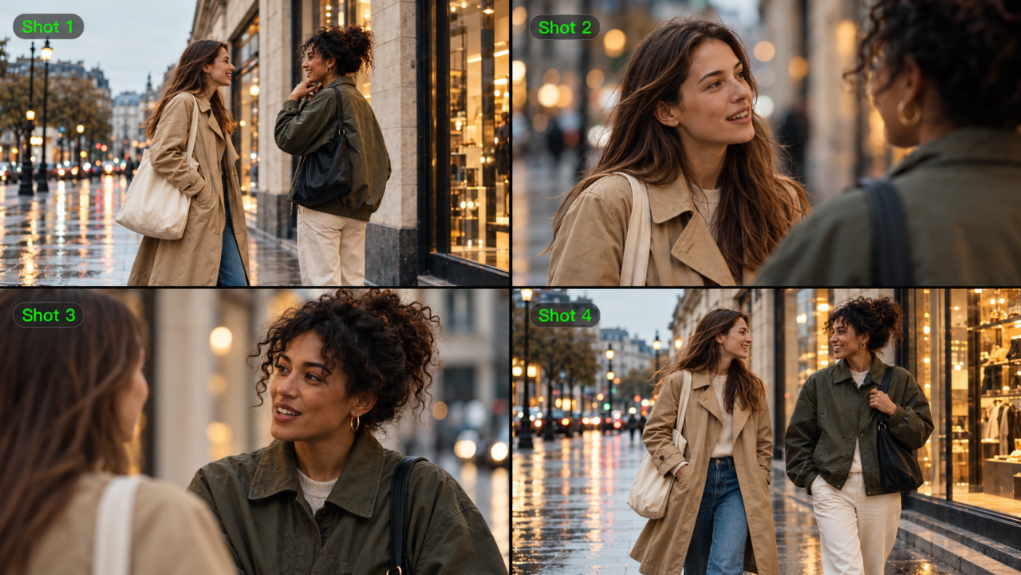
The film shot list example below turns a brief reunion into four practical camera setups. It shows how a shot list format can capture framing, movement, action, and continuity notes before filming.
Shot ID | Size / Angle | Movement | Action | Location / Notes |
01-01 | Wide / eye-level | Static | Two friends notice each other on a city sidewalk | Establish the setting and both characters' positions |
01-02 | Medium close-up / eye-level | Static | One friend smiles in recognition | Keep her appearance and clothing consistent |
01-03 | Medium close-up / over-the-shoulder | Static | The other friend smiles back | Maintain eyeline and screen direction |
01-04 | Medium-wide / eye-level | Tracking | They turn and walk together | Keep both characters visible as the scene progresses |
This shot list example shows how a simple interaction can be broken into distinct visual moments. You can adapt the framing and camera movement to your production needs.
Is a Shot List Still Important in the Age of AI Video Generation?
A shot list remains valuable because it turns creative ideas into clear decisions about framing, action, camera movement, and shot order. It helps keep everyone on the same page, but with AI video creation, you no longer need a complete shot list to start exploring your ideas.
Kling AI is an AI creation platform for generating and editing images and videos. Our newly upgraded Kling 4.0 model lets you start creating without preparing a complete shot list in advance. Its Omni Reference feature supports up to 15 combined reference assets, allowing you to assign different roles to character images, scene references, storyboard sketches, and reference videos to guide visual appearance, composition, pacing, and camera movement.
Whether you start with a simple prompt or use reference footage to guide camera movement and pacing, Kling 4.0 combines enhanced prompt understanding with Smart Storyboard, which is enabled by default, to help develop your ideas with a director's eye. It can help organize actions, camera direction, and scene transitions into a more coherent visual sequence, even when your shot list is still taking shape. If you already have a shot list, simply turn each entry into prompt instructions to guide video generation toward your creative vision.
Traditionally, whether you’re creating an AI ad, an animated video, or a promotional video, a shot list is a practical planning tool. However, as AI technology advances, a shot list is no longer a prerequisite for video creation. With Kling AI, we help you turn your initial ideas into videos that better reflect your creative intent.
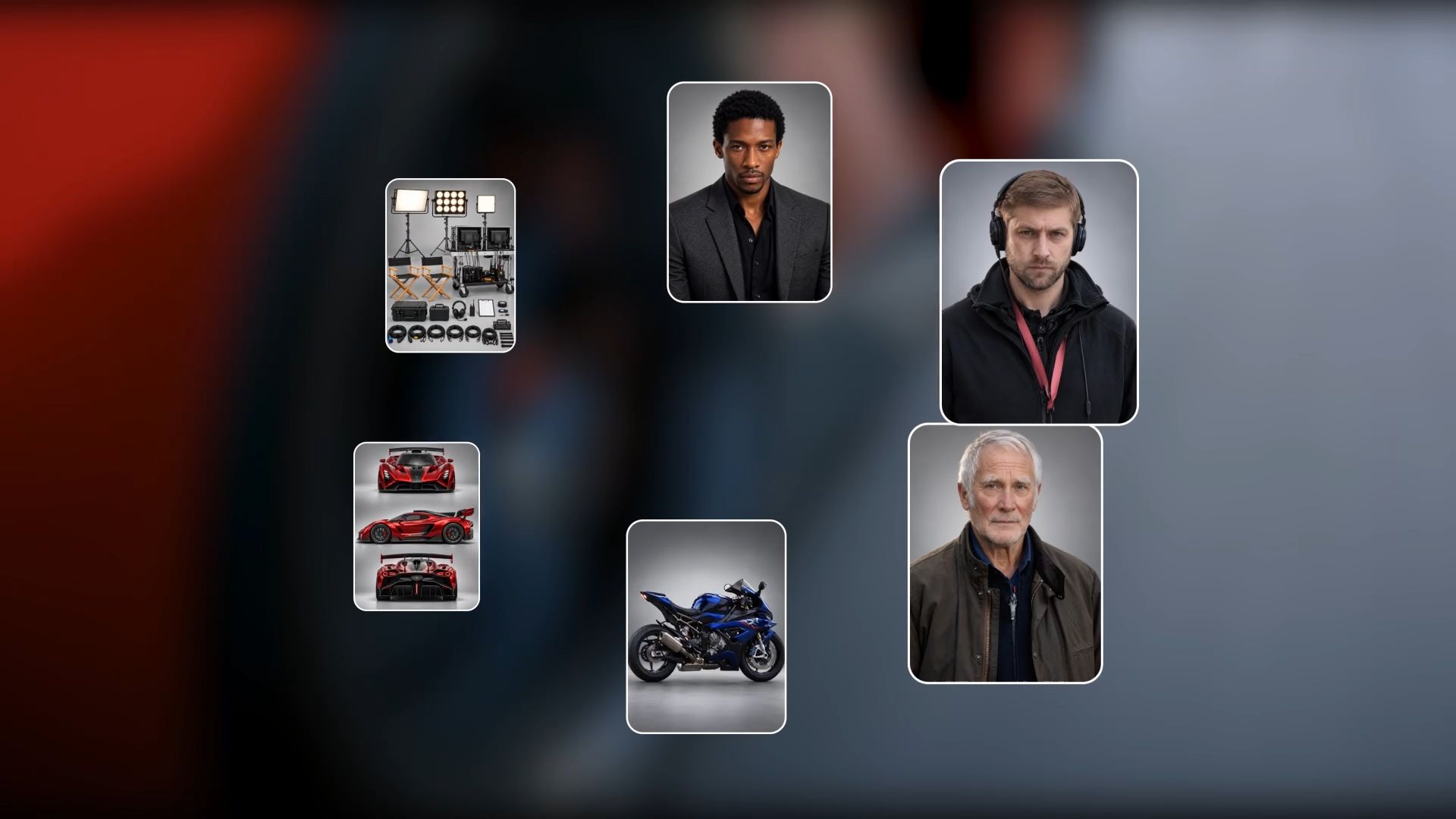

How to Turn Shot Ideas Into a Video Preview
Whether you start with a rough idea or an existing shot list, Kling 4.0 helps you turn your creative direction into a video preview. You can begin with a prompt, add visual references through Omni Reference to guide characters, scenes, and camera movement, then refine the result based on what you see. Follow these steps to bring your planned shots to life.
Step 1: Choose Your Starting Point
Open Video Generation and select Kling 4.0. If you don't have a clear shot list, use Omni Reference to upload a combination of images, videos, and character references, with up to 15 reference assets in total. Assign each asset a clear role to guide character appearance, visual style, camera movement, or video pacing.
Step 2: Describe the Story Beats and Camera Direction
If you already have a shot list, turn each entry into prompt instructions covering shot order, framing, action, and camera movement. Kling 4.0 supports prompts of up to 8,000 tokens, giving you room to describe your creative intent in detail. You can also use up to 10 uploaded images as keyframes within the Omni Reference workflow to guide important visual moments and control pacing. Don't have a shot list? Simply describe the main character, what happens, and how your reference materials should guide the video's rhythm, style, or camera movement.
Step 3: Generate, Review, and Refine
Set a duration between 3 and 30 seconds, choose your aspect ratio and output settings, and generate a preview. Review the action sequence, composition, camera movement, and visual continuity, then refine your prompt or reference materials as needed. Kling 4.0 also supports targeted video editing, allowing you to add, modify, or remove subjects and backgrounds, as well as adjust video style, weather, colors, materials, and shot framing.
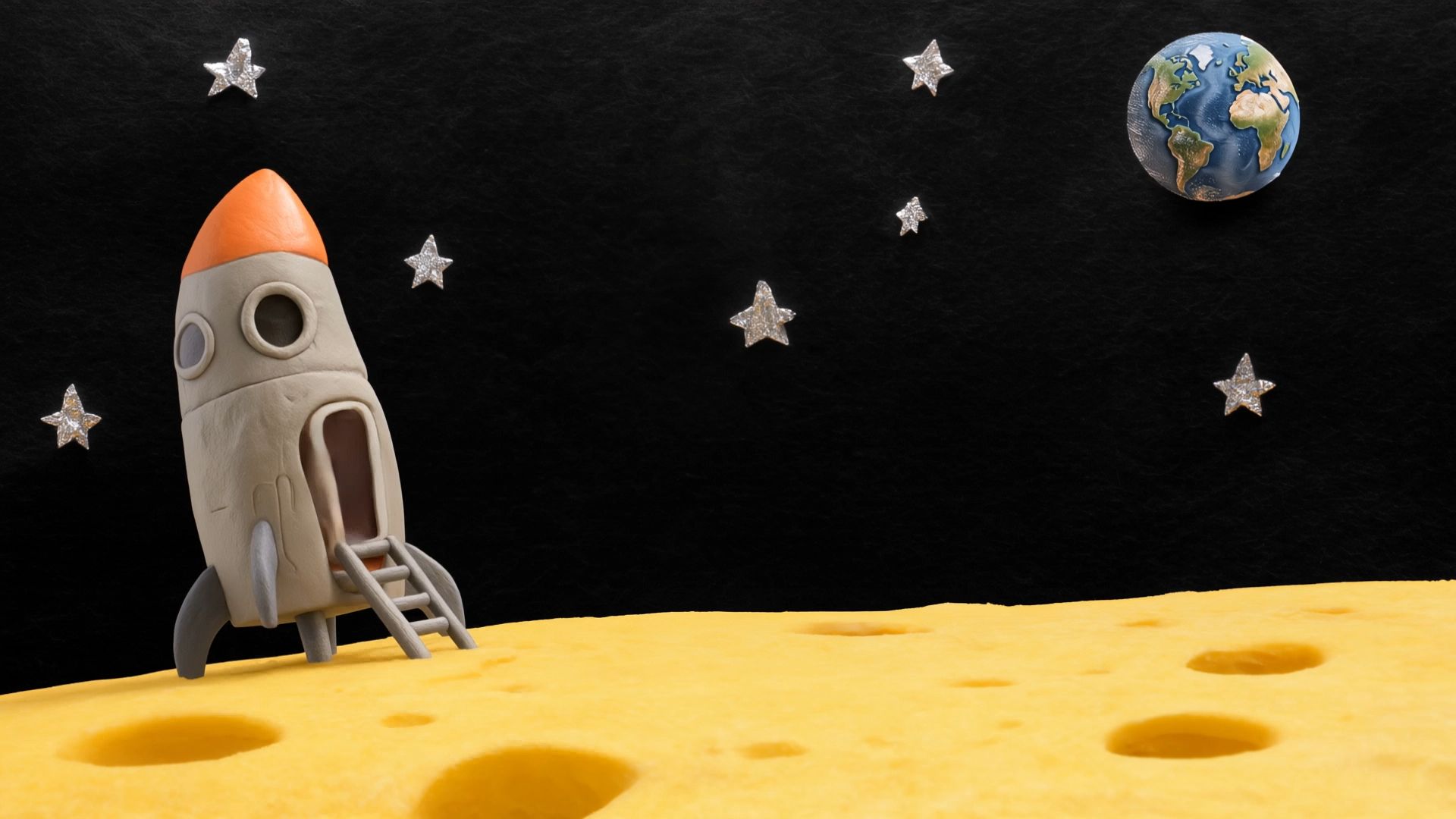
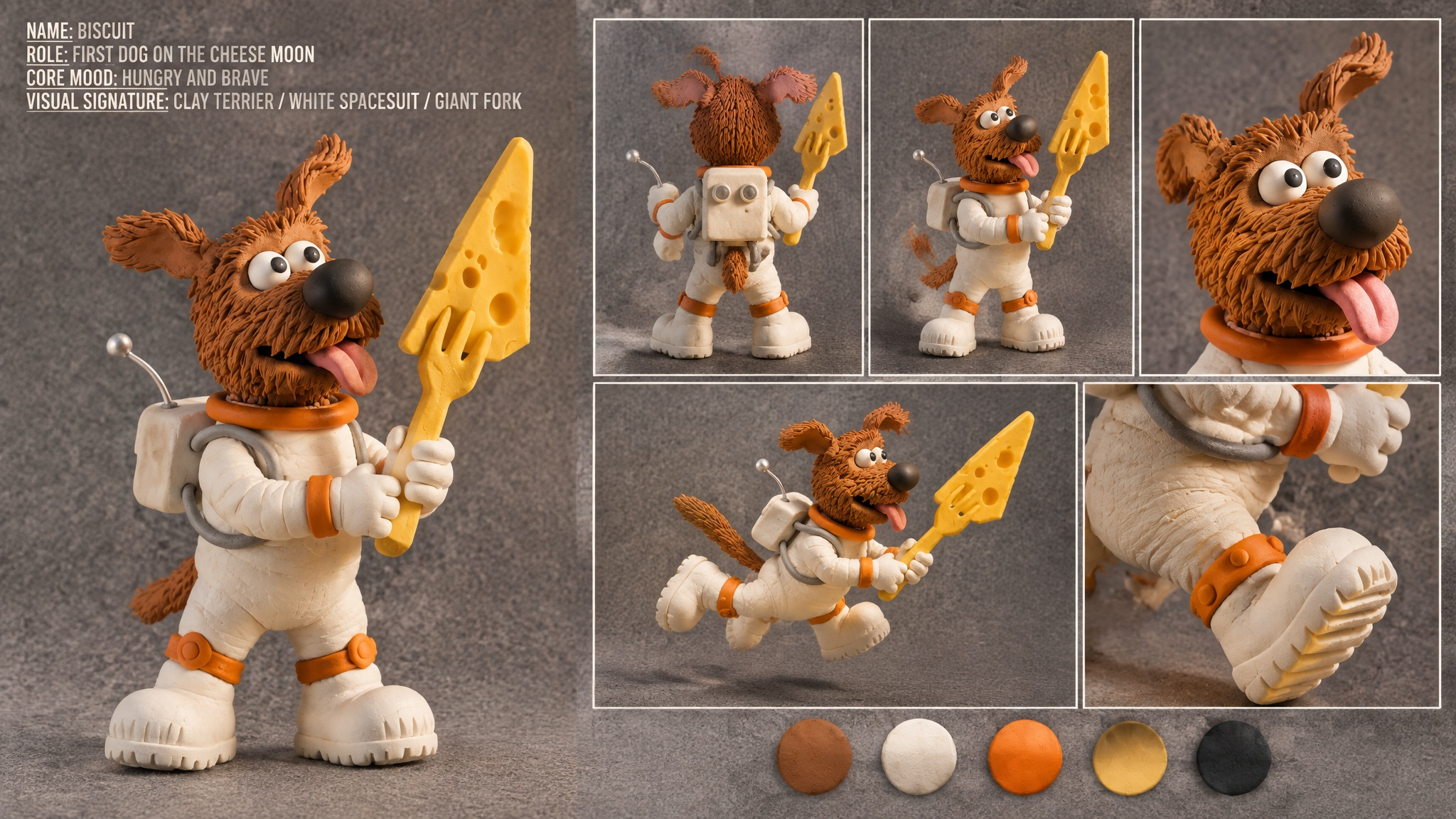
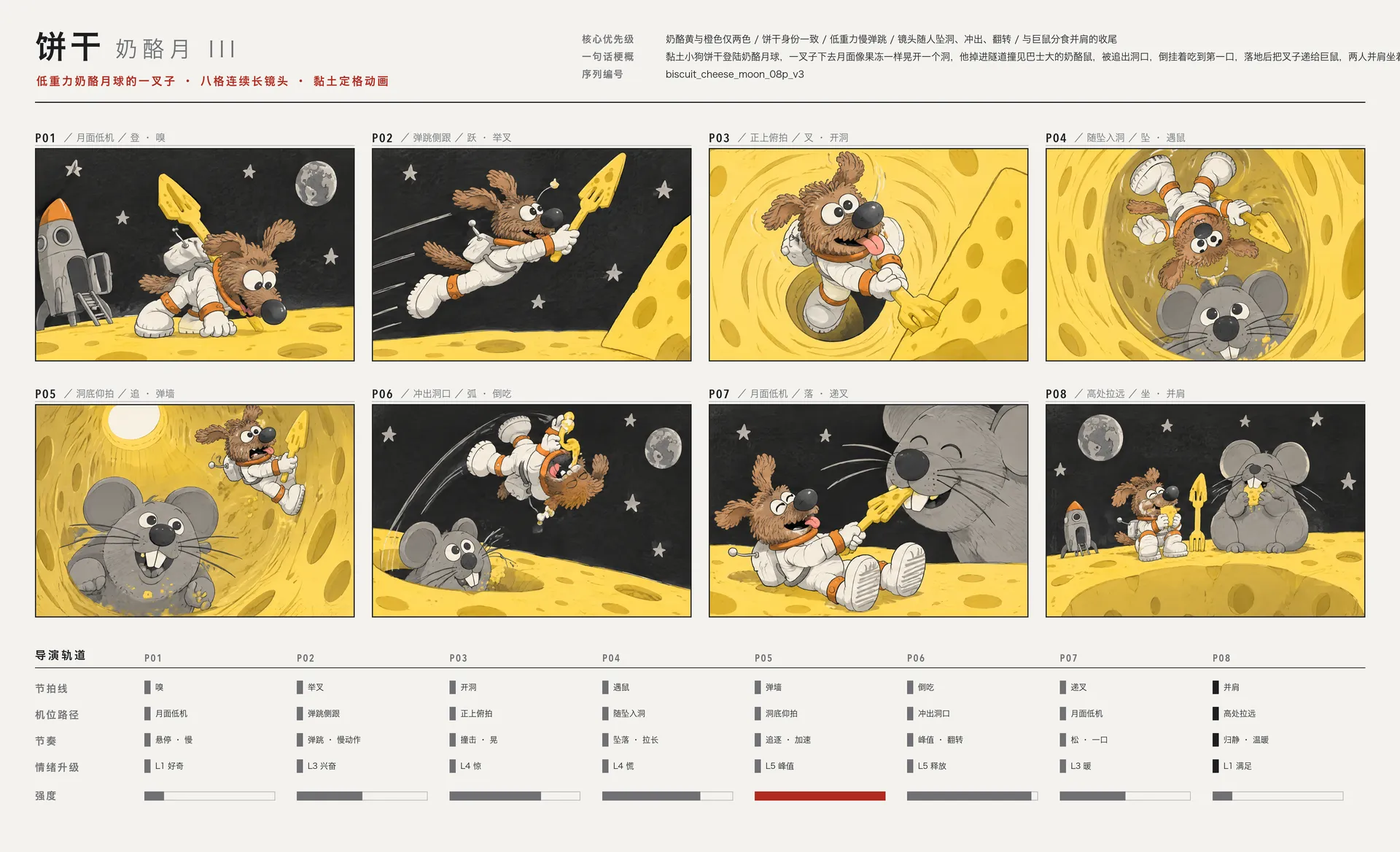
Reference Image1 | Reference Image2 | Generated Result |
|
| 
|
Prompt: @Image1 defines the clay dog's appearance, spacesuit, and cheese-shaped spear. Keep these details consistent throughout the scene. @Image2 is the storyboard reference; follow its shot order, framing, and camera movement, but recreate the finished scene rather than showing the storyboard itself. Create a 15-second stop-motion scene on a handmade cheese moon. Show the dog leaping near the rocket, falling into a cheese tunnel, meeting a giant mouse, and returning to the surface. End with the dog and mouse sharing cheese beside the hole. Keep the warm stop-motion texture throughout. | ||
Shot List Mistakes to Avoid
Before you share the plan, check that each shot has a clear purpose and that the list fits the shoot. These common mistakes can create extra setups, confusing edits, or missing footage.
Adding coverage without a purpose: Decide what each shot contributes. For an AI ad, that might be a product reveal, a demonstration, or a clear closing action. Prioritize essential views before adding alternate angles.
Combining conflicting directions: Choose a clear camera path for each moment. If a static close-up should become a tracking view, specify when the change happens.
Losing continuity: Track screen direction, eyelines, wardrobe, and prop positions. Check these details when reviewing filmed takes or generated previews.
Treating story order as the schedule: Preserve narrative IDs while grouping practical setups. That keeps the edit readable without requiring repeated lighting resets.
The End
A shot list turns creative ideas into a practical production plan by defining framing, action, camera movement, and shot order. Use the template and example in this guide to organize your shots. Powered by Omni Reference, our Kling 4.0 model combines prompts with your uploaded visual references to help you create high-quality AI videos with a director's eye, whether or not you have a complete shot list, making video creation more efficient.
FAQs
What Is the Best App for Creating Shot Lists?
For a simple shot list, a spreadsheet app is often the best starting point because you can customize columns and update entries quickly. Larger productions may benefit from dedicated tools with storyboard references, scheduling, and team collaboration. Choose an app that lets you organize, revise, and share the list easily with the people working on your shoot.
Who Is Supposed to Make a Shot List?
The director usually develops the shot list with the cinematographer, combining storytelling decisions with practical camera setups. On a smaller project, you may handle both roles yourself. Share the draft with the people responsible for lighting, sound, and scheduling so they can flag equipment needs and help turn your creative plan into a workable shoot.
How Detailed Should a Shot List Be?
A shot list is detailed enough when another crew member can understand the intended shot without asking you to explain it. Simple setups may need one concise line, while complex action or visual effects may require extra notes. Review the draft with your crew and clarify any entry that leads to different interpretations. For complex compositions, an AI image generator can provide a visual reference alongside the written entry.
How Do You Make a Shot List?
To make a shot list, start by breaking down your script or concept into key visual moments, then assign specific framing, camera angles, and movements for each shot. Next, fill in practical setup notes—such as location, talent, and key props—and reorder shots by camera setup or lighting rather than story order to optimize shoot time. Before production begins, you can also use AI generators like Kling AI to quickly turn your shot descriptions into visual previews and test your camera choices.
How Can a Shot List Help With Client Approval?
A shot list gives clients a concrete way to review what the video will show before production begins. Ask them to confirm product details, required messages, and any must-have views. Record agreed changes in the plan, then share the updated version with the crew so everyone works from the same approved scope.