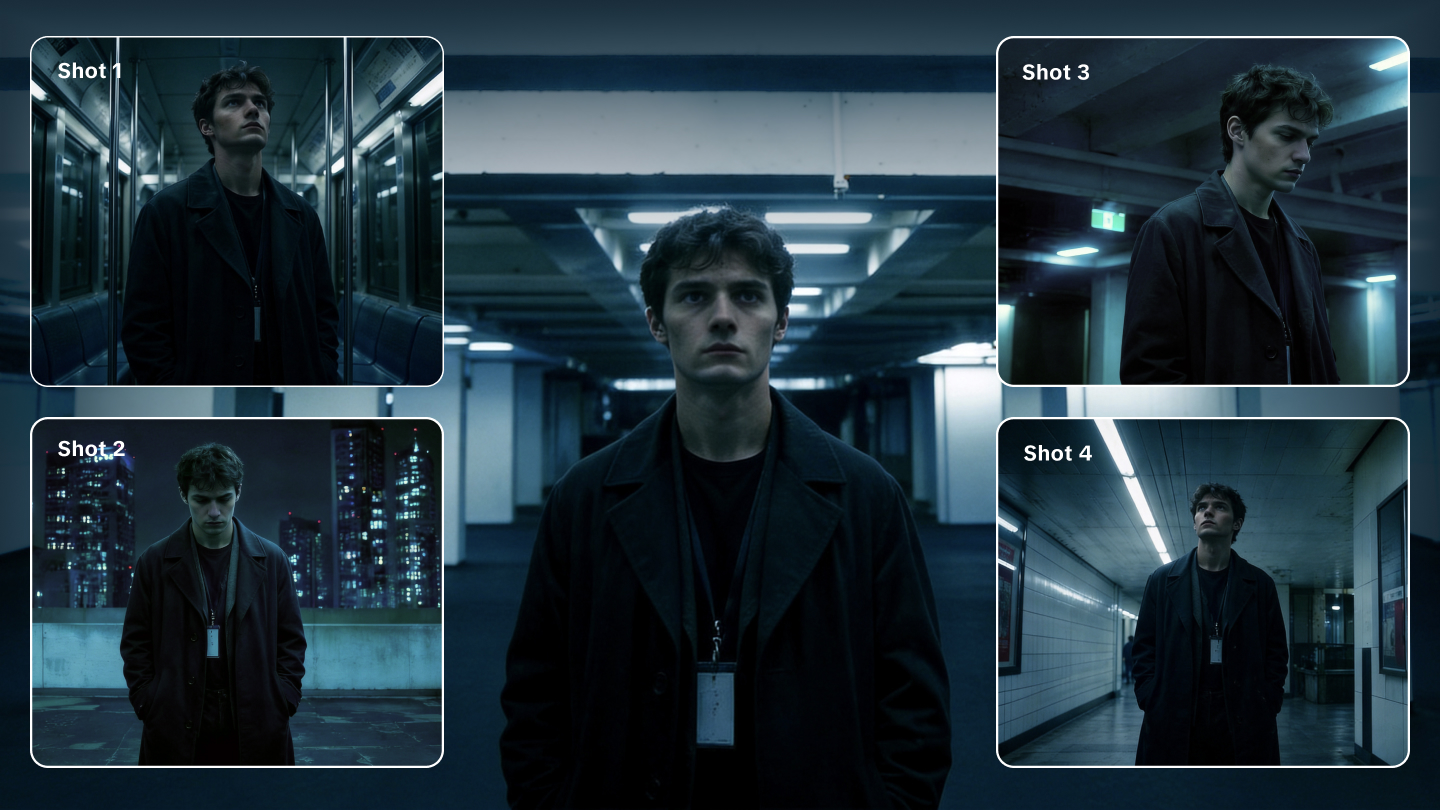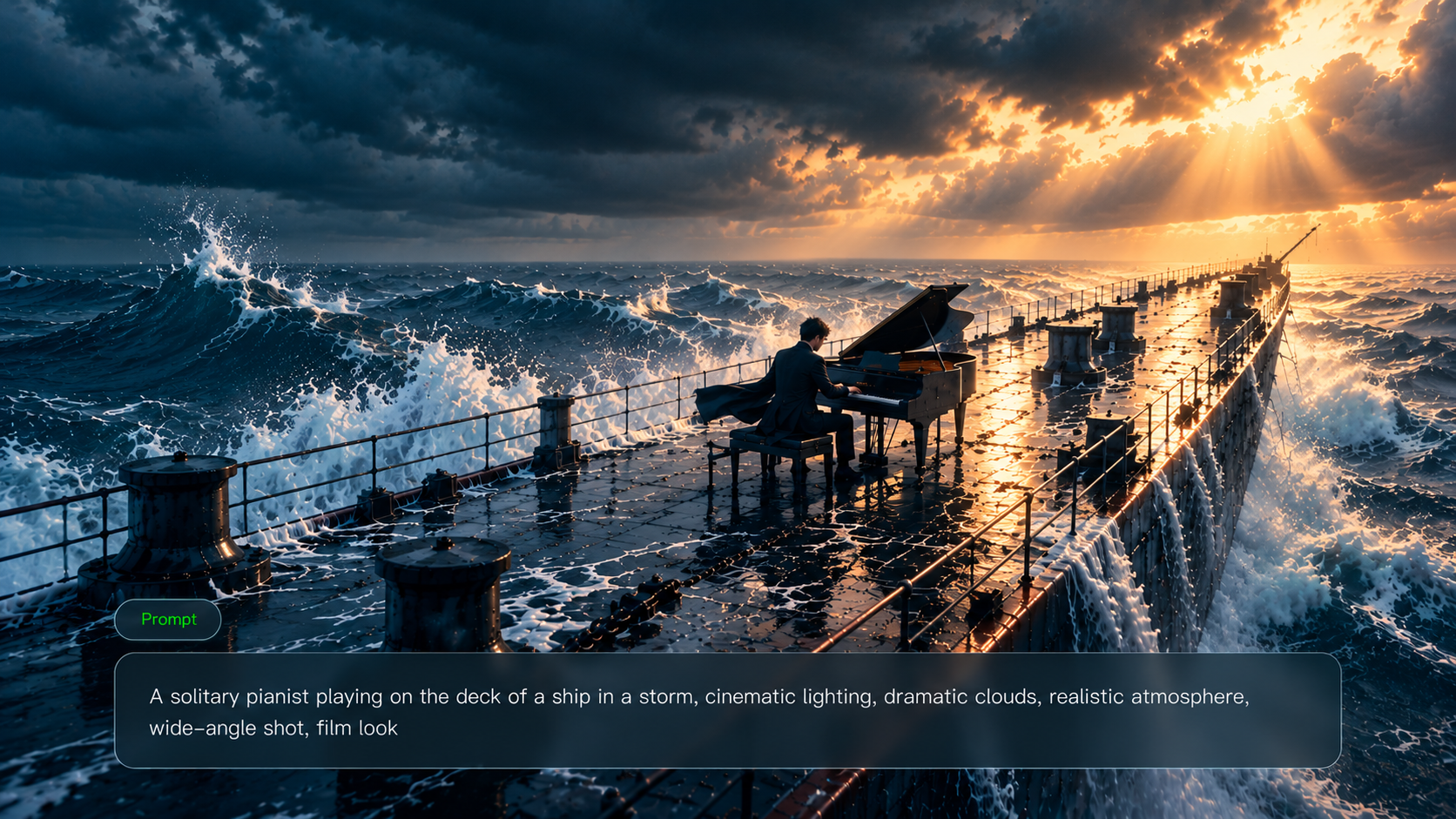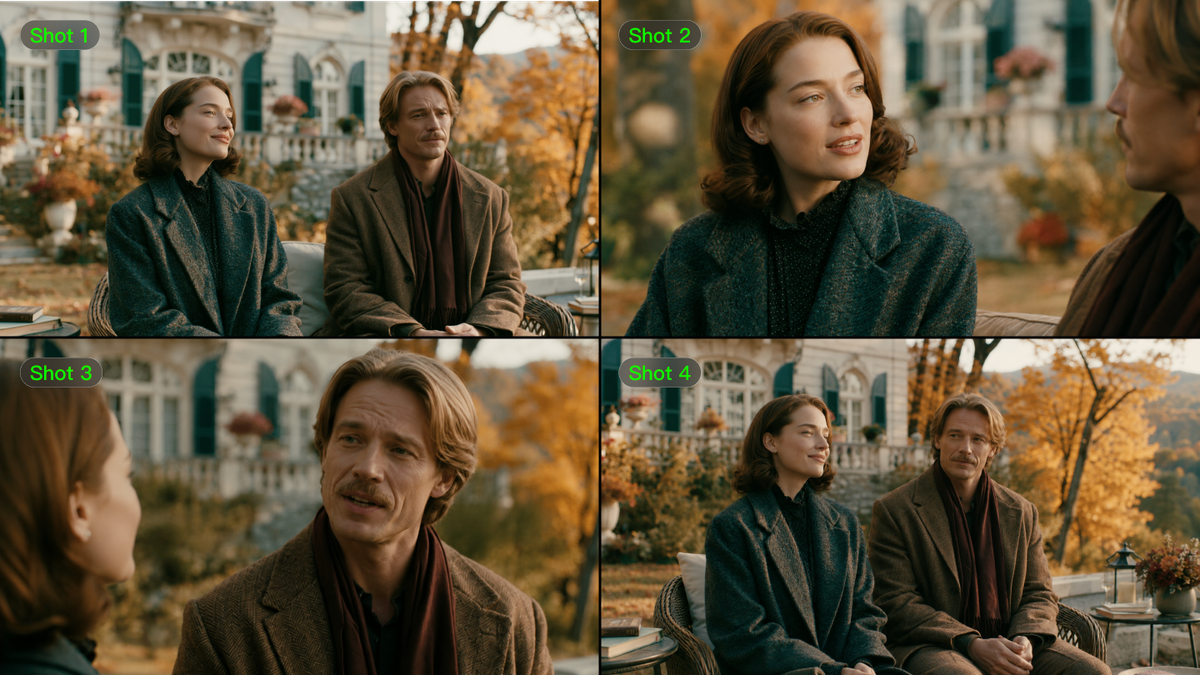
The right video editing software depends on the change you want to make. Arranging clips calls for timeline controls; replacing a person or a setting calls for work inside the shot. This guide compares those jobs and the tools that support them. Kling AI uses text and references to direct changes to existing footage, and can generate shots your project still needs.
What Makes Good Video Editing Software?
Good video editing software should let you learn the basics and still give you control over the finished video. How much control you need depends on your experience and the content you make. Ease of use and the time spent on routine work matter too. AI assistance is worth considering when it helps with those tasks or gives you another way to develop footage.
Easy to Learn, with Room to Grow
You should be able to learn basic editing without struggling to find every control. A clear interface helps beginners get started; as projects become more demanding, precise cuts and timing matter more. The same goes for audio, effects, and export settings. An editor that handles your current work and leaves room for those later needs can save you a switch.
Efficient Workflows and Useful Creative Support
Templates and automation can take some repetitive work out of an edit. Support for your footage and delivery formats also helps when it is time to finish. AI video editing tools add ways to generate or change visual content, alongside routine editing assistance. What matters is whether you can review the result, refine it, and use it in your project.
Best Video Editing Software: Compare 6 Options
A timeline editor helps you arrange recorded clips and refine their timing, sound, and color. AI tools can also change what appears inside a shot or create footage you have not filmed. For beginners, the useful choice is the one that makes your intended task manageable. Compare the workflows, access, and platforms below; each serves a different part of video production.
Tool | Platforms | Access / Cost | Key Capabilities and Best-fit Tasks |
Kling AI | Web on Windows/Mac; Android/iOS apps | Free trial credits for new users; credit usage and model access vary | Suited to beginners and creators seeking a more efficient workflow, with text prompts and references to revise footage and reduce manual adjustments and reshoots. Kling 4.0 offers Omni Reference, 3–30-second generation, up to 10 keyframe images, and improved motion stability and realism. Kling AI’s creation page also supports timeline assembly, further revisions, and downloading the finished video.
|
Adobe Premiere Pro | Windows/Mac | Paid subscription | Detailed timeline editing, audio, color correction, and finishing for projects that need extensive manual control. |
DaVinci Resolve | Windows/Mac/Linux | Free edition; paid Studio | Editing, color grading, Fusion visual effects, and Fairlight audio within one application. |
Final Cut Pro | Mac and iPad | Paid; purchase or subscription options vary | Timeline editing and media organization within Apple workflows; features differ between Mac and iPad. |
Runway | Browser | Plan and credit limits apply | AI video generation and prompt-based changes to existing footage through its generation and editing tools. |
Adobe Firefly | Browser | Plan and credit limits apply | AI clip generation and browser-based media assembly in its video editor, currently offered in beta. |
*Features, plans, and access can change, so confirm the settings available to your account before starting a project.
Kling 4.0 for AI Video Editing and Generation
Kling 4.0 helps you adapt existing footage through text instructions and references. Replace a product, revise a character, or change a setting, using reference images and videos to guide the details. This gives beginners a more approachable way to make scene-level changes and helps creators reuse footage across different versions, reducing repetitive manual work and the need for reshoots or physical set changes. You can access Kling AI through a browser on Windows or Mac, or use its Android and iOS apps.
You can also continue creating with Kling AI’s new timeline feature, which brings previewing, editing, and adding assets into one timeline. Modify or insert assets at any point, making changes as you watch.
Adobe Premiere Pro for Detailed Timeline Work
Adobe Premiere Pro offers detailed timeline work for recorded interviews, documentaries, and campaigns. Its audio, color, and effects tools connect with other Adobe applications. When comparing video editing software for beginners, consider the time needed to learn a professional timeline editor as well as its subscription cost.
DaVinci Resolve for Integrated Finishing and Free Access
DaVinci Resolve keeps editing, color grading, Fusion effects, and Fairlight audio in one application. Its free Windows edition makes it an option for free video editing software for PC, and it also runs on Mac and Linux. Some features require the paid Studio edition, so the choice depends on your hardware and the work you want to do.
Final Cut Pro for Apple-Based Editing
On Apple devices, Final Cut Pro offers a Magnetic Timeline and media organization for projects ranging from social clips to longer productions. The Mac and iPad editions have different requirements and features, with purchase or subscription options to consider. You can also bring generated clips into the timeline and finish them alongside recorded footage, adding sound, captions, and color adjustments.
Runway for AI Generation and Footage Variations
Runway offers two routes for exploring a scene. Gen-4.5 generates video from text or images, while Edit Studio with Aleph 2.0 uses prompts to change existing footage, including its setting or visual style. Model access and credit limits affect which route is available. The resulting clip still needs to fit the pacing and format of your final edit.
Adobe Firefly for Browser-Based Creative Work
For a short project in a browser, Adobe Firefly combines generation with a video editor (beta). You can trim and rearrange media, then add text and audio. That makes it an option for online video editing software, though prompt-based editing depends on the selected model. Its credit limits and finishing tools are worth checking against your project needs.
Why Choose Kling 4.0 for AI Video Editing?
If you want to edit more efficiently and reduce filming and reshoot costs, we recommend starting with Kling 4.0. Use text and references to replace a product, revise a character, or change a setting in existing footage, then generate missing shots to reduce the need for additional filming. This approach also makes AI video editing more accessible to beginners, who can describe changes in everyday language without first mastering complex masking and compositing techniques. With Continuous Timeline Creation on Kling AI’s creation page, you can preview, edit, and add assets on a single timeline, bringing your shots together and refining your video with less switching between tools.
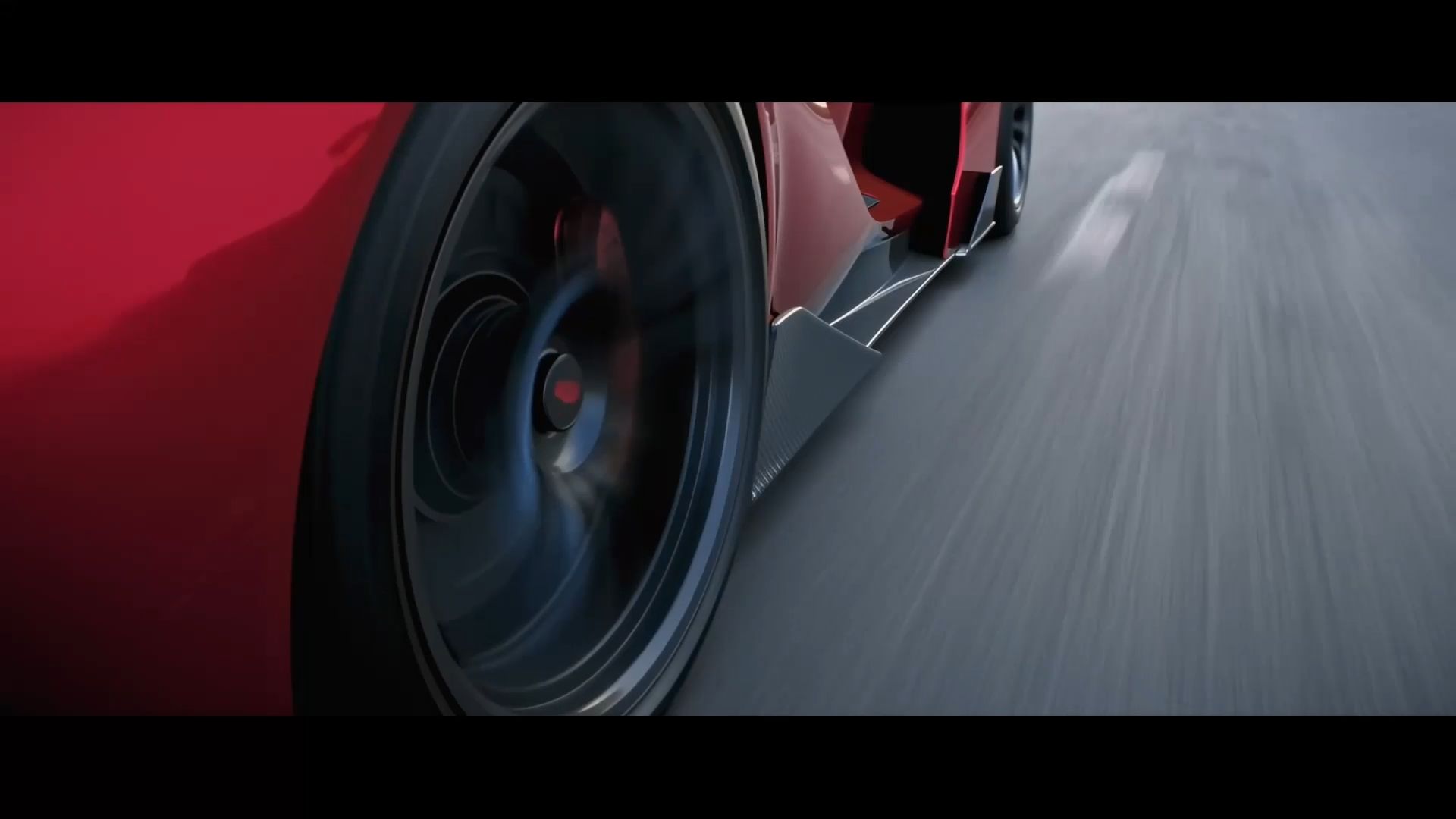

Change Scene Details with Less Manual Editing
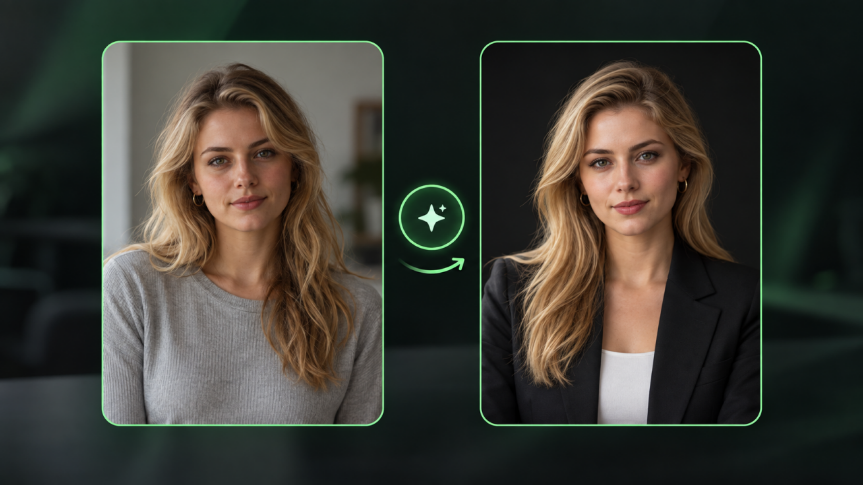
Changing a single person, product, or background in a traditional editor often involves masking, motion tracking, and compositing, which can take practice to get right. Kling 4.0 gives you a simpler AI workflow: describe the element to change, add a reference when needed, and let the model carry out the revision. The full model can add, replace, or remove elements and adjust expressions, colors, materials, camera angles, and visual style. Your prompt can also specify the details you want to keep.
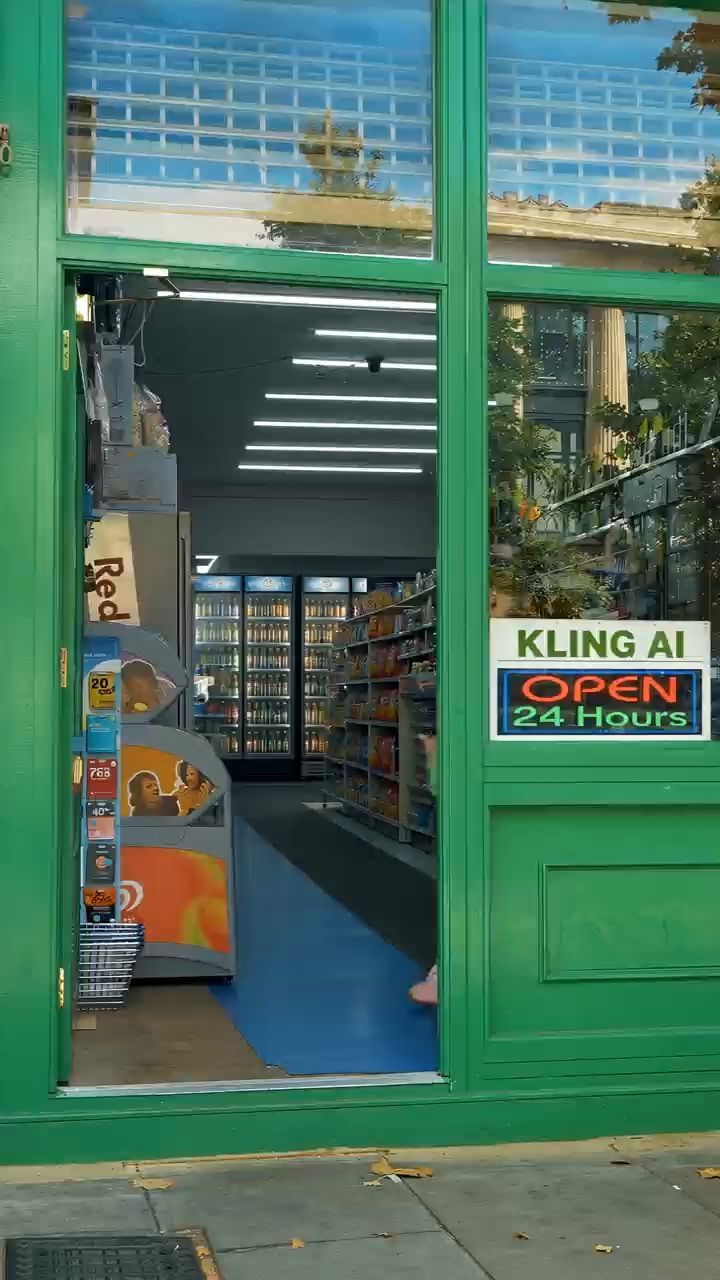
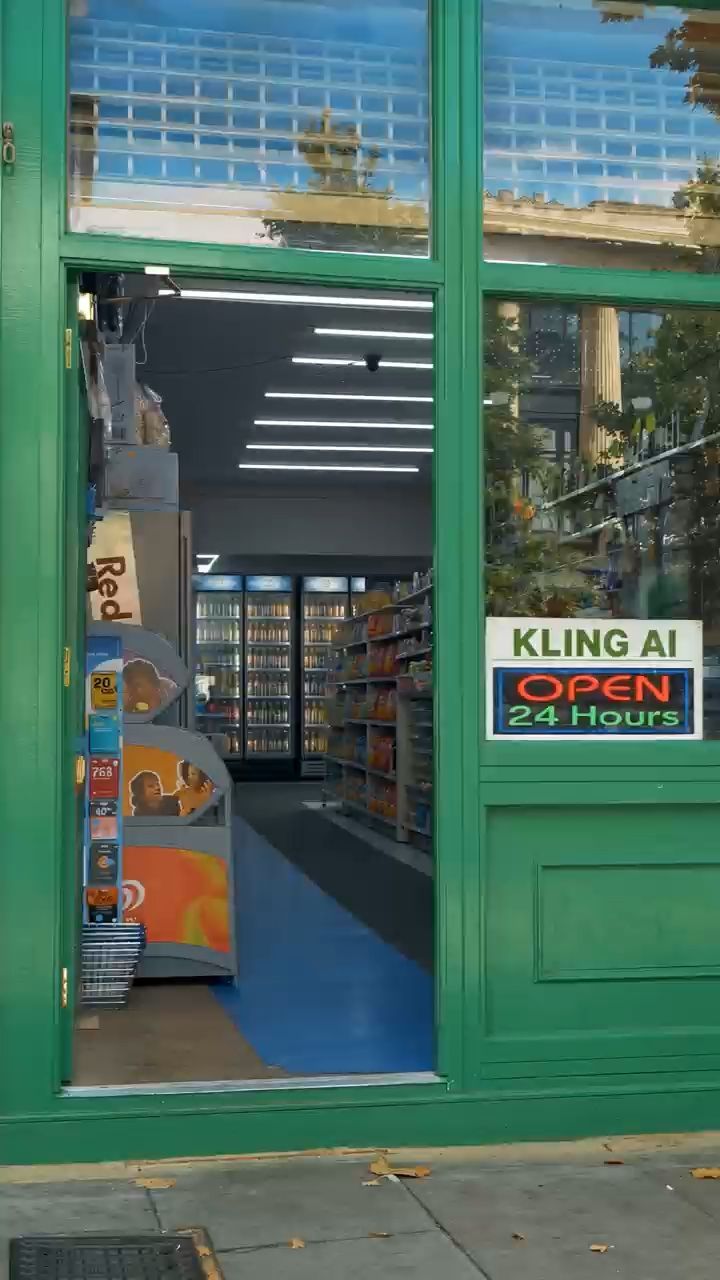
In the multi-character example below, each reference supplies the appearance of a different replacement character. The edit maps those references to separate people in the original clip. A background change follows the same principle: identify the setting to replace and name the subject or action that should stay. This defines the requested scope; the finished clip still needs a review for unwanted changes.
Replace Multiple Characters Using Reference Images | ||
Reference Image | Reference Video | Generated Result |
.png?x-oss-process=image/resize,w_1872) .png?x-oss-process=image/resize,w_1872)
 |  |  |
This makes targeted scene editing more approachable for beginners, while helping experienced creators spend less time building revisions manually.
Guide Edits with Omni Reference for Greater Creative Control
A character image can show who should appear in a scene, while a product image supplies shape, color, and branding. Video references convey performance, camera movement, and pacing. Subject references can help establish recurring identities, including a specified voice. Together, these inputs let you show different parts of the result instead of describing everything in words. The references should agree on the details you want to preserve.
Image references can include character turnarounds, image grids, storyboards, and wireframes to communicate appearance, scene layout, and composition. White-model and depth-map videos offer further guidance for motion and camera work. In generation workflows, Kling 4.0 supports up to 15 reference assets in total, subject to individual limits of 10 images, five videos with a combined duration of up to 30 seconds, and seven subjects, including up to three video-based subjects. Video-based subjects count toward the video duration limit.
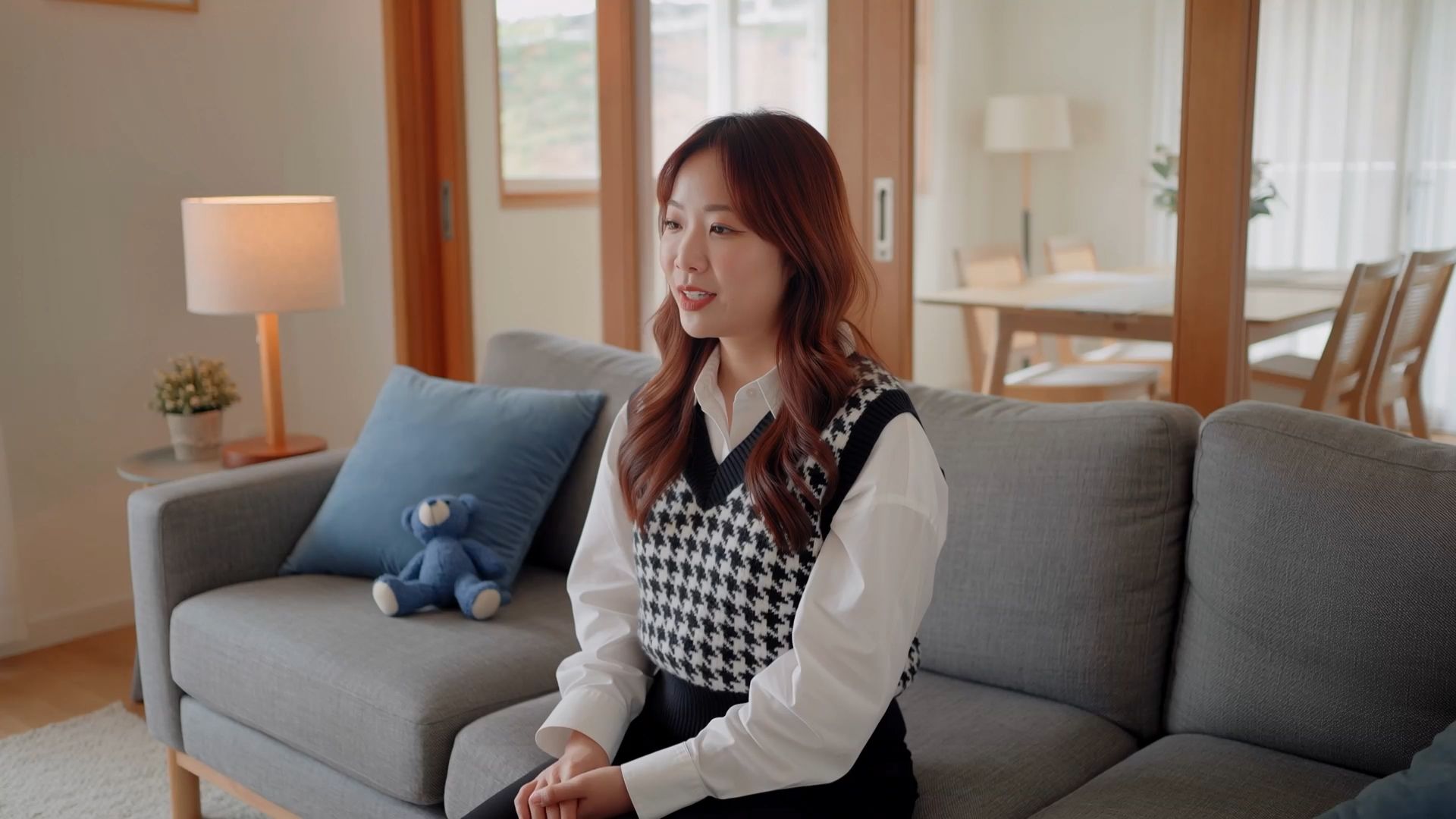
Reuse Existing Footage to Reduce Reshoots and Costs
Once a clip has the action and composition you need, a new campaign may only require a different product, character, or setting. Kling 4.0 lets you adapt those elements using text and references, making more use of footage you already have. For product ads, seasonal campaigns, and social content, this can reduce the need to rebuild sets, arrange another shoot, or recreate the scene manually, helping lower production costs as you develop new versions.
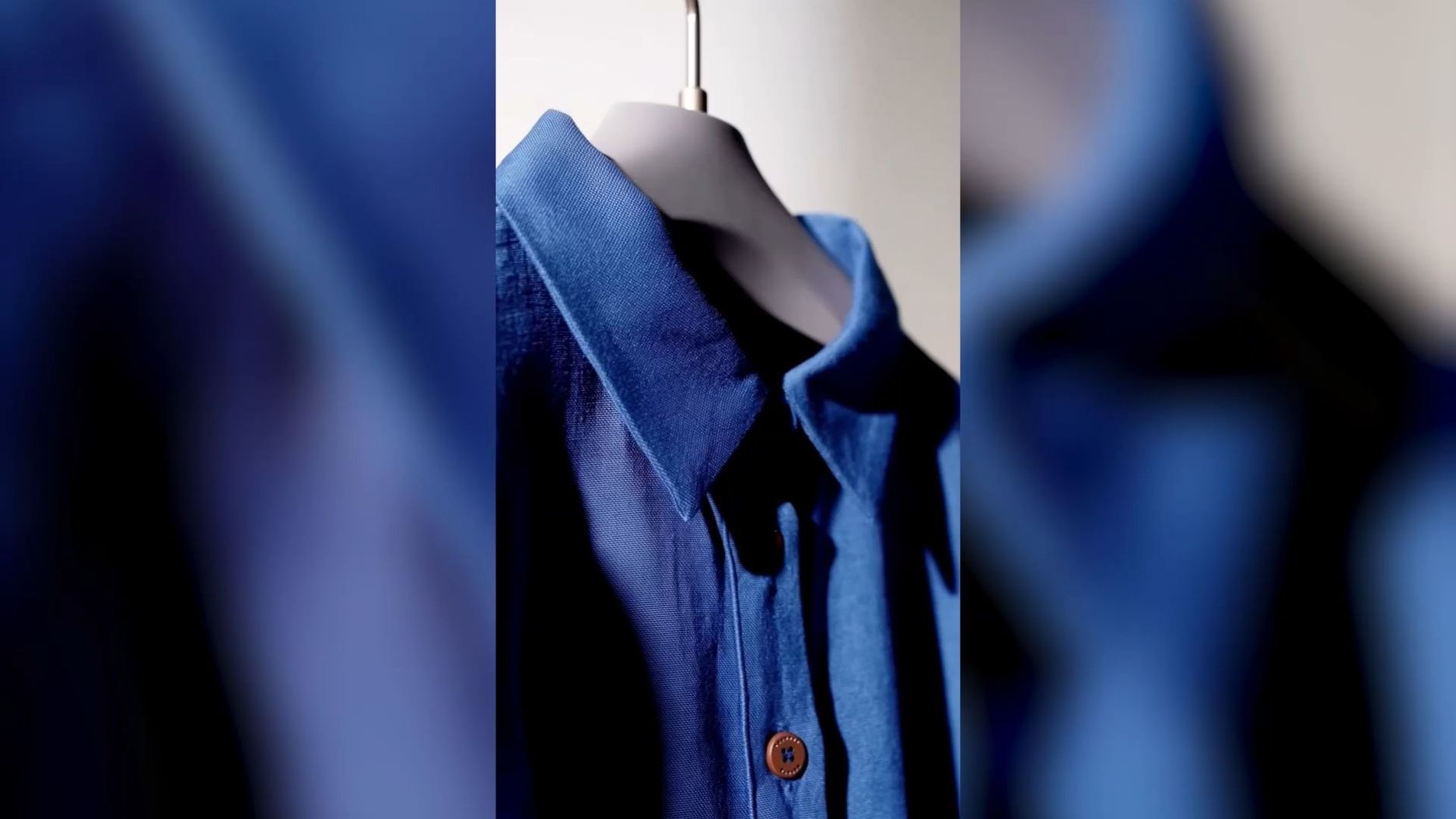
Assemble and Refine Your Video in One Timeline
Turn individual clips into a complete video with Continuous Timeline Creation on Kling AI’s creation page. Add videos you have generated to the timeline, combine them with uploaded footage, and trim unwanted sections to refine the sequence. If your video needs another product close-up, opening shot, or closing scene, insert existing footage or generate a new clip where it is needed.
You can also keep improving clips already on the timeline. Click “Edit Asset” to modify or regenerate a selected clip, and the updated result replaces the previous version in the same position. Preview the full sequence and download the assembled video when it is ready. Keeping generation, clip revisions, and basic assembly in one place helps beginners build complete videos more easily and reduces the need to switch tools for straightforward editing tasks.
How Kling 4.0's Generation Features Help You Complete Your Video
Editing existing footage is only part of completing a video. When your project needs an additional shot or a new sequence, Kling 4.0 also provides video generation tools to help you create it, with control over duration and key visual moments.
Generate a Missing Shot from Text or an Image
If your edit needs an opening scene, a product insert, or another shot you have not filmed, text to video can start from a written description. A product photo or prepared composition can provide the starting point for image to video. Use references for the same character, product, or visual style as your existing footage. The generated clip can then fill that gap in the sequence, alongside the scenes you have already revised.
Create More Stable, Lifelike Action Shots
Running, dancing, fast-paced action, and complex camera movements place greater demands on generated footage. Kling 4.0 improves motion stability and continuity in these situations, helping movements and camera work stay smooth and coherent. More natural facial details, lighting, and textures, together with more nuanced expressions and body language, also make scenes feel more lifelike. These improvements help you create convincing action shots and character performances for commercials, music videos, and short films.
Up to 30 Seconds per Generation for a Fuller Sequence
Kling 4.0 expands the generation range from Kling 3.0’s 3–15 seconds to 3–30 seconds. The longer duration gives a product demonstration time to reach its result, a conversation room to develop, or an action sequence space to unfold. When your edit needs a more complete scene, you can generate a longer sequence in one pass rather than assemble it entirely from shorter outputs.
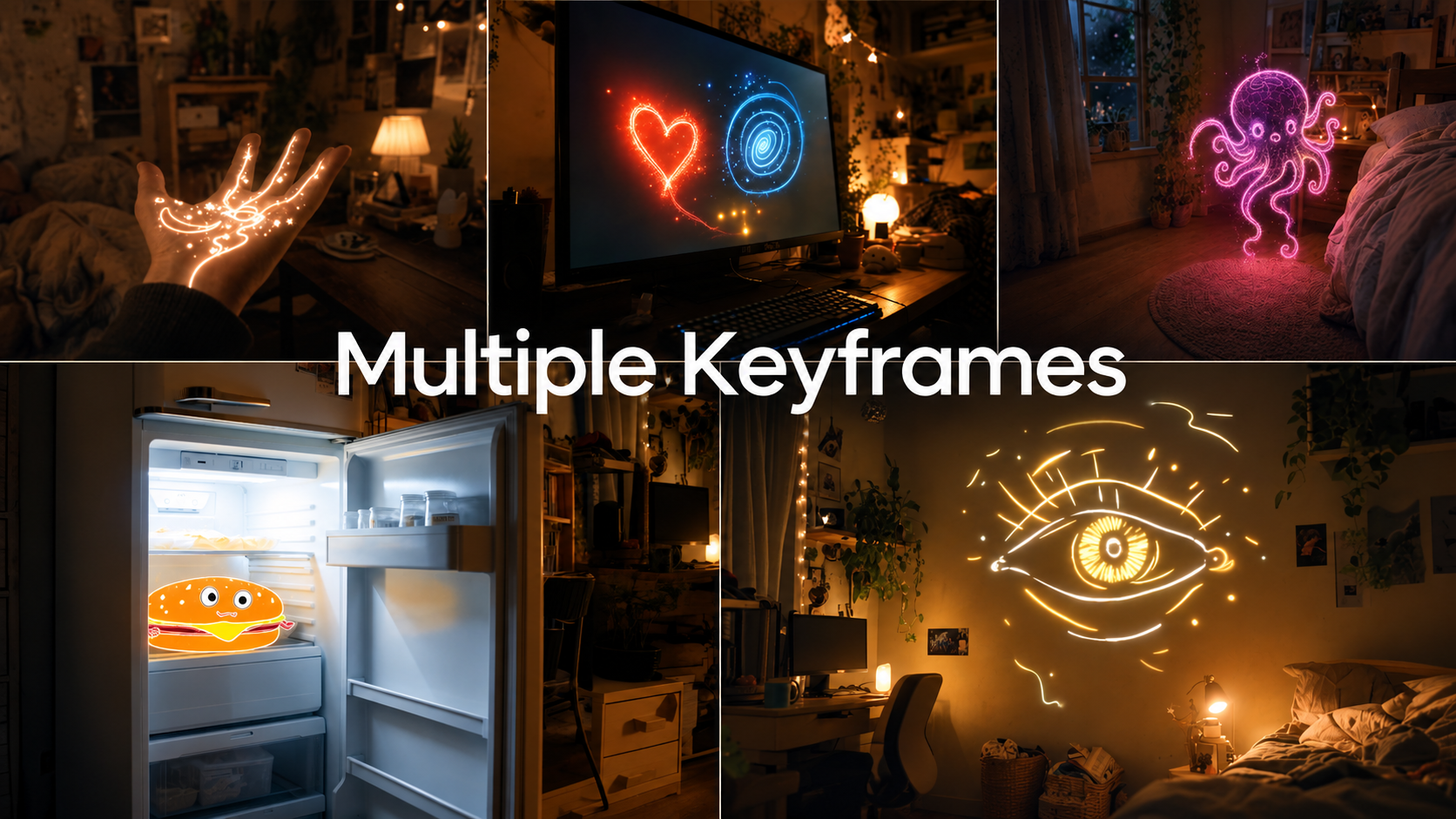
Guide the Story with Up to 10 Keyframes
Kling 4.0 supports up to 10 keyframe images as input, letting you freely define key visual moments and specify character states, scene changes, and story beats. For a product video, you might establish the opening composition, the moment the product is revealed, and the closing shot. These visual anchors guide the content to progress naturally in your intended direction, giving you more control over how a newly generated sequence unfolds before adding it to your edit.

How to Edit Existing Videos with Kling 4.0
Kling 4.0 uses an AI workflow for scene changes. You upload the footage, add references, and describe the revision, rather than working through masks and compositing layers yourself. In the example below, a character reference and a prompt guide the model to add a new subject inside a box and replace the final line of dialogue. The three steps take you from preparing your inputs to refining, assembling, and downloading your video.
Step 1: Upload Your Video and References
Upload the footage you want to change as the main video, then add the character or product references the edit needs. In this example, the character reference supplies the appearance of the subject added inside the box. Kling 4.0 supports up to five input video clips, including one main video. Each clip must be 3–30 seconds long, and the combined duration of all input videos must not exceed 30 seconds.
Step 2: Describe What to Change and Keep
Name the target and the change before adding other directions. Here, the prompt places @Subject1 inside the box when it opens again, then replaces the final spoken line. For several character replacements, match each person in the original clip to the intended reference. State which actions, camera movement, and scene details you want to retain, so the requested edit has a clear scope.
Instructions about the visible action, setting, mood, and sound should agree with your references. A dialogue revision needs the new line and its intended delivery; a visual revision needs the target and the replacement. Keep those directions together in the prompt. The official example below shows how the character addition and dialogue change are expressed in one brief.
Step 3: Generate, Refine, and Assemble Your Video
Generate the edited clip and review whether the requested changes match your instructions. Check the subject, movement, setting, and any dialogue, then refine your prompt or references if the result needs another pass.
To build a complete video, add your generated clips to the timeline on Kling AI’s creation page. Arrange them in sequence, trim unwanted sections, and insert uploaded footage or newly generated shots where needed. You can also adjust or replace existing assets as the edit develops. To revise a clip already on the timeline, click “Edit Asset” to modify or regenerate it; the updated result replaces the previous version in the same position. Preview the sequence and download the assembled video.
Add a main subject and modify the dialogue | ||
Reference Image | Reference Video | Generated Result |
.png?x-oss-process=image/resize,w_1872) .png?x-oss-process=image/resize,w_1872) .png?x-oss-process=image/resize,w_1872) | 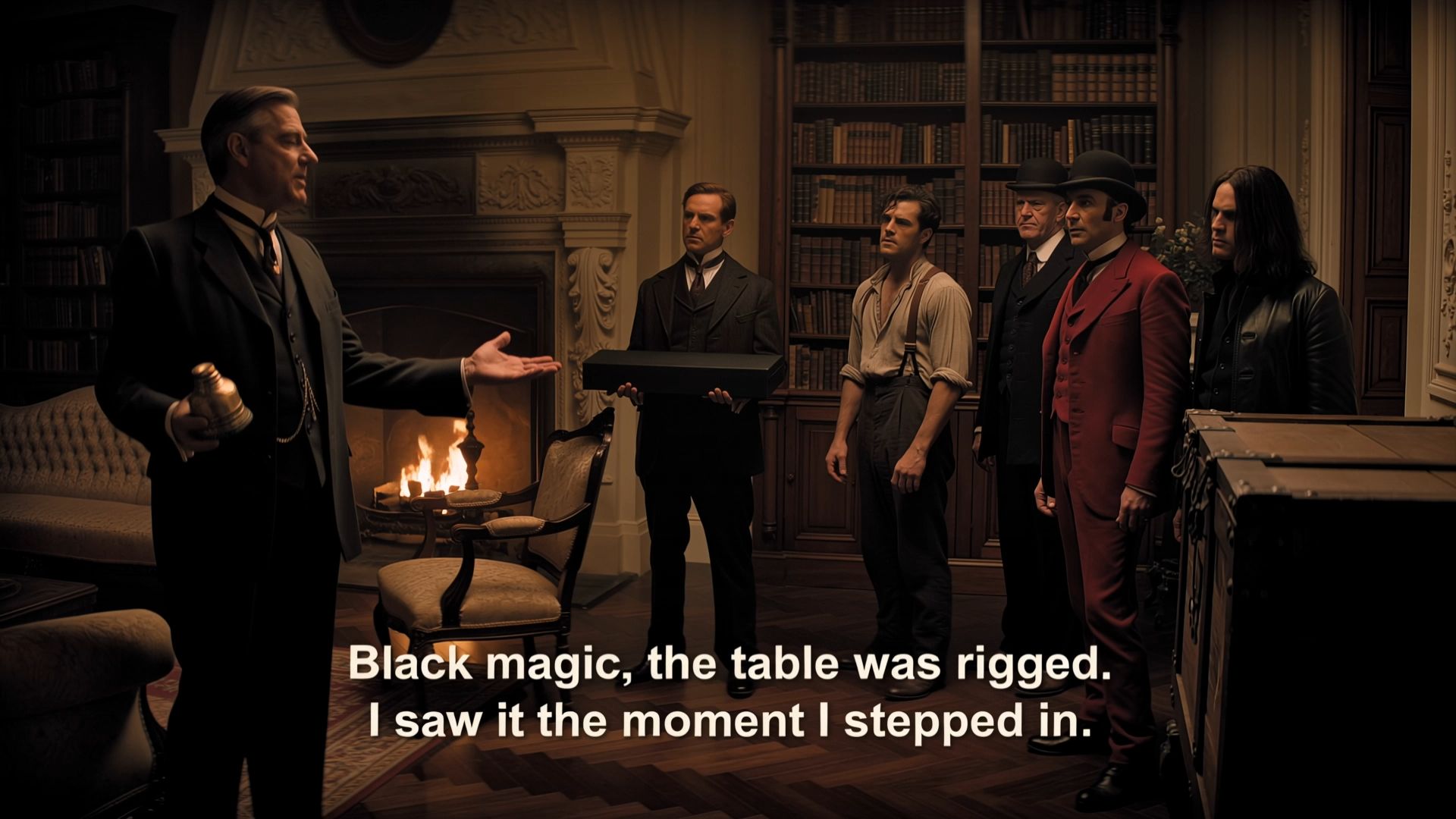 | 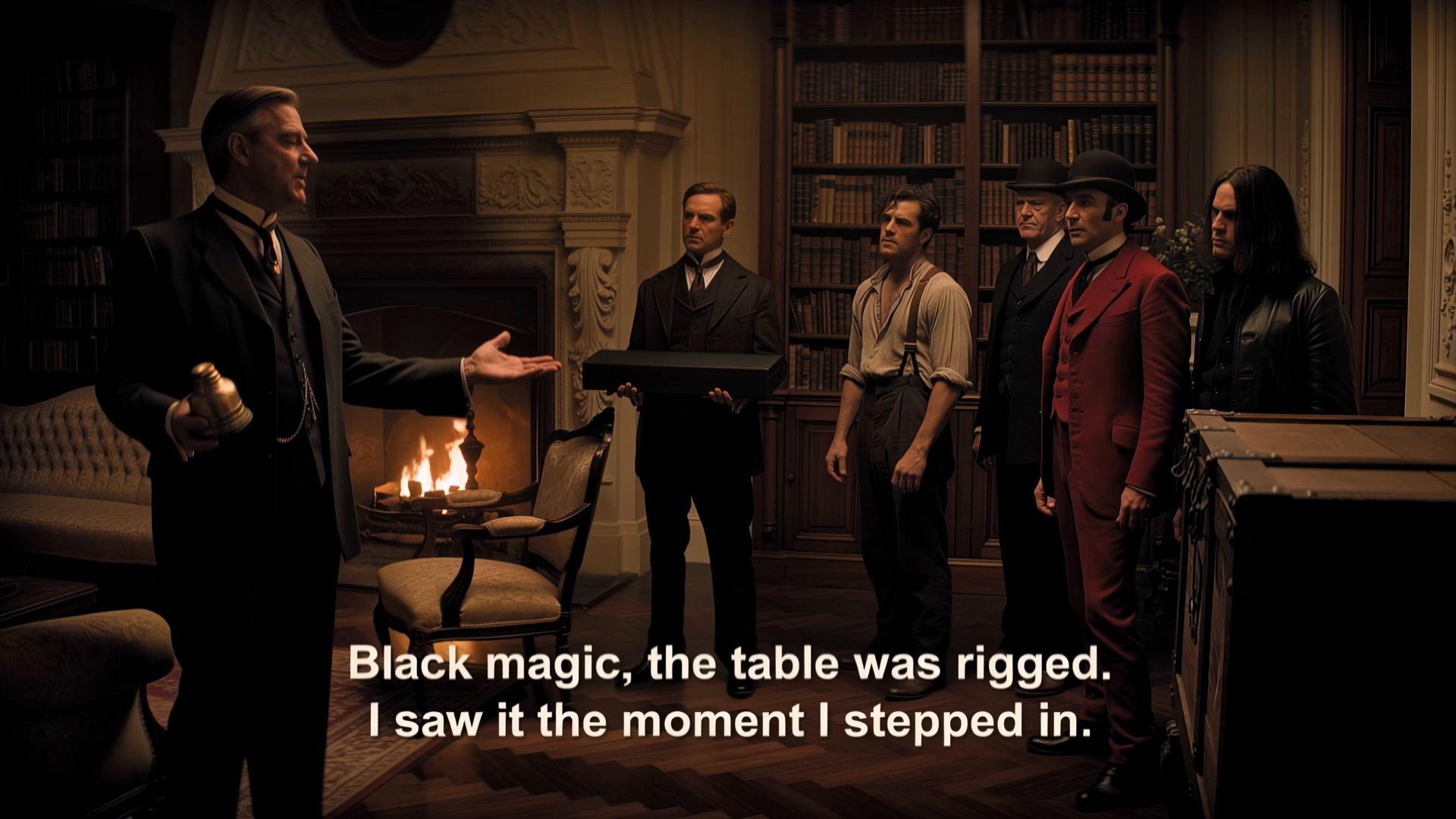 |
| Prompt: At the end of the video, when the box is opened again, @Subject1 is lying inside, asleep. Replace the final line, “Ah, it's all old stuff.” with “Why is there a pig here?” | ||
Conclusion
The best video editing software fits the change you need to make. Kling 4.0 is worth exploring when that change involves a person, product, or setting inside existing footage. Start with a scene you already like and one revision you want to try. A reference can show the replacement, while your prompt explains what should stay. You can also create a missing shot to complete the sequence. Keep the useful parts of your work and give the next version a clear direction.
FAQs
What is the best video editing software for beginners?
The best video editing software for beginners depends on the task. Kling AI can be a useful starting point for scene changes because you describe the edit with text and references, rather than building every change manually. You still need to review the result. You can also assemble generated and uploaded clips on Kling AI’s timeline, trim unwanted sections, and revise assets as your video develops. For projects that require advanced color grading or detailed audio mixing, you may choose to continue in a dedicated editing application.
Can I use Kling AI video editing software on a PC or phone?
Yes. Kling AI is available through a browser on Windows and Mac, with apps for Android and iOS. The browser provides an online route without installing a desktop editor. Availability of Kling 4.0 and its specific controls depends on the model access shown in your account and the interface you use; platform access does not guarantee identical features everywhere.
Is there free video editing software for PC?
Yes. Free video editing software for PC is available, though features and usage limits vary. Kling AI offers new users a limited number of free trial credits upon registration to help them explore eligible features. You can access Kling AI online through a browser on Windows or Mac without installing a desktop editor. To try Kling 4.0, check which features and models your trial credits cover, as access and credit requirements may vary.
How does Kling 4.0 differ from traditional video editing?
Kling 4.0 uses text and visual references to guide changes inside footage, such as replacing a character or background while requesting that other details stay. Traditional timeline editors arrange clips and provide precise finishing controls. Complex scene changes may involve compositing or retouching. Kling AI’s Timeline feature also lets you assemble and refine your clips, while a dedicated editing application can complement the workflow when you need advanced finishing tools.
Can Kling 4.0 edit only part of an existing video?
Yes. The full model supports targeted changes to subjects, backgrounds, and other visual details using text and references. Identify the element you want to change and describe what should remain, such as nearby characters, the original action, or camera movement. This sets the requested scope, but preservation is not an absolute guarantee. Review the whole result for unintended changes before using it.