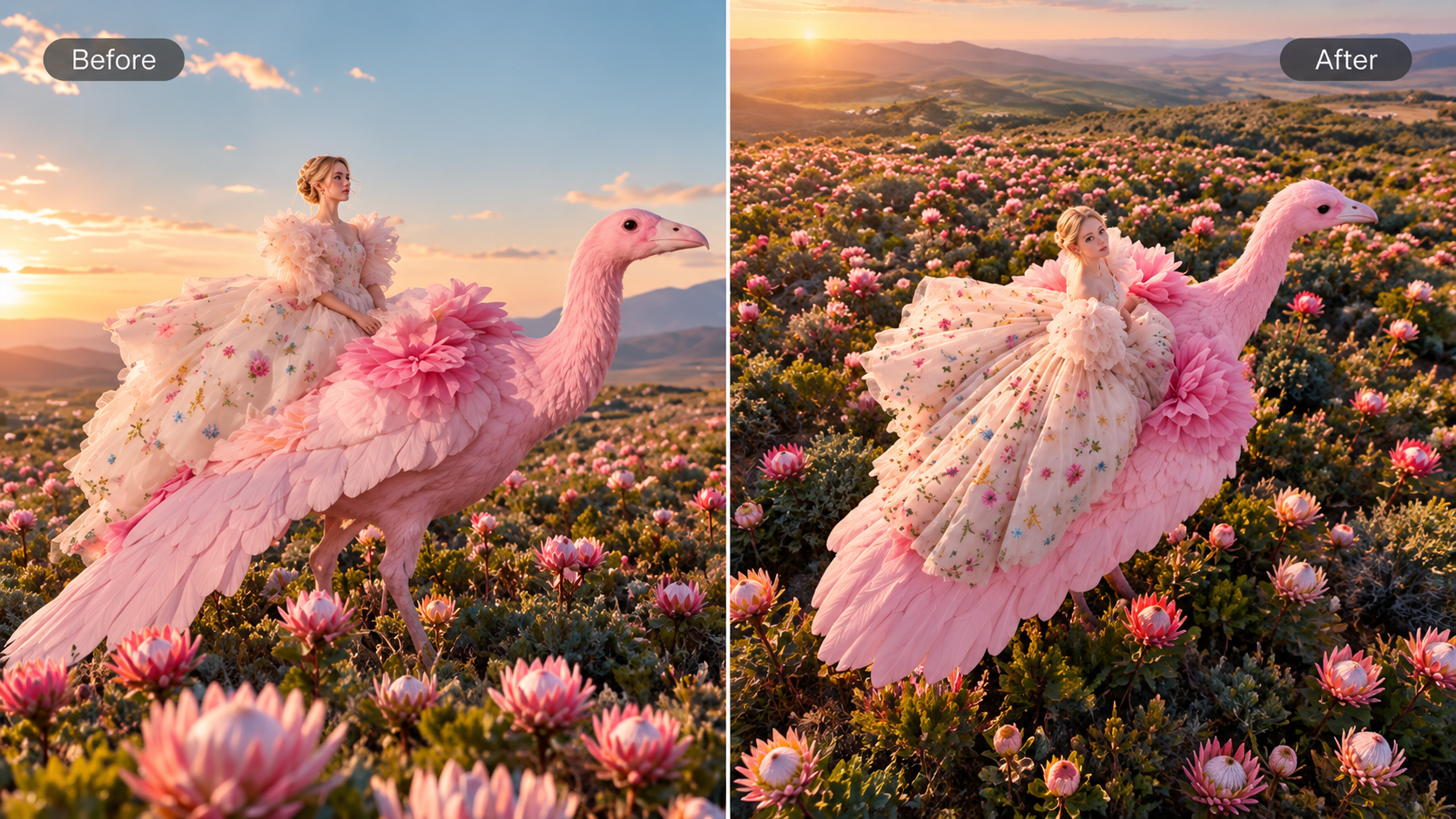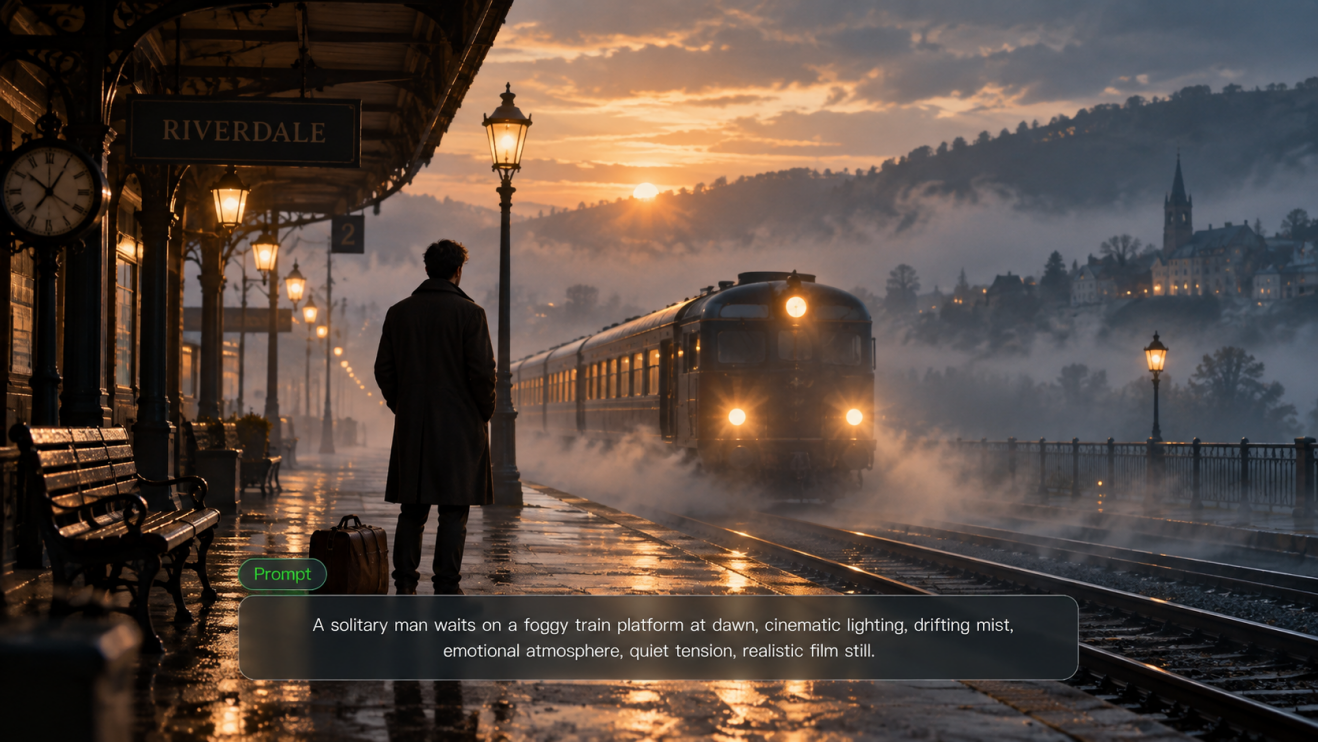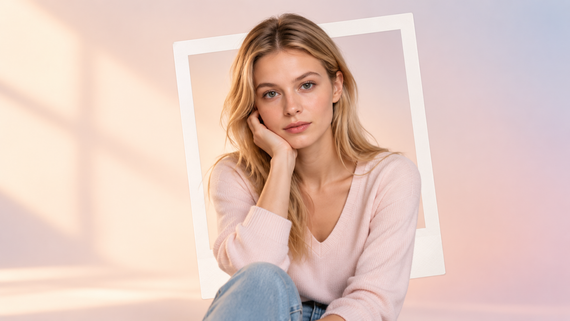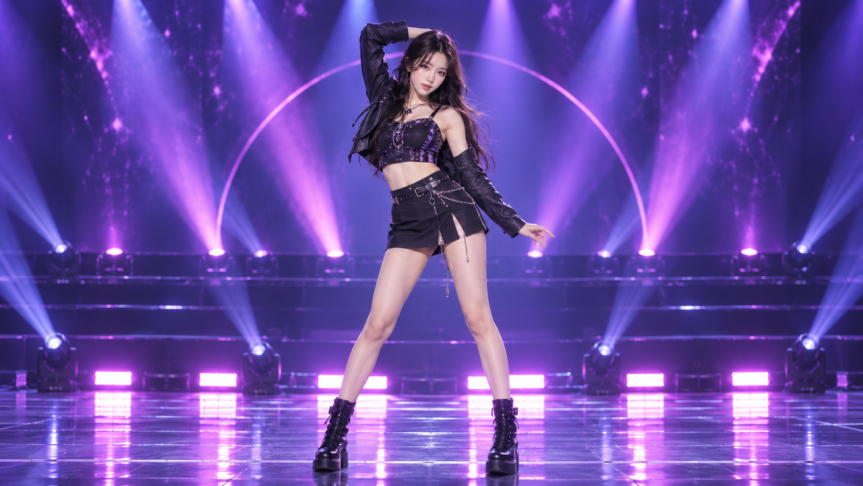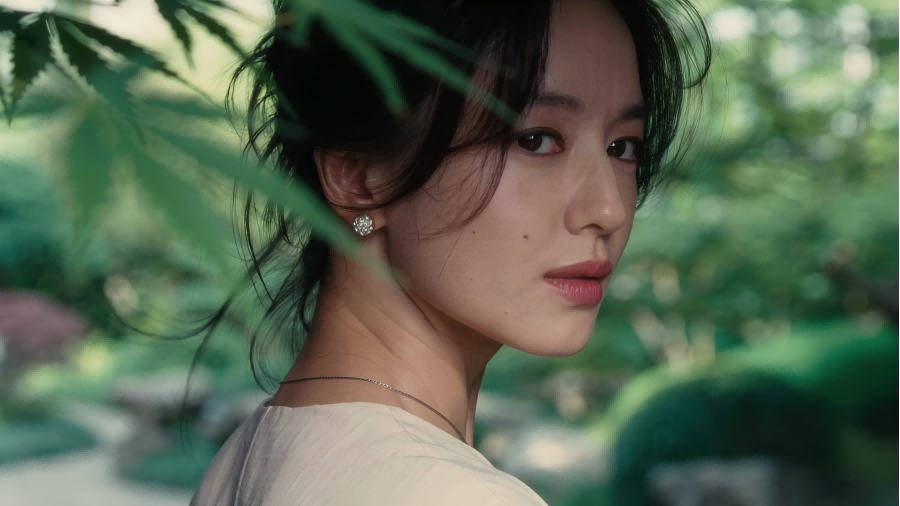
To make AI pictures look real, bring light, texture, scale, and perspective together. A portrait with a relaxed expression. A ceramic cup that feels solid on the table. A room you can almost step into. With Kling AI, you can describe those details from scratch or build on a reference image. Here is how to give your next picture a more natural feeling.
How to Make AI Pictures Look Real with Better Prompts
The word “realistic” gives your prompt a direction. Specific visual details give it somewhere to go. Start with a scene you can picture clearly, then describe how its light, surfaces, and subjects should look together.
Small Details That Make an Image Feel Real
A believable image gives the eye familiar details to settle on: a soft shadow beneath a cup, the weave of a sleeve, or a face caught in gentle daylight. Describing these details gives your idea a clearer visual direction.
- Light that belongs to the scene. A clear light source helps highlights and shadows feel consistent with the scene. “Soft window light from the left, with a gentle shadow beneath the mug” describes how the object is situated within its surroundings.
- Materials with their own character. Skin, linen, glass, and ceramic each catch light differently. Phrases such as “subtle skin texture,” “visible linen weave,” or “a soft reflection on the glaze” bring those differences into the picture.
- Camera feel and perspective. “A casual iPhone 8 snapshot” or “a Fujifilm-inspired portrait” gives the image a familiar photographic feel. Pair the camera reference with the visible qualities you want, such as gentle colors, subtle grain, or an eye-level viewpoint, to clarify the direction.
- Small variations that suit the subject. A lightly creased shirt or a loose strand of hair can make a scene feel lived-in. A clean product photo may need only a little surface texture.
When Something Feels Off
Sometimes a picture is nearly there, but one detail breaks the spell. Looking at the most noticeable mismatch first makes the next revision easier to judge. A clearer description may help, though some results still need another attempt.
What feels off | What may help |
Skin looks overly smooth | Subtle skin texture and natural tonal variation, with less emphasis on flawless beauty |
An object seems to float | A clearly described surface beneath it and a soft contact shadow |
Hands look awkward | A simpler pose, such as hands resting comfortably on a table |
Furniture looks stretched | An eye-level viewpoint, straight vertical lines, and consistent proportions |
Every surface looks glossy | Distinct finishes for each material, such as matte fabric and glazed ceramic |
Keeping the parts you already like gives the revision a steady starting point. Changing one issue at a time also makes it easier to see what has improved.
Build a Clear Prompt with Specific Visual Details
For text-to-image, this flexible structure can help you shape an idea before bringing it into the text to image tool:
Subject + Setting + Lighting + Framing + Material Details + Camera Feel + Key Constraints
Treat it as a checklist, not a required order. You do not need every ingredient in every prompt, and adding more words is not always more useful. Below are two sample prompts for reference. The second version gives the scene a subject, an action, and a visual setting. It also keeps the directions compatible.
| Basic prompt: A realistic woman in a cafe. |
| More specific prompt: A candid, waist-up photograph of a woman reading beside a cafe window, with a Fujifilm-inspired look, gentle colors, and subtle grain. Soft daylight from the left, natural skin texture, relaxed shoulders, a linen shirt with gentle folds, eye-level framing, and a softly focused background. |
When learning how to make AI pictures, focus on three habits:
- Describe what you want to see. “Relaxed hands resting on the table” gives clearer visual direction than a long list of possible hand defects.
- Choose details that serve the scene. A portrait may benefit from a soft background; an interior may need more of the room in focus.
- Revise one issue at a time. If the lighting works but the skin looks too smooth, adjust the skin description first.
Image |
.png?x-oss-process=image/resize,w_1872) |
| Prompt: A cinematic, ultra-realistic coastal landscape photographed on 35mm film, showing windswept grassy cliffs under an overcast sky, with the ocean stretching into the distance. Use a wide horizontal composition with generous negative space and a quiet, restrained mood. Place soft, out-of-focus grasses in the foreground to create natural bokeh, depth, and layered perspective, while the cliffs and sea remain gently detailed in the midground and background. The light should be soft, diffused, and natural, with muted highlights, subtle atmospheric haze, and realistic tonal transitions. Emulate authentic analog film photography with fine visible grain, slight softness, natural color reproduction, subdued greens and cool gray-blue tones, gentle contrast, soft highlight roll-off, mild exposure imperfections, and subtle lens character. Avoid hyper-sharp digital detail, HDR, oversaturation, artificial glow, dramatic sun rays, perfect clarity, or any polished AI-rendered appearance. The final image should feel like a real 35mm photograph taken on a windy coastal day: imperfect, atmospheric, understated, cinematic, and naturally beautiful. No people, no buildings, no man-made objects. |
How to Create Realistic Images in Kling AI
Bring your idea to Kling AI with a clear starting point and a few key details. Kling IMAGE 3.0 supports text-based creation, reference-guided generation, and precise image editing in one workflow. You can start from a prompt, use reference images to guide important visual features, or refine specific details such as lighting, textures, materials, and individual objects with natural-language instructions.
Step 1: Choose IMAGE 3.0 and Add a Reference if Needed
Open the image creation workspace and select IMAGE 3.0. Starting with a new idea? Use the AI image generator and build the scene from your description. A reference image is optional.
If you want to work from an existing portrait, product photo, or room, use image to image ai to build on it. Choose a clear reference that shows the details you care about. A visible mug handle, for example, gives you a better starting point than one hidden behind another object.
Step 2: Describe the Scene and What to Keep or Change
Starting with text: Build your prompt around the subject and setting, then add details that make the scene feel like a photograph: lighting direction, material texture, camera feel, and framing. A camera reference gives the prompt a familiar visual direction; the surrounding details help shape the result.
Starting with a reference: Describe the part that feels unnatural, how you want it to look, and what should stay consistent. For overly smooth skin, you might write: “Add subtle skin texture and natural tonal variation while preserving the person's facial features, expression, clothing, and background.” Keeping the requested change specific gives the prompt a clear focus. The same approach lets you refine image details with text instructions, from softening a harsh reflection to adding a contact shadow beneath an object.
Step 3: Generate, Refine, and Make It Yours
Generate your image and take a closer look. If a face feels too smooth or a shadow seems out of place, a small prompt adjustment can help. Each new version is a chance to bring the details closer to what you imagined. Once it feels right, download your image and put it to use.
Original Image | Generated Image |
.png?x-oss-process=image/resize,w_1872)
| .png?x-oss-process=image/resize,w_1872)
|
| Prompt: Edit the underwater close-up portrait provided from an overly polished AI-beauty look into a realistic iPhone-style underwater photo while keeping the same composition, calm floating pose, clear shallow water, bubbles, and shimmering sunlight reflections. Remove glossy plastic skin, perfect symmetry, airbrushed texture, overly plump lips, and artificial glamour; instead, add subtle facial asymmetry, visible pores, faint redness, small blemishes, soft under-eye texture, realistic lips, natural skin shading, and believable imperfections. Make the wet hair slightly messy with naturally drifting strands, and render the water, bubbles, and caustic light realistically. Use slightly softer smartphone detail, natural dynamic range, subtle lens softness, mild sensor texture, authentic underwater colors, and realistic light falloff so the final result feels fresh, candid, imperfect, and convincingly photographed on an iPhone rather than AI-generated. | |
Realistic AI Image Prompt Examples
Use these prompts as starting points. Swap in your own subject, setting, or mood, and keep the details that fit your idea. The first three begin with text; the final example builds on an existing image.
Portrait Prompt for Natural Skin and Expression
A quiet expression and gentle light give this portrait an everyday feel. The framing keeps attention on the face without adding a complicated pose.
| Prompt: A candid waist-up portrait of an adult woman beside a cafe window, with a Fujifilm-inspired photographic feel, gentle colors, and subtle grain. She looks toward someone outside the frame with a small, relaxed smile. Soft daylight falls from the left, revealing natural skin texture and loose strands of hair. A blue linen shirt with gentle folds, relaxed forearms resting on the table, eye-level framing, and a softly focused background. |
Product Prompt for Believable Materials and Shadows
This setup uses studio lighting rather than another window scene. The ceramic finish, surface contact, and reflection give the cup its physical presence.
| Prompt: A DSLR-style studio photograph of a white ceramic mug on a warm gray matte surface, with a 50mm lens look. Three-quarter view at mug height, with the rounded handle fully visible. A large softbox above and to the right creates a broad reflection on the glaze and a soft contact shadow beneath the base. Subtle ceramic texture, a gently rounded rim, crisp focus across the mug, neutral colors, and a plain background. |
Interior Prompt for Consistent Light and Perspective
A room can feel inviting without a blurred background or added clutter. Here, the prompt gives the furniture clear proportions and lets the materials carry the detail.
| Prompt: A casual iPhone 8-style photograph of a small reading corner, taken from the doorway at eye level. A linen armchair sits beside an oak bookshelf, with a wool rug beneath its front legs. Soft afternoon daylight enters from the right, casting gentle shadows to the left. Visible linen weave, subtle wood grain, and a lightly creased cushion. Straight vertical lines, natural furniture proportions, and both the chair and bookshelf clearly in focus, with warm, understated colors. |
Reference Image Prompt to Change Lighting and Background
Use this with a reference photo of a mug. For image-to-image editing, the prompt makes the intended changes explicit while naming the product details to preserve. After generating, compare the handle, rim, and silhouette with your reference. If product accuracy matters, small changes in these areas deserve another look.
| Prompt: Keep the white ceramic mug from the reference image, preserving its shape, handle proportions, rim, glaze color, and viewing angle. Place it on a light oak kitchen table beside a window, with a folded linen napkin nearby. Give the scene a Fujifilm-inspired photographic feel, with gentle colors and subtle grain. Soft morning light falls from the left, creating a delicate reflection on the glaze and a contact shadow beneath the mug. Keep the mug in crisp focus against a softly blurred kitchen background. |
Conclusion
To make AI pictures look real, start with details that work together: believable light, natural materials, consistent proportions, and a clear point of view. Describe the scene carefully, then let each result show you what to refine. With those details in mind, you can try Kling Image 3.0 with a fresh prompt or a reference image you would like to refine. Start with a face, a favorite object, or a corner of a room. Give it thoughtful direction, make a few small adjustments, and see where the next picture takes you.
FAQs
Why Do AI Pictures Look Fake?
AI pictures can look fake when the anatomy, lighting, texture, or perspective do not fit together. Vague or conflicting prompts can contribute, but models can also produce errors despite clear instructions. Check the image for the most noticeable mismatch, then refine that detail rather than adding more realistic adjectives to the entire prompt.
What Prompt Makes AI Images Look Realistic?
A useful realism prompt describes a specific subject, setting, lighting setup, camera feel, and relevant surface details. When writing prompts for AI images, concrete descriptions give your idea a clearer direction. For example, describe a ceramic cup on a matte table with soft side lighting and a contact shadow. Keep the details consistent with the scene you want.
How Do I Make AI Faces Look Less Plastic?
Ask for natural skin texture, subtle tonal variation, and lighting that suits the scene. Avoid combining those requests with heavy beauty retouching or perfectly smooth skin. Keep texture descriptions restrained, then inspect the result closely: adding excessive pores or wrinkles can make a face feel unnatural in a different way.
When Should I Use a Reference Image?
Use a reference image when you want the result to follow an existing person's appearance, product shape, composition, or visual style. In Kling IMAGE 3.0, pair the reference with instructions explaining what to preserve and what to change. Review the output carefully, since a reference does not guarantee an exact match.
Can AI Images Look Like Real Photos Without Editing?
Yes, some AI images can look photographic straight from generation, especially when the scene and visual directions are clear. Results vary, so inspect anatomy, shadows, reflections, materials, and text before using them. If one detail feels off, you can edit the image with text prompts and review another version. Some results may still need further editing.