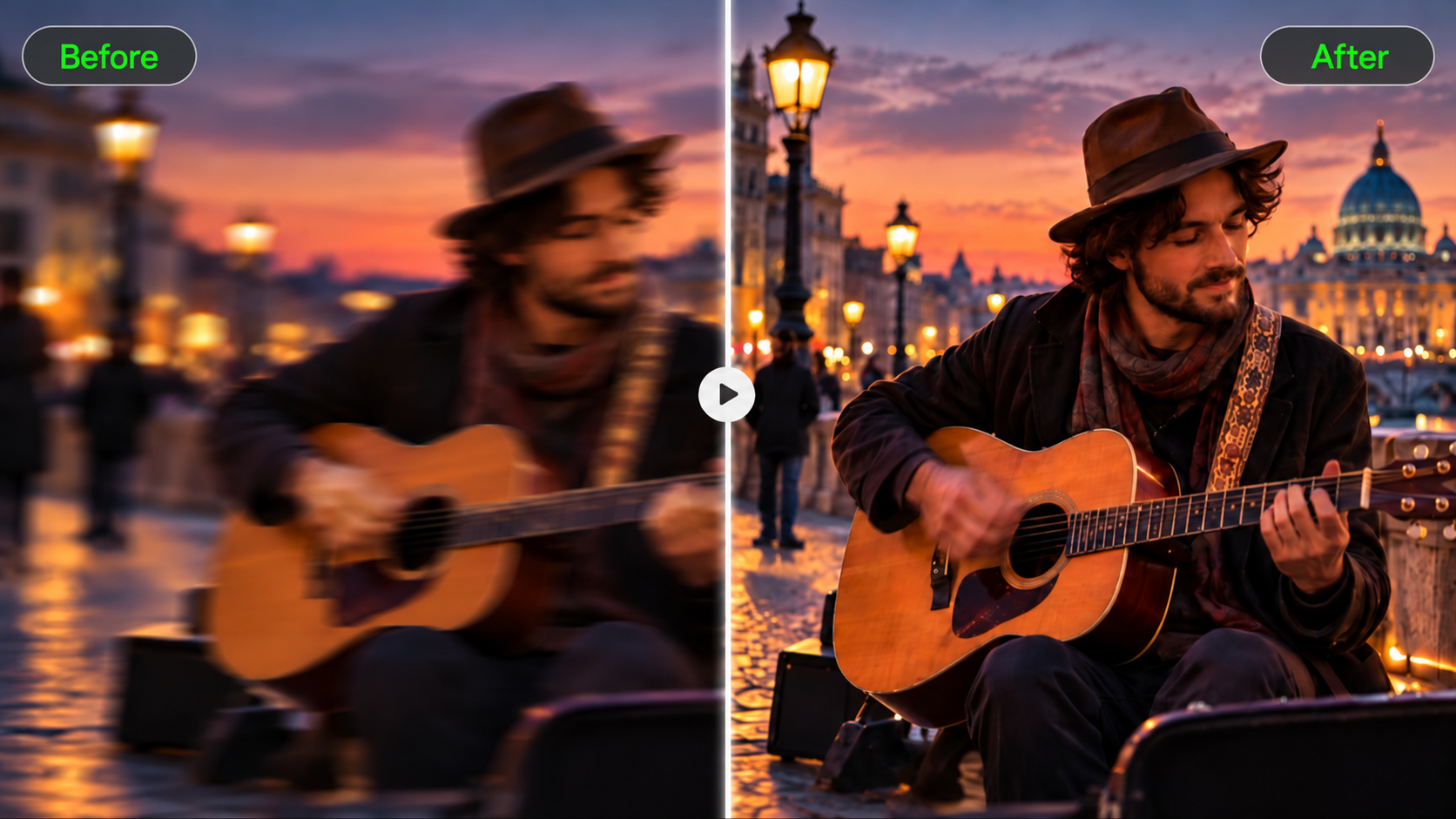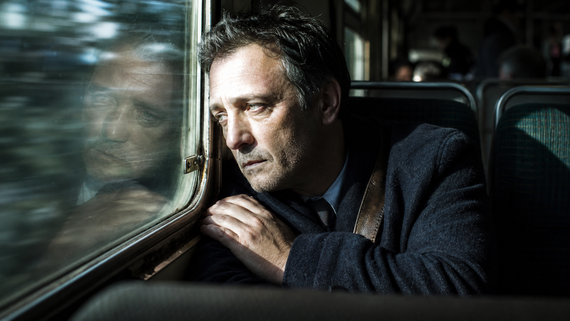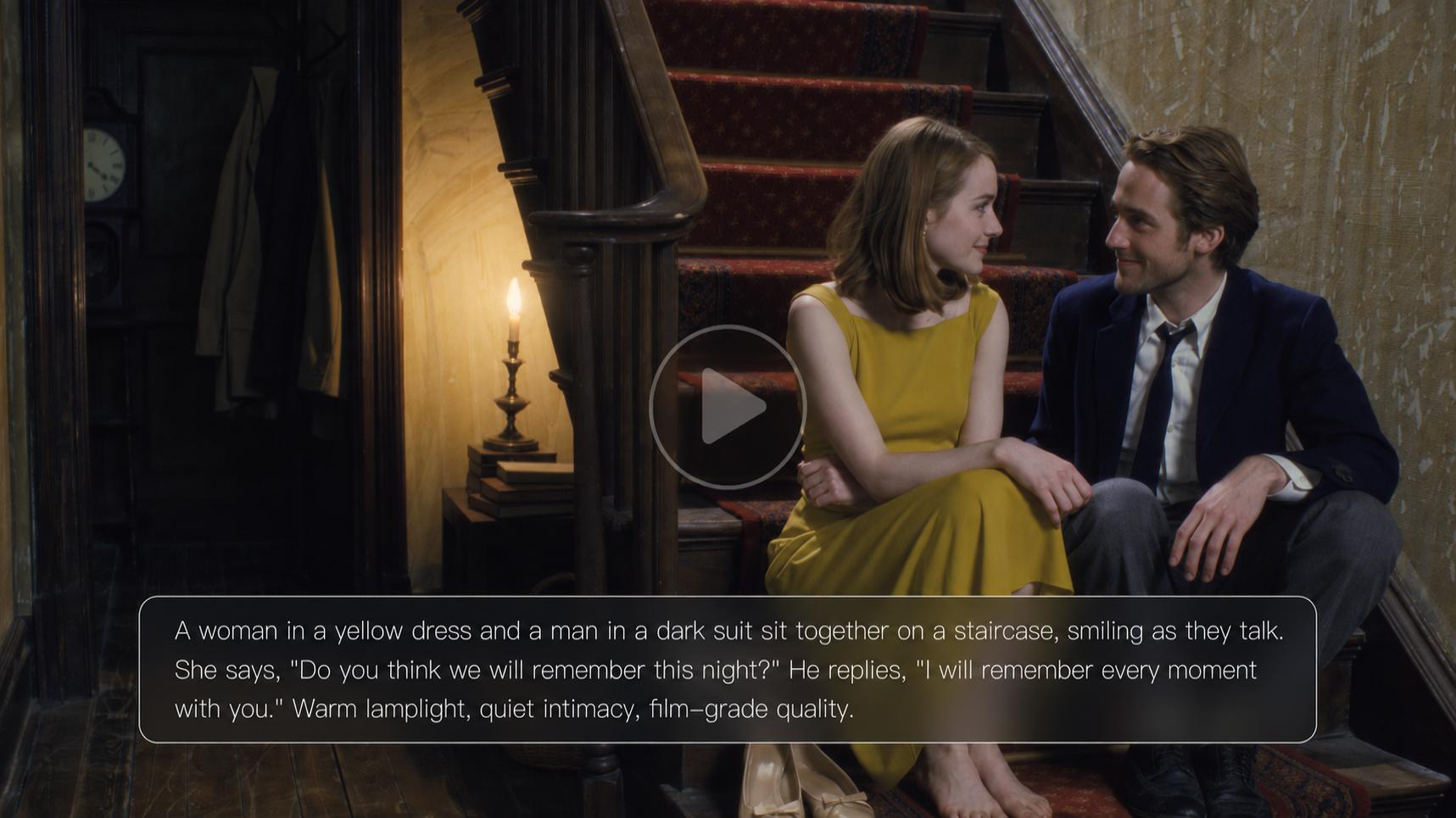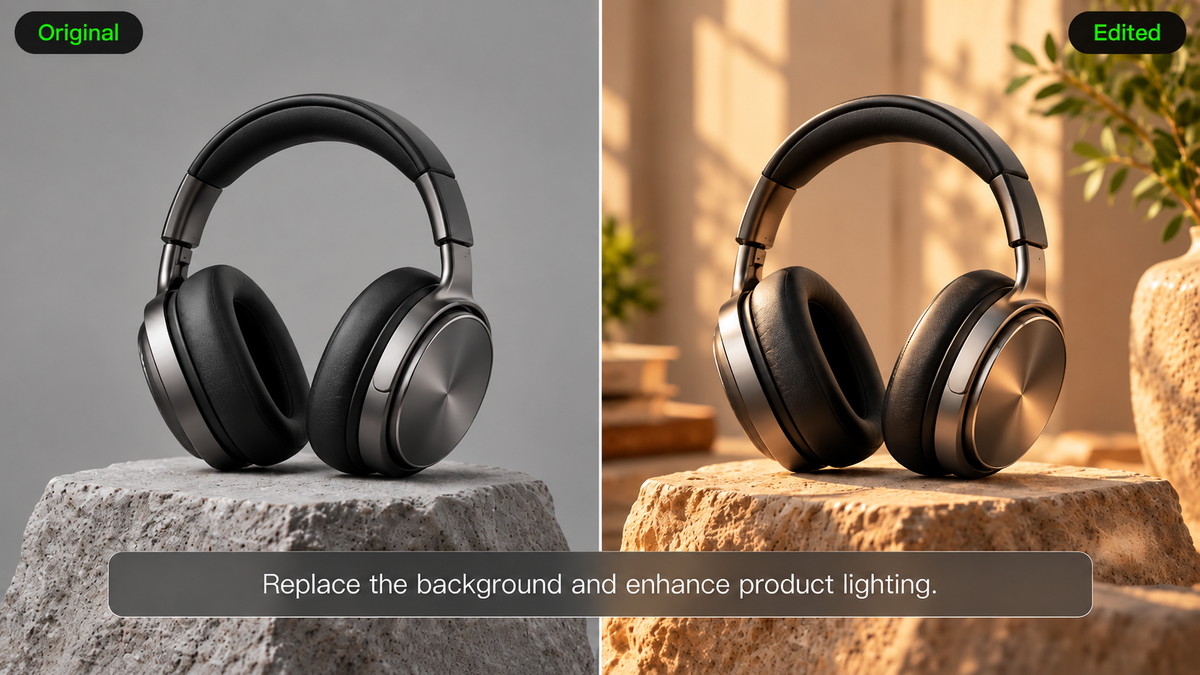
The right photo editing software should help you make the changes you need without adding unnecessary work. Some photos need simple color and lighting corrections, while others call for a different background, composition, or visual style. This guide explains which features matter, how editing approaches differ, and introduces Kling AI as an option for creative photo editing.
What Is Photo Editing Software?
Photo editing software is a tool used to adjust or alter digital images. It can handle basic tasks such as cropping and adjusting lighting or color, as well as creative changes to backgrounds, objects, and visual styles. Some editors rely on manual controls, while AI-powered tools can use text prompts, reference images, or both to guide changes. Kling AI is an AI-powered creative platform for generating and editing images and videos, allowing users to modify existing photos using written instructions. The best option depends on what edits you need, how much control you want, and your preferred workflow.
Which Type of Photo Editing Software Fits Your Needs?
Photo editing software generally falls into two broad approaches: traditional editing and AI-assisted editing. The right choice depends on what you need to change and how you prefer to work.
Traditional Photo Editing for Detailed Adjustments
Traditional editors give you control over exposure, contrast, color, selections and layers. They're quite useful for making small, repeatable tweaks, or for working with photographs that need careful technical adjustments.
For example, a photographer preparing a portrait might separately adjust shadows and highlights, adjust the white balance, and maintain natural skin texture. A product photographer wants consistent colors and accurate details across a set of images.
These workflows offer fine control, but advanced tasks can take time to learn.
AI Photo Editing for Faster and More Creative Changes
AI photo editing software uses artificial intelligence to simplify adjustments or generate changes to existing images. Some tools provide automatic color corrections and image enhancements, while others use text prompts, reference images, or both to guide edits.
An AI image editor is particularly useful for creative tasks, such as changing a product's color, adjusting a scene's lighting, or exploring a different visual style without manually working through layers and selections. You can also use an AI background generator to place an existing subject in a new setting that better fits your project.
Kling AI brings these approaches together in its Image Generation workspace. IMAGE 3.0 Omni is one of its AI image models, supporting both creating visuals from text and editing existing photos through an image-to-image AI workflow. You can upload a photo, describe changes to its background, lighting, colors, materials, or composition, and use up to 10 reference images to guide important details. IMAGE 3.0 Omni also supports Image Series Mode for creating related visuals, along with native 2K and 4K output. These capabilities make it useful for product concepts, marketing images, and other creative photo editing projects.
What Should You Look for in Photo Editing Software?
Consider the types of photos you work with and the level of control you need for each task before choosing a photo editor. A few practical features can tell you whether a tool will fit your workflow.
Feature | What to Look For | Why It Matters |
Basic Adjustments | Cropping, exposure, contrast, and color controls | Handles everyday photo corrections |
Manual Editing | Layers, masks, and adjustable selections | Supports detailed retouching and precise adjustments |
AI Editing | Text prompts, visual references, and image variations | Helps make creative changes with fewer manual steps |
Ease of Use | Clear controls and straightforward editing steps | Makes editing more approachable for beginners |
File and Output Support | Common image formats and suitable export options | Helps prepare images for their intended use |
Accessibility and Cost | Browser access, device compatibility, and usage limits | Helps you choose an affordable, practical workflow |
Not all of these features are needed for every project. A quick social media photo editor may want simplicity, while a photographer editing RAW files may require very precise exposure and color controls.
An online photo editor is also worth considering when you want to work directly in a browser rather than install desktop software. Check which editing tools, file formats, and export options are available before choosing.
How Kling AI Makes Photo Editing More Flexible
Photo editing often involves more than adjusting brightness and color. You may want to replace an object, refine the lighting, use visual references, or explore a different composition while keeping important subject details recognizable. The following examples show how Kling IMAGE 3.0 Omni can help with these tasks.
Make Specific Changes With Natural Language
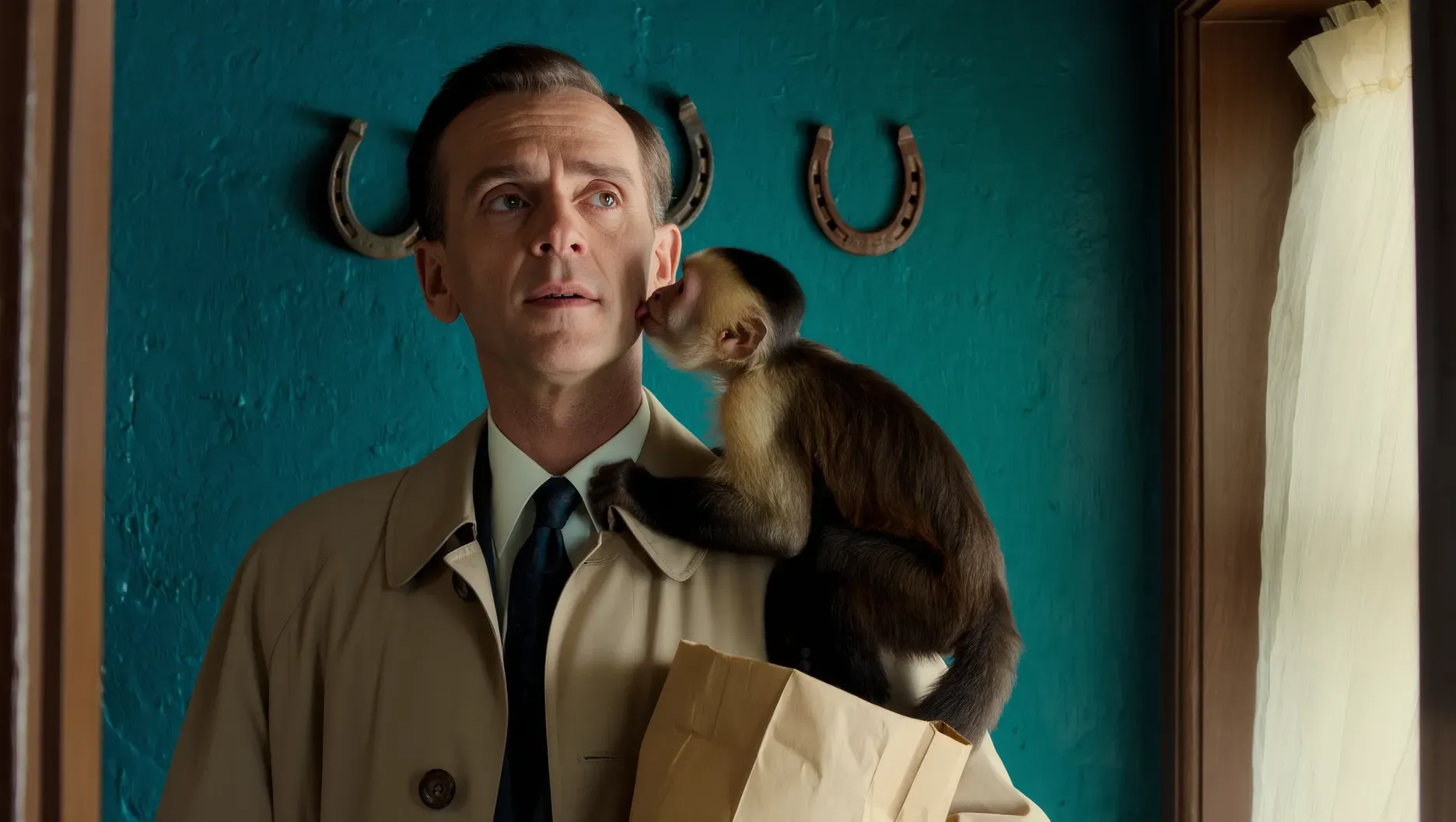
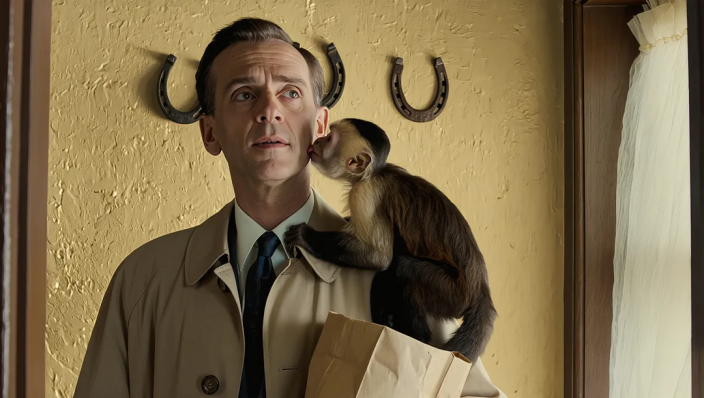
A product photo may have the right composition but the wrong color or material. Instead of manually adjusting the object, you can describe the change and the details that should remain recognizable. With Kling IMAGE 3.0 Omni, you can revise colors, materials, expressions, and other visible image details through prompts. Its AI photo editor workflow helps reduce the need to perform every adjustment manually.
For example, you can change the teal wall behind a man and a monkey to warm yellow while keeping their appearance and the surrounding composition similar. Review the generated result to make sure the subjects and nearby details still look natural.
Input Image | Generated Image |
|
|
| Prompt: Change the wall color to #F5D76E while keeping the character unchanged. | |
Adjust Lighting and Atmosphere With Prompts
A photo can have the right subject but the wrong atmosphere. A portrait shot under harsh lighting may need a softer mood, while a product image might benefit from warmer colors or a different visual treatment.
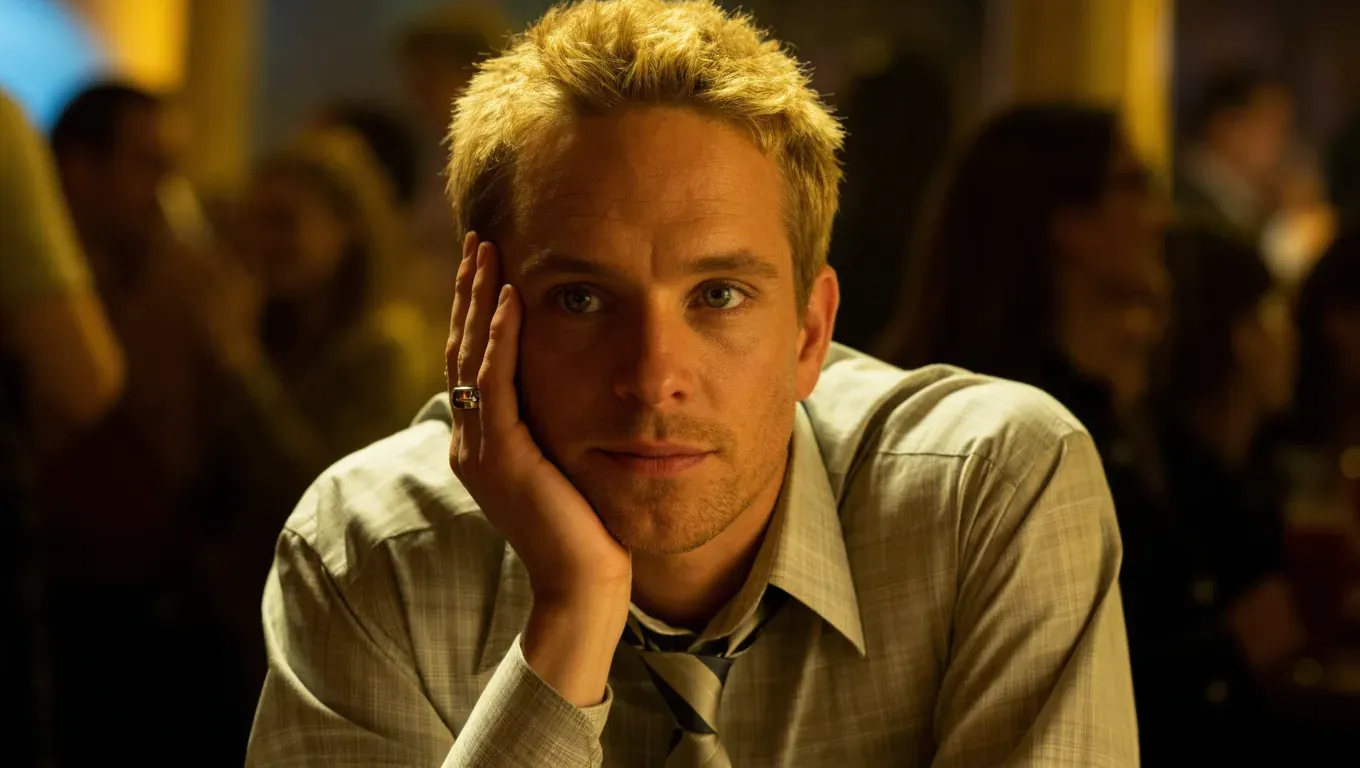
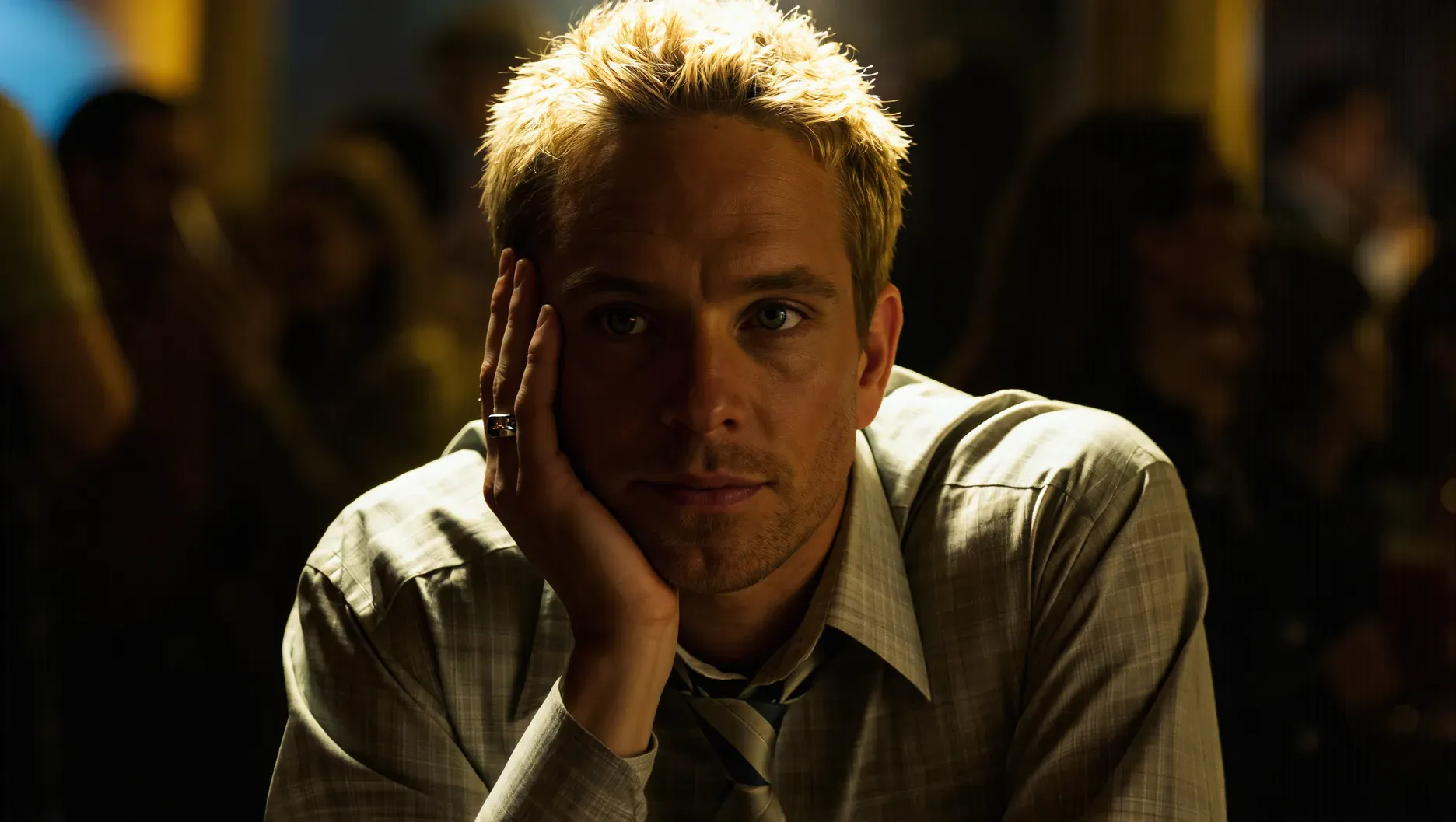
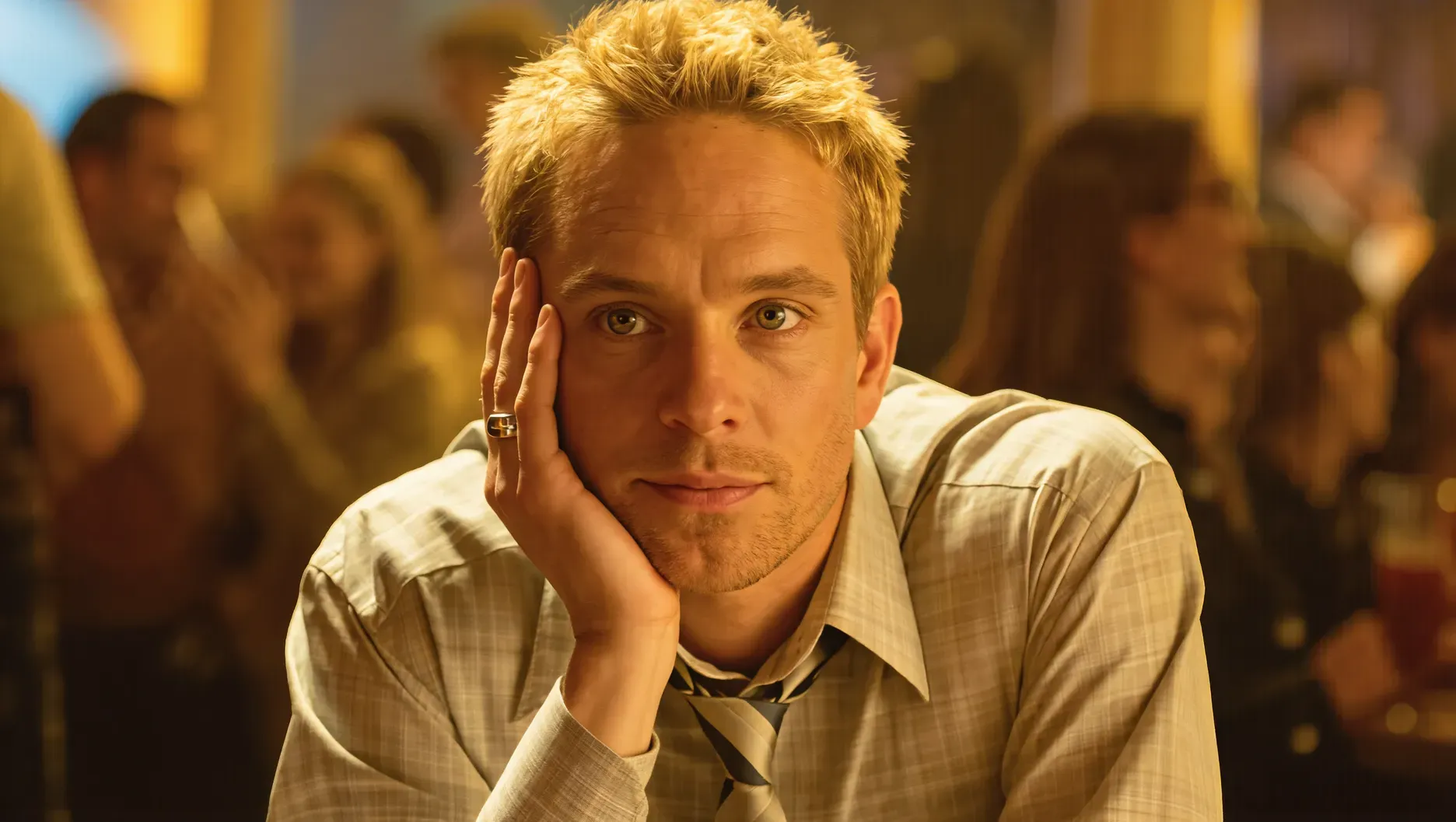
Kling IMAGE 3.0 Omni lets you guide color, lighting, and style through text instructions. You can ask for warmer illumination, a cooler palette, or a more cinematic atmosphere while identifying the details you want to retain. Its image color editing capabilities also help create alternative colorways for products, clothing, and other visual assets. You can describe the look in text or provide a relevant reference image to make the intended direction clearer.
Original Input | Top Lighting | Soft Lighting |
|
|
|
| Prompt: Relight the pic [xx] | ||
Use Reference Images to Guide Important Details
Some visual details are easier to show than describe. When you want a specific outfit, accessory, or artistic style, reference images can help communicate the look more clearly.
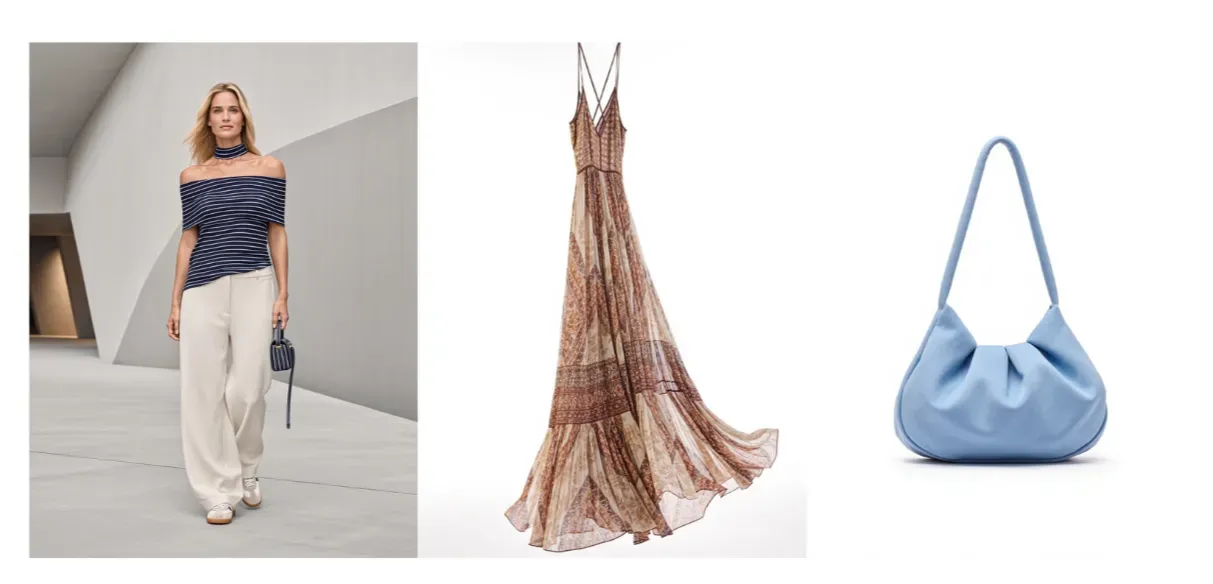
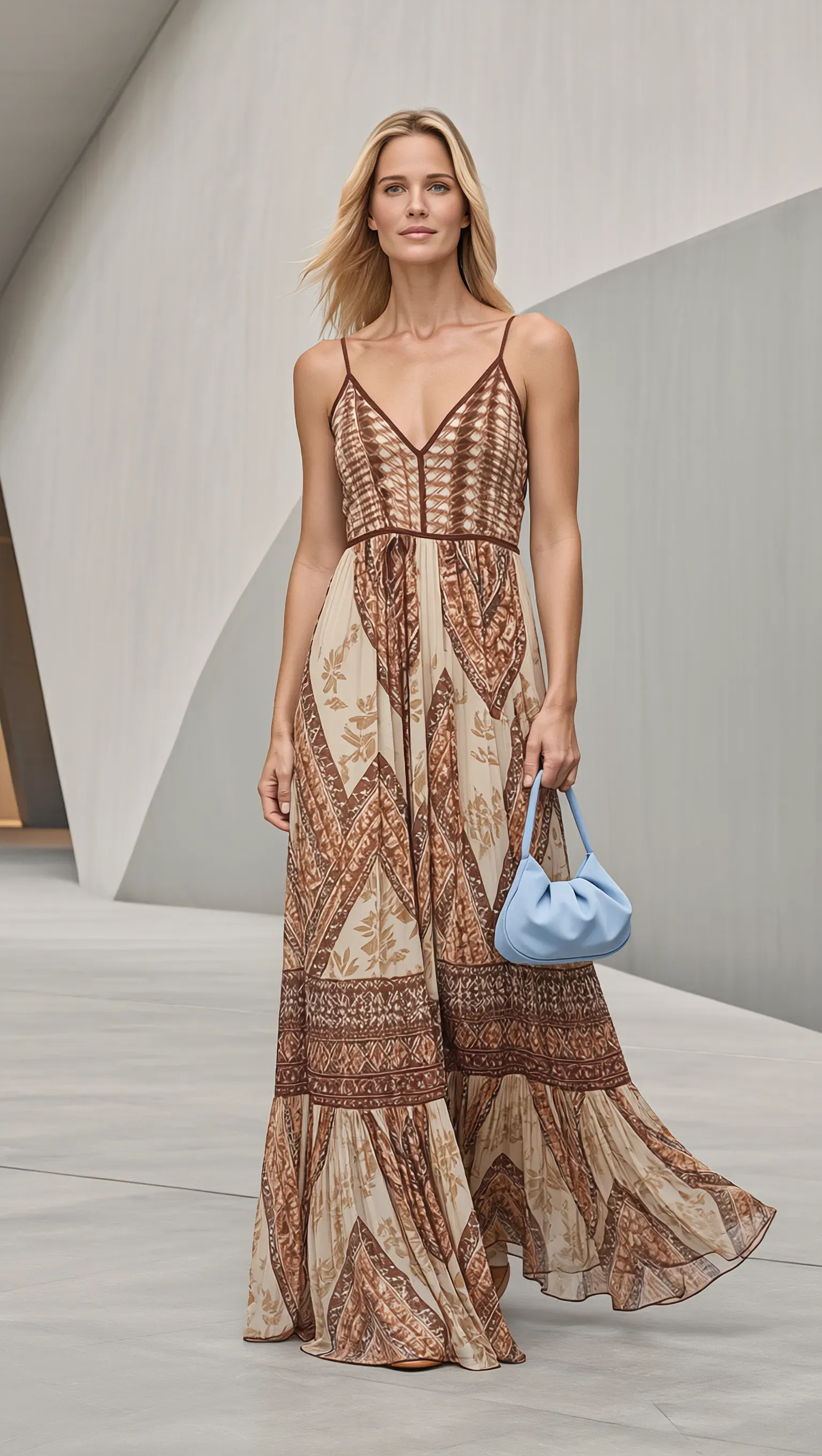
Kling IMAGE 3.0 Omni supports up to 10 reference images, allowing you to guide different elements of an image within one generation. For example, you can use its AI clothes changer to combine a model's photo with separate dress and handbag references. By explaining the role of each image in your prompt, you can guide the new outfit while asking the model to retain the person's recognizable features, pose, and setting.
Review the generated image for consistency in facial features, clothing patterns, and accessory details before using it.
Input Image | Output Image |
|
|
| Prompt: Use Image 1 as the base. Dress the person in Image 1 with the dress from Image 2 and the handbag from Image 3. | |
Explore Different Camera Angles and Compositions
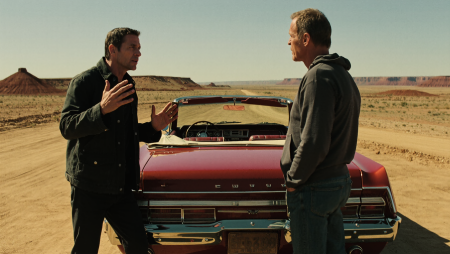
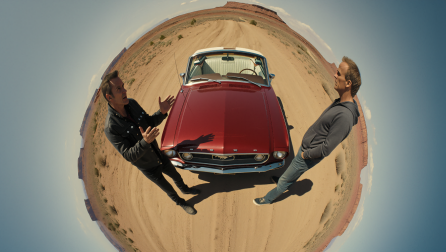
Sometimes the subject is right, but the original photograph does not have the framing you need. Kling IMAGE 3.0 Omni can reinterpret an existing image from a different camera angle or shot size. You might request a closer product view, a higher viewpoint, or a different composition for a creative project.
These changes create a new AI-generated interpretation of the scene. They do not recover hidden photographic details from outside the original image, so review perspective, proportions, and subject consistency before using the result.
Input | Output-Bird's-eye | Output-Fisheye |
|
|
|

How to Edit Photos With Kling IMAGE 3.0 Omni
AI-powered photo editing software helps you modify existing images without manually adjusting layers or selections. With Kling IMAGE 3.0 Omni, you can edit photos using text prompts, reference images, or both. Follow these three steps to get started.
Step 1: Upload Your Photo
Open Kling AI, go to Image Generation, and select IMAGE 3.0 Omni. Upload the photo you want to edit. If you have a specific background, outfit, material, or visual style in mind, you can also add reference images to guide your edits.
Step 2: Describe Your Edits
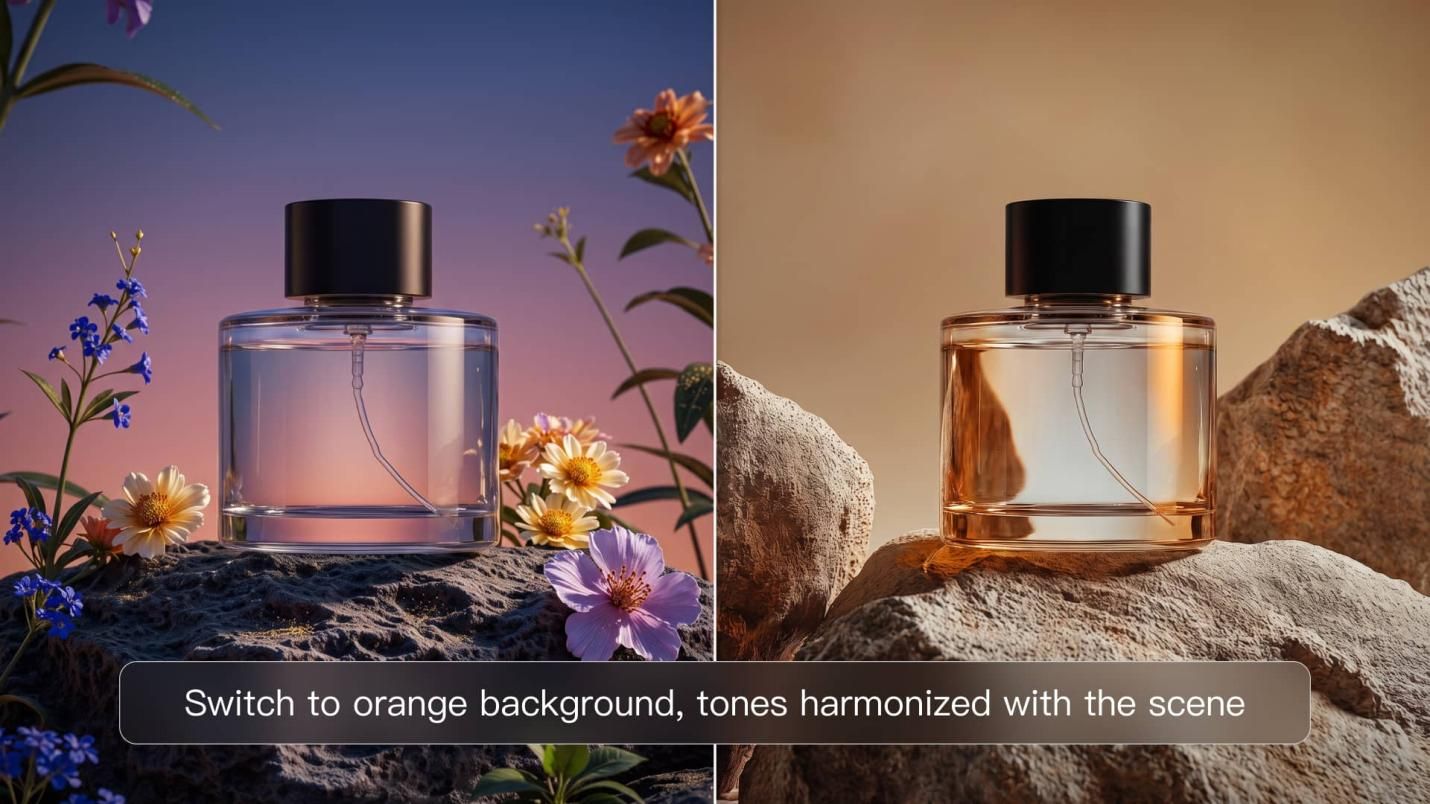
Write a clear prompt explaining what you want to change and what should remain unchanged. For example, you can replace the background of a perfume product photo with a summer setting while keeping the bottle's shape, label, and position consistent. Add relevant reference images if you want to guide the new background or style.
| Prompt: Use the uploaded perfume photo as the base. Replace the purple floral background with a warm, orange-toned rocky setting. Adjust the lighting and color tones to match the new environment while keeping the perfume bottle's shape, position, and key details consistent. Make the shadows and reflections look natural. |
Step 3: Generate and Refine
Choose your available output settings, including 2K or 4K resolution, review the required credits, and generate the edited photo. Compare the result with the original, paying attention to the modified areas and important subject details. If needed, refine your prompt or references and generate again. Download your preferred result.
The End
Choosing the right photo editing software starts with the changes you want to make and how much control you need. Traditional tools support detailed manual adjustments, while AI-powered editing offers more flexibility for creative changes. With Kling IMAGE 3.0 Omni, you can use prompts and visual references to refine existing photos, explore new compositions, and create consistent image series for different projects.
FAQs
What Software Is Best for Photo Editing?
The best photo editing software depends on the changes you need. Traditional editors suit detailed color adjustments, RAW processing, and layer-based retouching. For creative changes, Kling IMAGE 3.0 Omni lets you adjust lighting, materials, backgrounds, and compositions through text prompts and visual references. Choose based on the editing control and output your project requires.
Which Free Photo Editor Is Best for Beginners?
The best photo editing software for beginners should have straightforward controls and an easy way to review changes. Kling IMAGE 3.0 Omni is worth exploring if you prefer describing edits instead of learning complex manual tools. You can upload a photo, explain what to change, generate a new version, and refine your instructions. New Kling AI users receive a certain amount of free trial credits.
Is Kling AI Free Photo Editing Software?
Kling AI offers free credits to help users explore its AI photo editing tools. New users receive free credits upon registration, while existing users can receive monthly login credits. You can use these credits to try photo editing with Kling IMAGE 3.0 Omni, subject to model availability and credit requirements. Check the available credits and generation costs in the workspace before getting started.
Which Apps Do Photographers Use to Edit Photos?
Photographers choose editing software based on their workflow. RAW processing, accurate color correction, and detailed retouching generally call for traditional editing controls. For creative concepts, Kling IMAGE 3.0 Omni offers a different approach: you can use reference photos and prompts to explore new lighting, backgrounds, or camera perspectives. Review the results carefully when photographic accuracy matters.
What Is the #1 Photo Editing App?
There is no one photo editor that is the best at all tasks. The decision is based on the need for fast adjustments, detailed professional controls or AI-created modifications. But if you like to work on the web, Kling IMAGE 3.0 Omni provides an online AI photo editor to edit photos with prompts and references, without installing desktop apps.