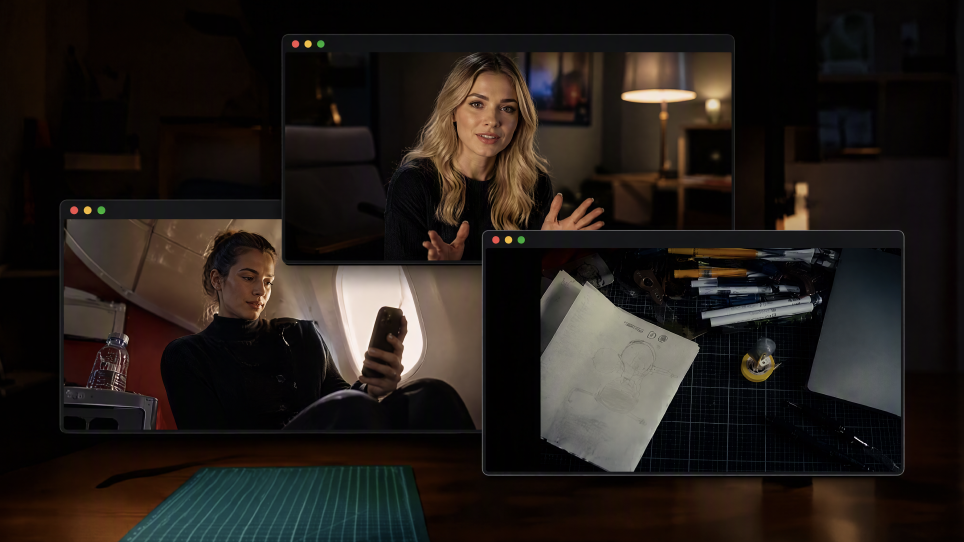
The right beginner video editing software depends on what you want to make and how you prefer to work. Kling AI is a good starting point if you want to create scenes or change footage with prompts and references. This guide compares six options, explains what each can help you do, and shows how to begin with Kling 4.0.
Compare Beginner Video Editing Software for Different Needs
A short family video and a scene you have yet to film call for different controls. Start with the footage you have, the device you use, and the changes you want to make. The table below compares six options to help you find the best video editing software for beginners, including traditional timeline editors and Kling AI’s approach to generating and revising scenes.
Tool | Platform | Free Access / Cost | Primary Workflow |
Kling AI | Web; iOS, Android; Windows and macOS desktop apps | Free credits for new users; paid plans and credit costs vary by model and settings | AI video generation and precise editing with prompts and Omni Reference; assemble and refine clips using Continuous Timeline Creation |
Clipchamp | Windows; web | Free tier; premium features via Microsoft 365 | Trim and assemble footage on a timeline |
iMovie | Mac, iPhone, iPad | Free | Assemble footage with titles, music, and transitions |
Filmora | Windows, Mac; mobile apps | Free trial with watermark; paid plans | Timeline editing with templates and AI assistance |
CapCut | Windows, Mac, iOS, Android; web | Free tools; paid features and assets | Edit social videos with captions, effects, and templates |
DaVinci Resolve | Windows, Mac, Linux | Free version; paid Studio edition | Detailed editing, color, effects, and audio work |
Kling AI
Kling AI offers beginners an easier way to create and edit videos. As an AI video editor, it can generate missing shots from text or images and make targeted changes to existing footage using prompts and visual references, reducing the need for complex manual editing.
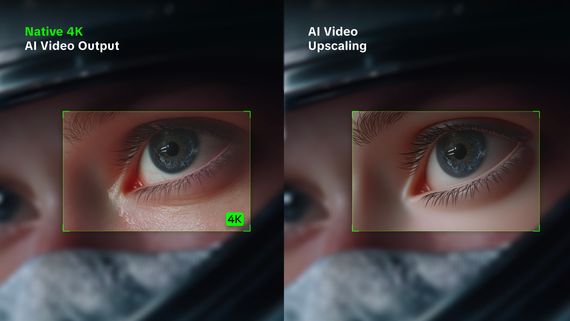
Kling 4.0 delivers smoother fast-paced action and more stable camera movements, including tracking and orbit shots. With Omni Reference, you can combine up to 15 reference assets to maintain consistent characters, appearances, and visual styles. Precise Video Editing helps refine existing footage, while Continuous Timeline Creation lets you assemble clips into longer sequences. Kling 4.0 supports 3–30-second generation and up to 4K output (4K output coming soon).
Clipchamp
Clipchamp offers simple video editing software for everyday recorded footage, with trimming, titles, and audio on a straightforward timeline. Its free tier includes 1080p exports when you use eligible free assets. Premium stock and higher-resolution export options require the relevant subscription. Browser access is useful when you want to edit without installing another desktop application.
iMovie
iMovie is free on supported Macs, iPhones, and iPads. You can arrange recorded clips, add music and titles, and adjust the pace of a short movie without starting with a complex editing layout. It suits people who already use Apple devices and want familiar controls, although there is no native Windows or Android version.
Filmora
Filmora suits people looking for easy video editing software with room for more detailed work. Its multitrack timeline combines footage, audio, templates, effects, and AI assistance. Desktop versions run on Windows and Mac, with mobile apps also available. The free trial lets you explore the editor, but trial exports generally include a watermark; paid plans remove it.
CapCut
CapCut brings captions, effects, and templates into a workflow suited to short social videos. Its desktop, mobile, and web options let you choose where to edit. Basic tools are available for free, while some assets and features require payment. Review which options your project uses before export, particularly when a template includes premium material.
DaVinci
DaVinci Resolve combines editing, color correction, visual effects, and audio post-production on Windows, Mac, and Linux. The free version provides substantial editing controls, with additional features in Studio. It is useful when you want to develop detailed finishing skills, though the number of controls means you will likely spend more time learning the interface.
Why Kling 4.0 Works as an Easy Video Editor for Beginners
Editing a video involves more than cutting clips together. You may need to change a character, adjust a background, create a missing shot, or connect several scenes. Kling 4.0 makes these tasks more approachable for beginners by combining prompt-based editing, visual references, AI video generation, and timeline controls in one workspace.
Edit Specific Details Without Complex Manual Work
Want to replace a character, update a product, or change the setting without rebuilding the entire video? Kling 4.0's Precise Video Editing lets you describe specific changes using text prompts and visual references, reducing the need for manual masking, tracking, and compositing.
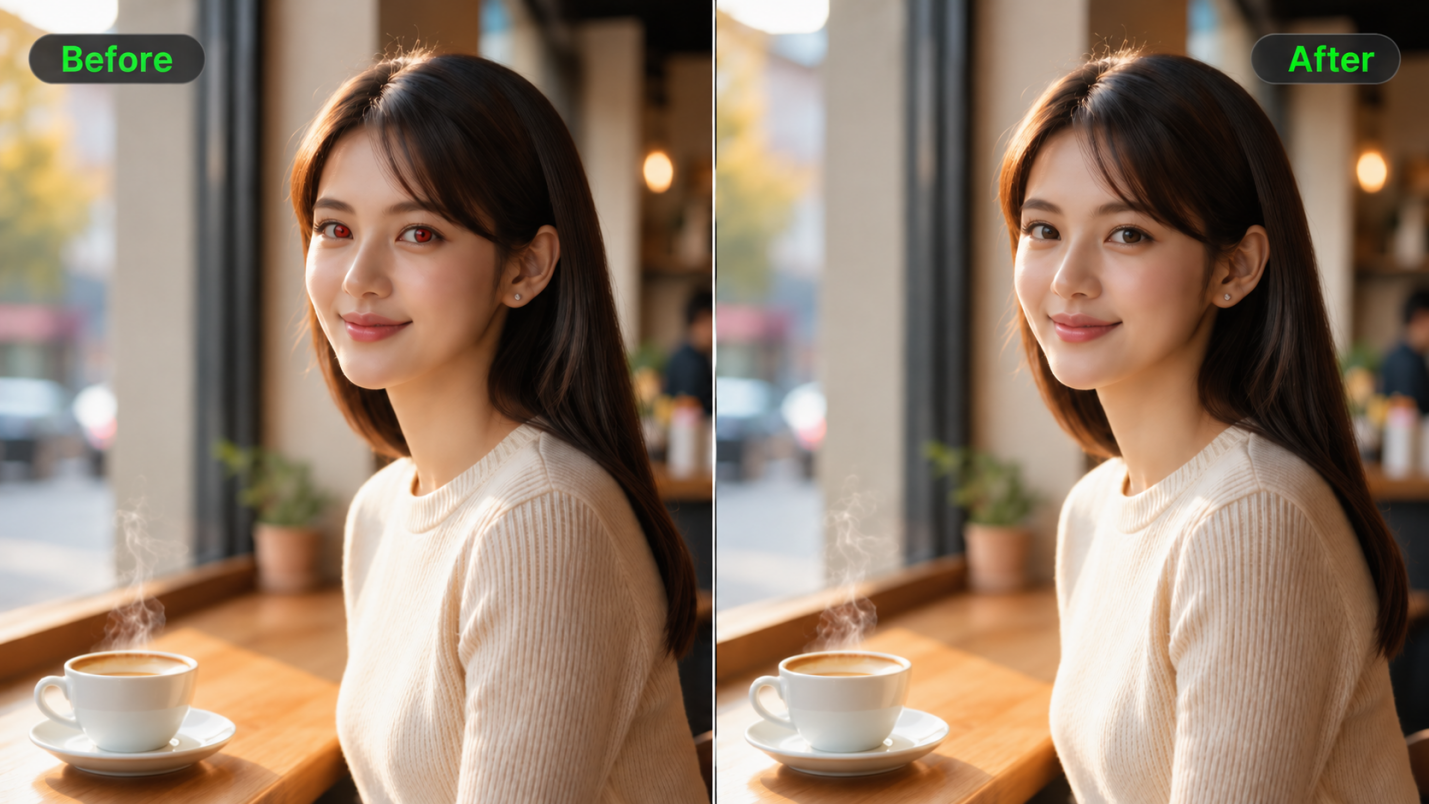
You can adjust subjects, expressions, actions, backgrounds, and camera direction while specifying which details should remain unchanged. For example, replace multiple people in one clip using separate character references, then review the result for consistency. You can also use Kling as a video background remover to change distracting settings while preserving important subject details.
Replace Multiple Characters Using Reference Images | ||
Reference Image | Reference Video | Generated Result |
 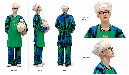 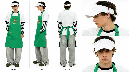
| 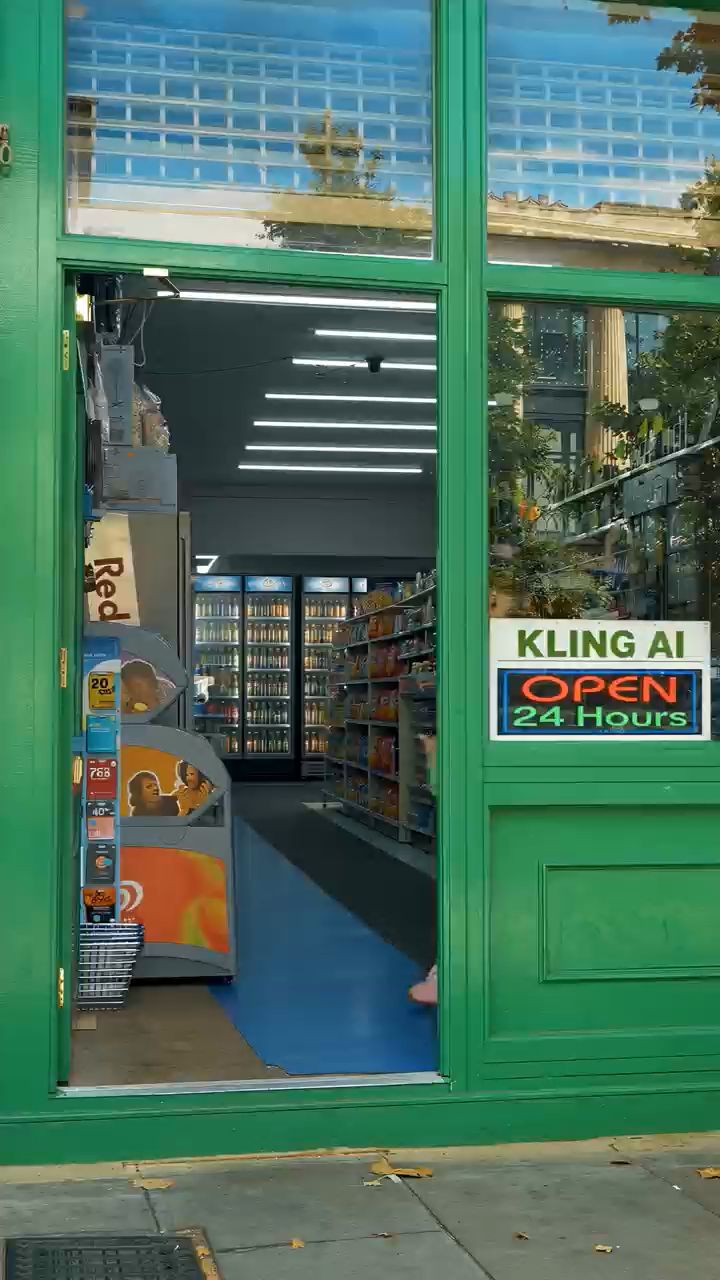  | 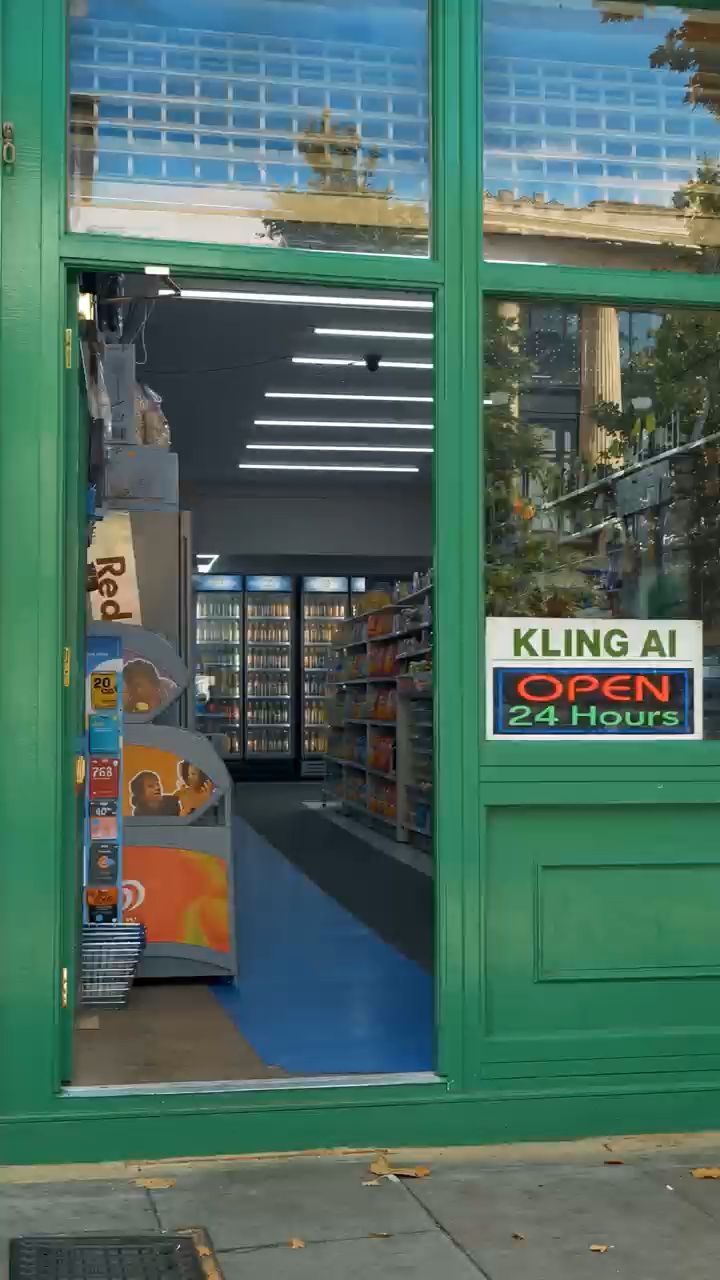 |
Guide the Result with Multiple Visual References
Getting the right result is easier when you can show what you want instead of describing everything from scratch. With Kling 4.0's Omni Reference, you can combine up to 15 reference assets during video generation, including images, videos, and subject references. Use character images to guide appearances, product photos for visual details, and reference videos for movement, composition, or camera direction.
You can even provide character images from different angles or use white-model reference videos to guide motion and camera paths. Assign each reference a clear role to help Kling maintain consistent faces, natural skin textures, recognizable objects, and visual styles across changing shots.
Reference Image | Camera Movement Reference | Output Video |
  |  |  |
| Prompt: Use @Video 1 as the reference for camera movements and shot pacing. Replace the Element with the car from @Image 1 and the background with @Image 2. | ||
Give Existing Footage a New Purpose
Already have a video with the right action and camera angles, but need a different product, character, or setting? Instead of filming everything again, use Kling 4.0 to adapt your existing footage for a new creative idea. This can make it easier to prepare different versions of social videos, product promotions, or seasonal campaigns.
You can also take inspiration from an existing video's pacing, composition, and camera movements, then introduce your own visual references to create a fresh version. Reusing suitable footage and creative direction can reduce repetitive editing and additional filming while giving beginners more room to experiment.
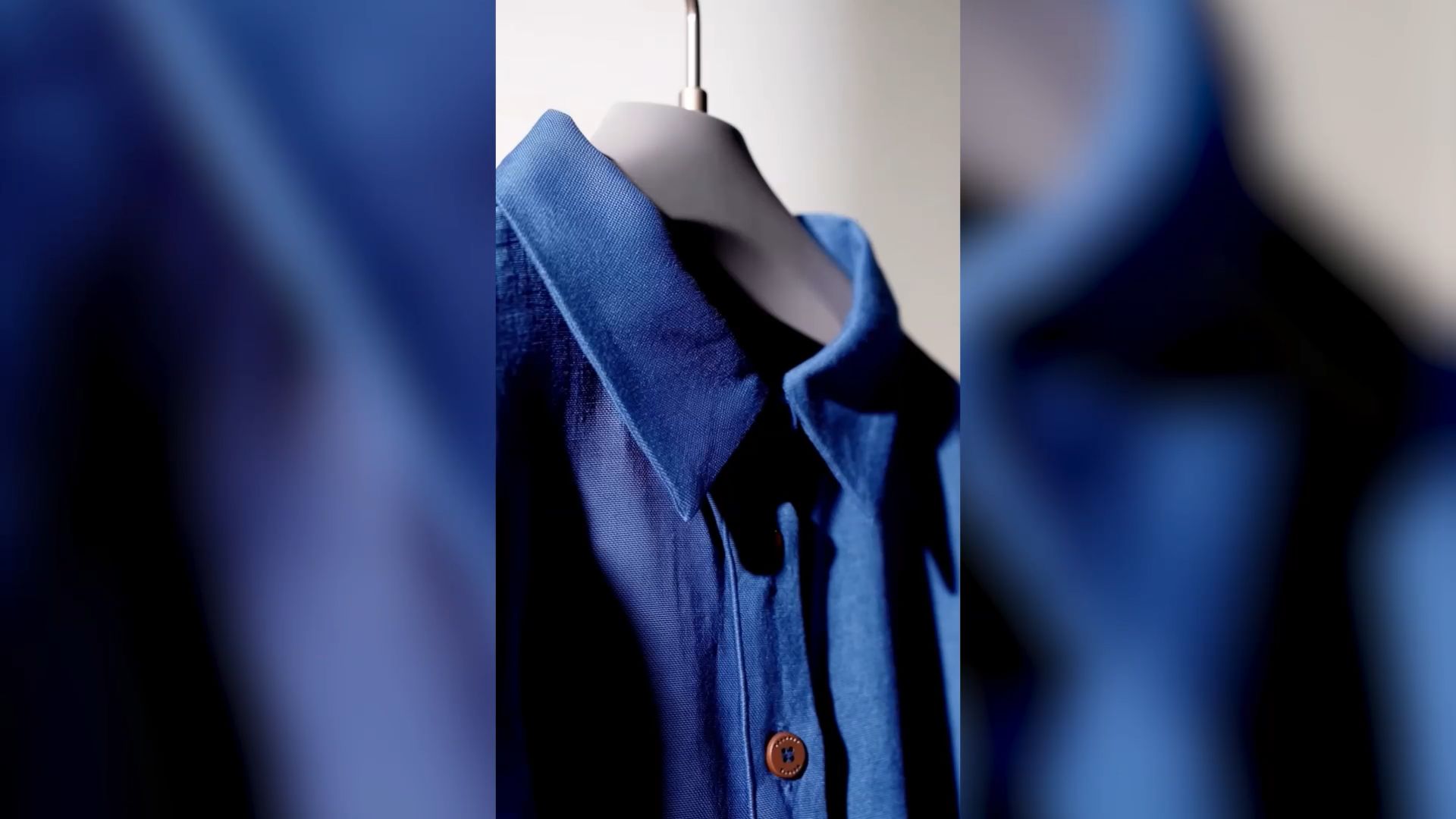
Create Missing Shots with More Natural Motion
Sometimes your video needs a scene you have not filmed, such as a dramatic opening, a fast-paced chase, or a new camera angle. Kling 4.0 lets you generate additional footage from text or images, with each generation lasting 3–30 seconds.
Kling 4.0 improves stability during rapid movement, continuous action, and complex camera work. Running, fighting, tracking shots, and orbiting movements can appear smoother and more physically coherent. Its improved understanding of shot direction also helps you guide how the camera follows subjects and moves between scenes, making dynamic video creation more accessible to beginners.
Reference Image | Camera Movement Reference | Output Video |
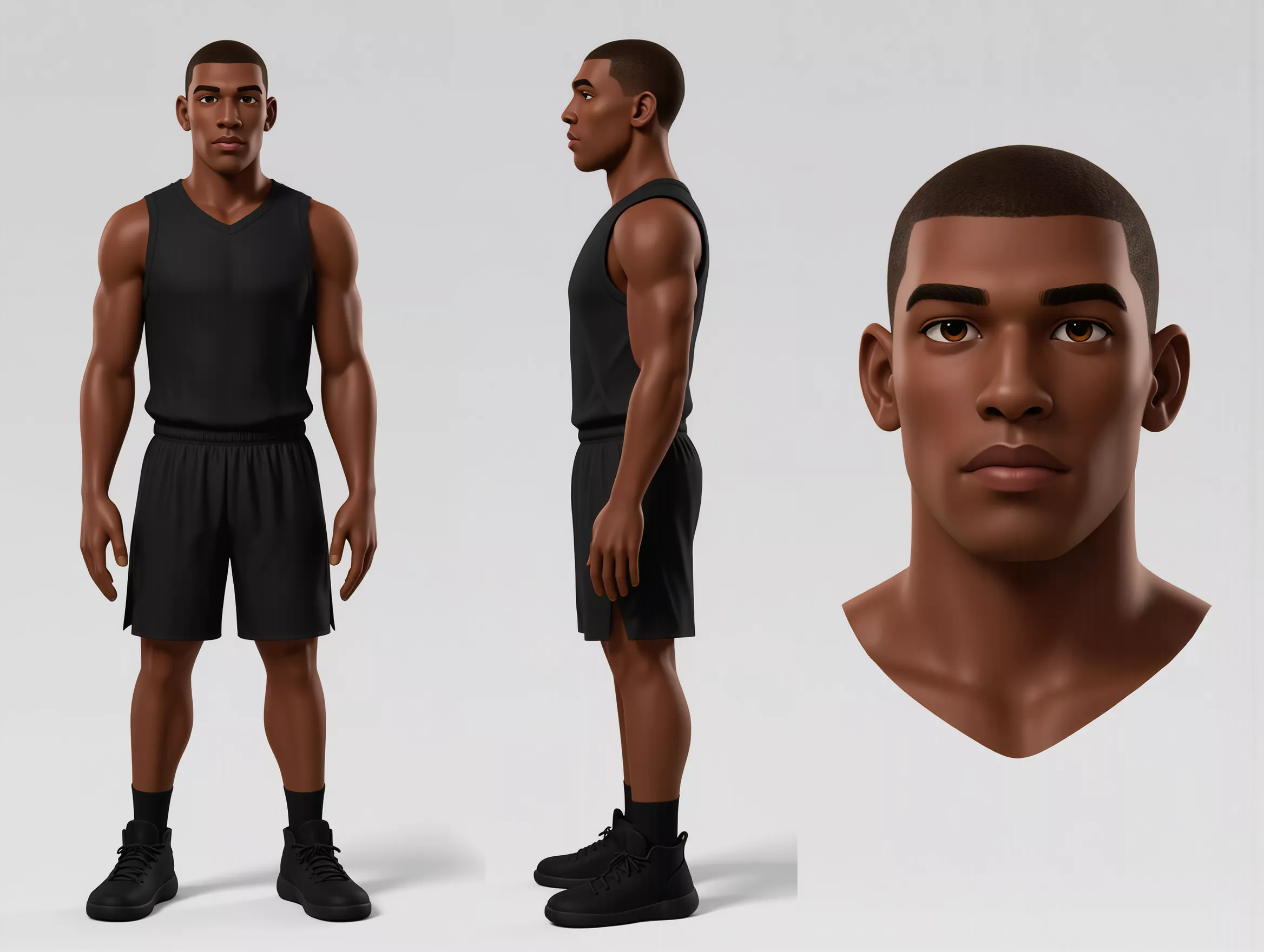 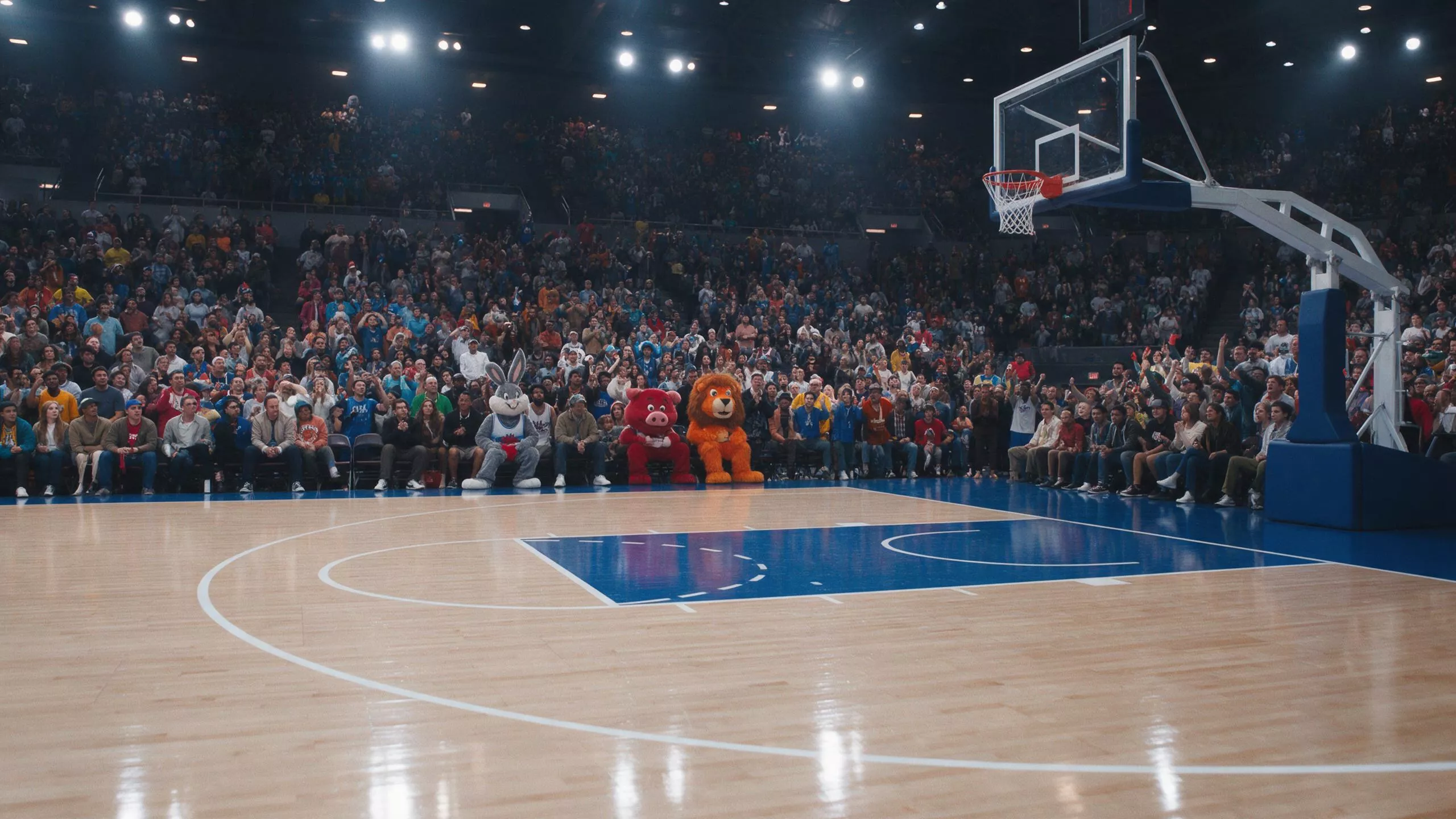 | 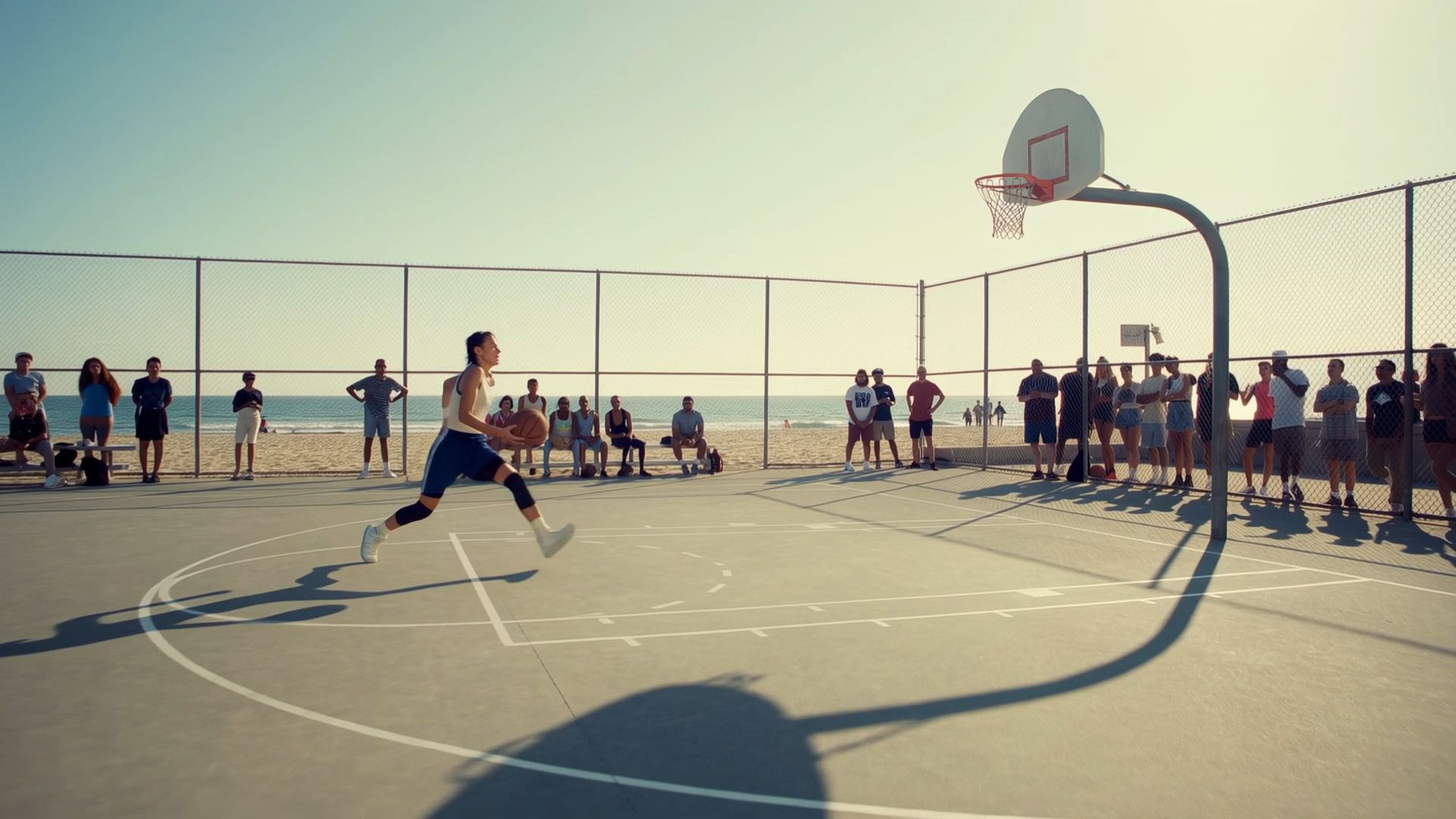 | 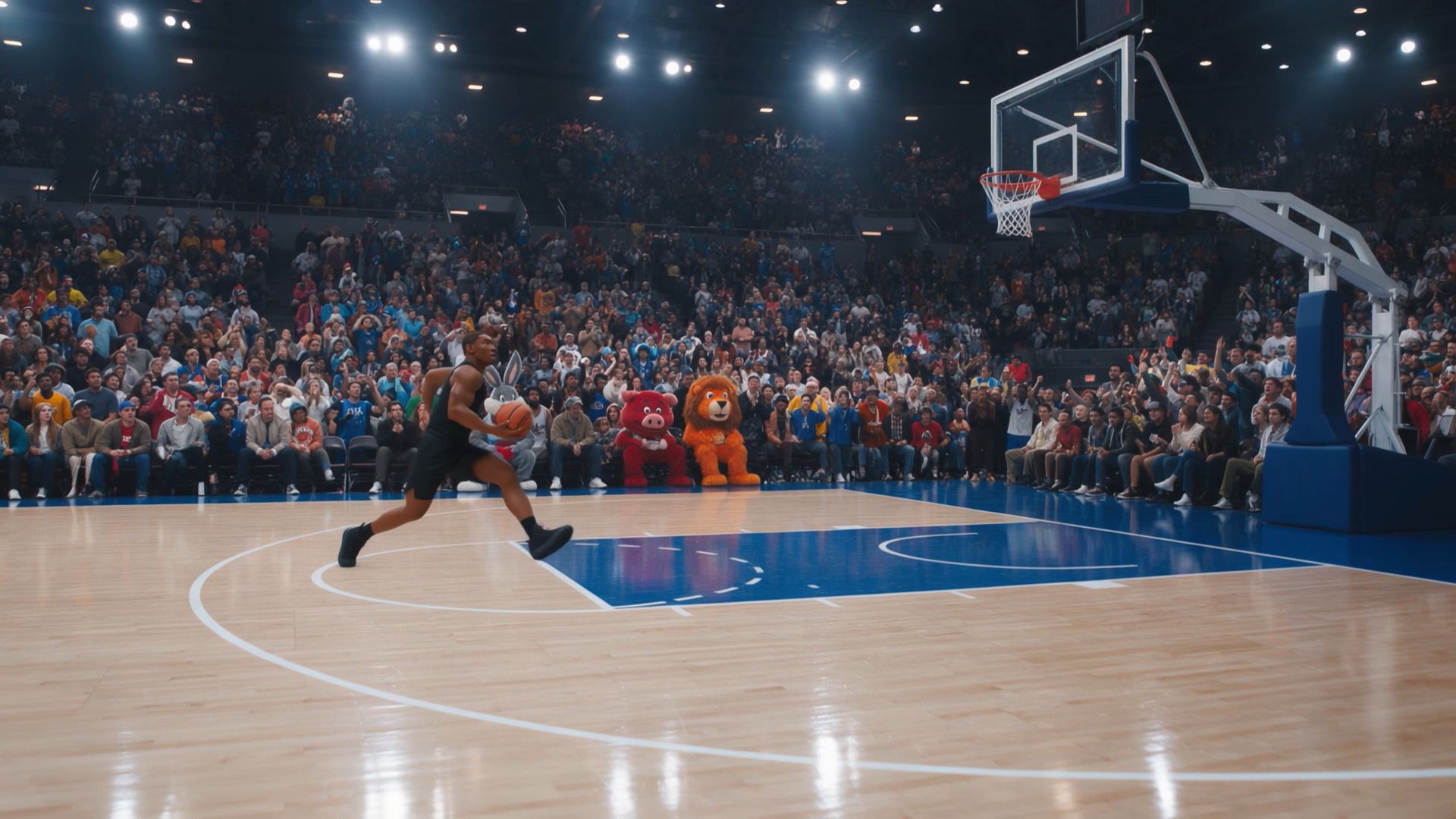 |
| Prompt: Take the person from Reference @Image 1 and, incorporating the basketball actions seen in the reference @video, place them into the basketball court scene from Reference @Image2. | ||
Bring Your Clips Together in One Timeline
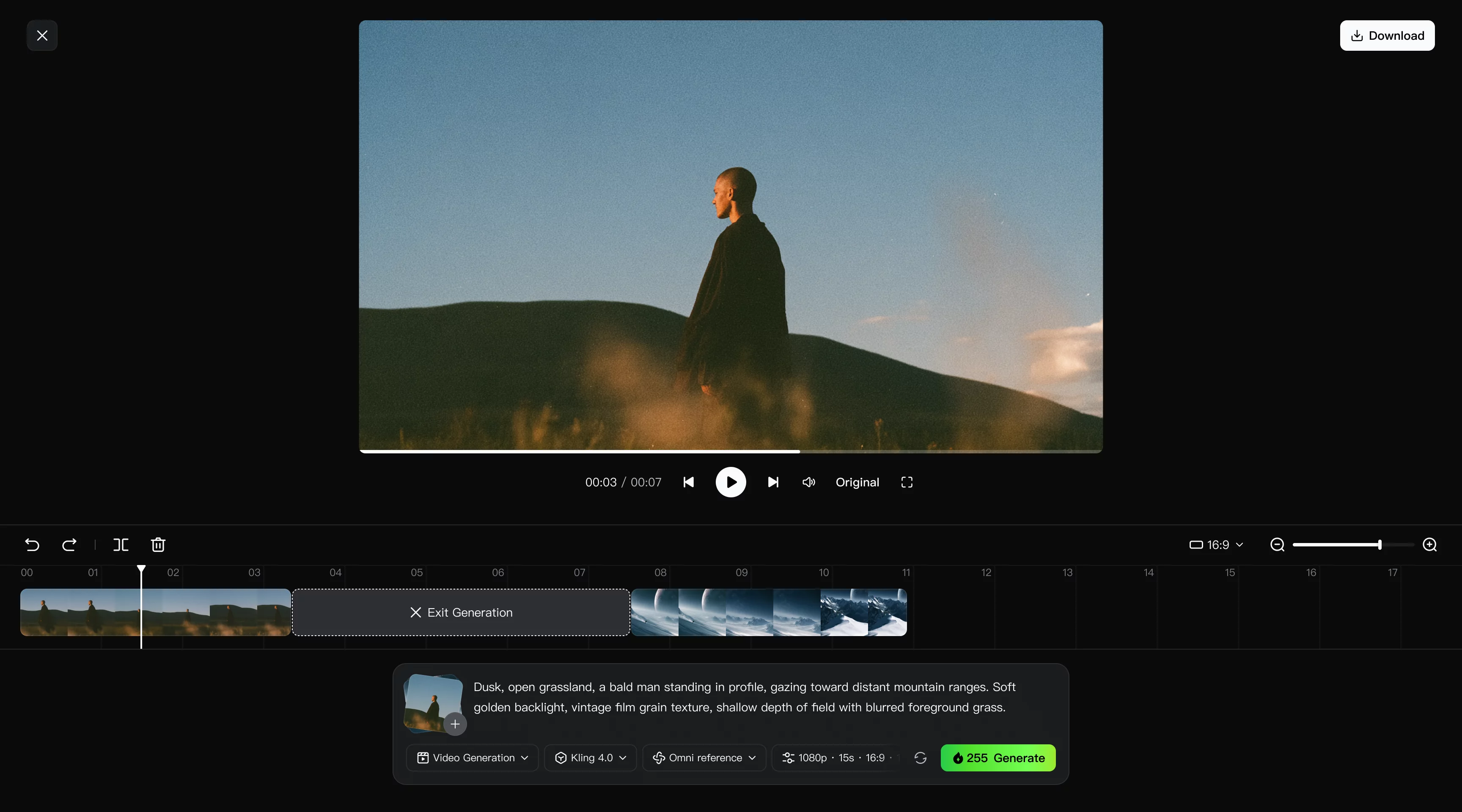
Once you have created or edited your scenes, Continuous Timeline Creation helps you turn individual clips into a complete video. Add generated clips to Timeline, arrange them alongside existing footage, trim unnecessary sections, and insert new shots wherever your story needs them.
If a specific scene needs improvement, use Edit Asset to revise or regenerate that clip without rebuilding the entire sequence. Preview the completed video, adjust the overall pacing, and download the final result. For beginners, keeping video generation, editing, and assembly in one workspace makes the process easier to manage.
How to Make Your First Video with Kling 4.0
Start with a single scene you want to create or a short clip you want to change. This AI workflow begins with your intent and reference material, rather than a series of manual effects.
Step 1: Enter Video Generation and Choose Kling 4.0
Open Kling AI, enter Video Generation, and select Kling 4.0. You can start with a text prompt or upload images and videos in Omni Reference to guide the scene. If you want to edit existing footage, upload your original video as the primary clip and add useful visual references. For video editing, Kling 4.0 supports up to five input clips, including one primary video, with a combined duration of up to 30 seconds.
Step 2: Write a Prompt That Works with Your References
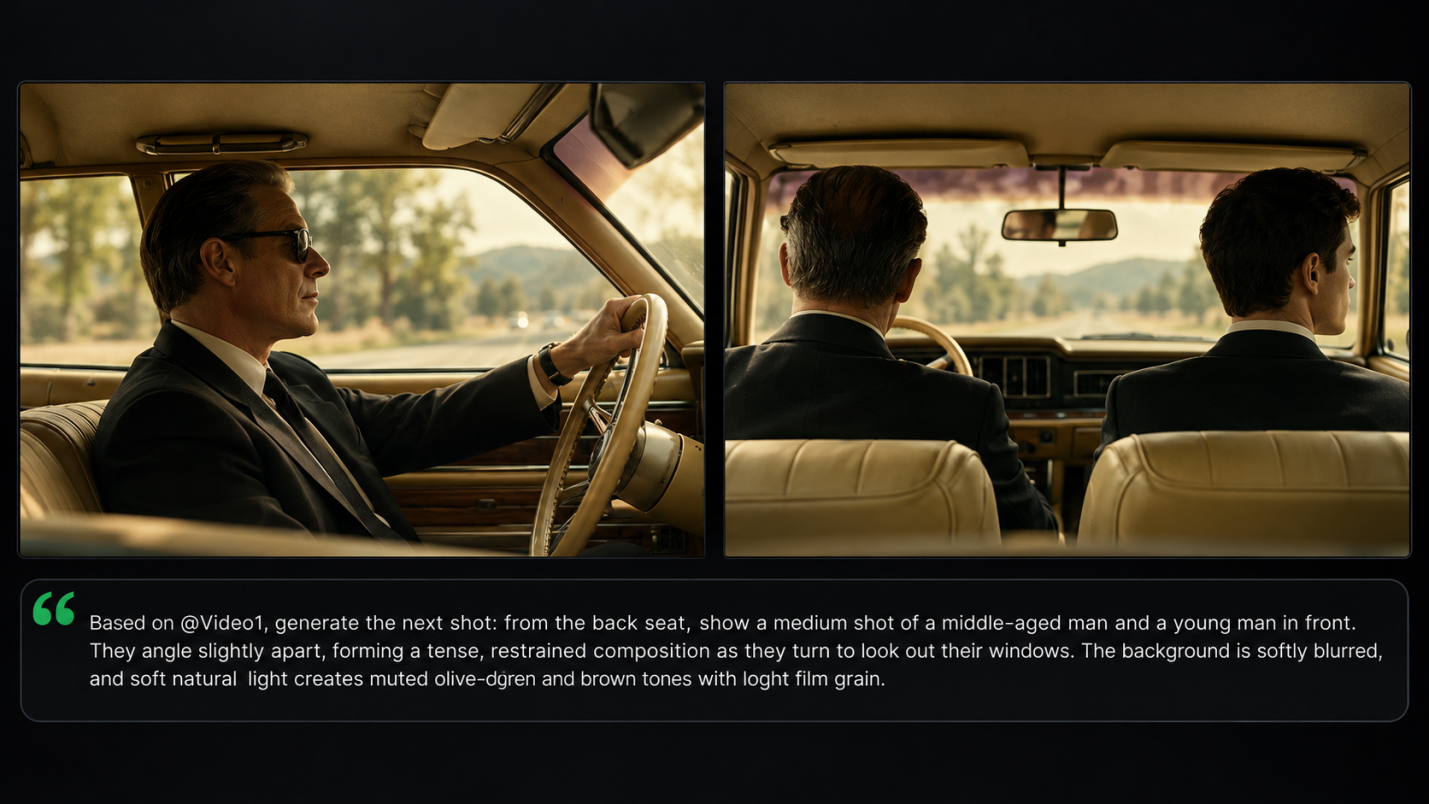
Describe the subject's actions, setting, camera movement, and visual style. Use asset labels such as @Image1 and @Video1 to explain what each reference contributes. If you are editing existing footage, begin with "Edit @Video1," specify the requested change, and include "Keep everything else unchanged" for details you want to preserve. If you uploaded no references, describe your scene directly in the prompt.
Step 3: Generate and Bring the Result into Your Sequence
Choose the available duration, aspect ratio, and resolution, then check the required credits before generating. Review motion, camera continuity, facial details, and consistency with your references. Refine the prompt if needed. When you are satisfied, add the selected clip to Timeline, arrange or trim it alongside other footage, then preview and download your completed video.
Beginner Video Editing Software Tips for Better Results
Give Your First Clip One Clear Job
Decide what this shot needs to contribute before adding more instructions. If you have an idea but no footage, text to video AI lets you begin with a short scene description. Keep that first scene manageable, then judge whether its action and timing communicate what you intended before expanding the sequence.
Keep Your References and Prompt in Agreement
Review the material you upload as carefully as the words you write. When references show different appearances, locations, or camera behavior, explain which details belong in the result. Remove unnecessary assets if they make your direction harder to follow. A clear role for each reference gives you a better basis for deciding what to adjust after generation.
Watch the Whole Sequence Before Downloading
A good first frame does not tell you whether the movement or edit works. Watch each clip through, then preview it beside the surrounding shots. Check that the subject remains recognizable, the camera direction makes sense, and the cuts give viewers time to understand the action. Revisit the specific shot that needs work while keeping the successful parts of your sequence.
Conclusion
The best beginner video editing software helps you shape the footage you have and create the scenes you still need. With Kling AI, a photo, a short clip, or a few words can be enough to begin. Follow the moment that caught your eye, give it room to move, and see where it takes you. Your first video can be small and still feel like yours. Choose a scene you would love to share, open Kling, and start bringing it to life.
FAQs
What Is the Best Video Editing Software for Beginners?
The best option depends on your footage and editing goals. Kling AI suits beginners who want to generate scenes or change visual content with prompts and references, then assemble their clips. A simple timeline editor helps you trim clips, add titles, and arrange a sequence.
How Do I Choose the Best Editing Software for Beginners?
Start with your editing goals, device, budget, and available footage. Look for clear controls, suitable export options, and a workflow you can learn comfortably. Traditional editors are useful for trimming and arranging recorded clips, while AI tools such as Kling 4.0 can help generate missing scenes and make visual revisions with prompts. The best editing software for beginners is the one that makes your most frequent tasks easier to complete.
Can Beginners Edit Existing Videos with Kling 4.0?
Yes. Kling 4.0 supports targeted changes to existing footage through Precise Video Editing. Upload the clip and useful references, then describe what should change and which details to preserve. Review the whole revision afterward, checking that the subject, movement, setting, and camera direction still work together.
Can I Try Kling AI Without Paying?
Yes. Kling AI provides free credits when new users sign up, and registered users can receive additional credits through monthly login rewards. Credit requirements vary depending on the model and generation settings, so available credits may not cover every type of generation. Before creating a video, check the model availability and credit cost shown in your current Kling AI workspace.
Can I Combine AI-Generated Clips with My Own Videos in Kling AI?
Yes. Kling AI's Continuous Timeline Creation lets you combine AI-generated clips with your existing footage in one workspace. You can arrange clips in your preferred order, trim unnecessary sections, and insert new scenes where needed. If a specific shot needs improvement, you can revise or replace it. Once your sequence is ready, preview the complete video and download the final result.