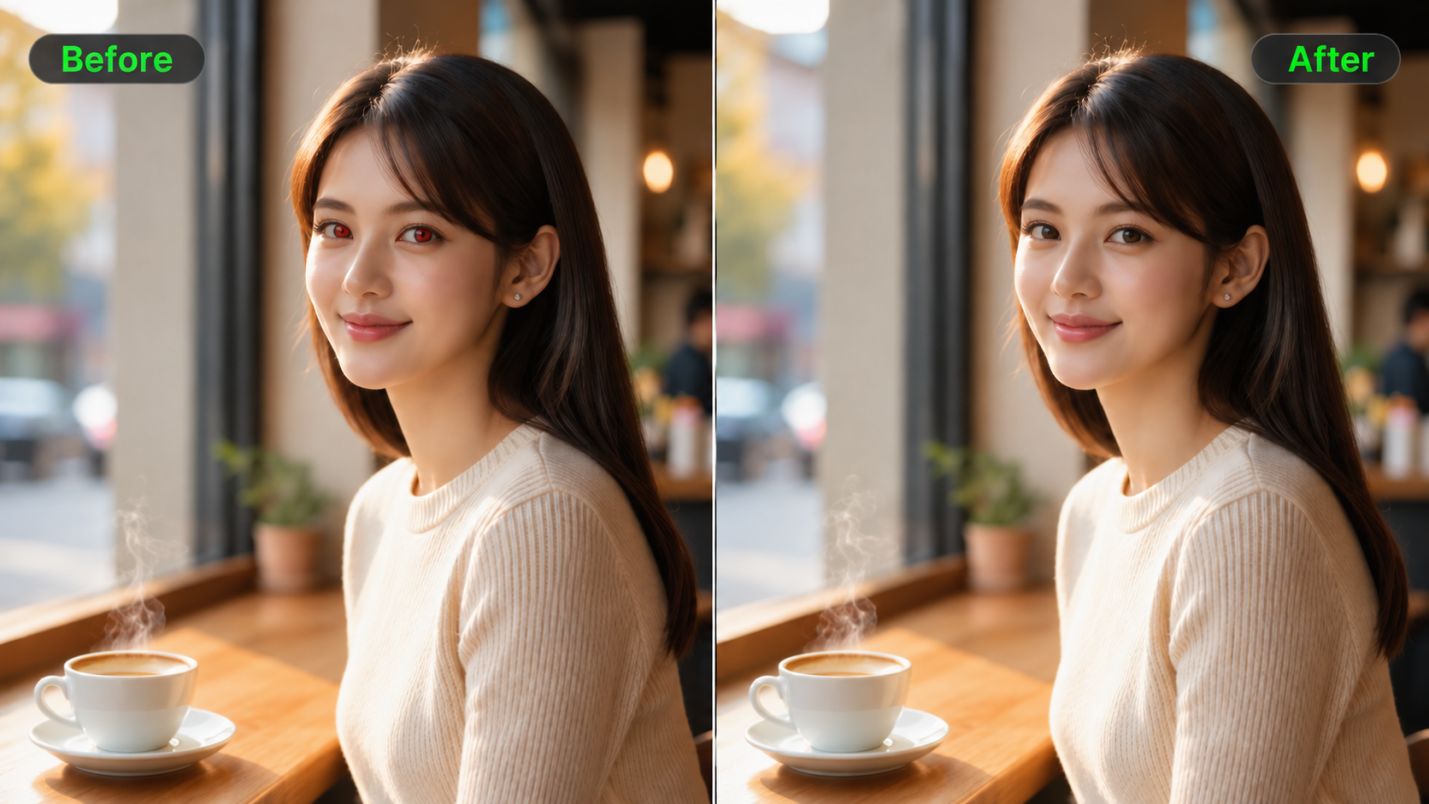
Red eye can spoil an otherwise good flash photo, especially when everyone looks their best. If you're wondering how to get rid of red eye without retaking the picture, you can use a dedicated correction tool or describe the change in Kling IMAGE 3.0 Omni. This guide explains how to remove red eye in photos, choose the right method, and preserve natural-looking eyes.
Why Do Eyes Look Red in Photos?
Red eye occurs when a camera flash enters the eye and reflects from the blood-rich retina back toward the lens. The reflection can make pupils look like red glowing eyes in a photo, even though they look normal in person. The effect is more common in dim lighting because the pupils are wider, and when the flash sits close to the camera lens, as it often does on phones.
A red reflection is usually a normal photographic effect. However, a white or yellow glow, particularly in one eye, can sometimes indicate an eye condition. The American Academy of Ophthalmology recommends showing such photos to a doctor, especially when the unusual reflection appears in a child.
AI Red Eye Remover vs. Traditional Red-Eye Tools
Traditional red-eye tools target the affected pupil through built-in corrections, while prompt-based AI image editors use your instructions to generate an updated photo. Compare the methods below to choose the approach that fits your image and editing needs.
Tool | How to Apply the Correction | What to Check |
Photos on Mac | Open Edit → Adjust → Red-Eye → Auto. Click any remaining red pupils if needed. | Check for missed pupils or areas that need manual correction. |
Adobe Photoshop | Select the Red Eye tool and adjust Pupil Size and Darken Amount as needed. | Keep the correction within the pupil and avoid excessive darkening. |
| Upload the photo, describe the red-eye correction, and generate an edited version. | Compare the eyes and nearby facial details with the source photo. |
How to Remove Red Eye in Photos with Kling IMAGE 3.0 Omni
Unlike a traditional one-click tool, Kling IMAGE 3.0 Omni offers more flexible, prompt-based editing through an AI photo editor. Upload a flash photo, specify which pupil needs correction, and describe details to preserve, such as natural iris color, eye shape, catchlights, and expression. For a group portrait, identify the affected person by clothing or position. You can also provide a clearer photo of the same person as an additional reference if the original eye color is difficult to see. IMAGE 3.0 Omni supports up to 10 image references and direct 2K or 4K output. Because Kling generates a new image rather than applying a fixed pupil adjustment, review the result carefully against the original. Follow these three steps to get started.
Step 1. Upload the Red-Eye Photo
Open the Kling AI workspace, and select IMAGE 3.0 Omni. Upload the flash photo you want to correct, preferably the original file rather than a screenshot or compressed copy. The affected pupil should be clear enough to inspect, with the surrounding face visible. For a group photo, choose a version where the person’s eyes are large enough to review after editing. A blurry face gives you less detail to work with when checking the correction.
If the original iris color is difficult to judge, you can also upload a clear portrait of the same person as an additional reference.
Step 2. Describe the Red-Eye Correction
Tell Kling which pupil shows a red eye and ask it to remove the red flash reflection. If only one eye needs correction, identify it by its position in the photo. In a group shot, use the person’s clothing or location to make the target clear. Ask for the original iris color, eye shape, and surrounding face to stay unchanged, keeping lighting or expression changes for a separate edit.
When using more than one image, tell Kling which photo to edit and which one should guide the eye color and facial details.
Step 3. Generate and Review the Result
Select an available 2K HD or 4K Ultra HD output option, generate the edited image, and compare it with the original before downloading. Look for remaining red reflection, changes in iris color, or missing catchlights. Check the eyes up close and review the whole portrait at normal viewing size, where an overly dark correction may stand out. If unrelated facial details change, return to the original photo and revise your instruction before generating another version. Download the result once you’re satisfied.
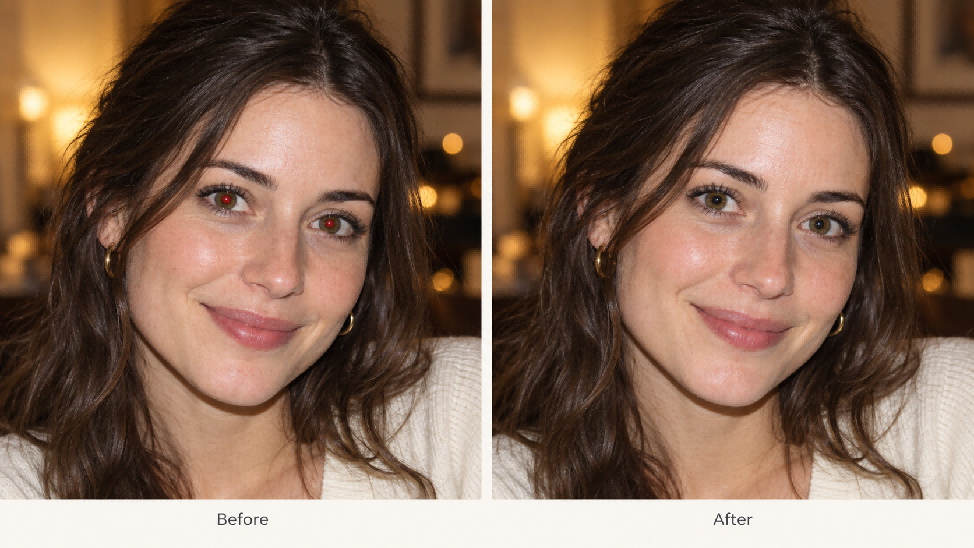
How Can You Write a Better AI Red-Eye Removal Prompt?
In Kling’s Image-to-Image AI workflow, your photo serves as the reference. Describe which eye needs correction and ask for the red flash reflection to be removed. Then specify what should stay unchanged, such as the iris color, eye shape, and surrounding facial details.
For Both Eyes
Remove the red-eye effect caused by the camera flash from both pupils. Keep the original iris colors, eye shapes, catchlights, and surrounding facial details unchanged.
For One Eye
Remove the red flash reflection from the pupil on the left side of the photo. Keep the other eye and the surrounding face unchanged.
For a Photo with Two References
Use Image 1 as the photo to edit. Use Image 2 only as a reference for the person's natural iris color. Remove the red reflection from the affected pupil in Image 1. Keep the facial features, lighting, pose, and background consistent with Image 1.
For a Group Photo
Remove the red-eye effect from both pupils of the man on the far left wearing a dark blue shirt. Restore natural-looking eyes while preserving his original eye shape, iris color, and catchlights. Keep the other three people, facial expressions, lighting, and background unchanged.
The comparison below applies the same structure to a wall-color edit: it names the requested change and asks that the character remain unchanged.
Before | After |
|
|
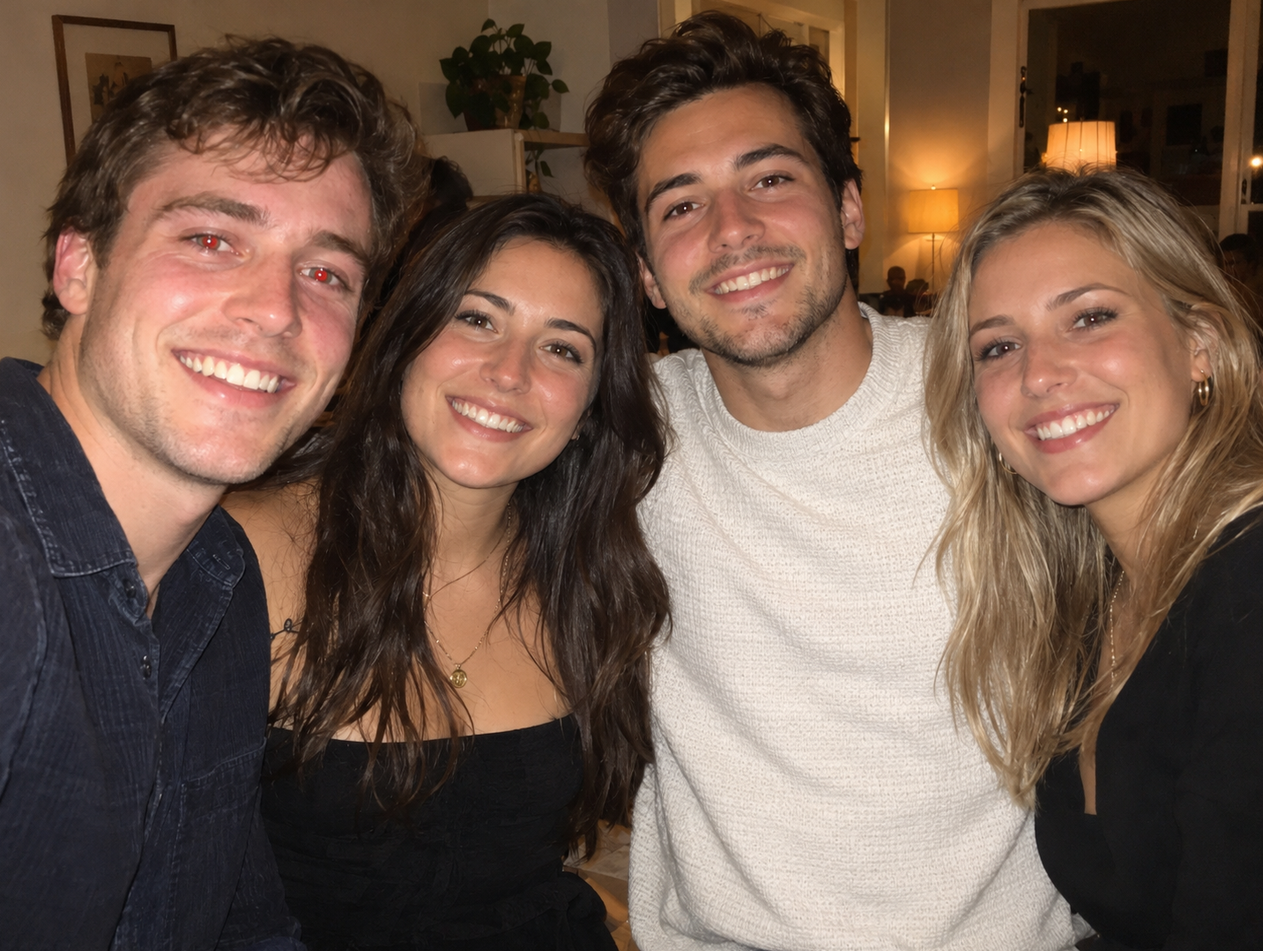
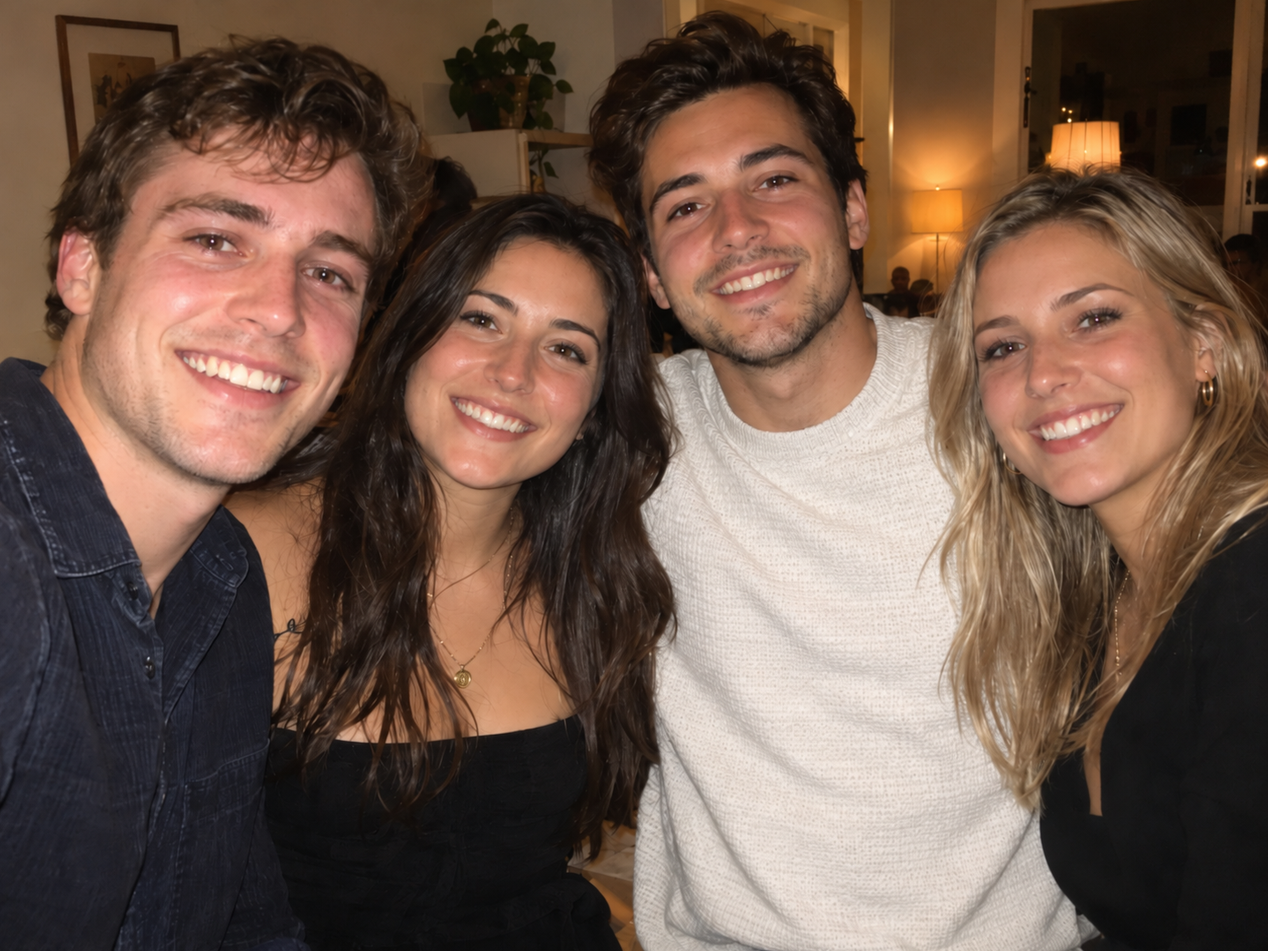
For red-eye correction, apply this structure to the affected pupil and identify the nearby eye details you want to retain.
What Should a Good Red-Eye Correction Preserve?
Check each edited eye against the original photo. The iris color, eye shape, and existing catchlights—the small bright reflections on the eyes—should remain consistent with the source. Use the table below to review the details.
Detail | What Should Stay Natural |
Iris Color | Original eye color |
Pupil | Shape and position |
Eye Shape | Original proportions |
Highlights | Natural reflections |
Skin Tone | Surrounding eyelid and face |
Facial Features | No unrelated changes |
Inspect the eyes up close, then review the whole portrait at normal viewing size to check whether the correction looks too dark or noticeable.
Common Red-Eye Removal Problems and Quick Fixes
If the edit looks wrong, identify what changed before generating another version. Return to the original photo when a result has already altered the face, rather than continuing to edit that version.
Problem | What to Change |
Iris or Catchlight Looks Too Dark | Retry from the original and specify that the iris and existing catchlight should remain unchanged. |
Eye Color Changes | State the original iris color and ask for correction of the red pupil reflection only. |
Skin Around Eye Changes | Remove broad portrait-editing requests and identify the affected pupil more clearly. |
Some Red Reflection Remains | Describe the remaining reflection and identify the eye by its position in the photo. |
Eyes Look Unnatural Together | Compare each eye with the original instead of forcing both pupils or highlights to look identical. |
Face Changes Unexpectedly | Return to the original photo and request red-eye correction without changes to expression, lighting, or facial shape. |
Can You Prevent Red Eye Before Taking a Photo?
Red eye can often be reduced before you take the photo. A few simple changes to the lighting, flash position, and subject placement can make a noticeable difference:
- Increase Ambient Light: Turn on room lights or shoot near a window to help keep the pupils smaller.
- Change the Flash Position: If your equipment allows it, move an external flash away from the camera lens.
- Use Red-Eye Reduction Mode: Enable this setting when available to trigger a pre-flash that helps reduce pupil size.
- Adjust the Subject’s Gaze: Ask the person to look slightly away from the flash rather than directly toward it.
When Should You Use a Broader AI Photo Editor?
Once the red eye is corrected, decide whether the photo needs any other changes. Make those requests separately so you can assess each result against the original.
- Lighting Correction: Kling’s AI photo editor can adjust dim lighting or reduce harsh flash shadows through prompts.
- Artistic Styles: Use Kling’s AI art generator to turn a portrait into a watercolor painting, pencil drawing, or illustration.
- Background Changes: Replace an unwanted or cluttered background while keeping the main subjects consistent.
- Facial Detail Refinement: Kling IMAGE 3.0 Omni supports reference-based portrait edits, such as adjusting an expression. Treat this as a separate creative change after checking the red-eye correction.
- Image Enhancement: Use the image enhancer workflow to generate a higher-resolution version, with native 2K and 4K options. Compare any newly generated facial details with the original.
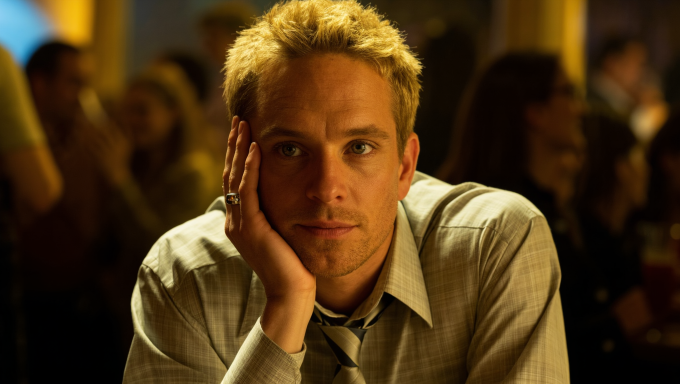
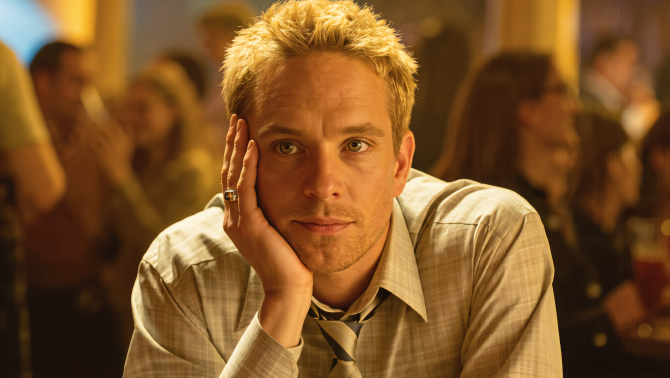
If the red eye is corrected but the portrait still feels too dark or harsh, you can make a separate lighting adjustment. The comparison below shows a softer-light version. Check the face and eyes again before keeping the new result.
Original | Softer Lighting |
|
|
| Prompt: Relight the portrait with soft, diffused lighting. Gently lift the shadows on the face while keeping the warm tone. Preserve the person’s identity, expression, pose, hairstyle, clothing, and background. | |
The End
Learning how to remove red eye in photos is mainly about choosing a targeted correction and checking the details that make a portrait look natural. A dedicated red-eye tool can be convenient for a simple flash reflection. If you prefer prompt-based control, upload your photo to Kling IMAGE 3.0 Omni, identify the affected pupil, and specify which facial details should stay unchanged. Compare the generated image with the original, especially the iris color and catchlights, before downloading your preferred result.
FAQs
Does Kling AI Offer Free Credits for Photo Editing?
New users receive free credits when signing up for Kling AI, and registered users can claim additional credits through monthly logins. These can be used for eligible photo editing tasks, subject to your account's available models and credit balance. Since credit costs vary by model and generation settings, check whether IMAGE 3.0 Omni is available and how many credits your selected settings will consume before generating.
How Do I Remove Red Eye from a Photo?
To remove red eye from a photo, you can use a dedicated red-eye correction tool or a prompt-based editor such as Kling IMAGE 3.0 Omni. Upload the original flash photo, identify the affected pupil, and ask for the red reflection to be removed while preserving the iris color, eye shape, and catchlights. Compare the generated image with the original before downloading.
Can AI Remove Red Eye Automatically?
Some photo editors can detect and correct red pupils automatically. In Kling, however, you use a prompt-based AI image generator: upload the image, describe the affected eye, and specify which details to keep. Kling then generates a revised image rather than applying a fixed, automatic red-eye adjustment. Check the new eye color, catchlights, and surrounding facial features against the original before downloading.
How Can I Remove Red Eye Online?
To fix red eyes online, open a browser-based editor and upload the original image. You can use a dedicated red-eye correction tool or Kling IMAGE 3.0 Omni if you prefer prompt-based editing. In Kling, identify the affected person and pupil, describe what should stay unchanged, and generate the edited photo. Review the iris color and facial details before downloading, and check the selected model's credit cost in advance.
Why Do My Eyes Look Black After Red-Eye Removal?
An edit may look too dark if it covers the iris or removes an existing catchlight. In a manual tool, undo the edit and reduce the correction area to fit the pupil. In Kling, retry from the original photo with: “Remove only the red reflection. Keep the iris color and existing catchlights unchanged.”
Will Red-Eye Removal Change My Eye Color?
It should not change the iris color. Keep the request limited to the red reflection in the pupil and compare the result with the original. If the iris changes, reject that version and revise the instruction.