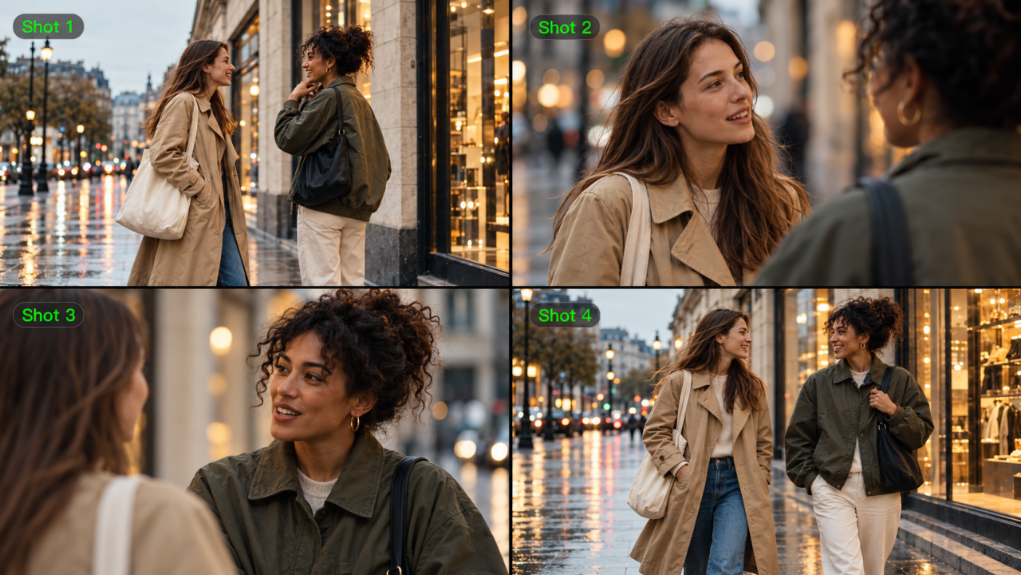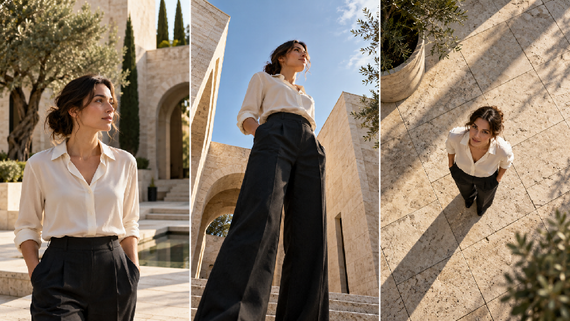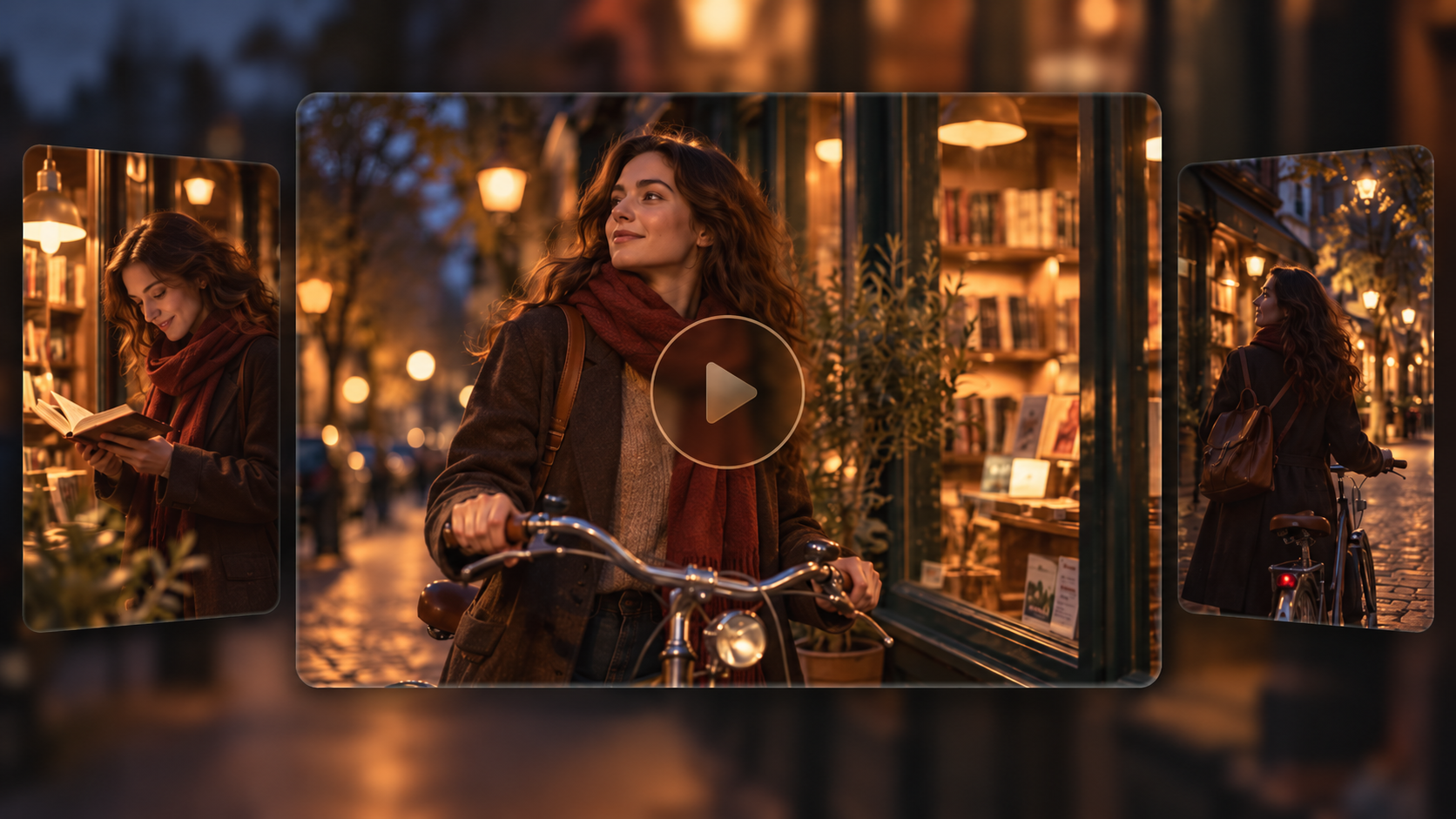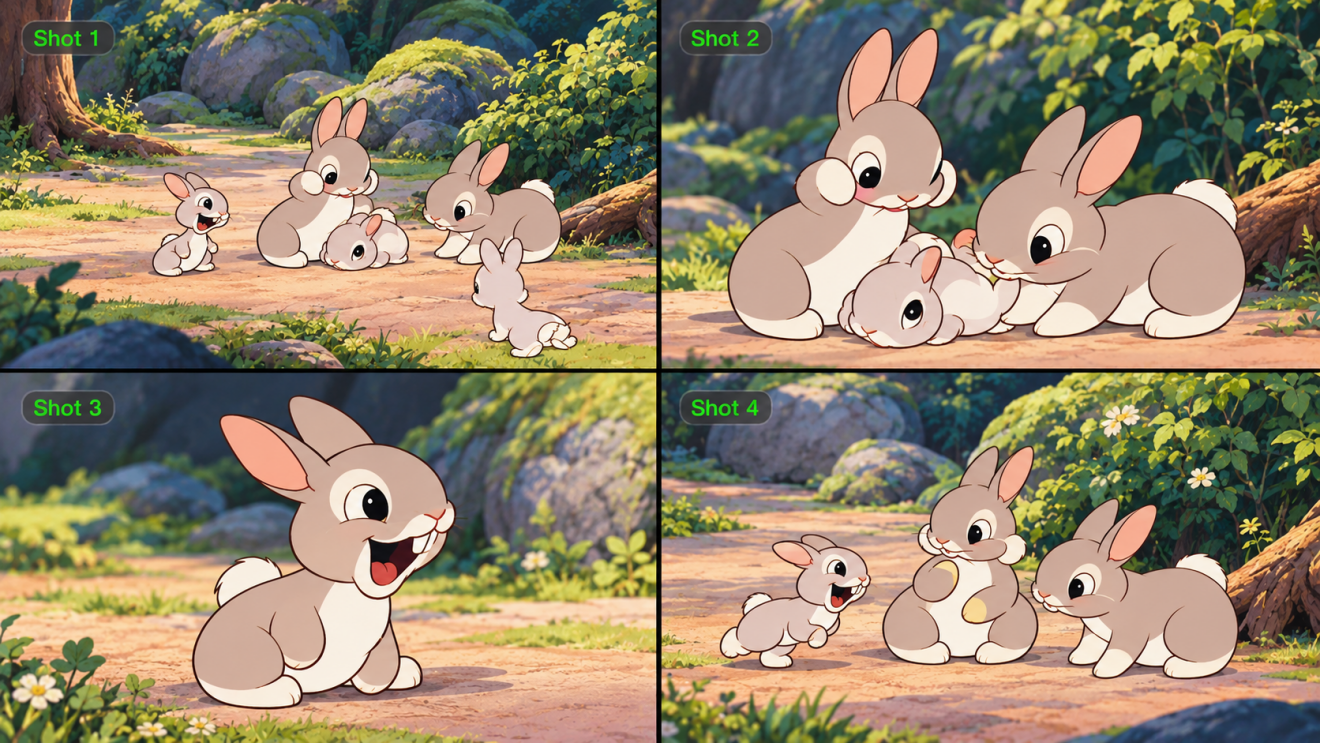
An animatic turns storyboard panels into a timed video so you can judge the story before production. It reveals how long a shot needs, where a cut should fall, and whether an action reads clearly. This guide explains the process and shows how Kling AI helps you explore movement, camera direction, and scene timing.
What Is an Animatic?
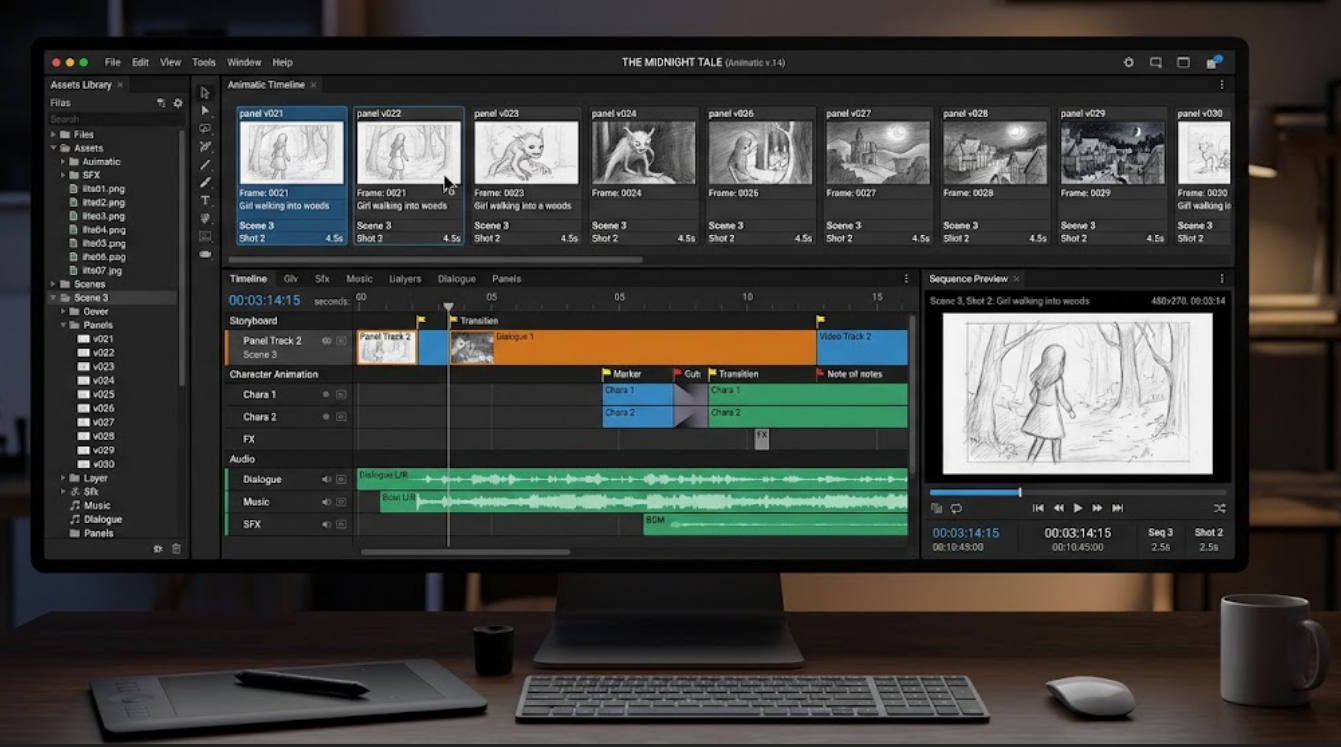
An animatic is a timed sequence built from storyboard panels or other rough visual assets. The images are arranged in shot order and assigned approximate durations, often with temporary dialogue, sound effects, or music. Its main purpose is to preview how the story plays before filming or full animation.
A storyboard shows the planned images; the timed sequence reveals their rhythm. One shot can contain several panels showing a change in pose or framing. Some panels remain still, while others include a camera pan or limited movement. A 2D animatic can therefore communicate a performance without animating every gesture.
Stage | What It Shows | What It Tests | Typical Detail |
Storyboard | Planned shots | Action and framing | Still panels |
Animatic | Shots arranged in time | Pacing and cut points | Stills or basic motion |
Previs | Spatial scene preview | Camera paths and staging | Rough 3D or video |
Animatic Examples for Different Projects
These examples show how an animatic answers different questions: whether a product’s use is clear, a character’s reaction reads, or a reveal arrives at the right moment.
Project | What the Sequence Shows | What You Can Decide |
Product short | An opening scene, a demonstration, and a product close-up | Does the product appear soon enough, and is its use clear? |
Character animation | A character notices something, reacts, and takes action | Is the reaction readable before the next action begins? |
Game cinematic | A character enters, the camera follows, and a location is revealed | Does the framing guide attention toward the reveal? |
How to Make an Animatic Faster with AI
Traditionally, creating an animatic means arranging storyboard panels in shot order, assigning rough durations, and adjusting cuts or temporary audio to test pacing. AI video tools can speed up early exploration by turning prompts and visual references into moving drafts. At Kling AI, our AI video generator and newly launched Kling 4.0 video generation and editing model help creators move from planned shots to dynamic drafts, then review and refine them before production.
Step 1: Plan Your Shots and Prepare Visual References
Start by breaking your script into clear story beats. For each shot, decide what the viewer should see, what action takes place, and how the shot should end. Sketch a few storyboard panels or gather existing images, noting the intended framing and approximate duration of each shot.
If your animatic features a recurring character, reuse the same visual reference across shots to help maintain a consistent appearance. Our AI character generator can help you explore character designs, while our sketch-to-video AI workflow lets you use rough drawings as a starting point for exploring movement. At this stage, focus on clear actions and composition rather than polished visuals.
Step 2: Generate Moving Shots from Your Storyboard
Open Video Generation, select Kling 4.0, and upload your storyboard panels alongside any useful character, product, or video references. In your prompt, explain what each reference should guide—for example, use an image to define a character's appearance and composition, and a video to guide action or camera movement.
With Omni Reference, you can combine up to 15 reference assets in total, subject to the supported limits: up to 10 images, 5 videos with a combined duration of up to 30 seconds, and 7 subject references, including up to 3 video-based subjects. Voice references are also supported within the overall limit. You can use up to 10 keyframe images in your reference workflow to define important visual moments.
Kling 4.0 supports 3–30-second video generation and improved stability for large actions and complex camera moves. This gives you more room to explore how actions unfold, how the camera follows the subject, and how key story beats connect.

Step 3: Review Motion and Story Beats Before Assembly
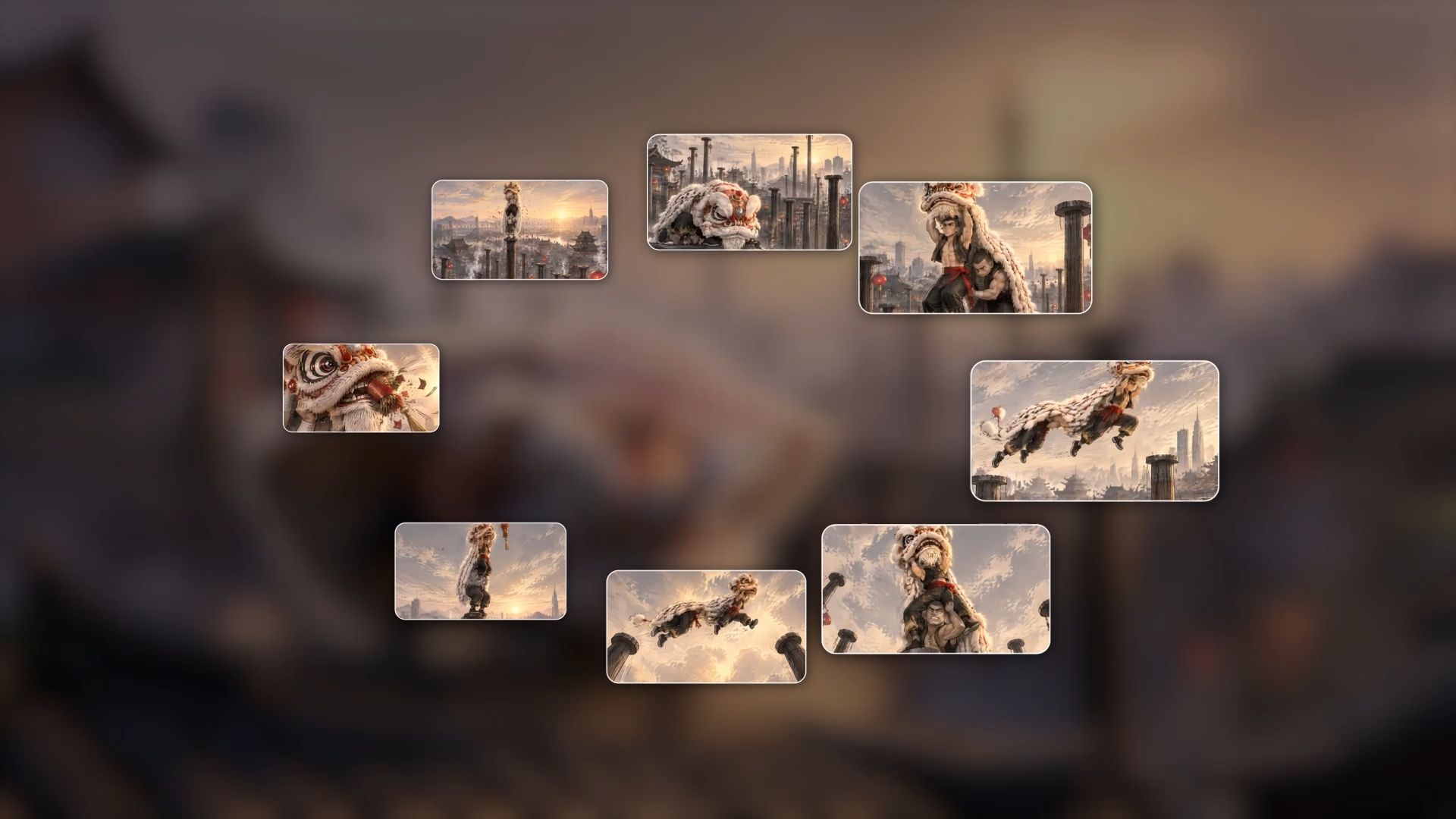
Preview the generated shots and compare them with your original storyboard. Check whether the main action is easy to understand, the camera reveals the important details, and each shot gives the viewer enough time to register a movement or reaction.
If a transition feels rushed or a character's action is unclear, revise the prompt or adjust the visual references before moving on. Focus on the questions your animatic needs to answer: Does the sequence make sense? Is the shot order effective? Does the reveal happen at the right moment? You do not need to perfect every visual detail yet; the goal is to establish clear actions, workable timing, and a coherent story.
Step 4: Assemble and Refine Your Animatic on the Timeline
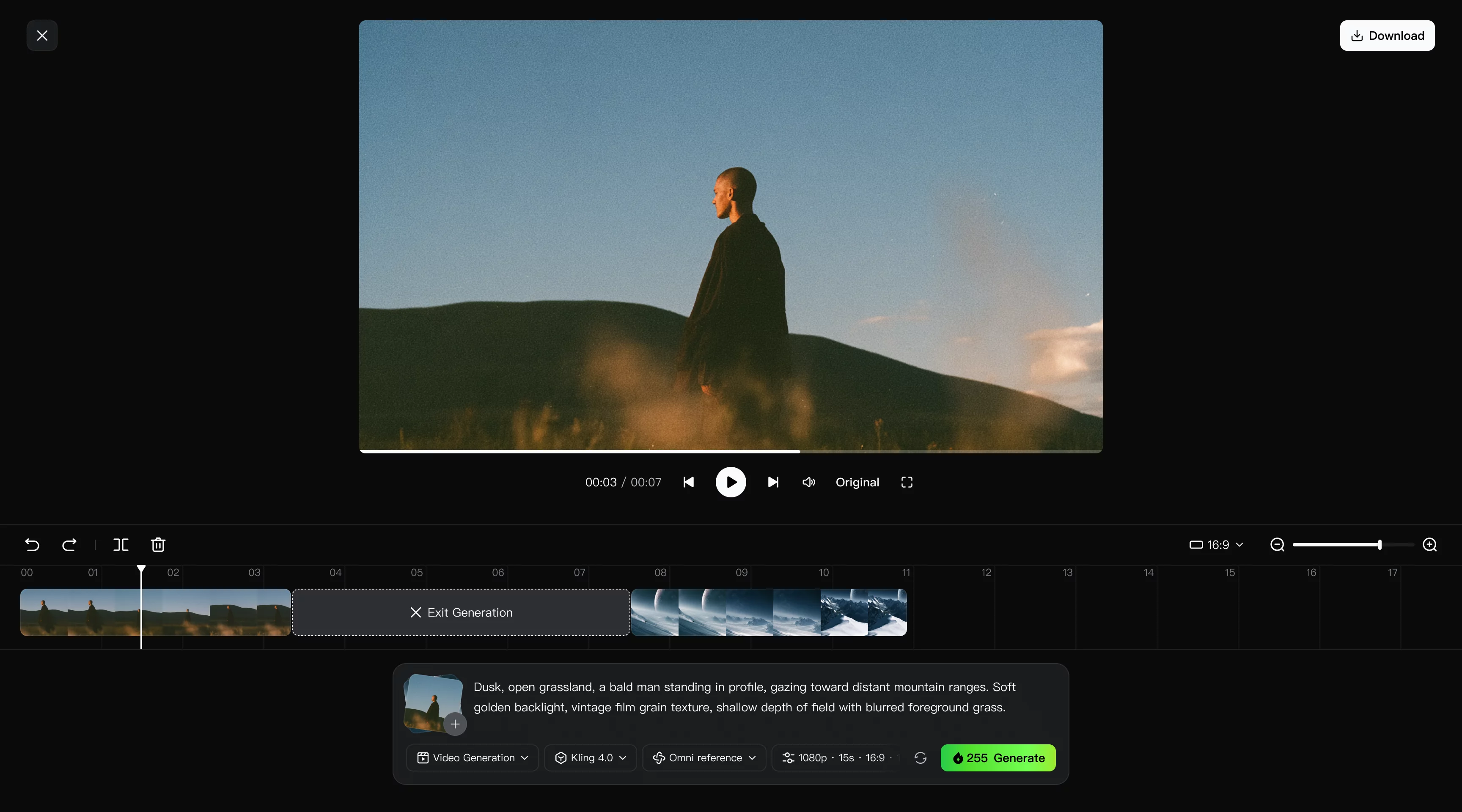
Once you have usable clips, arrange them in story order on the workspace timeline to build your animatic. Right-click a generated clip and select Add to Timeline, then open Timeline in the top-right corner. Adjust clip lengths, insert missing shots, or replace footage that does not communicate the intended action. Play the full sequence to evaluate pacing, transitions, and continuity.
Kling 4.0 supports AI video editing, allowing you to adjust generated footage by changing character expressions or movements, modifying backgrounds, or refining shot framing. If a clip needs further adjustments after being added to the Timeline, click “Edit asset” on that clip to edit it again. Review the sequence to ensure the story flows clearly.
Tips for a Clearer Animatic
Give Each Shot a Clear Purpose
Write a short note stating what the viewer should understand from each shot. A wide view can establish where a character is going; a close-up can show what they notice. If two shots deliver the same information, try shortening or removing one and see whether the sequence reads more clearly.
Keep the Draft Easy to Revise
Spend detail where it changes the decision. A rough pose is enough to test an entrance, while a hand interacting with a product may need clearer movement. Leave decorative refinements until the timing and action work, and number the shots so feedback points to the right moment.
Watch the Sequence at Its Intended Pace
A panel can look clear in isolation and still disappear too quickly in the edit. Watch without stopping to find rushed reactions, long holds, and confusing transitions. Then return to the specific shot, change the timing or footage, and judge the sequence again as a whole.
Beyond Animatics: Create Videos for Different Needs
Beyond helping you create animatics, Kling AI combines Omni Reference, 3–30-second video generation, multilingual dialogue, and other creative capabilities to support a wide range of video projects. From trend-inspired short videos and product ads to promotional videos and explainer videos, Kling 4.0 helps marketers, social media teams, educators, and businesses create content more efficiently. Whether you are developing viral-style social content, showcasing fashion and beauty products, promoting consumer electronics, or creating educational videos, you can use prompts and visual references to bring different ideas to life.
The End
An animatic helps you evaluate shot order, pacing, and story clarity before full production. With Kling AI, you can turn storyboard panels and visual references into moving drafts, arrange selected clips on the Timeline, and refine shots that need work. Start with one scene, review how it plays, and adjust the sequence before moving into production.
FAQs
What Is the Purpose of an Animatic?
An animatic tests story clarity, timing, and pacing before full production. It lets a team watch the planned sequence, spot rushed actions or confusing cuts, and agree on changes while the work is still easy to revise. The approved version also provides a timing reference for later filming or animation.
Is an Animatic the Same as a Storyboard?
No. A storyboard presents still panels that describe the shots, while an animatic arranges those panels in time. One shot can contain several panels showing changes in pose or framing. Playing the sequence reveals how long each moment lasts and whether the cuts connect the story clearly.
How Long Does It Take to Make an Animatic?
The time depends on the sequence length, available storyboard panels, and number of revisions. A short draft built from existing panels takes less preparation than a scene that still needs its action and composition developed. Kling AI helps you explore motion and revise footage, while the project’s story decisions determine how many passes it needs.
What Software Do You Need to Make an Animatic?
To make an animatic, you need storyboard panels or other visual references, a way to turn them into moving shots, and a timeline to arrange the sequence. Kling 4.0 can generate footage from prompts and references, then you can add selected clips to the workspace Timeline to review pacing, transitions, and continuity before production.
Can AI Make an Animatic?
Yes. With text to video AI, you can generate a scene from a written description; storyboard panels and other references give the footage a visual starting point. Kling 4.0 supports reference-guided generation and stable motion. Arrange the selected clips on the timeline and adjust their lengths to test the story’s actions, cut points, and pacing.