Creative Studio
API
Resources
Features
About Us
Download

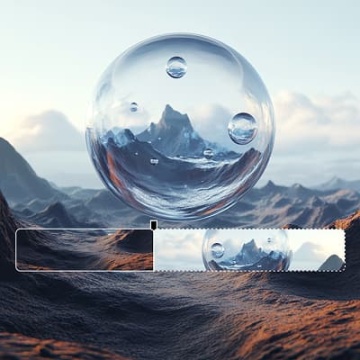
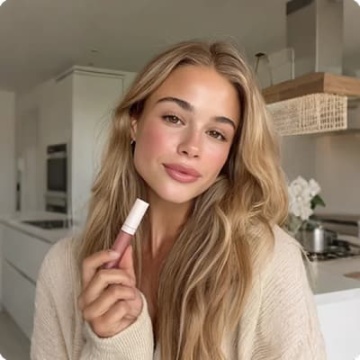
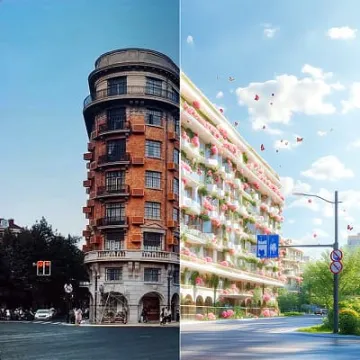
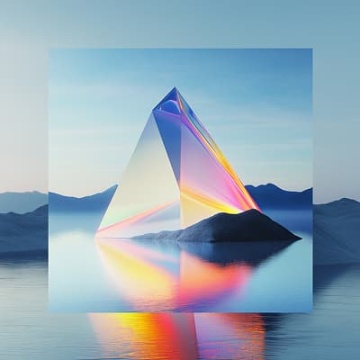
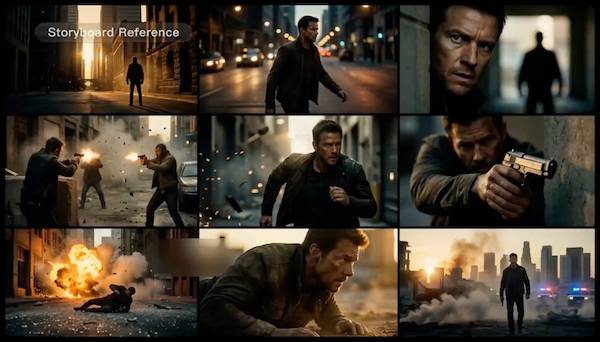
AI-generated background poster ideas – Explore versatile concepts

Background poster ideas created with AI. Explore versatile and customizable background poster concepts. AI helps you quickly explore different styles and themes for your designs.

AI-generated background poster ideas – Explore versatile concepts

Recommended

Background - background AI video
01:04
RCURWYji avatar
RCURWYji
White motion Background - background AI video
RagyEiWy avatar
RagyEiWy
 Devilcry for background - background AI image
SiDevicry avatar
SiDevicry
Kling AI work 309413405522425 - background AI image
TdEmOwNh avatar
TdEmOwNh
Video background by Kling Ai - background AI video
00:31
KLING1880 avatar
KLING1880
Abstract Dark Metal Background - background AI video
Konstantin_S avatar
Konstantin_S
A dynamic abstract background  - background AI image
LSPJ avatar
LSPJ
Kling AI work 311849270611736 - background AI video
oaZYhFbb avatar
oaZYhFbb
background - background AI video
01:04
RCURWYji avatar
RCURWYji
background cute - background AI video
00:18
FgktVnwo avatar
FgktVnwo
Background Drama - background AI image
AqbUpGUS avatar
AqbUpGUS
Natural Background  - background AI video
cwDKccXi avatar
cwDKccXi
Abstract background for a toy - background AI image
DNataly avatar
DNataly
Abstract technology background - background AI image
Nik avatar
Nik
smooth gradient background - background AI video
VDRBhpnC avatar
VDRBhpnC
BANNER BACKGROUND - background AI image
BDDkZRhG avatar
BDDkZRhG
Kling AI work 296621191501368 - background AI image
Mehmet Emin Ay avatar
Mehmet Emin Ay
Kling AI work 296536151664616 - background AI image
Dreamscape AI avatar
Dreamscape AI
background - background AI video
NvqKjdDv avatar
NvqKjdDv

How to Create an AI Avatar Video

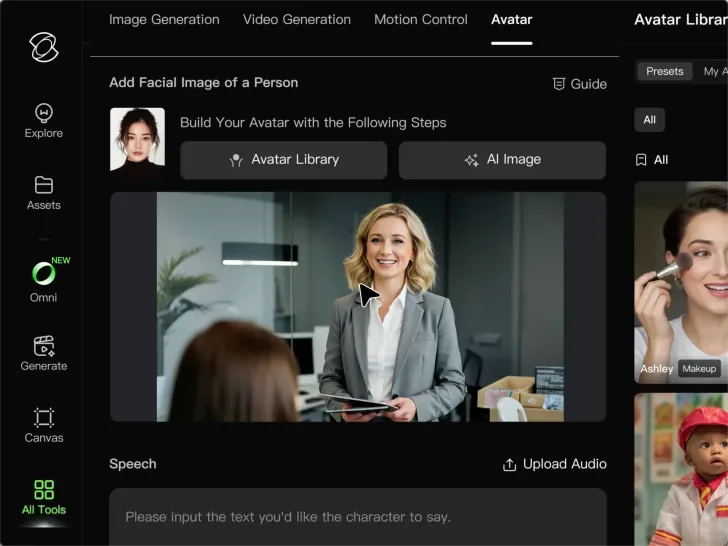
Create an Avatar

Create an Avatar

Pick a ready-made character from the Avatar Library, return to a saved avatar, upload an image from your device or Assets, or generate someone new with AI Image. The selected image becomes the visual starting point for the video.

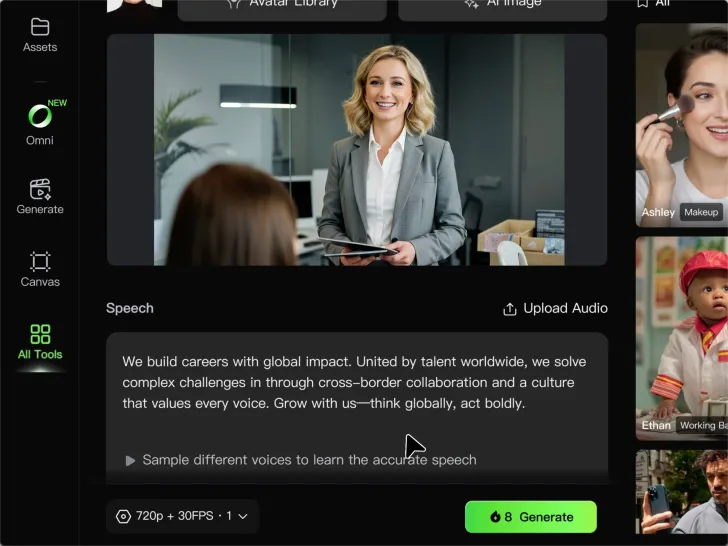
Add the Voice

Add the Voice

Upload a finished recording, or enter the lines you want the character to deliver. With text to speech, select a voice and adjust its speed and emotional tone. Use punctuation to place pauses where they naturally belong, especially in longer passages.

Shape the Performance

Shape the Performance

Describe how the character should feel, react, and move while speaking. You can write the direction yourself or begin with one of the performance options Kling AI suggests for the selected character. Generate the video and review the delivery.

Go from Written Scene to Directed Sequence

See Your Scene as More Than One Shot

See Your Scene as More Than One Shot

A conversation does not have to stay on one camera angle. An action beat does not have to play out in a single wide shot. Turn on Multi-Shot and Kling can plan scene transitions, framing, and camera-angle changes around what you wrote. A simple story beat can move from an establishing shot to a character close-up, then cut again when the action calls for it.
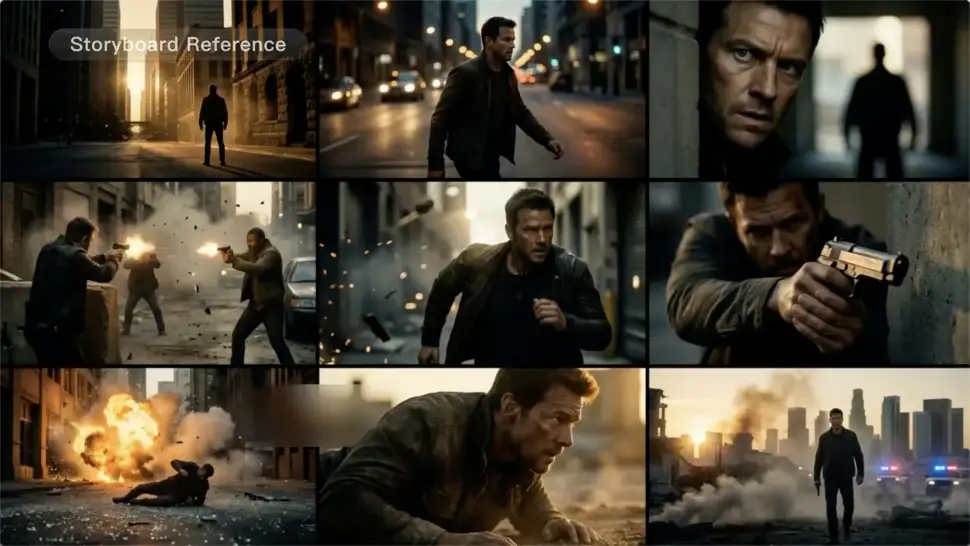
Take Over the Storyboard When the Shot Matters

Take Over the Storyboard When the Shot Matters

When you already know how the scene should be covered, use Custom Multi-Shot instead of leaving every decision to the model. Decide what happens in each shot, how long it lasts, whether the camera is wide or close, which angle you want, and how the camera moves. It gives you a practical way to turn screenplay direction or a rough shot list into something Kling can generate.

Bring the Same Character into the Next Shot

Bring the Same Character into the Next Shot

A cut should not feel like a new actor walked into the scene. Use a Character Element when someone needs to return across different angles, actions, or settings, and make it clear in the prompt which character belongs in each shot. For workflows that need a richer mix of character, image, video, and scene references, VIDEO 3.0 Omni gives you more ways to anchor the people and visual details your story depends on.
Apps

Image to Video
Image to Video

Image to Video

Text to Video
Text to Video

Text to Video

Omni
Omni

Omni

Digital Human
Digital Human

Digital Human

Restyle
Restyle

Restyle

Text to Image
Text to Image

Text to Image

60M+
60M+
Users
600M+
600M+
AI Videos Generated
4.7 ★
4.7 ★
App Store
Industry-Leading
Industry-Leading
Cinematic 4K

Reviews

Samuele Poggi (@visualsk2)

Samuele Poggi (@visualsk2)

★★★★★

I use Kling AI daily to push the limits of AI filmmaking. It allows me to create highly cinematic content, blending AI and VFX to develop innovative projects. It has significantly impacted my creative process, enabling me to achieve complex animations that would otherwise require high production budgets.

Déborah

Déborah

★★★★★

I use Kling AI every day. It's amazing to see the almost daily progress it makes. I used AI for fun at first, and I now find that Kling AI's animations allow me to gain professional visibility, with three times more views on my animated posts than on my static posts.
Maria Rubtsova

Maria Rubtsova

★★★★★

I’m Maria Rubtsova, an AIGC digital artist passionate about creating stunning visuals in the worlds of fashion, aesthetics, and fantasy. I use KlingAi to bring imagination to life through video. My work is all about exploring beauty, emotion, and the limitless possibilities of digital art.

FAQ

Q1Can I enhance or upscale a photo with Kling AI?
Q2What is the difference between an AI photo editor and an AI image generator?
Q3Can I remove or replace part of a photo?

Remove the Background. Create What Comes Next.

Remove the background, replace the scene, and take your visual somewhere new with Kling AI.

Free tier available | Image and video workflows | High-resolution options