Dancing Banner Design Ideas – AI Image Concepts
Discover AI-generated dancing banner design ideas. Create stunning banners with AI help, ideal for events and promotions.
Discover AI-generated dancing banner design ideas. Create stunning banners with AI help, ideal for events and promotions.
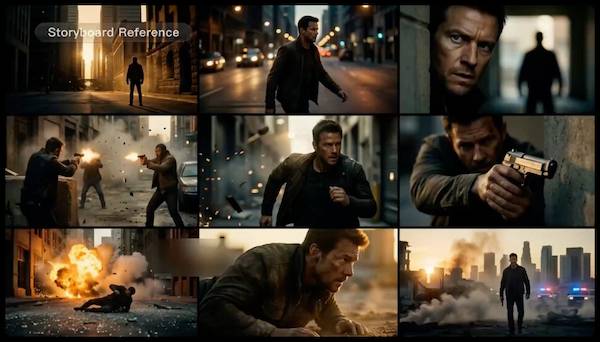
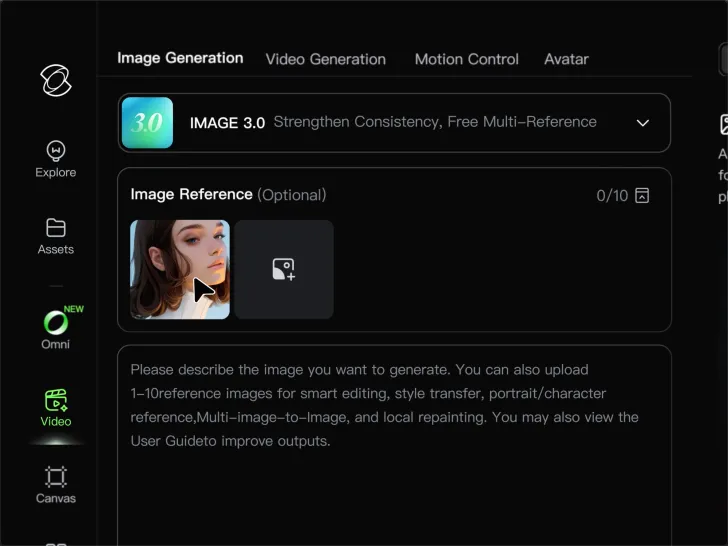
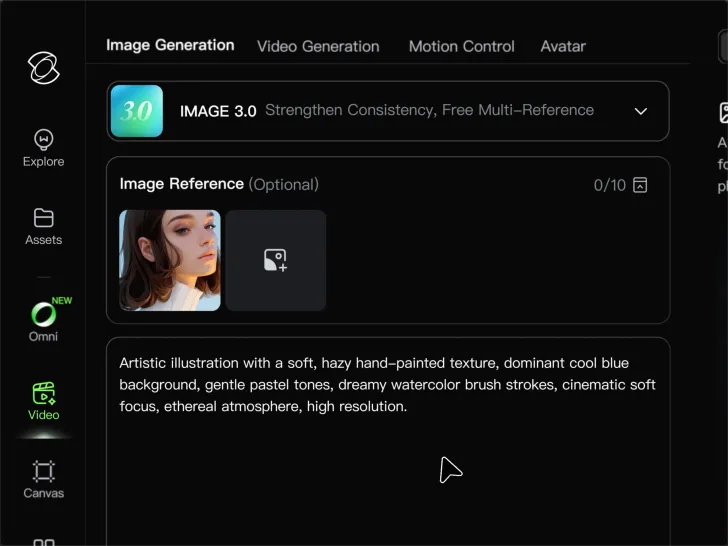
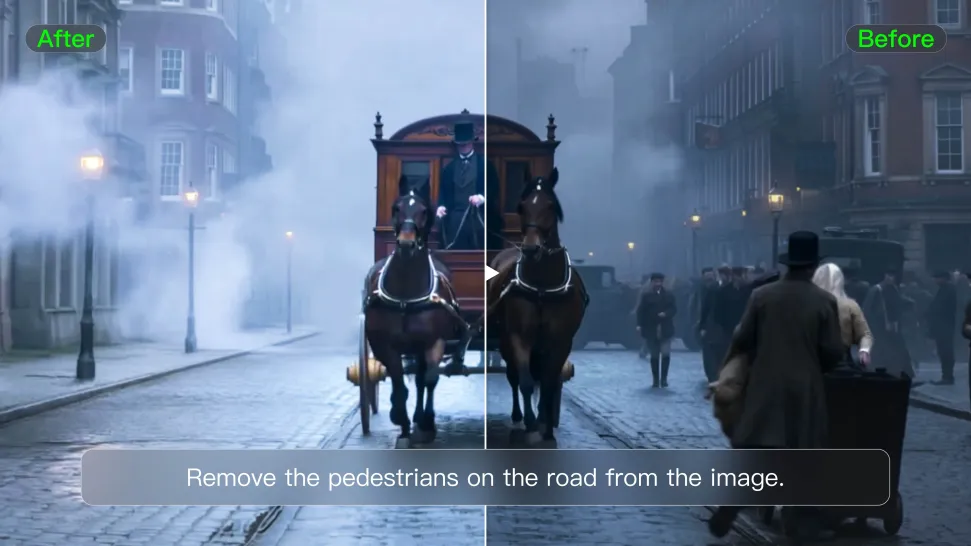
Tell Kling what you want to change in text prompts. Replace a person, remove an object, or fine-tune details such as color, material, pose, and expression. Even detailed edits take fewer and easier steps because you can change the photo with AI instead of with traditional photo editing tools. IMAGE 3.0 follows your instruction while keeping the photo’s original style, lighting, and texture in place, so the edited area still belongs in the same shot.
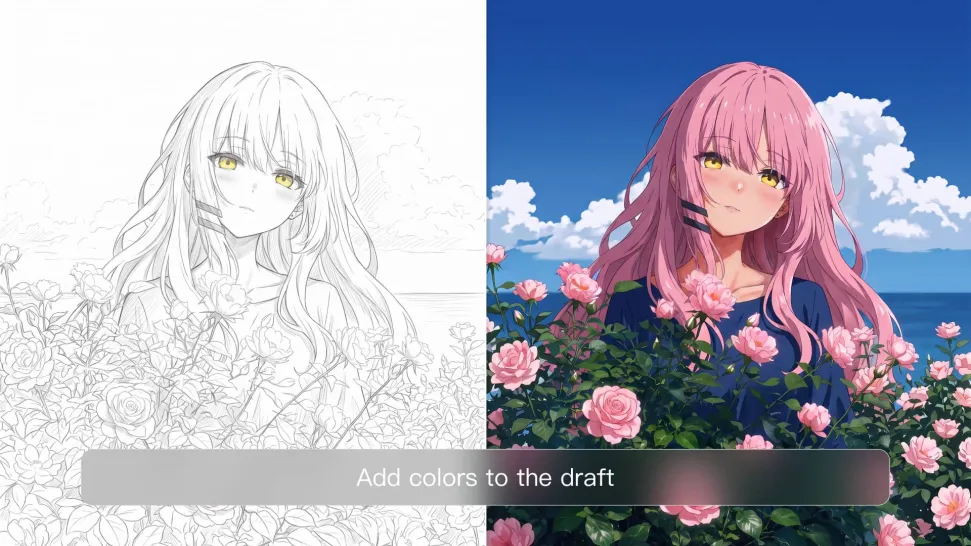
Give an existing photo a different mood effortlessly. Lift a dim scene, soften harsh light, warm or cool the colors, or bring color to a black-and-white photo or line drawing. A short prompt replaces the usual round of manual adjustments. Looking for a bigger shift? Add a style reference or spell out the visual direction. IMAGE 3.0 carries the palette, texture, and atmosphere across the whole image, so the new look feels cohesive rather than pasted on. Use it for studio-style professional headshots, distinctive portrait treatments, cinematic scene design, or a visual style that feels entirely your own.
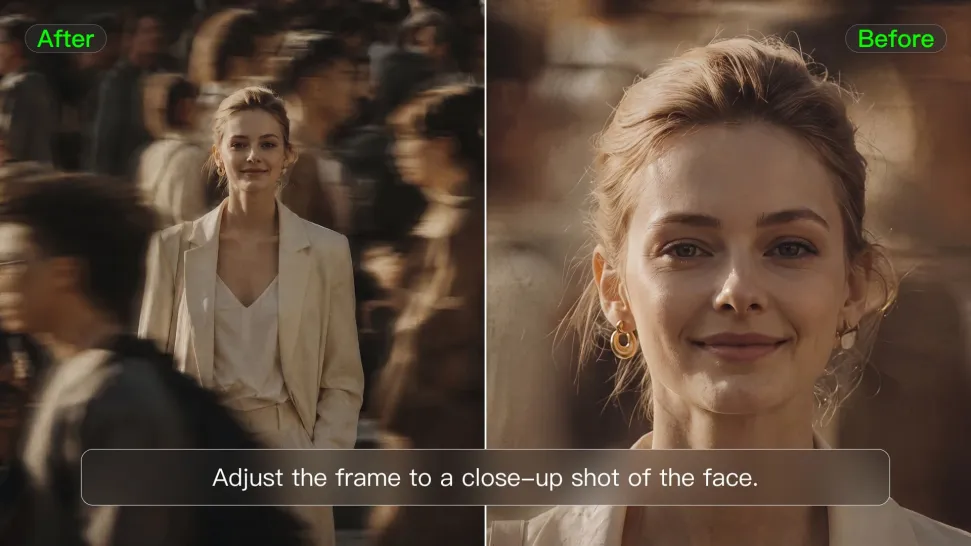
Tell Kling how you want the shot to look in a text prompt. Turn a front-facing photo into a side view, move the camera higher or lower, or change a wide shot into a close-up. You can explore a new composition around the same subject without setting up another shoot. IMAGE 3.0 rebuilds the scene from the angle you request, adjusting the perspective, camera height, shot size, focal length, and depth of field along with it. The result is a newly generated view based on the source photo, rather than hidden details recovered from outside the original frame.



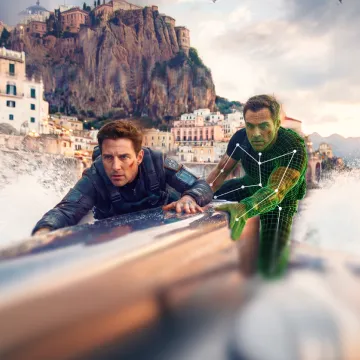

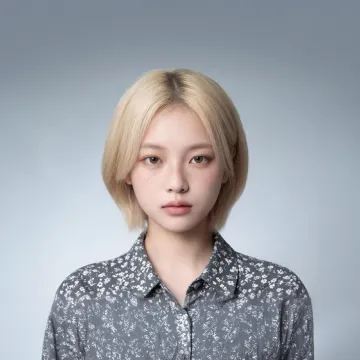

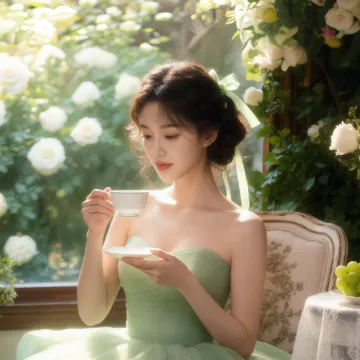

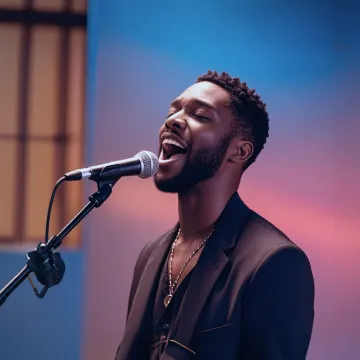





Kling AI has made it easy for us to generate world class visuals for Fortune 500 companies, TV shows and music for big artists. We love the easy of use of the platform and the quality of the generations. My first time using Kling AI, I got 22 million views on just one video. It's that good.
Kling AI allows me to rapidly prototype ideas, refine storytelling elements, and produce visually compelling content efficiently. It has not only accelerated my creative processes, but also deepened my understanding of how AI can enrich visual storytelling.
I’m Maria Rubtsova, an AIGC digital artist passionate about creating stunning visuals in the worlds of fashion, aesthetics, and fantasy. I use KlingAi to bring imagination to life through video. My work is all about exploring beauty, emotion, and the limitless possibilities of digital art.
Start with a sentence, a sketch, or a reference photo. Shape the composition, dial in the details, and keep iterating in Kling AI.
Free tier available | Text-to-image | Image-to-image | Fast generation