Creative Studio
API
Resources
Features
About Us
Download

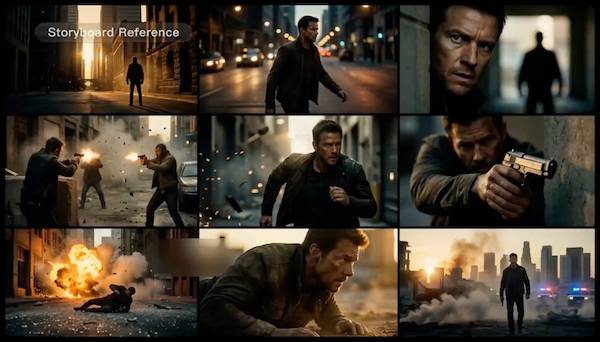
AI-generated Japan-themed animation ideas

Discover AI-created animations inspired by Japanese culture. Customize and bring your ideas to life with AI help.
AI-generated Japan-themed animation ideas

Recommended

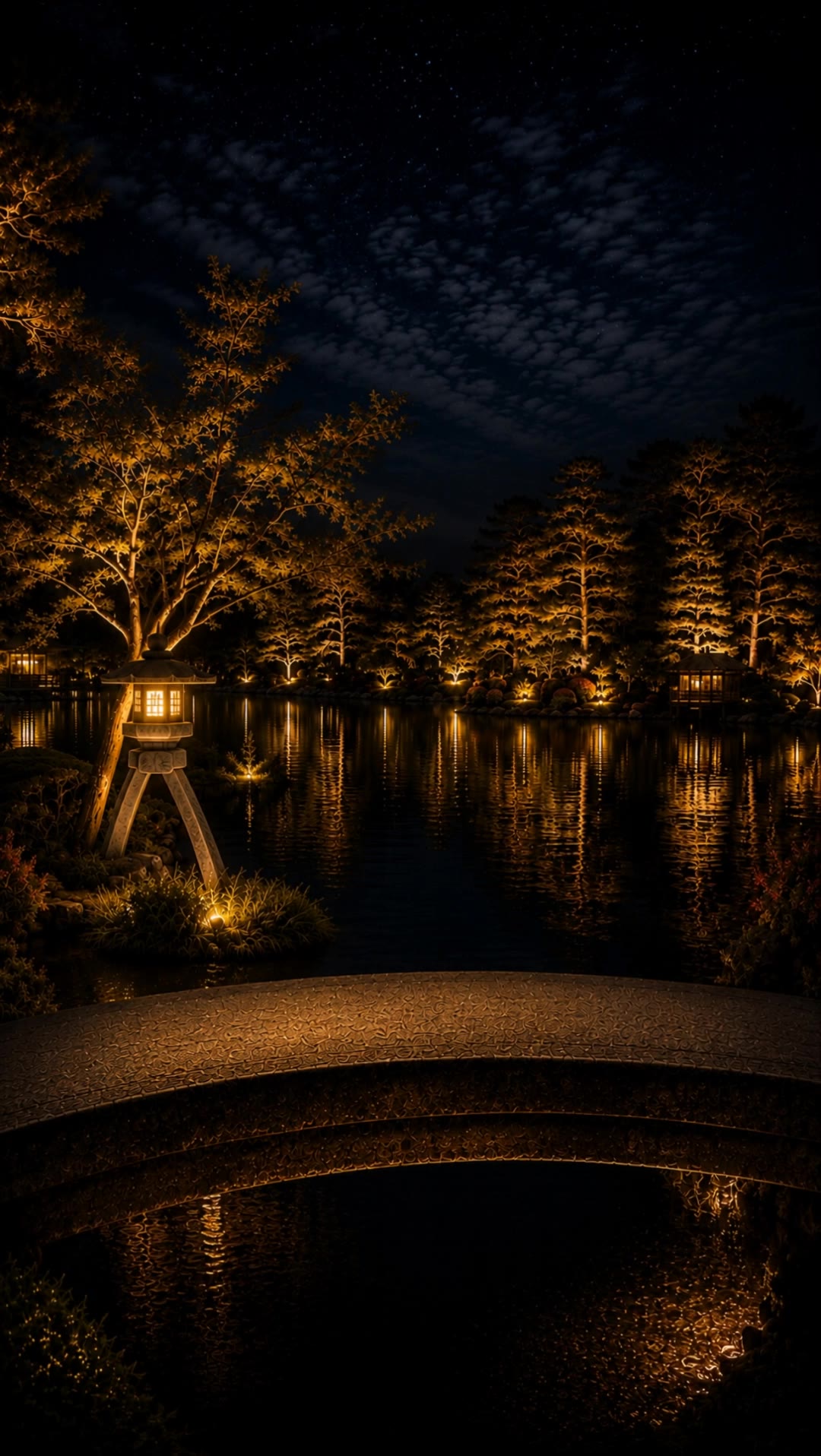
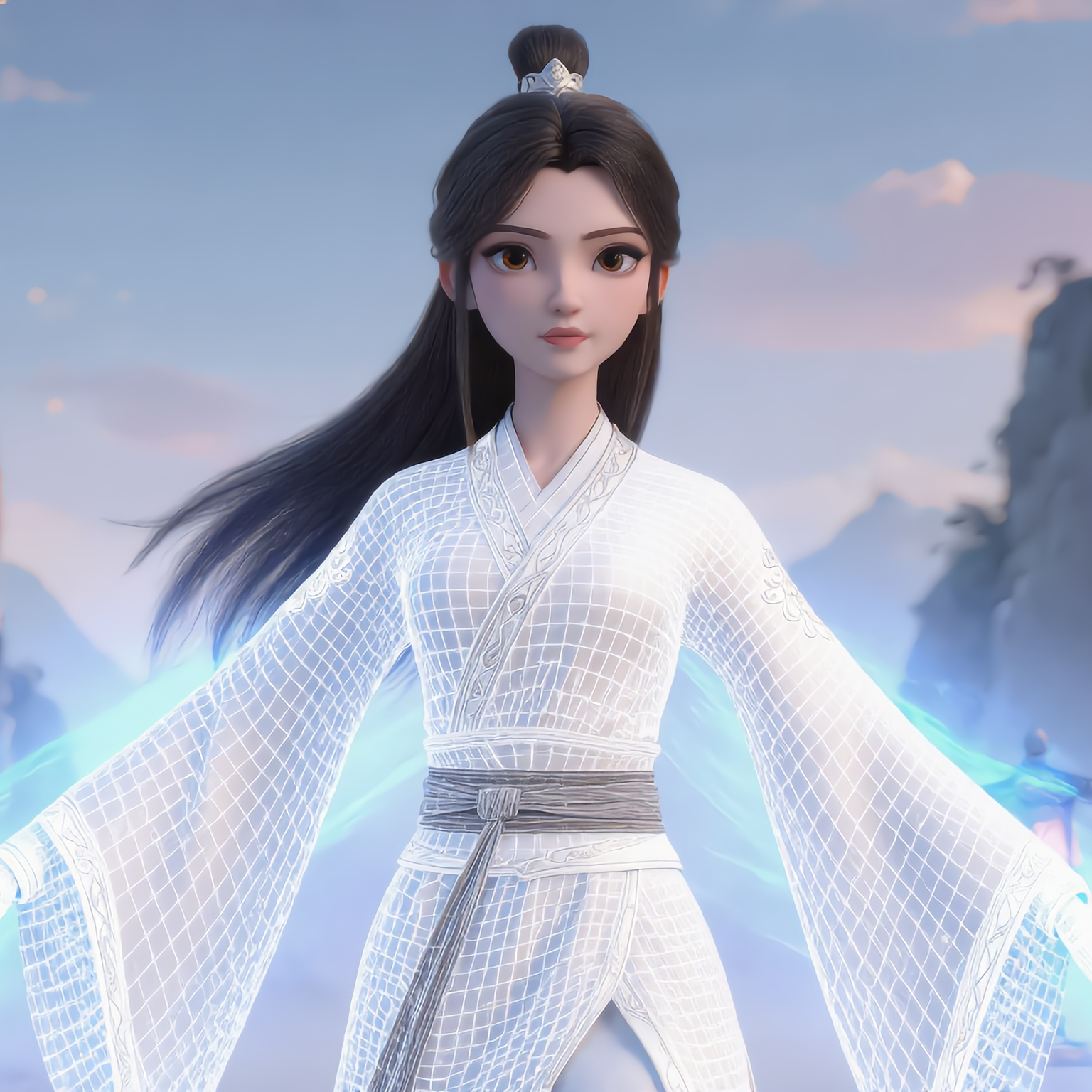
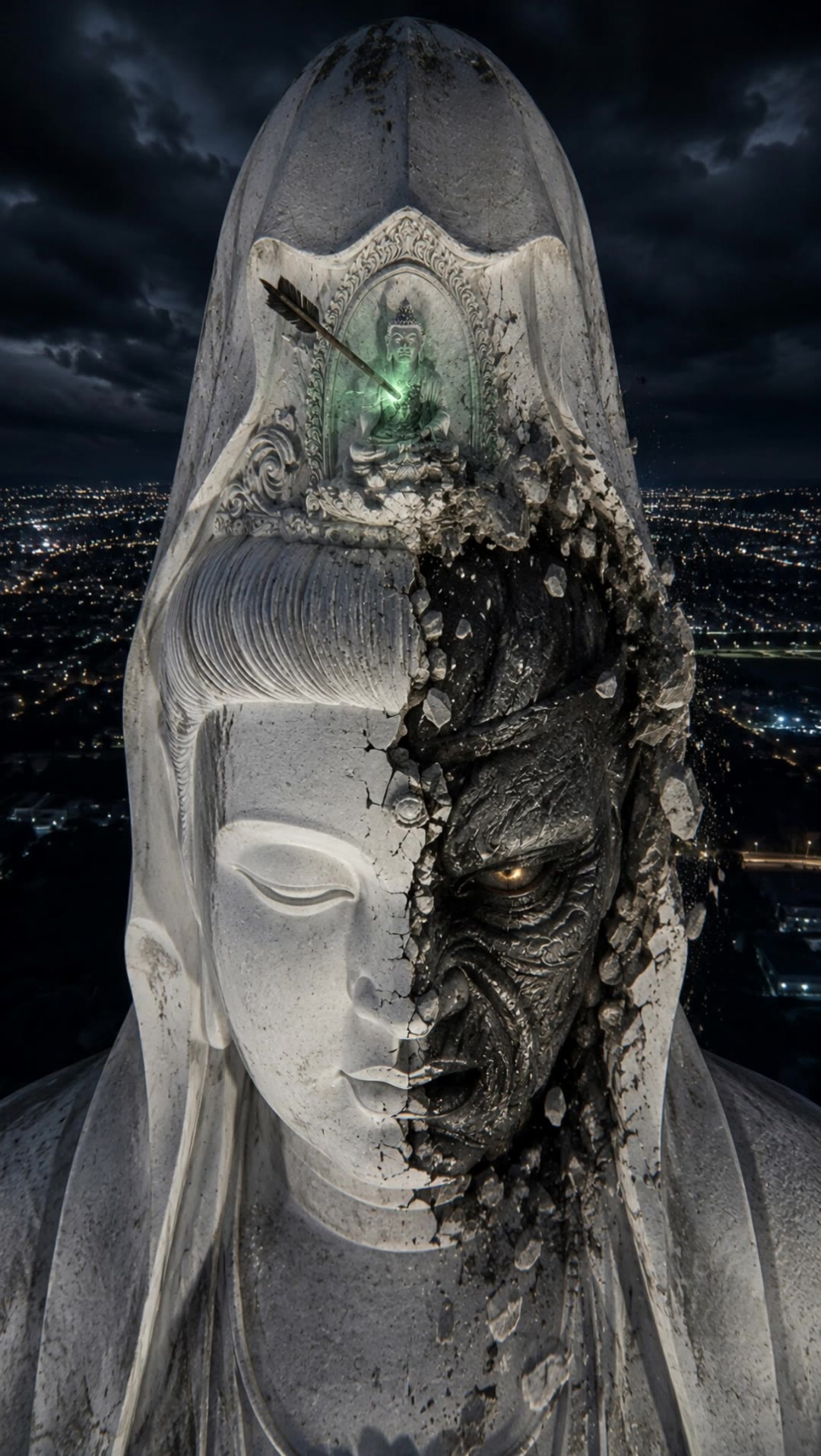
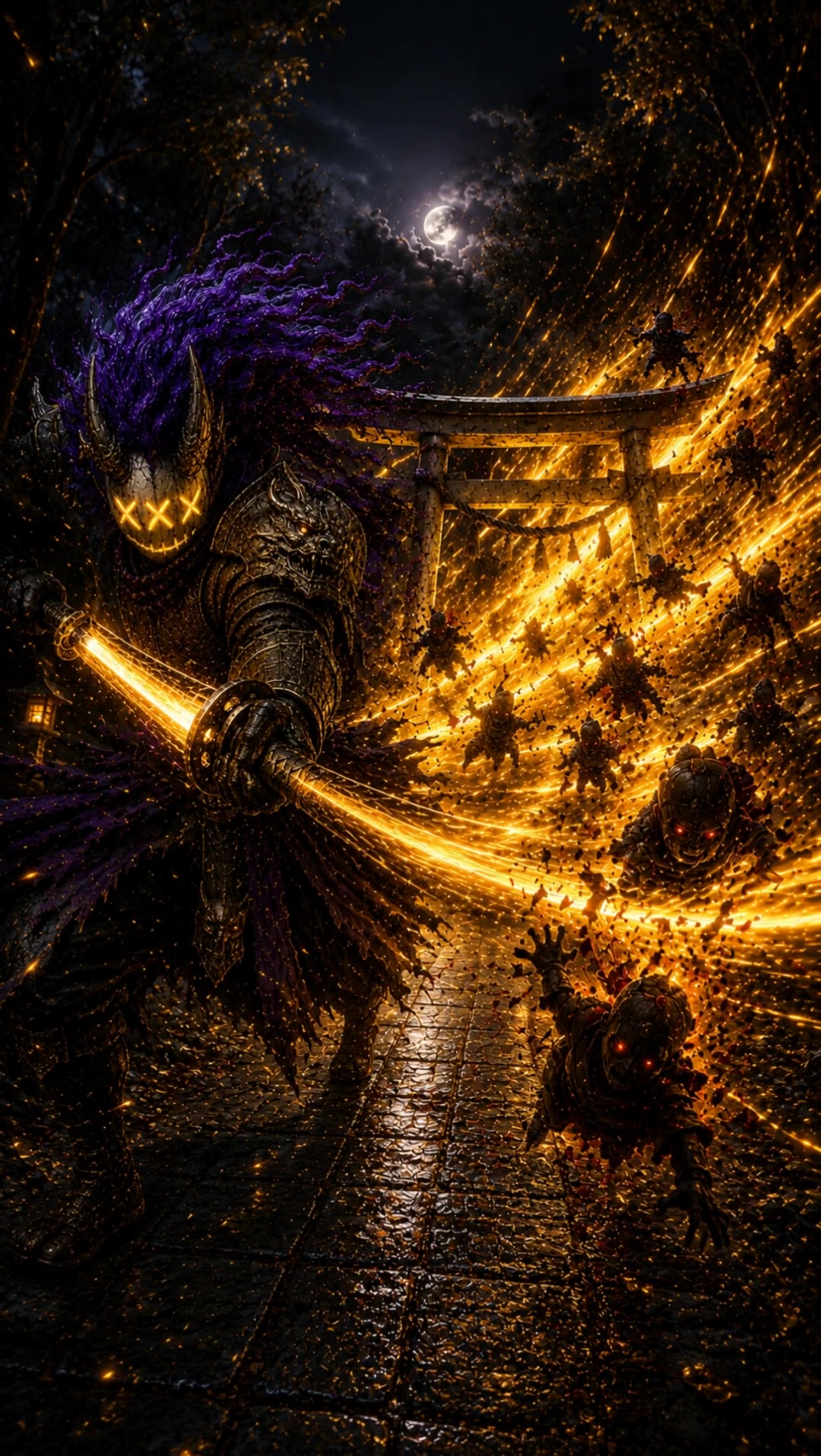
Kling AI work 313423335525134 - japan animation AI image
PerTZalO avatar
PerTZalO
JAPAN - japan animation AI video
Takkyboy avatar
Takkyboy
JAPAN - japan animation AI video
Takkyboy avatar
Takkyboy
JAPAN SAITAMA - japan animation AI video
Takkyboy avatar
Takkyboy
Kling AI work 314725029507930 - japan animation AI image
IZOHkdby avatar
IZOHkdby
citypop japan - japan animation AI video
ESDWxzvv avatar
ESDWxzvv
JAPAN SAITAMA - japan animation AI video
Takkyboy avatar
Takkyboy
IBARAKI JAPAN - japan animation AI video
Takkyboy avatar
Takkyboy
Kling AI work 314725029528933 - japan animation AI image
IZOHkdby avatar
IZOHkdby
The wizard arrives in Japan 🗾 - japan animation AI video
jmigaAja avatar
jmigaAja
JAPAN - japan animation AI video
Takkyboy avatar
Takkyboy
WC2026 Fan Mascot 🇯🇵 Japan - japan animation AI video
Ady Media Design avatar
Ady Media Design
Elite Creator
JAPAN - japan animation AI video
Takkyboy avatar
Takkyboy
Kling AI work 298568389528478 - japan animation AI video
mojzFxjM avatar
mojzFxjM
IBARAKI JAPAN - japan animation AI video
Takkyboy avatar
Takkyboy
JAPAN - japan animation AI video
Takkyboy avatar
Takkyboy
GUNMA JAPAN - japan animation AI video
Takkyboy avatar
Takkyboy
Through Japan - japan animation AI video
Artemon The Great avatar
Artemon The Great
JAPAN - japan animation AI video
Takkyboy avatar
Takkyboy

How to Create an AI Video from a Script

Start with a Scene or Story Beat

Start with a Scene or Story Beat

Paste in the part of your script you want to see on screen. Include the setting, characters, action, and dialogue that matter to the scene. Camera direction and visual style can stay simple at first, you can get more specific when you start shaping the shots.

Turn the Scene into a Shot Sequence

Turn the Scene into a Shot Sequence

Switch on Multi-Shot and let Kling work out the scene transitions and camera coverage from your prompt. Already have the sequence in your head? Open Custom Multi-Shot and lay out the individual shots yourself, including how long they last and what happens in each one.

Generate with Native Audio

Generate with Native Audio

Set the duration and available output options, then generate your sequence. Native Audio can bring dialogue, ambience, and sound effects into the same generation, so the result does not have to begin as a silent set of shots. Kling VIDEO 3.0 supports scenes up to 15 seconds in a single generation.

Create AI Art with More Creative Control

Bring More Than a Prompt to Your Art

Bring More Than a Prompt to Your Art

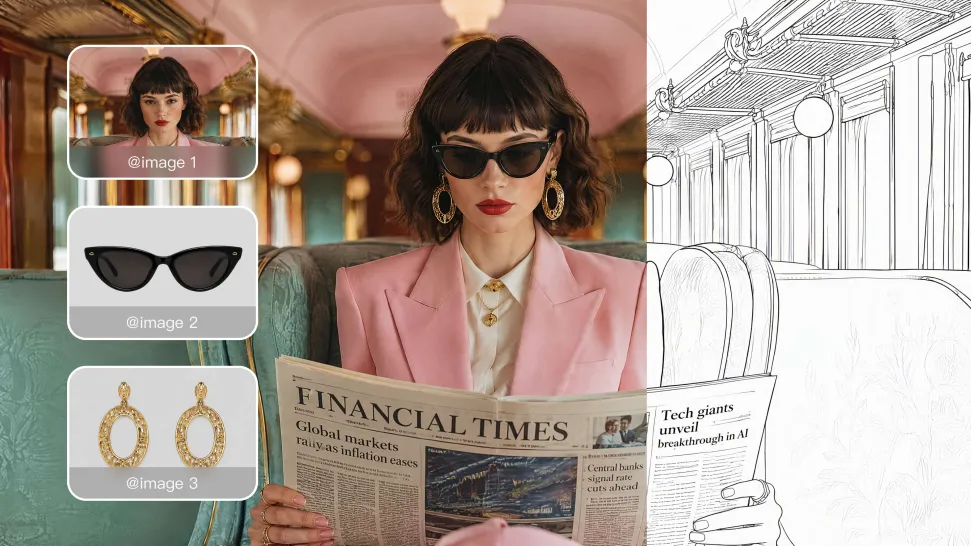
Start with words, a sketch, a photo, or the references that already capture part of your idea. IMAGE 3.0 can use up to 10 reference images, so you can bring a character from one image, an outfit from another, and a different setting or art style into the same creation. Use references for the details you want to keep, then use your prompt to decide what changes.
Find the Look That Fits Your Idea

Find the Look That Fits Your Idea

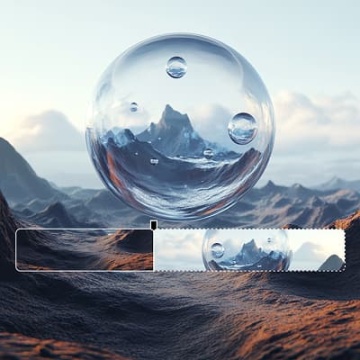
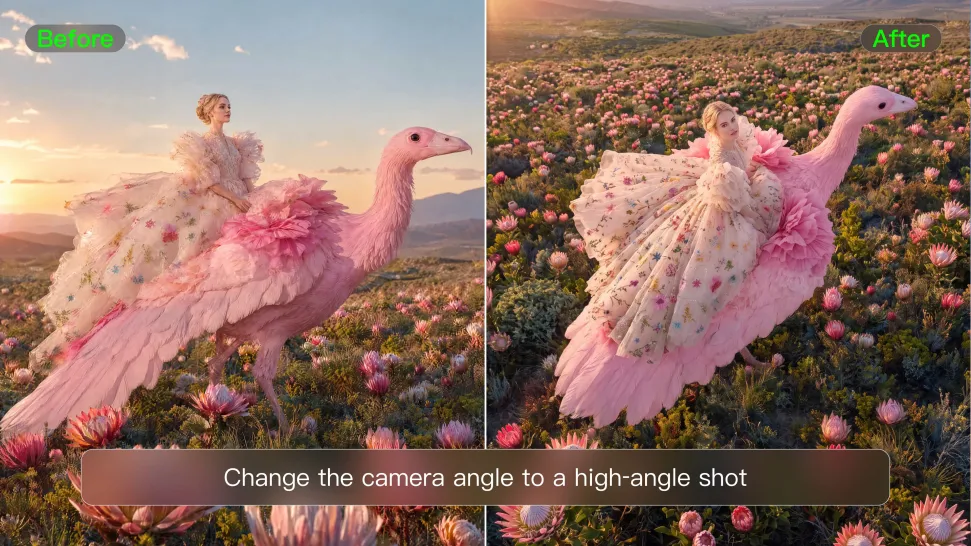
Create pencil drawings, watercolor paintings, anime art, comics, concept art, 3D-inspired images, and more. Try a completely different style, or fine-tune the one you already have. Kling AI also gives you control beyond the art style. Reframe the scene, shift the viewing angle, change the lighting or color palette, and keep refining the image until the whole piece comes together
Create a Series, Not Just a Single Image

Create a Series, Not Just a Single Image

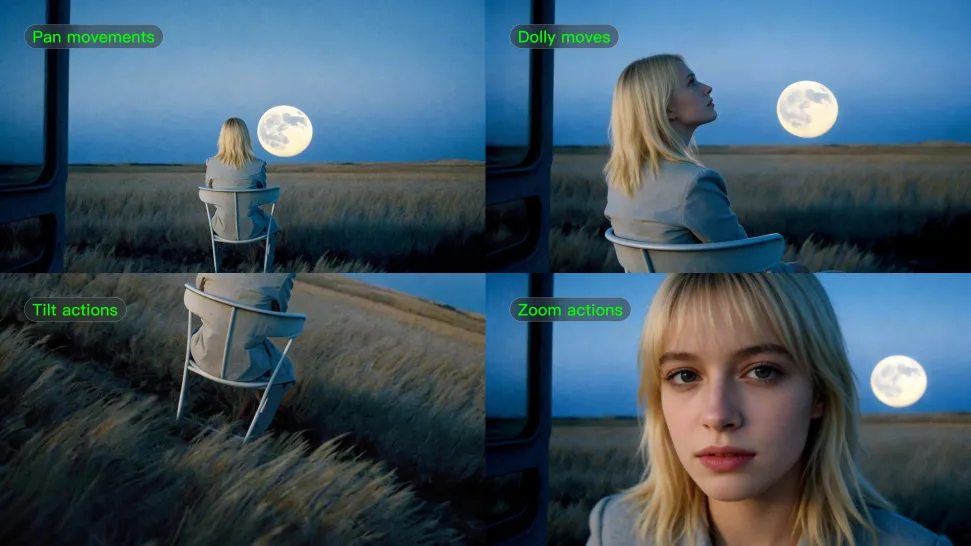
Keep a character, setting, or visual style recognizable across multiple pieces of artwork with IMAGE 3.0 Omni. Generate new poses, scenes, and compositions while keeping the details that tie the series together. It works especially well for character concepts, comics, storyboards, and other ideas that need to develop across several images. Generate in native 2K or 4K when you want more detail in the finished artwork.
Apps

Image to Video
Image to Video

Image to Video

Text to Video
Text to Video

Text to Video

Omni
Omni

Omni

Digital Human
Digital Human

Digital Human

Restyle
Restyle

Restyle

Text to Image
Text to Image

Text to Image

60M+
60M+
Users
600M+
600M+
AI Videos Generated
4.7 ★
4.7 ★
App Store
Industry-Leading
Industry-Leading
Cinematic 4K

Reviews

Vincent Smadja

Vincent Smadja

★★★★★

Kling AI seamlessly integrates into my creative workflow, playing a key role in transforming my images. After generating and upscaling an image, Kling becomes a crucial element, bringing my creations to life with movement and depth.

Déborah

Déborah

★★★★★

I use Kling AI every day. It's amazing to see the almost daily progress it makes. I used AI for fun at first, and I now find that Kling AI's animations allow me to gain professional visibility, with three times more views on my animated posts than on my static posts.
Maria Rubtsova

Maria Rubtsova

★★★★★

I’m Maria Rubtsova, an AIGC digital artist passionate about creating stunning visuals in the worlds of fashion, aesthetics, and fantasy. I use KlingAi to bring imagination to life through video. My work is all about exploring beauty, emotion, and the limitless possibilities of digital art.

FAQ

Q1Will recoloring preserve the original texture and shadows?
Q2Can AI recolor one area without changing the rest of the image?
Q3Can I use a hex code or reference image to guide the target color?

Get More From Your Video in 4K

Keep the footage you already have and give it a higher-resolution finish. Upscale short videos to 4K, bring out more visible detail, and use prompts or references when you want more control over the final result.