Creative Studio
API
Resources
Features
About Us
Download

Kissing Kling 2 – Explore AI-Generated Ideas

Discover AI-generated ideas with Kissing Kling 2. Quickly explore and adapt AI-made visuals for your creative projects.
Kissing Kling 2 – Explore AI-Generated Ideas

Recommended

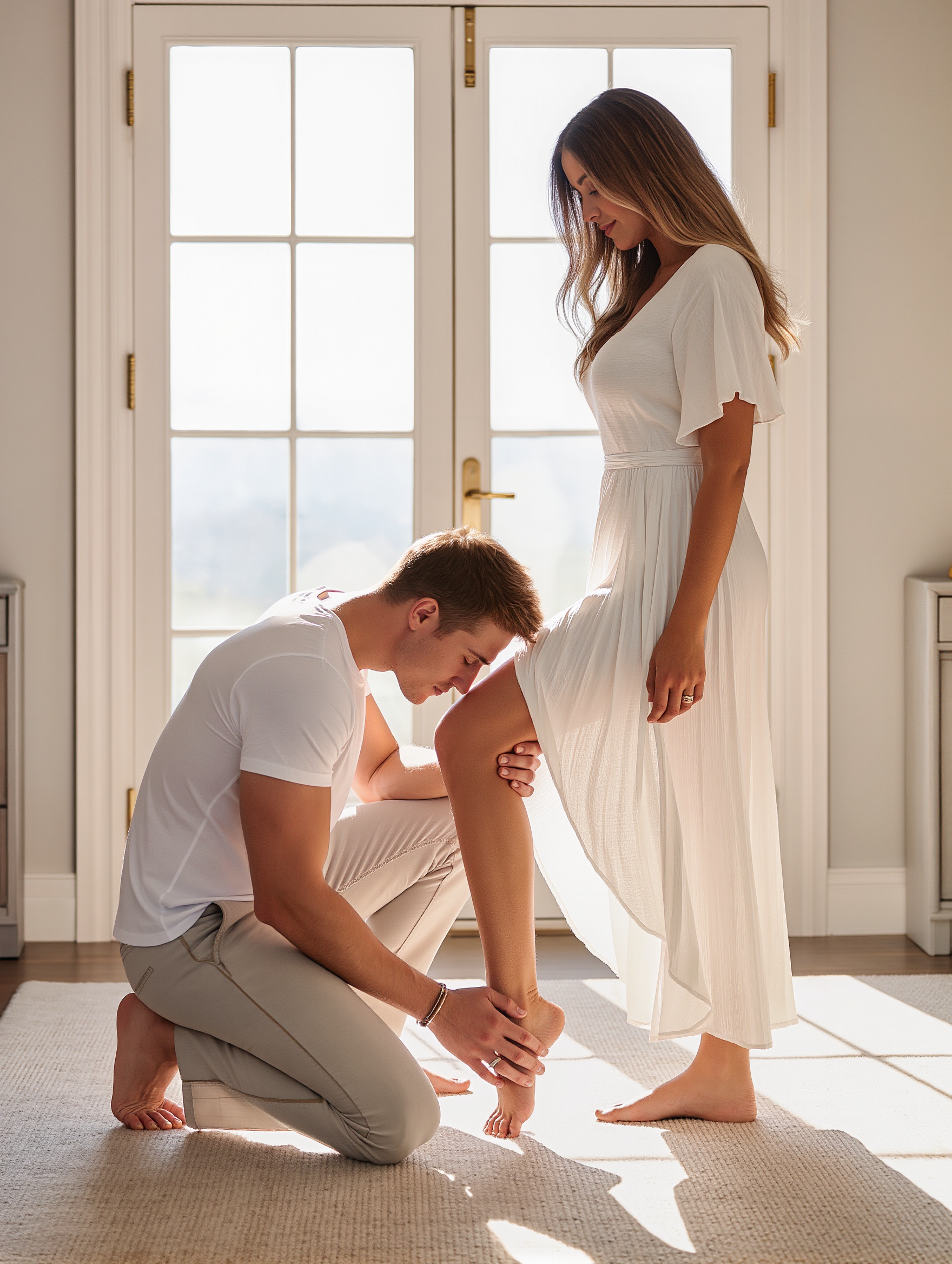
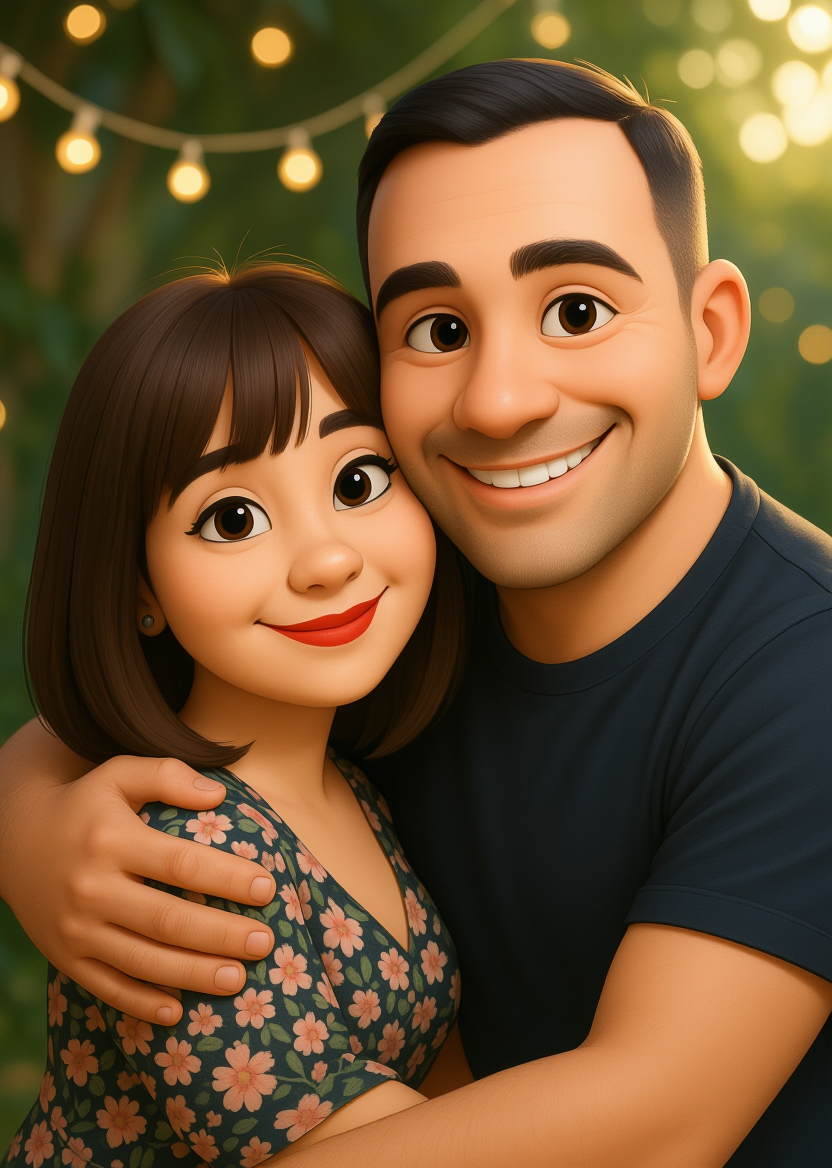
Kling AI work 316502712500030 - kissing kling 2 AI image
YImtwMuv avatar
YImtwMuv
Kling AI work 309786807526858 - kissing kling 2 AI image
tROIpMhp avatar
tROIpMhp
kling saves humanity - kissing kling 2 AI video
medtkr avatar
medtkr
with KLING - kissing kling 2 AI video
01:34
TeckTalkNavi avatar
TeckTalkNavi
Creative Partner
Kling AI work 310440782662877 - kissing kling 2 AI image
ADvNfYqL avatar
ADvNfYqL
Kling AI work 315877061325321 - kissing kling 2 AI video
FpdUWwDq avatar
FpdUWwDq
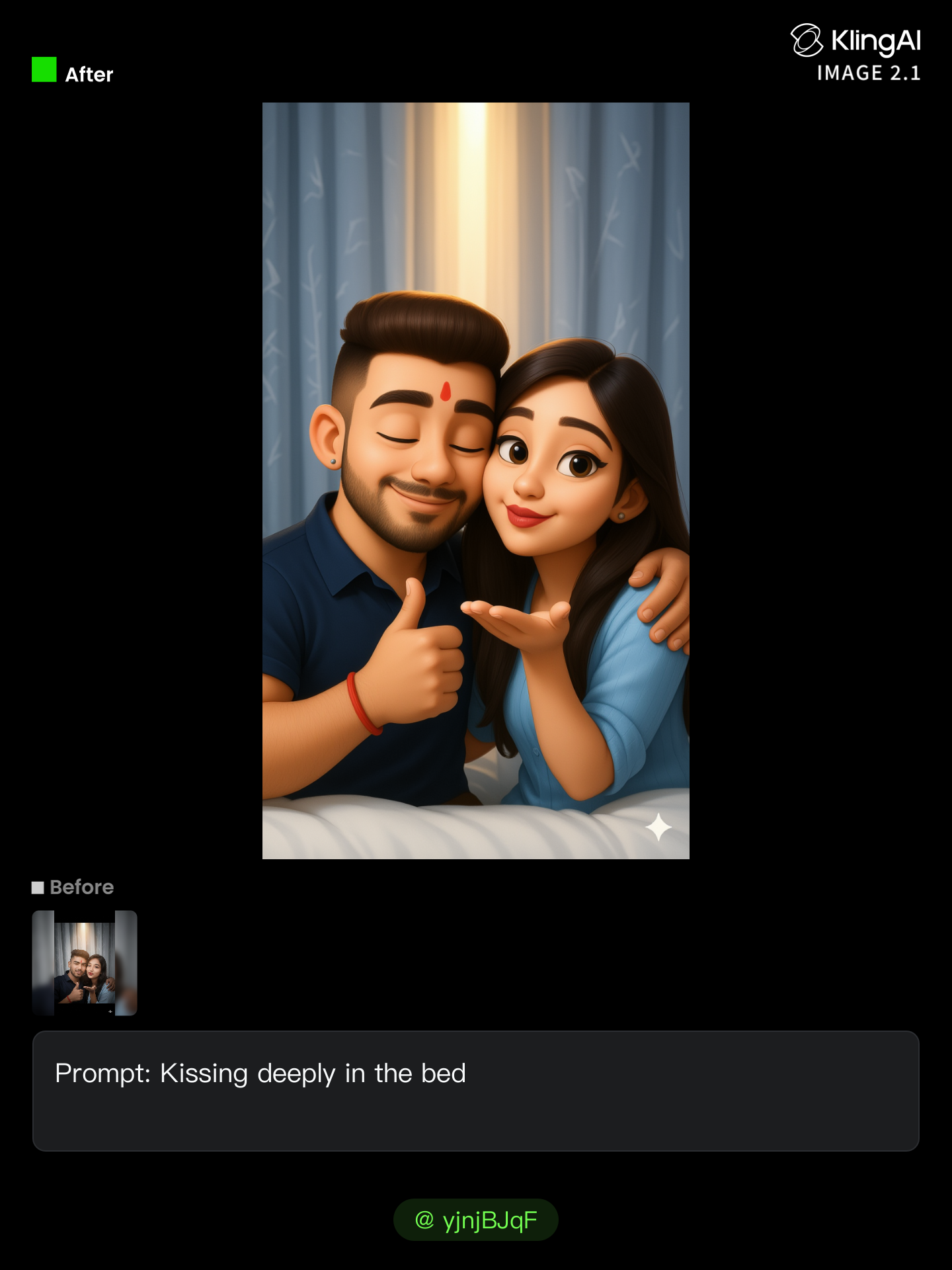
Kling AI work 311014154611095 - kissing kling 2 AI image
yjnjBJqF avatar
yjnjBJqF
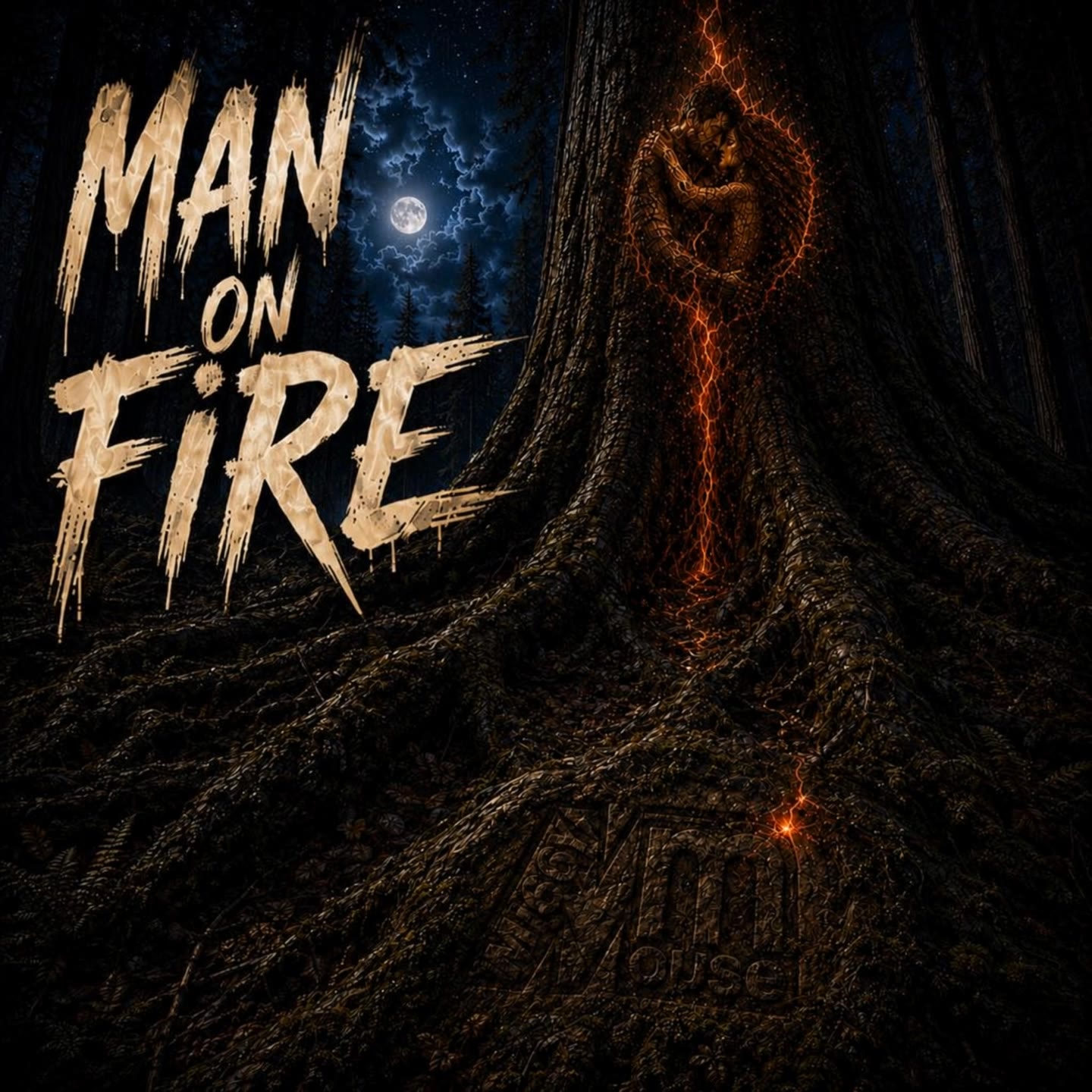
Mi66y Mouse outside the house  - kissing kling 2 AI video
xlkdzyCV avatar
xlkdzyCV
Kling AI work 296637235664937 - kissing kling 2 AI video
KPHoMPwi avatar
KPHoMPwi
Anniversary 2 Kling - kissing kling 2 AI video
01:34
Anipiculi avatar
Anipiculi
Kling AI work 303305986501741 - kissing kling 2 AI image
simone avatar
simone
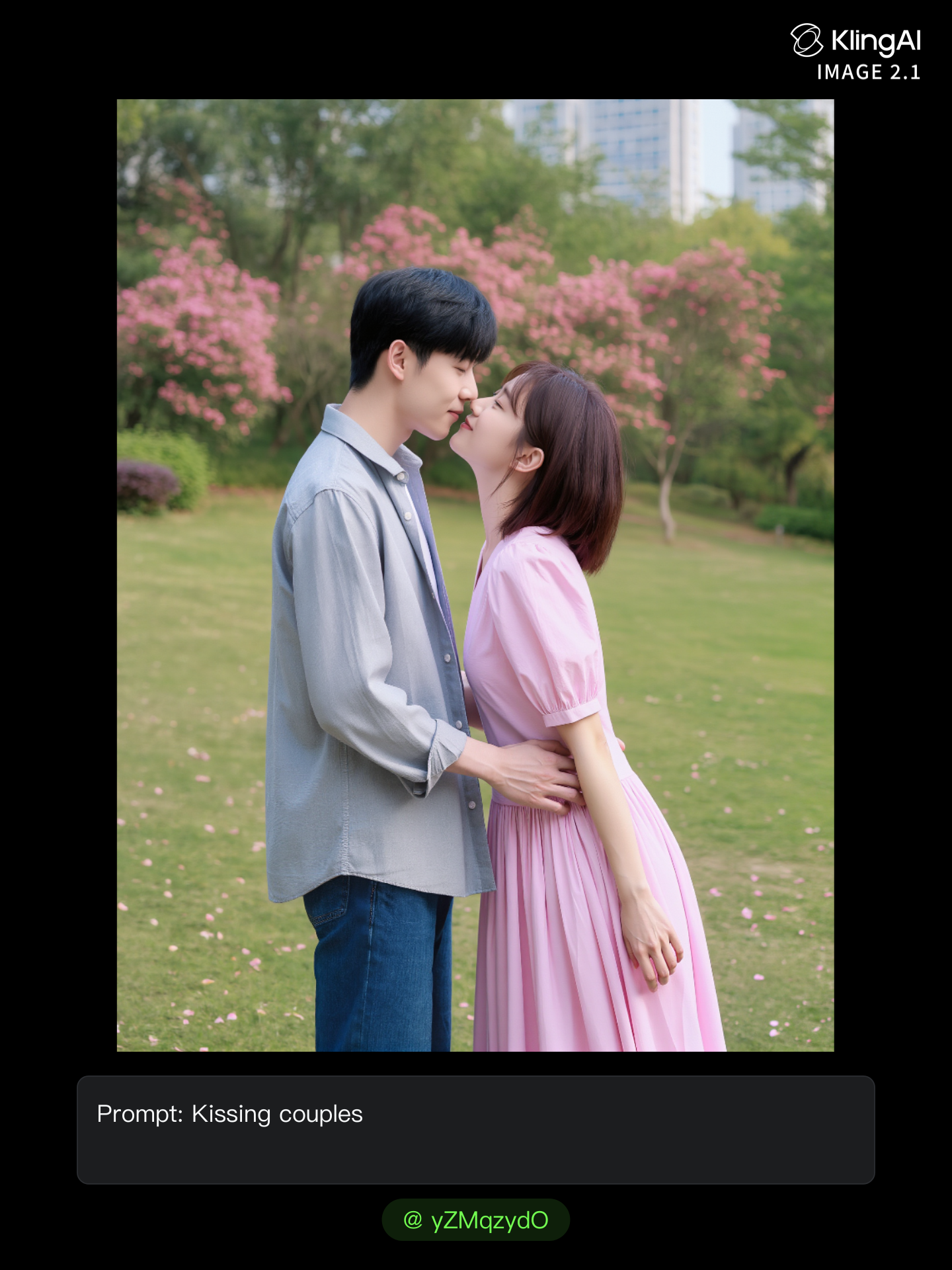
Kling AI work 311191585667774 - kissing kling 2 AI image
yZMqzydO avatar
yZMqzydO
Kling AI work 315243844616023 - kissing kling 2 AI video
tbHmNuan avatar
tbHmNuan
Kling AI work 313631981521184 - kissing kling 2 AI image
Hepzibah Aroma avatar
Hepzibah Aroma
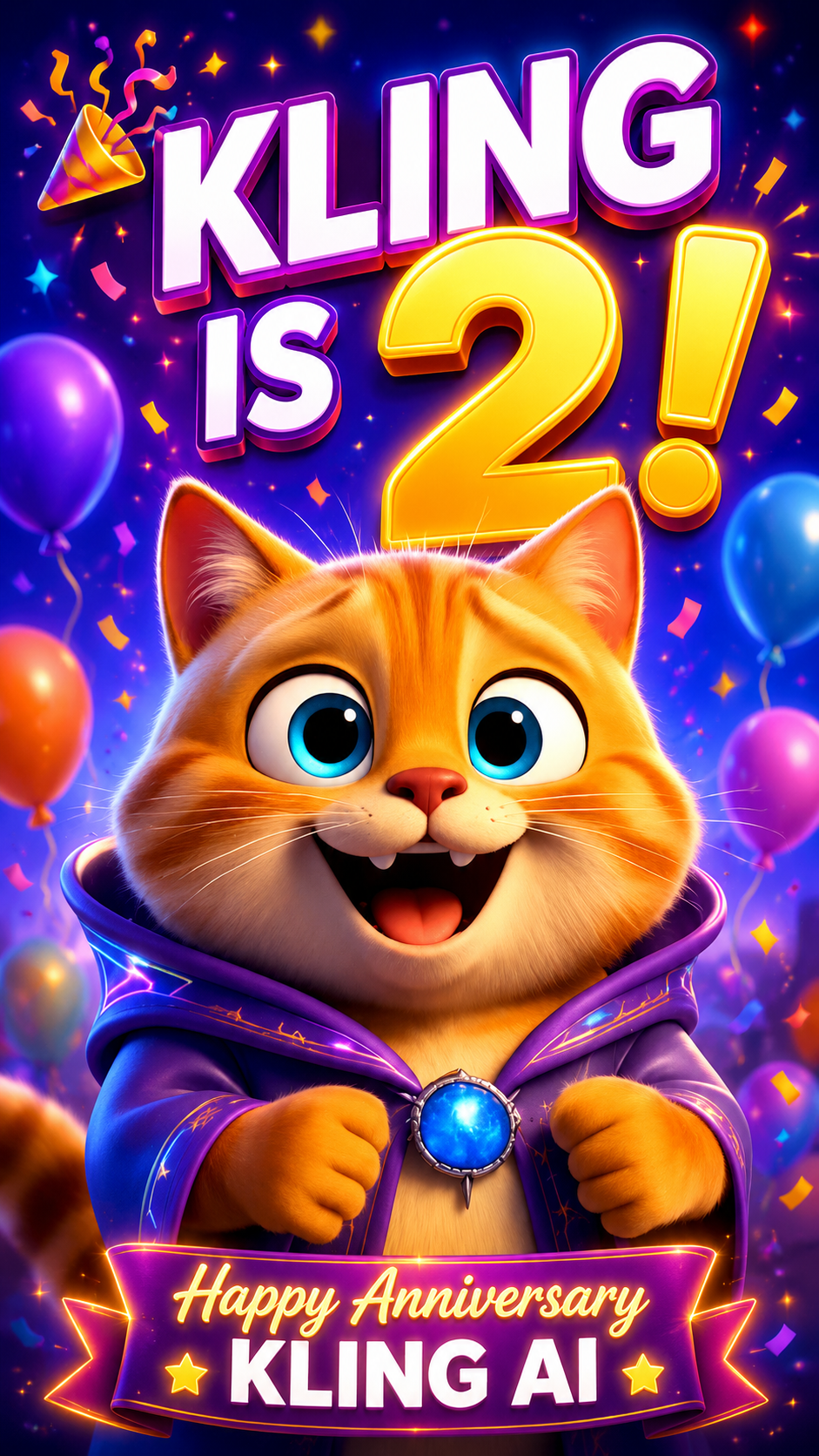
Kling is 2 - kissing kling 2 AI video
00:15
mFTGgJgF avatar
mFTGgJgF
Elite Creator
Kling AI work 311191670612420 - kissing kling 2 AI image
yZMqzydO avatar
yZMqzydO
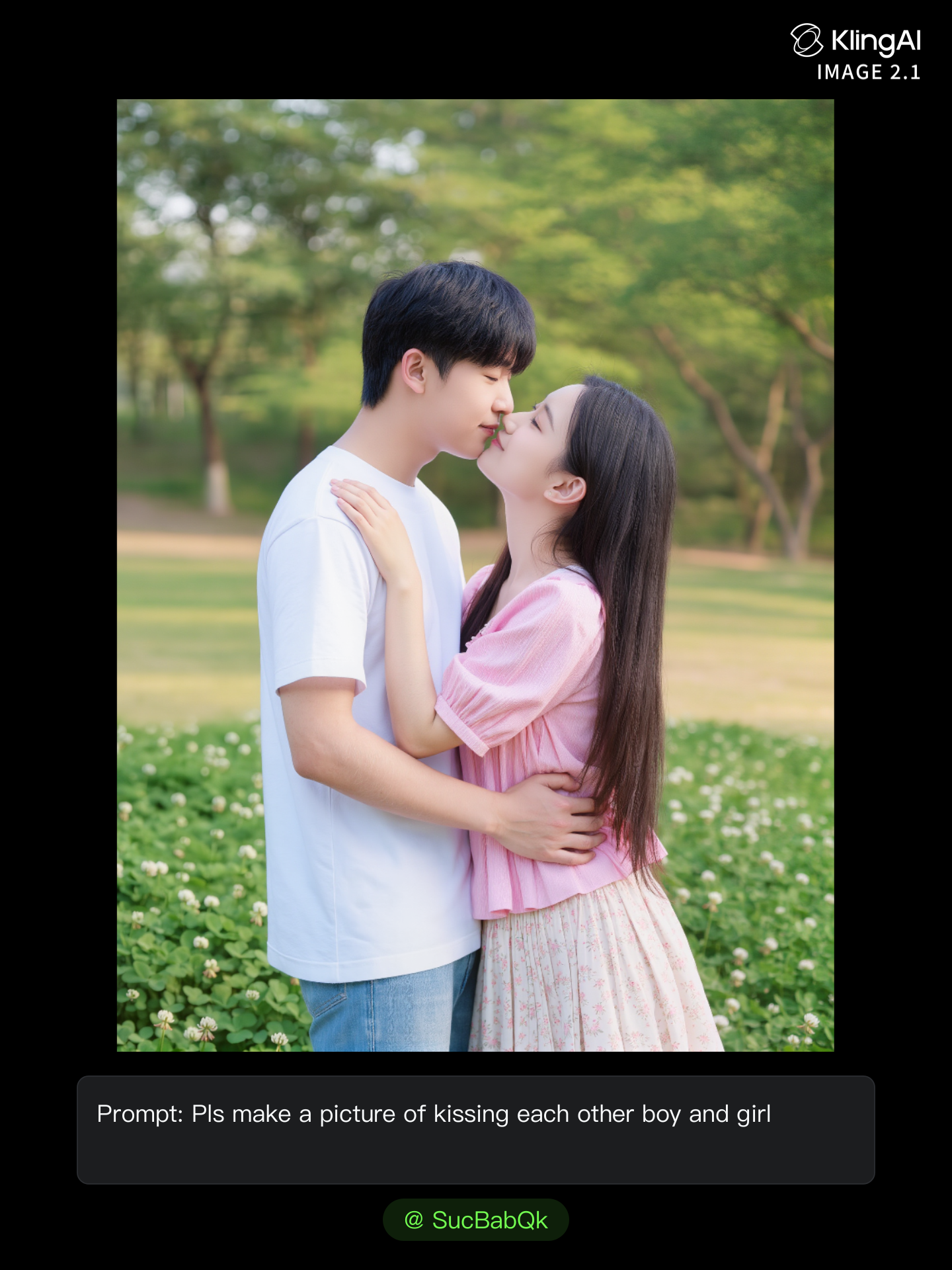
Kling AI work 315026237617297 - kissing kling 2 AI image
SucBabQk avatar
SucBabQk

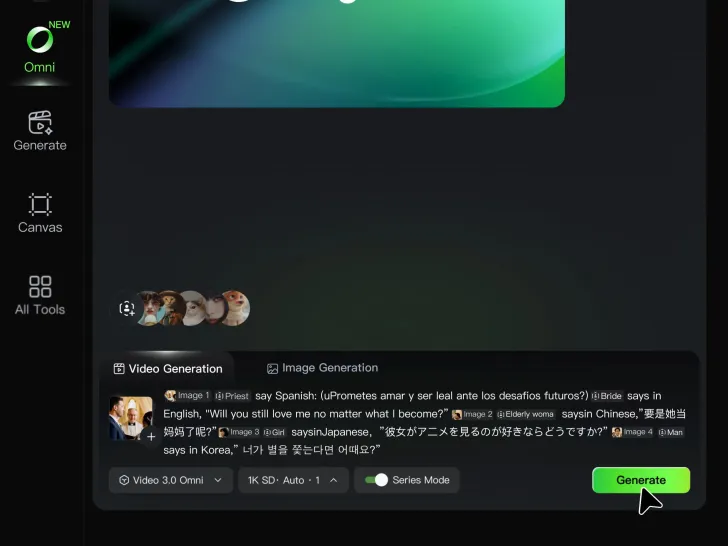
How to Create AI Video Dubbing with Kling

Step 1: Set Up Your Characters and Scene

Step 1: Set Up Your Characters and Scene

Describe the characters and scene you want to create, or add supported image or Character Element references when you already have a specific look in mind. Make each speaker easy to identify before adding dialogue.

Step 2: Add Dialogue and Set Each Voice

Step 2: Add Dialogue and Set Each Voice

Write each character’s lines and keep them clearly paired with the right speaker. Add the language, accent, tone, or delivery to your prompt when you want to shape how each line sounds, and mix supported languages within the same scene when needed.

Step 3: Generate with Native Audio

Step 3: Generate with Native Audio

Generate the video with Native Audio to create dialogue, lip movements, visuals, ambience, and supporting sound together. Enable Multi-Shot when you want the conversation to unfold across different shots, camera angles, or scene beats.

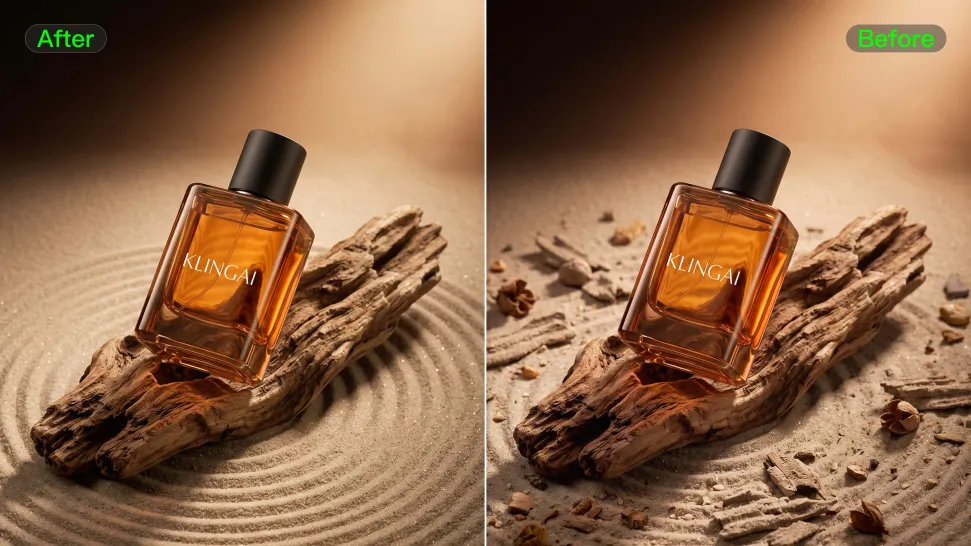
Remove Objects from Images with More Control

Remove Objects with Simple Text Prompts

Remove Objects with Simple Text Prompts

Skip complex masks and manual retouching. Tell Kling IMAGE 3.0 what you want gone in a text prompt, and it interprets your instruction as a targeted image edit. It gives you a faster way to clean up photos without a complicated editing workflow.
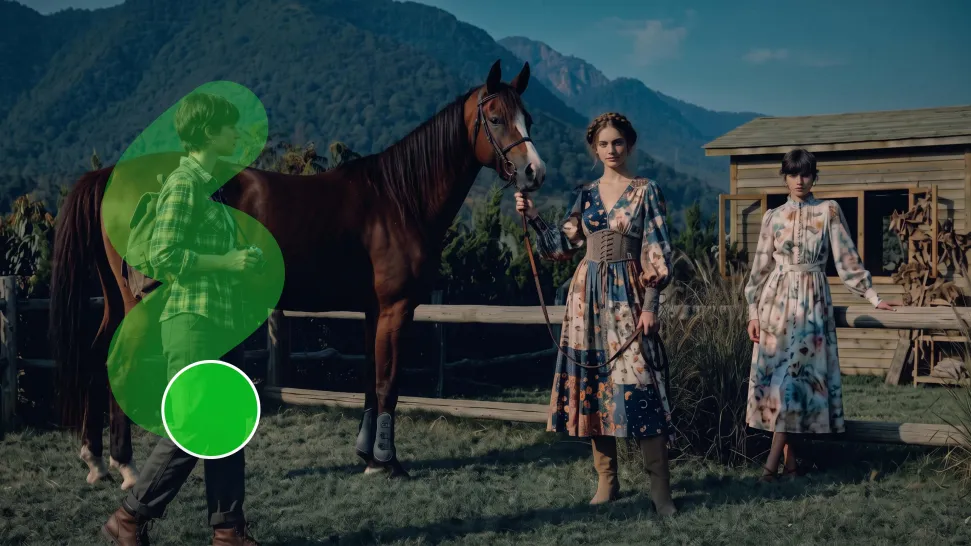
Target the Exact Object You Want Gone

Target the Exact Object You Want Gone

When several similar people or objects appear in the same image, describe the target by its position, appearance, or nearby context. Clearer instructions give you more control over which element is removed while helping reduce unintended changes to unrelated parts of the scene.
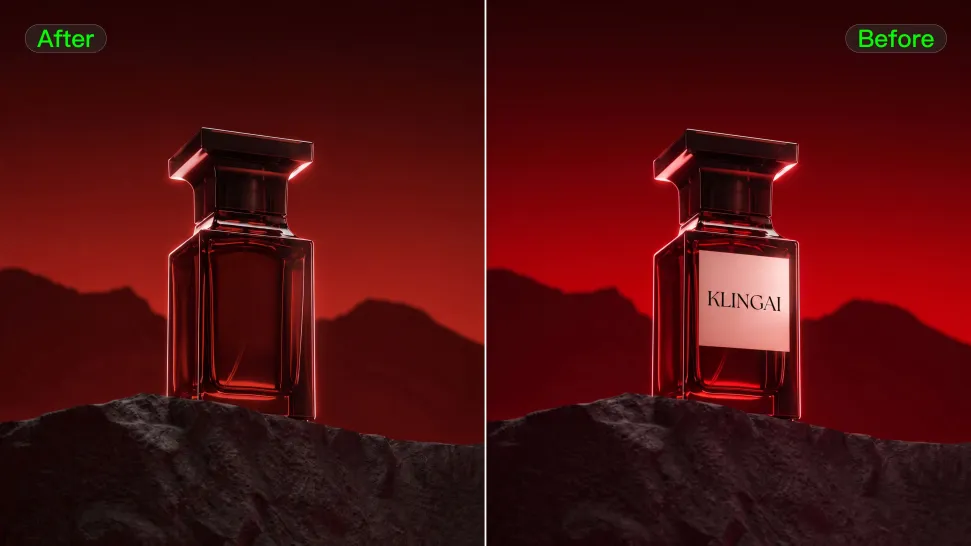
Keep the Edited Area Visually Consistent

Keep the Edited Area Visually Consistent

Removing an object also means recreating the area it once covered. Kling IMAGE 3.0 is designed to preserve surrounding style, lighting, and texture during targeted edits, helping the cleared area feel more connected to the rest of the image instead of standing out as an obvious edit.
Apps

Image to Video
Image to Video

Image to Video

Text to Video
Text to Video

Text to Video

Omni
Omni

Omni

Digital Human
Digital Human

Digital Human

Restyle
Restyle

Restyle

Text to Image
Text to Image

Text to Image

60M+
60M+
Users
600M+
600M+
AI Videos Generated
4.7 ★
4.7 ★
App Store
Industry-Leading
Industry-Leading
Cinematic 4K

Reviews

Samuele Poggi (@visualsk2)

Samuele Poggi (@visualsk2)

★★★★★

I use Kling AI daily to push the limits of AI filmmaking. It allows me to create highly cinematic content, blending AI and VFX to develop innovative projects. It has significantly impacted my creative process, enabling me to achieve complex animations that would otherwise require high production budgets.
Maria Rubtsova

Maria Rubtsova

★★★★★

I’m Maria Rubtsova, an AIGC digital artist passionate about creating stunning visuals in the worlds of fashion, aesthetics, and fantasy. I use KlingAi to bring imagination to life through video. My work is all about exploring beauty, emotion, and the limitless possibilities of digital art.
James Phillips

James Phillips

★★★★★

Kling AI has transformed my workflow by collapsing timelines and democratizing production. It’s shifted my mindset from resource-dependent filmmaking to a boundless creative sandbox, where experimentation yields unexpected beauty.

FAQ

Q1Can I adjust my image after enhancement?
Q2How does AI image enhancement work?
Q3What is an AI Image Enhancer?

Remove Watermarks, Create Clean Visuals

Remove unwanted watermarks, logos, and distractions with Kling AI. Create cleaner visuals while keeping the important elements, style, and character that make your images unique.

Watermark Removal | Logo & Text Removal | 2K/4K output