Creative Studio
API
Resources
Features
About Us
Download

labubu ai - playful LEGO scenes & energetic cartoon fights

Experience the whimsical world of Labubu through playful LEGO adventures and energetic boxing arena animations. Immerse in the charming, cozy atmosphere of Labubu's creative escapades and unique character interactions. Start exploring labubu ai ideas and generate your own content with AI.
labubu ai - playful LEGO scenes & energetic cartoon fights

Recommended

No works found

How to Create Images with Kling AI

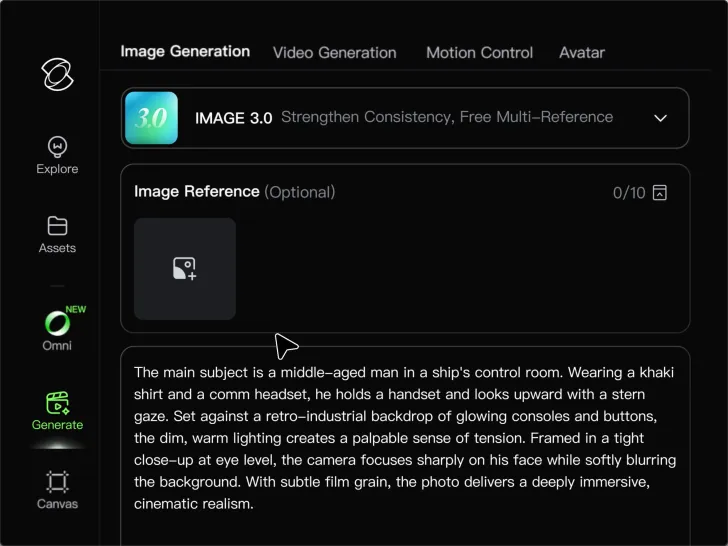
Write Down You Ideas

Write Down You Ideas

Open the AI Image Generator and choose the model that fits your project. Describe the subject and scene, then add details such as lighting, color, and visual style to shape the result.

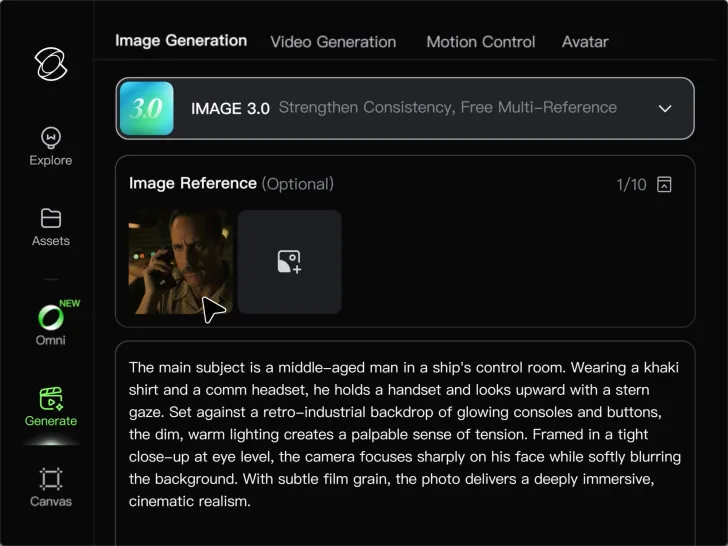
Add References Or Not

Add References Or Not

Upload reference images for a character, product, composition, or style. References are optional, but they give Kling AI a clearer visual foundation when specific features, colors, or design details need to carry into the final image.

Generate Your Image

Generate Your Image

Choose your preferred format and output settings, then hit Generate. Once the result is ready, download it directly or open it in the image-to-video workflow to bring it to life with motion.

Remove Objects from Images with More Control

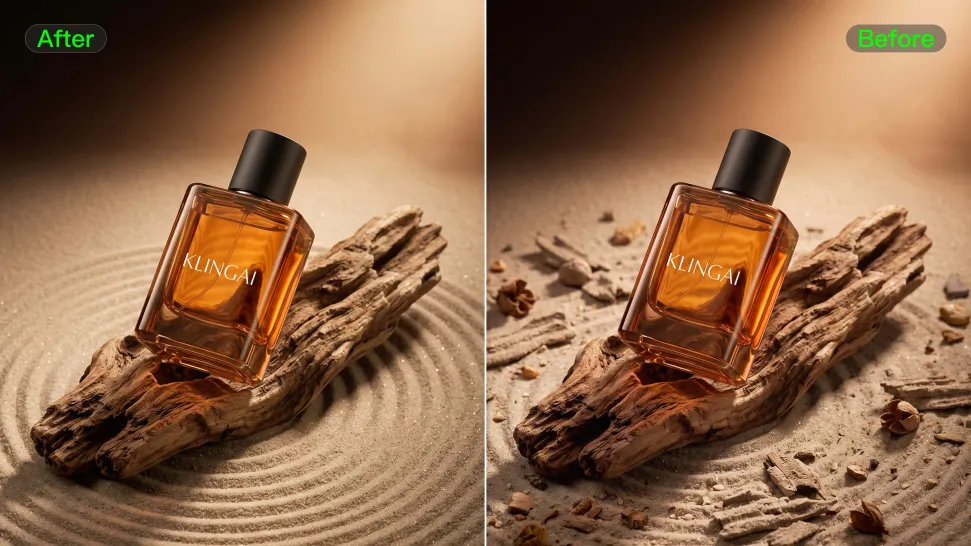
Remove Objects with Simple Text Prompts

Remove Objects with Simple Text Prompts

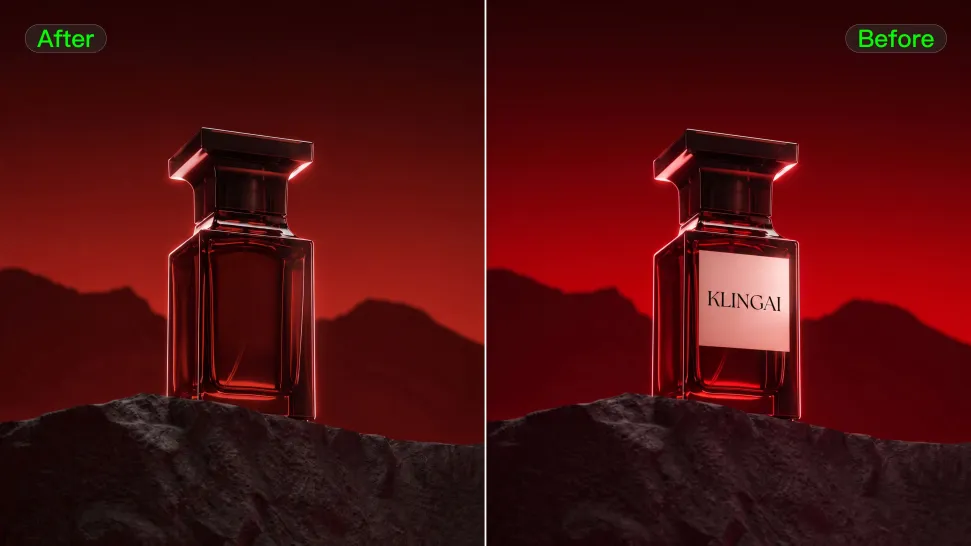
Skip complex masks and manual retouching. Tell Kling IMAGE 3.0 what you want gone in a text prompt, and it interprets your instruction as a targeted image edit. It gives you a faster way to clean up photos without a complicated editing workflow.

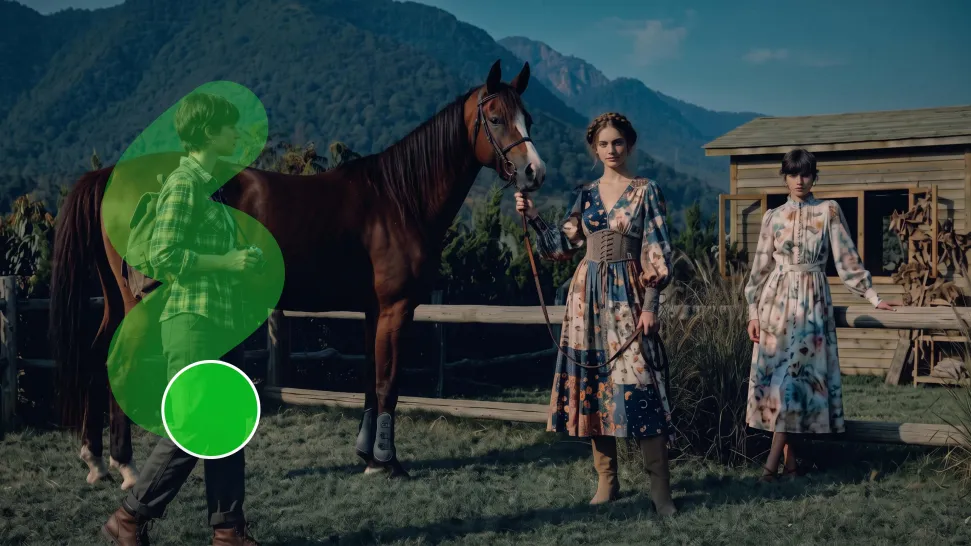
Target the Exact Object You Want Gone

Target the Exact Object You Want Gone

When several similar people or objects appear in the same image, describe the target by its position, appearance, or nearby context. Clearer instructions give you more control over which element is removed while helping reduce unintended changes to unrelated parts of the scene.

Keep the Edited Area Visually Consistent

Keep the Edited Area Visually Consistent

Removing an object also means recreating the area it once covered. Kling IMAGE 3.0 is designed to preserve surrounding style, lighting, and texture during targeted edits, helping the cleared area feel more connected to the rest of the image instead of standing out as an obvious edit.

Apps

Image to Video
Image to Video

Image to Video

Text to Video
Text to Video

Text to Video

Omni
Omni

Omni

Digital Human
Digital Human

Digital Human

Restyle
Restyle

Restyle

Text to Image
Text to Image

Text to Image

60M+
60M+
Users
600M+
600M+
AI Videos Generated
4.7 ★
4.7 ★
App Store
Industry-Leading
Industry-Leading
Cinematic 4K

Reviews

KakuDrop

KakuDrop

★★★★★

I have successfully collaborated with world-renowned artists and well-known companies that are recognized globally

Ozan Sihay

Ozan Sihay

★★★★★

Kling AI allows me to rapidly prototype ideas, refine storytelling elements, and produce visually compelling content efficiently. It has not only accelerated my creative processes, but also deepened my understanding of how AI can enrich visual storytelling.

Maria Rubtsova

Maria Rubtsova

★★★★★

I’m Maria Rubtsova, an AIGC digital artist passionate about creating stunning visuals in the worlds of fashion, aesthetics, and fantasy. I use KlingAi to bring imagination to life through video. My work is all about exploring beauty, emotion, and the limitless possibilities of digital art.

FAQ

Q1How does AI art work?
Q2Can I turn a sketch or reference image into AI art with Kling AI?
Q3Can I use AI-generated art commercially?

Make Every Scene Speak

Turn your script into a video with native dialogue and sound for multi-character conversations, multilingual scenes, and more.

Native audio | Multi-Character Coreference | Multilingual Content Generation