Creative Studio
API
Resources
Features
About Us
Download

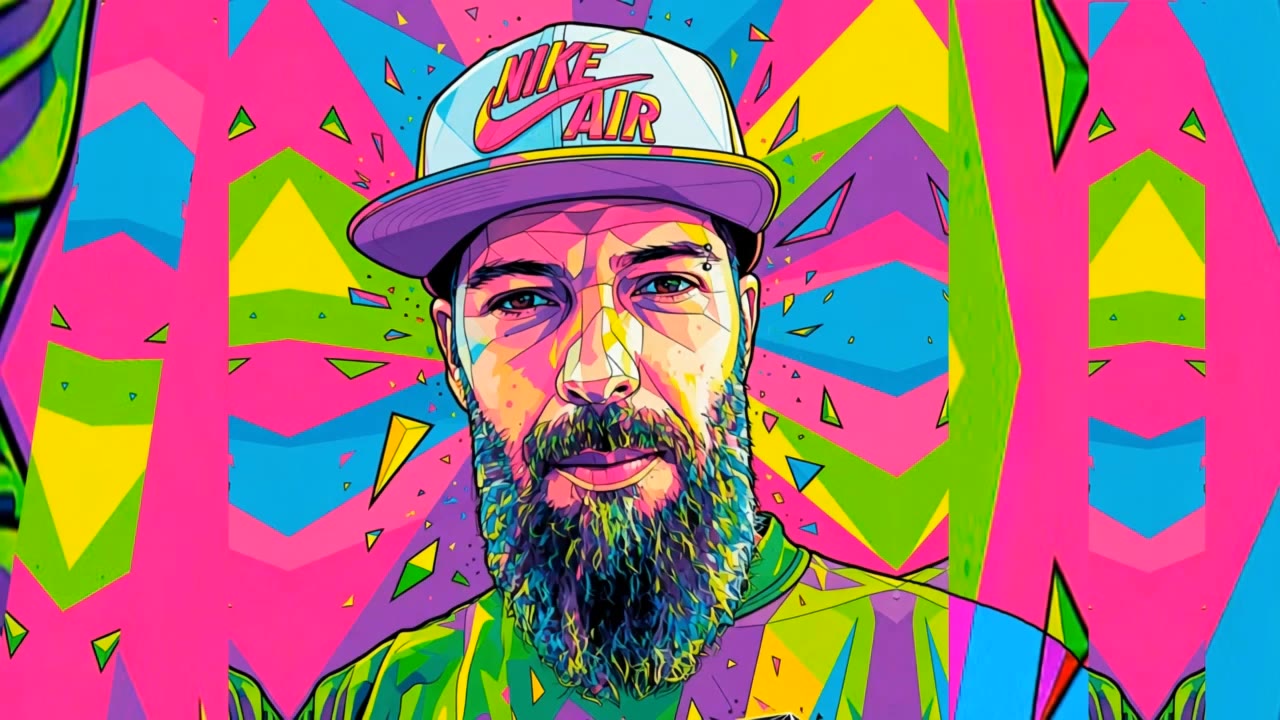
Rap Style AI Art – Urban and Unique Designs

Discover AI-generated rap style art. Explore urban and unique designs that can be adapted to your needs.
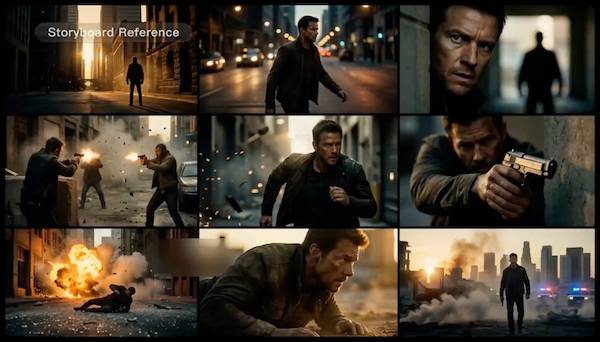
Rap Style AI Art – Urban and Unique Designs

Recommended

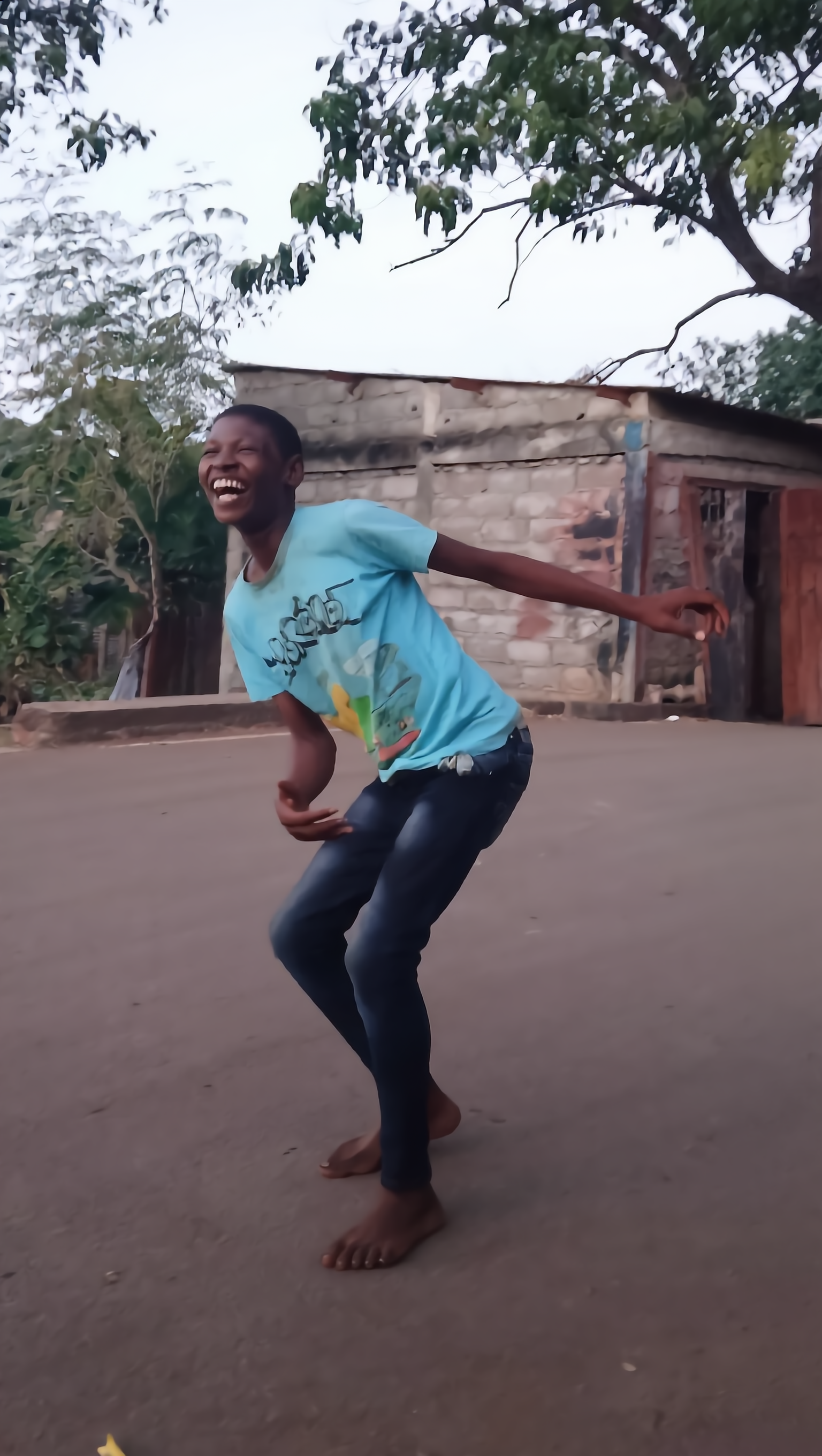
Rap in the street - rap style AI video
9MILI94 avatar
9MILI94
Kling AI work 305576468530910 - rap style AI video
travel_after5 avatar
travel_after5
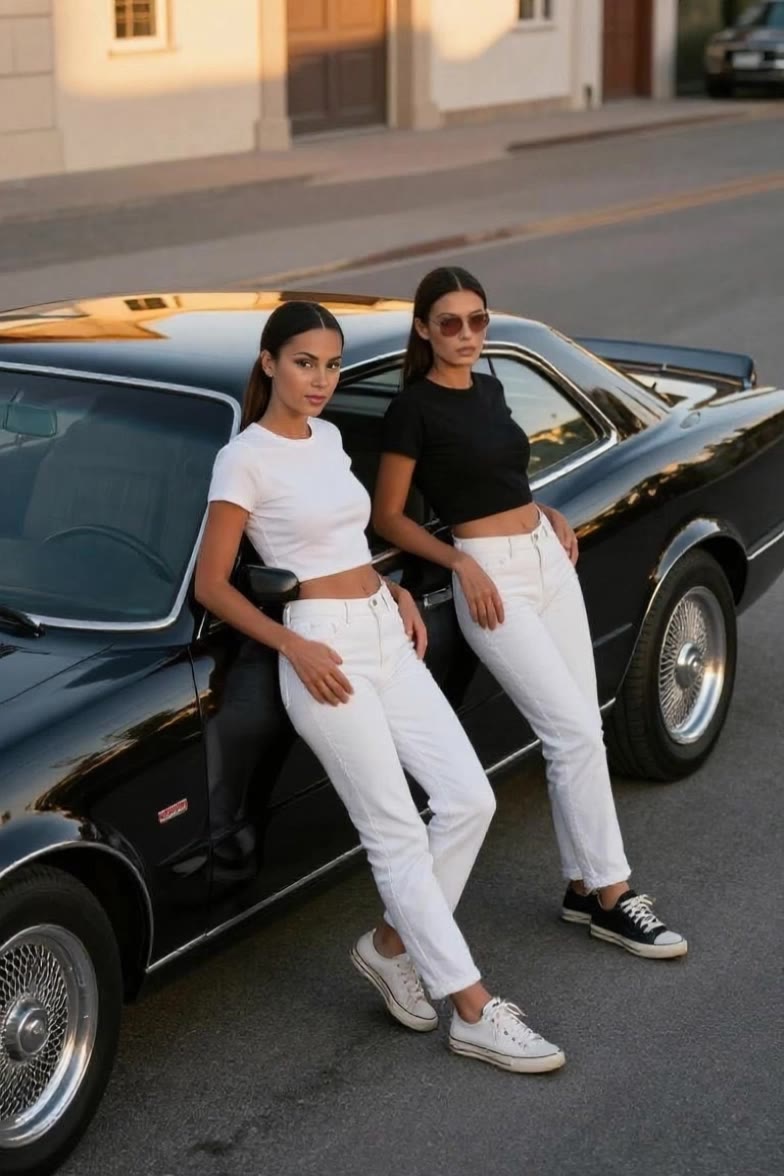
Kling AI work 296174915507444 - rap style AI image
EatCakeAnime avatar
EatCakeAnime
Elite Creator
Kling AI work 296304379666523 - rap style AI video
tOWWTWtu avatar
tOWWTWtu
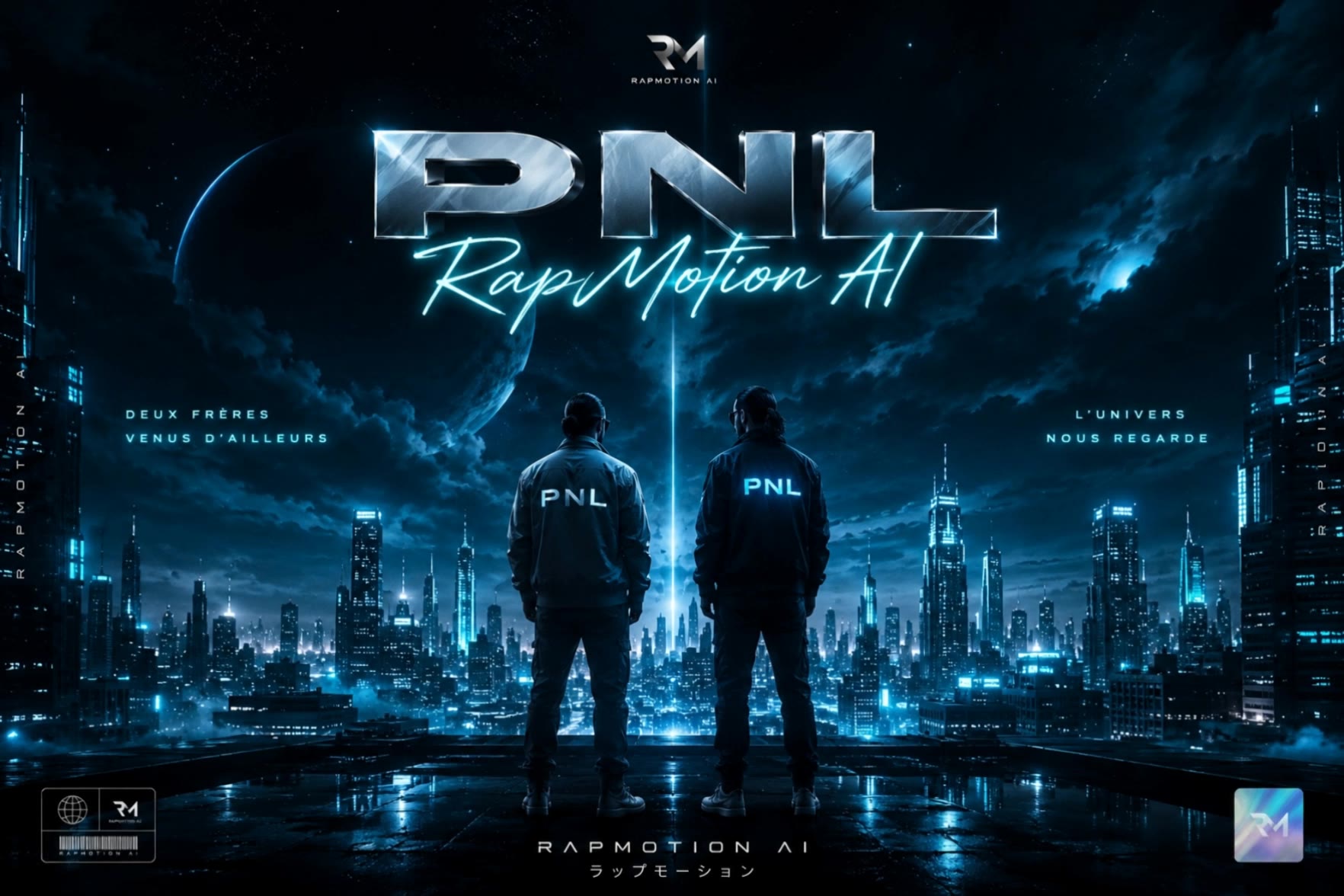
Hypebeast Style - rap style AI video
pzVzYkCr avatar
pzVzYkCr
Kling AI work 309761919501546 - rap style AI image
hUodreRU avatar
hUodreRU
Kling AI work 298380309657885 - rap style AI video
IHyhmjqO avatar
IHyhmjqO
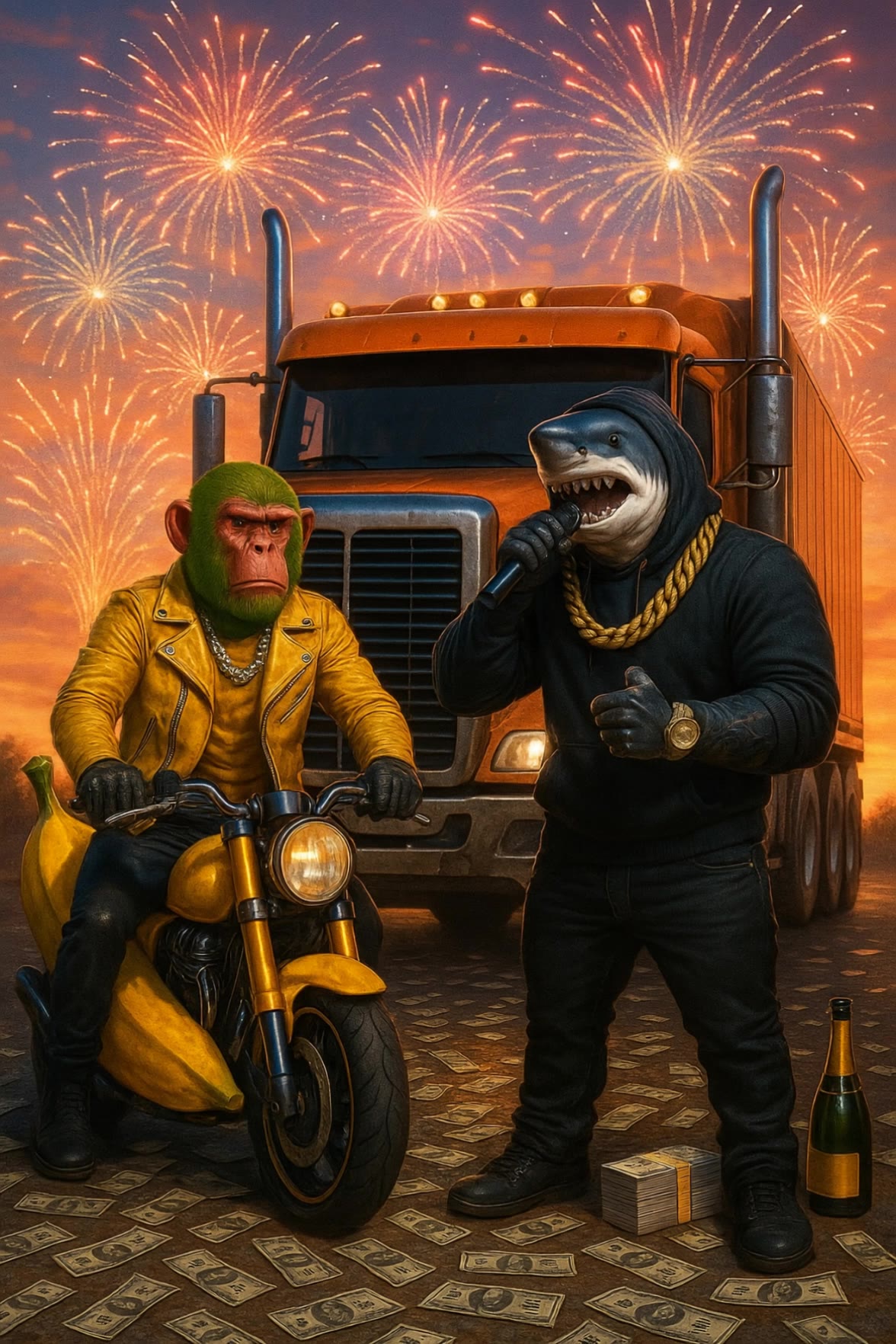
Brainrot RAP - rap style AI video
KLING6928 avatar
KLING6928
Kling AI work 299879302657219 - rap style AI video
VhJcjWpn avatar
VhJcjWpn
Kling AI work 307975970615420 - rap style AI video
LjWuKLOJ avatar
LjWuKLOJ
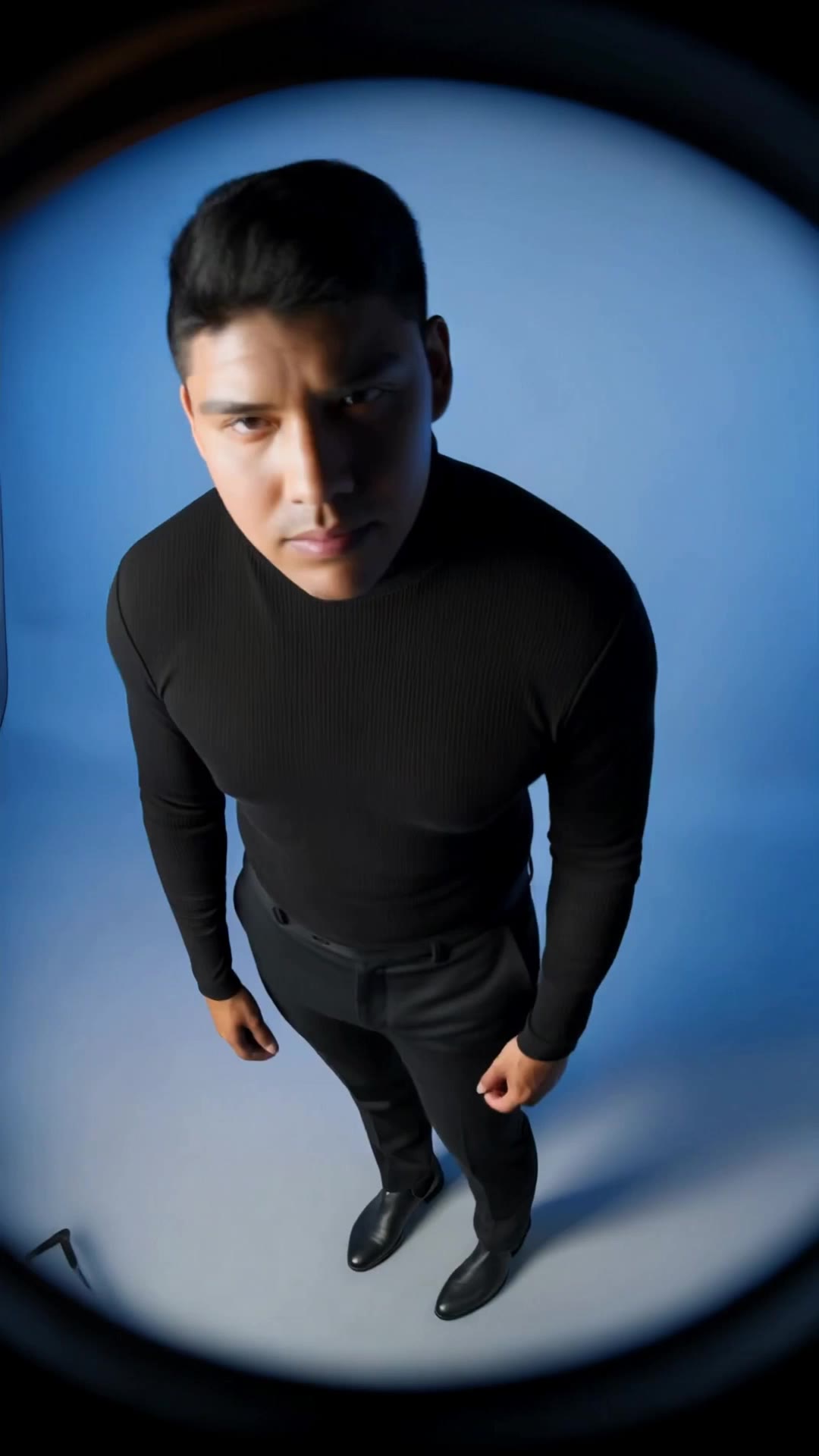
Studio rap - rap style AI video
9MILI94 avatar
9MILI94
Rap Concert Hip Hop Showtime - rap style AI video
ZUwTVMUb avatar
ZUwTVMUb
Kling AI work 306366452611251 - rap style AI video
DjnqaRrI avatar
DjnqaRrI
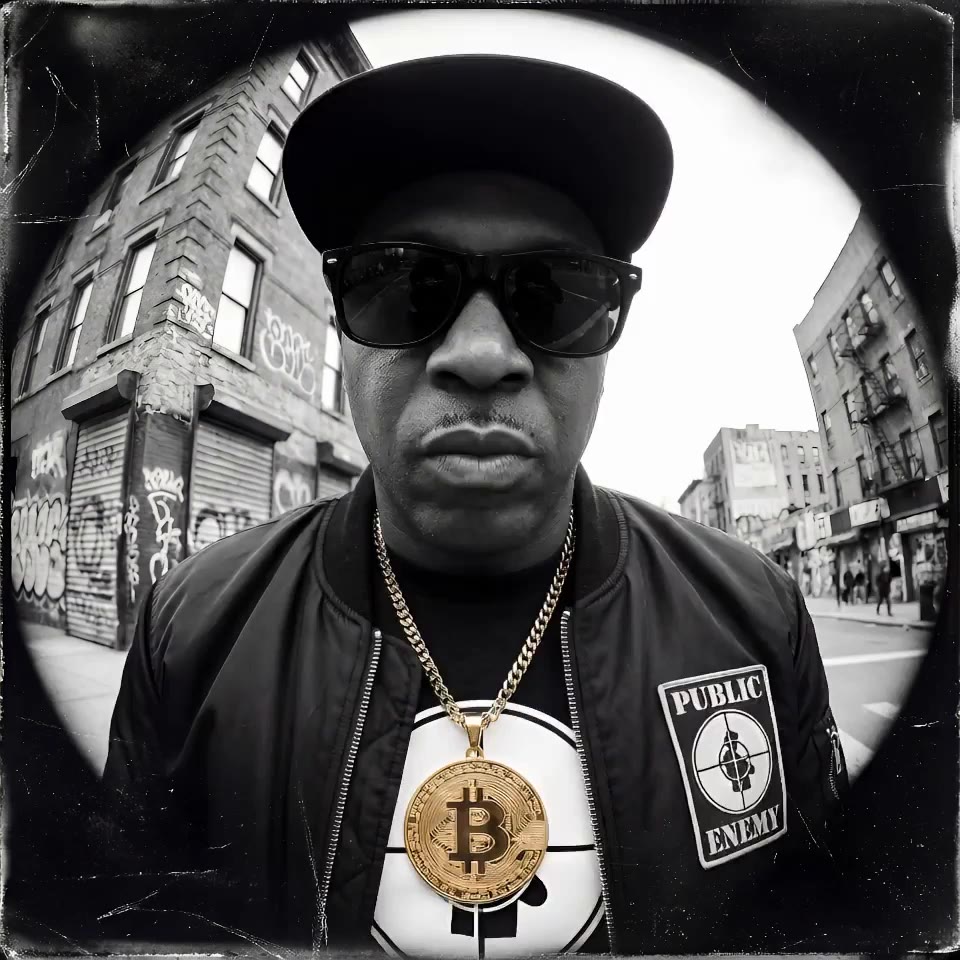
BITCOIN IS A WEAPON - rap style AI video
PRK video avatar
PRK video
Kling AI work 305578778500003 - rap style AI video
travel_after5 avatar
travel_after5
Kling AI work 309858232614948 - rap style AI image
WgQJujrr avatar
WgQJujrr
Kling AI work 295319412663019 - rap style AI video
PruMnVkx avatar
PruMnVkx

How to Use Kling AI Text to Speech

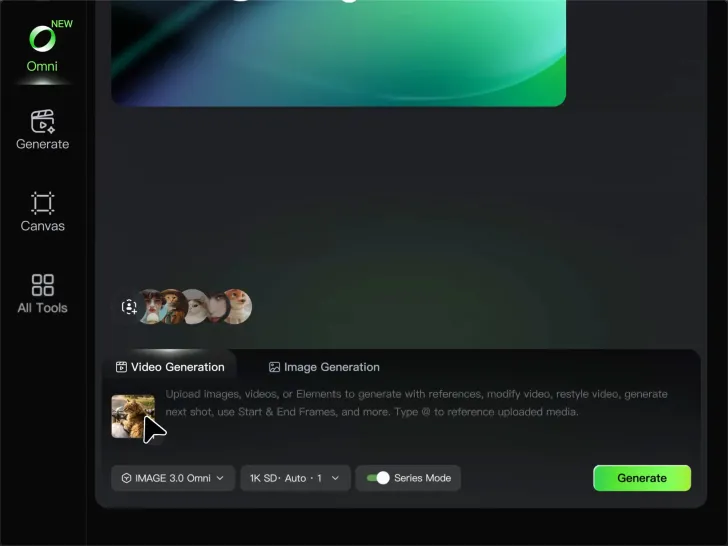
Step 1: Enter the Video Generation Workspace

Step 1: Enter the Video Generation Workspace

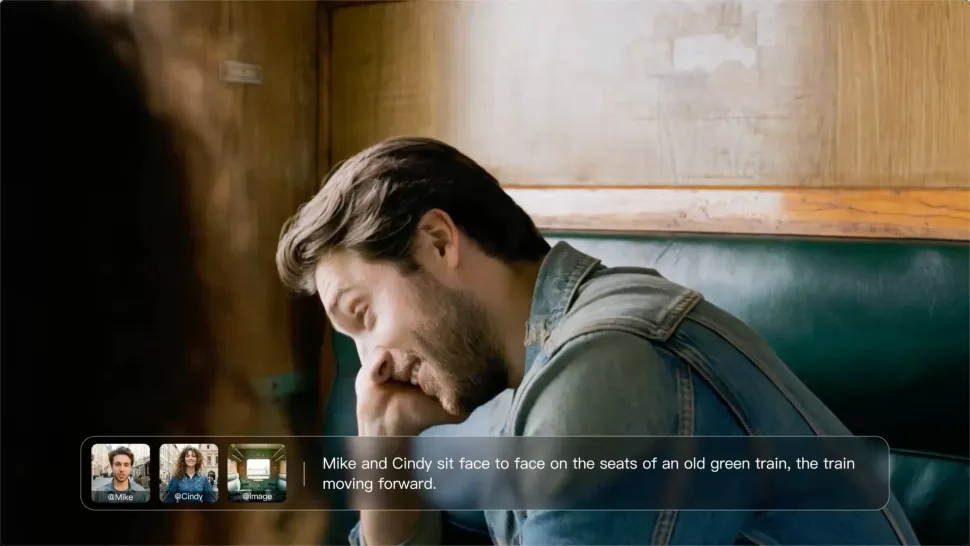
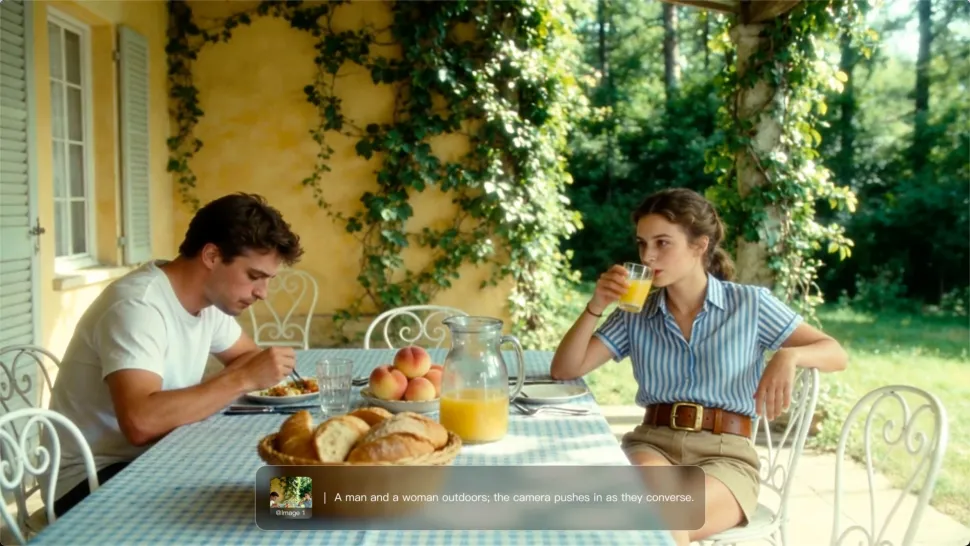
Edit your prompt to set the scene, characters, and style, or upload a reference image to shape the look of your video.

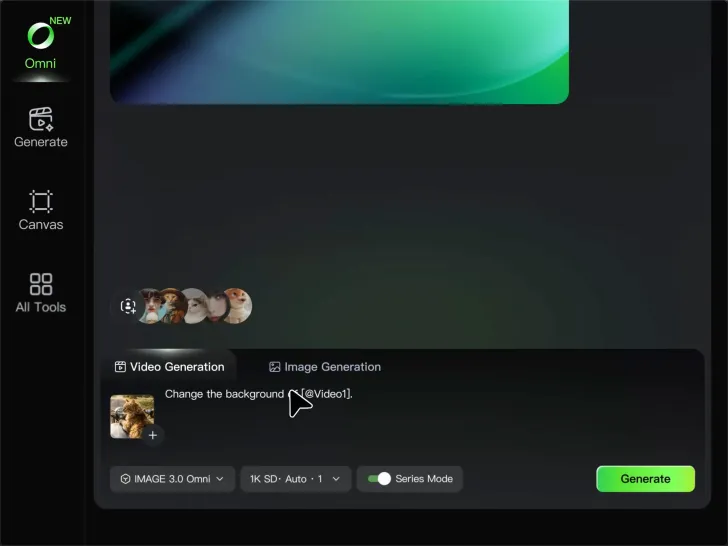
Step 2: Add Dialogue and Speech Instructions

Step 2: Add Dialogue and Speech Instructions

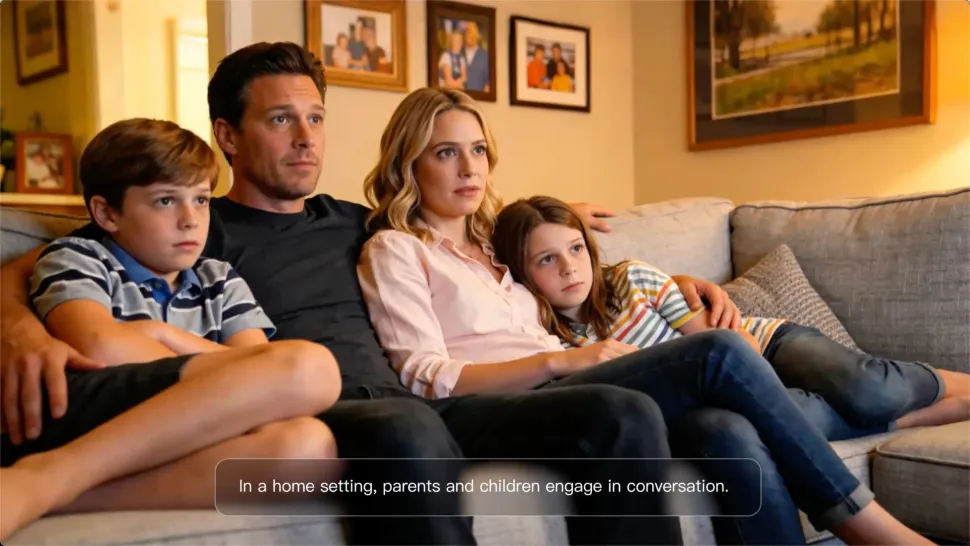
Add dialogue to your prompt and clearly specify which character speaks each line. You can also describe the language or dialect, speaking pace, tone, and delivery style in the prompt to guide how each character sounds.

Step 3: Choose Your Settings and Generate

Step 3: Choose Your Settings and Generate

Choose your resolution (720p, 1080p, or 4K), video length (3–15 seconds), and aspect ratio (16:9, 9:16, or 1:1). Then click Generate to create your video.

Make Avatars Perform, Not Just Speak

More Choice, Without Losing Consistency

More Choice, Without Losing Consistency

Start with a preset avatar, select a character from your Kling AI Assets, upload an image of your own, or create someone new with AI Image. Use a polished presenter for a product demo, a creator-style host for an ad, or a more stylized character when the idea calls for it. For recurring content, save the character with the voice and performance settings you use most. The same on-screen identity is ready for the next script, without putting the setup together again.

Give Each Script the Right Delivery

Give Each Script the Right Delivery

Use a finished voiceover when the delivery is already in place, or start with written copy and choose a text-to-speech voice. Adjust the pace and emotional tone so a product pitch feels confident, a lesson stays clear, and social content can take on more energy. You can write your own performance direction or use one of Kling AI’s suggestions for the selected character. The same avatar can also deliver content in English, Chinese, Japanese, or Korean while keeping a familiar appearance on screen.

Let Movement Carry the Message

Let Movement Carry the Message

Natural lip sync is only part of the performance. An avatar can point to a product, handle an object, gesture through an explanation, react to the words, or move with the rhythm of a song. Avatar 2.0 improves hand stability and overall action quality, so the movement supports the scene instead of drawing attention away from it. Voice, expression, and body language come together as one performance—not a still image with audio layered over it.

Apps

Image to Video
Image to Video

Image to Video

Text to Video
Text to Video

Text to Video

Omni
Omni

Omni

Digital Human
Digital Human

Digital Human

Restyle
Restyle

Restyle

Text to Image
Text to Image

Text to Image

60M+
60M+
Users
600M+
600M+
AI Videos Generated
4.7 ★
4.7 ★
App Store
Industry-Leading
Industry-Leading
Cinematic 4K

Reviews

Maria Rubtsova

Maria Rubtsova

★★★★★

I’m Maria Rubtsova, an AIGC digital artist passionate about creating stunning visuals in the worlds of fashion, aesthetics, and fantasy. I use KlingAi to bring imagination to life through video. My work is all about exploring beauty, emotion, and the limitless possibilities of digital art.
Jyo John Mulloor

Jyo John Mulloor

★★★★★

Kling AI has been instrumental in transforming my creative workflow, unlocking new dimensions of artistic expression that were once unimaginable. I use Kling AI extensively to develop high-concept visuals, animate surreal dreamscapes, and create AI-assisted films that blur the line between reality and fantasy. Kling AI’s deep learning capabilities have not only enhanced my creative efficiency but also inspired me to explore storytelling in ways I never thought possible.
KakuDrop

KakuDrop

★★★★★

I have successfully collaborated with world-renowned artists and well-known companies that are recognized globally

FAQ

Q1What is the best AI to turn an image into a video?
Q2Can I use these generated videos for my e-commerce store or social media ads?
Q3Can I generate 4K videos from an image?

Turn Your Ideas into Stunning Images

Create realistic images, character concepts, and creative artwork with Kling AI.

Free tier available | Reference images supported | High-quality output | Fast generation