
Creative Studio
API
Resources
Features
About Us
Download

screen effects - prismatic light & smartphone transitions

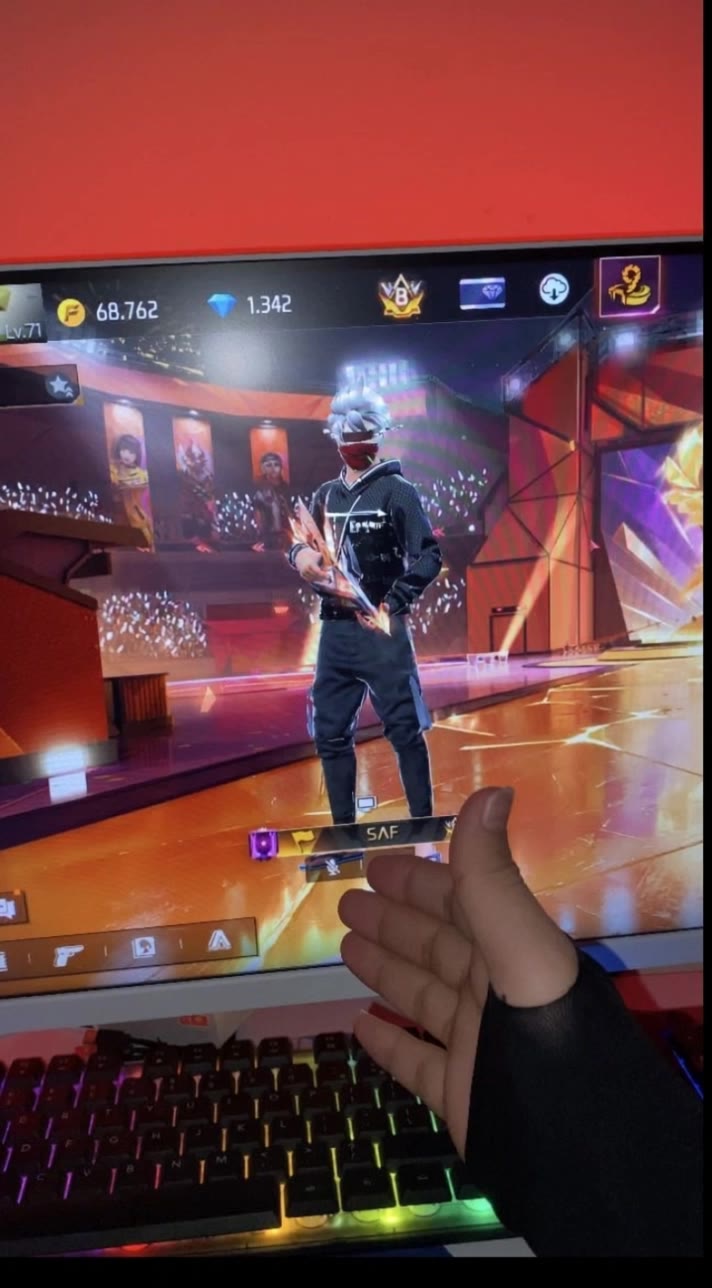
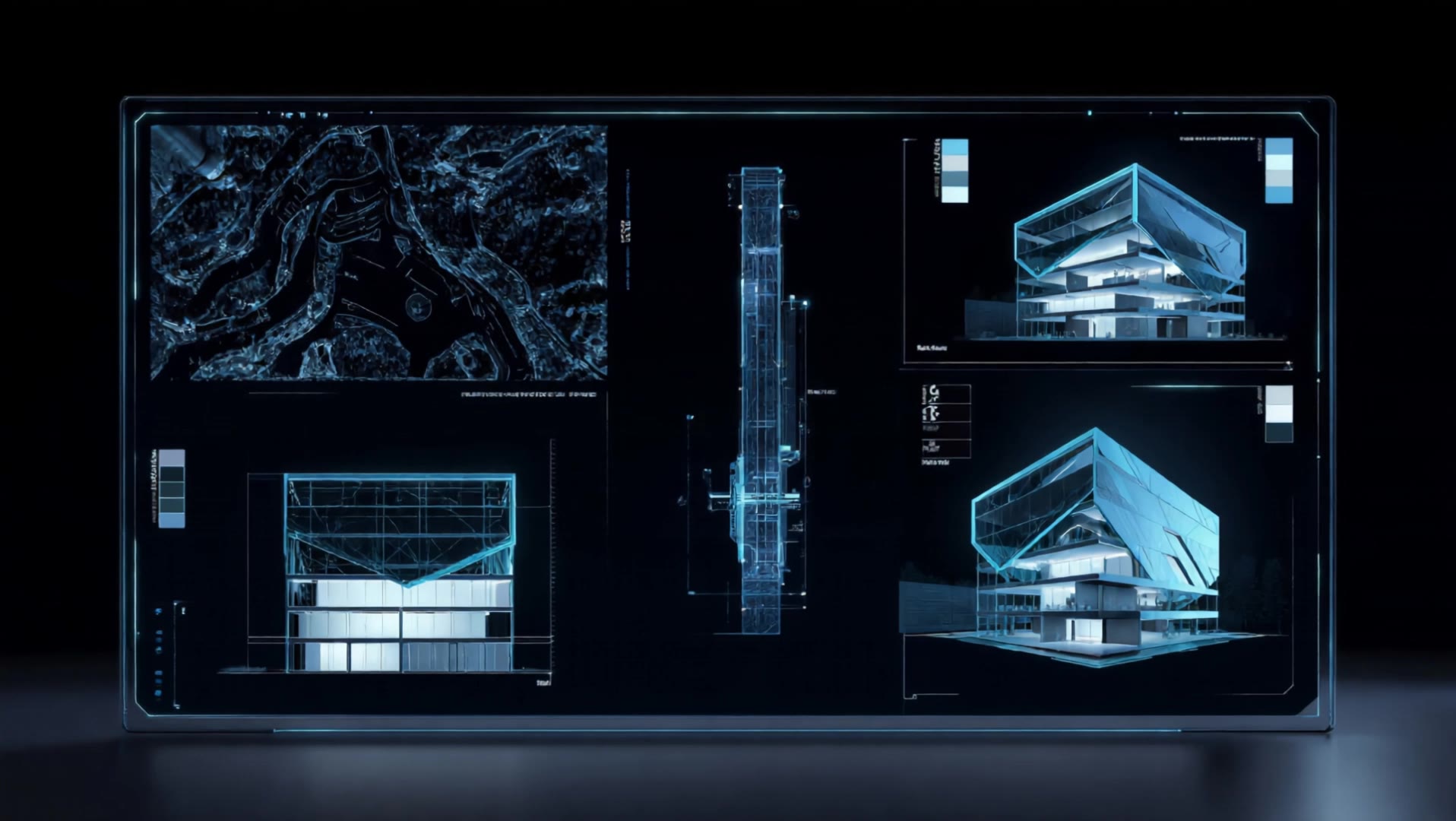
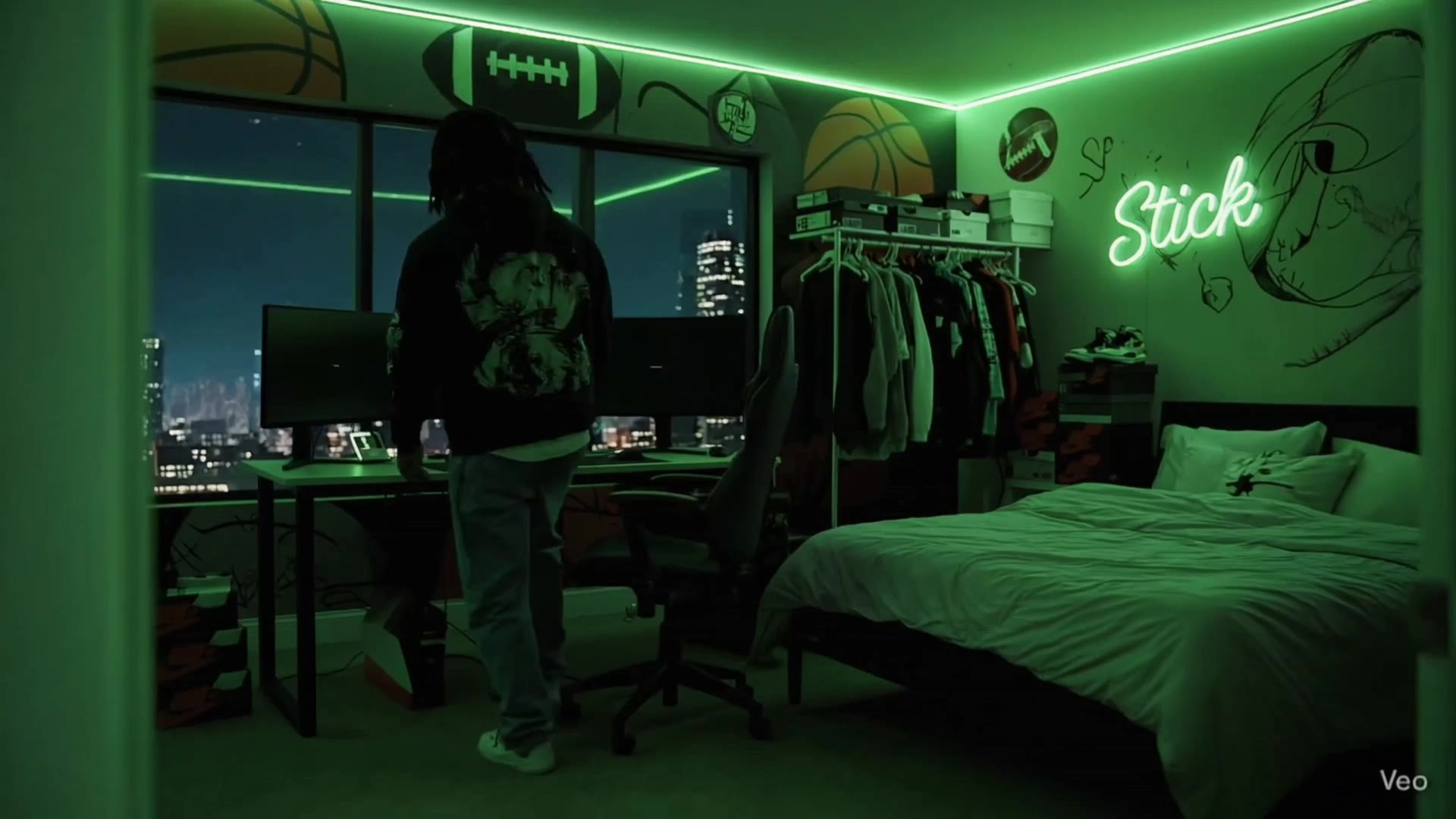
Immerse in prismatic light overlays and seamless green screen transitions, enhancing arcade game visuals and emotional smartphone moments. Start exploring screen effects ideas and generate your own content with AI.
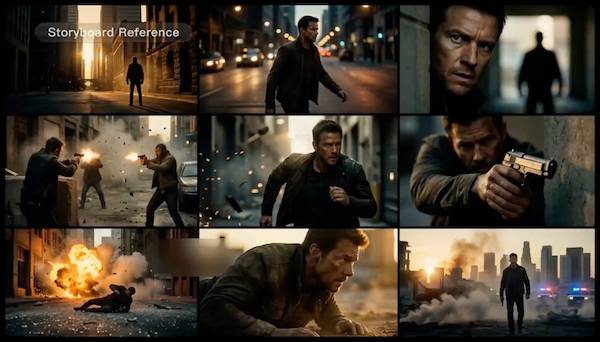
screen effects - prismatic light & smartphone transitions

Recommended

Kling AI work 309605518614191 - screen effects AI video
dQcoZdAb avatar
dQcoZdAb
Kling AI work 316210480665083 - screen effects AI video
POZAmiatany avatar
POZAmiatany
Kling AI work 314875971506455 - screen effects AI video
NyQtxxhf avatar
NyQtxxhf
Kling AI work 319592504521474 - screen effects AI video
eIJuWiwy avatar
eIJuWiwy
Multi screen fonction - screen effects AI video
Work Flow me avatar
Work Flow me
Kling AI work 311895826522189 - screen effects AI video
OJwsjxHK avatar
OJwsjxHK
Kling AI work 298719499520626 - screen effects AI video
kHSPOPrQ avatar
kHSPOPrQ
Kling AI work 313529479660997 - screen effects AI video
nsxEcDCF avatar
nsxEcDCF
Kling AI work 309130576312910 - screen effects AI video
oUxSlniZ avatar
oUxSlniZ
Kling AI work 307763064503929 - screen effects AI video
PahIurQq avatar
PahIurQq
Kling AI work 308732258305292 - screen effects AI image
Itamkio avatar
Itamkio
Elite Creator
Kling AI work 315485154616052 - screen effects AI video
GEgHTFWV avatar
GEgHTFWV
Kling AI work 298114165653369 - screen effects AI video
DonJean avatar
DonJean
Kling AI work 314849011502414 - screen effects AI video
cUhRKsUE avatar
cUhRKsUE
Burn the screen - screen effects AI video
Hathorock avatar
Hathorock
Kling AI work 316395940616104 - screen effects AI image
wJvAtuXb avatar
wJvAtuXb
Kling AI work 313109379660986 - screen effects AI video
vwaglcpq avatar
vwaglcpq

How to Extend an Image with AI

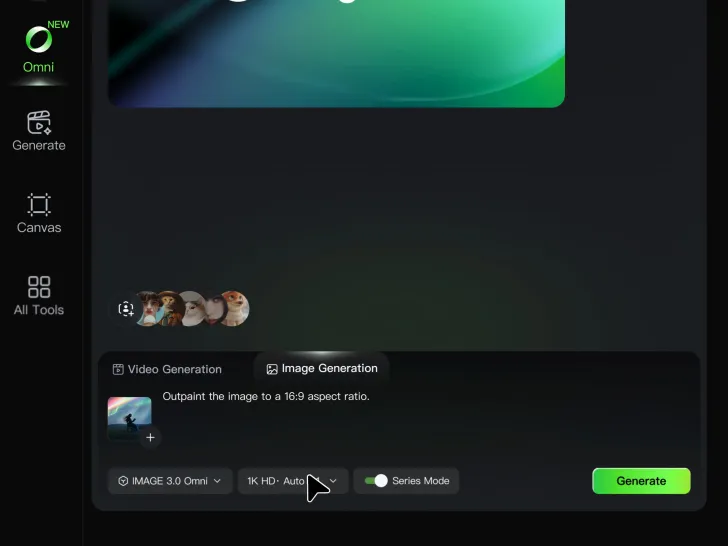
Step 1: Upload and Describe

Step 1: Upload and Describe

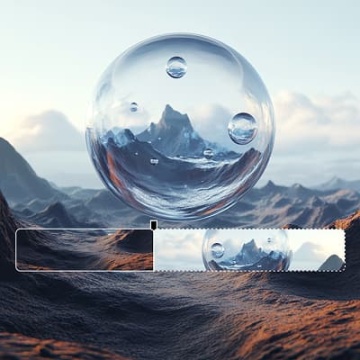
Upload the image you want to expand, such as a portrait, product photo, landscape, or social media visual. Use a text prompt to specify which side to extend and what should appear in the new area, such as more sky, scenery, or background details, while keeping the main subject unchanged.

Step 2: Choose the Output Settings and Generate

Step 2: Choose the Output Settings and Generate

Choose the image ratio, number of outputs, and resolution, then generate your extended image. Creating multiple versions makes it easier to compare the results and choose your favorite.

Step 3: Expand Your Image with Image Expansion

Step 3: Expand Your Image with Image Expansion

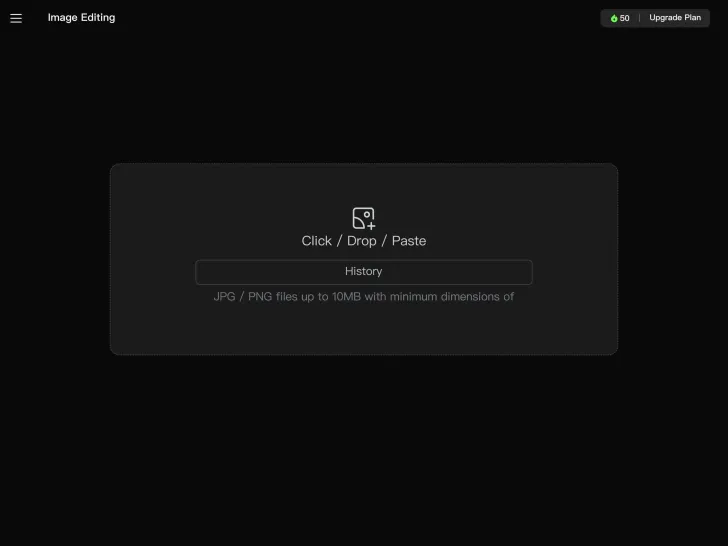
Open the Image Expansion workflow when you want a dedicated way to extend an existing image. Upload your source image, describe what should appear beyond the original frame, choose from the available output settings, and generate the expanded result.

Make a Stronger First Impression Wherever You Show Up

Give a Casual Photo a More Put-Together Look

Give a Casual Photo a More Put-Together Look

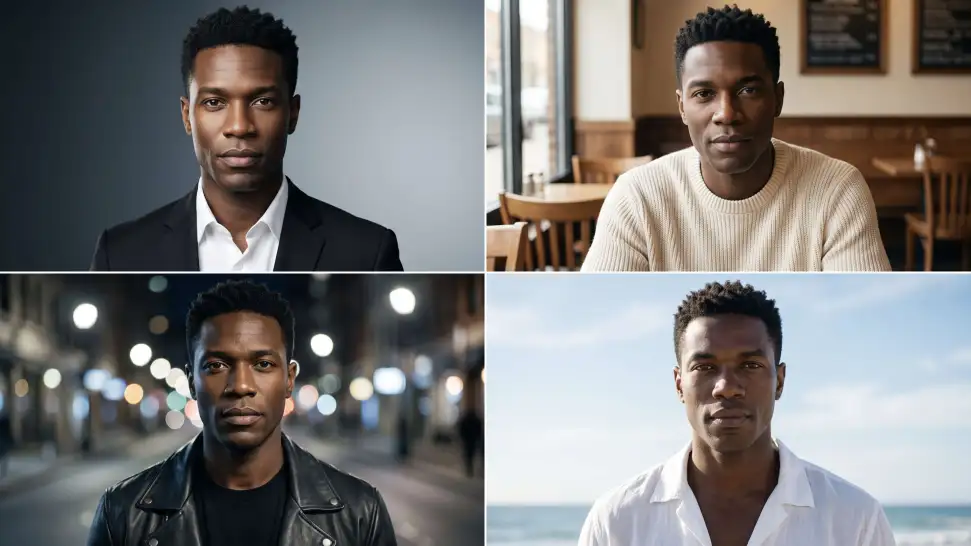
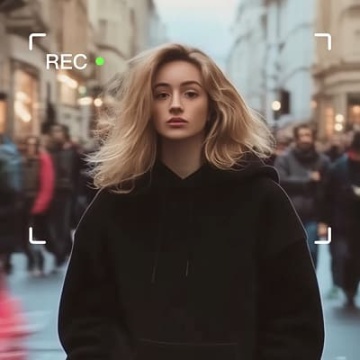
You do not need a new photoshoot every time your profile picture feels dated. Start with a photo you already like, then improve the lighting, composition, styling, or overall presentation to give it a cleaner, more intentional look for a résumé profile, business page, creator account, or personal site.
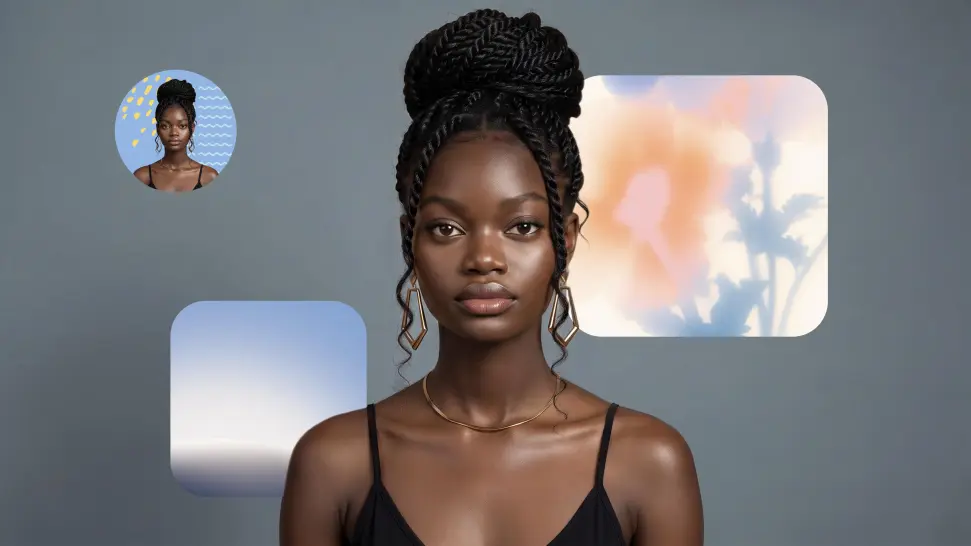
Keep the Face People Already Know

Keep the Face People Already Know

A new profile picture should still feel familiar. Use your portrait as the visual reference while you change the mood, styling, background, or setting, so recognizable facial details and your overall appearance can stay closer to the photo you started with.
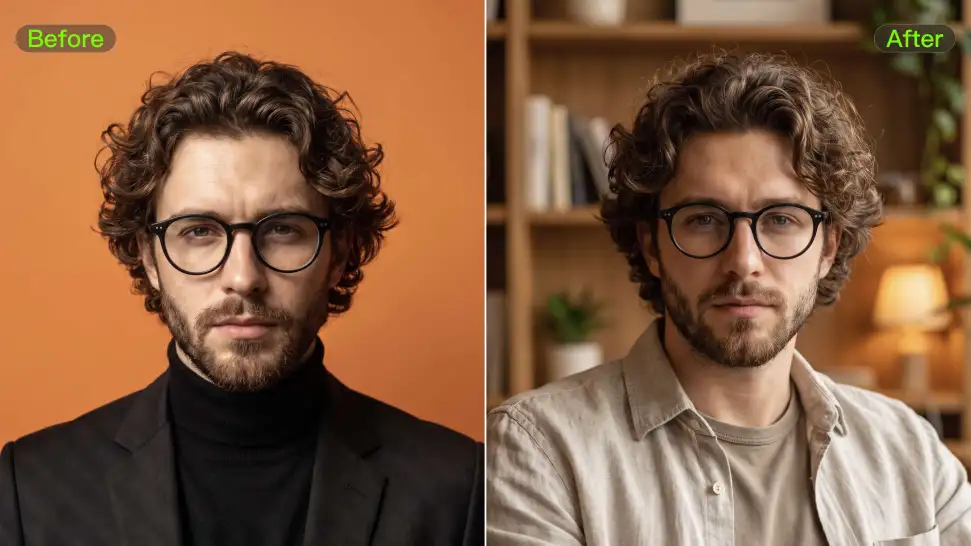
Change the Look to Fit the Platform

Change the Look to Fit the Platform

The photo that works on LinkedIn may not be the one you want on YouTube, Instagram, Discord, or a gaming profile. Give the same portrait a different mood, crop, background, or visual treatment depending on where you plan to use it. Go understated for work, more expressive for social, or give your creator profile a look that feels more like your brand.
Apps

Image to Video
Image to Video

Image to Video

Text to Video
Text to Video

Text to Video

Omni
Omni

Omni

Digital Human
Digital Human

Digital Human

Restyle
Restyle

Restyle

Text to Image
Text to Image

Text to Image

60M+
60M+
Users
600M+
600M+
AI Videos Generated
4.7 ★
4.7 ★
App Store
Industry-Leading
Industry-Leading
Cinematic 4K

Reviews

Jyo John Mulloor

Jyo John Mulloor

★★★★★

Kling AI has been instrumental in transforming my creative workflow, unlocking new dimensions of artistic expression that were once unimaginable. I use Kling AI extensively to develop high-concept visuals, animate surreal dreamscapes, and create AI-assisted films that blur the line between reality and fantasy. Kling AI’s deep learning capabilities have not only enhanced my creative efficiency but also inspired me to explore storytelling in ways I never thought possible.
Huang Lu (Elson)

Huang Lu (Elson)

★★★★★

I’ve been using Kling AI since its initial release, and it’s remained one of the leading AI media generators ever since. With Kling AI, I’ve created hundreds of videos, collectively amassing millions of views.
Vincent Smadja

Vincent Smadja

★★★★★

Kling AI seamlessly integrates into my creative workflow, playing a key role in transforming my images. After generating and upscaling an image, Kling becomes a crucial element, bringing my creations to life with movement and depth.

FAQ

Q1What types of videos work best for AI upscaling?
Q2How is AI video upscaling different from regular video resizing?
Q3Can I upscale video to 4K with Kling AI?

Start Creating AI Videos with Kling

Turn your image into a talking, high-quality video in seconds. No watermarks, no complicated setup.

Free tier available (Memberships are watermark-free) | 1080p export (Memberships unlock 4K) | Instant results