
Creative Studio
API
Resources
Features
About Us
Download

step 2 pushing car - car transformation & car disassembly

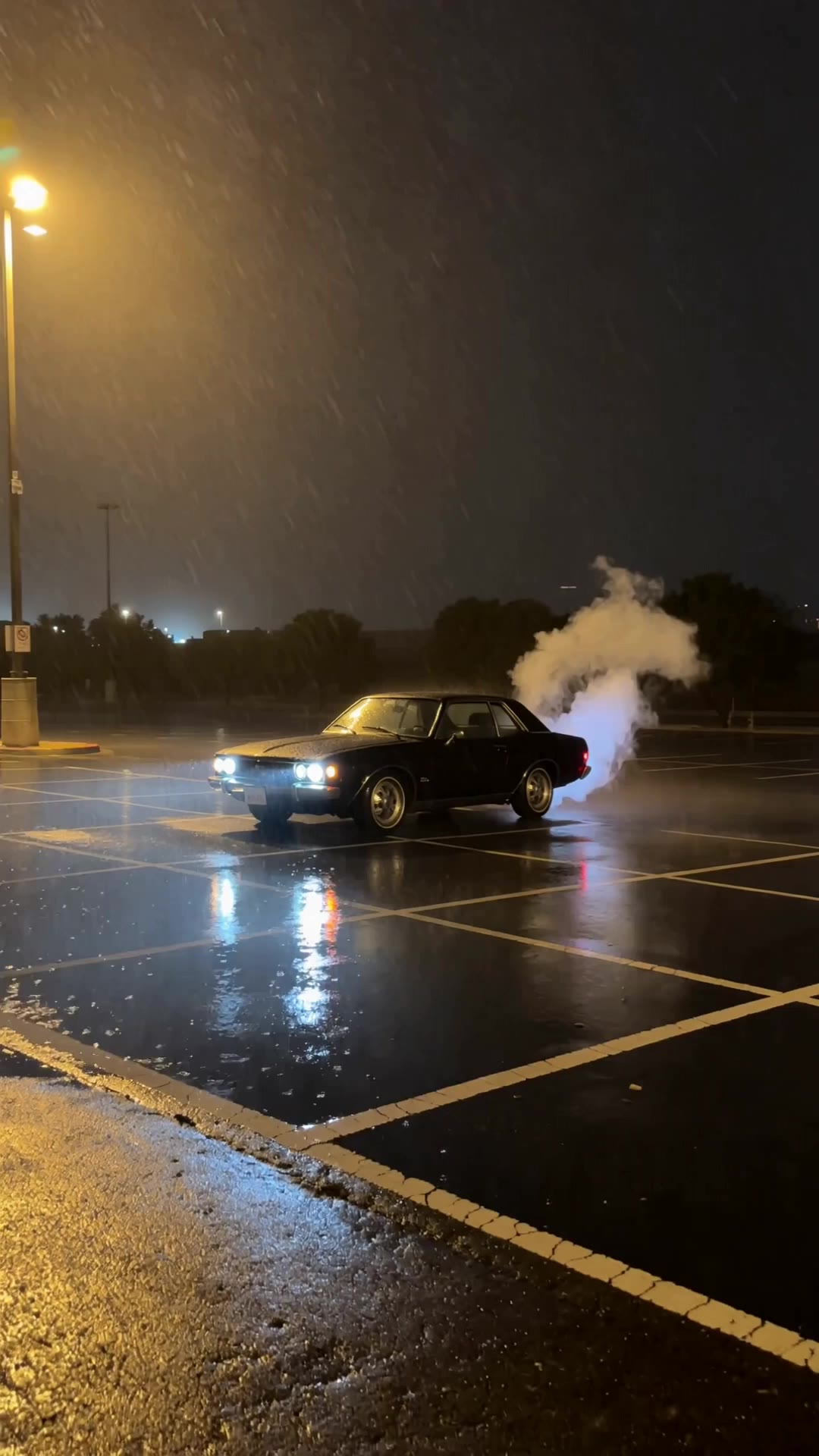
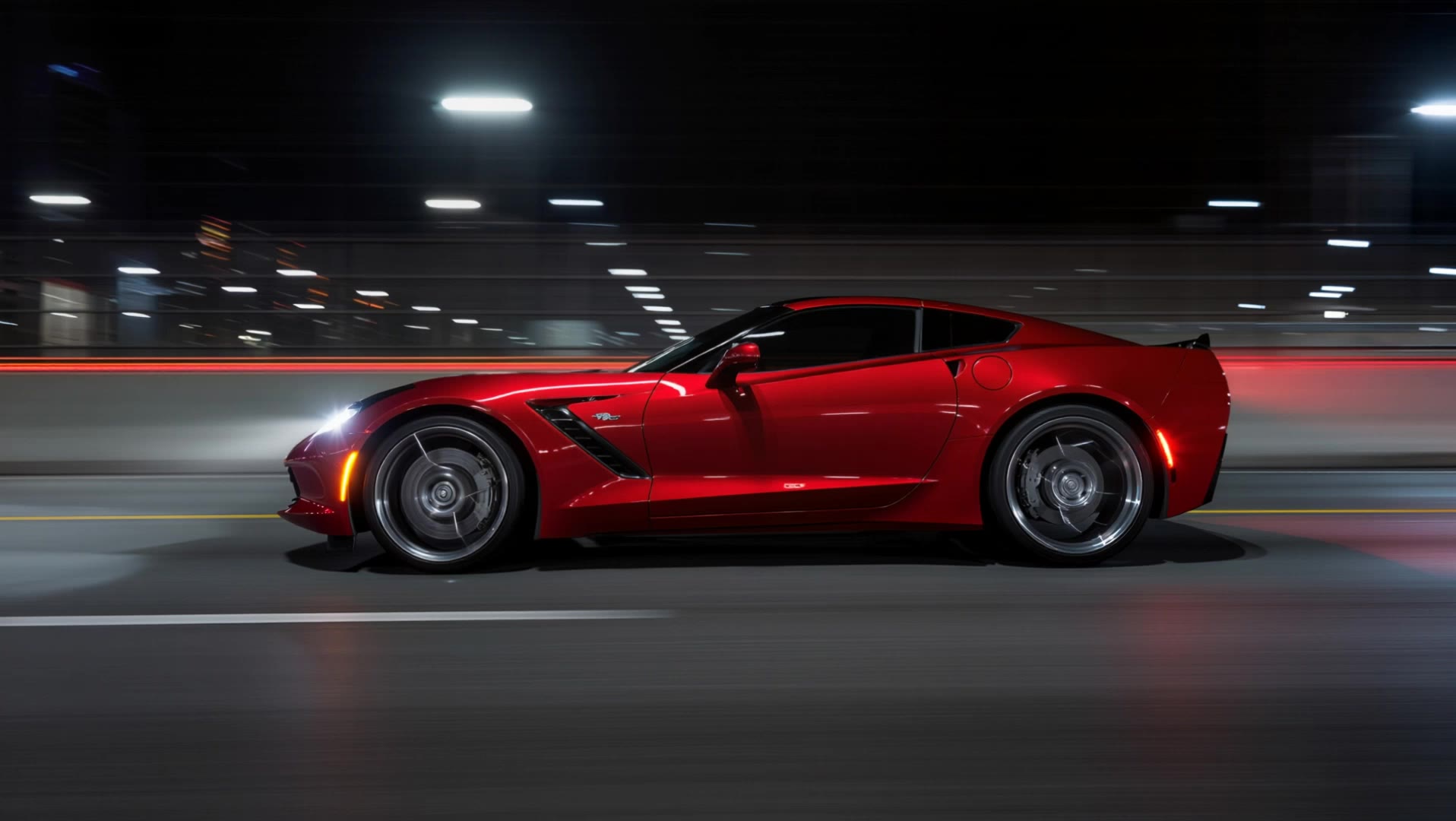
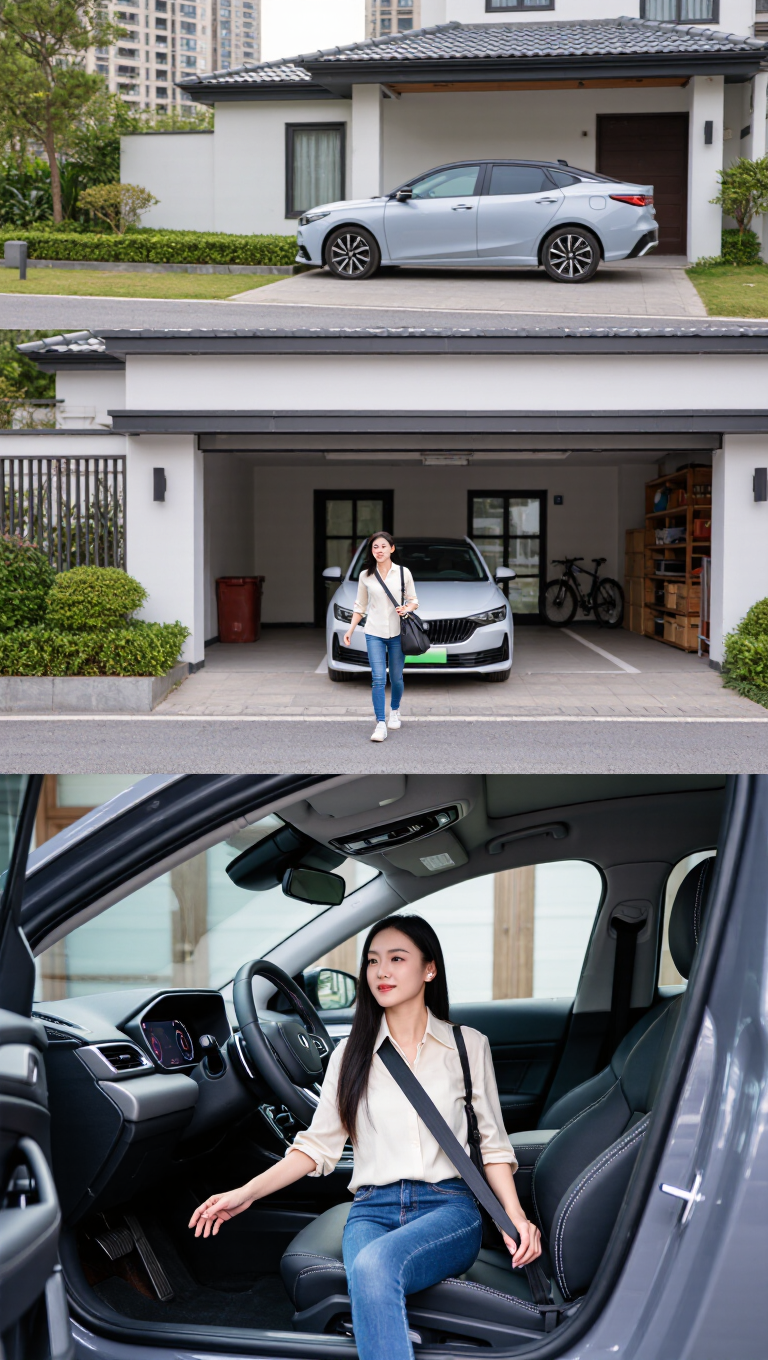
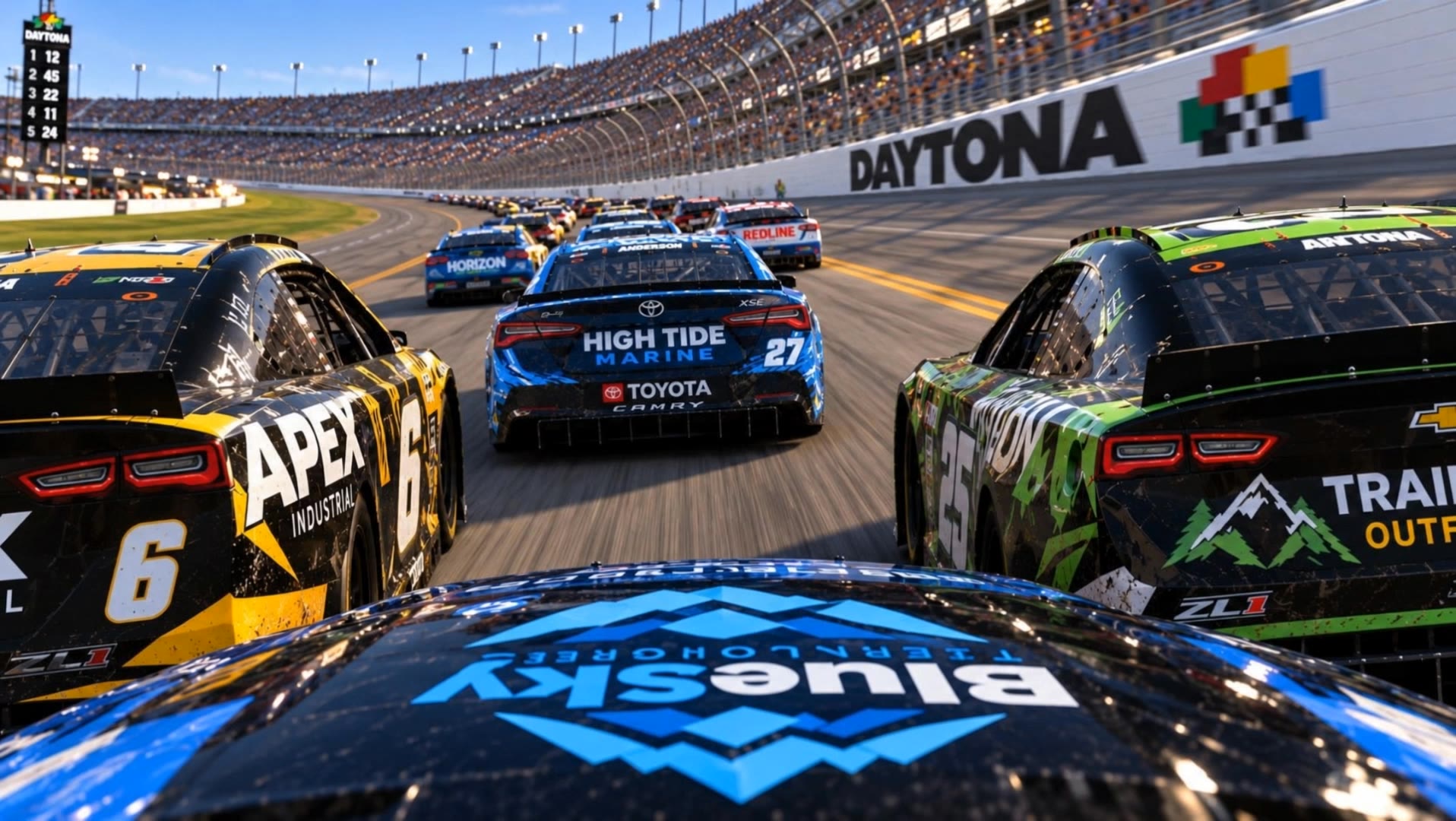
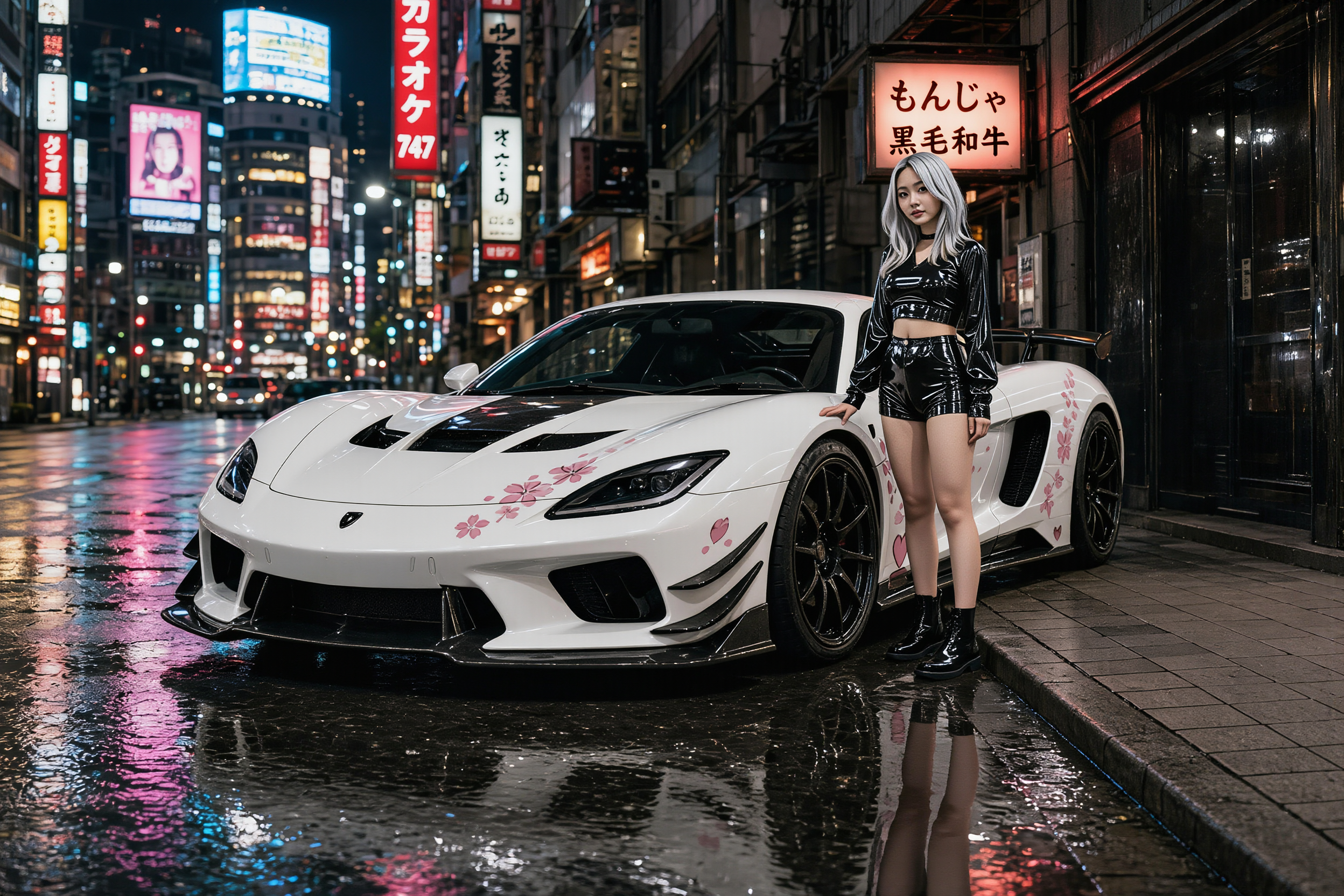
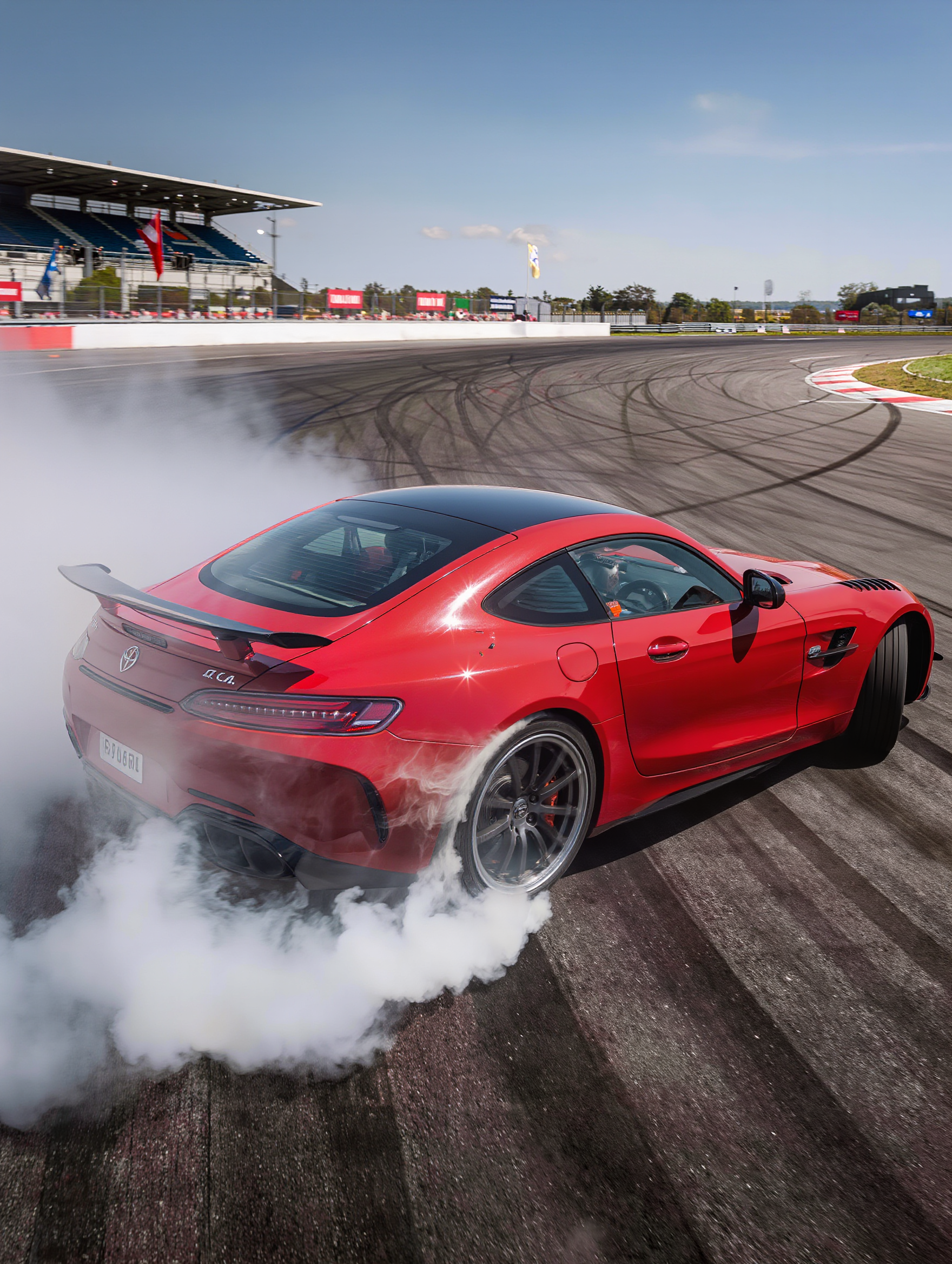
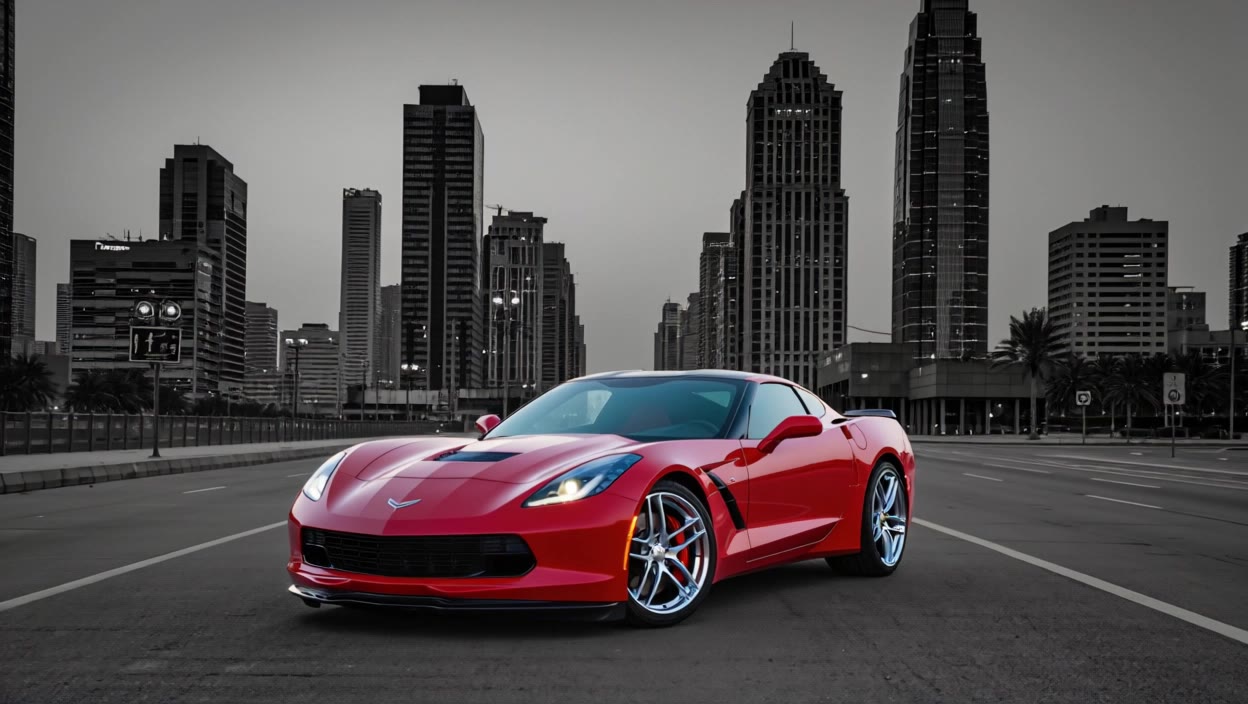
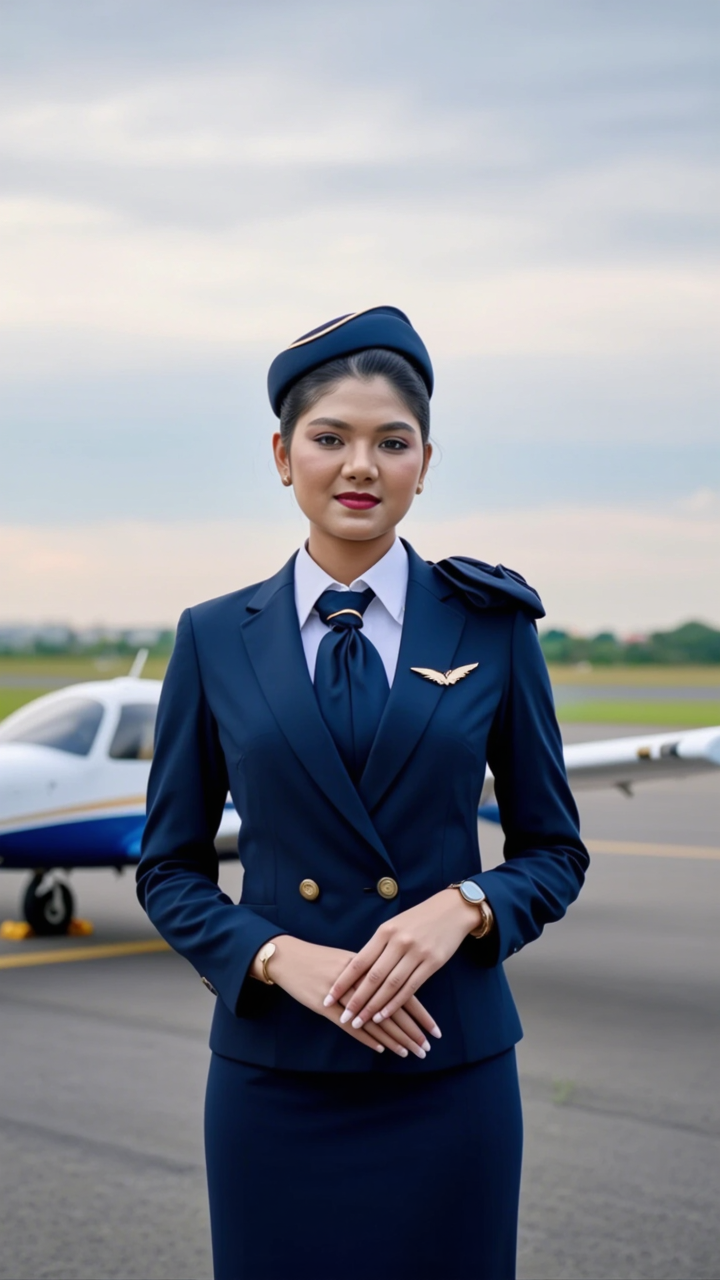
Witness the intense, realistic drift of a modified sports car driven by a skilled Vietnamese woman, and immerse in the futuristic allure of a high-speed city race. Start exploring step 2 pushing car ideas and generate your own content with AI.
step 2 pushing car - car transformation & car disassembly

Recommended

Kling AI work 317860653520285 - step 2 pushing car AI video
Tony Anderson avatar
Tony Anderson
EVOLUTION CAR - step 2 pushing car AI video
hyctCYGq avatar
hyctCYGq
Car Ad - step 2 pushing car AI video
mediaLab avatar
mediaLab
Police chasing your car - step 2 pushing car AI video
Hjukuqhy avatar
Hjukuqhy
Kling AI work 300945230531700 - step 2 pushing car AI image
rjOmIccJ avatar
rjOmIccJ
A sports car in motion. - step 2 pushing car AI video
Creator DV avatar
Creator DV
a car spinning itself - step 2 pushing car AI video
LJWYdbgG avatar
LJWYdbgG
Biomechanical futuristic car 2 - step 2 pushing car AI video
DeCat2025 avatar
DeCat2025
Red sports car - step 2 pushing car AI video
Creator DV avatar
Creator DV
Kling AI work 319778955618028 - step 2 pushing car AI video
OEmEiTyE avatar
OEmEiTyE
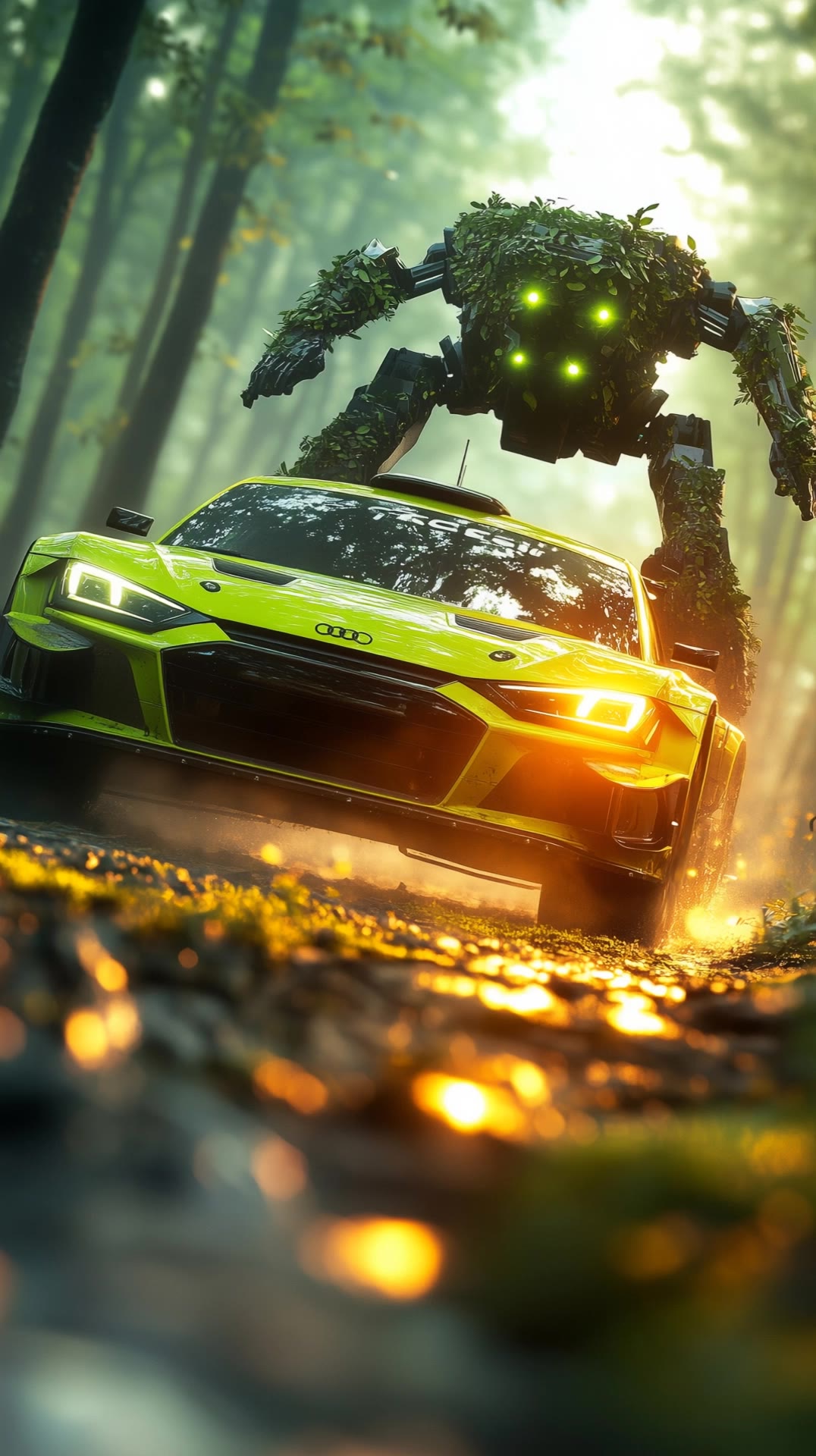
Forest Chase with a Giant Mech - step 2 pushing car AI video
Roman avatar
Roman
Elite Creator
adndizayn sport car design - step 2 pushing car AI video
KLING3332 avatar
KLING3332
Car - step 2 pushing car AI video
Viktor_Fox avatar
Viktor_Fox
Classic Car & Concept Car - step 2 pushing car AI video
KLING5921 avatar
KLING5921
Rally car speeding - step 2 pushing car AI video
XlbVLMQM avatar
XlbVLMQM
Porsche 2 - step 2 pushing car AI video
Deniz Akkabak avatar
Deniz Akkabak
Creative Partner
Car smoke - step 2 pushing car AI video
PSgQcHyW avatar
PSgQcHyW
car - step 2 pushing car AI video
ZTZivjvM avatar
ZTZivjvM
Cranking car  - step 2 pushing car AI video
Cold Start avatar
Cold Start

How to Use Kling AI Text to Speech

Step 1: Enter the Video Generation Workspace

Step 1: Enter the Video Generation Workspace

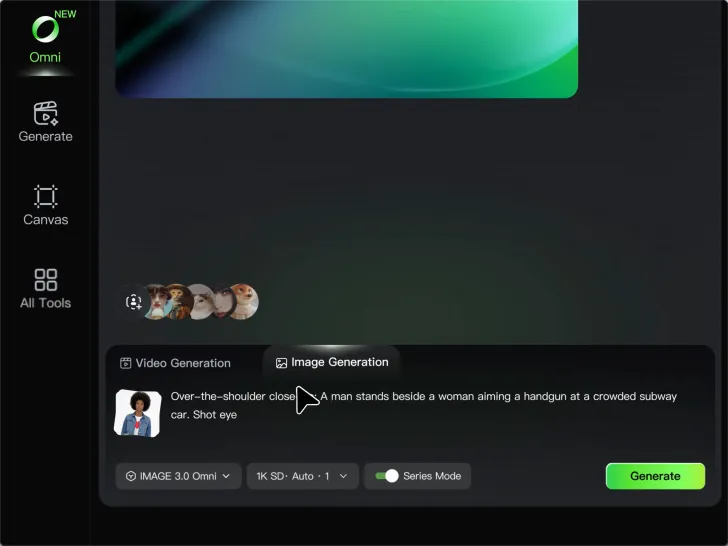
Edit your prompt to set the scene, characters, and style, or upload a reference image to shape the look of your video.

Step 2: Add Dialogue and Speech Instructions

Step 2: Add Dialogue and Speech Instructions

Add dialogue to your prompt and clearly specify which character speaks each line. You can also describe the language or dialect, speaking pace, tone, and delivery style in the prompt to guide how each character sounds.

Step 3: Choose Your Settings and Generate

Step 3: Choose Your Settings and Generate

Choose your resolution (720p, 1080p, or 4K), video length (3–15 seconds), and aspect ratio (16:9, 9:16, or 1:1). Then click Generate to create your video.

Make Avatars Perform, Not Just Speak

More Choice, Without Losing Consistency

More Choice, Without Losing Consistency

Start with a preset avatar, select a character from your Kling AI Assets, upload an image of your own, or create someone new with AI Image. Use a polished presenter for a product demo, a creator-style host for an ad, or a more stylized character when the idea calls for it. For recurring content, save the character with the voice and performance settings you use most. The same on-screen identity is ready for the next script, without putting the setup together again.

Give Each Script the Right Delivery

Give Each Script the Right Delivery

Use a finished voiceover when the delivery is already in place, or start with written copy and choose a text-to-speech voice. Adjust the pace and emotional tone so a product pitch feels confident, a lesson stays clear, and social content can take on more energy. You can write your own performance direction or use one of Kling AI’s suggestions for the selected character. The same avatar can also deliver content in English, Chinese, Japanese, or Korean while keeping a familiar appearance on screen.

Let Movement Carry the Message

Let Movement Carry the Message

Natural lip sync is only part of the performance. An avatar can point to a product, handle an object, gesture through an explanation, react to the words, or move with the rhythm of a song. Avatar 2.0 improves hand stability and overall action quality, so the movement supports the scene instead of drawing attention away from it. Voice, expression, and body language come together as one performance—not a still image with audio layered over it.

Apps

Image to Video
Image to Video

Image to Video

Text to Video
Text to Video

Text to Video

Omni
Omni

Omni

Digital Human
Digital Human

Digital Human

Restyle
Restyle

Restyle

Text to Image
Text to Image

Text to Image

60M+
60M+
Users
600M+
600M+
AI Videos Generated
4.7 ★
4.7 ★
App Store
Industry-Leading
Industry-Leading
Cinematic 4K

Reviews

Déborah

Déborah

★★★★★

I use Kling AI every day. It's amazing to see the almost daily progress it makes. I used AI for fun at first, and I now find that Kling AI's animations allow me to gain professional visibility, with three times more views on my animated posts than on my static posts.
PJ Ace

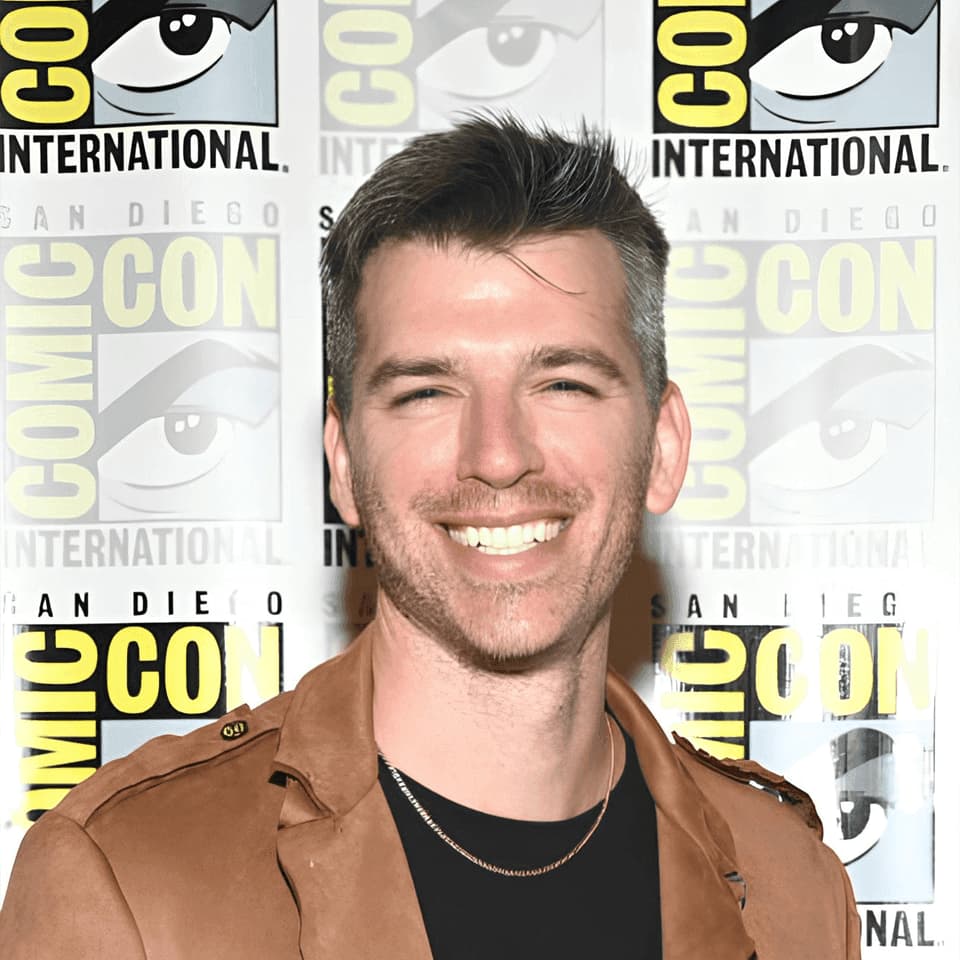
PJ Ace

★★★★★

Kling AI has made it easy for us to generate world class visuals for Fortune 500 companies, TV shows and music for big artists. We love the easy of use of the platform and the quality of the generations. My first time using Kling AI, I got 22 million views on just one video. It's that good.
Ozan Sihay

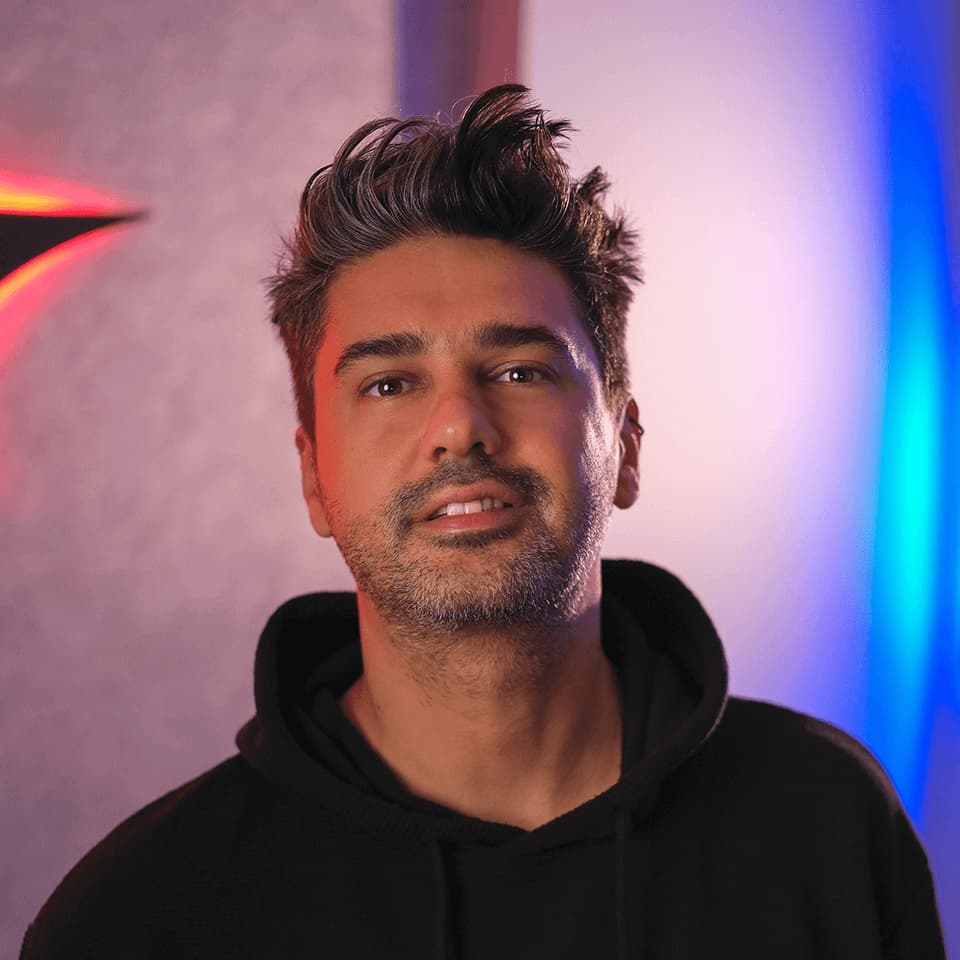
Ozan Sihay

★★★★★

Kling AI allows me to rapidly prototype ideas, refine storytelling elements, and produce visually compelling content efficiently. It has not only accelerated my creative processes, but also deepened my understanding of how AI can enrich visual storytelling.

FAQ

Q1How does Kling AI text-to-image work?
Q2What is text-to-image AI?
Q3Can I use Kling AI-generated images commercially?

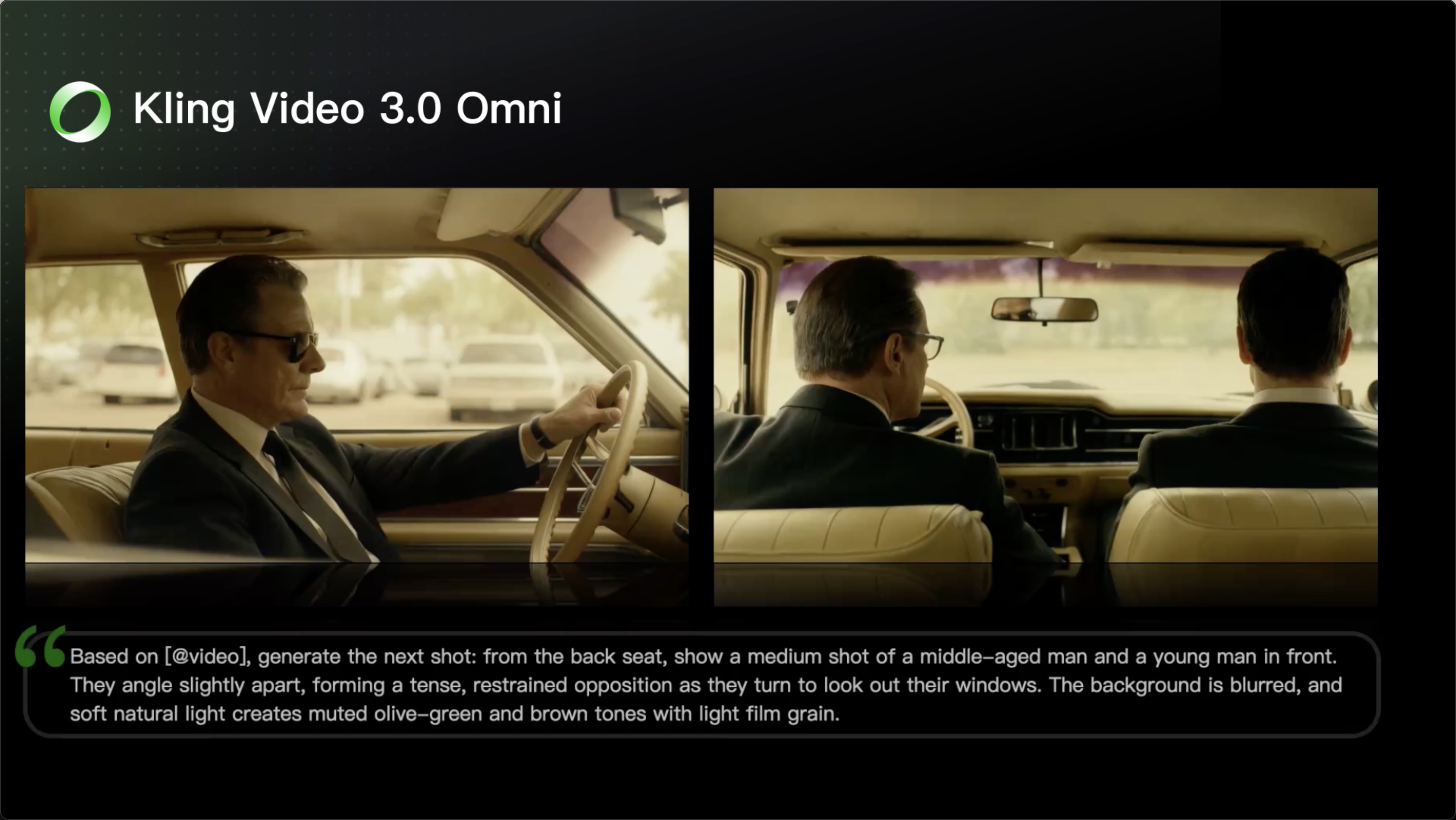
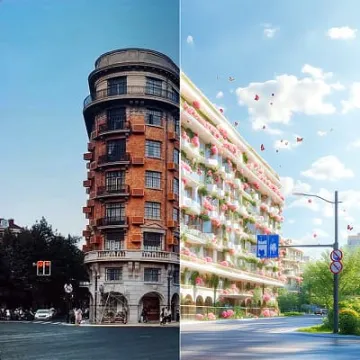
Change the Shot Without Reshooting It

Upload your footage, describe the result, and let Kling rebuild the scene around your direction.

Free tier available | Simple prompt editing | Up to 4K output | Fast generation